
Microsoft has recently released a new version of Windows Live Photo Gallery. In keeping with Microsoft’s plan to kill off the “Live” branding, it is now simply known as “Photo Gallery”, and the suite of software utilities is now known as Windows Essentials, rather than the old name of Windows Live Essentials.
Since this is a step change in the software (it’s now at version 16.4.3503.728, while the last version of Windows Live Photo Gallery was 15.4.3538.513), I thought I’d take another look at it.
Apart from the name change, not much seems to have been done with the product. Yes, Microsoft has added in the possibility to publish videos to the Vimeo service and Photo Gallery now includes an Auto-Collage feature by default (this was a downloadable plug-in for the previous version), but that’s about it.
However, while playing around with it, I discovered there was an issue with the way in which Photo Gallery was handling geotags.
Some of you may recall that, when it was first released in 2010, Windows Live Photo Gallery had a major problem with geotags. It was writing out GPS coordinate data into photos that was often completely wrong. Microsoft got this fixed in December 2010.
And there the matter rested, or so I thought.
However, I have discovered another issue related to geotags in Photo Gallery. For a long time now, Microsoft has said that it holds to the principle that “the truth is in the file”. That means that metadata you apply to your photos is part of the photo, and available to any application that knows how to read it. But I’ve found that this does not apply to geotags in all cases. Photo Gallery looks to see if the image contains metadata, and if so, the following operations occur:
- If the photo contains Keywords in its metadata, these are added to PG’s list of Descriptive Tags, which it holds in its database and displayed alongside the photo in PG’s information pane.
- If the photo contains technical data in Exif (e.g. date taken, shutter and ISO speeds, etc.), these will be copied to PG’s database and displayed in PG’s information pane.
- If the photo contains GPS coordinates in its metadata when it’s examined by PG, reverse geocoding will be triggered and the location is displayed as text addresses in the information pane.
The screenshot below shows a photo taken with my Nokia Lumia 800 Windows Phone being displayed in Photo Gallery (click for the full-sized image).
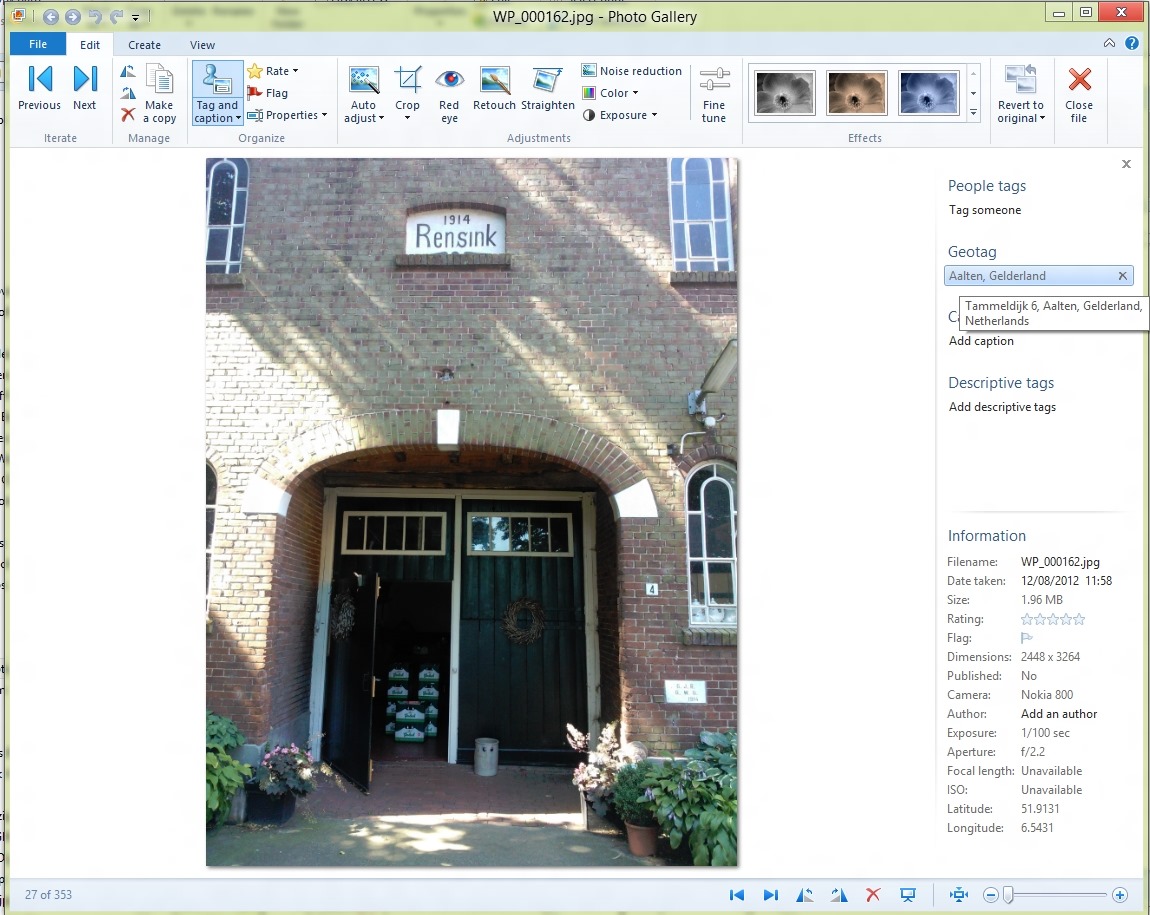
In the information pane on the right, you can see some of the metadata present in the image being shown, including the GPS Latitude and Longitude (at the bottom right). Photo Gallery has used this GPS data to do reverse geocoding via a Bing service to resolve the coordinates to an address. That is being shown under the Geotag heading in the information pane. By default, only the City and Province/State data is shown (i.e. Aalten, Gelderland in this case). The full address is shown in a tooltip if the mouse cursor is placed over the Geotag – in this case, Bing has said that the GPS data is for the location: Tammeldijk 6, Aalten, Gelderland, Netherlands.
As an aside, Bing has actually got the address wrong. It should be Tammeldijk 4, not 6. Google Maps will show the correct address, if fed these GPS coordinates…
So, Photo Gallery has just generated some location data based on the GPS coordinates. Now the question is, how is it going to stay with the principle of “the truth is in the file”? It needs to write this generated data out into the image metadata in some fashion. How will it do this, and what standard will it use? I need to make a short digression here into the murky waters of industry standards…
One very common industry standard for location (and other) metadata used in photos is that defined by the International Press and Telecommunications Council. Back in the early 1990s, the IPTC defined a standard for image metadata: IPTC-IIM. This became widely adopted and supported in many software tools and applications. However, it had design limitations, and the IPTC introduced a new version in 2005, based on the XMP standard, known as IPTC Core. Many software tools and applications handle both standards, and keep the metadata content synchronised between the legacy IIM and the new Core standards. Along with the Core standard, the IPTC also published a set of extensions, known, unsurprisingly, as Extension. The IPTC Core and Extension are published together as the IPTC Photo Metadata Standards.
Both IPTC-IIM and IPTC Core contain fields for defining locations. Essentially, both define a hierarchy of (sub)location, city, state/province, country and country code. I, like many other photographers, use these fields for assigning locations to my photographs.
However, somewhere along the line, photographers realised that the term “location” was ambiguous. Did it refer to where the photograph was taken, or did it refer to the location depicted in the photograph? These were not necessarily the same place. The standards did not specify a resolution to this conundrum. That is why, in the IPTC Extension standard, there are two sets of location fields: the location where the photograph was created, and the location depicted in the image.
Clearly, the GPS coordinates reflect the location where the photograph was created, and Microsoft elected to use the IPTC Extension LocationCreated fields to store the results of the reverse geocoding lookup. The correct decision, in my opinion.
Back in 2010 when I found that false GPS coordinates were being written out to my photos, what was happening was that Windows Live Photo Gallery was doing the following:
- If a file contained IPTC-IIM or Core location metadata when it was brought into WLPG, then WLPG used the IPTC Location data to set the location strings in the geotag field of the info pane, and wrote them out into the image metadata as IPTC LocationCreated fields.
- If the file did not contain GPS coordinates, WLPG would attempt to use the Location metadata with a Bing lookup to get the closest match for the GPS coordinates. In many cases, “the closest match” was miles away, or even in another country…
- WLPG would then write out its idea of the “correct” GPS coordinates into the Exif metadata of the image.
I, and other photographers, who had been using IPTC-IIM/Core location metadata, suddenly found our photo collections filled with false GPS coordinates. We complained, and Microsoft responded and changed the way in which WLPG worked. Microsoft told me the changes were:
- GPS coordinates on a file are read-only inside of WLPG. WLPG will never add, change or delete the GPS coordinates.
- If a file contains GPS coordinates when it’s brought in to WLPG, reverse geocoding will be triggered and location strings are displayed in the info pane, users can rename or remove the strings but GPS coordinates won’t be touched. Users may Rename a location but it will then leave a mismatch between the coordinates and the string since the coordinates are read-only.
- If a file does not contain GPS coordinates, users will be able to geotag by adding a string (that gets validated against Bing as it does today) but no GPS coordinates are added to the file. The user can remove the string or rename it.
- If the file contains a geo name only, there will be no GPS coordinates calculated for it.
What I now see that I missed at the time is that WLPG, and now PG, no longer write out the result of a reverse geocode lookup into the IPTC Extension LocationCreated fields when the lookup is triggered by the presence of GPS coordinates in the image.
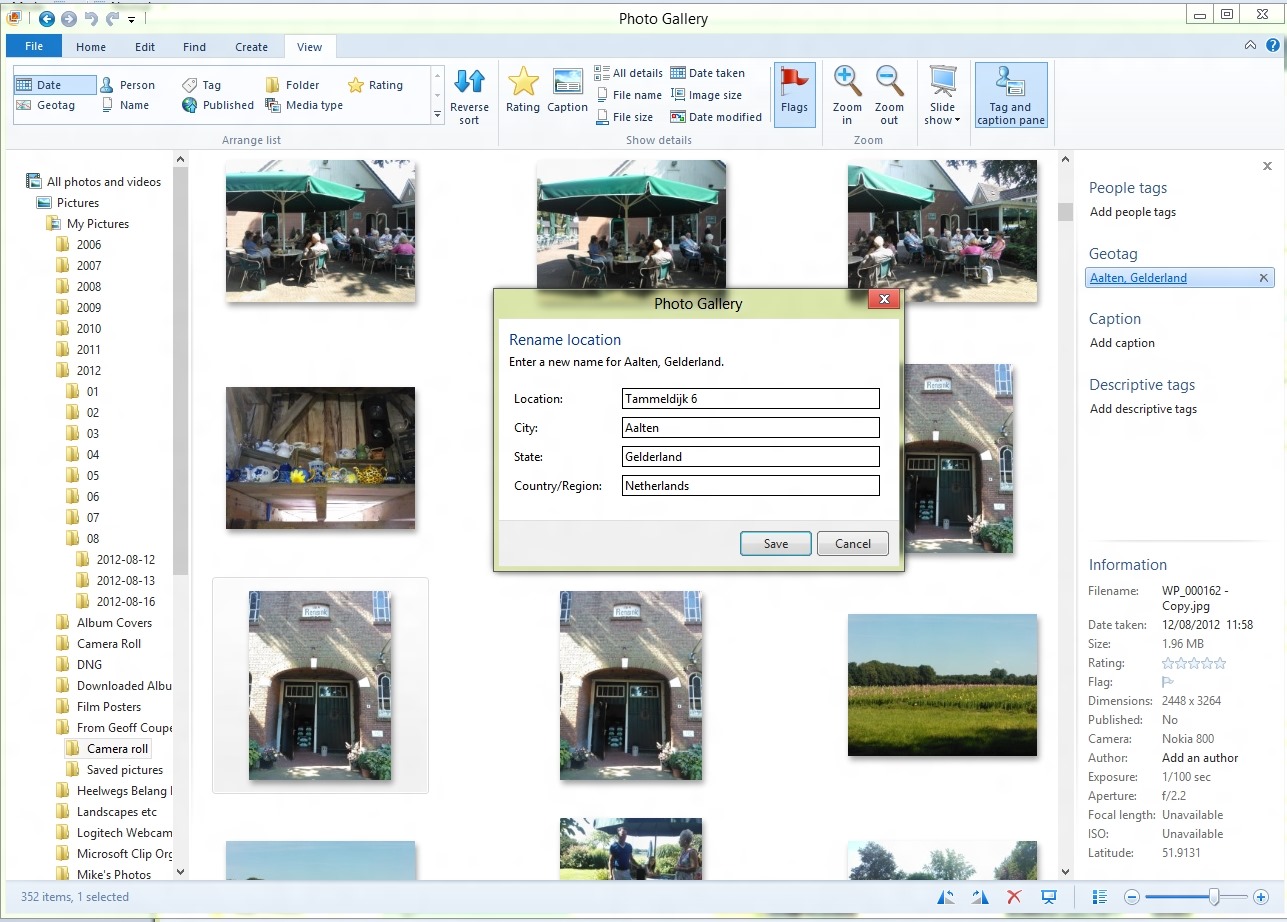
The only time that LocationCreated metadata gets written out into the image is when the user makes an explicit change to the geotag information in PG. And it has to be a real change. I can open up the “rename location” panel, and click “Save”, but unless I’ve actually made a change in the data, nothing gets written out as metadata – the geotag information resides solely in Photo Gallery’s local database. In other words, the truth is no longer in the file.
This screenshot shows the “rename location” panel. Clicking “save” does not make Photo Gallery write out the metadata, because I’ve left the contents unchanged.
In this screenshot, I’ve changed “Tammeldijk 6” to “Tammeldijk 4”, and now when I clicked “Save”, the LocationCreated metadata was written out.
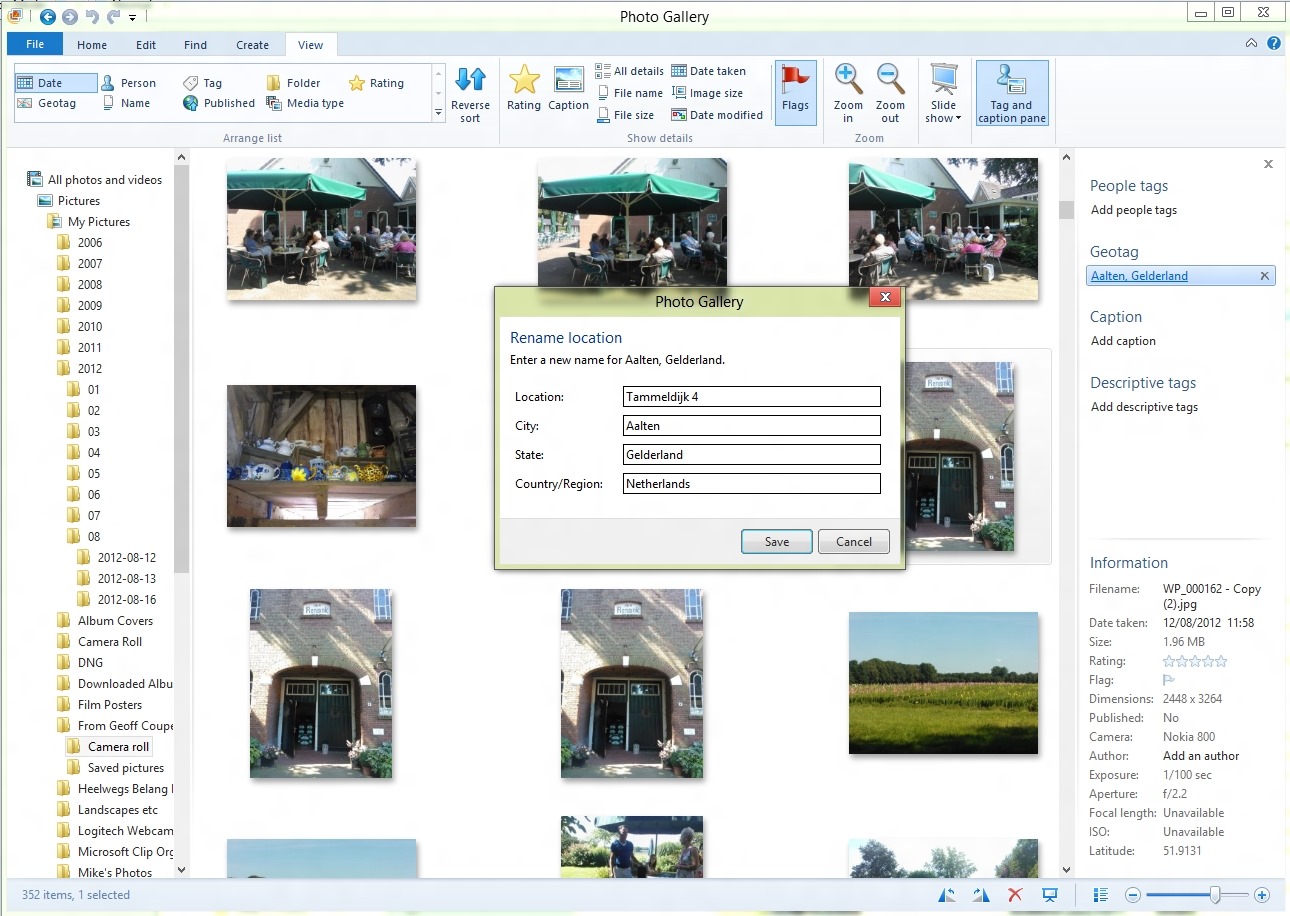
This strikes me as a bit counter-intuitive. I would think that clicking “Save” in both cases should force a write of metadata. After all, if Microsoft is going to say that writing out of metadata should be under the explicit control of the user (which I tend to agree with), then even if I don’t change the result of the reverse lookup, I should be able to confirm my acceptance of it by the act of clicking “Save”. If I don’t want PG to write out the metadata, then I would click “Cancel” instead.
So we currently have here a design where “the truth is in the file” is not fully in place, and where user confirmation is inconsistent.
That’s poor design, and a poor user experience, in my book.
I have to say that in one way, I’m rather thankful that the design is still broken. That’s because one of the other bugs in Photo Gallery is still present: it corrupts Canon Makernotes data when it writes out metadata to images. Just imagine: Photo Gallery would be finding location data or GPS coordinates in my photos and writing out LocationCreated metadata to those images. And in doing so, it would be merrily corrupting the Makernotes metadata in every single one of those images. Shudder.


 Geoff Coupe's Blog
Leave a comment