
I’ve written before about the issues I’ve had with the “Play to” function in Windows 8. Paul Thurrott wrote an article yesterday: The Sad Tale of Play To and Windows 8, with much the same conclusions. It is worth reading the comment by John Galt after the Thurrott article. He lists a number of shortcomings in the media “features” that Microsoft have implemented in Windows 8, any one of which has me tearing my hair out.
For example, the Music App
- has a tendency to play advertisements even when you’re playing your own music.
- has no support for open audio codecs such as FLAC, and no apparent way to add such support
- constantly forgets the contents of my music library, and has to rebuild the index from scratch practically every time I fire it up.
- has no support for accessing media stored on NAS devices
- has no support for Microsoft’s own eHome remote control standard (used by Windows Media Center since 2001)
- has no support for acting as a “Play to” target, i.e. as a Digital Media Renderer.
Issues 4, 5, and 6 are also common to the other Microsoft-supplied Media Apps, i.e. the Video App and the Photos App.
One wonders how Microsoft can be so dismal in delivering products that should delight, and not disappoint in so many ways.
Addendum: here’s a secondary rant about the Music App, triggered by a comment below.
Navigation in the Music App is really badly thought out.
Take the Album view, for example. Choose it, and you’ll see a list of your albums.
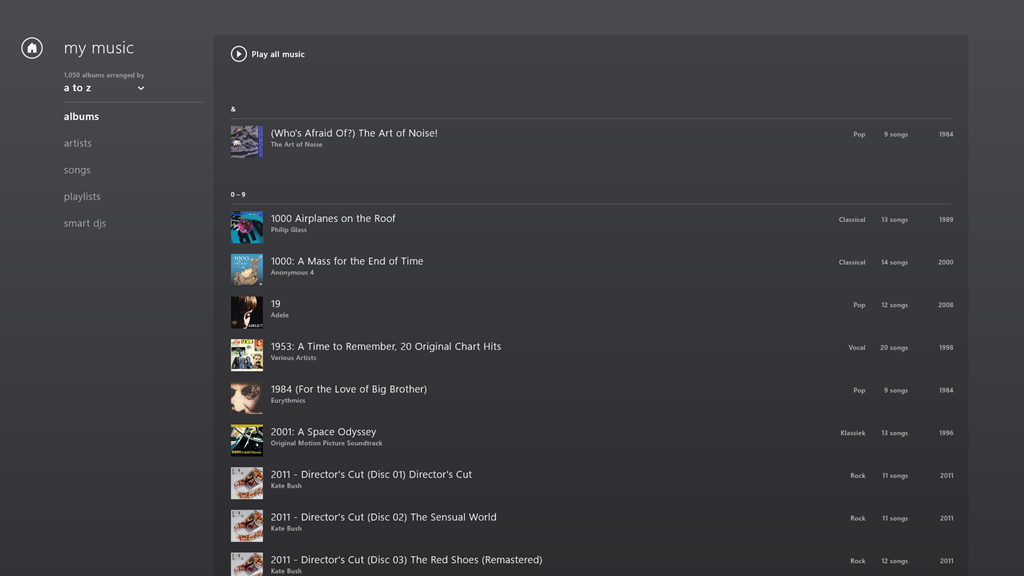
The question is, how do you rapidly navigate through the list? The answer is: you can’t. You have to manually scroll up and down, using either your mouse or your finger. Since I have over 1,000 albums in my library, this gets very tiresome, very quickly.
The answer that Windows Media Center came up with in 2001 is that pressing a character on your keyboard will cause the display to jump to that position in the list. So pressing “m” for example, will immediately skip the display to the start of the list of albums beginning with “m”.
But the keyboard is dead in the Music App’s list displays… You can only scroll up or down.
What I find really irritating is that the developers of this App have also learned nothing from Apps built for Windows Phone. Here, there is support in the operating system itself for viewing lists at two levels of zoom. You can see a view at the level of the alphabet (a,b,c, etc.), and by touching a letter, you instantly zoom into the detailed list at that level.
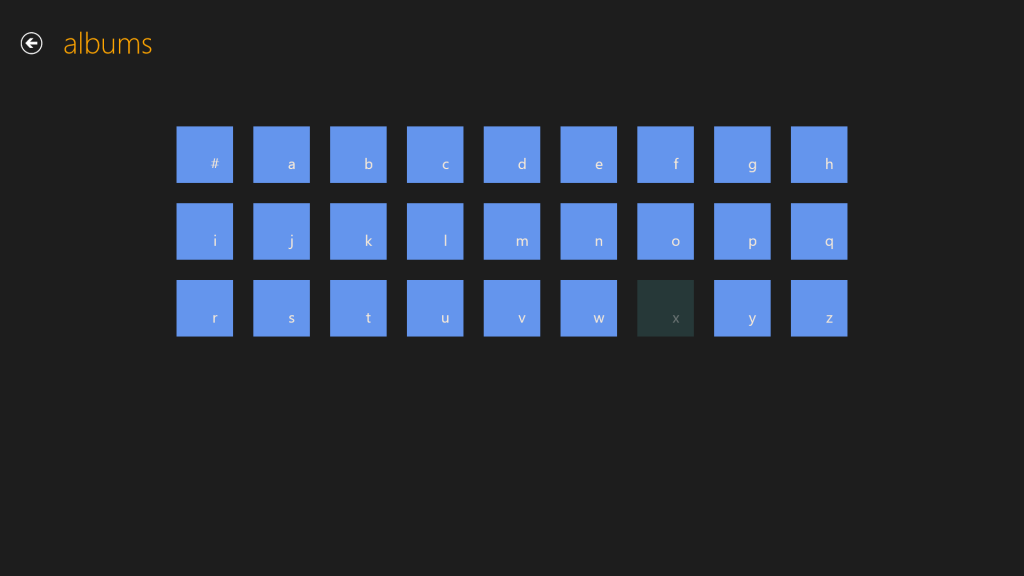
This can be done for Windows 8 applications as well. Here for example, is the Media Center Remote app built by Brad Mauk, and available for both Windows Phone and Windows 8. These are screenshots taken from the Windows 8 App. On entering the Albums view, you are presented with the zoomed-out view of your library:
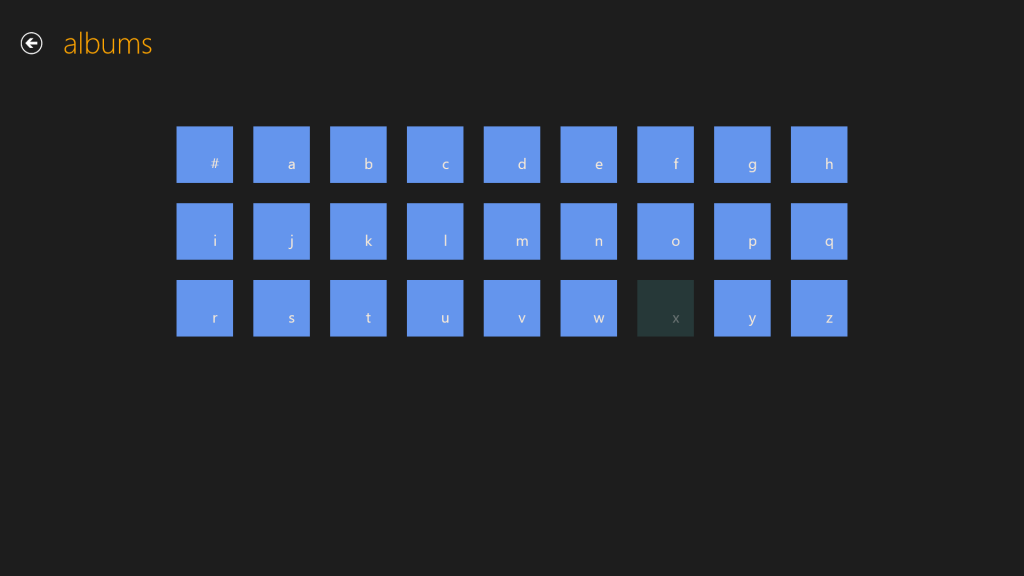
Notice that “x” is dimmed – this immediately tells me that I have no albums with titles beginning with “X” in my library. Now, it is true that in this App, in this view, the keyboard is also not active. So I can’t type a character on my keyboard and jump to that part of my library. However, and crucially, I can use either my mouse or Touch to choose one of the characters on this screen to jump into my library. Let’s click (or Touch) “l”:
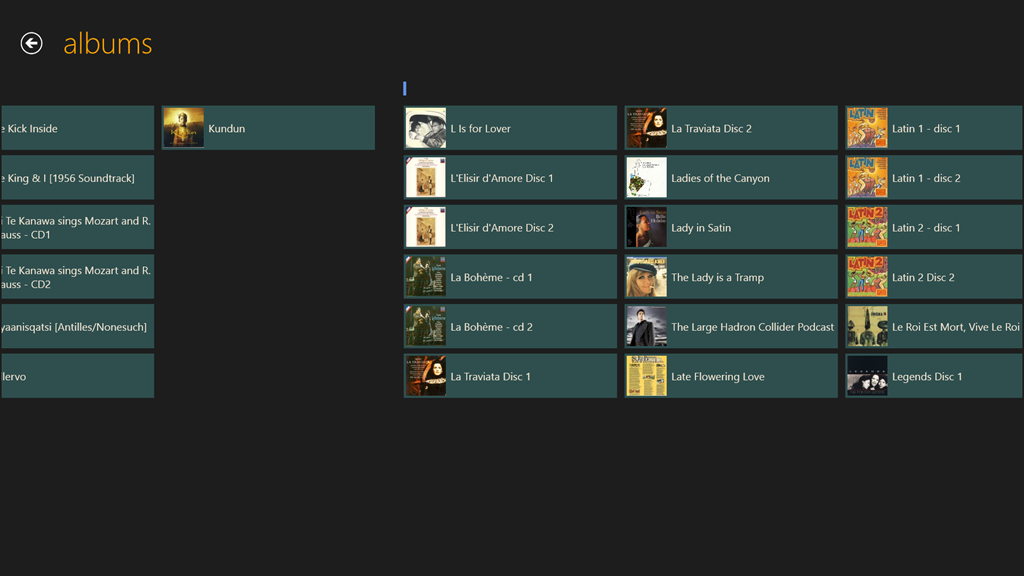
Instantly, I’m there. If I want to return to the high-level view, I can either click the “-“ icon that appears with the horizontal scrollbar when I mouse down:
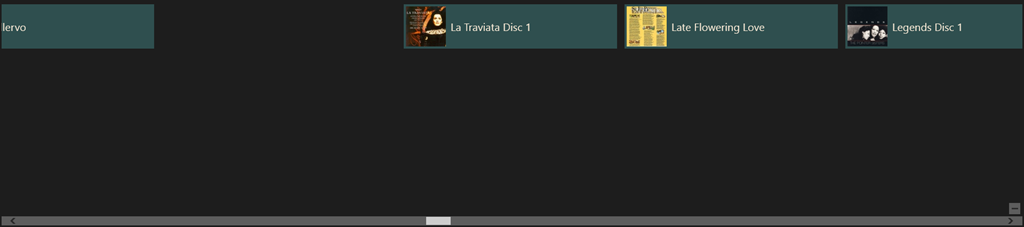
…or, if I’m using Touch, I simply use the “pinch” gesture on the screen to return to the alphabetic list of the high-level view:
Navigation within my library is easy with this App, and I happily use it to control my Windows Media Center.
The developers of Microsoft’s Music App should take note. What they have produced thus far is abysmal.
Update 26th March 2013
Today, the Music App has received an update. I’m very pleased to see that Microsoft has at last incorporated a “zoom” function to make navigation in a large library more practical. It’s implemented slightly differently from the “Windows Phone” approach taken by the Media Center Remote App described above.
In the new version of Music App, the contents of the various views (Albums, Artists, Songs, Playlists etc.) are separated alphabet headings, when listed in alphabetical order. Here you can see the start of the list of my albums:
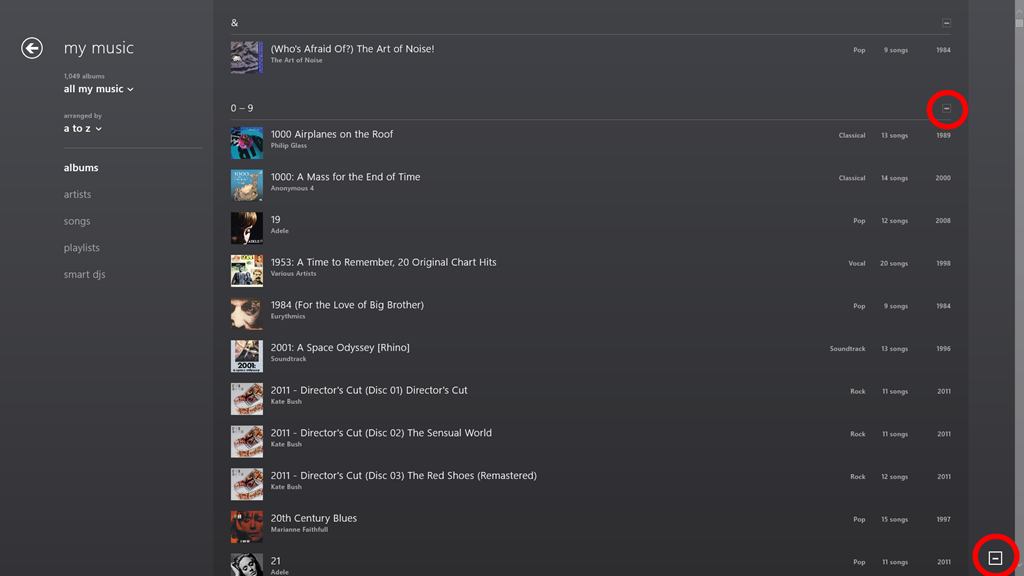
Note the icons that I’ve circled in red. When clicked (or touched), the view zooms out to the alphabetic sections only:
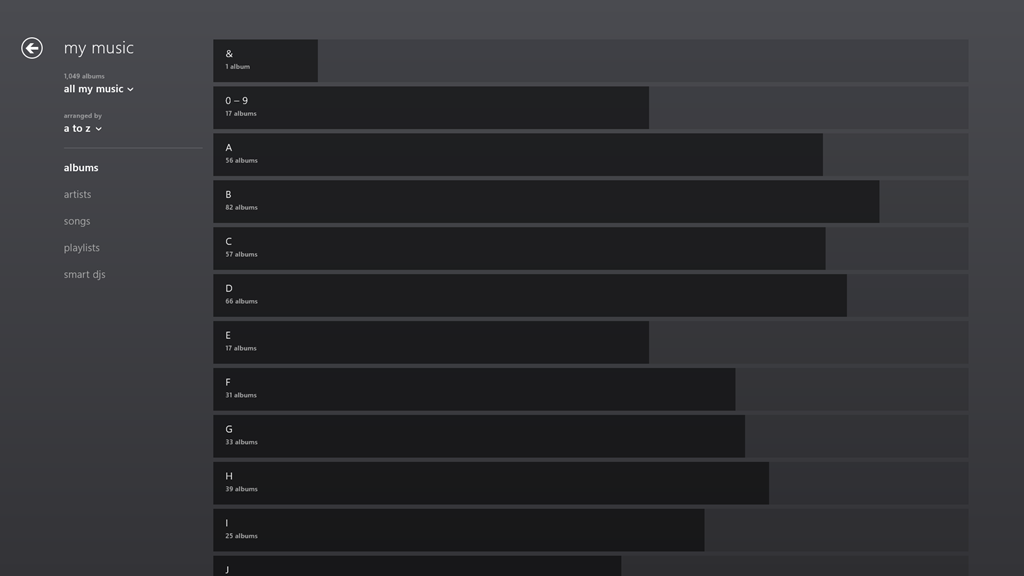
One rather nice touch is that the length of the bars represents the number of albums in that section as a proportion of the highest section total. If there are no albums in a particular section, then – unlike the Windows Phone convention, where the section is dimmed – here it is dropped altogether. For example, there is no entry for “X”, since I have no albums that begin with “X”:
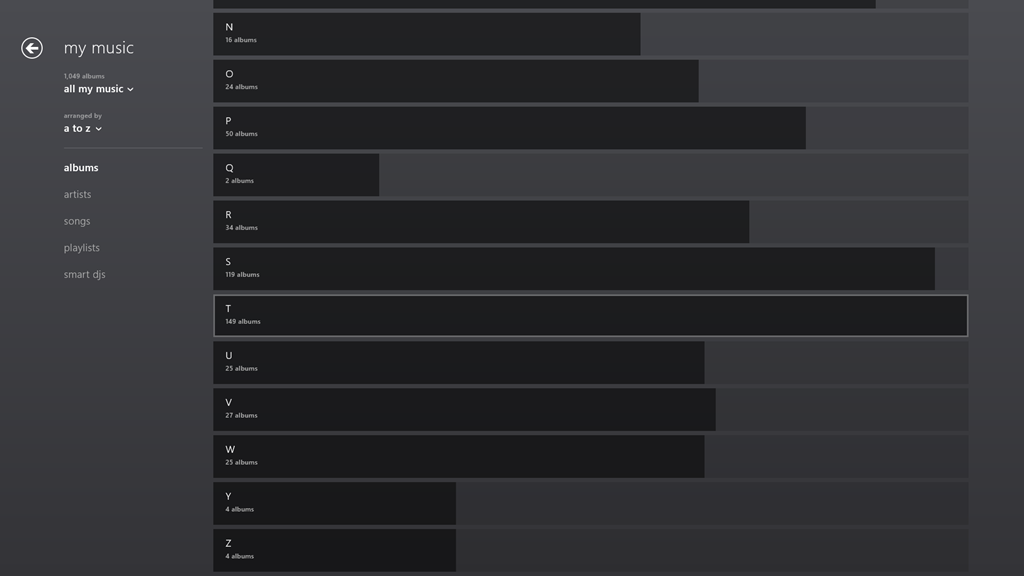
Clicking, or touching, anywhere along the dark/light grey bar of a section will zoom back into the library to the point represented by the section heading. In the screenshot above, I have moved my mouse over the “T” section, which is why it has become highlighted (the touch interface does not use this highlighting prompt). Left-clicking (or touching) jumps me back into the list of individual albums, starting with those beginning with “T”:
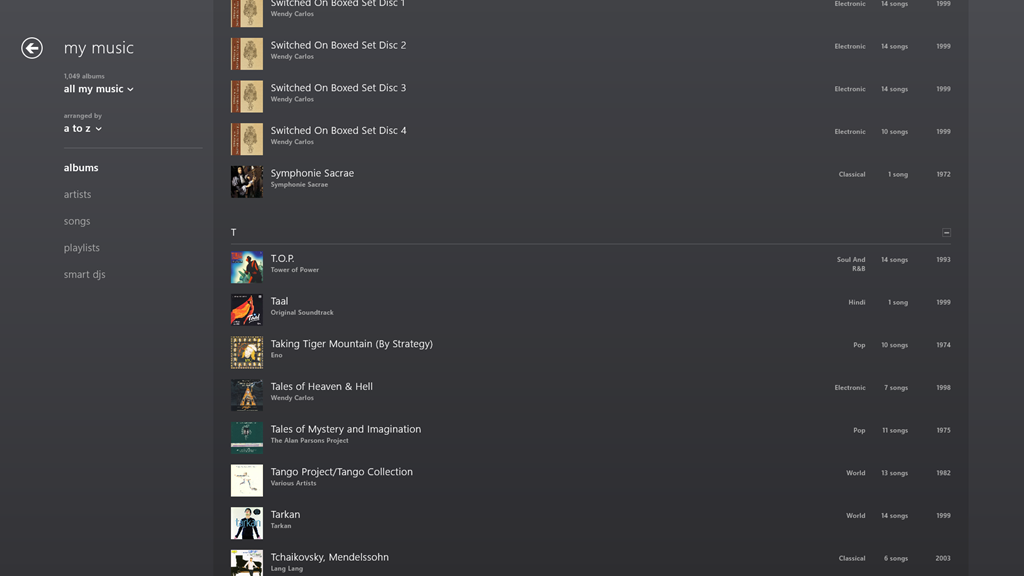
You’ll notice that the “T” section contains the highest total number of albums. That’s because the Music App – unlike Windows Media Center – has not the intelligence to ignore words like “The” or “A” in an album title. It’s a small point, but it’s evidence that teams in Microsoft often don’t appear to build on what went before, but start with a blank sheet of paper. One step forward, two steps back…
In summary, while it’s nice to see that this new version of the Music App has addressed the navigation issue, it still has a long way to go. Of the six issues that I give at the top of this post, only issue 3 seems to have been resolved, the other five issues have yet to be addressed – if indeed they ever will be.
Update 30 March 2013
I’ve been using the Music App to play music stored in my Library, and I’ve got good news and bad news.


 Geoff Coupe's Blog
Leave a comment