
Last month, I mentioned that I was having difficulty with the Xbox Music App installed on one of my systems. It does not see my music collection, and claims that there’s no music on the PC. A couple of days ago, there was an update of the Xbox Music App from Microsoft, so I wondered if that might have fixed the problem.
The answer is no; the problem is still there.
I currently have three instances of the Xbox Music App: one (version 1.4.18.0) is running on Windows 8, and two (version 2.1.15.0 – the latest update) are running on Windows 8.1 Previews. Two out of the three are working as expected, but one of the 2.1.15.0 versions is not: it absolutely refuses to see the contents of my Music Library.
I’ve uninstalled/reinstalled the App several times, and wiped out the folders containing the App data, all to no effect. Here’s what the App told me after the last installation:

“We didn’t find any music on this PC”.
It is displaying a few albums that I have stored in the Cloud, but that’s all. Tapping that message displays the folders that the App is supposed to be watching for music content:
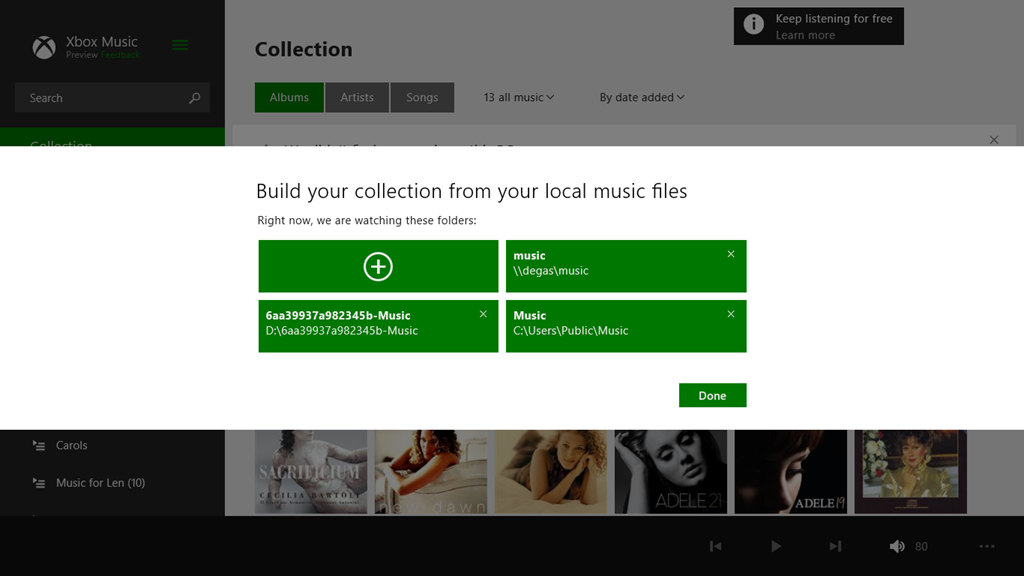
These are the folders included in the Music Library. I tried adding the main music folder for my music collection again, by tapping the “+” symbol, and navigating to the root folder of the music collection (\\degas\music):

However, when I tried to include the folder, I was told (not unexpectedly) that the folder had already been included in the library:
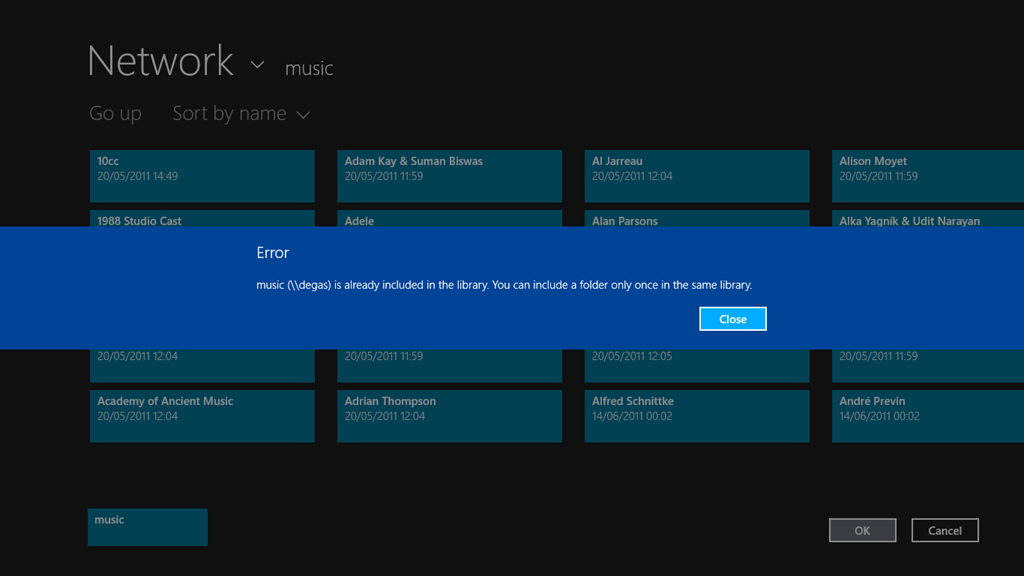
So, Windows 8.1 knows where my music collection is, and so, apparently, does the Xbox Music App. However, the App refuses to do anything with it.
Is this the same for all the locations currently defined for the Music Library? Let’s find out.
Here’s the three locations currently defined for the Music Library on the system with the errant Xbox Music App:
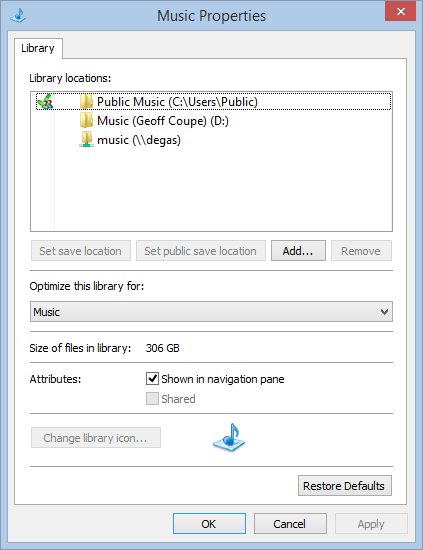
Note that one is a network location (\\degas\music – my main music collection), while the other two are local to the Windows 8.1 system; a location on the C: drive (C:\Users\Public\Music) and a location on the D: drive (called “Music (Geoff Coupe)”, but shown in the Xbox Music App with the user-friendly name of D:\6aa39937a982345b-Music… sigh). That location on the D: drive was set up by Windows 8.1 as the default location for saving music files.
If I paste in a couple of test albums from my music collection to these local folders, then I find that the Xbox Music App will only react to the contents of the folder on the C: drive. It will ignore the contents of the supposedly “default” music folder on the D: drive.
Here’s a screenshot of the Music Library contents:
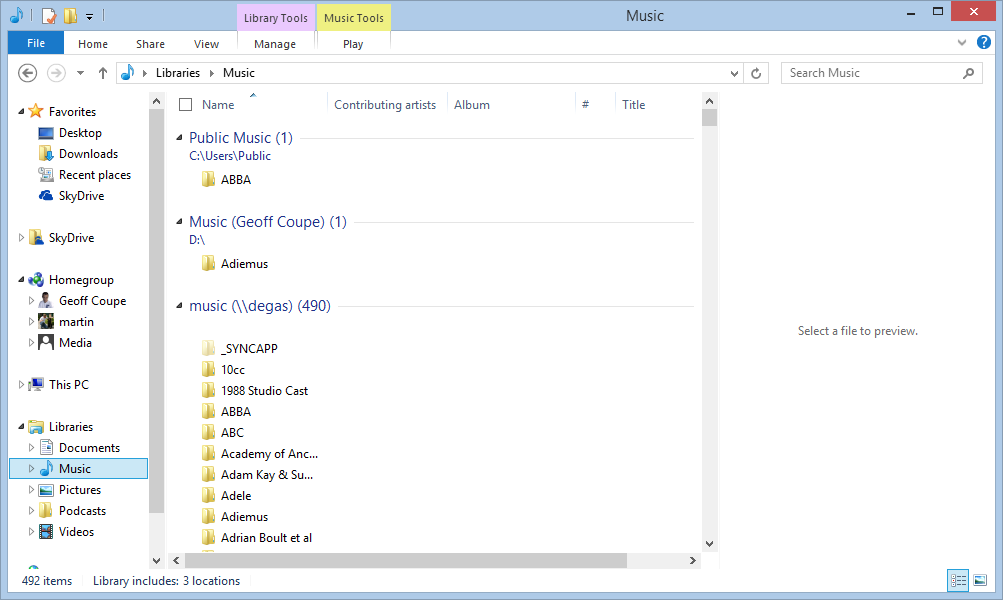
As a test, I’ve copied an ABBA album to the Public Music library on the C: drive, while my default Music Library on the D: drive has an Adiemus album in it. The result in the Xbox Music App is that the ABBA album shows up, but the Adiemus album, along with the rest of my music, does not:
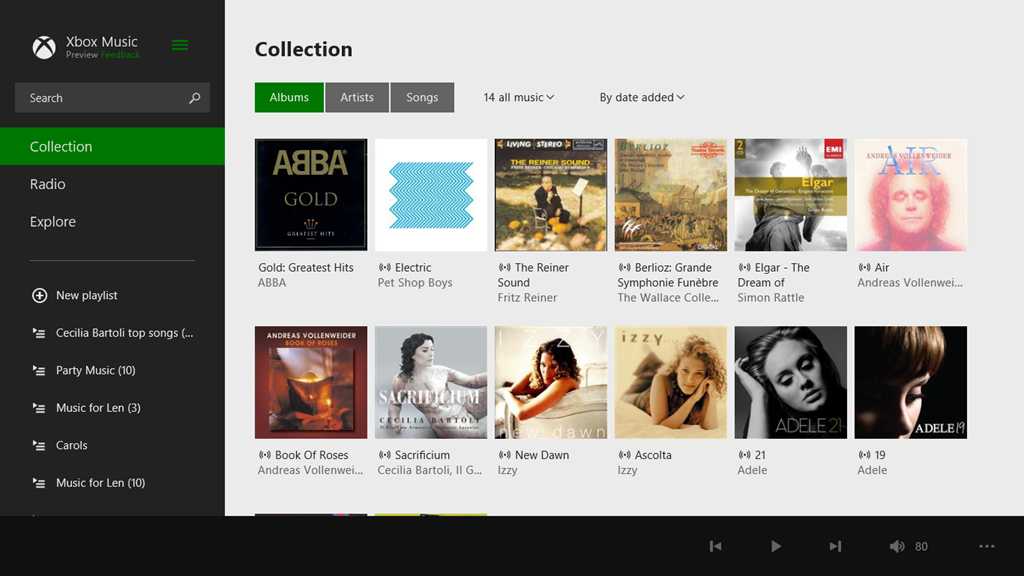
Once again, let me stress that, on this Windows 8.1 system, Libraries are not broken for other third party apps, whether Desktop or Modern UI Apps. However, Microsoft’s own Apps (Xbox Music, Photos and Videos) are a disaster.
I still fear that what we are seeing here is not a bug, but the natural consequences of Microsoft moving away from using Libraries. As they will no doubt proclaim in a month’s time: “it’s not a bug, it’s a feature!”. If so, this is one feature that I can definitely do without.
Update 17th October 2013: I’ve just installed the final release of Windows 8.1 on my tablet, and the Music Library is now being accessed correctly by the Xbox Music App, so it looks as though the issue is now resolved. However, when one issue is resolved, another pops up.
 Geoff Coupe's Blog
Leave a comment