
Back in the distant days of 2009, Microsoft introduced a feature called “Play to” into its new operating system, Windows 7. Play to, so Microsoft claimed:
makes it easy to stream music, video, and photos from your computer to other PCs, TVs, or stereos on your home network. You can stream music from your PC to your home entertainment system or stream slide shows and videos to another computer or to your TV. Just right-click the tracks you want to enjoy, or add them to your Windows Media Player 12 playlist, and click Play To. Now you’re hearing—or watching—what you want, where you want it.
In those early days, it was something of a rocky road to negotiate; there were many bumps along the way. Nevertheless, I was happy with the end result. It worked for what I wanted.
Then along came Windows 8. Once again, in the pre-release versions of Windows 8, there were issues, but these were fixed in the final version of Windows 8. However, while the operating system and the venerable Windows Media Player (unchanged from Windows 7) were working, the (brand-spanking-new-supposedly-fancy-but-really-very limited) Xbox Music App from Microsoft still had a number of shortcomings.
Windows 8 also introduced a new wrinkle into Play to. I discovered that my ancient (5 years old) Denon AVR-3808 was being reported as a “not Windows Certified” device. Whilst I could continue to use it with Windows Media Player, I could not use it at all with any of the new Modern UI Apps, such as Xbox Music. Fortunately, digital mediaphile Barb Bowman came to the rescue and discovered a Registry fix, which allowed non-Windows Certified devices to be used in Modern UI Apps. Subsequent to that, Microsoft’s Gabe Frost supplied a simpler Registry fix to accomplish the same thing.
I used Gabe’s fix, and all seemed fine.
Now we have Windows 8.1 and a much-improved Xbox Music App, and once again I seem to be taking a step back. While Windows Media Player continues to work as usual, Xbox Music is behaving very strangely when I attempt to use the Play to function. Here’s a screenshot of an attempt to use the Denon as a Play to device in Xbox Music (the Denon shows up with the name Network Audio in Windows):
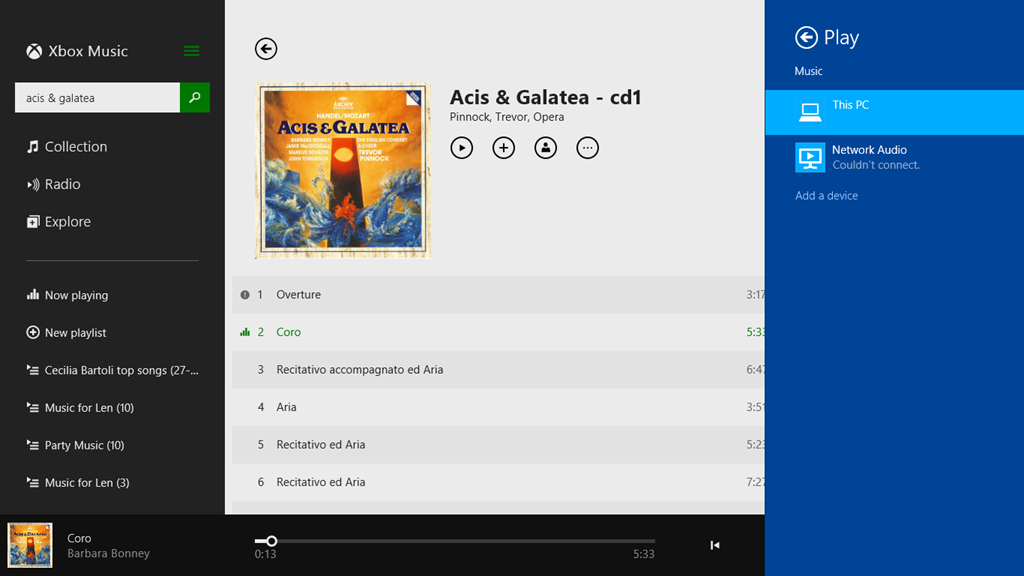
Here, I’ve attempted to stream the first track to the Denon. That has failed, and Windows is telling me that it couldn’t connect to the Network Audio (the Denon), but in fact the second track is actually playing through the Denon. In addition, there’s a small information icon by the first track, click on it and you get:

which is a very odd message, since these tracks are not DRM-protected.
I tried another Modern UI App, Media Monkey, and this seemed to behave much better. Occasionally it would refuse to Play to the Denon when first starting up, but once it got going, it seemed to be much more solid.
So, what’s going on here?
I raised the issue in a thread on one of Microsoft’s Answers forums. Gabe Frost himself responded:
We have not seen this, and do not have this specific Denon model to test with, so would like to get further information from you.
I provided the information he asked for, and very quickly the answer came back, and it’s very interesting.
From the traces, we can see you’re trying to stream a WMA file from the Music app. Since Denon does not support WMA, the file has to be transcoded real-time into LPCM. When a file is transcoded in real-time, no system can know the resulting number of bytes, so in order to support seek, it has to be time-based (we do know the duration). However, Denon also does not support time-based seeking. In Windows 8.1, we introduced a feature that emulates time-based seeking for devices that do not support it. This is really nice in that users can seek their music or videos when they previously could not.
In your case, since the Music app was already playing the song locally for a bit, we are doing “Seek Emulation” to seek the stream to the same position the Music app was last playing at. This involves sending some additional SetAVTransportURI requests to the Denon DMR. We see the Denon DMR reporting an error, “TransportStatus = ERROR_OCCURRED”. Probably this is the result of the additional SetAVTransportURI requests that we send.
That would explain why the bug does not happen when using WMP as the media controller (DMC) in Desktop. With the Desktop controller, we don’t try to seek immediately after starting to play.
Looking at our code, we see that careful tuning was required to work with Denon because they often tend (incorrectly) to report an error when they are no longer in an error state. Denon tends to forget to set TransportStatus back to “OK” when it has received a new URL to play. While we tested with a wide range of devices (including some newer Denon devices) It appears that your Denon device is incompatible with this seek emulation because of the device bugs.
We are investigating potential workarounds and will get back to you via this thread. A fix will take longer, unfortunately.
One slight correction to what Gabe has written; the Denon (and all Denon AVR models, as far as I’m aware) does not support the WMA Lossless format, but they all support standard WMA format. My Denon even came with a Microsoft “PlaysForSure” sticker on it – so it was certified by Microsoft as being able to play standard WMA format!
The issue I’m stuck with is that I have deliberately chosen to store my music collection in WMA Lossless format because it delivers higher-quality playback than standard WMA format. Lossless formats (e.g. WMA Lossless, FLAC) are better than formats that use lossy compression, such as WMA and MP3. The Denon supports FLAC, WMA and MP3, so in an ideal world, I would have chosen FLAC as my archival storage format.
Unfortunately, Microsoft don’t support FLAC. While I can get a third-party FLAC add-on for Windows Media Player, there appears no way to use a third-party add-on for the Xbox Music App. And while I can use Media Monkey to play back FLAC files, in addition to WMA, WMA Lossless and MP3, the Xbox Music App is linked into a music store for purchasing downloads.
I am going to have to think about the way forward for a while…
Addendum: The Xbox Music App has other problems of its own. See Xbox Music App – Metadata Madness
Addendum 2: As of April 8, 2014, Microsoft has released an Update to Windows 8.1 that makes it unnecessary to perform any registry edits to enable a DLNA Digital Media Renderer (DMR) to work with Modern Apps on the Start Screen. Devices will no longer appear as “uncertified” when Play is selected within an individual app (but if not certified will appear as such in the PC and Devices menu).
Addendum 3: Native support for the FLAC format will apparently be coming in Windows 10. Good news, as far as I’m concerned.
Addendum 4: Things will change yet again for Windows 10. First, the “Play to” function has been renamed to “Cast to”. Second, and more importantly, this function will have fundamental changes. It appears as though Microsoft has removed DLNA DMR devices from system-level control (e.g. the Devices item in the Win 8.1 Charms bar), and demoted that function to needing to be controlled on an app-by-app basis.
That’s all very well if app developers actually take account of it. I note that neither of Microsoft’s Music apps (Music or Music Preview) do this, and I also note that the Microsoft spokesperson uses the qualifier “eventually” in the context of support by the Microsoft app. That could mean it will be available on July 29 or it could mean in five years time. That does not give me a warm feeling.
So, in summary, the “Play to” user experience is likely to take a step backwards in Windows 10 as compared to Windows 8/8.1. That’s a tad disappointing.
Addendum 5: Well, Windows 10 has been released (on the 29th July 2015), and as expected Microsoft’s Music app (now called “Groove”) still does not have the “Cast to” function implemented. Sigh.


 Geoff Coupe's Blog
Leave a comment