
I’m doing the old one-step-forwards-two-steps-back shuffle with Microsoft again. This time it’s the latest version of the Xbox Music App that is raising my frustration levels.
Windows 8.1 has arrived with a new version of the Xbox Music App (version 2.2.177.0). While it has improved in certain respects from earlier versions of the App, in one respect it seems to have got a whole lot worse: it does not handle Album Art well at all.
By default, when you add your collection of music albums and tracks to the App, it will query Microsoft’s online metadata service and fill in metadata such as the album name, artists and the cover art of the album (the Album Art) for display within the App. The first thing I had to do when installing the App was to change this default and prevent it from downloading any metadata and writing it into my music collection. I have learned, from bitter experience, that Microsoft’s music metadata is, to put it bluntly, utter crap for the music I listen to. I have spent many hours correcting the errors that Microsoft has injected into my music metadata from earlier incarnations of their music applications. Windows Media Player, Windows Media Center, Zune, Windows Home Server, they’ve all stomped all over my carefully prepared music metadata in their jackboots without so much as a by-your-leave. So when you tell a Microsoft music application that it must not, under any circumstances, use the online service to supply metadata when importing audio tracks and folders into its library, then what it should do is to look at the tracks and folders themselves to see if there is any metadata that it can use.
As I say, I have spent many hours using Media Monkey to provide accurate metadata and high-resolution Album Art (at least 500×500 pixels) in every audio track (over 14,000) and Album folder in my collection and Windows Media Player, Windows Media Center and Zune will all read this metadata and use it properly.
The Xbox Music App on my Desktop PC does not. It fails to read the metadata quite spectacularly. Let me illustrate this.
Here’s a snapshot of part of my music collection being displayed in Windows Media Player:
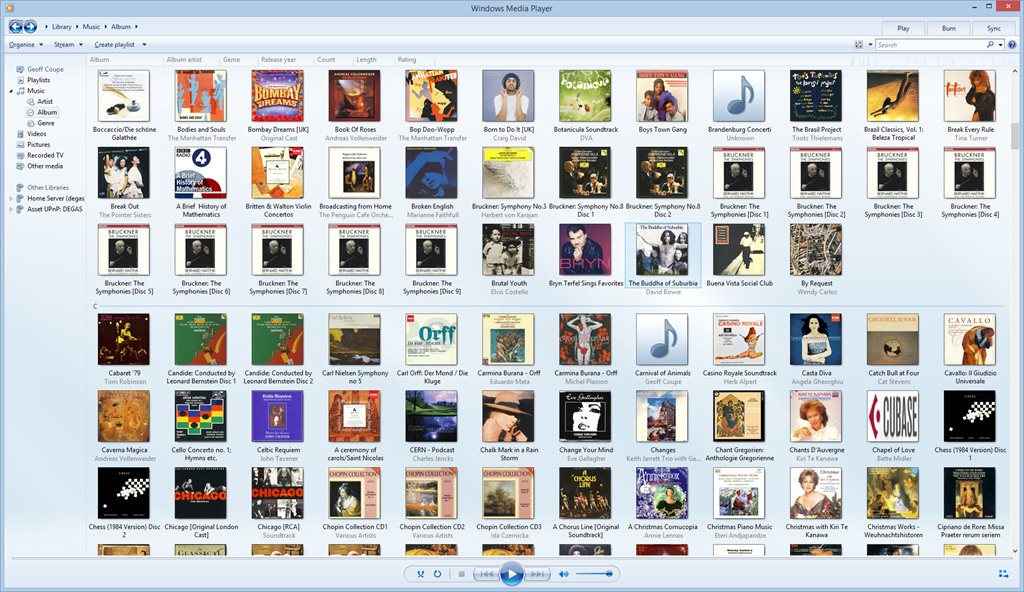
WMP has picked up the album art metadata and displays it (there are two albums shown with the default “music note” icon – but that is also correct, the tracks in these two folders do not have any album art metadata).
And here’s the same part of the same music collection being displayed by the Xbox Music App running on the same Windows 8.1 PC:
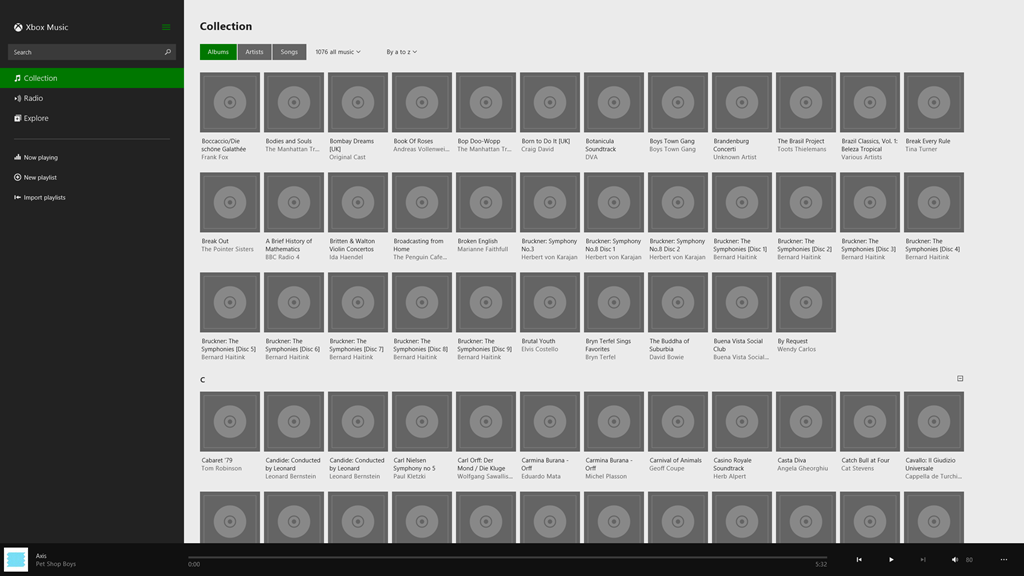
Er, hello? Is this supposed to be a good user experience?
Interestingly, if I use the same version of the Xbox Music App running on my Windows 8.1 tablet, then that manages to do a slightly better job:
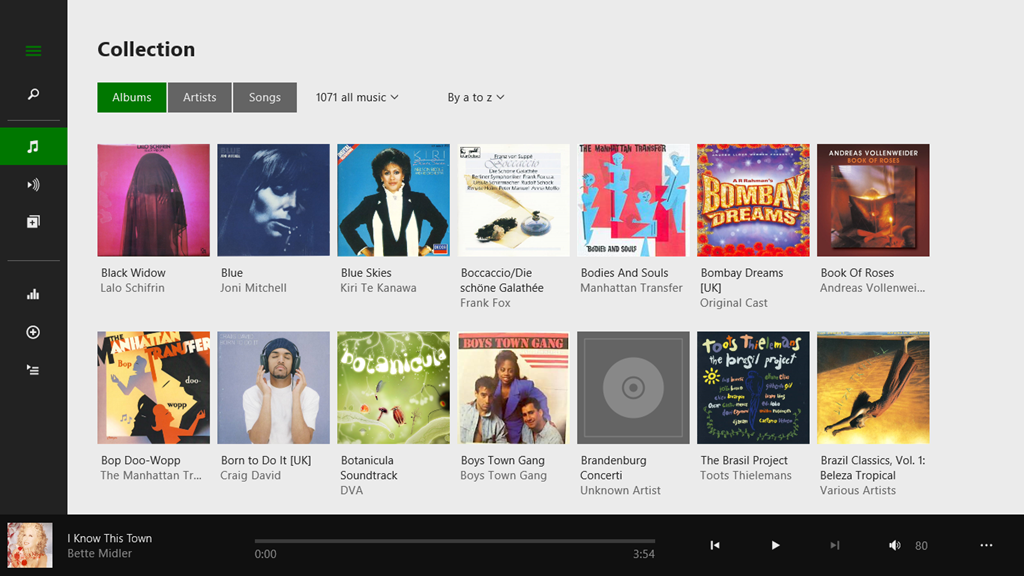
There are fewer albums shown, because the App is running on a device with a lower-resolution screen. But the point is, here, the Xbox Music App does appear to be reading my Album Art metadata, whereas on the Desktop PC, the same App fails miserably.
I’ve found where the Xbox Music App caches the Album Art images that it uses for display. It’s in the folder:
C:\Users\Username\AppData\Local\Packages\Microsoft.ZuneMusic_8wekyb3d8bbwe\
LocalState\ImageCache\20.
On my Desktop PC, that folder is filled almost entirely with files of the form <some long string>_badrequest:
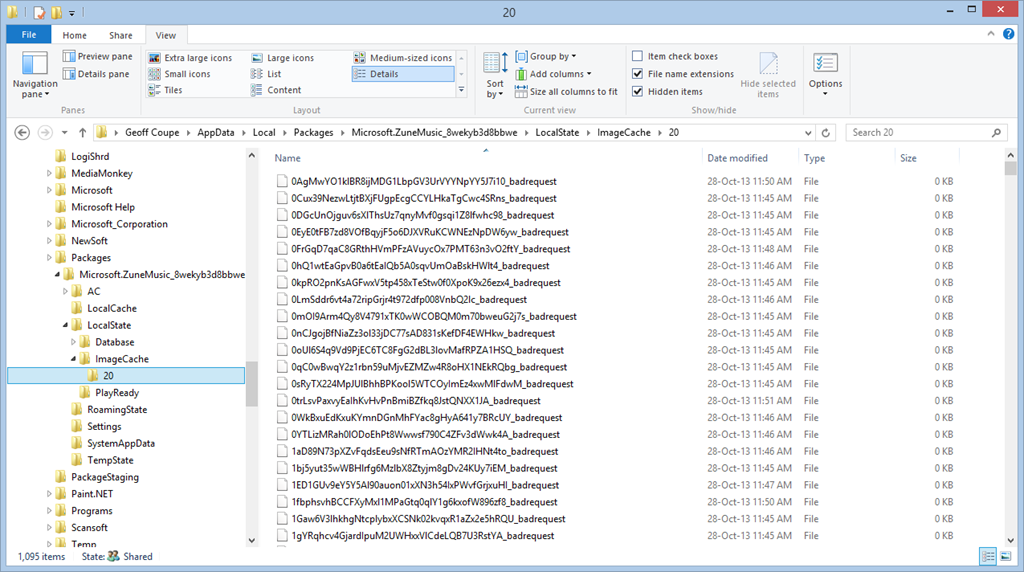
Whereas on the tablet, that same folder is filled almost entirely with files having the same form and names, but without the “_badrequest” suffix. These are, in fact Album Art images:
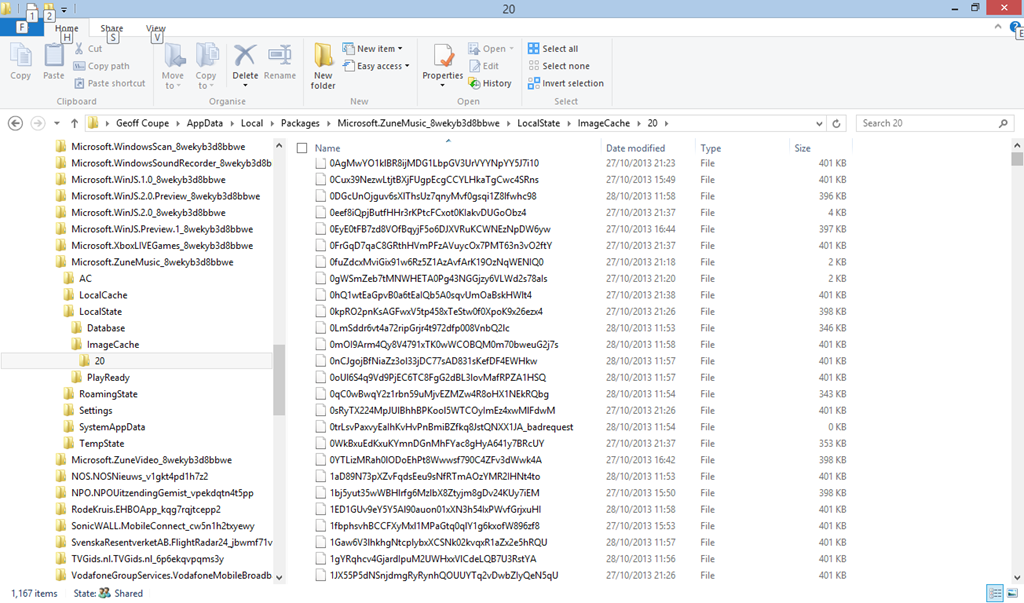
So the question is, why is the Xbox Music App running on the tablet able to succeed, while the same App running on the Desktop PC can not? Both Apps are working against the same music collection, which is held on a Windows Home Server 2011.
The only thing that occurs to me is that there is possibly a race condition in the software that causes the App to fail on the much faster Desktop PC. Whatever the cause, I would like to think that Microsoft will fix it. We shall see.
Update 17 December 2013: well, another new version has arrived from Microsoft (version 2.2.339.0) and been installed on my computers. Alas, it’s made no difference to this issue – the bug is still there; great swathes of non-existent Album Art.
Update 23 January 2014: another day, another update of the Xbox Music App, this time to version 2.2.444.0. Still doesn’t fix the metadata bug though…
Update 11 February 2014: another day, another update of the Xbox Music App, this time to version 2.2.550.0. Still no fix for the metadata bug though…
Update 11 March 2014: This issue of disappearing Album art doesn’t seem to have started until I upgraded to Windows 8.1 on the Desktop PC.
So I decided to implement a scorched earth policy: I did a fresh install of Windows 7 Home Premium, applied the 250+ updates that were required; installed Windows 8 Pro plus the 100+ updates that it required, and finally upgraded to Windows 8.1 Pro via the Store (and applied its updates…).
Now, finally, Xbox Music is showing my album covers correctly for my music collection held on the WHS 2011.
I’m still in the process of reinstalling all my applications and Apps – this will take a day or two to complete – but at the moment, Xbox Music appears to be working as it should.
So, whatever the problem was, it does appear as though it was caused by something not being right in the previous installation of Windows 8.1, and now we’ll never know what it was…
Update 17 April 2014: It’s very likely that this problem was caused by an obscure interaction between the Xbox Music App and another desktop application that integrates with the Windows Shell to add additional menu options in the Windows Explorer. In my old installation of Windows 8.1, I had the dBpoweramp Music Converter installed. Someone else had the same Xbox Music issue of no Album Art being displayed, and tracked it down to the Shell integration feature.


 Geoff Coupe's Blog
Leave a comment