
Update 23 January 2015: OneDrive now searches Tags – at last! So please treat what follows as a historical post illustrating the situation as it was up until January 2015…
Update 8 October 2015: And now Tags added to photos via OneDrive online will get added to the photos’ metadata, and thus also be synced back down to the photos held in OneDrive on your PCs.
Update 5 October 2024: And now Microsoft has removed the ability to search tags in photos stored in OneDrive. They have rendered OneDrive useless for managing photos.
Microsoft has recently added some new features to OneDrive, listed in the OneDrive Blog: Updating OneDrive: Five New Features You Asked For.
Unfortunately, the five do not include one that I (and others) have been requesting for the past three years: proper support for tags in photo metadata.
Interestingly, one thing has changed, there is now a “Tags” heading displayed along with the “People tags” heading in the information pane for a photo. This returns a feature that was removed in June 2011. However, this does not yet seem to be fully working. Let me try and illustrate this.
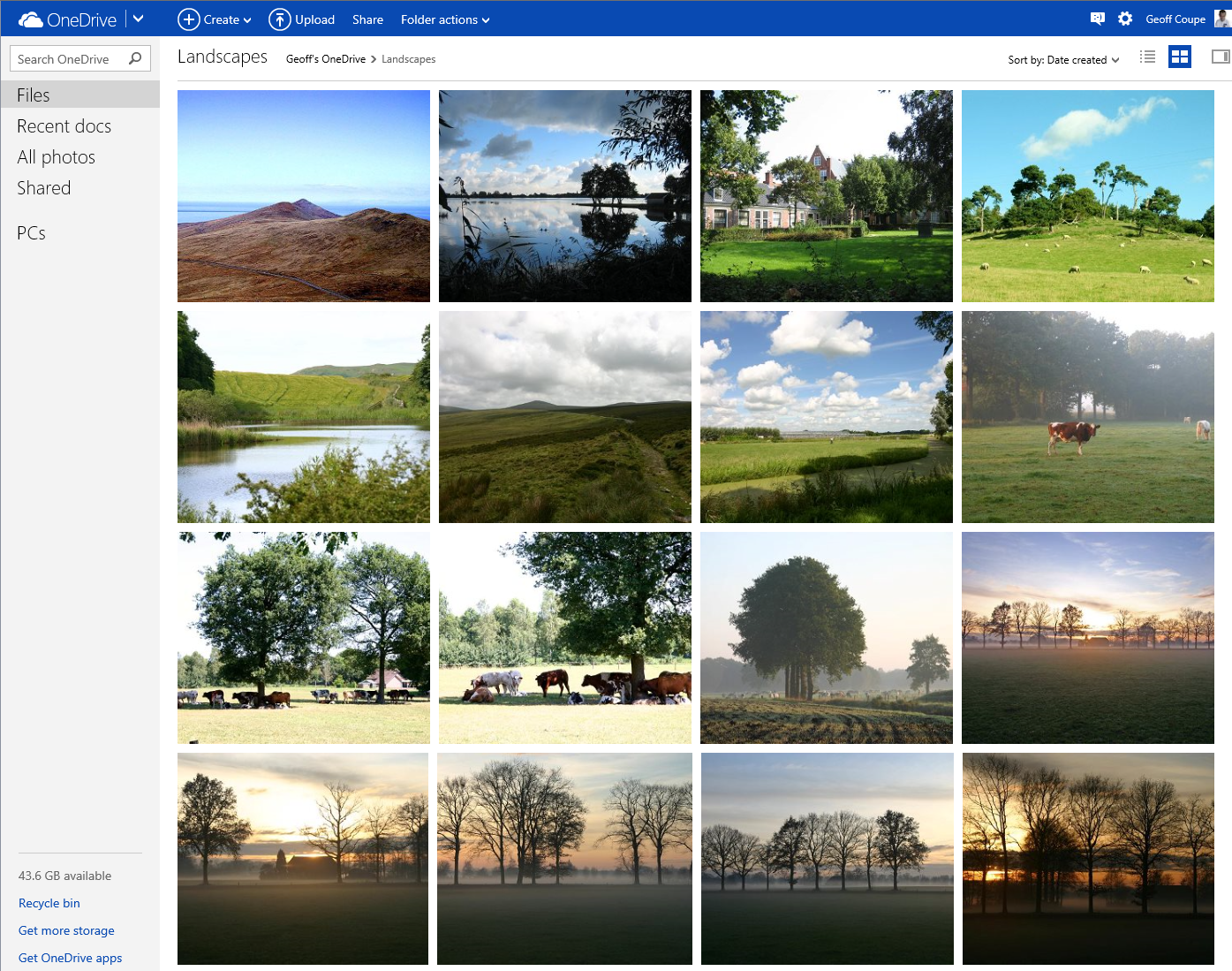
First, here’s the new view of a folder of photos on OneDrive; it has larger thumbnails than the previous version:
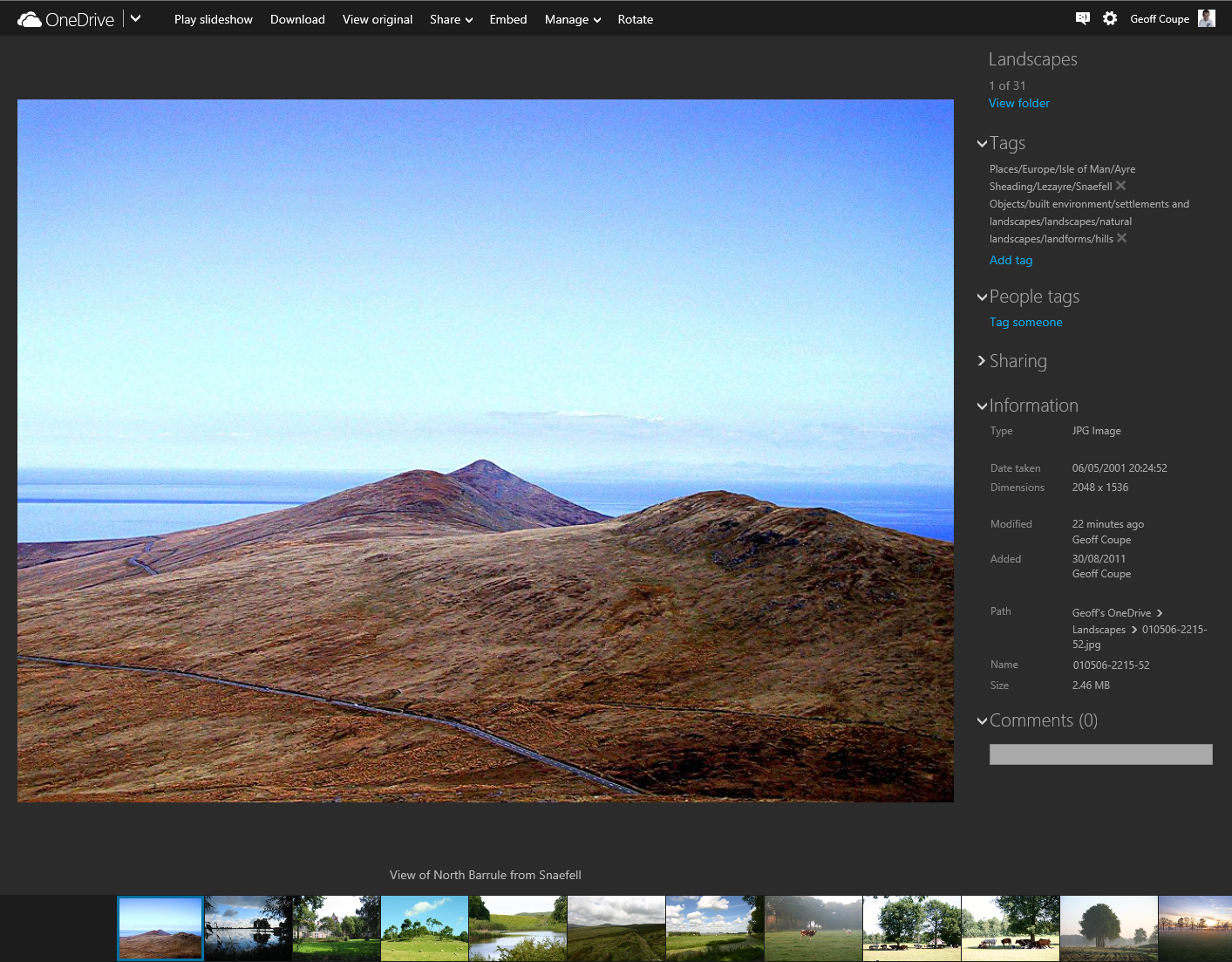
Now let’s look at an individual photo using OneDrive, and show the metadata stored in the photo displayed in the information panel on the right:

Notice how OneDrive claims there are no descriptive tags in this photo, by the fact that under the “Tags” heading, there is only the link to add a tag.
However, this photo (like all the photos I have on OneDrive) has been tagged. I can show this by downloading a copy of this photo to my PC (by clicking on the “Download” link shown at the top of the OneDrive window), and then using Microsoft’s Photo Gallery to display the metadata in its information panel:
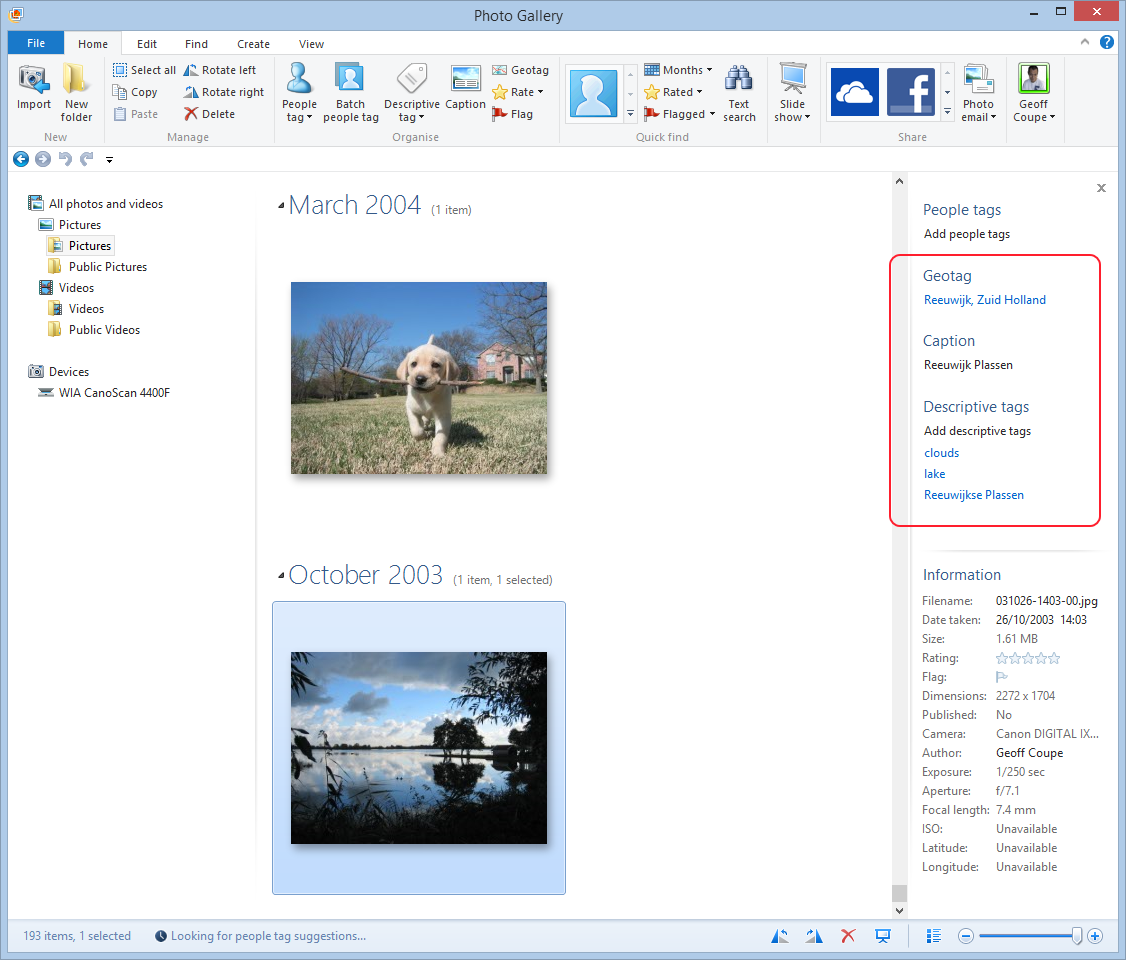
You can see that there are both Descriptive tags (clouds, lake, Reeuwijkse Plassen) and Location metadata (Reeuwijk, Zuid Holland – what Microsoft wrongly calls geotags; they are in fact more properly called geocodes) in this photo, and they were not being displayed in OneDrive.
And then I discovered something really interesting. When I went back to displaying this photo in OneDrive, suddenly the Descriptive tags were showing up:

I can only conclude that the act of downloading the file has triggered a process in OneDrive to start displaying the tags in this file. All the other photos in the folder did not have any tags being displayed. As a further test, I downloaded another photo in the folder, and then went back to look at the photo in OneDrive. Lo and behold, that photo now had its descriptive tags displayed:
This is clearly a step forward, but it’s still a broken experience. We should not have to download every file in order to get the descriptive tags to display.
And descriptive tags are still not being searched in OneDrive. That first sample photo has a descriptive tag “clouds” in it (to be strictly correct, it has a hierarchical tag Objects/built environment/settlements and landscapes/skyscapes/clouds), but doing a search for it in OneDrive produces no results:

According to Microsoft’s Omar Shahine: “this work just ranks lower on the priority list than some other things we are doing right now”.
I just hope that the work remains on the list of things to do, and that this broken experience doesn’t last for too long.
Addendum: A word of warning. Do not use the “Add tag” feature in OneDrive, if you want your photo metadata to remain consistent. Any tags added to photos using OneDrive do not get added to the metadata of the photos. You end up with a tag list displayed by OneDrive that does not reflect the tag list contained in the photo metadata.
As of October 2015, this has now seems to have been fixed. Tags added in OneDrive will now get synced back to your photo metadata.


 Geoff Coupe's Blog
Leave a comment