Our Christmas card this year features the row of seven oak trees in front of the woods where we walk the dogs. The photo was taken in January 2009. So far, this winter has been unseasonably warm. We are definitely not going to have a White Christmas…
Year: 2015
-
Windows Live Writer – Now Open Source!
Ever since 2005, I’ve been using Microsoft’s Windows Live Writer to create these blog entries. It has been my mainstay. An easy-to-use application that has allowed me to create and edit my blog on WordPress with ease. But ten years in computing terms is a long time, and ever since 2012 there has been a question mark hanging in the air – would Microsoft continue supporting Windows Live Writer, or would it be dropped, like so many other good and useful software applications have been (Picture It!, Microsoft Digital Image Pro, and Microsoft Money) I’m looking at you).
For a while now, Scott Hanselman and others within Microsoft have been trying to get a version of Windows Live Writer released as Open Source, and today’s the day.
An open source fork of Windows Live Writer is now available as Open Live Writer. Congratulations to Scott and the OLW team for reaching this milestone.
This blog entry has been created and published to my blog using it. I intend to support this effort by switching to Open Live Writer from now on. It is clear that Microsoft will be pulling the plug on Windows Live Writer at some point in the not too distant future.
The King is dead – Long live the King!
-
Curse You, Microsoft!
Another day, another rant at Microsoft…
Christmas is coming, so the Christmas Card production line has started here at the Witte Wand. We’ve got about 100 cards to send out to friends and family each year, and I use mailing labels to save a bit of time, rather than addressing each envelope by hand. My everyday printer is an Canon inkjet printer, but because I want waterproof labels, I prefer to print them on my trusty (20 year-old) HP Laserjet 5/5MP printer.
So I duly fired up the printer, opened the Word document containing the mailing labels and attempted to print them. Nothing happened, apart from Windows 10 giving me a singularly unhelpful error message: “Printer in an error state”. The printer was fine, a selftest worked as expected, but Windows was insisting that there was an error. After some further detective work I discover that the cause of the problem is not the printer, nor the printer driver, but the Windows 10 software driver for the LPT (parallel) port.
It turns out that the November update to Windows 10, to bring it up to the latest version of Windows 10 (version 1511), has a brand new version of the driver for the LPT port – and it doesn’t bloody well work.
Apparently, one of the first things that Satya Nadella did on becoming the new CEO of Microsoft, was to let go a large portion of testers in favour of the programmers doing their own testing. While I’m sure that this saved Microsoft a chunk of money, did no-one bother to point out to Nadella that programmers do not always make good testers? Testing is a skill in its own right, and often programmers will miss bugs in their own code because they are too close to it.
It seems to me that the end result is that Windows 10 was released in July both buggy and incomplete, and now with the November update, we, the customers, have a brand new batch of bugs to deal with.
I am not a happy bunny at the moment.
Addendum 2 March 2016: Well, three months after Microsoft broke the LPT driver, it appears that they have finally fixed it. No apologies, and no acknowledgement from Microsoft that there ever was a problem until this one sentence announcement buried away in the Microsoft Answers forum. Bad show, Microsoft, bad show.
-
A Narrow Escape
Yesterday, my Surface 3 was sitting on my desk, plugged in for charging and quietly minding its own business. Our dog Watson decided to walk past and got his leg caught in the cable. He carried on walking and pulled the Surface 3 off the desk and on to the tiled floor. I saw it happen, but was unable to catch it in time. All I could do was to utter a very loud expletive.
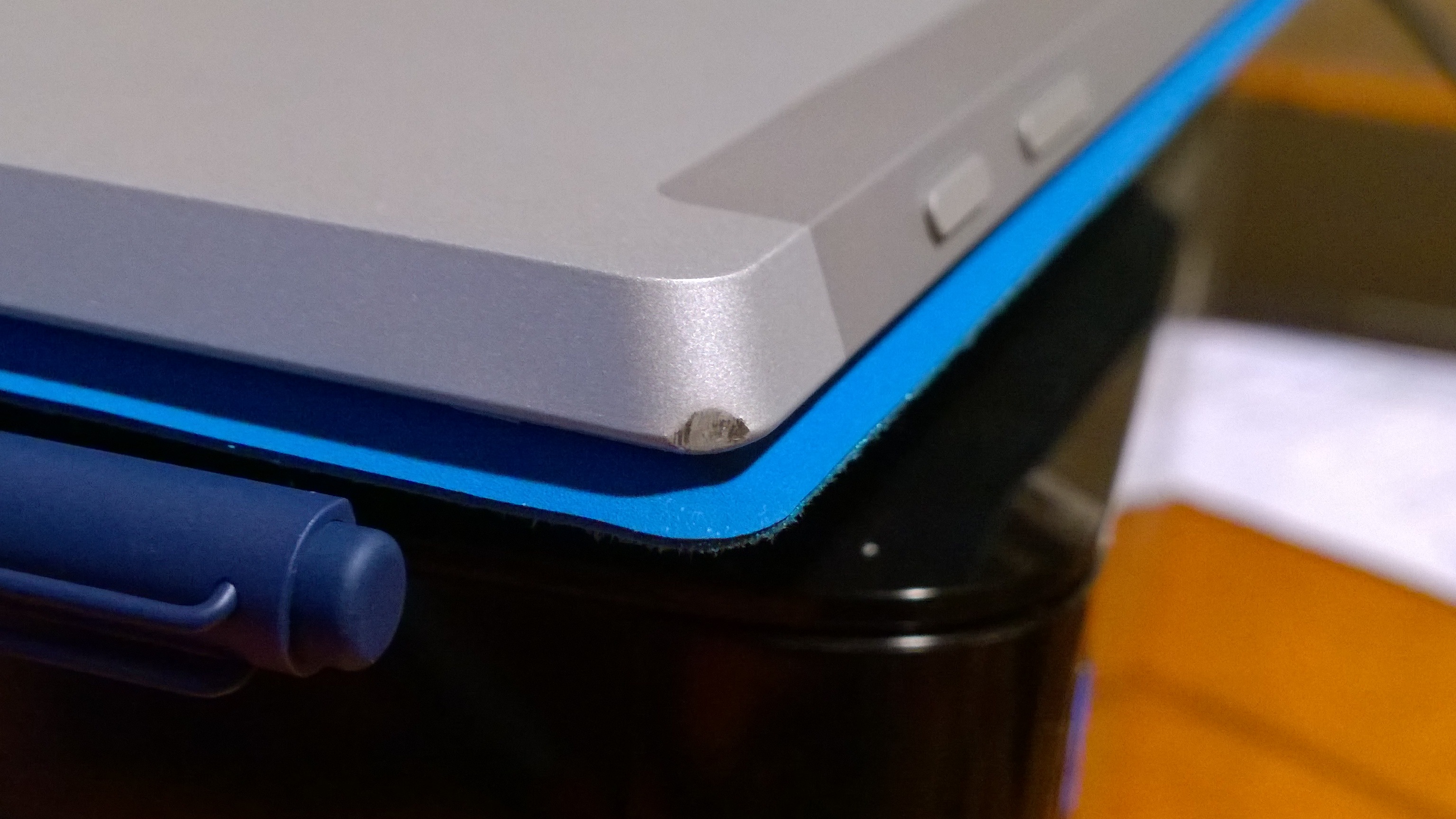
The Surface 3 landed on the point of one corner. I picked it up in dread, fearing that, at the very least, the screen would have cracked. To my surprise, the screen was intact, and the machine still working. The only evidence of the fall is the slight dent on the corner.
It’s tougher than I thought.
-
Paris–13/11/2015
Here we go again, more deluded fools with guns and explosives murdering innocents, followed by a statement from IS that is “written in the standard, sententious style of Isis and other militant pronouncements and is framed by a worldview that has become wearily familiar over recent years”.
The late Iain M. Banks summed it up well in his novel Against A Dark Background:
Sorrow be damned and all your plans. Fuck the faithful, fuck the committed, the dedicated, the true believers; fuck all the sure and certain people prepared to maim and kill whoever got in their way; fuck every cause that ended in murder and a child screaming.
Amen.
-
The Saga of Broadband Internet
Almost a year ago, I blogged about the poor state of internet in the Dutch countryside, and about our area in particular. Even though the Netherlands as a whole is high up in the league table of countries enjoying fast broadband internet, 196,000 households and 132,000 businesses in the Netherlands do not have fast broadband internet (defined by the EU as being 30 Megabits per second or faster). Far from it, many households and businesses around here are lucky if they get 3 Mbps.
A year ago, it looked as though things might improve – the Province of Gelderland, in cooperation with ten Local Authorities (including ours), announced an initiative to lay fibre optic cables in countryside areas.
Alas, it looks as though the project has run into difficulties – some thrown up by the EU, and some thrown up by KPN – the largest telecom provider here in the Netherlands.
The plan was for the initiative to set up a company to lay the cables, and then lease them out to network operators for running of the network and provision of internet services to customers. The EU took a dim view of this idea, claiming it was not the role of government to get involved in the free market.
Then KPN announced that it would be investing less in the laying of fibre-to-the-home (FTTH), and focusing more on upgrading the old ADSL-based copper cable network by investing in VDSL technologies, and also investing in 4G mobile networks.
Broadband internet has been discussed a number of times in the Dutch parliament this year, and the Minister of Economic Affairs (Minister Henk Kamp) has made it clear that he does not see a country-wide rollout of fibre-optic cables as the answer, but is more interested in having a smorgasbord of technologies (strangely enough, eerily similar to those proposed by the KPN).
Unfortunately, I think that all this will lead to a further gulf in the digital divide between those who can enjoy fast internet at an affordable price, and those who must remain in the slow lane, or pay through the nose for fast internet. The difference between living in the town or the countryside, in other words.
Let’s take my situation as a typical example of someone living in the countryside. The original plan from the Province and the Local Authority was to provide me with FTTH for a one-time cost of €500 and a small additional monthly charge on top of my internet subscription to cover the total cost of laying the cable. The cost of laying FTTH in the countryside is high, because new cables have to be laid to each home, farm, or business. According to Stratix, this would be in the region of €6,000 per connection (with some outliers in the Netherlands reaching several hundreds of thousands of euros). By contrast, in a town, the cost is around €600 per connection.
However, if the FTTH plan does not go ahead in some fashion, what are the alternatives?
KPN has said that they intend to upgrade 100,000 households currently on ADSL to VDSL technologies. This entails laying fibre from the telephone central exchanges to the wiring cabinets placed in a neighbourhood. The new fibre would replace the current copper cables that connect the cabinets to the exchanges. However, the connections between the wiring cabinets and the individual homes or premises would still be the original copper cables. KPN claims that this upgrade would deliver internet speeds of up to 100 Mbps. What they don’t say is that these speeds are only achievable over short distances. If you live (like I do) more than 2 kilometres from a wiring cabinet, then you won’t see much improvement over ADSL speeds. So, while I currently enjoy 4 Mbps over ADSL, I might get 8 Mbps over a VDSL connection. The only way that this could be improved would be for KPN to invest in many more wiring cabinets placed closer to houses out in the countryside. There’s also the point that these VDSL technologies consume more energy than ADSL (and more than fibre). Their ecological footprint is not good. Not for nothing does Stratix label these technologies as “last gasp”.
KPN has also just announced that it will offer fast internet via 4G to the 100,000 households that it views as being “deep in the countryside”. It claims that this is “the solution for places with less than 6 Mbps internet speed via ADSL”. Well, that’s certainly me, but then KPN qualifies it by saying:
In order to protect the quality of our 4G network, this [solution] is only available for addresses where:
- Internet speed is less than 6 Mbps via ADSL and there is no planned upgrade in speed in the coming 6 months
- The addresses are outside of town or village centres
- There is sufficient capacity in the 4G network
Our house certainly qualifies for the first two conditions, but it seems that there is a question mark against the capacity of KPN’s 4G network – when I entered our address into KPN’s availability check, it claimed that “Alas, this [solution] is not available for your address”.
[Update: and now, a few days later, the availability check claims that the solution is available for our address.]
Even
if it were to bethough it is available, I am far from convinced that it is the solution for me. One big difference between the subscriptions for ADSL/fibre and 4G is that ADSL/fibre subscriptions are based on charging for speed, whilst 4G subscriptions are based on data volume. So currently, I pay €50 per month for our internet and telephone access, with no data caps and unlimited telephone calls within the Netherlands, whereas with KPN’s 4G solution I would be paying €50 per month for internet only (no telephone), with a data cap of 50 GB per month. I would need to pay an additional €38 per month for our telephone. And 50 GB per month is nothing – last month we used 105 GB – and that is without any downloading/streaming of films from sites such as Netflix. Admittedly, I download preview builds of Windows 10 and other software under test, but I would argue that I am not too different in my usage pattern than someone working from home making use of Cloud services and video-conferencing. Equally for families using Netflix or similar services – 50 GB per month is not very much at all.The KPN 4G service does not support interactive TV services either, so unlike fast internet via fibre or VDSL/ADSL, you can’t have a so-called “triple-play” subscription (a combined internet+telephone+TV service). Most of us out here in the wilds get our TV service via satellite dish, so we’d have to continue with our subscriptions to the satellite services company (CanalDigitaal).
I summarise the costs of the various scenarios in the table below. For the “Fibre” scenario, I’ve assumed that fibre-optic cable has been laid to our house, that I’ve paid the one-off charge of €500, and that the cable company would make a monthly supplemental charge of €22.50 to recoup the cost of laying the cable over a 20 year period. The triple-play subscription is what I would pay to my current internet service provider for a download speed of 20 Mbps.
Monthly charge Current KPN 4G Fibre Internet – €50 – Telephone – €38 – TV €17.95 €17.95 – Internet+Telephone €50 – – Internet+Telephone+TV – – €55 Fibre connection charge – – €22.50 (est.) Total: €67.95 €105.95 €77.50 To sum up then, the 4G alternative to FTTH is not attractive to me, either on practical or economic grounds. Sorry, Minister Kamp and KPN, you will have to do better than this.
-
Where Do You Get Your Ideas From?
Ursula K. Le Guin is one of my favourite writers. The question: “where do you get your ideas from?” is the starting point for a wonderful essay and meditation on this question.
Please follow the link and read it – I don’t think you’ll be disappointed. Even if you don’t want to spend the time reading it, follow the link anyway, and you’ll be rewarded with the most stunning photograph of the 86 year-old author: simultaneously wise and mischievous – the sort of human being it would surely be a privilege to know and to count on as a friend.
(hat tip, once again, to Nicholas Whyte for drawing this essay to my attention)
-
And Microsoft Does It Yet Again…
Oh dear, regular as clockwork, Microsoft opens its mouth to change feet, and creates another PR fiasco for itself.
A year ago, Microsoft announced that it would deliver unlimited cloud storage to Office 365 subscribers:
Today, storage limits just became a thing of the past with Office 365. Moving forward, all Office 365 customers will get unlimited OneDrive storage at no additional cost. We’ve started rolling this out today to Office 365 Home, Personal, and University customers.
I signed up for this, and a few months ago, my 1 TB storage on OneDrive was increased, by Microsoft, to 10 TB, at no additional charge. If I were to put all of my music, photos, home videos and documents on OneDrive, then I would currently be using about 0.7 TB. That’s still comfortably under the old 1 TB limit, but the margin shrinks every year (I’m a packrat).
It all seemed too good to be true. It was.
Yesterday, Microsoft announced that there are going to be changes:
- We’re no longer planning to offer unlimited storage to Office 365 Home, Personal, or University subscribers. Starting now, those subscriptions will include 1 TB of OneDrive storage.
- 100 GB and 200 GB paid plans are going away as an option for new users and will be replaced with a 50 GB plan for $1.99 per month in early 2016.
- Free OneDrive storage will decrease from 15 GB to 5 GB for all users, current and new. The 15 GB camera roll storage bonus will also be discontinued. These changes will start rolling out in early 2016.
The reason for these changes is that, according to Microsoft, “a small number of users backed up numerous PCs and stored entire movie collections and DVR recordings. In some instances, this exceeded 75 TB per user or 14,000 times the average”.
It does seem a little disingenuous of Microsoft to offer “unlimited” storage at no additional cost, and then be surprised when some people take them at their word. It would seem that we are all being punished for the actions of a few. And I use the word “punished”advisedly. By Microsoft’s own admission, the average user has 5.35 GB stored in their OneDrive (75TB / 14,000). Microsoft has now reduced the free OneDrive storage from 15GB down to just 5 GB (and abolished the 15 GB camera roll bonus). So the average OneDrive user will start paying.
Lowering the free storage from 30 GB down to just 5 GB for millions of customers does seem to be a slap in the face, even if Microsoft has attempted to offer a sweetener in the form of a free one-year (only) subscription to Office 365 Personal (with its 1 TB of OneDrive storage). I suspect many of those customers will simply walk and switch to alternative Cloud services such as DropBox or Google Drive, because at a single stroke Microsoft has just made their competitors’ services cheaper than OneDrive.
Sometimes I wonder what goes on in the minds of Microsoft management…
-
“Home”- By Warsan Shire
no one leaves home unless
home is the mouth of a shark
you only run for the border
when you see the whole city running as wellyour neighbors running faster than you
breath bloody in their throats
the boy you went to school with
who kissed you dizzy behind the old tin factory
is holding a gun bigger than his body
you only leave home
when home won’t let you stay.no one leaves home unless home chases you
fire under feet
hot blood in your belly
it’s not something you ever thought of doing
until the blade burnt threats into
your neck
and even then you carried the anthem under
your breath
only tearing up your passport in an airport toilets
sobbing as each mouthful of paper
made it clear that you wouldn’t be going back.you have to understand,
that no one puts their children in a boat
unless the water is safer than the land
no one burns their palms
under trains
beneath carriages
no one spends days and nights in the stomach of a truck
feeding on newspaper unless the miles travelled
means something more than journey.
no one crawls under fences
no one wants to be beaten
pitiedno one chooses refugee camps
or strip searches where your
body is left aching
or prison,
because prison is safer
than a city of fire
and one prison guard
in the night
is better than a truckload
of men who look like your father
no one could take it
no one could stomach it
no one skin would be tough enoughthe
go home blacks
refugees
dirty immigrants
asylum seekers
sucking our country dry
niggers with their hands out
they smell strange
savage
messed up their country and now they want
to mess ours up
how do the words
the dirty looks
roll off your backs
maybe because the blow is softer
than a limb torn offor the words are more tender
than fourteen men between
your legs
or the insults are easier
to swallow
than rubble
than bone
than your child body
in pieces.
i want to go home,
but home is the mouth of a shark
home is the barrel of the gun
and no one would leave home
unless home chased you to the shore
unless home told you
to quicken your legs
leave your clothes behind
crawl through the desert
wade through the oceans
drown
save
be hunger
beg
forget pride
your survival is more importantno one leaves home until home is a sweaty voice in your ear
saying-
leave,
run away from me now
i dont know what i’ve become
but i know that anywhere
is safer than here(hat tip to Nicholas Whyte for bringing my attention to this poem by Warsan Shire)
-
The Lenovo Yoga 900 – Software
My last post looked at the hardware and performance of the new Lenovo Yoga 900. This post takes a look at the experience of the initial setup of Windows 10, and the software bundled with the Yoga 900 by Lenovo.
Windows 10
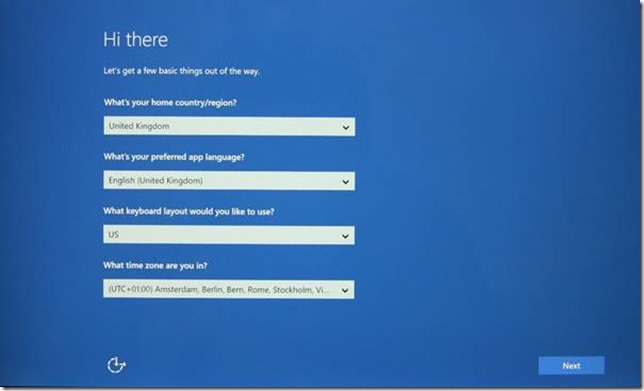
The Yoga 900 comes with Windows 10 installed and ready to be set up when the Yoga 900 is first turned on. “Setting up” involves choosing the language(s) you want Windows 10 to use, creating a user account, and connecting to a WiFi network. I’m based in the Netherlands, and Microsoft’s Cortana is not (yet) available for the Dutch market. Since I wanted to try out Cortana, I set up Windows 10 to use British English, and set the region to the UK:
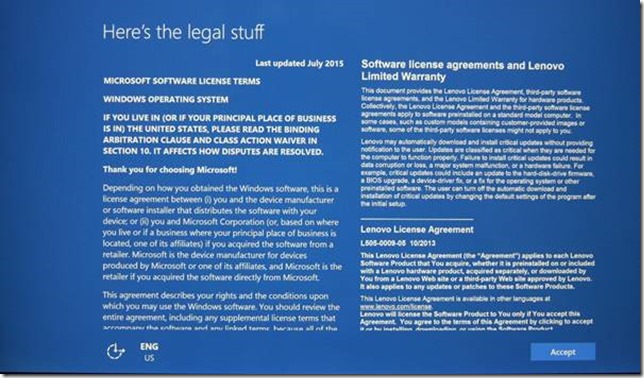
There is, of course, the legal stuff to accept…
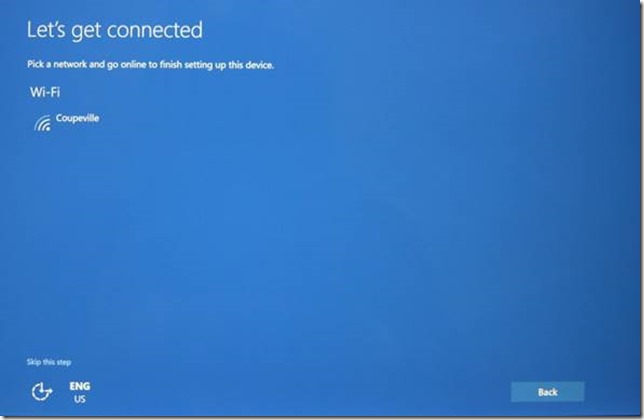
The next step is to connect to a Wi-Fi network. While this step can be skipped, and network connections set up later, it’s best to do it now for two reasons. First, critical software updates to Windows 10 that were issued after the operating system was installed during the manufacture of the Yoga 900 can be immediately installed, and second, if you want to create a Microsoft account during set up, it’s easier to be connected to the internet for this step.
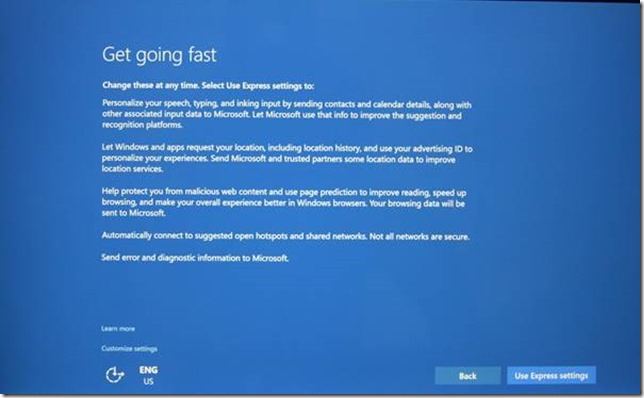
Once connected, Windows 10 will offer to use the Express settings for the fastest setup, but you can elect to customise any of the defaults if you so wish.
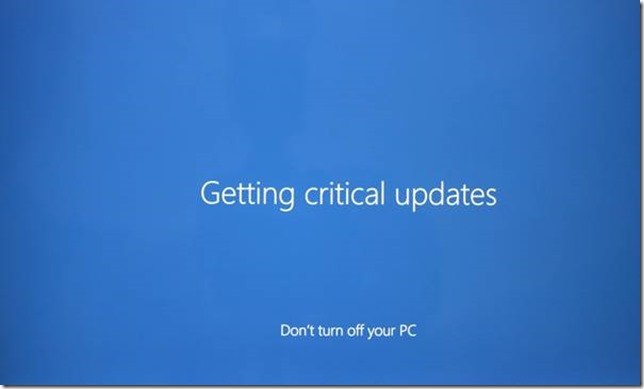
At this point, if you have set up the network connection, Windows 10 will download and install any critical updates for you.
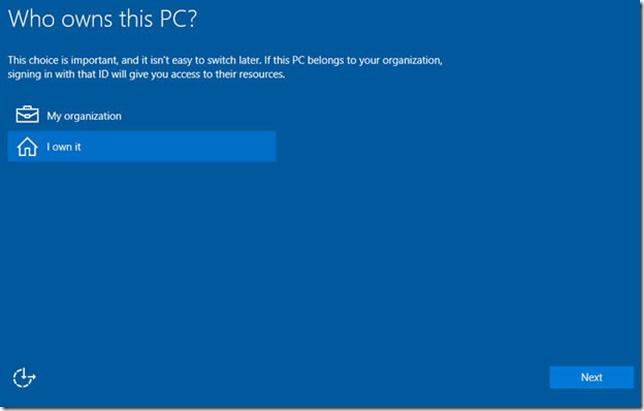
Then comes an important question: “who owns the Yoga 900?”. The choice is between you or the company/organisation you work for. Your answer determines whether the Yoga 900 gets automatically joined to the company’s IT network to use the systems there, or, if it is a machine for your personal use, it will be set up for you. Your answer determines which apps, settings and permissions will be used during the rest of the set up process.
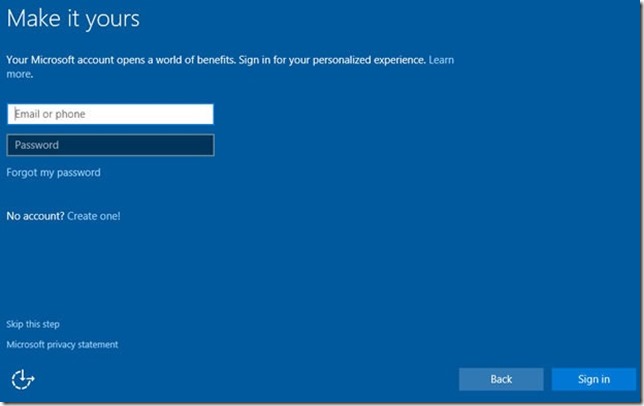
Assuming that it is your Yoga 900, then the next step is to create your account on the machine. If you already have a Microsoft account, used on other PCs and/or Windows Phones, then enter your details here. If you don’t yet have a Microsoft account, you can use this step to create one. You can also elect not to have a Microsoft account associated with this machine at all, but use a “local” account that is unique to this Yoga 900. You do this by choosing the “skip this step” option.
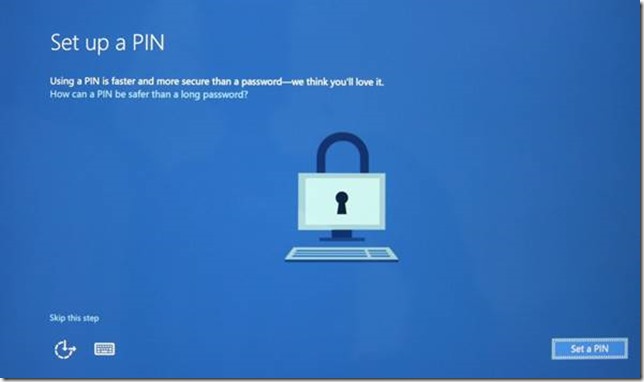
The last step in the process is to choose your PIN, which is a faster way to log in than typing in a long, strong, password (you do have a long, strong, password, don’t you?).
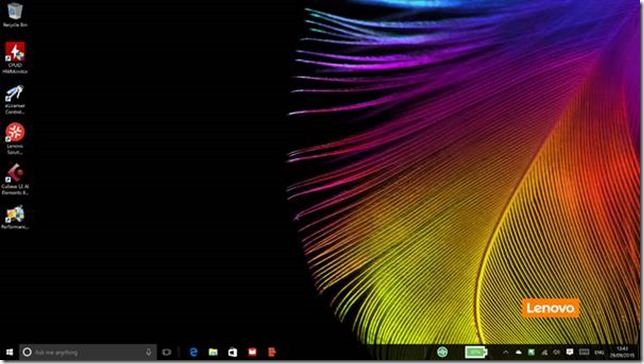
And now you’re all set; Windows 10 will set up your default apps and bring you to the desktop:
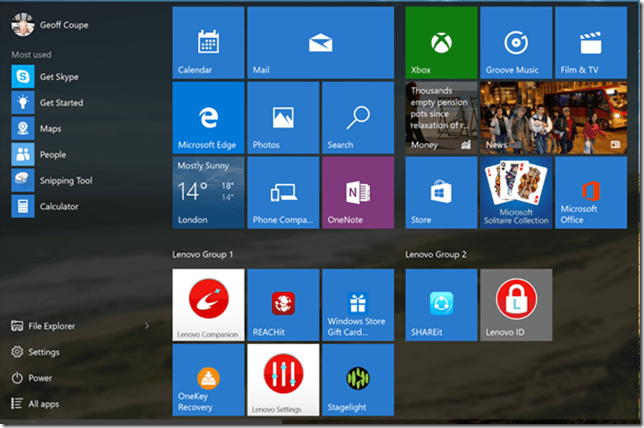
The Start menu will probably look something like this, with a set of default apps:
These will be a mixture of apps provided by Microsoft and those provided by Lenovo for the Yoga 900. Which brings me to:
Lenovo Software
It’s no secret that I’m not a fan of the OEM practice of bundling a long list of software applications in with their machines. Lenovo is well-known for doing this. For the most part, I find such applications to be of limited, if not questionable, value. The first thing I usually do on setting up such a machine is to remove all such non-essential software. To be fair to Lenovo, they are trying to clean up their act, and the Yoga 900 comes with the shortest list of bundled applications that I’ve seen so far from them. Looking in the Windows 10 list of installed programs, I found the following:
Application Type
Application Name
Lenovo Applications
Lenovo Accelerator Application
Lenovo Battery Gauge
Lenovo Companion 3.0
Lenovo Experience Improvement
Lenovo FusionEngineLenovo ID
Lenovo Photo Master
Lenovo Product Demo
Lenovo QuickOptimizer
Lenovo REACHit and SHAREit
Lenovo Settings 3.0
Lenovo Solution Center
LenovoUtility
OneKey RecoveryUser Guide
Security & Productivity
McAfee LiveSafe (trial)
Microsoft Office 2016 (trial)
Having a separate application for the User Guide seems somewhat pointless, as the User Guide is now integrated into the Lenovo Companion.
Looking at the list of Lenovo applications, there’s a couple that I haven’t the faintest idea of what they do, and one that I can guess at. The unknowns are:
- Lenovo FusionEngine
- Lenovo Utility
It would be nice to have a clear statement from Lenovo as to what these applications are intended to achieve.
Lenovo Experience Improvement
My guess is that the Lenovo Experience Improvement application is collecting and reporting to Lenovo non-personally identifiable statistical data, for example:
- both the configuration and region when the system is first activated,
- ongoing information on how often key components are used.
Not everyone is happy with this sort of data-gathering, and those that aren’t can simply uninstall this application. However, it doesn’t overly bother me, and many manufacturers are doing it these days – even my printer is phoning home and reporting statistics. This kind of information helps manufacturers better understand how their products are being used and perform in the field, and this helps influence design decisions for future product generations.
Lenovo Battery Gauge
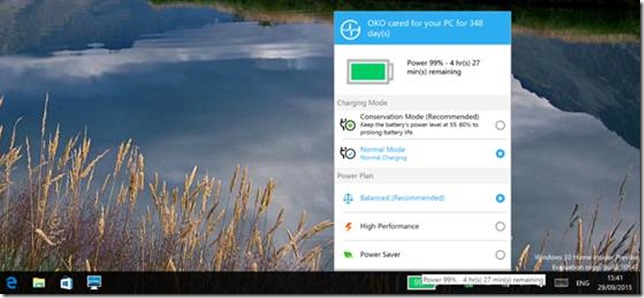
This is actually a useful extension to the standard battery control of Windows 10. It replaces the standard Windows 10 battery notification in the taskbar with a (somewhat clumsy) Lenovo design.
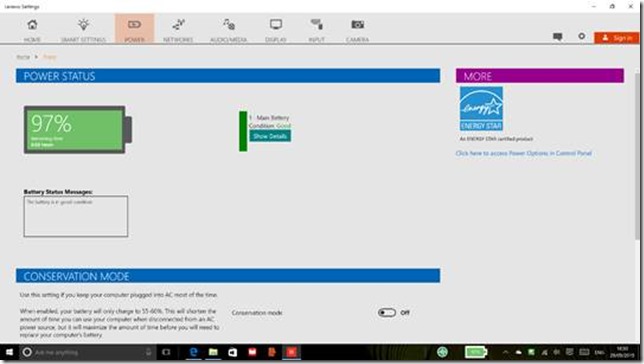
It’s useful, because it gives access to a “conservation” mode of charging, where the battery is only charged to 55-60%. This maximises the life of the battery. This mode is not available in standard Windows 10. However, the design of the Lenovo control could be improved. If the icon is touched or clicked, the full Lenovo Settings app is started, and the power section shown:
This uses a lot of screen real estate to display relatively little information. It’s also not obvious that not all the power controls are being shown here. You need to scroll down to see additional options, but there is no indication that the page is scrollable until you try to interact with it. I’ll have more to say about the Lenovo Settings app in a moment. But first, here’s how the same information is presented on the Yoga 3 Pro:
This is a much more compact method of displaying options to the user, and personally, I much prefer this approach to that of the Lenovo Settings app.
Lenovo Settings
In an ideal world, the controls for hardware specific features would be integrated into the Windows 10 Settings screens directly; everything would be accessible via the Windows 10 settings, which would be extended as required by specific hardware or features. In the days of Windows 7, this was done by extending the Control Panel applets with extra tabbed input panels.
Now, in Windows 10 as it is at the moment, we have a bit of a dog’s dinner, where some settings are only accessible via the Lenovo Settings app, some are exposed as extra tabs in traditional Control Panel applets (for example, the Synaptics Touchpad settings), and some are directly accessible via Windows 10 Settings.
The Lenovo Settings app has its own manner and style of user interface. It would be much more preferable if it followed the same style guide as Windows 10 Settings. That would help it to blend in with the “house style” of Windows 10, and not stick out like a sore thumb.
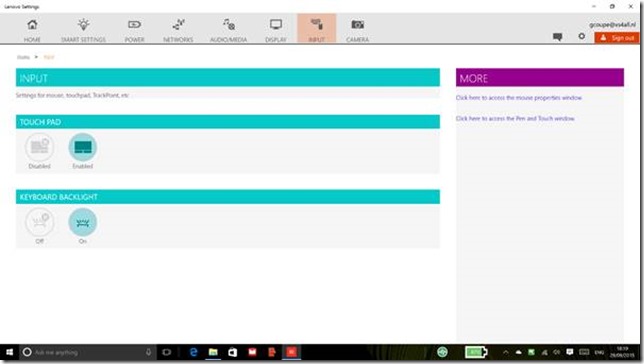
In some cases, there are clickable links on the Lenovo Settings pages that invoke traditional Control Panel applets. Here, for example is the input settings page, with links under the “More” heading to invoke the mouse properties window or the Pen and Touch window.
Clicking on the “mouse properties” link should bring up the Synaptics tab of the traditional mouse Control Panel applet:
Well, it is invoked, but unfortunately the window is not brought to the foreground, and if the Yoga 900 is in tablet mode there is no indication on the Taskbar that the window even exists. This is not a good user experience.
Another problem area in the Lenovo Settings app is that the settings do not always reflect reality. It is very easy, for example, to get into the situation where the Settings app claims that the keyboard backlight is “on”, when in fact it is “off” – and vice versa. Setting features via the keyboard seems to be independent of setting them via the Settings app, when good user interface design would seem to demand that all controls should be in lockstep and display the current actual settings at all times.
Lenovo Companion
- The Lenovo Companion app brings together the following areas:
- Support (warranty, technical support, and community support)
- System health (battery, storage, memory, and hardware diagnostics)
- System update (automatic download and installation of Lenovo-specific updates)
- Technical news, Lenovo-specific articles and news on apps made by or offered by Lenovo.
I have found that I really only use the Companion app to check for system updates. For community support (i.e. accessing the Lenovo Forums and Knowledge Base articles), I will go directly to the Forums via a Web browser – it’s far faster and easier to use than accessing them via the Companion app.
Lenovo Photo Master
This appears to be an app developed for Lenovo by CyberLink. It allows you to browse your photo collection held on the Yoga 900, and to import photos to that collection from online services such as Flickr, OneDrive and Facebook.
It is one of the many alternatives to the built-in Photos app of Windows 10. Given that the Photos app is still very limited in functionality (but supposedly still being developed and extended by Microsoft), many people seek out an alternative.
Unfortunately, Photo Master is itself fairly limited. It does not support descriptive tags, held in photo metadata. So you can’t search for photos by using tags[1], or manage the tags in your photos. It does support tagging of people’s faces in photos – it can identify a face (but not who the person is), and you can then add a name to the face. It stores this information in the photos as metadata. However, it uses Microsoft’s proprietary People tag schema to do this. This schema was introduced by Microsoft back in Windows 7. Since then, an open standard for face tagging has been developed by the Metadata Working Group, and implemented in photo products such as Google’s Picasa, Adobe’s Lightroom and IDimager’s Photo Supreme. It’s a little unfortunate that Lenovo has not chosen to use this open standard, but has gone with a Microsoft proprietary approach (that itself seems to have been dropped by Microsoft since 2012).
Lenovo QuickOptimizer and Lenovo Accelerator Application
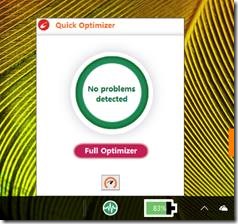
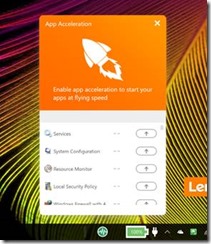
This was a separate application in the Yoga 3 Pro (OneKey Optimizer), but now it appears to have been split into these two components which are in turn integrated into the Lenovo Companion app. There is also an Optimizer icon placed on the Taskbar which can invoke two pop-up controls; one to launch the “full optimizer” (which invokes the Companion app opened to the “Optimize your IdeaPad” section) and an “App acceleration” control allowing you to choose which applications you wish to accelerate.
I have to say that I’m somewhat uneasy about using the app acceleration control in particular, especially after reading this review of the original Optimizer app, with its rather damning conclusion. I’ll be giving these applications a miss.
Lenovo Solution Center
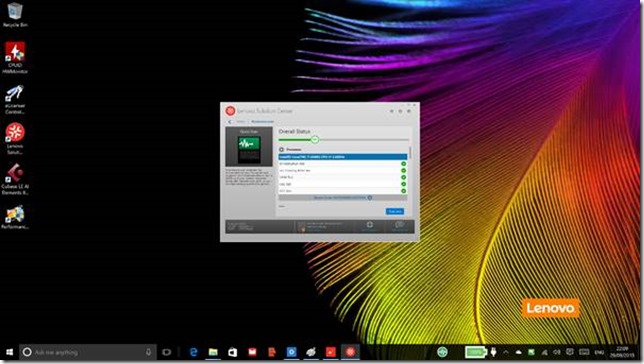
This is another utility that previously led an independent existence, but which now can be invoked via the Companion app in the “Hardware Scan” section. Unfortunately, it’s an application designed for the traditional desktop environment, and is not aware of desktop scaling. The result being that it displays in a small window lost on the Yoga 900’s desktop (which here I have set to 200% scaling, rather than the recommended 250%. If it were to be at the recommended setting, then the LSC window would be even smaller):
LSC needs to be brought up to date for today’s world of high resolution desktops.
Lenovo REACHit and SHAREit
I’m not the target customer for these two apps. I live almost entirely inside the Microsoft ecosystem. I don’t own any Apple or Android products, and I use OneDrive, not DropBox or any other cloud storage service. Via OneDrive, I can easily share information with friends and family even though they may live equally exclusively in Apple or Android ecosystems. So REACHit and SHAREit seem to offer me no added value. As a result, I don’t use them.
OneKey Recovery
This is a system image backup and recovery utility. It can be invoked from within Windows, or directly from the BIOS via a physical button (recessed) on the right hand side of the Yoga 900. It can be used to take backups of a running system and restore them, or restore the Yoga 900 to its original factory state, using a recovery image stored on a hidden disk partition.
Windows 10 (and Windows 8.1 before it) also has the ability to restore the Yoga 900 to its original factory state, so OneKey Recovery is no longer the essential utility that it once was. However, in the event of a complete failure of Windows, it can be a lifesaver, offering a restore to Windows 10 in its factory state at the push of a single button.
Software summary
With a few exceptions (e.g. the Battery Gauge), I remain somewhat unconvinced about the value-add of Lenovo’s software. For the most part, however, you can choose whether to use them or not, and uninstall them if you so wish.
[1] Windows 10 does know about photo metadata, and you can use File Explorer to search on photo tags.
-
The Lenovo Yoga 900 – A Review
Introduction
Beginning in January 2008, Lenovo has introduced a range of consumer-oriented computers named IdeaPad. The range has a number of different series within it, each designed for a different purpose or user group. The Yoga series is a line of tablets and laptops. The name “Yoga” was chosen because the laptops have hinges that allow the screen to be fully folded back (up to 360°) to convert a laptop into a tablet. A Yoga laptop can also be placed in “tent” or “stand” mode for showing presentations or movies.
The latest generation is the Yoga 900, introduced in October 2015. It is clearly the successor to the Yoga 3 Pro, which was introduced in October 2014. The Yoga 900 has almost exactly the same dimensions and design as the Yoga 3 Pro, including the unique Lenovo “watchband” hinge. For that reason, I’ve used the Yoga 3 Pro as the basis for comparison with the new Yoga 900 in this review. Compared to the Yoga 3 Pro, Lenovo has also made changes in the Yoga 900 design, both internally and externally, which I will point out in this review.
I’ve been able to do this review because Lenovo has provided me with an example of the Yoga 900 in mid-September, ahead of the official launch on October 19, 2015. I’ve spent the past couple of weeks using it, and comparing it with a Yoga 3 Pro that I’ve had since January 2015.
This post focuses on the Yoga 900 hardware and its performance. I have a separate post looking at the software environment of the Yoga 900, i.e. the setting up of Windows 10, and a look at the software bundled with the Yoga 900 by Lenovo.
Here’s a table that shows a quick comparison between the Yoga 3 Pro and the new Yoga 900:
Yoga 3 Pro
Yoga 900
OS
Windows 8.1 64/8.1 Pro 64
Windows 10 64 / 10 Pro 64*
Screen
13.3” QHD+ 3200×1800 IPS, 300nits
13.3”QHD+ 3200×1800 IPS, 300nits
CPU
Intel Core M 5Y70/5Y71
Intel Core i7-6500U* /
Intel Core i5-6200UGraphics
Intel HD Graphics 5300
Intel HD Graphics 520
Memory
8 GB DDR3L
Up to 16GB DDR3L*
Storage
256GB/512GB SSD
256GB* / 512GB SSD
Audio
JBL stereo speakers with Waves Audio certification
JBL stereo speakers with Waves Audio and DOLBY Home Theatre certification
Webcam
720p, 30 fps
720p, 30 fps
Connectivity
802.11 a/c Wireless
Bluetooth V4.0802.11 a/c Wireless
Bluetooth V4.0Battery Life
44.8 Watt Hour – 7.2 hours
66 Watt Hour – 9.2 hours
Ports
2xUSB 3.0 1xDC-in with USB 2.0 function, 4in1 card reader (SD, MMC, SDXC, SDHC), Micro-HDMI, Audio Combo Jack
2xUSB 3.0 1xDC-in with USB 2.0 function, 4in1 card reader (SD, MMC, SDXC, SDHC), USB-C, Audio Combo Jack
Weight
1.19 kg. (2.62 lbs)
1.29 kg. (2.84 lbs)
Dimensions
330 x 228 x 12.8mm
(13” x 9” x 0.5”)324 x 225 x 14.9 mm
(12.75” x 8.85” x 0.58”)
Table 1
*There is an i7-6500U, 8GB and 256GB SSD fitted on the Yoga 900 I have, and it is running Windows 10 Pro.Both the Yoga 900 and the Yoga 3 Pro are examples of what Intel calls the Ultrabook class of laptop. That is, they are ultrathin, using solid-state drives, low-power Intel Core processors, and (because of their thinness) do not have optical disc drives or full-size Ethernet ports. They are the Windows equivalent of Apple’s Macbook Air series.
Unboxing
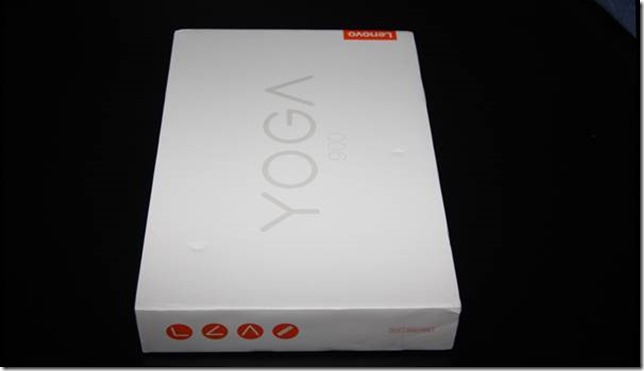
On September 17, UPS delivered a rather plain box: white (on top) and orange (underneath), with four icons on the side representing the four Yoga configurations (Laptop, Stand, Tent, and Tablet).
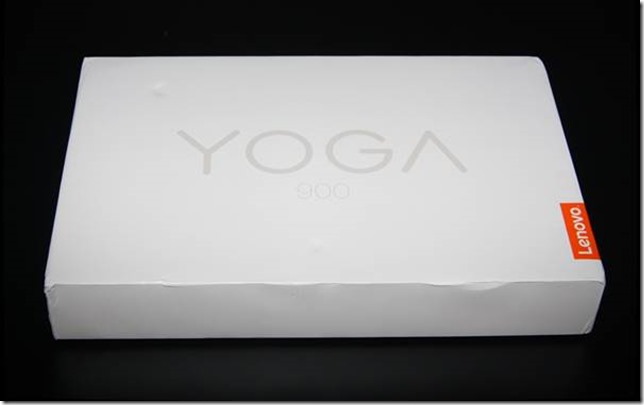
Like the box of the Yoga 3 Pro, it contains a slick piece of paper engineering – after taking off the lid, you fold back the two flaps covering the top, and as you do so, the Yoga 900 rises out of the box to greet you. This is a nice touch to the packaging.
Underneath the Yoga 900 are compartments that hold the power adaptor, the special USB power cable, and a sleeve containing the quickstart user guide. In my example, the guide was missing, it may have still been in preparation. However, I didn’t really need it, since I’ve been here before, so I could get straight on with plugging in the adaptor and cable and setting up Windows 10 on the machine (see my separate post).
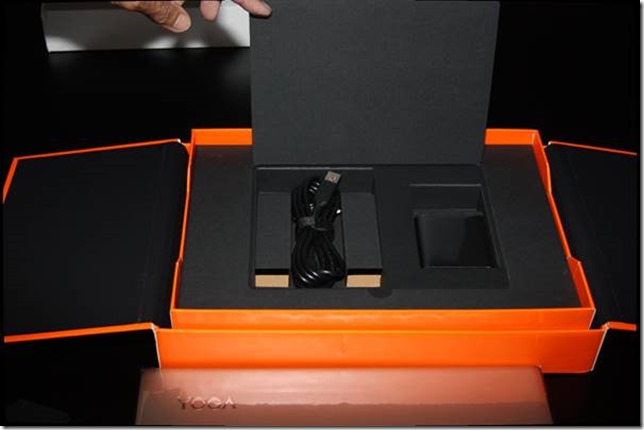
Before doing that, I thought it would be useful to compare the Yoga 900 side-by-side with the Yoga 3 Pro, so here are some photos of the two machines together. The Yoga 900 came in the Champagne Gold colour, while the Yoga 3 Pro is Clementine Orange.
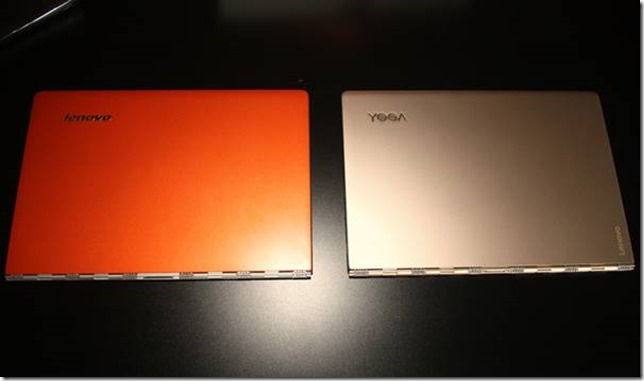
Yoga 900 Externals
As you can see from Table 1, the dimensions of the two machines are very nearly the same. The Yoga 900 (on the right in the photo below) is slightly narrower and thicker than the Yoga 3 Pro, but at a casual glance you wouldn’t see it.
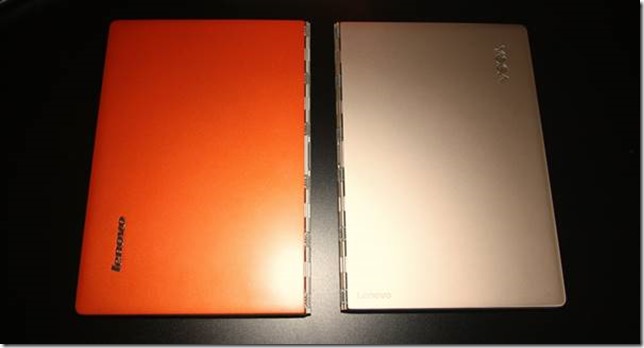
As introduced with the Yoga 3 Pro, the hinge on the Yoga 900 is the distinctive “watchband” design, which I personally find appealing and which works smoothly and very well. Lenovo states that there have been improvements to the design in this generation.

Continuing on our tour of the externals, we come across the first marked difference on the left hand side of the machines. The Micro-HDMI port of the Yoga 3 Pro has been replaced with a USB-C port in the Yoga 900, which (according to the Yoga 900 User Guide) supports USB 3.0, native DisplayPort 1.2 video and VGA/HDMI output. Not (yet) having suitable USB-C cables or adaptors, I couldn’t test this out for myself. Nonetheless, I think that Lenovo is right to be forward-looking with adopting USB-C.
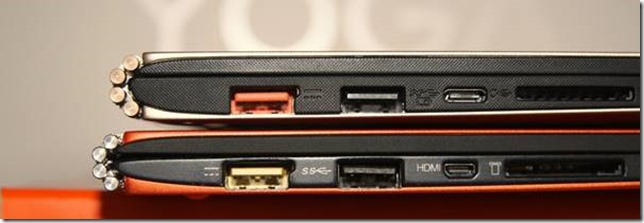
The other ports on this side of the machine remain the same. In the photo above, the first port can act as a standard USB 2.0 port, but it is also the charging port for the Yoga 900/Yoga 3 Pro. Lenovo provide a special USB cable for this purpose, which has a connector that is physically different from a standard USB male cable (it has a small “nub” on one side). The second port is a standard USB 3.0 port, while on the other side of the USB-C/Micro-HDMI port is the card reader port. Here’s a photo of the special USB charging cable connector (above) compared with a standard USB 2.0 connector (below):
Looking at the right-hand side of the machines, one thing immediately leaps out because of its absence. Unlike the Yoga 3 Pro, the Yoga 900 has no rocker switch for volume control.

Everything else is there – but no physical volume control switch. I’m a little surprised by this. It means that the only physical switches for volume control on the Yoga 900 are on the keyboard. For an ordinary laptop, that would be perfectly sufficient. However, this is a Yoga – when placed into one of the other modes (Tent, Stand or Tablet), the keyboard is disabled. Every other tablet (and smartphone) device that I’ve ever used has had a rocker switch on the side of the device used as a volume control; the Yoga 3 Pro has it, so why has Lenovo dropped it for the Yoga 900? On the face of it, this seems a strange design decision on the part of Lenovo.
Other than that, the Yoga 900 has exactly the same controls and ports as the Yoga 3 Pro on this side of the machine. From the left in the photo above: the power button, a recessed button that activates OneKey Recovery (of which more later, in the post on the Yoga 900’s software); the display rotation lock button, the headphone jack socket, and a USB 3.0 port. This last port can also be used to charge devices such as Smartphones via a USB cable.
Lifting the lids of the two devices reveals the next major difference; this time a welcome improvement. The Yoga 900 has a sixth row of keys – a line of dedicated function keys on the top row. It seems that Lenovo received negative feedback over the 5-row keyboard of the Yoga 3 Pro, so the traditional 6-row keyboard has been restored in the Yoga 900. An excellent decision that will please many keyboard jockeys.
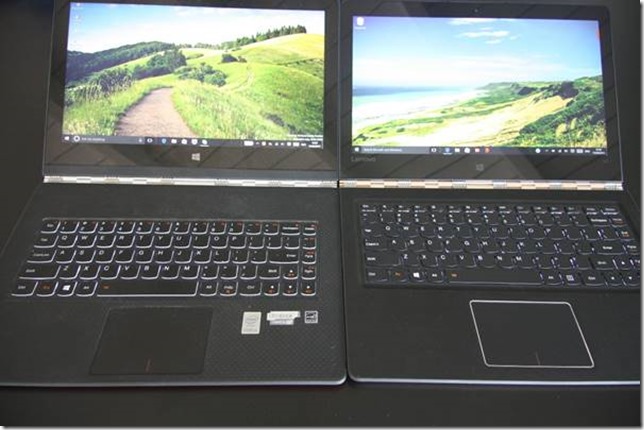
The keyboard backlight now has two illumination levels in the Yoga 900, as opposed to the single level of the Yoga 3 Pro. However, there has also been a change to the design of the keys that I feel is a step backwards. As I think you can see in the photo above, the edges of the keys in the Yoga 3 Pro are translucent, whilst those in the Yoga 900 are solid black. This reduces the effectiveness of the backlight in the Yoga 900. For the sake of chic all-black design, backlight functionality has taken a hit. It’s a minor point, but I find the Yoga 3 Pro keys are better in this respect.
The trackpad appears to be the same in both machines, with an area of 60mm x 90mm. It’s a Synaptics trackpad, that unfortunately has not been certified by Microsoft as a Windows Precision Touchpad, perhaps because it is slightly smaller than Microsoft’s recommended optimal size of 65mm x 105mm. This also means that the trackpad settings are not integrated into Windows 10 Settings. More on the trackpad and keyboard in the Yoga’s Modes: Laptop section.
Turning our attention to the screen, both Yoga models have the same high-resolution (3200 x 1800) touchscreen displays, but Lenovo has improved the aesthetics by having a single piece of glass in the lid of the Yoga 900; the Yoga 3 Pro has a strip of black plastic running along the bottom edge. These high resolution screens are almost de rigeur in quality laptops and Ultrabooks these days, so it’s no surprise to see one in the Yoga 900. The display has a ratio of 16:9, which makes it ideal for some uses; less so for others. See my further thoughts on this in the Yoga’s Modes section.
Both Yogas have a Windows button positioned below the display, for use primarily when in Tablet mode. Neither Yoga has haptic feedback for this capacitive button (unlike Lenovo’s ThinkPad tablets). This could simply be because it is physically impossible for Lenovo to fit a haptic mechanism in such a thin lid, but I do somewhat miss this feature.
In comparison to the Yoga 3 Pro, the Windows button of the Yoga 900 is also more difficult to see in some lights. Of course, it could also be argued that, with the advent of Windows 10, the Windows button has become redundant, since, unlike in Windows 8.1, the Windows Taskbar with its Start button is always present – even in Tablet mode. It would not surprise me to see this button dropped altogether in the next generation of Yoga devices.
At the top of the screen is the Yoga 900’s webcam; capable of 720p @ 30 fps (the same as for the Yoga 3 Pro), along with the dual-array microphone.
The speaker grilles are positioned underneath on the Yogas. Those on the Yoga 900 are slightly larger than on the Yoga 3 Pro, although the specifications of the JBL speakers are the same.
Yoga 900 Internals
Lenovo heard feedback from customers that the performance of the Core M processor in the Yoga 3 Pro was slower than anticipated. Lenovo’s response is to include the latest (6th) generation of Intel Core processors, codenamed “Skylake”, in the Yoga 900. Two versions will be available in the Yoga 900 range; a Core i5 and a Core i7 model. These processors are a step up in speed and power compared to the Intel Core M processors used in the Yoga 3 Pro. See the Benchmarks section for comparative results.
Skylake also introduces a new generation of the graphics processor architecture, and the Yoga 900 has an Intel HD Graphics 520 engine[1], which, as can be seen from the benchmarks, improves 3D graphics performance significantly over the Intel HD Graphics 5300 in the Yoga 3 Pro.
The Yoga 900 can have up to 16 GB system memory installed – improving on the maximum of 8 GB of the Yoga 3 Pro. Storage for both Yogas is the same; either 256 GB or 512 GB SSDs can be specified. It’s a similar story for wireless connectivity; both will support 802.11 A/C Wi-Fi and Bluetooth version 4.0.
The battery is another area where Lenovo has improved on the Yoga 3 Pro as a result of customer feedback. Like many others, I found the battery life between charges on the Yoga 3 Pro to be disappointing. Lenovo has increased the battery capacity of the Yoga 900 to 66 Watt hours. That is a third more capacity than that of the Yoga 3 Pro. The Yoga 900 is very slightly thicker and heavier than the Yoga 3 Pro (14.9 mm vs 12.8 mm and 1.29 kg vs 1.19 kg), but it achieves its increase of a third in battery capacity at a cost of only 15% extra thickness and 8% in weight. it’s a sacrifice I’m happy to make for the increased running time on battery.
Both Yogas are equipped with cooling fans. See the benchmarks section for comments on effectiveness and noise.
There’s one omission that I personally find a little disappointing: there is no built-in GNSS to feed GPS coordinate data to the Windows Location service. It’s a hobbyhorse of mine – I feel that mobile devices should have a GNSS chip fitted as standard. Downloadable maps in map and navigation apps are standard these days, but I still can’t use the Yoga 900 (or indeed the Yoga 3 Pro) off the grid without an additional Bluetooth GPS logger to track its position.
However, that omission apart, the Yoga 900 is a very attractive looking Ultrabook, with an excellent display and connectivity options.
Benchmarks
Having attractive looks is one thing, but how does the Yoga 900 measure up in performance? I ran some standard benchmarks on both the Yoga 900 and the Yoga 3 Pro in order to have a comparison between them. I did a quick subjective performance test using a Digital Audio Workstation application that I run on my desktop PC. Finally, I ran a simple battery life test.
PassMark Benchmarks
PassMark Software provide benchmarking software and hardware. I downloaded their Performance Test 8.0 software and used it to run benchmarks on both Yogas. The results are shown in Table 2 below. I also downloaded HWMonitor from CPUID, to record the maximum temperature of the CPU reached when running the benchmarks.
Yoga 900
Yoga 3 Pro
PassMark
2214
1575
CPU Mark
4439
3628
2D Graphics Mark
410.5
338.8
3D Graphics Mark
953
392.9
Memory Mark
1771
1598
Disk Mark
3201
3208
Max CPU Temperature
71°C
71°C
Table 2
In the results table above, it is clear that the CPU and graphics performance of the Yoga 900 over the Yoga 3 Pro is much improved, particularly for 3D graphics. Only the disk performance remains unchanged between the two machines.
As a general principle, I don’t like fans in portable devices, and have expressly purchased tablets for myself that do not have them. Nonetheless, for Ultrabooks with the performance of the Yoga 900, it is probably inevitable that such a device will have a fan. During the running of the benchmarks, the fan on both machines could be heard. Subjectively, the loudness of both fans sounded the same to me. I did not find it intrusive – a hissing sound – and I think it would be at an acceptable level for most people.
What is interesting from the table above is that the maximum temperature reached by the CPU in both machines during the running of the benchmarks is the same. The i7-6500U processor in the Yoga 900 will certainly be giving out more heat than the M 5Y70 in the Yoga 3 Pro. Given that the fans were equally loud, this would seem to support Lenovo’s claim that they have improved the cooling system in the Yoga 900.
Windows System Assessment Tool
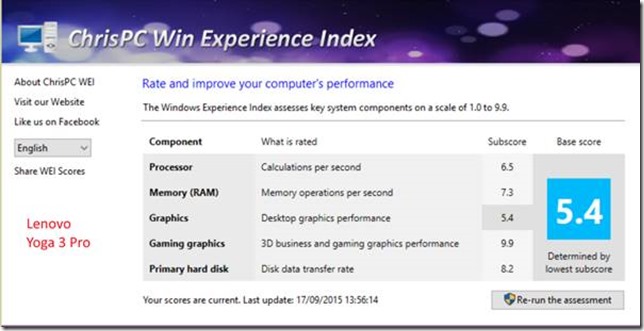
The Windows System Assessment Tool was first introduced by Microsoft in Windows Vista as a means to compare the performance of the hardware of Windows PCs. For Windows Vista and Windows 7, Microsoft provided an applet (the Windows Experience Index applet) to display the results. Although Microsoft no longer provides this applet in Windows 8.1 and Windows 10, the assessment telemetry is still in place and can be used by third-party tools to display the Windows Experience Index. I used the WEI tool from ChrisPC to display the results for both the Yoga 900 and the Yoga 3 Pro.
For the most part, the results from this set of benchmarks confirm the findings of the PassMark benchmarks. CPU, graphics, and memory performance is improved in the Yoga 900, whilst disk performance remains the same. For some reason the WSAT tool claims that 3D graphics performance is the same for both machines; I suspect that the PassMark tests are more rigorous, and give a truer picture.
Digital Audio Workstation Test
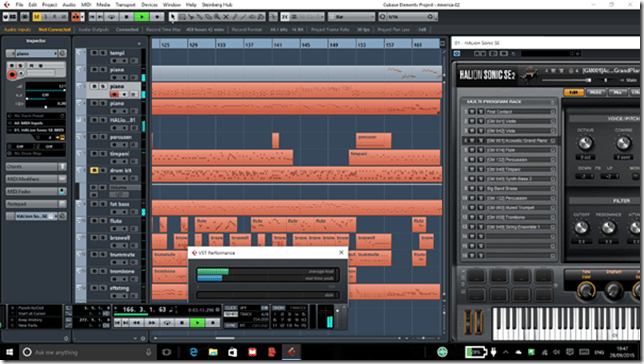
As a result of the improvements to the CPU, GPU and larger system memory, the Yoga 900 can tackle more demanding tasks than the Yoga 3 Pro. By way of a quick subjective experiment, I installed Cubase LE AI Elements 8 on the Yoga 900, and used it with a Cubase project that uses 10 virtual instruments in the HALion Sonic SE workstation, also running on the Yoga 900. This performed well.
Battery Life Test
Lenovo claims that the Yoga 900 battery can last for 9 hours between charges when playing HD video at 200nits. I did a simple test of battery life under the following conditions:
- Display always on at 50% brightness
- Speakers at 100% volume with Dolby Audio on and set to music playback
- Continuous music playback via Groove Music
- Music streamed from a media server via WiFi
Under these conditions, the battery lasted for 6.5 hours. Not the 9 hours claimed for by Lenovo, but certainly more than can be achieved by the Yoga 3 Pro under the same conditions.
Performance summary
As a result of this testing, it seems clear that the Yoga 900 will perform very well in activities involving both productivity (office work) and media consumption (watching movies/videos and listening to music). It can also be used for media creation work (digital audio). Battery life is improved over that of the Yoga 3 Pro.
Yoga’s Modes
A prime selling point of the Yoga is the fact that it can be folded into a variety of modes. At the time of introduction of the original Yoga back in September 2012, this was a unique innovation. Since then, the concept has been copied by other manufacturers such as Dell, HP, Toshiba and ASUS, which proves that imitation is indeed the sincerest form of flattery. It also clearly demonstrates that the concept is perceived to have market value. Lenovo followed up with the introduction of the “watchband” hinge in September 2014, and now with the Yoga 900 we can see both innovations in a mature form.
These are the four modes of the Yoga:
Laptop
The traditional laptop mode is probably the starting point for most people, and the mode in which I suspect most people will be using it for the majority of the time.
The Yoga 900 keyboard delivers in this mode. The extended keyboard, and its quality feel (something for which Lenovo has a reputation for), will please those who pound keyboards all day long.
I am less positive about the trackpad. As mentioned earlier, this is a Synaptics device that has not been certified as a Windows Precision Touchpad by Microsoft. The result is that it is not integrated in Windows 10 Settings, and Synaptics mimics the required Windows 10 touchpad gestures in their own driver. I also note that there are many complaints about the software driver in the community support forums of Lenovo. I feel that Lenovo should get this trackpad properly certified and fully integrated into Windows 10.
The display is excellent, high resolution, good colours, and, at 300nits, bright enough for me. It’s a 16:9 ratio display, so it’s ideal for watching movies. For office work (e.g. word processing in Word, Excel), I personally prefer at least a 16:10 ratio. Even better would be the 3:2 ratio of Microsoft’s Surface Pro 3 and Surface 3. The 16:9 ratio is also not ideal in the Tablet mode (see later). The Yoga 900 has a large bezel area surrounding the display. It should be possible to fit a 16:10 ratio screen that is the same width as the current display into the Yoga’s lid. If the (now redundant) Windows Button were to be dropped in the next Yoga generation, this would be very easy to do. The overall dimensions of the Yoga would then remain the same, but having a 16:10 ratio display would serve the Laptop and Tablet modes far better than the current 16:9 ratio display, in my opinion.
Tent
This mode is ideal for media (movies and videos) presentations, particularly in space restricted situations, e.g. on a shelf or an aircraft table. For viewing movies, of course, the 16:9 ratio of the display is now ideal. Couple the Yoga with a wireless presenter, and you can use this mode for PowerPoint presentations as well. In this mode the keyboard and trackpad are automatically disabled.
Stand
As an alternative to the Tent mode, the Stand mode can be used for media and PowerPoint presentations. It requires more space than the Tent mode, but the screen can be set to a greater range of angles for the best viewing experience. The keyboard and trackpad are automatically disabled in this mode also.
Tablet
The last mode is where the lid is completely folded back over the (disabled) keyboard, and to convert the Yoga 900 into a tablet. You can select to have Windows 10 automatically switch into Tablet mode, or to give you the option to switch manually. In this mode, the 10-point touchscreen comes into its own. However, I find that the size of the Yoga 900 (and the Yoga 3 Pro before it) makes for a slightly unwieldy tablet. While the overall size ratio is very close to that of an A4 pad of paper, it’s bigger, and it’s just too big for me. The 10.1 inch Lenovo ThinkPad 10 is much more my ideal size of tablet. The ThinkPad 10 also has an active digitiser and pen, which again I find important to have in a tablet. Artists also want pens with their tablets, and while many artists might prefer the larger size of the Yoga 900, without proper pen support, they will be crossing it off their list of devices to consider.
Talking of A4 pads of paper brings up one last point. One of the frequent uses of a tablet is for reading books or magazines. And once again, the 16:9 ratio of the Yoga 900 provides (in my view) a diminished reading experience over devices with 16:10 ratios (e.g. the ThinkPad 10) or 3:2 ratios (e.g. the Surface 3). Pages are rendered longer and narrower in 16:9, and the reading experience suffers as a result.
I would certainly make use of the tablet mode of the Yoga 900, but for me, and my usage patterns, it would not be the most frequently used mode. Still, having the option is something that a traditional laptop could not offer me.
Overall Conclusions
In my opinion, the Yoga 900 is a clear advance over its predecessor, the Yoga 3 Pro. Lenovo has listened to customer feedback and successfully addressed the major weak points of the Yoga 3 Pro, while maintaining its style and design quality. The plus points are:
- Higher performance suitable for a wide range of consumer and business users
- Improved keyboard
- Improved battery life between charges
- Excellent display
- Build quality and style
- Flexibility in use
There are some minus points (in my view):
- The trackpad is not certified as a Windows Precision Touchpad
- The physical volume control switch has been dropped.
- Few Lenovo apps deliver real value-add (see this post for details).
And perhaps Lenovo could give consideration to the following for the next generation of the Yoga:
- Move from a 16:9 screen ratio to at least 16:10, if not 3:2.
- Include an active pen option in the Yoga 900 range.
- Include a GNSS chip to deliver GPS coordinates in real-time to the Windows Location service.
- Put back the volume control rocker switch.
It is a fine example of the Ultrabook class of computer. It also offers additional flexibility with the configurations that it can be folded into. I like it.
[1] Yes, the Yoga 3 Pro has Intel HD Graphics 5300, but despite being a higher number, it has a lower performance. Intel has changed their numbering scheme “in order to reduce confusion”. It seems to me to have done precisely the opposite.
-
Microsoft’s Big Day
Microsoft had a big day of product announcements yesterday. I watched the videostream to see and hear what they had to say.
Product announcements can be tricky things to do well. Too often they can be mind-numbingly boring, and Microsoft has been guilty of doing plenty of those in the past. However, I have to say that – for the most part – Microsoft did a very good job. Agreed, the first few minutes did not bode well. The event opened with the typical corporate aspirational video, followed with a welcoming introduction from Terry Myerson, Microsoft’s Executive Vice President of the Windows and Devices Group. Gawd love him, he’s clearly doing a good job at Microsoft, but an inspirational speaker he is not. He opened with some facts and figures about the takeup of Windows 10 in both the consumer and business markets, then segued into talking about Xbox One and finished by introducing a demonstration of a HoloLens game. The demonstration looked pretty impressive, but questions remain about the experience that the wearer of the HoloLens actually sees. Time will tell.
Following that was a video and then a product presentation of the next generation of the Microsoft Band given by Lindsey Matese from the team that developed the product. She did a reasonable job, and there were whoops and cheers from the crowd, but my attention kept wandering. Perhaps it’s because the Microsoft Band and the Microsoft Health cloud service behind it is currently focused on athletes. If a focus on pensioners’ healthcare were to be added, then I’m sure that I would be more interested.
Right, we are now 30 minutes into the product announcement, and so far, it’s your typical corporate event. Now, Myerson moves on to talking about Lumia and Surface, and introduces Panos Panay (head of engineering of all premium Microsoft devices), and things move up a gear or three.
Panay is a showman. He is passionate about his products, and there’s more than a whiff of the preacher about him. He works the crowd (and the crowd are already a noisy bunch) and they respond enthusiastically. Part of me hates this style of presentation, because it’s so nakedly manipulative – like an evangelical prayer meeting – and part of me can’t help admiring it, because he does it so well. It’s helped, of course, by the fact that when you get down to it, the products mostly stand up to the hype.
He starts with the Lumia phones: the 950 and 950XL.
Panay introduces Bryan Roper to demonstrate the Continuum feature of the new Lumia phones, and once again I think this is not your father’s Microsoft product announcement. Once again, I am struck by my ambivalence towards Roper’s style of presentation. Roper reminds me of the old-style market trader, with his patter. I should hate it, but I am won over by the corniness of it, by his humour, and by the fact that he really does demonstrate (with consummate ease) why Continuum has the potential to turn the Windows Phone business around and grow the market share in the Business and Enterprise markets.
Back to Panay to wrap up the Lumia part of the presentation, and then he says: “So, I guess you want to talk about Surface?”.
He starts with a review of how well the Surface Pro 3 has done in the market (“98% of people who use Surface Pro 3 recommend it”), and then unveils the Surface Pro 4. He proceeds to walk us through the technology of the Surface and the Surface Pen, and throws in a little dig against the Apple Pencil, which is loved by the home crowd. After 20 minutes devoted to the Surface Pro 4 and related products, he asks: “Do you want to talk about another product?”.
This is his cue to move into the final part of his presentation and introduce the Surface Book – Microsoft’s entry into the 2-in-1 Laptop market. The crowd goes wild.
After a further gripping presentation on the Surface Book, he is finished, and after a final video, the floor is given over to Satya Nadella (Microsoft’s CEO) to wrap up.
Panay and Roper delivered, and lifted that product announcement up several levels.
-
Eyewash, Flapdoodle and Bullshit
The UK Parliament is about to debate a bill put forward to change the law on assisted dying. In yesterday’s Observer, the current Archbishop of Canterbury had an opinion piece on why he believes assisting people to die would have detrimental effects both on individuals and on society.
Needless to say, I disagree with his viewpoint.
I can’t help feeling that he’s being a tad disingenuous when he claims:
With other faith leaders, I have joined in writing to members of parliament, urging them to oppose Rob Marris’s assisted dying bill.
We have written, not in an attempt to push “the religious” viewpoint on others, but because we are concerned that a change in the current law on assisted suicide would have detrimental effects both on individuals and on our society.
It sounds very much like pushing the “religious viewpoint” to me. While he might wish to claim that:
…the faith leaders’ letter represents the considered opinion of our communities that have analysed, discussed and debated the issue over many years. Their response springs from philosophical and theological reflections as well as from a vast range of pastoral experience and a profound sense of compassion.
…it really deserves little more than the Mandy-Rice Davies response: Well, he would, wouldn’t he? As Ophelia Benson writes, it’s typically loaded language that at its heart is little more than “eyewash, flapdoodle and bullshit”.
He sets up a completely false dichotomy:
…we need to reflect on what sort of society we might become if we were to permit assisted suicide. At present, we can show love, care and compassion to those who at all ages and stages of life are contemplating suicide.
We still can, and, more to the point, we still do here in The Netherlands where assisted dying is legal. It would be as well to get some facts on the table, and dismiss the “slippery slope” argument in Welby’s rhetoric:
The incidence of the different circumstances of death in the Netherlands since 1995 has been determined in several successive robust epidemiological studies (Onwuteaka-Philipsen et al., Lancet. 2003;362: 395-399). In 2005, of all deaths in the Netherlands, not 20% but 0.4% were the result of the ending of life without an explicit request by the patient (van der Heide et al., New England Journal of Medicine. 2007;356:1957-1965).
In the UK, the figure was 0.33%, i.e. quite similar to the 0.4% in the Netherlands (Seale, Palliative Medicine 2006; 20: 3-10). These instances have been found to be in dying patients who had become incompetent, were compassionate and are generally considered ethically acceptable (Rietjens et al. Death Studies 2007;31:205-221).
In 2005 in the Netherlands euthanasia was given in 1.7% of deaths and physician-assisted suicide occurred in 0.1%. These rates were somewhat lower than in 2001. Since the legalisation of euthanasia in Belgium its overall incidence changed little, but the care with which it is carried out improved markedly (Bilsen et al. New England Journal of Medicine 2009; 361: 1119-1121). If cases of euthanasia with no or only perfunctory precautions came to light, there would be prosecution. And if in the future there were to be evidence for anyone requesting euthanasia because of e.g. a waiting list for palliative care, there would be an outcry. Thus, legal euthanasia is one more safeguard against the health-care system falling short of its duty to offer optimal care at the end of life. In Belgium, legal euthanasia and palliative care are not opposites, but complementary and synergistic (Bernheim et al., British Medical Journal 2008;336:864-867).
Note that Welby uses the term “assisted suicide”. As a hospice director pointed out:
There is often a deliberate and emotive attempt to confuse the terms assisted dying and assisted suicide. These are subtly but fundamentally different. People with a terminal illness are not choosing to die, they are already dying. Assisted dying offers an individual with a terminal illness and clear prognosis to have some say in the timing and place of their death if they want it. And, what is likely to be proposed in the bill is restricted to people who are terminally ill with a prognosis of less than six months. Individuals would also be required to administer the medication to end their life themselves.
However, facts do not seem to concern Justin Welby overmuch. He seems more content with hyperbole, half-truths and lies:
We risk all this for what? Becoming a society where each life is no longer seen as worth protecting, worth honouring, worth fighting for? The current law and the guidelines for practice work; compassion is shown, the vulnerable are protected. In spite of individual celebrity opinions and the “findings” of snap opinion polls (that cannot hope to do justice to the intricacies of the issue) the current law is not “broken”. There is no need to fix it.
The current law in the UK is broken. I am relieved that I live in The Netherlands where I have the option of assisted dying, should circumstances bring me to that point. I’ve lived a good life, and hopefully will continue to do so for many more years. I don’t think it is selfish of me to wish for a good death as well.
-
Into The Woods…
Just over a year ago, I blogged about the forthcoming film version of Into the Woods, the musical by Stephen Sondheim, which would be produced by Disney. I was a bit concerned that, despite a strong cast, the saccharine hand of Disney would ruin one of Sondheim’s best works. Add to that the fact that it was rumoured that Disney would be changing the story, and I wondered whether justice would be done.
Fast forward a year, and I’ve now seen it. It’s not perfect, but it’s pretty damn good.
What astounds me are the hugely negative reviews on IMDB. Dozens of one-star reviews from people who clearly hated the film.
Some didn’t realise it was a musical, and hated it because of the fact that people sang in the film. Some who did realise that it was a musical didn’t like the tunes. This is rather like Emperor Joseph II telling Mozart that there are too many notes…
Sondheim is a genius, and Into the Woods contains some of his best work. Highlights are “Agony”, “On the Steps of the Palace”. These are nicely done in the film, while Meryl Streep gives “Stay with me” real power and pathos. And of course the perpetuum mobile of “Into the woods” itself is like a well-oiled sewing machine producing a rich tapestry of song.
And then there are the legions of parents who unthinkingly thought that a Disney film would be suitable for young children, despite the fact that it has a PG certificate. Er, hello, people, have you never actually read the Brothers Grimm? Clearly not, since in the original Cinderella story, the stepmother cuts off the toes and heels of her two daughters in order to make the shoe fit, while the witch blinds Rapunzel’s prince by having his horse throw him onto a forest of thorns.
There are five fairy tales: Cinderella, Jack and the Beanstalk, Little Red Riding Hood, Rapunzel, and a Sondheim invention, the Baker and his wife. The Baker’s tale is the thread stitching the other tales into one.
Act I ends “happily ever after”, but then Sondheim deepens the stories in Act II showing the broader skein of human frailties. Be careful what you wish for, indeed.
From the witch’s lament:
No matter what you say, children won’t listen.
No matter what you know, children refuse to learn.Guide them along the way, still they won’t listen.
Children can only grow from something you love to something you lose…To the prince’s seduction of the baker’s wife in “Any moment”:
Right and wrongs don’t matter in the woods, only feelings.
Let us meet the moment unblushed, life is often so unpleasant,
You must know that, as a peasant –
Best to take the moment present as a present for the moment…In the stage play, the narrator and the Baker’s father are played by the same person. In the film, they are not, and I feel the film is weakened by this decision, particularly since the Baker’s father is played by Simon Russell Beale, and he is rather wasted in his few moments on-screen.
It seems to me that Disney has softened the impact of Act II. In the stage play, Rapunzel is killed; here she lives happily ever after with her prince. Sondheim’s moral that life is messier than a simple fairy tale is somewhat lessened. Nevertheless, it’s a good effort – and far, far better than those depressing reviews on IMDB would suggest. It’s definitely worth taking a trip into the woods… No One Is Alone…
-
Groove Music – Amnesia in Action
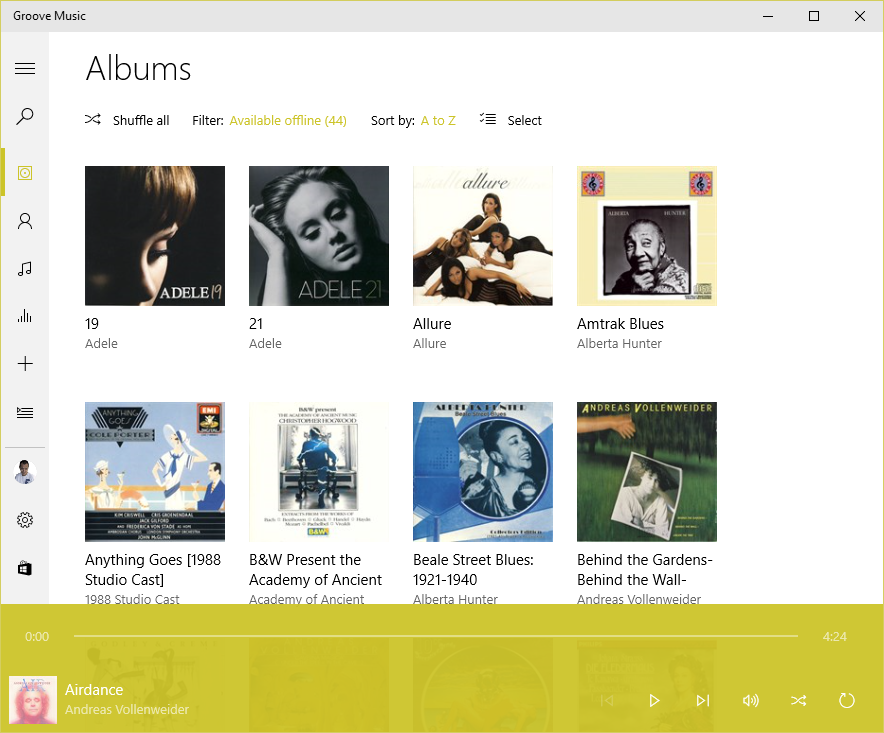
Microsoft has released a new version of its Groove Music app (version 3.6.1210.0) for Windows 10. They’ve also introduced yet another bug into it, a showstopper, as far as I’m concerned.
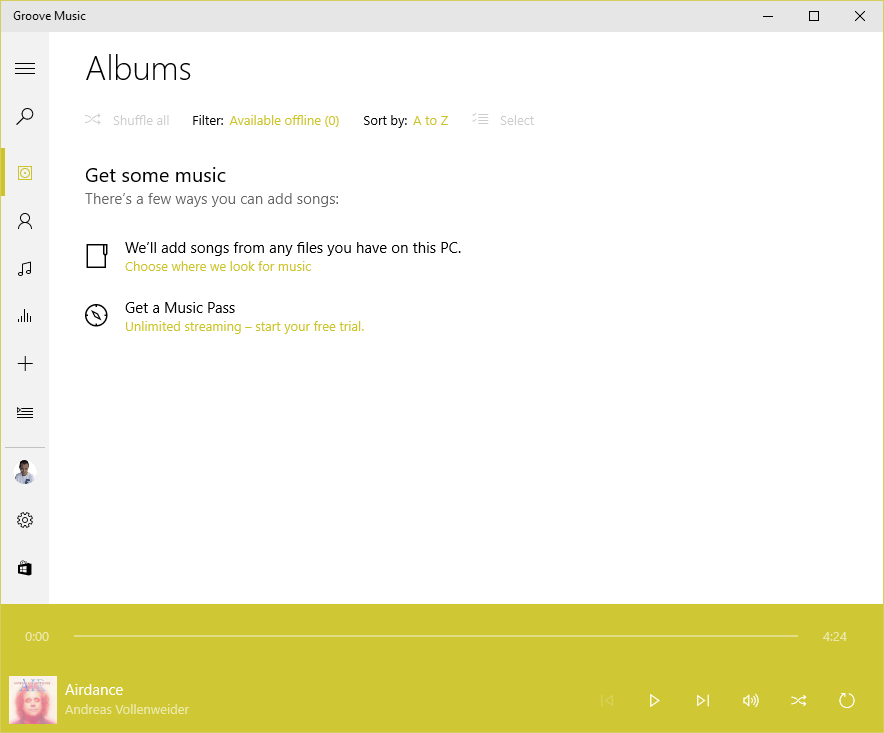
Groove keeps losing my entire album collection, and trying to rebuild it in a never-ending cycle.
I have 1,000+ albums stored on a Windows Home Server 2011 system, and connected to it are four Windows PCs (desktop, laptop, a Windows Tablet and a Surface 3), all running Groove and Windows 10. On each of the connected devices, the root music folder on the WHS2011 system is defined as a music library (and hence defined as a watched folder – in my case, \\DEGAS\Music – within Groove on each system).
Now that all the instances of Groove have been updated to version 3.6.12.10.0, what will happen is that when I’m viewing my Albums, the albums will suddenly disappear, Groove will say there are zero albums available offline, and display the “Get some music” message.
After some time (30 minutes?), or a restart of the app, Groove will start re-indexing the music folders and albums will start appearing.
This goes on (slowly!) until all the albums have been scanned from the WHS2011 folders, at which point they will all suddenly disappear again and the process starts over.
This is happening on
threeall four of the PCs.Interestingly, the Surface 3 is not losing the albums. However, it’s also not displaying the correct number of albums held in my music library. I have 1,103 albums in my collection; according to Groove on the Surface 3, I only have 1,084. I suspect that this instance of Groove isn’t actually watching my watched folders…Addendum: I forced the Groove on the Surface 3 to rebuild its index, and now the same thing is happening on the Surface 3 as on the other PCs.The 3.6.12.10.0 version of Groove is also not always displaying the “Adding music” notification when music is being added.
I feel that Microsoft is not testing this app sufficiently well; I wonder whether anyone on the testing team bothers to test it with a library held on a Windows Home Server 2011 system.
I don’t mind being a beta tester when software is in beta; but Windows 10 and the Microsoft apps are now released. Groove is still not fit for purpose.
I have also sent this information in as feedback to Microsoft via the Windows 10 Feedback app. Whether this will result in a fix remains to be seen.
Apparently, Microsoft has stated that for Windows 10 Home users, all operating system and app updates will be automatically installed, and this cannot be overridden by the user. That’s a bit worrying, since a bug in a new component can cause immediate damage. We don’t get the option to delay updates and check whether it’s safe to let installations proceed.
Addendum 18 August 2015: Groove is now up to version 3.6.1239.0, but the issue is still present…
Other people are also reporting this issue occurring for music collections held on both WHS 2011 and Windows Server 2012 systems, so I’m not the only one for whom this is a showstopper.
Addendum 19 August 2015: This latest version of Groove running on my Surface 3 refuses to find any local files (including the collection on WHS 2011) at all. And it’s a hit and miss affair on my other systems as well. Groove on my desktop claims my collection has 1,109 albums available offline; on my Yoga 3 Pro, Groove says I have 1,112 albums, and on my ThinkPad 10, Groove says I have just 644 albums.
Addendum 20 August 2015: after 36 hours(!) of adding files, Groove on my ThinkPad 10 now says I have 1,108 albums available offline. So what’s it to be? 1,109, 1,112, or 1,108? All instances of Groove are looking at exactly the same collection; one might think that they could agree on the correct total of albums. Oh, wait a minute, Groove on the Desktop PC has just lost the index again, and has restarted to index the collection, While Groove on the Surface 3 still resolutely refuses to see any albums at all…
I’m sorry, but this software is absymal.
-
Windows 10
So, the great day is here; Windows 10 has been unleashed.
Microsoft is in full Dr. Pangloss mode at the moment, trumpeting that Windows 10 is the best of all possible worlds.
Forgive my cynicism, but from what I have seen so far, I think it’s more of a curate’s egg.
The one saving grace is that it might improve over time, but going on Microsoft’s past performance, I’m not holding my breath. Having said all that, I will be updating all our windows devices to Windows 10, but not without regrets.
-
Media in Windows 10 – Stepping Backwards?
Just a couple of days to go before the launch of Windows 10, and Microsoft has blogged about the built-in apps present in the new operating system. Microsoft describes the apps as “great”. I think many of us would beg to differ; we are finding that the media apps in particular are a step backwards from those that are in Windows 8.1.
Barb Bowman goes into detail about the shortcomings, and, if using Windows to play back your media is important to you, you should definitely check out her post.
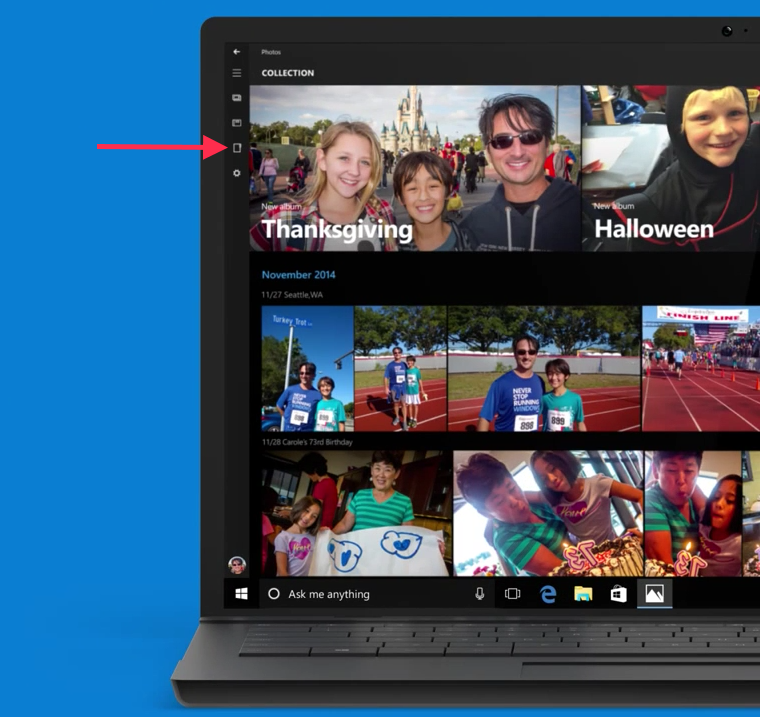
In addition to these shortcomings, the Windows 10 Photos app is pretty abysmal. You can’t browse individual folders of pictures, it will only display pictures arranged by date. Interestingly, browsing by folders was originally in the app, but it has now been removed by Microsoft. I notice that the advert in the Microsoft blog post still shows the older version of the app, with folder browsing present:
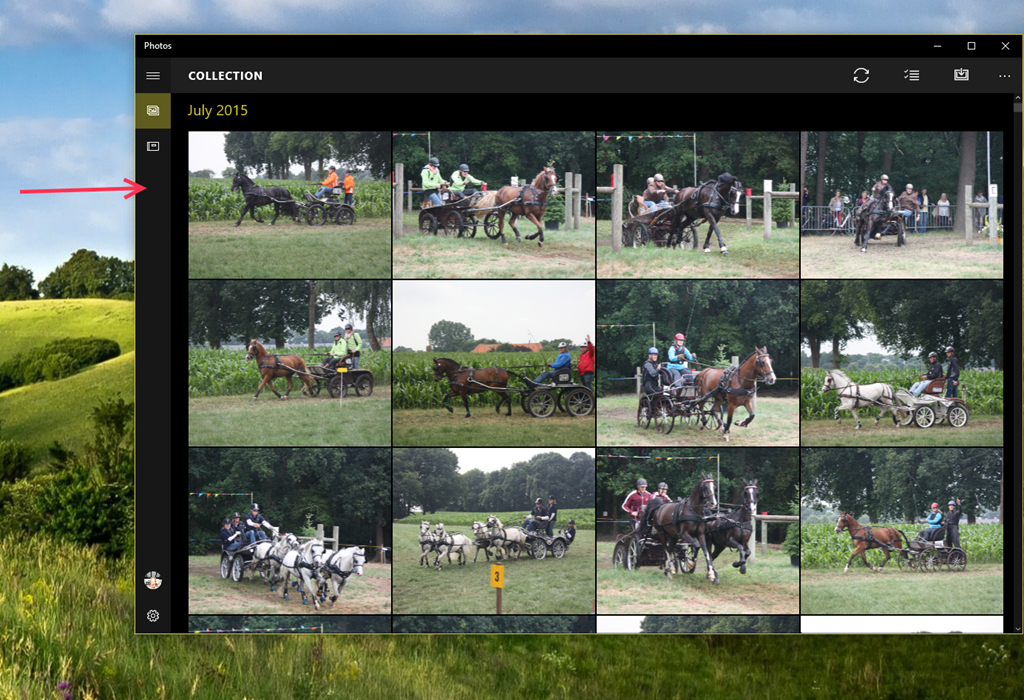
Either Microsoft are being disingenuous here, or someone’s been sloppy, because the Folder view is missing from the latest version (and has been for some months now):
So where has the Folders view gone? I need it back – it makes it impossible to find stuff without it (and there is still no possibility to search photo metadata tags in the app).
Frankly, with the current state of this app, I find it next to useless, and use other photo apps in preference. However, Windows 10 will force you to use it in certain circumstances. For example, if I want to add someone’s picture to their contact details in the People app, Windows 10 will bring up the Photo app so that you can select the picture you want to use. Without a folders view, I have to use File Explorer to find out the date taken of an image, and then use the Collection view in the Photos app to scroll to the date of the image to copy it into the People app. This is extremely cumbersome, and far from fast and fluid.
It almost gives the impression that Microsoft teams don’t actually test out the use cases… I am not impressed.
-
The Egg Master
I didn’t know whether to laugh or cry at Rhik Samadder’s review of the Egg Master
So I did both.
The comments are worth reading as well. A&E units – you have been warned…
-
Windows 10 Looms…
We are just three weeks away from Microsoft launching Windows 10 on the 29th July. The tech media has plenty of articles discussing the pros and cons, and now the “should I upgrade to Windows 10” articles are starting to appear in the mainstream press. Here’s one from the UK’s Telegraph. It’s actually surprisingly positive:
Windows 10 for desktop is a massive improvement over Windows 8. It builds on the more intuitive aspects of Windows 7 and Windows 8, combining the familiarity of the Start menu with a number of new features that genuinely seem to improve user experience, such as Edge and Cortana.
It’s also surprisingly accurate (I’ve begun to despair at the quality of what passes for technical journalism these days, even in the tech press), although in some places I would have a different take. For example:
When used on a tablet or smartphone, Windows 10 is not hugely different from Windows 8; most of the changes are under the hood. However, small improvements in usability should make learning the system less of a chore for the uninitiated.
As a user of Windows 8.1 on various tablets, I would disagree with the first part of this statement. There are substantial changes, and the changes are not under the hood, but very much in your face. The Charms bar of Windows 8/8.1 has gone and been replaced by the Action Centre, which holds notifications and is the entry point to Windows settings. Windows 10 also introduces the dreaded “Hamburger” button. These and other changes represent a major shift away from the design language pioneered in Windows 8/8.1 and in Windows Phone 8/8.1.
So for those of us that use Windows 8.1 and are completely comfortable with it, the move to Windows 10 is going to mean changes, and the relearning of our muscle memories. People who use Windows 7, on the other hand, are, I think, going to find it easier to adapt, because Windows 10 is very much closer to what they are used to.
After trying out the previews of Windows 10, I wrote, back in April, that I just didn’t like it. There seemed to be too many features of Windows 8.1 that had been removed or changed.
Now, twelve weeks and several preview builds later, I am somewhat less anxious. I have moved three PCs over to Windows 10. A laptop, a tablet and lastly, and most recently, my main workhorse, my Desktop PC. I have left my Surface 3 tablet running Windows 8.1; I will wait until the official release of Windows 10 before upgrading it.
I still miss the Smart Files feature of Windows 8.1, and the new version of this feature probably won’t appear in Windows 10 until late 2016. I will also be going through a period of relearning how to use my tablets.
Will the pain be worth the gain? In some areas, definitely yes. Windows 10 introduces native support for the FLAC audio and MKV media container formats. Both of these are important to me for the future of my music and home cinema systems. However, what Microsoft gives with one hand, it taketh away with the other. The “Play to” feature of Windows 8.1 is renamed to “Cast to” in Windows 10, and this function will have fundamental changes. It appears as though Microsoft has removed DLNA DMR devices from system-level control (e.g. the Devices item in the Win 8.1 Charms bar), and demoted that function to needing to be controlled on an app-by-app basis.
That’s all very well if app developers actually take account of it. I note that Microsoft’s Music app does not do this, and I also note that the Microsoft spokesperson uses the qualifier “eventually” in the context of support by the Microsoft app. That could mean it will be available on July 29 or it could mean in five years time. That does not give me a warm feeling.
The Music app has recently been rebranded by Microsoft as the Groove Music app. It’s still primitive, and does not even have the capabilities of the venerable Windows Media Player, Microsoft’s Windows desktop application that last had an update back in 2009. For example, as a lover of Classical music, I want to be able to search and sort my music collection by composer. I can do this in Windows Media Player – in Groove? No, not yet – and I suspect not ever.
Microsoft keep saying that their media applications will have a constant stream of improvements, but they’ve been saying this for a very long time now, with precious little result.
So in summary, the underlying platform of Windows 10 is good, with new features that promise much. It remains to be seen whether Microsoft and other players will exploit that platform with a new generation of apps that deliver value and delight.
-
Left Hand – Meet Right Hand…
Once again, Microsoft demonstrates that its left hand seemingly hasn’t got a clue what its right hand is doing.
The OneDrive team has been making “improvements” to the OneDrive service. A couple of weeks ago they blogged about these.
A couple of days ago, Martin tried to send some photos of the garden to a friend. He uses Windows Live Mail (WLM) as his email program. This has a very nice feature that allows the easy creation of a photo album in an email, and it uses OneDrive. What happens is that WLM will create a folder in your OneDrive to hold the full-size photos, upload those into OneDrive for you, and use thumbnails in the email message. So the email is small and efficient, and the recipient can view the photos in the OneDrive folder.
As I say, it’s a nice feature, and very easy to use.
Except that this time, the email got stuck in WLM’s outbox; it would never complete the publishing process. We tried it a couple of times, and the result was always the same.
It turns out that this problem is hitting a lot of people who are using the Photo Album feature in WLM. It’s been caused by a change made by the OneDrive team in the OneDrive service.
Clearly, no-one in the OneDrive team uses Windows Live Mail. It’s probably too old-school for them. I have a strong suspicion that Microsoft would love to drop WLM and the rest of the Windows Essentials software suite. It hasn’t had an update for several years now.
The big question now is what will Microsoft do? Will the OneDrive team fix the issue, and restore the photo album feature to WLM users? Or, as I fear will be the case, will this just be ignored in an attempt to shift users away from WLM and onto the Mail app that will be delivered in Windows 10? Conspiracy theorists will probably surmise that this breaking of WLM is a deliberate move on the part of Microsoft. I suspect it was probably unintentional, but it does now provide a useful lever to Microsoft to drive users away from future use of WLM. So I don’t think we will see a fix…
Addendum: 8 July 2015. Well, I may be wrong. It looks as though the issue has been fixed. No official word from Microsoft, one way or another, but photo albums do now seem to be getting through…
Addendum: 13 October 2016. It turns out we only had a temporary reprieve. What appears to be happening is that Microsoft is making changes to its Outlook infrastructure in the cloud, and these break the photo feature in WLM. There’s no chance that Microsoft will reverse these changes, and equally no chance that they will adjust WLM to fix the issue. Sigh.