Reflections on life at “De Witte Wand”…

Category: Computers and Internet

  • Getting Started With Windows Home Server 2011

    I see that Microsoft’s Michael Leworthy has posted that the latest update of the “Getting Started With Windows Home Server 2011” document is now available. This version is dated June 2011, and replaces an earlier one dated February 2011.

    It’s a pity, therefore, to report that errors that were present in the February version are still there in the June edition. For example, take this page:

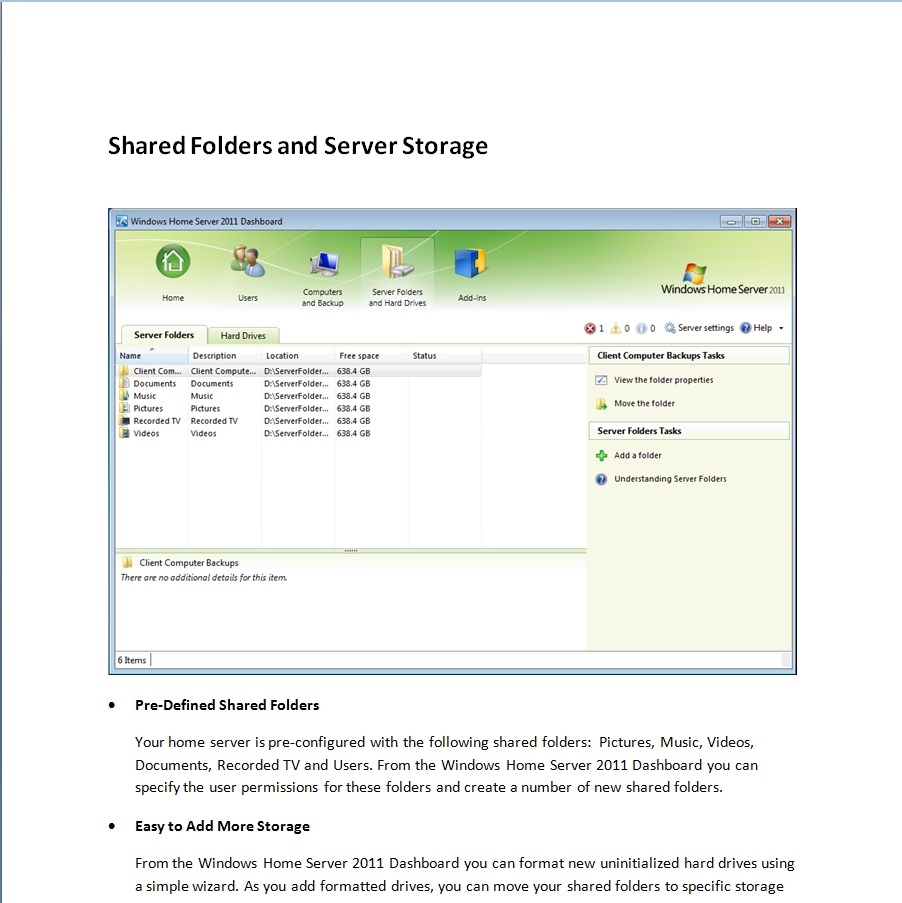
    WHS2011 57

    In the Pre-Defined Shared Folders section, it states:

    Your home server is pre-configured with the following shared folders: Pictures, Music, Videos, Documents, Recorded TV and Users. From the Windows Home Server 2011 Dashboard you can specify the user permissions for these folders and create a number of new shared folders.

    Wrong. In WHS 2011, the pre-defined shared folders are: Client Computer Backups, Documents, Music, Pictures, Music, Recorded TV, and Videos (as can be seen in the screenshot immediately above in the Guide). In the original version of WHS, the pre-defined folders were Photos, Music, Videos, Public, and Software. In addition, every user who had an account created on WHS would automatically have a folder created for them; e.g. user Geoff would have a folder  \\server\users\geoff. In WHS 2011, these user folders are no longer created automatically, so there is no “users” folder.

    At the end of the Guide, there is a section on Resources that are available to help you with WHS 2011:

    WHS2011 58

    Unfortunately, the links given for Installation Instructions and General Help are still mistakenly swapped (doesn’t anyone at Microsoft check this stuff?). The link under Installation Instructions takes you to the General Help pages, and the link under the General Help pages takes you to the online Release Notes (which contain the latest Installation Instructions).

    I’ve commented on the poor quality of the General Help pages before (both here on the blog, and in feedback direct to Microsoft); unfortunately, as far as I can see, they are still unchanged and as bad as ever. The WHS 2011 Product Pages were supposed to be cleaned up this week also. As of today, they are still in the same chaotic state that they’ve had for a few weeks now.

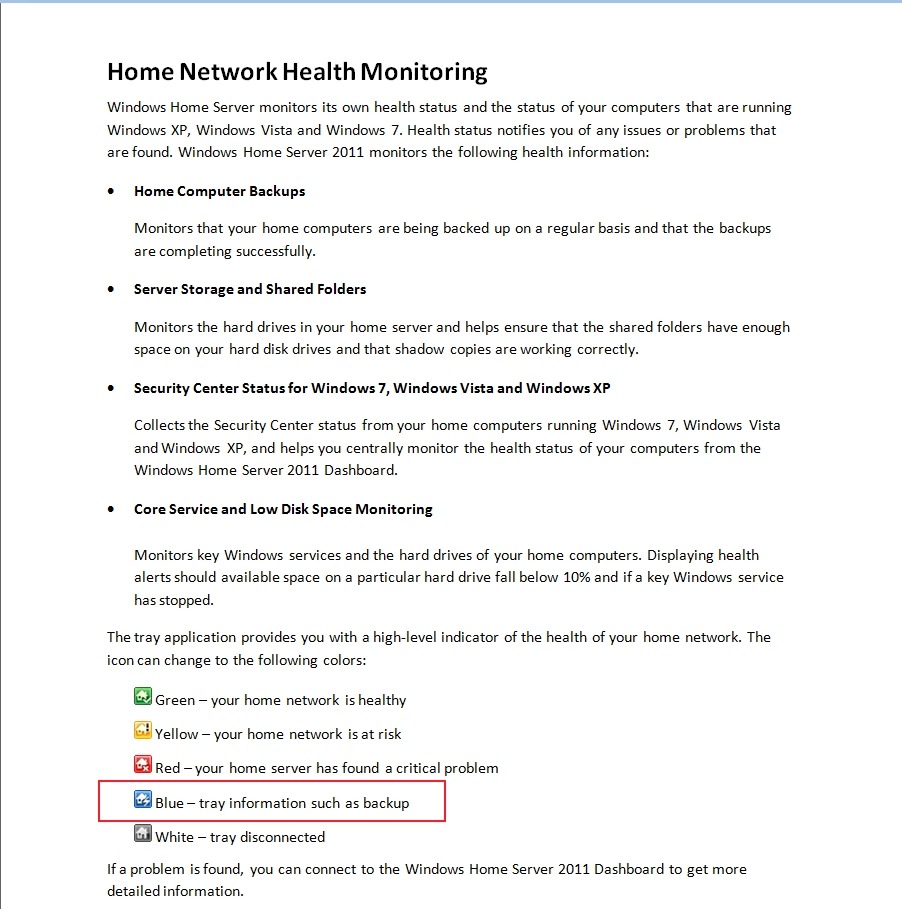
    Addendum 5th July 2011: I was browsing through the excellent We Got Served forums today, and noticed that someone had reported that the WHS 2011 notification icon in the Windows System Tray wasn’t turning blue when a backup of the PC was in progress. This was always the case in WHS v1, so I was surprised to read that it wasn’t apparently working in WHS 2011. It’s even mentioned in the Getting Started documentation:

    WHS2011 62 

    Intrigued, I looked at the System Tray icon on a couple of my PCs whilst they were having a backup taken, and sure enough, it wasn’t turning blue. I then discovered that this bug had been reported to Microsoft on the Microsoft Connect web site (note, if you haven’t got an account there, you won’t be able to follow that link, I’m afraid). Astonishingly, Microsoft have replied:

    This is a good suggestion, although we decided in the 2011 release that backups should be seamless and not neccessarily [sic] notify the user of when they are in place.

    Ah, yes, the “it’s not a bug, it’s a feature” defence. If they’re going to pull that one, then they should also change the documentation to be in line… And what on earth do they mean by describing this as “seamless”? “Invisible”, more like. The whole point of the icon behaviour in WHS v1 was that you could see at a glance whether a backup was in progress, so that you didn’t shut down your computer while it was underway. I’m already seeing complaints on the forums that people are missing this, and pointing out that it was very easy to use by family members. Now, you have to go into the Launchpad and click the backup button. If there’s no backup underway, the Launchpad will ask you if you want to start one. If there is one underway, the Launchpad will tell you how far it’s got. Family members don’t want this hassle (many don’t even want to see the Launchpad), and neither do I.

    I’m sorry that I always seem to be negative about WHS 2011. I really want it to succeed, but it seems to me that the lack of attention to detail and the resulting slip in quality, not to mention the issues in the shipped software, does not generate a good impression of the product. It could have been so much better.

  • Windows Home Server 2011 Product Pages

    Update 13 January 2012: Well, it’s taken Microsoft over six months to do it, but it looks as though they now have a new set of Product Pages. They are very much simplified (perhaps too much so), but at least the howlers of the previous set are no more.

    I’ve been looking through the web pages that Microsoft has put up to market the Windows Home Server 2011 product.

    The web pages were originally set up for the first Windows Home Server product, and have now been updated, not always consistently or completely, to reflect the new, 2011, version.

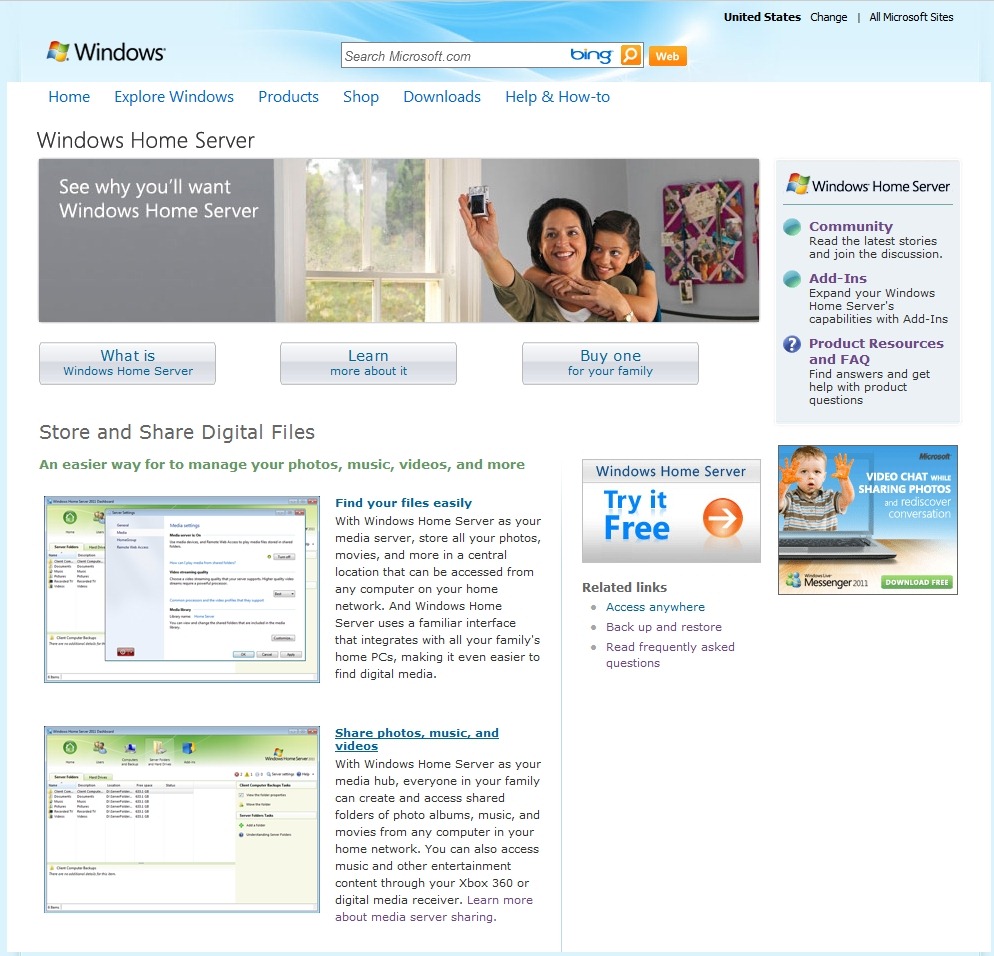
    For example, on this page, the “Find your files easily” and “Share photos, music, and videos” links are currently broken:

    WHS2011 54

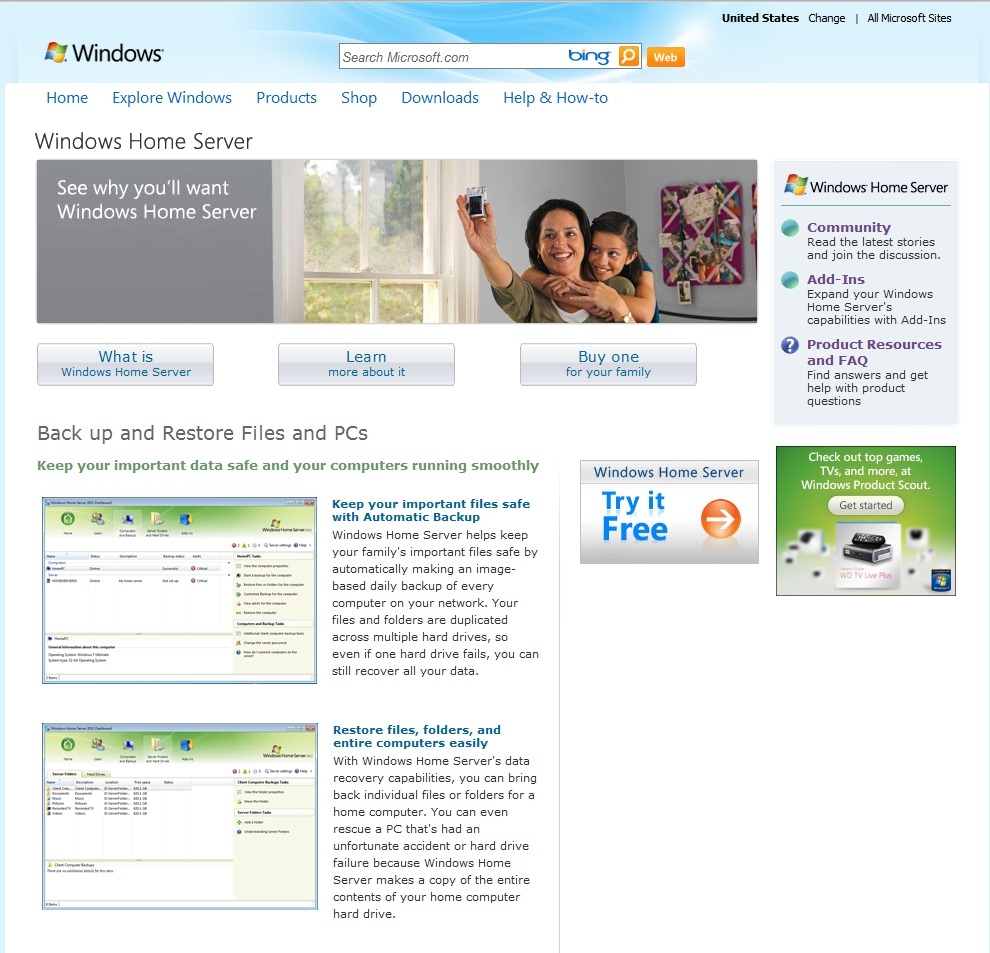
    Other pages also have lots of broken links. This one, for example:

    WHS2011 55

    Update 18 July 2011: Well, it looks as though Microsoft have removed the broken links instead of fixing them. Originally (i.e. on the WHS v1 pages), those links led you to the full-size screenshots of the thumbnails to the left of each link. And the thumbnails themselves had embedded links to do the same thing. Now Microsoft have simply deleted all the links, both in the text and the thumbnails, so there is no way someone reading the product pages can see the full-size screenshots. Instead they have to be satisfied by squinting at the thumbnails. This is supposed to be good marketing?

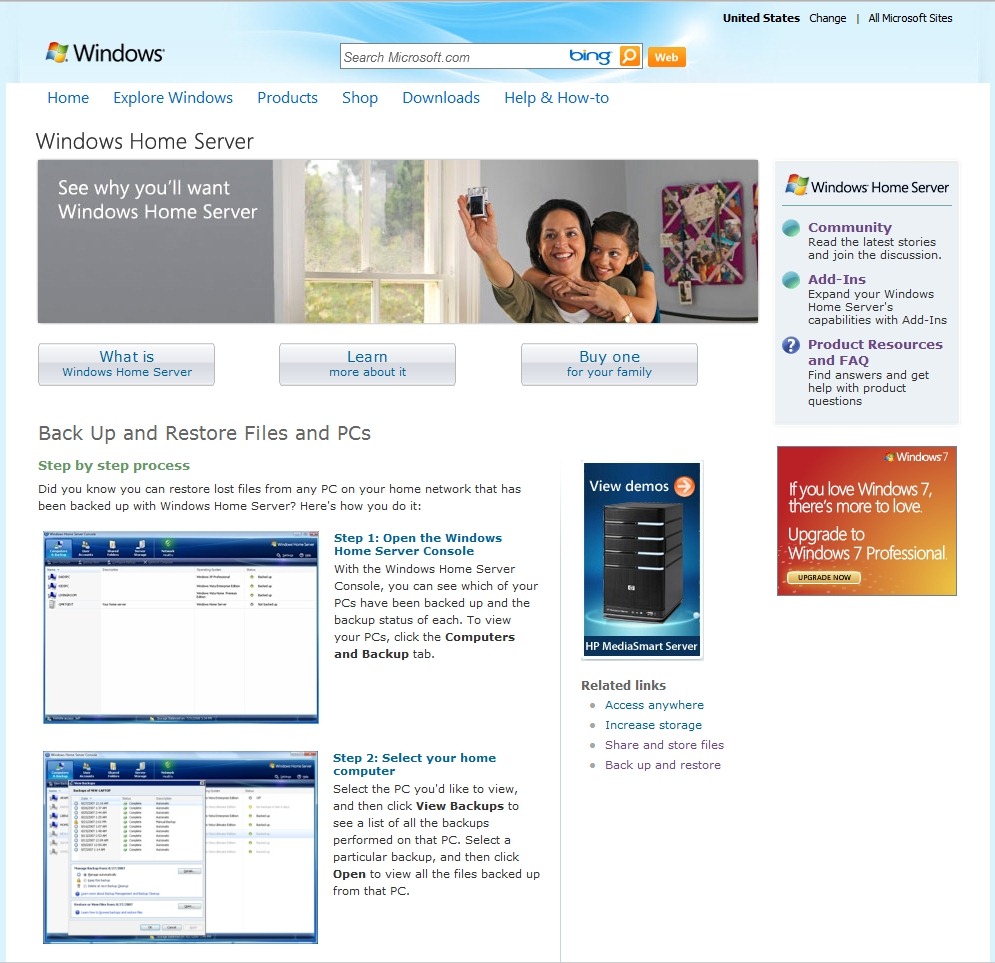
    And then there are pages that still continue to refer to the old version of Windows Home Server. This page, for example, still has screenshots of the WHS version 1, and it refers to the “Console” of WHS v1, instead of the “Dashboard” of WHS 2011:

    WHS2011 56

    And it’s not the only page to do this. There’s plenty of other examples to be found, including pages that refer to the Drive Extender technology, which has been dropped from WHS 2011.

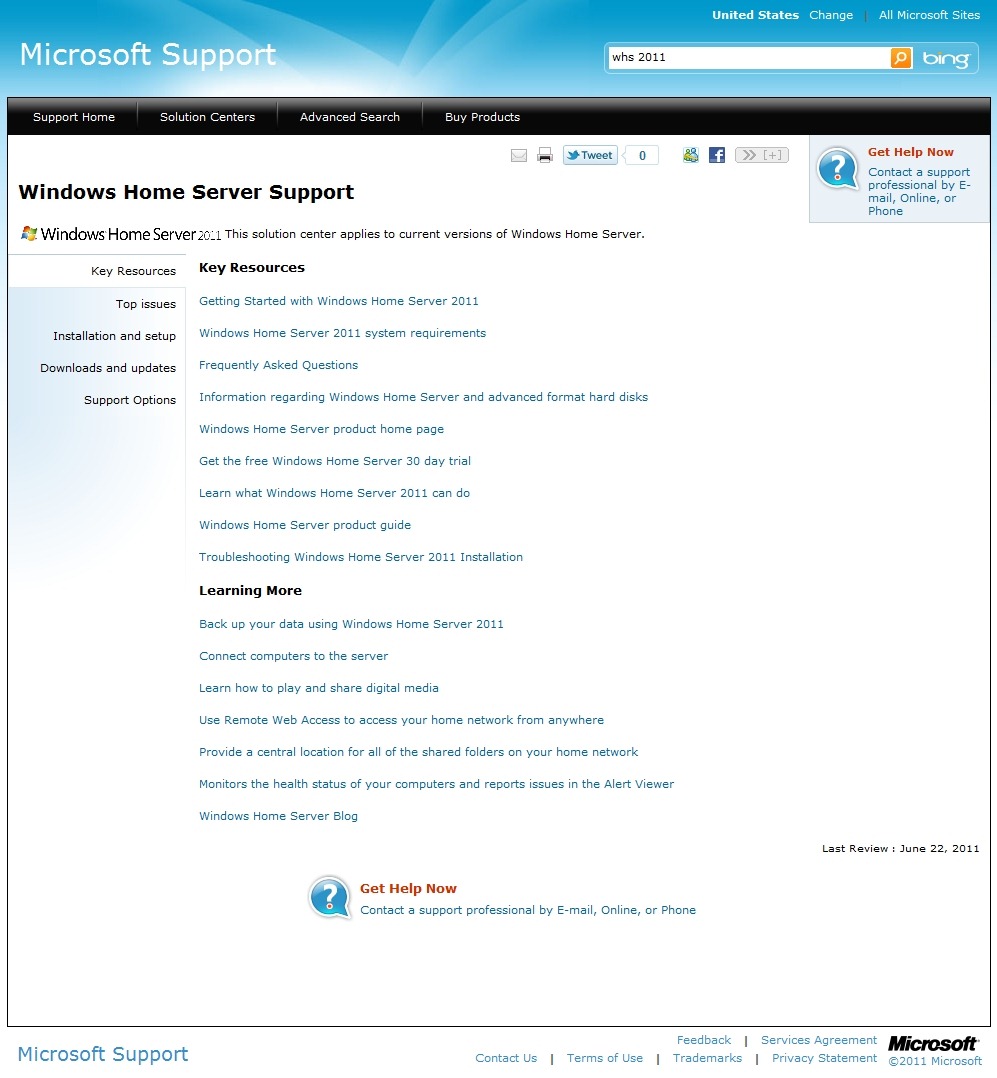
    Microsoft seem to be intent on not only confusing the home user, but also their developer community. On the Windows Home Server Support page, the link given under the Developer resources section leads not to the Windows Home Server MSDN site as it claims, but to a now-obsolete toolkit (it was designed for WHS v1 and will not work on WHS 2011) to install diagnostic software on WHS v1. Diagnostic software, note, not information about how to build software for WHS 2011, which is what developers need to get started with. The link should really go to the SDK (Software Development Toolkit) for WHS 2011.

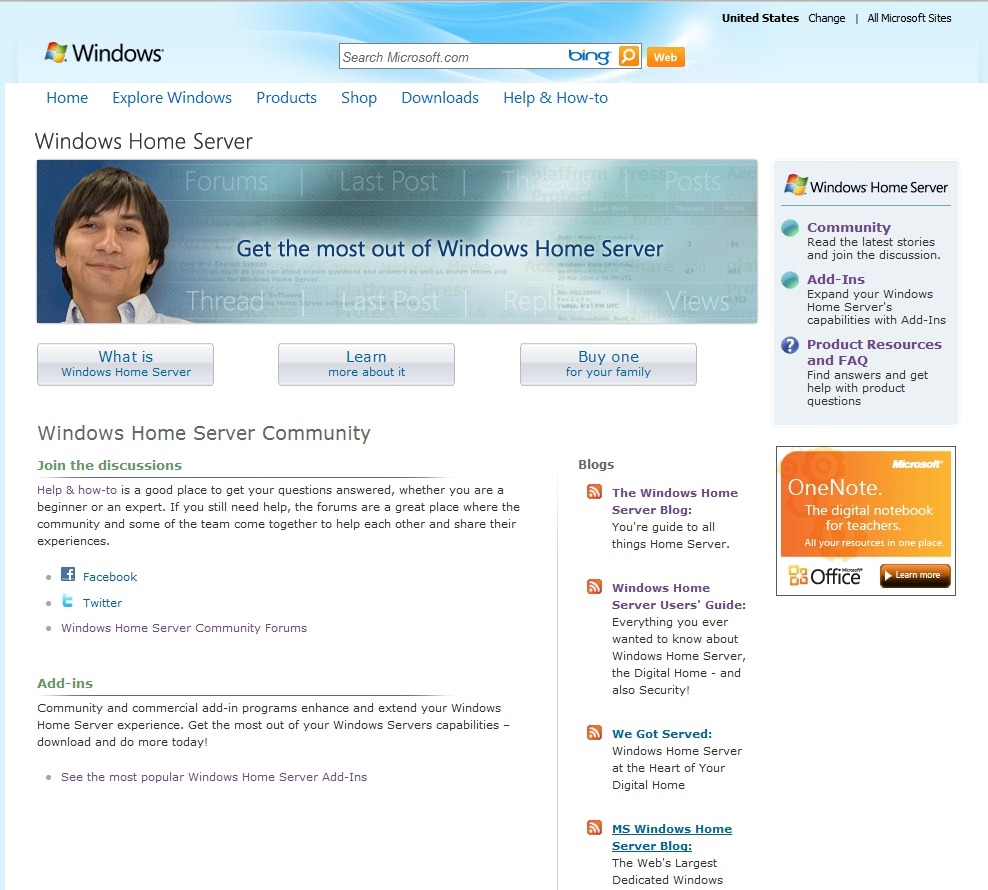
    Finally, I know that I’m a pedant about grammar, so I let out a groan of despair when I read this page:

    WHS2011 52

    Take a look at the tagline under the link to the official Blog of the Windows Home Server Team:

    WHS2011 53

    You’re guide…”? Sigh – whatever happened to good education? Or useful and accurate web pages, for that matter?

  • World IPv6 Day

    The very first World IPv6 day was, er, yesterday. There’s a good explanation of what it was all about by Richard Cooper on the BBC’s Internet blog.

    I have to say that it passed very uneventfully for me, the internet continued to work…

    The day before I had set up my new ADSL router/modem, which I got on free loan from my Internet Service Provider, XS4ALL. They’ve always been at the forefront of internet technologies – the company was originally started as a Foundation back in 1993 to offer access to the Internet to private individuals. The only ISP operating in the Netherlands at the time (NLnet) offered its services only to companies. NLnet thought that there was no market in offering access to the Internet to the consumer – what a mistake that turned out to be.

    XS4ALL has been using IPv6 alongside IPv4 since last year; for example, 194.109.6.92 is the IPv4 address and 2001:888:0:18::80 the IPv6 address of www.xs4all.nl. With the advent of the first World IPv6 day, they’ve been actively trying to get their customers to register for an IPv6 address alongside their existing IPv4 address. That’s what I did on Monday, and the new addressing service seems to work OK for me. I now have both an IPv4 address and an IPv6 address at home. And with that new IPv6 address in place, I can also now access web sites that have IPv6 addresses, such as ipv6.bbc.co.uk. Of course, for the foreseeable future, the major web sites will have dual addresses in place, but the transition has now begun. IPv4 addresses are almost used up, and IPv6 addresses are starting to come on stream.

  • Slideshow Quality in Windows Live Photo Gallery 2011

    Almost a year ago, in July 2010, I blogged about something that I had noticed in the beta of Windows Live Photo Gallery 2011: the quality of the slideshows it displayed was noticeably poorer than in the previous version.

    It turned out that WLPG 2011 uses Windows Live Movie Maker to display slideshows, and this was what was causing the poorer quality. This was unchanged in the final release of WLPG 2011. Because of this poor quality, when I wanted to display a slideshow on my PC, I used the slideshow function in Windows Explorer. It doesn’t have any fancy transitions, but it displayed the images at a far higher quality than WLPG/WLMM 2011.

    And there the matter has stood, until now. Yesterday, I received an email from someone with the nickname tuxplorer, describing a simple change in the Windows Registry that will stop WLPG 2011 from using WLMM to display slideshows, and use its own built-in slideshow capability (that has been left in there from the previous version!).

    All you have to do is use Regedit to go in the registry to HKCU\Software\Microsoft\Windows Live\Photo Gallery and change the value of the “AutoMoviePlayerSlideshow” value to 0.

    That stops WLPG 2011 from using Windows Live Movie Maker, and makes it use its own slideshow capability. That slideshow engine has a number of transition effects, but if you choose the “Classic” theme, then you will get the same high-quality slideshows as in Windows Explorer.

    Hat-tip to tuxplorer!

  • Windows 8

    Microsoft have given the first public demo of the user interface that will be included in the next version of Windows, currently known as Windows 8.

    At the D9 conference yesterday, Windows and Windows Live President Steven Sinofsky brought Corporate Vice President of Windows Program Management, Julie Larson-Green with him to show a demo to the audience. She has also written about the design of the interface in this article.

    Microsoft have also posted the first of what promises to be a series of videos to YouTube. This one gives a good impression of the new user interface.

    It’s clear that it is designed around touch and gesture, and shares a lot in common with the Metro interface of Windows Phone 7. Thankfully, for old fogies like me, the traditional Windows 7 interface will still be available. While I think that the new touch interface will be wonderful on tablets, slates and other handheld devices, I’ve never been convinced about its efficacy on touchscreen PCs. Reaching out to the screen in front of me all day will have a tendency to give me gorilla arm, I’m sure.

    And while the interface can be driven by a mouse, I have the feeling that a mouse is not the best device for this sort of interface. For example, you can use a mouse in a paint application, but the experience has been likened to “painting with a rock”. A digitiser with either a touch interface or pen is much more suited to these applications. I suspect that we’ll see a resurgence of digitiser pads if Windows 8 takes off.

    I look forward to trying it out on my old HP TX2000 Tablet PC – Windows 8 and an SSD replacement for the hard drive should give it a whole new lease of life…

  • All Watched Over By Machines Of Loving Grace – II

    I mentioned how much I was looking forward to the new series of documentaries by Adam Curtis: All Watched Over By Machines Of Loving Grace.

    Actually, the first episode was last week, and it was every bit as good as I had hoped for. I never realised, until Curtis made it clear, that there was a close, if not intimate, connection between Alan Greenspan and the ethical egoist-cum-sociopath Ayn Rand. Pause for shudder

    Tonight’s episode will look at how our view of Nature, as interconnected ecosystems, echoes our view of machines. Should be good. And next week, Curtis will look at our view of the human being as machine, and tell the riveting, and almost outlandish, story of George Price, who was one of the first to come up with the idea of the Selfish Gene.

    Adam Curtis has also been on Little Atoms, talking about the series and the ideas behind it (the second link on this page). Well worth a listen.

    The underpinning theme of All Watched Over… is that of Cybernetics, with which I was fascinated when younger. I wonder whether Curtis will mention William Grey Walter and his cybernetic tortoises? I built one of those when I was a teenager, but really, one was not enough, you really needed several to be able to study the emergent behaviour…

    At the very least, I hope that Curtis gives a shout-out to Anthony Stafford Beer, who was invited by Salvador Allende to implement Cybersyn to manage the planned economy of Chile. Unfortunately, like so much else, the experiment was swept away in the military coup of 1973, which was, surprise, surprise, endorsed by the US.

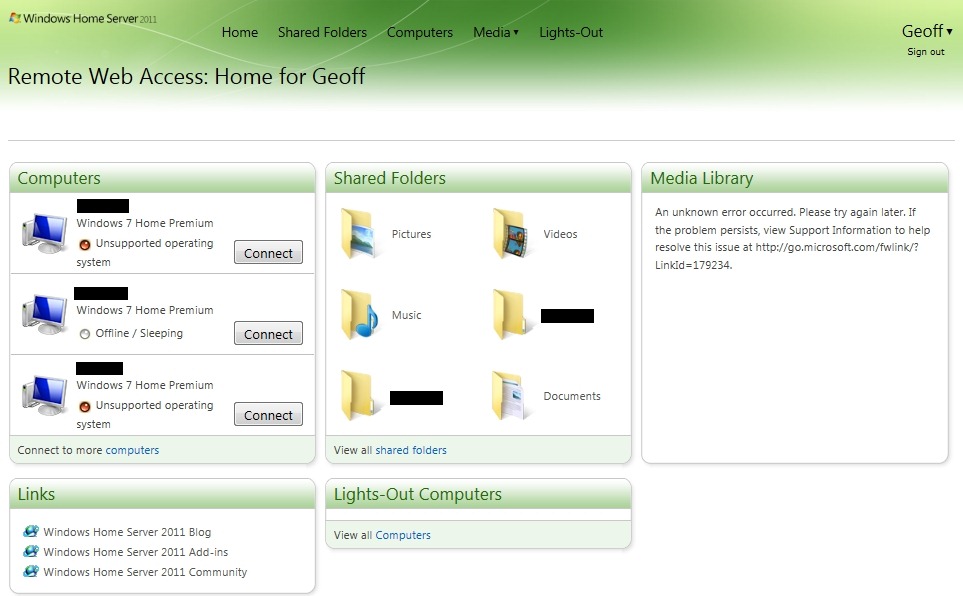
  • The Media Library in Windows Home Server 2011

    As promised yesterday, here’s the follow-up post describing my experience (thus far) with the Media Library in Windows Home Server 2011.

    On installation, Windows Home Server 2011 will create a number of Folders by default for music, pictures, documents, recorded TV, and videos. These can be accessed either via Windows networking, or via the web using the Remote Web Access facilities of WHS 2011.

    On my home network, I’m using Windows networking for access by my Home Theatre PC (HTPC) and other computers to the digital media files held on my WHS 2011 system. This seems to be working as expected. I can play my music, or watch DVDs and Blu-rays streamed from the server to my PCs without issue.

    I did, however, find a couple of wrinkles when trying to access the same digital media files via the Remote Web Access facility of WHS 2011.

    Wrinkle 1

    When I first set up my WHS 2011 system, I had installed my music library on drive D:. And, I could access my music in the Music library displayed via the Remote Web Access. However, after a few days, I thought that I should move my picture and video libraries to different drives. I used the “Move the folder” Wizard in the Dashboard to accomplish these tasks.

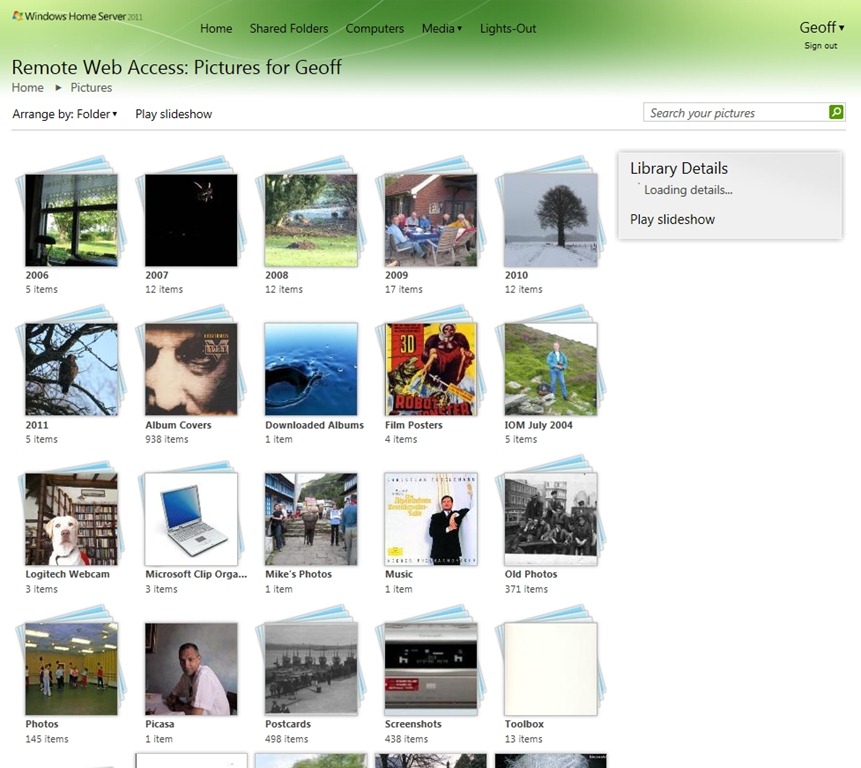
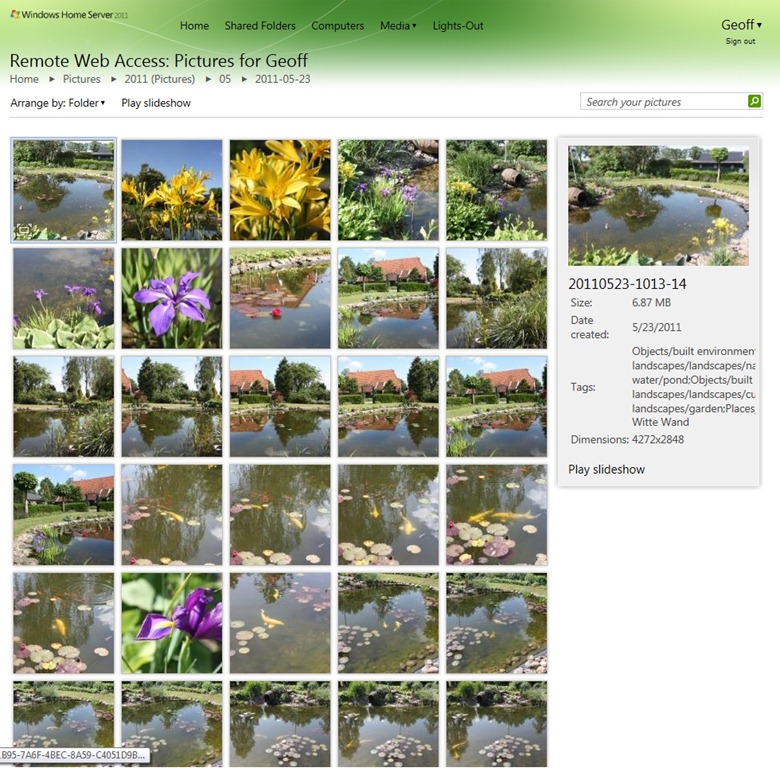
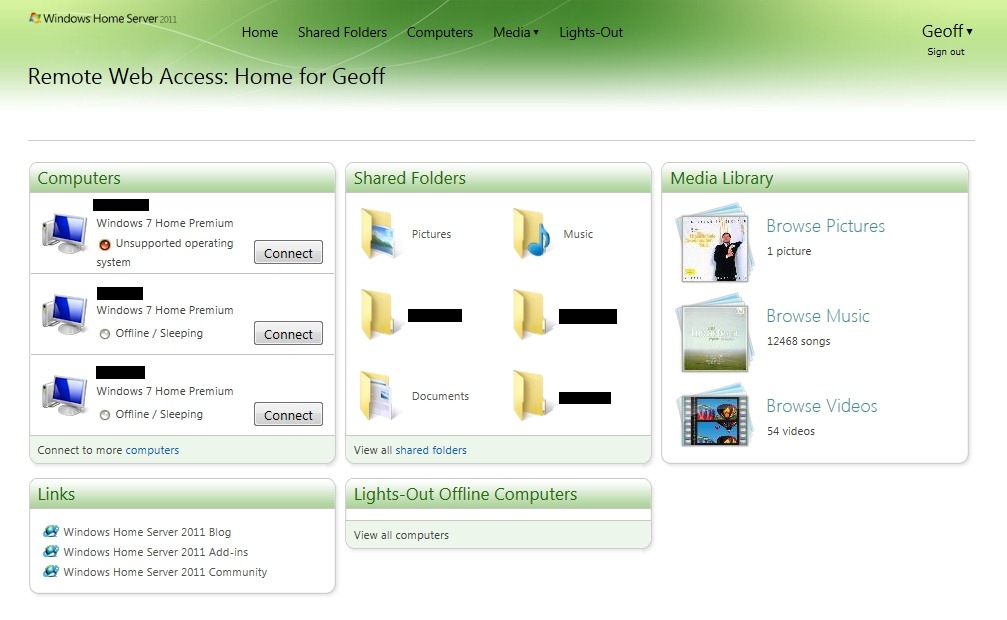
    I then found that instead of being able to see in excess of 45,000 pictures in the Media Library, I was presented with the grand total of one picture:

    WHS2011 24a

    I also saw that I had a total of 54 videos, but when I tried to play any of them, the web-based player would start, but then fail with an error message complaining that the file-type may not be supported.

    Using Remote Web Access to browse the shared folders would show all the pictures, and would play the videos without problems.

    I thought at first that it was simply a case of the index service needing time to register the new locations of my picture and video files, so I waited, and I waited… I waited a couple of days, and nothing changed.

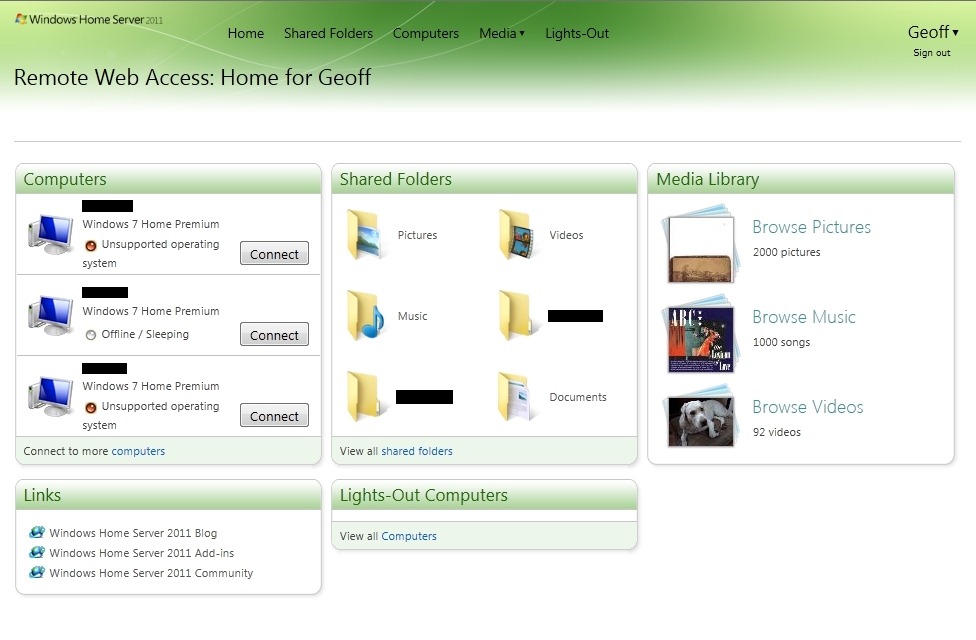
    At this point, I decided to reboot my server, and lo and behold, the picture and video files were found:

    WHS2011 37

    You will notice that there are now 45,058 pictures and 92 videos found, and that the thumbnails show a real photo and video thumbnail.

    So I infer from this that using the “move folders” wizard is not sufficient to keep the WHS 2011 system running smoothly – it is also necessary to reboot the server in order for the indexing service to discover the new location of files. This, despite the fact that accessing the files via Windows networking appears to be able to account for the changes.

    For the case of web access, the server’s left hand does not know what the right hand has done…

    Wrinkle 2

    I noticed, from the forums, that some people were complaining that their Album Art (CD covers) in their Music Library was showing up in their Pictures Library. Clearly, this is wrong, and should not be happening.

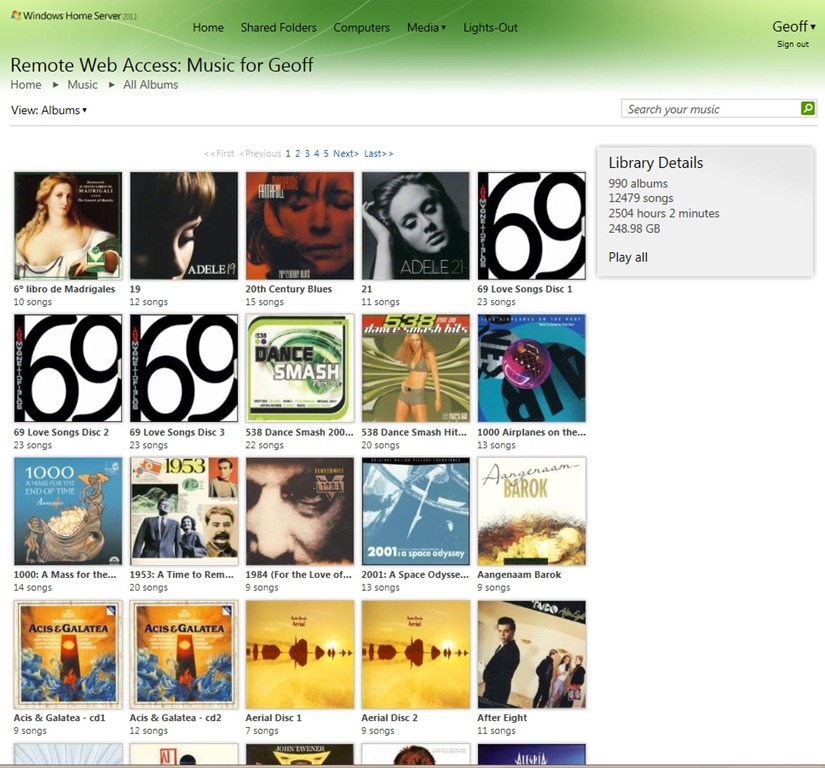
    Then I realised that when the Pictures Library of WHS 2011 was showing just one picture, it was in fact a CD cover stored in my Music Library. Well, (a ) this should not be displayed in my Picture Library, but (b ) why was it just one? After all, my Music Library has 990 albums:

    WHS2011 39

    – why was it just displaying one album cover, and not 990 in the Picture Library?

    It turns out that WHS 2011 will ignore certain filenames when it is searching for items for inclusion in the Picture Library.

    WHS 2011 will ignore filenames in the Music Library folders when they have the form:

    • AlbumArt_{alphanumeric}_Large,
    • AlbumArt_{alphanumeric}_Small, AlbumArtSmall, and
    • Folder.jpg files

    However, if you have Album Art files that do not follow this convention, then WHS 2011 will count them in as part of the Picture Library.

    And that’s what was happening. I had an Album Art cover file with this name:

    Cover- Wiener Philharmoniker _Orchestra_- Strauss, R. Eine Alpensinfonie; Rosenkavalier-Suite.jpg

    Cover- Wiener Philharmoniker _Orchestra_- Strauss, R. Eine Alpensinfonie; Rosenkavalier-Suite

    and so WHS 2011 included it into the Picture Library…

    Sometimes I feel as though I’m an archaeologist, trying to second-guess what has been left by extinct civilisations…

    Update: I have discovered more issues with the Media Library. See this post.

  • My WHS 2011 Experience (Thus Far)

    I think it’s safe to say that the development of Microsoft’s Windows Home Server 2011 (version two of the original Windows Home Server product) has not exactly been plain sailing. Fairly late on in the development cycle, Microsoft took the decision to pull the Drive Extender technology (the unique selling point of WHS v1) from the v2 product. The decision was greeted with howls of protest from WHS customers (including me), but Microsoft soldiered on and released WHS 2011 in April.

    Now, I know that I had said that I would be sticking with WHS V1 as long as possible, but those who really know me are aware that I am often unable to resist poking new technology to see how well it works. And so, I’ve messed about with the beta versions of WHS 2011 (and found some bad limitations, as well as the occasional plus point).

    I’ve been using version 1 of Windows Home Server since it was released in November 2007 (and I was kicking the tyres of the betas before that). So we have a long history together (in computer terms). And WHS v1 has served me well. There was the saga of the file corruption bug, but once identified, I was able to work around it until it was fixed by Microsoft in November 2008. Since then, I’ve been using WHS v1 very happily indeed. It has just worked, and has saved my bacon on a couple of occasions.

    Why, you might then ask, have I yielded to temptation and invested in an OEM disc of Windows Home Server 2011?

    Well, the major omission in WHS v1, from my perspective, was that it was not possible to backup the server itself. I wanted to be able to take server backups for off-site storage. Yes, it was possible to take copies of the Shared Folders of the server onto external discs for storage off-site (which I did); but it was not possible, using the facilities of WHS v1, to take a backup of the server operating system and copies of the client PC backups onto external storage. With WHS 2011 comes the additional feature of being able to make backups of all of the server itself for off-site storage.

    Thus, while WHS 2011 has lost the Drive Extender feature, it has seemingly gained the ability to make complete backups of the server. On balance, and given my hankering for new technology, I thought that I would invest in WHS 2011 and see how it would go.

    So, how has it gone?

    To be honest, it’s been a bit of a curate’s egg – it has good parts and bad parts.

    The Good Parts

    • Practically painless installation of the software (WHS v1 needed coddling to understand modern hardware) – but note the comment under the Questionable Parts heading.
    • Backup of the server is now possible.
    • Improvements for Remote Web Access.

    The Bad Parts

    • Removal of drive pooling because the Drive Extender technology is gone.
    • Server backup has a limit of 2TB. Note: See the Addendum at the bottom of this post.

    The Questionable Parts

    • Server installation defaults to a Workgroup called “Workgroup”. If yours is named something else (as mine was), you need to be aware of a workaround. I used it and it worked for me.
    • Server backups to more than one external drive don’t seem to be working properly.
    • The Media Library in Remote Web Access has issues (I’ll address this in a follow-up post).

    The Details

    I divide the data held on my Windows Home Server into two classes: critical and non-critical.

    • Critical data is that which I view as unique and irreplaceable. For example, the 44,000 (and counting) photos that I have taken over the course of my 62 year life. Then there are the 10,000+ emails generated over my 20 years online that I wish to preserve, at least for me, if not for posterity. And not forgetting documents that I have written, which are important to me, if not to anyone else.
    • In the class of non-critical fall the digital copies of my music and film collection. The originals are the CDs, DVDs and Blu-rays that I own. If the digital copies are lost, I can at least regenerate them from the original media.

    It turns out that this classification into two types of data is important because one of the bad (not to say ugly) parts of WHS 2011 is the fact that a server backup cannot exceed 2TB maximum.

    Because of this limitation, I am forced to adopt the strategy of saying that critical data is handled by the WHS 2011 server backup facility, while non-critical data is handled by an alternative facility – in my case I have chosen for SyncToy. It would have been wonderful to let all of my data be handled by the WHS 2011 server backup facility, but since I have more than 2TB of data, this just isn’t possible by the design that Microsoft have given us.

    Let’s just pause a moment and let this sink in. Because of the fact that the WHS 2011 server backup facility has a hard limit of 2TB, I have to use a mixture of backup methods in order to ensure that all my data is backed up. This means:

    • We are no longer in home user territory. We are in the world of needing to know IT.
    • I can use the WHS 2011 Server backup facility for critical data, but…
    • I must use the Remote Desktop Connection application to connect to the WHS 2011 server and run SyncToy to backup my non-critical data.

    As Dorothy said: Toto, I don’t think we’re in Kansa anymore.

    In an ideal world, I would have the following scenario:

    • My data is in two classes: critical and non-critical.
    • For critical data, I want to rotate external drives between the WHS 2011 server and off-site storage on a daily basis.
    • For non-critical data, I want to rotate external drives between the WHS 2011 server and off-site storage on a weekly or monthly basis.
    • Both of these tasks should be doable via the WHS 2011 server backup facility – and via a single mouse-click once set up.

    Currently, this can’t be done. I need to have fudges and workarounds that require IT knowledge. In other words, I think that WHS 2011 fails to meet the needs of the home user.

    But the story doesn’t end there. According to the online help for Windows Home Server 2011, it is possible to rotate external backup drives: “You can use multiple external storage drives for backups, and you can rotate the drives between onsite and offsite storage locations. This can improve your disaster preparedness planning by helping you recover your data if physical damage occurs to the hardware onsite”.

    So I tried to do this. At the moment, I have about 500 GB critical data that I want to store using the Server Backup facility in the Dashboard, and I have two drives; one of 1TB capacity (Drive #1) and one of 750GB capacity (Drive #2). I set these up in the WHS 2011 Server Backup Wizard.

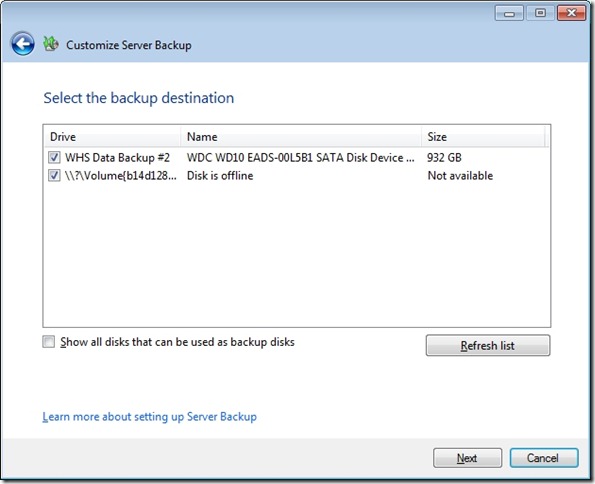
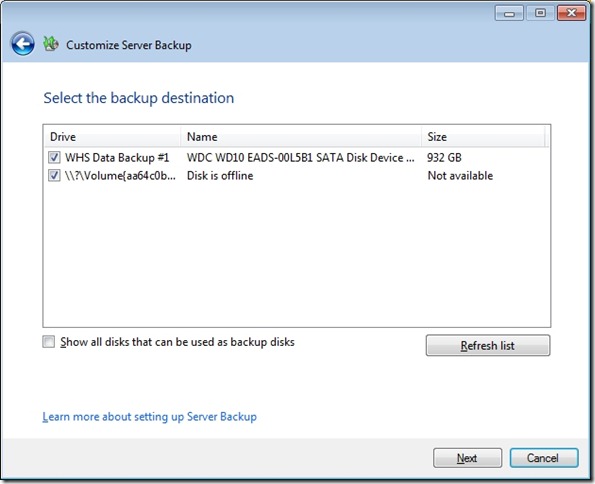
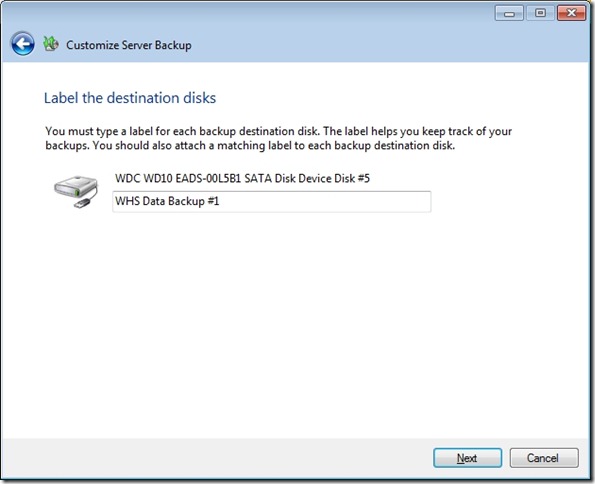
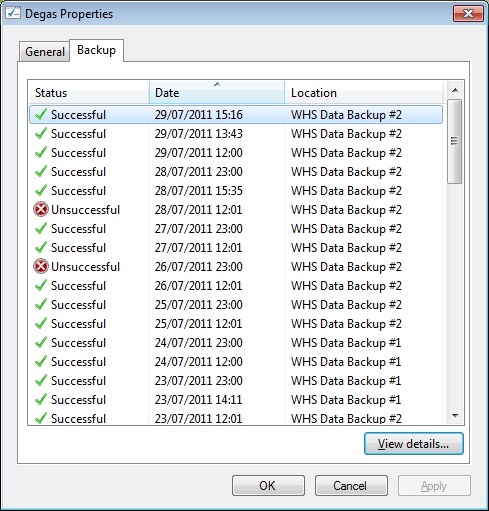
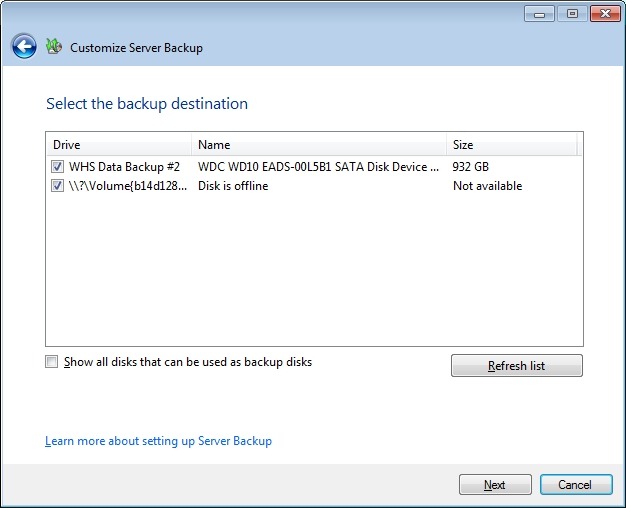
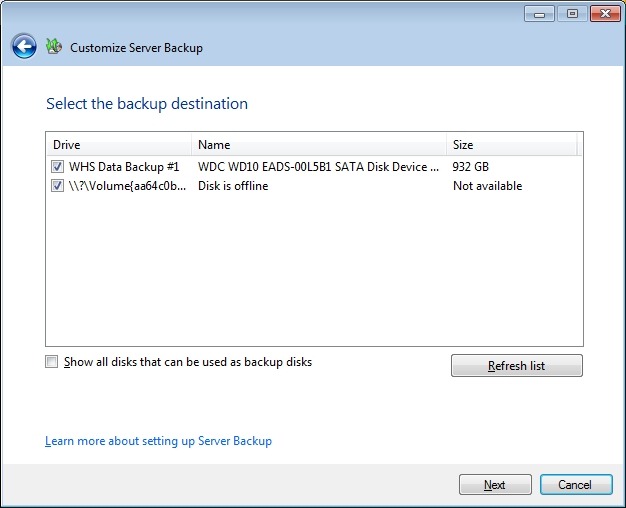
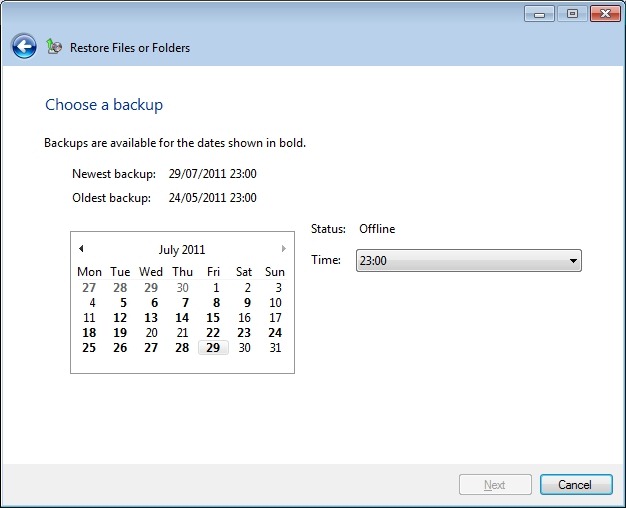
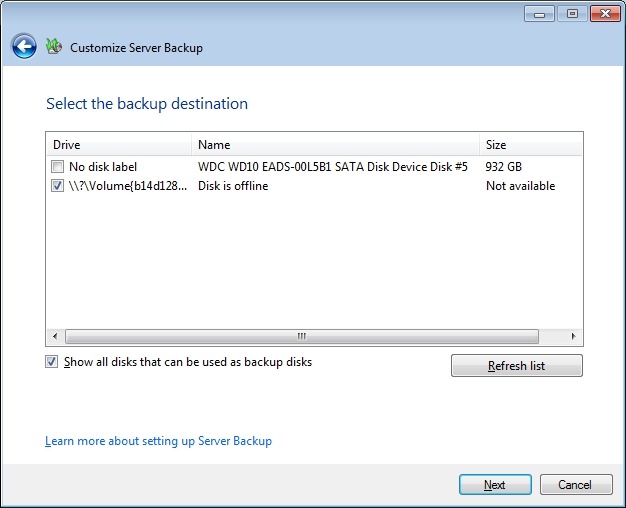
    Day 1 went fine, two successful backups (the default setting) were made to Drive #1. On day 2, I removed Drive #1 and added Drive #2. The “Customize Server Backup” Wizard showed that Drive #2 was attached and Drive # 1 was offline.

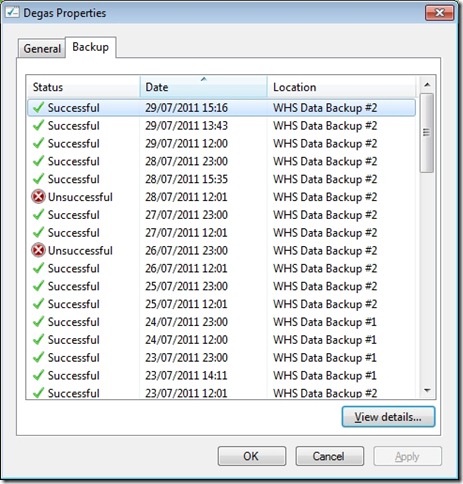
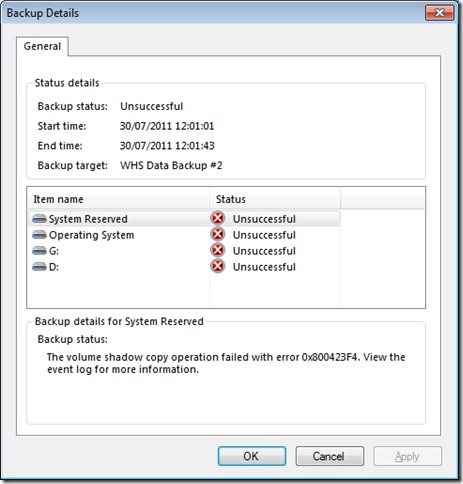
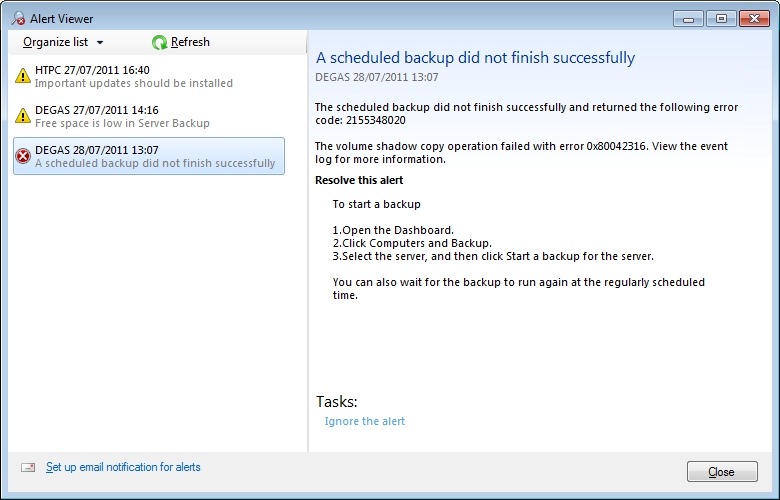
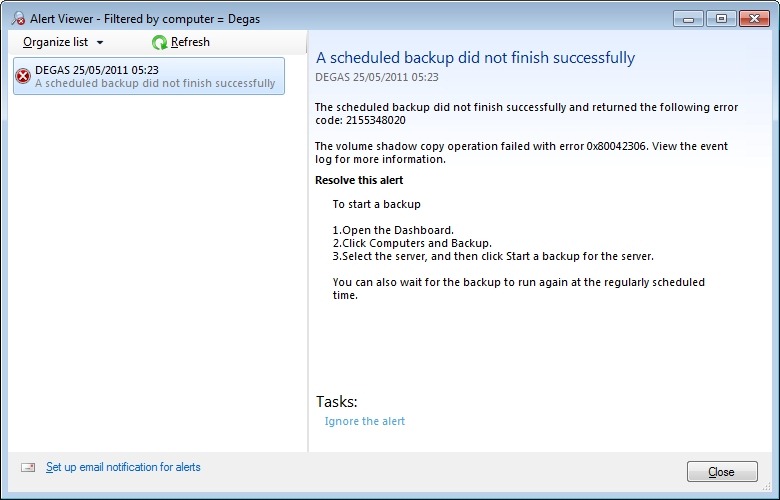
    However, this time, the Server Backup failed, with an error 2155348020:

    WHS2011 25

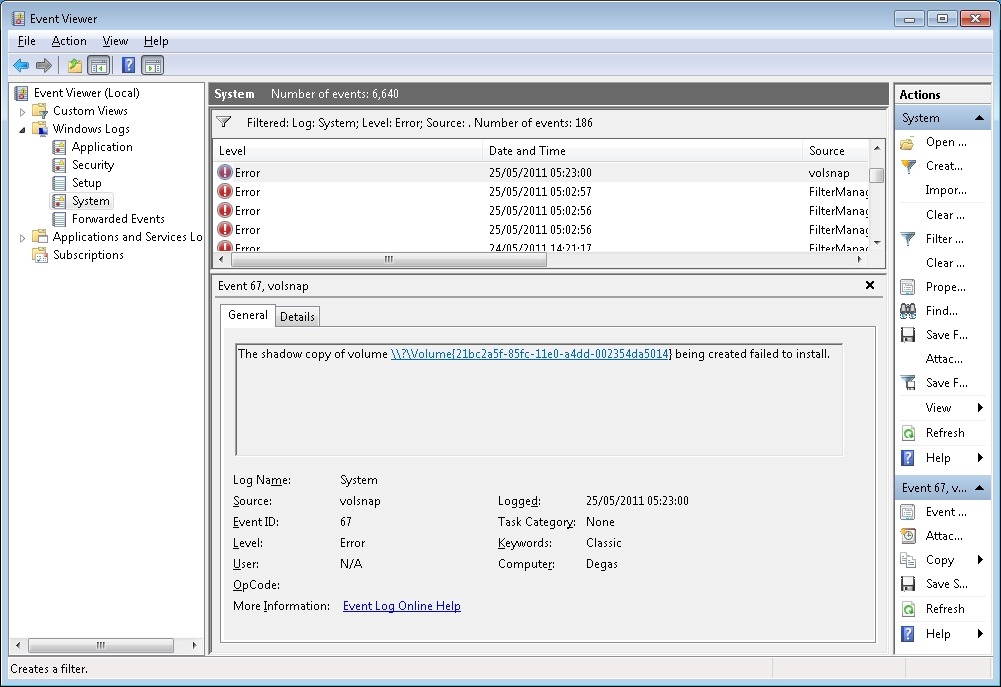
    I love the way that this message simply tosses out the fact that we should view the event log for more information. I think that most Home Users presented with this message would simply think: WTF is the Event log? And they can’t view the Event log via the WHS 2011 Dashboard anyway – you have to be sufficiently IT-savvy to be able to open up a Remote Desktop Connection and then start up the Event Viewer on the server. Once you’ve done that, you will be presented with something like this:

    WHS2011 38

    It says: The shadow copy of volume \\?\Volume{21bc2a5f-85fc-11e0-a4dd-002354da5014} being created failed to install. Frankly, I have no idea what this means. I do understand that my disc drives have storage volumes created on them; but I can’t find any volume with the reference {21bc2a5f-85fc-11e0-a4dd-002354da5014} – it doesn’t seem to exist.

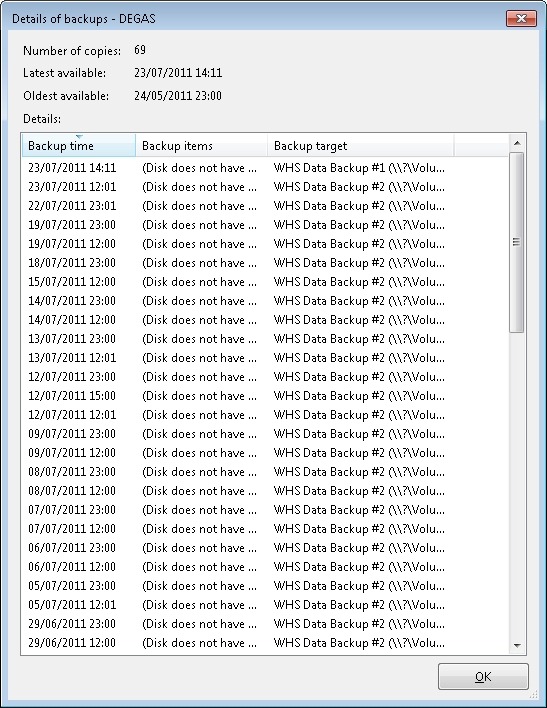
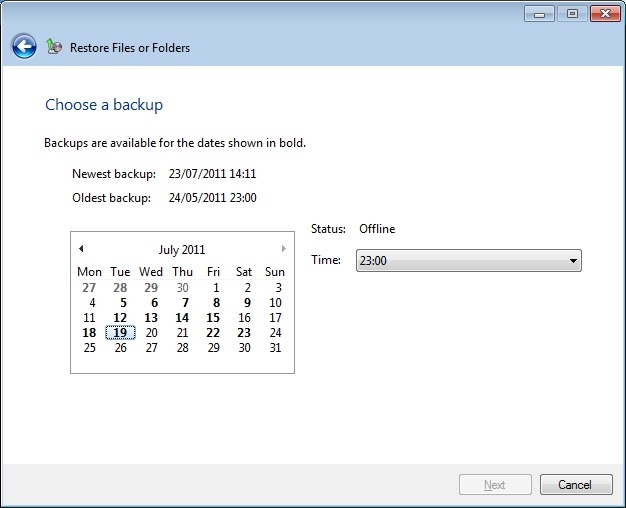
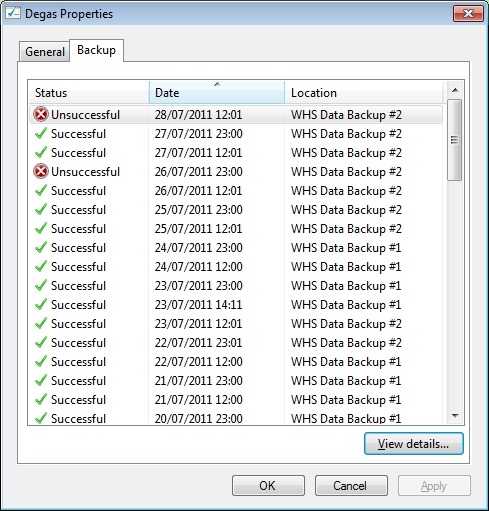
    Anyway, I ran the server backup again, but this time with both backup drives attached. It worked. After a few more experiments, I proved that:

    • Backup drive #1 works.
    • Backup drive #2 does not work by itself.
    • Backup drive #1 and #2 together works.

    The bottom line is that I can’t seem to be able to rotate backup drives – that is, (for example) on day 1, I attach drive #1 to the server and have drive #2 held off-site. On day 2, I attach drive #2 to the server and hold drive #1 off-site. Day 3, and it’s back to drive #1 attached to the server, with drive #2 held off-site. And so on… It would seem that I have to have either the first or both drives attached when I’m making backups. But needing to have both drives attached isn’t what I think of when I want to implement a rotating backup drive strategy…

    I want to put something like an ICY Dock MB877IK into my server and have 2 x 2TB drives that I can rotate on a daily basis. It looks as though this is not possible with WHS 2011 at the moment. According to the WHS 2011 online help, it should work. In the real world, on my system, it doesn’t.

    A word about the demise of Drive Extender.

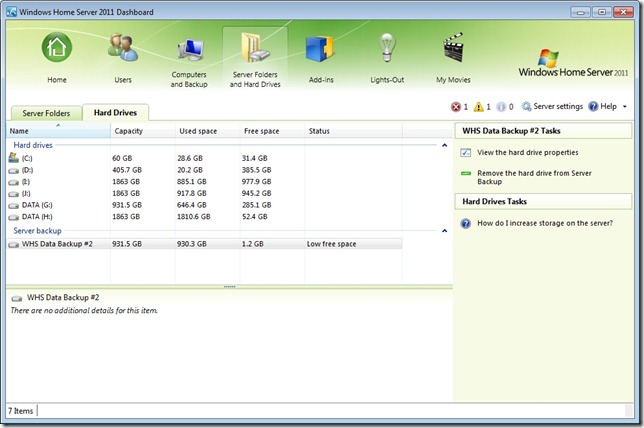
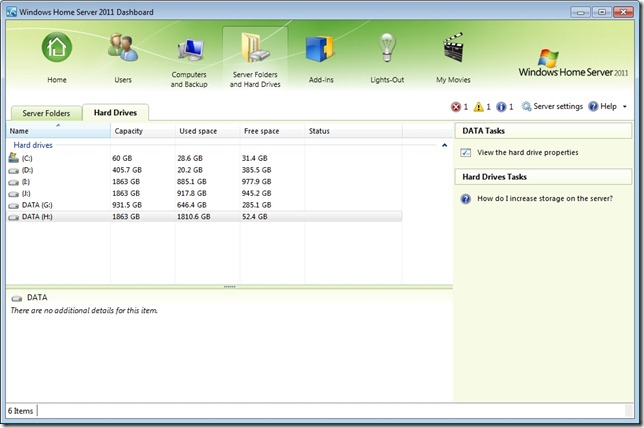
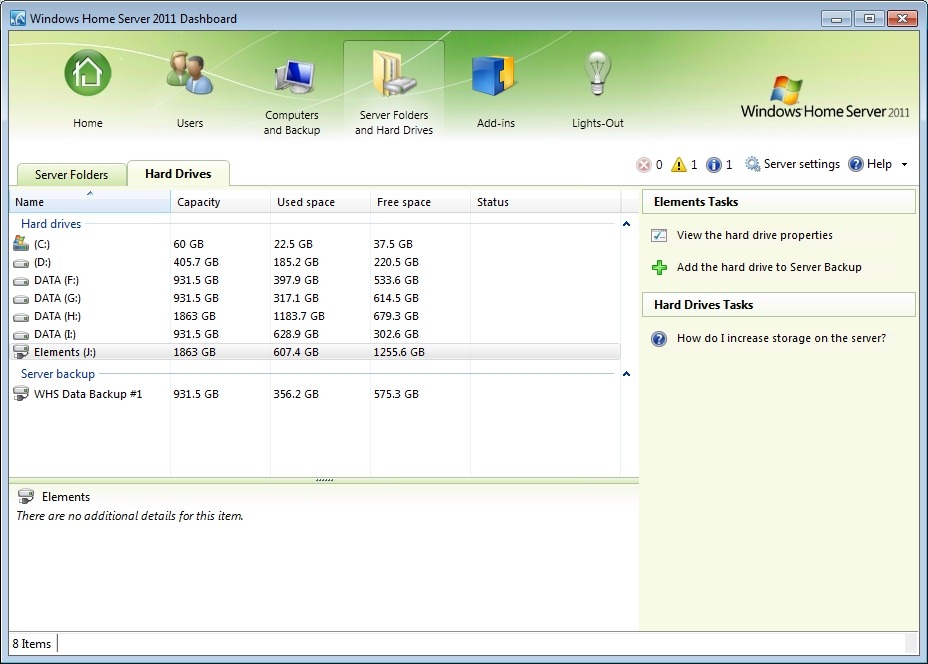
    While I can understand why Microsoft made the decision they did, I still think that the loss of DE is a great loss for the home user. It was such a brilliant concept and it worked for me. When I was setting up my new WHS 2011 system, I found myself having to think carefully about how best to juggle my data across a number of discs, instead of just dealing with one storage pool. I ended up (after a couple of trial runs) with data distributed across my drives like so:

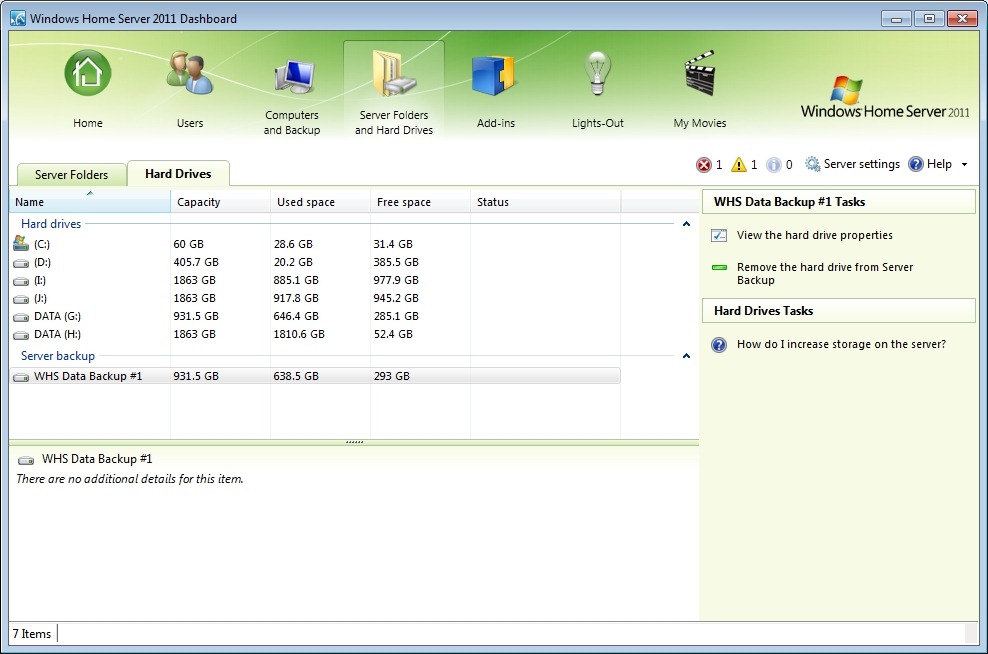
    WHS2011 20

    Here, the drive shown as Elements (J:) is the external drive that I’m using for SyncToy, and server backups of my critical data are being put onto the WHS Data Backup #1 drive.

    And, as already stated, the fact that I’m having to mess about with Remote Desktop Connections and running SyncToy underlines to me the fact that Microsoft have blown it – WHS 2011 is not a product suitable for the “home user”. OEMs will have to invest in addressing the brain-dead backup “feature” in order to come up with a backup and digital media storage appliance suitable for the masses… Will any of them do this? We’ll see.

    Meantime, for us, the home builders, I would say that there’s definitely a gap in the market for someone to develop a replacement Backup Add-in that uses the underlying Windows Server 2008 R2 facilities that would simplify our lives, and allow us to build WHS 2011 systems for friends and relatives that they could actually use…

    WHS 2011: definitely a Curate’s egg…

    Addendum: Update 31 March 2014: It appears as though there has been some improvement made to the Server Backup function in the Dashboard since I originally wrote this article. It remains the case that WHS 2011 continues to use the VHD format for backup, which has a maximum capacity of 2TB. However, it now appears (contrary to what Microsoft originally stated) as though the Server Backup function can now deal with multiple VHDs, providing the backup drive is big enough. So, if your backup drive is 4TB, that means you can have 2 VHDs of 2TB created on it. That, in turn, means that you can backup up to 4TB of data from your data storage drives (with a maximum of 2TB for any one drive). That’s a theoretical maximum, since Microsoft also recommend having some free space in the VHDs to handle incremental backups.

  • The History of the User Interface

    Here’s a video of Bill Buxton talking about the history of (some of the) user interfaces in computing.

    http://channel9.msdn.com/Series/Show-Us-Your-Tech/Bill-Buxton-Shows-Us-His-Favorite-Tech/player?w=512&h=288

    An interview with a researcher who has passion and whose passion shines through to teach important lessons. And the basic lesson is that history is important. Those who forget their history are condemned to repeat it.

  • A Maze Of Twisty Little Passages

    Online Help forums can be a lifeline for people having difficulties with their computers, or other gadgets. Some of these forums are thriving communities in their own right, with thousands of members.

    When I started thinking about building my first Home Theatre PC (HTPC), I looked around for some forums that would be a source of information and help. I quickly homed in on two:

    • The AVS Forum (which covers all aspects of audio-visual equipment, and which has a wide range of sub-forums devoted to topics such as Hi-Fi, HTPC, HDTV, etc.).
    • The Green Button – a set of forums run by Microsoft, and devoted to Windows Media Center and related topics.

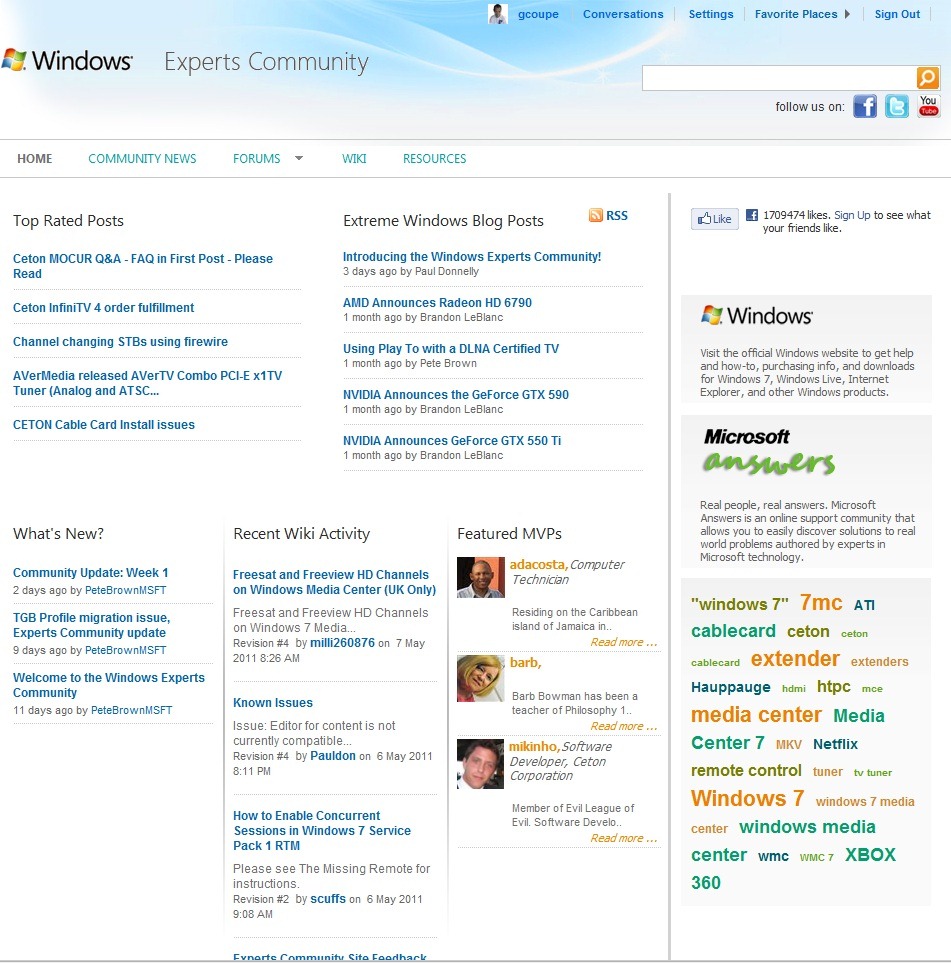
    Microsoft recently announced that it would be migrating The Green Button forums to a new forum platform, and this week they threw the switch. The Green Button is no more, but has now become part of what Microsoft call the Windows Experts Community (click the image below to enlarge it).

    WEC 2

    The Green Button forums have been migrated/merged into a new set of forums collectively titled Windows Entertainment and Connected Home. It’s a bit of a clunky title, and misses the snappiness of The Green Button, but if that were all, then I’d let it pass.

    WEC 1

    However, this new home has a user interface that is just as ploddingly dull and clunky as its name. Lord knows, the old Green Button user interface was not wonderful, but this new interface has some surprising limitations. After a few days of using this forum platform, I am getting very frustrated by the lack of easy navigation. For example:

    • While I can see all the unread posts across all the Windows Entertainment and Connected Home forums at a glance, I can’t mark them as read with one mouse-click. I have to go into each forum individually and mark them as read from there.
    • Once you’re in a thread, and you’ve read down to the end, there are no navigation links at the bottom to be able to move forwards or backwards to either unread posts or the posts next to the thread currently being read.
    • the only navigation possibility is to scroll all the way back to the top of the thread, and either follow the link to the Forum containing the thread, or jump higher in the Forum hierarchy using the breadcrumb path at the top.

    There’s a list of almost 50 issues that has been created by old Green Button users frustrated by the poor design of their new home.

    Well, OK, it’s new – and most people don’t like change – but there’s something else that I find very frustrating. That’s the fact that the Windows Experts Community is yet another online help forum run by Microsoft. There’s also Microsoft Answers and Windows Live Solution Center. That in itself wouldn’t be so bad – they are addressing slightly different communities of users. But the real killer for me, and what continually makes me want to bang my head against the desk, is that all three systems work differently. The forum navigations are completely different, the forum capabilities are different (e.g. one can embed images into posts,  two can’t), and there’s little cross reference flagged on the sites that other help forums exist.

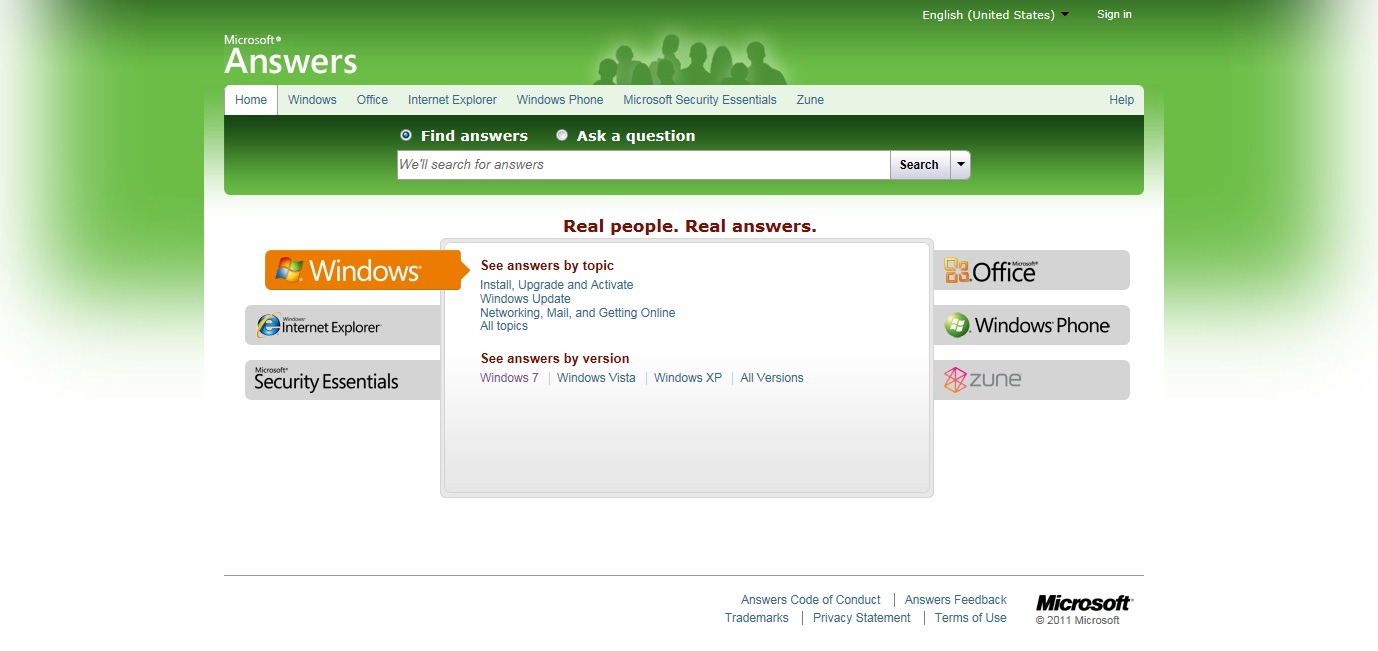
    For example, look at the home page of the Windows Expert Community above. You’ll see a link to the Microsoft Answers forums, but no mention of the Windows Live Solution Center forums. Now look at the home page of the Microsoft Answers forums:

    Answers 1

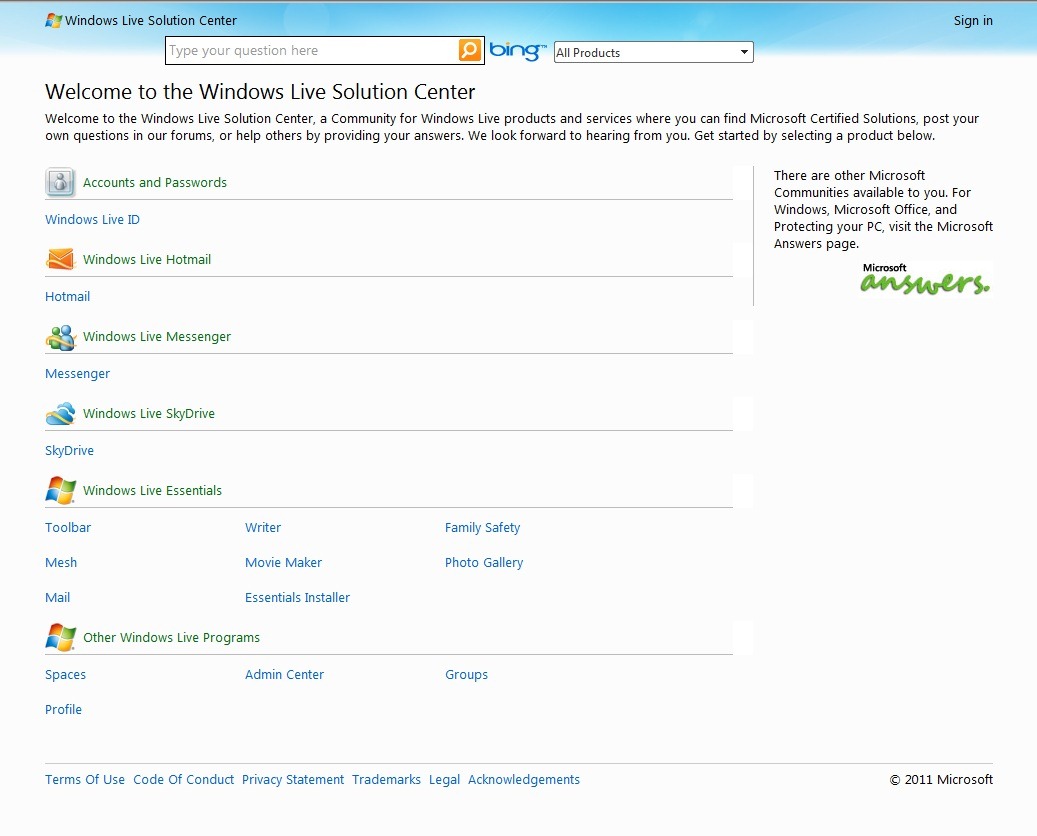
    …there’s no reference whatsoever to either the Windows Experts Community or Windows Live Solution Center. And over on the home page of the Windows Live Solutions Center, there’s a link to Microsoft Answers, but no mention of the Windows Experts Community, even though the latter has forums dedicated to Windows Live products!

    WLSC 1

    Welcome to a maze of twisty little passages. No wonder many customers are totally confused.

  • All Watched Over By Machines Of Loving Grace

    Adam Curtis makes documentaries. But these aren’t just plain documentaries, they are visual poems that contain much food for thought. His latest effort is All Watched Over By Machines Of Loving Grace – to be broadcast on BBC2 on 23rd May at 9pm UK time. Can’t wait.

    Oh, and it has Ayn Rand – the stinking fart in the face of the Enlightenment…

    Here’s the background to the films.

  • VST and ASIO Performance in Cubase 6

    Here’s a tip if you’ve been struggling with poor performance of your VST instruments and ASIO in Cubase.

    But first, a bit of history…

    The History

    Steinberg’s Cubase is one of the leading software applications for music production. It’s been around in various forms since 1984. In fact, I bought a copy of Pro-24 (the forerunner of Cubase) for my old Atari-ST computer back in 1987. The Atari was the first ever home computer that had built-in MIDI ports, and the Pro-24 was one of the first software MIDI sequencer applications for creating music.

    Over the course of the years, I have gradually acquired more MIDI equipment, and sold a few bits as well. Now I’ve ended up with three E-mu Proteus sound modules, and an ancient Yamaha TX81Z. I still use a Yamaha PF80 electronic piano as my MIDI keyboard, with a Yamaha MCS52 as a MIDI controller, both dating from around 1985. By the early 1990s I had also switched from my trusty old Atari ST over to what has become, over the years, a series of Windows PCs running various generations of Cubase software.

    In 1996, Steinberg introduced VST (Virtual Studio Technology), a software recreation of a variety of external synthesisers and effects modules. It also introduced ASIO (Audio Stream Input/Output) to handle the recording and playback of audio, in addition to MIDI.

    Up until now, I’ve not made much use of either VST or ASIO, using Cubase primarily as a MIDI sequencer and editor to drive my external MIDI equipment. However, I recently treated myself to an upgrade of my Cubase software from version 4 to version 6, and for the first time thought that perhaps I should look into using VST to supplement my external MIDI sound modules. For example, Cubase 6 came with a trial of HALion Symphonic Orchestra, a set of samples of the instruments of a symphony orchestra made for VST.

    The Issue

    But when I came to try out the HSO VST in Cubase, I found that the performance was pretty poor. After adding only a few instruments into the mix, I could see that the ASIO performance meter was overloading, and could hear clicks and pops on the audio channels.

    This struck me as odd, since the PC that I’m using has an AMD Phenom II X4 955 processor, i.e. it has four CPU cores, which Cubase should be making full use of. I looked through the Cubase manual and scoured the Cubase user forums to see if I could get a clue as to why the performance on my system was so poor. Nothing obvious came up.

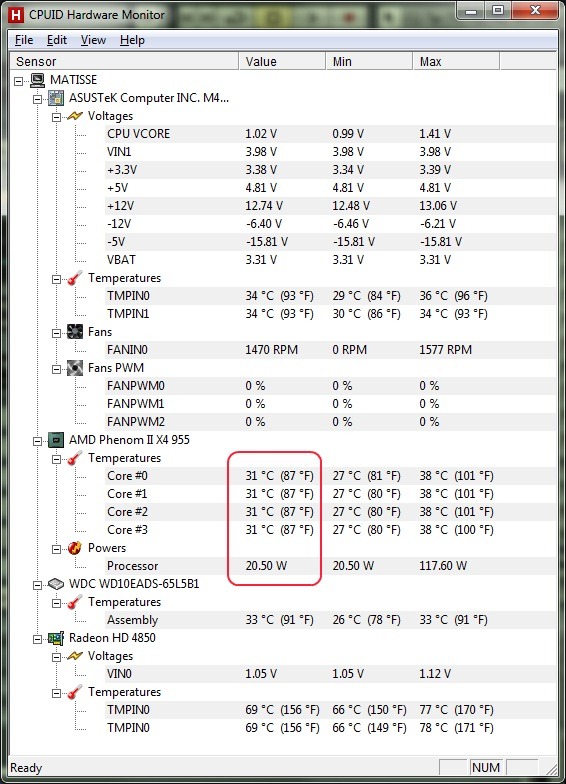
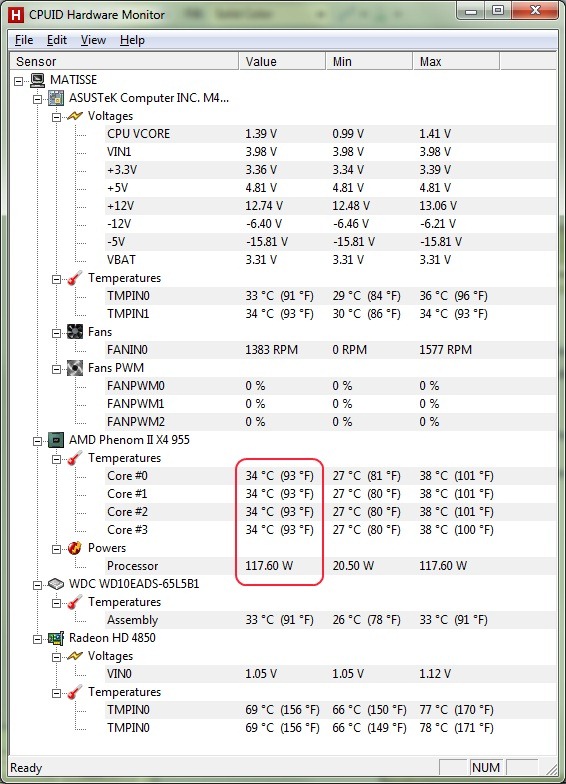
    After scratching my head for a while, I remembered that I had enabled AMD’s “Cool’n’Quiet” feature in my PC’s BIOS. This technology feature reduces the processor’s clock rate and voltage when the processor is idle, to reduce overall power consumption and lower heat generation. Here, for example, using CPUID’s HW Monitor, you can see that the power consumption of the processor is only 20.5 watts, in place of the usual 117.6 watts:

    VST 1

    As an experiment, I disabled Cool’n’Quiet in the BIOS, and ran Cubase again. This time, I did not experience performance problems. So it would seem that AMD’s power monitoring technology was interfering with the demands of Steinberg’s ASIO, causing performance glitches in the latter.

    I didn’t really want to run my computer with Cool’n’Quiet disabled for most of the time, and having to switch it on and off in the BIOS is somewhat of a nuisance. I wondered whether the power plans in Windows 7 were capable of doing the switching for me. Here’s what the Windows 7 Help and Support says about the Power Plans:

    Windows provides the following plans to help you manage your computer’s power:

    • Balanced. Offers full performance when you need it and saves power during periods of inactivity. This is the best power plan for most people.
    • Power saver. Saves power by reducing system performance and screen brightness. This plan can help laptop users get the most from a single battery charge.
    • High performance. Maximizes screen brightness and might increase the computer’s performance in some circumstances. This plan uses a lot more energy and will reduce the amount of time that a laptop battery lasts between charges.

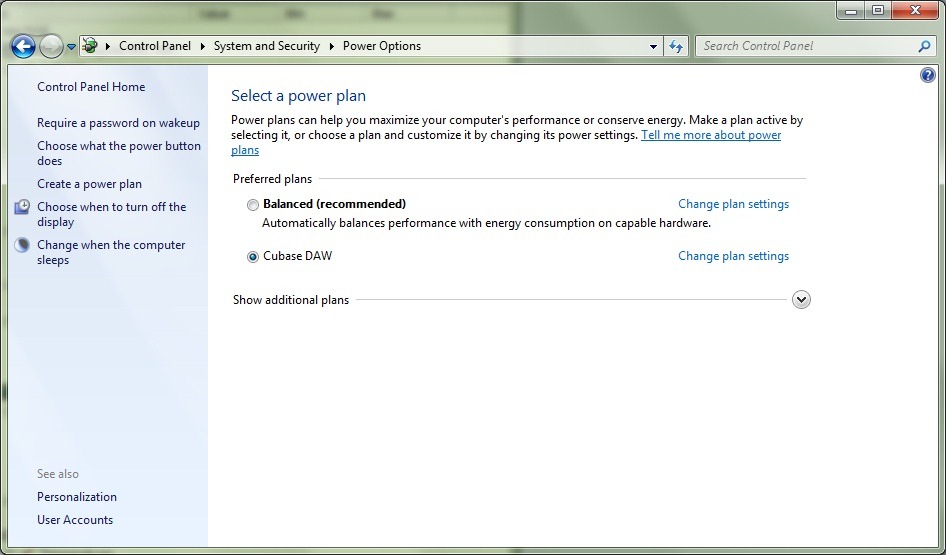
    I always run my PC with the Balanced power plan active. I decided to try enabling Cool’n’Quiet in the BIOS, but also to create a new power plan for when I am using Cubase. The new plan, based on the High performance plan, I named Cubase DAW (for Digital Audio Workstation).

    When I selected this plan, I discovered that Windows 7 itself disables Cool’n’Quiet, so I was able to run the processor at full power, and maximise ASIO performance.

    VST 3

    The Solution

    So now I have the best of both worlds; I can run my PC economically for most of the time using the Balanced power plan, but when I want to work with Cubase and HSO VST, I can readily switch over to the Cubase DAW power plan directly within Windows.

    VST 4

    Another problem solved – on to the next…

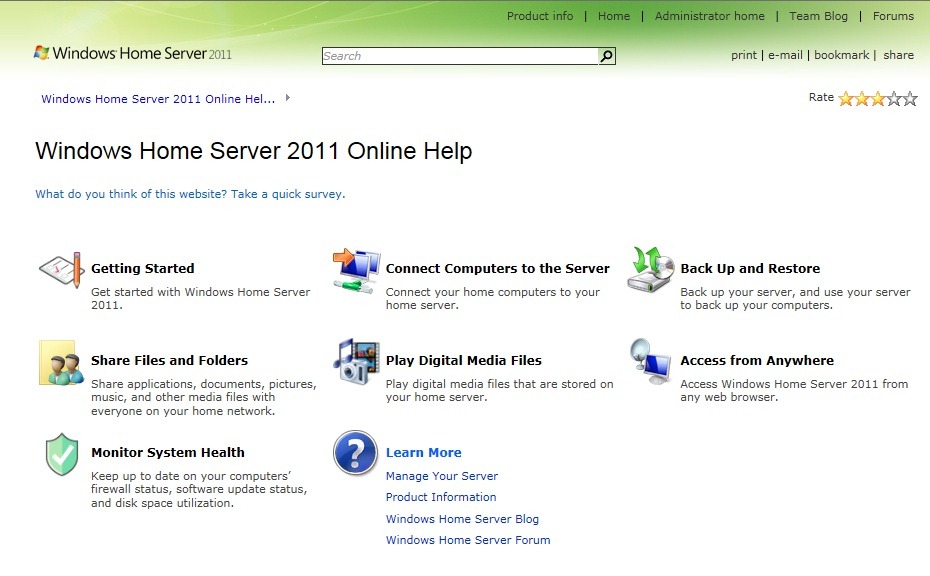
  • Windows Home Server 2011 Online Help

    While I’m deciding whether I should bother upgrading from my current Windows Home Server system to Microsoft’s brand spanking new Windows Home Server 2011, I thought that I should take a look at the online help system for WHS 2011. After all, when people get into difficulties, a well-designed online help system with relevant and accurate information should help them on their way, right?

    So, how does the online help for WHS 2011 measure up?

    Weeelll…

    • Could do better, I think is the diplomatic answer,
    • Could do an awful lot better, if we’re being more realistic.

    Let’s start with the entry page of the help system:

    (Note: since writing this blog entry, Microsoft has dropped the original web pages, and moved all the help text into the TechNet Library. None of the typos/grammar/errors/text have been changed in the move, so my criticisms are still valid…)

    WHS help 1

    OK, let’s get started

    Oh, here’s a link about connecting computers to the Server

    Under the “Prepare to connect computers to the server” heading it says:

    The section provides information about the Connector software, the operated [sic] systems that are supported by Windows Home Server 2011, etc.

    The correct text would be operating systems.

    Further down the page, it has a section on how to “Connect computers to the server using the Connector software”. The first four subheadings are all to do with the concept of “How do I… (do a particular task)” . Three of the headings start with the phrase “How do I…”, yet for some reason the second item does not. It states baldly: “Install the Connector software?” when in fact what is implied is “How do I install the Connector software?”.

    There’s a minor omission on the last subheading  “Troubleshoot connecting computer to the server” – a missing indefinite article.

    So, back on the first subheading and link on the section “Connect computers to the server using the Connector software”, we arrive at the “How do I connect computers to the server page”…

    Here, there’s a minor typo in the third bullet point of the “Before you begin” section – a missing space between the words 2011 and when

    More importantly, in the text box labelled “Important”, there is reference to dynamic disks on client computers, without any further reference as to what, precisely, dynamic disks might be.

    Let’s just think about the target audience for WHS2011 for a moment. It is, I assume, the same as for the original version of WHS, that is, ordinary home consumers who have possibly a number of PCs, some or all of which will be holding digital media or documents, which need to be protected against loss.

    Using IT jargon (dynamic disks) without any further reference does not help – and this is supposed to be the online Help… This isn’t the last time this mistake will be made in the online Help…

    OK, let’s carry on… Under the “To connect your computer to the server” section, item 6, we read:

    a. From the Launchpad link, you can access the shared folders shortcut, configure computer backups, address alerts, and open the Remote Web Access site. For more information about the Launchpad, see Overview of the Dashboard

    Erm, I think that link should be “Overview of the Launchpad.”…

    After item 6 follows an extensive Important text box. There’s a typo at the end of the first bullet point: “For more information about user accounts see, see Manage User Accounts”.

    Back on the Connect Computers to the Server page, there’s a link promising help on Prerequisites for connecting a computer to the home server.

    Skating quickly over the reference to the fact that computer must be on the same IP subnet as the server that is running Windows Home Server 2011 – er, what’s an IP subnet? I’m just a home consumer… we come to the statement that:

    The boot partition—that is, the disk partition where the Windows operating system is installed—is formatted with the NTFS file system.

    Er, hang on – I thought that I could connect Macintosh computers to Windows Home Server 2011? What’s all this about Windows? Oh, don’t worry, the online Help system hasn’t got around to you yet…

    Just in case you thought that the online Help system was missing out crucial information, we come to a section where Microsoft has apparently thought it worthwhile to include irrelevant padding to further confuse the reader.

    Here’s the Install the Connector software? section (which as already noted, to be syntactically conformant and grammatically correct, should be titled How do I install the Connector software?). It reads:

    The Windows Home Server 2011 Connector software is installed when you connect your computer to the server using the Connect a Computer to the Server wizard. You can launch this wizard by typing http://<ServerName>/connect in the address bar of your web browser (where <ServerName> is the name of your server).

    • Connects your home computer to Windows Home Server 2011.
    • Automatically backs up your home computer nightly (if you configure the home server to backup your home computers).
    • Monitors the health of your home computer.
    • Enables you to configure and remotely administer Windows Home Server 2011 from your home computer.

    For step-by-step instructions about connecting your computer to the Windows Home Server 2011 server, see How do I connect computers to the server?. For additional information about connecting your home computer to the home server, see Connect Computers to the Server.

    Now, tell me – what do those four bullet points add in any way at all to the answer to the question “How do I install the Connector software?”? Answer: nothing whatsoever. They are pure fluff – and irrelevant fluff at that.

    OK, let’s skip now to one of the key areas of WHS2011 – Backup and Restore. We saw on the Home page of the online Help under the Backup and Restore heading the text:

    Back up your server, and use your server to back up your computers.

    So, clicking on the Backup and Restore link takes us to a page where there is information about backing up and restoring client computers, but not a single word about server backup and restore. A dead end. Oh well, never mind, after a bit of hunting, we find a page devoted to learning more about setting up server backup.

    After the throwaway line that “Server backup is not enabled during server setup” (why not? was this important? should I worry about it? – who knows…) we come to the first meat of the section under the heading Server backup schedule:

    You should protect your server and its data automatically by scheduling daily backups. It is recommended that you maintain a daily backup plan because most organizations cannot afford to lose the data that has been created over several days.

    Er, hello? I’m not an organization – I’m a home consumer. Who, exactly, are Microsoft talking to? I don’t think it’s me…

    Oh well, let’s continue… Under the section on considerations for the backup target drive, we read:

    Choose a drive that contains sufficient space to store your data. Your storage drives should contain at least 2.5 times the storage capacity of the data that you want to back up. The drives should also be large enough to accommodate the future growth of your server data. Because server backups are incremental, a backup drive of 300 GB in size or more can hold months of backup data.

    This advice is all very well, but nowhere does the help text spell out that (a ) your backup storage drives can not be bigger than 2TB in size and (b ) you can’t actually backup more than 2TB of server data in any case. And that “Because server backups are incremental, a backup drive of 300 GB in size or more can hold months of backup data” is possibly misleading if you’re a professional photographer doing daily shoots, or a TV addict recording lots of shows.

    Still, let’s skip to another help page: Move a server folder. Frankly, this whole page reads as though it has been written by someone to whom English is not their first language. Don’t Microsoft employ proofreaders any more?

    That same person appears to have been responsible for the Where should I add the Server folder? and the Where should I move the server folder? pages with:

    • their interesting sentence constructions (e.g. “If possible, avoid adding or moving a shared folder to the system (c:) hard drive as it make take away the necessary drive space that is required for operating system and its updates”.) and
    • their lack of clarity (e.g. “Also, avoid adding server or moving server folders to an external hard drive because you may not be able to access files in a folder on an external drive because they can be easily disconnected”. – using “they” when referring to “an external drive”).

    There’s another pile of help pages to wade through, but I’ve had enough for today. I’ll just leave you with another gem on the How do I remotely access my computer? page. Under the Home computer status: connection is disabled section, it says:

    The home computer connection is either blocked by a firewall, or the remote desktop is disabled at the computer or by Group Policy. It may take up to 6 hours for this status to be updated in the server if there is a change.

    Once again, I’m a home consumer – what in heaven’s name is “Group Policy”?

    Frankly, the majority of these help pages are written by IT people for IT people, not for ordinary people. This does not augur well for success in the supposed target market for WHS 2011.

  • A Damp Squib Splutters Into Life

    I see that Windows Home Server 2011 has been released to manufacturing. So it should be available on the market in April/May.

    I’m sorry, but I can only raise a faint cheer about this product. It doesn’t strike me as a major step forward from the original Windows Home Server, and in some respects – notably the removal of the Drive Extender technology – it is a step backwards.

    The comparison datasheet is long on marketing and short on actual comparison with WHSv1, and that’s not really surprising.

    What really gets to me is that Microsoft had the chance to build upon the base of WHSv1 as a server and media appliance that could be used by the average consumer, and they’ve thrown that chance away.

  • I Don’t Believe It!

    I’m channelling Victor Meldrew again today. And the cause of my frustration is once again the forthcoming Windows Home Server 2011. I wasn’t too impressed with some of the backup features I found when I looked at them a few days ago. After digging a bit further, I’ve come across one “feature” that has flabbergasted me. It really should be called a bug, because it introduces an extraordinary limitation into WHS 2011.

    It turns out that the maximum size of a server backup that can be made is 2TB.

    OK, you say, but WHS 2011 recognises multiple backup discs. So suppose my WHS has 5 TB of data that needs to be backed up, then I just use three backup discs, right? Two discs of 2TB capacity and one disc of 1TB capacity (or three discs each of 2TB capacity; the third will only be half-used). Plug ‘em in, let the server backup processes run, and everything’s hunky-dory, right?

    Wrong.

    Even though WHS 2011 will recognise multiple backup discs, it won’t let you slice up the server storage across them. You can only backup the same files and folders to any of the multiple discs. So, in the example I used above, even though I have three backup discs, I can only ever backup a maximum of 2TB of the 5TB stored on my server.

    I ask you, what sort of design is that? The term brain-dead springs to mind.

    The WHS team at least do recognise the limitation. Over at the Microsoft Connect bug-reporting site, a member of the team has written:

    At this time we can only back up to 1 single 2 TB disk. We realize the limitation and are working with the Core Windows team to fix this. Hopefully it’s something we can provide in future releases. For now you have to pick your critical data.

    Er, “hopefully” you can fix it? Dear lord, is that the best that you can do?

    It turns out that there seems to be a workaround, but it’s not, I think, for the average home user – you know, the sort of person that WHS 2011 is targeted at.

    WHS 2011 is built on top of Windows Server 2008 R2 – an extremely powerful server operating system. This has its own Backup and Restore mechanism, which is equally powerful. However, this mechanism is designed for IT people, not for the home user. Here, for example, is a screenshot of partof the Overview of Windows Server Backup, taken from the online help manual (click to see in its full gory glory). Full of jargon and certainly not for the faint of heart (or non-IT person)…
    WHS2011 19

    If you want to take a look at the full manual, then please, be my guest, and visit Microsoft’s online help web site.

    Now, it is certainly possible to use the Backup and Restore mechanism of Windows Server 2008 R2 to do what I want to do – slice the 5TB of storage on my WHS across three backup discs, but I’ll have to figure it out for myself, and start being an IT person again.

    The whole point is that I shouldn’t have to do this. WHS 2011 is supposed to be for the home user.

    The last irony about all of this is that in fact the backup features of WHS 2011 do seem to be using the underlying mechanisms of Windows Server 2008 R2, it’s just that their current design is extraordinarily limited, and, in my case with more than 2TB of data on my server, utterly useless.

    Update 20 October 2011: I see that Microsoft have now posted a TechNet article covering this 2TB limit in the TechNet Wiki. Since it’s a wiki, I’ve edited it to improve the language and the grammar. The original was clearly written by someone for whom English is not their first language.

    Update 31 March 2014: It appears as though there has been some improvement made to the Server Backup function in the Dashboard since I originally wrote this article. It remains the case that WHS 2011 continues to use the VHD format for backup, which has a maximum capacity of 2TB. However, it now appears (contrary to what Microsoft originally stated) as though the Server Backup function can now deal with multiple VHDs, providing the backup drive is big enough. So, if your backup drive is 4TB, that means you can have 2 VHDs of 2TB created on it. That, in turn, means that you can backup up to 4TB of data from your data storage drives (with a maximum of 2TB for any one drive). That’s a theoretical maximum, since Microsoft also recommend having some free space in the VHDs to handle incremental backups.

  • Backups in Windows Home Server 2011

    I wrote yesterday that I’d decided to kick the tyres of the Release Candidate of Windows Home Server 2011. Today, I thought I’d take a look at how server backups are handled in WHS 2011.

    First, a bit of background. WHS Version 1 can make backups of its shared folders (e.g. the Pictures, Videos, Music and User folders held on the server) to external discs. This is a one-click manual process (see figure 1). That means, unlike the backups of client computers attached to the server, there’s no built-in function in WHS V1 to schedule the backups of shared folders. Also, WHS V1 does not have the option of backing up the client computer backups from the server itself onto external discs. There’s a third-party add-in to do this, but this function is not built into WHS V1 by Microsoft.

    whs Storage 3

    figure 1

    When it comes to WHS 2011, there are a number of changes in this area over WHS V1. First, server backups are always scheduled – you can’t actually initiate a server backup manually with one click of a button (NOTE: the final version of WHS 2011 does now contain a button to start a server backup manually. Microsoft added this in). Second, in WHS 2011, server backups can include both the contents of the shared folders and the backups of the client computers held on the server.

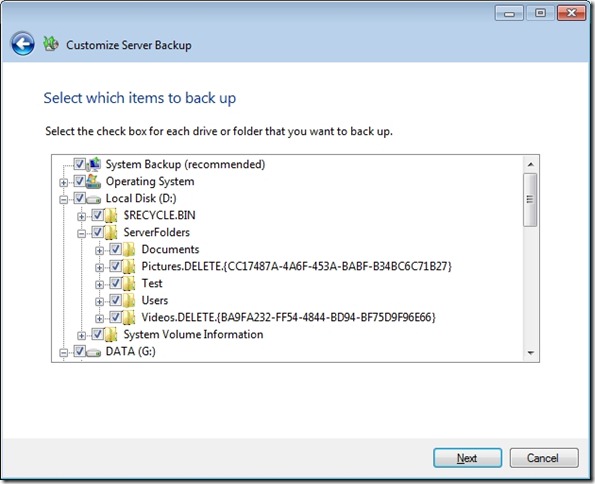
    I find these changes a bit of a mixed blessing. First the good news: it’s great that you can backup the client computer backups to external discs in addition to the shared folders (see figure 2).

    WHS2011 9

    figure 2

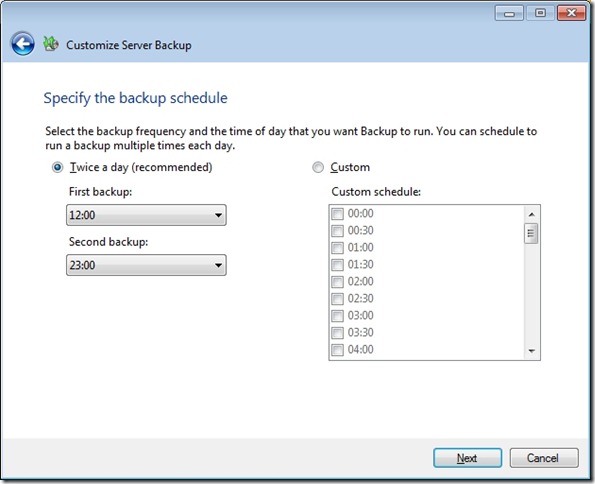
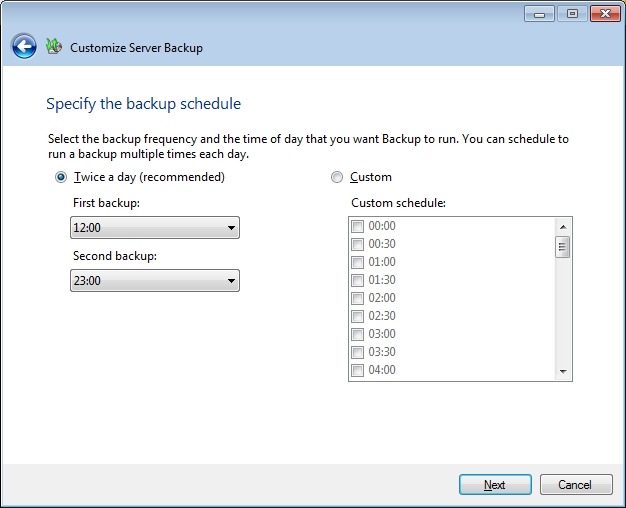
    However, I’m less enthusiastic about the fact that server backups are always scheduled, and that they run daily (see figure 3).

    WHS2011 8

    figure 3

    Let’s think a moment about the nature of these backups to external discs. As far as I’m concerned, they are for the purpose of making backups to be held offsite. That’s what I use them for, at any rate. If I were to have the external discs permanently connected to a WHS 2011 system, then, it seems to me, I’m only getting a slower version of the Shared Folder duplication that was built into WHS V1 and which was provided by the now-removed Drive Extender technology.

    And Microsoft’s own guidelines for Backup best practices for WHS 2011 state:

    You should backup server data to multiple external hard disks and rotate the hard disks between onsite and offsite storage locations. Doing so can improve your disaster preparedness planning by helping you recover your data if physical damage occurs to the hardware onsite.

    So if I’m going to be using the external discs for making server backups to be held offsite, then allowing the backups to be made only on a scheduled basis seems to be a bit counter-intuitive to me. I want to be able to fetch the discs from offsite, plug them in, push a button to initiate the server backups, and then return them offsite. I do this on a weekly basis. I can do this with WHS V1; I can’t do this with WHS 2011: (a ) there’s no manual server backup and (b ) the backups run on a daily schedule. At the time of originally writing this post, the Beta version of WHS 2011 did not have the capability to manually initiate a server backup. The final release version does. However, the backup task still continues to run on a daily basis…

    In fact, even the act of removing external discs seems less clear in WHS 2011. In WHS v1, once the server backup is complete, then I simply select the external drive and click “Remove drive”. WHS V1 will ask if I want to remove the drive temporarily or permanently (see figure 4), and I select the “temporary” option. The disc is then safely dismounted from the system, and it can be returned to its offsite location.

    WHS Storage 4

    figure 4

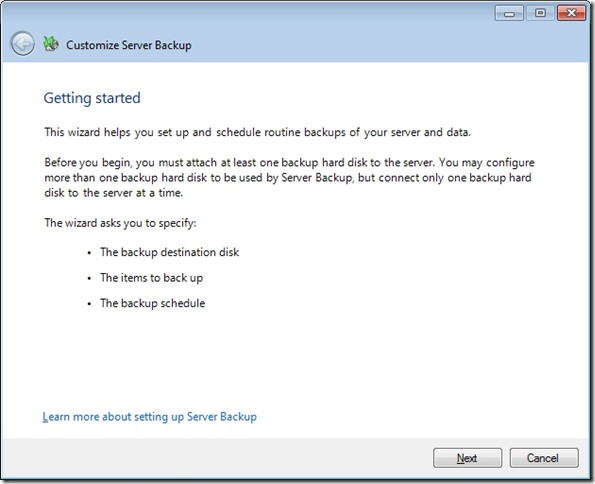
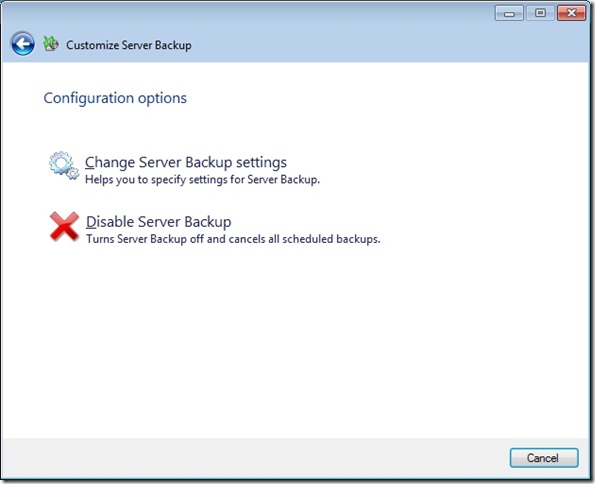
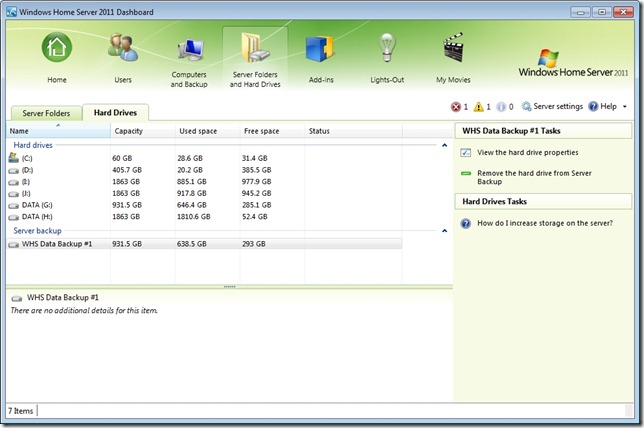
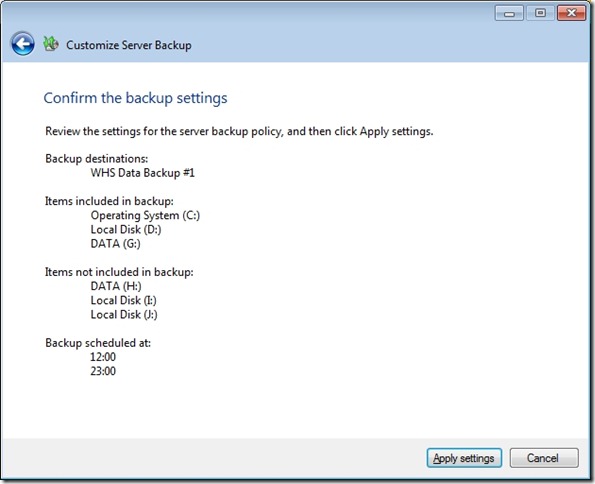
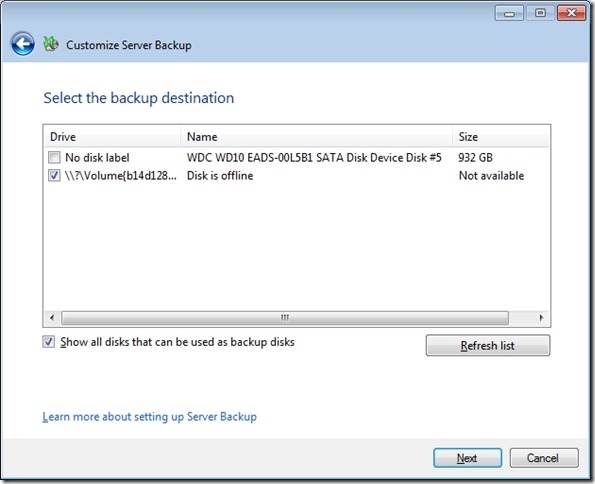
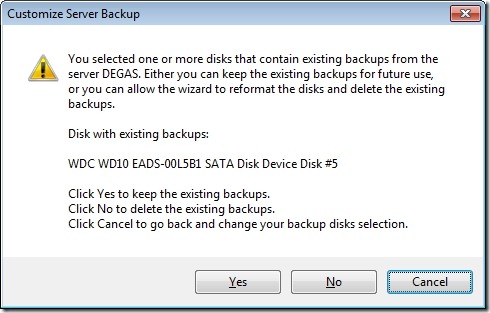
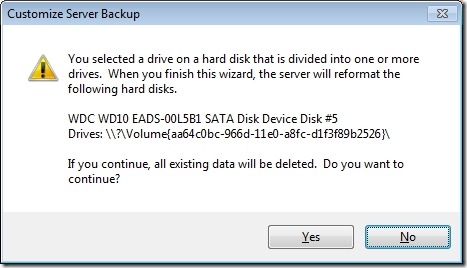
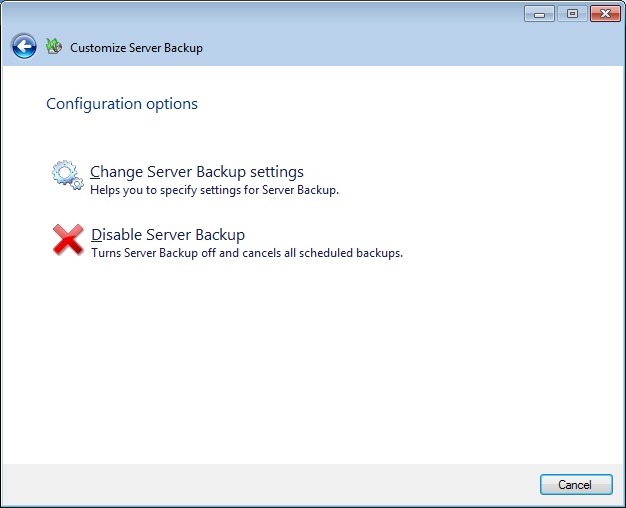
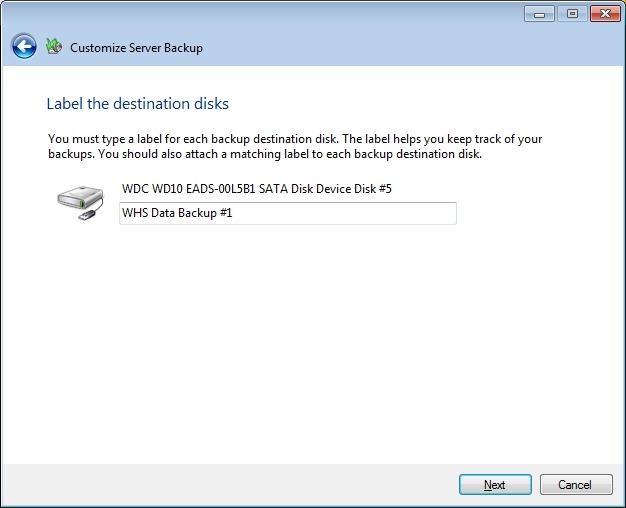
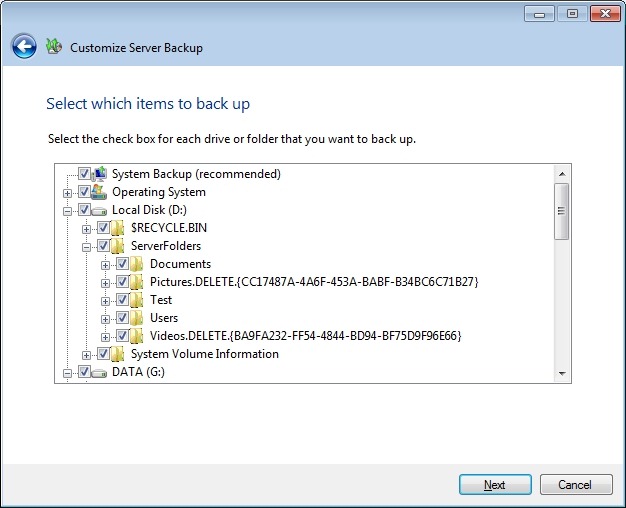
    In WHS 2011, if I select an external drive, I don’t get a choice to remove it temporarily, the only option shown is to remove it permanently from the server backup (see the tasks shown in figure 5). Choosing this starts the “Customise Server Backup” wizard (see figure 6), which I find somewhat confusing. I’m not trying to customise the server backup – I want to remove the drive… It turns out that the only way to temporarily remove a drive seems to be to yank out the cable. I suppose I’m set in my ways, but I always prefer to safely eject media (as WHS V1 allows me to do).

    WHS2011 14

    figure 5

    WHS2011 16

    figure 6

    The elephant in the room with server backups is that WHS 2011 can’t easily deal with discs bigger than 2TB. Now I know that even only a couple of years ago, this would have seemed an enormous capacity. However, with today’s high definition media, coupled with the ready availability of 3TB discs (with higher capacities on the horizon), then this limitation seems very surprising. The sad fact is that the backup method that Microsoft has chosen to go with in WHS 2011 has 2TB built-in as an upper limit. Never mind the fact that Windows 7 (even Windows Vista) and Windows Server 2008 (the operating system underneath WHS 2011) can support disks of more than 2TB capacity, WHS 2011 and its backup does not. If you install discs of more than 2TB into WHS 2011, then you must partition the disc into chunks, none of which can be more than 2TB in size. Even more frustrating, you can’t even backup a client computer that has a disc of more than 2TB assigned as one contiguous space. The Windows 7 client computer will be perfectly happy, but WHS 2011 will refuse to have anything to do with it (note: please see Addendum 2 at the bottom of this post for some clarification of this statement).

    I note that, on my WHS V1 server, my Movies shared folder is already at 1.86TB. Just a few more Blu-rays added to my library, and I won’t be able to use WHS 2011 without having to sit down and plan my storage, both for now, and in the future, very, very carefully.

    And this, to me, is the bottom line. WHS 2011 seems to force me to think like an IT support person; far, far more than WHS V1 ever did (or does!). That’s why I continue to think that the current WHS team don’t understand the home market sufficiently for WHS 2011 to succeed.

    Addendum 1: It just gets worse. It turns out that the 2TB limit doesn’t just apply to the size of a backup disc, but also to the maximum amount of server storage that you can backup for offsite storage. I don’t believe it!  Update 31 March 2014: It appears as though there has been some improvement made to the Server Backup function in the Dashboard since I originally wrote this article. It remains the case that WHS 2011 continues to use the VHD format for backup, which has a maximum capacity of 2TB. However, it now appears (contrary to what Microsoft originally stated) as though the Server Backup function can now deal with multiple VHDs, providing the backup drive is big enough. So, if your backup drive is 4TB, that means you can have 2 VHDs of 2TB created on it. That, in turn, means that you can backup up to 4TB of data from your data storage drives (with a maximum of 2TB for any one drive). That’s a theoretical maximum, since Microsoft also recommend having some free space in the VHDs to handle incremental backups.

    Addendum 2: Above, I wrote that: “you can’t even backup a client computer that has a disc of more than 2TB assigned as one contiguous space”. It turns out that’s too sweeping a statement. It was clarified by a discussion in the comments, and it’s worthwhile repeating the main points here in the blog entry itself.

    The issue is that you cannot Backup and then Restore a GPT OS drive with Windows Home Server. You can backup a GPT with v1 and perform the Restore but the disk will not boot. You can Restore individual files from a GPT backup but again not the OS into a bootable device.

    For WHS 2011, Microsoft’s release notes state:

    “If a client computer is running Windows Home Server 2011, and it has a hard disk that is configured to use the GUID Partition Table (GPT) format, you cannot use back up or restore data from the operating system, individual files, or folders on that computer. However, you can restore individual files or folders from other computers to a client computer that uses GPT formatting.

    In the event that a client computer is configured to use GPT hard disks, you must employ an alternative method to back up or restore that computer”.

    [Update 4th March 2013: Microsoft has at last issued a Hotfix to add backup support for UEFI-based computers to back up to servers that are running Windows Home Server 2011]

    Addendum 3: There are other issues with the Server Backup function in WHS 2011 that I explore in depth here. Sigh.

  • One Step Forward, Two Steps Back?

    Yes, this is yet another grumbling post about how the current Windows Home Server team just don’t seem to understand what the word “Home” means in the name of the product.

    I decided that I’d take a closer look at the Release Candidate for Windows Home Server 2011. So, I’ve wiped out the Windows 7 installation on my HP TX2000 laptop, and installed the WHS 2011 RC on it. On the plus side, I appreciated the way in which the installation process recognised hardware that had been developed since the days of Windows Server 2003 (that WHS V1 was based on). The installation process was painless.

    On the other hand, there are some losses if I compare what I would have with WHS 2011 versus what I had with the first version of WHS.

    The major difference is of course the removal of the Drive Extender technology. Now, this has been done to death (but that doesn’t mean that it’s not important), however, let’s look beyond that.

    I approach Windows Home Server from the perspective of a consumer who has computers in their home. I’m someone who wants to have two things:

    1. backup to a centralised server of all the data in the individual computers, such that, in the event of a failure of any individual computer, I can quickly restore that computer to a running state with the most recent data and,
    2. to have digital media (music, pictures, videos, movies) available throughout my home from the same centralised server, with connected devices sharing media as simply, and as directly, as possible.

    And I want that centralised server to be easy to manage, with regular offsite backups being made to ensure that the integrity of that server for both shared media and the data of client computers is preserved.

    All this must be done as simply as possible. I really don’t want to carry on being the IT guy in my household. If I fell under a bus tomorrow, I would want my nearest and dearest to be able to carry on without any special knowledge.

    And there’s the rub. While WHS V1 was certainly not perfect in this respect, it seems to me to be light-years ahead of the retrograde step of WHS 2011.

    As I said, let’s ignore the elephant in the room, the Drive Extender technology, for the moment. Let’s just look at managing storage on WHS 2011.

    In WHS V1, you could look at the shared folders to see how much space they currently took up. Here’s an example from my WHS V1 system:

    WHS Storage 2

    And here’s the equivalent screenshot from WHS 2011:

    WHS2011 1

    Er, where’s the “used space” column? Well, surprise! It isn’t there. Instead, you have a “Free space” column that represents the space available on an individual drive. Nowhere near as useful. Because drive extender has been removed, the support person has to start thinking in terms of individual drives, not in terms of the total amount of storage as in WHS V1.
    This mode of thinking in terms of individual drives, instead of the total storage pool is also reflected when considering backups. WHS 2011 is unable to deal with backups (or discs) larger than 2TB.

    Frankly, if I were designing the follow-on product from WHS V1, then it would seem to me to be essential that I would handle the situation where discs and backups would be larger than 2TB. After all, if I’m going to claim that:

    Today large hard drives of over 1TB are reasonably priced, and freely available. We are also seeing further expansion of hard drive sizes at a fast rate, where 2Tb drives and more are becoming easy [sic] accessible. Since customers looking to buy Windows Home Server solutons [sic] from OEM’s will now have the ability to include larger drives, this will reduce the need for Drive Extender functionality.

    …then I would make sure that a 2TB limit did not exist in my product. Not so with WHS 2011.

    I really do wonder who the team are designing the product for. Certainly not home users.

  • Turing’s Papers Saved for the Nation

    For a while, it looked as though there was a real possibility that Alan Turing’s papers might disappear abroad, possibly to a private collector in Silicon Valley. However, news comes today that the UK’s National Heritage Memorial Fund has pledged £200,000 to make up the shortfall and meet the seller’s reserve price.

    So the papers should end up in the museum at Bletchley Park where they rightfully belong. Excellent.