Reflections on life at “De Witte Wand”…

Category: Computers and Internet

  • Nine Billion Flies Can’t Be Wrong…

    A couple of months ago I wrote a post “Metro – Murdered By Microsoft?” in which I expressed my concern that it appeared as though Microsoft was dropping many of the elements of the Metro design language. As I said:

    Frankly, if I’d wanted an Android phone, I would have bought one. One of the key reasons why I went with a Windows Phone was the UI design. I like it a lot, and I am at ease with it. To have a key Microsoft team turn their back on it and introduce Android elements is a shock, to say the least.

    A few days ago, we got confirmation that Microsoft has indeed stuck a dagger in the back of Metro. The confirmation came in the form of an AMA (Ask Me Anything) discussion on Reddit by an ex-Microsoft Windows Phone designer, Jon Bell. It’s clear that he doesn’t care for the Pivot design element that is a key part of the design language:

    Swiping sucks. It hides content. Let’s say you’re in Format and you want to get to something 5 tabs away. Five swipes is an unacceptable series of interactions. The carousel model has been disproven repeatedly, every single decade, for several decades. We have the data. It’s a dumb interaction model, full stop.

    It clearly doesn’t matter that I (and presumably many others) happen to like the Pivot and its swiping action very much indeed. Microsoft has the data that “proves” it’s a dumb interaction model. And as an ex-Microsoft designer explains:

    So on the day of the Meeting, the PM [Project Manager] will go on and on about how the Decision benefits the User. They come up with facts that support the Decision. We don’t want to confuse the User with too many options. Only 3% of people used it that way, so clearly it’s okay to remove. Consistency is good for Microsoft, so it must be good for the User. Everybody smiles and nods and agrees this is the best way. The newest to the team, because it just makes so much sense. The veterans, possibly because they secretly know it’s about the engineers and not about the User, but more likely because engineers are inherently lazy. The meeting ends and the Feature has a new direction. It’s a little bit farther from the vision, and maybe little bit worse user experience, but writing software is about compromise. This was a good compromise. It’s not that bad, anyway. It was the best option available. If only the User was there to see it, they’d understand that.

    Probably more to the point, the Metro design language is radically different to those of iOS and Android, and Microsoft wants to attract those users across to Windows Phone if it can. Having a distinct design language acts as a barrier, so Microsoft appears to have made the decision that nine billion flies can’t be wrong, and moved to a similar design language. I think that’s a pity, I like Metro, but at the end of the day, Microsoft wants to make money.

  • Filling A Reservoir With A Teaspoon

    I’ve been using Microsoft’s OneDrive since it was launched as Windows Live SkyDrive, back in 2007. By the time it got renamed as OneDrive in 2014, I had 40 GB of free storage available in the Cloud to use for storing documents and photos.

    I’ve noticed a change in my computing habits over the years. When I had just my Desktop PC, my primary location for storing both documents and photos was local storage on my PC. Backups were taken daily and stored on our Windows Home Server system, with secondary backups of the most important data taken from that server and stored off-site.

    With the arrival of the Cloud, I first started storing copies of selected photos and documents in Microsoft’s SkyDrive/OneDrive, primarily as a means of sharing them with friends and family.

    With the arrival of my first “proper”tablet, the ThinkPad Tablet 2, back in January 2013, I started to make more use of OneDrive as the primary location for my OneNote documents. It was simple to create a OneNote document (usually on the Tablet), and then continue to work on it on my PC. That has grown to the point where my primary storage location for OneNote documents is no longer a local device (the desktop PC or the Tablet), but the Documents folder in OneDrive, which is synchronised transparently across all my devices (now a desktop PC, a Windows tablet, a Lumia Smartphone and a laptop).

    When I bought a license for Office Home & Student 2013 for my ThinkPad Tablet, I began storing all my Office documents (Word, Excel, PowerPoint) in OneDrive by default. That way, they would be immediately accessible from my other machines and synchronised with them.

    With my 40 GB of free online storage available in OneDrive, this would probably suffice for my documents and selected photos.

    But then, last month, Microsoft announced that music media could be stored in OneDrive, and be available to my devices. In truth, it’s not really necessary for me, I already use the Windows Home Server as my music media storage; but the thought of having extra backup options appealed to me. With a music collection that is currently 215 GB in size, I would not be able to hold a duplicate, backup copy, on OneDrive as it stood.

    I decided to bite the bullet, and take out a yearly subscription to Office 365 Personal (70 euros annually). That way I would kill several birds with one stone:

    • Upgrade my license of Office 2010 on my Desktop PC to Office 2013,
    • Be able to install Office 2013 on a further Windows tablet
    • Get 1TB of OneDrive storage, and
    • Get 60 minutes of Skype calls to landline telephone numbers (useful for overseas calls).

    So I’ve subscribed, and also signed up for the “unlimited storage” option of OneDrive that Microsoft announced last year. Today, I received an email from Microsoft telling me that my Office 365 account now has unlimited storage and they’ve added an initial 10TB of storage. I’m only scratching the surface of what is available:

    OneDrive 14

    And now I’m discovering that I’m trying to fill a reservoir with a teaspoon. My connection to the internet is via ADSL, and with 4 Mbps download and 1 Mbps upload speeds, it is not blazingly fast. I reckon that it’s going to take several weeks to upload my music collection to OneDrive, and a couple of weeks for my photos. An added complication is that the Smart files feature of Windows 8.1 is being removed by Microsoft in Windows 10, while they work out how to re-engineer it. This means that the user experience of using OneDrive storage will take a step backwards until at least mid 2016.

    Still, I’ve now moved across to using OneDrive as my primary storage for documents, and given time, it will also become the primary storage for my photos, and possibly for my music. I’ll still be using our Windows Home Server for local storage and backup as an additional safety measure.

  • Game On: Microsoft’s Surface 3

    If you’ve been following my search for the ideal Tablet device, you’ll know that a number of them have passed through my hands, whilst I’ve passed up on others. To date, I’ve had an HP TX2000 convertible, a Lenovo ThinkPad Tablet 2, and currently I have a Lenovo ThinkPad 10 and a Lenovo Yoga 3 Pro convertible.

    I’ve long ruled out Apple’s iPads and the myriad of Android tablets, since I use the Windows ecosystem, and up until now, Microsoft’s Surface range of products has never ticked enough of my boxes. Whilst I had initially high hopes for the Surface Pro 3, it came with a poor fixed-focus rear camera, no GNSS capability, and a fan (I really want a fanless tablet). For more detail, see my “trying to nail it” post.

    This might all be about to change, as Microsoft has now introduced the Surface 3. This, like the Lenovo ThinkPad 10 (TP10), has an Intel Atom processor, but whereas the TP10 has the last generation of the Atom (codenamed Bay Trail), the S3 has the newest iteration of Atom chips. These are apparently slightly faster than Bay Trail, but not a major advance. Here’s a comparison of the basic specifications of the TP10 and the S3:

      ThinkPad 10 Surface 3
    Processor Intel Atom Z3795 processor (4 cores,2MB Cache, 1.6GHz with Intel Burst technology up to 2.4GHz) Intel Atom x7-Z8700 processor (4 cores, 2MB Cache, 1.6GHz with Intel Burst technology up to 2.4GHz)
    Display 1920 x 1200 (16:10) 1920 x 1280 (3:2)
    Memory 4GB / 1067MHz LPDDR3 4GB / 1600MHz LPDDR3
    Storage 128 GB eMMC + MicroSD up to 64GB 128 GB eMMC + MicroSD up to 128GB
    O.S. Windows 8.1 Pro 64bit Windows 8.1 64bit*
    Front camera 2 MP fixed-focus 3.5 MP fixed-focus
    Rear camera 8 MP auto-focus + LED flash 8 MP auto-focus, no flash
    Digitizer Pen Wacom N-Trig (optional)
    WLAN 11a/b/g/n 11a/c
    WWAN optional optional
    Bluetooth 4.0 4.0
    GNSS yes optional **
    NFC optional no
    Keyboard optional optional
    Base unit price €699.99 €729.00

    * Apparently, Windows 8.1 Pro 64bits will be available as an option. However, the non-Pro version is perfectly adequate for me.

    ** If you buy the WWAN (LTE) version of the Surface 3, that will also include GNSS, but you can’t have GNSS without WWAN (unlike the TP10, where all models have GNSS included).

    You’ll notice that the prices of these two tablets, while definitely in the “Premium” bracket, are close to each other. However I would definitely want the N-Trig pen, which adds another €49.99 to the price of the Surface 3. Then again, my ThinkPad 10 has a Quickshot Cover, which to my mind is an essential accessory, and that cost me €49. The Quickshot cover is thin, and only covers the screen (it can be completely folded back under the TP10 in use). It can also act as a stand, but it is less stable, and with less angles to choose from, than the kickout stand built into the Surface 3.

    Unfortunately, Microsoft do not produce an equivalent cover for their Surface range. Instead they have the Type Cover – a cover and keyboard combined. Nice idea, but it weighs in at an eye-watering €149,99. Since I don’t need a keyboard, I can’t see myself shelling out for this. So I’d probably go for just a slipcase to protect a Surface 3. Not as convenient as a flip-over cover, but a good deal cheaper. I just wish that Microsoft, or a third party would produce something like the Quickshot Cover for the Surface range.

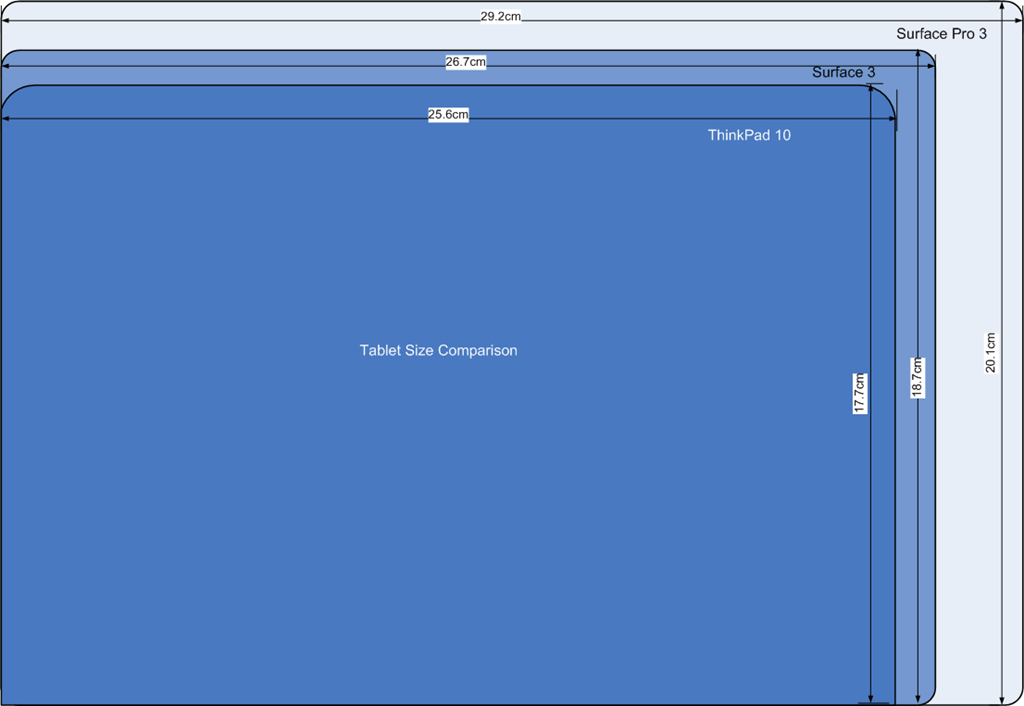
    So let’s say that I find a decent case for €30, then my total outlay for a Surface 3 setup would be €808.99 versus €748.99 for the TP10. Still within shouting distance of each other, but the gap is widening, and not in the right direction. Physically, the two tablets are close in size, and smaller than the Surface Pro 3. Here’s a diagram to illustrate the differences:

    Tablet Size Comparison

    The Surface 3 has a larger display than the TP10, and I like the 3:2 aspect ratio of the S3 even more than the 16:10 ratio of the TP10. It would be even better for reading books and documents:

    Tablet Display Size Comparison

    This, to my mind, is where the S3 scores over the TP10. For me, its display has a nicer ratio, and a nice physical size. The Surface Pro 3, although it has the same aspect ratio, is bigger (almost the size of an A4 pad). It also has a much higher resolution, which causes scaling issues with some programs.

    I think the S3 is the Goldilocks model of the three (TP10, S3 and SP3). By way of comparison, the Yoga 3 Pro that I have is a bit bigger than an A4 pad, at 33cm x 22.8 cm, and when in tablet mode is simply too unwieldy for my liking. So the plus points of the S3 are:

    • it’s fanless (like the TP10)
    • screen ratio of 3:2 (better than the TP10)
    • bigger screen than a TP10, and smaller than a SP3.

    The drawbacks are

    • premium price
    • no reasonably-priced flip-over cover available
    • no GNSS

    I think, for my requirements, it measures up very well against the TP10, and might well be the tablet to go for once Lenovo ask for their loan TP10 back. Of course, waiting in the wings will be the Surface Pro 4. The question arises, would I consider this. Frankly, I don’t think it will be a good fit for my requirements. I suspect it will be at least as big, if not bigger, than the SP3, with power to match.

    I don’t need a poweruser’s laptab; the S3 is a much better match with what I’m looking for. As usual with Microsoft, the third time’s the charm. The Surface 3 promises to be a good machine. It would suit me, and I suspect many others, very well indeed.

  • Windows 10 Technical Previews

    Over the past few months, I’ve been playing with Microsoft’s technical previews of their forthcoming Windows 10 operating system. It’s the version of Windows that is supposed to marry the best features of Windows 7 (which was designed for traditional PCs with a mouse and keyboard) and Windows 8.1 (which is designed for both traditional PCs and devices such as Tablets that use touch for input).

    It’s safe to say that Windows 8.1, and Windows 8 before it, has had a poor reception in the market. Acres of newsprint have been spread with the cries of pain, and vitriol, from many users of traditional PCs. Personally speaking, I singularly fail to see what all the fuss is about. I use Windows 8.1 on both my PCs and Tablets, and am perfectly comfortable in both environments. I took to the new operating system like a duck to water, and could not countenance ever going back to Windows 7.

    Nonetheless, perception is reality, and Microsoft have realised that their challenge is to introduce a new version of Windows that keeps as many users as possible happy, no matter which camp (PC or Tablet) they are in.

    So, as I say, I’ve been playing with the previews of Windows 10, and I’m coming to the dismaying conclusion that, as a user of a Windows 8.1 Tablet, I just don’t like it

    While the Desktop side of things has improvements, from my perspective as a Windows Tablet user (Lenovo ThinkPad 2 and Lenovo ThinkPad 10), the UI experience in Windows 10 is significantly worse than that delivered by Windows 8.1.

    From what I’ve seen so far, Microsoft is bending over backwards to pander to traditional desktop PC users. They are removing valuable UI features (the Charms bar has gone) from the Tablet experience, or poking desktop features into the Tablet UI (I do not want the Desktop Taskbar to be present in the Tablet UI, but there it is, whether I want it or not).

    Now I know that it’s a Technical Preview, but if Microsoft are going to deliver the final version in summer 2015 as promised, then it’s more than likely that the major features are now locked down, and all that remains are bug fixes and minor tweaks (e.g. improving the Toytown icons in File Explorer).

    It seems to me, on current evidence, that Microsoft are throwing the baby out with the bathwater. I am not impressed, and I’m not the only one.

  • Home Automation Revisited

    Back in January, I wrote about putting my toe into the waters of Home Automation. As I said at the time, there’s a bewildering array of products and standards out there. Over the past couple of months, I’ve been taking a look at some of the HA solutions out there, and I think I’ve landed on one that seems to fulfil my requirements pretty well.

    I had decided back in January that my solution would be one that used Z-Wave, and that’s still the case. I’ve been able to purchase Z-Wave HA devices from several different manufacturers, and they interoperate as promised. I’m satisfied that the choice of Z-Wave is a good one for me.

    As I said in January, there is a wide range of possibilities in the choice of the controller for a HA system. I could buy an off-the-shelf unit such as the Fibaro Home Center 2, the Zipato ZipaBox, a VeraEdge controller, or a HomeSeer controller. Or I could buy just the controller software, such as HomeSeer, and install it on a PC or a Rasberry Pi box.

    In the end, I decided not to purchase an off-the-shelf unit. Fibaro still seem to be struggling to deliver a stable version of their latest software for the Home Center 2, and not being able to trial the other hardware products meant that purchasing one would be a gamble. It seemed to me that a better approach would be to trial a software solution, using an existing computer.

    I ended up taking a look at the following software solutions:

    The first two are commercial products, the rest are open source projects, funded by donations.

    For my testing, I purchased a variety of devices:

    With the devices installed, and included in the ZWave network (registered in the ZStick controller), I connected the ZStick to a variety of software controllers in turn…

    HomeSeer has been around for a while. That means it’s comprehensive (it can control a wide range of devices using a variety of standards), and it has a wide range of third-party add-ons. However, it still strikes me as being expensive: $249.95 for the basic version of the controller software and $199.95 for the UI designer software. If I were to go with HomeSeer, it would probably make more sense for me to buy the basic (linux-based) HomeTroller Zee controller at $199.95. I installed the trial software of HomeSeer version 3, and used it for a week or two. It worked, and the diagnostic information was copious. However, the interface struck me simultaneously as being rather basic, and yet somewhat complex in places. I decided not to proceed further with HomeSeer.

    I admit I only took a cursory look at both Charmed Quark and OpenHAB. I found both difficult to set up, and got the impression that I would spend more time fiddling with them than using them. OpenHAB, in particular, seemed aimed at programmers and developers, rather than end-users at this stage. As a result, I moved on.

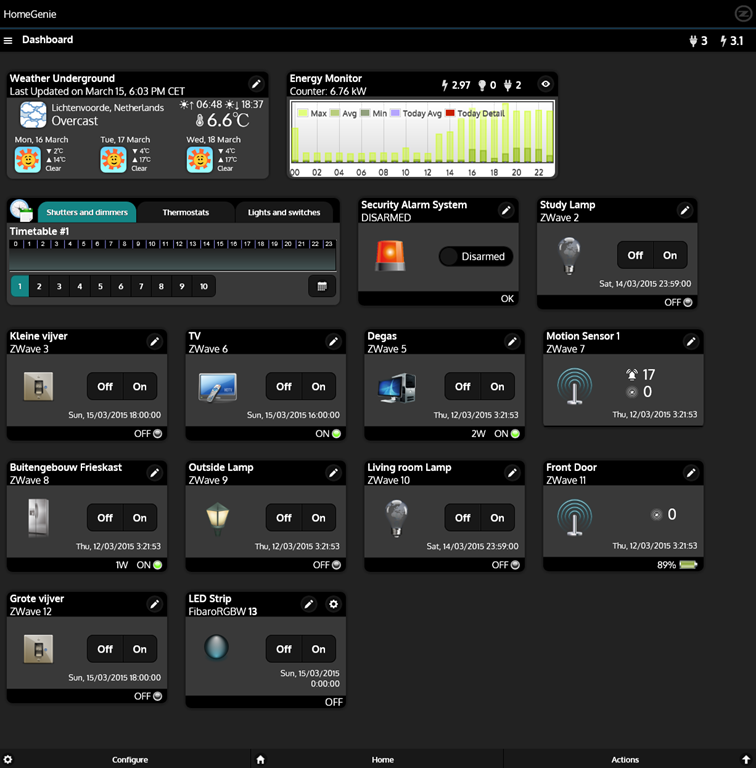
    HomeGenie is also something that will delight programmers and developers at the moment. Nonetheless, I was able to get it up and running very easily on Windows, and it works well. Here’s the “dashboard” that I see for the devices I currently have in my HA network:

    HomeGenie 06

    It’s primarily the result of the efforts of one developer, and he’s done a very good job. It’s still at a fairly early stage, so, for example, if you want to develop automated control of your devices, you will find yourself very rapidly at the limit of what the built-in “Wizards” are capable of, and have to turn to grown-up programming to get the job done. That’s all very well, if that’s your thing, but it’s really not what I want to do any more. I made a donation to the project, because I appreciate what has been achieved, and I hope it continues to develop. There’s a small (around 350 members) community forum where ideas are exchanged and bugs highlighted for solving. I could certainly make use of HomeGenie, if there were not other, and for my purposes, better solutions available.

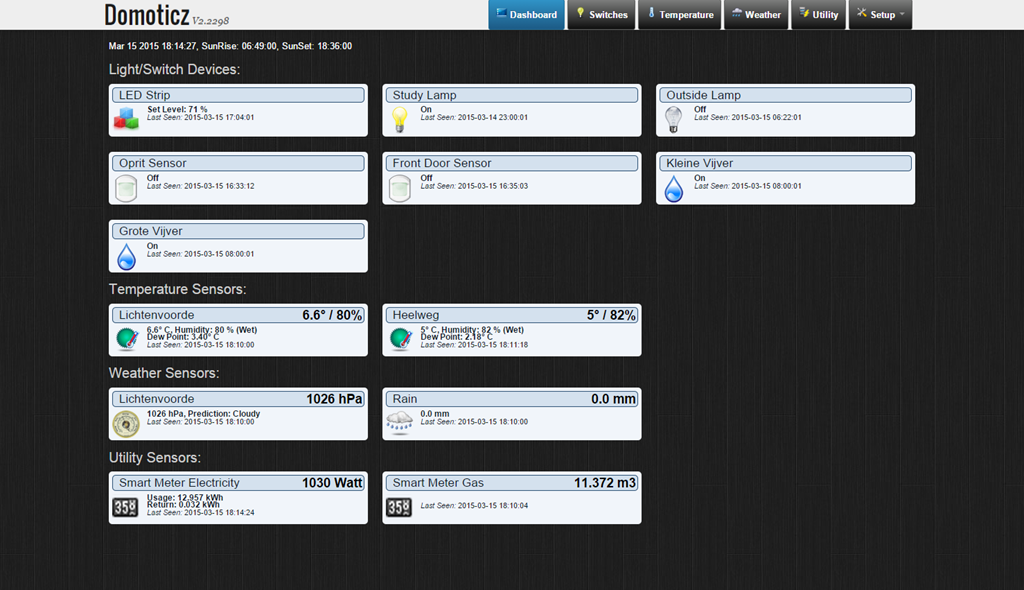
    Domoticz is another open-source project, and while it is primarily led by one developer, there are others actively involved, and the community forum is large (around 3,270 members) and active. Domoticz and HomeGenie are similar in many ways, but there are a few differences, which can be both strengths and weaknesses, depending on where you stand. Here’s the Domoticz dashboard:

    Domoticz 18

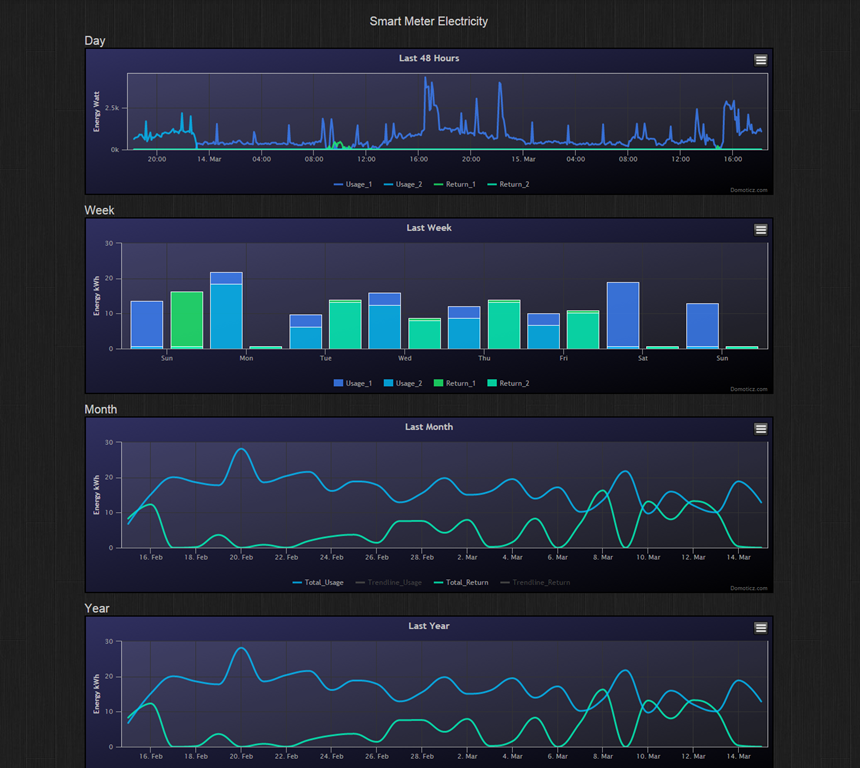
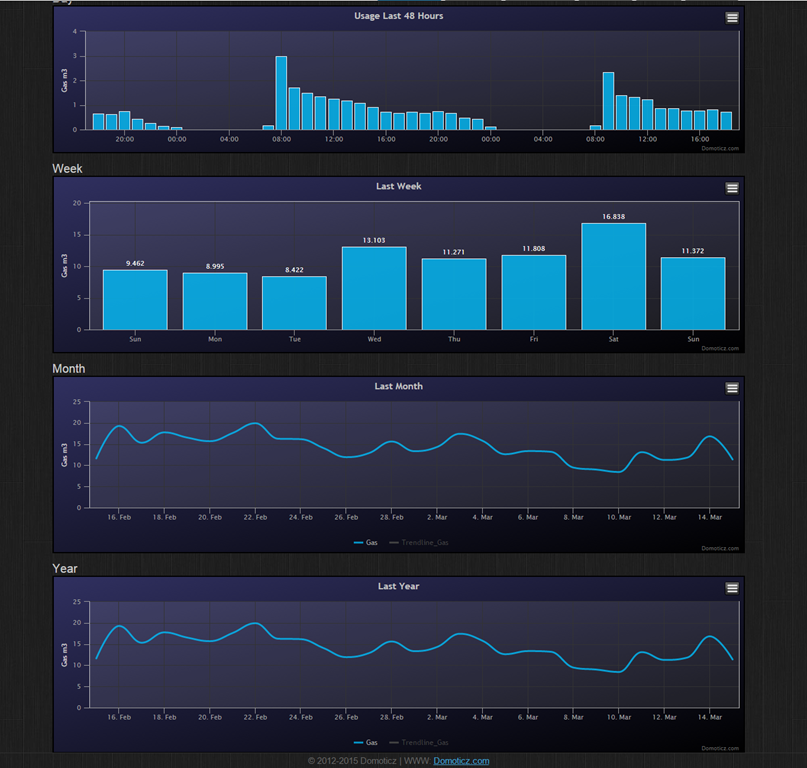
    The strength of Domoticz is its maturity; it already has solutions and support for a lot of hardware. In particular, it supports the reading and display of data supplied by our “Smart Meter” for our gas and electricity consumption. With the simple purchase of a cable, I was able to connect our smart meter to the Domoticz system and get real-time graphs of our energy consumption. Here’s what I see for our electricity usage:

    Domoticz 16

    It not only records our consumption (blue), but also the electricity generated by our solar panels (green) that is returned to the electricity grid. Gas consumption can also be tracked:

    Domoticz 17

    HomeGenie, at the moment, does not have this connection to Smart Meters built-in. The programmatic interfaces are there, and such an interface could be built, but I’m not the one to do it.

    For me, the strength of HomeGenie is that it is a complete solution, in that the developer has written software to control Z-Wave devices directly. Domoticz, on the other hand, hands off the control of Z-Wave devices to another piece of software, developed by a separate open source project: Open-ZWave. That means that there is the chance of issues arising out of effects caused by the fact that there are two different software components developed by two different groups. I’ve already come across an issue with my Z-Wave sensors, which may be caused by a bug in Domoticz, a bug in Open-ZWave, or some combination of the two.

    Nonetheless, I can live with that issue, and the quirk that the Fibaro wall plugs don’t always show the correct status in Domoticz. There are two reasons for this:

    • The fact that I can track our energy consumption directly in Domoticz (as shown above), and
    • the fact that Domoticz supports Blockly for building automation programs.

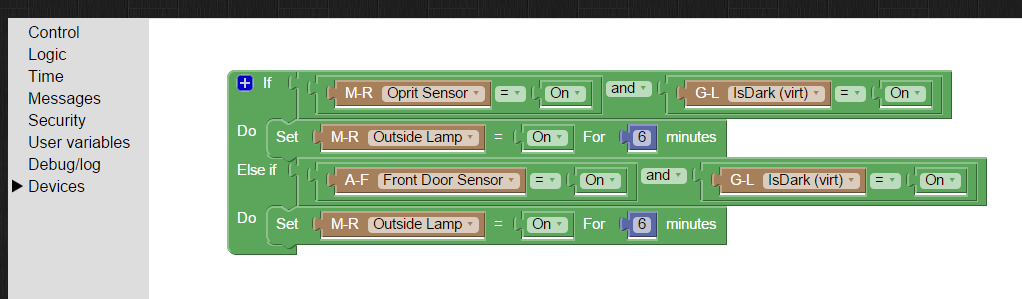
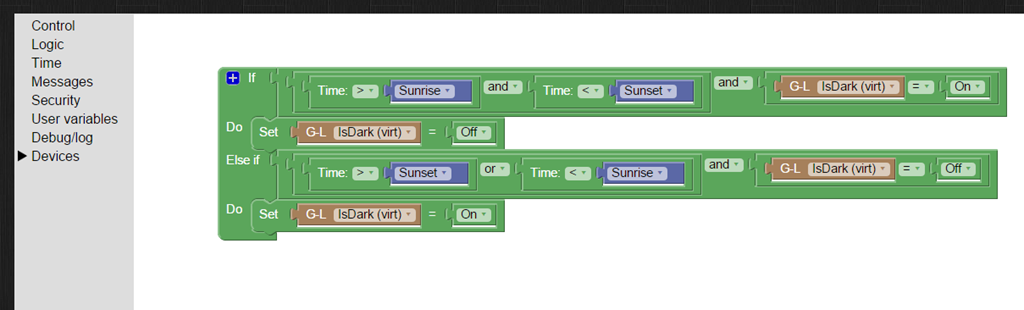
    Think of Blockly as Lego for programming. It’s wonderfully easy to use, and I’ve already programmed the motion sensors on the driveway and by the front door to turn on the outside lights if someone comes along during the hours of darkness (which have been defined, using Blockly and a “virtual device” in Domoticz that I defined: IsDark):

    Domoticz 19

    Domoticz 20

    So for the moment, I’m going to stick with Domoticz for our Home Automation system, with HomeGenie held in reserve as my fallback position.

    And while I tested both on Windows, both Domoticz and HomeGenie are available for the Raspberry Pi. I’ve also stuck my toe into the waters of using a Raspberry Pi, and Domoticz is currently running very happily on it. But that’s the subject of another post, I think…

  • Goodbye, Facebook, and Good Riddance

    Let me put my cards on the table; I’ve never been a fan of Facebook. However, it seems that most of our neighbours are avid Facebook fans, so after holding out for years, I decided that I’d open up a Facebook account in November last year, primarily as a means of being kept up to date with what was happening in my neighbourhood.

    Even after I signed up, I rarely accessed my Facebook page, and contented myself with batting away the many, many Facebook notifications that appeared in my email inbox or on my Windows Phone. My prime channel for revealing my thoughts to the (largely indifferent) world has remained this blog.

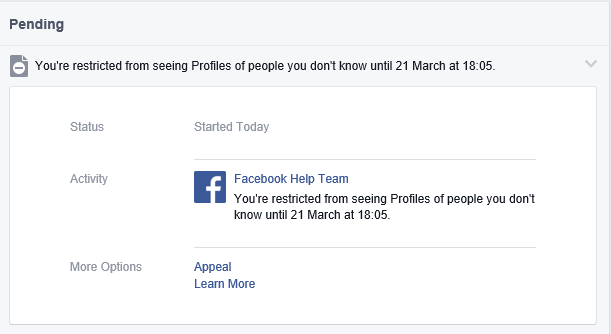
    Then today, out of the blue, I got a notification from Facebook that I’m restricted from seeing the profiles of people that I don’t know for one week:

    Facebook 01

    Er, excuse me? I don’t make a habit of trying to see the profiles of people that I don’t know (I have tried looking up two old friends since I joined), so why the restriction?

    Well, sod this for a game of conkers. I don’t need Facebook, so I’ve deleted my account. Goodbye and good riddance.

    Addendum 15 October 2016: It is with great regret that I have to confess that I’ve been forced to reopen a Facebook account. There’s a group of us lobbying for internet services via optical fibre in our area, and it has been decided that a closed Facebook group is the best way of keeping the group organised. Sigh. I still loathe and detest Facebook, but needs must, I suppose…

    Addendum 23 June 2019: I should point out that once the lobbying action was (successfully) completed, I deleted my Facebook account – and have been Facebook-free for over a year. Don’t miss it in the slightest.

  • The World’s Most Important Operating System

    I was saddened to learn today that Bill Hill died of a heart attack back in October 2012. Bill was a Scotsman who started out life as a newspaperman and became a typographer, but ended up working for Microsoft.

    In this short video clip Bill explains why the world’s most important operating system is not Windows or OSX or Linux or Android. It’s Homo sapiens 1.0. It’s an operating system that first booted up about 100,000 years ago, and has never yet had an upgrade.

    There’s more videos of Bill available here. A memorial, of sorts. RIP, Bill.

  • Metro – Murdered By Microsoft?

    When Microsoft introduced Windows Phone, precisely five years ago, the major differentiator from Apple’s iOS and Google’s Android was the user experience. Microsoft called the design language: Metro; that is until Metro AG threatened Microsoft with legal action for using that name. Now Microsoft no longer use the term Metro, and indeed it would appear that they no longer want to use many of the elements that made Metro the innovation that it was.

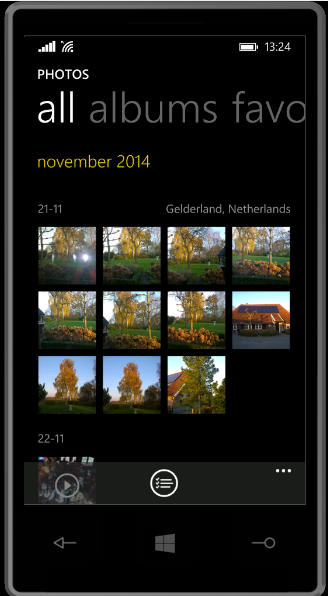
    One of the design innovations was lateral scrolling within apps to reveal different functions (the so-called “Pivot” control). The use of large fonts in the app title cued the user that more was available by scrolling laterally, e.g. as here in the Photos app:

    WP8 04

    Along with Metro came concepts such as the “hub” – single points of entry where similar items from different sources would be consolidated. So, for example, the Photos app consolidated your photos from cloud sources such as Facebook, Flickr and OneDrive with the photos that were on the phone itself. You no longer had to worry about where the photos were held, and open up a Facebook app or a Flickr app; they were all available in one place.

    Unfortunately, I suspect that companies such as Facebook and Flickr didn’t like the hub concept, because they saw it as threatening the power of their brand. Microsoft has responded by either removing the consolidation feature completely (e.g. the integration with Facebook and Flickr that existed in the Photos app in Windows 8 was ripped out for the Photos app in Windows 8.1), or watered down.

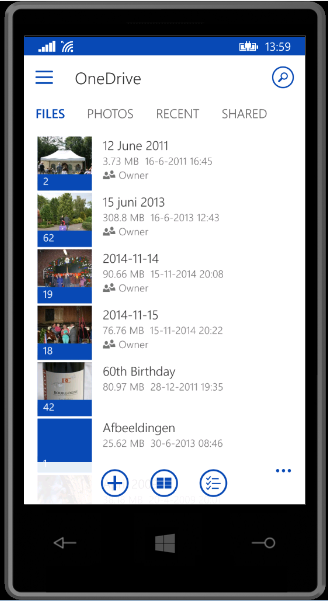
    Now it seems that Microsoft is turning its back on other design aspects of Metro, and is busily introducing design concepts copied from Android (e.g. the infamous “Hamburger” button). We first saw this in the new version of the OneDrive app, introduced in October 2014:

    WP8 05

    You’ll notice that not only is the “Hamburger” button present (it’s the three horizontal lines at the top left), but the Pivot design element has also gone. This redesign was met with howls of protest. As I said at the time:

    Frankly, if I’d wanted an Android phone, I would have bought one. One of the key reasons why I went with a Windows Phone was the UI design. I like it a lot, and I am at ease with it. To have a key Microsoft team turn their back on it and introduce Android elements is a shock, to say the least.

    One might almost wonder if the team had actually read the “Review questions for prototype” section on the “Design the best app you can” page of the UI guidelines, in particular:

    • Are you coming from another mobile platform? Windows Phone users will expect fewer taps, clearer views, large typography, and the use of contrast and color.
    • Are you using both axes of scrolling (the X and Y axes) and orientation (Portrait and Landscape)? Depending on the purpose of your app, users may expect both.
    • Do you use Pivot and Hub controls effectively and correctly?

    Even simple things, such as a transparent Tile for the app have been forgotten about (or ignored) in this bastardised design. I hope that the howls of protest that have greeted this version result in a swift redesign to make it a proper Windows Phone app.

    Good design and adhering to UI guidelines are important, and help to build a brand. This horror does just the opposite.

    Looking at what is coming out in the Windows 10 previews, Microsoft is simply steaming ahead with the Androidification of Windows. Metro has been dragged behind the arras, with a dagger in its back.

  • Lenovo ThinkPad 10 vs Yoga 3 Pro

    I’ll kick this post off with a disclaimer: YMMV – Your Mileage May Vary. That’s to say that what follows is entirely my subjective impression based upon my usage requirements for portable computing. Your requirements may well be entirely different, and so would your conclusions be in the following comparison.

    With that disclaimer out of the way, let me remind you that last September, I received a ThinkPad 10 tablet on long-term loan from Lenovo. I blogged about my first impressions of it in a post that compared it to my ThinkPad Tablet 2, which I had purchased myself back in January 2013.

    I must admit that in the ensuing months, I quickly began to like the ThinkPad 10 (TP10); so much so that I sold my ThinkPad Tablet 2. The TP10, in combination with the Lenovo Quickshot Cover, fits my requirements for portable computing very well indeed. In particular I like:

    • the size and weight (not too big, clumsy or heavy),
    • the 16:10 screen aspect ratio (better for reading books than 16:9 aspect ratio devices)
    • the pen – I prefer scribbling notes and diagrams in OneNote during meetings to typing
    • the performance – not a speed demon, but more than adequate for what I use (OneNote, Mail, browsing with IE, Word, Excel, Powerpoint)
    • the UI experience of Windows 8.1 in a tablet.

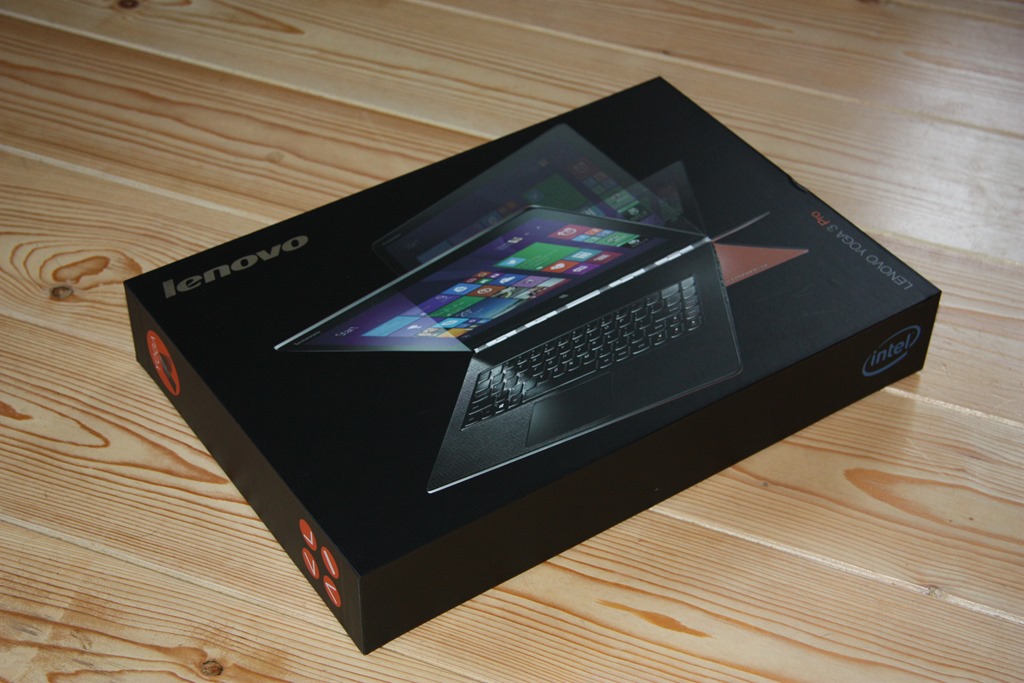
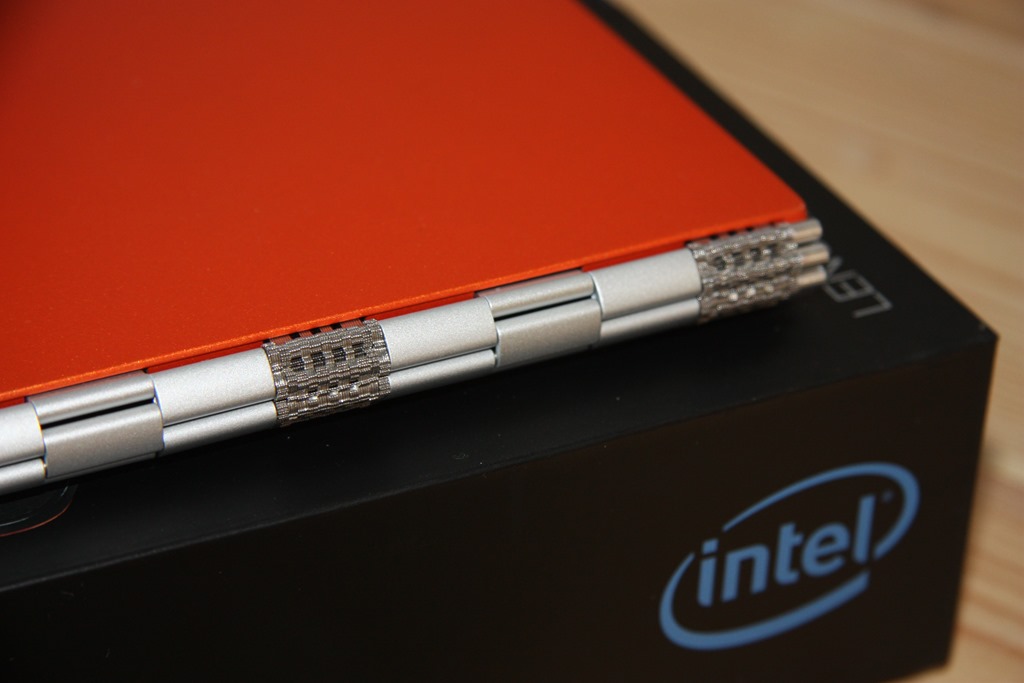
    And there things stood until a couple of weeks ago, when Lenovo asked me if I would like to try a Yoga Pro 3 (Y3P). I replied that I was interested in trying out the Consumer Technical Preview of Windows 10, so if I could use the Y3P for that, then yes, please. A package containing a rather smart box (see below) was delivered a few days later, a couple of days before Microsoft unveiled the next stage of Windows 10. The box itself is a slick piece of paper engineering – after taking off the lid, you fold back the two flaps covering the top, and as you do so, the Y3P rises out of the box to greet you. A nice touch.

    20150203-1214-56

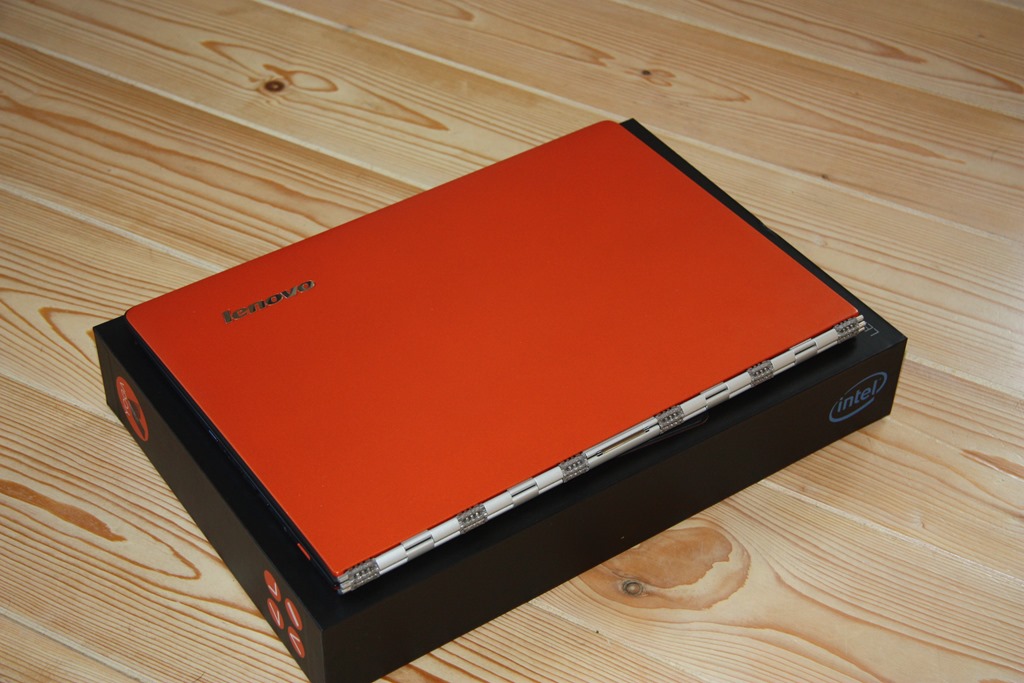
    I have the orange version of the Y3P, which is pleasingly different to the usual black or silver Ultrabooks:

    20150203-1216-06

    The most striking thing, of course, is that “ watchband” hinge. It’s unique in the portable computer world. I rather like it, I have to say.

    20150203-1216-19

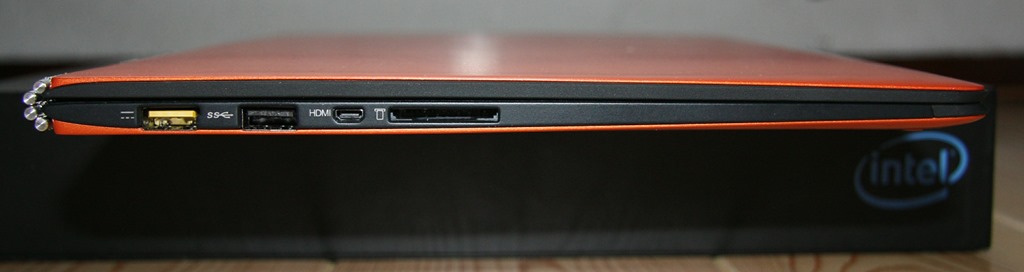
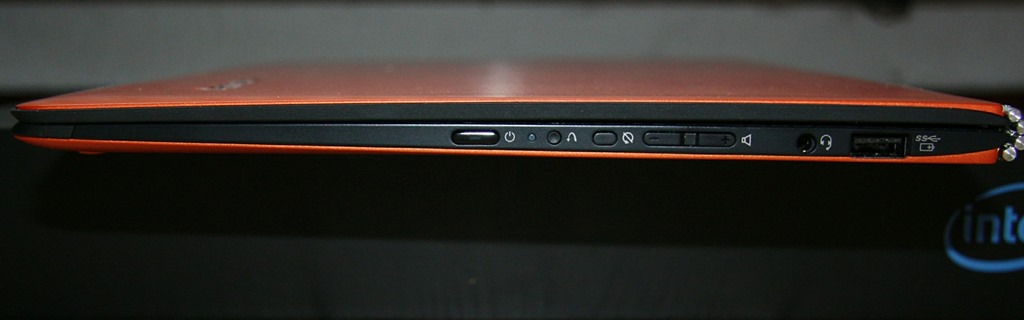
    Being an Ultrabook, the Y3P has more ports than the TP10. The left side has Lenovo’s battery charger port (which also doubles as a USB 2.0 port), a USB 3.0 port, a Micro-HDMI port, and a full-size 4-in-1 (MMC, SD, SDXC and SDHC) Memory Card slot. The right side has another USB 3.0 port (which can also be used to charge Smartphones), a headphone socket, Volume controls, Auto screen rotation lock, a recessed Reset button and a Power button.

    20150203-1339-29

    20150203-1339-52

    I do prefer the buttons on the Y3P, they are slightly proud of the case, and far easier to use than those on the TP10, which continue to be a slight source of irritation if ever I need to use them. Fortunately I rarely need to, as the TP10’s Quickshot cover acts as a power (sleep) button, and I tend to use the onscreen Volume controls in place of the physical buttons.

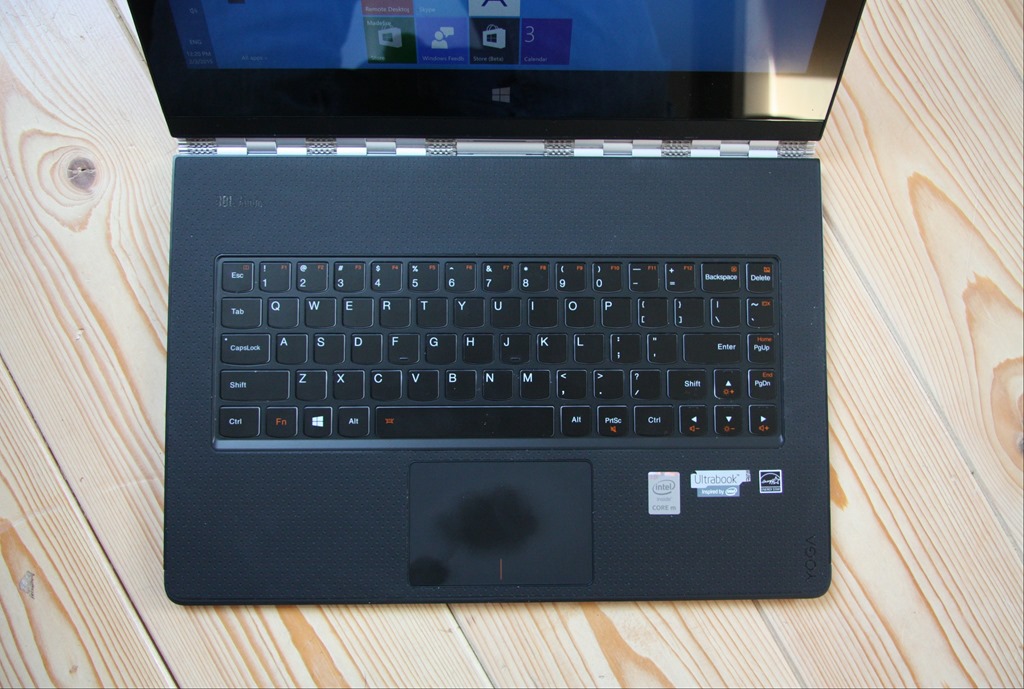
    Opening up the Y3P is a bit of a palaver, in comparison to simply flipping open the Quickshot Cover on the TP10. The watchband hinge is stiff (as it needs to be), and my fingers find it difficult to get a purchase at the front of the Y3P to begin prising it open. Once open, a fairly standard keyboard and trackpad are revealed (you’ll notice that the matt finish of the trackpad shows up finger oil very well).

    20150203-1219-53

    I’m sure some long-term Lenovo users will be complaining that there is no TrackPoint device, but it’s been so long since I used one that I don’t miss it. This Y3P is the first device I’ve used that has a backlit keyboard, and I must admit that is one innovation that I have really begun to appreciate. Tapping away of an evening, seated in front of the TV, is so much easier with a backlit keyboard. With my tablet, most of the time I’m either writing, or using the on-screen keyboard (which of course is easily visible), but on the occasions when I do use a physical keyboard, it’s been one without a backlight, and now I realise the advantage of having a backlit keyboard.

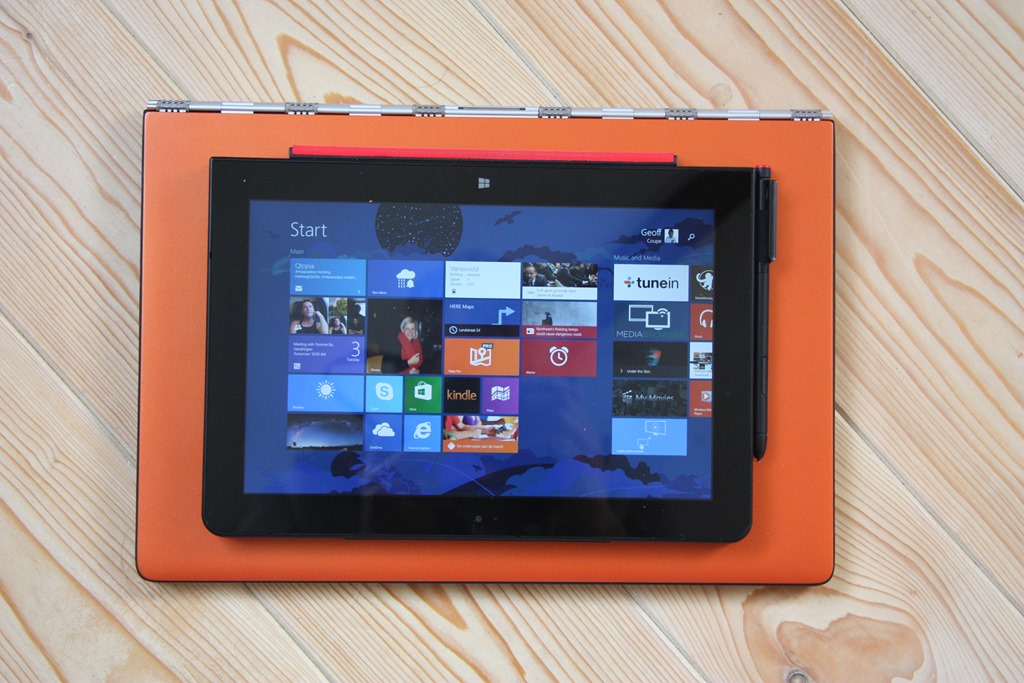
    The Y3P is of course much bigger than the TP10. That means both more weight (1.9 Kg versus 0.6 Kg), and a bigger screen.  Here’s the TP10 laid on top of the Y3P to give you an idea of the difference:

    20150203-1225-51

    The screen of the Y3P is not only physically bigger (13.3” diagonal versus 10.1”), but it has a higher resolution (3200 x 1800 versus 1920 x 1200) than the TP10. It also has a higher pixel density (276.05 dpi versus  224.17 dpi), but note that it is yet another 16:9 aspect ratio device.

    Like the TP10, it has a touchscreen capable of registering 10-point gestures. However, unlike the TP10, there is no pen or active digitiser.

    A couple of other things that are lacking in the Y3P in comparison to the TP10:

    • There is no rear camera, so capturing documents will have to be done with your Smartphone.
    • There’s no GNSS chip, so you’ll have to rely on your WiFi location being known accurately if you are using a map application. However, I doubt that this will work if you are using your laptop with the train’s WiFi during your daily commute.
    • There’s no WWAN option available (my loan TP10 doesn’t have WWAN either, but this is available as an option).

    The Y3P is equipped with an Intel Core M processor. The model I have has the 5Y70 chip, which is a 2 core/4 thread chip running at 1.1GHz or 2.6 GHz in Turbo boost. It has 8 GB of memory, and a 256 GB SSD fitted for storage. Although in theory the Core M processors are suitable for fanless designs, the Y3P is fitted with a fan. I can occasionally just hear it – a faint hiss coming from the right hand end of the watchband.

    Performance-wise, then, it far outstrips the Intel Atom processor with its 4 GB memory in the TP10. Yet, most of the time, I simply don’t notice it in the software I use.

    The Y3P came with even more Bloatware pre-installed by Lenovo than the TP10. As you can tell, I am not a fan of the extra software that OEM manufacturers throw into their machines. I spent an afternoon getting rid of most of them (and one of Lenovo’s applications – Harmony – refused to uninstall itself, until I took extreme measures). There must have been well over twenty different packages, practically all of them of questionable utility as far as I’m concerned.

    I have installed Build 9926 of the Windows 10 Technical Preview on to the Y3P, but I’ll keep my comments on that for another post.

    To sum up my thoughts on the comparison between the Y3P and the TP10 thus far, I think it’s safe to say that I still much prefer the TP10 over the Y3P.

    The Yoga 3 Pro is a nice machine; well engineered, but I think it has helped confirm my suspicion that my preferred portable computing device is a tablet equipped with a pen. I look forward to continuing to test out Windows 10 on it, but I’ll continue to take my trusty TP10 with me to meetings, and for kicking back on the sofa of an evening. But as I said at the outset, your requirements, and your conclusions may be completely different to mine…

  • OneDrive Now Searches Tags!

    I’ve been complaining for nearly four years now that Microsoft’s OneDrive does not support searching of photo metadata. In July 2013, I was told by a Microsoft project manager:

    “this work just ranks lower on the priority list than some other things we are doing right now”

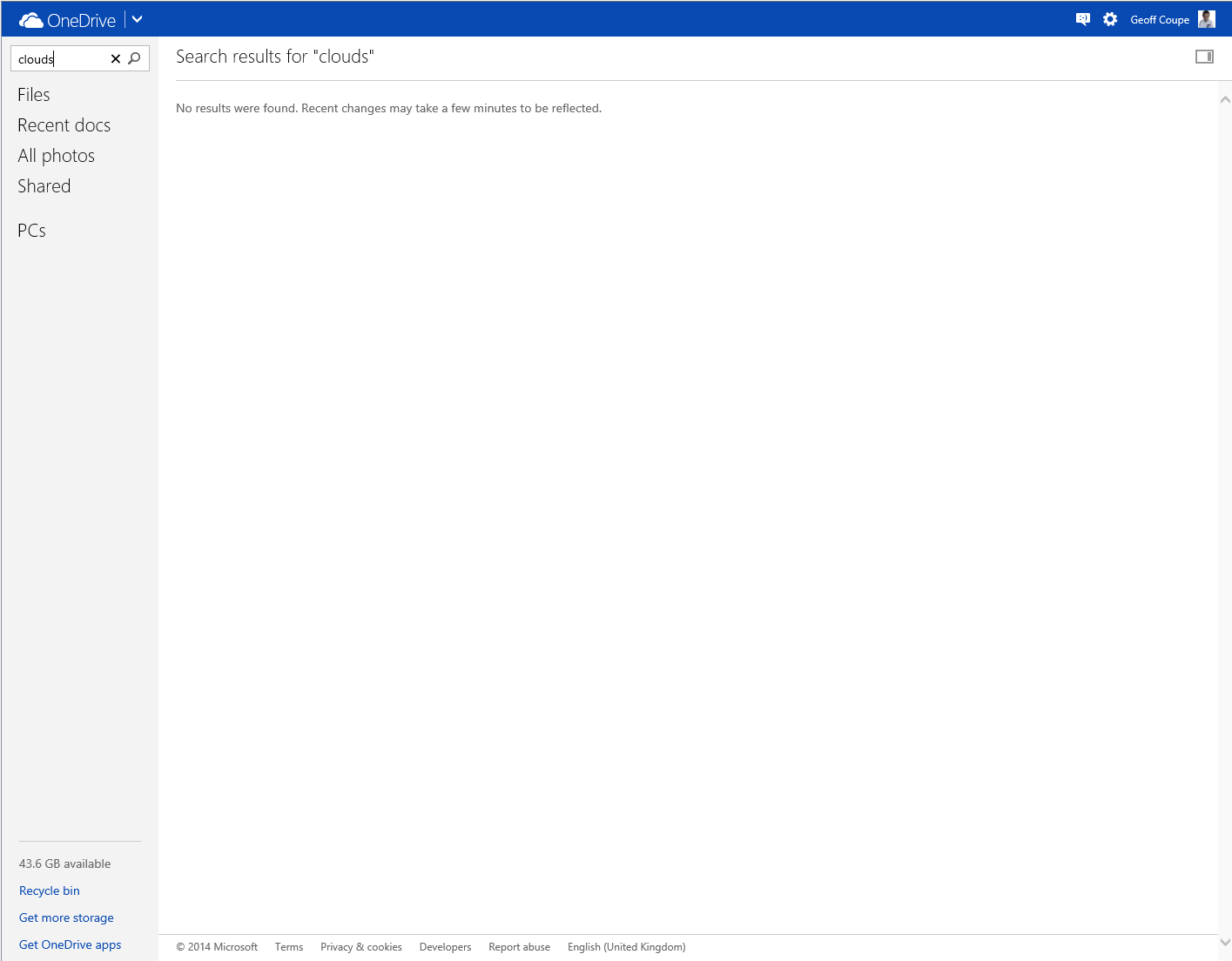
    In May 2014, Microsoft trumpeted that they had made improvements to the OneDrive service, but proper support for Tags (in photo metadata) still wasn’t there. So searching for a Tag (for example: “Clouds”) in all the photos I have stored in OneDrive returned zero results:

    Onedrive 04

    And that’s where things stood right up to the last time I tried the experiment, which was earlier this month.

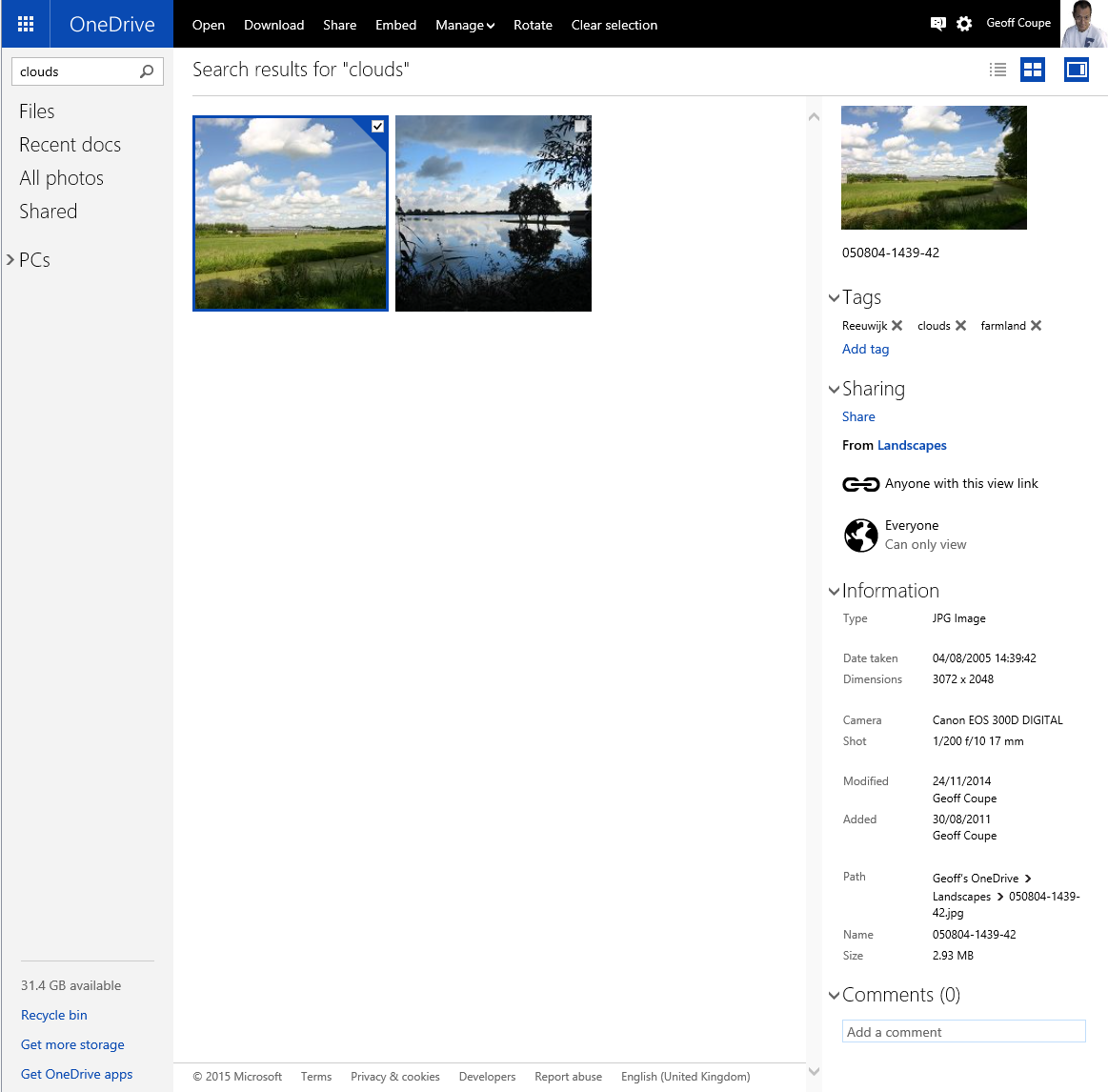
    Today, I thought that I would try once again, and this time, to my surprise and delight, there was a result:

    OneDrive 10

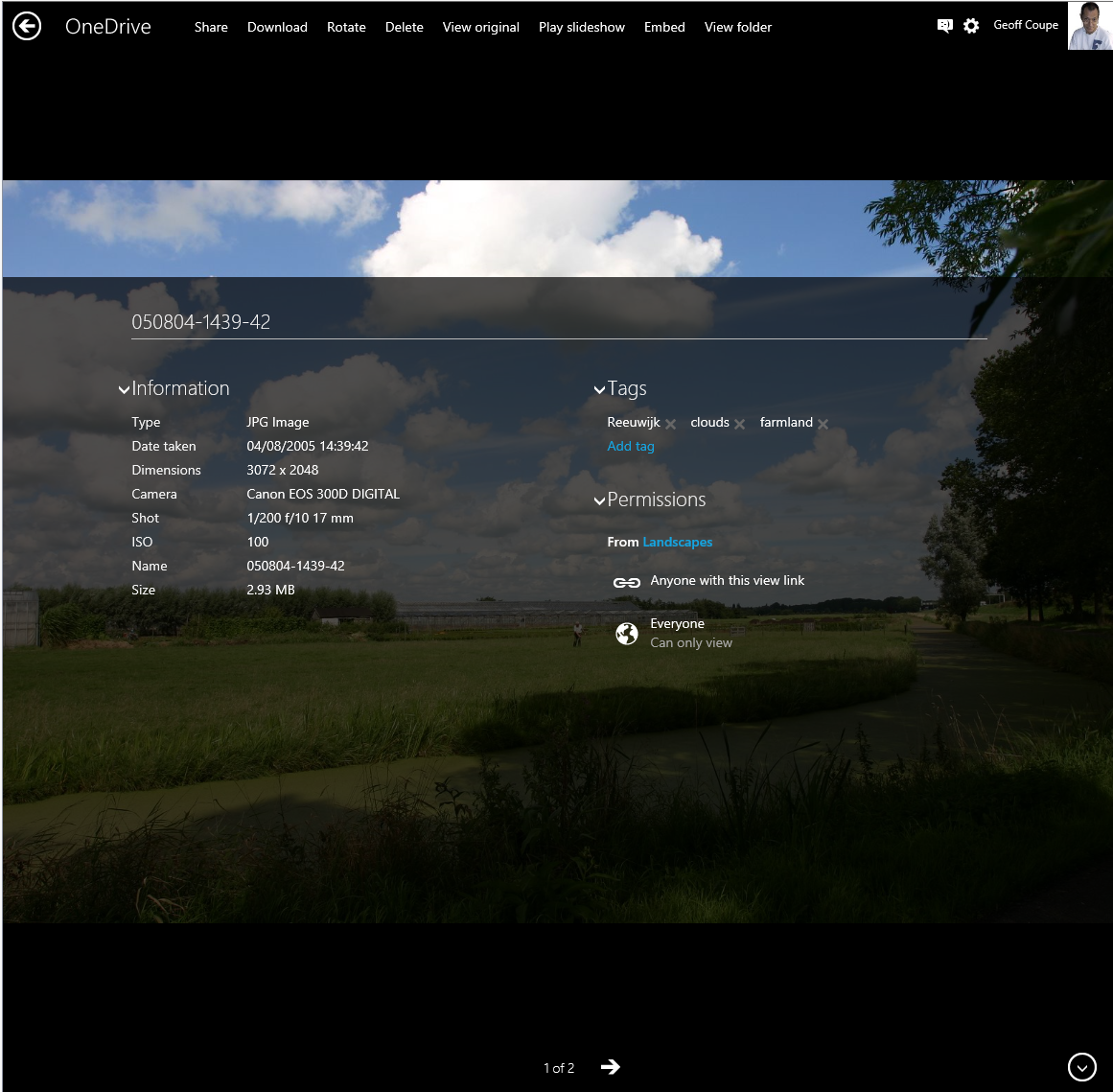
    As you can see from the information pane on the right, the selected photo does indeed have the descriptive tag “clouds” included in the photo metadata.

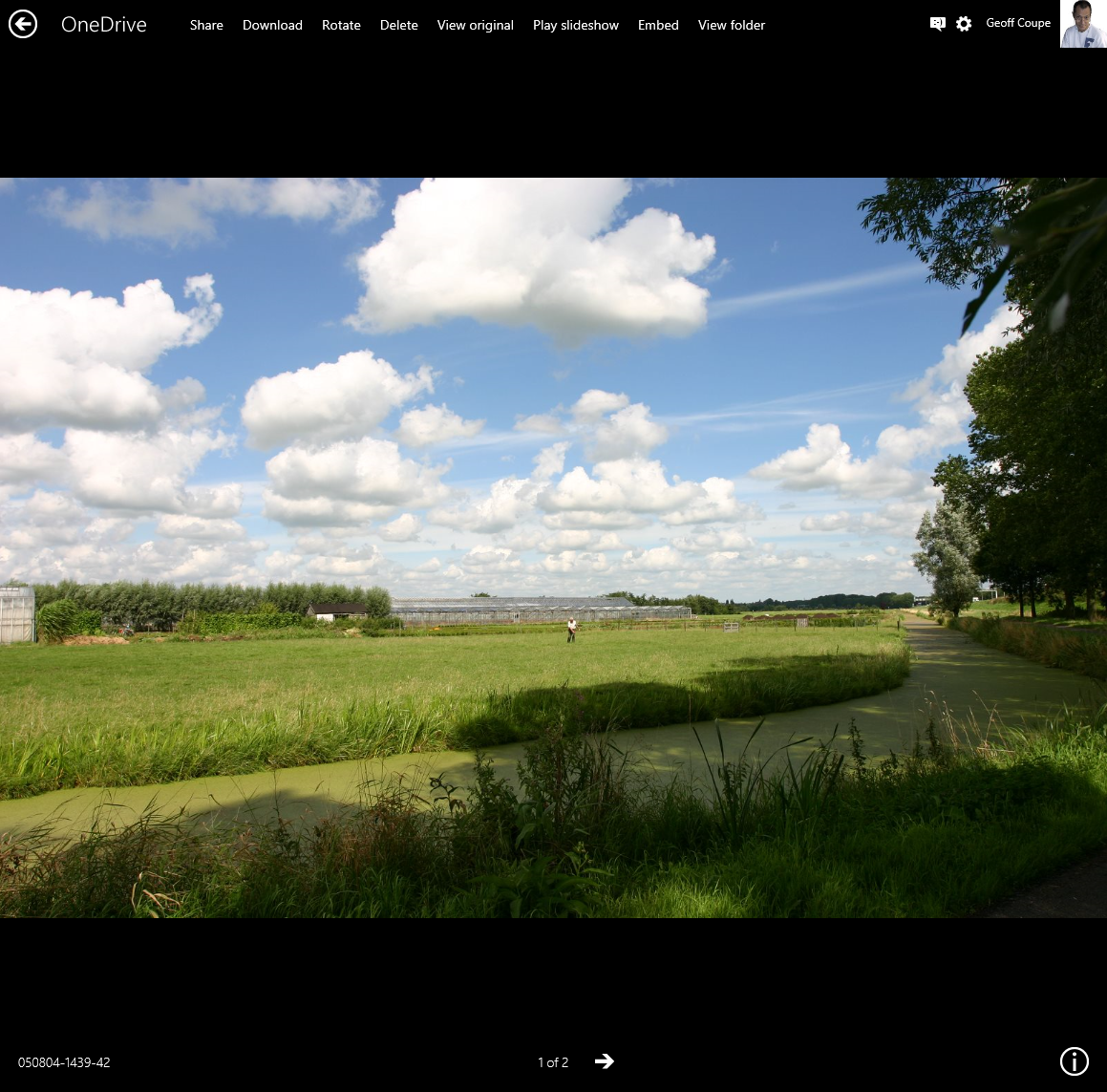
    There have been some other changes to the OneDrive service as well. If I look at a photo in OneDrive, instead of being able to open up an information pane to display all the photo metadata, there is now an information icon shown in the bottom right of the window:

    OneDrive 12

    Clicking/Touching that icon now displays the photo metadata in an overlay instead of in an adjacent pane:

    OneDrive 11

    I’m really pleased that this support for Tags, and being able to search on them is finally included in OneDrive. In one way, it really had to be, because Microsoft has gone back to the drawing board and will be removing the ability to search OneDrive files in the Windows Explorer in Windows 10, at least in the initial release of Windows 10.

    What Microsoft giveth with one hand, it taketh away with the other…

    Addendum 5th October 2024: And now Microsoft has silently removed this feature – OneDrive will no longer search tags in photos. Damn them.

  • Home Automation: A Modern Tower of Babel

    A little while back, I blogged about the fact that broadband internet in our neck of the Netherlands is like a piece of wet string. In trying to drum up local support for improving the situation, I’ve been looking into scenarios where real broadband internet (that is, speeds of at least 10 Mbps, and preferably 20+ Mbps) are going to be required.

    From a purely selfish perspective, I’m uncomfortably aware that given my age, there’s going to come a time when I may need to depend on healthcare services delivered through broadband internet direct to our home. One of the aspects of such services is support for home automation (or Domotica, as it’s often called here in the Netherlands). While HA is usually thought about in terms of ease, security and energy efficiency, there’s also a healthcare aspect to it as well. For example, remote monitoring can allow patients with dementia to continue to live at home in the environment that they are comfortable with.

    So I thought that I should start exploring the possibilities of HA for our home. I’d start simple, for example, have certain lights come on at around sunset, and turn off at midnight, or install a motion sensor in our driveway to get early warning when we have visitors; and at night the sensor could also turn on lights for the driveway. That would in turn be a convenience for visitors and a deterrent for intruders.

    Of course, these simple scenarios could be realised with a few timers and lights controlled by motion sensors, but the real advantages start to come when individual items are linked together into a system. An individual neuron doesn’t do much – intelligence is the emergent property that arises out of the interconnection between billions of them. While I’m not looking to build a brain, a flexible method of controlling the environment and security of our house would be nice.

    However, when I started researching the technologies available for Home Automation, I soon realised that there’s a dog’s breakfast of competing products and standards out there. Some have been around for years. The X10 standard for example was developed in 1975, and while popular and used by an installed base of millions of devices, is beginning to show its age and limitations. Other newer products, while technically impressive, rely on proprietary technology unique to the vendor. Examples are the Insteon or the Loxone systems. Navigating through the shoals of reefs and whirlpools of Home Automation was not going to be an easy matter. As the Automated Home site says:

    There are a multitude of Home Automation systems available, from budget plugin modules that are easily retro-fitted into existing properties, to professionally designed bespoke installations that require a CI (customer installer or integrator) and structured wiring at time of build.

    I think I can forget about the professionally designed bespoke installations with their structured wiring – I’m going to be looking at something that can be retro-fitted easily into our farmhouse. That means that I’ll be looking at wireless systems as much as possible. I’d also prefer to go for products that share a modern de facto standard, rather than rely on a single vendor. As a result, I’ve decided that devices that implement the Z-Wave wireless communications protocol are probably my best bet, given that Z-Wave is supported by over 250 manufacturers worldwide.

    I’ve started small, and invested in one switchable power plug (the Fibaro Wall Plug) and a motion sensor (the Everspring SP103) – both Z-Wave devices.

    The next step is to make a choice about the controller for the HA system. Once again, there is a wide range of possibilities here. I could buy an off-the-shelf unit such as the Fibaro Home Center 2, the Zipato ZipaBox, a VeraEdge controller, or a HomeSeer controller. Or I could buy just the controller software, such as HomeSeer, and install it on a PC or a Rasberry Pi box. There are also open source projects for Home Automation software, such as HomeGenie and Domoticz.

    I’m still exploring the possibilities here. I’ve come across a few issues so far. For example, while the Fibaro Home Center 2 looks good on paper, judging from the user support forum, Fibaro are struggling to deliver a stable version of the controller software. The ZipaBox relies on a Cloud service to provide much of the controller functionality, and that’s a design choice that I personally would be less comfortable with. The HomeSeer software has been around for a while, and is now in its third generation. That does mean that it is very comprehensive; it can control a wide range of Home Automation hardware – far more than I would ever need or use. It also has a wide range of third-party plugins. However, its user interface can best be described as old-school utilitarian. There is an additional software product that can be used to design custom user interfaces for smartphones and tablets. And the HomeSeer software strikes me as being pricey: $249.95 for the basic version of the controller software and $199.95 for the UI designer software. If I were to go with HomeSeer, it would probably make more sense for me to buy the basic (linux-based) HomeTroller Zee controller at $199.95.

    So I’ll probably spend the next month or two trying out some of the controller software that’s available for Z-Wave networks, and hanging out in the user support forums to read about the experiences of others who are using controllers, both packaged and software-only solutions. Watch this space.

  • The Talos Principle

    I’m not an avid player of computer games. I really do not like the shoot-em-up type of game at all, and avoid them at all costs. However, I am partial to Adventure games, particularly if there’s a good story behind it.

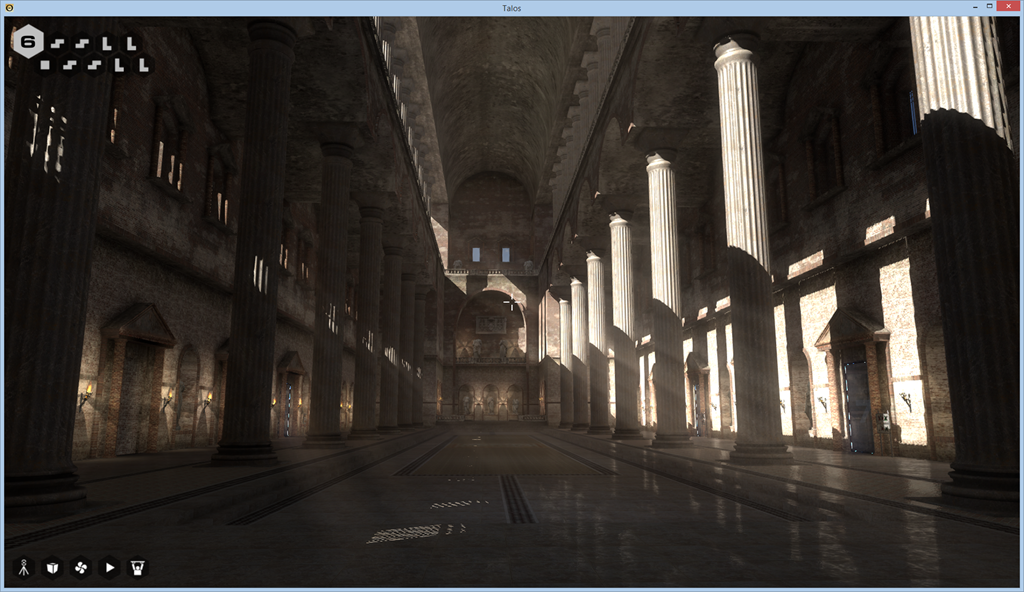
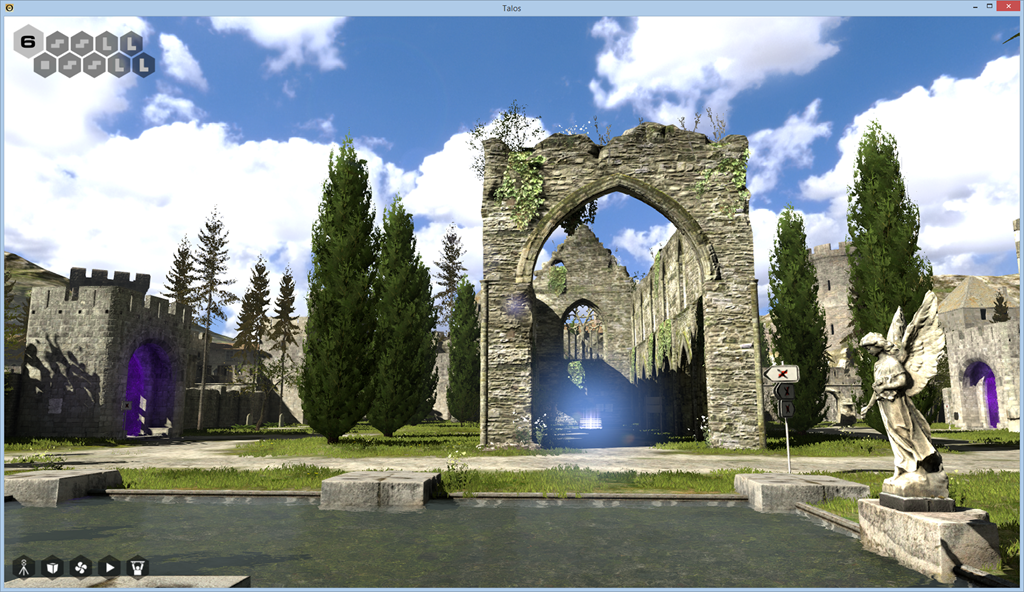
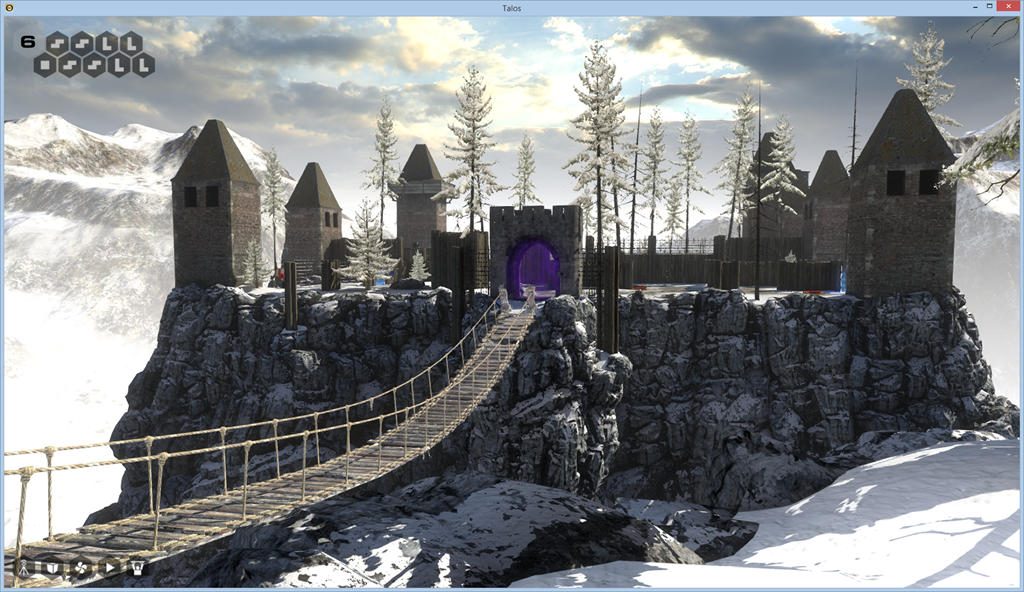
    I’ve just finished playing The Talos Principle, which is a sort of cross between puzzle-solving, rather reminiscent of the testing chambers of Portal 2, and an exploration of philosophical questions on what it means to be human.

    1_The-Talos-Principle-670x376

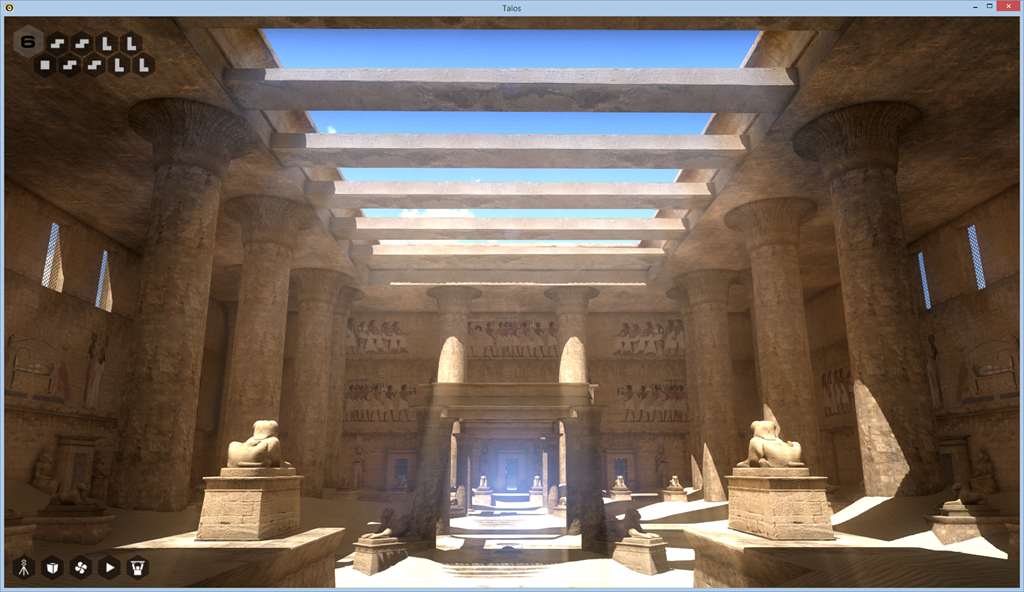
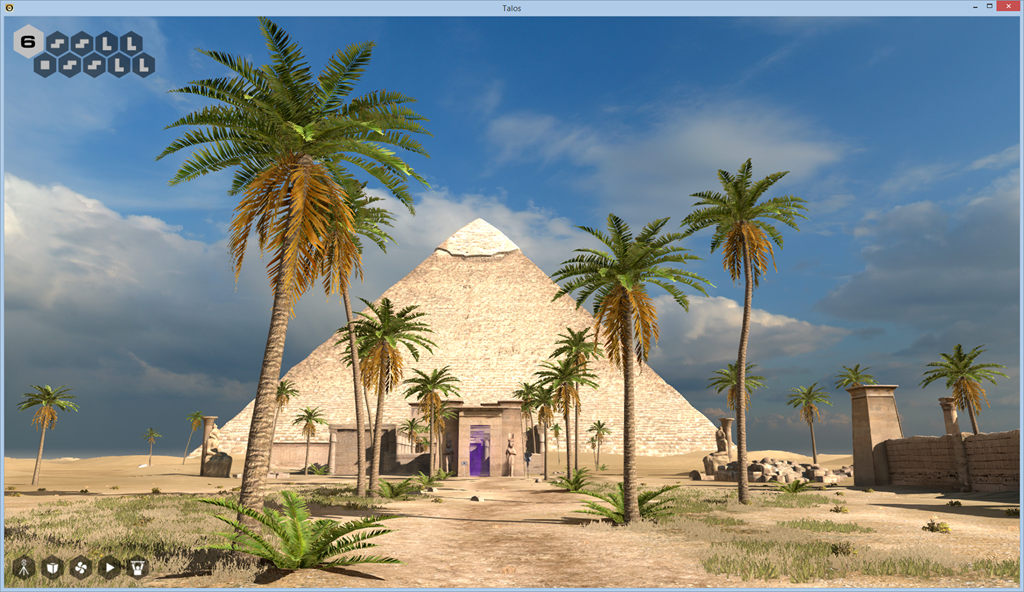
    Some people apparently haven’t liked the mixing of the puzzles with the philosophy, but I think it adds to the depth of the game. Over the course of exploring a variety of environments (Roman, Eygptian, Mediaeval, future industrial), you get the chance to interact with computer terminals scattered throughout them, and gradually learn the backstory of what’s going on.

    Talos 02

    Talos 03

    Talos 04

    Talos 05

    Talos 06

    Talos 07

    The worlds are beautifully rendered, with evocative soundscapes. However, they are devoid of animal or insect life – with two exceptions: butterflies in one world, and a few roosting pigeons high up in a tower that holds the key to the worlds.

    On awakening in the game, you soon get to hear the voice of god – Elohim – who is clearly modelled on the god of the Old Testament, and who shares that fictional character’s tiresome arrogance. I soon found myself actively disobeying his commandments, partly out of spite, but also because it took me to places that I otherwise would not have seen.

    If you Liked Portal 2, I think you’ll like The Talos Principle.

  • A Piece of Wet String

    One of the less attractive things about living in the Dutch countryside is that the internet is usually delivered via the old copper cables used by the telephone companies. In the far distant days of using dialup modems (that is, 25 years ago), this was perfectly adequate. When ADSL technology was first introduced, using the same cabling, it seemed blazingly fast by comparison. And providing that you live close to the telephone exchange, it is still perfectly acceptable. However, the further away from the exchange that you are, the lower the internet speed becomes.

    So for those of us out in the countryside, using the internet is usually akin to dealing with a piece of wet string. I’ve just surveyed the addresses around us that make up our postal area. It’s about 6 km by 3 km with two small villages in it surrounded by outlying farms and houses. There are, in total, 436 addresses. It’s possible to do an online check of what internet speed is available at each address, and this is the rather depressing result:

    image 

    There are only 54 households that have internet (download) speeds of 8 Mbps or more, whilst the great majority (391) have 4 Mbps or less, with 101 households stuck with only 1 Mbps available via ADSL internet.

    These days, such speeds are considered low, bordering on completely unacceptable, for the services that are being delivered via the internet. For example, there are changes in the Dutch Healthcare services coming that will require broadband speeds beyond what is currently available for most of us round here. The government and local authorities would like to see more of the elderly being able to live at home in their own houses for as long as possible, while being supported by healthcare professionals, carers, and volunteers. Their services will increasingly be delivered virtually by the internet. The district nurse and the doctor will no longer be carrying out housecalls by driving round, but using video conferencing to see their patients (or “clients” in the new Healthcare-speak).

    At the other end of the age-range, today’s schoolchildren are using education services delivered via the internet, and this will only broaden and demand more bandwidth in the future. I know that the Director of our local schools is already concerned for the pupils at our village school. They are being disadvantaged in comparison with her pupils at the town school, which has broadband internet delivered via fibre optic cables.

    The laying of fiber optic cables began ten years ago in the Netherlands, and now there are almost 2 million Dutch households connected to the network, mostly in large towns and cities. The issue has always been that it is more financially attractive for the cable provider to lay cable in built-up areas than in the open countryside. The Province of Gelderland tried to get an initiative off the ground earlier this year: a public-private partnership with a cable provider, but the deal fell through. Now they have just announced an initiative, in cooperation with ten of the Province’s local councils (including ours!), to lay fibre optic cables in countryside areas. The Province is making 32 million euros available for investment, with the ten local councils adding a further 25 to 30 million.

    I expect that this investment will take the form of loans, with low or zero interest, made to individual householders who wish to pay for a connection to the fibre optic network. The challenge will be to get sufficient people willing to pay, so that the price per connection comes down to an attractive price for the majority of people. Our village community council is asking people how satisfied they are with the current situation for both internet and mobile telephone coverage. We’ll be using the results of that in our discussions with the Council. I’m hoping that we can get enough people around here to be interested in replacing the current pieces of wet string with pieces of glass – a fibre optics network.

  • “Technology standardization is commercial diplomacy”

    Paul Ford has a very good article in the New Yorker on the cut and thrust involved in the making of standards, in particular, the making of Web Standards.  My post’s title is a direct quote from Stephen Walli, who is mentioned in the article as “a veteran of many such [standardisation] efforts”.

    The article brings back memories (both fond and frustrating) of the time when I was embroiled in the standardization processes swirling round the OSF and X/Open groups. I got to count Stephen as one of my friends and travelling companions from that time. As Stephen wrote:

    Technology standardization is commercial diplomacy and the purpose of individual players (as with all diplomats) is to expand one’s area of economic influence while defending sovereign territory.

    Ah, yes, I remember it well…

  • Build 9879 Of Windows 10 Has Removed “Smart Files”

    Microsoft has just released a new interim build of their forthcoming Windows 10 operating system: build 9879, and blogged about the changes here.

    I notice that Gabe Aul (leader of the Data & Fundamentals Team in the Operating Systems Group) trumpets that the build has “cool new features”. Er, no, Gabe, what you have done is to remove a cool new feature that was introduced in Windows 8.1, and thereby damaged the user experience.

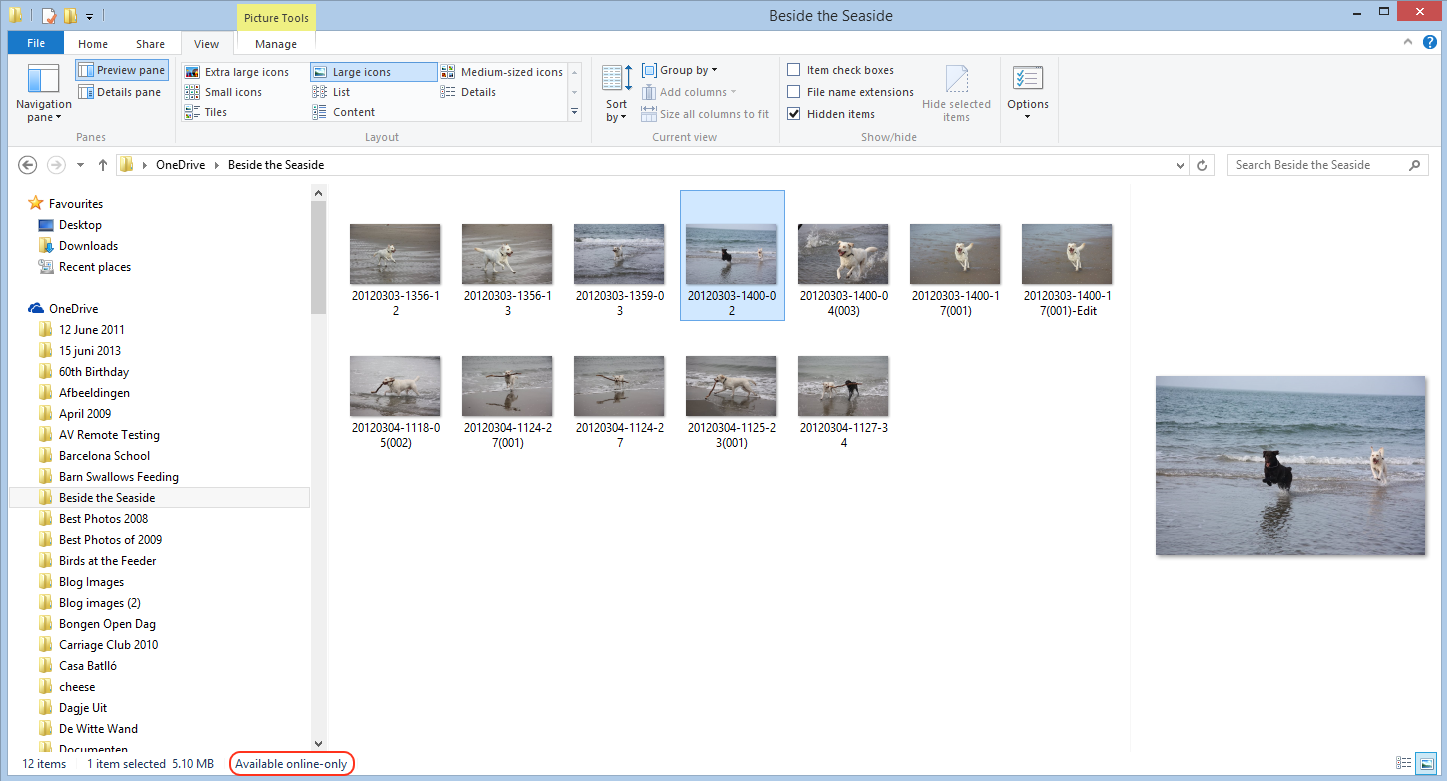
    In Windows 8.1, Microsoft introduced the concept of “smart files”. These are small placeholder files, which represent the actual files stored in the OneDrive cloud, and which appear in the OneDrive Folder hierarchy listed in the File Explorer. Here, for example, is the contents of a OneDrive folder (“Beside the Seaside”) being viewed in the Windows 8.1 File Explorer:

    W10 012

    In Windows 8.1, the only indication you have that you’re looking at a smart file, rather than a full-size file is that “Available online-only” message at the bottom of the File Explorer window.

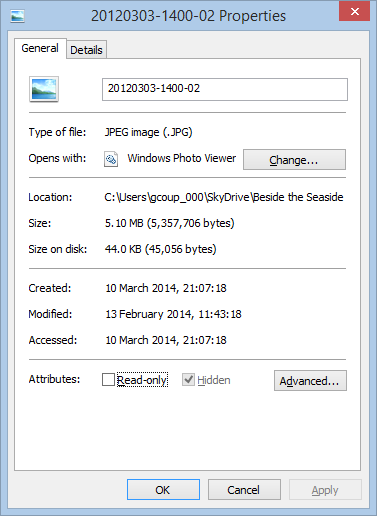
    Other than that, to all intents and purposes, smart files look like the actual files, but they are usually a fraction of the size. They just hold the thumbnail and the metadata of the files they stand in for. In the example above, the selected image (in OneDrive) is 5.1 MB, but the smart file shown in File Explorer is just 44 KB in size:

    W10 011

    Because the smart files hold metadata, it means that you can use File Explorer to search your OneDrive folders. This is also better than the online OneDrive Search, which can only search on filenames.

    When a smart file is opened for editing, the actual file is automatically synced down onto the PC and opened instead. After use, the user can choose whether to keep the full-size file (which is then automatically kept in sync with the file in OneDrive), or go back to using a smart file to save space. This choice can also be made at Folder level, so that the contents of a Folder can be either “offline” (i.e. full-size files are in the PC’s folder and kept in sync with OneDrive) or “online-only (i.e. smart files are used in the Folder to save space on the PC or tablet).

    When this feature was introduced, Mona Akmal (a group program manager for SkyDrive – what OneDrive was then called) blogged that:

    In the Windows 8.1 preview we saw consumers using SkyDrive in two distinct ways. The first group of people are very conscious of what they have saved to disk and most of their files are online-only. We found that the majority of people using smart files take up 80% less disk space than they would without smart files. The second group of people are on the other end of the spectrum: they explicitly chose to have all their files available offline, and so have their entire SkyDrive stored locally.  This showed us that users understand smart files and are tailoring the feature to their needs.

    Fast forward a year, and now Gabe Aul is telling us:

    People had to learn the difference between what files were “available online” (placeholders) versus what was “available offline” and physically on your PC. We heard a lot of feedback around this behavior. For example, people would expect that any files they see in File Explorer would be available offline by default. Then they would hop onto a flight (or go someplace without connectivity) and try to access a file they thought was on their PC and it wasn’t available because it was just a placeholder. It didn’t feel like sync was as reliable as it needed to be. For Windows 10, having OneDrive provide fast and reliable sync of your files is important. Starting with this build, OneDrive will use selective sync. This means you choose what you want synced to your PC and it will be. What you see is really there and you don’t need to worry about downloading it. You can choose to have all of your OneDrive files synced to your PC, or just the ones you select.

    In other words some people clearly don’t understand smart files. So smart files have been removed for everyone. Gabe, this is not a “cool new feature”, this is removing a cool new feature.

    What we have now is a very basic experience. Either a OneDrive folder or file is synced to the PC, or it’s not. That, in turn means that the Search experience is now completely broken.

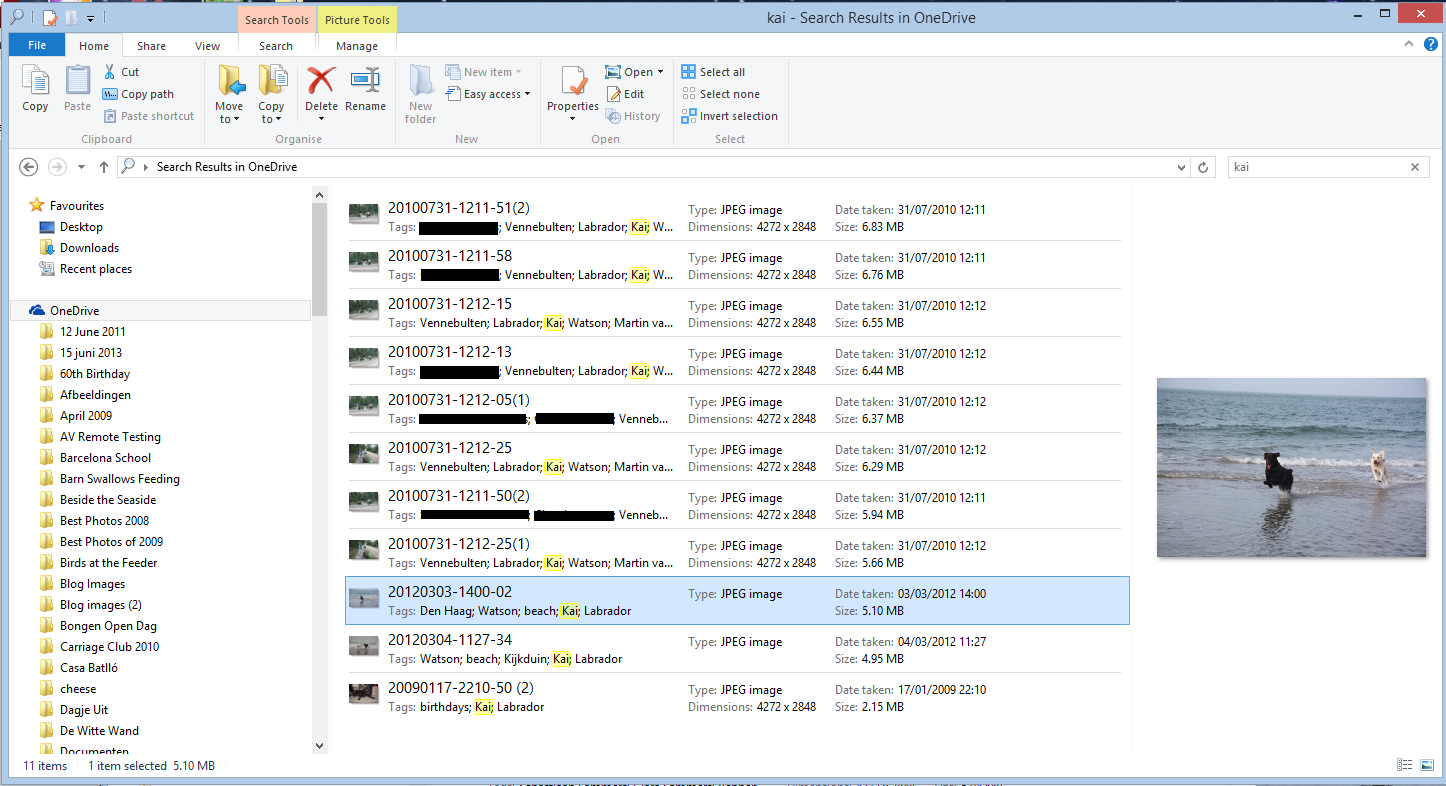
    For example, here’s what I see when I search for photos of our dog Kai in OneDrive using the File Explorer of Windows 8.1:

    W10 010

    Search has found 11 images with the tag “Kai” from within three separate OneDrive folders, and as it happens, all of these are smart files, since I don’t have the contents of these folders held offline on my PC.

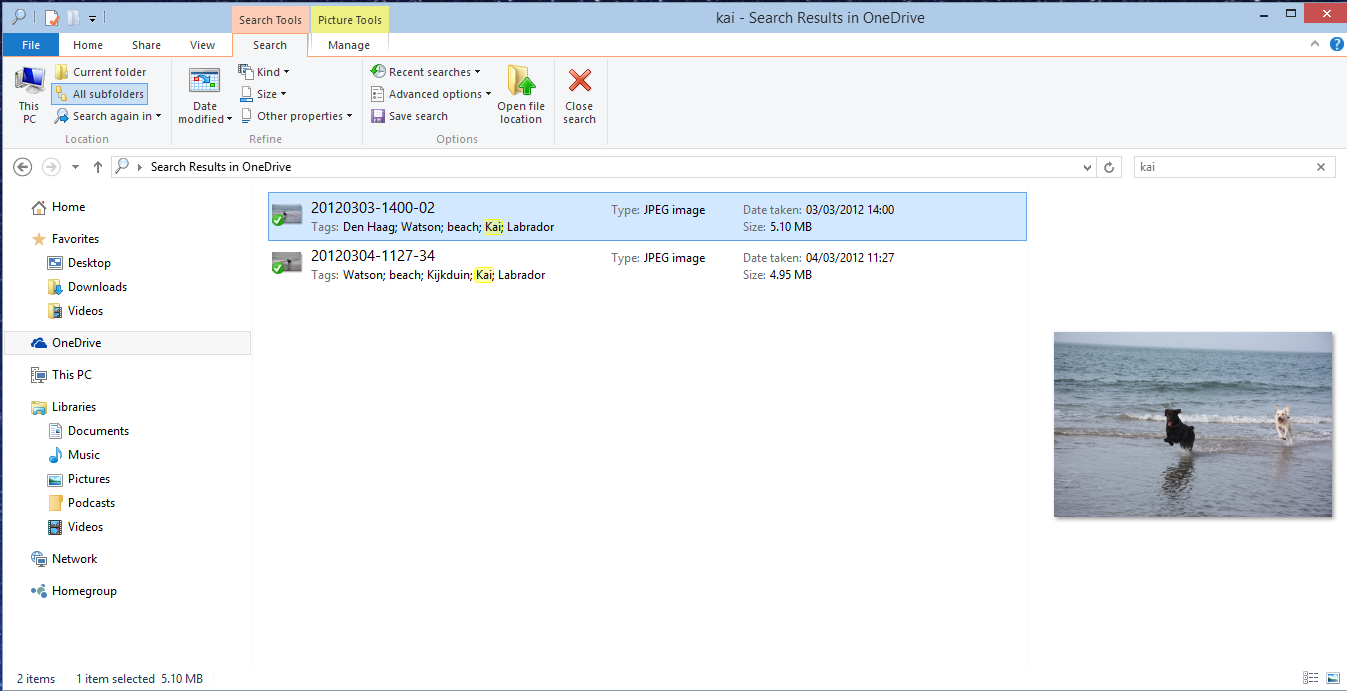
    In the new build of Windows 10, however, the same search only returns two results:

    W10 007

    Why? Because I only have one folder (“Beside the Seaside”) synced to my PC, all the other folders (e.g. “Walking the Dogs”) claim that they are empty:

    W10 008

    W10 009

    Of course, it’s only empty on my PC – in the OneDrive Cloud, it has photos of Kai. However, I also can’t search for photos of Kai in OneDrive – the online search doesn’t search tags, only filenames.

    In summary, the removal of smart files is a huge step backwards. All Microsoft had to do was to use an overlay icon on files to distinguish between a smart file and the full-size original, and everybody would have been happy.

    But no, Microsoft has removed a cool feature and broken the search experience completely. This does not bode well for Windows 10 as far as I’m concerned.

    Addendum 15 November 2014: This removal of smart files has caused something of a disturbance in the Force. So much so, that Microsoft has moved to respond with a comment from a OneDrive team group program manager, Jason Moore:

    Wanted to jump in here and address some of the questions and feedback we are getting about the changes we rolled out yesterday. As we look at the next version of OneDrive, we are working very hard to make sure it provides the best experience possible for our customers, and a big part of that is getting the sync model right.
    We hear the feedback on placeholders, and we agree that there many great things about the model – for example, being able to see all your files in the cloud even if they are not all sync’ed to your PC. However, we were not happy with how we built placeholders, and we got clear feedback that some customers were confused (for example, with files not being available when offline), and that some applications didn’t work well with placeholders and that sync reliability was not where we needed it to be.

    So, we stepped back to take a fresh look at OneDrive in Windows. The changes we made are significant. We didn’t just “turn off” placeholders – we’re making fundamental improvements to how Sync works, focusing on reliability in all scenarios, bringing together OneDrive and OneDrive for Business in one sync engine, and making sure we have a model that can scale to unlimited storage. In Windows 10, that means we’ll use selective sync instead of placeholders. But we’re adding additional capabilities, so the experience you get in Windows 10 build 9879 is just the beginning. For instance, you’ll be able to search all of your files on OneDrive – even those that aren’t sync’ed to your PC – and access those files directly from the search results. And we’ll solve for the scenario of having a large photo collection in the cloud but limited disk space on your PC.
    Longer term, we’ll continue to improve the experience of OneDrive in Windows File Explorer, including bringing back key features of placeholders.

    So keep the feedback coming. We’re working every day to improve OneDrive, and customer feedback is a hugely important part of that.”

    It would thus appear that Microsoft has not in fact thrown the placeholder baby out with the bathwater, but is trying to improve it. That’s a good thing. However, it’s a pity that they couldn’t have been a bit more open about this upfront. Telling us that they were introducing cool new features, whilst in fact apparently removing one is yet another example of Microsoft opening its mouth, only to exchange feet.

    Addendum 19 November 2014: Mary Branscombe has an excellent follow-up article on this whole debacle. Well worth reading.

    Addendum 8 January 2015: Microsoft’s Chris Jones has posted an update on the OneDrive blog that (I think) tries to illuminate the OneDrive roadmap going forward. If I’m understanding what he’s writing, then Smart File functionality won’t be back in Windows 10 at release (Boo!), but should be returned at a later date (Hooray!), once the new technical solutions have been completed.

    Addendum 23 January 2015: Microsoft has (finally) introduced full support for searching of tags into the OneDrive cloud service, so at least you can search your files online in a proper manner, even if you now can’t do it in the File Explorer in Windows 10. What Microsoft giveth with one hand, it taketh away with the other.

  • The Rise of the Machines

    Yesterday, I blogged about the Microsoft Band – the new wearable device from Microsoft that is aimed at people who do sports. Reading the press, I get the impression that relatively few commentators have understood what’s really going on here. Most of them are focusing on the device itself, and missing the real story. The device is a first generation attempt. It is limited, clunky, and will only used by early adopters. Better devices will inevitably follow, but that’s almost not the point.

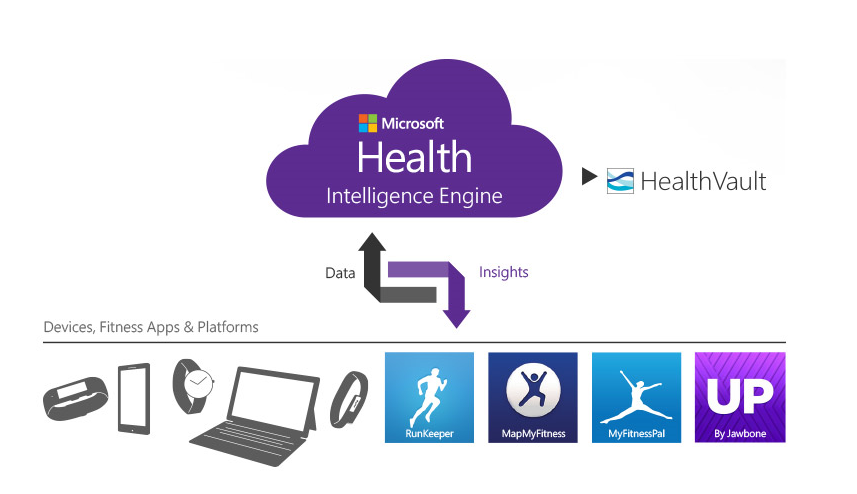
    The real point, and the real innovation, is Microsoft Health – the service in the Cloud where all the data collected by the Band can, and usually will, be held. Microsoft themselves talk about Microsoft Health being “the beginning of a journey”. It’s clear that the plan is that the data collected will be mined to provide value, and not just to you, but to Microsoft and its partners. I notice that Microsoft already has a connection not just between the Microsoft Health service and multiple (non-Microsoft) devices, but between Microsoft Health and Microsoft’s HealthVault:

    MS Health 01

    And just what is HealthVault? Well, it’s where you can store your health information and make it available to others: such as your health providers, and no doubt in the future, your insurers.

    This is the inevitable rise of big data in the Healthcare industry. I think where Microsoft, and others, certainly Google, but maybe even Nintendo, are going is to aim for the point where their intelligent agents (Cortana, in Microsoft’s case) take on the role of your personal physician. It may seem farfetched today, but it is an inevitable endpoint of the changes that are happening all around us. There’s a McKinsey report that says that Big Data is the next frontier for innovation and competition, which may well be the case, but I can’t help feel that McKinsey hasn’t seen the writing on the wall when they state that:

    There will be a shortage of talent necessary for organizations to take advantage of big data. By 2018, the United States alone could face a shortage of 140,000 to 190,000 people with deep analytical skills as well as 1.5 million managers and analysts with the know-how to use the analysis of big data to make effective decisions.

    Um, sorry, but coming rapidly up on the inside are intelligent bots that have those deep analytical skills. Already, we have the fact that arguably the best oncologist in the world is not a human but an intelligent bot: Watson. We are rapidly approaching the position where for many jobs – not just assembly line workers, but white-collar workers and even the professional classes such as lawyers, doctors, and analysts – humans need not apply:

    Last week, I attended a presentation in Silvolde, a small town nearby, which was given by Peter van der Wel – a Futurologist and Economist. He covered much the same ground as in the video above. While van der Wel was a self-confessed optimist about the technological changes that are heading our way, I’m not so sure. I agree that they will happen, but the resulting upheavals in society as we move from the pre-robot age to a post-robot one will not be easily managed. Today, most of us work to earn money in order to live. When it becomes difficult to find a job – any job – what will the impact be on society? I have no answer, but I think we “live in interesting times”, as the old Chinese curse would have it.

  • Microsoft’s Band-Aid

    There have been rumours about it for a while now, but yesterday Microsoft announced the Microsoft Band, a wearable device that both tracks your health and provides notifications of emails, appointments and social media activity.

    The wristband records the number of steps the wearer takes, the intensity of sleep, exercise performance and calories burned. It also tracks heart rate, location via GPS, skin temperature, perspiration and UV exposure. All that data is passed into Microsoft Health, a cloud-based service that builds up a picture of your physical activity and health indicators.

    It’s clearly aimed at people who do sports, but I wonder whether Microsoft might not widen the target group to add others in the future, such as the elderly. Being on the wrong side of 65 myself, I would definitely be interested in a device that can monitor my health, and alert me when trends look to be going pear-shaped. A panic button might be a useful addition as well. And think of the add-on accessories – a Bluetooth blood pressure monitor for example.

    As usual for Microsoft, the Microsoft Band is only currently available in the US, with no word as to when it might be expected elsewhere. I’ll probably be dead before it is available here.

  • Yet Another Rant About Microsoft…

    Yes, I know, I sound like a broken record; but my excuse is that Microsoft’s actions just bring it upon themselves on a regular basis. So, what is it this time?

    The spotlight of scorn is back on the OneDrive team, again. After generating lots of goodwill over the recent announcement that Office365 subscribers will get unlimited storage in OneDrive, the team promptly undid it by announcing a new UI for the Windows Phone app. The announcement has been greeted with a storm of protest, both on the OneDrive blog post, but also over at the feedback site for Windows Phone.

    The reason that there has been such derision is that the “new UI” makes the Windows Phone app look very much as though it is an Android app. It flies in the face of Microsoft’s own guidelines for UI design of Windows Phone apps, and introduces Android UI elements instead.

    Frankly, if I’d wanted an Android phone, I would have bought one. One of the key reasons why I went with a Windows Phone was the UI design. I like it a lot, and I am at ease with it. To have a key Microsoft team turn their back on it and introduce Android elements is a shock, to say the least. One might almost wonder if the team had actually read the “Review questions for prototype” section on the Design the best app you can page of the guidelines, in particular:

    • Are you coming from another mobile platform? Windows Phone users will expect fewer taps, clearer views, large typography, and the use of contrast and color.
    • Are you using both axes of scrolling (the X and Y axes) and orientation (Portrait and Landscape)? Depending on the purpose of your app, users may expect both.
    • Do you use Pivot and Hub controls effectively and correctly?

    Even simple things, such as a transparent Tile for the app have been forgotten about (or ignored) in this bastardised design. I hope that the howls of protest that have greeted this version result in a swift redesign to make it a proper Windows Phone app. Good design and adhering to UI guidelines are important, and help to build a brand. This horror does just the opposite.

  • Photo Supreme V3

    I’m an amateur photographer. I’m not a good photographer, but occasionally, more by luck than judgement, I take a photo that looks pretty good to me. Almost as important to me as the image is the information describing the photo; when it was taken, where, the subject – that sort of thing. In technical terms, this is the photo’s metadata.

    I’ve been trying to capture, and manage, this sort of information since  2005, and have tried a lot of software applications in the process. In 2007, I settled on IDimager as the most suitable tool for what I was looking for. It was what I used for tagging my photos.

    Two years ago, IDimager was suddenly withdrawn from the market by the company, and replaced by Photo Supreme. After my initial shock, I switched to Photo Supreme, and after an uncertain start, I found that it was, in large part, covering my requirements for a Digital Asset Management (DAM) tool.

    This week, version 3 of Photo Supreme is announced. It has over 150 additions and improvements over version 2.

    I was fortunate enough to be one of the beta testers for version 3. It is definitely a big step forward from version 2 (which in itself was a very good tool), so version 3 has become my DAM tool of choice going forward. I’m also a Lightroom 5 Standalone user, but the only reason I have that is for its image processing capabilities. The metadata handling of Photo Supreme strikes me as being head and shoulders above what Lightroom currently has to offer.

    It supports a wide range of photo metadata standards out of the box: Exif, IPTC Core, Extension and Plus. I can now automatically synchronize entries for the IPTC Extension fields for “Person In Image”, “Places”, and “Event” IPTC fields – something that I had to do manually in V2. It also now supports the Image Region metadata standard defined by the Metadata Working Group – the same standard used by Google’s Picasa for People Tags. That means that as well as being able to list the people appearing in a photo, I can now show their names on the photo itself.

    If you’re looking for a good tool to manage your photo metadata, take a look at Photo Supreme.

  • Whither Next? A Media Center Journey

    Four and a half years ago, I built my first HTPC for our Home Cinema setup. It was leading edge technology then, but with the rate of change being what it is, support for many of the software and hardware components very soon became either dying or dead.

    The HTPC is currently running Windows 8.1 + Windows Media Center (WMC), which in turn is supplemented with MyMovies to provide the best experience with a library of films and recorded TV series. For Bluray films, I’ve been using Arcsoft’s TotalMedia Theatre to play both the discs themselves and ISO files that I’ve made from my discs.  This setup works well, but the writing is on the wall indicating that it can’t continue this way forever. For one thing, it’s abundantly clear that Microsoft want to wash their hands of Windows Media Center, and for another, Arcsoft suddenly pulled TotalMedia Theatre from its web site last month and it is no longer available.

    I need to prepare a contingency plan, so I’ve been looking at alternatives. A couple of years ago, I took a (quick) look at JRiver Media Center. I said at the time:

    This is a total solution, replacing Windows Media Center, TMT5 and MyMovies in their entirety. JRiver Media Center is capable of handling Blu-ray. I must admit, on my HTPC it appears to handle them flawlessly, a pleasant change to the current disaster of TMT5. But if I adopted JRiver Media Center, I would also be moving away from WMC and MyMovies, and I do like the user experience of that combination.

    JRiver Media Center has been around since 1998, and is currently on version 17 (!). It looks to be a very good product, well-supported, with an extremely enthusiastic user community of more than 26,000 members, some of whom are contributing plug-ins for the main application. However, I’m not sure that I want to move to it. It’s a personal thing, I know, but as I say, I feel very comfortable with WMC and MyMovies.

    JMC is now at version 20, but I still have the impression that it has so many bells and whistles that it is overly-complex for what it is. I might take another look at it to see if it strikes me as being more attractive, but I can’t help feeling that it will just have yet more features, knobs and switches bolted on that I would never want to use. Addendum: It does, and I don’t. It’s not for me.

    I’ve been looking at a couple of other alternatives over the past few months:  MediaBrowser (now called Emby) and, more recently, Plex. They both have their strengths and weaknesses. A major strength of both of them (as far as I’m concerned) is that they both use a client/server architecture. That is, the core component of both is a media server to which a wide range of clients (TVs, HTPCs, PCs, tablets and smartphones) can connect and play the media. Since I hold all our media on a Windows Home Server 2011 system, that would be the logical place to install and run the media server. For both MediaBrowser and Plex, the media server can be administered on the WHS 2011 system via a web interface.

    MBS 01

    PMS 01

    The weaknesses differ between the two, but both MediaBrowser and Plex are fast evolving systems, so changes, bugs, and bug fixes are very much the order of the day. As far as I’m concerned, neither one offers me a complete replacement for our current WMC + MyMovies setup at the moment. Ideally, I would like a combination of the features of the two, because of their current shortcomings.

    For example, take the HTPC component of both: MediaBrowser Theater (MBT) and Plex Home Theater (PHT). MBT is still Alpha software; not even at Beta stage. While it is looking good, it clearly has a long way to go – it is very buggy and feature incomplete at the moment.

    MBT 01

    PHT, on the other hand, is much further down the development track. It looks good and seems fairly reliable on my HTPC.

    PHT 01

    Both MBT and PHT are so-called “10 foot interfaces” – they are designed for use on large screens, and to be driven by remote control. It would be really nice if PHT could use the remote I have for Windows Media Center, but for some reason best known to the designers, they have deliberately chosen not to stand upon the shoulders of giants, but to start from scratch with almost entirely a different set of commands.

    Both MediaBrowser and Plex have player clients for Windows 8.1 and Windows Phone 8.1. Here are the Windows 8.1 clients:

    MB W8.1 01

    Plex W8.1 01

    One major shortcoming of the Plex clients (as far as I’m concerned), is that neither of them have no other way of browsing our Music library other than by an Artist view:

    Plex W8.1 02

    At least the MediaBrowser Windows 8.1 client offers a choice of being able to browse by Artist, Album or Genre, while the Windows Phone client adds the choice of being able to browse by song as well. However, this is nothing compared to Windows Media Center, which, since 2004 (ten years ago!), has offered a choice of being able to browse by Album, Artist (both per track and per Album), Genre, Song, Playlist, Composer, and Year:

    WMC 01

    So as far as handling of a Music library is concerned then, both MediaBrowser and Plex have a very long way to go…

    [Addendum 30 October 2014: Plex have just released new versions of the client for Windows 8.1 and Windows Phone, and the good news is that at last it is now possible to browse the Music library by Album. Semantic Zoom is also supported when the Album list is sorted by name. However, Semantic Zoom doesn’t work (in Windows 8.1) or is missing altogether (in Windows Phone) when Albums are sorted by Artist. Apparently, this is caused by limitations in the current version of the Server. Hopefully it will get fixed, but at least we are now a little further forward than we were…]

    It’s a similar story when it comes to browsing Photo libraries. The MediaBrowser and Plex clients can only browse folders, while Windows Media Center can browse by Folder, Tags, Date taken, Ratings, Slide shows and Shared (browsing other media servers shared on the local network). The lack of support for browsing by Tags, I find particularly disappointing in the MediaBrowser and Plex clients. Still, support for these features may yet come. It’s clear, however, that both the MediaBrowser and the Plex developers view Movies and Video as where the action is. Music and Photo libraries are very much the poor relations.

    One area where MediaBrowser and Plex has surpassed Windows Media Center is that of being able to play content on other devices. WMC was designed as an all-in-one solution, whereas both MediaBrowser and Plex have been designed as an ecosystem of interconnected server and client devices. So it is possible to browse my movie library on my Windows Tablet, or my Windows Phone; pick a movie, and then start it playing on the HPTC, and continue controlling playback from the browser device.

    Plex can do this with its own player applications and selected Smart TVs. MediaBrowser has possibly a wider reach, because it should be able to work with any DLNA-certified device. However, the theory is not always borne out in practice; I have problems using my Denon AVR to play music sent to it by MediaBrowser.

    Another area where MediaBrowser and Plex go beyond Windows Media Center is that of being able to access and share media collections outside of the home network. This raises a lot of questions around security, and indeed, Plex seems to have some architectural issues that need to be addressed in this area, and I would not be surprised if MediaBrowser might have similar questions asked of it. However, as I have no desire to share our media collections outside of our home network, I do not use this capability and have closed off the servers from outside access. (Note: since this section was written, Plex has had a totally redesigned security architecture implemented, which seems to have addressed the security issues)

    In summary then, both MediaBrowser and Plex have promise, but I don’t feel that either of them have quite reached the stage where I will commit to one and drop my current Windows Media Center setup. Nonetheless, I’ll be continuing to monitor and try out both.  We are getting ever closer to the release of Windows 10, and Microsoft’s possible removal of Windows Media Center from that operating system. The clock is ticking.

    Addendum 6 August 2015: Well, Microsoft has just released Windows 10, and, as expected, Windows Media Center has been dropped from the operating system entirely. Since my last entry on this post, both Plex and Emby have improved. Plex, in particular, has considerably improved handling of Music collections. Still not as good as Windows Media Center, it has to be said, but not bad.

    I’m still running both Plex and Emby in parallel, trying to make up my mind between them. Plex is currently in the lead as far as I (and my requirements) am concerned, but I’m waiting to see what the forthcoming version of the Emby Home Theater client will offer before I make my decision.