Reflections on life at “De Witte Wand”…

Category: Computers and Internet

  • The Lenovo Yoga 900 – A Review

    Introduction

    Beginning in January 2008, Lenovo has introduced a range of consumer-oriented computers named IdeaPad. The range has a number of different series within it, each designed for a different purpose or user group. The Yoga series is a line of tablets and laptops. The name “Yoga” was chosen because the laptops have hinges that allow the screen to be fully folded back (up to 360°) to convert a laptop into a tablet. A Yoga laptop can also be placed in “tent” or “stand” mode for showing presentations or movies.

    The latest generation is the Yoga 900, introduced in October 2015. It is clearly the successor to the Yoga 3 Pro, which was introduced in October 2014. The Yoga 900 has almost exactly the same dimensions and design as the Yoga 3 Pro, including the unique Lenovo “watchband” hinge. For that reason, I’ve used the Yoga 3 Pro as the basis for comparison with the new Yoga 900 in this review. Compared to the Yoga 3 Pro, Lenovo has also made changes in the Yoga 900 design, both internally and externally, which I will point out in this review.

    I’ve been able to do this review because Lenovo has provided me with an example of the Yoga 900 in mid-September, ahead of the official launch on October 19, 2015. I’ve spent the past couple of weeks using it, and comparing it with a Yoga 3 Pro that I’ve had since January 2015.

    This post focuses on the Yoga 900 hardware and its performance. I have a separate post looking at the software environment of the Yoga 900, i.e. the setting up of Windows 10, and a look at the software bundled with the Yoga 900 by Lenovo. 

    Here’s a table that shows a quick comparison between the Yoga 3 Pro and the new Yoga 900:

    Yoga 3 Pro

    Yoga 900

    OS

    Windows 8.1 64/8.1 Pro 64

    Windows 10 64 / 10 Pro 64*

    Screen

    13.3” QHD+ 3200×1800 IPS, 300nits

    13.3”QHD+ 3200×1800 IPS, 300nits

    CPU

    Intel Core M 5Y70/5Y71

    Intel Core i7-6500U* /
    Intel Core i5-6200U

    Graphics

    Intel HD Graphics 5300

    Intel HD Graphics 520

    Memory

    8 GB DDR3L

    Up to 16GB DDR3L*

    Storage

    256GB/512GB SSD

    256GB* / 512GB SSD

    Audio

    JBL stereo speakers with Waves Audio certification

    JBL stereo speakers with Waves Audio and DOLBY Home Theatre certification

    Webcam

    720p, 30 fps

    720p, 30 fps

    Connectivity

    802.11 a/c Wireless
    Bluetooth V4.0

    802.11 a/c Wireless
    Bluetooth V4.0

    Battery Life

    44.8 Watt Hour – 7.2 hours

    66 Watt Hour – 9.2 hours

    Ports

    2xUSB 3.0 1xDC-in with USB 2.0 function, 4in1 card reader (SD, MMC, SDXC, SDHC), Micro-HDMI, Audio Combo Jack

    2xUSB 3.0 1xDC-in with USB 2.0 function, 4in1 card reader (SD, MMC, SDXC, SDHC), USB-C, Audio Combo Jack

    Weight

    1.19 kg. (2.62 lbs)

    1.29 kg. (2.84 lbs)

    Dimensions

    330 x 228 x 12.8mm
    (13” x 9” x 0.5”)

    324 x 225 x 14.9 mm

    (12.75” x 8.85” x 0.58”)

    Table 1
    *There is an i7-6500U, 8GB and 256GB SSD fitted on the Yoga 900 I have, and it is running Windows 10 Pro.

    Both the Yoga 900 and the Yoga 3 Pro are examples of what Intel calls the Ultrabook class of laptop. That is, they are ultrathin, using solid-state drives, low-power Intel Core processors, and (because of their thinness) do not have optical disc drives or full-size Ethernet ports. They are the Windows equivalent of Apple’s Macbook Air series.

    Unboxing

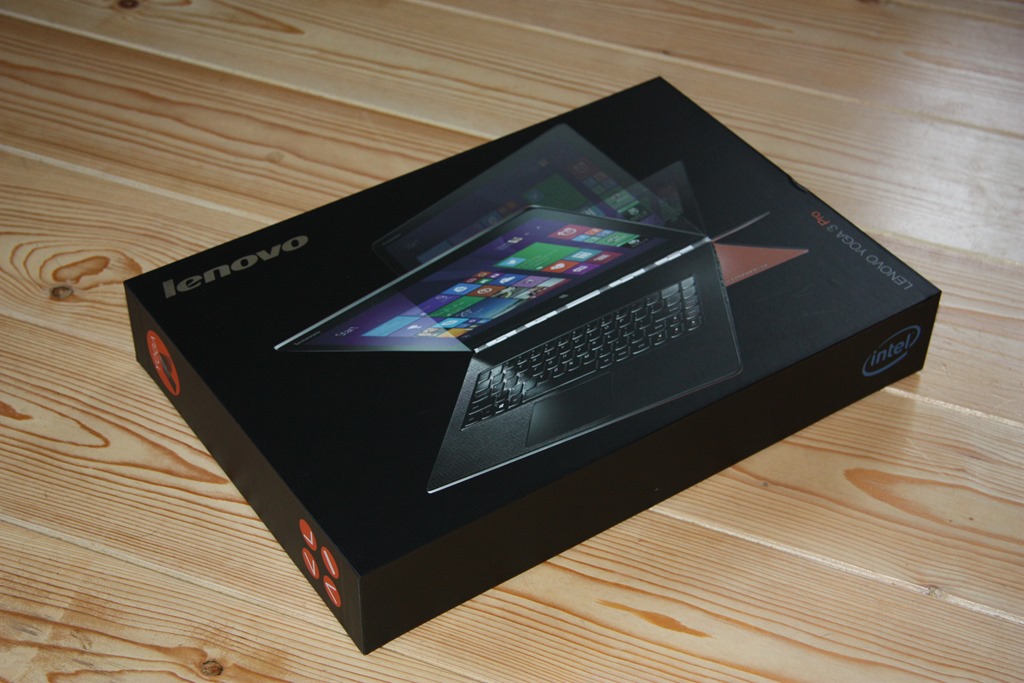
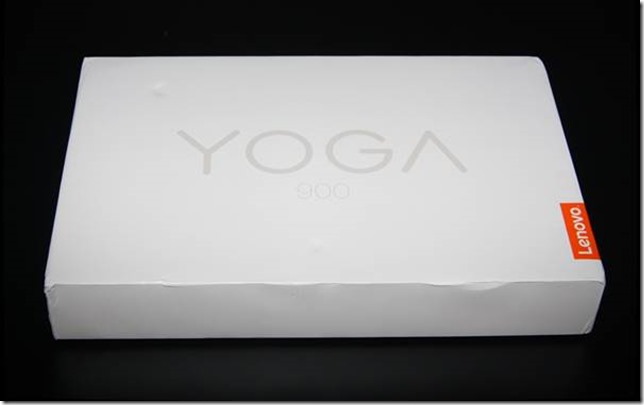
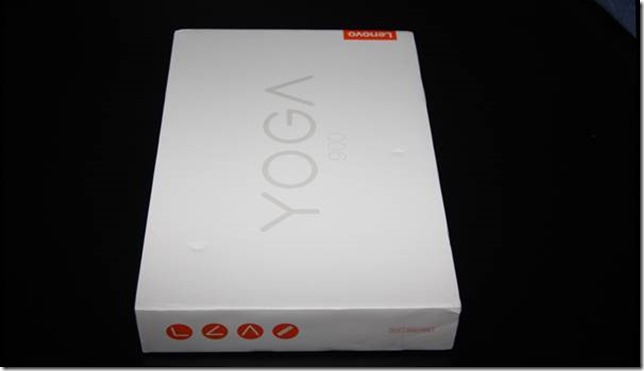
    On September 17, UPS delivered a rather plain box: white (on top) and orange (underneath), with four icons on the side representing the four Yoga configurations (Laptop, Stand, Tent, and Tablet).
    clip_image002

    clip_image004

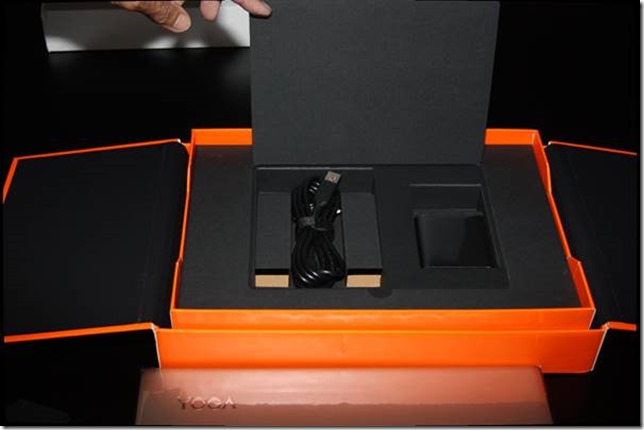
    Like the box of the Yoga 3 Pro, it contains a slick piece of paper engineering – after taking off the lid, you fold back the two flaps covering the top, and as you do so, the Yoga 900 rises out of the box to greet you. This is a nice touch to the packaging.

    clip_image002[4]

    clip_image004[4]

    Underneath the Yoga 900 are compartments that hold the power adaptor, the special USB power cable, and a sleeve containing the quickstart user guide. In my example, the guide was missing, it may have still been in preparation. However, I didn’t really need it, since I’ve been here before, so I could get straight on with plugging in the adaptor and cable and setting up Windows 10 on the machine (see my separate post).
    clip_image006

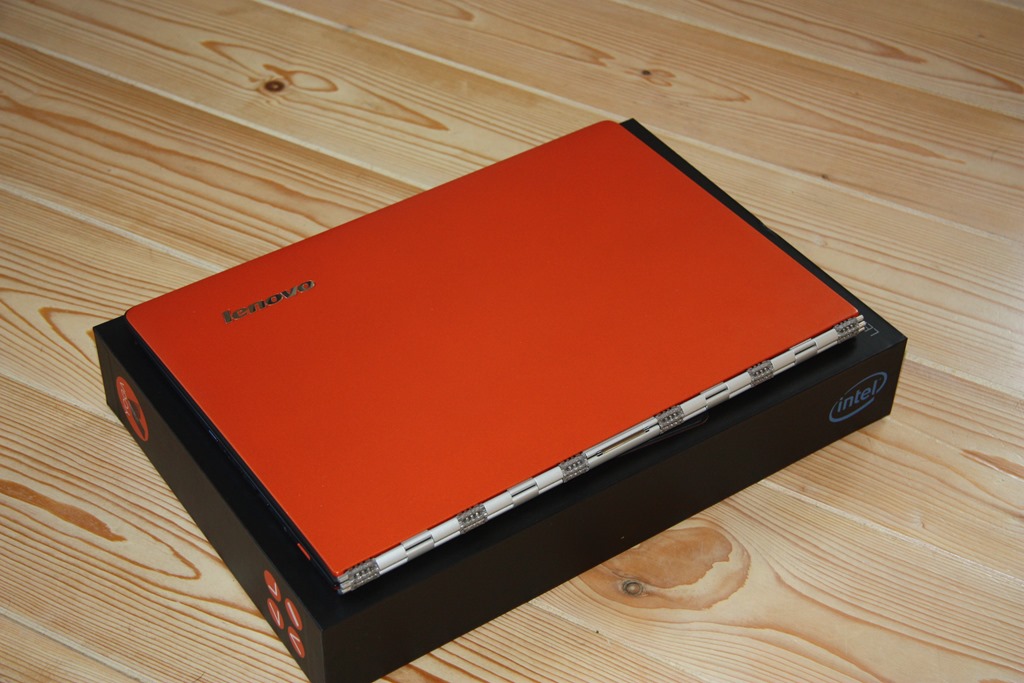
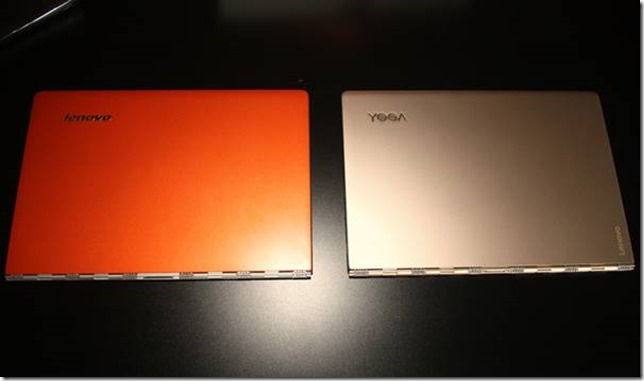
    Before doing that, I thought it would be useful to compare the Yoga 900 side-by-side with the Yoga 3 Pro, so here are some photos of the two machines together. The Yoga 900 came in the Champagne Gold colour, while the Yoga 3 Pro is Clementine Orange.
    clip_image008

    Yoga 900 Externals

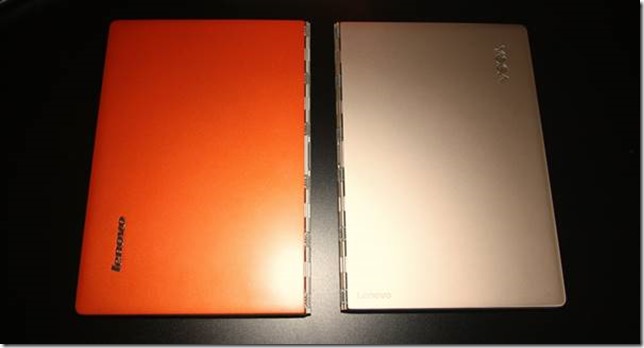
    As you can see from Table 1, the dimensions of the two machines are very nearly the same. The Yoga 900 (on the right in the photo below) is slightly narrower and thicker than the Yoga 3 Pro, but at a casual glance you wouldn’t see it.
    clip_image010

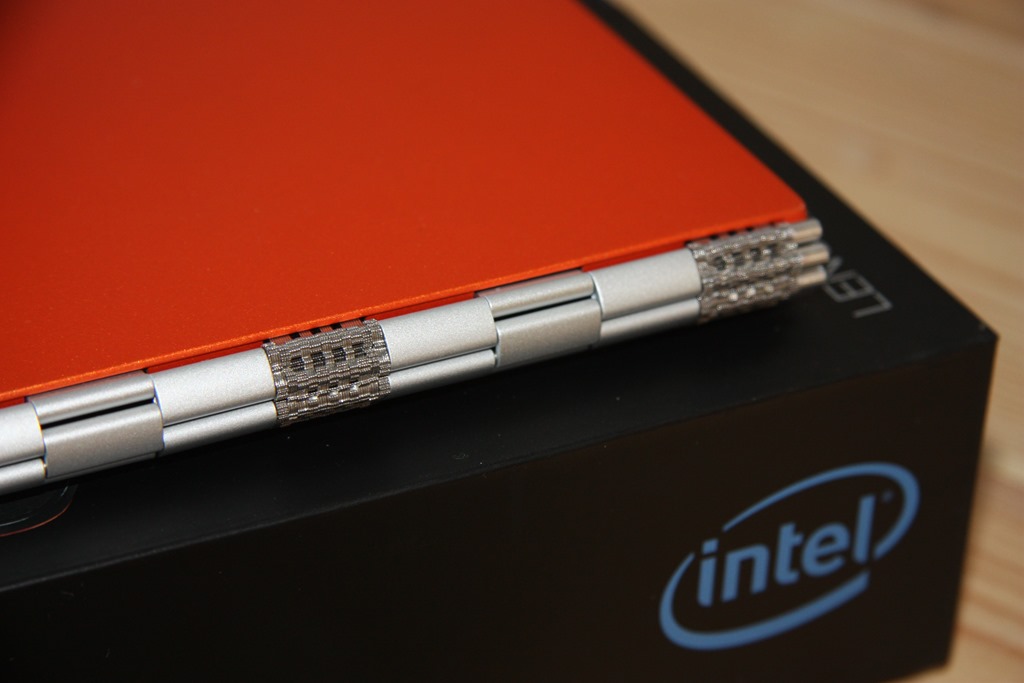
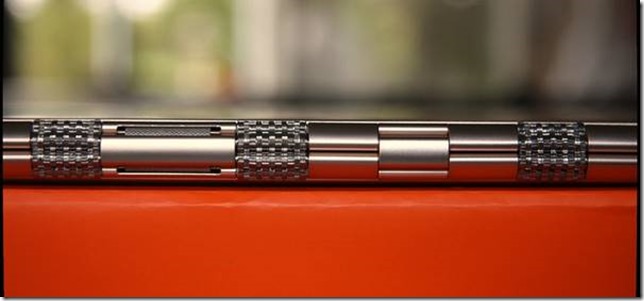
    As introduced with the Yoga 3 Pro, the hinge on the Yoga 900 is the distinctive “watchband” design, which I personally find appealing and which works smoothly and very well. Lenovo states that there have been improvements to the design in this generation.
    clip_image012

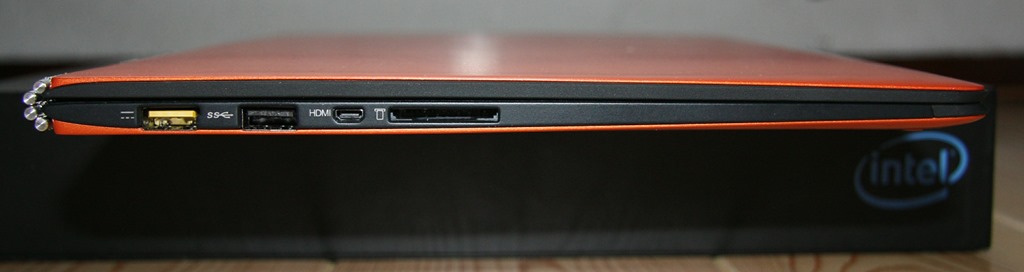
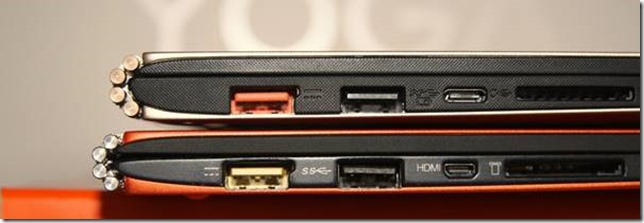
    Continuing on our tour of the externals, we come across the first marked difference on the left hand side of the machines. The Micro-HDMI port of the Yoga 3 Pro has been replaced with a USB-C port in the Yoga 900, which (according to the Yoga 900 User Guide) supports USB 3.0, native DisplayPort 1.2 video and VGA/HDMI output. Not (yet) having suitable USB-C cables or adaptors, I couldn’t test this out for myself. Nonetheless, I think that Lenovo is right to be forward-looking with adopting USB-C.
    clip_image014

    The other ports on this side of the machine remain the same. In the photo above, the first port can act as a standard USB 2.0 port, but it is also the charging port for the Yoga 900/Yoga 3 Pro. Lenovo provide a special USB cable for this purpose, which has a connector that is physically different from a standard USB male cable (it has a small “nub” on one side). The second port is a standard USB 3.0 port, while on the other side of the USB-C/Micro-HDMI port is the card reader port. Here’s a photo of the special USB charging cable connector (above) compared with a standard USB 2.0 connector (below):

    clip_image016

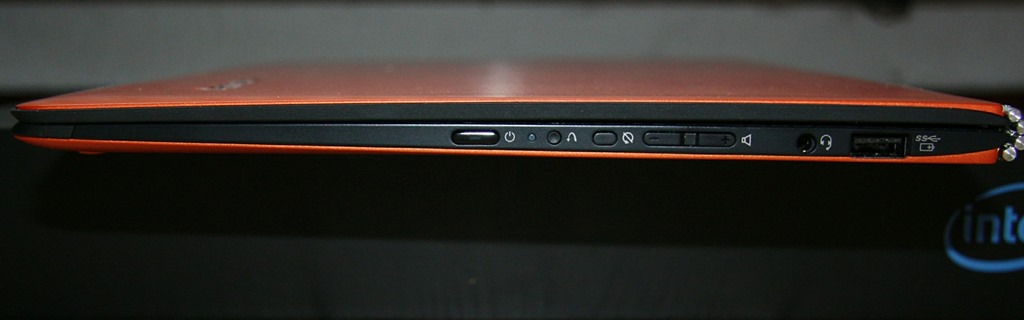
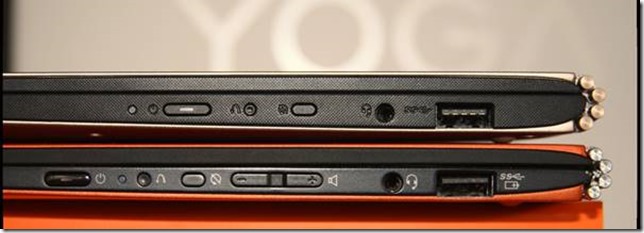
    Looking at the right-hand side of the machines, one thing immediately leaps out because of its absence. Unlike the Yoga 3 Pro, the Yoga 900 has no rocker switch for volume control.
    clip_image018

    Everything else is there – but no physical volume control switch. I’m a little surprised by this. It means that the only physical switches for volume control on the Yoga 900 are on the keyboard. For an ordinary laptop, that would be perfectly sufficient. However, this is a Yoga – when placed into one of the other modes (Tent, Stand or Tablet), the keyboard is disabled. Every other tablet (and smartphone) device that I’ve ever used has had a rocker switch on the side of the device used as a volume control; the Yoga 3 Pro has it, so why has Lenovo dropped it for the Yoga 900? On the face of it, this seems a strange design decision on the part of Lenovo.

    Other than that, the Yoga 900 has exactly the same controls and ports as the Yoga 3 Pro on this side of the machine. From the left in the photo above: the power button, a recessed button that activates OneKey Recovery (of which more later, in the post on the Yoga 900’s software); the display rotation lock button, the headphone jack socket, and a USB 3.0 port. This last port can also be used to charge devices such as Smartphones via a USB cable.

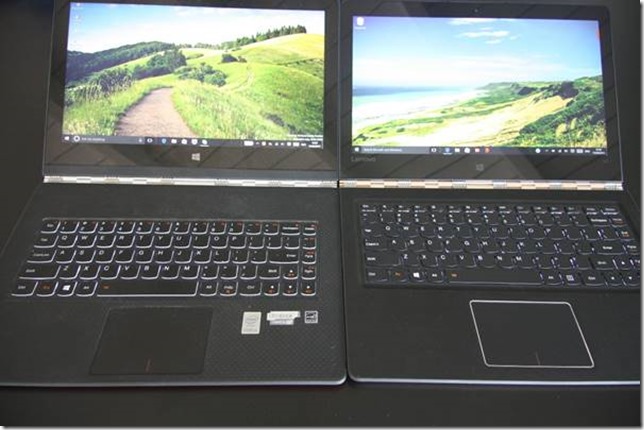
    Lifting the lids of the two devices reveals the next major difference; this time a welcome improvement. The Yoga 900 has a sixth row of keys – a line of dedicated function keys on the top row. It seems that Lenovo received negative feedback over the 5-row keyboard of the Yoga 3 Pro, so the traditional 6-row keyboard has been restored in the Yoga 900. An excellent decision that will please many keyboard jockeys.
    clip_image020

    The keyboard backlight now has two illumination levels in the Yoga 900, as opposed to the single level of the Yoga 3 Pro. However, there has also been a change to the design of the keys that I feel is a step backwards. As I think you can see in the photo above, the edges of the keys in the Yoga 3 Pro are translucent, whilst those in the Yoga 900 are solid black. This reduces the effectiveness of the backlight in the Yoga 900. For the sake of chic all-black design, backlight functionality has taken a hit. It’s a minor point, but I find the Yoga 3 Pro keys are better in this respect.

    The trackpad appears to be the same in both machines, with an area of 60mm x 90mm. It’s a Synaptics trackpad, that unfortunately has not been certified by Microsoft as a Windows Precision Touchpad, perhaps because it is slightly smaller than Microsoft’s recommended optimal size of 65mm x 105mm. This also means that the trackpad settings are not integrated into Windows 10 Settings. More on the trackpad and keyboard in the Yoga’s Modes: Laptop section.

    Turning our attention to the screen, both Yoga models have the same high-resolution (3200 x 1800) touchscreen displays, but Lenovo has improved the aesthetics by having a single piece of glass in the lid of the Yoga 900; the Yoga 3 Pro has a strip of black plastic running along the bottom edge. These high resolution screens are almost de rigeur in quality laptops and Ultrabooks these days, so it’s no surprise to see one in the Yoga 900. The display has a ratio of 16:9, which makes it ideal for some uses; less so for others. See my further thoughts on this in the Yoga’s Modes section.

    Both Yogas have a Windows button positioned below the display, for use primarily when in Tablet mode. Neither Yoga has haptic feedback for this capacitive button (unlike Lenovo’s ThinkPad tablets). This could simply be because it is physically impossible for Lenovo to fit a haptic mechanism in such a thin lid, but I do somewhat miss this feature.

    In comparison to the Yoga 3 Pro, the Windows button of the Yoga 900 is also more difficult to see in some lights. Of course, it could also be argued that, with the advent of Windows 10, the Windows button has become redundant, since, unlike in Windows 8.1, the Windows Taskbar with its Start button is always present – even in Tablet mode. It would not surprise me to see this button dropped altogether in the next generation of Yoga devices.

    At the top of the screen is the Yoga 900’s webcam; capable of 720p @ 30 fps (the same as for the Yoga 3 Pro), along with the dual-array microphone.

    The speaker grilles are positioned underneath on the Yogas. Those on the Yoga 900 are slightly larger than on the Yoga 3 Pro, although the specifications of the JBL speakers are the same.

    Yoga 900 Internals

    Lenovo heard feedback from customers that the performance of the Core M processor in the Yoga 3 Pro was slower than anticipated. Lenovo’s response is to include the latest (6th) generation of Intel Core processors, codenamed “Skylake”, in the Yoga 900. Two versions will be available in the Yoga 900 range; a Core i5 and a Core i7 model. These processors are a step up in speed and power compared to the Intel Core M processors used in the Yoga 3 Pro. See the Benchmarks section for comparative results.

    Skylake also introduces a new generation of the graphics processor architecture, and the Yoga 900 has an Intel HD Graphics 520 engine[1], which, as can be seen from the benchmarks, improves 3D graphics performance significantly over the Intel HD Graphics 5300 in the Yoga 3 Pro.

    The Yoga 900 can have up to 16 GB system memory installed – improving on the maximum of 8 GB of the Yoga 3 Pro. Storage for both Yogas is the same; either 256 GB or 512 GB SSDs can be specified. It’s a similar story for wireless connectivity; both will support 802.11 A/C Wi-Fi and Bluetooth version 4.0.

    The battery is another area where Lenovo has improved on the Yoga 3 Pro as a result of customer feedback. Like many others, I found the battery life between charges on the Yoga 3 Pro to be disappointing. Lenovo has increased the battery capacity of the Yoga 900 to 66 Watt hours. That is a third more capacity than that of the Yoga 3 Pro. The Yoga 900 is very slightly thicker and heavier than the Yoga 3 Pro (14.9 mm vs 12.8 mm and 1.29 kg vs 1.19 kg), but it achieves its increase of a third in battery capacity at a cost of only 15% extra thickness and 8% in weight. it’s a sacrifice I’m happy to make for the increased running time on battery.

    Both Yogas are equipped with cooling fans. See the benchmarks section for comments on effectiveness and noise.

    There’s one omission that I personally find a little disappointing: there is no built-in GNSS to feed GPS coordinate data to the Windows Location service. It’s a hobbyhorse of mine – I feel that mobile devices should have a GNSS chip fitted as standard. Downloadable maps in map and navigation apps are standard these days, but I still can’t use the Yoga 900 (or indeed the Yoga 3 Pro) off the grid without an additional Bluetooth GPS logger to track its position.

    However, that omission apart, the Yoga 900 is a very attractive looking Ultrabook, with an excellent display and connectivity options.

    Benchmarks

    Having attractive looks is one thing, but how does the Yoga 900 measure up in performance? I ran some standard benchmarks on both the Yoga 900 and the Yoga 3 Pro in order to have a comparison between them. I did a quick subjective performance test using a Digital Audio Workstation application that I run on my desktop PC. Finally, I ran a simple battery life test.

    PassMark Benchmarks

    PassMark Software provide benchmarking software and hardware. I downloaded their Performance Test 8.0 software and used it to run benchmarks on both Yogas. The results are shown in Table 2 below. I also downloaded HWMonitor from CPUID, to record the maximum temperature of the CPU reached when running the benchmarks.


    Yoga 900

    Yoga 3 Pro

    PassMark

    2214

    1575

    CPU Mark

    4439

    3628

    2D Graphics Mark

    410.5

    338.8

    3D Graphics Mark

    953

    392.9

    Memory Mark

    1771

    1598

    Disk Mark

    3201

    3208

    Max CPU Temperature

    71°C

    71°C

    Table 2

    In the results table above, it is clear that the CPU and graphics performance of the Yoga 900 over the Yoga 3 Pro is much improved, particularly for 3D graphics. Only the disk performance remains unchanged between the two machines.

    As a general principle, I don’t like fans in portable devices, and have expressly purchased tablets for myself that do not have them. Nonetheless, for Ultrabooks with the performance of the Yoga 900, it is probably inevitable that such a device will have a fan. During the running of the benchmarks, the fan on both machines could be heard. Subjectively, the loudness of both fans sounded the same to me. I did not find it intrusive – a hissing sound – and I think it would be at an acceptable level for most people.

    What is interesting from the table above is that the maximum temperature reached by the CPU in both machines during the running of the benchmarks is the same. The i7-6500U processor in the Yoga 900 will certainly be giving out more heat than the M 5Y70 in the Yoga 3 Pro. Given that the fans were equally loud, this would seem to support Lenovo’s claim that they have improved the cooling system in the Yoga 900.

    Windows System Assessment Tool

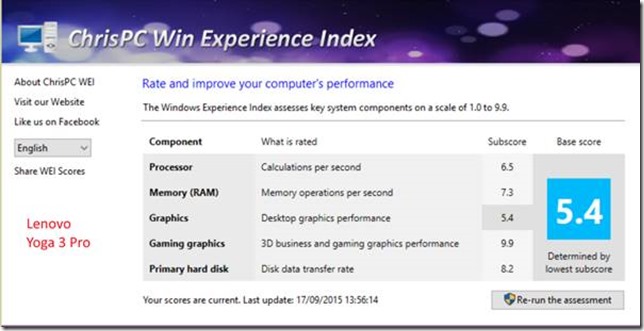
    The Windows System Assessment Tool was first introduced by Microsoft in Windows Vista as a means to compare the performance of the hardware of Windows PCs. For Windows Vista and Windows 7, Microsoft provided an applet (the Windows Experience Index applet) to display the results. Although Microsoft no longer provides this applet in Windows 8.1 and Windows 10, the assessment telemetry is still in place and can be used by third-party tools to display the Windows Experience Index. I used the WEI tool from ChrisPC to display the results for both the Yoga 900 and the Yoga 3 Pro.

    clip_image022

    clip_image024

    For the most part, the results from this set of benchmarks confirm the findings of the PassMark benchmarks. CPU, graphics, and memory performance is improved in the Yoga 900, whilst disk performance remains the same. For some reason the WSAT tool claims that 3D graphics performance is the same for both machines; I suspect that the PassMark tests are more rigorous, and give a truer picture.

    Digital Audio Workstation Test

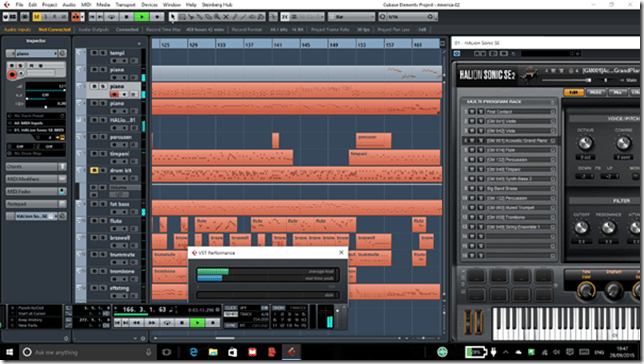
    As a result of the improvements to the CPU, GPU and larger system memory, the Yoga 900 can tackle more demanding tasks than the Yoga 3 Pro. By way of a quick subjective experiment, I installed Cubase LE AI Elements 8 on the Yoga 900, and used it with a Cubase project that uses 10 virtual instruments in the HALion Sonic SE workstation, also running on the Yoga 900. This performed well.
    clip_image026

    Battery Life Test

    Lenovo claims that the Yoga 900 battery can last for 9 hours between charges when playing HD video at 200nits. I did a simple test of battery life under the following conditions:

    • Display always on at 50% brightness
    • Speakers at 100% volume with Dolby Audio on and set to music playback
    • Continuous music playback via Groove Music
    • Music streamed from a media server via WiFi

    Under these conditions, the battery lasted for 6.5 hours. Not the 9 hours claimed for by Lenovo, but certainly more than can be achieved by the Yoga 3 Pro under the same conditions.

    Performance summary

    As a result of this testing, it seems clear that the Yoga 900 will perform very well in activities involving both productivity (office work) and media consumption (watching movies/videos and listening to music). It can also be used for media creation work (digital audio). Battery life is improved over that of the Yoga 3 Pro.

    Yoga’s Modes

    A prime selling point of the Yoga is the fact that it can be folded into a variety of modes. At the time of introduction of the original Yoga back in September 2012, this was a unique innovation. Since then, the concept has been copied by other manufacturers such as Dell, HP, Toshiba and ASUS, which proves that imitation is indeed the sincerest form of flattery. It also clearly demonstrates that the concept is perceived to have market value. Lenovo followed up with the introduction of the “watchband” hinge in September 2014, and now with the Yoga 900 we can see both innovations in a mature form.

    These are the four modes of the Yoga:

    Laptop

    The traditional laptop mode is probably the starting point for most people, and the mode in which I suspect most people will be using it for the majority of the time.

    The Yoga 900 keyboard delivers in this mode. The extended keyboard, and its quality feel (something for which Lenovo has a reputation for), will please those who pound keyboards all day long.

    I am less positive about the trackpad. As mentioned earlier, this is a Synaptics device that has not been certified as a Windows Precision Touchpad by Microsoft. The result is that it is not integrated in Windows 10 Settings, and Synaptics mimics the required Windows 10 touchpad gestures in their own driver. I also note that there are many complaints about the software driver in the community support forums of Lenovo. I feel that Lenovo should get this trackpad properly certified and fully integrated into Windows 10.

    The display is excellent, high resolution, good colours, and, at 300nits, bright enough for me. It’s a 16:9 ratio display, so it’s ideal for watching movies. For office work (e.g. word processing in Word, Excel), I personally prefer at least a 16:10 ratio. Even better would be the 3:2 ratio of Microsoft’s Surface Pro 3 and Surface 3. The 16:9 ratio is also not ideal in the Tablet mode (see later). The Yoga 900 has a large bezel area surrounding the display. It should be possible to fit a 16:10 ratio screen that is the same width as the current display into the Yoga’s lid. If the (now redundant) Windows Button were to be dropped in the next Yoga generation, this would be very easy to do. The overall dimensions of the Yoga would then remain the same, but having a 16:10 ratio display would serve the Laptop and Tablet modes far better than the current 16:9 ratio display, in my opinion.

    Tent

    This mode is ideal for media (movies and videos) presentations, particularly in space restricted situations, e.g. on a shelf or an aircraft table. For viewing movies, of course, the 16:9 ratio of the display is now ideal. Couple the Yoga with a wireless presenter, and you can use this mode for PowerPoint presentations as well. In this mode the keyboard and trackpad are automatically disabled.

    Stand

    As an alternative to the Tent mode, the Stand mode can be used for media and PowerPoint presentations. It requires more space than the Tent mode, but the screen can be set to a greater range of angles for the best viewing experience. The keyboard and trackpad are automatically disabled in this mode also.

    Tablet

    The last mode is where the lid is completely folded back over the (disabled) keyboard, and to convert the Yoga 900 into a tablet. You can select to have Windows 10 automatically switch into Tablet mode, or to give you the option to switch manually. In this mode, the 10-point touchscreen comes into its own. However, I find that the size of the Yoga 900 (and the Yoga 3 Pro before it) makes for a slightly unwieldy tablet. While the overall size ratio is very close to that of an A4 pad of paper, it’s bigger, and it’s just too big for me. The 10.1 inch Lenovo ThinkPad 10 is much more my ideal size of tablet. The ThinkPad 10 also has an active digitiser and pen, which again I find important to have in a tablet. Artists also want pens with their tablets, and while many artists might prefer the larger size of the Yoga 900, without proper pen support, they will be crossing it off their list of devices to consider.

    Talking of A4 pads of paper brings up one last point. One of the frequent uses of a tablet is for reading books or magazines. And once again, the 16:9 ratio of the Yoga 900 provides (in my view) a diminished reading experience over devices with 16:10 ratios (e.g. the ThinkPad 10) or 3:2 ratios (e.g. the Surface 3). Pages are rendered longer and narrower in 16:9, and the reading experience suffers as a result.

    clip_image002[6] clip_image004[6] clip_image006[4]

    I would certainly make use of the tablet mode of the Yoga 900, but for me, and my usage patterns, it would not be the most frequently used mode. Still, having the option is something that a traditional laptop could not offer me.

    Overall Conclusions

    In my opinion, the Yoga 900 is a clear advance over its predecessor, the Yoga 3 Pro. Lenovo has listened to customer feedback and successfully addressed the major weak points of the Yoga 3 Pro, while maintaining its style and design quality. The plus points are:

    • Higher performance suitable for a wide range of consumer and business users
    • Improved keyboard
    • Improved battery life between charges
    • Excellent display
    • Build quality and style
    • Flexibility in use

    There are some minus points (in my view):

    • The trackpad is not certified as a Windows Precision Touchpad
    • The physical volume control switch has been dropped.
    • Few Lenovo apps deliver real value-add (see this post for details).

    And perhaps Lenovo could give consideration to the following for the next generation of the Yoga:

    • Move from a 16:9 screen ratio to at least 16:10, if not 3:2.
    • Include an active pen option in the Yoga 900 range.
    • Include a GNSS chip to deliver GPS coordinates in real-time to the Windows Location service.
    • Put back the volume control rocker switch.

    It is a fine example of the Ultrabook class of computer. It also offers additional flexibility with the configurations that it can be folded into. I like it.


    [1] Yes, the Yoga 3 Pro has Intel HD Graphics 5300, but despite being a higher number, it has a lower performance. Intel has changed their numbering scheme “in order to reduce confusion”. It seems to me to have done precisely the opposite.

  • Microsoft’s Big Day

    Microsoft had a big day of product announcements yesterday. I watched the videostream to see and hear what they had to say.

    Product announcements can be tricky things to do well. Too often they can be mind-numbingly boring, and Microsoft has been guilty of doing plenty of those in the past. However, I have to say that – for the most part – Microsoft did a very good job. Agreed, the first few minutes did not bode well. The event opened with the typical corporate aspirational video, followed with a welcoming introduction from Terry Myerson, Microsoft’s Executive Vice President of the Windows and Devices Group. Gawd love him, he’s clearly doing a good job at Microsoft, but an inspirational speaker he is not. He opened with some facts and figures about the takeup of Windows 10 in both the consumer and business markets, then segued into talking about Xbox One and finished by introducing a demonstration of a HoloLens game. The demonstration looked pretty impressive, but questions remain about the experience that the wearer of the HoloLens actually sees. Time will tell.

    Following that was a video and then a product presentation of the next generation of the Microsoft Band given by Lindsey Matese from the team that developed the product. She did a reasonable job, and there were whoops and cheers from the crowd, but my attention kept wandering. Perhaps it’s because the Microsoft Band and the Microsoft Health cloud service behind it is currently focused on athletes. If a focus on pensioners’ healthcare were to be added, then I’m sure that I would be more interested.

    Right, we are now 30 minutes into the product announcement, and so far, it’s your typical corporate event. Now, Myerson moves on to talking about Lumia and Surface, and introduces Panos Panay (head of engineering of all premium Microsoft devices), and things move up a gear or three.

    Panay is a showman. He is passionate about his products, and there’s more than a whiff of the preacher about him. He works the crowd (and the crowd are already a noisy bunch) and they respond enthusiastically. Part of me hates this style of presentation, because it’s so nakedly manipulative – like an evangelical prayer meeting – and part of me can’t help admiring it, because he does it so well. It’s helped, of course, by the fact that when you get down to it, the products mostly stand up to the hype.

    He starts with the Lumia phones: the 950 and 950XL.

    Panay introduces Bryan Roper to demonstrate the Continuum feature of the new Lumia phones, and once again I think this is not your father’s Microsoft product announcement. Once again, I am struck by my ambivalence towards Roper’s style of presentation. Roper reminds me of the old-style market trader, with his patter. I should hate it, but I am won over by the corniness of it, by his humour, and by the fact that he really does demonstrate (with consummate ease) why Continuum has the potential to turn the Windows Phone business around and grow the market share in the Business and Enterprise markets.

    Back to Panay to wrap up the Lumia part of the presentation, and then he says: “So, I guess you want to talk about Surface?”.

    He starts with a review of how well the Surface Pro 3 has done in the market (“98% of people who use Surface Pro 3 recommend it”), and then unveils the Surface Pro 4. He proceeds to walk us through the technology of the Surface and the Surface Pen, and throws in a little dig against the Apple Pencil, which is loved by the home crowd. After 20 minutes devoted to the Surface Pro 4 and related products, he asks: “Do you want to talk about another product?”.

    This is his cue to move into the final part of his presentation and introduce the Surface Book – Microsoft’s entry into the 2-in-1 Laptop market. The crowd goes wild.

    After a further gripping presentation on the Surface Book, he is finished, and after a final video, the floor is given over to Satya Nadella (Microsoft’s CEO) to wrap up.

    Panay and Roper delivered, and lifted that product announcement up several levels.

  • Groove Music – Amnesia in Action

    Microsoft has released a new version of its Groove Music app (version 3.6.1210.0) for Windows 10. They’ve also introduced yet another bug into it, a showstopper, as far as I’m concerned.

    Groove keeps losing my entire album collection, and trying to rebuild it in a never-ending cycle.

    I have 1,000+ albums stored on a Windows Home Server 2011 system, and connected to it are four Windows PCs (desktop, laptop, a Windows Tablet and a Surface 3), all running Groove and Windows 10. On each of the connected devices, the root music folder on the WHS2011 system is defined as a music library (and hence defined as a watched folder – in my case, \\DEGAS\Music – within Groove on each system).

    Groove 04

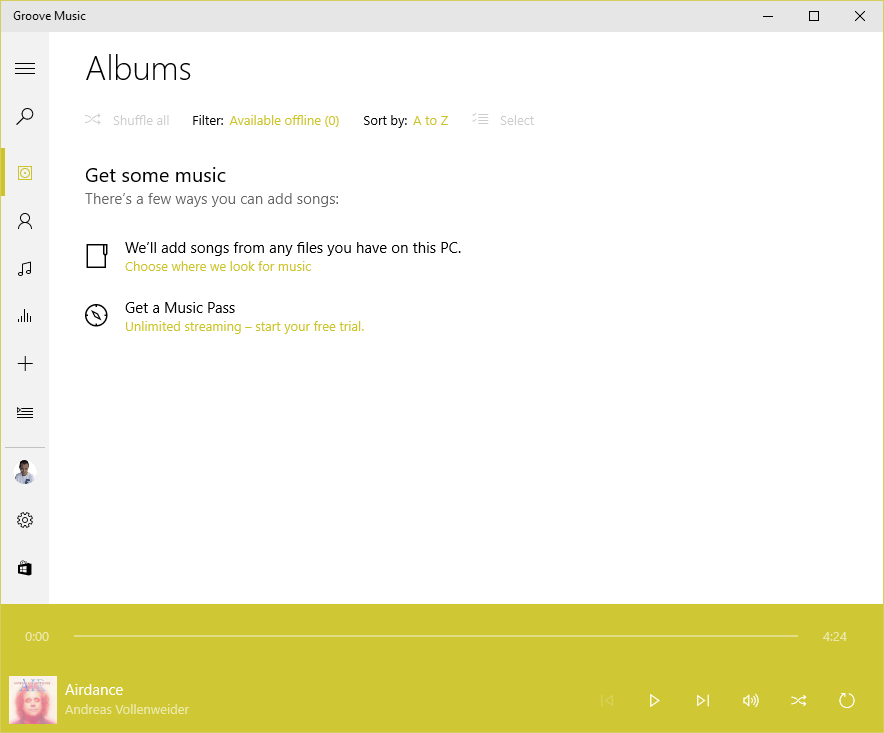
    Now that all the instances of Groove have been updated to version 3.6.12.10.0, what will happen is that when I’m viewing my Albums, the albums will suddenly disappear, Groove will say there are zero albums available offline, and  display the “Get some music” message.

    Groove 02

    After some time (30 minutes?), or a restart of the app, Groove will start re-indexing the music folders and albums will start appearing.

    Groove 03

    This goes on (slowly!) until all the albums have been scanned from the WHS2011 folders, at which point they will all suddenly disappear again and the process starts over.

    This is happening on three all four of the PCs. Interestingly, the Surface 3 is not losing the albums. However, it’s also not displaying the correct number of albums held in my music library. I have 1,103 albums in my collection; according to Groove on the Surface 3, I only have 1,084. I suspect that this instance of Groove isn’t actually watching my watched folders… Addendum: I forced the Groove on the Surface 3 to rebuild its index, and now the same thing is happening on the Surface 3 as on the other PCs.

    The 3.6.12.10.0 version of Groove is also not always displaying the “Adding music” notification when music is being added.

    I feel that Microsoft is not testing this app sufficiently well; I wonder whether anyone on the testing team bothers to test it with a library held on a Windows Home Server 2011 system.

    I don’t mind being a beta tester when software is in beta; but Windows 10 and the Microsoft apps are now released. Groove is still not fit for purpose.

    I have also sent this information in as feedback to Microsoft via the Windows 10 Feedback app. Whether this will result in a fix remains to be seen.

    Apparently, Microsoft has stated that for Windows 10 Home users, all operating system and app updates will be automatically installed, and this cannot be overridden by the user. That’s a bit worrying, since a bug in a new component can cause immediate damage. We don’t get the option to delay updates and check whether it’s safe to let installations proceed.

    Addendum 18 August 2015: Groove is now up to version 3.6.1239.0, but the issue is still present…

    Other people are also reporting this issue occurring for music collections held on both WHS 2011 and Windows Server 2012 systems, so I’m not the only one for whom this is a showstopper.

    Addendum 19 August 2015: This latest version of Groove running on my Surface 3 refuses to find any local files (including the collection on WHS 2011) at all. And it’s a hit and miss affair on my other systems as well. Groove on my desktop claims my collection has 1,109 albums available offline; on my Yoga 3 Pro, Groove says I have 1,112 albums, and on my ThinkPad 10, Groove says I have just 644 albums.

    Addendum 20 August 2015: after 36 hours(!) of adding files, Groove on my ThinkPad 10 now says I have 1,108 albums available offline. So what’s it to be? 1,109, 1,112, or 1,108? All instances of Groove are looking at exactly the same collection; one might think that they could agree on the correct total of albums. Oh, wait a minute, Groove on the Desktop PC has just lost the index again, and has restarted to index the collection, While Groove on the Surface 3 still resolutely refuses to see any albums at all…

    I’m sorry, but this software is absymal.

  • Windows 10

    So, the great day is here; Windows 10 has been unleashed.

    Microsoft is in full Dr. Pangloss mode at the moment, trumpeting that Windows 10 is the best of all possible worlds.

    Forgive my cynicism, but from what I have seen so far, I think it’s more of a curate’s egg.

    The one saving grace is that it might improve over time, but going on Microsoft’s past performance, I’m not holding my breath. Having said all that, I will be updating all our windows devices to Windows 10, but not without regrets.

  • Media in Windows 10 – Stepping Backwards?

    Just a couple of days to go before the launch of Windows 10, and Microsoft has blogged about the built-in apps present in the new operating system. Microsoft describes the apps as “great”. I think many of us would beg to differ; we are finding that the media apps in particular are a step backwards from those that are in Windows 8.1.

    Barb Bowman goes into detail about the shortcomings, and, if using Windows to play back your media is important to you, you should definitely check out her post.

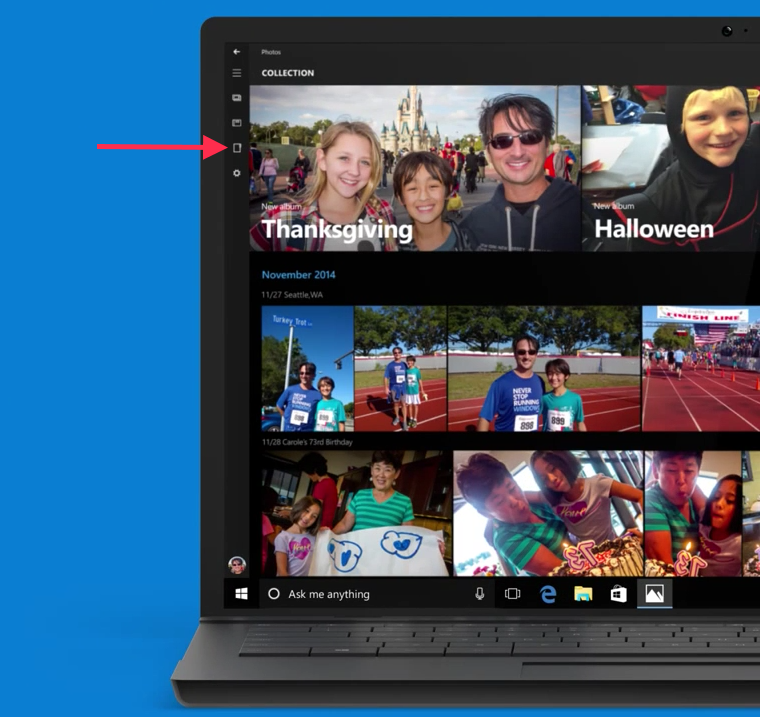
    In addition to these shortcomings, the Windows 10 Photos app is pretty abysmal. You can’t browse individual folders of pictures, it will only display pictures arranged by date. Interestingly, browsing by folders was originally in the app, but it has now been removed by Microsoft. I notice that the advert in the Microsoft blog post still shows the older version of the app, with folder browsing present:

    Windows 10 08

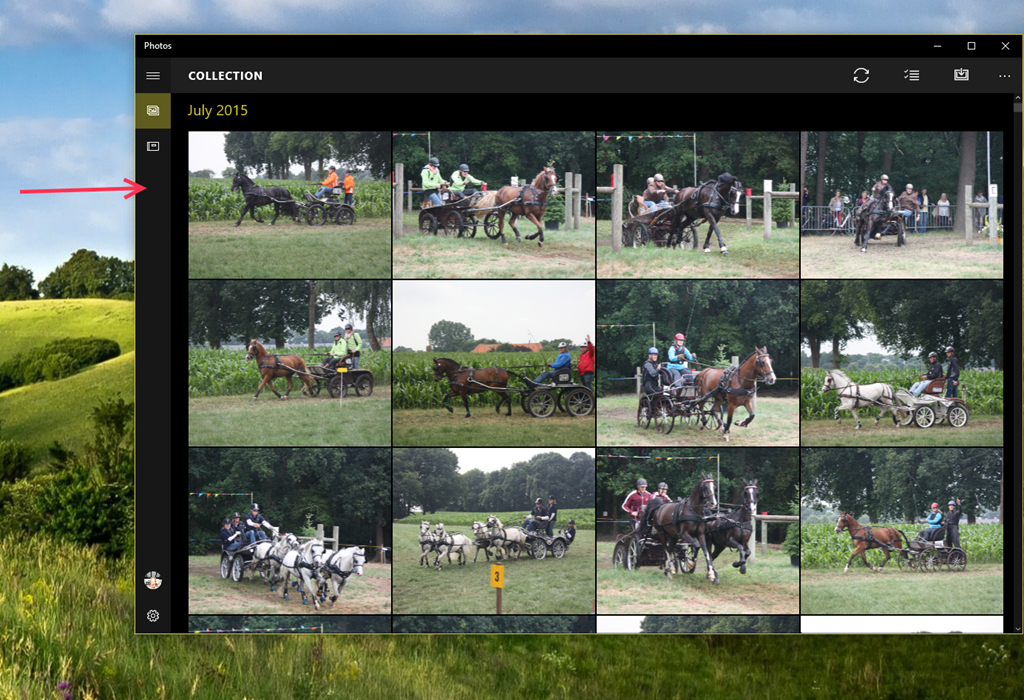
    Either Microsoft are being disingenuous here, or someone’s been sloppy, because the Folder view is missing from the latest version (and has been for some months now):

    Windows 10 09

    So where has the Folders view gone? I need it back – it makes it impossible to find stuff without it (and there is still no possibility to search photo metadata tags in the app).

    Frankly, with the current state of this app, I find it next to useless, and use other photo apps in preference. However, Windows 10 will force you to use it in certain circumstances. For example, if I want to add someone’s picture to their contact details in the People app, Windows 10 will bring up the Photo app so that you can select the picture you want to use. Without a folders view, I have to use File Explorer to find out the date taken of an image, and then use the Collection view in the Photos app to scroll to the date of the image to copy it into the People app. This is extremely cumbersome, and far from fast and fluid.

    It almost gives the impression that Microsoft teams don’t actually test out the use cases… I am not impressed.

  • Windows 10 Looms…

    We are just three weeks away from Microsoft launching Windows 10 on the 29th July. The tech media has plenty of articles discussing the pros and cons, and now the “should I upgrade to Windows 10” articles are starting to appear in the mainstream press. Here’s one from the UK’s Telegraph. It’s actually surprisingly positive:

    Windows 10 for desktop is a massive improvement over Windows 8. It builds on the more intuitive aspects of Windows 7 and Windows 8, combining the familiarity of the Start menu with a number of new features that genuinely seem to improve user experience, such as Edge and Cortana.

    It’s also surprisingly accurate (I’ve begun to despair at the quality of what passes for technical journalism these days, even in the tech press), although in some places I would have a different take. For example:

    When used on a tablet or smartphone, Windows 10 is not hugely different from Windows 8; most of the changes are under the hood. However, small improvements in usability should make learning the system less of a chore for the uninitiated.

    As a user of Windows 8.1 on various tablets, I would disagree with the first part of this statement. There are substantial changes, and the changes are not under the hood, but very much in your face. The Charms bar of Windows 8/8.1 has gone and been replaced by the Action Centre, which holds notifications and is the entry point to Windows settings. Windows 10 also introduces the dreaded “Hamburger” button. These and other changes represent a major shift away from the design language pioneered in Windows 8/8.1 and in Windows Phone 8/8.1.

    So for those of us that use Windows 8.1 and are completely comfortable with it, the move to Windows 10 is going to mean changes, and the relearning of our muscle memories. People who use Windows 7, on the other hand, are, I think, going to find it easier to adapt, because Windows 10 is very much closer to what they are used to.

    After trying out the previews of Windows 10, I wrote, back in April, that I just didn’t like it. There seemed to be too many features of Windows 8.1 that had been removed or changed.

    Now, twelve weeks and several preview builds later, I am somewhat less anxious. I have moved three PCs over to Windows 10. A laptop, a tablet and lastly, and most recently, my main workhorse, my Desktop PC. I have left my Surface 3 tablet running Windows 8.1; I will wait until the official release of Windows 10 before upgrading it.

    I still miss the Smart Files feature of Windows 8.1, and the new version of this feature probably won’t appear in Windows 10 until late 2016. I will also be going through a period of relearning how to use my tablets.

    Will the pain be worth the gain? In some areas, definitely yes. Windows 10 introduces native support for the FLAC audio and MKV media container formats. Both of these are important to me for the future of my music and home cinema systems. However, what Microsoft gives with one hand, it taketh away with the other. The “Play to” feature of Windows 8.1 is renamed to “Cast to” in Windows 10, and this function will have fundamental changes.  It appears as though Microsoft has removed DLNA DMR devices from system-level control (e.g. the Devices item in the Win 8.1 Charms bar), and demoted that function to needing to be controlled on an app-by-app basis.

    That’s all very well if app developers actually take account of it. I note that Microsoft’s Music app does not do this, and I also note that the Microsoft spokesperson uses the qualifier “eventually” in the context of support by the Microsoft app. That could mean it will be available on July 29 or it could mean in five years time. That does not give me a warm feeling.

    The Music app has recently been rebranded by Microsoft as the Groove Music app. It’s still primitive, and does not even have the capabilities of the venerable Windows Media Player, Microsoft’s Windows desktop application that last had an update back in 2009. For example, as a lover of Classical music, I want to be able to search and sort my music collection by composer. I can do this in Windows Media Player – in Groove? No, not yet – and I suspect not ever.

    Microsoft keep saying that their media applications will have a constant stream of improvements, but they’ve been saying this for a very long time now, with precious little result.

    So in summary, the underlying platform of Windows 10 is good, with new features that promise much. It remains to be seen whether Microsoft and other players will exploit that platform with a new generation of apps that deliver value and delight.

  • Left Hand – Meet Right Hand…

    Once again, Microsoft demonstrates that its left hand seemingly hasn’t got a clue what its right hand is doing.

    The OneDrive team has been making “improvements” to the OneDrive service. A couple of weeks ago they blogged about these.

    A couple of days ago, Martin tried to send some photos of the garden to a friend. He uses Windows Live Mail (WLM) as his email program. This has a very nice feature that allows the easy creation of a photo album in an email, and it uses OneDrive. What happens is that WLM will create a folder in your OneDrive to hold the full-size photos, upload those into OneDrive for you, and use thumbnails in the email message. So the email is small and efficient, and the recipient can view the photos in the OneDrive folder.

    As I say, it’s a nice feature, and very easy to use.

    Except that this time, the email got stuck in WLM’s outbox; it would never complete the publishing process. We tried it a couple of times, and the result was always the same.

    It turns out that this problem is hitting a lot of people who are using the Photo Album feature in WLM. It’s been caused by a change made by the OneDrive team in the OneDrive service.

    Clearly, no-one in the OneDrive team uses Windows Live Mail. It’s probably too old-school for them. I have a strong suspicion that Microsoft would love to drop WLM and the rest of the Windows Essentials software suite. It hasn’t had an update for several years now.

    The big question now is what will Microsoft do? Will the OneDrive team fix the issue, and restore the photo album feature to WLM users? Or, as I fear will be the case, will this just be ignored in an attempt to shift users away from WLM and onto the Mail app that will be delivered in Windows 10? Conspiracy theorists will probably surmise that this breaking of WLM is a deliberate move on the part of Microsoft. I suspect it was probably unintentional, but it does now provide a useful lever to Microsoft to drive users away from future use of WLM. So I don’t think we will see a fix…

    Addendum: 8 July 2015. Well, I may be wrong. It looks as though the issue has been fixed. No official word from Microsoft, one way or another, but photo albums do now seem to be getting through…

    Addendum: 13 October 2016. It turns out we only had a temporary reprieve. What appears to be happening is that Microsoft is making changes to its Outlook infrastructure in the cloud, and these break the photo feature in WLM. There’s no chance that Microsoft will reverse these changes, and equally no chance that they will adjust WLM to fix the issue. Sigh.

  • Reading Between The Lines

    Microsoft’s Joe Belfiore has published a blog post today that has caused a slight disturbance amongst the company’s fans: Your Windows 10 PC will love all the devices you own.

    The reason for their discomfiture is that Microsoft is intent on bringing features, which hitherto have been unique to Windows, to rival smartphone operating systems. Personally, I think it’s an understandable strategy, and one that Microsoft has already shown that it wants to pursue.

    However, the post also caused me some discomfort, but not for the above reasons. My hackles went up with Belfiore’s opening sentence:

    Whether it’s a 3-year-old printer or projecting to your brand new TV with Miracast, we’re building Windows 10 to be terrific at connecting all your devices.

    Mr. Belfiore seems to be implying that a 3-year-old device is pretty well obsolete, and at the limits of supportability. I have an HP Laserjet 5MP printer that is still going strong, 20 years after I bought it. It almost sounds as though it will be more by luck than judgement that such devices will continue to work in Microsoft’s brave new world of Windows 10.

    The other part of the post that caused a slight intake of breath was where he wrote:

    Join the Windows Insider Program to try out the Phone Companion app on a new Windows 10 Insider Preview build we’ll flight out in a few weeks.

    “…flight out”? That’s a new verb to me, and a particularly ugly one to boot. What’s wrong with simply saying “we’ll release in a few weeks”? I realise that language constantly evolves, but does it have to do so in such awkward ways? However, I’m probably fighting a lost cause for British English here. I remember, with a shudder, the first time I heard an American airline stewardess announce on arrival in America that we should deplane. That was years ago, and I still haven’t got used to it.

  • How Not to Delight a Customer

    According to an article in Forbes, delighting the customer is not just profitable, but hugely profitable. It’s a win-win situation, both for the companies who pursue ways to delight the customer, and for the customers themselves.

    I’ve just been on the receiving end of the opposite experience: disappointing the customer; and the company who provided this experience was Microsoft.

    When the Surface 3 was announced, I wrote that it promised to be a good machine. It would suit me very well indeed. As a result, I pre-ordered a Surface 3, and it duly arrived on the release date of the 7th May.

    It is indeed a very nice machine, so where’s my disappointment? Well, Microsoft advertise the machine as including a one year subscription to Office 365 Personal. The fine print advises that the subscription is:

    Available on Surface 3 with Windows 8.1 purchased prior to December 31, 2015. While supplies last. Office activation required within 6 months of Windows activation date.

    As it happens, I had already purchased a one year subscription to Office 365 Personal back in February. The subscription allows Office to be installed on two machines, a PC and a Tablet (which can also be a Windows Tablet, such as the Surface 3).

    On the Office site, there’s a section where you can enter a product code key to renew/extend your Office 365 Subscription. So I tried that, and entered the Office product key that the Surface 3 told me it had. Nothing happened once I clicked the “Continue” button. The expiry date of my subscription remains as February 2016.

    I had a chat with Office Support, and was told that the Surface 3 Office 365 Personal subscription cannot be used to extend a current subscription; it can only be used by creating a new Microsoft Account specifically for my Surface 3.

    That seems particularly pointless – I don’t want to create a new Microsoft Account for my Surface 3 – I want to use my existing Microsoft Account on all my devices, and access all my documents in my OneDrive space. The subscription offer is thus worthless to me, and seems to me to skirt close to false advertising on Microsoft’s part. 

    And what is really annoying is that apparently the other way round works without problems. That is, had I first set up my Office 365 Personal account using a Surface 3 product key, and then purchased a year’s subscription, the purchase would have extended my subscription by a year.

    Thanks a bunch, Microsoft. Consider me very disappointed.

  • Nine Billion Flies Can’t Be Wrong…

    A couple of months ago I wrote a post “Metro – Murdered By Microsoft?” in which I expressed my concern that it appeared as though Microsoft was dropping many of the elements of the Metro design language. As I said:

    Frankly, if I’d wanted an Android phone, I would have bought one. One of the key reasons why I went with a Windows Phone was the UI design. I like it a lot, and I am at ease with it. To have a key Microsoft team turn their back on it and introduce Android elements is a shock, to say the least.

    A few days ago, we got confirmation that Microsoft has indeed stuck a dagger in the back of Metro. The confirmation came in the form of an AMA (Ask Me Anything) discussion on Reddit by an ex-Microsoft Windows Phone designer, Jon Bell. It’s clear that he doesn’t care for the Pivot design element that is a key part of the design language:

    Swiping sucks. It hides content. Let’s say you’re in Format and you want to get to something 5 tabs away. Five swipes is an unacceptable series of interactions. The carousel model has been disproven repeatedly, every single decade, for several decades. We have the data. It’s a dumb interaction model, full stop.

    It clearly doesn’t matter that I (and presumably many others) happen to like the Pivot and its swiping action very much indeed. Microsoft has the data that “proves” it’s a dumb interaction model. And as an ex-Microsoft designer explains:

    So on the day of the Meeting, the PM [Project Manager] will go on and on about how the Decision benefits the User. They come up with facts that support the Decision. We don’t want to confuse the User with too many options. Only 3% of people used it that way, so clearly it’s okay to remove. Consistency is good for Microsoft, so it must be good for the User. Everybody smiles and nods and agrees this is the best way. The newest to the team, because it just makes so much sense. The veterans, possibly because they secretly know it’s about the engineers and not about the User, but more likely because engineers are inherently lazy. The meeting ends and the Feature has a new direction. It’s a little bit farther from the vision, and maybe little bit worse user experience, but writing software is about compromise. This was a good compromise. It’s not that bad, anyway. It was the best option available. If only the User was there to see it, they’d understand that.

    Probably more to the point, the Metro design language is radically different to those of iOS and Android, and Microsoft wants to attract those users across to Windows Phone if it can. Having a distinct design language acts as a barrier, so Microsoft appears to have made the decision that nine billion flies can’t be wrong, and moved to a similar design language. I think that’s a pity, I like Metro, but at the end of the day, Microsoft wants to make money.

  • Filling A Reservoir With A Teaspoon

    I’ve been using Microsoft’s OneDrive since it was launched as Windows Live SkyDrive, back in 2007. By the time it got renamed as OneDrive in 2014, I had 40 GB of free storage available in the Cloud to use for storing documents and photos.

    I’ve noticed a change in my computing habits over the years. When I had just my Desktop PC, my primary location for storing both documents and photos was local storage on my PC. Backups were taken daily and stored on our Windows Home Server system, with secondary backups of the most important data taken from that server and stored off-site.

    With the arrival of the Cloud, I first started storing copies of selected photos and documents in Microsoft’s SkyDrive/OneDrive, primarily as a means of sharing them with friends and family.

    With the arrival of my first “proper”tablet, the ThinkPad Tablet 2, back in January 2013, I started to make more use of OneDrive as the primary location for my OneNote documents. It was simple to create a OneNote document (usually on the Tablet), and then continue to work on it on my PC. That has grown to the point where my primary storage location for OneNote documents is no longer a local device (the desktop PC or the Tablet), but the Documents folder in OneDrive, which is synchronised transparently across all my devices (now a desktop PC, a Windows tablet, a Lumia Smartphone and a laptop).

    When I bought a license for Office Home & Student 2013 for my ThinkPad Tablet, I began storing all my Office documents (Word, Excel, PowerPoint) in OneDrive by default. That way, they would be immediately accessible from my other machines and synchronised with them.

    With my 40 GB of free online storage available in OneDrive, this would probably suffice for my documents and selected photos.

    But then, last month, Microsoft announced that music media could be stored in OneDrive, and be available to my devices. In truth, it’s not really necessary for me, I already use the Windows Home Server as my music media storage; but the thought of having extra backup options appealed to me. With a music collection that is currently 215 GB in size, I would not be able to hold a duplicate, backup copy, on OneDrive as it stood.

    I decided to bite the bullet, and take out a yearly subscription to Office 365 Personal (70 euros annually). That way I would kill several birds with one stone:

    • Upgrade my license of Office 2010 on my Desktop PC to Office 2013,
    • Be able to install Office 2013 on a further Windows tablet
    • Get 1TB of OneDrive storage, and
    • Get 60 minutes of Skype calls to landline telephone numbers (useful for overseas calls).

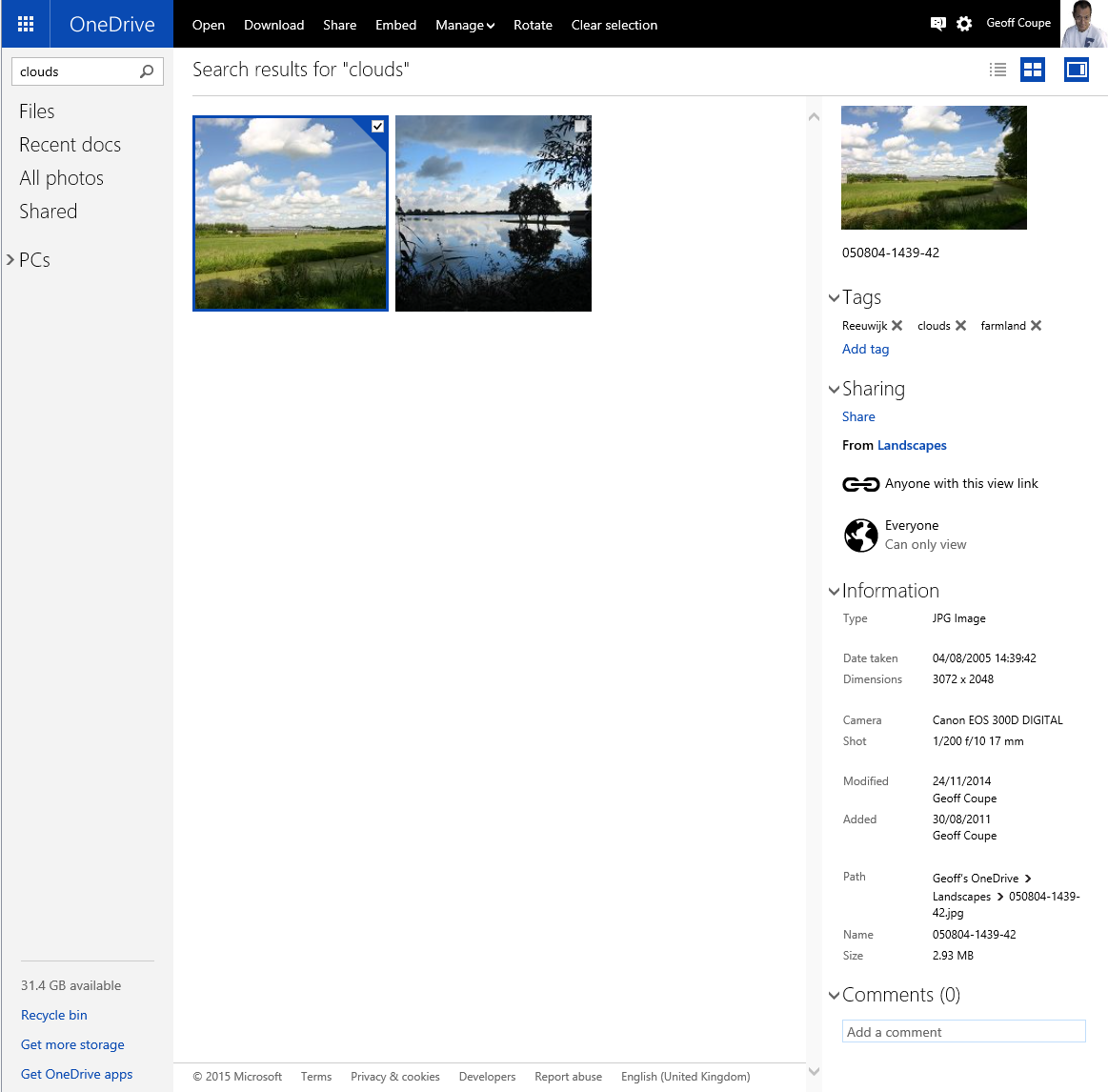
    So I’ve subscribed, and also signed up for the “unlimited storage” option of OneDrive that Microsoft announced last year. Today, I received an email from Microsoft telling me that my Office 365 account now has unlimited storage and they’ve added an initial 10TB of storage. I’m only scratching the surface of what is available:

    OneDrive 14

    And now I’m discovering that I’m trying to fill a reservoir with a teaspoon. My connection to the internet is via ADSL, and with 4 Mbps download and 1 Mbps upload speeds, it is not blazingly fast. I reckon that it’s going to take several weeks to upload my music collection to OneDrive, and a couple of weeks for my photos. An added complication is that the Smart files feature of Windows 8.1 is being removed by Microsoft in Windows 10, while they work out how to re-engineer it. This means that the user experience of using OneDrive storage will take a step backwards until at least mid 2016.

    Still, I’ve now moved across to using OneDrive as my primary storage for documents, and given time, it will also become the primary storage for my photos, and possibly for my music. I’ll still be using our Windows Home Server for local storage and backup as an additional safety measure.

  • Game On: Microsoft’s Surface 3

    If you’ve been following my search for the ideal Tablet device, you’ll know that a number of them have passed through my hands, whilst I’ve passed up on others. To date, I’ve had an HP TX2000 convertible, a Lenovo ThinkPad Tablet 2, and currently I have a Lenovo ThinkPad 10 and a Lenovo Yoga 3 Pro convertible.

    I’ve long ruled out Apple’s iPads and the myriad of Android tablets, since I use the Windows ecosystem, and up until now, Microsoft’s Surface range of products has never ticked enough of my boxes. Whilst I had initially high hopes for the Surface Pro 3, it came with a poor fixed-focus rear camera, no GNSS capability, and a fan (I really want a fanless tablet). For more detail, see my “trying to nail it” post.

    This might all be about to change, as Microsoft has now introduced the Surface 3. This, like the Lenovo ThinkPad 10 (TP10), has an Intel Atom processor, but whereas the TP10 has the last generation of the Atom (codenamed Bay Trail), the S3 has the newest iteration of Atom chips. These are apparently slightly faster than Bay Trail, but not a major advance. Here’s a comparison of the basic specifications of the TP10 and the S3:

      ThinkPad 10 Surface 3
    Processor Intel Atom Z3795 processor (4 cores,2MB Cache, 1.6GHz with Intel Burst technology up to 2.4GHz) Intel Atom x7-Z8700 processor (4 cores, 2MB Cache, 1.6GHz with Intel Burst technology up to 2.4GHz)
    Display 1920 x 1200 (16:10) 1920 x 1280 (3:2)
    Memory 4GB / 1067MHz LPDDR3 4GB / 1600MHz LPDDR3
    Storage 128 GB eMMC + MicroSD up to 64GB 128 GB eMMC + MicroSD up to 128GB
    O.S. Windows 8.1 Pro 64bit Windows 8.1 64bit*
    Front camera 2 MP fixed-focus 3.5 MP fixed-focus
    Rear camera 8 MP auto-focus + LED flash 8 MP auto-focus, no flash
    Digitizer Pen Wacom N-Trig (optional)
    WLAN 11a/b/g/n 11a/c
    WWAN optional optional
    Bluetooth 4.0 4.0
    GNSS yes optional **
    NFC optional no
    Keyboard optional optional
    Base unit price €699.99 €729.00

    * Apparently, Windows 8.1 Pro 64bits will be available as an option. However, the non-Pro version is perfectly adequate for me.

    ** If you buy the WWAN (LTE) version of the Surface 3, that will also include GNSS, but you can’t have GNSS without WWAN (unlike the TP10, where all models have GNSS included).

    You’ll notice that the prices of these two tablets, while definitely in the “Premium” bracket, are close to each other. However I would definitely want the N-Trig pen, which adds another €49.99 to the price of the Surface 3. Then again, my ThinkPad 10 has a Quickshot Cover, which to my mind is an essential accessory, and that cost me €49. The Quickshot cover is thin, and only covers the screen (it can be completely folded back under the TP10 in use). It can also act as a stand, but it is less stable, and with less angles to choose from, than the kickout stand built into the Surface 3.

    Unfortunately, Microsoft do not produce an equivalent cover for their Surface range. Instead they have the Type Cover – a cover and keyboard combined. Nice idea, but it weighs in at an eye-watering €149,99. Since I don’t need a keyboard, I can’t see myself shelling out for this. So I’d probably go for just a slipcase to protect a Surface 3. Not as convenient as a flip-over cover, but a good deal cheaper. I just wish that Microsoft, or a third party would produce something like the Quickshot Cover for the Surface range.

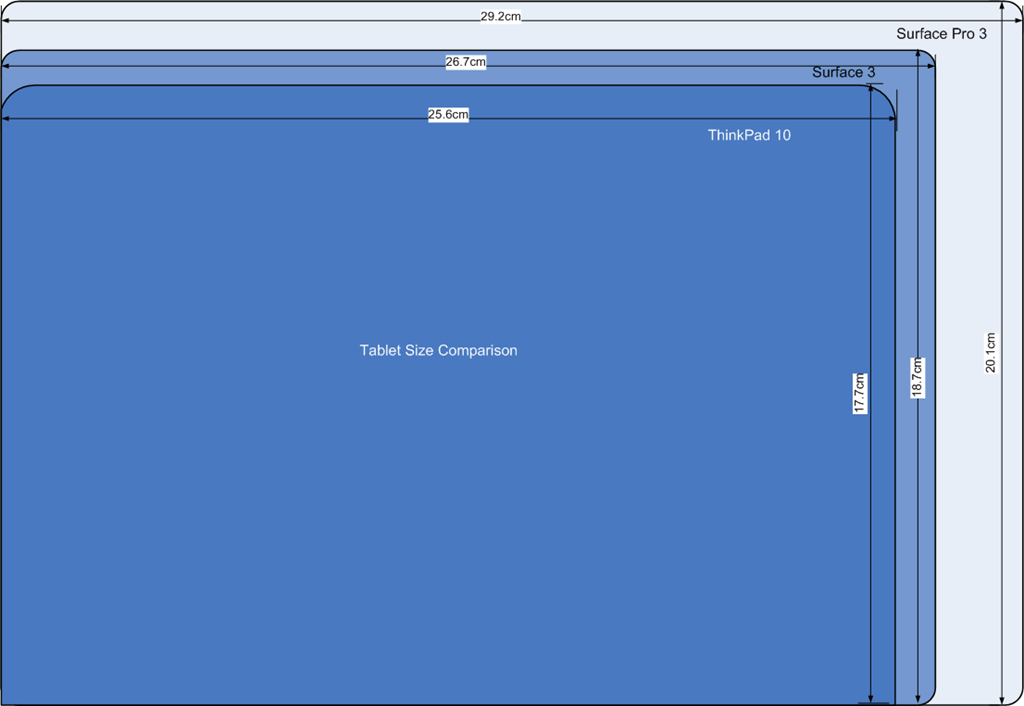
    So let’s say that I find a decent case for €30, then my total outlay for a Surface 3 setup would be €808.99 versus €748.99 for the TP10. Still within shouting distance of each other, but the gap is widening, and not in the right direction. Physically, the two tablets are close in size, and smaller than the Surface Pro 3. Here’s a diagram to illustrate the differences:

    Tablet Size Comparison

    The Surface 3 has a larger display than the TP10, and I like the 3:2 aspect ratio of the S3 even more than the 16:10 ratio of the TP10. It would be even better for reading books and documents:

    Tablet Display Size Comparison

    This, to my mind, is where the S3 scores over the TP10. For me, its display has a nicer ratio, and a nice physical size. The Surface Pro 3, although it has the same aspect ratio, is bigger (almost the size of an A4 pad). It also has a much higher resolution, which causes scaling issues with some programs.

    I think the S3 is the Goldilocks model of the three (TP10, S3 and SP3). By way of comparison, the Yoga 3 Pro that I have is a bit bigger than an A4 pad, at 33cm x 22.8 cm, and when in tablet mode is simply too unwieldy for my liking. So the plus points of the S3 are:

    • it’s fanless (like the TP10)
    • screen ratio of 3:2 (better than the TP10)
    • bigger screen than a TP10, and smaller than a SP3.

    The drawbacks are

    • premium price
    • no reasonably-priced flip-over cover available
    • no GNSS

    I think, for my requirements, it measures up very well against the TP10, and might well be the tablet to go for once Lenovo ask for their loan TP10 back. Of course, waiting in the wings will be the Surface Pro 4. The question arises, would I consider this. Frankly, I don’t think it will be a good fit for my requirements. I suspect it will be at least as big, if not bigger, than the SP3, with power to match.

    I don’t need a poweruser’s laptab; the S3 is a much better match with what I’m looking for. As usual with Microsoft, the third time’s the charm. The Surface 3 promises to be a good machine. It would suit me, and I suspect many others, very well indeed.

  • Windows 10 Technical Previews

    Over the past few months, I’ve been playing with Microsoft’s technical previews of their forthcoming Windows 10 operating system. It’s the version of Windows that is supposed to marry the best features of Windows 7 (which was designed for traditional PCs with a mouse and keyboard) and Windows 8.1 (which is designed for both traditional PCs and devices such as Tablets that use touch for input).

    It’s safe to say that Windows 8.1, and Windows 8 before it, has had a poor reception in the market. Acres of newsprint have been spread with the cries of pain, and vitriol, from many users of traditional PCs. Personally speaking, I singularly fail to see what all the fuss is about. I use Windows 8.1 on both my PCs and Tablets, and am perfectly comfortable in both environments. I took to the new operating system like a duck to water, and could not countenance ever going back to Windows 7.

    Nonetheless, perception is reality, and Microsoft have realised that their challenge is to introduce a new version of Windows that keeps as many users as possible happy, no matter which camp (PC or Tablet) they are in.

    So, as I say, I’ve been playing with the previews of Windows 10, and I’m coming to the dismaying conclusion that, as a user of a Windows 8.1 Tablet, I just don’t like it…

    While the Desktop side of things has improvements, from my perspective as a Windows Tablet user (Lenovo ThinkPad 2 and Lenovo ThinkPad 10), the UI experience in Windows 10 is significantly worse than that delivered by Windows 8.1.

    From what I’ve seen so far, Microsoft is bending over backwards to pander to traditional desktop PC users. They are removing valuable UI features (the Charms bar has gone) from the Tablet experience, or poking desktop features into the Tablet UI (I do not want the Desktop Taskbar to be present in the Tablet UI, but there it is, whether I want it or not).

    Now I know that it’s a Technical Preview, but if Microsoft are going to deliver the final version in summer 2015 as promised, then it’s more than likely that the major features are now locked down, and all that remains are bug fixes and minor tweaks (e.g. improving the Toytown icons in File Explorer).

    It seems to me, on current evidence, that Microsoft are throwing the baby out with the bathwater. I am not impressed, and I’m not the only one.

  • Home Automation Revisited

    Back in January, I wrote about putting my toe into the waters of Home Automation. As I said at the time, there’s a bewildering array of products and standards out there. Over the past couple of months, I’ve been taking a look at some of the HA solutions out there, and I think I’ve landed on one that seems to fulfil my requirements pretty well.

    I had decided back in January that my solution would be one that used Z-Wave, and that’s still the case. I’ve been able to purchase Z-Wave HA devices from several different manufacturers, and they interoperate as promised. I’m satisfied that the choice of Z-Wave is a good one for me.

    As I said in January, there is a wide range of possibilities in the choice of the controller for a HA system. I could buy an off-the-shelf unit such as the Fibaro Home Center 2, the Zipato ZipaBox, a VeraEdge controller, or a HomeSeer controller. Or I could buy just the controller software, such as HomeSeer, and install it on a PC or a Rasberry Pi box.

    In the end, I decided not to purchase an off-the-shelf unit. Fibaro still seem to be struggling to deliver a stable version of their latest software for the Home Center 2, and not being able to trial the other hardware products meant that purchasing one would be a gamble. It seemed to me that a better approach would be to trial a software solution, using an existing computer.

    I ended up taking a look at the following software solutions:

    The first two are commercial products, the rest are open source projects, funded by donations.

    For my testing, I purchased a variety of devices:

    With the devices installed, and included in the ZWave network (registered in the ZStick controller), I connected the ZStick to a variety of software controllers in turn…

    HomeSeer has been around for a while. That means it’s comprehensive (it can control a wide range of devices using a variety of standards), and it has a wide range of third-party add-ons. However, it still strikes me as being expensive: $249.95 for the basic version of the controller software and $199.95 for the UI designer software. If I were to go with HomeSeer, it would probably make more sense for me to buy the basic (linux-based) HomeTroller Zee controller at $199.95. I installed the trial software of HomeSeer version 3, and used it for a week or two. It worked, and the diagnostic information was copious. However, the interface struck me simultaneously as being rather basic, and yet somewhat complex in places. I decided not to proceed further with HomeSeer.

    I admit I only took a cursory look at both Charmed Quark and OpenHAB. I found both difficult to set up, and got the impression that I would spend more time fiddling with them than using them. OpenHAB, in particular, seemed aimed at programmers and developers, rather than end-users at this stage. As a result, I moved on.

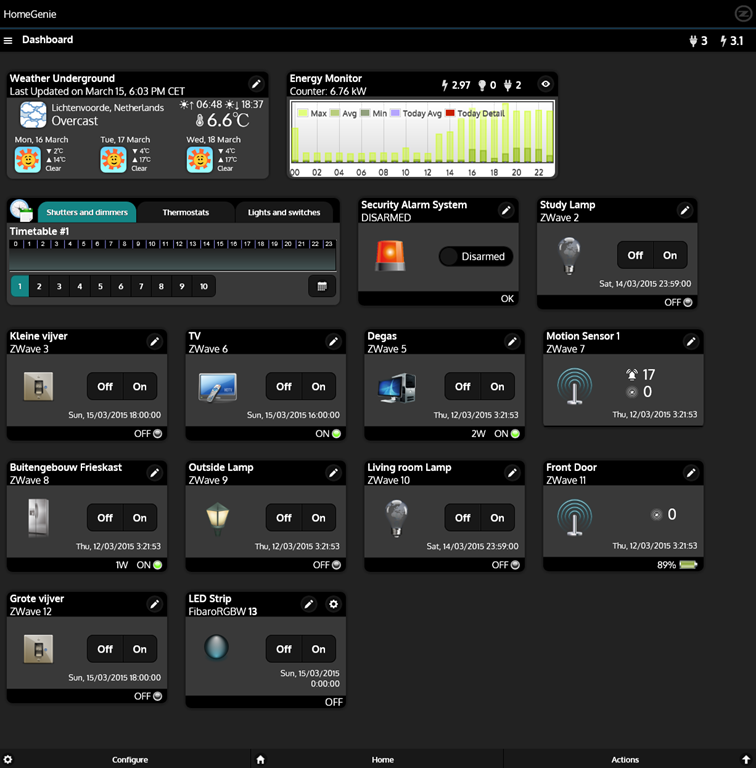
    HomeGenie is also something that will delight programmers and developers at the moment. Nonetheless, I was able to get it up and running very easily on Windows, and it works well. Here’s the “dashboard” that I see for the devices I currently have in my HA network:

    HomeGenie 06

    It’s primarily the result of the efforts of one developer, and he’s done a very good job. It’s still at a fairly early stage, so, for example, if you want to develop automated control of your devices, you will find yourself very rapidly at the limit of what the built-in “Wizards” are capable of, and have to turn to grown-up programming to get the job done. That’s all very well, if that’s your thing, but it’s really not what I want to do any more. I made a donation to the project, because I appreciate what has been achieved, and I hope it continues to develop. There’s a small (around 350 members) community forum where ideas are exchanged and bugs highlighted for solving. I could certainly make use of HomeGenie, if there were not other, and for my purposes, better solutions available.

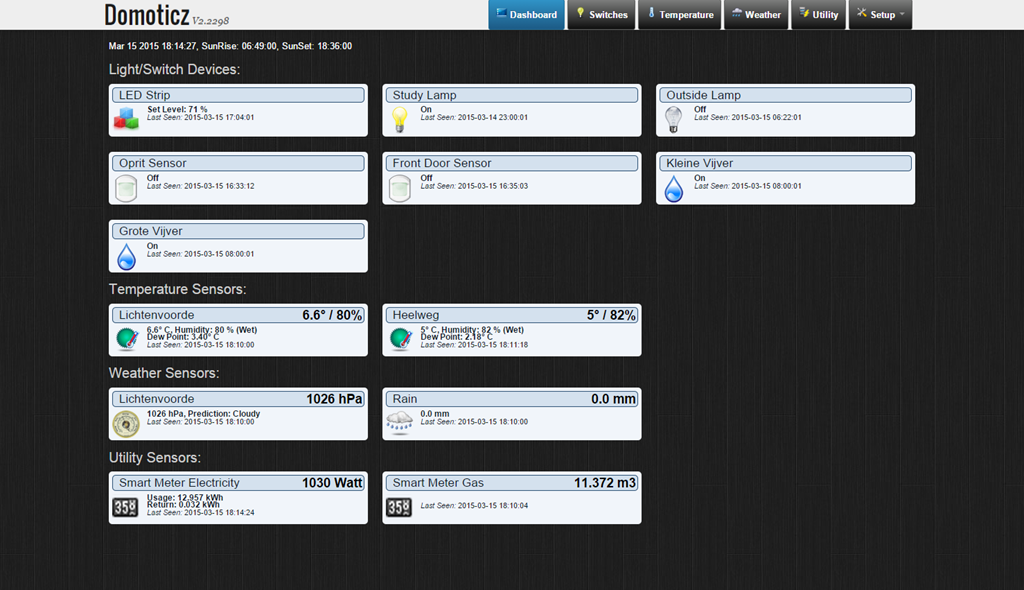
    Domoticz is another open-source project, and while it is primarily led by one developer, there are others actively involved, and the community forum is large (around 3,270 members) and active. Domoticz and HomeGenie are similar in many ways, but there are a few differences, which can be both strengths and weaknesses, depending on where you stand. Here’s the Domoticz dashboard:

    Domoticz 18

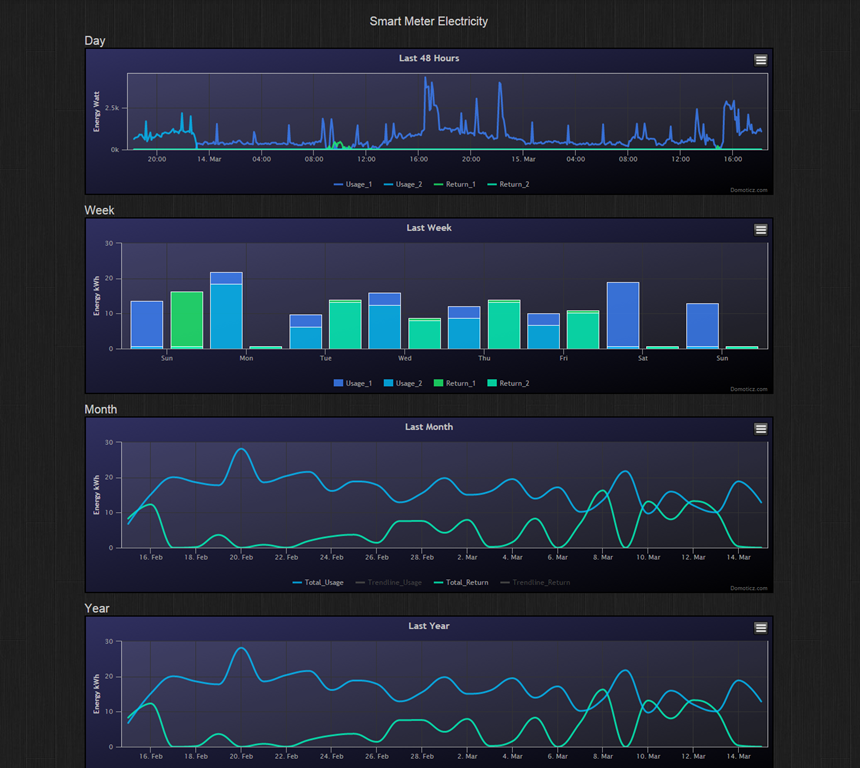
    The strength of Domoticz is its maturity; it already has solutions and support for a lot of hardware. In particular, it supports the reading and display of data supplied by our “Smart Meter” for our gas and electricity consumption. With the simple purchase of a cable, I was able to connect our smart meter to the Domoticz system and get real-time graphs of our energy consumption. Here’s what I see for our electricity usage:

    Domoticz 16

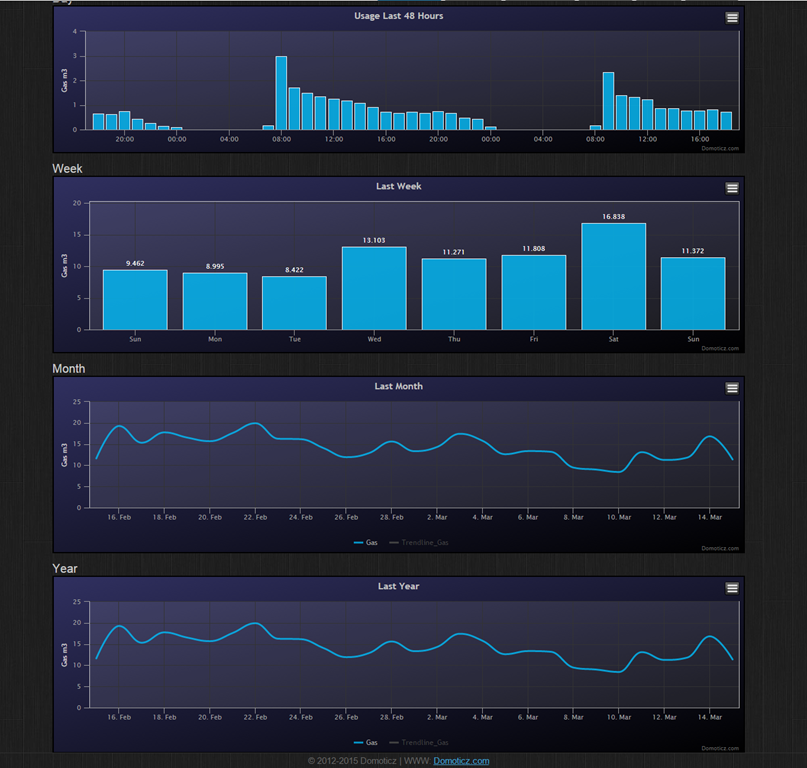
    It not only records our consumption (blue), but also the electricity generated by our solar panels (green) that is returned to the electricity grid. Gas consumption can also be tracked:

    Domoticz 17

    HomeGenie, at the moment, does not have this connection to Smart Meters built-in. The programmatic interfaces are there, and such an interface could be built, but I’m not the one to do it.

    For me, the strength of HomeGenie is that it is a complete solution, in that the developer has written software to control Z-Wave devices directly. Domoticz, on the other hand, hands off the control of Z-Wave devices to another piece of software, developed by a separate open source project: Open-ZWave. That means that there is the chance of issues arising out of effects caused by the fact that there are two different software components developed by two different groups. I’ve already come across an issue with my Z-Wave sensors, which may be caused by a bug in Domoticz, a bug in Open-ZWave, or some combination of the two.

    Nonetheless, I can live with that issue, and the quirk that the Fibaro wall plugs don’t always show the correct status in Domoticz. There are two reasons for this:

    • The fact that I can track our energy consumption directly in Domoticz (as shown above), and
    • the fact that Domoticz supports Blockly for building automation programs.

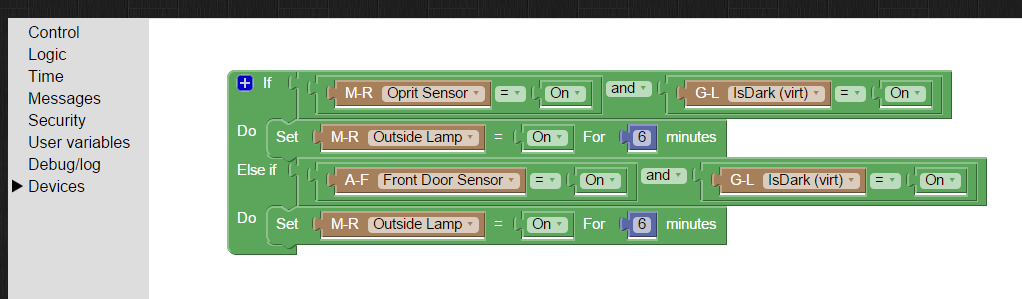
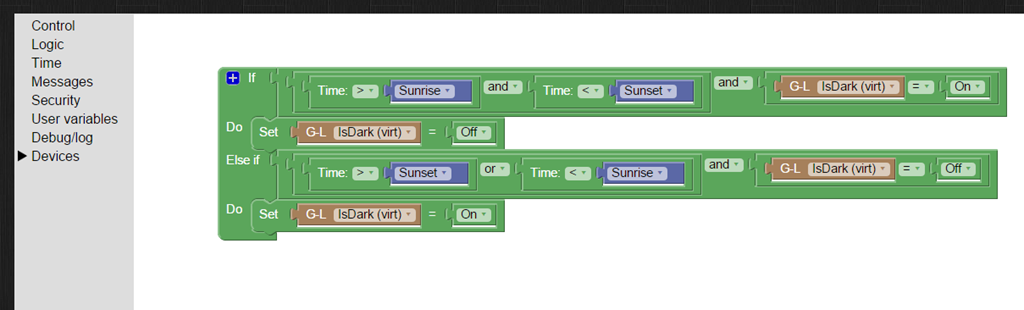
    Think of Blockly as Lego for programming. It’s wonderfully easy to use, and I’ve already programmed the motion sensors on the driveway and by the front door to turn on the outside lights if someone comes along during the hours of darkness (which have been defined, using Blockly and a “virtual device” in Domoticz that I defined: IsDark):

    Domoticz 19

    Domoticz 20

    So for the moment, I’m going to stick with Domoticz for our Home Automation system, with HomeGenie held in reserve as my fallback position.

    And while I tested both on Windows, both Domoticz and HomeGenie are available for the Raspberry Pi. I’ve also stuck my toe into the waters of using a Raspberry Pi, and Domoticz is currently running very happily on it. But that’s the subject of another post, I think…

  • Goodbye, Facebook, and Good Riddance

    Let me put my cards on the table; I’ve never been a fan of Facebook. However, it seems that most of our neighbours are avid Facebook fans, so after holding out for years, I decided that I’d open up a Facebook account in November last year, primarily as a means of being kept up to date with what was happening in my neighbourhood.

    Even after I signed up, I rarely accessed my Facebook page, and contented myself with batting away the many, many Facebook notifications that appeared in my email inbox or on my Windows Phone. My prime channel for revealing my thoughts to the (largely indifferent) world has remained this blog.

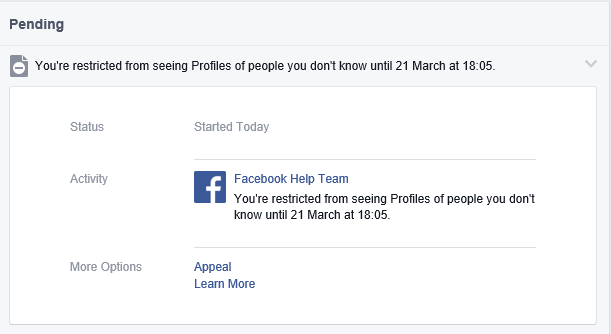
    Then today, out of the blue, I got a notification from Facebook that I’m restricted from seeing the profiles of people that I don’t know for one week:

    Facebook 01

    Er, excuse me? I don’t make a habit of trying to see the profiles of people that I don’t know (I have tried looking up two old friends since I joined), so why the restriction?

    Well, sod this for a game of conkers. I don’t need Facebook, so I’ve deleted my account. Goodbye and good riddance.

    Addendum 15 October 2016: It is with great regret that I have to confess that I’ve been forced to reopen a Facebook account. There’s a group of us lobbying for internet services via optical fibre in our area, and it has been decided that a closed Facebook group is the best way of keeping the group organised. Sigh. I still loathe and detest Facebook, but needs must, I suppose…

    Addendum 23 June 2019: I should point out that once the lobbying action was (successfully) completed, I deleted my Facebook account – and have been Facebook-free for over a year. Don’t miss it in the slightest.

  • The World’s Most Important Operating System

    I was saddened to learn today that Bill Hill died of a heart attack back in October 2012. Bill was a Scotsman who started out life as a newspaperman and became a typographer, but ended up working for Microsoft.

    In this short video clip Bill explains why the world’s most important operating system is not Windows or OSX or Linux or Android. It’s Homo sapiens 1.0. It’s an operating system that first booted up about 100,000 years ago, and has never yet had an upgrade.

    There’s more videos of Bill available here. A memorial, of sorts. RIP, Bill.

  • Metro – Murdered By Microsoft?

    When Microsoft introduced Windows Phone, precisely five years ago, the major differentiator from Apple’s iOS and Google’s Android was the user experience. Microsoft called the design language: Metro; that is until Metro AG threatened Microsoft with legal action for using that name. Now Microsoft no longer use the term Metro, and indeed it would appear that they no longer want to use many of the elements that made Metro the innovation that it was.

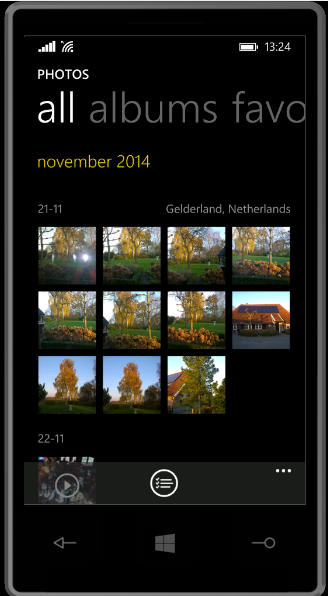
    One of the design innovations was lateral scrolling within apps to reveal different functions (the so-called “Pivot” control). The use of large fonts in the app title cued the user that more was available by scrolling laterally, e.g. as here in the Photos app:

    WP8 04

    Along with Metro came concepts such as the “hub” – single points of entry where similar items from different sources would be consolidated. So, for example, the Photos app consolidated your photos from cloud sources such as Facebook, Flickr and OneDrive with the photos that were on the phone itself. You no longer had to worry about where the photos were held, and open up a Facebook app or a Flickr app; they were all available in one place.

    Unfortunately, I suspect that companies such as Facebook and Flickr didn’t like the hub concept, because they saw it as threatening the power of their brand. Microsoft has responded by either removing the consolidation feature completely (e.g. the integration with Facebook and Flickr that existed in the Photos app in Windows 8 was ripped out for the Photos app in Windows 8.1), or watered down.

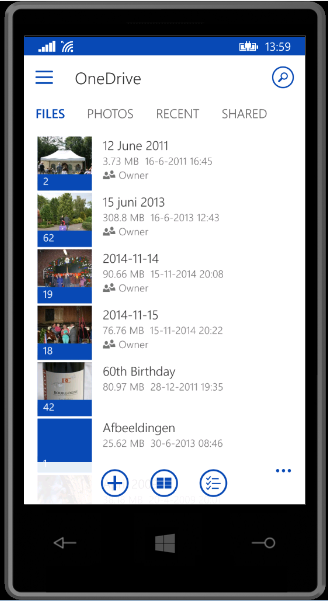
    Now it seems that Microsoft is turning its back on other design aspects of Metro, and is busily introducing design concepts copied from Android (e.g. the infamous “Hamburger” button). We first saw this in the new version of the OneDrive app, introduced in October 2014:

    WP8 05

    You’ll notice that not only is the “Hamburger” button present (it’s the three horizontal lines at the top left), but the Pivot design element has also gone. This redesign was met with howls of protest. As I said at the time:

    Frankly, if I’d wanted an Android phone, I would have bought one. One of the key reasons why I went with a Windows Phone was the UI design. I like it a lot, and I am at ease with it. To have a key Microsoft team turn their back on it and introduce Android elements is a shock, to say the least.

    One might almost wonder if the team had actually read the “Review questions for prototype” section on the “Design the best app you can” page of the UI guidelines, in particular:

    • Are you coming from another mobile platform? Windows Phone users will expect fewer taps, clearer views, large typography, and the use of contrast and color.
    • Are you using both axes of scrolling (the X and Y axes) and orientation (Portrait and Landscape)? Depending on the purpose of your app, users may expect both.
    • Do you use Pivot and Hub controls effectively and correctly?

    Even simple things, such as a transparent Tile for the app have been forgotten about (or ignored) in this bastardised design. I hope that the howls of protest that have greeted this version result in a swift redesign to make it a proper Windows Phone app.

    Good design and adhering to UI guidelines are important, and help to build a brand. This horror does just the opposite.
    Looking at what is coming out in the Windows 10 previews, Microsoft is simply steaming ahead with the Androidification of Windows. Metro has been dragged behind the arras, with a dagger in its back.

  • Lenovo ThinkPad 10 vs Yoga 3 Pro

    I’ll kick this post off with a disclaimer: YMMV – Your Mileage May Vary. That’s to say that what follows is entirely my subjective impression based upon my usage requirements for portable computing. Your requirements may well be entirely different, and so would your conclusions be in the following comparison.

    With that disclaimer out of the way, let me remind you that last September, I received a ThinkPad 10 tablet on long-term loan from Lenovo. I blogged about my first impressions of it in a post that compared it to my ThinkPad Tablet 2, which I had purchased myself back in January 2013.

    I must admit that in the ensuing months, I quickly began to like the ThinkPad 10 (TP10); so much so that I sold my ThinkPad Tablet 2. The TP10, in combination with the Lenovo Quickshot Cover, fits my requirements for portable computing very well indeed. In particular I like:

    • the size and weight (not too big, clumsy or heavy),
    • the 16:10 screen aspect ratio (better for reading books than 16:9 aspect ratio devices)
    • the pen – I prefer scribbling notes and diagrams in OneNote during meetings to typing
    • the performance – not a speed demon, but more than adequate for what I use (OneNote, Mail, browsing with IE, Word, Excel, Powerpoint)
    • the UI experience of Windows 8.1 in a tablet.

    And there things stood until a couple of weeks ago, when Lenovo asked me if I would like to try a Yoga Pro 3 (Y3P). I replied that I was interested in trying out the Consumer Technical Preview of Windows 10, so if I could use the Y3P for that, then yes, please. A package containing a rather smart box (see below) was delivered a few days later, a couple of days before Microsoft unveiled the next stage of Windows 10. The box itself is a slick piece of paper engineering – after taking off the lid, you fold back the two flaps covering the top, and as you do so, the Y3P rises out of the box to greet you. A nice touch.

    20150203-1214-56

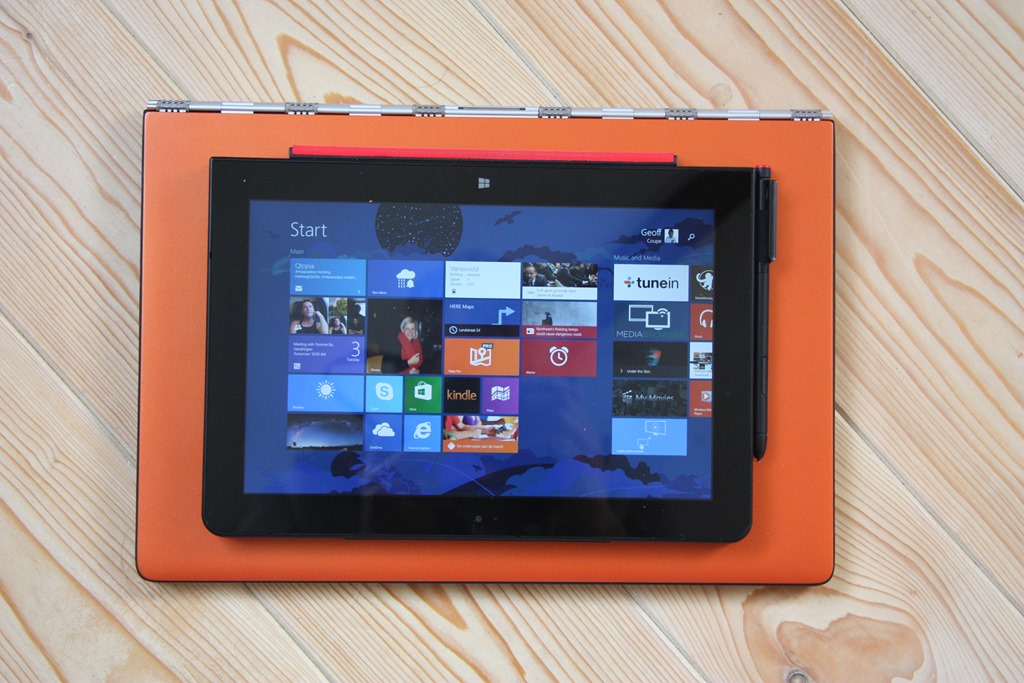
    I have the orange version of the Y3P, which is pleasingly different to the usual black or silver Ultrabooks:

    20150203-1216-06

    The most striking thing, of course, is that “ watchband” hinge. It’s unique in the portable computer world. I rather like it, I have to say.

    20150203-1216-19

    Being an Ultrabook, the Y3P has more ports than the TP10. The left side has Lenovo’s battery charger port (which also doubles as a USB 2.0 port), a USB 3.0 port, a Micro-HDMI port, and a full-size 4-in-1 (MMC, SD, SDXC and SDHC) Memory Card slot. The right side has another USB 3.0 port (which can also be used to charge Smartphones), a headphone socket, Volume controls, Auto screen rotation lock, a recessed Reset button and a Power button.

    20150203-1339-29

    20150203-1339-52

    I do prefer the buttons on the Y3P, they are slightly proud of the case, and far easier to use than those on the TP10, which continue to be a slight source of irritation if ever I need to use them. Fortunately I rarely need to, as the TP10’s Quickshot cover acts as a power (sleep) button, and I tend to use the onscreen Volume controls in place of the physical buttons.

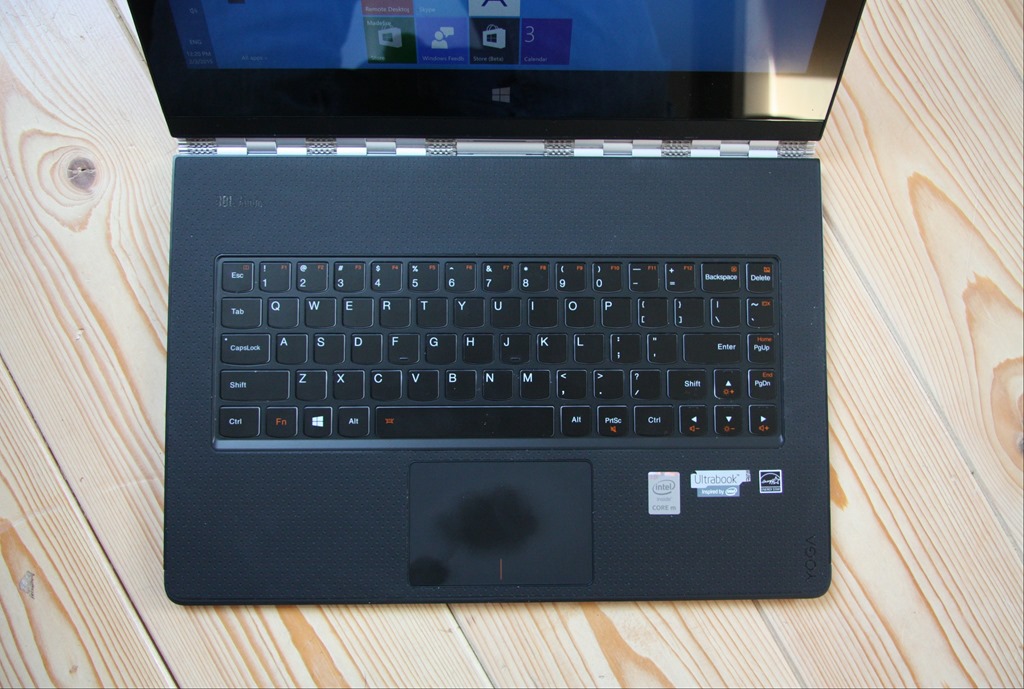
    Opening up the Y3P is a bit of a palaver, in comparison to simply flipping open the Quickshot Cover on the TP10. The watchband hinge is stiff (as it needs to be), and my fingers find it difficult to get a purchase at the front of the Y3P to begin prising it open. Once open, a fairly standard keyboard and trackpad are revealed (you’ll notice that the matt finish of the trackpad shows up finger oil very well).

    20150203-1219-53

    I’m sure some long-term Lenovo users will be complaining that there is no TrackPoint device, but it’s been so long since I used one that I don’t miss it. This Y3P is the first device I’ve used that has a backlit keyboard, and I must admit that is one innovation that I have really begun to appreciate. Tapping away of an evening, seated in front of the TV, is so much easier with a backlit keyboard. With my tablet, most of the time I’m either writing, or using the on-screen keyboard (which of course is easily visible), but on the occasions when I do use a physical keyboard, it’s been one without a backlight, and now I realise the advantage of having a backlit keyboard.

    The Y3P is of course much bigger than the TP10. That means both more weight (1.9 Kg versus 0.6 Kg), and a bigger screen.  Here’s the TP10 laid on top of the Y3P to give you an idea of the difference:

    20150203-1225-51

    The screen of the Y3P is not only physically bigger (13.3” diagonal versus 10.1”), but it has a higher resolution (3200 x 1800 versus 1920 x 1200) than the TP10. It also has a higher pixel density (276.05 dpi versus  224.17 dpi), but note that it is yet another 16:9 aspect ratio device.

    Like the TP10, it has a touchscreen capable of registering 10-point gestures. However, unlike the TP10, there is no pen or active digitiser.

    A couple of other things that are lacking in the Y3P in comparison to the TP10:

    • There is no rear camera, so capturing documents will have to be done with your Smartphone.
    • There’s no GNSS chip, so you’ll have to rely on your WiFi location being known accurately if you are using a map application. However, I doubt that this will work if you are using your laptop with the train’s WiFi during your daily commute.
    • There’s no WWAN option available (my loan TP10 doesn’t have WWAN either, but this is available as an option).

    The Y3P is equipped with an Intel Core M processor. The model I have has the 5Y70 chip, which is a 2 core/4 thread chip running at 1.1GHz or 2.6 GHz in Turbo boost. It has 8 GB of memory, and a 256 GB SSD fitted for storage. Although in theory the Core M processors are suitable for fanless designs, the Y3P is fitted with a fan. I can occasionally just hear it – a faint hiss coming from the right hand end of the watchband.

    Performance-wise, then, it far outstrips the Intel Atom processor with its 4 GB memory in the TP10. Yet, most of the time, I simply don’t notice it in the software I use.

    The Y3P came with even more Bloatware pre-installed by Lenovo than the TP10. As you can tell, I am not a fan of the extra software that OEM manufacturers throw into their machines. I spent an afternoon getting rid of most of them (and one of Lenovo’s applications – Harmony – refused to uninstall itself, until I took extreme measures). There must have been well over twenty different packages, practically all of them of questionable utility as far as I’m concerned.

    I have installed Build 9926 of the Windows 10 Technical Preview on to the Y3P, but I’ll keep my comments on that for another post.

    To sum up my thoughts on the comparison between the Y3P and the TP10 thus far, I think it’s safe to say that I still much prefer the TP10 over the Y3P.

    The Yoga 3 Pro is a nice machine; well engineered, but I think it has helped confirm my suspicion that my preferred portable computing device is a tablet equipped with a pen. I look forward to continuing to test out Windows 10 on it, but I’ll continue to take my trusty TP10 with me to meetings, and for kicking back on the sofa of an evening. But as I said at the outset, your requirements, and your conclusions may be completely different to mine…

  • OneDrive Now Searches Tags!

    I’ve been complaining for nearly four years now that Microsoft’s OneDrive does not support searching of photo metadata. In July 2013, I was told by a Microsoft project manager:

    “this work just ranks lower on the priority list than some other things we are doing right now”

    In May 2014, Microsoft trumpeted that they had made improvements to the OneDrive service, but proper support for Tags (in photo metadata) still wasn’t there. So searching for a Tag (for example: “Clouds”) in all the photos I have stored in OneDrive returned zero results:

    Onedrive 04

    And that’s where things stood right up to the last time I tried the experiment, which was earlier this month.

    Today, I thought that I would try once again, and this time, to my surprise and delight, there was a result:

    OneDrive 10

    As you can see from the information pane on the right, the selected photo does indeed have the descriptive tag “clouds” included in the photo metadata.

    There have been some other changes to the OneDrive service as well. If I look at a photo in OneDrive, instead of being able to open up an information pane to display all the photo metadata, there is now an information icon shown in the bottom right of the window:

    OneDrive 12

    Clicking/Touching that icon now displays the photo metadata in an overlay instead of in an adjacent pane:

    OneDrive 11

    I’m really pleased that this support for Tags, and being able to search on them is finally included in OneDrive. In one way, it really had to be, because Microsoft has gone back to the drawing board and will be removing the ability to search OneDrive files in the Windows Explorer in Windows 10, at least in the initial release of Windows 10.

    What Microsoft giveth with one hand, it taketh away with the other…

    Addendum 5th October 2024: And now Microsoft has silently removed this feature – OneDrive will no longer search tags in photos. Damn them.

  • Home Automation: A Modern Tower of Babel

    A little while back, I blogged about the fact that broadband internet in our neck of the Netherlands is like a piece of wet string. In trying to drum up local support for improving the situation, I’ve been looking into scenarios where real broadband internet (that is, speeds of at least 10 Mbps, and preferably 20+ Mbps) are going to be required.

    From a purely selfish perspective, I’m uncomfortably aware that given my age, there’s going to come a time when I may need to depend on healthcare services delivered through broadband internet direct to our home. One of the aspects of such services is support for home automation (or Domotica, as it’s often called here in the Netherlands). While HA is usually thought about in terms of ease, security and energy efficiency, there’s also a healthcare aspect to it as well. For example, remote monitoring can allow patients with dementia to continue to live at home in the environment that they are comfortable with.

    So I thought that I should start exploring the possibilities of HA for our home. I’d start simple, for example, have certain lights come on at around sunset, and turn off at midnight, or install a motion sensor in our driveway to get early warning when we have visitors; and at night the sensor could also turn on lights for the driveway. That would in turn be a convenience for visitors and a deterrent for intruders.

    Of course, these simple scenarios could be realised with a few timers and lights controlled by motion sensors, but the real advantages start to come when individual items are linked together into a system. An individual neuron doesn’t do much – intelligence is the emergent property that arises out of the interconnection between billions of them. While I’m not looking to build a brain, a flexible method of controlling the environment and security of our house would be nice.

    However, when I started researching the technologies available for Home Automation, I soon realised that there’s a dog’s breakfast of competing products and standards out there. Some have been around for years. The X10 standard for example was developed in 1975, and while popular and used by an installed base of millions of devices, is beginning to show its age and limitations. Other newer products, while technically impressive, rely on proprietary technology unique to the vendor. Examples are the Insteon or the Loxone systems. Navigating through the shoals of reefs and whirlpools of Home Automation was not going to be an easy matter. As the Automated Home site says:

    There are a multitude of Home Automation systems available, from budget plugin modules that are easily retro-fitted into existing properties, to professionally designed bespoke installations that require a CI (customer installer or integrator) and structured wiring at time of build.

    I think I can forget about the professionally designed bespoke installations with their structured wiring – I’m going to be looking at something that can be retro-fitted easily into our farmhouse. That means that I’ll be looking at wireless systems as much as possible. I’d also prefer to go for products that share a modern de facto standard, rather than rely on a single vendor. As a result, I’ve decided that devices that implement the Z-Wave wireless communications protocol are probably my best bet, given that Z-Wave is supported by over 250 manufacturers worldwide.

    I’ve started small, and invested in one switchable power plug (the Fibaro Wall Plug) and a motion sensor (the Everspring SP103) – both Z-Wave devices.

    The next step is to make a choice about the controller for the HA system. Once again, there is a wide range of possibilities here. I could buy an off-the-shelf unit such as the Fibaro Home Center 2, the Zipato ZipaBox, a VeraEdge controller, or a HomeSeer controller. Or I could buy just the controller software, such as HomeSeer, and install it on a PC or a Rasberry Pi box. There are also open source projects for Home Automation software, such as HomeGenie and Domoticz.

    I’m still exploring the possibilities here. I’ve come across a few issues so far. For example, while the Fibaro Home Center 2 looks good on paper, judging from the user support forum, Fibaro are struggling to deliver a stable version of the controller software. The ZipaBox relies on a Cloud service to provide much of the controller functionality, and that’s a design choice that I personally would be less comfortable with. The HomeSeer software has been around for a while, and is now in its third generation. That does mean that it is very comprehensive; it can control a wide range of Home Automation hardware – far more than I would ever need or use. It also has a wide range of third-party plugins. However, its user interface can best be described as old-school utilitarian. There is an additional software product that can be used to design custom user interfaces for smartphones and tablets. And the HomeSeer software strikes me as being pricey: $249.95 for the basic version of the controller software and $199.95 for the UI designer software. If I were to go with HomeSeer, it would probably make more sense for me to buy the basic (linux-based) HomeTroller Zee controller at $199.95.

    So I’ll probably spend the next month or two trying out some of the controller software that’s available for Z-Wave networks, and hanging out in the user support forums to read about the experiences of others who are using controllers, both packaged and software-only solutions. Watch this space.