Reflections on life at “De Witte Wand”…

Category: Computers and Internet

  • Microsoft’s Marmite – Part 2

    Back in March, I wrote a post called “Microsoft’s Marmite”, which likened the reactions of people to Marmite to their reactions to Windows 8 – they either love it or hate it.

    Now that Windows 8 has been released, I continue to be amazed at the amount of vitriol being poured upon it. I really can’t see what all the fuss is about. Yes, there are some radical changes in the user interface, but I certainly don’t find them a problem at all.

    In that light, I was somewhat amused to read Jakob Nielsen’s condemnation of the design of Windows 8. After all, he’s the design guru who jointly set up the Nielsen Norman Group along with Don Norman, another design guru, who has written:

    Windows 8 is brilliant, and its principles have been extended to phones, tablets, laptops, and desktop machines (and larger — for example, Surface), whether operated by gesture, mouse and keyboard, or stylus, but with appropriately changed interaction styles for the different sizes of devices and different input devices.

    (note: the Surface device that Norman refers to is Microsoft’s table top device, now renamed as Microsoft PixelSense – he wrote this piece before Microsoft announced their Surface tablets)

    As well as being amused, I confess to also being more than a little irritated by Nielsen’s review, because it seemed to me that he was often deliberately misrepresenting what Windows 8 is, and how it behaves in practice.

    For example, he writes:

    “Windows” no longer supports multiple windows on the screen. Win8 does have an option to temporarily show a second area in a small part of the screen, but none of our test users were able to make this work. Also, the main UI restricts users to a single window, so the product ought to be renamed “Microsoft Window.”

    Er, sorry, the Windows desktop is just as it always has been, supporting multiple overlapping windows. The Modern UI view, designed for tablets and similar devices, does indeed show only two Modern UI apps simultaneously, but the traditional desktop hasn’t gone away, it’s still there. I find it hilarious that Nielsen states that “none of our test users were able to make this [the Modern UI view] work”, when he has just proudly stated

    we invited 12 experienced PC users to test Windows 8 on both regular computers and Microsoft’s new Surface RT tablets

    “Experienced”? They don’t seem particularly savvy to me. I cottoned on to this facility very early on, and use it to share my Desktop with Modern UI Apps.

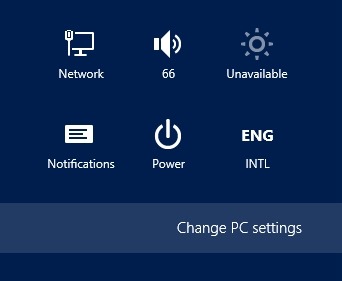
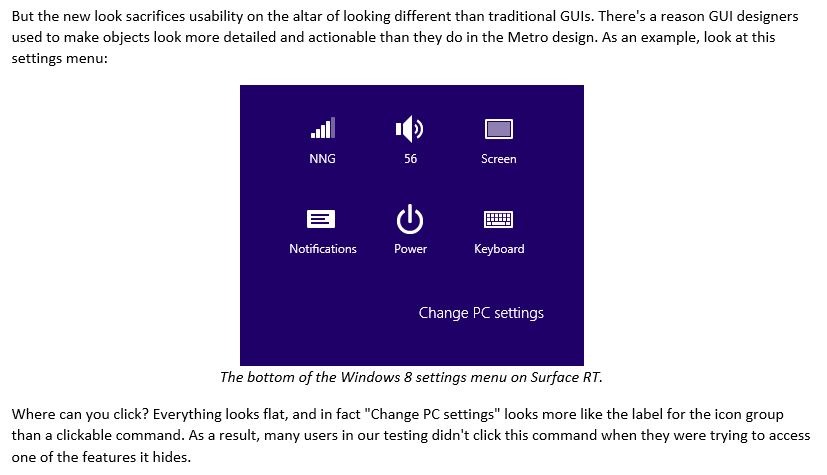
    The other example that I’ll give where it seems to me that Nielsen is not playing fair is the section where he claims that Windows 8’s “Flat style Reduces Discoverability”. He uses the example of the Settings Charm to illustrate this:

    W8 001

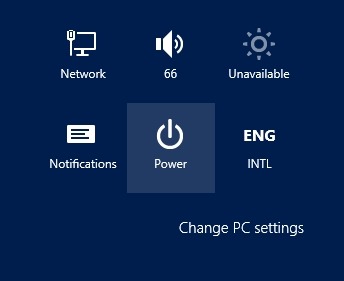
    I find it odd that none of his “experienced PC users” noticed that as they moused over the icons and text in this panel, they would be highlighted to indicate that they were buttons, e.g.:

    W8 002   or   W8 003

    Frankly, I think Mr. Nielsen has not done a very good job in reviewing Windows 8 here. Scott Barnes also thinks that, and goes into far more detail. His critique of the Nielsen review is worth reading.

  • A Sudden Departure

    Well, I certainly didn’t see that coming… Steven Sinofsky, the head of the Windows division, has left Microsoft, and the question that everyone is asking is: “did he fall, or was he pushed?” There’s clearly an inside story here, and it may come out one day. What it definitely is not, despite the many blog and forum commentators saying it, is that he was fired “because Windows 8 and Microsoft Surface are disasters”.

    Much more likely is that he either left or was pushed because, under his leadership, the Windows division remained a fiefdom that refused to play nicely with the other product divisions in Microsoft. I’ve mentioned before how, during my time in Shell when I had frequent contacts with Microsoft, I was struck by the silo-like nature of the product divisions, and how the NIH syndrome ran rampant within the company. The famous cartoon of Microsoft’s organisational chart was not far from the truth. It may well be that the Windows division was the last holdout of that attitude, and now with Sinofsky’s departure, that attitude may go the way of the dinosaurs. I see that Julie Larson-Green, who now takes over the Windows division, is reported to favour cooperation over competition.

    As an aside, I must say I am disappointed and disgusted at the high levels of sexist and misogynistic comments in the blogosphere that have greeted the news of her appointment. Clearly, we are not very far advanced in geekdom.

    With the benefit of hindsight, of course, perhaps the signs that something was in the wind were there at the launch of Windows 8. Sinofsky’s presentation struck me as being strained, and not up to his usual standard. Of course, he might just have been having an off day.

    Whatever the reasons behind Sinofsky’s departure, his division delivered Windows 8, which, contrary to the many who either hate it, or damn it with faint praise, is an astonishing engineering achievement. Things are going to get interesting.

    Update: Hal Berenson has some interesting insights into the choice of Julie Larson-Green, together with some background on Microsoft’s management culture and practices. The key quote for me:

    There were choices besides Julie within the Windows organization that Steve Ballmer could have elevated.  …  Without knowing anything about how these other executives are currently viewed it might be hard to say why he chose Julie over them, but it is very important to note that Ballmer did have choices.  Julie didn’t get the position by default, Steve obviously believes in her ability to lead Windows forward.

  • Scratching the Surface

    It’s now a little over two weeks since Microsoft’s Windows 8 operating system and the Surface tablet running Windows RT were released and I’ve been following the many reactions to the products that have been published in blogs, articles, and forums around the web.

    I’ll write about Windows 8 in another post; here I want to consider some of the reactions to the Surface with Windows RT (I’m just going to refer to it as the “Surface RT” from now on…). I should say at the outset that I don’t own one, and for reasons that I hope will become clear, I doubt whether I would want to.

    It seems as though most reviewers give high marks to the hardware design, fit and finish of the Surface RT. There are some niggles, e.g. the magnetic power connector doesn’t always make proper contact for charging, and as time goes on, other issues may start arising, which will require some corrective action by Microsoft in the design. For example, reports are emerging that may point to a weakness in the keyboard/cover design – however, it appears that only two people have experienced this issue so far. In general, the Surface RT and its keyboard/cover get high marks.

    The hardware, of course, is only half the story. It’s the combination of the hardware and the Windows RT operating system that form the experience that the user has with the device. And it’s there that my doubts start to creep in. My starting point is that I have no interest in getting an Apple iPad – it’s too limited a device for me. Microsoft’s marketing positions the Surface RT as a device that can do more (“See more, share more, and do more with Surface”). For some people, that is undoubtedly true, but that is not the case for everyone. For example, Peter Bright, whose reviews of Microsoft products I trust, has discovered, I think to his dismay, that the Surface RT falls far short of what he is looking for in a tablet device. Mind you, he sets the bar pretty high, and it’s clear that an iPad also wouldn’t meet it. The deal breaker, for him, was that he relies on Outlook. While the Surface comes with some stripped-down components of Microsoft’s Office suite, it does not include Outlook. He summarised his opinion of the Surface thus:

    Surface is meant to be something more than a plain iPad-like tablet. For me, it failed to be enough more, leaving it in limbo; it’s not good enough to take on laptops, and it’s not good enough to take on iPad. It falls short of both goals.

    It seems to me that the Achilles heel of the Surface RT is the Windows RT operating system. It may look like Windows 8, but under the covers, it runs on completely different hardware. Simply put, that means that it can’t run the millions of Windows applications that are available. At this point, it can only run the 10,000+ applications that have been written for the Modern UI environment of Windows 8.

    Here’s a few practical examples of why I won’t be buying a Surface RT:

    • It doesn’t have GPS built-in. Now, I can add GPS capability to any Windows Notebook or a Tablet that has Bluetooth using my Qstarz GPS logger. However, even though the Surface has Bluetooth, I won’t be able to add the software driver for the GPS logger to the Surface, so no GPS for me.
    • It doesn’t have an active stylus (unlike the Surface Pro), only a capacitive stylus. I write, as I always have done, by resting my wrist, or lower arm, on the writing surface. With an active stylus, the tablet is able to distinguish between the tip of the stylus, and my wrist that is resting on the tablet’s screen. I don’t think the Surface RT can do this very effectively, so I would have to write in what to me is an unnatural fashion (or wear a glove!). Handwriting recognition is built-into Windows RT as it is in Windows 8, but I suspect that it won’t be as fast on the RT platform as it is on the Surface Pro.
    • There may be 10,000+ applications available for the Surface RT, but the quality of the majority is abysmal. I am still finding that I am working in the Desktop mode of Windows 8, with desktop applications, for most of the time. This blog post itself is being written using Microsoft’s own Windows Live Writer, which doesn’t run on Surface RT.

    When Microsoft releases the second model in their Surface range, the Surface Pro, the situation may change. The Surface Pro will run all my Windows applications, and it uses Intel hardware. However, as I’ve written before, it uses an older generation of Intel hardware, which means that the Surface Pro requires a cooling fan. I suspect I’ll end up waiting for the new generation of Intel processors to start appearing – then fanless tablets will be available.

    Update: Here’s another review of the Surface RT, this one being very positive. I can fully understand why, the Surface RT delivers on the requirements of this particular user. Unfortunately, it seems to me that my requirements exceed the current capabilities of the Surface RT.

  • Blogging on the Surface

    Pardon the pun in the title, but I was reading a blog post by Barb Bowman, and I wanted to comment on it. Since her blog is closed for comments, I thought I’d make them here.

    You see, Barb has just purchased a Surface RT tablet, and she’s hoping that it will be easier to make posts to her blog, using the Surface RT and Word 2013, than from her iPad. According to her, using her iPad and the Blogsy App is “inelegant”.

    I have the feeling that trying to use Word 2013 to do blogging is equally inelegant. It may be a fine Word Processor, but an elegant tool for writing blog posts, it is not.

    Microsoft already has a very fine tool for blogging: Windows Live Writer – and it’s free. It works with a wide range of blogging platforms (WordPress, Blogger, TypePad and others) and works with your blog’s layout and themes. I use it for my blog.

    Word 2013, by comparison, is like trying to use a rock to paint the Mona Lisa.

    The trouble is, the Surface RT won’t run Windows Live Writer – it’s a traditional Windows application and these don’t work on the Windows RT operating system. Oops.

    Microsoft does provide a version of Word 2013 that runs on the Surface RT, but quite frankly, I think Barb would be better off using the WordPress App that she can get for free from the Windows 8 Store.

  • Microsoft’s Surface RT Reviewed

    Reviews of Microsoft’s Surface RT tablet are now springing up like mushrooms in the tech and mainstream media. As was the case for reviews of the Windows 8 operating system, most of them can be quickly dismissed.

    However, two are worth reading in full. Once again, Peter Bright turns in a considered review, and the other is from Anand Lai Shimpi.

    For me, the interesting point was that Anand compared the performance of the Surface RT (which uses ARM hardware) with that of a Windows 8 tablet running the next generation of Intel’s Atom (codenamed Clovertrail), which is aiming to be as low power as the ARM hardware. The money quote:

    On the user experience side alone, the Clovertrail tablet is noticeably quicker than Surface. Surface isn’t slow by any means, but had it used Atom hardware it would’ve been even more responsive.

    The other clear advantage of a Windows 8 tablet powered by the Atom is of course the fact that it can run all your traditional Windows desktop applications and software drivers. The Surface RT can’t.

    I still find it strange that Microsoft’s Surface Pro has elected to use the older, more power-hungry, Intel Core i5 processor. As a result, the Surface Pro needs to have fan cooling. I really would have been interested in a Surface that used the new Atom processor. Perhaps that will arrive in 2013.

  • Dissecting Windows

    As we rush towards the release of Windows 8 later this week, the number of articles in the tech (and mainstream) press on Windows 8 is increasing. Most of them are instantly forgettable, but in amongst the pap and dross is an occasional gem.

    One such article is Turning to the past to power Windows’ future: An in-depth look at WinRT, by Peter Bright.

    As is stated in the title, this really is an in-depth look at the software design of Windows throughout its history, and culminating in its latest incarnation: WinRT. It is a very technical article, so you’ll need to have some understanding of software design and programming to make head or tail of it. But even without that, you should be able to get a sense that the history of Windows is not just about software technology, but also organisational politics, both within and outside of Microsoft. For me, it was a trip back through memory lane, taking in some landmarks of the past. It also gave me a better understanding of the future of Windows, and the revelation that WinRT is not a replacement for traditional Windows programming libraries, since it is itself built on the same (sometimes questionable) foundations.

    Another excellent article from Peter Bright.

  • Microsoft’s Surface Drops a Veil

    With just over a week to go to the launch of Windows 8, Microsoft has revealed the pricing on the first in its range of tablets, the Surface RT.

    The price starts at $499 for a bare-bones Surface RT tablet with 32GB of storage and 2GB memory, but without a touch keyboard/cover. That puts it on a par with Apple’s iPad, or to put it another way: not cheap, but premium-priced.

    The Surface RT is now available for pre-order in eight countries. Inevitably, this does not include the Netherlands, and there’s no word on whether availability here will come later, or, indeed, ever.

    The announcement also revealed a little more detail about the specifications of the Surface RT and the Surface Pro models. There’s also a comparison chart.

    While both models have sensors (ambient light, accelerometer, gyroscope and compass) built in, neither model has a GPS sensor. This strikes me as a rather surprising omission, particularly since some iPad models have GPS. Using Bing maps on the Surface would seem to be a very limited experience if the Surface has no means of discovering your location. I suppose that, with the Surface Pro, I could always use my GPS Logger connected via Bluetooth. I could install the Windows driver for the logger onto a Surface Pro; something that I don’t think can be done with the Surface RT. Still, on further reflection, this lack of GPS capability may not be a showstopper. I rather think that 3G and GPS capabilities go together in the chipsets, and since neither of the Surface models come with 3G built-in, then GPS is also missing. And as for the Bing maps experience, perhaps the Surfaces can do Wi-Fi positioning to provide location coordinates. We shall see.

    One other thing I notice in the specs for the Surface Pro (which will be available “soon”) is that it lists the CPU as “3rd generation Intel Core i5 Processor with Intel HD Graphics 4000”. That also is a bit odd: using a Core i5 processor, rather than the next generation Intel Atom processor, the Z2760, codenamed Clover Trail. The selling point of the Atom Z2760 is that it is able to take advantage of the new “Connected Standby” capability in Windows 8, which allows longer usage time between battery charging. While the Surface RT, like all ARM-based devices will be able to exploit Connected Standby, Microsoft’s Intel-based tablet, the Surface Pro, will not, because it uses the Intel Core i5. Other manufacturers will have Atom Z2760-based tablets on the market as early as next week, e.g. Samsung, with its Series 5 Slate.

    I think I’ll wait and see how the tablet market develops. In the meantime, my desktop will get upgraded to Windows 8 next week.

    Update: it’s clear that many people are totally confused about the differences between the Windows 8 operating system (used on the Surface Pro), and the Windows RT operating system (used on the Surface RT). For example, I saw a question on a photography forum where someone asked if the Surface RT would be powerful enough to run Adobe Lightroom.

    Many people assume that Windows RT will run traditional Windows applications. Nope, it can’t; not unless the application developer recompiles the software code for the different hardware (ARM instead of Intel/AMD). In addition, this recompilation is not always possible, because the Windows programming environment for the ARM hardware is a subset of what is available for the Intel/AMD platform.

    We will see next week just what the limitations are in detail. For example, one question I have is whether the Surface RT will have the same level of handwriting recognition that Windows 8 has. I suspect that it won’t.

    Update 2: AnandTech has a comprehensive review of the Surface RT that is worth reading. I particularly like the fact that Anand compares the performance of the Surface RT with an unnamed (but shortly to be released) Windows 8 Tablet that uses the Atom Z2760. It’s interesting that the Atom out-performs the ARM-based Surface RT. Plus, of course, the Atom will run all the traditional Windows desktop application software and the Surface RT can’t.

  • RIP – IDimager

    One of my hobbies is photography, and my main tool for managing my digital photos is IDimager. I’ve been using it since January 2007. It’s now up to version 5, and I’ve been very happy with it. I occasionally visit the IDimager support forums, just to see if there are any announcements, or tips and tricks being posted. Yesterday I read a message from the developer that said:

    IDimager V5 is discontinued as of today. Photo Supreme is a different product when compared to IDimager V5. They don’t offer an identical feature set so I recommend all IDimager V5 users to first try Supreme to see if it fits their need before they decide to make the switch.

    My immediate reaction was WTF? Whilst I had been aware of the Photo Supreme product, last time I looked, a few months ago, it was for the Mac, and there was no whisper of a Windows version being made available. Fast forward a couple of months, and now it has killed off IDimager. Needless to say, I’m not very happy about this, and neither are a lot of other IDimager customers. IDimager is a serious Digital Asset Management (DAM) tool, and Photo Supreme, at first glance, has far less functionality; so for many people, Photo Supreme is nowhere near an acceptable replacement. A typical reaction:

    Well that’s a real shame because you have killed off one of the best DAM systems a working professional could ask for and replaced it with a toy. I wish you luck with Photo Supreme, but regrettably it’s not a professional standard product IMO.

    Because I tend to work mostly with JPG images, I’ll probably be able to carry on using IDimager for some time to come. However, for professional photographers who work with RAW format images, then IDimager will soon not be able to handle images produced by new camera models. These people have been thrown into a pit. I can only echo what someone else posted:

    I have always had a lot of respect for Hert [the chief developer] and his responsiveness to bugs and feature requests. It made IDI stand out in a market dominated by big software giants who bought, crippled then abandoned software. Sadly yesterday’s announcement felt all too familiar and not what I have come to expect.

    Since I have never used all of IDimager’s power (similar to most people only ever using a fraction of the capabilities of Microsoft Word), I’m taking a look at Photo Supreme to see it is a possible replacement for my usage patterns. But I’m doing so with a rather sour taste in my mouth at the moment.

    Addendum 18th September 2014: I thought it was worthwhile adding that since writing this post, I switched (a while ago now) across to Photo Supreme, and have not regretted doing so. PSU has continued to evolve (version 3 is about to be released), and it has matured into a very good DAM.

    Photo Supreme V3 is worth looking at.

  • “It’s An Incredible Deal”

    That’s the summary of Paul Thurrott’s article on Microsoft’s Office 2013 pricing. I think his understanding of the definition of the word “incredible” is rather different to mine.

    While you will be able to purchase licenses for the Office 2013 suite, the main thrust of Microsoft’s announcement is to move from a license purchase model to an annual subscription model.

    Thurrott enthuses that:

    Yes, you’ll be able to acquire Office 2013 the old-fashioned way. But the benefits and pricing of the subscription plans are so attractive you won’t want to.

    However, when I do the sums, the subscription model has zero attraction for me.

    I bought a copy of Office Home and Student 2007 for €125 almost 6 years ago; it’s still fine (I never felt the urge to upgrade to Office 2010), and licensed for 3 PCs – which is all I need.

    Under this new subscription model, I would be paying €600 for the equivalent term for Office 365 Home Premium. If I want to buy Office 2013 for my PCs, then I’ll now have to buy three licenses; Microsoft has stopped doing the “licensed for up to 3 PCs” deal that they had for Office 2007 and Office 2010. However, while buying three copies of the traditional Home and Student versions of Office 2013 is cheaper at €420 Euros than the subscription cost for a six-year term, it’s still an enormous increase over the €125 cost of the equivalent license for Office 2007.

    Frankly, if I’m going to get Office 2013 at all, then I’ll only be tempted to buy just one copy of Office 2013 for €140, and leave Office 2007 on the other two PCs.

    The subscription model may be great for Microsoft, but it makes no sense for me.

  • “Windows 8 is Windows 7+1”

    I’ve mentioned before how much I’ve been surprised by the level of vitriol and hatred that has been unleashed against Microsoft’s forthcoming Windows 8 operating system. Everywhere I turn, on tech blogs and forums, there are articles, posts and threads complaining about the “disaster” that is Windows 8. Opinions galore, often complete with falsehoods stated as facts.

    I find it all a bit bemusing. To be sure, Windows 8 is not without blemishes, but it’s hardly a disaster. I actually like it. I’ll be upgrading my release preview of Windows 8 to the full Windows 8 Pro when it is released on October 26. I certainly will not be returning to Windows 7.

    So it’s something of a relief to find a kindred spirit in the form of Scott Hanselman, who describes Windows 8 as Windows 7+1:

    Maybe I’m too relaxed but after a few days and some hotkeys I’ve found Windows 8 to be Windows 7+1. Works fine, no crashes, lots of improvements. I spend most of my desktop time in Windows apps, all of which work. I keep News apps or Video apps in full screen on other monitors and I do move the Start Screen around but generally the whole thing has been a non-issue.

    And he actually shows why he has reached this conclusion in a detailed post. It’s worth reading.

  • Microsoft’s Photo Gallery – Yet Another Missed Opportunity?

    As I wrote in my last post, Microsoft has recently released a new version of Windows Live Photo Gallery, now simply known as “Photo Gallery”. That last post documented an issue that Photo Gallery has over its handling of geotags. In this post I want to look at what I would consider to be missed opportunities by Microsoft to set the lead in the field of software aimed at organising digital photos.

    Microsoft is a founding member of the Metadata Working Group, a consortium of leading companies in the digital media industry, focused on the following goals:

    • Preservation and seamless interoperability of digital image metadata
    • Interoperability and availability to all applications, devices, and services

    Almost two years ago, in November 2010, the group published version 2 of its Guidelines for Handling Image Metadata. As I wrote at the time, it’s “a major new version of the Guidelines”. The document states:

    This expanded specification builds on existing metadata standards to describe several emerging consumer properties that:

    • Use regions to record faces, focus points, barcodes, or other data in an image
    • Provide hierarchical keywords to richly describe and classify images
    • Flexibly identify an image as part of a greater media collection

    While software applications are supporting features such as people tags and hierarchical keywords, they use differing implementations, so that interoperability between applications is difficult, if not often impossible.

    Version 2 of the Guidelines was an attempt to define a common specification in these areas, to drive interoperability forward.

    What I find disappointing is that, nearly two years later, the new version of Photo Gallery has not implemented any of these proposed specifications, and continues with the old Microsoft-proprietary ways of doing things, despite the fact that Microsoft is a founding member of the Metadata Working Group.

    Still, the same charge can also be levelled at Adobe, another founding member. Their latest version of Lightroom, Lightroom 4, also continues with the Adobe-proprietary ways of doing things. The result? You can forget about any real interoperability between Photo Gallery and Lightroom when it comes to People Tags and Hierarchical Keywords.

    One last, rather ironic, point. Despite the fact that Google is not a member of the Metadata Working Group, I’m heartened to see that Google has actually implemented the version 2 Guidelines proposed standard for People Tags in version 3.9 of Picasa. So it can be done. C’mon Microsoft and Adobe, get with the programme, give us tools that actually talk to each other…

  • Windows Photo Gallery, Geotags and Other Issues

    Microsoft has recently released a new version of Windows Live Photo Gallery. In keeping with Microsoft’s plan to kill off the “Live” branding, it is now simply known as “Photo Gallery”, and the suite of software utilities is now known as Windows Essentials, rather than the old name of Windows Live Essentials.

    Since this is a step change in the software (it’s now at version 16.4.3503.728, while the last version of Windows Live Photo Gallery was 15.4.3538.513), I thought I’d take another look at it.

    Apart from the name change, not much seems to have been done with the product. Yes, Microsoft has added in the possibility to publish videos to the Vimeo service and Photo Gallery now includes an Auto-Collage feature by default (this was a downloadable plug-in for the previous version), but that’s about it.

    However, while playing around with it, I discovered there was an issue with the way in which Photo Gallery was handling geotags.

    Some of you may recall that, when it was first released in 2010, Windows Live Photo Gallery had a major problem with geotags.  It was writing out GPS coordinate data into photos that was often completely wrong. Microsoft got this fixed in December 2010.

    And there the matter rested, or so I thought.

    However, I have discovered another issue related to geotags in Photo Gallery. For a long time now, Microsoft has said that it holds to the principle that “the truth is in the file”. That means that metadata you apply to your photos is part of the photo, and available to any application that knows how to read it. But I’ve found that this does not apply to geotags in all cases. Photo Gallery looks to see if the image contains metadata, and if so, the following operations occur:

    • If the photo contains Keywords in its metadata, these are added to PG’s list of Descriptive Tags, which it holds in its database and displayed alongside the photo in PG’s information pane. 
    • If the photo contains technical data in Exif (e.g. date taken, shutter and ISO speeds, etc.), these will be copied to PG’s database and displayed in PG’s information pane.
    • If the photo contains GPS coordinates in its metadata when it’s examined by PG, reverse geocoding will be triggered and the location is displayed as text addresses in the information pane.

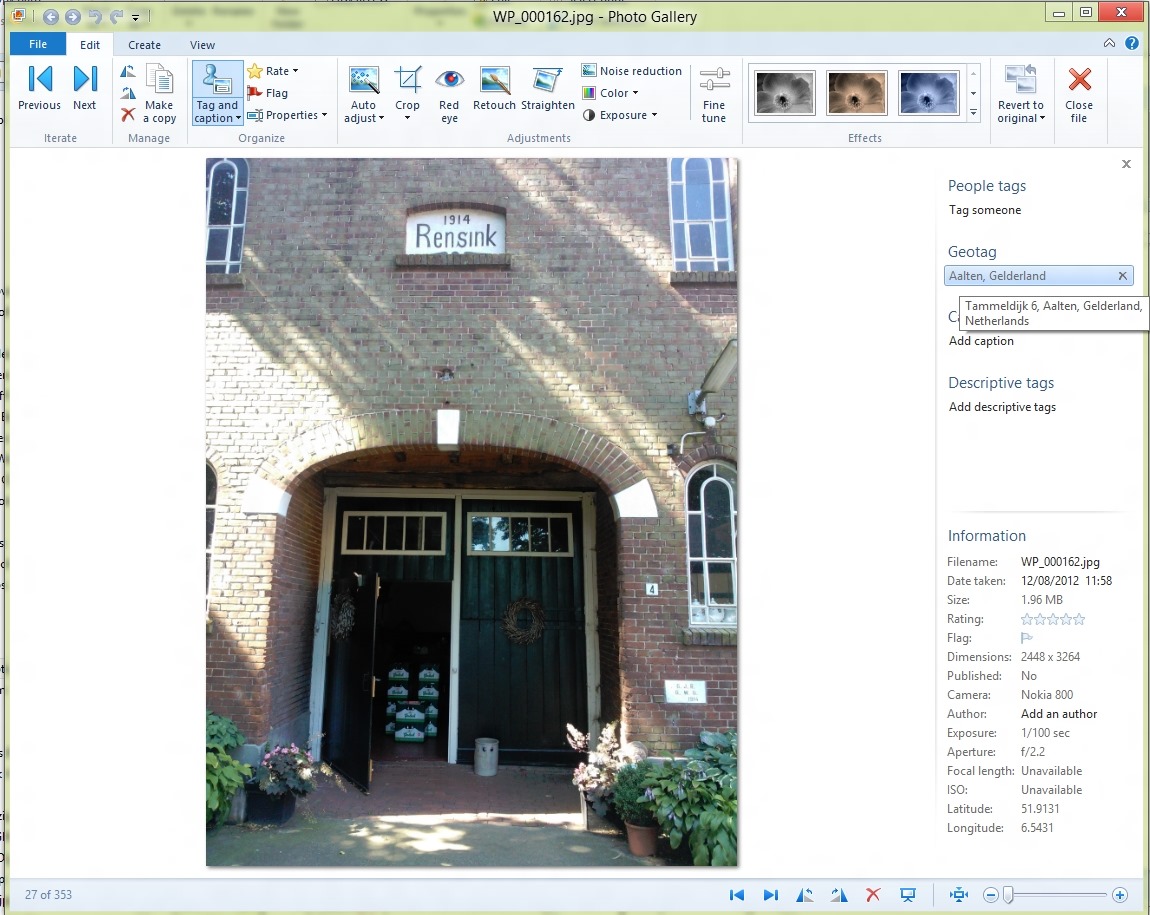
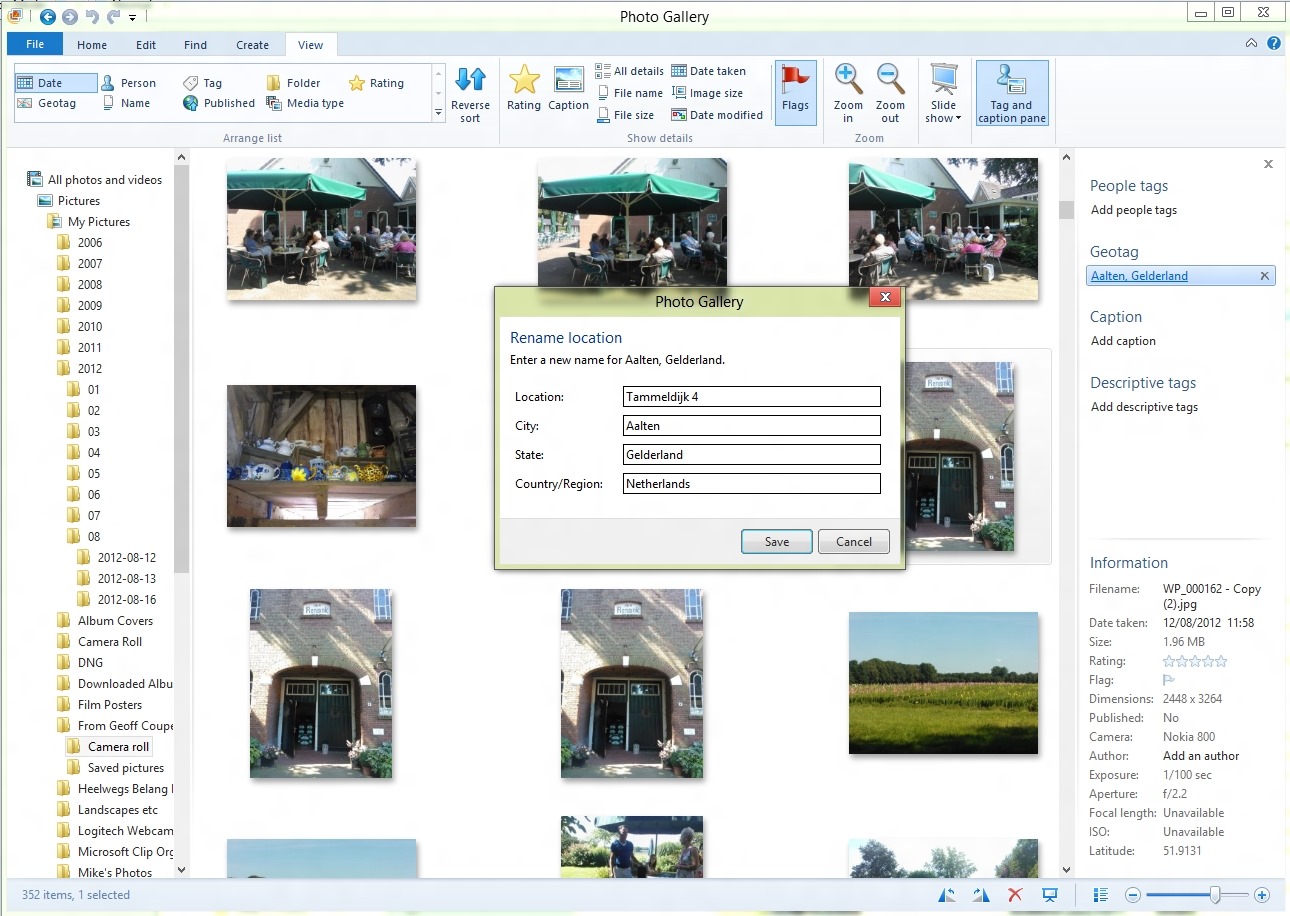
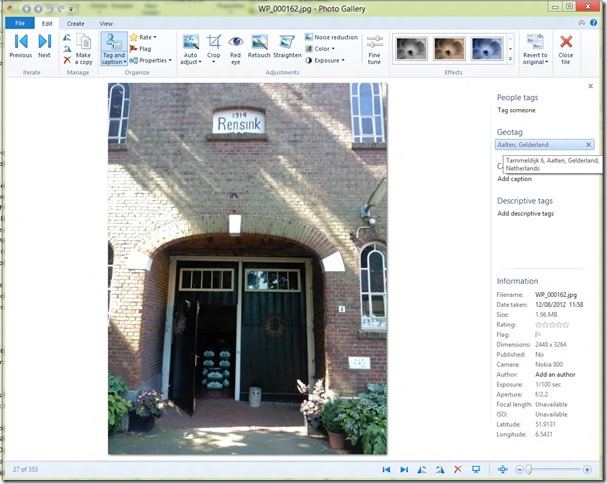
    The screenshot below shows a photo taken with my Nokia Lumia 800 Windows Phone being displayed in Photo Gallery (click for the full-sized image).
    WPG test 10

    In the information pane on the right, you can see some of the metadata present in the image being shown, including the GPS Latitude and Longitude (at the bottom right). Photo Gallery has used this GPS data to do reverse geocoding via a Bing service to resolve the coordinates to an address. That is being shown under the Geotag heading in the information pane. By default, only the City and Province/State data is shown (i.e. Aalten, Gelderland in this case). The full address is shown in a tooltip if the mouse cursor is placed over the Geotag – in this case, Bing has said that the GPS data is for the location: Tammeldijk 6, Aalten, Gelderland, Netherlands.

    As an aside, Bing has actually got the address wrong. It should be Tammeldijk 4, not 6. Google Maps will show the correct address, if fed these GPS coordinates…

    So, Photo Gallery has just generated some location data based on the GPS coordinates. Now the question is, how is it going to stay with the principle of “the truth is in the file”? It needs to write this generated data out into the image metadata in some fashion. How will it do this, and what standard will it use? I need to make a short digression here into the murky waters of industry standards…

    One very common industry standard for location (and other) metadata used in photos is that defined by the International Press and Telecommunications Council. Back in the early 1990s, the IPTC defined a standard for image metadata: IPTC-IIM. This became widely adopted and supported in many software tools and applications. However, it had design limitations, and the IPTC introduced a new version in 2005, based on the XMP standard, known as IPTC Core. Many software tools and applications handle both standards, and keep the metadata content synchronised between the legacy IIM and the new Core standards. Along with the Core standard, the IPTC also published a set of extensions, known, unsurprisingly, as Extension. The IPTC Core and Extension are published together as the IPTC Photo Metadata Standards.

    Both IPTC-IIM and IPTC Core contain fields for defining locations. Essentially, both define a hierarchy of (sub)location, city, state/province, country and country code. I, like many other photographers, use these fields for assigning locations to my photographs.

    However, somewhere along the line, photographers realised that the term “location” was ambiguous. Did it refer to where the photograph was taken, or did it refer to the location depicted in the photograph? These were not necessarily the same place. The standards did not specify a resolution to this conundrum. That is why, in the IPTC Extension standard, there are two sets of location fields: the location where the photograph was created, and the location depicted in the image.

    Clearly, the GPS coordinates reflect the location where the photograph was created, and Microsoft elected to use the IPTC Extension LocationCreated fields to store the results of the reverse geocoding lookup. The correct decision, in my opinion.

    Back in 2010 when I found that false GPS coordinates were being written out to my photos, what was happening was that Windows Live Photo Gallery was doing the following:

    • If a file contained IPTC-IIM or Core location metadata when it was brought into WLPG, then WLPG used the IPTC Location data to set the location strings in the geotag field of the info pane, and wrote them out into the image metadata as IPTC LocationCreated fields.
    • If the file did not contain GPS coordinates, WLPG would attempt to use the Location metadata with a Bing lookup to get the closest match for the GPS coordinates. In many cases, “the closest match” was miles away, or even in another country…
    • WLPG would then write out its idea of the “correct” GPS coordinates into the Exif metadata of the image.

    I, and other photographers, who had been using IPTC-IIM/Core location metadata, suddenly found our photo collections filled with false GPS coordinates. We complained, and Microsoft responded and changed the way in which WLPG worked. Microsoft told me the changes were:

    • GPS coordinates on a file are read-only inside of WLPG.  WLPG will never add, change or delete the GPS coordinates.
    • If a file contains GPS coordinates when it’s brought in to WLPG, reverse geocoding will be triggered and location strings are displayed in the info pane, users can rename or remove the strings but GPS coordinates won’t be touched. Users may Rename a location but it will then leave a mismatch between the coordinates and the string since the coordinates are read-only.
    • If a file does not contain GPS coordinates, users will be able to geotag by adding a string (that gets validated against Bing as it does today) but no GPS coordinates are added to the file.  The user can remove the string or rename it.
    • If the file contains a geo name only, there will be no GPS coordinates calculated for it.

    What I now see that I missed at the time is that WLPG, and now PG, no longer write out the result of a reverse geocode lookup into the IPTC Extension LocationCreated fields when the lookup is triggered by the presence of GPS coordinates in the image.

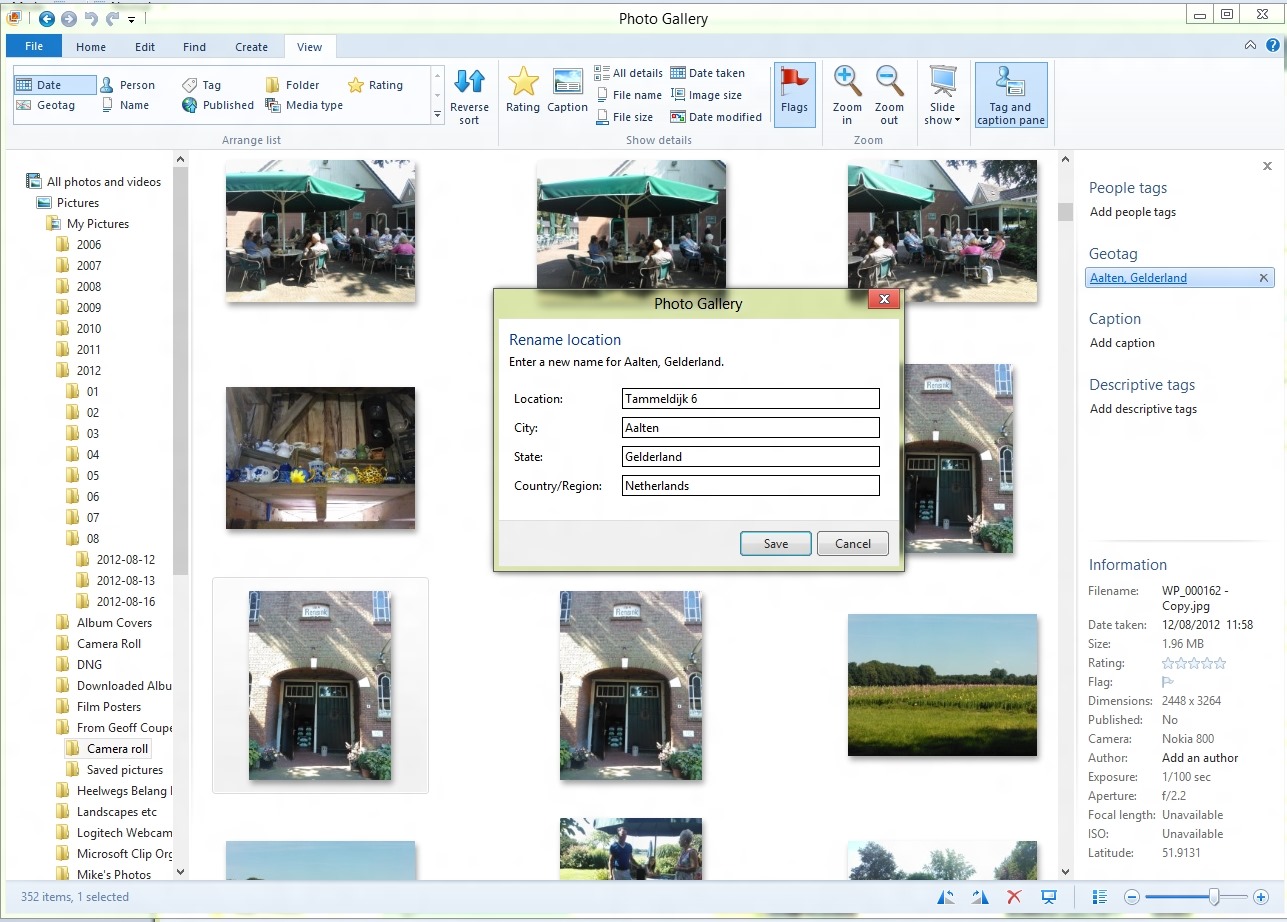
    The only time that LocationCreated metadata gets written out into the image is when the user makes an explicit change to the geotag information in PG. And it has to be a real change. I can open up the “rename location” panel, and click “Save”, but unless I’ve actually made a change in the data, nothing gets written out as metadata – the geotag information resides solely in Photo Gallery’s local database. In other words, the truth is no longer in the file.

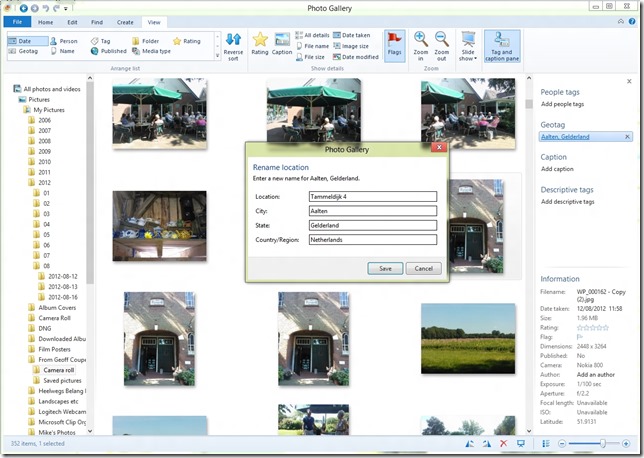
    This screenshot shows the “rename location” panel. Clicking “save” does not make Photo Gallery write out the metadata, because I’ve left the contents unchanged.

    WPG test 2

    In this screenshot, I’ve changed “Tammeldijk 6” to “Tammeldijk 4”, and now when I clicked “Save”, the LocationCreated metadata was written out.
    WPG test 3

    This strikes me as a bit counter-intuitive. I would think that clicking “Save” in both cases should force a write of metadata. After all, if Microsoft is going to say that writing out of metadata should be under the explicit control of the user (which I tend to agree with), then even if I don’t change the result of the reverse lookup, I should be able to confirm my acceptance of it by the act of clicking “Save”. If I don’t want PG to write out the metadata, then I would click “Cancel” instead.

    So we currently have here a design where “the truth is in the file” is not fully in place, and where user confirmation is inconsistent.

    That’s poor design, and a poor user experience, in my book.

    I have to say that in one way, I’m rather thankful that the design is still broken. That’s because one of the other bugs in Photo Gallery is still present: it corrupts Canon Makernotes data when it writes out metadata to images. Just imagine: Photo Gallery would be finding location data or GPS coordinates in my photos and writing out LocationCreated metadata to those images. And in doing so, it would be merrily corrupting the Makernotes metadata in every single one of those images. Shudder.

  • Fun and Games With WHS 2011

    Despite some quirks and shortcomings, my Windows Home Server system has been quietly backing itself up onto a pair of hard drives that I rotate to an off-site location.

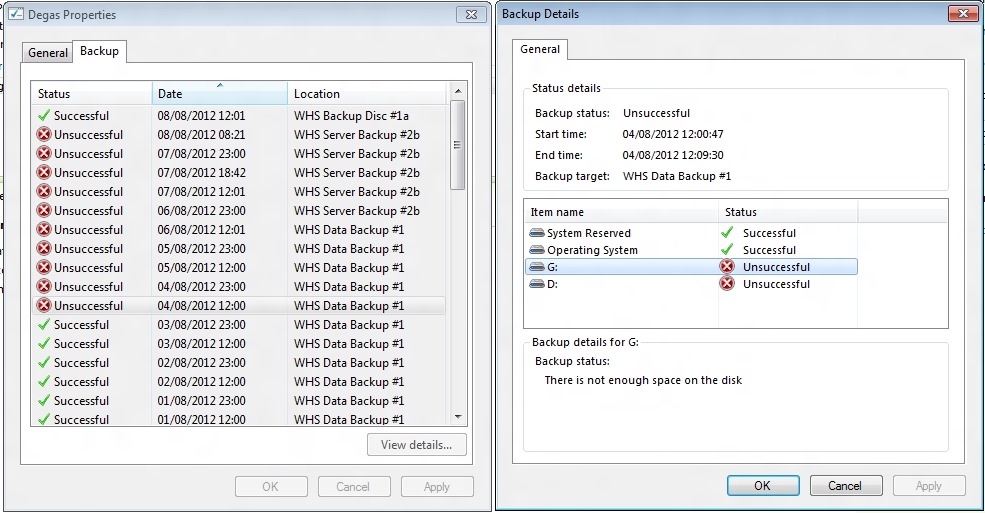
    But four days ago, the server backups started failing. The error being reported was “There is not enough space on the disk”. This was being reported for both the G: and the D: drives on my system.

    WHS2011 106

    Well, I could understand that being the case for the G: drive, since that had filled up with data leaving only 60 GB free on a 1 TB drive. However, the D: drive had nearly 385 GB free on a 405 GB drive.

    I wondered whether in fact the disk being referred to was not the data disk, but the backup disk, WHS Data Backup #1, which only had a few GB free. WHS 2011 is supposed to purge old backups from the backup drives when they get full, but there seems to be no way to predict when it will do this – I’ve had backup drives bob along for months with only a few GB free.

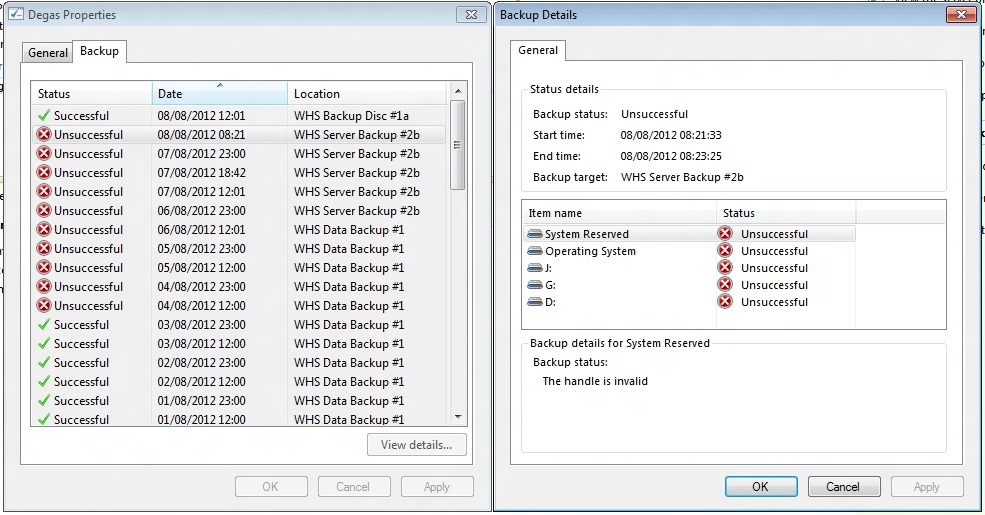
    I tried a few more server backups, but as you can see from the screenshot, they were all unsuccessful. I also swapped the backup drive for a second drive (WHS Server Backup #2b), but as you can see, server backups still weren’t working.

    I began to wonder whether it was data drive G: being almost full that was triggering the failure, so I moved one of the Shared Folders from the G: drive to the J: drive. Unlike WHS v1, WHS 2011 does not have drive pooling, so you have to manage the storage as a bunch of separate drives.

    Once I’d moved the Folder across to the J: drive (using the “Move the Folder” task in the WHS 2011 Dashboard), the G: drive now had 248 GB of free space, while the J: drive now had 714 GB of free space.

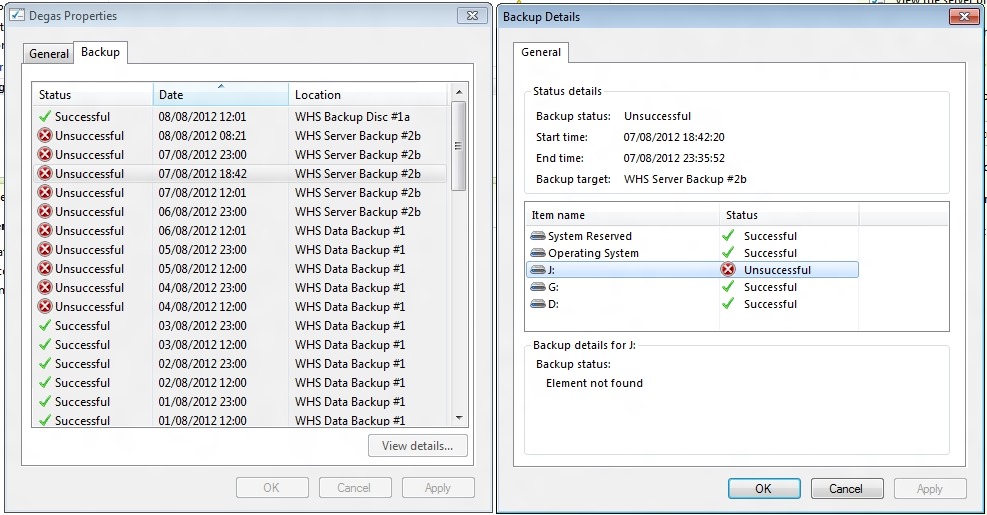
    I tried another server backup. This was also unsuccessful, with an “Element not found” error (whatever that means) being reported on the J: drive.

    WHS2011 107

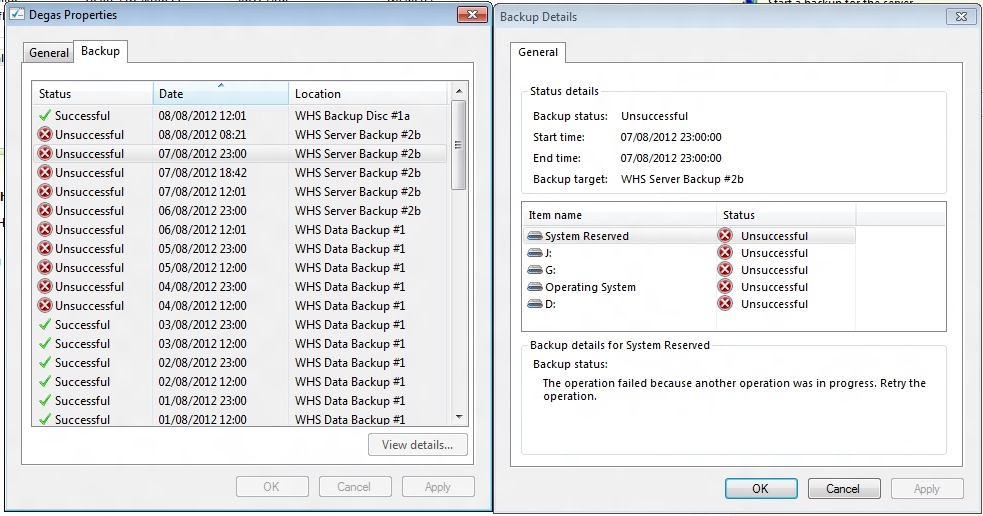
    I left the system running and waited to see whether the next scheduled backup (at 23:00) would work. That was also reported as unsuccessful, with all drives reporting a “The operation failed because another operation was in progress. Retry the operation” error.

    WHS2011 110

    Trying not to panic, I rebooted the system and tried one more time. Now I got a “The handle is invalid” error on all drives. Another mysterious and opaque message.

    WHS2011 108

    Finally, in desperation, I told WHS 2011 to remove the WHS Data Backup #1 drive from the server backup definition, and added it back as though it was a totally new backup drive. WHS 2011 formatted it, and I gave it the name of WHS Backup Disc #1a.

    The next time server backup ran, the backup was successful. Phew!

    WHS2011 109

    I suspect I’m going to have to reformat the second backup drive, and add it back into the server backup task as a new drive.

    I think things are back to normal again, but I have to confess that this little episode has shaken my confidence in WHS 2011 a bit.

  • Subscribe, Not Purchase?

    There’s a post today on Microsoft’s official Office blog that talks about Office and the Cloud. One thing that leapt out at me was this:

    As part of the Customer Preview, we announced that you’ll be able to sign up for an Office subscription, which will ensure that wherever you go and whatever Windows device you are on, the latest and greatest version of Office will be there for you. We’ll be talking more about our subscription offer in a future post so please stay tuned.

    I’m all ears. I fear that in future, we will no longer be able to purchase the Office software, but we will have to subscribe (on a yearly basis?). I prefer to be able to purchase software, and then be able to make an informed decision about whether I upgrade to the latest and greatest version. It’s for that reason that I’m still using Office 2007 (and some of my neighbours are still using Office 2003). I, and they, saw no reason to upgrade. Will I move to Office 2013 – and will I have to also move to a different pricing structure? Time will tell.

    Update: I see that John Jendrezak (the author of the Microsoft blog post) has replied to my question assuring me that we will still be able to purchase the software as we always have done. So that’s a relief.

  • Just Testing

    This blog post was been created in Microsoft’s Word 2013. Up until now, I’ve been using Microsoft’s Windows Live Writer very happily to do all my blogging with. However, I suspect the writing is on the wall (as it were), and Microsoft will be killing Windows Live Writer off in the not-too-distant future. So now I will probably have to get used to another tool. I’m not overly happy with using Word, but I’ll give it a try for a while.

    It does seem to be a bit of a step backwards from Windows Live Writer. For example, WLW had a facility to add in a photo album, but I’m not sure that Word can do this, it only seems to deal with individual images.

    It also seems to be getting confused with special characters. I’ve just opened a previous blog entry (Windows 8 “Play to” Revisted), and Word seems to think the title is:

    Windows 8 “Play to” Revisited

     And while Word’s template supports the WordPress Categories that I’ve set up, it doesn’t appear to support Tags in the template.

    Oh gawd – now it’s gone and changed the font…

    And I can’t see how I can retrieve older posts for revision, or open the pages (e.g. “About”) on my blog. I’m not impressed.

    Oh well, one step forwards, two steps back – as usual.

  • Backing Up Your Data

    Here’s a simple question: do you have backups of the data held on your Windows PC or your Mac?

    Apparently, the answer from most people (if they’ve ever even thought about the question) is a resounding “no”. That’s the conclusion that Microsoft has reached. In a post on the Building Windows 8 blog, they state:

    Our telemetry shows that less than 5% of consumer PCs use Windows Backup and even adding up all the third party tools in use, it is clear nowhere near half of consumer PCs are backed up. This leaves user’s personal data and digital memories quite vulnerable as any accident can lead to data loss.

    Windows has had data backup tools included in it for years, but the fact is that very few people actually use them. Microsoft is introducing a totally new backup method in Windows 8 called File History. It comes with a user interface that is designed to be attractive and easy to use.

    Now there’s a lot to like about the Windows 8 File History feature, but it focuses on the user’s personal data. It will only backup data held in the user’s Libraries, Desktop, Contacts and Favourites. It will completely ignore applications that have their own databases, e.g. Adobe’s Lightroom. For some time, Microsoft has been telling developers to store application data in locations contained in the C:\ProgramData folder, and now the File History feature will totally ignore such files. Also, user data that is not document-based is supposed to be held in locations contained in the C:\Users\Username\AppData folder. That is also ignored by the File History feature. It turns out that Microsoft’s own Windows 8 Mail App stores mail messages in the AppData folder, so File History will not backup your mail messages. Microsoft seems to be assuming that we store our mail in the Cloud, e.g. in their Hotmail service. I’ve got news for them – we don’t all do this.

    I’ve got used to the elegant and simple-to-use client PC Backup function of Windows Home Server (which covers all files and provides a bare-metal restore). Moving to Windows 8 on my current hardware will mean that I will continue to use WHS for backup.

    However, because WHS does not support backup/restore of client PCs that use EFI/GPT technology, that will mean that I will have to use a combination of File History and some other method of backing up application data, if I invest in new hardware (a PC or a Tablet). Modern PCs use EFI/GPT.

    [Update 4 March 2013: Microsoft has at last issued a Hotfix to add backup support for UEFI-based computers to back up to servers that are running Windows Home Server 2011]

    Frankly, that makes it sound a bit of a kludge, instead of the current “set it and forget it” method of WHS.

    Peter Bright has a good analysis of the new File History feature, and a comparison with the older methods of data backup in Windows here. I rather like one of the comments on his analysis:

    So basically, they killed Windows Home Server but still don’t have an effective product to replace its backup mechanism. Got it.

  • Well, I Told You So…

    So Microsoft has effectively killed off their Windows Home Server product.

    Being Microsoft, of course, they don’t say this quite as baldly as I just did. Instead, they’ve announced some details of their forthcoming Windows Server 2012 lineup of software, and buried on page 4 of the 6 page FAQ we find this:

    Q: Will there be a next version of Windows Home Server?

    A: No. Windows Home Server has seen its greatest success in small office/home office (SOHO) environments and among the technology enthusiast community. For this reason, Microsoft is combining the features that were previously only found in Windows Home Server, such as support for DLNA-compliant devices and media streaming, into Windows Server 2012 Essentials and focusing our efforts into making Windows Server 2012 Essentials the ideal first server operating system for both small business and home use—offering an intuitive administration experience, elastic and resilient storage features with Storage Spaces, and robust data protection for the server and client computers.

    OK, so they are saying that Windows Server 2012 Essentials is to be “the ideal first server operating system for both small business and home use”. And how much will it cost? Well, it’s $425. And how much does Windows Home Server 2011 cost? Er, $40. There’s no way I can possibly justify shelling out $425 for Microsoft’s proposed successor to WHS 2011.

    Now, to be fair, that $425 price is a retail price, while the $40 is an OEM price. There isn’t an OEM price for Windows Server 2012 Essentials, instead, there’s another product in the range that will be available as OEM software, and that’s Windows Server 2012 Foundation. We don’t yet know what the OEM price will be for this software, and while it will be less than $425, I very much doubt that it will be $40 either, probably more in the $100 – $150 range.

    But there’s another issue to worry about, will there be things missing from the Foundation version that are present in Essentials? Microsoft says this:

    “If you’re a small business with limited in-house skills, Windows Server 2012 Essentials is an appropriate option. It’s simple, affordable, and easy to manage, and has been tailored to address common small business IT scenarios. Windows Server 2012 Essentials is the ideal solution if you plan to expand your business capabilities through the cloud as it is designed to facilitate your connection to online services. On the other hand, if you have some level of in-house IT skills and want the ability to tailor server roles to their unique environments, then Windows Server Foundation is potentially better suited to your business.”

    In other words, if you are a home user, then you had better have some degree of IT skills at your fingertips if you want to use Windows Server Foundation, assuming that it does contain all the necessary functionality. It certainly won’t have the easy-to-use Wizards that will be present in the Essentials edition…

    The upshot of all this is that Microsoft has essentially dropped the whole concept of a Home Server product, priced for the consumer market. I can’t say that I’m the least little bit surprised, the writing has been on the wall since the early days of the development of WHS 2011.

    The first version of Windows Home Server began with a vision and a focus on the home consumer. There was even a set of guiding principles for the design of the storage system for WHS v1 that were predicated on the needs of the home consumer. After the release of that first version of WHS, the team leader (Charlie Kindel) moved on, the WHS team got reorganised, and ended up in the Server group at Microsoft – small fish in a very big pond. In the process of developing WHS 2011, they effectively tore up Kindel’s guiding principles, and the result has been a product that while it bears the word “Home” in its title, is far less focused on the home consumer than the first version. Now that focus has been reduced even further to a blur.

    While some people will question the value proposition of a home server in these days of cloud services and online streaming, I firmly believe that it has a place. I have more data than I can affordably hold in the cloud, and living as I do in the countryside, I am at the end of a piece of wet string, so streaming of high-quality content is not an option.

    The original concept of WHS, with its easy to manage storage, and single-instance backup of up to 10 client PCs was something that had clear value to me. Microsoft weakened that with WHS 2011, and now they are in effect getting out of the home server market altogether.

    The one possible ray of hope is that it may be possible to replicate the functionality of WHS using Windows 8. That is dependent on someone developing an App for Windows 8 that replicates the client PC backup functionality that is present in WHS, while addressing its limitation (it can’t backup PCs that use EFI/GPT technology). There’s a gap in the market opening up – let’s hope someone will fill it…

    [Update 4th March 2013: Microsoft has at last issued a Hotfix to add backup support for UEFI-based computers to back up to servers that are running Windows Home Server 2011]

    Update 15 July 2012

    Being somewhat curious, I downloaded the beta of Windows Server 2012 Essentials and installed it into a virtual machine. I followed the excellent guides provided by Jim McCarthy on how to do this. Here’s his guide on installing Hyper-V (the virtual machine environment) in Windows 8 and here’s his guide on installing the beta of Windows Server 2012 Essentials.

    I found that I needed to make a change to my PC to enable the virtualisation mode of the CPU, but once that was done (and the PC rebooted multiple times), the Hyper-V environment was up and running. The installation of the beta of WSE 2012 was very straightforward, and before too long, I saw the server appear on my home network.

    I have to say that I think Microsoft is being disingenous when they say that WSE 2012 is suitable for “home use”. From what I saw of the environment, it is clearly aimed at a small business, not the home. For one thing, it provides a full domain controller environment, which is very much overkill for the home.

    I confess that I didn’t leave WSE 2012 in place for very long before I deleted it and removed the Hyper-V environment.

    For one thing, although it may have been a coincidence, following the installation of WSE 2012 into Hyper-V running on my main Desktop PC, the WHS backup service of that PC stopped running. Looking in the Event Viewer showed .NET runtime errors occurring with the Windows Server Client Computer Backup Provider Service, which manages the backup and restore service for client computers. Since this service was stopped (and couldn’t be restarted without errors), I could not back up or restore data for my Desktop PC.

    The other thing that sealed the fate of WSE 2012 for me was the news that a version of MyMovies will not be developed for WSE 2012. Brian Binnerup, the developer of MyMovies, believes (quite rightly, in my view) that the market will be too small to justify development and support of a WSE 2012 version. Since I have the MyMovies server installed on my WHS 2011 system, that rather closes off a possible upgrade path from WHS 2011 to WSE 2012 (quite apart from the cost of WSE 2012, of course). It looks as though a future version of the MyMovies server will only be developed for Windows 8. Update 24 August 2012: I see that Brian Binnerup now seems to have changed his mind about supporting Windows Server Essentials 2012. That’s good to know, but it’s still too expensive for me.

    As a result, I have turned my back on Windows Server Essentials 2012. It has been removed from my PC. I’ve reinstalled the WHS 2011 Connector, and now my Desktop PC is once more being backed up on a daily basis to my WHS 2011 server.

  • The Gauntlet Has Been Thrown Down

    Just to follow up on my post about Microsoft Surface for a moment, I do think we live in interesting times.

    Peter Bright, over at Ars Technica, has a good article on the impact on OEMs of Microsoft entering the tablet hardware market; he likens it to Microsoft giving the OEMs a gentle kick in the teeth. The problem is that, compared with Apple’s iPad, the build quality of tablets running either Android or Windows is pretty dire. Even the so-called quality manufacturers have not exactly covered themselves with glory here. Samsung’s flagship Windows 7 Tablet, the 700T, for example is still plagued with the fact that its screen lifts away from the housing.

    As Peter Bright says:

    To allow Windows 8 to compete with iOS, Microsoft needs hardware to compete with the iPad. Bad hardware would jeopardize Redmond’s ability to play in the tablet space, but the PC OEMs have established for themselves a track record of producing little else. And while many of the OEMs have produced Android tablets to try to compete with the iPad, they’ve also consistently failed to match its quality.

    So Microsoft has drawn upon its 30-year history of producing hardware and made two models of Windows 8 tablets to show the OEMs how its done. Now admittedly, that 30-year history has been mostly spent in the area of producing mice and keyboards. But, on the other hand, Microsoft also makes the Xbox, which although it is a game console, has a similar level of complexity as a PC. Still, the engineering that is required for a high-quality tablet is definitely up a notch from the Xbox, so I am intrigued to see whether Microsoft can pull it off, and kick the OEMs in the teeth.

    What I also find intriguing is Peter Bright’s thoughts on how this might all play out. Scenario one is that the OEMs rise to the challenge and produce high-quality Windows 8 tablets. In which case, Microsoft can keep the Surface going as a small-scale, US-only operation.

    However, as Peter Bright points out, at least one OEM, Acer, has dismissed Microsoft’s challenge. In fact Acer, in the form of Oliver Ahrens, Acer’s senior VP and president for Europe, Middle East and Africa, believes that Microsoft is making a failed attempt to mimic Apple. He’s quoted as saying “I don’t think it will be successful because you cannot be a hardware player with two products”. Ahrens appears to overlook the fact that Apple dominates the tablet market with just two iPad products.

    Frankly, with friends like Oliver Ahrens, I don’t think Microsoft needs enemies.

    So then it might be opportune for Peter Bright’s second scenario to be realised. If the OEMs fail to rise to the challenge, the Microsoft must ramp up the Surface operation to a global scale, much as they have done with the Xbox.

    As I say, we live in interesting times.

    Addendum, 27 July 2012

    Charlie Kindel has an interesting post up on this subject of whether Microsoft is a hardware company. His view?

    Microsoft is not, and never will be, a hardware company.

    Kindel worked in Microsoft for over twenty years, and knows the company well. What I found particularly telling in today’s post was the observation that there are still organisational silos there:

    I know some of the people who drove the Xbox360 hardware design and supply chain management. They are now war scarred and seasoned experts. They are the type of people you want working on the next big thing. None of them even knew about Surface until it was announced. Typical Microsoft organizational silos.

    Oh dear.

  • Some People Just Don’t Grok It

    Yesterday, Microsoft revealed that it would be entering the Tablet market with two models of its own. I’ll come back to them later, but first, I must say that I’m struck by the continuing negative press that Windows 8 continues to receive. While it’s by no means perfect, I find the hyperbolical vitriol poured on it by some of the technical press quite astounding, and almost entirely without basis.

    Yes, the Metro user interface (UI) is very different from the UI of the traditional Windows Desktop, but I note that the iPad UI is very different from the traditional Mac desktop OS X UI, and yet none of the negative reviewers seem to even give this a second thought. Somehow, they seem to have adapted to being able to use both devices, and praise Apple to the skies.

    Apple, when it created iOS, took the view that a touch-oriented direct-manipulation user interface demands entirely different solutions and paradigms than mouse/pointer-driven user interfaces do. Microsoft, on the other hand, recognises the same challenge, yet is attempting to support both within the one operating system: Windows 8. That seems to me to be a far riskier strategy that the play-it-safe one that Apple has followed.

    I don’t have either a touchscreen or a touchpad on my PC, yet I’ve not found any problem about continuing to be productive using Windows 8, unlike some technical reviewers. I rather suspect that either they don’t like change, or they don’t like Microsoft.

    And now Microsoft has further upped the ante, by announcing two Tablets bearing the Microsoft name, and called Surface. The entry-level Tablet runs Windows RT (the version of Windows 8 designed to run on ARM hardware), while the top-of-the-range model runs Windows 8 Pro and uses Intel’s Ivy Bridge architecture.

    The entry-level Tablet is clearly aimed at the iPad market niche, but I’ve never found that market niche particularly interesting. I want something that is more than just a device for consuming content. I want one that has the power of a desktop available. So the more interesting one (to me) is the one running Windows 8 Pro. This comes with a pen, and (excellent) handwriting recognition is part of Windows 8. Coupled with the detachable keyboard, this model of the Surface range looks as though it meets my desire for origami computing.

    surface_01

    As well as the Surface tablets, Microsoft also announced two new keyboards (which double as covers for the Surface). The “Touch” model (3mm thick) is shown in the picture above. The “Type” model (5 mm thick) comes with moving keys for a traditional feel.

    The specifications of the Surface tablets are still not spelt out in great detail, but the top model seems to have two cameras (one forward-facing and one rear-facing), and a screen resolution of 1920 x 1080 pixels. The Intel-based Surface has a mini DisplayPort for Video. I wonder whether this could also be a Thunderbolt port for connecting other devices, although I suspect that that will come in a future Surface model in 2013. No word on price, either, so I’ll have to wait to see whether this is a good match with my wishlist. But I have to say, it does look good.

    Update: I watched the video of the Microsoft presentation yesterday and picked up on a couple of things.

    First, the Windows RT machine being demonstrated by Steven Sinofsky froze up on him during the demo. He had to switch it for another machine. To be fair, demos of unreleased hardware and software are always a highwire act, so it’s hardly surprising he had to rely on the safety net of a second machine.

    Second, the words that are spoken during these Microsoft presentations are very carefully chosen. When Sinofsky talked about retail channels, he only talked about Microsoft’s own stores, both physical and online. These are both US-only, which leads me to worry that Surface may only ever be available in the US. It won’t be the first time Microsoft has done this; the Zune and Microsoft Kin products were also US-only. If that does turn out to be the case, then that will be a real disappointment to me.

    One other thought, I know that I said that it would be the Windows 8 Pro version of Surface that I would be interested in, because I thought the Windows RT Surface would be too limiting, like the iPad. Someone pointed out that you can still get the full PC experience on a Windows RT device by using the Remote Desktop App, and accessing the full environment of a desktop PC through the Surface tablet. Now that is a very interesting idea, and one that I had not considered. I often use the Remote Desktop App to remotely login to my Windows Home Server from my desktop PC, and the experience is indeed just as though I have my monitor, keyboard and mouse directly connected to the server. However, it would mean that I would have to upgrade my Desktop PC to Windows 8 Pro, so it is not a cost-free route.

    So I may have options. Options are good.

  • Windows 8 “Play to” Revisited

    Important Update 27 October 2012: The bug I describe below does seem to have been fixed in the final release of Windows 8. I can now use the “Play to” feature with my Denon AVR-3808.

    Hoorah!

    However, this is just one cheer. The Denon is not a “Windows Certified Play to” device, so the Microsoft-supplied Music Modern UI App does not recognise it as a device that can be used in a “Play to” scenario. While I can use the desktop Windows Media Player to “Play to” my Denon (as I could under Windows 7), the new Music App doesn’t even recognise the Denon as a “Play to” device.

    In a post on the Building Windows 8 blog, Microsoft states:

    Metro style apps work only with Windows certified Play To receivers [my emphasis]. These devices are validated to support modern media formats, are DLNA standards-compliant, and have great performance (including the updated Xbox 360 available later this year). The desktop experience first introduced in Windows 7 has been added to the Explorer Ribbon and will continue to support all DLNA DMR devices.

    So if I get one of the new tablets (e.g. Microsoft Surface) which run Windows RT, I won’t be able to use it to play music to my Denon. Why? Well, Windows RT does not support the desktop Windows Media Player, and Microsoft has just told me that their Metro Media Apps will not support my Denon, even though it is DLNA-certified. Yet another reason not to touch the Microsoft Surface with a bargepole, I think.

    It looks as though Microsoft are building proprietary extensions on top of the cross-industry DLNA specifications. I’m not convinced that this is a good thing.

    Update 4 February 2013: I see that Paul Thurrott has just written an article on this subject: The Sad Tale of Play To and Windows 8, with much the same conclusions. As I write in the comments here, it’s good to see that Mr. Thurrott is banging the same drum. He is able to make far more noise than I, but I think that Microsoft will remain deaf to the sounds. BTW, it’s worth reading the comment by John Galt after the Thurrott article. He lists a number of shortcomings in the media “features” that Microsoft have implemented in Windows 8, any one of which has me tearing my hair out. One wonders how Microsoft can be so dismal in delivering a product that should delight, not disappoint in so many ways.

    Update 31 March 2013: Barb Bowman has found a way to hack the Registry to get Windows 8 to recognize “uncertified” DLNA devices, and to use them within Windows 8 Apps. Like her, I wish that Microsoft would give advanced users the option to add our DLNA devices directly, without the need for these hacks.

    Update 21 October 2013: Well, now that the final release of Windows 8.1 is available, the Play to experience seems to be broken again. I applied the registry fix given by Barb Bowman (and which came originally from Microsoft’s Gabe Frost), and that no longer seems to work for me. One step forward, two steps back yet again. Thank you Microsoft.

    Update 24 October 2013: I posted the Windows 8.1 issue in a Microsoft forum, and got some useful feedback from Gabe Frost. The issue is not resolved, but at least we now know what’s going on. See https://gcoupe.wordpress.com/2013/10/23/play-to-and-windows-8-1/

    Original post

    You may recall that I’ve found that the “Play to” feature of Windows 8 is broken. I’ve been poking around trying different scenarios to see what’s going on, and come up with some further information.

    The bottom line is, yes, the Windows 8 implementation is broken as far as I’m concerned. However, I fear that Microsoft will simply say that this is not a bug, it’s a feature… What’s the old joke? Ah yes:

    Q: How many Microsoft developers does it take to change a lightbulb?
    A: None. Microsoft simply declares darkness to be the new standard.

    This is what I think I have found:

    • In Windows 7, the “Play to” feature will negotiate with the media renderer device to ensure that the audio format streamed from the server can be handled. If it can’t, it will try and have the server transcode it to a format that can be understood by the renderer.
    • In Windows 8, the “Play to” feature doesn’t bother to find out whether the device can cope with the streamed format, it just sends it, and the consequences be damned…

    Here are the details:

    First, let me recapitulate some of the terms and technology specification used by Microsoft in its implementation of “Play to”. These come from the Digital Living Networking Alliance, or DLNA for short. Their specification defines how a variety of different types of digital devices can connect and share information. I’ve summarised the devices used in “Play to” in the following table:

    Device Class What it Does Examples
    Digital Media Server (DMS) Stores content and makes it available to networked digital media players (DMP) and digital media renderers (DMR). PCs, Windows Home Server, and network attached storage (NAS) devices
    Digital Media Player (DMP) Finds content on digital media servers (DMS) and provides playback and rendering capabilities. TVs, stereos and home theaters, wireless monitors and game consoles. Windows Media Player also has a DMP capability
    Digital Media Renderer (DMR) These devices play content received from a digital media controller (DMC), which will find content from a digital media server (DMS). TVs, audio/video receivers, video displays and remote speakers for music
    Digital Media Controller (DMC) These devices find content on digital media servers (DMS) and play it on digital media renderers (DMR). Internet tablets, Wi-Fi® enabled digital cameras and the “Play to” function in Windows 7 and Windows 8.

    Table 1: Information drawn from the DLNA web site.

    Windows 7 and Windows 8 implement a number of these classes as shown here:

    Device Class Windows Implementations
    Digital Media Server (DMS) When media streaming is enabled, Windows acts as a DMS.
    Digital Media Player (DMP) Windows Media Player and Windows Media Center act as a DMP when browsing shared media libraries
    Digital Media Renderer (DMR) Windows Media Player acts as a DMR when configured to allow remote control of the Player.
    Digital Media Controller (DMC) The “Play To” feature from Windows Media Player (and the Windows Explorer in Windows 8) launches a DMC to control the media playback experience

    Table 2: Information drawn from the Engineering Windows 7 Blog.

    At its simplest, just two devices can be involved: a Server and a Player. These can even be running on the same physical device, as in the case where your Windows Media Player on your Desktop PC is streaming music or video stored on the PC itself. The next step up is where the server and player are on separate physical devices. Two typical scenarios are shown in figure 1:

    WMP Scenarios

    Figure 1: Typical scenarios of simple case of DMP devices accessing DMS devices.

    I’ve used the Denon AVR-3808 as an example, since this is what I have in my home network. My DMS is a headless (no monitor, keyboard or mouse) home-built PC running the Windows Home Server 2011 operating system.

    In my particular case, both the two scenarios shown above will work, that is, the DMS that is part of WHS 2011 will stream audio to other PCs in the home network, and to the Denon AVR3808.

    Now, this next bit is important, I’ll return to it later: Under the covers, there’s actually some negotiation of streaming formats going on.

    This is because I have stored all my music files on the WHS 2011 in Windows Media Audio Lossless (WMAL) format. This presents no problems for the PCs, since the Windows Media Players installed on them can handle WMAL. But while the Denon can handle standard Windows Media Audio, it can’t handle the Lossless variant. So when I use the Denon to browse my music library on the server and select a track to play, the DMS in WHS 2011 sees that the Denon can’t handle WMAL and transcodes the stream into a format that the Denon can handle on the fly – it transcodes it into a PCM stream, which the Denon can deal with.

    Now let’s look at scenarios are where there are three devices linked together: a Digital Media Server, a Digital Media Controller, and a Digital Media Renderer.

    WMP Scenarios 2

    Figure 2: Typical scenarios of a three device link (DMS-DMC-DMR).

    In my case, all flavours of scenario 3 will work. That is, I can stream from my Windows Home Server using the “Play To” feature in either Windows 7 or Windows 8 Release Preview, and push the stream to PCs that are running Windows Media Player in Windows 7 or the Windows 8 Release Preview.

    But while scenario 4 (streaming to the Denon) works with the “Play to” of Windows 7, it does not always work with the “Play to” of Windows 8 Release Preview.

    The following table shows which formats work and which don’t, when using scenario 4:

    Format Windows 7 Windows 8
    MP3 Yes Yes
    Windows Media Audio Yes Yes
    Windows Media Audio Lossless Yes No

    Table 3: Audio formats used with “Play to” features in Windows 7 and Windows 8

    Now take a look at a table showing which formats are supported by the Denon AVR-3808:

    Format Supported by the Denon
    MP3 Yes
    Windows Media Audio Yes
    Windows Media Audio Lossless No
    FLAC Yes

    Table 4: Audio formats supported by the Denon AVR-3808

    My very strong suspicion, therefore, is that the Windows 8 “Play to” does not negotiate a playable format with the DMR of the the Denon, it simply sends the source format regardless. The Denon’s display panel has indicators  (MP3, WMA, PCM) that show the audio formats being received.  Let’s take another look at Table 3, but this time, show the state of the Denon indicators:

    Format Windows 7 Windows 8
    MP3 MP3 MP3
    Windows Media Audio WMA WMA
    Windows Media Audio (Lossless) MP3

    Table 5: Denon front panel indicators state

    You can see that, for Windows 7, the WMA Lossless format of the source media has been transcoded into an MP3 stream so that the Denon can deal with it. In scenario 2 (the Denon communicating directly with the Windows Home Server), the PCM indicator lights, showing that the negotiation with WHS 2011 has resulted in an alternative format being used.

    If the Windows 8 “Play to” is not carrying out any negotiation, as I think is happening in scenario 4, then of course the Denon will respond with an error – it cannot play native Windows Media Audio Lossless format.

    I note that Microsoft states that:

    Improved device experience: Metro style apps work only with Windows certified Play To receivers. These devices are validated to support modern media formats, are DLNA standards-compliant, and have great performance (including the updated Xbox 360 available later this year). The desktop experience first introduced in Windows 7 has been added to the Explorer Ribbon and will continue to support all DLNA DMR devices.

    Fine words, except that Microsoft are being economical with the truth at the moment. “The desktop experience first introduced in Windows 7” does not “continue to support all DLNA DMR devices”.

    It’s broken.