Reflections on life at “De Witte Wand”…

Tag: WHS

  • RIP, Windows Home Server…

    Once Upon A Time…

    A long time ago, way back in 1999, a man by the name of Charlie Kindel had an idea: Microsoft was developing Windows for home PCs, why shouldn’t it develop Windows for a home server as well? His managers initially told him to focus on his real job, but his idea surfaced at CES in 2000 as a technology prototype called “Bedrock” focused on home automation and family applications. His idea went through more iterations until in February 2004, work began on a project called “Quattro” and that resulted in a product group to be formed in 2005 to produce what was to become Windows Home Server.

    The first version of WHS was released to manufacturing in July 2007. I, along with thousands of others, had been testing the software at home prior to release. There were some issues that I found, but by the time of release, the majority had been resolved. Technically, it was pretty solid, but of course, Microsoft Management had got involved, and one of the potentially unique selling points had been removed. Despite being aimed at home users, remote access to your computers from outside the home wouldn’t work if you had home versions of Windows installed on your computers.

    Apart from that castration by Management, WHS still had some very clever and innovative technology under the hood:

    I bought an OEM license for WHS in November 2007, and have been running WHS ever since; first the original version of WHS, and then WHS 2011, which was released in April 2011.

    Windows Home Server 2011

    WHS 2011 was not a straightforward improvement over the original WHS. Indeed, it dropped the major feature of the WHS Drive Extender, much to the dismay of WHS customers. There had also been organisational changes at Microsoft; the original product team had been part of the Windows product group, now it found itself lumped in with the big boys of the Business Server Group.

    I had the distinct impression, watching the development of WHS 2011 and testing the betas over the months leading up to April 2011, that things were not going well with WHS 2011. As I wrote at the time: Microsoft had the chance to build upon the base of WHSv1 as a server and media appliance that could be used by the average consumer, and they threw that chance away.

    So WHS 2011 turned out to be something of a damp squib, with some features that had obvious design shortcomings or that never worked properly – hello, Media Library, I’m looking at you… Even the new server backup feature of WHS 2011 had a design shortcoming that took my breath away.

    Despite these shortcomings of WHS 2011, the positives still managed (just) to outweigh the negatives for me, so I migrated from WHS V1 to WHS 2011. I had built a dedicated server to hold all our media collections (CDs, DVDs, Blurays), and the backups from all the other PCs in the house. With the installation of WHS 2011, the server itself was being backed up using off-site storage.

    The End Is Nigh

    However, it was clear that Microsoft no longer loved Windows Home Server, and it was no surprise when Microsoft announced in July 2012 that there would be no next version of WHS. That meant, according to Microsoft’s Product Support Lifecycle rules, that WHS 2011 would continue to receive mainstream support until April 2016. Well, hello, that’s just two short months away. Thus, I needed to prepare a contingency plan.

    Making The Move

    I could have replaced the server hardware with an off-the-shelf NAS, but it seemed to me that would be an unecessary waste of good hardware. Instead, I could just change the software environment and keep the hardware intact. Not feeling inclined to go to the dark side (i.e. Linux), or for shelling out for a copy of Microsoft’s Windows Server Essentials (at ten times the price of WHS), I decided the best approach would be to use Windows 10 Pro in headless mode (i.e. without an attached monitor, mouse or keyboard). The WeGotServed site publishes a useful guide on how to do this, called, not unexpectedly, Building A Windows 10 Home Server. Whilst I think I could have got by without purchasing this guide, it does cover the entire process from a to z, hardware and software. I found it useful as a refresher of my knowledge, and for someone who is new to the idea of building their own server, it would be invaluable.

    The problem is that Windows 10 is not Windows Home Server. In particular, the feature of automatically backing-up client PCs to the server is substantially different in Windows 10, and it is not an improvement.

    Instead of WHS’s automatic backup of client PCs to single-instance storage, we have, not one, but two backup technologies to choose from in Windows 10 – and neither of them are ideal. Windows 10 offers:

    • File History backup
    • Backup and Restore (Windows 7)

    File History Backup

    While there’s a lot to like about the Windows 10 File History feature, it only focuses on the user’s personal data. It will only backup data held in the user’s Libraries, Desktop, Contacts and Favourites. It will completely ignore applications that have their own databases, e.g. Adobe’s Lightroom. For some years, Microsoft has been telling developers to store application data in locations contained in the C:\ProgramData folder, and now the File History feature will totally ignore such files. Also, user data that is not document-based is supposed to be held in locations contained in the C:\Users\Username\AppData folder. That is also ignored by the File History feature. It turns out that Microsoft’s own Windows 10 Mail App stores mail messages in the AppData folder, so File History will not backup your mail messages. Microsoft seems to be assuming that we store all our mail in the Cloud, e.g. in their Outlook.com service. Not everyone does.

    Also, unlike the elegant and simple-to-use client PC Backup function of Windows Home Server (which covers all files and also provides a bare-metal restore), File History does not use single-instance storage. So if a new version of a file changes even by one bit, the entire file is backed up as an entirely new copy onto your backup disc. It’s very inefficient and wasteful of storage.

    Backup and Restore (Windows 7)

    As the title suggests, this technology is a legacy from earlier versions of Windows. It also works in a completely different manner from File History (or the Backup/Restore feature in WHS). It is a System Image backup utility, that is, the entire contents of the PC are backed up in one go – a snapshot of how your entire PC looked like at the point in time when you made the backup.

    Whilst it’s useful to be able to make a snapshot in time of your PC, the WHS client PC can do this and more: it also allows you to restore individual files, and from different time points in their lives.

    The fact that Microsoft has clearly marked this Backup and Restore technology as deprecated makes me wary. I would not be suprised to see it removed entirely from future versions of Windows 10.

    Backup/Restore – What To Do?

    Given that neither of the backup offerings in Windows 10 can match the simple and elegant solution of WHS, if I’m going to have to use Windows 10, what can be done? I suppose one route would be to purchase a separate backup and restore application. I’ll keep an eye out for that, but in the meantime, my approach will be to use the File History route to backup my personal data (documents, pictures and so forth), and manually including a specific list of application databases (e.g. Adobe Lightroom, Photo Supreme, etc.) to be covered by File History. For my email folders, I will make sure that all my email is automatically forwarded to an Outlook.com account as backup.

    It’s not simple or elegant, but a kludge. Thank you Microsoft; one step forward, two steps back, as usual.

    Pulling the Trigger

    I could have stuck it out and carried on with WHS 2011 until at least April 2016. However, I’ve invested in a piece of server software that, it turns out, does not run well on WHS, but requires Windows 10. It is RoonServer. As a result, I have migrated from running WHS 2011 on our server to running Windows 10.

    The migration was pretty straightforward, and all the media libraries and server software are now running quite happily under Windows 10. I miss the ease of WHS and its backup capabilities, but Microsoft has stuck the dagger in its back in the interests of getting us all to move to the Cloud. It’s a great pity – despite all the song and dance about Cloud services, I am still firmly of the opinion that there is a place for a server in the home. Online streaming where I am in the rural Netherlands is neither fast enough, stable enough, nor cheap enough to be considered a viable alternative.

    Addendum, 27 February 2016: I see that Microsoft’s SBS group has just published a survey to ask the user community for feedback on the features of Windows Server Essentials to help them prioritise their planning for the next version. I left a comment:

    Looking through the questions in the survey, it is very clear that you are targeting a particular group of business users. For those of us who grew up with Windows Home Server, and who mourn its passing, there is nothing to see here. Our feedback is clearly of no importance to your plans.

    The comment is currently stuck in moderation. We’ll see whether it emerges and gets published. And, of course, it never did get published… Perhaps the truth hurts too much, or more likely, they couldn’t give a damn.

  • Thoughts on the Windows 8 Release Preview

    I must admit, since Windows 8 is going to be released in October 2012, I was expecting Microsoft’s Metro Apps in the Windows 8 Release Preview to be more fully functional than they are. To my mind, they are still little better than toy demos. Yes, I know that they are still labelled “Previews”, but there’s precious little time left before October, and an enormous amount of functional ground left to cover.

    For example, the Mail App still doesn’t have IMAP or POP support. This is a staggering omission, since these protocols are the foundation on which internet email clients have been based for years. Then there’s all the extra stuff in the Windows Live Mail client that is missing from the Metro App, such as message rules or the ability to define extra storage folders. Since my email is hosted on an IMAP mail server by my internet service provider, I haven’t been able to use the Metro Mail App in earnest. There may well be other shortcomings that I haven’t discovered yet.

    The Music App only has four views of your music library: songs, albums, artists and playlists, as shown in this screenshot:

    W8RP 04

    Since you can’t define your own additional views, I miss the sorting by genre or composer that I have in Windows Media Player or Windows Media Center. And where is “Play to” or Podcast support? Missing in action, it would seem.

    The Photos App is still only a viewer, not an organizer/editor/metadata tagger in the manner of Windows Live Photo Gallery or Picasa.

    And then there are the bugs.

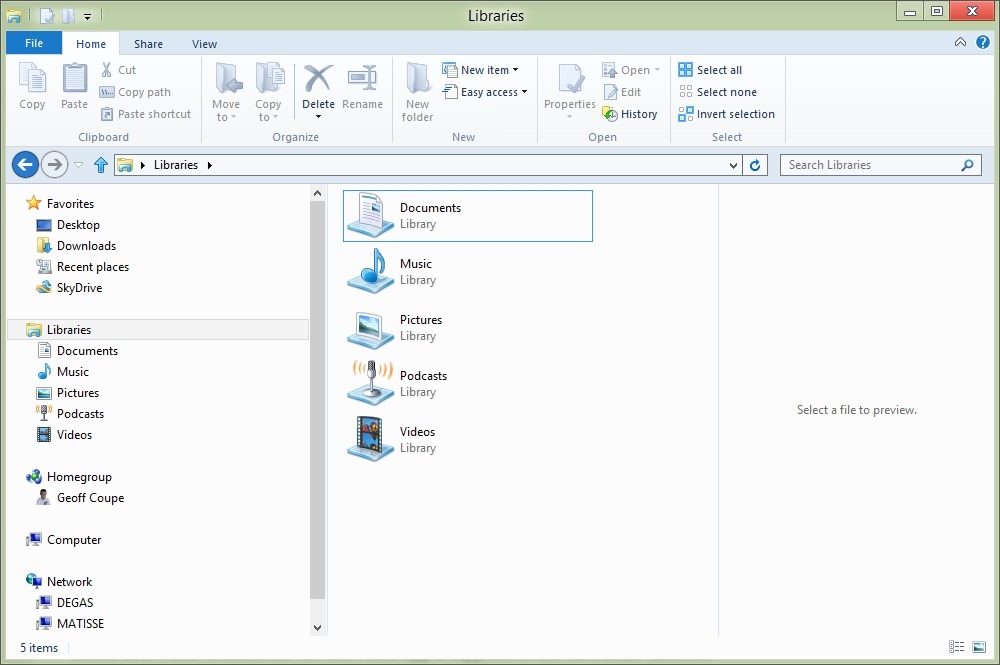
    For example, amazingly, it turns out that the Photos App cannot deal with photos that are stored on a Windows Home Server. The Photos App is supposed to use the Picture Libraries that you define in Windows 8. In both Windows 7 and Windows 8, you have a standard set of libraries defined for your media. See this screenshot:

    W8RP 01

    The Documents, Music, Pictures and Videos libraries are defined by default in installations of Windows 7 or Windows 8. If you install the Zune client (which is currently needed to support Windows Phones), then you get a Library defined for Podcasts as well.

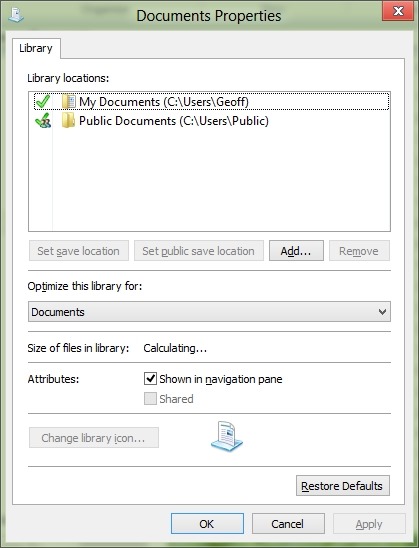
    By default, each of these libraries point to the corresponding folder in your Windows account on your PC, plus a pointer to the corresponding folder in the Public account on your PC. Here’s the pointers for the Documents library as an example:

    W8RP 02

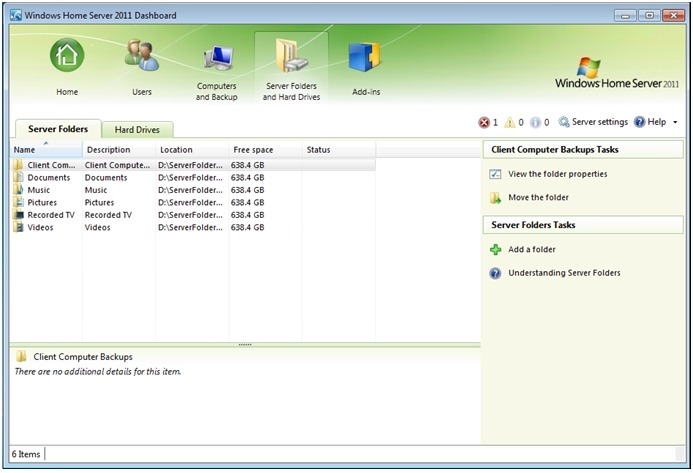
    You can add additional pointers to folder hierarchies held locally on your PC, or network locations. If you have a Windows Home Server, then it will automatically add pointers to the corresponding Shared Folders on the server. Here’s a screenshot of the pointers to my music folders in the Music Library as an example:

    W8RP 03

    However, it turns out that the Photos App can only handle local folders, not network locations, such as the Shared Folder for pictures held on a Windows Home Server.

    This is even more curious when you realise that the Music App can handle music held in the Shared Folder for music on a Windows Home Server… That screenshot above of the Music App is showing music stored on my Windows Home Server.

    Now, the team responsible for the Photos App have admitted this is an issue. In this thread on the Microsoft Answers forum, Analy Otero, a member of the Photos App’s team states:

    The Photos team is aware of the concerns and issues that surround network locations, removable storage and Windows Home Servers. Unfortunately there are technical limitations to supporting them completely and correctly and as you have noted those locations are not supported in the Release Preview version either. 

    Rest assured that we are want to see these scenarios work and we aspire to support them just as all of you do so that you can use the Photos app as one place to see all of your photos regardless of where they are.

    If you have your photos in other PCs (Vista, Win7 or Win8 machines) you have the option to install the recently released SkyDrive client on them to be able to fetch files from them from anywhere. This includes being able to browse all your photos (and videos) from the Photos app as well. Definitely check it out if you have a chance.

    Thanks for the feedback, we’re definitely are listening and understand that support for WHS and other network locations is important for you.

    Notice that she mentions that the SkyDrive client can be used as a workaround to allow the Photos App to access files and folders held on other PCs in your network. It’s not clear whether the client is officially supported on the WHS operating system. This post on the SkyDrive forum does say that it will run on Windows Server 2008 R2, and that is the operating system that underlies WHS 2011. However, whether this also means that Microsoft will support the use of the client on WHS 2011 is another matter.  Update: Analy Otero has confirmed that Microsoft does not support the use of the SkyDrive client on WHS 2011, and it won’t install at all on WHS v1.

    I downloaded the SkyDrive client onto my Windows 8 system (which is 64bit), and then copied it across to my WHS 2011 (this is a 64bit operating system). I then did a Remote Desktop connection into my (headless) WHS, and successfully installed the client.

    Sure enough, the client then started synchronizing with my SkyDrive photos, but interestingly, something else also started happening… When I next opened the Metro Photo App, an additional pane had appeared on the opening screen – it was for “Degas” – the name of my WHS 2011 system.

    W8RP 05

    This view of the pictures folder on my Windows Home Server is not the default Pictures Shared Folder. Instead, it appears to be mapped to the Pictures folder of the Public user on WHS 2011. Now, while this is logical when the SkyDrive client is installed on a Vista, Windows 7, or Windows 8 PC, it makes no sense at all for a Windows Home Server. For one thing, no user account folders, including the Public user account folders, are ever exposed over the network in a standard Windows Home Server setup. A standard WHS 2011 system uses Shared Folders that are not tied to the Public user account.

    WHS2011 57a

    Also, I discovered that the Public Folders are only exposed so long as you are logged on to the Administrator’s Desktop (so that the SkyDrive Client runs). So if you want to use this workaround, you’re going to have to Remote Desktop in to your WHS, and populate the Pictures folder of the Public user account and keep logged on via Remote Desktop; photos in the standard Shared Folder for Pictures simply aren’t accessible by the Photos App. In my opinion, it’s a kludge. An unsupported kludge. Sigh.

    Update: I’ve gathered together in one place all the bugs, quirks and WTFs that I’ve found thus far with Windows 8. Check it out if you want to see the full list.

  • Charlie Kindel – ex-Microsoftie

    After 21 years, Charlie Kindel has left Microsoft to set up a company of his own. As far as I can remember from my days of having contacts with Microsoft, I’ve never met the man, but I know that he’s been a driving force behind some of the best consumer-focused projects within Microsoft.

    The pity is that once he moved on to other projects within Microsoft, that focus on the consumer experience seems to have moved with him, and, in my opinion, the products he left behind have become moribund without his hand on the helm, or his support of the project in Microsoft’s executive circles.

    I’ll give you two examples. He played a major role in the development of Windows Media Center, and he led the development of the first version of Windows Home Server.

    Windows Media Center started out life in the days of the Windows XP operating system as Windows XP Media Center Edition, first available back in 2002. Later, Windows Media Center was included, as standard, in every copy of Windows for the home consumer since the days of Vista. So it’s there in Vista Home Premium and Windows 7 Home Premium. Yet I suspect that the majority of Windows users simply have no idea that it’s there or what it’s capable of. It’s left to a small band of enthusiasts who exploit WMC’s capabilities in their Home Entertainment or Home Theater systems. There have been no major new features added to WMC since 2008, and many enthusiasts fear that Microsoft will drop it altogether with the forthcoming introduction of Windows 8.

    It’s been a similar story with Windows Home Server. Kindel led the development of the Q project (that became the first version of Windows Home Server released in 2007) with an absolute focus on the home consumer. He even went so far as to issue a set of guiding principles for the design of the storage system for WHS that were predicated on the needs of the home consumer. After the release of that first version of WHS, Kindel moved on. The WHS team got reorganised, and this year released the second version: Windows Home Server 2011. In the process, they effectively tore up Kindel’s guiding principles, and the result has been a product that while it bears the word “Home” in its title, is far less focused on the home consumer than the first version.

    Kindel’s last project at Microsoft has been to lead the development of Windows Phone 7. I sincerely hope that with his departure that project will also not lose its way.

  • Fun With Technology – Part IV

    So, I blogged back in February about how I was having some problems with the “Play to” feature in the new Windows Media Player that will be part of Windows 7. Since getting the Release Candidate of Windows 7, I’ve been playing around with this feature, and I think I’m beginning to get to the bottom of why it will sometimes work and sometimes fail.

    First, a bit of background on the underlying technology specification, which hails from the industry consortium that goes by the pretentious moniker of the Digital Living Networking Alliance, or DLNA for short. As an aside, I note that their motto is “Connect and enjoy”. At this stage of the technology, it’s often felt more like “Connect and tear your hair out”, but I digress…

    Their specification defines how a variety of different types of digital devices can connect and share information. This I’ve summarised in the following table:

    Device Class What it does Examples
    Digital Media Server (DMS) Stores content and makes it available to networked digital media players (DMP) and digital media renderers (DMR). Some digital media servers can also help protect your content once stored. PCs and network attached storage (NAS) devices
    Digital Media Player (DMP)
    Finds content on digital media servers (DMS) and provides playback and rendering capabilities. TVs, stereos and home theaters, wireless monitors and game consoles
    Digital Media Renderer (DMR)
    These devices play content received from a digital media controller (DMC), which will find content from a digital media server (DMS). TVs, audio/video receivers, video displays and remote speakers for music.
    Digital Media Controller (DMC) These devices find content on digital media servers (DMS) and play it on digital media renderers (DMR). Internet tablets, Wi-Fi® enabled digital cameras and personal digital assistants (PDA).
    Digital Media Printer (DMPr) These devices provide printing services to the DLNA home network. Generally, digital media players (DMP) and digital media controllers (DMC) with print capability can print to DMPr. Networked photo printers and networked all-in-one printers.

    Table 1: Information drawn from the DLNA web site.

    Windows 7 implements a number of these classes as shown here:

    Device Class Windows Implementations
    Digital Media Server (DMS) When media streaming is enabled, Windows acts as a DMS.
    Digital Media Player (DMP)
    Windows Media Player and Windows Media Center act as a DMP when browsing shared media libraries
    Digital Media Renderer (DMR)
    Windows Media Player acts as a DMR when configured to allow remote control of the Player.
    Digital Media Controller (DMC) The “Play To” feature from Windows Media Player and Windows Explorer launches a DMC to control the media playback experience

    Table 2: Information drawn from the Engineering Windows 7 Blog.

    Note that in the above table, Microsoft had planned to have “Play to” added to Windows Explorer in Windows 7. This did not materialise.

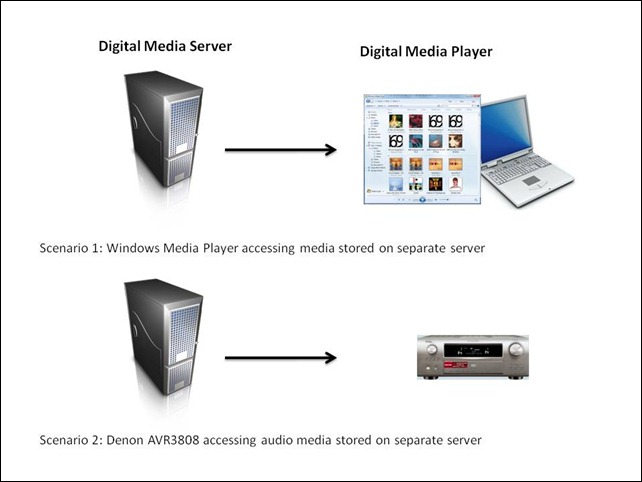
    At its simplest, just two devices can be involved: a Server and a Player. These can even be running on the same physical device, as in the case where your Windows Media Player on your Desktop PC is streaming music or video stored on the PC itself. The next step up is where the server and player are on separate physical devices. Two typical scenarios are shown in figure 1:

    WMP Scenarios
    Figure 1: Typical scenarios of simple case of DMP devices accessing DMS devices.

    I’ve used the Denon AVR3808 as an example, since this is what I have in my home network. My main DMS is an old headless (no monitor, keyboard or mouse) Dell PC running the Windows Home Server operating system. Actually, to be strictly accurate, the Dell is running two Digital Media Servers. The first is Microsoft’s Windows Media Connector version 2.0, which is built into WHS. The second is the Asset UPnP media server, which is a free piece of third party software installed onto WHS. The fact that I have two DMSes running will prove significant once I get into describing the next set of scenarios.

    In my particular case, all flavours of the two scenarios shown above will work, that is, both DMSes running on the Dell box will stream audio to other PCs in the home network, and to the Denon AVR3808. Under the covers, there’s actually some negotiation of streaming formats going on. This is because I have stored all my music files on the Dell server box in Windows Media Audio Lossless (WMAL) format. This presents no problems for the PCs, since the Windows Media Players installed on them can handle WMAL. But the Denon can only handle standard Windows Media Audio, not the Lossless variant. So when I use the Denon to browse my music library on the Dell and select a track to play, the DMS that I’m using sees that the Denon can’t handle WMAL and transcodes the stream into standard PCM (which the Denon can handle) on the fly. Both the Asset and the Windows Media Connect will do this. But this breaks down in the next set of scenarios.

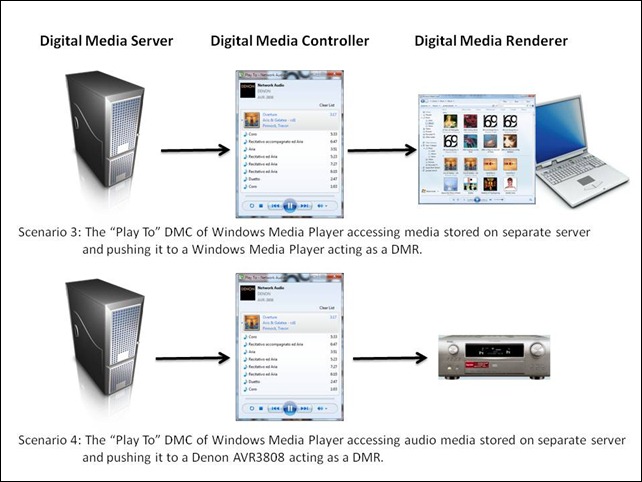
    So, the interesting scenarios are where there are three devices linked together: a Digital Media Server, a Digital Media Controller, and a Digital Media Renderer.

    WMP Scenarios 2
    Figure 2: Typical scenarios of a three device link (DMS-DMC-DMR).

    Once again, in my case, all flavours of scenario 3 will work. That is, I can stream from either DMS running on my Dell Windows Home Server using the “Play To” feature of Windows Media Player in Windows 7, and push the stream to either of my PCs that are currently running Windows 7.

    But scenario 4 has been giving me all sorts of problems. Sometimes it would seem to work, and other times it wouldn’t. I think I have finally got to the bottom of it.

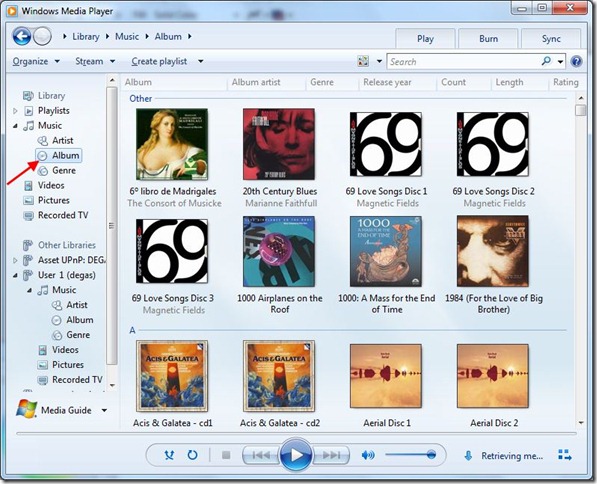
    The issue is that media libraries in Windows Media Player in Windows 7 can be built up in a number of ways. Take a look at this screenshot of the first few albums in my music library:

    WMP 12 3

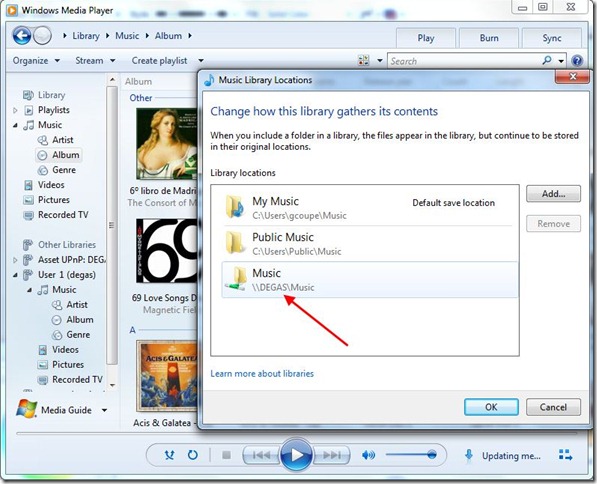
    I’ve highlighted the fact that you are looking at the content of my music library in “Album” view. That is shown as part of the “Library” tree (Library – Music – Album). This screenshot has been taken from my Tablet PC, which is running the Windows 7 Release Candidate. Now the interesting part is where these albums are physically stored. There is far more storage required than my Tablet PC can cope with, so in fact these album files are sitting on my Windows Home Server. This next screenshot shows that my music library is in fact being comprised of three storage locations: my own music folders on the Tablet PC, the “Public” music folders on the Tablet PC, and the music folders on Degas – which is my Windows Home Server:

    WMP 12 4

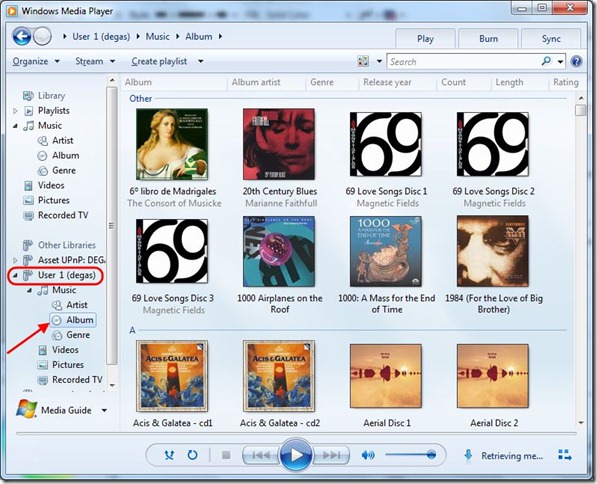
    But hang on a minute, Windows Media Player is showing two navigation trees on the left hand side of its window: the “Library” tree and another one called “Other Libraries”. The content of the “Other Libraries” tree is populated by other Digital Media Servers which Windows Media Player discovers on the network. Sure enough, it’s found the Windows Media Connect DMS running on the Dell Windows Home Server (Degas), and this next screenshot shows the same album files being seen in the Album view under the “Other Libraries” tree:

    WMP 12 6

    You’ll notice that just above “User 1 (degas)”, which is the Windows Media Connect DMS, is the Asset UPnP server entry, shown as “Asset UPnP: DEGAS”. So, under scenario 4, I can stream the same album in three different ways:

    1. Using “Play To” to pull from the Tablet PC’s Windows Media Player streaming server and push it out to the Denon.
    2. Using “Play To” to pull from the Windows Media Connect streaming server on the Dell and push it out to the Denon.
    3. Using “Play To” to pull from the Asset UPnP streaming server on the Dell and push it out to the Denon.

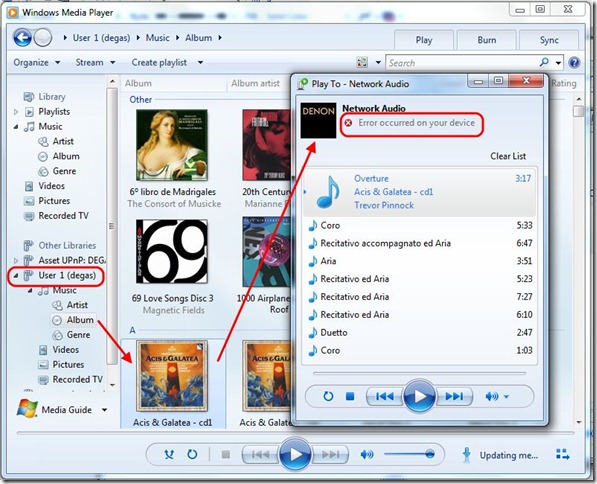
    What I’ve found is that method (1) and (3) will work, but that method (2) does not. These are illustrated in the following screenshots:

    WMP 12 7

    WMP 12 8

    WMP 12 9

    I should just point out that I’ve configured the Asset UPnP server to always stream in PCM format. If I didn’t do this, then while it would work in the simple case of scenario 2, in the case of scenario 4, it would fail just as the Windows Media Connect server does.

    The conclusion that I draw from all this is that in these “man-in-the-middle” scenarios, it looks as though end-to-end negotiation of the proper streaming format is not always being done correctly. I suspect that in scenario 4, method 2, the Windows Media Connect server is simply serving up WMAL format to the Denon, which causes it to fail. Now, I don’t know whether this is a shortcoming of the DLNA specification itself, or simply an outcome of how Microsoft have implemented it in the case where there are physically separate servers out on the network. Time will tell.

    At least I now know which scenarios work and which will fail. On to the next problem…

  • Windows Home Server

    Now that Microsoft has released the Windows Home Server product, I went ahead and bought the OEM version to install on the computer that I use as a server in our home network. Overall, I’m fairly pleased with it, it does (mostly) what it says on the tin with a minimum of fuss. However, there’s one thing that continues to irk me: Microsoft’s marketing claims do not tell the whole story, they are being economical with the truth.

    Microsoft claims that you can remote access “any home computer” using the product. For example, see this screenshot of the welcome page when I remotely log into my home server:

    WHS Remote Access 3

    Even on Microsoft’s product pages, their FAQ says that: “Windows Home Server … also allows you to connect remotely and use your home computers as if you were sitting in front of them”. See:

    WHS Remote Access 2

    Unfortunately, when Microsoft says “any home computer”, they don’t actually mean “any”. What they mean is their top-end operating systems: Windows XP Professional, Vista Business or Vista Ultimate. Those of us with Vista Home Basic or Vista Home Premium cannot remotely access their home PCs running those operating systems:

    WHS - Remote Access

    I really find this ridiculous. I’ve blogged about this before – I came across it while I was beta-testing the product. I had hoped that Microsoft would have remedied this with the final release of the product. But no, so I can reprise my rant:

    Let me get this straight, the Windows Home Server product, the one that is supposed to be for ordinary mortals, not geeks, the one that is supposed to give you remote access to any computer in your home, won’t actually do this if you have Windows XP Home, Vista Home Basic or Vista Home Premium installed on your home computers? You actually have to have XP Professional, Vista Ultimate, Vista Business or, gawd help us, Vista Enterprise installed on your goddam home computers?
    I’ve heard some nonsense in my time, but this takes some beating. The whole raison d’etre of Windows Home Server is being torpedoed by a product packaging decision… how stupid is that?
    Well, of course most homes will have XP Home, Vista Home Basic or Vista Home Premium. Only geeks buy XP Professional or Vista Ultimate… What really irritates me is that I had Windows XP Professional at home on all our systems, but wanted to move to Vista Home Premium in an attempt to be less geeky. More fool me, I suppose.

    I notice that none of the glowing reviews of Windows Home Server that I’ve seen (with the honourable exception of Paul Thurrott) has actually picked up on this shortcoming. Clearly, they’re all a bunch of geeks running Vista Ultimate, so this product hole goes straight over their heads. The rest of us mere mortals just fall straight into it.

  • WHS Is RTM

    That means Windows Home Server is Released To Manufacturing for those of you who are not acronymphiles.

    I, along with thousands of other folks, have been testing this software at home. I’ve found a few bugs, but most have been cured along the way. I’m still getting the “database inconsistency” bug, despite trying the steps to fix it. I see that Microsoft say that this bug will “more than likely be fixed by RTM”, so we’ll see.

    But one thing that is not yet clear is whether WHS will open up the ability to access all flavours of Windows operating systems via the internet. At the moment it does not, even though you might be forgiven for thinking that it does if you just listen to Microsoft’s marketing.

    Still, kudos to the development team for a product that has much to commend it.

  • The Workaround

    Well, after that rant about stupid packaging decisions for Windows Home Server, it comes as something of a relief to be able to say that I had one piece of good luck today. You know that conflict between the Windows Home Server client software and CA’s Anti-Virus 2007 product that I’ve been banging on about? Well, I discovered that there’s a workaround…
     
    I was watching a video podcast by Ian Dixon on TheDigitalLifestyle.com when I noticed something curious. He was demonstrating how to restore an individual file from a Windows Home Server backup, and he right-clicked on the file. I spotted that in the pop-up menu there was an entry for CA’s Anti-Virus. Hang on, thought I, how has he got that running on his machine, when he has also got the Windows Home Server client software running as well?
     
    An exchange of emails brought the answer… and for those of you wanting to have the workaround, here it is…
    1. Change the startup of the “Windows Home Server Connection Service” service [sic] from “Automatic” to “Manual”
    2. Remove the Windows Home Server tray application (WHStray.exe) from the list of programs that are started when Vista boots up. You can do this from the Software Explorer in Windows Defender or, alternatively, just delete the link to the application in C:ProgramDataMicrosoftWindowsStartMenuProgramsStartup.

    Then you should find that Vista will boot normally. Once you’re up and running, then starting the Windows Home Server console will start both the connection servce and the tray application for you. There you have it…


  • Windows Home Server Packaging

    While I’m still waiting for Microsoft to come up with a fix for the conflict between their software and CA’s anti-virus product, I thought I’d mention another oddity about the Windows Home Server software.

    Microsoft are saying that one of the selling points for this product will be the fact that your home computers and your Windows Home Server will be remotely accessible from anywhere on the internet. They’ve gone on record with this. Indeed, when I connect to my Windows Home Server over the internet, once I’ve logged in, this is the welcome screen that I see:

    Windows Home Server screenshot 2

    See those “Connect remotely to any of the computers in your home” and the “Access any home computer” claims? Sounds wonderful, doesn’t it? Just one slight problem. It’s not true…

    What happens when you click on the “Computers” tab in the welcome screen is that you’ll get a screen rather like this:

    Windows Home Server screenshot 3

    Look carefully – you’ll see that the computer called Monet has two entries – one when it’s running Windows XP Professional, and one when it’s running Windows Vista Home Premium Edition. And look, the Vista Home Premium Edition entry is marked as “Not Supported”. What’s that all about? Well, let’s click the helpful text just below that reads: Why can’t I connect to some computers? Then this screen will pop up:

    Windows Home Server screenshot 4

    Er, hello? Microsoft are telling me that the only operating systems that support Remote Access via Windows Home Server are Windows XP Professional, Vista Ultimate, Vista Business or Vista Enterprise?

    Let me get this straight, the Windows Home Server product, the one that is supposed to be for ordinary mortals, not geeks, the one that is supposed to give you remote access to any computer in your home, won’t actually do this if you have Windows XP Home, Vista Home Basic or Vista Home Premium installed on your home computers? You actually have to have XP Professional, Vista Ultimate, Vista Business or, gawd help us, Vista Enterprise installed on your goddam home computers?

    I’ve heard some nonsense in my time, but this takes some beating. The whole raison d’etre of Windows Home Server is being torpedoed by a product packaging decision… how stupid is that?

    Well, of course most homes will have XP Home, Vista Home Basic or Vista Home Premium. Only geeks buy XP Professional or Vista Ultimate… What really irritates me is that I had Windows XP Professional at home on all our systems, but wanted to move to Vista Home Premium in an attempt to be less geeky. More fool me, I suppose.

    I should just add, taking a deep breath after this rant, that I’m not the only beta-tester of Windows Home Server who has gone “What?” at this packaging decision. I see that this issue is now marked as “Closed(Postponed)” on the feedback site, and it could just be that the final version of Windows Home Server will emerge with Remote Access to all your home computers enabled – just as Microsoft is currently claiming, when you don’t read the fine print, that is. Let’s hope so, otherwise Windows Home Server starts to lose a lot of its attraction for me.

    Update, November 2007: Well, the final release still doesn’t support remote access to “any home computer”, despite Microsoft still seeming to imply this (unless you read the fine print). I’m not impressed.

  • Twiddling Thumbs

    I’ve mentioned before that I’m currently testing a beta version of Microsoft’s Windows Home Server product, and that I had a showstopper of an issue on my Vista machine – after installation of the Windows Home Server client software, Vista won’t start – it just locks up.
    Two weeks ago, the cause was identified – it’s a conflict between CA’s Anti-Virus 2007 product and the Windows Home Server client software. I wrote then that Microsoft were aware of the problem, and that a fix was on the way. I’m beginning to wonder if I might have been jumping the gun. I’ve been following the issue on Microsoft’s feedback forum for beta testers, and some of the responses I’m seeing from the Microsoft side make me wonder whether they’ve really understood what we’ve been telling them.
    It seems as though Microsoft thinks that we’re talking about their Live OneCare product and its anti-virus capability. Er, no, guys. Read my lips: it’s a conflict between CA’s Anti-Virus 2007 and your Windows Home Server client software.
  • Kicking The Tyres

    I mentioned that I’m currently testing the beta software of Microsoft’s Windows Home Server. In that last posting I mentioned that I had a showstopper of an issue – Windows Vista would not start when the Windows Home Server Connector software was installed.

    Someone reported the same issue today on the feedback forum, and said that it was caused by a conflict between the Connector software and the CA Antivirus program for Windows Vista. A bit of testing on my part confirms this: either I can run the Connector software or I can run the CA Antivirus – but I can’t run both together. What’s also frustrating is that the Windows XP version of CA Antivirus does not have a conflict. Martin’s PC, which is running Windows XP, is happily sending backups through to the Windows Home Server box.

    I’ve reported this to Microsoft, and I’ve just received an email to say that they’ve confirmed this, and there is a fix in the works, so I’m looking forward to getting this and carrying on with testing.

  • Windows Home Server Hiccups

    Amongst other things, I’m currently testing the beta software of Microsoft’s Windows Home Server. Along with about 10,000 other people, apparently.

    It is only the second beta, so one should expect bugs; and in that I’ve not been disappointed.

    I’ve had a couple of problems with the Connector software. On one machine (which was running Vista at the time), it failed to find the server machine, even though it sits on the same subnet of my home network. That machine has now had Windows XP re-installed on it for other reasons, and now it is happily sending backups through to the server.

    But far more seriously, on another machine (also running Vista) the Connector service will lock up the machine completely after some time has elapsed. The only way to deal with it once it locks up is to boot into Safe Mode, and disable the Connector service. I suspect that it is conflicting with one, or even worse, a combination of the 73 other services that the machine happens to be running. I see from the bug reports that I’m not the only person suffering from this, so hopefully Microsoft will get around to looking at it at some point.

    Another bug that has started ringing alarm bells with me is that someone has reported that moving his 26,000 photos onto the server has corrupted the photos’ metadata. This would be a disaster for any photographer who uses metadata for digital asset management. I’m certainly not going to entrust my 24,000 photos to the current beta – at least not until Microsoft have identified and corrected this particular bug.

    Apart from real showstoppers such as these, there are the usual raft of niggles, which while they may be somewhat irritating, don’t cause active harm. One example I’ve got is the fact that each time I reinstall the Connector software on a client machine, the previous examples live on like ghosts in the administration console. Take a look at this to see what I mean.

    Home Server Console with Ghosts

    Those greyed-out icons cannot be got rid of, and represent previous instances of the Connector software on client machines.

    So, on we slog…

  • Windows Home Server

    I mentioned the forthcoming Windows Home Server product last month. It’s currently in beta test, and Microsoft have recently widened the scope of testing. There have been over 25,000 people asking to participate in the test. Last Saturday, yours truly received an email from the Windows Home Server team to say that my request to be included in the test had been accepted. So I’m currently kicking the tyres.
    It has promise, but it’s still clearly at an early beta stage. And I’d still like to see what I pointed out last month – there’s no facility to be able to take backups for offsite storage. It’s all very well having a central server in the home, but if your home goes up in flames, you’ve still lost all your data…
    I see that the marketing wing of Microsoft are already busy with their Stop Digital Amnesia campaign. Fairly toecurling stuff – and a very poor ripoff of the far superior campaign that John Cleese did for Livevault.
  • Windows Home Server

    I see that Bill Gates announced this week that there would be a Windows Home Server product available later this year. It’s a computer without screen, mouse or keyboard that runs a stripped down version of the Windows Server software. The idea is that it gets put in a cupboard somewhere, and it acts as the data and backup hub for your home network. It will have a web-based administration interface that’s supposed to be simple enough for anyone to master.
    I currently have a computer running Windows XP that acts as my backup hub, but it needs a lot of looking after. There are some features in Windows Home Server to simplify these sorts of tasks that make it interesting enough to consider. But really, what I would need to feel really safe is offsite data backup. These days of using servers to store music, video and photos makes that a rather tiresome proposition involving hundred of DVDs. I’m not sure that Windows Home Server does much to simplify that…