Reflections on life at “De Witte Wand”…

Tag: WHS 2011

  • RIP, Windows Home Server…

    Once Upon A Time…

    A long time ago, way back in 1999, a man by the name of Charlie Kindel had an idea: Microsoft was developing Windows for home PCs, why shouldn’t it develop Windows for a home server as well? His managers initially told him to focus on his real job, but his idea surfaced at CES in 2000 as a technology prototype called “Bedrock” focused on home automation and family applications. His idea went through more iterations until in February 2004, work began on a project called “Quattro” and that resulted in a product group to be formed in 2005 to produce what was to become Windows Home Server.

    The first version of WHS was released to manufacturing in July 2007. I, along with thousands of others, had been testing the software at home prior to release. There were some issues that I found, but by the time of release, the majority had been resolved. Technically, it was pretty solid, but of course, Microsoft Management had got involved, and one of the potentially unique selling points had been removed. Despite being aimed at home users, remote access to your computers from outside the home wouldn’t work if you had home versions of Windows installed on your computers.

    Apart from that castration by Management, WHS still had some very clever and innovative technology under the hood:

    I bought an OEM license for WHS in November 2007, and have been running WHS ever since; first the original version of WHS, and then WHS 2011, which was released in April 2011.

    Windows Home Server 2011

    WHS 2011 was not a straightforward improvement over the original WHS. Indeed, it dropped the major feature of the WHS Drive Extender, much to the dismay of WHS customers. There had also been organisational changes at Microsoft; the original product team had been part of the Windows product group, now it found itself lumped in with the big boys of the Business Server Group.

    I had the distinct impression, watching the development of WHS 2011 and testing the betas over the months leading up to April 2011, that things were not going well with WHS 2011. As I wrote at the time: Microsoft had the chance to build upon the base of WHSv1 as a server and media appliance that could be used by the average consumer, and they threw that chance away.

    So WHS 2011 turned out to be something of a damp squib, with some features that had obvious design shortcomings or that never worked properly – hello, Media Library, I’m looking at you… Even the new server backup feature of WHS 2011 had a design shortcoming that took my breath away.

    Despite these shortcomings of WHS 2011, the positives still managed (just) to outweigh the negatives for me, so I migrated from WHS V1 to WHS 2011. I had built a dedicated server to hold all our media collections (CDs, DVDs, Blurays), and the backups from all the other PCs in the house. With the installation of WHS 2011, the server itself was being backed up using off-site storage.

    The End Is Nigh

    However, it was clear that Microsoft no longer loved Windows Home Server, and it was no surprise when Microsoft announced in July 2012 that there would be no next version of WHS. That meant, according to Microsoft’s Product Support Lifecycle rules, that WHS 2011 would continue to receive mainstream support until April 2016. Well, hello, that’s just two short months away. Thus, I needed to prepare a contingency plan.

    Making The Move

    I could have replaced the server hardware with an off-the-shelf NAS, but it seemed to me that would be an unecessary waste of good hardware. Instead, I could just change the software environment and keep the hardware intact. Not feeling inclined to go to the dark side (i.e. Linux), or for shelling out for a copy of Microsoft’s Windows Server Essentials (at ten times the price of WHS), I decided the best approach would be to use Windows 10 Pro in headless mode (i.e. without an attached monitor, mouse or keyboard). The WeGotServed site publishes a useful guide on how to do this, called, not unexpectedly, Building A Windows 10 Home Server. Whilst I think I could have got by without purchasing this guide, it does cover the entire process from a to z, hardware and software. I found it useful as a refresher of my knowledge, and for someone who is new to the idea of building their own server, it would be invaluable.

    The problem is that Windows 10 is not Windows Home Server. In particular, the feature of automatically backing-up client PCs to the server is substantially different in Windows 10, and it is not an improvement.

    Instead of WHS’s automatic backup of client PCs to single-instance storage, we have, not one, but two backup technologies to choose from in Windows 10 – and neither of them are ideal. Windows 10 offers:

    • File History backup
    • Backup and Restore (Windows 7)

    File History Backup

    While there’s a lot to like about the Windows 10 File History feature, it only focuses on the user’s personal data. It will only backup data held in the user’s Libraries, Desktop, Contacts and Favourites. It will completely ignore applications that have their own databases, e.g. Adobe’s Lightroom. For some years, Microsoft has been telling developers to store application data in locations contained in the C:\ProgramData folder, and now the File History feature will totally ignore such files. Also, user data that is not document-based is supposed to be held in locations contained in the C:\Users\Username\AppData folder. That is also ignored by the File History feature. It turns out that Microsoft’s own Windows 10 Mail App stores mail messages in the AppData folder, so File History will not backup your mail messages. Microsoft seems to be assuming that we store all our mail in the Cloud, e.g. in their Outlook.com service. Not everyone does.

    Also, unlike the elegant and simple-to-use client PC Backup function of Windows Home Server (which covers all files and also provides a bare-metal restore), File History does not use single-instance storage. So if a new version of a file changes even by one bit, the entire file is backed up as an entirely new copy onto your backup disc. It’s very inefficient and wasteful of storage.

    Backup and Restore (Windows 7)

    As the title suggests, this technology is a legacy from earlier versions of Windows. It also works in a completely different manner from File History (or the Backup/Restore feature in WHS). It is a System Image backup utility, that is, the entire contents of the PC are backed up in one go – a snapshot of how your entire PC looked like at the point in time when you made the backup.

    Whilst it’s useful to be able to make a snapshot in time of your PC, the WHS client PC can do this and more: it also allows you to restore individual files, and from different time points in their lives.

    The fact that Microsoft has clearly marked this Backup and Restore technology as deprecated makes me wary. I would not be suprised to see it removed entirely from future versions of Windows 10.

    Backup/Restore – What To Do?

    Given that neither of the backup offerings in Windows 10 can match the simple and elegant solution of WHS, if I’m going to have to use Windows 10, what can be done? I suppose one route would be to purchase a separate backup and restore application. I’ll keep an eye out for that, but in the meantime, my approach will be to use the File History route to backup my personal data (documents, pictures and so forth), and manually including a specific list of application databases (e.g. Adobe Lightroom, Photo Supreme, etc.) to be covered by File History. For my email folders, I will make sure that all my email is automatically forwarded to an Outlook.com account as backup.

    It’s not simple or elegant, but a kludge. Thank you Microsoft; one step forward, two steps back, as usual.

    Pulling the Trigger

    I could have stuck it out and carried on with WHS 2011 until at least April 2016. However, I’ve invested in a piece of server software that, it turns out, does not run well on WHS, but requires Windows 10. It is RoonServer. As a result, I have migrated from running WHS 2011 on our server to running Windows 10.

    The migration was pretty straightforward, and all the media libraries and server software are now running quite happily under Windows 10. I miss the ease of WHS and its backup capabilities, but Microsoft has stuck the dagger in its back in the interests of getting us all to move to the Cloud. It’s a great pity – despite all the song and dance about Cloud services, I am still firmly of the opinion that there is a place for a server in the home. Online streaming where I am in the rural Netherlands is neither fast enough, stable enough, nor cheap enough to be considered a viable alternative.

    Addendum, 27 February 2016: I see that Microsoft’s SBS group has just published a survey to ask the user community for feedback on the features of Windows Server Essentials to help them prioritise their planning for the next version. I left a comment:

    Looking through the questions in the survey, it is very clear that you are targeting a particular group of business users. For those of us who grew up with Windows Home Server, and who mourn its passing, there is nothing to see here. Our feedback is clearly of no importance to your plans.

    The comment is currently stuck in moderation. We’ll see whether it emerges and gets published. And, of course, it never did get published… Perhaps the truth hurts too much, or more likely, they couldn’t give a damn.

  • Filling A Reservoir With A Teaspoon

    I’ve been using Microsoft’s OneDrive since it was launched as Windows Live SkyDrive, back in 2007. By the time it got renamed as OneDrive in 2014, I had 40 GB of free storage available in the Cloud to use for storing documents and photos.

    I’ve noticed a change in my computing habits over the years. When I had just my Desktop PC, my primary location for storing both documents and photos was local storage on my PC. Backups were taken daily and stored on our Windows Home Server system, with secondary backups of the most important data taken from that server and stored off-site.

    With the arrival of the Cloud, I first started storing copies of selected photos and documents in Microsoft’s SkyDrive/OneDrive, primarily as a means of sharing them with friends and family.

    With the arrival of my first “proper”tablet, the ThinkPad Tablet 2, back in January 2013, I started to make more use of OneDrive as the primary location for my OneNote documents. It was simple to create a OneNote document (usually on the Tablet), and then continue to work on it on my PC. That has grown to the point where my primary storage location for OneNote documents is no longer a local device (the desktop PC or the Tablet), but the Documents folder in OneDrive, which is synchronised transparently across all my devices (now a desktop PC, a Windows tablet, a Lumia Smartphone and a laptop).

    When I bought a license for Office Home & Student 2013 for my ThinkPad Tablet, I began storing all my Office documents (Word, Excel, PowerPoint) in OneDrive by default. That way, they would be immediately accessible from my other machines and synchronised with them.

    With my 40 GB of free online storage available in OneDrive, this would probably suffice for my documents and selected photos.

    But then, last month, Microsoft announced that music media could be stored in OneDrive, and be available to my devices. In truth, it’s not really necessary for me, I already use the Windows Home Server as my music media storage; but the thought of having extra backup options appealed to me. With a music collection that is currently 215 GB in size, I would not be able to hold a duplicate, backup copy, on OneDrive as it stood.

    I decided to bite the bullet, and take out a yearly subscription to Office 365 Personal (70 euros annually). That way I would kill several birds with one stone:

    • Upgrade my license of Office 2010 on my Desktop PC to Office 2013,
    • Be able to install Office 2013 on a further Windows tablet
    • Get 1TB of OneDrive storage, and
    • Get 60 minutes of Skype calls to landline telephone numbers (useful for overseas calls).

    So I’ve subscribed, and also signed up for the “unlimited storage” option of OneDrive that Microsoft announced last year. Today, I received an email from Microsoft telling me that my Office 365 account now has unlimited storage and they’ve added an initial 10TB of storage. I’m only scratching the surface of what is available:

    OneDrive 14

    And now I’m discovering that I’m trying to fill a reservoir with a teaspoon. My connection to the internet is via ADSL, and with 4 Mbps download and 1 Mbps upload speeds, it is not blazingly fast. I reckon that it’s going to take several weeks to upload my music collection to OneDrive, and a couple of weeks for my photos. An added complication is that the Smart files feature of Windows 8.1 is being removed by Microsoft in Windows 10, while they work out how to re-engineer it. This means that the user experience of using OneDrive storage will take a step backwards until at least mid 2016.
    Still, I’ve now moved across to using OneDrive as my primary storage for documents, and given time, it will also become the primary storage for my photos, and possibly for my music. I’ll still be using our Windows Home Server for local storage and backup as an additional safety measure.

  • Intel’s Obstacles

    I’ve been using Microsoft’s Windows Home Server since 2007. In the years that it’s been installed, it’s been doing sterling work, acting as our server for digital media around the house, and also being responsible for taking nightly backups of our other computers. Unfortunately, the motherboard in our homebuilt server developed a fault, so that was all the excuse I needed to replace the old motherboard with a modern Intel Haswell-based design. I chose an ASUS H87I-Plus board, since it had six SATA ports and also came with an Intel controller for the Ethernet LAN interface to the network. The previous board had a RealTek LAN controller, and while it worked, I kept reading that the Intel design was better. So I decided to switch.

    That decision caused a few hours of cursing.

    Replacing the old motherboard with the new one was straightforward, and being a mini-ITX form factor, it is smaller than the old board, gives more room in the case and should be more energy-efficient. After booting it up into the BIOS to check that the hardware was all working as expected, I began to install Windows Home Server 2011. At first, everything went as expected, but then the installation process halted with an error – there was no driver installed for the Ethernet LAN controller.

    No problem, thought I, I have all the necessary software on the CD that ASUS supply with the motherboard. I quickly located the folder for the LAN drivers, and started the setup procedure. First of all, the ASUS setup software refused to run because it discovered that it was on a machine running WHS 2011 instead of Windows 7 or Windows 8. So I dug down a bit and located the Intel setup software and started that running directly. After accepting the license agreement and a few screens marking the progress, everything came to a grinding halt when the setup stated that it wasn’t going to install the necessary drivers on this machine.

    Fighting a rising sense of panic, I went to Intel’s download site, and downloaded the necessary drivers straight from there. Trying to install these produced the same result – no network drivers were installed.

    A search on the internet produced the reason why.

    Intel have decided that consumers should not be running a “server” operating system on a chipset that Intel deem to be for the consumer market. Intel have the i217-V (desktop) and i217-LM (server) versions of their gigabit Ethernet chip. They are in fact the same chip. The only difference is that the –V variant has support for Windows 7 and Windows 8 (desktop operating systems) while the -LM variant has support for Windows Server 2008 and Windows Server 2012, i.e. server operating systems. Unfortunately, Microsoft built WHS 2011 (which is intended for the consumer market) on top of Windows Server 2008. So when the driver installation software detected  that it was running on a “server” operating system, and the motherboard had the consumer variant of the Ethernet chip, then it simply refused to install the driver.

    Fortunately, the same search produced a solution. Ivo Beerens has a post on his blog describing this situation, and giving a solution – a few simple edits to an Intel configuration file. I was able to follow his instructions and have successfully installed the driver. WHS 2011 has now been able to connect to the network and complete its installation. It’s now downloading and installing a further 120 updates to itself. Hopefully, I will have been able to complete the rebuild of the server by the end of the weekend…

    Thanks to Ivo, and no thanks at all to Intel.

  • The End is Nigh

    Six years ago, along with 10,000 other people, I started testing the beta of the first version of Windows Home Server. When it was formally released in November 2007, I bought the software and built my first home server. I repeated this cycle for the next version of Windows Home Server: trying the beta, and then buying the product. Despite my many rants about the shortcomings of Windows Home Server 2011 and Microsoft’s lackluster support, overall I’ve been very satisfied with the product. It does its job of taking automatic backups of itself and our other computers in the house, and is the central storage for our collection of music, film, video and recorded TV programmes.

    However, it was clear that Microsoft no longer loved Windows Home Server, and it was no surprise when Microsoft announced in July 2012 that there would be no next version of WHS. That means, according to Microsoft’s Product Support Lifecycle rules, that WHS 2011 will continue to receive mainstream support until April 2016.

    That notwithstanding, Microsoft has also just told its band of enthusiasts in the WHS community of users that as from April 2014, WHS will be fully retired as an award expertise and technical interest. They do seem in an awful hurry to dispose of all trace of Windows Home Server.

    It’s a great pity – despite all the song and dance about the move to Cloud services, I am still firmly of the opinion that there is a place for a server in the home. Online streaming where I am in the rural Netherlands is neither fast enough, stable enough, nor cheap enough to be considered a viable alternative.

  • Fun and Games With WHS 2011

    Despite some quirks and shortcomings, my Windows Home Server system has been quietly backing itself up onto a pair of hard drives that I rotate to an off-site location.

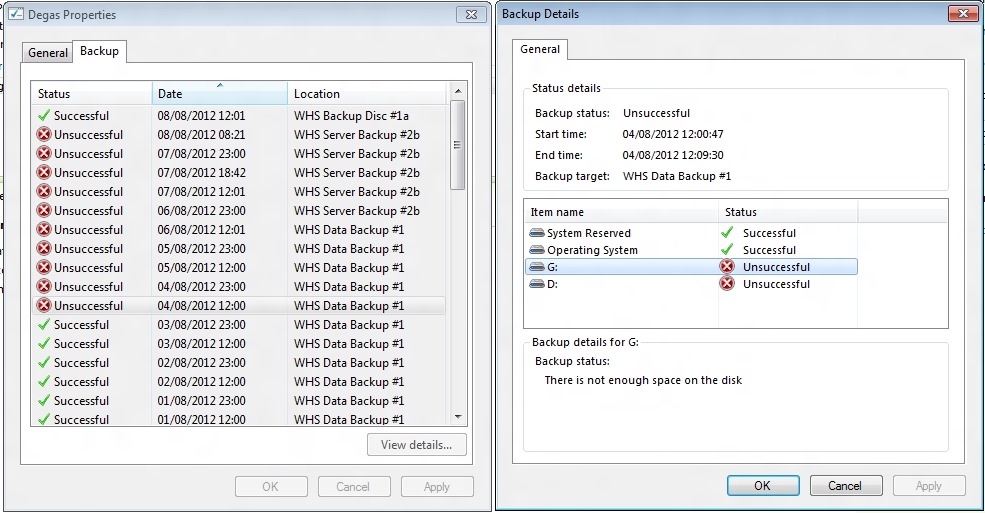
    But four days ago, the server backups started failing. The error being reported was “There is not enough space on the disk”. This was being reported for both the G: and the D: drives on my system.

    WHS2011 106

    Well, I could understand that being the case for the G: drive, since that had filled up with data leaving only 60 GB free on a 1 TB drive. However, the D: drive had nearly 385 GB free on a 405 GB drive.

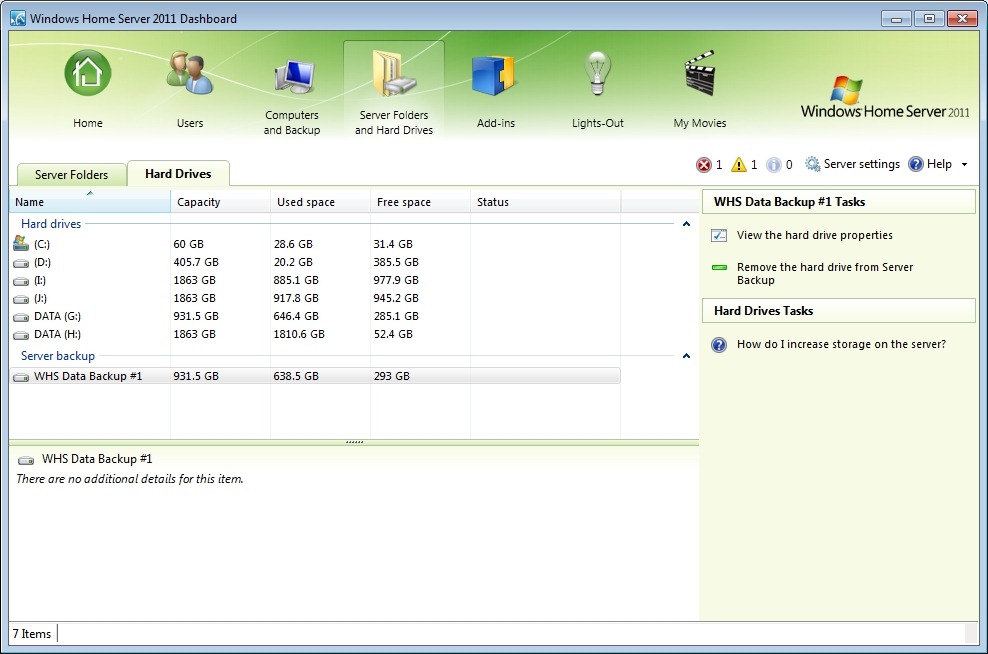
    I wondered whether in fact the disk being referred to was not the data disk, but the backup disk, WHS Data Backup #1, which only had a few GB free. WHS 2011 is supposed to purge old backups from the backup drives when they get full, but there seems to be no way to predict when it will do this – I’ve had backup drives bob along for months with only a few GB free.

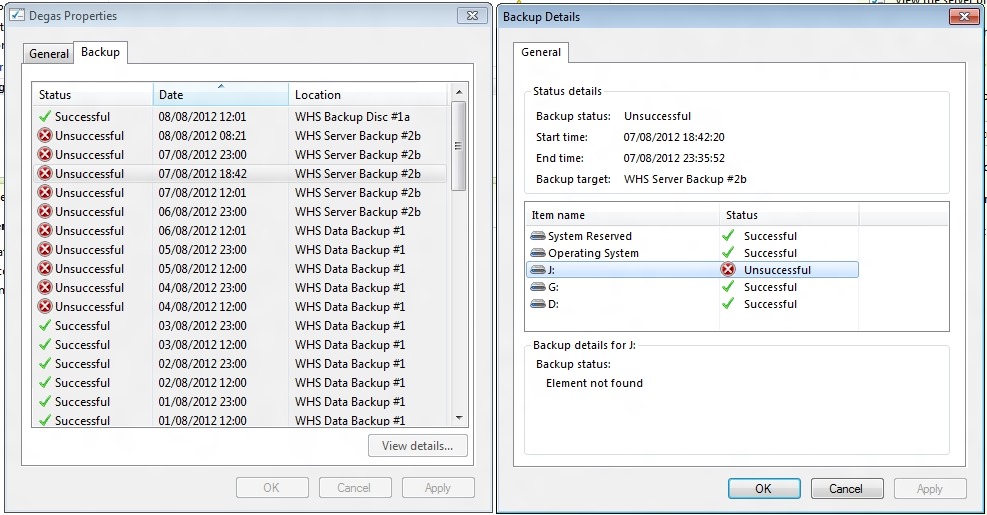
    I tried a few more server backups, but as you can see from the screenshot, they were all unsuccessful. I also swapped the backup drive for a second drive (WHS Server Backup #2b), but as you can see, server backups still weren’t working.

    I began to wonder whether it was data drive G: being almost full that was triggering the failure, so I moved one of the Shared Folders from the G: drive to the J: drive. Unlike WHS v1, WHS 2011 does not have drive pooling, so you have to manage the storage as a bunch of separate drives.

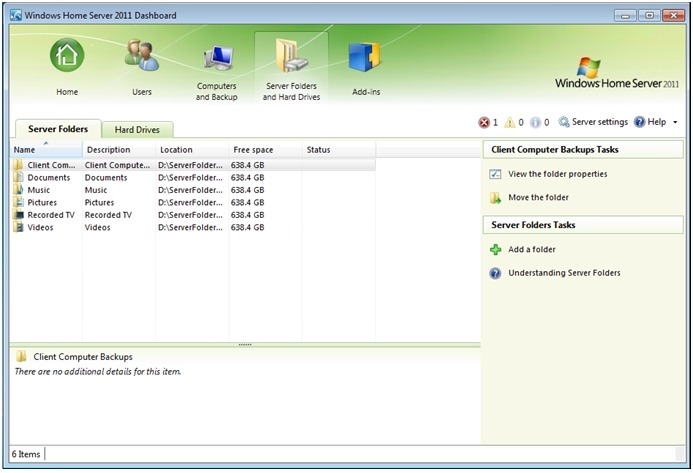
    Once I’d moved the Folder across to the J: drive (using the “Move the Folder” task in the WHS 2011 Dashboard), the G: drive now had 248 GB of free space, while the J: drive now had 714 GB of free space.

    I tried another server backup. This was also unsuccessful, with an “Element not found” error (whatever that means) being reported on the J: drive.

    WHS2011 107

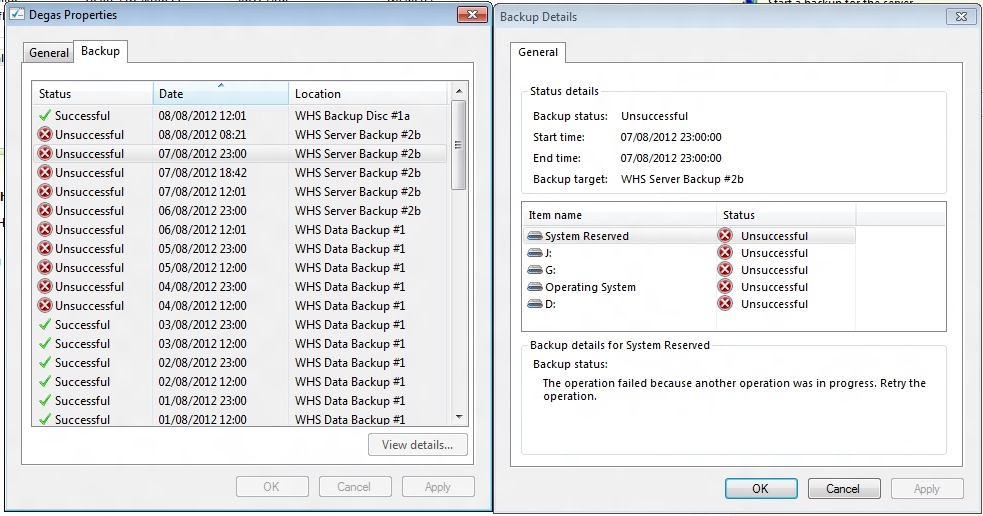
    I left the system running and waited to see whether the next scheduled backup (at 23:00) would work. That was also reported as unsuccessful, with all drives reporting a “The operation failed because another operation was in progress. Retry the operation” error.

    WHS2011 110

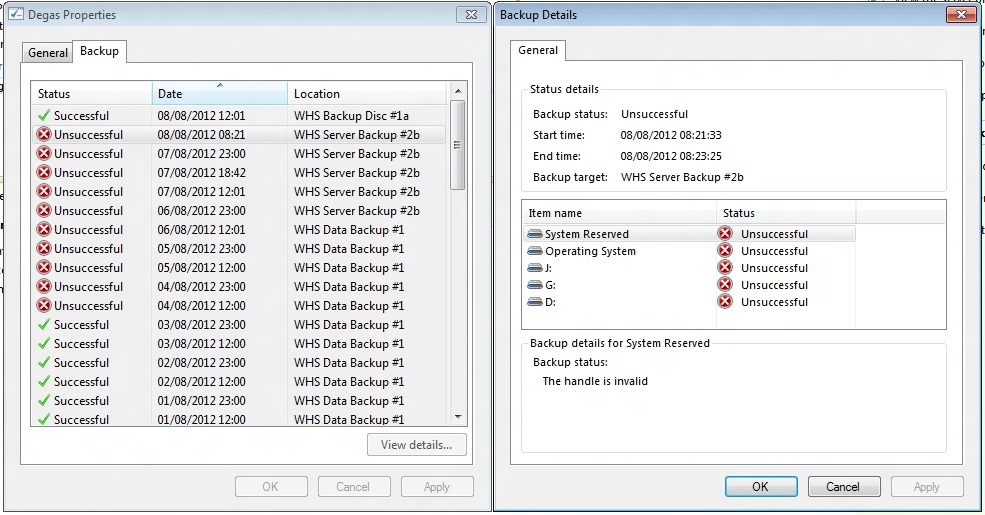
    Trying not to panic, I rebooted the system and tried one more time. Now I got a “The handle is invalid” error on all drives. Another mysterious and opaque message.

    WHS2011 108

    Finally, in desperation, I told WHS 2011 to remove the WHS Data Backup #1 drive from the server backup definition, and added it back as though it was a totally new backup drive. WHS 2011 formatted it, and I gave it the name of WHS Backup Disc #1a.

    The next time server backup ran, the backup was successful. Phew!

    WHS2011 109

    I suspect I’m going to have to reformat the second backup drive, and add it back into the server backup task as a new drive.

    I think things are back to normal again, but I have to confess that this little episode has shaken my confidence in WHS 2011 a bit.

  • Backing Up Your Data

    Here’s a simple question: do you have backups of the data held on your Windows PC or your Mac?

    Apparently, the answer from most people (if they’ve ever even thought about the question) is a resounding “no”. That’s the conclusion that Microsoft has reached. In a post on the Building Windows 8 blog, they state:

    Our telemetry shows that less than 5% of consumer PCs use Windows Backup and even adding up all the third party tools in use, it is clear nowhere near half of consumer PCs are backed up. This leaves user’s personal data and digital memories quite vulnerable as any accident can lead to data loss.

    Windows has had data backup tools included in it for years, but the fact is that very few people actually use them. Microsoft is introducing a totally new backup method in Windows 8 called File History. It comes with a user interface that is designed to be attractive and easy to use.

    Now there’s a lot to like about the Windows 8 File History feature, but it focuses on the user’s personal data. It will only backup data held in the user’s Libraries, Desktop, Contacts and Favourites. It will completely ignore applications that have their own databases, e.g. Adobe’s Lightroom. For some time, Microsoft has been telling developers to store application data in locations contained in the C:\ProgramData folder, and now the File History feature will totally ignore such files. Also, user data that is not document-based is supposed to be held in locations contained in the C:\Users\Username\AppData folder. That is also ignored by the File History feature. It turns out that Microsoft’s own Windows 8 Mail App stores mail messages in the AppData folder, so File History will not backup your mail messages. Microsoft seems to be assuming that we store our mail in the Cloud, e.g. in their Hotmail service. I’ve got news for them – we don’t all do this.

    I’ve got used to the elegant and simple-to-use client PC Backup function of Windows Home Server (which covers all files and provides a bare-metal restore). Moving to Windows 8 on my current hardware will mean that I will continue to use WHS for backup.

    However, because WHS does not support backup/restore of client PCs that use EFI/GPT technology, that will mean that I will have to use a combination of File History and some other method of backing up application data, if I invest in new hardware (a PC or a Tablet). Modern PCs use EFI/GPT.

    [Update 4 March 2013: Microsoft has at last issued a Hotfix to add backup support for UEFI-based computers to back up to servers that are running Windows Home Server 2011]

    Frankly, that makes it sound a bit of a kludge, instead of the current “set it and forget it” method of WHS.

    Peter Bright has a good analysis of the new File History feature, and a comparison with the older methods of data backup in Windows here. I rather like one of the comments on his analysis:

    So basically, they killed Windows Home Server but still don’t have an effective product to replace its backup mechanism. Got it.

  • Well, I Told You So…

    So Microsoft has effectively killed off their Windows Home Server product.

    Being Microsoft, of course, they don’t say this quite as baldly as I just did. Instead, they’ve announced some details of their forthcoming Windows Server 2012 lineup of software, and buried on page 4 of the 6 page FAQ we find this:

    Q: Will there be a next version of Windows Home Server?

    A: No. Windows Home Server has seen its greatest success in small office/home office (SOHO) environments and among the technology enthusiast community. For this reason, Microsoft is combining the features that were previously only found in Windows Home Server, such as support for DLNA-compliant devices and media streaming, into Windows Server 2012 Essentials and focusing our efforts into making Windows Server 2012 Essentials the ideal first server operating system for both small business and home use—offering an intuitive administration experience, elastic and resilient storage features with Storage Spaces, and robust data protection for the server and client computers.

    OK, so they are saying that Windows Server 2012 Essentials is to be “the ideal first server operating system for both small business and home use”. And how much will it cost? Well, it’s $425. And how much does Windows Home Server 2011 cost? Er, $40. There’s no way I can possibly justify shelling out $425 for Microsoft’s proposed successor to WHS 2011.

    Now, to be fair, that $425 price is a retail price, while the $40 is an OEM price. There isn’t an OEM price for Windows Server 2012 Essentials, instead, there’s another product in the range that will be available as OEM software, and that’s Windows Server 2012 Foundation. We don’t yet know what the OEM price will be for this software, and while it will be less than $425, I very much doubt that it will be $40 either, probably more in the $100 – $150 range.

    But there’s another issue to worry about, will there be things missing from the Foundation version that are present in Essentials? Microsoft says this:

    “If you’re a small business with limited in-house skills, Windows Server 2012 Essentials is an appropriate option. It’s simple, affordable, and easy to manage, and has been tailored to address common small business IT scenarios. Windows Server 2012 Essentials is the ideal solution if you plan to expand your business capabilities through the cloud as it is designed to facilitate your connection to online services. On the other hand, if you have some level of in-house IT skills and want the ability to tailor server roles to their unique environments, then Windows Server Foundation is potentially better suited to your business.”

    In other words, if you are a home user, then you had better have some degree of IT skills at your fingertips if you want to use Windows Server Foundation, assuming that it does contain all the necessary functionality. It certainly won’t have the easy-to-use Wizards that will be present in the Essentials edition…

    The upshot of all this is that Microsoft has essentially dropped the whole concept of a Home Server product, priced for the consumer market. I can’t say that I’m the least little bit surprised, the writing has been on the wall since the early days of the development of WHS 2011.

    The first version of Windows Home Server began with a vision and a focus on the home consumer. There was even a set of guiding principles for the design of the storage system for WHS v1 that were predicated on the needs of the home consumer. After the release of that first version of WHS, the team leader (Charlie Kindel) moved on, the WHS team got reorganised, and ended up in the Server group at Microsoft – small fish in a very big pond. In the process of developing WHS 2011, they effectively tore up Kindel’s guiding principles, and the result has been a product that while it bears the word “Home” in its title, is far less focused on the home consumer than the first version. Now that focus has been reduced even further to a blur.

    While some people will question the value proposition of a home server in these days of cloud services and online streaming, I firmly believe that it has a place. I have more data than I can affordably hold in the cloud, and living as I do in the countryside, I am at the end of a piece of wet string, so streaming of high-quality content is not an option.

    The original concept of WHS, with its easy to manage storage, and single-instance backup of up to 10 client PCs was something that had clear value to me. Microsoft weakened that with WHS 2011, and now they are in effect getting out of the home server market altogether.

    The one possible ray of hope is that it may be possible to replicate the functionality of WHS using Windows 8. That is dependent on someone developing an App for Windows 8 that replicates the client PC backup functionality that is present in WHS, while addressing its limitation (it can’t backup PCs that use EFI/GPT technology). There’s a gap in the market opening up – let’s hope someone will fill it…

    [Update 4th March 2013: Microsoft has at last issued a Hotfix to add backup support for UEFI-based computers to back up to servers that are running Windows Home Server 2011]

    Update 15 July 2012

    Being somewhat curious, I downloaded the beta of Windows Server 2012 Essentials and installed it into a virtual machine. I followed the excellent guides provided by Jim McCarthy on how to do this. Here’s his guide on installing Hyper-V (the virtual machine environment) in Windows 8 and here’s his guide on installing the beta of Windows Server 2012 Essentials.

    I found that I needed to make a change to my PC to enable the virtualisation mode of the CPU, but once that was done (and the PC rebooted multiple times), the Hyper-V environment was up and running. The installation of the beta of WSE 2012 was very straightforward, and before too long, I saw the server appear on my home network.

    I have to say that I think Microsoft is being disingenous when they say that WSE 2012 is suitable for “home use”. From what I saw of the environment, it is clearly aimed at a small business, not the home. For one thing, it provides a full domain controller environment, which is very much overkill for the home.

    I confess that I didn’t leave WSE 2012 in place for very long before I deleted it and removed the Hyper-V environment.

    For one thing, although it may have been a coincidence, following the installation of WSE 2012 into Hyper-V running on my main Desktop PC, the WHS backup service of that PC stopped running. Looking in the Event Viewer showed .NET runtime errors occurring with the Windows Server Client Computer Backup Provider Service, which manages the backup and restore service for client computers. Since this service was stopped (and couldn’t be restarted without errors), I could not back up or restore data for my Desktop PC.

    The other thing that sealed the fate of WSE 2012 for me was the news that a version of MyMovies will not be developed for WSE 2012. Brian Binnerup, the developer of MyMovies, believes (quite rightly, in my view) that the market will be too small to justify development and support of a WSE 2012 version. Since I have the MyMovies server installed on my WHS 2011 system, that rather closes off a possible upgrade path from WHS 2011 to WSE 2012 (quite apart from the cost of WSE 2012, of course). It looks as though a future version of the MyMovies server will only be developed for Windows 8. Update 24 August 2012: I see that Brian Binnerup now seems to have changed his mind about supporting Windows Server Essentials 2012. That’s good to know, but it’s still too expensive for me.

    As a result, I have turned my back on Windows Server Essentials 2012. It has been removed from my PC. I’ve reinstalled the WHS 2011 Connector, and now my Desktop PC is once more being backed up on a daily basis to my WHS 2011 server.

  • Thoughts on the Windows 8 Release Preview

    I must admit, since Windows 8 is going to be released in October 2012, I was expecting Microsoft’s Metro Apps in the Windows 8 Release Preview to be more fully functional than they are. To my mind, they are still little better than toy demos. Yes, I know that they are still labelled “Previews”, but there’s precious little time left before October, and an enormous amount of functional ground left to cover.

    For example, the Mail App still doesn’t have IMAP or POP support. This is a staggering omission, since these protocols are the foundation on which internet email clients have been based for years. Then there’s all the extra stuff in the Windows Live Mail client that is missing from the Metro App, such as message rules or the ability to define extra storage folders. Since my email is hosted on an IMAP mail server by my internet service provider, I haven’t been able to use the Metro Mail App in earnest. There may well be other shortcomings that I haven’t discovered yet.

    The Music App only has four views of your music library: songs, albums, artists and playlists, as shown in this screenshot:

    W8RP 04

    Since you can’t define your own additional views, I miss the sorting by genre or composer that I have in Windows Media Player or Windows Media Center. And where is “Play to” or Podcast support? Missing in action, it would seem.

    The Photos App is still only a viewer, not an organizer/editor/metadata tagger in the manner of Windows Live Photo Gallery or Picasa.

    And then there are the bugs.

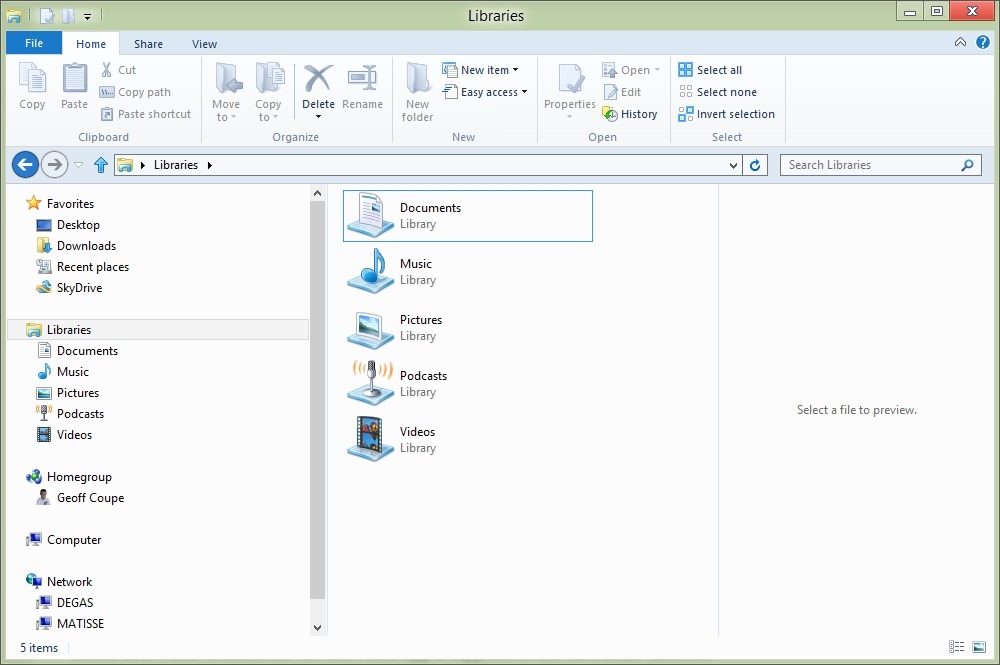
    For example, amazingly, it turns out that the Photos App cannot deal with photos that are stored on a Windows Home Server. The Photos App is supposed to use the Picture Libraries that you define in Windows 8. In both Windows 7 and Windows 8, you have a standard set of libraries defined for your media. See this screenshot:

    W8RP 01

    The Documents, Music, Pictures and Videos libraries are defined by default in installations of Windows 7 or Windows 8. If you install the Zune client (which is currently needed to support Windows Phones), then you get a Library defined for Podcasts as well.

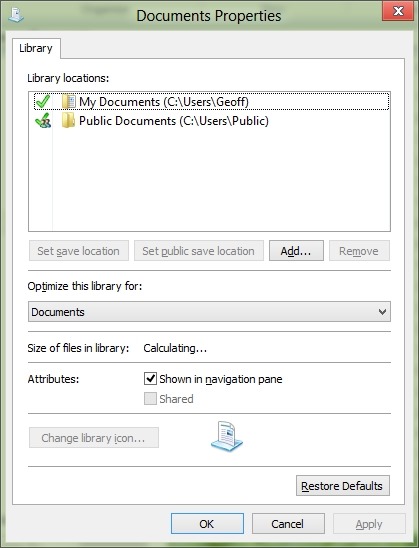
    By default, each of these libraries point to the corresponding folder in your Windows account on your PC, plus a pointer to the corresponding folder in the Public account on your PC. Here’s the pointers for the Documents library as an example:

    W8RP 02

    You can add additional pointers to folder hierarchies held locally on your PC, or network locations. If you have a Windows Home Server, then it will automatically add pointers to the corresponding Shared Folders on the server. Here’s a screenshot of the pointers to my music folders in the Music Library as an example:

    W8RP 03

    However, it turns out that the Photos App can only handle local folders, not network locations, such as the Shared Folder for pictures held on a Windows Home Server.

    This is even more curious when you realise that the Music App can handle music held in the Shared Folder for music on a Windows Home Server… That screenshot above of the Music App is showing music stored on my Windows Home Server.

    Now, the team responsible for the Photos App have admitted this is an issue. In this thread on the Microsoft Answers forum, Analy Otero, a member of the Photos App’s team states:

    The Photos team is aware of the concerns and issues that surround network locations, removable storage and Windows Home Servers. Unfortunately there are technical limitations to supporting them completely and correctly and as you have noted those locations are not supported in the Release Preview version either. 

    Rest assured that we are want to see these scenarios work and we aspire to support them just as all of you do so that you can use the Photos app as one place to see all of your photos regardless of where they are.

    If you have your photos in other PCs (Vista, Win7 or Win8 machines) you have the option to install the recently released SkyDrive client on them to be able to fetch files from them from anywhere. This includes being able to browse all your photos (and videos) from the Photos app as well. Definitely check it out if you have a chance.

    Thanks for the feedback, we’re definitely are listening and understand that support for WHS and other network locations is important for you.

    Notice that she mentions that the SkyDrive client can be used as a workaround to allow the Photos App to access files and folders held on other PCs in your network. It’s not clear whether the client is officially supported on the WHS operating system. This post on the SkyDrive forum does say that it will run on Windows Server 2008 R2, and that is the operating system that underlies WHS 2011. However, whether this also means that Microsoft will support the use of the client on WHS 2011 is another matter.  Update: Analy Otero has confirmed that Microsoft does not support the use of the SkyDrive client on WHS 2011, and it won’t install at all on WHS v1.

    I downloaded the SkyDrive client onto my Windows 8 system (which is 64bit), and then copied it across to my WHS 2011 (this is a 64bit operating system). I then did a Remote Desktop connection into my (headless) WHS, and successfully installed the client.

    Sure enough, the client then started synchronizing with my SkyDrive photos, but interestingly, something else also started happening… When I next opened the Metro Photo App, an additional pane had appeared on the opening screen – it was for “Degas” – the name of my WHS 2011 system.

    W8RP 05

    This view of the pictures folder on my Windows Home Server is not the default Pictures Shared Folder. Instead, it appears to be mapped to the Pictures folder of the Public user on WHS 2011. Now, while this is logical when the SkyDrive client is installed on a Vista, Windows 7, or Windows 8 PC, it makes no sense at all for a Windows Home Server. For one thing, no user account folders, including the Public user account folders, are ever exposed over the network in a standard Windows Home Server setup. A standard WHS 2011 system uses Shared Folders that are not tied to the Public user account.

    WHS2011 57a

    Also, I discovered that the Public Folders are only exposed so long as you are logged on to the Administrator’s Desktop (so that the SkyDrive Client runs). So if you want to use this workaround, you’re going to have to Remote Desktop in to your WHS, and populate the Pictures folder of the Public user account and keep logged on via Remote Desktop; photos in the standard Shared Folder for Pictures simply aren’t accessible by the Photos App. In my opinion, it’s a kludge. An unsupported kludge. Sigh.

    Update: I’ve gathered together in one place all the bugs, quirks and WTFs that I’ve found thus far with Windows 8. Check it out if you want to see the full list.

  • WHS 2011 and Metadata

    Last June, I wrote about the fact that Windows Home Server 2011 was overwriting the metadata contained in media files. In August, Microsoft finally acknowledged the issue.

    Yesterday, Microsoft issued the second Update Rollup for WHS 2011. It contains a fix for the metadata issue (issue 2 in the list of fixes).

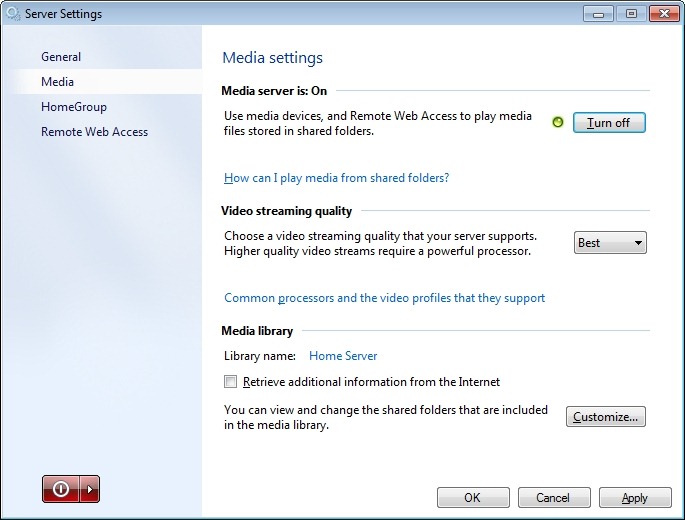
    Now, WHS 2011 will no longer retrieve metadata from the internet and use it to overwrite your music files by default. With the update, it has become an option that can be turned on or off. The setting is found on the Media Settings page of the WHS 2011 Server Settings (the “Retrieve additional information from the Internet” checkbox).

    WHS2011 104

    You’ll see from the screenshot that I have the retrieve function turned off, that’s because the last thing I want is for Microsoft to overwrite all my carefully set up metadata in my Music library.

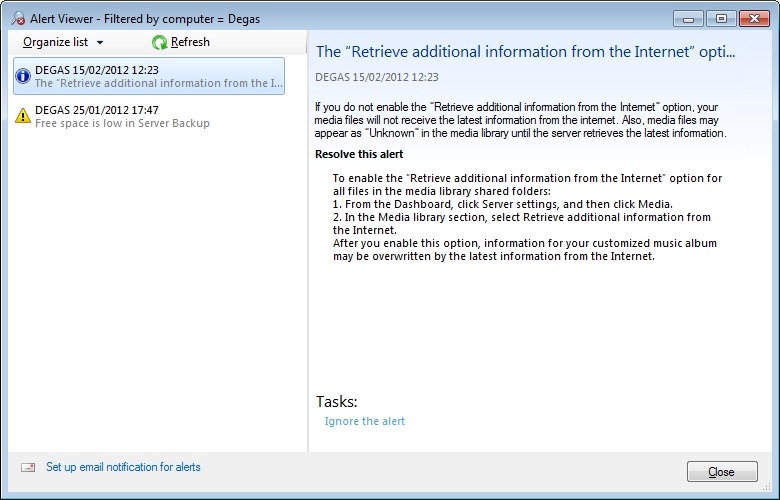
    In fact, installing this update has changed the default behaviour. Whereas before, metadata was always retrieved (it could not be turned off in the Server Settings) and used to overwrite files, the new default is for the retrieve function to be turned off. Microsoft have also implemented a new alert, which appears if the retrieve function is turned off:

    WHS2011 103

    I think the change to the default behaviour was the right thing for Microsoft to do. Suppose that they had not changed the default. Then I suspect those people who are blithely unaware of the metadata update task (and the likely damage it’s doing) would continue to be blithely unaware. And new users, having set up their brand new WHS 2011 installations, would also be unaware of the danger.

    At least this way, everyone who has, up until now, been unaware of this issue is now going to get this alert, which hopefully will prompt them to think about the metadata issue. They now have the choice to either set the “ignore the alert” switch, or revert to turning the update task back on.

    I just wish that Microsoft had bothered to update their WHS 2011 Help pages about this issue. They still say nothing about it (or even about the newly-implemented checkbox). This is not helpful for the “Home user”…

    Oh, and I think I should add that none of the many other issues with the Media Library in WHS 2011 listed in this post have been resolved. They are all still there, making the use of the Media Library via the Web totally useless as far as I’m concerned…

  • Storage in Windows 8

    The team at Microsoft responsible for building Windows 8 (the next version of Windows) have been documenting the detail of its design in a series of blog posts over at, naturally enough, Building Windows 8.

    I’ve been following this blog with great interest, because it gives a very detailed insight into the design, and why particular design choices have been made. It has certainly kindled my interest into wanting to take a closer look at Windows 8 (starting with the beta, to be released next month).

    Yesterday, for example, Rajeev Nagar published a detailed post on the design of storage for Windows 8. Windows 8 will introduce a capability called Storage Spaces. Interestingly, Nagar begins his post by setting the context, and referring to the now-defunct Drive Extender technology that was part of Windows Home Server v1, but which was removed in Windows Home Server 2011:

    …some of us have used (or are still using), the Windows Home Server Drive Extender technology which was deprecated. Storage Spaces is not intended to be a feature-by-feature replacement for that specialized solution, but it does deliver on many of its core requirements. It is also a fundamental enhancement to the Windows storage platform, which starts with NTFS. Storage Spaces delivers on diverse requirements that can span deployments ranging from a single PC in the home, up to a very large-scale enterprise datacenter.

    Well, already, I’m interested. I thought that Drive Extender was a unique selling point for WHS v1, and bemoaned its removal in WHS 2011. I never wanted to take on the task of managing a RAID configuration in my home server. I have always agreed with Charlie Kindel that RAID is not a consumer technology.

    So now, with Windows 8, it appears as though we might get the second generation of Drive Extender, substantially improved. I should no longer have to even consider RAID as a means to implement a storage pool; in fact, in the blog post, Microsoft explicitly advise not to use RAID in conjunction with Storage Spaces:

    We don’t recommend it. Storage Spaces were designed to work with off-the-shelf commodity disks. This feature delivers easy-to-use resiliency to disk failures, and optimizes concurrent usage of all available disks within the pool. Using a RAID enclosure with Storage Spaces adds complexity and a performance penalty that does not provide any improvement in reliability.

    That’s good news, as far as I’m concerned.

    Looking down the road, then, what are the implications for Windows Home Server 2011? Well, it seems to me that Windows 8 will introduce a storage capability that exceeds what WHS v1 had, and that WHS 2011 will never have. So then the question is, what happens about the other shoe? That is, WHS (both versions) have an excellent backup facility for client PCs. The backups are efficient and allow rolling back a PC to previous points in time with ease.

    If Microsoft introduce this capability, even as an Add-on in the Windows 8 Store, then I have to ask: what is the point of WHS 2011? It would seem to me to be eclipsed by the potential capabilities of Windows 8.

    I seriously doubt that we will see a separate successor product to WHS 2011. Its capabilities (and more) can be fulfilled by Windows 8, with the possible addition of Store Add-ons for extensions to the base capabilities of Windows 8.

  • Home Server Status

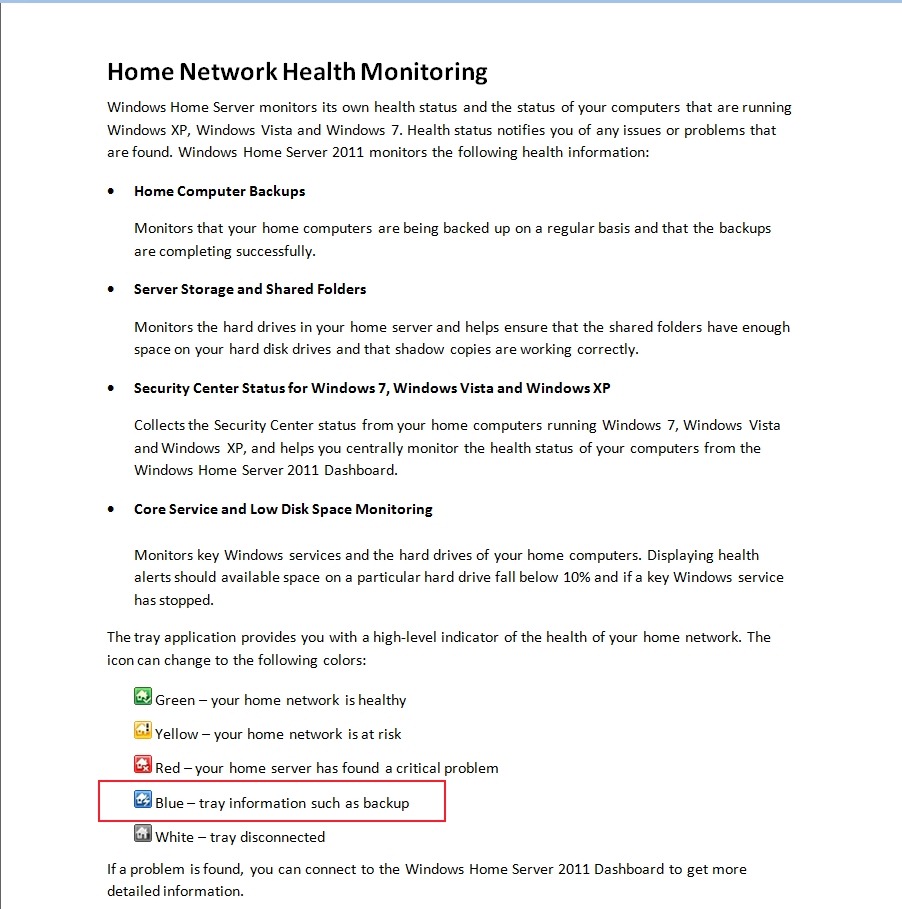
    If you were (or are!) using the original version of Microsoft’s Windows Home Server, you will probably have noticed that the WHS icon in the System tray changed colour to provide notifications at-a-glance:

    • Green – your home network is healthy
    • Yellow – your home network is at risk
    • Red – your Home Server has found a critical problem
    • Blue – your PC is currently being backed-up to the Home Server
    • Grey – your Home Server is offline or unreachable

    If you’re now running Windows Home Server 2011, then the WHS icon (now the Launchpad icon) no longer shows this range of notifications. Basically, you now have a choice of one colour: green. Green now simply means that the Launchpad is running.

    However, the Getting Started Guide for WHS 2011 still shows the WHS v1 colour notifications as being present in WHS 2011:

    WHS2011 62

    Not surprisingly, some people, reading this document, thought that they had found a bug, and reported it as such over at the Microsoft Connect web site (note: if you aren’t registered at this site, you won’t be able to see the actual bug report).

    Microsoft did their “it’s not a bug, it’s a feature” trick and replied that:

    we decided in the 2011 release that backups should be seamless and not neccessarily [sic] notify the user of when they are in place

    and said that it would not be fixed. This is all very well, but it ignores the wishes of those folks who found that the additional notifications, particularly of backups, are extremely useful. It also points up Microsoft’s rather sloppy approach to the documentation of WHS 2011.

    Since Microsoft, in their infinite wisdom, have declined to fix what many see as a bug, I’m pleased to report that a third party has stepped forward instead.

    Jerry Wade has developed a utility (Home Server Status) for your Desktops and Laptops that indicates when a backup is in progress. Plus, it does a few other nifty things as well.

    Check it out here.

    I installed it and stopped using Microsoft’s Launchpad application, and have never looked back. I can thoroughly recommend it to ex-WHS v1 users who think that WHS 2011 has lost the plot with its bloated Launchpad application. And for those WHS 2011 users who are new to all of this, you could do worse than to check HSS out.

  • Practical Bliss

    As you may be aware, I’m not very happy with the Media Library in Windows Home Server 2011. As well as the shortcomings and design issues that I wrote about here, it also turned out that WHS 2011 has a tendency to corrupt music metadata and Album art stored in the Music Library.

    In one of the discussions about these issues that went on in various forums, I came across a reference to an application called Bliss. It’s an application that seeks out Album covers online and will download and install them into your music collection automatically.

    Since WHS 2011 had blithely overwritten all my carefully-prepared high-resolution Album art with its own low-resolution versions, I thought that I would give Bliss a whirl to see if it could repair the damage wreaked by WHS 2011.

    To cut to the bottom line, Bliss does what it says on the tin, and I can recommend it; but there are a few quirks to be aware of if you want to use it to maintain Album art on a WHS 2011 system.

    What follows is the detail of what I did and what I found…

    While Bliss can be installed and run on WHS 2011, it is not packaged as a true Add-in application for WHS 2011. Add-ins are designed to be downloaded onto your Desktop PC or your Laptop, and installed onto your WHS 2011 from there. Once installed, the Add-in appears in the WHS 2011 Dashboard, where the application can be accessed and controlled. Bliss, on the other hand, is packaged as a traditional application. Once installed and started, it runs in the background and is accessed and controlled via your web browser. This means that it can be installed on your Desktop, your laptop, or the home server. Once running, you can point Bliss at the location of your Music Library, and it will go to work.

    To install Bliss on WHS 2011, you need to open up a Remote Desktop Connection to your WHS 2011 system to gain access to the Administrator’s Desktop on the server. From there, you can double-click on the Bliss Setup program, and it will be installed on the server. Since it is installed in a server environment, it is best that it is running as a Windows service. That way, it will automatically start up when the server is booted – you won’t need to manually start it. Full instructions on how to install it as a Windows service are given on the Bliss web site here.

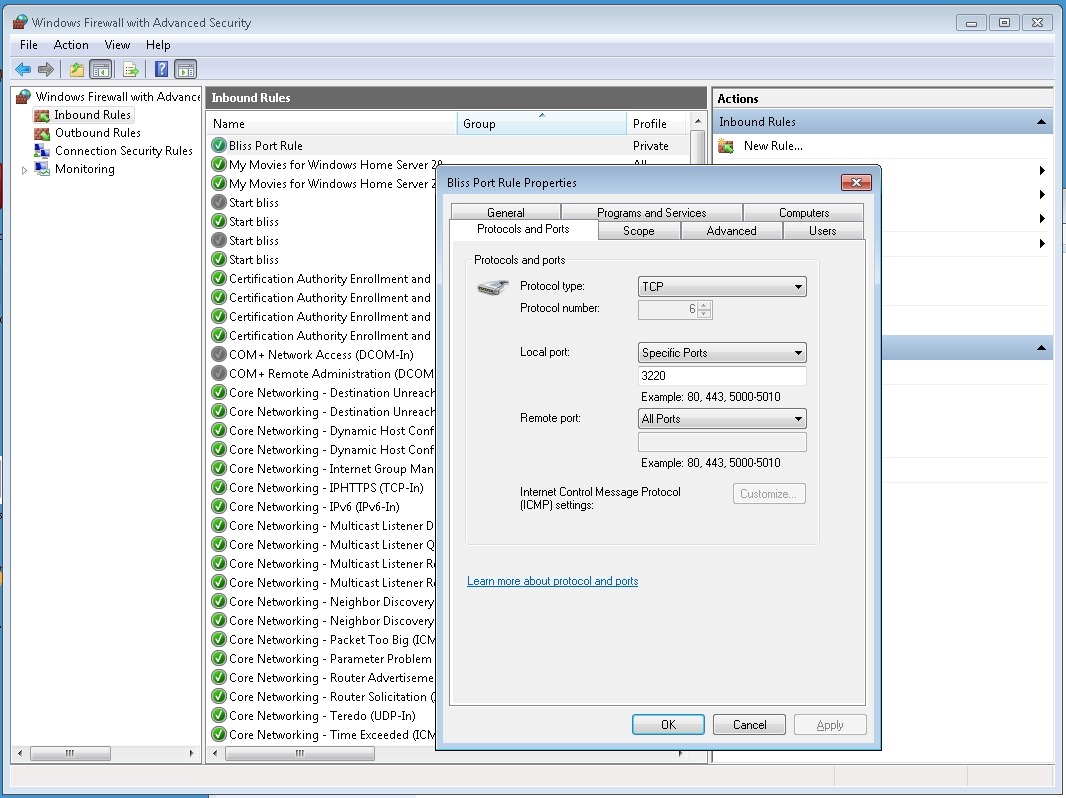
    Once Bliss is running (either as a Windows service, or by being started manually), then access to the functions of Bliss is done via a web browser. If Bliss is running on your Desktop, then accessing Bliss is done via the URL: http://localhost:3220. However, if it is running on your WHS 2011, then you’ll need to point your Desktop PC web browser to http://Servername:3220, where Servername is the name of your server.  And here comes the first quirk. When I tried that, the web browser failed to find the Bliss web page.

    The reason is that installing Bliss on WHS 2011 does not automatically add in a Firewall rule to allow access via the 3220 TCP port. I needed to once again open up a Remote Desktop Connection to my WHS 2011 system to gain access to the Administrator’s Desktop on the server. From there, I used the Windows Firewall Management applet to create a new TCP port rule to allow inbound access to port 3220:

    Bliss 12

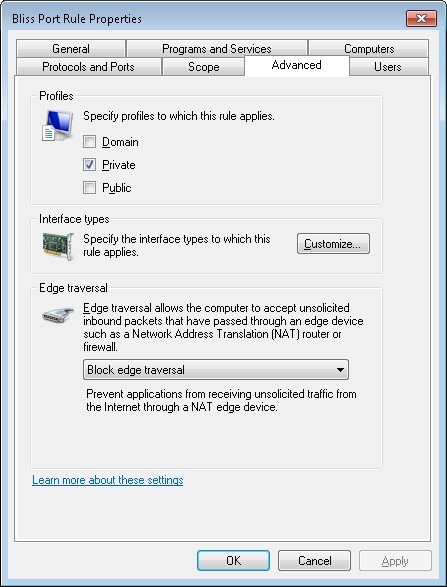
    I also made sure that this rule was only valid for my Home (private) network:

    Bliss 13

    Now, to me, all this remote accessing of the Administrator’s Desktop of the WHS 2011 system in order to install the program (preferably as a Windows service) and configure the firewall stretches beyond what I think the average Home User can reasonably be expected to cope with. It is OK for those of us who are comfortable rummaging about under the hood, but not, I think, for your average Home User who really wants to view WHS 2011 as a backup and storage appliance for his or her digital media. The design principle of WHS 2011 should be that such a user can access and control all the necessary functionality of the system via the WHS 2011 Dashboard. The system should be simple to install, run and maintain.

    For Bliss to fit this paradigm, it would be necessary for it to be available as a true WHS 2011 Add-in. Since it’s not available in this form, if you are going to install it on your WHS 2011 system, you have to know what you’re doing, and feel comfortable about rummaging in the innards of WHS 2011.

    Please don’t think that I’m casting aspersions on the developer because Bliss is not a WHS 2011 Add-in. Turning Bliss into a proper WHS 2011 Add-in can be a major development and rewrite project, and frankly, given the less than stellar impact WHS 2011 has had in the market, I doubt that the monetary returns would justify the work for many applications such as Bliss.

    Given all the above, then if you are just an ordinary Home User who wants to have a nifty Album art application for your music collection on your WHS 2011 system, then what should you do? My recommendation would be simply to install it on your Desktop PC or Laptop, and use it from there. You can point Bliss to your music library on your WHS 2011 system and everything’s hunky-dory.

    Well, almost.

    Remember that I said that WHS 2011 corrupts Album art? The reason is that, by default, WHS 2011 runs a scheduled task every 24 hours to replace what you think the Album art should be with what Microsoft thinks it should be.

    That’s bad enough, but even worse is that when this task replaces your high-resolution Album art file with its crappy low-resolution version, it sets the attributes of the file to “Hidden” and “System”. A file with these attributes cannot be updated by Bliss – any attempt to do so will generate an “Access denied” error.

    So, I’m afraid that even if you are just an ordinary Home User, you will still need to use a Remote Desktop Connection to your WHS 2011 system to do three things:

    1. Stop and delete that damned scheduled task (then reboot your server).
    2. Go to the root folder of your Music Library and search for all files named Folder.jpg in the root folder and subfolders.
    3. Delete all the Folder.jpg files in your search result.

    Then Bliss will be free to do its stuff and supply decent quality Album art where it can.

    You know, it’s somewhat ironic that Microsoft has shot itself in the foot here. Far from supplying an operating system that can form the basis of a backup and storage appliance, the shortcomings of WHS 2011 are often working against that goal. Applications such as Bliss are in danger of being subject to collateral damage through no fault of their own.

    I’m happy to continue to use Bliss, because, as I said, it does what it says on the tin. I just have to keep an eye on WHS 2011, because it often does not.

  • Server Backups in Windows Home Server 2011

    Now that I’ve been running my Windows Home Server 2011 system for a while, I’ve been able to observe some of the behaviours and quirks that require time to show themselves. Here are my notes on the server backup function.

    As you are probably aware, WHS 2011 can only take a backup of the server data that is 2TB or less in size, and can only handle backup drives that are limited to 2TB.

    [Update 31 March 2014: It appears as though there has been some improvement made to the Server Backup function in the Dashboard since I originally wrote this article. It remains the case that WHS 2011 continues to use the VHD format for backup, which has a maximum capacity of 2TB. However, it now appears (contrary to what Microsoft originally stated) as though the Server Backup function can now deal with multiple VHDs, providing the backup drive is big enough. So, if your backup drive is 4TB, that means you can have 2 VHDs of 2TB created on it. That, in turn, means that you can backup up to 4TB of data from your data storage drives (with a maximum of 2TB for any one drive). That’s a theoretical maximum, since Microsoft also recommend having some free space in the VHDs to handle incremental backups.]

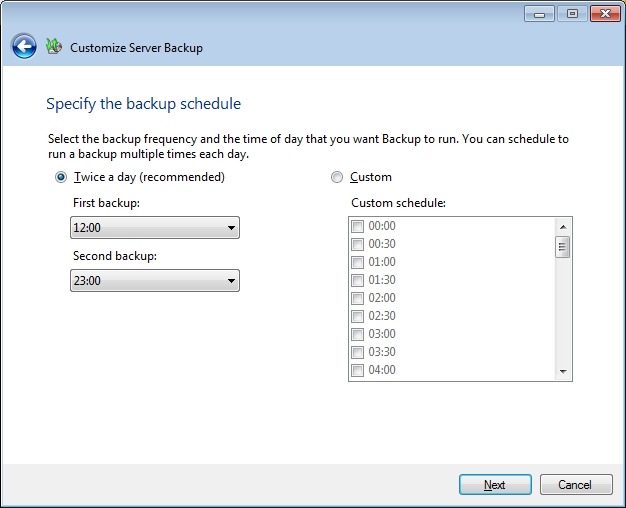
    With this in mind, I have defined my server backup data set to consist only of what I think of as critical data: the server system itself, the client backup data, and a few other folders. This all adds up to around 610GB of data. I have two 1TB drives that I have designated as backup drives in the WHS 2011 system. I have a single-bay ICY Dock enclosure, and I rotate the two drives between the enclosure and an offsite storage location. I take backups twice daily, at 12:00 and 23:00 (this is the default setting for the server backup function of WHS 2011).

    The first time I used each drive in the system, a full copy of the server backup dataset was written to the drive. This meant that each drive then had around 320 GB free capacity. After the first backup, only changes to the data are recorded in subsequent backups. Each time a backup was made, some of the 320GB free capacity was used up to hold these changes.

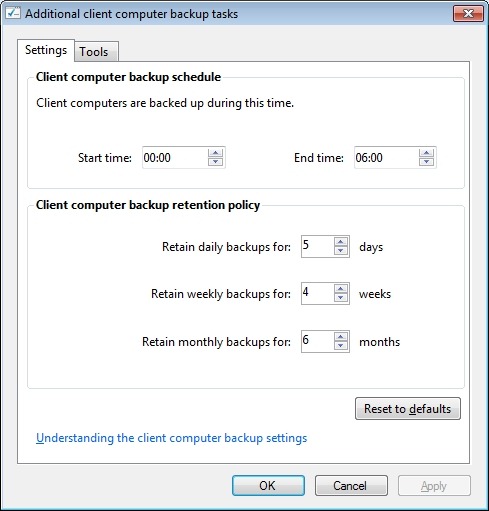
    It is possible to define a retention policy for client computer backups (that is, how long the client computer backups will be kept before they are deleted and the space reclaimed for newer backups). See the following screenshot showing how the retention policy can be defined.

    WHS2011 70

    But the interesting thing is that there is no equivalent setup screen to define the retention policy for server backups. So the question naturally arises: what happens when the backup drives used for the server backups become full?

    Over on the WHS forums, some folks say that WHS 2011 will automatically clear out old backups once a backup drive fills up, but others have reported that it doesn’t always happen; thus, it’s a bit unclear.

    So I was curious to see what would happen as time went on, and my backup drives got full.

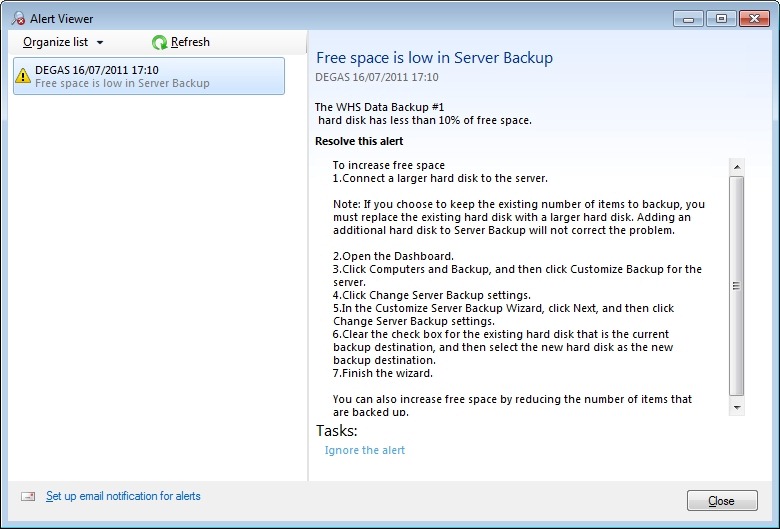
    The first thing that happened, about a week ago, was that I received an alert to say that one of my backup drives had less than 10% of free space:

    WHS2011 66

    You’ll notice that the only possibilities offered by this alert to resolve the issue are either to replace the drive with a larger one, or to cut down on the size of the server backup. Neither of these options were particularly attractive, and nothing is said about the possibility of deleting older backups. So I thought I would just carry on and see what would happen.

    I got to the situation today when drive #1 had less than 6GB free space left. I triggered a further backup manually to see what would happen. The backup was successful, and then I saw that the drive had 320 GB free. WHS 2011 had deleted all the backups from the drive and created a fresh complete backup. Drive #1 then had one backup on it.

    That means that drive #1 now holds one server backup, time stamped today (23rd July). Drive #2 currently holds 38 server backups dating back to 14 June (one full backup plus 37 incremental changes). Once drive #2 runs out of space I expect the same thing to happen; all the old backups will be deleted and a new server backup will be taken. At that point, my earliest server backup will be today’s backup (23rd July) on drive #1.

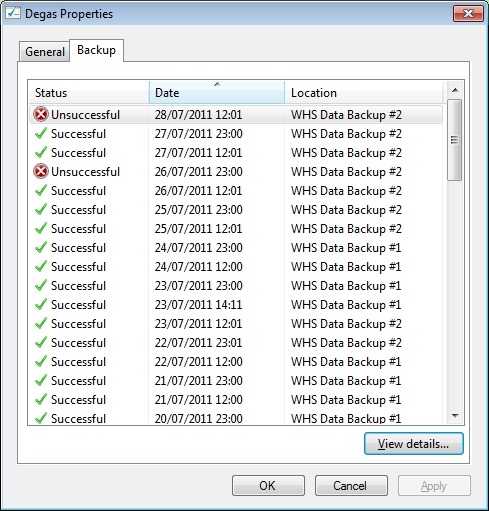
    I see one slight quirk in all of this. If I look at the server properties in the WHS 2011 Dashboard, and examine the Backup tab, I see this:

    WHS2011 67

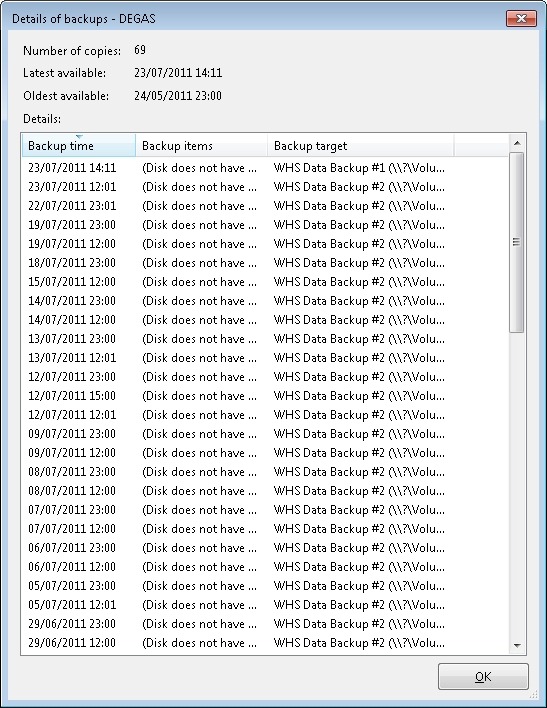
    Notice how it is listing backups taken to drive #1 that are now no longer available. If I compare this with the list that is given by the Windows Server Backup screens in the underlying Windows Server 2008 Server Manager (which your average Home User would never see or be aware of), then I see this:

    WHS2011 68

    In other words, all the backups taken to drive #1 that were deleted in order to make room for today’s backup have also now been removed from this list. Up until this point, they would have been shown. I would argue that this list is a more accurate reflection of the actual situation than the list shown in the WHS 2011 Dashboard information.

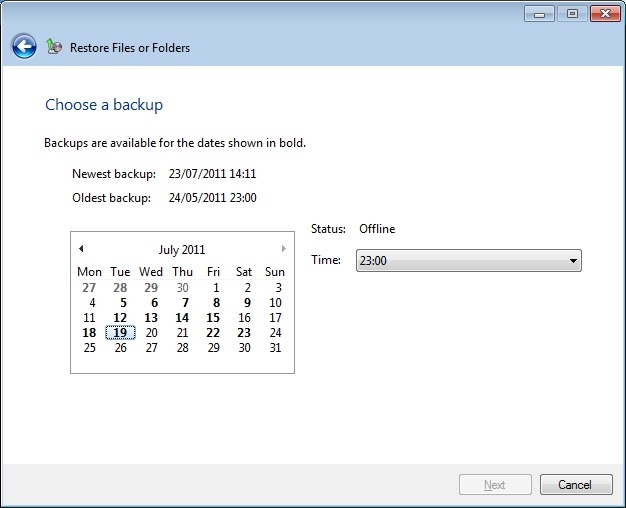
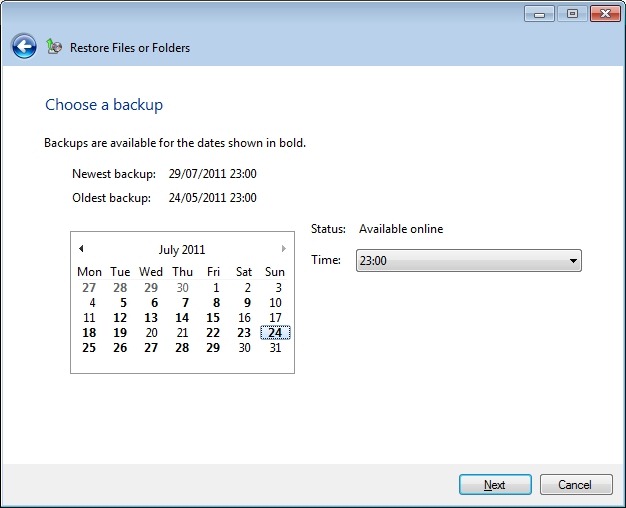
    If I then ask WHS 2011 to show me what backups are available for restoring, then it doesgive me an accurate picture:

    WHS2011 69

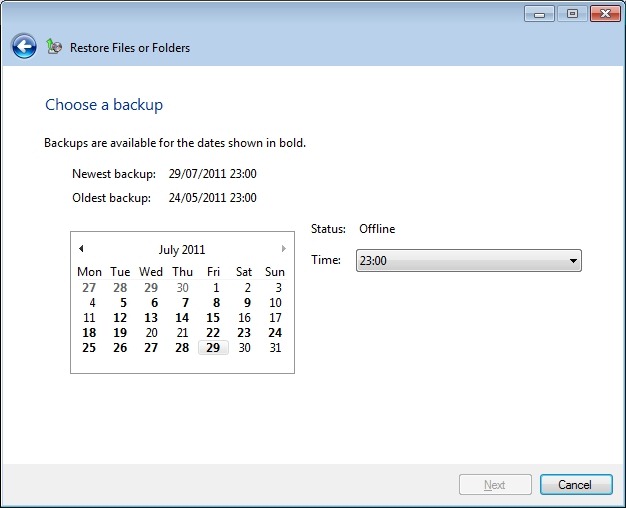
    The dates shown in bold before the 23rd July are for the backups held on drive #2 – it shows that there are no backups available for the 20th and 21st July, for example. There were backups taken on this date, but they were taken to drive #1, and were subsequently deleted today when drive #1 ran out of space.

    Depending on where you look in the Dashboard, you will get slightly different answers… Personally, I would prefer the list of backups to reflect the actual state of available backups, rather than state that backups that are no longer available were successful at the time. I don’t want to be lulled into a false sense of security.

    Update 29 July 2011

    Sigh. Murphy’s Law has struck. I wrote earlier in this post:

    Once drive #2 runs out of space I expect the same thing to happen; all the old backups will be deleted and a new server backup will be taken.

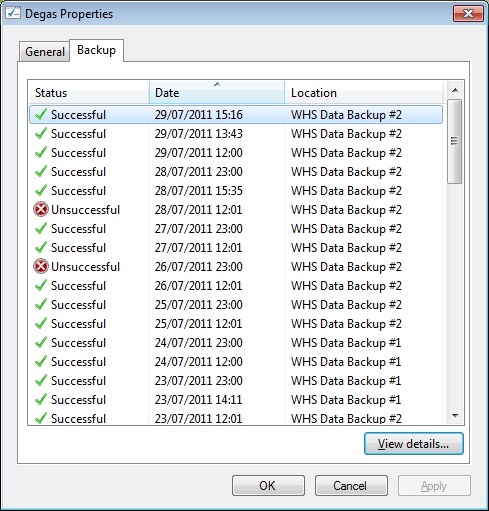
    Well, yesterday, Backup drive #2 ran out of space. And what happened? I got an error, and the backup failed…

    Before the backup started, I had 3.1GB free space on the drive, so I was expecting WHS 2011 to realise that there wasn’t enough space for a backup, and to wipe the drive before starting with a complete new backup. After all, that’s what I think it did with drive #1.

    No such luck.

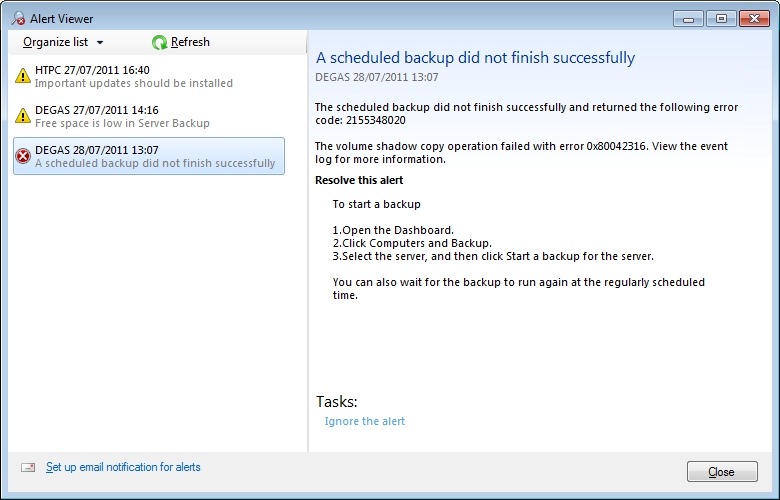
    Instead, it attempted to do a backup, and I got an alert saying that the scheduled backup did not finish successfully:

    WHS2011 71

    Notice that it’s given me an error code 2155348020, and, as I’ve written before:

    I love the way that this message simply tosses out the fact that we should view the event log for more information. I think that most Home Users presented with this message would simply think: WTF is the Event log? And they can’t view the Event log via the WHS 2011 Dashboard anyway – you have to be sufficiently IT-savvy to be able to open up a Remote Desktop Connection and then start up the Event Viewer on the server.

    Going to the Event Log, I see this message from the Backup application:

    The backup operation that started at ‘‎2011‎-‎07‎-‎28T10:01:02.660930800Z’ has failed with following error code ‘2155348020’ (Windows Backup failed to create the shadow copy on the storage location.). Please review the event details for a solution, and then rerun the backup operation once the issue is resolved.

    The event details are given by a link to a Microsoft online help page for Windows Server 2008 R2, and it’s clearly written for IT support staff. To a Home User, it might as well be written in Martian.

    Admittedly, it is fairly clear what the problem is – the backup drive does not have enough room to store the shadow copy – but the resolution doesn’t seem possible. As we’ve already established at the beginning of this saga, WHS 2011 has no way for a Home User to clear out old server backups, we seem to have to be reliant on WHS 2011 deleting the backups itself. And if it doesn’t do this, as appears to be the case here, we’re screwed.

    A couple of other oddities I noticed with this failed backup. Even though it was reported as unsuccessful in the Alert viewer and here:

    WHS2011 72

    … if I click on the “View details…” button shown above, I am told that while the backup was unsuccessful, it does seem to have successfully backed up all the drives and folders that it was supposed to:

    WHS2011 73

    Something else that is a bit odd. I said that, going in to this backup, the drive had 3.1GB free. Now it has 9.6GB free. I’m not sure what to make of that…

    I kicked off a manual backup of the server using drive #2, and this time it completed successfully. I’ve done a mixture of scheduled and manual backups since then, and they’ve all completed successfully. The amount of free space left on the backup drive varies between 0.7GB and 6GB. It’s currently at 1.7GB.

    WHS2011 77

    What it’s not doing, as was the case with drive #1, is to clear out all the old backups and start again.

    I think I’ll just leave drive #2 in the system for the moment and see what happens. I would prefer that the system behave in predictable ways. I am unsettled by the fact that it seems to behave according to its own rules. Rules that Microsoft have never bothered to define. Perhaps, like me, they don’t know what they are…

    Update 30 July 2011

    Oh well, hitting a brick wall again. Last night’s backup proceeded without a problem, and I ended up with only 1.2GB free space on the backup drive. So I thought that when today’s backup kicked off at noon, WHS 2011 would have the nous to realise that it would need to clear out all the backups from the drive and start again (as it had done with drive #1).

    Nope – I just got another error:

    WHS2011 78

    I then tried to see if doing a manual backup would clear out the backup drive…

    Nope, the same error.

    What now? I suppose I can try removing the drive from the server backup function and then re-attaching it as though it were a totally fresh drive… Right, so I select backup drive #2 and choose the “Remove the hard drive from Server Backup” task:

    WHS2011 79

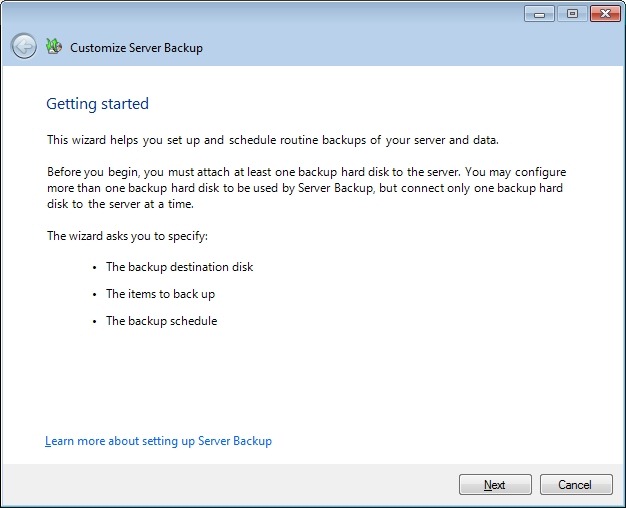
    That then kicks off the Server Backup wizard…

    WHS2011 81

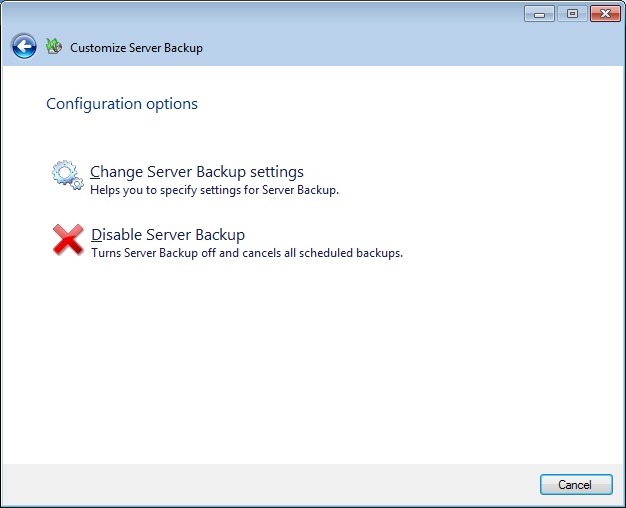
    Perhaps it’s just me, but this strikes me as a trifle confusing – I just want to remove the backup drive from the Server Backup, why do I have to trudge through this wizard again. Oh well, onwards…

    WHS2011 82

    Right, so I suppose I need to choose the “Change Server Backup settings” option. So let’s do that…

    WHS2011 83

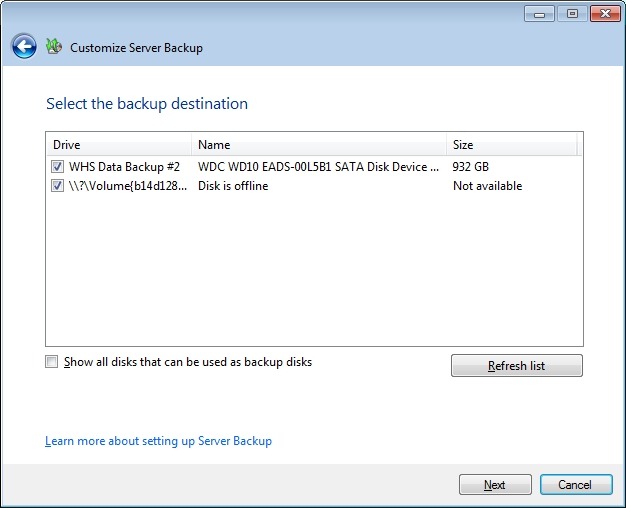
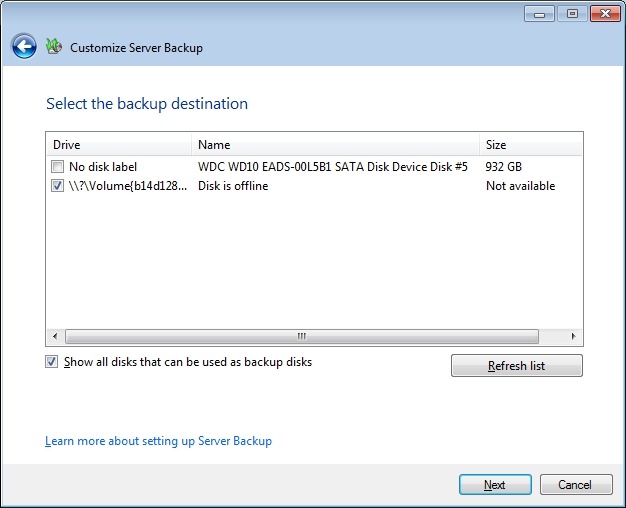
    I assume that to remove backup drive #2, I will need to uncheck the first checkbox. As an aside, note how the offline backup drive (backup drive #1) is not given its user-friendly name (WHS Data Backup #1), but the internal gobbledegook that Windows Server 2008 R2 knows it by: \\?\Volume(b14d1287-95dd-11e0-a8fc-002354da5014). I’m sure this is perfectly obvious to your average Home User, of course.

    I uncheck the first checkbox and click “Next”, only to be presented with this:

    WHS2011 84

    Well, yes, I know that; and the purpose of telling me this is? So I click on “OK”, and am returned to the screen before. Since I’m trying to remove the damn drive, I click on “Next” only to get this error message again. I’m now just bouncing back and forth between these two screens.

    Sigh.

    Perhaps the way out of this mess is to:

    • Cancel out of this wizard
    • Remove backup drive #2 manually from its dock
    • Replace backup drive #1 into the dock (to get it online)
    • Select backup drive #1 and then select “Remove the hard drive from Server Backup” to go through the damn wizard again, but this time select the now-offline backup drive #2 at the appropriate point.

    You’ll note that even though WHS 2011 is telling me that it’s going to remove drive #1 from Server Backup, I have to do this in order to remove drive #2… Make sense? No, I thought not. OK, here we go…

    WHS2011 85

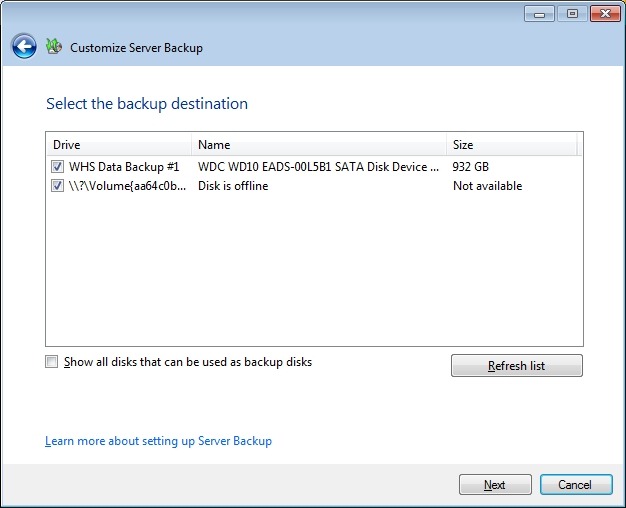
    Here we are back at the screen that caused the problem the last time around. Now, it’s backup drive #1 that’s online, and backup drive #2 (which is now offline and has its own gobbledegook name showing) that I need to deselect in order to remove it from the backup destination:

    WHS2011 86

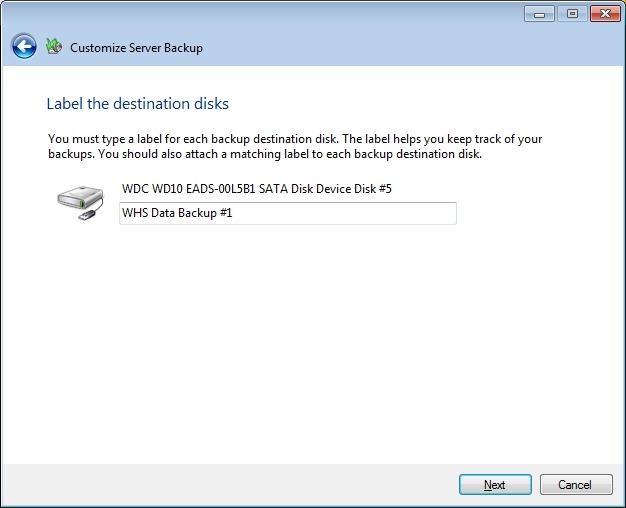
    This time, I make it to the next screen, which has the existing name of backup drive #1 already filled in:

    WHS2011 87

    Clicking “Next” gets me to the schedule screen:

    WHS2011 88

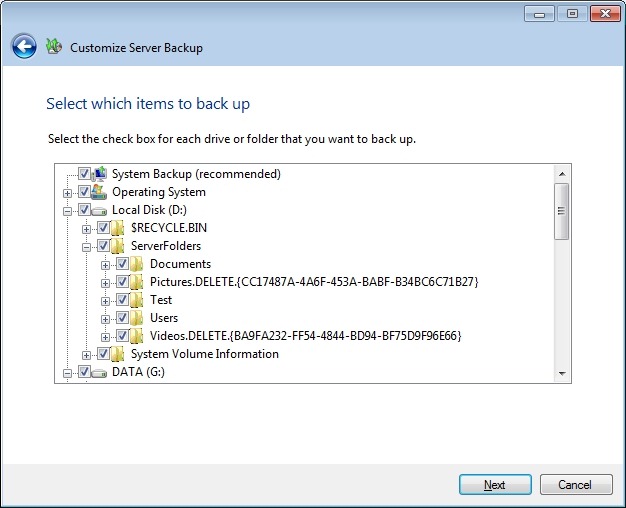
    Then I get to choose what I want backed up (it’s already filled in with my last choices):

    WHS2011 89

    And at last I reach the confirmation screen, where I see that backup drive #2 is now removed.

    WHS2011 90

    Remember, that I started off from a screen that offered to remove backup drive #1 from Server backup; however, the design of WHS 2011 leads you into a dead-end if you assume that this is what it will remove. Did no-one spot this problem before product release?

    It seems a very roundabout way of removing a backup drive. I also have my suspicions that we are not out of the woods yet.

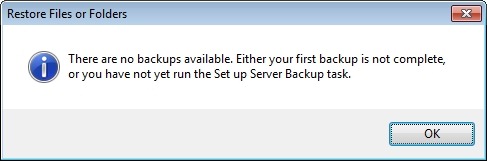
    Just because I’ve removed a backup drive from the backup schedule doesn’t necessarily mean that WHS 2011 has forgotten about it. Sure enough, if I start the server restore wizard, and look at available backups, it shows me backups that were taken on to drive #2:

    WHS2011 91

    So now, if I reformat backup drive #2 and add it back into the server backup schedule, will WHS 2011 continue to think that these backups are still available?

    I added backup drive #2 into the server dock. WHS 2011 does not show it as an available disk:

    WHS2011 92

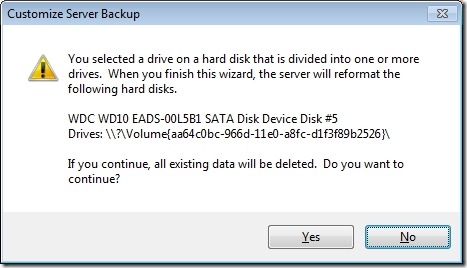
    Let’s try and add it back into the Server Backup schedule… I start the Customize Server Backup wizard and reach the “select the backup destination” screen. At first, I didn’t see the backup drive, only after I checked the “Show all disks that can be used as backup disks” did it appear as the first item in this screenshot:

    WHS2011 93

    I checked it (to add it into the list of backup destinations) and clicked “Next”.

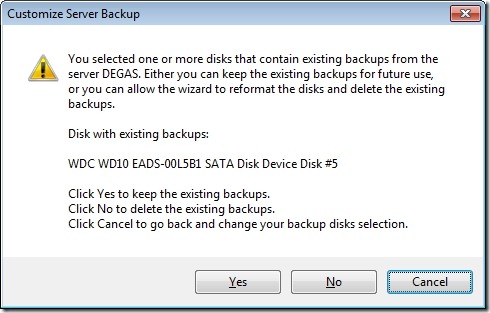
    FINALLY – I get a screen that acknowledges that WHS 2011 knows that this drive has been used for backups before:

    WHS2011 94

    I choose “No” and get a confirmation screen:

    WHS2011 95

    I chose “Yes” and got to give a name to the disk. I chose “WHS Data backup drive #2a”, since I’m curious to see whether WHS 2011 has now deleted all references to “WHS Data backup drive #2” from its list of available backups. Let’s check by starting the Server Restore wizard:

    WHS2011 97

    WHAT? Excuse me, I have backups taken on drive #1 available, don’t tell me you’ve deleted everything?

    I hurriedly put in backup drive #1, and start the Server Restore wizard again. This time, I get further, and elect to choose the backup I want to restore from. If I choose a backup that was taken onto backup drive #1 (the one that’s currently plugged into the system), I get confirmation that the backup is online and available (in this case, the backup of 24th July at 23:00):

    WHS2011 98

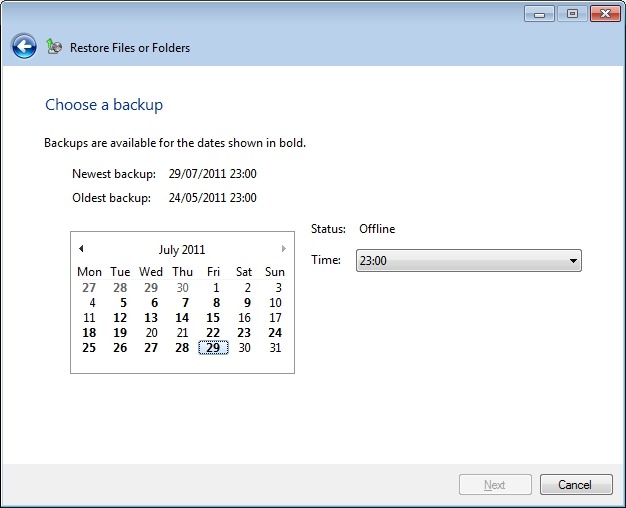
    But, what’s this? WHS 2011 is still claiming that backups are available from backup drive #2 (e.g. the backup of 29 July at 23:00):

    WHS2011 99

    True enough, it’s saying that it’s offline, because the drive isn’t plugged into the system, but it’s still claiming that it’s available. Oh no it isn’t, says I, because you’ve just formatted that drive. Oh yes it is, replies WHS 2011…

    Sometimes I feel as though I’m taking part in a Panto with WHS 2011…

    So, to summarise. Removing a drive from Server Backup is not straightforward – the task design is flawed and leads you to a dead end. You can get WHS 2011 to reformat a backup drive, but it won’t go the extra mile with you and remove the previous entries for the deleted backups from its internal database. So it will quite happily lie to you about what backups are available…

    Wonderful.

  • Microsoft Slash the Price of Windows Home Server 2011

    Just eight weeks after WHS 2011 became available to purchase, Microsoft have slashed the price. It’s now available to purchase for almost half of its original price. While I expected the price to fall, I didn’t think it would fall so far, so soon. I wonder whether Microsoft are trying to cut their losses on this?

    As someone has just said on a forum, WHS 2011 looks as though it’s becoming the Microsoft Bob for this era…

  • Windows Home Server Support

    Yes, I know I’ve complained about the poor quality of the support documentation for Windows Home Server before (here, here, and here), but I just keep finding more examples.

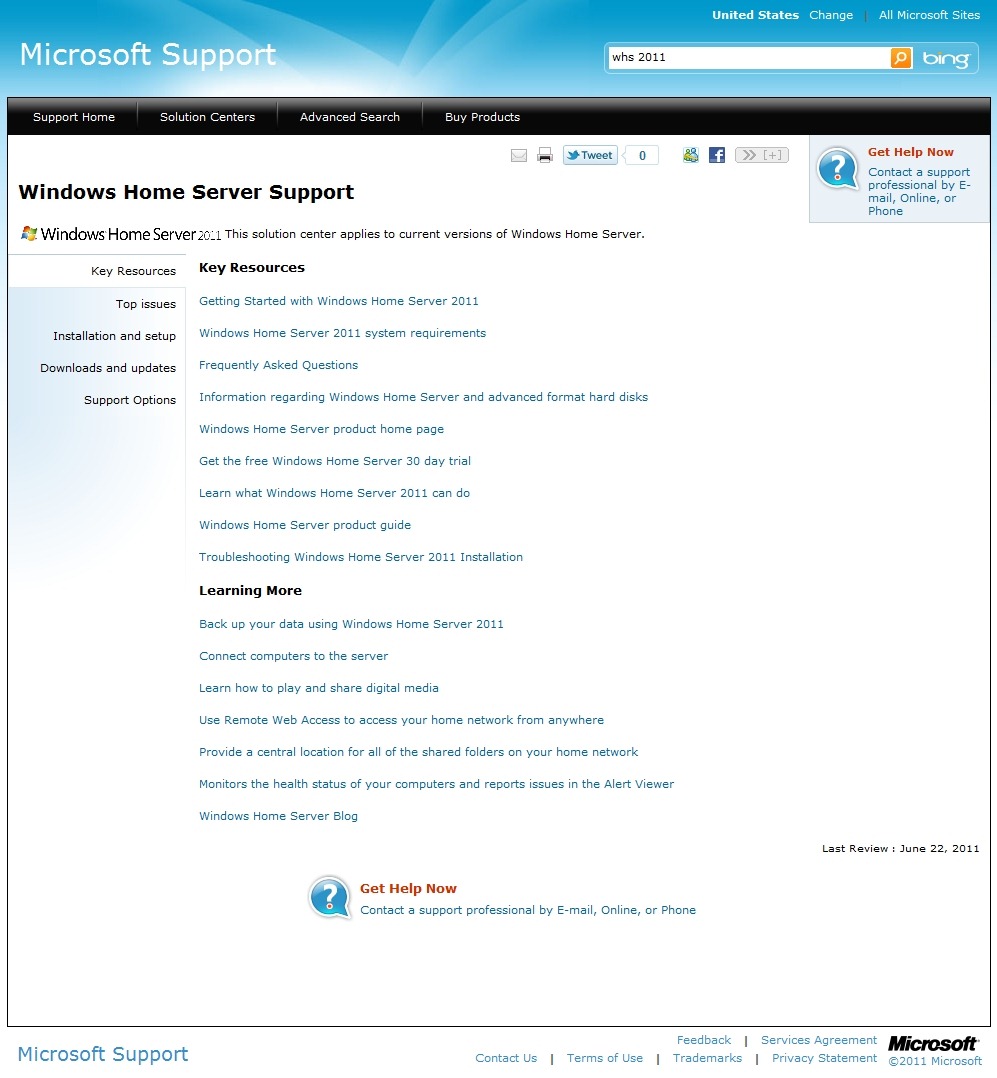
    The latest is the Solution Center page for Windows Home Server 2011 in the Microsoft Support web site.

    WHS2011 60 

    It says at the top: “Windows Home Server 2011” and “The solution center applies to current versions of Windows Home Server” (i.e. Windows Home Server 2011). According to the page, it was last reviewed by Microsoft, presumably for correctness, on June 22nd, 2011.

    Yet, if you click the link for the Windows Home Server product guide, what you will get is the Product Guide that was issued for version 1 of Windows Home Server in January 2009. So, not for Windows Home Server 2011, then.

    And under the Learning More section, the penultimate link should really read “Monitor the health…” not “Monitors the health…” Yes, it’s a little thing, but it seems to me to be indicative of a continuing lack of attention to quality of product.

  • Getting Started With Windows Home Server 2011

    I see that Microsoft’s Michael Leworthy has posted that the latest update of the “Getting Started With Windows Home Server 2011” document is now available. This version is dated June 2011, and replaces an earlier one dated February 2011.

    It’s a pity, therefore, to report that errors that were present in the February version are still there in the June edition. For example, take this page:

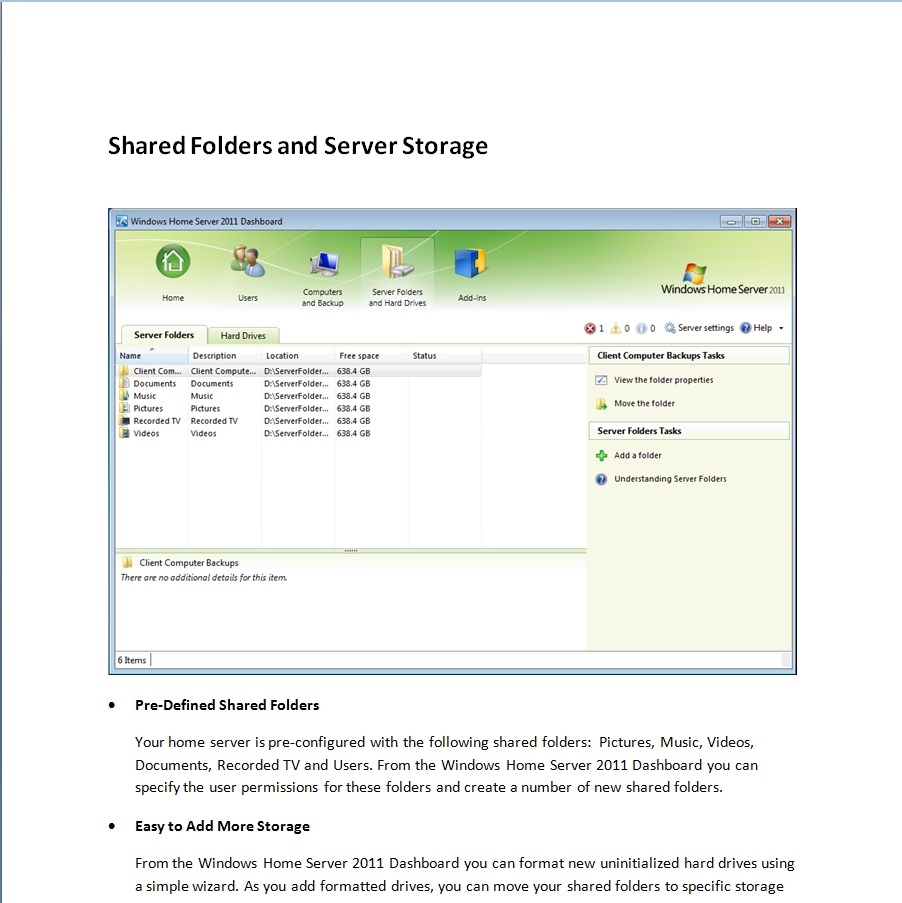
    WHS2011 57

    In the Pre-Defined Shared Folders section, it states:

    Your home server is pre-configured with the following shared folders: Pictures, Music, Videos, Documents, Recorded TV and Users. From the Windows Home Server 2011 Dashboard you can specify the user permissions for these folders and create a number of new shared folders.

    Wrong. In WHS 2011, the pre-defined shared folders are: Client Computer Backups, Documents, Music, Pictures, Music, Recorded TV, and Videos (as can be seen in the screenshot immediately above in the Guide). In the original version of WHS, the pre-defined folders were Photos, Music, Videos, Public, and Software. In addition, every user who had an account created on WHS would automatically have a folder created for them; e.g. user Geoff would have a folder  \\server\users\geoff. In WHS 2011, these user folders are no longer created automatically, so there is no “users” folder.

    At the end of the Guide, there is a section on Resources that are available to help you with WHS 2011:

    WHS2011 58

    Unfortunately, the links given for Installation Instructions and General Help are still mistakenly swapped (doesn’t anyone at Microsoft check this stuff?). The link under Installation Instructions takes you to the General Help pages, and the link under the General Help pages takes you to the online Release Notes (which contain the latest Installation Instructions).

    I’ve commented on the poor quality of the General Help pages before (both here on the blog, and in feedback direct to Microsoft); unfortunately, as far as I can see, they are still unchanged and as bad as ever. The WHS 2011 Product Pages were supposed to be cleaned up this week also. As of today, they are still in the same chaotic state that they’ve had for a few weeks now.

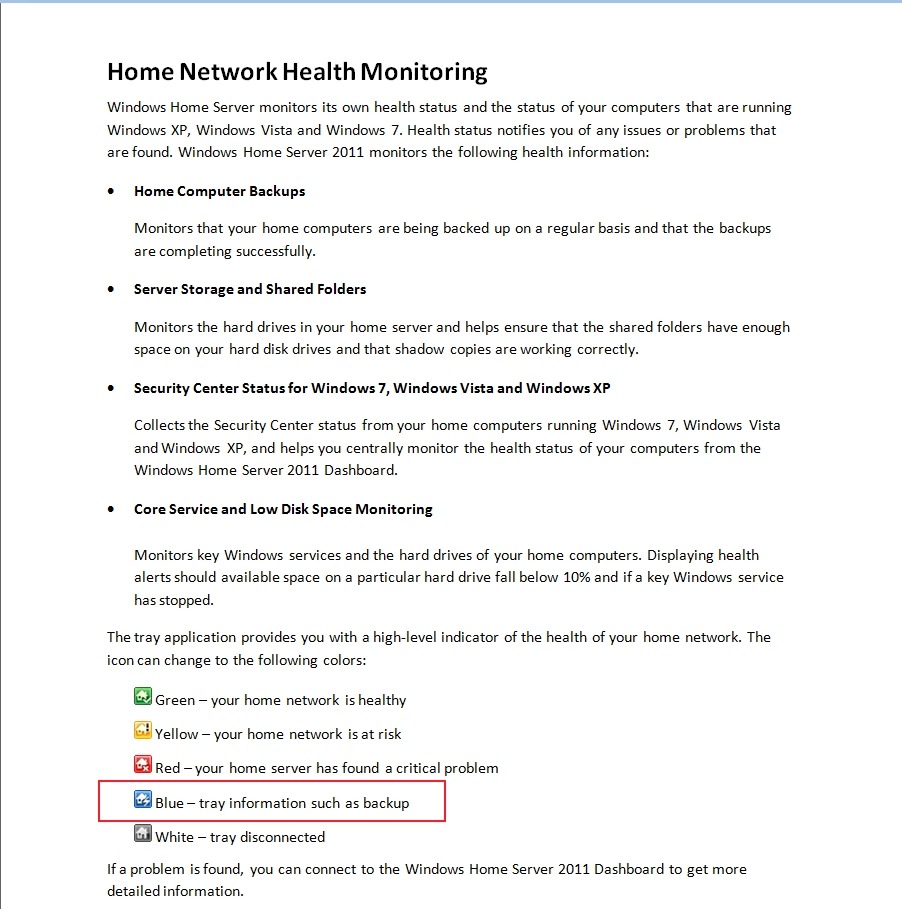
    Addendum 5th July 2011: I was browsing through the excellent We Got Served forums today, and noticed that someone had reported that the WHS 2011 notification icon in the Windows System Tray wasn’t turning blue when a backup of the PC was in progress. This was always the case in WHS v1, so I was surprised to read that it wasn’t apparently working in WHS 2011. It’s even mentioned in the Getting Started documentation:

    WHS2011 62 

    Intrigued, I looked at the System Tray icon on a couple of my PCs whilst they were having a backup taken, and sure enough, it wasn’t turning blue. I then discovered that this bug had been reported to Microsoft on the Microsoft Connect web site (note, if you haven’t got an account there, you won’t be able to follow that link, I’m afraid). Astonishingly, Microsoft have replied:

    This is a good suggestion, although we decided in the 2011 release that backups should be seamless and not neccessarily [sic] notify the user of when they are in place.

    Ah, yes, the “it’s not a bug, it’s a feature” defence. If they’re going to pull that one, then they should also change the documentation to be in line… And what on earth do they mean by describing this as “seamless”? “Invisible”, more like. The whole point of the icon behaviour in WHS v1 was that you could see at a glance whether a backup was in progress, so that you didn’t shut down your computer while it was underway. I’m already seeing complaints on the forums that people are missing this, and pointing out that it was very easy to use by family members. Now, you have to go into the Launchpad and click the backup button. If there’s no backup underway, the Launchpad will ask you if you want to start one. If there is one underway, the Launchpad will tell you how far it’s got. Family members don’t want this hassle (many don’t even want to see the Launchpad), and neither do I.

    I’m sorry that I always seem to be negative about WHS 2011. I really want it to succeed, but it seems to me that the lack of attention to detail and the resulting slip in quality, not to mention the issues in the shipped software, does not generate a good impression of the product. It could have been so much better.

  • Windows Home Server 2011 Product Pages

    Update 13 January 2012: Well, it’s taken Microsoft over six months to do it, but it looks as though they now have a new set of Product Pages. They are very much simplified (perhaps too much so), but at least the howlers of the previous set are no more.

    I’ve been looking through the web pages that Microsoft has put up to market the Windows Home Server 2011 product.

    The web pages were originally set up for the first Windows Home Server product, and have now been updated, not always consistently or completely, to reflect the new, 2011, version.

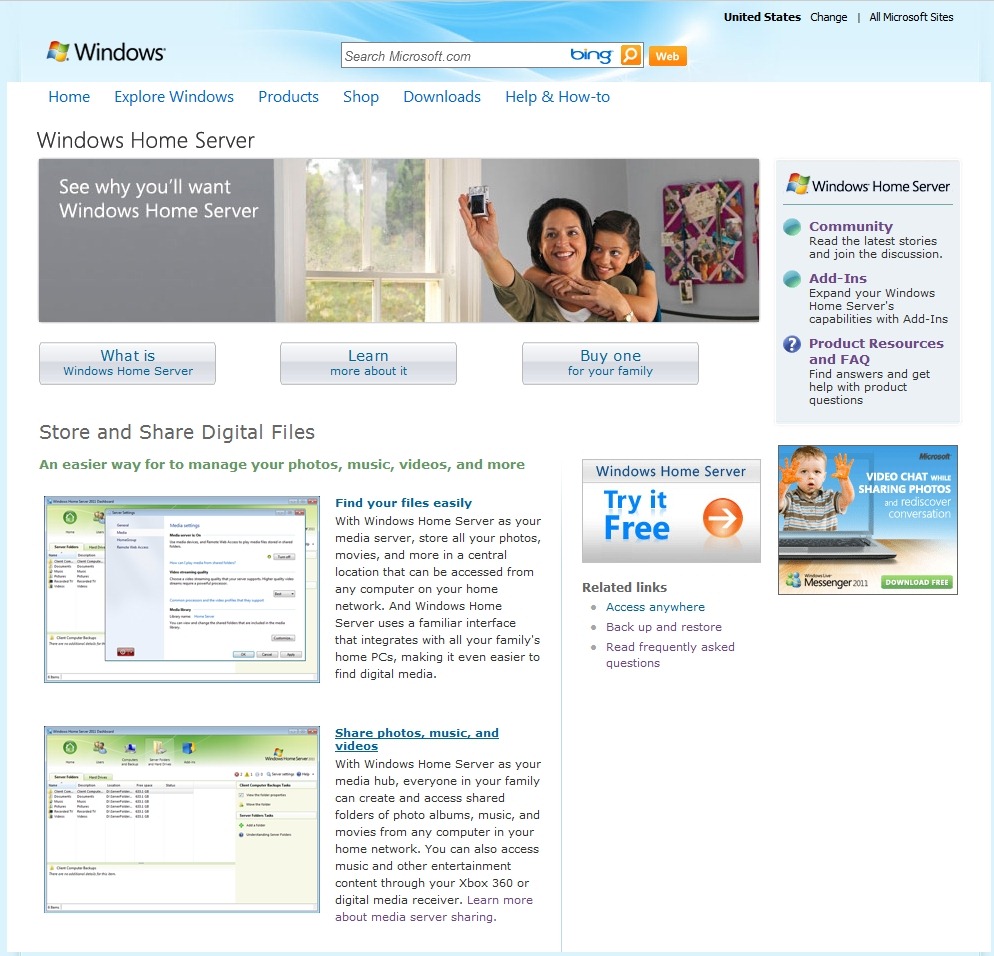
    For example, on this page, the “Find your files easily” and “Share photos, music, and videos” links are currently broken:

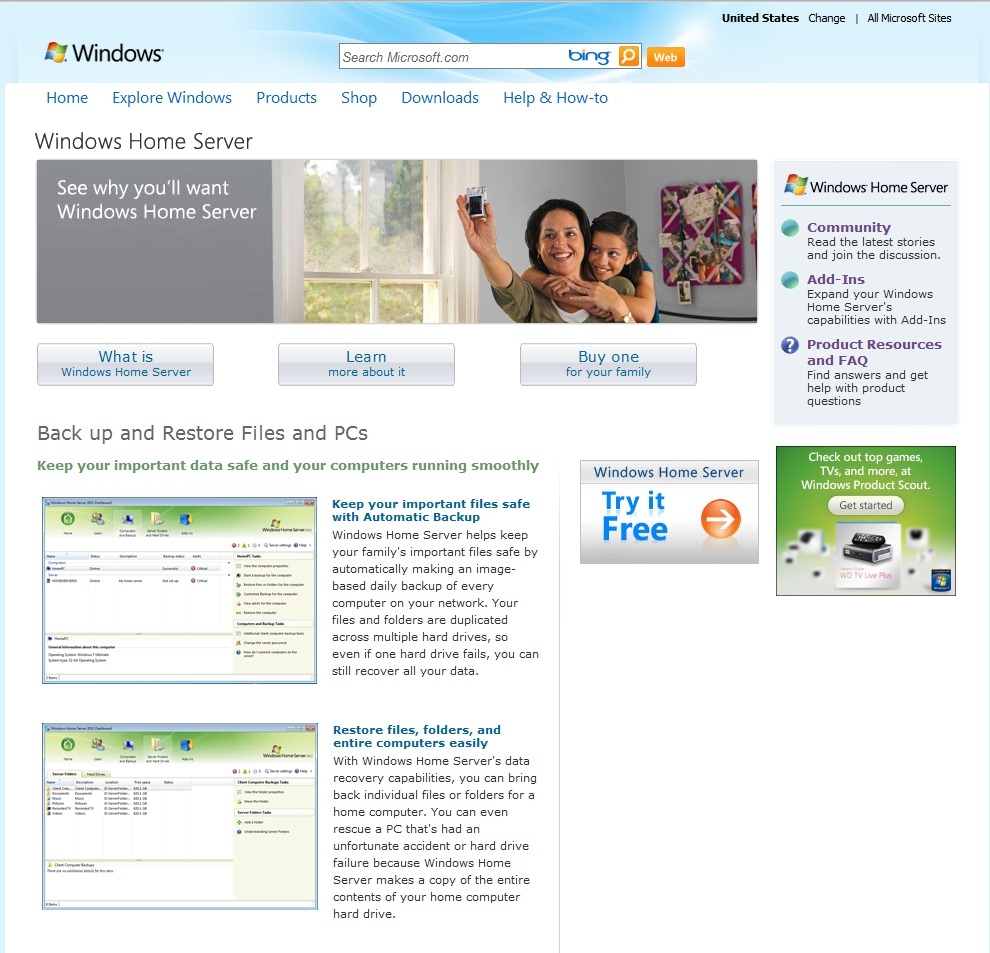
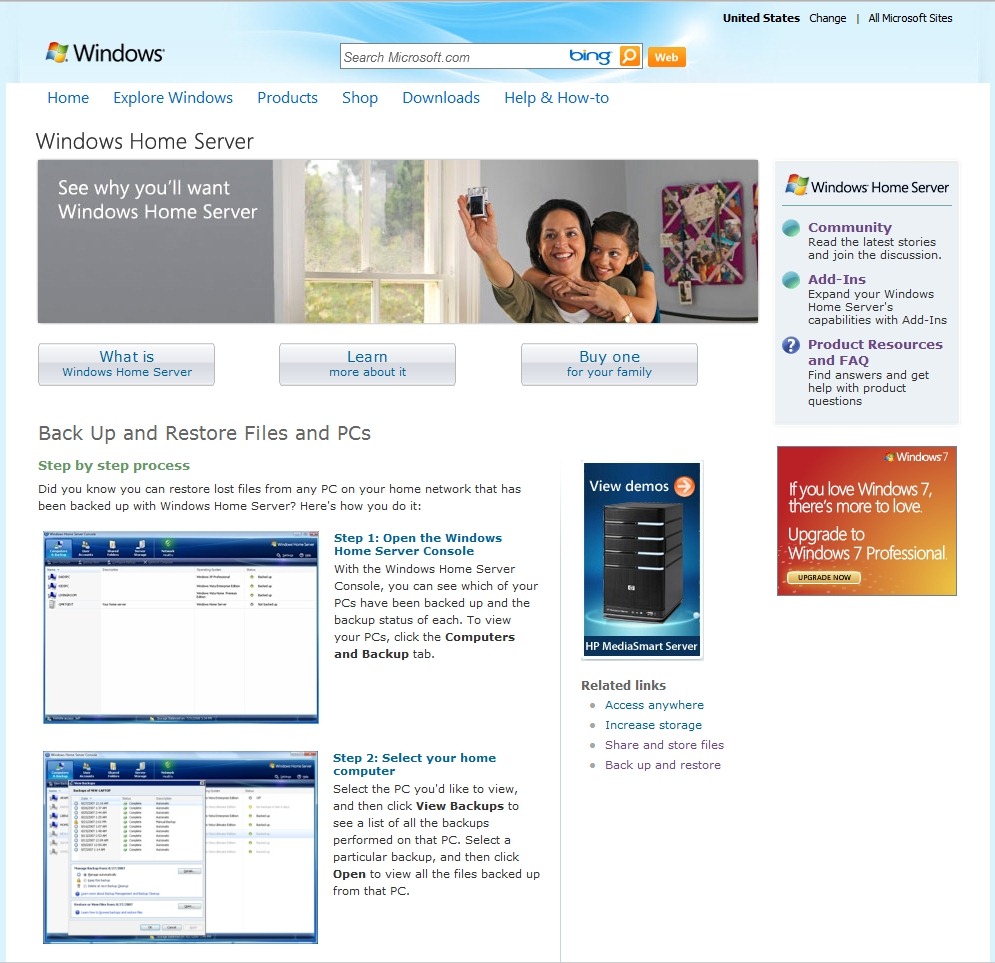
    WHS2011 54

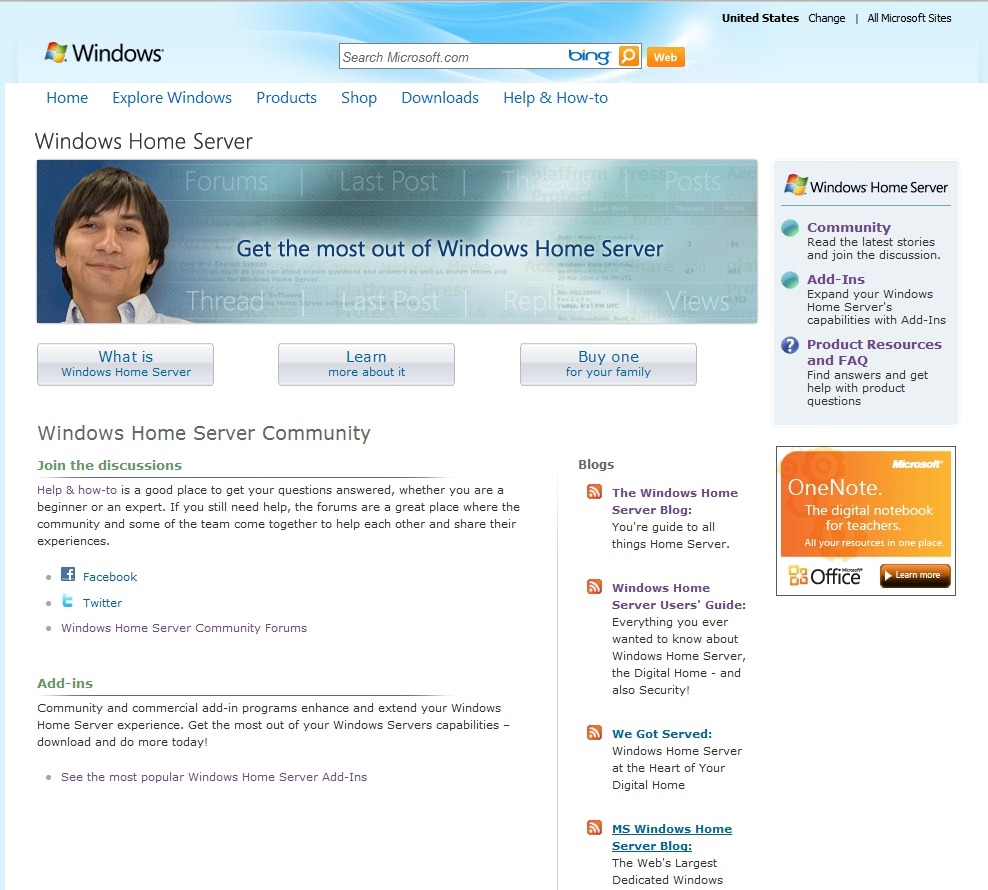
    Other pages also have lots of broken links. This one, for example:

    WHS2011 55

    Update 18 July 2011: Well, it looks as though Microsoft have removed the broken links instead of fixing them. Originally (i.e. on the WHS v1 pages), those links led you to the full-size screenshots of the thumbnails to the left of each link. And the thumbnails themselves had embedded links to do the same thing. Now Microsoft have simply deleted all the links, both in the text and the thumbnails, so there is no way someone reading the product pages can see the full-size screenshots. Instead they have to be satisfied by squinting at the thumbnails. This is supposed to be good marketing?

    And then there are pages that still continue to refer to the old version of Windows Home Server. This page, for example, still has screenshots of the WHS version 1, and it refers to the “Console” of WHS v1, instead of the “Dashboard” of WHS 2011:

    WHS2011 56

    And it’s not the only page to do this. There’s plenty of other examples to be found, including pages that refer to the Drive Extender technology, which has been dropped from WHS 2011.

    Microsoft seem to be intent on not only confusing the home user, but also their developer community. On the Windows Home Server Support page, the link given under the Developer resources section leads not to the Windows Home Server MSDN site as it claims, but to a now-obsolete toolkit (it was designed for WHS v1 and will not work on WHS 2011) to install diagnostic software on WHS v1. Diagnostic software, note, not information about how to build software for WHS 2011, which is what developers need to get started with. The link should really go to the SDK (Software Development Toolkit) for WHS 2011.

    Finally, I know that I’m a pedant about grammar, so I let out a groan of despair when I read this page:

    WHS2011 52

    Take a look at the tagline under the link to the official Blog of the Windows Home Server Team:

    WHS2011 53

    You’re guide…”? Sigh – whatever happened to good education? Or useful and accurate web pages, for that matter?

  • The Media Library in Windows Home Server 2011

    As promised yesterday, here’s the follow-up post describing my experience (thus far) with the Media Library in Windows Home Server 2011.

    On installation, Windows Home Server 2011 will create a number of Folders by default for music, pictures, documents, recorded TV, and videos. These can be accessed either via Windows networking, or via the web using the Remote Web Access facilities of WHS 2011.

    On my home network, I’m using Windows networking for access by my Home Theatre PC (HTPC) and other computers to the digital media files held on my WHS 2011 system. This seems to be working as expected. I can play my music, or watch DVDs and Blu-rays streamed from the server to my PCs without issue.

    I did, however, find a couple of wrinkles when trying to access the same digital media files via the Remote Web Access facility of WHS 2011.

    Wrinkle 1

    When I first set up my WHS 2011 system, I had installed my music library on drive D:. And, I could access my music in the Music library displayed via the Remote Web Access. However, after a few days, I thought that I should move my picture and video libraries to different drives. I used the “Move the folder” Wizard in the Dashboard to accomplish these tasks.

    I then found that instead of being able to see in excess of 45,000 pictures in the Media Library, I was presented with the grand total of one picture:

    WHS2011 24a

    I also saw that I had a total of 54 videos, but when I tried to play any of them, the web-based player would start, but then fail with an error message complaining that the file-type may not be supported.

    Using Remote Web Access to browse the shared folders would show all the pictures, and would play the videos without problems.

    I thought at first that it was simply a case of the index service needing time to register the new locations of my picture and video files, so I waited, and I waited… I waited a couple of days, and nothing changed.

    At this point, I decided to reboot my server, and lo and behold, the picture and video files were found:

    WHS2011 37

    You will notice that there are now 45,058 pictures and 92 videos found, and that the thumbnails show a real photo and video thumbnail.

    So I infer from this that using the “move folders” wizard is not sufficient to keep the WHS 2011 system running smoothly – it is also necessary to reboot the server in order for the indexing service to discover the new location of files. This, despite the fact that accessing the files via Windows networking appears to be able to account for the changes.

    For the case of web access, the server’s left hand does not know what the right hand has done…

    Wrinkle 2

    I noticed, from the forums, that some people were complaining that their Album Art (CD covers) in their Music Library was showing up in their Pictures Library. Clearly, this is wrong, and should not be happening.

    Then I realised that when the Pictures Library of WHS 2011 was showing just one picture, it was in fact a CD cover stored in my Music Library. Well, (a ) this should not be displayed in my Picture Library, but (b ) why was it just one? After all, my Music Library has 990 albums:

    WHS2011 39

    – why was it just displaying one album cover, and not 990 in the Picture Library?

    It turns out that WHS 2011 will ignore certain filenames when it is searching for items for inclusion in the Picture Library.

    WHS 2011 will ignore filenames in the Music Library folders when they have the form:

    • AlbumArt_{alphanumeric}_Large,
    • AlbumArt_{alphanumeric}_Small, AlbumArtSmall, and
    • Folder.jpg files

    However, if you have Album Art files that do not follow this convention, then WHS 2011 will count them in as part of the Picture Library.

    And that’s what was happening. I had an Album Art cover file with this name:

    Cover- Wiener Philharmoniker _Orchestra_- Strauss, R. Eine Alpensinfonie; Rosenkavalier-Suite.jpg

    Cover- Wiener Philharmoniker _Orchestra_- Strauss, R. Eine Alpensinfonie; Rosenkavalier-Suite

    and so WHS 2011 included it into the Picture Library…

    Sometimes I feel as though I’m an archaeologist, trying to second-guess what has been left by extinct civilisations…

    Update: I have discovered more issues with the Media Library. See this post.