Reflections on life at “De Witte Wand”…

Tag: Windows 10

  • Falling Short

    I watched the live stream of the Microsoft keynote at IFA 2017 today, or at least I tried to. It was supposed to start at 14:00 CET, but for the first 18 minutes, there was no live stream, only music playing, and then, suddenly, we were thrown into the keynote, midway through the presentation by Microsoft’s Terry Myerson.

    I know that Mr. Myerson is an important person at Microsoft (being the Executive Vice President Windows and Devices Group Engineering, Microsoft Corporation), but really, someone should tell him that he is not at all good at presenting. It was something of an embarrassment.

    Even what he had to say struck me as falling short. He was extolling the virtues of the forthcoming “Windows 10 Fall Creators Update”, but it does irritate me that the claims made so clearly fall short from the reality. For example:

    We have reimagined our Photos Application to deliver remixed experiences for telling your stories with photos, videos, music, 3D, and even inking.

    Yes, but you can’t organise and search your photos as you could with Microsoft’s earlier photo applications (now dropped by Microsoft in Windows 10). And then there was:

    You can save all of your creations in OneDrive Files On-Demand, accessing your cloud files like any of your other files on your PC, without using up your local storage space.

    Yes, but you can’t search them, like any of your other files on your PC…

    There followed another couple of presentations that did not exactly set the keynote on fire, and the session closed with a pitch from Nick Parker (Corporate Vice President Consumer Device Sales, Microsoft Corporation) which was at least delivered with some conviction and passion. But even he ended with a video (apparently produced by the BBC, despite the Microsoft logo tacked on at the end) that was not related in any way with the mainstream businesses of Microsoft. It had clearly been chosen to tug at the heartstrings (and was effective enough at that), but had no connection at all with the rest of the keynote’s focus and content.

    Very disappointing.

  • Curse You, Microsoft!

    Another day, another rant at Microsoft…

    Christmas is coming, so the Christmas Card production line has started here at the Witte Wand. We’ve got about 100 cards to send out to friends and family each year, and I use mailing labels to save a bit of time, rather than addressing each envelope by hand. My everyday printer is an Canon inkjet printer, but because I want waterproof labels, I prefer to print them on my trusty (20 year-old) HP Laserjet 5/5MP printer.

    So I duly fired up the printer, opened the Word document containing the mailing labels and attempted to print them. Nothing happened, apart from Windows 10 giving me a singularly unhelpful error message: “Printer in an error state”. The printer was fine, a selftest worked as expected, but Windows was insisting that there was an error. After some further detective work I discover that the cause of the problem is not the printer, nor the printer driver, but the Windows 10 software driver for the LPT (parallel) port.

    It turns out that the November update to Windows 10, to bring it up to the latest version of Windows 10 (version 1511), has a brand new version of the driver for the LPT port – and it doesn’t bloody well work.

    Apparently, one of the first things that Satya Nadella did on becoming the new CEO of Microsoft, was to let go a large portion of testers in favour of the programmers doing their own testing. While I’m sure that this saved Microsoft a chunk of money, did no-one bother to point out to Nadella that programmers do not always make good testers? Testing is a skill in its own right, and often programmers will miss bugs in their own code because they are too close to it.

    It seems to me that the end result is that Windows 10 was released in July both buggy and incomplete, and now with the November update, we, the customers, have a brand new batch of bugs to deal with.

    I am not a happy bunny at the moment.

    Addendum 2 March 2016: Well, three months after Microsoft broke the LPT driver, it appears that they have finally fixed it. No apologies, and no acknowledgement from Microsoft that there ever was a problem until this one sentence announcement buried away in the Microsoft Answers forum. Bad show, Microsoft, bad show.

  • Groove Music – Amnesia in Action

    Microsoft has released a new version of its Groove Music app (version 3.6.1210.0) for Windows 10. They’ve also introduced yet another bug into it, a showstopper, as far as I’m concerned.

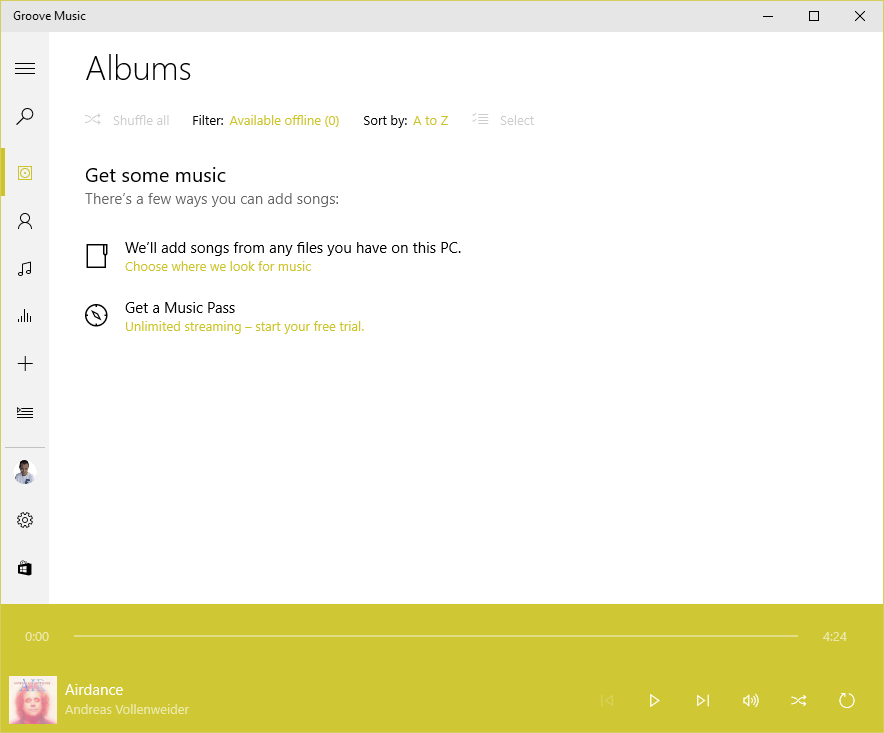
    Groove keeps losing my entire album collection, and trying to rebuild it in a never-ending cycle.

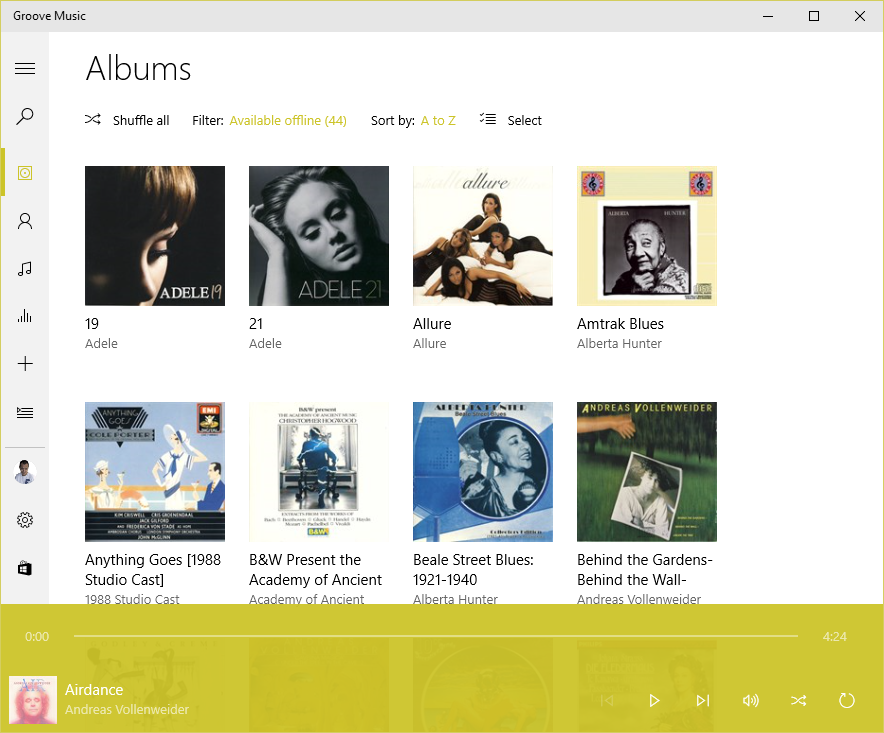
    I have 1,000+ albums stored on a Windows Home Server 2011 system, and connected to it are four Windows PCs (desktop, laptop, a Windows Tablet and a Surface 3), all running Groove and Windows 10. On each of the connected devices, the root music folder on the WHS2011 system is defined as a music library (and hence defined as a watched folder – in my case, \\DEGAS\Music – within Groove on each system).

    Groove 04

    Now that all the instances of Groove have been updated to version 3.6.12.10.0, what will happen is that when I’m viewing my Albums, the albums will suddenly disappear, Groove will say there are zero albums available offline, and  display the “Get some music” message.

    Groove 02

    After some time (30 minutes?), or a restart of the app, Groove will start re-indexing the music folders and albums will start appearing.

    Groove 03

    This goes on (slowly!) until all the albums have been scanned from the WHS2011 folders, at which point they will all suddenly disappear again and the process starts over.

    This is happening on three all four of the PCs. Interestingly, the Surface 3 is not losing the albums. However, it’s also not displaying the correct number of albums held in my music library. I have 1,103 albums in my collection; according to Groove on the Surface 3, I only have 1,084. I suspect that this instance of Groove isn’t actually watching my watched folders… Addendum: I forced the Groove on the Surface 3 to rebuild its index, and now the same thing is happening on the Surface 3 as on the other PCs.

    The 3.6.12.10.0 version of Groove is also not always displaying the “Adding music” notification when music is being added.

    I feel that Microsoft is not testing this app sufficiently well; I wonder whether anyone on the testing team bothers to test it with a library held on a Windows Home Server 2011 system.

    I don’t mind being a beta tester when software is in beta; but Windows 10 and the Microsoft apps are now released. Groove is still not fit for purpose.

    I have also sent this information in as feedback to Microsoft via the Windows 10 Feedback app. Whether this will result in a fix remains to be seen.

    Apparently, Microsoft has stated that for Windows 10 Home users, all operating system and app updates will be automatically installed, and this cannot be overridden by the user. That’s a bit worrying, since a bug in a new component can cause immediate damage. We don’t get the option to delay updates and check whether it’s safe to let installations proceed.

    Addendum 18 August 2015: Groove is now up to version 3.6.1239.0, but the issue is still present…

    Other people are also reporting this issue occurring for music collections held on both WHS 2011 and Windows Server 2012 systems, so I’m not the only one for whom this is a showstopper.

    Addendum 19 August 2015: This latest version of Groove running on my Surface 3 refuses to find any local files (including the collection on WHS 2011) at all. And it’s a hit and miss affair on my other systems as well. Groove on my desktop claims my collection has 1,109 albums available offline; on my Yoga 3 Pro, Groove says I have 1,112 albums, and on my ThinkPad 10, Groove says I have just 644 albums.

    Addendum 20 August 2015: after 36 hours(!) of adding files, Groove on my ThinkPad 10 now says I have 1,108 albums available offline. So what’s it to be? 1,109, 1,112, or 1,108? All instances of Groove are looking at exactly the same collection; one might think that they could agree on the correct total of albums. Oh, wait a minute, Groove on the Desktop PC has just lost the index again, and has restarted to index the collection, While Groove on the Surface 3 still resolutely refuses to see any albums at all…

    I’m sorry, but this software is absymal.

  • Windows 10

    So, the great day is here; Windows 10 has been unleashed.

    Microsoft is in full Dr. Pangloss mode at the moment, trumpeting that Windows 10 is the best of all possible worlds.

    Forgive my cynicism, but from what I have seen so far, I think it’s more of a curate’s egg.

    The one saving grace is that it might improve over time, but going on Microsoft’s past performance, I’m not holding my breath. Having said all that, I will be updating all our windows devices to Windows 10, but not without regrets.

  • Media in Windows 10 – Stepping Backwards?

    Just a couple of days to go before the launch of Windows 10, and Microsoft has blogged about the built-in apps present in the new operating system. Microsoft describes the apps as “great”. I think many of us would beg to differ; we are finding that the media apps in particular are a step backwards from those that are in Windows 8.1.

    Barb Bowman goes into detail about the shortcomings, and, if using Windows to play back your media is important to you, you should definitely check out her post.

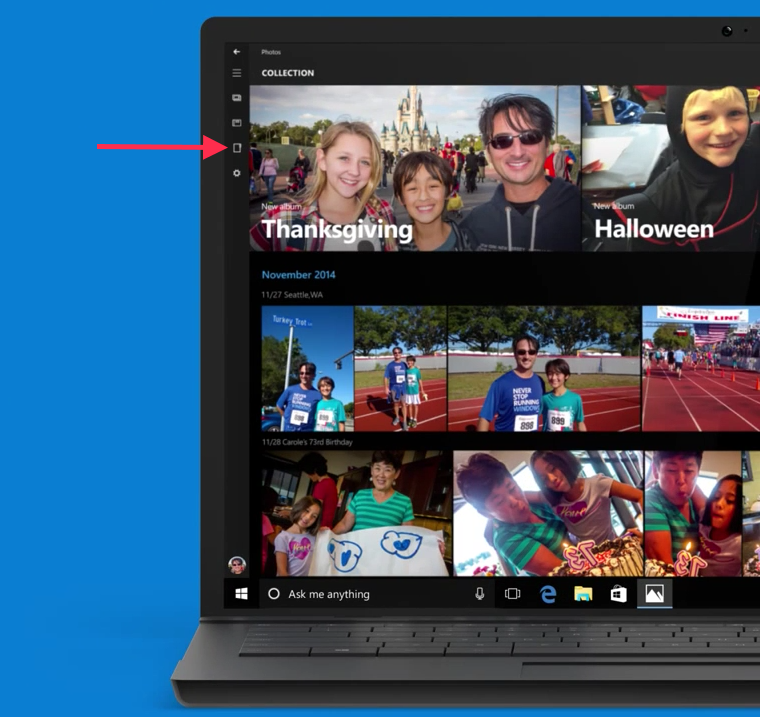
    In addition to these shortcomings, the Windows 10 Photos app is pretty abysmal. You can’t browse individual folders of pictures, it will only display pictures arranged by date. Interestingly, browsing by folders was originally in the app, but it has now been removed by Microsoft. I notice that the advert in the Microsoft blog post still shows the older version of the app, with folder browsing present:

    Windows 10 08

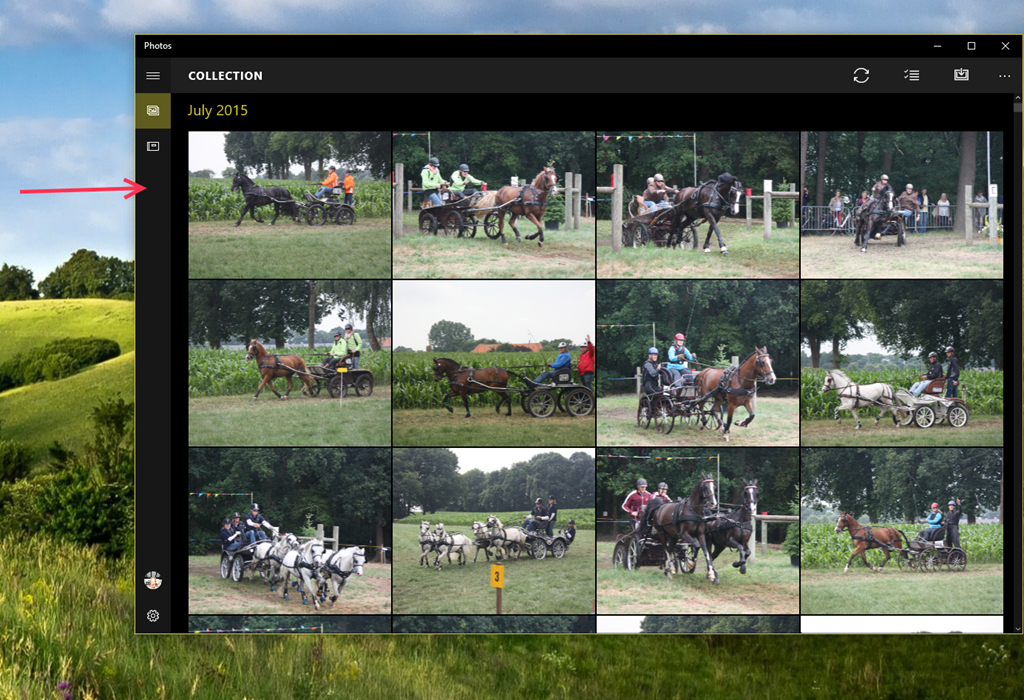
    Either Microsoft are being disingenuous here, or someone’s been sloppy, because the Folder view is missing from the latest version (and has been for some months now):

    Windows 10 09

    So where has the Folders view gone? I need it back – it makes it impossible to find stuff without it (and there is still no possibility to search photo metadata tags in the app).

    Frankly, with the current state of this app, I find it next to useless, and use other photo apps in preference. However, Windows 10 will force you to use it in certain circumstances. For example, if I want to add someone’s picture to their contact details in the People app, Windows 10 will bring up the Photo app so that you can select the picture you want to use. Without a folders view, I have to use File Explorer to find out the date taken of an image, and then use the Collection view in the Photos app to scroll to the date of the image to copy it into the People app. This is extremely cumbersome, and far from fast and fluid.

    It almost gives the impression that Microsoft teams don’t actually test out the use cases… I am not impressed.

  • Windows 10 Looms…

    We are just three weeks away from Microsoft launching Windows 10 on the 29th July. The tech media has plenty of articles discussing the pros and cons, and now the “should I upgrade to Windows 10” articles are starting to appear in the mainstream press. Here’s one from the UK’s Telegraph. It’s actually surprisingly positive:

    Windows 10 for desktop is a massive improvement over Windows 8. It builds on the more intuitive aspects of Windows 7 and Windows 8, combining the familiarity of the Start menu with a number of new features that genuinely seem to improve user experience, such as Edge and Cortana.

    It’s also surprisingly accurate (I’ve begun to despair at the quality of what passes for technical journalism these days, even in the tech press), although in some places I would have a different take. For example:

    When used on a tablet or smartphone, Windows 10 is not hugely different from Windows 8; most of the changes are under the hood. However, small improvements in usability should make learning the system less of a chore for the uninitiated.

    As a user of Windows 8.1 on various tablets, I would disagree with the first part of this statement. There are substantial changes, and the changes are not under the hood, but very much in your face. The Charms bar of Windows 8/8.1 has gone and been replaced by the Action Centre, which holds notifications and is the entry point to Windows settings. Windows 10 also introduces the dreaded “Hamburger” button. These and other changes represent a major shift away from the design language pioneered in Windows 8/8.1 and in Windows Phone 8/8.1.

    So for those of us that use Windows 8.1 and are completely comfortable with it, the move to Windows 10 is going to mean changes, and the relearning of our muscle memories. People who use Windows 7, on the other hand, are, I think, going to find it easier to adapt, because Windows 10 is very much closer to what they are used to.

    After trying out the previews of Windows 10, I wrote, back in April, that I just didn’t like it. There seemed to be too many features of Windows 8.1 that had been removed or changed.

    Now, twelve weeks and several preview builds later, I am somewhat less anxious. I have moved three PCs over to Windows 10. A laptop, a tablet and lastly, and most recently, my main workhorse, my Desktop PC. I have left my Surface 3 tablet running Windows 8.1; I will wait until the official release of Windows 10 before upgrading it.

    I still miss the Smart Files feature of Windows 8.1, and the new version of this feature probably won’t appear in Windows 10 until late 2016. I will also be going through a period of relearning how to use my tablets.

    Will the pain be worth the gain? In some areas, definitely yes. Windows 10 introduces native support for the FLAC audio and MKV media container formats. Both of these are important to me for the future of my music and home cinema systems. However, what Microsoft gives with one hand, it taketh away with the other. The “Play to” feature of Windows 8.1 is renamed to “Cast to” in Windows 10, and this function will have fundamental changes.  It appears as though Microsoft has removed DLNA DMR devices from system-level control (e.g. the Devices item in the Win 8.1 Charms bar), and demoted that function to needing to be controlled on an app-by-app basis.

    That’s all very well if app developers actually take account of it. I note that Microsoft’s Music app does not do this, and I also note that the Microsoft spokesperson uses the qualifier “eventually” in the context of support by the Microsoft app. That could mean it will be available on July 29 or it could mean in five years time. That does not give me a warm feeling.

    The Music app has recently been rebranded by Microsoft as the Groove Music app. It’s still primitive, and does not even have the capabilities of the venerable Windows Media Player, Microsoft’s Windows desktop application that last had an update back in 2009. For example, as a lover of Classical music, I want to be able to search and sort my music collection by composer. I can do this in Windows Media Player – in Groove? No, not yet – and I suspect not ever.

    Microsoft keep saying that their media applications will have a constant stream of improvements, but they’ve been saying this for a very long time now, with precious little result.

    So in summary, the underlying platform of Windows 10 is good, with new features that promise much. It remains to be seen whether Microsoft and other players will exploit that platform with a new generation of apps that deliver value and delight.

  • Reading Between The Lines

    Microsoft’s Joe Belfiore has published a blog post today that has caused a slight disturbance amongst the company’s fans: Your Windows 10 PC will love all the devices you own.

    The reason for their discomfiture is that Microsoft is intent on bringing features, which hitherto have been unique to Windows, to rival smartphone operating systems. Personally, I think it’s an understandable strategy, and one that Microsoft has already shown that it wants to pursue.

    However, the post also caused me some discomfort, but not for the above reasons. My hackles went up with Belfiore’s opening sentence:

    Whether it’s a 3-year-old printer or projecting to your brand new TV with Miracast, we’re building Windows 10 to be terrific at connecting all your devices.

    Mr. Belfiore seems to be implying that a 3-year-old device is pretty well obsolete, and at the limits of supportability. I have an HP Laserjet 5MP printer that is still going strong, 20 years after I bought it. It almost sounds as though it will be more by luck than judgement that such devices will continue to work in Microsoft’s brave new world of Windows 10.

    The other part of the post that caused a slight intake of breath was where he wrote:

    Join the Windows Insider Program to try out the Phone Companion app on a new Windows 10 Insider Preview build we’ll flight out in a few weeks.

    “…flight out”? That’s a new verb to me, and a particularly ugly one to boot. What’s wrong with simply saying “we’ll release in a few weeks”? I realise that language constantly evolves, but does it have to do so in such awkward ways? However, I’m probably fighting a lost cause for British English here. I remember, with a shudder, the first time I heard an American airline stewardess announce on arrival in America that we should deplane. That was years ago, and I still haven’t got used to it.

  • Windows 10 Technical Previews

    Over the past few months, I’ve been playing with Microsoft’s technical previews of their forthcoming Windows 10 operating system. It’s the version of Windows that is supposed to marry the best features of Windows 7 (which was designed for traditional PCs with a mouse and keyboard) and Windows 8.1 (which is designed for both traditional PCs and devices such as Tablets that use touch for input).

    It’s safe to say that Windows 8.1, and Windows 8 before it, has had a poor reception in the market. Acres of newsprint have been spread with the cries of pain, and vitriol, from many users of traditional PCs. Personally speaking, I singularly fail to see what all the fuss is about. I use Windows 8.1 on both my PCs and Tablets, and am perfectly comfortable in both environments. I took to the new operating system like a duck to water, and could not countenance ever going back to Windows 7.

    Nonetheless, perception is reality, and Microsoft have realised that their challenge is to introduce a new version of Windows that keeps as many users as possible happy, no matter which camp (PC or Tablet) they are in.

    So, as I say, I’ve been playing with the previews of Windows 10, and I’m coming to the dismaying conclusion that, as a user of a Windows 8.1 Tablet, I just don’t like it

    While the Desktop side of things has improvements, from my perspective as a Windows Tablet user (Lenovo ThinkPad 2 and Lenovo ThinkPad 10), the UI experience in Windows 10 is significantly worse than that delivered by Windows 8.1.

    From what I’ve seen so far, Microsoft is bending over backwards to pander to traditional desktop PC users. They are removing valuable UI features (the Charms bar has gone) from the Tablet experience, or poking desktop features into the Tablet UI (I do not want the Desktop Taskbar to be present in the Tablet UI, but there it is, whether I want it or not).

    Now I know that it’s a Technical Preview, but if Microsoft are going to deliver the final version in summer 2015 as promised, then it’s more than likely that the major features are now locked down, and all that remains are bug fixes and minor tweaks (e.g. improving the Toytown icons in File Explorer).

    It seems to me, on current evidence, that Microsoft are throwing the baby out with the bathwater. I am not impressed, and I’m not the only one.

  • Metro – Murdered By Microsoft?

    When Microsoft introduced Windows Phone, precisely five years ago, the major differentiator from Apple’s iOS and Google’s Android was the user experience. Microsoft called the design language: Metro; that is until Metro AG threatened Microsoft with legal action for using that name. Now Microsoft no longer use the term Metro, and indeed it would appear that they no longer want to use many of the elements that made Metro the innovation that it was.

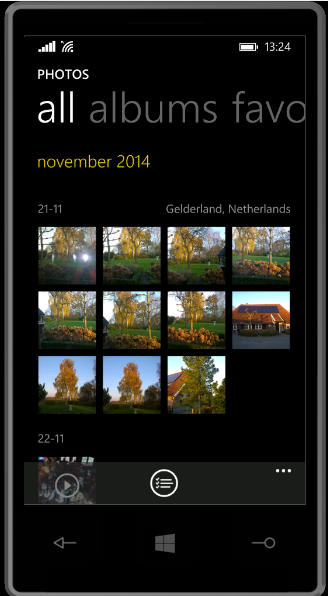
    One of the design innovations was lateral scrolling within apps to reveal different functions (the so-called “Pivot” control). The use of large fonts in the app title cued the user that more was available by scrolling laterally, e.g. as here in the Photos app:

    WP8 04

    Along with Metro came concepts such as the “hub” – single points of entry where similar items from different sources would be consolidated. So, for example, the Photos app consolidated your photos from cloud sources such as Facebook, Flickr and OneDrive with the photos that were on the phone itself. You no longer had to worry about where the photos were held, and open up a Facebook app or a Flickr app; they were all available in one place.

    Unfortunately, I suspect that companies such as Facebook and Flickr didn’t like the hub concept, because they saw it as threatening the power of their brand. Microsoft has responded by either removing the consolidation feature completely (e.g. the integration with Facebook and Flickr that existed in the Photos app in Windows 8 was ripped out for the Photos app in Windows 8.1), or watered down.

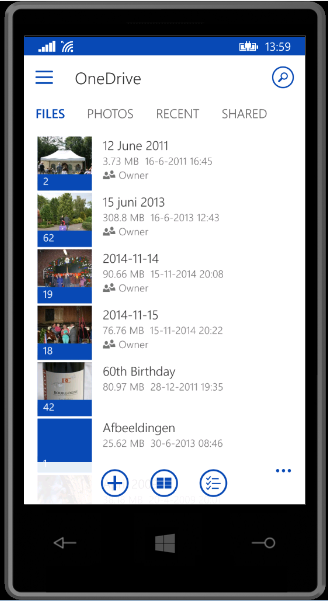
    Now it seems that Microsoft is turning its back on other design aspects of Metro, and is busily introducing design concepts copied from Android (e.g. the infamous “Hamburger” button). We first saw this in the new version of the OneDrive app, introduced in October 2014:

    WP8 05

    You’ll notice that not only is the “Hamburger” button present (it’s the three horizontal lines at the top left), but the Pivot design element has also gone. This redesign was met with howls of protest. As I said at the time:

    Frankly, if I’d wanted an Android phone, I would have bought one. One of the key reasons why I went with a Windows Phone was the UI design. I like it a lot, and I am at ease with it. To have a key Microsoft team turn their back on it and introduce Android elements is a shock, to say the least.

    One might almost wonder if the team had actually read the “Review questions for prototype” section on the “Design the best app you can” page of the UI guidelines, in particular:

    • Are you coming from another mobile platform? Windows Phone users will expect fewer taps, clearer views, large typography, and the use of contrast and color.
    • Are you using both axes of scrolling (the X and Y axes) and orientation (Portrait and Landscape)? Depending on the purpose of your app, users may expect both.
    • Do you use Pivot and Hub controls effectively and correctly?

    Even simple things, such as a transparent Tile for the app have been forgotten about (or ignored) in this bastardised design. I hope that the howls of protest that have greeted this version result in a swift redesign to make it a proper Windows Phone app.

    Good design and adhering to UI guidelines are important, and help to build a brand. This horror does just the opposite.

    Looking at what is coming out in the Windows 10 previews, Microsoft is simply steaming ahead with the Androidification of Windows. Metro has been dragged behind the arras, with a dagger in its back.

  • Build 9879 Of Windows 10 Has Removed “Smart Files”

    Microsoft has just released a new interim build of their forthcoming Windows 10 operating system: build 9879, and blogged about the changes here.

    I notice that Gabe Aul (leader of the Data & Fundamentals Team in the Operating Systems Group) trumpets that the build has “cool new features”. Er, no, Gabe, what you have done is to remove a cool new feature that was introduced in Windows 8.1, and thereby damaged the user experience.

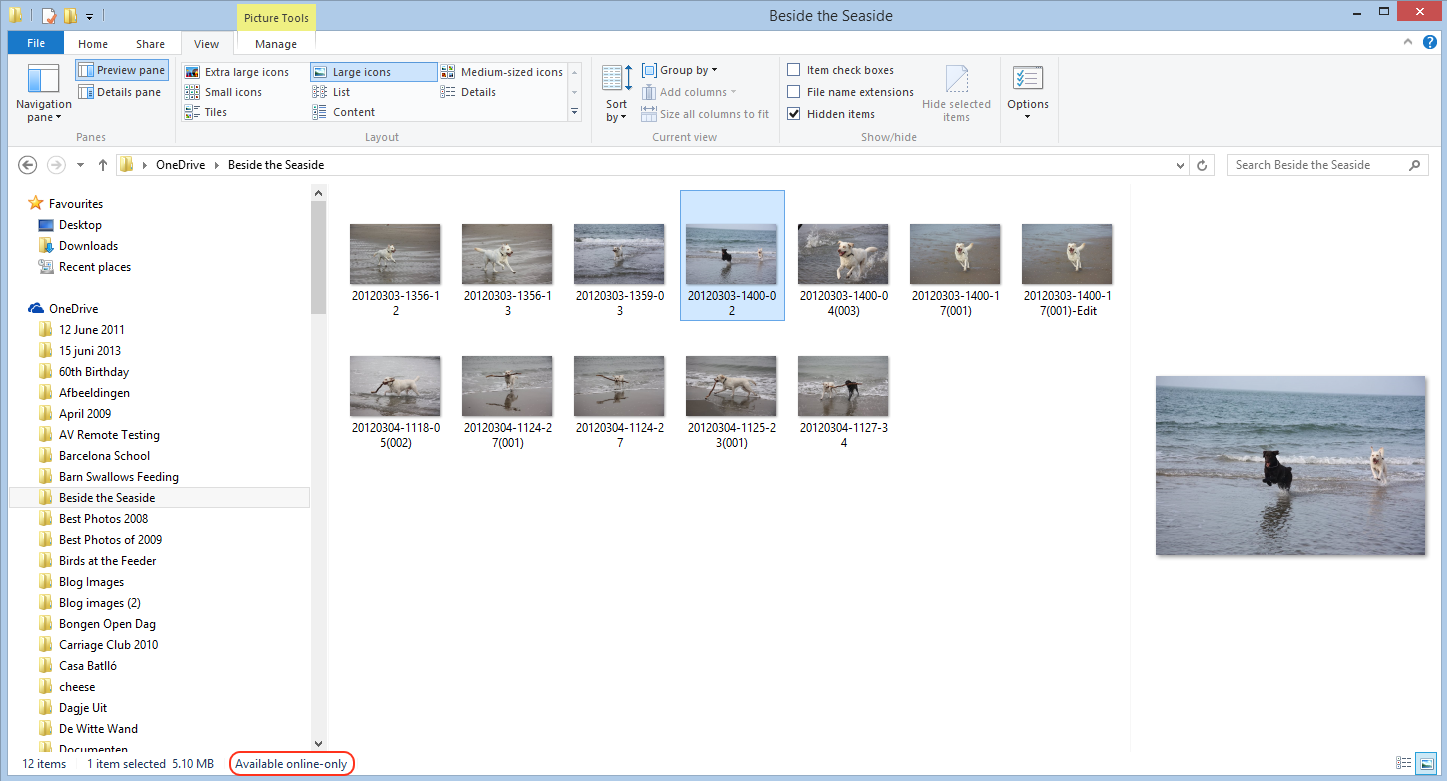
    In Windows 8.1, Microsoft introduced the concept of “smart files”. These are small placeholder files, which represent the actual files stored in the OneDrive cloud, and which appear in the OneDrive Folder hierarchy listed in the File Explorer. Here, for example, is the contents of a OneDrive folder (“Beside the Seaside”) being viewed in the Windows 8.1 File Explorer:

    W10 012

    In Windows 8.1, the only indication you have that you’re looking at a smart file, rather than a full-size file is that “Available online-only” message at the bottom of the File Explorer window.

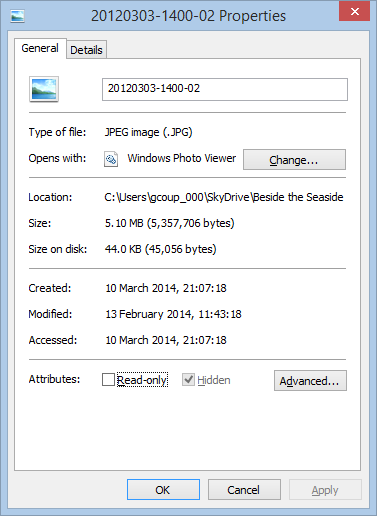
    Other than that, to all intents and purposes, smart files look like the actual files, but they are usually a fraction of the size. They just hold the thumbnail and the metadata of the files they stand in for. In the example above, the selected image (in OneDrive) is 5.1 MB, but the smart file shown in File Explorer is just 44 KB in size:
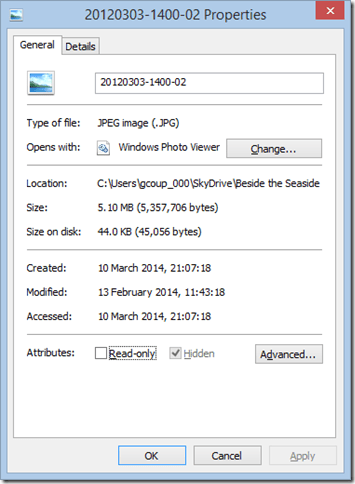
    W10 011

    Because the smart files hold metadata, it means that you can use File Explorer to search your OneDrive folders. This is also better than the online OneDrive Search, which can only search on filenames.

    When a smart file is opened for editing, the actual file is automatically synced down onto the PC and opened instead. After use, the user can choose whether to keep the full-size file (which is then automatically kept in sync with the file in OneDrive), or go back to using a smart file to save space. This choice can also be made at Folder level, so that the contents of a Folder can be either “offline” (i.e. full-size files are in the PC’s folder and kept in sync with OneDrive) or “online-only (i.e. smart files are used in the Folder to save space on the PC or tablet).

    When this feature was introduced, Mona Akmal (a group program manager for SkyDrive – what OneDrive was then called) blogged that:

    In the Windows 8.1 preview we saw consumers using SkyDrive in two distinct ways. The first group of people are very conscious of what they have saved to disk and most of their files are online-only. We found that the majority of people using smart files take up 80% less disk space than they would without smart files. The second group of people are on the other end of the spectrum: they explicitly chose to have all their files available offline, and so have their entire SkyDrive stored locally.  This showed us that users understand smart files and are tailoring the feature to their needs.

    Fast forward a year, and now Gabe Aul is telling us:

    People had to learn the difference between what files were “available online” (placeholders) versus what was “available offline” and physically on your PC. We heard a lot of feedback around this behavior. For example, people would expect that any files they see in File Explorer would be available offline by default. Then they would hop onto a flight (or go someplace without connectivity) and try to access a file they thought was on their PC and it wasn’t available because it was just a placeholder. It didn’t feel like sync was as reliable as it needed to be. For Windows 10, having OneDrive provide fast and reliable sync of your files is important. Starting with this build, OneDrive will use selective sync. This means you choose what you want synced to your PC and it will be. What you see is really there and you don’t need to worry about downloading it. You can choose to have all of your OneDrive files synced to your PC, or just the ones you select.

    In other words some people clearly don’t understand smart files. So smart files have been removed for everyone. Gabe, this is not a “cool new feature”, this is removing a cool new feature.

    What we have now is a very basic experience. Either a OneDrive folder or file is synced to the PC, or it’s not. That, in turn means that the Search experience is now completely broken.

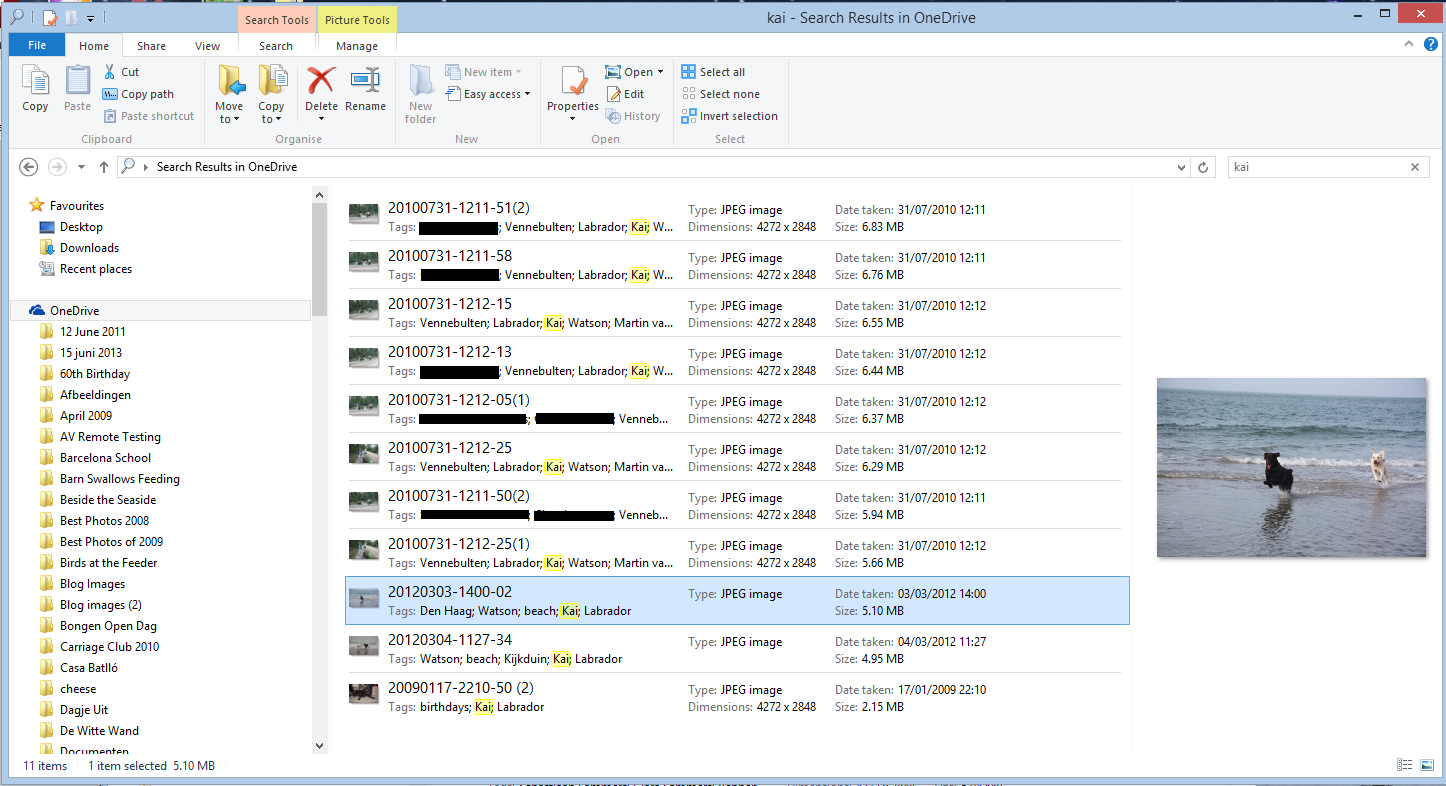
    For example, here’s what I see when I search for photos of our dog Kai in OneDrive using the File Explorer of Windows 8.1:
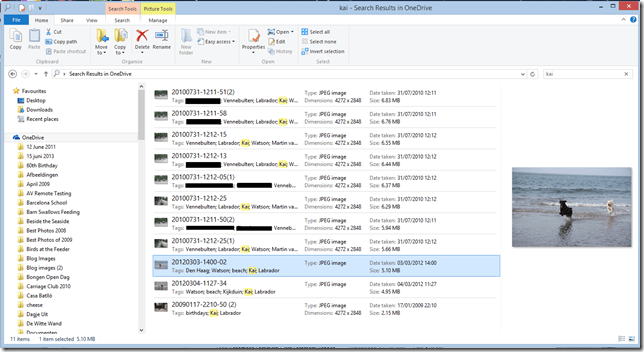
    W10 010

    Search has found 11 images with the tag “Kai” from within three separate OneDrive folders, and as it happens, all of these are smart files, since I don’t have the contents of these folders held offline on my PC.

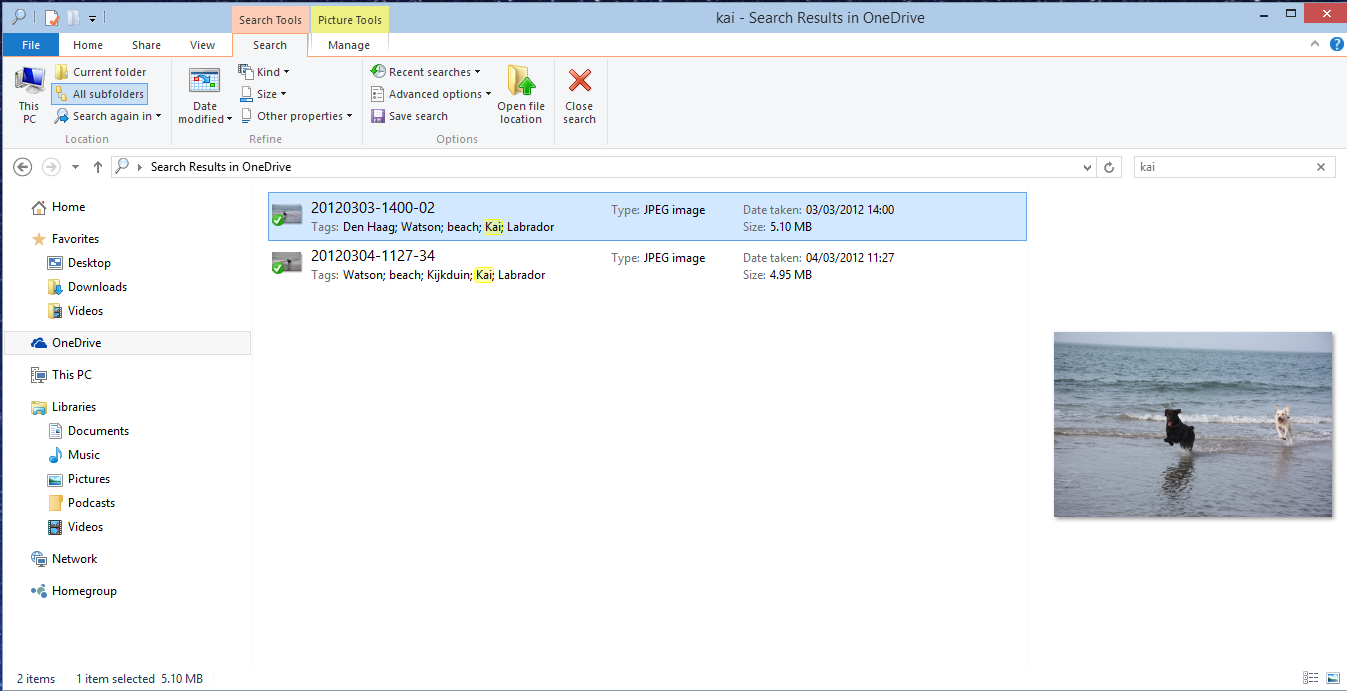
    In the new build of Windows 10, however, the same search only returns two results:

    W10 007

    Why? Because I only have one folder (“Beside the Seaside”) synced to my PC, all the other folders (e.g. “Walking the Dogs”) claim that they are empty:
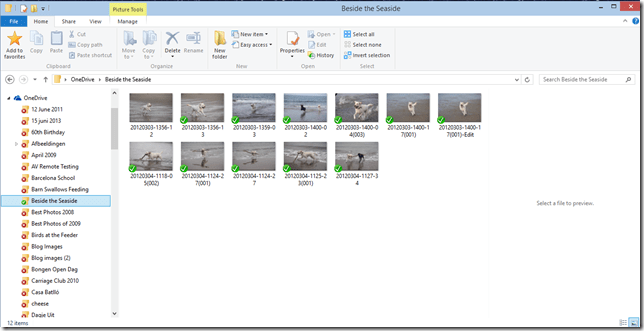
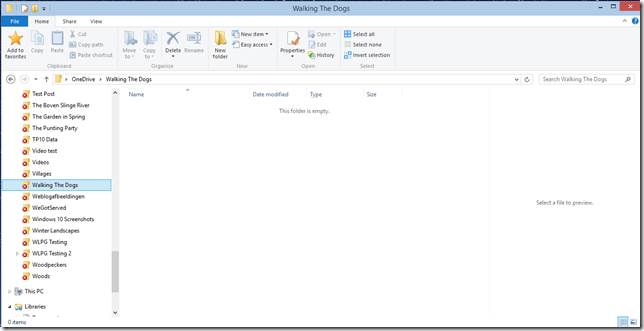
    W10 008

    W10 009

    Of course, it’s only empty on my PC – in the OneDrive Cloud, it has photos of Kai. However, I also can’t search for photos of Kai in OneDrive – the online search doesn’t search tags, only filenames.

    In summary, the removal of smart files is a huge step backwards. All Microsoft had to do was to use an overlay icon on files to distinguish between a smart file and the full-size original, and everybody would have been happy.

    But no, Microsoft has removed a cool feature and broken the search experience completely. This does not bode well for Windows 10 as far as I’m concerned.

    Addendum 15 November 2014: This removal of smart files has caused something of a disturbance in the Force. So much so, that Microsoft has moved to respond with a comment from a OneDrive team group program manager, Jason Moore:

    Wanted to jump in here and address some of the questions and feedback we are getting about the changes we rolled out yesterday. As we look at the next version of OneDrive, we are working very hard to make sure it provides the best experience possible for our customers, and a big part of that is getting the sync model right.

    We hear the feedback on placeholders, and we agree that there many great things about the model – for example, being able to see all your files in the cloud even if they are not all sync’ed to your PC. However, we were not happy with how we built placeholders, and we got clear feedback that some customers were confused (for example, with files not being available when offline), and that some applications didn’t work well with placeholders and that sync reliability was not where we needed it to be.

    So, we stepped back to take a fresh look at OneDrive in Windows. The changes we made are significant. We didn’t just “turn off” placeholders – we’re making fundamental improvements to how Sync works, focusing on reliability in all scenarios, bringing together OneDrive and OneDrive for Business in one sync engine, and making sure we have a model that can scale to unlimited storage. In Windows 10, that means we’ll use selective sync instead of placeholders. But we’re adding additional capabilities, so the experience you get in Windows 10 build 9879 is just the beginning. For instance, you’ll be able to search all of your files on OneDrive – even those that aren’t sync’ed to your PC – and access those files directly from the search results. And we’ll solve for the scenario of having a large photo collection in the cloud but limited disk space on your PC.

    Longer term, we’ll continue to improve the experience of OneDrive in Windows File Explorer, including bringing back key features of placeholders.

    So keep the feedback coming. We’re working every day to improve OneDrive, and customer feedback is a hugely important part of that.”

    It would thus appear that Microsoft has not in fact thrown the placeholder baby out with the bathwater, but is trying to improve it. That’s a good thing. However, it’s a pity that they couldn’t have been a bit more open about this upfront. Telling us that they were introducing cool new features, whilst in fact apparently removing one is yet another example of Microsoft opening its mouth, only to exchange feet.

    Addendum 19 November 2014: Mary Branscombe has an excellent follow-up article on this whole debacle. Well worth reading.

    Addendum 8 January 2015: Microsoft’s Chris Jones has posted an update on the OneDrive blog that (I think) tries to illuminate the OneDrive roadmap going forward. If I’m understanding what he’s writing, then Smart File functionality won’t be back in Windows 10 at release (Boo!), but should be returned at a later date (Hooray!), once the new technical solutions have been completed.

    Addendum 23 January 2015: Microsoft has (finally) introduced full support for searching of tags into the OneDrive cloud service, so at least you can search your files online in a proper manner, even if you now can’t do it in the File Explorer in Windows 10. What Microsoft giveth with one hand, it taketh away with the other.

  • Windows 10 Technical Preview

    Naturally, I couldn’t resist taking a look at Microsoft’s Technical Preview of Windows 10. I signed up to the Windows Insider Program and downloaded a copy of the Windows 10 Technical Preview.

    I’ve installed it on my Desktop PC (homebuild) in a Dual Boot configuration. Dual Boot seems the safest option at this stage; Windows 10 is nowhere near complete, and you can’t revert back to Windows 8.1 without doing a complete fresh reinstall of Windows. While I could have run Windows 10  in a Virtual Machine, I prefer to see what happens when running on actual hardware. With the Dual Boot configuration, I can choose to start up either the Windows 10 Technical Preview or the tried and trusted Windows 8.1 operating system. (Addendum: if you’d like to install the Technical Preview in a Virtual Machine, then Ludwig Keck has a “How-to” post over at his This ‘n That blog.)

    The main thing to bear in mind is that at this stage, it’s very early days; the focus of the Technical Preview is on Enterprise users (who are probably still running Windows 7 on their PCs) and therefore using the traditional Desktop interface with mouse and keyboard. Touch devices are not the focus of this first Technical Preview. I’m already reading in forums of people who have installed it on touch-enabled devices (e.g. the Microsoft Surface Pro range) and who are reporting that the touch experience is in fact degraded…

    For this and other reasons, there is no way that I would install the Technical Preview on my ThinkPad Tablet 2 at this stage. Knowing my luck I’d end up with a useless brick.

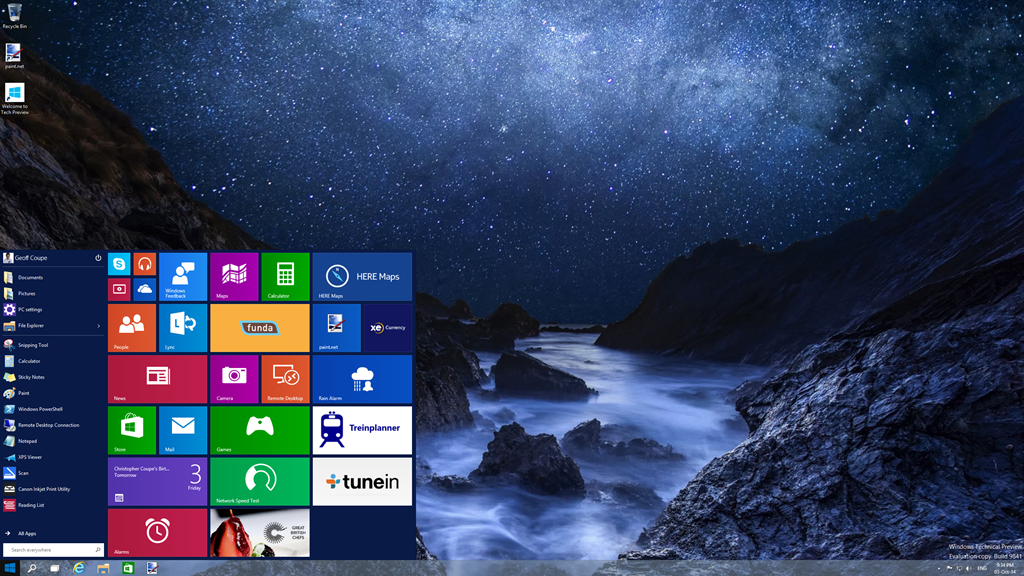
    I suppose the big news of this Technical Preview is that the Start Menu (familiar to Windows 7 users) is back. This being Windows 10, the Start Menu also has elements of the Windows 8.1 Start Screen tacked onto it in the form of App Tiles:

    W10 003

    It’s possible to customise this Start Menu (Start Panel?) in a variety of ways (resizing the panel, resizing and shuffling the Tiles) to arrive at your desired configuration. This could be a pure Windows 7-style of Start Menu, or a combination of Menu and Panel:

    W10 006

    I have to say that, frankly, for me, this all seems like a step back into the past. I’ve got very comfortable with the Start Screen on all my devices (PCs and Tablets), and going back to the damn Start Menu doesn’t thrill me at all. Clearly, there are many for whom the Start Menu is a good thing, but I’m not one of them. I just hope that Microsoft don’t remove the option of having a Start Screen even when Windows 10 is running in Desktop mode.

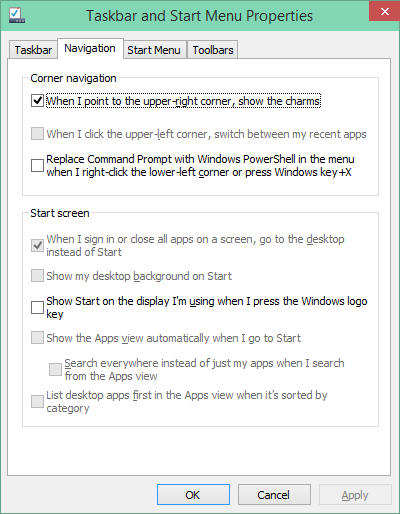
    What I also quickly noticed is that, in this Technical Preview, the Charms Bar has been removed from the Desktop as well. My muscle memory kept expecting to bring out the Charms bar, and I found it irritating that it was not there. This may be an issue with the Technical Preview build, because there’s a Control Panel setting that seems to imply that it should be possible to have the Charms Bar present, even in Desktop mode:

    W10 002

    However, in this build of the Technical Preview, that checkbox doesn’t work.

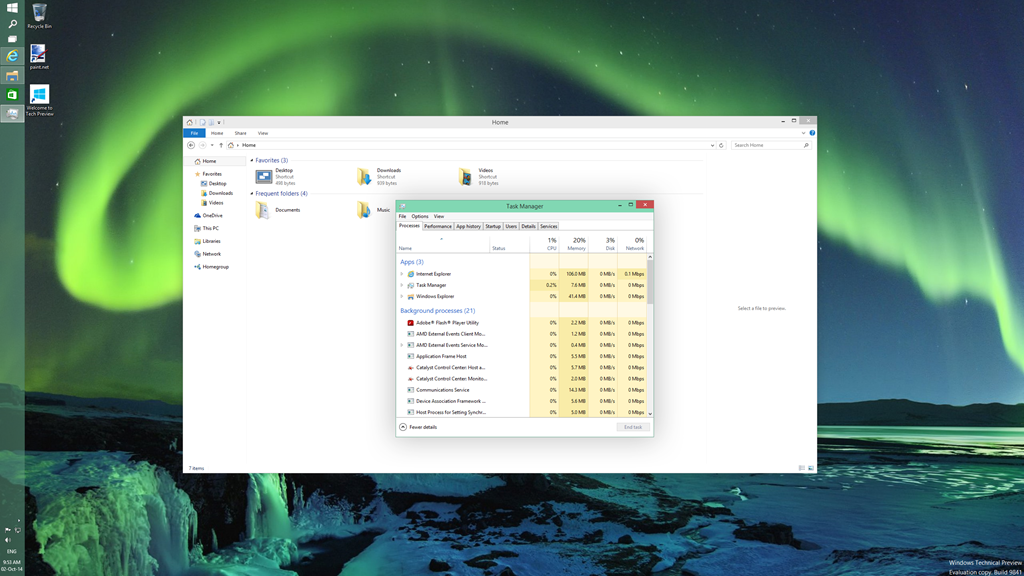
    One thing I do rather like is that Desktop Windows are now almost borderless, with just a faint shadow effect on underlying Windows:

    W10 001

    This seems to be a nod to the “flat” design language of the Modern UI. As I say, I rather like it, but I see from the forums that Desktop traditionalists hate it.

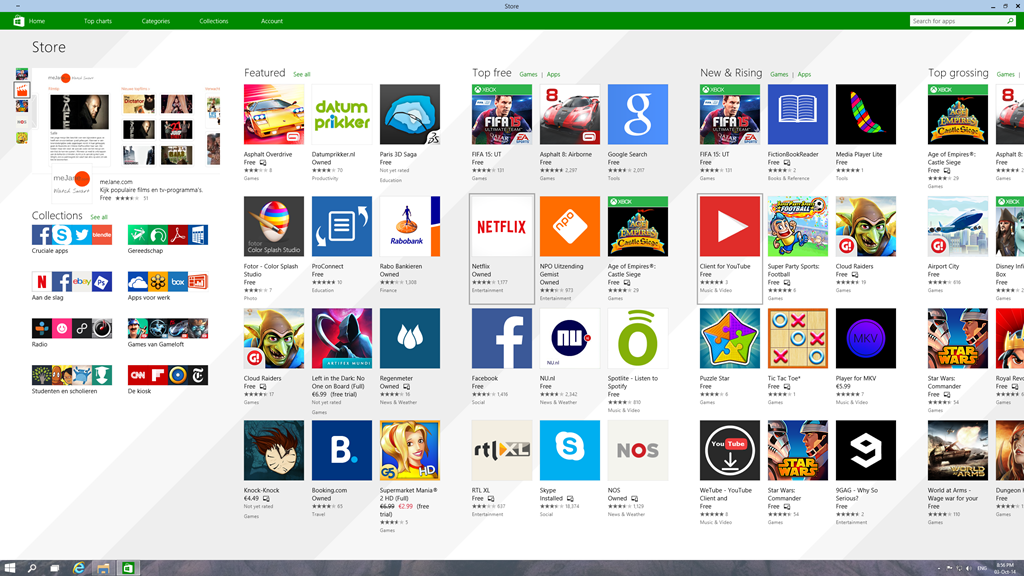
    If you fire up a Modern UI app, then it displays almost fullscreen (by default, the Taskbar and a Title Bar still show):

    W10 004

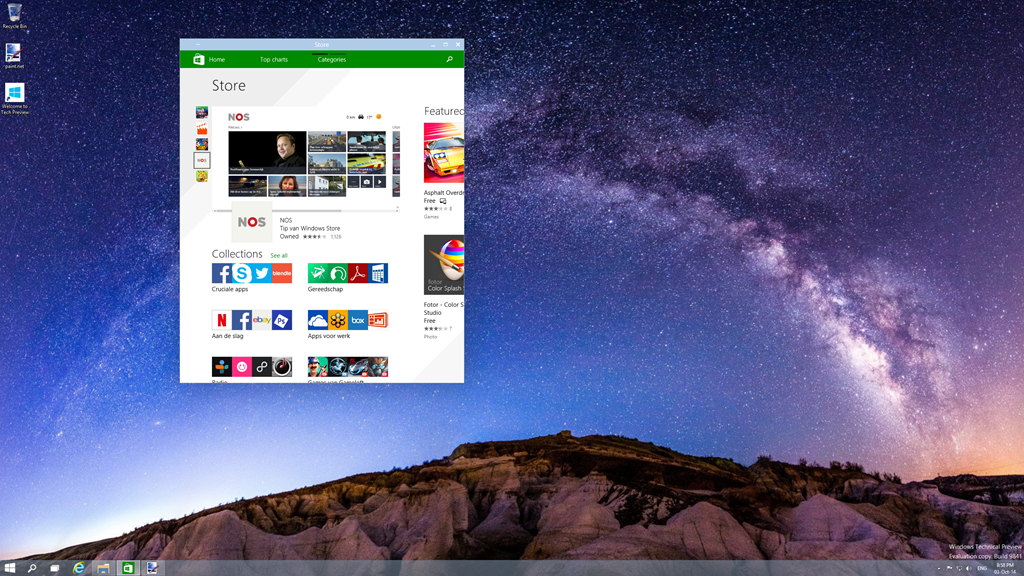
    The big news here is that it is possible to resize the Window of the app. The trouble is, that the content doesn’t resize. It may get reshuffled a bit (but not always, as the Store app shown here illustrates), but fonts and graphics remain at their original size:

    W10 005

    I don’t really think this works. The Mail app, for example, is really designed for a tablet-sized screen in fullscreen mode. Resizing it on a large desktop, and it looks overblown, even when in a smaller window. When in Desktop mode, I tend to stick to the traditional Windows Live Mail, which is a traditional Desktop application. That’s comfortable. When I’m using my tablet, I use the Mail app. That’s equally comfortable.

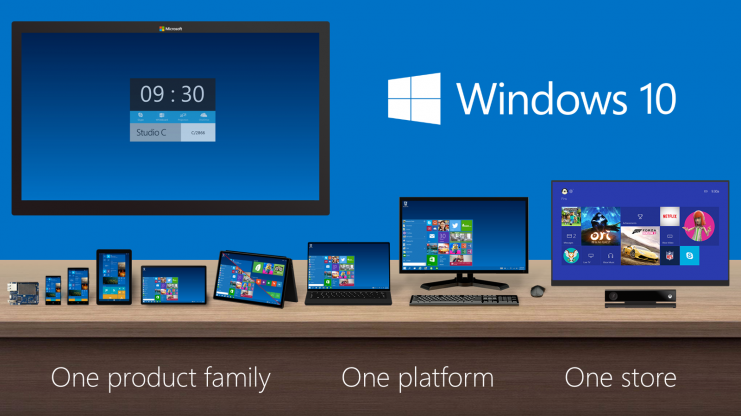
    Microsoft are making a play that Windows 10 will be one platform that supports a tailored experience for a range of device form factors:

    Windows_Product_Family_9-30-Event-741x416

    However, at this stage, it is clear that the experience is not tailored, it’s procrustean – at least as far as the current generation of Modern UI apps are concerned. This has to improve.

    I’ll be following the developments with interest, but this first Technical Preview is addressing an area that I personally have moved beyond.