Reflections on life at “De Witte Wand”…

Tag: Windows 8.1

  • Xbox Music App – Metadata Madness

    I’m doing the old one-step-forwards-two-steps-back shuffle with Microsoft again. This time it’s the latest version of the Xbox Music App that is raising my frustration levels.

    Windows 8.1 has arrived with a new version of the Xbox Music App (version 2.2.177.0). While it has improved in certain respects from earlier versions of the App, in one respect it seems to have got a whole lot worse: it does not handle Album Art well at all.

    By default, when you add your collection of music albums and tracks to the App, it will query Microsoft’s online metadata service and fill in metadata such as the album name, artists and the cover art of the album (the Album Art) for display within the App. The first thing I had to do when installing the App was to change this default and prevent it from downloading any metadata and writing it into my music collection. I have learned, from bitter experience, that Microsoft’s music metadata is, to put it bluntly, utter crap for the music I listen to. I have spent many hours correcting the errors that Microsoft has injected into my music metadata from earlier incarnations of their music applications. Windows Media Player, Windows Media Center, Zune, Windows Home Server, they’ve all stomped all over my carefully prepared music metadata in their jackboots without so much as a by-your-leave. So when you tell a Microsoft music application that it must not, under any circumstances, use the online service to supply metadata when importing audio tracks and folders into its library, then what it should do is to look at the tracks and folders themselves to see if there is any metadata that it can use.

    As I say, I have spent many hours using Media Monkey to provide accurate metadata and high-resolution Album Art (at least 500×500 pixels) in every audio track (over 14,000) and Album folder in my collection and Windows Media Player, Windows Media Center and Zune will all read this metadata and use it properly.

    The Xbox Music App on my Desktop PC does not. It fails to read the metadata quite spectacularly. Let me illustrate this.

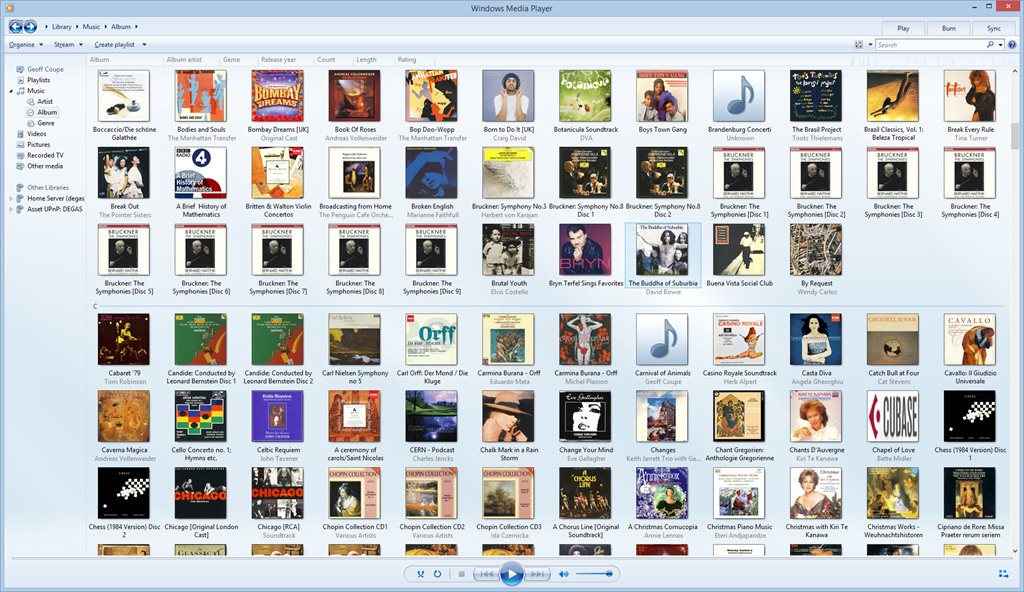
    Here’s a snapshot of part of my music collection being displayed in Windows Media Player:
    Xbox Music issue 11

    WMP has picked up the album art metadata and displays it (there are two albums shown with the default “music note” icon – but that is also correct, the tracks in these two folders do not have any album art metadata).

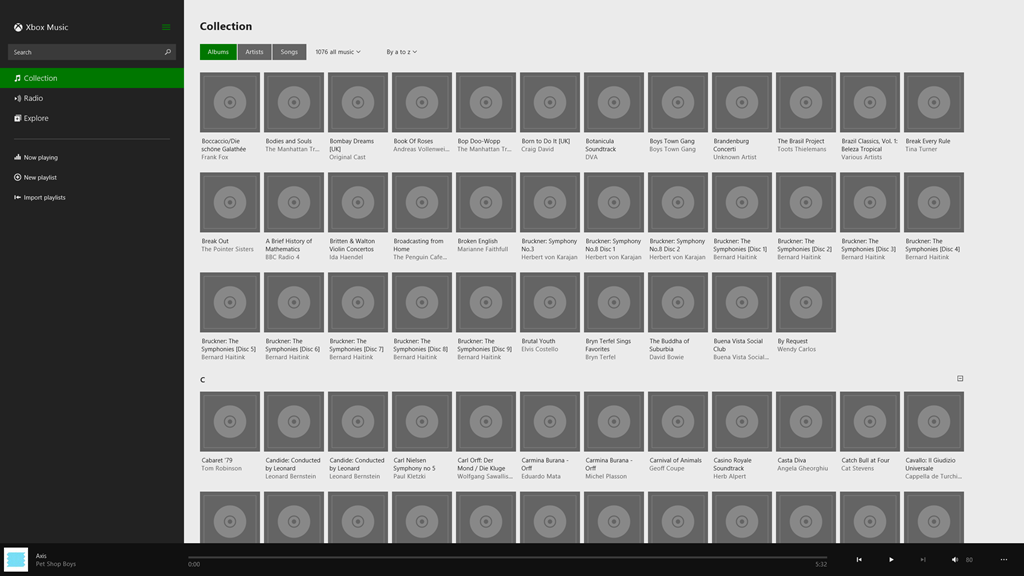
    And here’s the same part of the same music collection being displayed by the Xbox Music App running on the same Windows 8.1 PC:
    Xbox Music issue 10

    Er, hello? Is this supposed to be a good user experience?

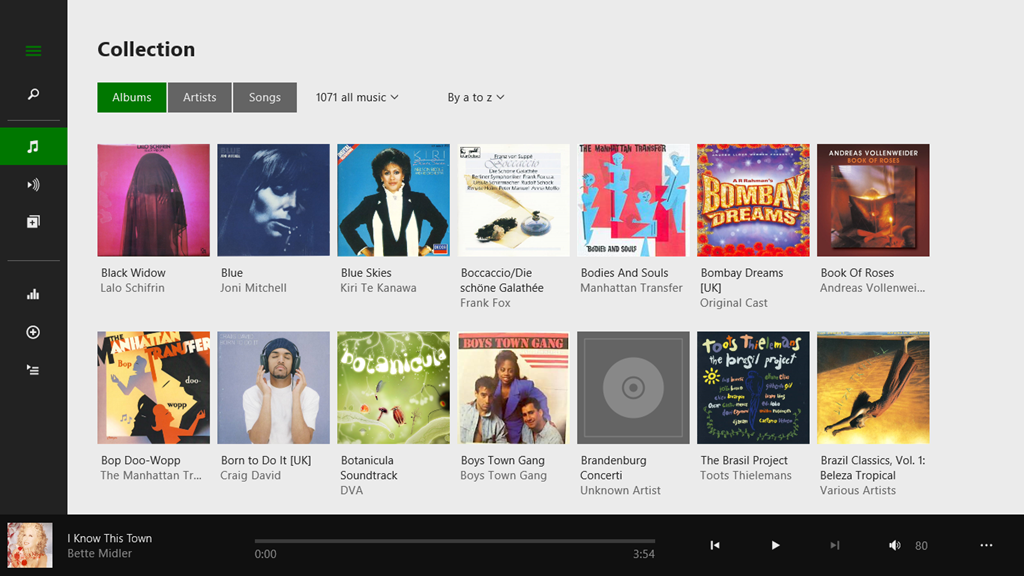
    Interestingly, if I use the same version of the Xbox Music App running on my Windows 8.1 tablet, then that manages to do a slightly better job:
    Xbox Music issue 12

    There are fewer albums shown, because the App is running on a device with a lower-resolution screen. But the point is, here, the Xbox Music App does appear to be reading my Album Art metadata, whereas on the Desktop PC, the same App fails miserably.

    I’ve found where the Xbox Music App caches the Album Art images that it uses for display. It’s in the folder:

    C:\Users\Username\AppData\Local\Packages\Microsoft.ZuneMusic_8wekyb3d8bbwe\
    LocalState\ImageCache\20.

    On my Desktop PC, that folder is filled almost entirely with files of the form <some long string>_badrequest:
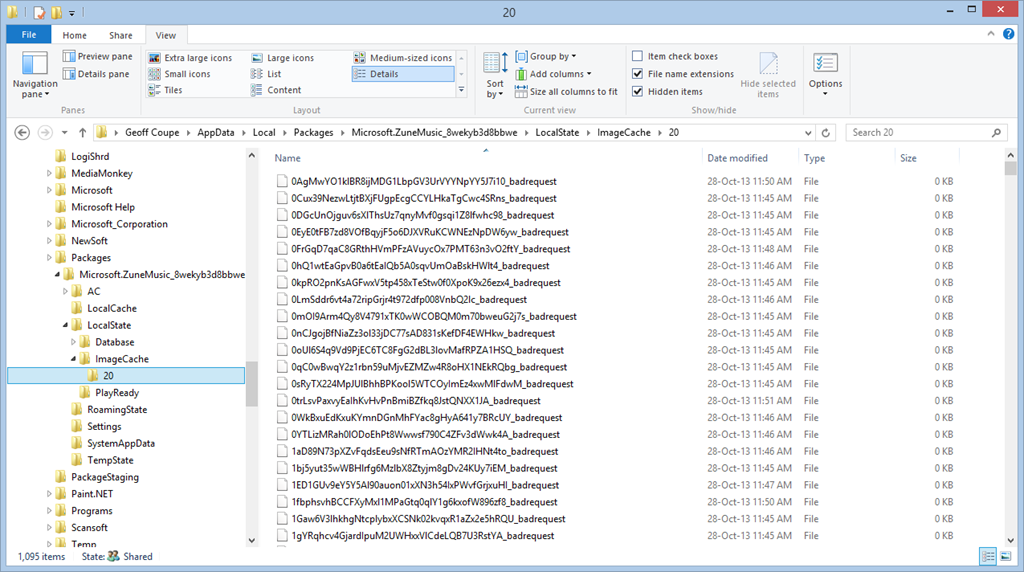
    Xbox Music issue 13

    Whereas on the tablet, that same folder is filled almost entirely with files having the same form and names, but without the “_badrequest” suffix. These are, in fact Album Art images:
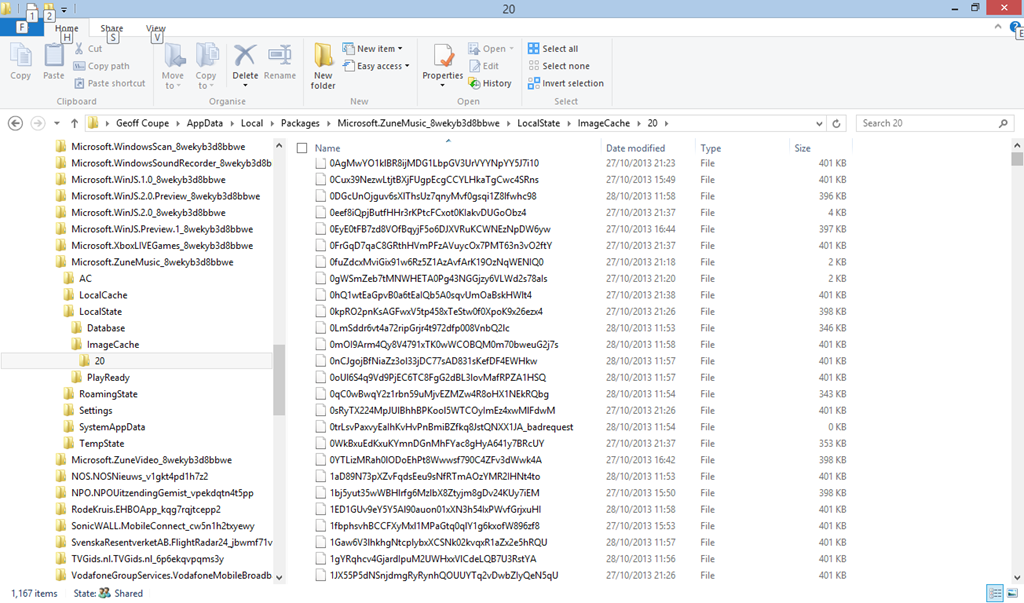
    Xbox Music issue 14

    So the question is, why is the Xbox Music App running on the tablet able to succeed, while the same App running on the Desktop PC can not? Both Apps are working against the same music collection, which is held on a Windows Home Server 2011.

    The only thing that occurs to me is that there is possibly a race condition in the software that causes the App to fail on the much faster Desktop PC. Whatever the cause, I would like to think that Microsoft will fix it. We shall see.

    Update 17 December 2013: well, another new version has arrived from Microsoft (version 2.2.339.0) and been installed on my computers. Alas, it’s made no difference to this issue – the bug is still there; great swathes of non-existent Album Art.

    Update 23 January 2014: another day, another update of the Xbox Music App, this time to version 2.2.444.0. Still doesn’t fix the metadata bug though…

    Update 11 February 2014: another day, another update of the Xbox Music App, this time to version 2.2.550.0. Still no fix for the metadata bug though…

    Update 11 March 2014: This issue of disappearing Album art doesn’t seem to have started until I upgraded to Windows 8.1 on the Desktop PC.

    So I decided to implement a scorched earth policy: I did a fresh install of Windows 7 Home Premium, applied the 250+ updates that were required; installed Windows 8 Pro plus the 100+ updates that it required, and finally upgraded to Windows 8.1 Pro via the Store (and applied its updates…).

    Now, finally, Xbox Music is showing my album covers correctly for my music collection held on the WHS 2011.

    I’m still in the process of reinstalling all my applications and Apps – this will take a day or two to complete – but at the moment, Xbox Music appears to be working as it should.

    So, whatever the problem was, it does appear as though it was caused by something not being right in the previous installation of Windows 8.1, and now we’ll never know what it was…

    Update 17 April 2014: It’s very likely that this problem was caused by an obscure interaction between the Xbox Music App and another desktop application that integrates with the Windows Shell to add additional menu options in the Windows Explorer. In my old installation of Windows 8.1, I had the dBpoweramp Music Converter installed. Someone else had the same Xbox Music issue of no Album Art being displayed, and tracked it down to the Shell integration feature.

  • The Xbox Music App Is Lying To Me

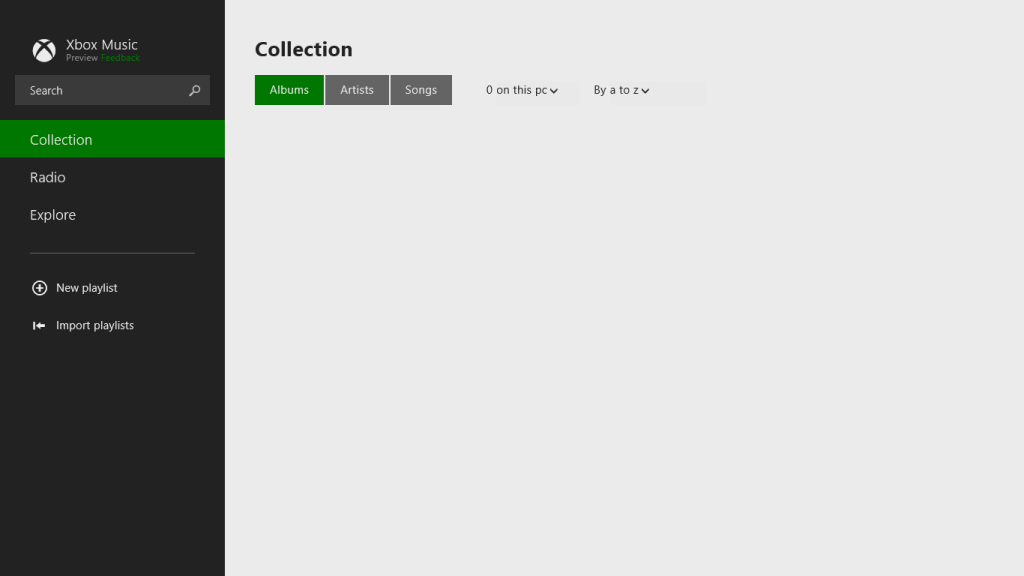
    Last month, I mentioned that I was having difficulty with the Xbox Music App installed on one of my systems. It does not see my music collection, and claims that there’s no music on the PC. A couple of days ago, there was an update of the Xbox Music App from Microsoft, so I wondered if that might have fixed the problem.

    The answer is no; the problem is still there.

    I currently have three instances of the Xbox Music App: one (version 1.4.18.0) is running on Windows 8, and two (version 2.1.15.0 – the latest update) are running on Windows 8.1 Previews. Two out of the three are working as expected, but one of the 2.1.15.0 versions is not: it absolutely refuses to see the contents of my Music Library.

    I’ve uninstalled/reinstalled the App several times, and wiped out the folders containing the App data, all to no effect. Here’s what the App told me after the last installation:

    xbox music issue 02

    “We didn’t find any music on this PC”.

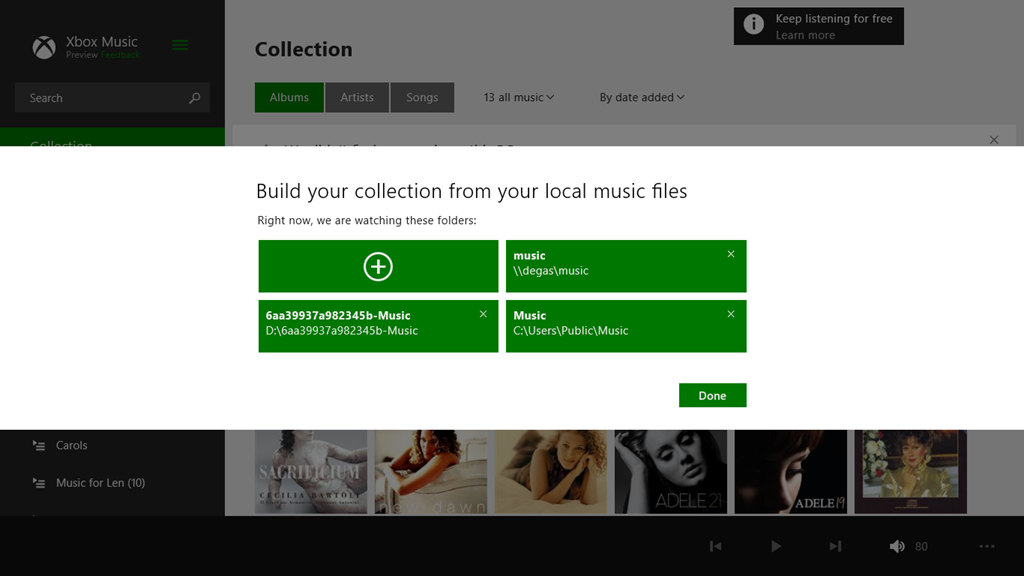
    It is displaying a few albums that I have stored in the Cloud, but that’s all. Tapping that message displays the folders that the App is supposed to be watching for music content:

    xbox music issue 03

    These are the folders included in the Music Library. I tried adding the main music folder for my music collection again, by tapping the “+” symbol, and navigating to the root folder of the music collection (\\degas\music):

    xbox music issue 04

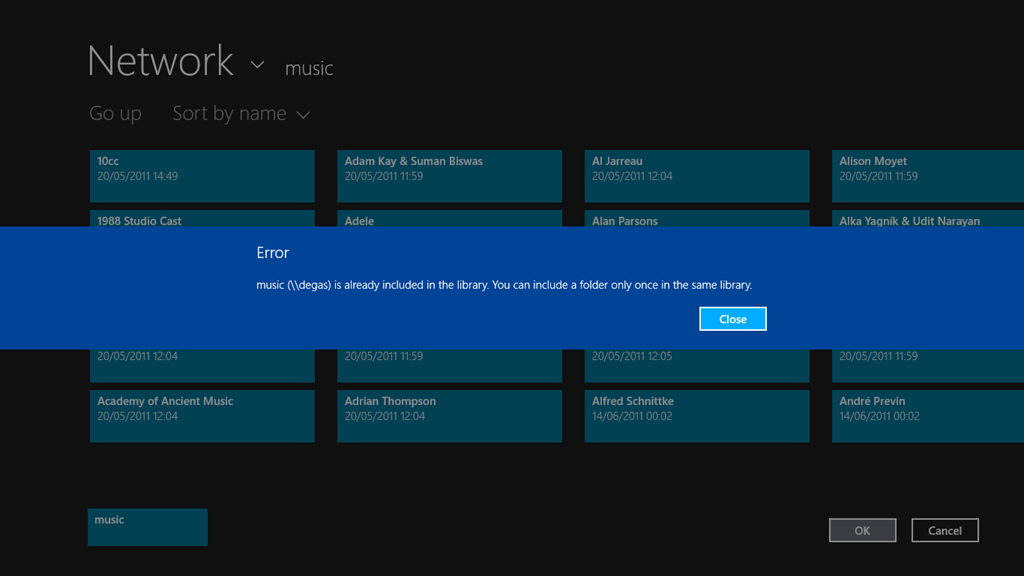
    However, when I tried to include the folder, I was told (not unexpectedly) that the folder had already been included in the library:

    xbox music issue 05

    So, Windows 8.1 knows where my music collection is, and so, apparently, does the Xbox Music App. However, the App refuses to do anything with it.

    Is this the same for all the locations currently defined for the Music Library? Let’s find out.

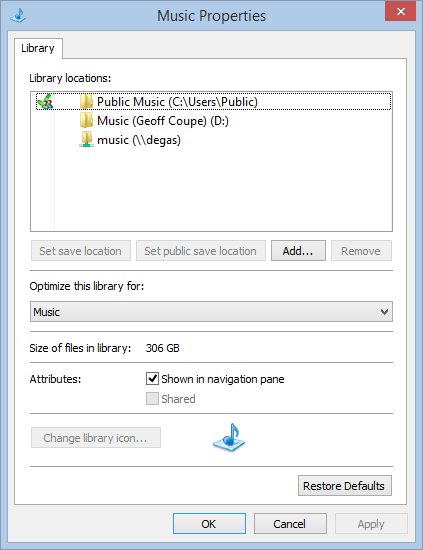
    Here’s the three locations currently defined for the Music Library on the system with the errant Xbox Music App:

    xbox music issue 06

    Note that one is a network location (\\degas\music – my main music collection), while the other two are local to the Windows 8.1 system; a location on the C: drive (C:\Users\Public\Music) and a location on the D: drive (called “Music (Geoff Coupe)”, but shown in the Xbox Music App with the user-friendly name of D:\6aa39937a982345b-Music… sigh). That location on the D: drive was set up by Windows 8.1 as the default location for saving music files.

    If I paste in a couple of test albums from my music collection to these local folders, then I find that the Xbox Music App will only react to the contents of the folder on the C: drive. It will ignore the contents of the supposedly “default” music folder on the D: drive.

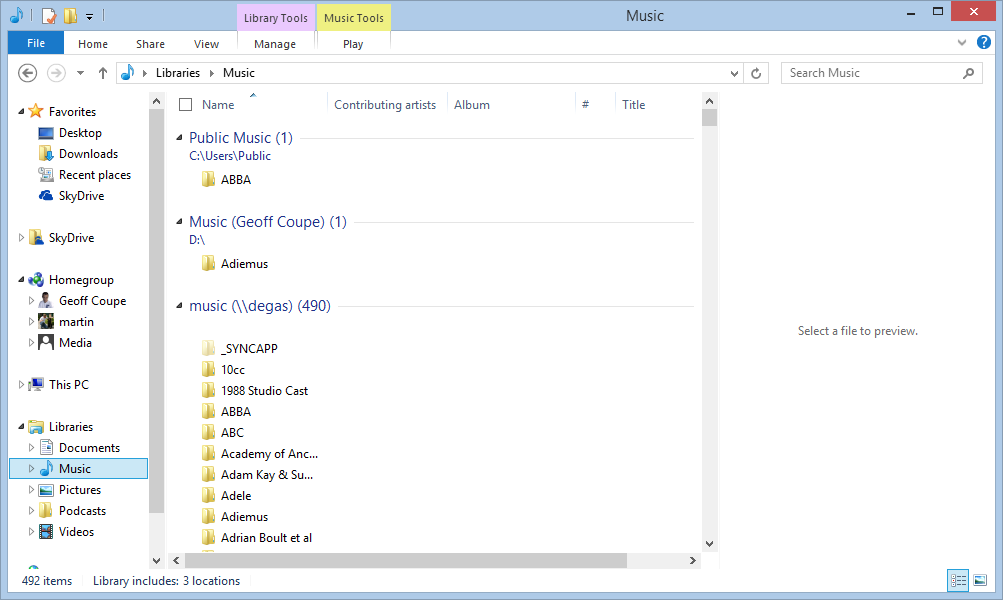
    Here’s a screenshot of the Music Library contents:

    xbox music issue 07

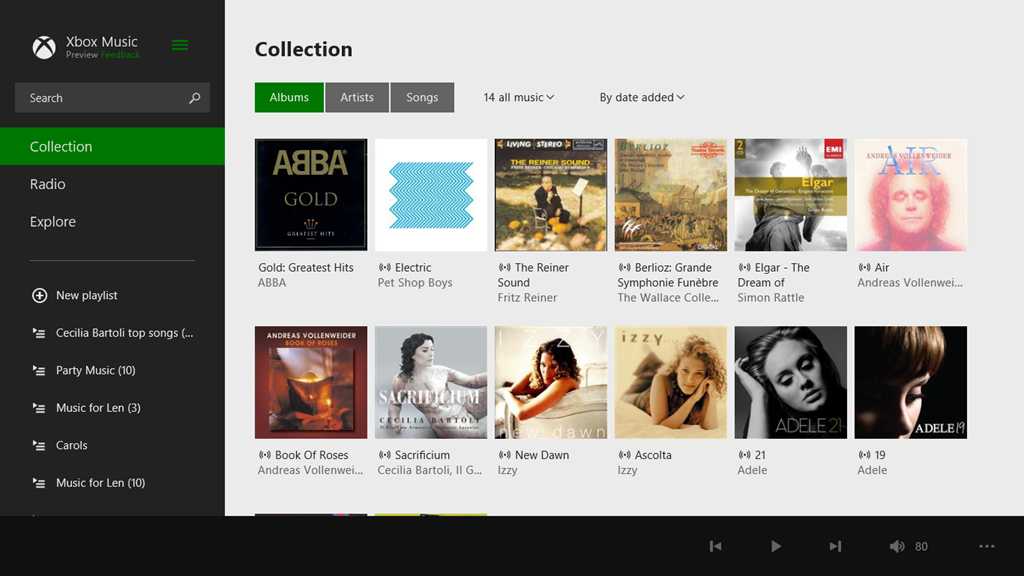
    As a test, I’ve copied an ABBA album to the Public Music library on the C: drive, while my default Music Library on the D: drive has an Adiemus album in it. The result in the Xbox Music App is that the ABBA album shows up, but the Adiemus album, along with the rest of my music, does not:

    xbox music issue 08

    Once again, let me stress that, on this Windows 8.1 system, Libraries are not broken for other third party apps, whether Desktop or Modern UI Apps. However, Microsoft’s own Apps (Xbox Music, Photos and Videos) are a disaster.

    I still fear that what we are seeing here is not a bug, but the natural consequences of Microsoft moving away from using Libraries. As they will no doubt proclaim in a month’s time: “it’s not a bug, it’s a feature!”. If so, this is one feature that I can definitely do without.

    Update 17th October 2013: I’ve just installed the final release of Windows 8.1 on my tablet, and the Music Library is now being accessed correctly by the Xbox Music App, so it looks as though the issue is now resolved. However, when one issue is resolved, another pops up.

  • Microsoft’s SkyDrive – Room for Improvement

    OneDrive (previously SkyDrive, Windows Live SkyDrive and Windows Live Folders) is the online storage service offered by Microsoft. It’s been around since 2007, and has been through a number of iterations. It really started to come into its own with the introduction of Windows 8, where it started to assume a much more prominent role. Now with the imminent introduction of Windows 8.1, it is becoming more tightly integrated with the Windows operating system than ever, and the distinction between local and online (cloud) storage is becoming even more blurred.

    I’ve changed all references to SkyDrive to OneDrive in this post since it was first written, to reflect the change of name given to the service by Microsoft. Some screenshots and external references still refer to the old SkyDrive name…

    There’s a good post (Inside SkyDrive) over at the Windows blog that describes some of this integration. However, it seems to me that there is still room for further improvement.

    For example, the author of the post (Mona Akmal, Group Program Manager, SkyDrive apps) writes:

    Many people use search to quickly access their files. So we’ve made search work just as you’d expect – SkyDrive files show up in search results just like your local files.

    Er, no, that’s not true. The way that the search function works is to index the information held in the small placeholder files held locally on your PC. These placeholder files represent the real files held up on the OneDrive service itself. At the moment, it seems that very little metadata is held in the placeholder files; only things such as the filename, and image thumbnails. So if I search for Descriptive Tags (aka Keywords) that are held in photo metadata, I get no results.

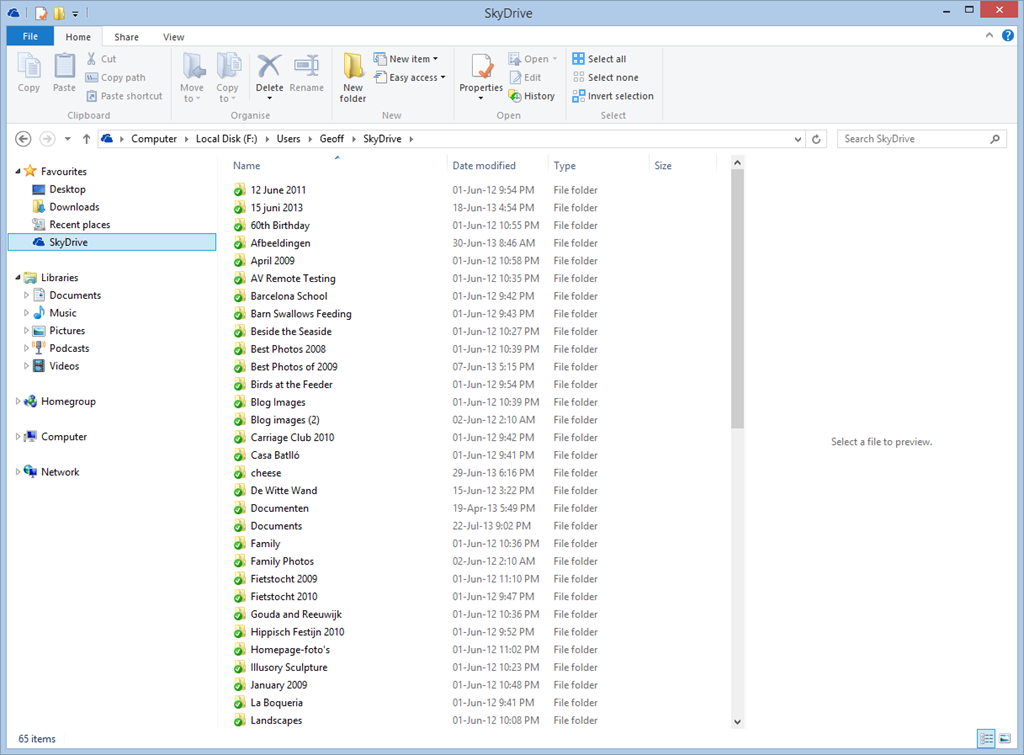
    Let me illustrate this. In Windows 8, it is possible to have a local copy of your SkyDrive folders and files. Here’s a screenshot showing some of the OneDrive folders that are held locally on my Desktop PC:

    SkyDrive 01

    These folders and the files within them are full local copies of the contents of my OneDrive storage. They are also included in the scope of the Windows Search engine running on the PC, and because they contain all the metadata, they are also searchable. So, for example, If I search for pictures of our dog, Kai, I get 16 hits of OneDrive photos that contain the Descriptive Tag: Kai:

    SkyDrive 02

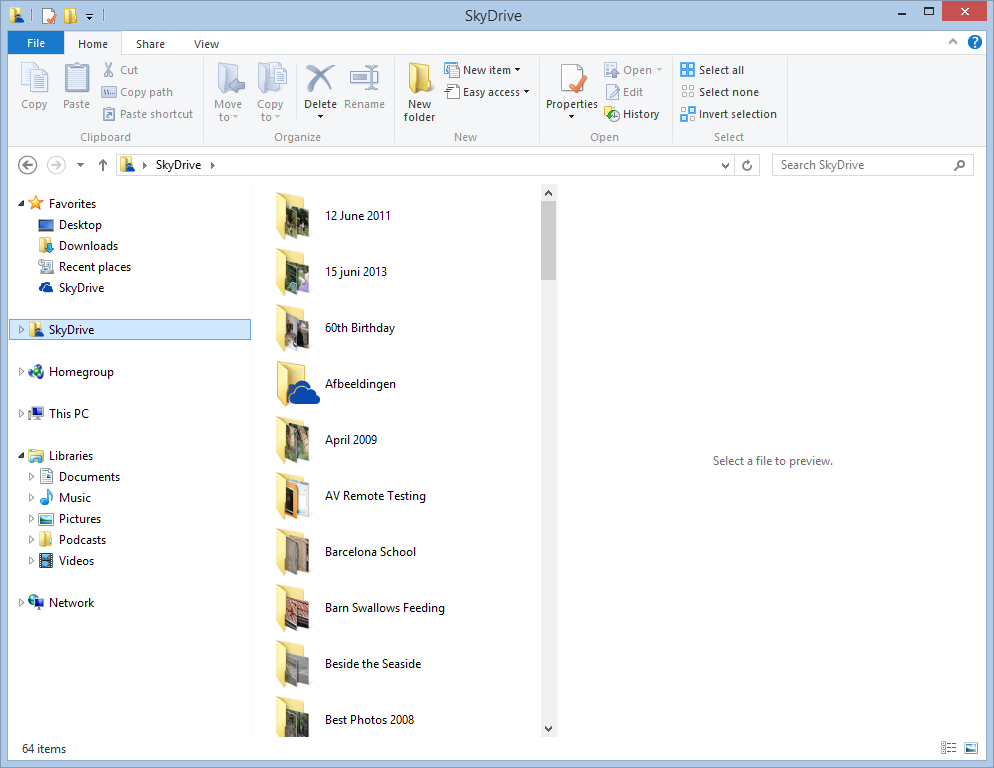
    My ThinkPad Tablet, on the other hand, is running the Windows 8.1 Preview. In Windows 8.1, the contents of my OneDrive storage is represented by placeholder files:

    SkyDrive 03

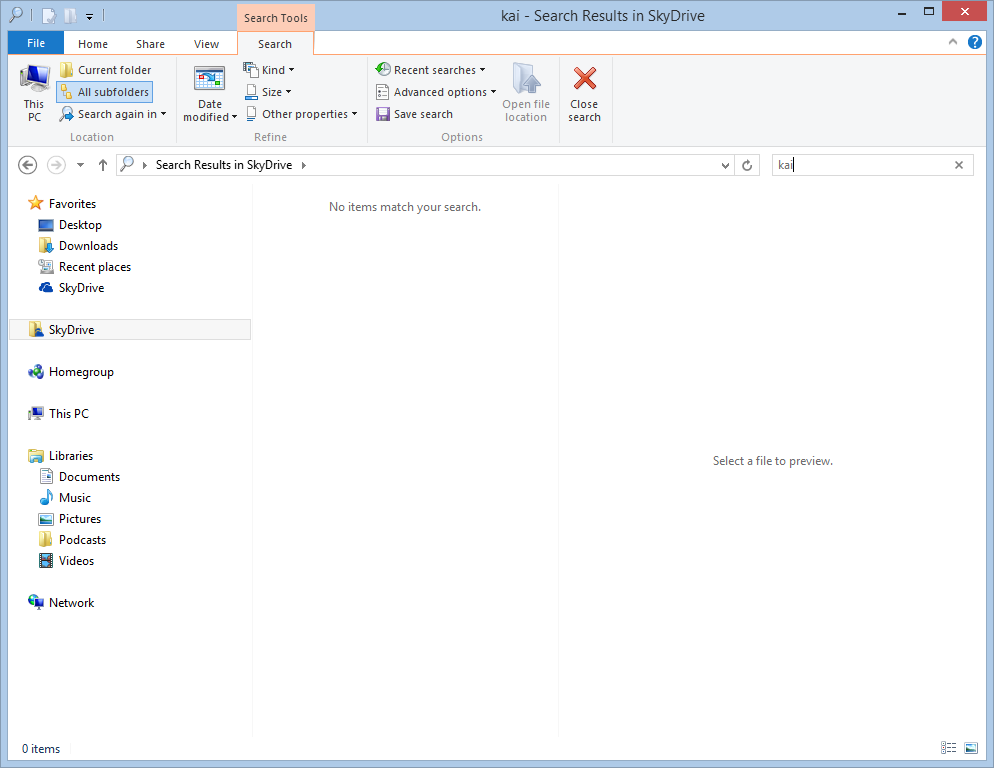
    To all intents and purposes, they look like the original Folders and Files held in my OneDrive , but they are not; merely placeholders. A full local copy of a file is not present on the Tablet, unless I have edited the file. So now, if I search for photos of Kai, I get a sad little “No items match your search” message:

    Skydrive 04

    That’s because the placeholder files do not contain any photo metadata. This seems to me like a real limitation, particularly since there is no way of searching Descriptive Tags in photos in OneDrive itself – even though the files themselves have the metadata.

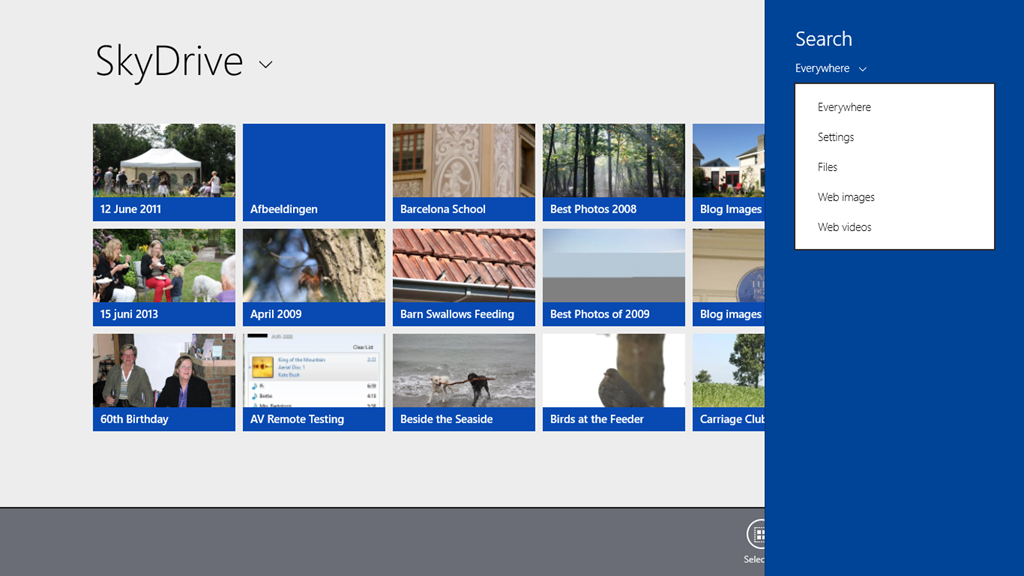
    Here, for example, is the OneDrive App in Windows 8.1. Note how the Search Charm is not able to search OneDrive , but only the web or local files:

    SkyDrive 05

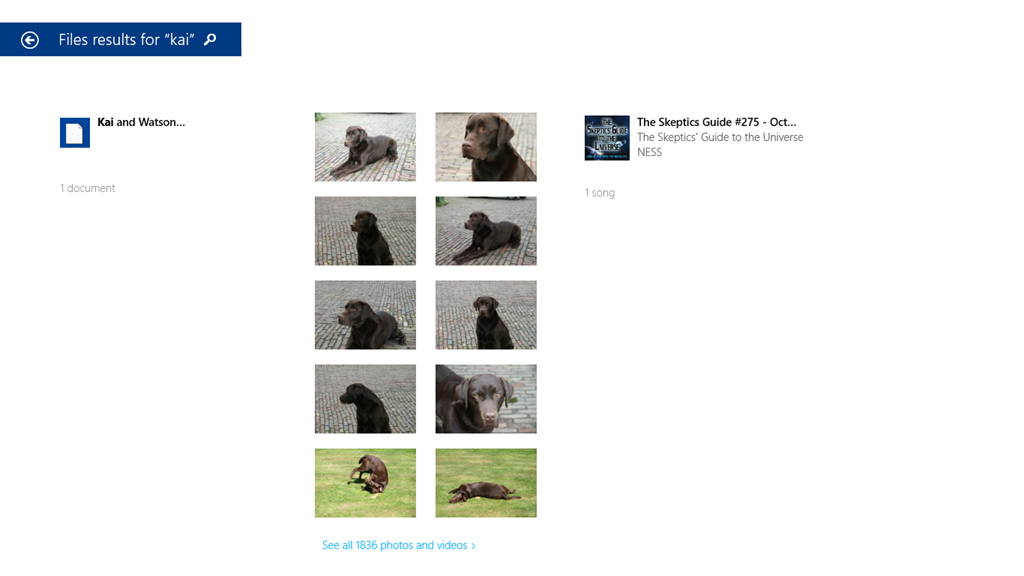
    Searching for “Kai” produces only the results from my local libraries, not from OneDrive :

    SkyDrive 06

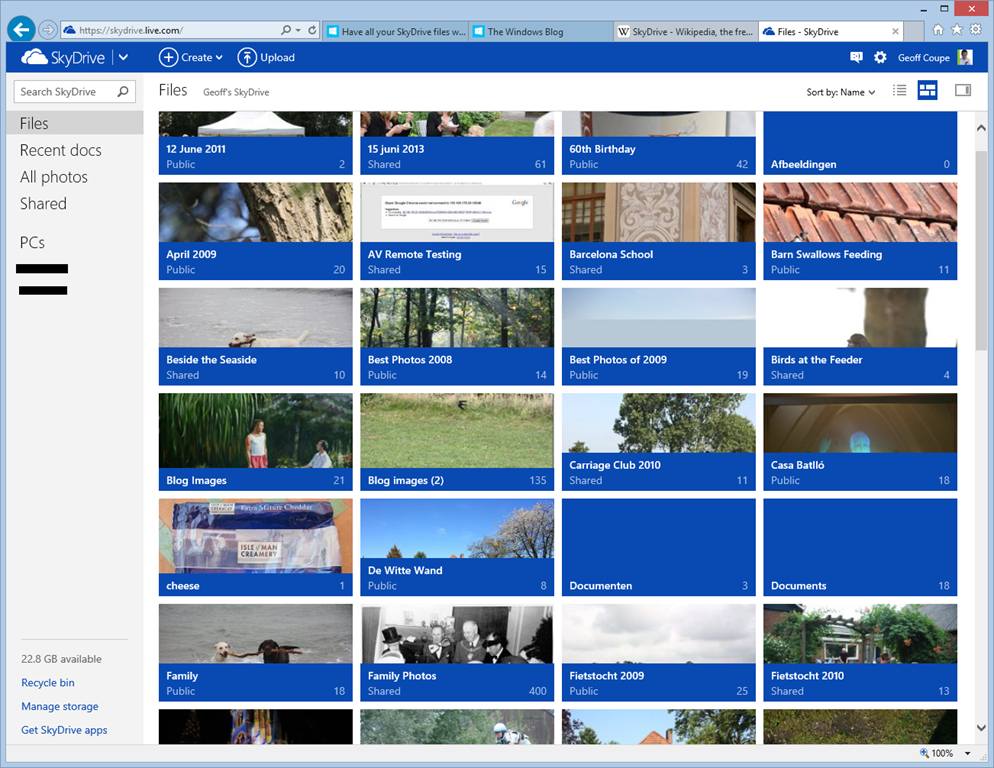
    If I use Internet Explorer to browse OneDrive directly, then I still can’t search on Descriptive Tags. Here’s the initial view of my OneDrive :

    SkyDrive 07

    If I use the “Search OneDrive” function at the top left, and search for “Kai”, then nothing is found:

    SkyDrive 08

    So the SkyDrive service is not indexing metadata such as the Descriptive Tags. This, by the way, is a long standing issue with the SkyDrive service. I’ve raised it on a number of occasions with the OneDrive team, and nothing has changed.

    In addition, the Windows 8.1 integration of OneDrive is also not indexing metadata, so perhaps the Microsoft statement should be rewritten as:

    Many people use search to quickly access their files. So we’ve made search work just not as you’d expect – SkyDrive files won’t always show up in search results unlike your local files.

    Sigh.

    Update 4 October 2013: If you read the comments below this post, you’ll see that members of the OneDrive team have replied. The good news is that they are working to address the shortcomings of the current search experience – photo metadata is now being included in the placeholder files. That’s good to hear.

    Update 7 May 2014: I’ve just done a test of uploading some files, containing IPTC Core keywords (tags) in their metadata, to OneDrive. You still can’t search for the tags using the browser accessing the online service – they don’t show up in the search results.

    However, it does appear as though the tags are now being included in the metadata contained in the placeholder files. So a search of the OneDrive folders on your local PC will find the tags. So, one step forward.

    Update 10 May 2014: The support for tags in the OneDrive service itself is still pretty much broken. Microsoft seem to have forgotten their one-time goal that “the truth is in the file“.

  • Xbox Music App and Libraries

    Here’s another episode in my look at Microsoft’s Windows 8.1 Preview. This time I’m looking at the Xbox Music App. I’ve found an inconsistency with how the App handles Libraries.

    I now have two systems on which I am running the Windows 8.1 Preview. The first is my main Desktop PC, where I have set up 8.1 in a dual boot with Windows 8. A few days ago Microsoft released drivers that enabled the 8.1 Preview to be set up on systems using the Clover Trail Atom chipset, such as my Lenovo ThinkPad Tablet 2. So that became the second of my systems. It’s probably of relevance to note that the 8.1 system on the Desktop was a clean install from a DVD, whilst on the tablet, it was an upgrade of the existing Windows 8 system to the 8.1 Preview, using the Installer in the Windows Store.

    Both systems are set up to access music files held on my Windows Home Server 2011 system. The problem is, the Xbox Music Apps on the two systems do not see the same content, when by rights, they should.

    Here’s a screenshot of the content of the music library as seen by the Xbox Music App on the Desktop PC:

    Xbox Music issue 05

    You will notice that it shows that I have 1,059 Albums in my music collection. Now here’s what I see in the Xbox Music App running on the tablet. Remember, it’s looking at the same music Library on the server:

    Xbox Music issue 07

    No albums at all…

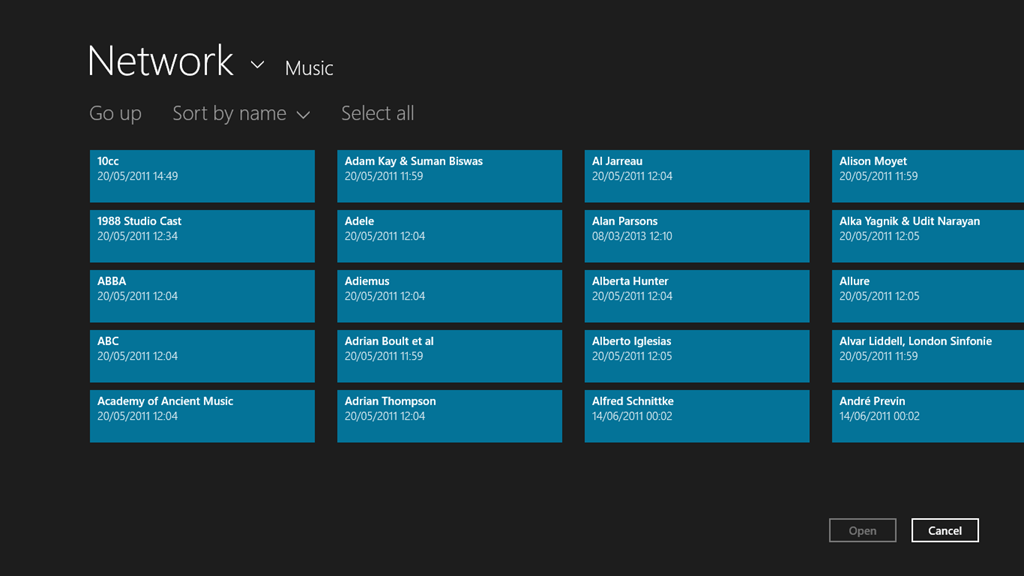
    Note that if I use the “open a file” function of the Xbox Music App, it will see the files and folders on the Windows Home Server:

    Xbox Music issue 09

    It just won’t add these files and folders into the music collection, despite them being linked to by an entry in the Music Library on the tablet.

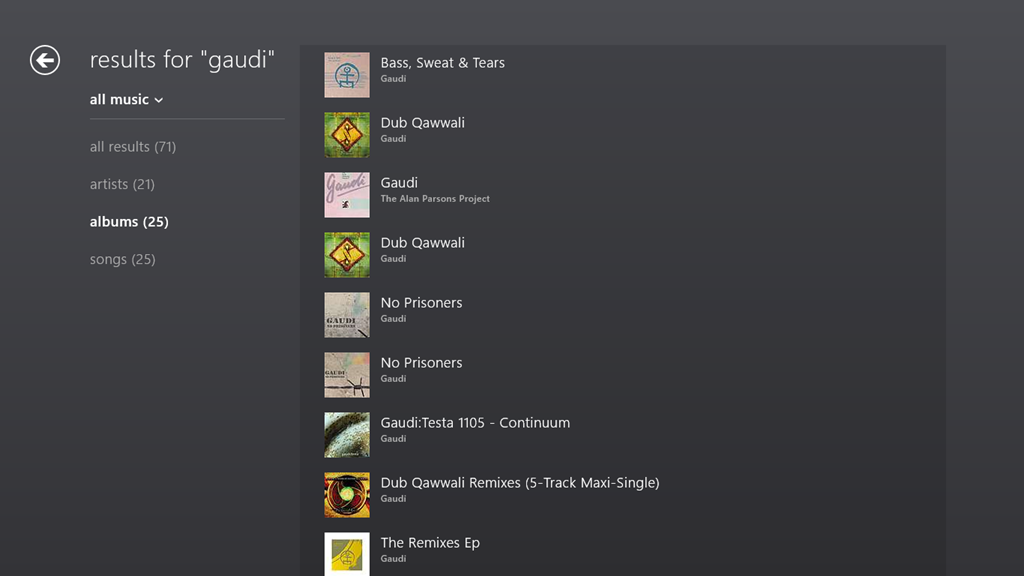
    If I search for an album that I know is in my music collection, then the Music App will only return results from the online music store. Here, for example is the result of a search for the album “Gaudi” by the Alan Parsons Project:

    Xbox Music issue 14

    Notice that here, the album is shown third in the list. This list is entirely made up of results from the online music store.

    If I do the same search using the Search function of Windows 8.1 itself, then I see this:

    Xbox Music issue 13

    Here, you can see that Windows Search has found the tracks from the Gaudi album by searching through my music collection held of the Windows Home Server.

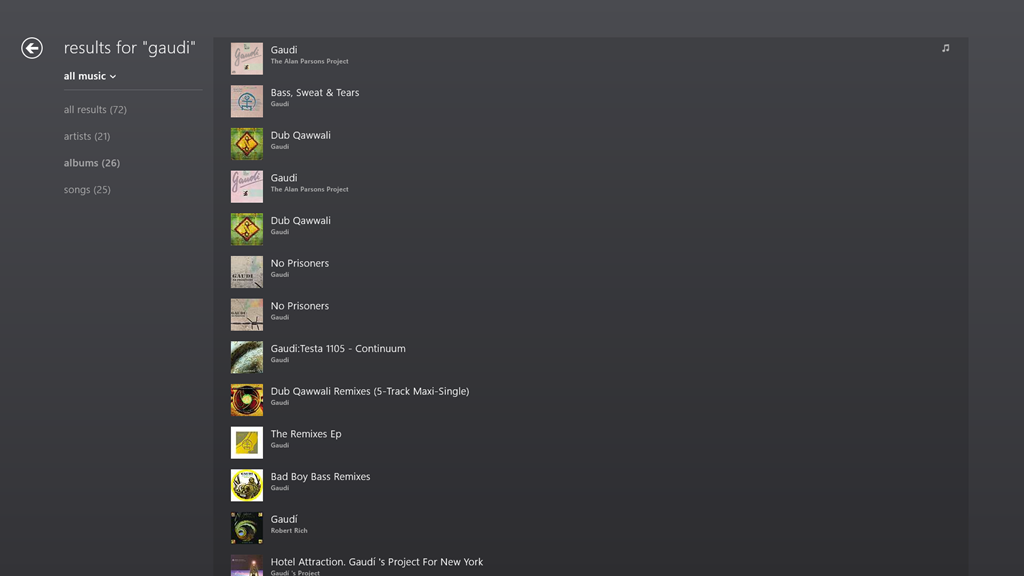
    If I switch to the other Xbox Music App running on the Windows 8.1 on the Desktop PC, then searching within the App for Gaudi gives me this:

    Xbox Music issue 16

    The Gaudi album is now at the top of the list, and is the album contained in my music collection (signified by the musical notes icon on the right of the entry).

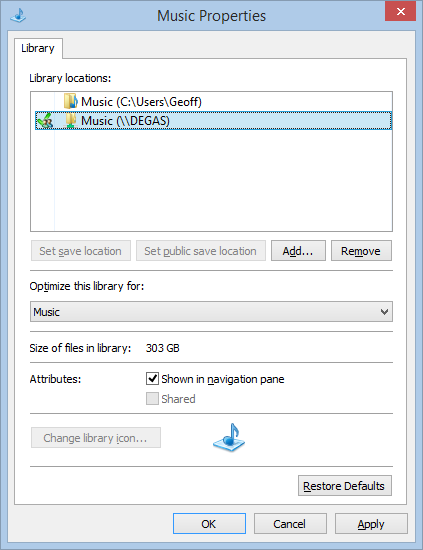
    Here’s the entries of the Music Library on the Desktop PC:

    Xbox Music issue 06

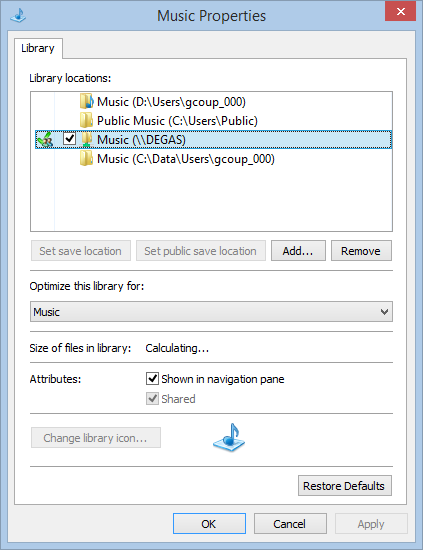
    And here’s the content of the Music Library on the tablet:

    Xbox Music issue 08

    In both cases, there are entries in the respective music libraries pointing to the music files held in the entry point of Degas, the WHS2011 server.

    The links defined for the Libraries on the tablet are the same as when it was running Windows 8. Then, the Windows 8 Music App happily accessed the music library on Degas. Now that the system has been upgraded to Windows 8.1 Preview, the 8.1 version of the Music App turns a blind eye. However, on the Desktop PC, the 8.1 version of the Music App sees the music library.

    So why does one Music App see everything, and the other see nothing at all?

    I have no idea; neither does Microsoft Support.

    Addendum: Despite a couple of updates to the Xbox Music App, this issue is still present.

  • Windows 8.1 Photo App

    I’ve been looking a bit more at the Photo App that is currently available as part of the Windows 8.1 Preview. As I mentioned in my last post, Barb Bowman has already mentioned two major strikes against it:

    The Photos App has changed:

    1. No longer includes the ability to show images from Facebook, Flickr, SkyDrive

    2. No longer allows images from other computers or the network –  am guessing that because there is now support for SkyDrive on RT and MS is heavily emphasizing that as the preferred storage location (when you upgrade, one of the questions asked before you even get to the desktop is if you want to use SkyDrive as your default storage area – and that seems to be the default – and MS feels the network, NAS, Homegroup, and other computers are deprecated.

    I’ll add another couple.

    • The editing functions will likely corrupt any Makernotes in the Exif that your camera may put there.
    • If the Exif section in your original image was created by your camera in Little-endian file order, then when the Photo App saves an edited image, it will reverse this to be a Big-endian file order.

    The Exif corruption is a long-standing issue. It’s been present for years in the Windows Photo Gallery application of Microsoft. They have acknowledged it as a bug, but they still haven’t bothered to do anything about it.

    The Little-endian to Big-endian switch is also a carry-over from the behaviour of Windows Photo Gallery. It’s also highly ironic. The guidance from the Metadata Working Group states that applications that change the contents of an image file should preserve the existing byte order. It’s ironic because Microsoft is one of the founder members of the Metadata Working Group. They can’t even be bothered to follow their own guidance.

    The Photo App as it stands is worse than useless.

  • Windows 8.1 Preview – Part II

    I’ve now installed the Windows 8.1 Preview on my Desktop PC; I went with the safe and boring option 2.

    With the caveat that this is not the final version of Windows 8.1, I’ve noticed some good things and bad things about the Preview.

    The good things are the tidying up and the further evolution of the Modern UI. So, for example, more of the traditional Desktop’s Control Panel functions are now exposed via the Modern UI, and they are grouped more logically. The sops thrown by Microsoft to the “Bring back the Start Button and the Desktop” crowd may satisfy them, but are of no interest to me – I never missed the Start Button in the first place.

    What does bother me are two things:

    1. The Mail development team still hasn’t got a clue on how to use the Windows 8 printing system.
    2. There are worrying signs that Microsoft may be deprecating the Libraries feature.

    With regard to (1), that’s been there since the very start of Windows 8. You can’t just print the current page, or a selection of pages from the Mail App. Something that’s easily done with the traditional Windows Print dialog, but which is totally impossible with this App. It is also the same with the IE10 App in Windows 8 (but that has been fixed for IE11 in Windows 8.1). They drop the “Pages” setting from the Modern UI Print screen. This is with a newer build (17.3.9431.0) of Mail from the one in Windows 8 (build 17.0.1119.516). Could someone please, please tell the development team how to use the printing system, for heaven’s sake?

    But the more worrying thing for me is that, starting with Windows 8.1, Microsoft seems to be deprecating the Libraries feature, which was first introduced in Windows 7.

    Libraries are the way to aggregate collections of data (e.g. documents, photos, music and videos) from disparate data sources (e.g. on the local PC, out in the network, or even in the cloud). I use them to give seamless access to photos and music that reside both locally and on our Windows Home Server, which serves media to our PCs and to other connected devices that support the DLNA standards.

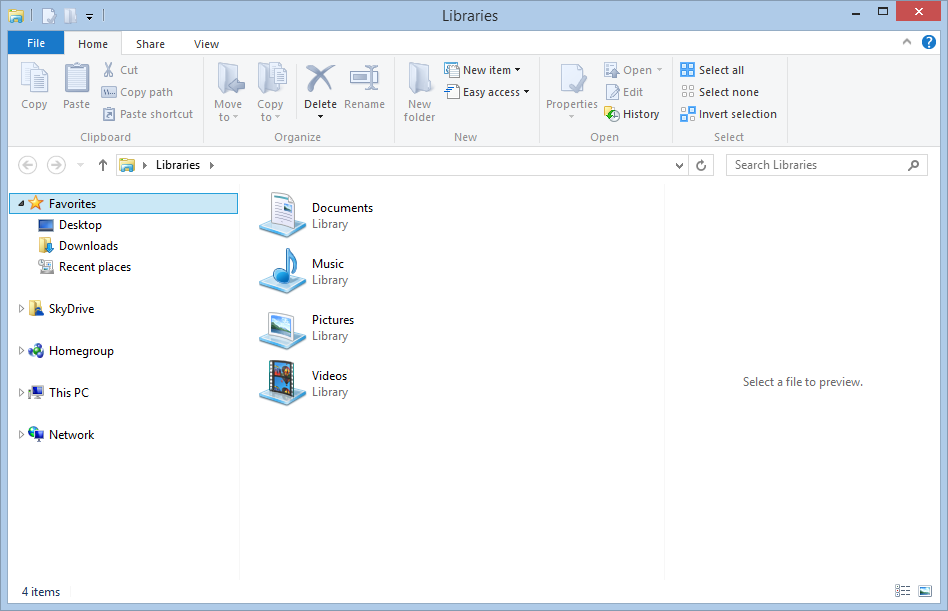
    In Windows 8.1, the emphasis has been put on SkyDrive as the primary storage location. Take a look at the traditional Desktop Windows Explorer in Windows 8.1. Here’s what you see when you first open it up:

    Win81 12

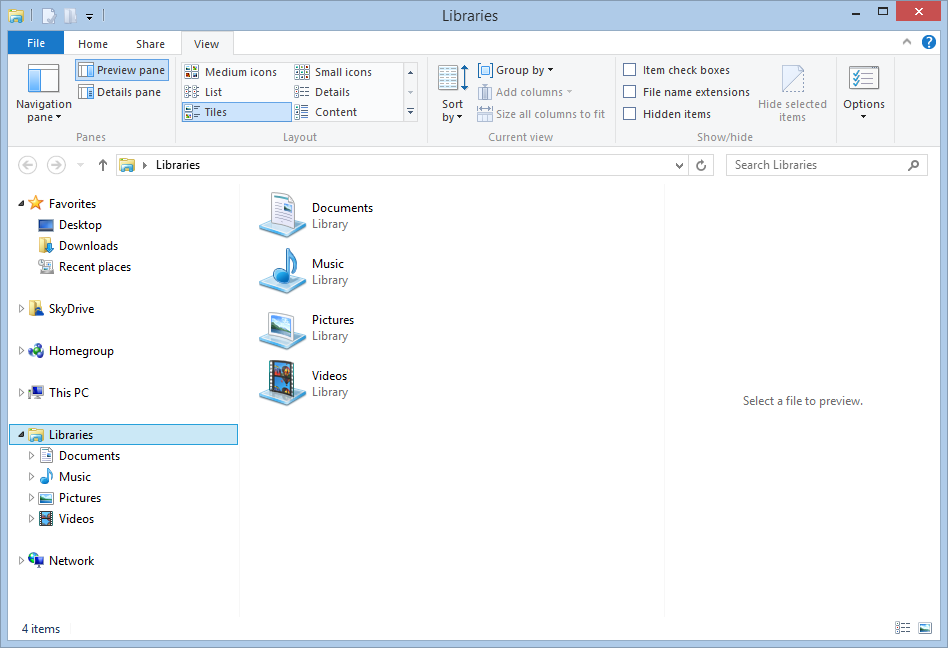
    Look at the Navigation Pane on the left. Note the prominence of SkyDrive, and the fact that what was called “Computer” in Windows 7 and 8 is now called “This PC”. Notice anything else? Yup – there’s no entries for the Libraries in the Navigation Pane. There is an option in the Explorer to turn them on, but it is off by default. Here’s what I wanted to see:

    Win81 13

    The Libraries feature is still there and working in Windows 8.1 – it’s just that not all Microsoft’s Modern UI Apps bother with it.

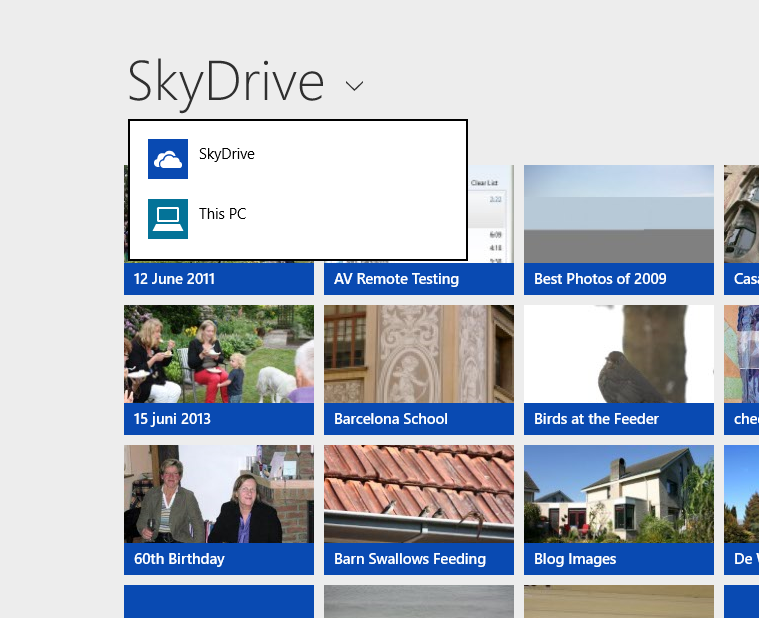
    For example, the SkyDrive App is clearly the first iteration of what is likely to become the Modern UI equivalent of the Windows Explorer, and its top-level entry points for accessing storage are “SkyDrive” and “This PC”; there are no “Libraries”or “Network” entries here:

    Win81 02a

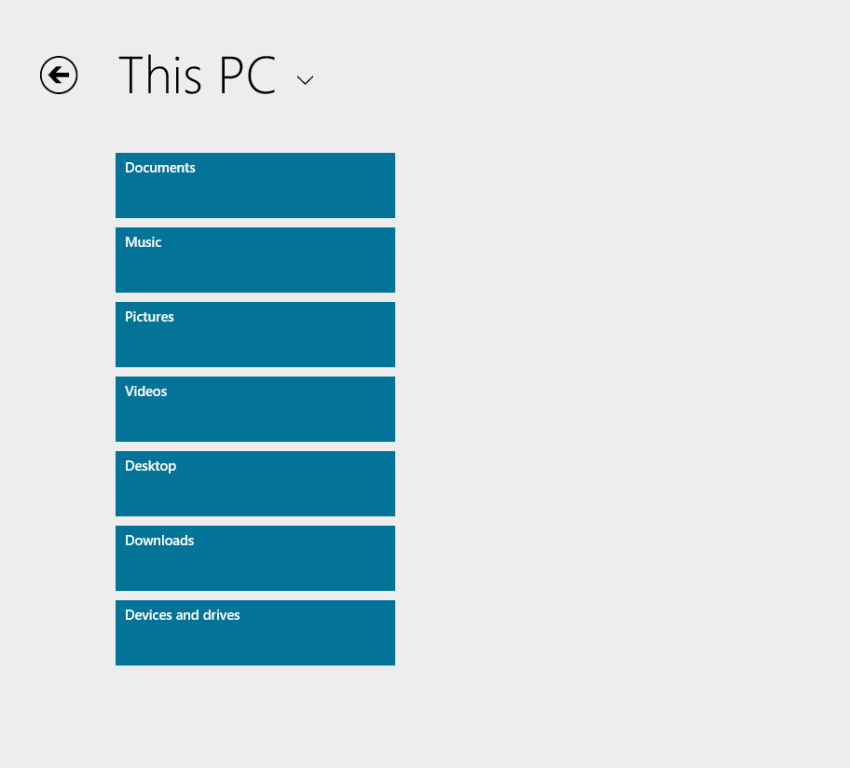
    Choose “This PC”, and you are presented only with the local storage locations; again, no Libraries or Network entries.

    Win81 03a

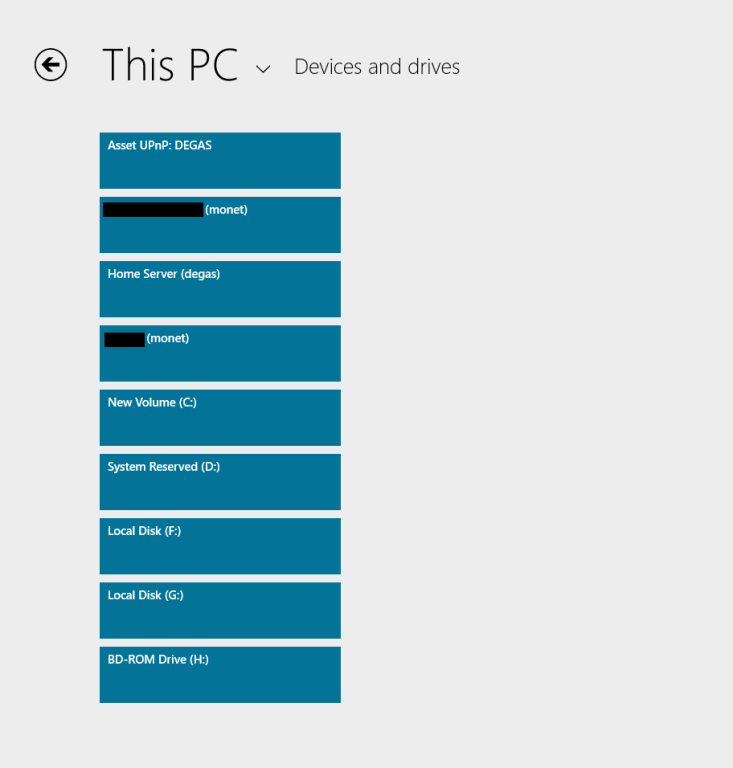
    There is that “Devices and drives” item at the bottom of the list; click (or touch) that, and you see a list of the local drives on the PC, and the media servers present on the local network:

    Win81 10a

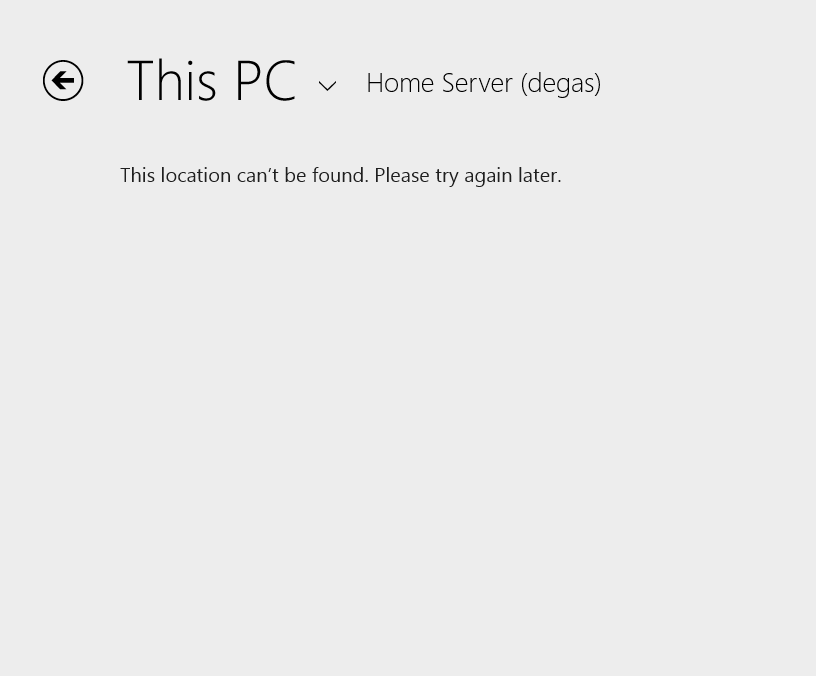
    So, “Libraries” are not exposed at all via this Modern UI Explorer… And we are still not out of the woods, because if I click on the “Home Server (degas)” item, this is what I see:

    Win81 11a

    Sigh. And yes, I’ve tried later, and there’s still no result. The Modern UI Explorer only works with SkyDrive and local storage on your PC – it ignores Libraries and Network Attached Storage – including Microsoft’s own Windows Home Server.

    It’s the same with the Photos App, except that it seems to be even more limited. It will only ever display photos held on the local PC in the C:\Users\Username\Pictures folder.

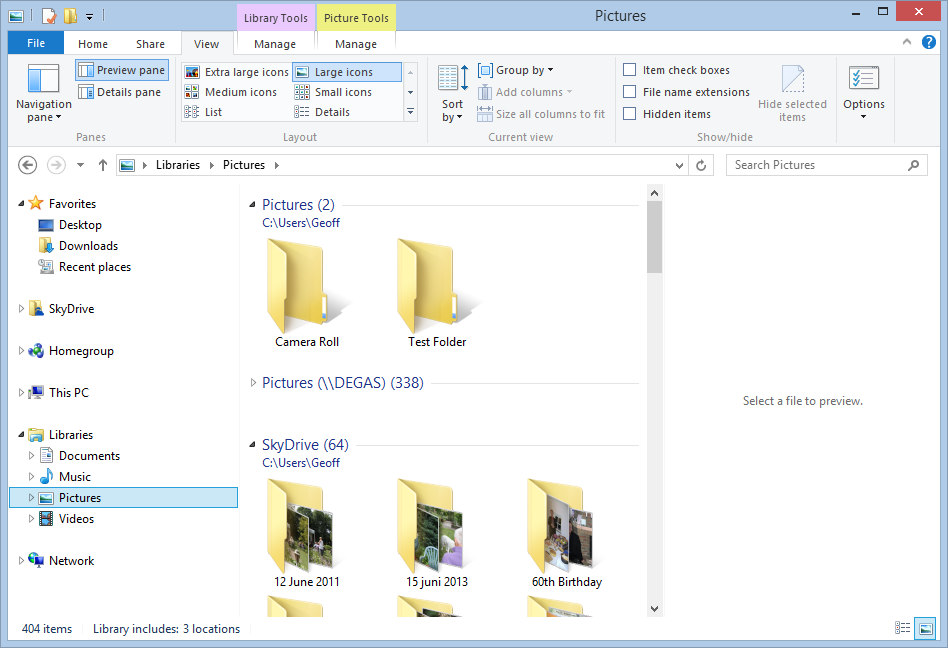
    Whereas the current Windows 8 version of the Photos App will display photos held in Picture Libraries, SkyDrive, Flickr and Facebook, the 8.1 version of Photos App will only display photos and folders held in the C:\Users\Username\Pictures folder. Here, for example, is what I have in my Pictures Library in Windows 8.1:

    Win81 14 

    I have three locations defined for the Pictures Library:

    • C:\Users\Geoff\Pictures (with two folders: Camera Roll and Test Folder)
    • \\Degas\Pictures (with several hundred top-level folders and 50,000+ photos)
    • C:\Users\Geoff\SkyDrive (with 64 folders)

    If I open up the 8.1 Photos App, all I see are the two lonely folders in C:\Users\Geoff\Pictures:

    Win81 19

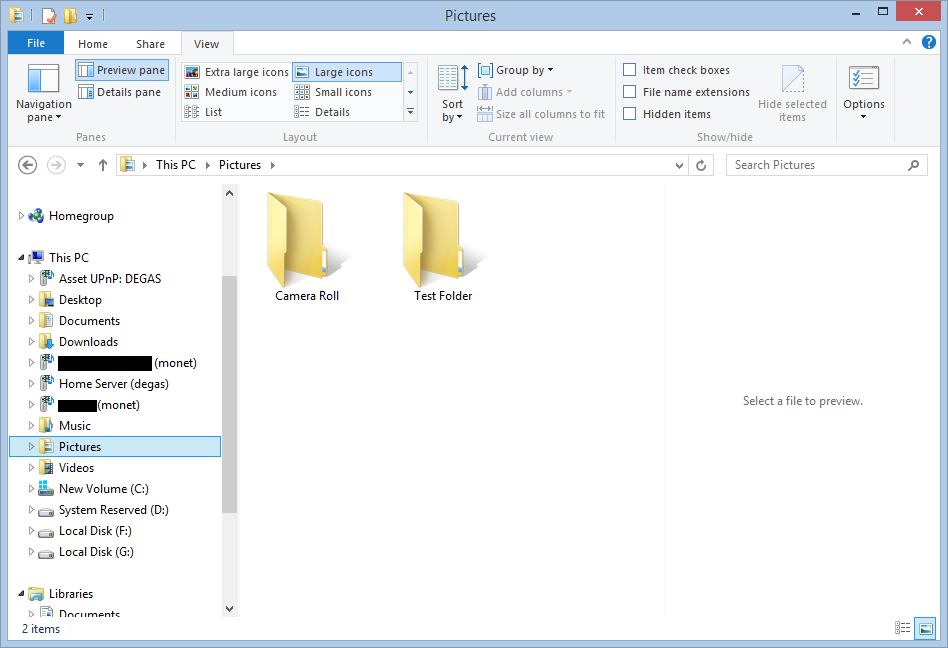
    So the Photos App is simply looking in the “This PC” hierarchy, and just picking up the local Pictures folder:

    Win81 18

    This is useless. What is bizarre is that the live Tile for the Photos App is showing random photos from the Pictures Library, whilst the Photos App itself cannot:

    Win81 20

    The limitations of the Photos App have been raised by Barb Bowman on the Windows 8.1 Preview forum. Quote:

    The Photos App has changed:

    1. No longer includes the ability to show images from Facebook, Flickr, SkyDrive

    2. No longer allows images from other computers or the network –  am guessing that because there is now support for SkyDrive on RT and MS is heavily emphasizing that as the preferred storage location (when you upgrade, one of the questions asked before you even get to the desktop is if you want to use SkyDrive as your default storage area – and that seems to be the default – and MS feels the network, NAS, Homegroup, and other computers are deprecated.

    This got a response from Carmen Zlateff, a Principal Lead Program Manager on the Photos App team, who said in respect of point 1:

    Thanks for the feedback, everybody.  In Windows 8, we wanted to provide a way for folks to view their photos on other services knowing there would be few (if any) apps in the store at launch that would do so.  Now there are many apps in the store that offer ways to view photos on other services and soon there will even be a Facebook app from Facebook.  We’re confident Facebook will offer great ways to view and engage socially with photos on Facebook.  We welcome Flickr to do the same.  In addition, the People app still offers the ability to socially engage with your friends and even your own photos.

    Needless to say, this reply was treated with the contempt it deserves. Whether it will result in any change on Microsoft’s part, we shall see. I’m not holding my breath. And I fear that Microsoft is going down the path that there is only Cloud storage (i.e. SkyDrive) or local storage (i.e. This PC).

    To summarise:

    • I hold all my media on a Windows Home Server, and expect to be able to access it from devices (including DLNA devices) on my home network.
    • I have too much data for an affordable use of SkyDrive, and besides, internet access is like a piece of wet string in my location.
    • This is a massive jump backwards.
  • Windows 8.1 Preview

    Microsoft has released a pre-release version of its next Windows operating system: Windows 8.1. Being a pre-release, it is of course not finished, and comes with all sorts of health warnings. Despite this, I, like thousands of others, am keen to take a look at it.

    When the Customer Preview of Windows 8 came out in February 2012, I installed it as my main operating system on my desktop PC, overwriting the running Windows 7 OS. Microsoft gave similar health warnings back then about using the Customer Preview as the main operating system. Nevertheless, I felt confident enough to go ahead and do just that.

    Fast forward 18 months or so, and I need to make a similar decision, by choosing between one of several options to installing the Windows 8.1 Preview:

    1. Installed as my main operating system on my Desktop PC.
    2. Installed alongside Windows 8 in dual boot mode on my Desktop PC.
    3. Installed in a Virtual Machine on my Desktop PC.
    4. Installed on my Lenovo ThinkPad Tablet 2.

    Option 4 was in fact my first thought, but then when I went to Microsoft’s Download page, I noticed:

    Important: Windows 8.1 Preview isn’t currently supported on some tablets and PCs with newer 32-bit Atom processors.

    Sure enough, that includes the Lenovo ThinkPad Tablet 2. Oh well, that rules option 4 out. As an aside, it is clear that many people don’t bother to read before downloading and installing the 8.1 Preview – I’ve seen many posts from people complaining that the Preview is not working on their Atom-based machines…

    Option 3 is doable, but I’m a simple soul, all this new-fangled stuff of Virtual Machines has never really appealed to me. Which leaves the safe, but boring, option 2 or the high wire act of option 1.

    I know that if I choose option 1, then if anything goes wrong, I can restore my PC using the backups held on my Windows Home Server. However, I also know that when Windows 8.1 is finally released, I will have to do a complete fresh install of the operating system and all my applications and data.

    I’ll think it over for a day or two, monitor the forums for any issues that are emerging and then make my decision.

    Update 30 June 2013: Well, I tried option 3, but I found it a bit limiting. Too many hardware devices couldn’t be added, and the virtual PC could not see my home network, and therefore couldn’t access my home server.

    I didn’t feel comfortable about the risks of option 1, and thus I’ve gone with option 2. I’ll report my findings in a day or two, but one thing stands out: the 8.1 version of the Photos App is an absolute fecking disaster.