Important Update 27 October 2012: The bug I describe below does seem to have been fixed in the final release of Windows 8. I can now use the “Play to” feature with my Denon AVR-3808.
Hoorah!
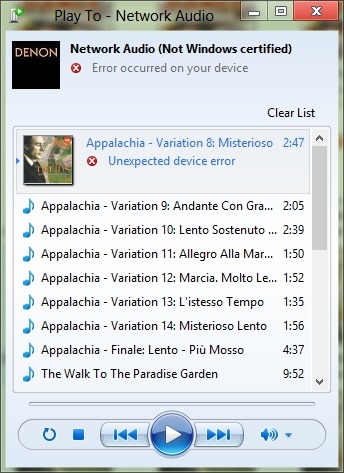
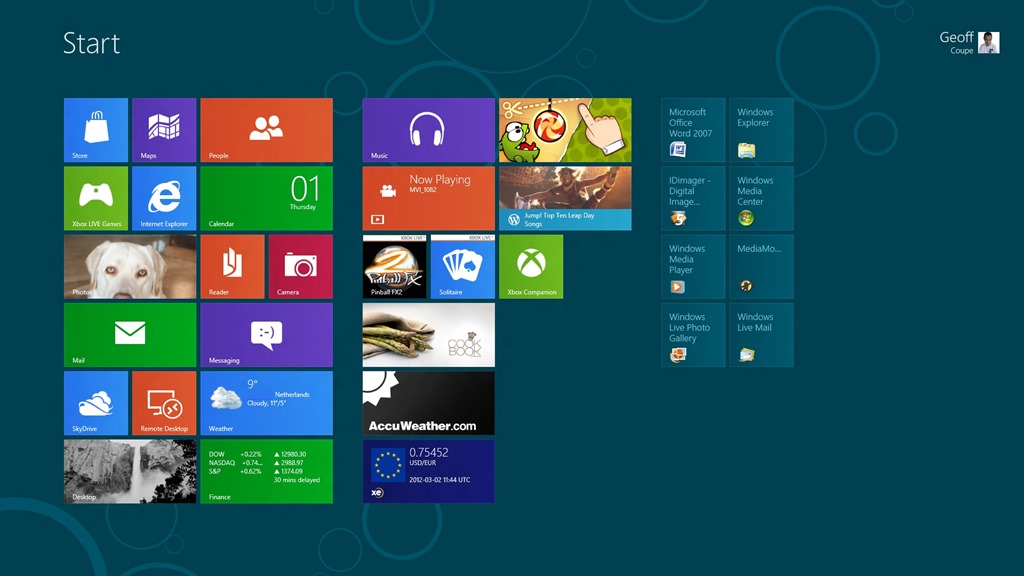
However, this is just one cheer. The Denon is not a “Windows Certified Play to” device, so the Microsoft-supplied Music Modern UI App does not recognise it as a device that can be used in a “Play to” scenario. While I can use the desktop Windows Media Player to “Play to” my Denon (as I could under Windows 7), the new Music App doesn’t even recognise the Denon as a “Play to” device.
In a post on the Building Windows 8 blog, Microsoft states:
Metro style apps work only with Windows certified Play To receivers [my emphasis]. These devices are validated to support modern media formats, are DLNA standards-compliant, and have great performance (including the updated Xbox 360 available later this year). The desktop experience first introduced in Windows 7 has been added to the Explorer Ribbon and will continue to support all DLNA DMR devices.
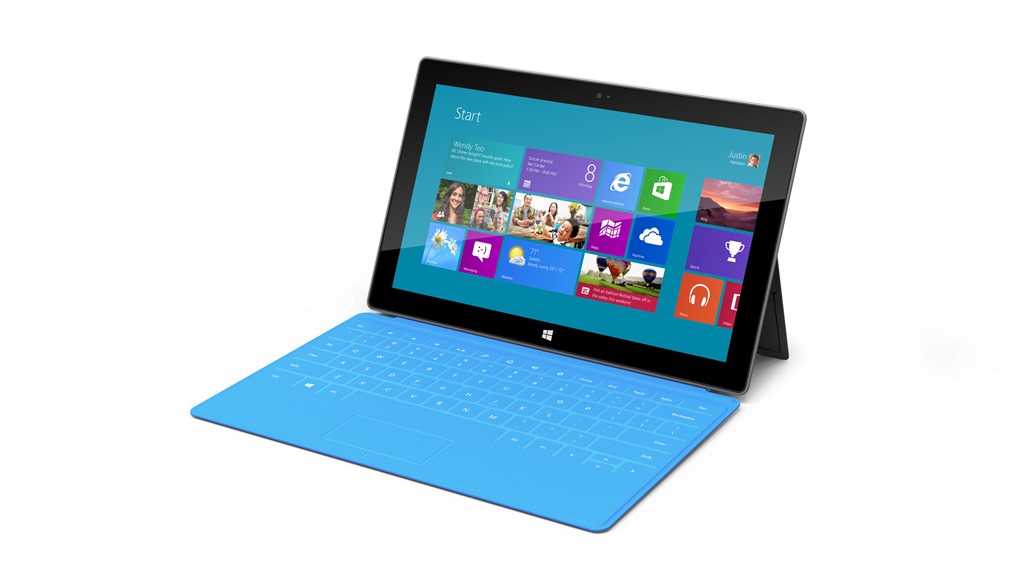
So if I get one of the new tablets (e.g. Microsoft Surface) which run Windows RT, I won’t be able to use it to play music to my Denon. Why? Well, Windows RT does not support the desktop Windows Media Player, and Microsoft has just told me that their Metro Media Apps will not support my Denon, even though it is DLNA-certified. Yet another reason not to touch the Microsoft Surface with a bargepole, I think.
It looks as though Microsoft are building proprietary extensions on top of the cross-industry DLNA specifications. I’m not convinced that this is a good thing.
Update 4 February 2013: I see that Paul Thurrott has just written an article on this subject: The Sad Tale of Play To and Windows 8, with much the same conclusions. As I write in the comments here, it’s good to see that Mr. Thurrott is banging the same drum. He is able to make far more noise than I, but I think that Microsoft will remain deaf to the sounds. BTW, it’s worth reading the comment by John Galt after the Thurrott article. He lists a number of shortcomings in the media “features” that Microsoft have implemented in Windows 8, any one of which has me tearing my hair out. One wonders how Microsoft can be so dismal in delivering a product that should delight, not disappoint in so many ways.
Update 31 March 2013: Barb Bowman has found a way to hack the Registry to get Windows 8 to recognize “uncertified” DLNA devices, and to use them within Windows 8 Apps. Like her, I wish that Microsoft would give advanced users the option to add our DLNA devices directly, without the need for these hacks.
Update 21 October 2013: Well, now that the final release of Windows 8.1 is available, the Play to experience seems to be broken again. I applied the registry fix given by Barb Bowman (and which came originally from Microsoft’s Gabe Frost), and that no longer seems to work for me. One step forward, two steps back yet again. Thank you Microsoft.
Update 24 October 2013: I posted the Windows 8.1 issue in a Microsoft forum, and got some useful feedback from Gabe Frost. The issue is not resolved, but at least we now know what’s going on. See https://gcoupe.wordpress.com/2013/10/23/play-to-and-windows-8-1/
Original post
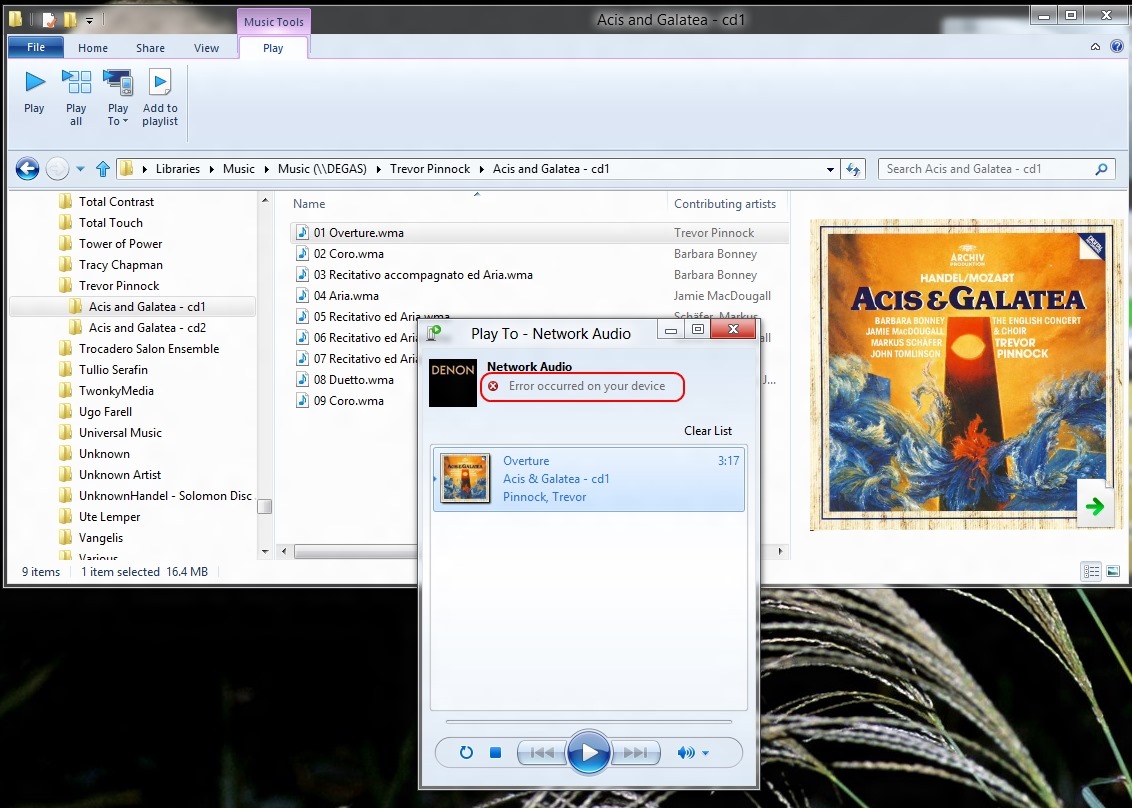
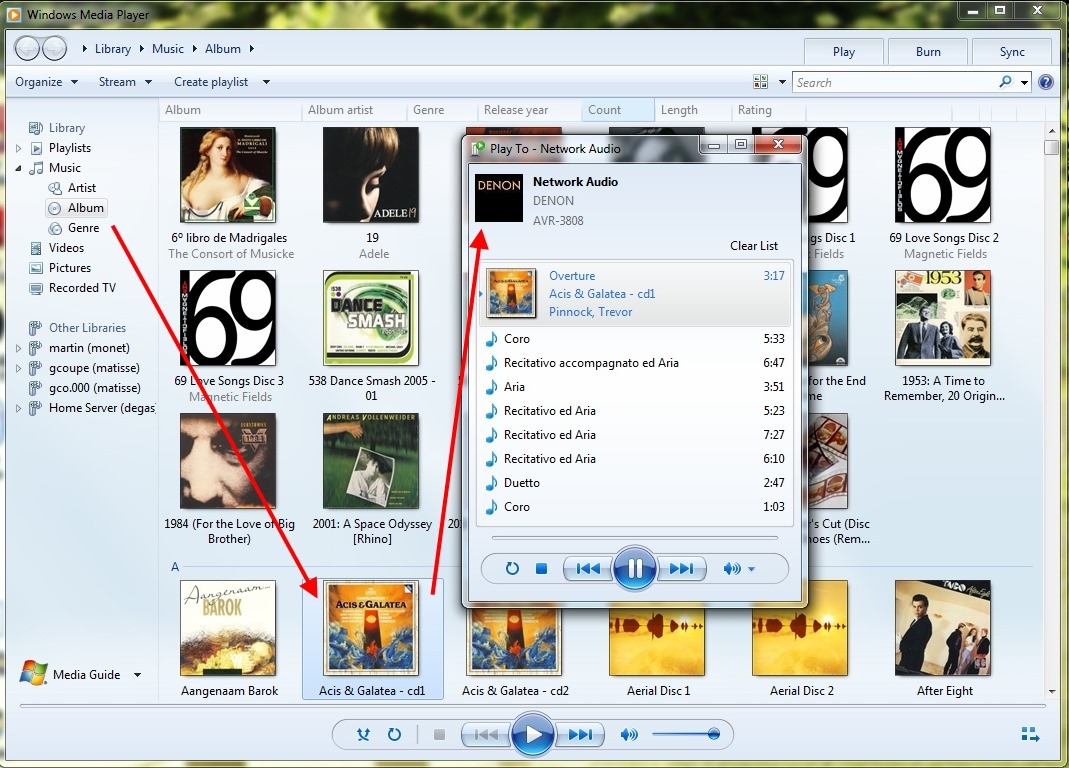
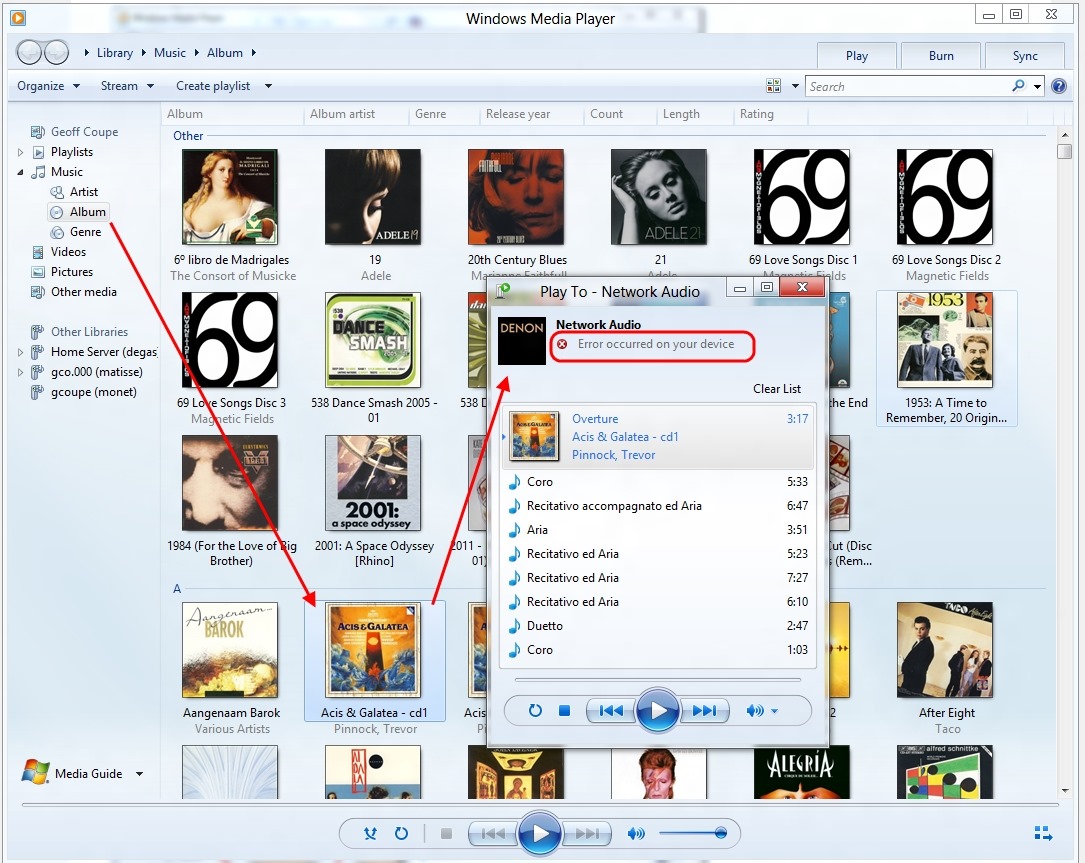
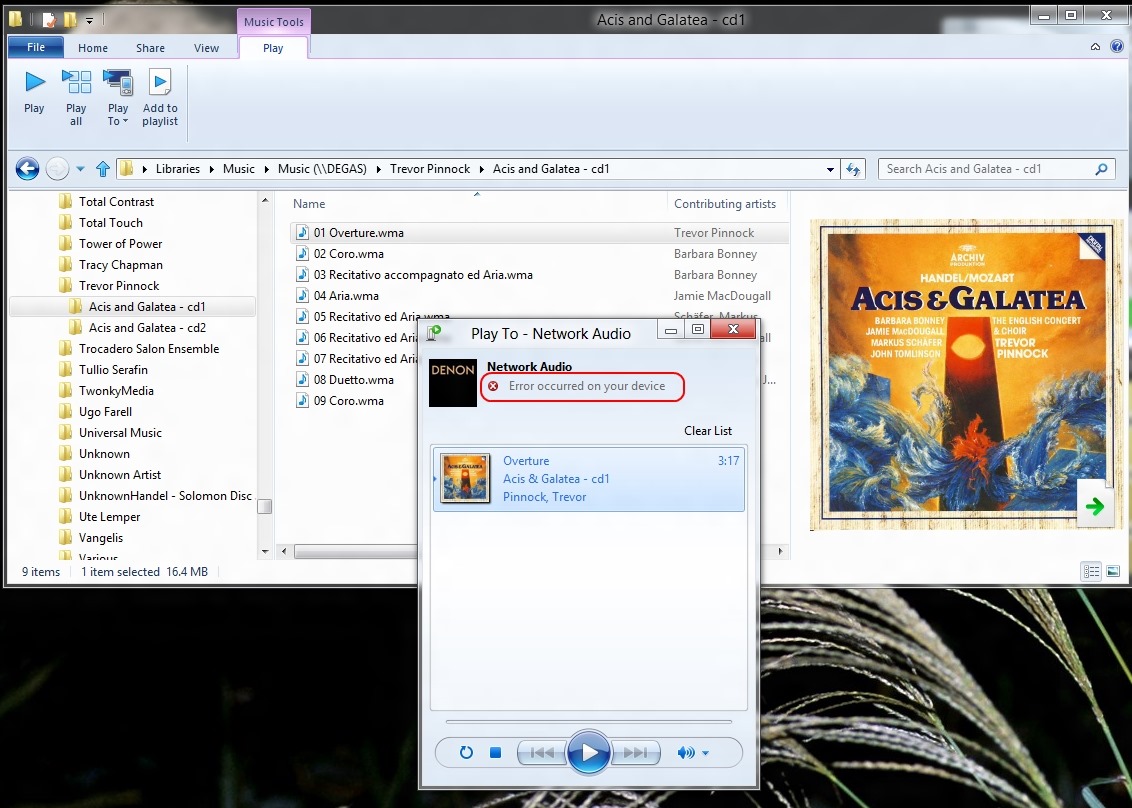
You may recall that I’ve found that the “Play to” feature of Windows 8 is broken. I’ve been poking around trying different scenarios to see what’s going on, and come up with some further information.
The bottom line is, yes, the Windows 8 implementation is broken as far as I’m concerned. However, I fear that Microsoft will simply say that this is not a bug, it’s a feature… What’s the old joke? Ah yes:
Q: How many Microsoft developers does it take to change a lightbulb?
A: None. Microsoft simply declares darkness to be the new standard.
This is what I think I have found:
- In Windows 7, the “Play to” feature will negotiate with the media renderer device to ensure that the audio format streamed from the server can be handled. If it can’t, it will try and have the server transcode it to a format that can be understood by the renderer.
- In Windows 8, the “Play to” feature doesn’t bother to find out whether the device can cope with the streamed format, it just sends it, and the consequences be damned…
Here are the details:
First, let me recapitulate some of the terms and technology specification used by Microsoft in its implementation of “Play to”. These come from the Digital Living Networking Alliance, or DLNA for short. Their specification defines how a variety of different types of digital devices can connect and share information. I’ve summarised the devices used in “Play to” in the following table:
| Device Class |
What it Does |
Examples |
| Digital Media Server (DMS) |
Stores content and makes it available to networked digital media players (DMP) and digital media renderers (DMR). |
PCs, Windows Home Server, and network attached storage (NAS) devices |
| Digital Media Player (DMP) |
Finds content on digital media servers (DMS) and provides playback and rendering capabilities. |
TVs, stereos and home theaters, wireless monitors and game consoles. Windows Media Player also has a DMP capability |
| Digital Media Renderer (DMR) |
These devices play content received from a digital media controller (DMC), which will find content from a digital media server (DMS). |
TVs, audio/video receivers, video displays and remote speakers for music |
| Digital Media Controller (DMC) |
These devices find content on digital media servers (DMS) and play it on digital media renderers (DMR). |
Internet tablets, Wi-Fi® enabled digital cameras and the “Play to” function in Windows 7 and Windows 8. |
Table 1: Information drawn from the DLNA web site.
Windows 7 and Windows 8 implement a number of these classes as shown here:
| Device Class |
Windows Implementations |
| Digital Media Server (DMS) |
When media streaming is enabled, Windows acts as a DMS. |
| Digital Media Player (DMP) |
Windows Media Player and Windows Media Center act as a DMP when browsing shared media libraries |
| Digital Media Renderer (DMR) |
Windows Media Player acts as a DMR when configured to allow remote control of the Player. |
| Digital Media Controller (DMC) |
The “Play To” feature from Windows Media Player (and the Windows Explorer in Windows 8) launches a DMC to control the media playback experience |
Table 2: Information drawn from the Engineering Windows 7 Blog.
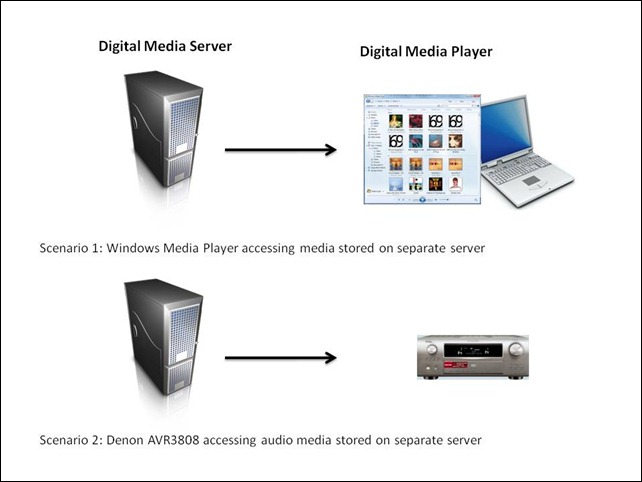
At its simplest, just two devices can be involved: a Server and a Player. These can even be running on the same physical device, as in the case where your Windows Media Player on your Desktop PC is streaming music or video stored on the PC itself. The next step up is where the server and player are on separate physical devices. Two typical scenarios are shown in figure 1:
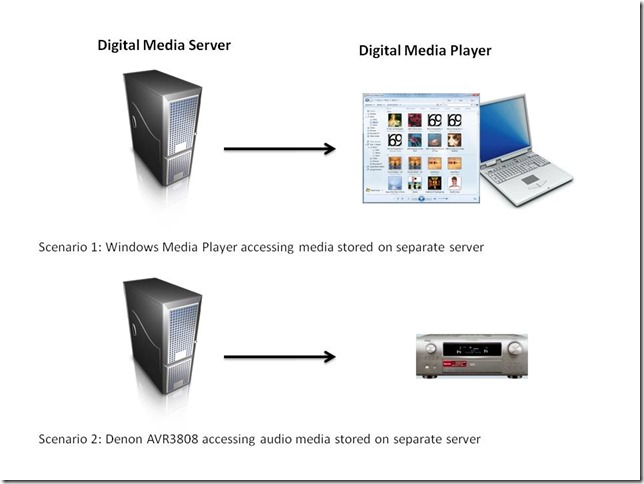
Figure 1: Typical scenarios of simple case of DMP devices accessing DMS devices.
I’ve used the Denon AVR-3808 as an example, since this is what I have in my home network. My DMS is a headless (no monitor, keyboard or mouse) home-built PC running the Windows Home Server 2011 operating system.
In my particular case, both the two scenarios shown above will work, that is, the DMS that is part of WHS 2011 will stream audio to other PCs in the home network, and to the Denon AVR3808.
Now, this next bit is important, I’ll return to it later: Under the covers, there’s actually some negotiation of streaming formats going on.
This is because I have stored all my music files on the WHS 2011 in Windows Media Audio Lossless (WMAL) format. This presents no problems for the PCs, since the Windows Media Players installed on them can handle WMAL. But while the Denon can handle standard Windows Media Audio, it can’t handle the Lossless variant. So when I use the Denon to browse my music library on the server and select a track to play, the DMS in WHS 2011 sees that the Denon can’t handle WMAL and transcodes the stream into a format that the Denon can handle on the fly – it transcodes it into a PCM stream, which the Denon can deal with.
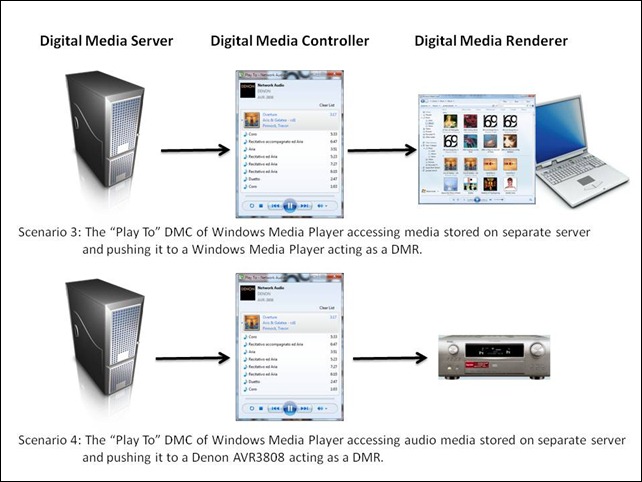
Now let’s look at scenarios are where there are three devices linked together: a Digital Media Server, a Digital Media Controller, and a Digital Media Renderer.
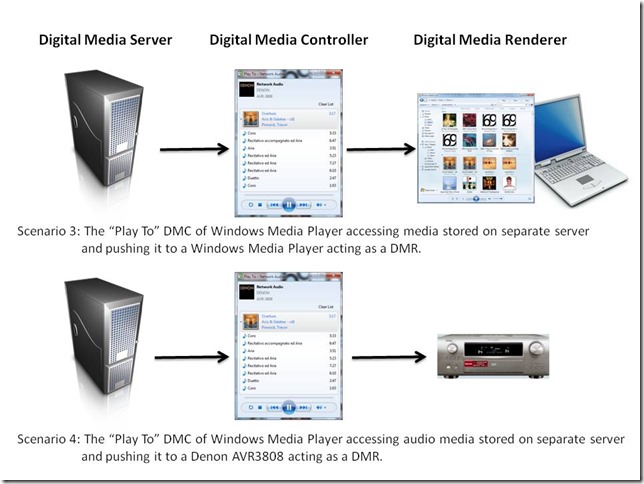
Figure 2: Typical scenarios of a three device link (DMS-DMC-DMR).
In my case, all flavours of scenario 3 will work. That is, I can stream from my Windows Home Server using the “Play To” feature in either Windows 7 or Windows 8 Release Preview, and push the stream to PCs that are running Windows Media Player in Windows 7 or the Windows 8 Release Preview.
But while scenario 4 (streaming to the Denon) works with the “Play to” of Windows 7, it does not always work with the “Play to” of Windows 8 Release Preview.
The following table shows which formats work and which don’t, when using scenario 4:
| Format |
Windows 7 |
Windows 8 |
| MP3 |
Yes |
Yes |
| Windows Media Audio |
Yes |
Yes |
| Windows Media Audio Lossless |
Yes |
No |
Table 3: Audio formats used with “Play to” features in Windows 7 and Windows 8
Now take a look at a table showing which formats are supported by the Denon AVR-3808:
| Format |
Supported by the Denon |
| MP3 |
Yes |
| Windows Media Audio |
Yes |
| Windows Media Audio Lossless |
No |
| FLAC |
Yes |
Table 4: Audio formats supported by the Denon AVR-3808
My very strong suspicion, therefore, is that the Windows 8 “Play to” does not negotiate a playable format with the DMR of the the Denon, it simply sends the source format regardless. The Denon’s display panel has indicators (MP3, WMA, PCM) that show the audio formats being received. Let’s take another look at Table 3, but this time, show the state of the Denon indicators:
| Format |
Windows 7 |
Windows 8 |
| MP3 |
MP3 |
MP3 |
| Windows Media Audio |
WMA |
WMA |
| Windows Media Audio (Lossless) |
MP3 |
– |
Table 5: Denon front panel indicators state
You can see that, for Windows 7, the WMA Lossless format of the source media has been transcoded into an MP3 stream so that the Denon can deal with it. In scenario 2 (the Denon communicating directly with the Windows Home Server), the PCM indicator lights, showing that the negotiation with WHS 2011 has resulted in an alternative format being used.
If the Windows 8 “Play to” is not carrying out any negotiation, as I think is happening in scenario 4, then of course the Denon will respond with an error – it cannot play native Windows Media Audio Lossless format.
I note that Microsoft states that:
Improved device experience: Metro style apps work only with Windows certified Play To receivers. These devices are validated to support modern media formats, are DLNA standards-compliant, and have great performance (including the updated Xbox 360 available later this year). The desktop experience first introduced in Windows 7 has been added to the Explorer Ribbon and will continue to support all DLNA DMR devices.
Fine words, except that Microsoft are being economical with the truth at the moment. “The desktop experience first introduced in Windows 7” does not “continue to support all DLNA DMR devices”.
It’s broken.




 Geoff Coupe's Blog