
I think it’s safe to say that the development of Microsoft’s Windows Home Server 2011 (version two of the original Windows Home Server product) has not exactly been plain sailing. Fairly late on in the development cycle, Microsoft took the decision to pull the Drive Extender technology (the unique selling point of WHS v1) from the v2 product. The decision was greeted with howls of protest from WHS customers (including me), but Microsoft soldiered on and released WHS 2011 in April.
Now, I know that I had said that I would be sticking with WHS V1 as long as possible, but those who really know me are aware that I am often unable to resist poking new technology to see how well it works. And so, I’ve messed about with the beta versions of WHS 2011 (and found some bad limitations, as well as the occasional plus point).
I’ve been using version 1 of Windows Home Server since it was released in November 2007 (and I was kicking the tyres of the betas before that). So we have a long history together (in computer terms). And WHS v1 has served me well. There was the saga of the file corruption bug, but once identified, I was able to work around it until it was fixed by Microsoft in November 2008. Since then, I’ve been using WHS v1 very happily indeed. It has just worked, and has saved my bacon on a couple of occasions.
Why, you might then ask, have I yielded to temptation and invested in an OEM disc of Windows Home Server 2011?
Well, the major omission in WHS v1, from my perspective, was that it was not possible to backup the server itself. I wanted to be able to take server backups for off-site storage. Yes, it was possible to take copies of the Shared Folders of the server onto external discs for storage off-site (which I did); but it was not possible, using the facilities of WHS v1, to take a backup of the server operating system and copies of the client PC backups onto external storage. With WHS 2011 comes the additional feature of being able to make backups of all of the server itself for off-site storage.
Thus, while WHS 2011 has lost the Drive Extender feature, it has seemingly gained the ability to make complete backups of the server. On balance, and given my hankering for new technology, I thought that I would invest in WHS 2011 and see how it would go.
So, how has it gone?
To be honest, it’s been a bit of a curate’s egg – it has good parts and bad parts.
The Good Parts
- Practically painless installation of the software (WHS v1 needed coddling to understand modern hardware) – but note the comment under the Questionable Parts heading.
- Backup of the server is now possible.
- Improvements for Remote Web Access.
The Bad Parts
- Removal of drive pooling because the Drive Extender technology is gone.
- Server backup has a limit of 2TB. Note: See the Addendum at the bottom of this post.
The Questionable Parts
- Server installation defaults to a Workgroup called “Workgroup”. If yours is named something else (as mine was), you need to be aware of a workaround. I used it and it worked for me.
- Server backups to more than one external drive don’t seem to be working properly.
- The Media Library in Remote Web Access has issues (I’ll address this in a follow-up post).
The Details
I divide the data held on my Windows Home Server into two classes: critical and non-critical.
- Critical data is that which I view as unique and irreplaceable. For example, the 44,000 (and counting) photos that I have taken over the course of my 62 year life. Then there are the 10,000+ emails generated over my 20 years online that I wish to preserve, at least for me, if not for posterity. And not forgetting documents that I have written, which are important to me, if not to anyone else.
- In the class of non-critical fall the digital copies of my music and film collection. The originals are the CDs, DVDs and Blu-rays that I own. If the digital copies are lost, I can at least regenerate them from the original media.
It turns out that this classification into two types of data is important because one of the bad (not to say ugly) parts of WHS 2011 is the fact that a server backup cannot exceed 2TB maximum.
Because of this limitation, I am forced to adopt the strategy of saying that critical data is handled by the WHS 2011 server backup facility, while non-critical data is handled by an alternative facility – in my case I have chosen for SyncToy. It would have been wonderful to let all of my data be handled by the WHS 2011 server backup facility, but since I have more than 2TB of data, this just isn’t possible by the design that Microsoft have given us.
Let’s just pause a moment and let this sink in. Because of the fact that the WHS 2011 server backup facility has a hard limit of 2TB, I have to use a mixture of backup methods in order to ensure that all my data is backed up. This means:
- We are no longer in home user territory. We are in the world of needing to know IT.
- I can use the WHS 2011 Server backup facility for critical data, but…
- I must use the Remote Desktop Connection application to connect to the WHS 2011 server and run SyncToy to backup my non-critical data.
As Dorothy said: Toto, I don’t think we’re in Kansa anymore.
In an ideal world, I would have the following scenario:
- My data is in two classes: critical and non-critical.
- For critical data, I want to rotate external drives between the WHS 2011 server and off-site storage on a daily basis.
- For non-critical data, I want to rotate external drives between the WHS 2011 server and off-site storage on a weekly or monthly basis.
- Both of these tasks should be doable via the WHS 2011 server backup facility – and via a single mouse-click once set up.
Currently, this can’t be done. I need to have fudges and workarounds that require IT knowledge. In other words, I think that WHS 2011 fails to meet the needs of the home user.
But the story doesn’t end there. According to the online help for Windows Home Server 2011, it is possible to rotate external backup drives: “You can use multiple external storage drives for backups, and you can rotate the drives between onsite and offsite storage locations. This can improve your disaster preparedness planning by helping you recover your data if physical damage occurs to the hardware onsite”.
So I tried to do this. At the moment, I have about 500 GB critical data that I want to store using the Server Backup facility in the Dashboard, and I have two drives; one of 1TB capacity (Drive #1) and one of 750GB capacity (Drive #2). I set these up in the WHS 2011 Server Backup Wizard.
Day 1 went fine, two successful backups (the default setting) were made to Drive #1. On day 2, I removed Drive #1 and added Drive #2. The “Customize Server Backup” Wizard showed that Drive #2 was attached and Drive # 1 was offline.
However, this time, the Server Backup failed, with an error 2155348020:
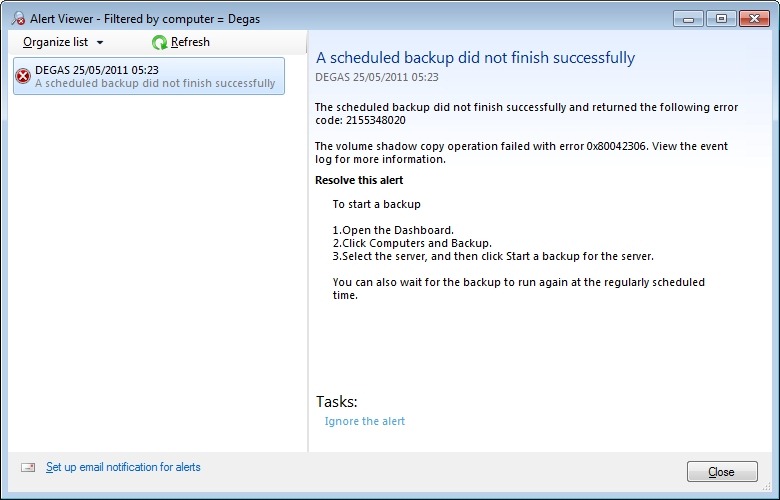
I love the way that this message simply tosses out the fact that we should view the event log for more information. I think that most Home Users presented with this message would simply think: WTF is the Event log? And they can’t view the Event log via the WHS 2011 Dashboard anyway – you have to be sufficiently IT-savvy to be able to open up a Remote Desktop Connection and then start up the Event Viewer on the server. Once you’ve done that, you will be presented with something like this:
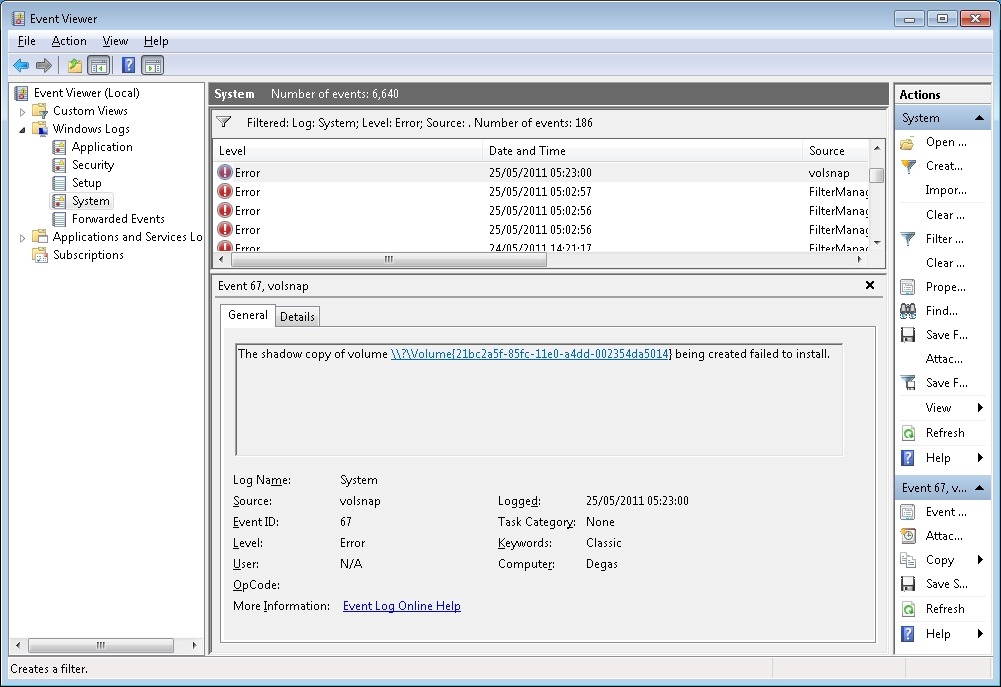
It says: The shadow copy of volume \\?\Volume{21bc2a5f-85fc-11e0-a4dd-002354da5014} being created failed to install. Frankly, I have no idea what this means. I do understand that my disc drives have storage volumes created on them; but I can’t find any volume with the reference {21bc2a5f-85fc-11e0-a4dd-002354da5014} – it doesn’t seem to exist.
Anyway, I ran the server backup again, but this time with both backup drives attached. It worked. After a few more experiments, I proved that:
- Backup drive #1 works.
- Backup drive #2 does not work by itself.
- Backup drive #1 and #2 together works.
The bottom line is that I can’t seem to be able to rotate backup drives – that is, (for example) on day 1, I attach drive #1 to the server and have drive #2 held off-site. On day 2, I attach drive #2 to the server and hold drive #1 off-site. Day 3, and it’s back to drive #1 attached to the server, with drive #2 held off-site. And so on… It would seem that I have to have either the first or both drives attached when I’m making backups. But needing to have both drives attached isn’t what I think of when I want to implement a rotating backup drive strategy…
I want to put something like an ICY Dock MB877IK into my server and have 2 x 2TB drives that I can rotate on a daily basis. It looks as though this is not possible with WHS 2011 at the moment. According to the WHS 2011 online help, it should work. In the real world, on my system, it doesn’t.
A word about the demise of Drive Extender.
While I can understand why Microsoft made the decision they did, I still think that the loss of DE is a great loss for the home user. It was such a brilliant concept and it worked for me. When I was setting up my new WHS 2011 system, I found myself having to think carefully about how best to juggle my data across a number of discs, instead of just dealing with one storage pool. I ended up (after a couple of trial runs) with data distributed across my drives like so:
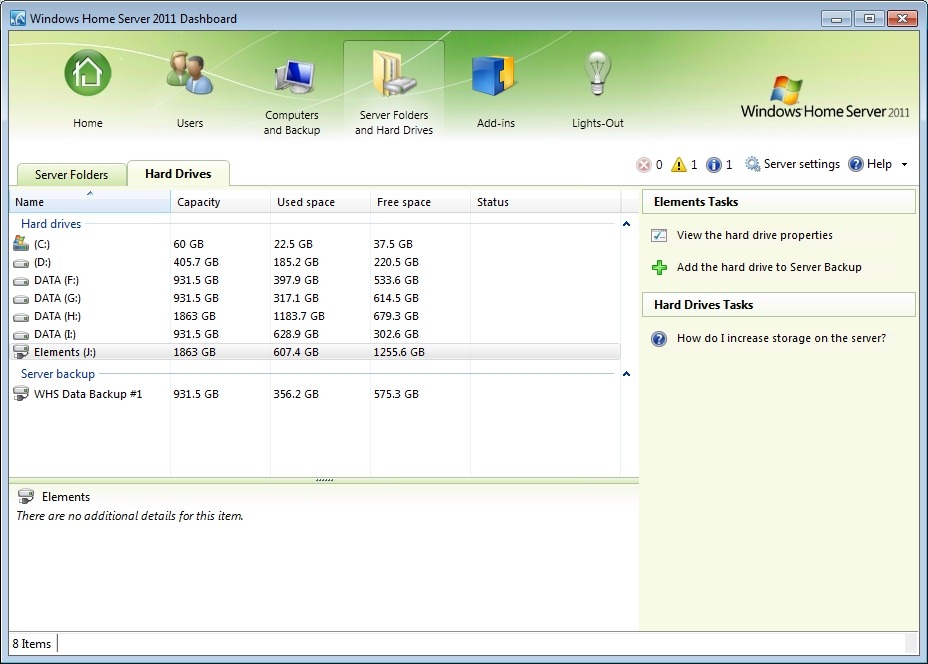
Here, the drive shown as Elements (J:) is the external drive that I’m using for SyncToy, and server backups of my critical data are being put onto the WHS Data Backup #1 drive.
And, as already stated, the fact that I’m having to mess about with Remote Desktop Connections and running SyncToy underlines to me the fact that Microsoft have blown it – WHS 2011 is not a product suitable for the “home user”. OEMs will have to invest in addressing the brain-dead backup “feature” in order to come up with a backup and digital media storage appliance suitable for the masses… Will any of them do this? We’ll see.
Meantime, for us, the home builders, I would say that there’s definitely a gap in the market for someone to develop a replacement Backup Add-in that uses the underlying Windows Server 2008 R2 facilities that would simplify our lives, and allow us to build WHS 2011 systems for friends and relatives that they could actually use…
WHS 2011: definitely a Curate’s egg…
Addendum: Update 31 March 2014: It appears as though there has been some improvement made to the Server Backup function in the Dashboard since I originally wrote this article. It remains the case that WHS 2011 continues to use the VHD format for backup, which has a maximum capacity of 2TB. However, it now appears (contrary to what Microsoft originally stated) as though the Server Backup function can now deal with multiple VHDs, providing the backup drive is big enough. So, if your backup drive is 4TB, that means you can have 2 VHDs of 2TB created on it. That, in turn, means that you can backup up to 4TB of data from your data storage drives (with a maximum of 2TB for any one drive). That’s a theoretical maximum, since Microsoft also recommend having some free space in the VHDs to handle incremental backups.


 Geoff Coupe's Blog
Leave a reply to Matt Cancel reply