
Now that I’ve been running my Windows Home Server 2011 system for a while, I’ve been able to observe some of the behaviours and quirks that require time to show themselves. Here are my notes on the server backup function.
As you are probably aware, WHS 2011 can only take a backup of the server data that is 2TB or less in size, and can only handle backup drives that are limited to 2TB.
[Update 31 March 2014: It appears as though there has been some improvement made to the Server Backup function in the Dashboard since I originally wrote this article. It remains the case that WHS 2011 continues to use the VHD format for backup, which has a maximum capacity of 2TB. However, it now appears (contrary to what Microsoft originally stated) as though the Server Backup function can now deal with multiple VHDs, providing the backup drive is big enough. So, if your backup drive is 4TB, that means you can have 2 VHDs of 2TB created on it. That, in turn, means that you can backup up to 4TB of data from your data storage drives (with a maximum of 2TB for any one drive). That’s a theoretical maximum, since Microsoft also recommend having some free space in the VHDs to handle incremental backups.]
With this in mind, I have defined my server backup data set to consist only of what I think of as critical data: the server system itself, the client backup data, and a few other folders. This all adds up to around 610GB of data. I have two 1TB drives that I have designated as backup drives in the WHS 2011 system. I have a single-bay ICY Dock enclosure, and I rotate the two drives between the enclosure and an offsite storage location. I take backups twice daily, at 12:00 and 23:00 (this is the default setting for the server backup function of WHS 2011).
The first time I used each drive in the system, a full copy of the server backup dataset was written to the drive. This meant that each drive then had around 320 GB free capacity. After the first backup, only changes to the data are recorded in subsequent backups. Each time a backup was made, some of the 320GB free capacity was used up to hold these changes.
It is possible to define a retention policy for client computer backups (that is, how long the client computer backups will be kept before they are deleted and the space reclaimed for newer backups). See the following screenshot showing how the retention policy can be defined.
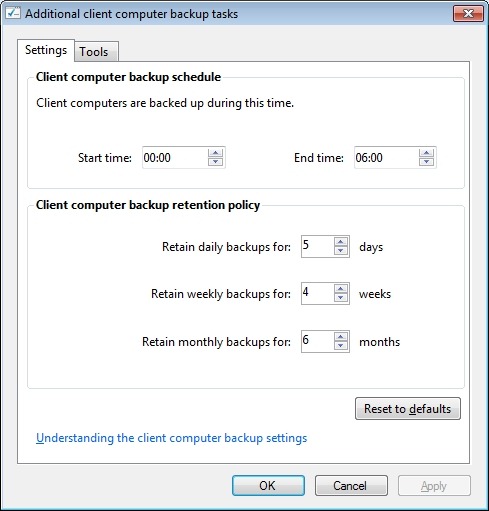
But the interesting thing is that there is no equivalent setup screen to define the retention policy for server backups. So the question naturally arises: what happens when the backup drives used for the server backups become full?
Over on the WHS forums, some folks say that WHS 2011 will automatically clear out old backups once a backup drive fills up, but others have reported that it doesn’t always happen; thus, it’s a bit unclear.
So I was curious to see what would happen as time went on, and my backup drives got full.
The first thing that happened, about a week ago, was that I received an alert to say that one of my backup drives had less than 10% of free space:
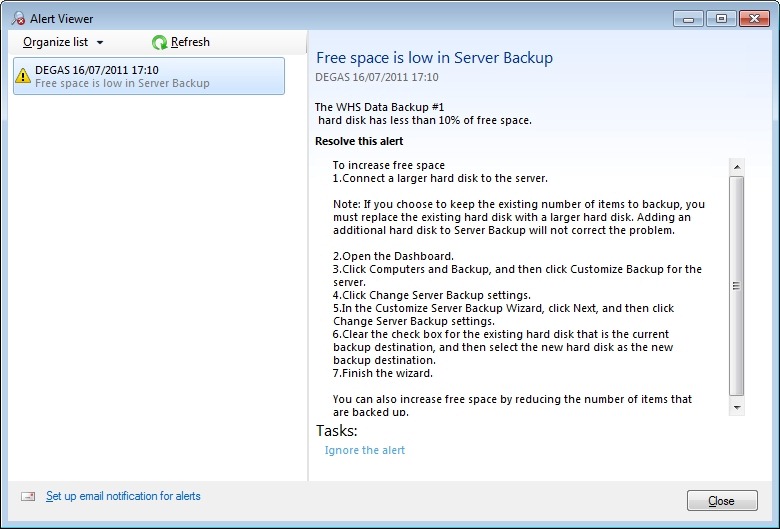
You’ll notice that the only possibilities offered by this alert to resolve the issue are either to replace the drive with a larger one, or to cut down on the size of the server backup. Neither of these options were particularly attractive, and nothing is said about the possibility of deleting older backups. So I thought I would just carry on and see what would happen.
I got to the situation today when drive #1 had less than 6GB free space left. I triggered a further backup manually to see what would happen. The backup was successful, and then I saw that the drive had 320 GB free. WHS 2011 had deleted all the backups from the drive and created a fresh complete backup. Drive #1 then had one backup on it.
That means that drive #1 now holds one server backup, time stamped today (23rd July). Drive #2 currently holds 38 server backups dating back to 14 June (one full backup plus 37 incremental changes). Once drive #2 runs out of space I expect the same thing to happen; all the old backups will be deleted and a new server backup will be taken. At that point, my earliest server backup will be today’s backup (23rd July) on drive #1.
I see one slight quirk in all of this. If I look at the server properties in the WHS 2011 Dashboard, and examine the Backup tab, I see this:

Notice how it is listing backups taken to drive #1 that are now no longer available. If I compare this with the list that is given by the Windows Server Backup screens in the underlying Windows Server 2008 Server Manager (which your average Home User would never see or be aware of), then I see this:
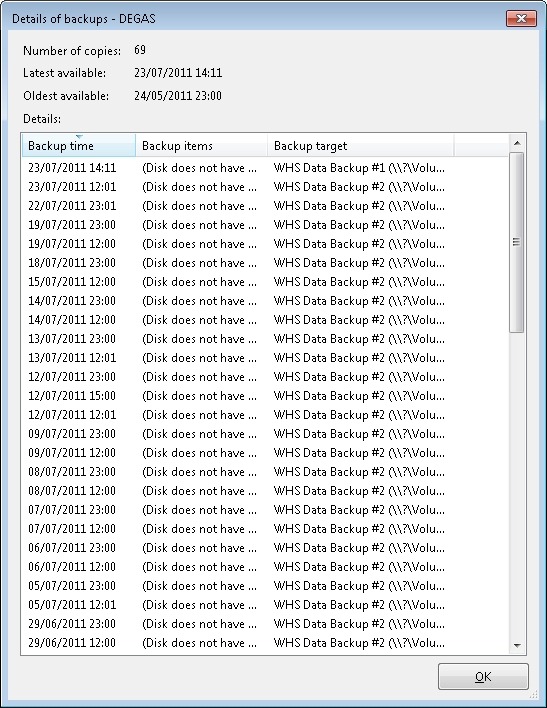
In other words, all the backups taken to drive #1 that were deleted in order to make room for today’s backup have also now been removed from this list. Up until this point, they would have been shown. I would argue that this list is a more accurate reflection of the actual situation than the list shown in the WHS 2011 Dashboard information.
If I then ask WHS 2011 to show me what backups are available for restoring, then it doesgive me an accurate picture:
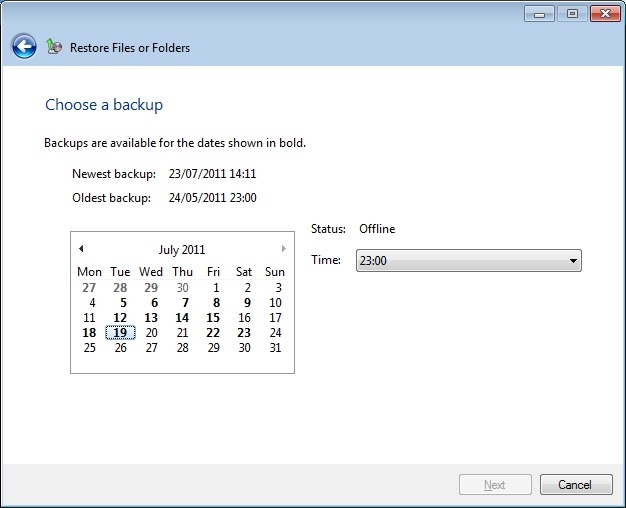
The dates shown in bold before the 23rd July are for the backups held on drive #2 – it shows that there are no backups available for the 20th and 21st July, for example. There were backups taken on this date, but they were taken to drive #1, and were subsequently deleted today when drive #1 ran out of space.
Depending on where you look in the Dashboard, you will get slightly different answers… Personally, I would prefer the list of backups to reflect the actual state of available backups, rather than state that backups that are no longer available were successful at the time. I don’t want to be lulled into a false sense of security.
Update 29 July 2011
Sigh. Murphy’s Law has struck. I wrote earlier in this post:
Once drive #2 runs out of space I expect the same thing to happen; all the old backups will be deleted and a new server backup will be taken.
Well, yesterday, Backup drive #2 ran out of space. And what happened? I got an error, and the backup failed…
Before the backup started, I had 3.1GB free space on the drive, so I was expecting WHS 2011 to realise that there wasn’t enough space for a backup, and to wipe the drive before starting with a complete new backup. After all, that’s what I think it did with drive #1.
No such luck.
Instead, it attempted to do a backup, and I got an alert saying that the scheduled backup did not finish successfully:
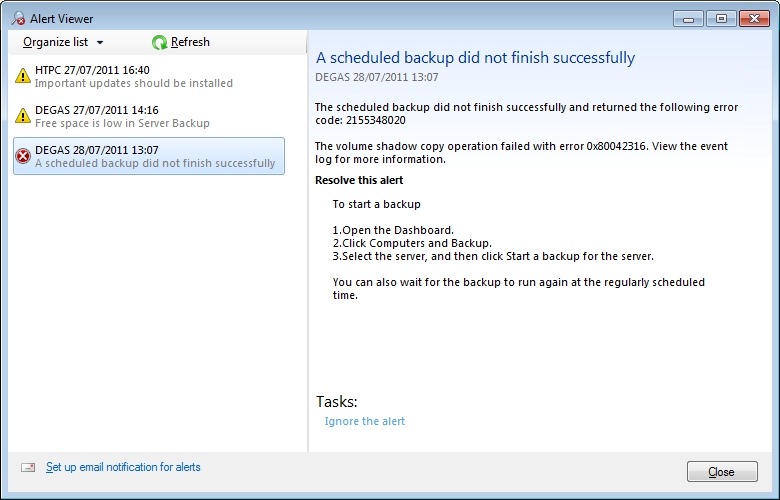
Notice that it’s given me an error code 2155348020, and, as I’ve written before:
I love the way that this message simply tosses out the fact that we should view the event log for more information. I think that most Home Users presented with this message would simply think: WTF is the Event log? And they can’t view the Event log via the WHS 2011 Dashboard anyway – you have to be sufficiently IT-savvy to be able to open up a Remote Desktop Connection and then start up the Event Viewer on the server.
Going to the Event Log, I see this message from the Backup application:
The backup operation that started at ‘2011-07-28T10:01:02.660930800Z’ has failed with following error code ‘2155348020’ (Windows Backup failed to create the shadow copy on the storage location.). Please review the event details for a solution, and then rerun the backup operation once the issue is resolved.
The event details are given by a link to a Microsoft online help page for Windows Server 2008 R2, and it’s clearly written for IT support staff. To a Home User, it might as well be written in Martian.
Admittedly, it is fairly clear what the problem is – the backup drive does not have enough room to store the shadow copy – but the resolution doesn’t seem possible. As we’ve already established at the beginning of this saga, WHS 2011 has no way for a Home User to clear out old server backups, we seem to have to be reliant on WHS 2011 deleting the backups itself. And if it doesn’t do this, as appears to be the case here, we’re screwed.
A couple of other oddities I noticed with this failed backup. Even though it was reported as unsuccessful in the Alert viewer and here:
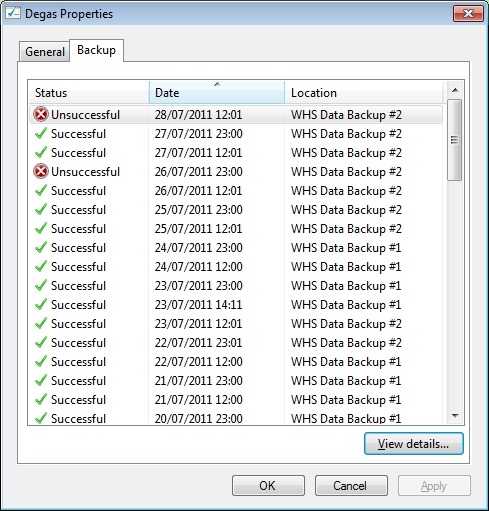
… if I click on the “View details…” button shown above, I am told that while the backup was unsuccessful, it does seem to have successfully backed up all the drives and folders that it was supposed to:

Something else that is a bit odd. I said that, going in to this backup, the drive had 3.1GB free. Now it has 9.6GB free. I’m not sure what to make of that…
I kicked off a manual backup of the server using drive #2, and this time it completed successfully. I’ve done a mixture of scheduled and manual backups since then, and they’ve all completed successfully. The amount of free space left on the backup drive varies between 0.7GB and 6GB. It’s currently at 1.7GB.
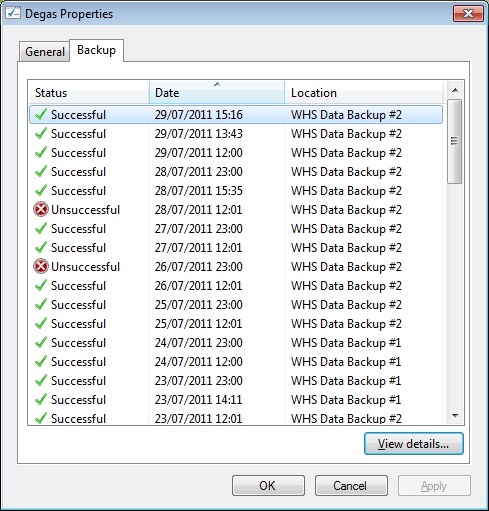
What it’s not doing, as was the case with drive #1, is to clear out all the old backups and start again.
I think I’ll just leave drive #2 in the system for the moment and see what happens. I would prefer that the system behave in predictable ways. I am unsettled by the fact that it seems to behave according to its own rules. Rules that Microsoft have never bothered to define. Perhaps, like me, they don’t know what they are…
Update 30 July 2011
Oh well, hitting a brick wall again. Last night’s backup proceeded without a problem, and I ended up with only 1.2GB free space on the backup drive. So I thought that when today’s backup kicked off at noon, WHS 2011 would have the nous to realise that it would need to clear out all the backups from the drive and start again (as it had done with drive #1).
Nope – I just got another error:

I then tried to see if doing a manual backup would clear out the backup drive…
Nope, the same error.
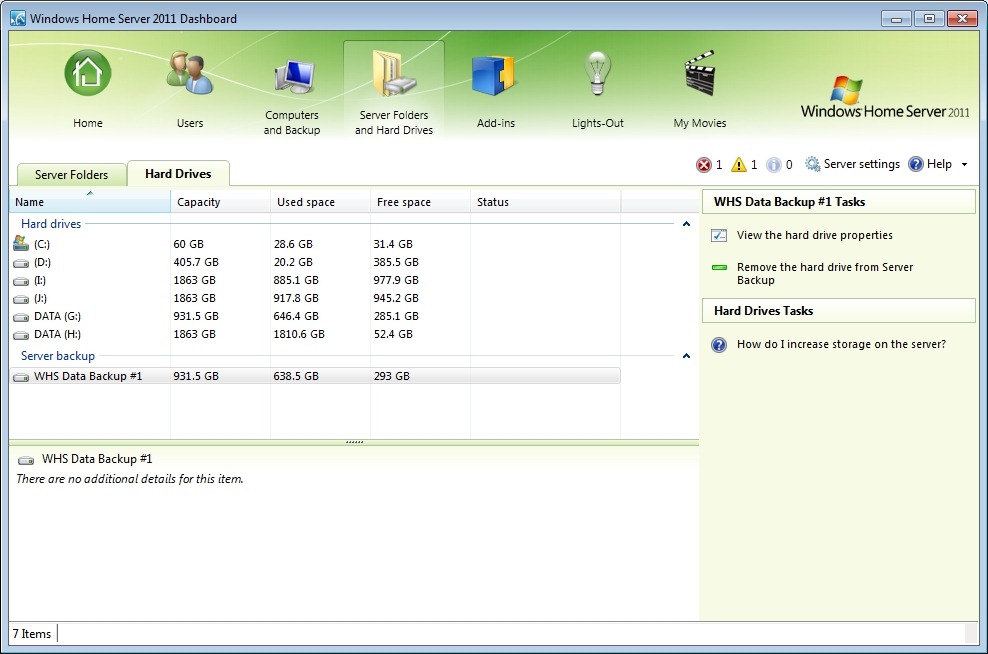
What now? I suppose I can try removing the drive from the server backup function and then re-attaching it as though it were a totally fresh drive… Right, so I select backup drive #2 and choose the “Remove the hard drive from Server Backup” task:

That then kicks off the Server Backup wizard…
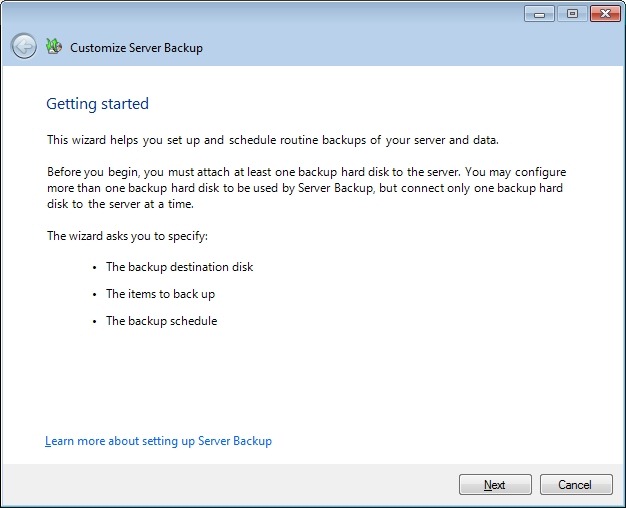
Perhaps it’s just me, but this strikes me as a trifle confusing – I just want to remove the backup drive from the Server Backup, why do I have to trudge through this wizard again. Oh well, onwards…
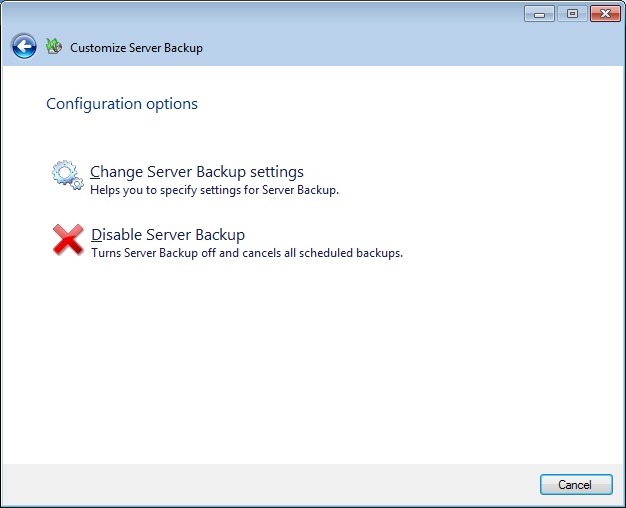
Right, so I suppose I need to choose the “Change Server Backup settings” option. So let’s do that…
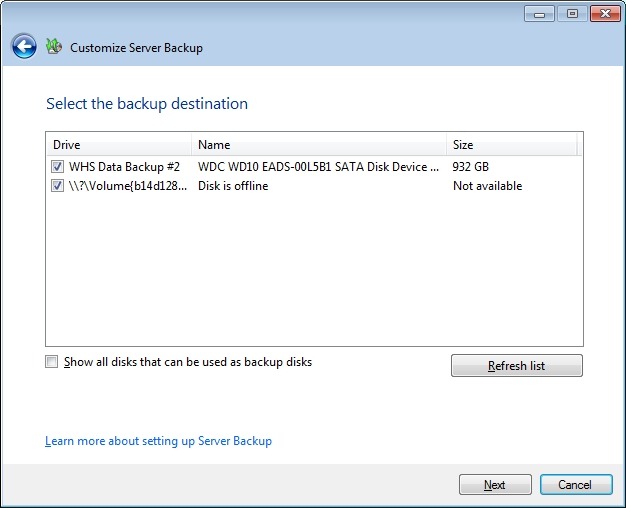
I assume that to remove backup drive #2, I will need to uncheck the first checkbox. As an aside, note how the offline backup drive (backup drive #1) is not given its user-friendly name (WHS Data Backup #1), but the internal gobbledegook that Windows Server 2008 R2 knows it by: \\?\Volume(b14d1287-95dd-11e0-a8fc-002354da5014). I’m sure this is perfectly obvious to your average Home User, of course.
I uncheck the first checkbox and click “Next”, only to be presented with this:

Well, yes, I know that; and the purpose of telling me this is? So I click on “OK”, and am returned to the screen before. Since I’m trying to remove the damn drive, I click on “Next” only to get this error message again. I’m now just bouncing back and forth between these two screens.
Sigh.
Perhaps the way out of this mess is to:
- Cancel out of this wizard
- Remove backup drive #2 manually from its dock
- Replace backup drive #1 into the dock (to get it online)
- Select backup drive #1 and then select “Remove the hard drive from Server Backup” to go through the damn wizard again, but this time select the now-offline backup drive #2 at the appropriate point.
You’ll note that even though WHS 2011 is telling me that it’s going to remove drive #1 from Server Backup, I have to do this in order to remove drive #2… Make sense? No, I thought not. OK, here we go…
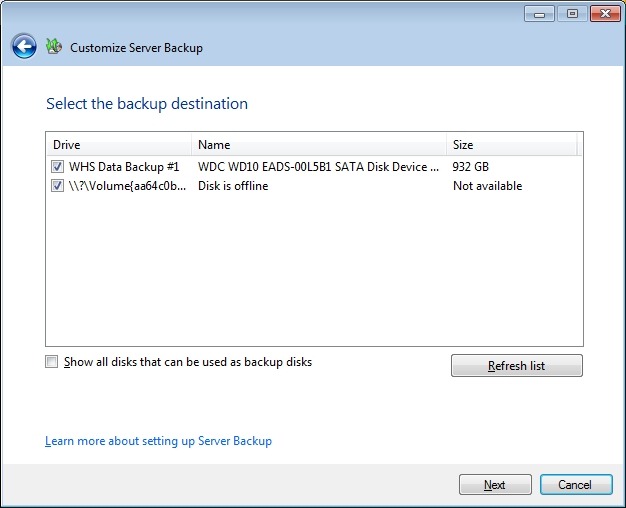
Here we are back at the screen that caused the problem the last time around. Now, it’s backup drive #1 that’s online, and backup drive #2 (which is now offline and has its own gobbledegook name showing) that I need to deselect in order to remove it from the backup destination:
This time, I make it to the next screen, which has the existing name of backup drive #1 already filled in:
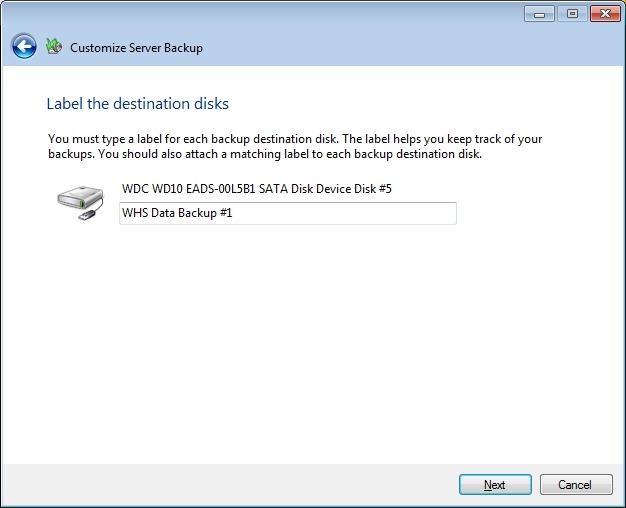
Clicking “Next” gets me to the schedule screen:
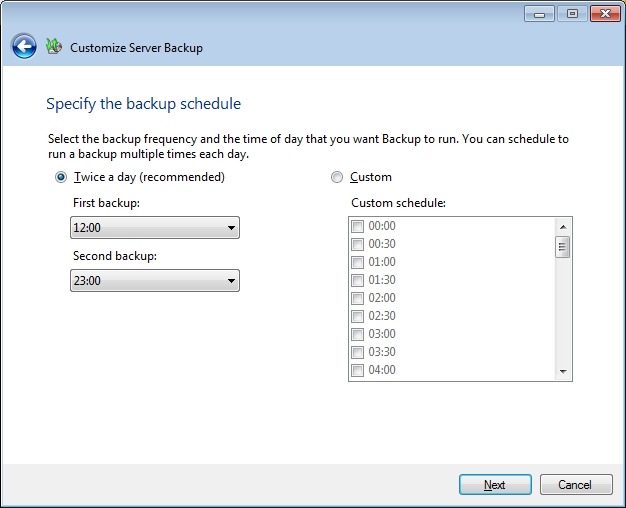
Then I get to choose what I want backed up (it’s already filled in with my last choices):
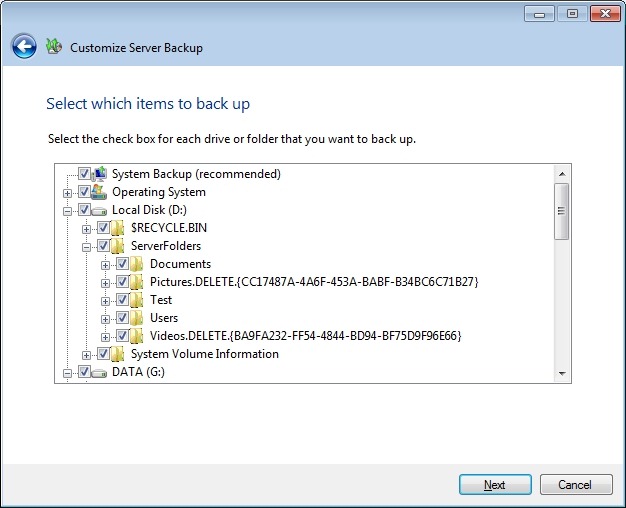
And at last I reach the confirmation screen, where I see that backup drive #2 is now removed.

Remember, that I started off from a screen that offered to remove backup drive #1 from Server backup; however, the design of WHS 2011 leads you into a dead-end if you assume that this is what it will remove. Did no-one spot this problem before product release?
It seems a very roundabout way of removing a backup drive. I also have my suspicions that we are not out of the woods yet.
Just because I’ve removed a backup drive from the backup schedule doesn’t necessarily mean that WHS 2011 has forgotten about it. Sure enough, if I start the server restore wizard, and look at available backups, it shows me backups that were taken on to drive #2:
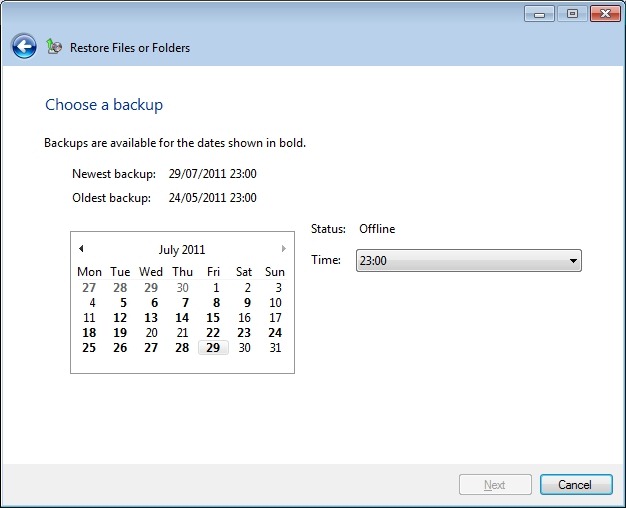
So now, if I reformat backup drive #2 and add it back into the server backup schedule, will WHS 2011 continue to think that these backups are still available?
I added backup drive #2 into the server dock. WHS 2011 does not show it as an available disk:

Let’s try and add it back into the Server Backup schedule… I start the Customize Server Backup wizard and reach the “select the backup destination” screen. At first, I didn’t see the backup drive, only after I checked the “Show all disks that can be used as backup disks” did it appear as the first item in this screenshot:
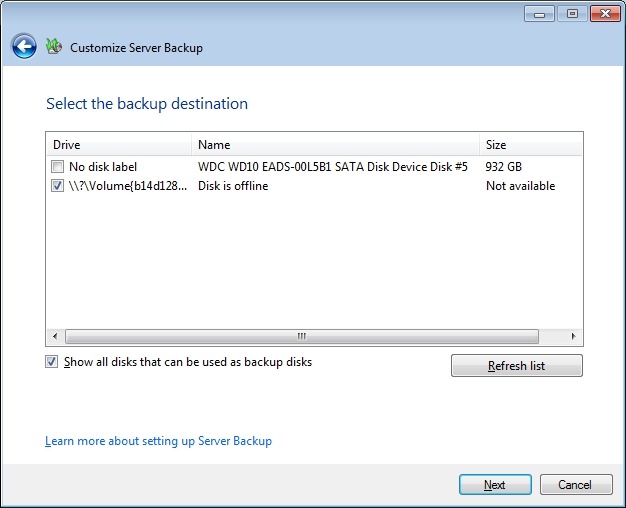
I checked it (to add it into the list of backup destinations) and clicked “Next”.
FINALLY – I get a screen that acknowledges that WHS 2011 knows that this drive has been used for backups before:
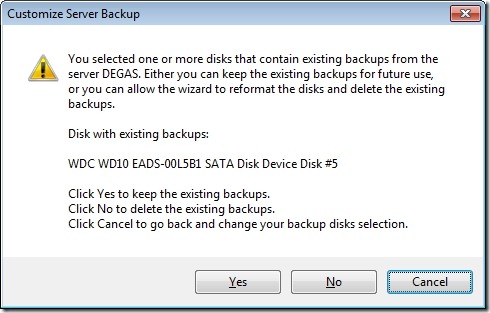
I choose “No” and get a confirmation screen:
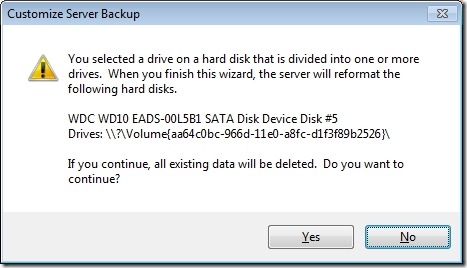
I chose “Yes” and got to give a name to the disk. I chose “WHS Data backup drive #2a”, since I’m curious to see whether WHS 2011 has now deleted all references to “WHS Data backup drive #2” from its list of available backups. Let’s check by starting the Server Restore wizard:
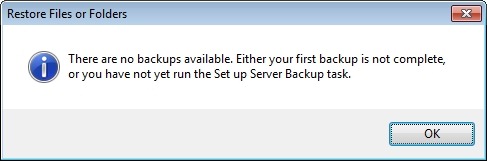
WHAT? Excuse me, I have backups taken on drive #1 available, don’t tell me you’ve deleted everything?
I hurriedly put in backup drive #1, and start the Server Restore wizard again. This time, I get further, and elect to choose the backup I want to restore from. If I choose a backup that was taken onto backup drive #1 (the one that’s currently plugged into the system), I get confirmation that the backup is online and available (in this case, the backup of 24th July at 23:00):
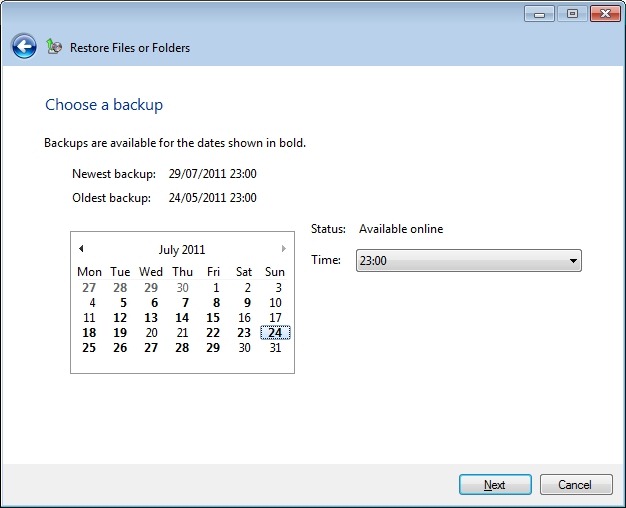
But, what’s this? WHS 2011 is still claiming that backups are available from backup drive #2 (e.g. the backup of 29 July at 23:00):
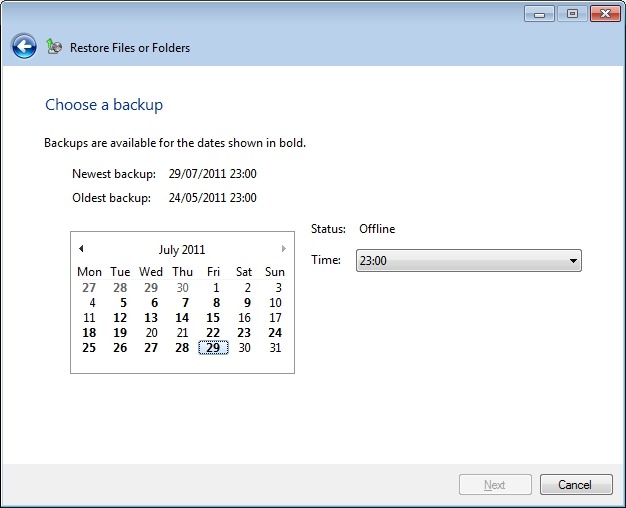
True enough, it’s saying that it’s offline, because the drive isn’t plugged into the system, but it’s still claiming that it’s available. Oh no it isn’t, says I, because you’ve just formatted that drive. Oh yes it is, replies WHS 2011…
Sometimes I feel as though I’m taking part in a Panto with WHS 2011…
So, to summarise. Removing a drive from Server Backup is not straightforward – the task design is flawed and leads you to a dead end. You can get WHS 2011 to reformat a backup drive, but it won’t go the extra mile with you and remove the previous entries for the deleted backups from its internal database. So it will quite happily lie to you about what backups are available…
Wonderful.


 Geoff Coupe's Blog
Leave a reply to Bezoar Cancel reply