
Adobe has just released the latest version of their Swiss Army knife for digital photography: Lightroom 4.
Since there’s a free trial available (which lasts for 30 days), I thought I’d download it and give it a go.
Lightroom is a Digital Asset Management (DAM) tool for digital photographs. That is to say, it covers all aspects of dealing with digital photos, such as acquisition of the photos from the camera, selecting the ones to keep, editing for the final versions, organisation of photo collections, and publishing.
At the moment, I use IDimager as my DAM tool, so I was interested to see how this latest version of Lightroom would compare. In some respects, the two tools are fairly similar, but there are also some substantial differences. (Note: IDimager is no longer available. Its successor is Photo Supreme, which I am now using)
One area that I found to be similar is the acquisition process – getting your photos off a camera’s memory card and into your PC environment. Both products allow flexible renaming of your files, and applying metadata templates to the resulting files as part of the acquisition process. So far, so good.
Once the files are in the tools’ workspaces then the main work of selecting the photos you want to keep and adding metadata to help organise the collection can begin in earnest. Again, both Lightroom and IDimager have similar features. For example, you can rapidly compare photos side-by-side in a virtual “light table” to aid in selection of those images that you want to keep.
However, I quickly ran into a couple of issues with Lightroom’s handling of photo metadata that, for me, are quite serious.
First, some background. Both Lightroom and IDimager use the concept of a Catalogue to hold a list of keywords that are used to organise your photo collection (or collections). While this list of keywords can be just a simple list, both products support, and encourage, the use of a keyword hierarchy for ease of use and flexibility.
As I described a while back, the keyword hierarchy I use has been built up from a number of sources:
- The sample of David Rieck’s Controlled Vocabulary that ships with IDimager,
- Elements from the Getty Art & Architecture Thesaurus,
- A taxonomy of European birds
- My own additions and modifications.
I’ve ended up with a structure that has the following items at the top level of the hierarchy:
- Activities
- Events
- Nature
- Objects
- People
- Places
- Science
- Styles
Each of these splits down into further categories as necessary as you go down the levels. For example, Activities splits into
- Disciplines
- Hobbies
- Physical and mental activities
- Processes and techniques
So then a photo of a tennis match would have the structured keyword string of Activities/physical and mental activities/games/sports/ball game/tennisassigned to it.
You’ll notice that I’m using the “/” character to separate the various levels contained in a keyword. The choice of the separation character is arbitrary, some applications use the period (“.”) or the pipe (“|”) character , since there is no industry standard at the moment. A standard for handling keyword hierarchies in image metadata has been proposed (by the Metadata Working Group), but as far as I am aware, there is no product on the market that implements it as yet.
I chose the “/” character because Microsoft’s Windows Live Photo Galleryuses it as the separator to structure the keyword hierarchy (Microsoft calls keywords “Tags” in Windows Live Photo Gallery).
For example, here’s a screenshot of Windows Live Photo Gallery with a thumbnail photo of a church in the Isle of Man shown being selected (the light blue frame around the image).
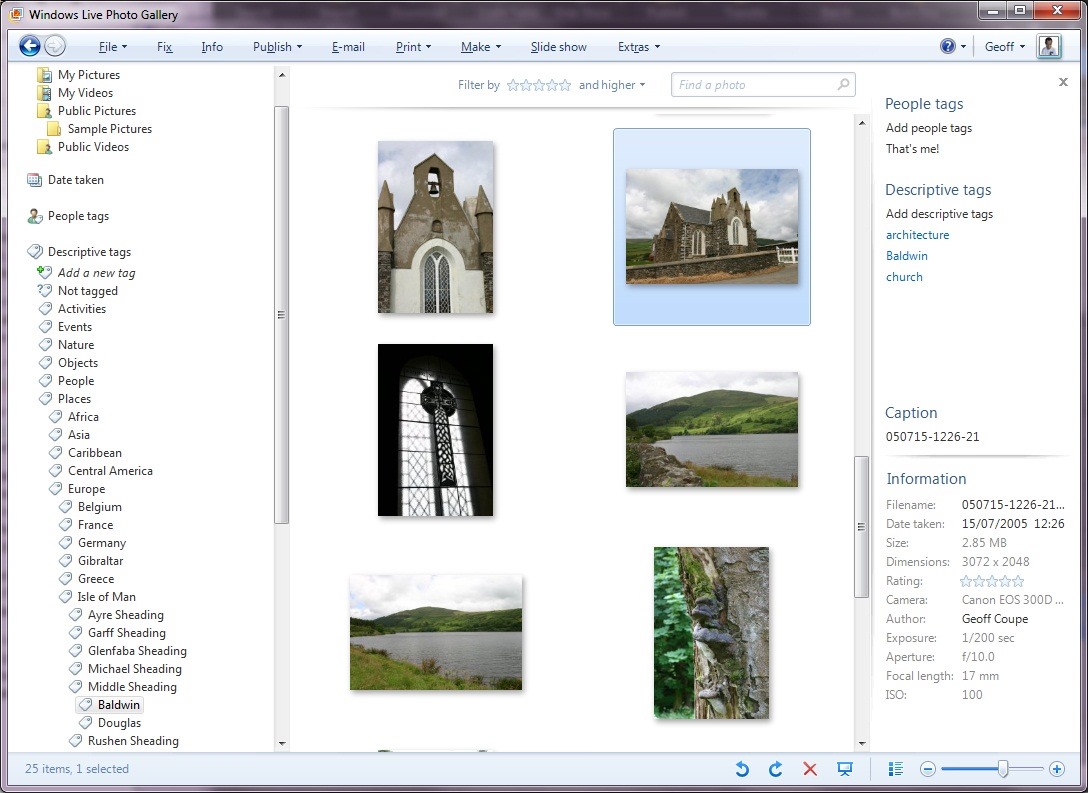
You can see, on the right of the screenshot, that the photo has three keywords (tags) associated with it: architecture, Baldwin, church. These are actually all structured keywords stored in the photo’s metadata as:
- Styles/design/architecture
- Places/Europe/Isle of Man/Middle Sheading/Baldwin
- Objects/built environment/buildings/ceremonial buildings/religious buildings/church
You can see part of the “Places” hierarchy being shown on the left of the screenshot, with the “Baldwin” tag being highlighted.
Because Windows Live Photo Gallery is easy to use for other family members, I’ve adopted this method of implementing a keyword hierarchy, i.e. using the “/” separator, in my main DAM tool: IDimager. Here’s a screenshot of IDimager showing the same photo:

You can see on the left that IDimager uses the same keyword hierarchy. And on the right of the screenshot, you see the keyword strings that are being stored in the photo’s metadata.
Now, the reason that both IDimager and Windows Live Photo Gallery have the same keyword hierarchy is that both tools are constructing it from the keywords stored in the photo metadata. And because they understand that the “/” is the separator character, they build up the same keyword structure on the fly as they read the photos in my collection. IDimager is the more flexible of the two applications, since you can define different separator characters if necessary. WLPG is fixed, and only understands the “/” character.
So, what happens with Lightroom 4?
Well, at first I thought everything was going to play nicely together. Just as with IDimager, Lightroom 4 has an option to choose the separator character that you want to use when reading the keywords in your photo metadata:
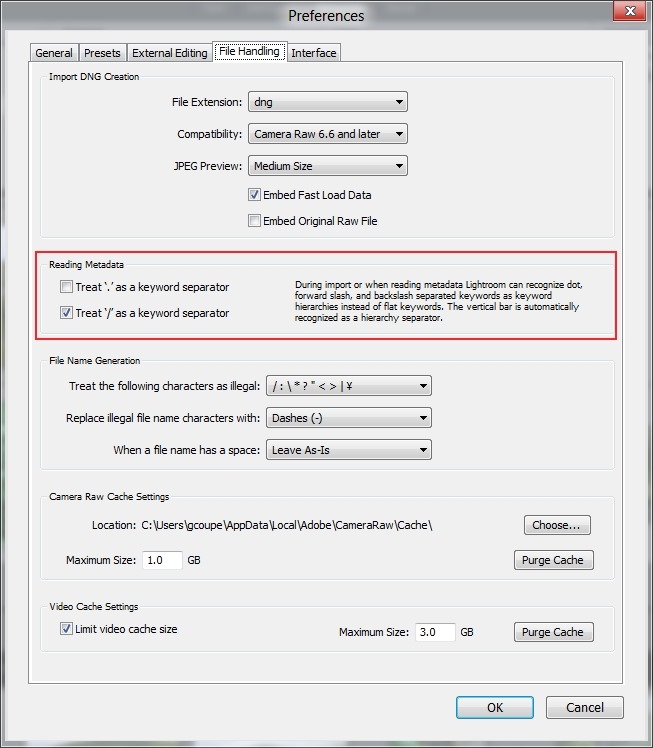
I’ve chosen “/” as the separator character – the same as for IDimager and WLPG.
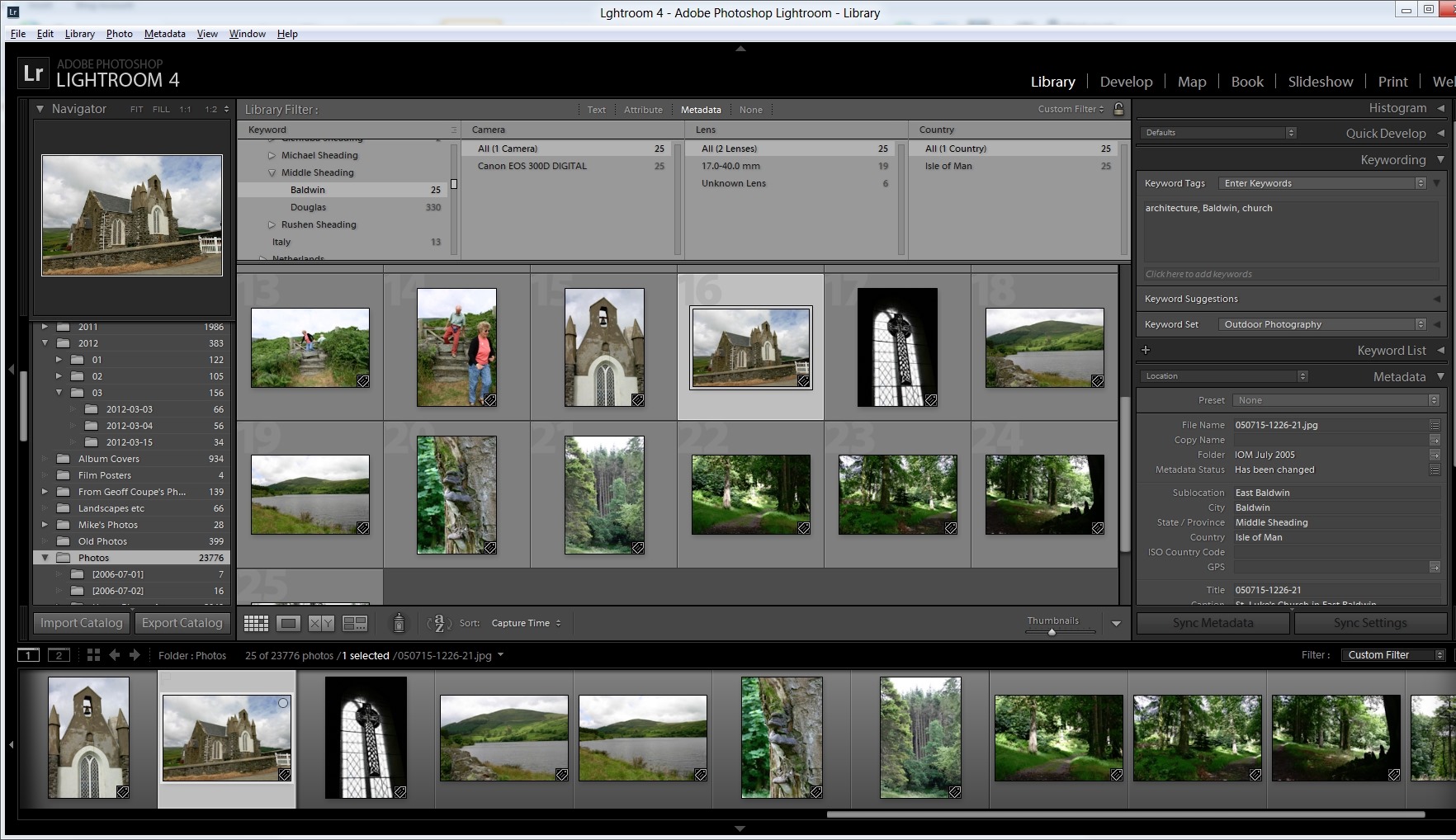
Sure enough, when I imported my photo collection into Lightroom 4, the keyword hierarchy got reconstructed to match the ones in IDimager and WLPG (click on the screenshot to see it full-size in a new window):
But then things started to go wrong.
First, I discovered that although this process of recognising the separator works when importing photos into the Lightroom 4 Catalogue, it doesn’t work when reading metadata from individual photos – even though Lightroom claims it does (see the text in the “Preferences” screenshot above).
I added the keyword “Christmas” to a photo using IDimager. This is a structured keyword, so the keyword string that was written to the photo’s metadata was actually: Events/holidays/Christmas. Lightroom 4 correctly saw that the photo had had its metadata altered, but when I used Lightroom to read in the photo metadata, instead of adding the photo to the “Christmas” keyword in the existing hierarchy in its Catalogue, it created a brand-new single-level keyword string: Events/holidays/Christmas – it did not treat the “/” character as a level separator.
Now, this, I think is a simple bug, and has been reported as such. However, much to my dismay, I discovered I was not out of the woods yet.
Up to now, I use IDimager to do all my keyword work. When a keyword in the IDimager Catalogue is assigned to a photo, IDimager will write out the structured keyword string into the photo, and WLPG will then pick up the change and modify its own Catalogue of tags automatically.
As a test, let’s use that photo of the church in Baldwin in the Isle of Man. Here you can see the current keywords assigned to it: architecture, Baldwin, church, as seen in Lightroom 4.
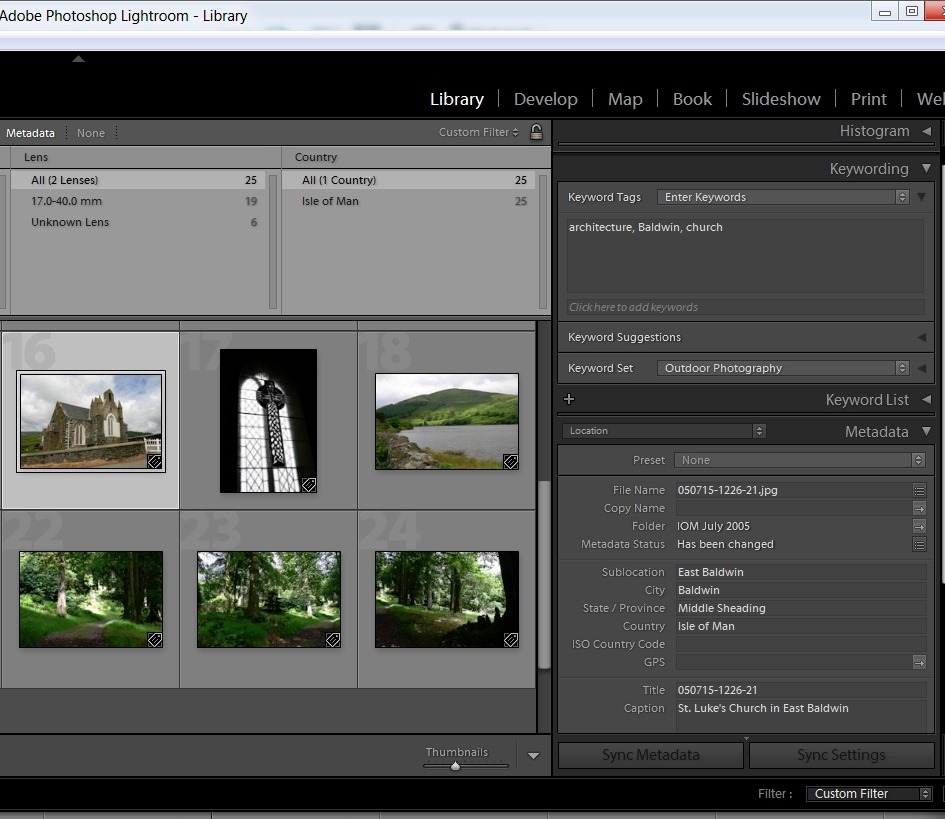
Remember, these are all structured keywords with a hierarchy. Lightroom, like WLPG, is just showing the lowest level of each keyword. Using IDimager, I can look at both the actual photo metadata (showing the full keyword strings), highlighted in red, as well as the Catalogue keywords/labels, highlighted in green:
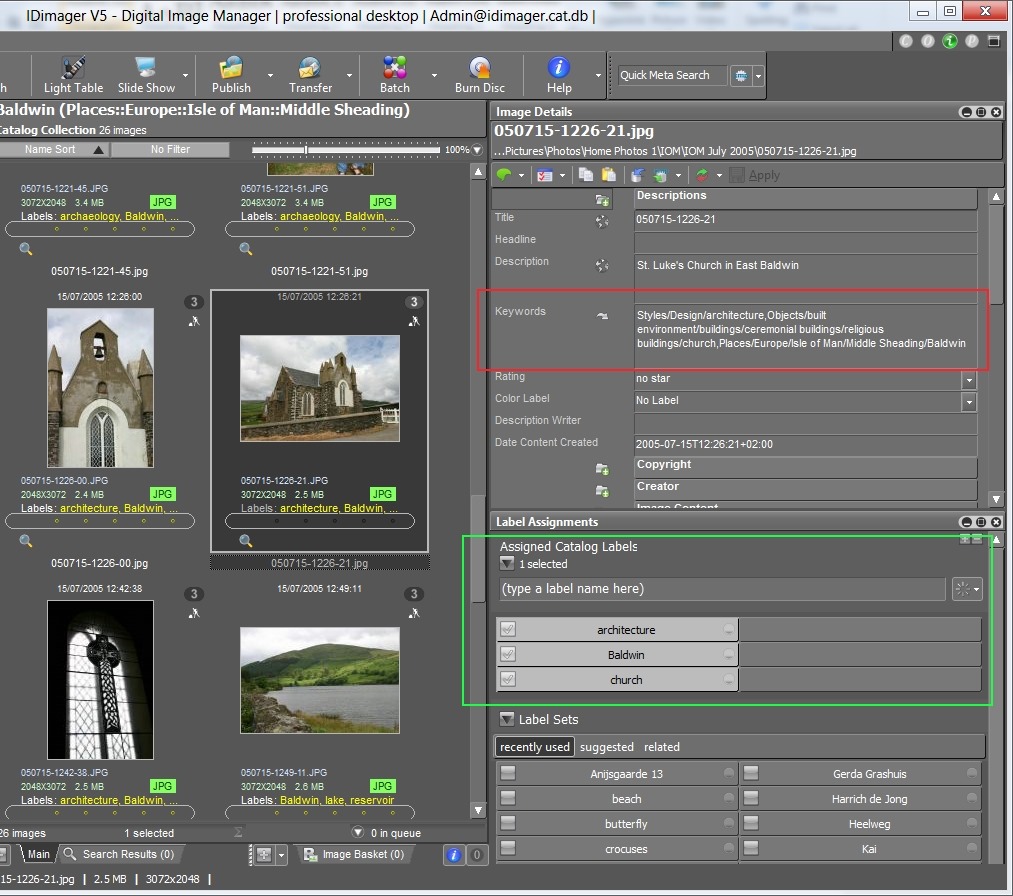
Now, let’s use Lightroom 4 to add a keyword to the photo, and then get Lightroom 4 to write out the changed metadata into the photo. Here, I’ve added the keyword wall:
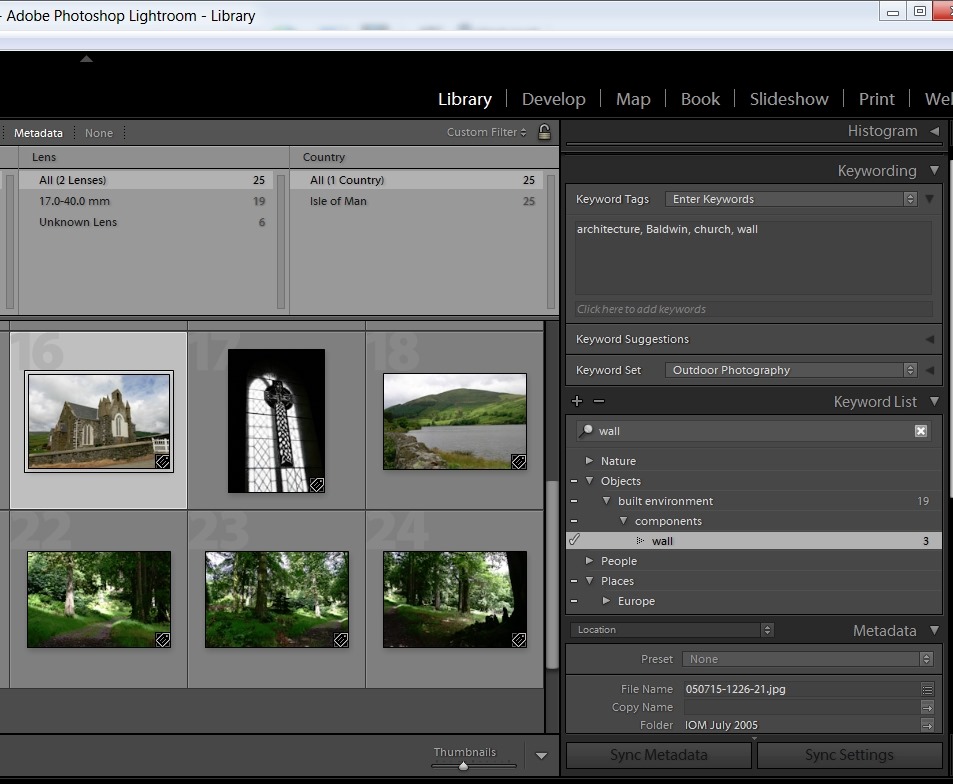
Looking at the photo in IDimager, what do I see:

Disaster! Lightroom has not written out a structured keyword string, but a series of individual keywords separated by commas. While IDimager has been able to sort the wheat from the chaff (the labels, highlighted in green, show that it knows that the structured keyword wall has been added), Windows Live Photo Gallery is not so clever.
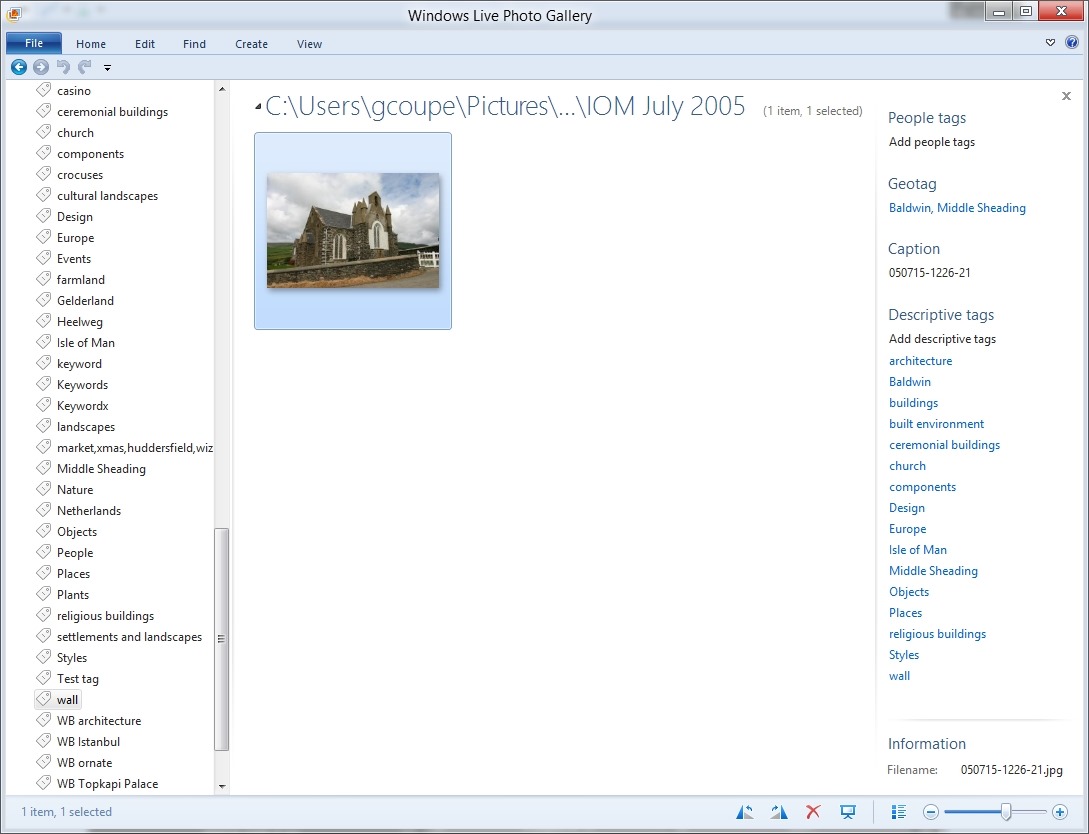
It is now showing all the individual keywords assigned to the image, and worse, it has created new, false, levels in the keyword hierarchy shown on the left in the screenshot. For example, wall is now shown as a top-level keyword.
So Lightroom 4 will read structured keyword strings using the “/” character as a separator from photo metadata, but, unlike IDimager, it will not write out structured keyword strings to photo metadata. Instead it writes single level keywords and additional, Adobe-proprietary, metadata to describe the hierarchy. This is, apparently, expected behaviour.
Well, it may be expected, but it’s pretty much useless to me if I want to keep WLPG as the easy to use browser for others in the family. If I use Lightroom 4 to do any metadata work, it will destroy the keyword structure that I use as far as other programs are concerned.
So where does this leave me, as far as the trial of Lightroom 4 is concerned?
I have to say that the Lightroom tools for editing and developing photos (especially those in RAW format) are far in advance of anything that IDimager or WLPG possess. So while I could continue to use IDimager for metadata work, I could supplement that with the image adjustment tools of Lightroom 4. Frankly, the other modules of Lightroom (Map, Book, Print and Web) are of little use to me; my other tools give me all that I require in those areas. So, are the image adjustment tools of Lightroom alone worth an investment of 130 Euros to me? If I were heavily into manipulating my images using the RAW format, then, yes, very probably. But at the moment? To be honest, I’m not sure.


 Geoff Coupe's Blog
Leave a reply to EddyKilowatt Cancel reply