
Welcome back to the next episode in what seems to be turning out to be a series of posts on my experience of using my first Windows 8 tablet – a Lenovo ThinkPad 2.
The last post took a look at some of the software applications that Lenovo has provided for their tablet, and I’ll continue that look in this post. I ended that post somewhat abruptly when I discovered how awful Lenovo’s tutorial on Windows 8 was. Not only was it shockingly poor, but it is also built for the Desktop version of Internet Explorer. One might expect that a Windows 8 tutorial would take advantage of the Modern UI of Windows 8. Clearly Lenovo don’t think so.
To see how it should be done, I think it’s instructive to take a look at HP’s tutorial for Windows 8. It is fully a Modern UI App – no forcing the hapless user to open the Desktop web browser here. This tutorial, while it was originally designed by HP for use on their Windows 8 systems, is now freely available in the Windows Store for download and installation onto any Windows 8 system:
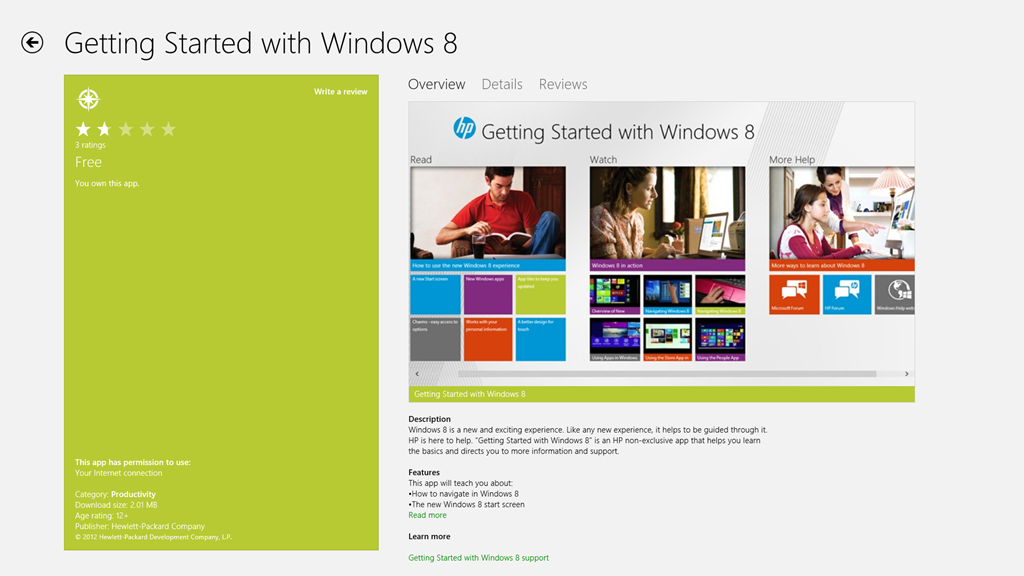
If you’re new to Windows 8, it’s worth taking a look at this tutorial.
OK, now onwards with the contents of Lenovo’s Companion App:

Ah, QuickLaunch turns out to be yet another Start Button replacement tool. I really don’t understand the attraction of these. I want to learn how to ride my bike, not go through life with training wheels clamped to it.
Next up is the trial version of Norton Internet Security that Lenovo installed on my ThinkPad. One of the first things I did was to uninstall it, and to revert to Microsoft’s Windows Defender, which is built into Windows 8. It’s sufficient protection, in my opinion.
Then we have a couple of adverts for two of Lenovo’s own utilities: Settings and QuickSnip. I’ll deal with them later.
Lenovo Blogs opens a scrolling view of links to Lenovo’s corporate blogs. Clicking on a link will open the blog post inside the Companion App, rather than switching to the web browser, which is a nice touch. E.g. the “8 Cool Things About The ThinkPad Tablet 2” post shown here:

Needless to say, the blogs are primarily a marketing tool, and present a rosy picture. I couldn’t help but comment on the above blog post to correct some of the rosiness.
The links to the Lenovo channels on YouTube and Twitter are further examples of marketing. Once again, these channels are displayed within the Companion App itself, rather than shelling out to a separate instance of the web browser. I suspect the same thing is supposed to happen for the Accessories tile, but all I got was a blank page and a plaintive message that there was “No matched content for this system”. There is in fact an online Lenovo shop in the Netherlands, so I suspect that once again the developers of the Companion App assume that we all live in the US of A.
And as I said in my last post, I have no interest in signing up for Lenovo’s Cloud Storage – I am already a satisfied SkyDrive user.
To summarise, the Companion App strikes me as primarily a Marketing tool from Lenovo. I think it can be uninstalled without any second thoughts. Right, that about wraps it up for the Companion App, now let’s take a look at the Settings App.
The Settings App is a bit strange on my system. I’m not sure whether it’s working as it is supposed to. If I look at the Settings App in the Windows Store, I see this:
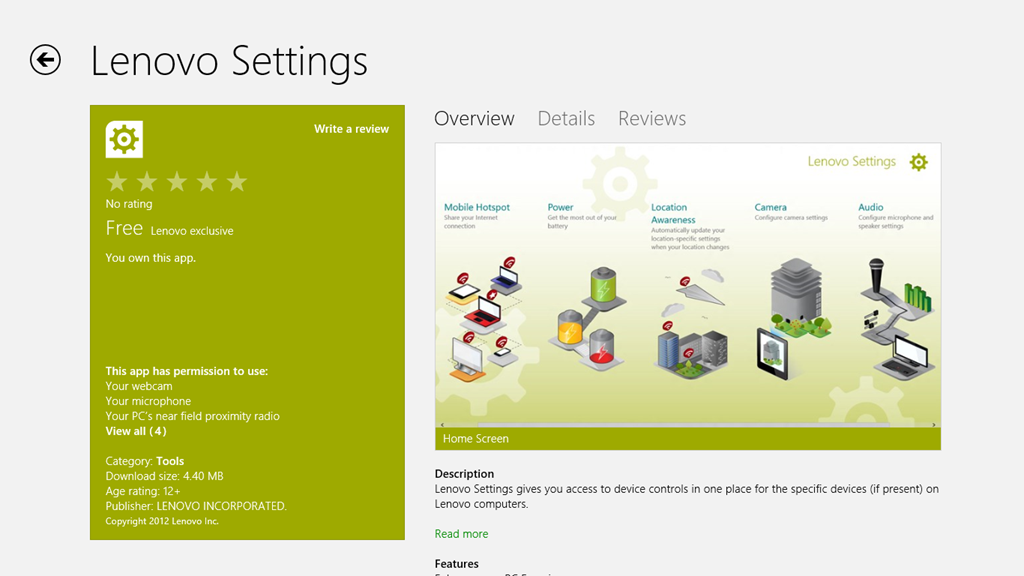
It shows a screenshot of the Settings App that contains five major sections:
- Mobile Hotspots (for internet sharing)
- Power
- Location Awareness
- Camera
- Audio
Yet, when I open up the Settings App on my ThinkPad, this is what I see:
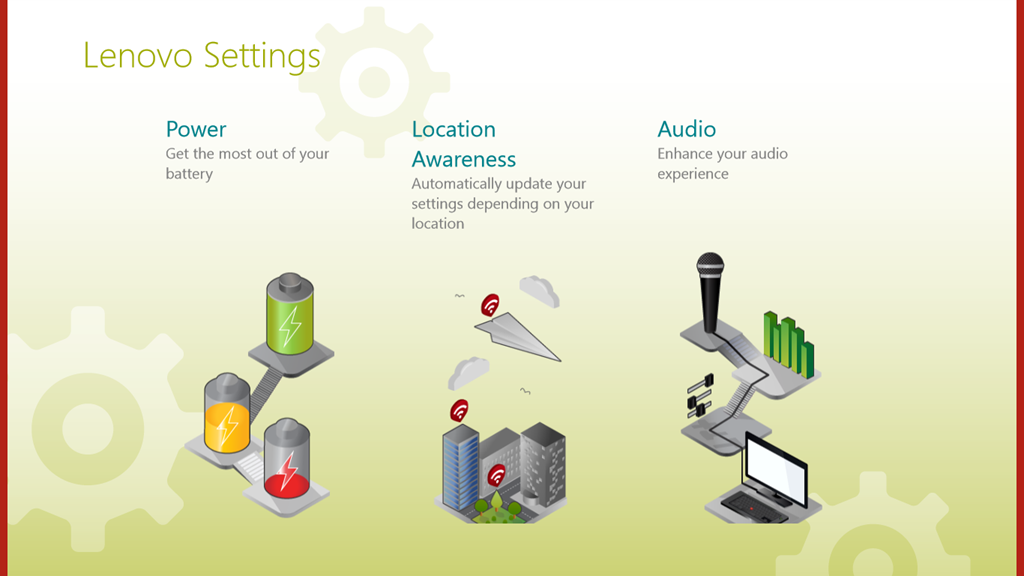
That is, just three:
- Power
- Location Awareness
- Audio
Yet, I have two cameras in the ThinkPad. Why aren’t the settings for these shown here? ‘Tis a puzzlement.
(Update 26 February 2013: Lenovo has just released a new version of the Settings App, and there is now an entry for the Camera Settings. They’ve also said that they are working on the Mobile Settings entry for the ThinkPad Tablet 2, so this should arrive at some point)
I suppose this App is OK, as far as it goes, but I think I would have liked to have seen the Power setting (in particular, the battery charge remaining) broken out into a separate tile that could be pinned to the Start Screen, or displayed in the Settings App tile itself. That would have been useful. Having to start up the Settings App, and then select the Power section – not so much.
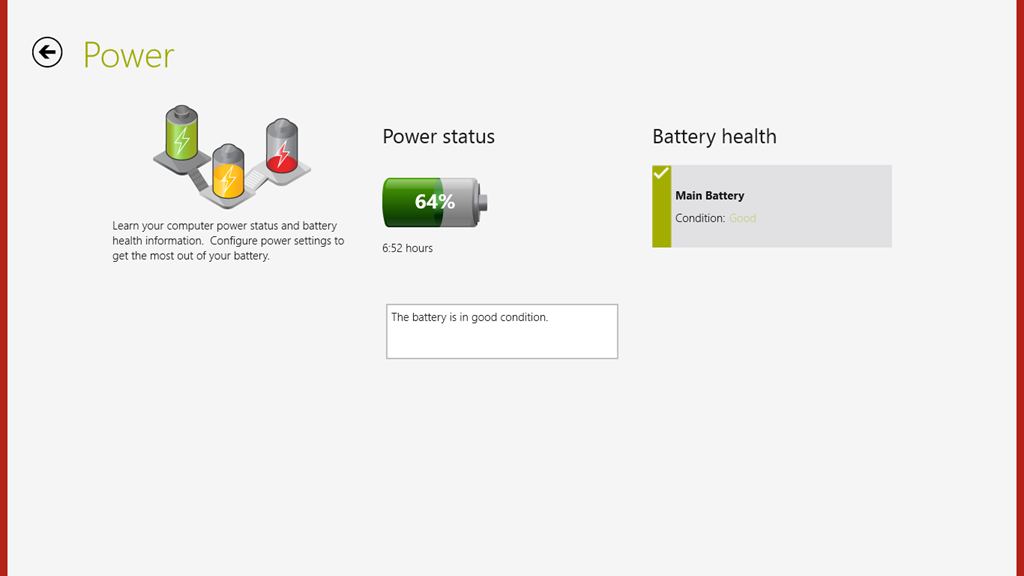
There’s not much more to say about this App – it’s pretty ho-hum as it stands.
The Support App opens with a horizontally scrollable window showing six sections:
- User Guide
- Services and Warranty
- System Health
- Hints and Tips
- Knowledge Base
- Discussion Forum
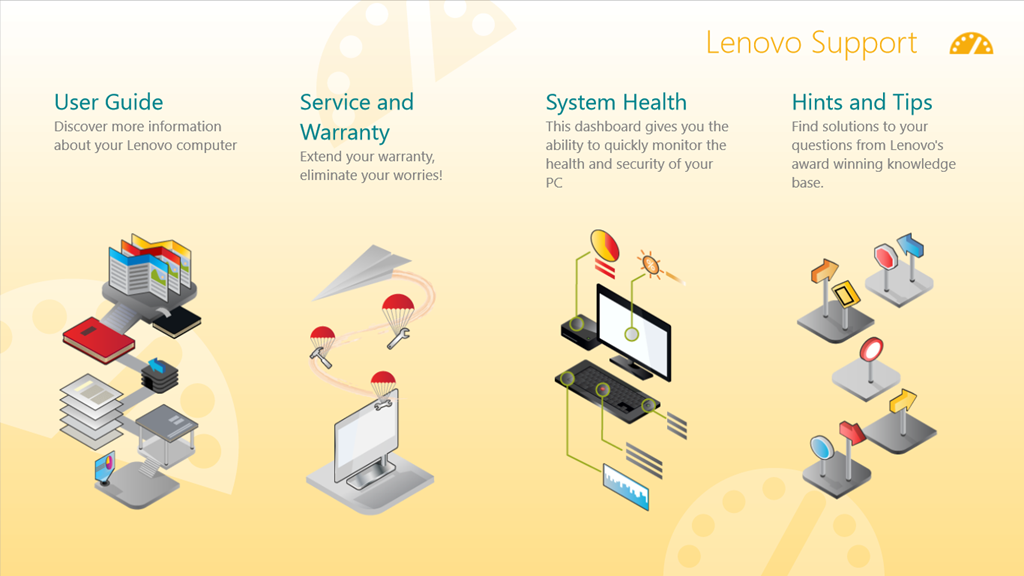

The User Guide section launches the PDF file of the user guide in the Microsoft Reader App. While it may be thought to be a little more clumsy to launch the Reader, rather than display the user guide directly within the Support App, this does have one advantage. The Reader App is able to use the Devices in the Charms bar to print out pages from the user guide. The Support App (just like all the other Lenovo Apps) does not support Devices. What is more, the Reader App, unlike Microsoft’s Modern UI Internet Explorer and Mail Apps, can print out a subset of pages from the guide.
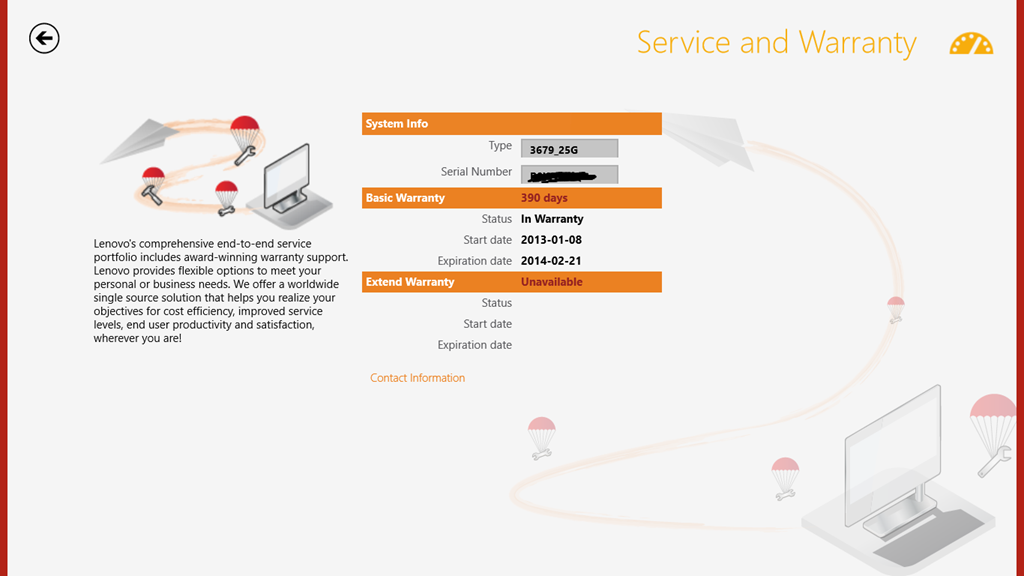
I do like the fact that the Service and Warranty section displays the exact state of the warranty on my ThinkPad. It tells me how many days I have left before something will inevitably break – just after the warranty runs out, or am I being overly cynical here?
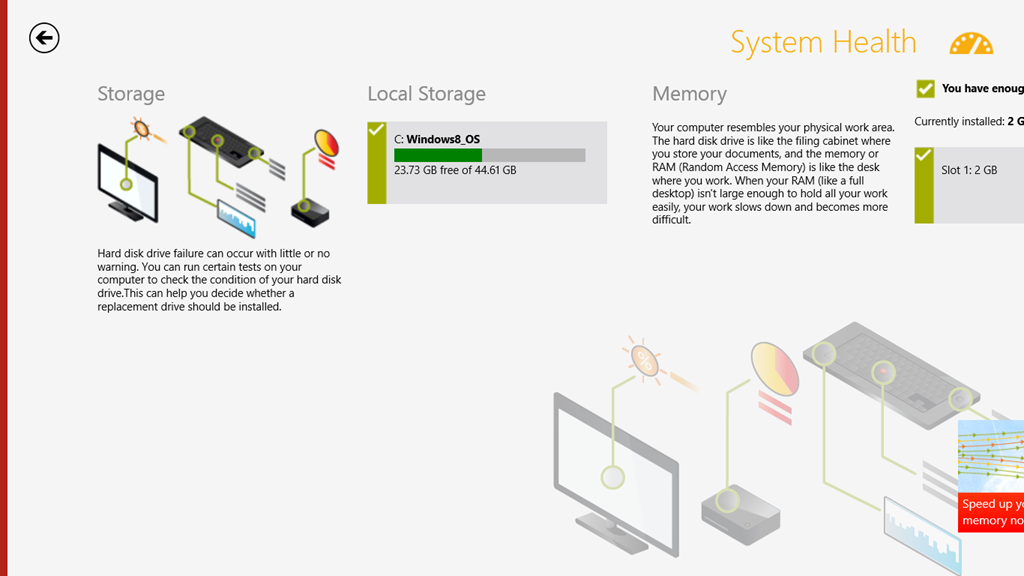
The System Health section is a little useful. It does indicate the amount of free storage and the amount of installed memory. However, while it tantalisingly states that “You can run certain tests on your computer to check the condition of your hard disk drive”, it doesn’t actually tell you what these tests actually are and where to find them.
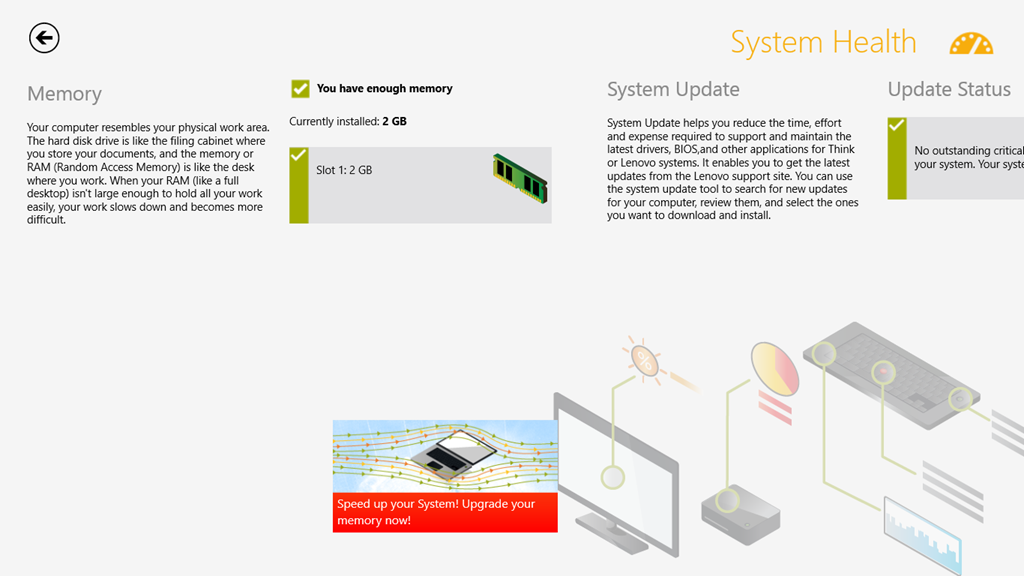
I’m also slightly disappointed that under the memory section, there is a clickable link that takes you to the online Lenovo shop where you can buy additional memory. Er, the ThinkPad 2 uses the Intel Clover Trail Atom chip – this only supports a maximum of 2GB memory, and more cannot be fitted. That link should never appear if this App is running on the ThinkPad 2.
Attention to detail is important, I think. It makes the difference between an acceptable user experience, and a great user experience. It also turns your users into active supporters of your products.
The rest of the sections (“Hints and Tips”, “Knowledge Base”, “Discussion Forum”) show information scraped from the various Lenovo resources and forums on the web. Like the Companion App, these are shown directly within the Support App itself, rather than shelling out to the web browser. For a quick overview, this is probably OK, but frankly, if I want to read the Lenovo ThinkPad forums, it is far easier to read them directly in a web browser. I can also interact, by replying to threads or making new ones. I cannot do this from within the Support App.
In summary, I find the App OK. It is good-looking, but without much depth. However, it can stay on my system.
The QuickSnip App is a simple image cropping tool, which uses the Share function in the Charms bar to pass on cropped images:
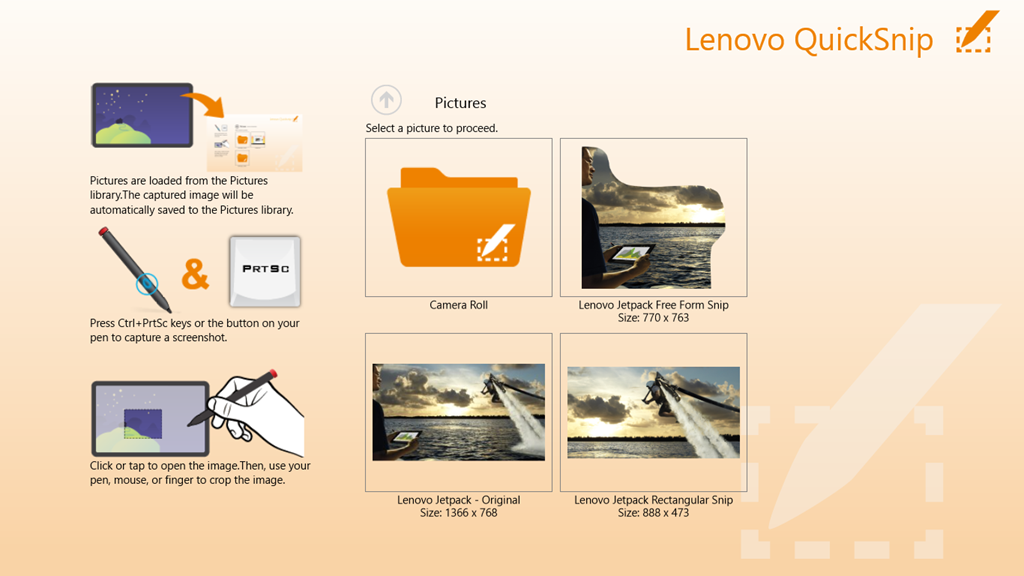
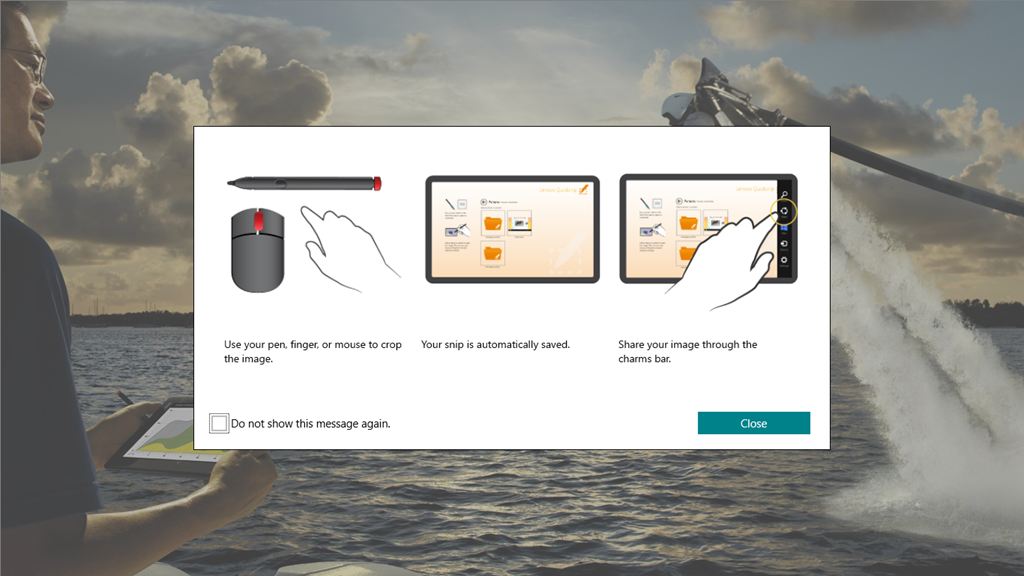
This App from Lenovo is like the majority of the current crop of Modern UI Apps provided by Microsoft: almost entirely useless.
I’ve just uninstalled it from my system.
Overall, I cannot say that the Lenovo Apps have provided a great experience. I still think that the ThinkPad 2 hardware is basically a solid product, and I’m still very happy with my purchase. But I don’t think I’m head over heels in love with it. Perhaps I’m just too rational – I doubt whether I could ever be an Apple fanboi either.


 Geoff Coupe's Blog
Leave a reply to Geoff Coupe Cancel reply