
My last post looked at the hardware and performance of the new Lenovo Yoga 900. This post takes a look at the experience of the initial setup of Windows 10, and the software bundled with the Yoga 900 by Lenovo.
Windows 10
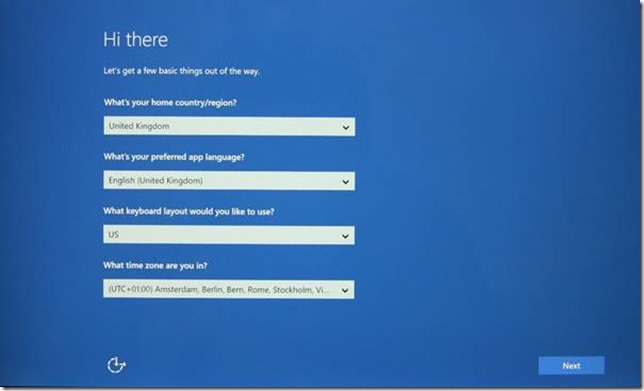
The Yoga 900 comes with Windows 10 installed and ready to be set up when the Yoga 900 is first turned on. “Setting up” involves choosing the language(s) you want Windows 10 to use, creating a user account, and connecting to a WiFi network. I’m based in the Netherlands, and Microsoft’s Cortana is not (yet) available for the Dutch market. Since I wanted to try out Cortana, I set up Windows 10 to use British English, and set the region to the UK:
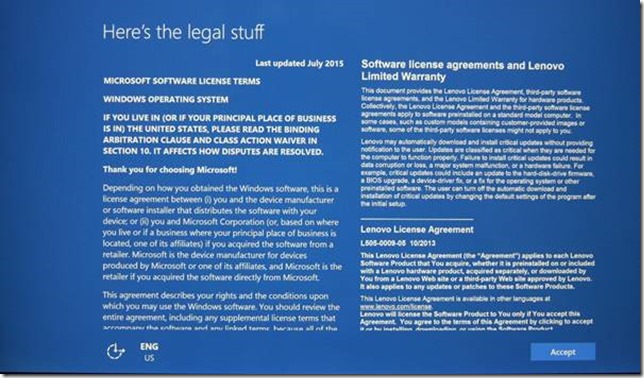
There is, of course, the legal stuff to accept…
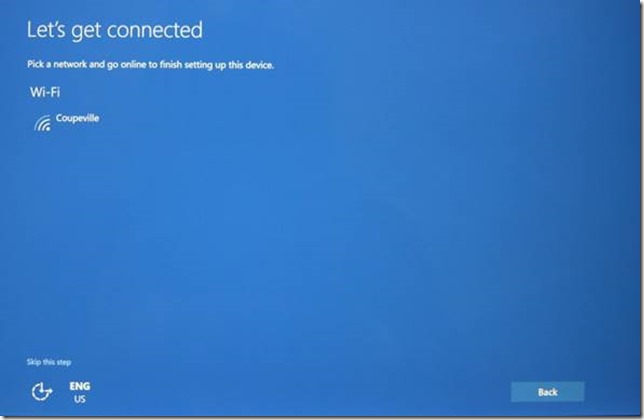
The next step is to connect to a Wi-Fi network. While this step can be skipped, and network connections set up later, it’s best to do it now for two reasons. First, critical software updates to Windows 10 that were issued after the operating system was installed during the manufacture of the Yoga 900 can be immediately installed, and second, if you want to create a Microsoft account during set up, it’s easier to be connected to the internet for this step.
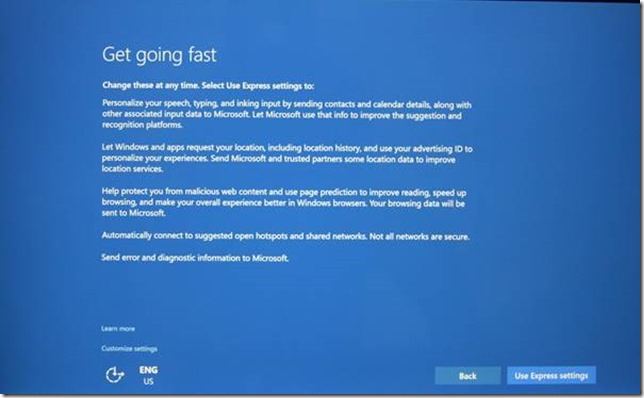
Once connected, Windows 10 will offer to use the Express settings for the fastest setup, but you can elect to customise any of the defaults if you so wish.
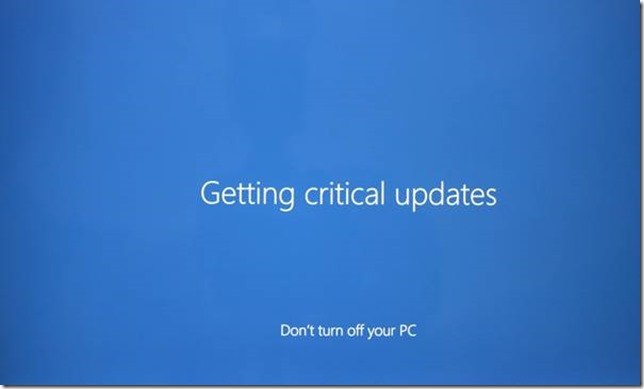
At this point, if you have set up the network connection, Windows 10 will download and install any critical updates for you.
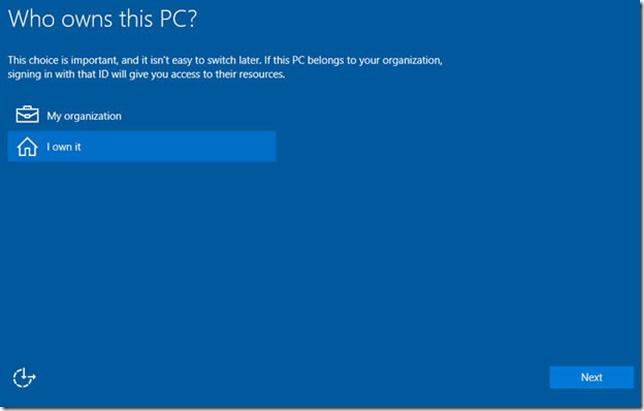
Then comes an important question: “who owns the Yoga 900?”. The choice is between you or the company/organisation you work for. Your answer determines whether the Yoga 900 gets automatically joined to the company’s IT network to use the systems there, or, if it is a machine for your personal use, it will be set up for you. Your answer determines which apps, settings and permissions will be used during the rest of the set up process.
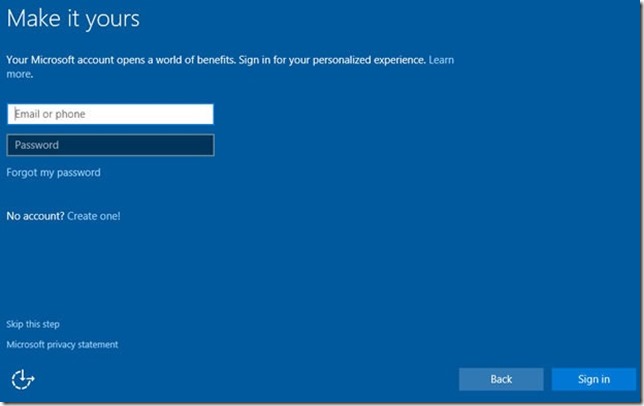
Assuming that it is your Yoga 900, then the next step is to create your account on the machine. If you already have a Microsoft account, used on other PCs and/or Windows Phones, then enter your details here. If you don’t yet have a Microsoft account, you can use this step to create one. You can also elect not to have a Microsoft account associated with this machine at all, but use a “local” account that is unique to this Yoga 900. You do this by choosing the “skip this step” option.
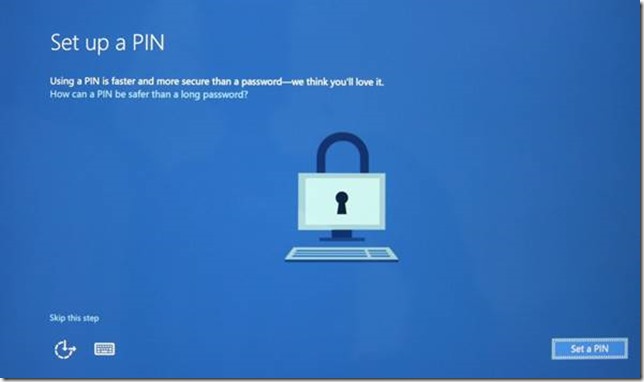
The last step in the process is to choose your PIN, which is a faster way to log in than typing in a long, strong, password (you do have a long, strong, password, don’t you?).
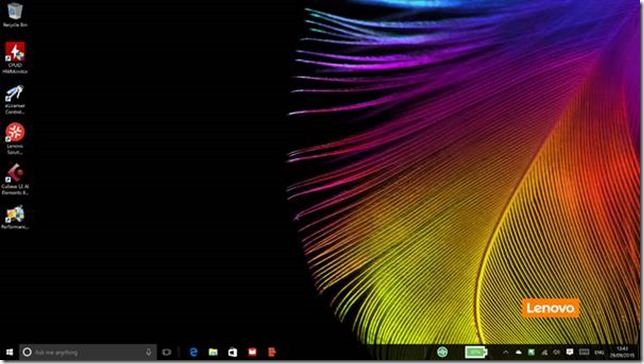
And now you’re all set; Windows 10 will set up your default apps and bring you to the desktop:
The Start menu will probably look something like this, with a set of default apps:
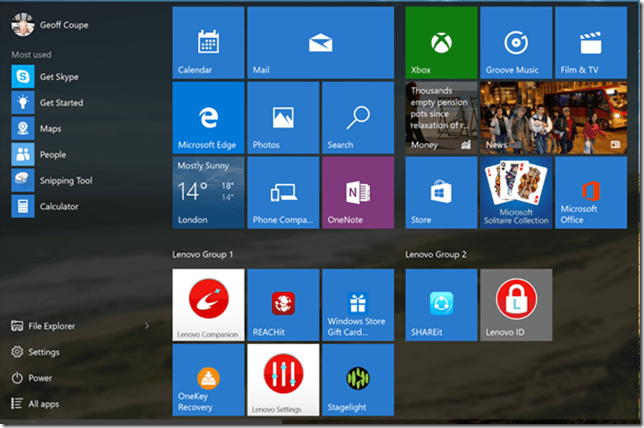
These will be a mixture of apps provided by Microsoft and those provided by Lenovo for the Yoga 900. Which brings me to:
Lenovo Software
It’s no secret that I’m not a fan of the OEM practice of bundling a long list of software applications in with their machines. Lenovo is well-known for doing this. For the most part, I find such applications to be of limited, if not questionable, value. The first thing I usually do on setting up such a machine is to remove all such non-essential software. To be fair to Lenovo, they are trying to clean up their act, and the Yoga 900 comes with the shortest list of bundled applications that I’ve seen so far from them. Looking in the Windows 10 list of installed programs, I found the following:
|
Application Type |
Application Name |
|
Lenovo Applications |
Lenovo Accelerator Application Lenovo Battery Gauge Lenovo Companion 3.0 Lenovo ID Lenovo Photo Master Lenovo Product Demo Lenovo QuickOptimizer Lenovo REACHit and SHAREit Lenovo Settings 3.0 Lenovo Solution Center User Guide |
|
Security & Productivity
|
McAfee LiveSafe (trial) Microsoft Office 2016 (trial) |
Having a separate application for the User Guide seems somewhat pointless, as the User Guide is now integrated into the Lenovo Companion.
Looking at the list of Lenovo applications, there’s a couple that I haven’t the faintest idea of what they do, and one that I can guess at. The unknowns are:
- Lenovo FusionEngine
- Lenovo Utility
It would be nice to have a clear statement from Lenovo as to what these applications are intended to achieve.
Lenovo Experience Improvement
My guess is that the Lenovo Experience Improvement application is collecting and reporting to Lenovo non-personally identifiable statistical data, for example:
- both the configuration and region when the system is first activated,
- ongoing information on how often key components are used.
Not everyone is happy with this sort of data-gathering, and those that aren’t can simply uninstall this application. However, it doesn’t overly bother me, and many manufacturers are doing it these days – even my printer is phoning home and reporting statistics. This kind of information helps manufacturers better understand how their products are being used and perform in the field, and this helps influence design decisions for future product generations.
Lenovo Battery Gauge
This is actually a useful extension to the standard battery control of Windows 10. It replaces the standard Windows 10 battery notification in the taskbar with a (somewhat clumsy) Lenovo design.

It’s useful, because it gives access to a “conservation” mode of charging, where the battery is only charged to 55-60%. This maximises the life of the battery. This mode is not available in standard Windows 10. However, the design of the Lenovo control could be improved. If the icon is touched or clicked, the full Lenovo Settings app is started, and the power section shown:
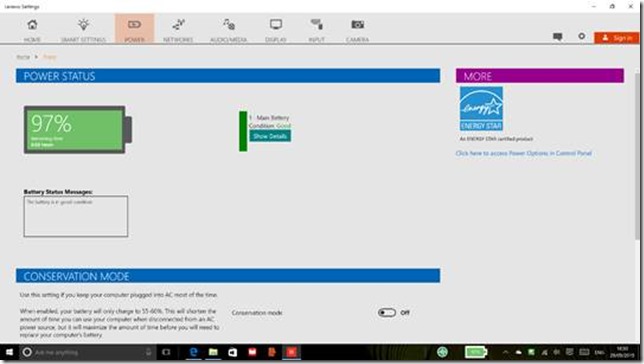
This uses a lot of screen real estate to display relatively little information. It’s also not obvious that not all the power controls are being shown here. You need to scroll down to see additional options, but there is no indication that the page is scrollable until you try to interact with it. I’ll have more to say about the Lenovo Settings app in a moment. But first, here’s how the same information is presented on the Yoga 3 Pro:
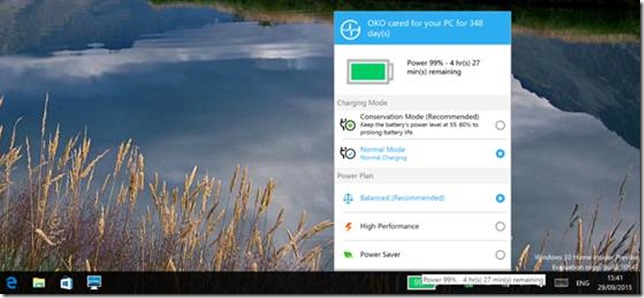
This is a much more compact method of displaying options to the user, and personally, I much prefer this approach to that of the Lenovo Settings app.
Lenovo Settings
In an ideal world, the controls for hardware specific features would be integrated into the Windows 10 Settings screens directly; everything would be accessible via the Windows 10 settings, which would be extended as required by specific hardware or features. In the days of Windows 7, this was done by extending the Control Panel applets with extra tabbed input panels.
Now, in Windows 10 as it is at the moment, we have a bit of a dog’s dinner, where some settings are only accessible via the Lenovo Settings app, some are exposed as extra tabs in traditional Control Panel applets (for example, the Synaptics Touchpad settings), and some are directly accessible via Windows 10 Settings.
The Lenovo Settings app has its own manner and style of user interface. It would be much more preferable if it followed the same style guide as Windows 10 Settings. That would help it to blend in with the “house style” of Windows 10, and not stick out like a sore thumb.
In some cases, there are clickable links on the Lenovo Settings pages that invoke traditional Control Panel applets. Here, for example is the input settings page, with links under the “More” heading to invoke the mouse properties window or the Pen and Touch window.
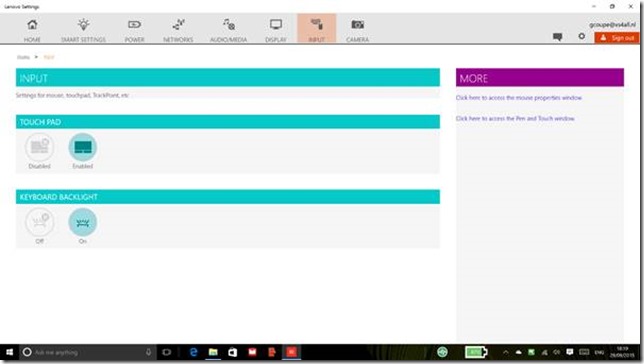
Clicking on the “mouse properties” link should bring up the Synaptics tab of the traditional mouse Control Panel applet:

Well, it is invoked, but unfortunately the window is not brought to the foreground, and if the Yoga 900 is in tablet mode there is no indication on the Taskbar that the window even exists. This is not a good user experience.
Another problem area in the Lenovo Settings app is that the settings do not always reflect reality. It is very easy, for example, to get into the situation where the Settings app claims that the keyboard backlight is “on”, when in fact it is “off” – and vice versa. Setting features via the keyboard seems to be independent of setting them via the Settings app, when good user interface design would seem to demand that all controls should be in lockstep and display the current actual settings at all times.
Lenovo Companion
- The Lenovo Companion app brings together the following areas:
- Support (warranty, technical support, and community support)
- System health (battery, storage, memory, and hardware diagnostics)
- System update (automatic download and installation of Lenovo-specific updates)
- Technical news, Lenovo-specific articles and news on apps made by or offered by Lenovo.
I have found that I really only use the Companion app to check for system updates. For community support (i.e. accessing the Lenovo Forums and Knowledge Base articles), I will go directly to the Forums via a Web browser – it’s far faster and easier to use than accessing them via the Companion app.
Lenovo Photo Master
This appears to be an app developed for Lenovo by CyberLink. It allows you to browse your photo collection held on the Yoga 900, and to import photos to that collection from online services such as Flickr, OneDrive and Facebook.
It is one of the many alternatives to the built-in Photos app of Windows 10. Given that the Photos app is still very limited in functionality (but supposedly still being developed and extended by Microsoft), many people seek out an alternative.
Unfortunately, Photo Master is itself fairly limited. It does not support descriptive tags, held in photo metadata. So you can’t search for photos by using tags[1], or manage the tags in your photos. It does support tagging of people’s faces in photos – it can identify a face (but not who the person is), and you can then add a name to the face. It stores this information in the photos as metadata. However, it uses Microsoft’s proprietary People tag schema to do this. This schema was introduced by Microsoft back in Windows 7. Since then, an open standard for face tagging has been developed by the Metadata Working Group, and implemented in photo products such as Google’s Picasa, Adobe’s Lightroom and IDimager’s Photo Supreme. It’s a little unfortunate that Lenovo has not chosen to use this open standard, but has gone with a Microsoft proprietary approach (that itself seems to have been dropped by Microsoft since 2012).
Lenovo QuickOptimizer and Lenovo Accelerator Application
This was a separate application in the Yoga 3 Pro (OneKey Optimizer), but now it appears to have been split into these two components which are in turn integrated into the Lenovo Companion app. There is also an Optimizer icon placed on the Taskbar which can invoke two pop-up controls; one to launch the “full optimizer” (which invokes the Companion app opened to the “Optimize your IdeaPad” section) and an “App acceleration” control allowing you to choose which applications you wish to accelerate.
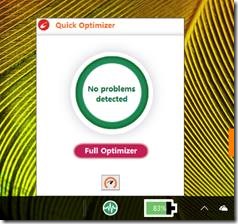
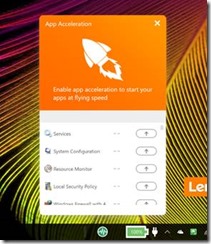
I have to say that I’m somewhat uneasy about using the app acceleration control in particular, especially after reading this review of the original Optimizer app, with its rather damning conclusion. I’ll be giving these applications a miss.
Lenovo Solution Center
This is another utility that previously led an independent existence, but which now can be invoked via the Companion app in the “Hardware Scan” section. Unfortunately, it’s an application designed for the traditional desktop environment, and is not aware of desktop scaling. The result being that it displays in a small window lost on the Yoga 900’s desktop (which here I have set to 200% scaling, rather than the recommended 250%. If it were to be at the recommended setting, then the LSC window would be even smaller):
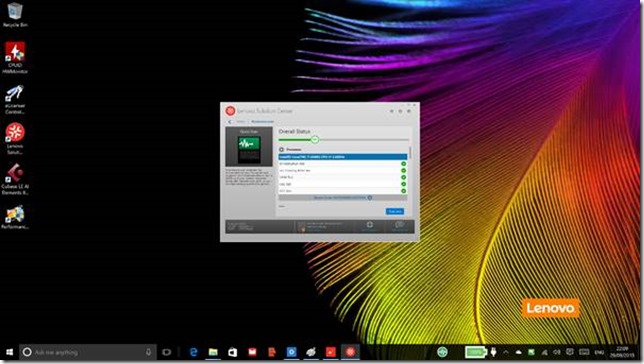
LSC needs to be brought up to date for today’s world of high resolution desktops.
Lenovo REACHit and SHAREit
I’m not the target customer for these two apps. I live almost entirely inside the Microsoft ecosystem. I don’t own any Apple or Android products, and I use OneDrive, not DropBox or any other cloud storage service. Via OneDrive, I can easily share information with friends and family even though they may live equally exclusively in Apple or Android ecosystems. So REACHit and SHAREit seem to offer me no added value. As a result, I don’t use them.
OneKey Recovery
This is a system image backup and recovery utility. It can be invoked from within Windows, or directly from the BIOS via a physical button (recessed) on the right hand side of the Yoga 900. It can be used to take backups of a running system and restore them, or restore the Yoga 900 to its original factory state, using a recovery image stored on a hidden disk partition.
Windows 10 (and Windows 8.1 before it) also has the ability to restore the Yoga 900 to its original factory state, so OneKey Recovery is no longer the essential utility that it once was. However, in the event of a complete failure of Windows, it can be a lifesaver, offering a restore to Windows 10 in its factory state at the push of a single button.
Software summary
With a few exceptions (e.g. the Battery Gauge), I remain somewhat unconvinced about the value-add of Lenovo’s software. For the most part, however, you can choose whether to use them or not, and uninstall them if you so wish.
[1] Windows 10 does know about photo metadata, and you can use File Explorer to search on photo tags.


 Geoff Coupe's Blog
Leave a reply to Andy_Lenovo Cancel reply