Reflections on life at “De Witte Wand”…

Category: Computers and Internet

  • Botanicula

    The makers of Machinarium have come up with a new game: Botanicula. I have a fondness for Adventure Games, and I quite liked Machinarium, although all the point-and-clicking did get a bit tedious at times.

    With Botanicula, although it’s also a point-and-click game, it never got tedious. That’s probably because of the strength of the story, the game’s charm and its inventiveness. Playing the game brought a smile to my face, as well as a couple of laugh out loud moments.

    The story is a quest of five unlikely heroes, and their attempt to plant a new tree.

    Botanicula artwork - Heroes

    They travel through fantastical landscapes and meet with over one hundred bizarre creatures.

    4_botanicula_1280x1024

    10_botanicula_1280x1024

    Highly recommended.

  • Designing an Online Ordering System

    …or: how not to do it.

    If you’ve ever worked in computing, as I have, then this story should cause chills to run up your spine. If it doesn’t, then, trust me, you’re in the wrong job.

  • “Features Have Changed”

    Oh gawd, here’s yet another example of Microsoft opening its mouth in order to change feet.

    We happy band of Windows Phone owners (a select few, I grant you) have had a number of ways to purchase Apps for our phone. We can browse the Apps Marketplace via our phones, via a web browser, or via the Zune software running on a PC. I say “had”, because as of yesterday, Microsoft has pulled the ability to browse the Apps Marketplace from the Zune software.

    Microsoft announced the change (on the same day as they implemented it) on their Windows Phone Blog. According to them, they’ve done it because their telemetry data tells them that only a minority of Windows Phone owners use the Zune software to browse the Apps Marketplace. That’s as maybe, but Microsoft could really have done a far better job of communicating the change than merely announcing it on a blog, which is probably read by a tiny minority of Windows Phone owners.

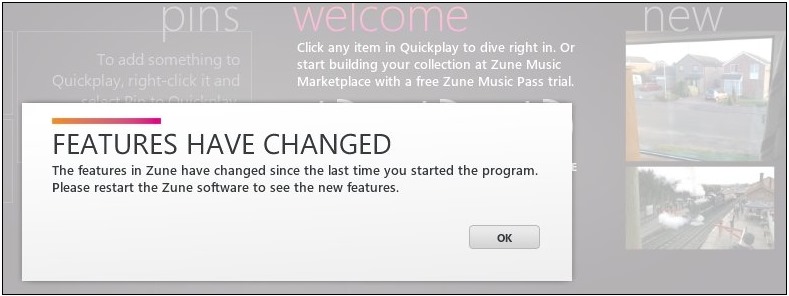
    Let’s imagine, for a moment, that you are one of the people (like me) who uses the Zune software to browse the Apps Marketplace. When you started up Zune on your PC yesterday, this is what you would have seen:

    Zune 5

    No information whatsoever about what the “new features” are, and you might be forgiven for thinking that the “new features” are something that has been added, when in fact something has been removed.

    You might think that it would have been far better to have had an explicit message communicating the fact that the ability to browse the Apps Marketplace has been removed, and to have had a link to the Apps Marketplace on the web, as well as saying that owners can also use their phones directly to browse.

    A number of people (myself included) have commented on the blog post to the effect that the communication of this change could have been handled far better. I see that the author of the post (Mahzar Mohammed) has responded in the comments, but he is still prattling on about the necessity to make the engineering changes. He doesn’t acknowledge (or perhaps didn’t even realise) that the bland “Features have changed” message in the Zune software was a terrible way to communicate the changes to users.

  • Left Hand, Meet Right Hand…

    Sigh, this is yet another rant about Microsoft…

    You may recall that I am concerned about the limitation in Microsoft’s Zune/Xbox Live/Windows Phone service account whereby you can’t change your country of residence if you move. You also can’t delete your Zune/Xbox Live/Windows Phone account without first deleting your linked Windows Live ID.

    I don’t want to delete my Windows Live ID (which I’ve had for more than 10 years), but I’d be perfectly happy to delete my Zune/Xbox Live/Windows Phone service account in order to start afresh with a new one.

    I’m not the only one so concerned, and there’s also an online petition about the issue.

    Last month, I wrote to Microsoft about this issue, asking that they give consideration to introducing the ability for consumers to delete a service account themselves, without also first having to delete the Windows Live ID linked to that account.

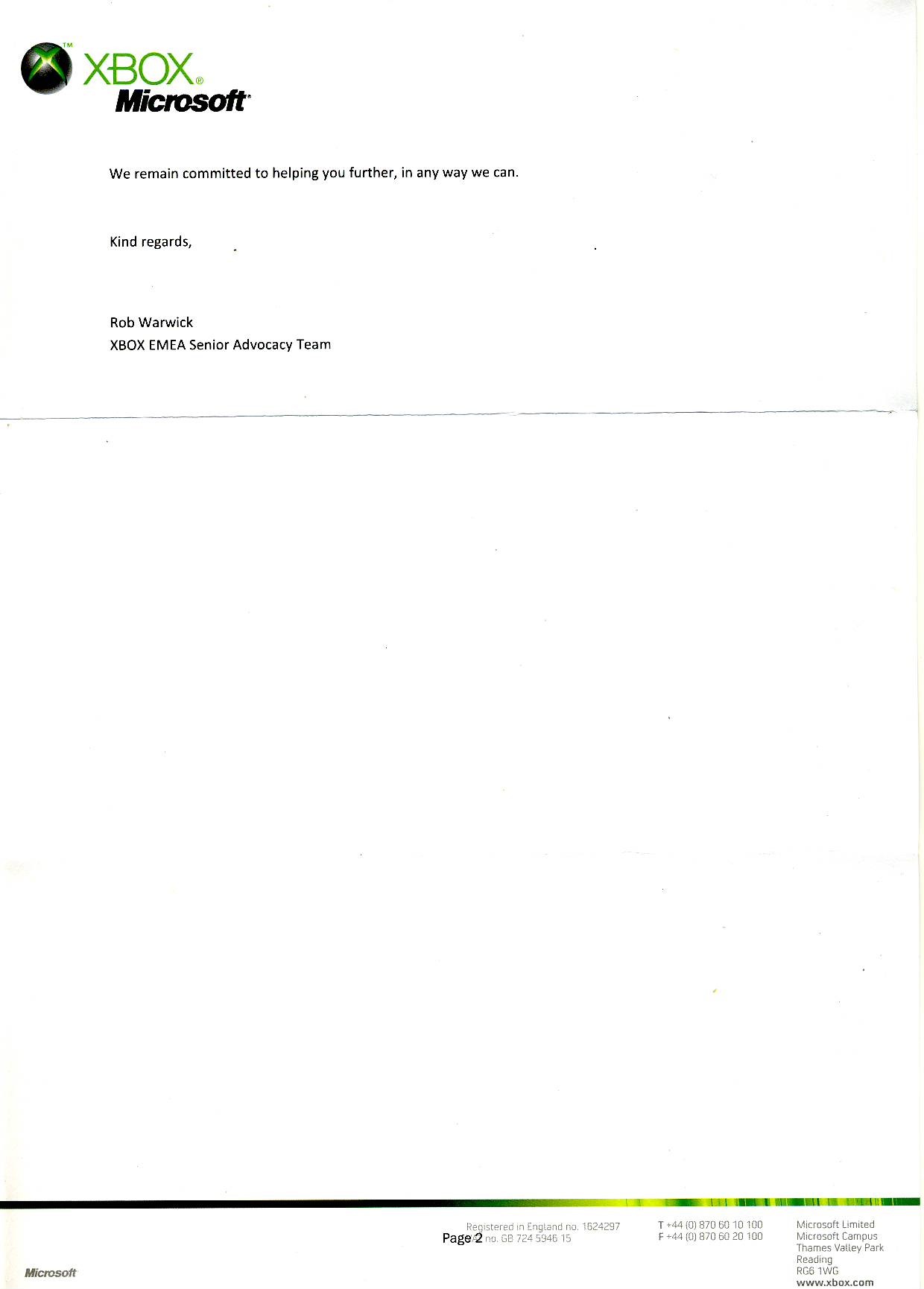
    Today, I got a reply from Rob Warwick, XBOX EMEA Senior Advocacy Team. It’s reproduced below (click for full size versions):

    Microsoft Reply scan

    Microsoft Reply scan0001

    I draw your attention to the bit where he says:

    …despite the fact a Windows Live ID needs to be linked to both these accounts, you can cancel either/or both Xbox Live and Zune without deleting the linked Windows Live ID.

    There will be a reply in the post to Mr. Warwick tomorrow. In part, it says:

    I am afraid that either you, or Microsoft’s Zune/Xbox Live Customer Support Teams, are very mistaken in this matter.

    I have tried, on two separate occasions, via online chats with Zune/Xbox Live Customer Support to get my Zune/Xbox Live service account deleted without deleting the linked Windows Live ID. On both occasions, the Microsoft representative flatly informed me that this was impossible, and that my Windows Live ID would have to be deleted first. Only then would the linked Zune/Xbox Live account be deleted.

    Their advice was to create a second Windows Live ID, and then create a new Zune/Xbox Live service account. This is also the answer that is frequently given in the online Microsoft Answers forums.

    Nowhere has it ever been stated that it is possible to cancel either/or both Xbox Live and Zune without deleting the linked Windows Live ID as you claim. In addition, Microsoft’s online self-help account management does not currently offer this option.

    Therefore, with regret, I state that your answer has completely failed to clarify the state of my accounts and the options open to me. I look forward to your further help in resolving this matter.

    Yours sincerely,

    Geoff Coupe

    Left hand, meet right hand…

  • Another Facepalm Moment

    Sigh. Microsoft has announced the versions of Windows 8 that will be available later this year, and I am once again shaking my head trying to understand what on earth they were thinking about when they came up with the scheme.

    Let me explain.

    At the moment, there’s a component that ships as standard in most versions of Windows 7: Windows Media Center. Most people don’t even know it’s there, which is a pity, because it’s a pretty good piece of software for turning your PC into a combined Entertainment Center for TV, movies, music and photos, and also provides DVR functionality for record and playback of TV. I’ve used it to set up our HTPC, which uses our TV to display our digital media (movies, music and photos).

    For the upcoming versions of Windows 8, Microsoft has done two things:

    1. Removed Windows Media Center from being a standard component shipped with Windows, to being an Add-on component (the “Media Pack”) that will be charged for separately.
    2. Prevented the Media Pack Add-on from being available to the consumer version of Windows 8, but only making it available for Windows 8 Pro.

    Now, I can understand Microsoft’s rationale behind (1). There are third party licensing costs involved (e.g. Dolby Digital codecs) in Windows Media Center, and by spinning the Media Pack off to be a separately charged item means that Microsoft can reduce the cost of Windows 8 slightly.

    But I really fail to understand why Microsoft are forcing those of us who are interested in buying the Media Pack to upgrade to Windows 8 Pro, instead of being able to continue with the consumer version of Windows 8. After all, Windows Media Center runs on Windows 7 Home Premium (the consumer product) today. It does not require Windows 7 Professional. Looking at the price differentials of Windows 7 Home Premium and Windows 7 Professional upgrades for XP and Vista today, I suspect I will have to pay almost twice as much for Windows 8 Pro as I would for Windows 8.

    The seven additional features of Windows 8 Pro are of absolutely zero interest to me, and have no bearing (as far as I can see) on the running of the Media Pack. Yet I, and others like me, who would consider upgrading to the Windows 8 version of Windows Media Center are faced with double costs: first upgrade from Windows 7 Home Premium to Windows 8 Pro, and then acquire the Media Pack.

    I think I’ll be seriously considering the zero-cost option of sticking with Windows Media Center running on Windows 7 Home Premium for as long as I possibly can, and I don’t think that I’ll be the only one.

    It seems to me that Microsoft has killed the potential market for the Media Pack with this move. That may, of course, have been their real objective in coming up with this scheme.

    Update 4 May 2012

    Oh dearie me. Microsoft has issued another post to clarify the situation. Except it seems to me to have changed absolutely nothing.

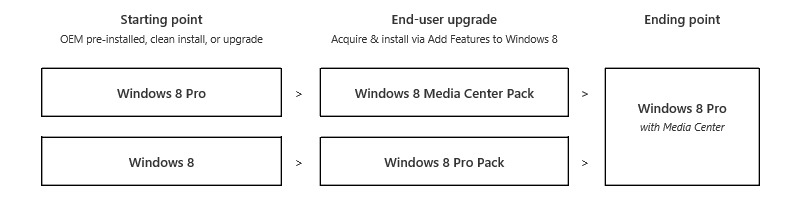
    The post contains a diagram showing the possible upgrade paths to a version of Windows 8 that will contain Windows Media Center:

    W8CP 07

    So, let me understand this. Let’s look at the starting points; you have a choice between plain old Windows 8 or Windows 8 Pro. The difference between these two features was defined in Microsoft’s original announcement of the Windows 8 versions. Here’s a part of the Features Table from that post showing the seven additional features that are included in Windows 8 Pro:

    W8CP 08

    The difference in cost between the two versions is likely to be in the region of $100, judging by the price differential between Windows 7 Home Premium and Windows 7 Professional.

    Now, looking at the diagram of the upgrade paths again, it is clear that, just as the original announcement stated, it will not be possible to simply add Windows Media Center to Windows 8 via an add-on pack that just contains WMC. Oh no, you have to buy an add-on pack that contains WMC and the additional features of Windows 8 Pro. So I would still end up buying Windows 8 Pro features that I don’t want or need (at a likely $100 cost) along with a cost for the WMC component.

    To add insult to injury, it appears that the version of WMC that will be available for Windows 8 is essentially the same old version as the one that we currently get for free in Windows 7.

    I think that seals the deal for me: I’m sticking with my Windows 7 Home Premium (with its free WMC) as the operating system on my HTPC. I see no point in paying $100+ for a version of Windows 8 that gives me no advantages whatsoever.

    Update 11 May 2012

    I see that Microsoft has now closed the comments on both of their posts on the Building Windows 8 blog on this issue. Too many negative reactions, I suppose, and who can blame us?

    Paul Thurrott has also now weighed in with a column in which he also vents about Microsoft’s media direction.

    The thing is: Microsoft had something in WMC that was ahead of the curve, and they have dropped the ball. Their vision has failed – probably the original team got disbanded, and their executive sponsorship vanished. Much the same thing has happened with Windows Home Server.

    It’s also true that streaming of content is on the rise; but there will always be a minority of users for whom streaming will never be the answer. I’m in the countryside, at the end of a piece of wet string – I depend on optical media for high quality content. I also depend on optical media for content that is otherwise not legally available in my market.

    It’s all very well for Microsoft to say that I can get my DVD codecs from third parties, if I’m not prepared to pay top whack for Windows 8 Pro, with its features that I don’t want. But quite honestly, the sort of bloatware that third parties provide is something that I don’t want to be forced to accept.

    We seem to be heading back to the old days, when we had to buy something like Nero in order to be able to burn a CD in Windows. Over the years, Nero ballooned into a software suite that was truly appalling. It was a relief to be able to dump it, and just use the features built-into newer versions of Windows to handle my optical media.

    Now, with Windows 8, Microsoft seem to be turning the clock back to the bad old days. The bean-counters are in charge. The people with vision have left the company.

    Update 7 June 2012

    Microsoft has quietly removed two features from the version of Windows Media Center for Windows 8. These features are required for dedicated HTPCs. See this post at The Digital Media site for details. Two more reasons not to upgrade my HTPC, it would seem.

    Update 3 July 2012

    Well now, Microsoft has just thrown a curve ball. They’ve announced that the upgrade price from Windows 7 to Windows 8 Pro (note: the Pro version!) will be $39.99 up until 31 January 2013. That is a very attractive price, I have to say. It also includes a free upgrade to Windows Media Center. Now at that price, while I will certainly upgrade our other PCs with Windows 8 Pro, it is also going to make me think hard about whether I should not just take the plunge and upgrade our HTPC as well.

    I find it interesting that the upgrade is for the Pro version of Windows 8, rather than simply the base Windows 8 version. Perhaps Microsoft has been stung by all the negative reactions from the technical press and blogs about Windows 8 and is making a gamble here to regain lost ground. Whatever the reason, I find it an attractive offer.

  • Don Norman on Windows 8

    Don Norman is a well-respected consultant and author working in the field of product design and ergonomics. His classic “The Psychology of Everyday Things” (1988) – in his own words: part polemic, part science. Part serious, part fun – contains a critique of design and design principles that are still relevant today. And his later book “Turn Signals Are the Facial Expressions of Automobiles” (1992) carries that forward, with one chapter – the Teddy – being especially thought-provoking and prescient over how we seem to be developing a symbiotic/dependence relationship with our Smartphones.

    So I was interested to read what Norman thinks about Windows 8. As I’ve written before, an awful lot of people seem to think it is a disaster (I’m not one of them). And it appears, like me, Donald Norman is a fan of Windows 8:

    Windows 8 is brilliant, and its principles have been extended to phones, tablets, laptops, and desktop machines (and larger – for example, Surface), whether operated by gesture, mouse and keyboard, or stylus, but with appropriately changed interaction styles for the different sizes of devices and different input devices.

    Of course, being the thorough observer that he is, he references some of the negative reviews of Windows 8 in his piece:

    Here is a critical review by Troy Wolverton of Silicon Valley.com who used Windows 8 for awhile.  Nice dress, he says, but crappy fit. Multitasking is difficult or not even possible beyond two metro apps. Most work still requires the old (Windows 7) desktop, and switching between Metro and desktop is difficult. And he gives a simple example of quitting a Metro application that should send shivers down all of our backs

    Perhaps, but I notice that Wolverton doesn’t exactly play fair. His example is not correctly reported. What he says is:

    Take a simple example: closing programs. Since Windows 95, users have typically just clicked on the “x” in the upper right hand corner of the program’s window to close it. For those who prefer to use the menu bar, you can usually click on “File” and then “Exit.”

    But with Metro-style apps, you won’t find a close-program “x.” You won’t even find a menu bar. Instead, to close a program you have to move your pointer to the top edge of the screen, click and hold until the app screen becomes a thumbnail and then drag that thumbnail image to the bottom of the screen. And you have to do all this without any clues: there’s nothing to “grab” at the top edge of the screen and the interface gives you no indication of what you should do with the thumbnail once you’ve grabbed it.

    That’s merely one of many commands that are not only different but also hidden by the Metro interface.

    Er, no, Mr Wolverton – you don’t need to “click and hold until the app screen becomes a thumbnail” – merely moving to the top of the screen turns the cursor into a thumbnail. At that point, there are two options open to the user. You can click and drag the cursor to the bottom of the screen to close the App; or you can click and drag it to the left or the right border of the screen to split the screen for multi-app working.

    It’s true that the options are not spelled out. But on the other hand, neither are much of the workings of the current version of Windows. People learn about them over time. And, yes, some people never learn, despite good design. But let’s not throw the baby out with the bathwater. Windows 8 is a radical rethinking. It has excellent design principles and it deserves a chance. What it does not deserve is lazy condemnation by people who don’t approach it with an open mind. 

  • Fun With Technology–Part VII

    Important Update 27th October 2012: The bug described below has been fixed in the final release of Windows 8.

    Hoorah!

    Update 24 October 2013: With the release of Windows 8.1, I found another issue with “Play to”. I posted it in a Microsoft forum, and got some useful feedback from Microsoft’s Gabe Frost. The issue is not resolved, but at least we now know what’s going on. See https://gcoupe.wordpress.com/2013/10/23/play-to-and-windows-8-1/

    Original Post

    Here we go again – one step forwards, two steps back… Something that was working under Windows 7 has stopped working in the Windows 8 Consumer Preview, and that is the “Play to” feature of Windows Media Player.

    Almost three years ago, I wrote a post (Fun With Technology – Part IV) describing my trials and tribulations with this feature of Windows Media Player in an early version of Windows 7. Sometimes it would seem to work, and sometimes it didn’t. I eventually found out, and described in that post, what was going on. I also identified how to get “Play to” working very satisfactorily for the devices on my home network. And there matters have rested until now, when I’ve found that Windows 8 Consumer Preview has broken things again.

    First, let me recapitulate some of the background terms and technology specification used by Microsoft in its implementation of “Play to” and how I’m using it at home. These come from the Digital Living Networking Alliance, or DLNA for short. Their specification defines how a variety of different types of digital devices can connect and share information. This I’ve summarised in the following table:

    Device Class What it does Examples
    Digital Media Server (DMS) Stores content and makes it available to networked digital media players (DMP) and digital media renderers (DMR). Some digital media servers can also help protect your content once stored. PCs and network attached storage (NAS) devices
    Digital Media Player (DMP)
    Finds content on digital media servers (DMS) and provides playback and rendering capabilities. TVs, stereos and home theaters, wireless monitors and game consoles
    Digital Media Renderer (DMR)
    These devices play content received from a digital media controller (DMC), which will find content from a digital media server (DMS). TVs, audio/video receivers, video displays and remote speakers for music.
    Digital Media Controller (DMC) These devices find content on digital media servers (DMS) and play it on digital media renderers (DMR). Internet tablets, Wi-Fi® enabled digital cameras and personal digital assistants (PDA).
    Digital Media Printer (DMPr) These devices provide printing services to the DLNA home network. Generally, digital media players (DMP) and digital media controllers (DMC) with print capability can print to DMPr. Networked photo printers and networked all-in-one printers.

    Table 1: Information drawn from the DLNA web site.

    Windows 7 implements a number of these classes as shown here:

    Device Class Windows Implementations
    Digital Media Server (DMS) When media streaming is enabled, Windows acts as a DMS.
    Digital Media Player (DMP)
    Windows Media Player and Windows Media Center act as a DMP when browsing shared media libraries
    Digital Media Renderer (DMR)
    Windows Media Player acts as a DMR when configured to allow remote control of the Player.
    Digital Media Controller (DMC) The “Play To” feature from Windows Media Player launches a DMC to control the media playback experience

    Table 2: Information drawn from the Engineering Windows 7 Blog.

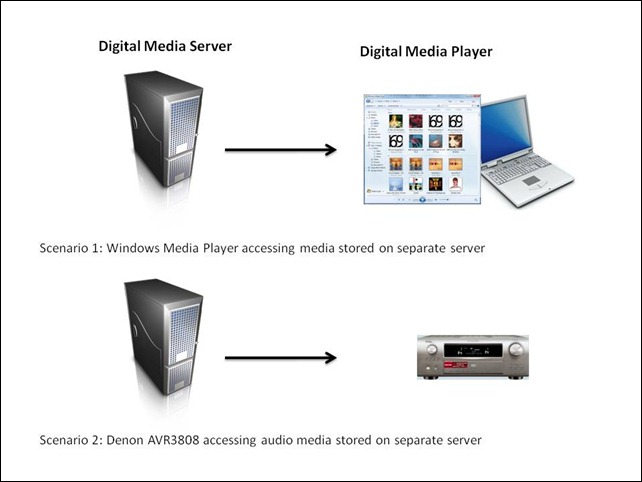
    At its simplest, just two devices can be involved: a Server and a Player. These can even be running on the same physical device, as in the case where your Windows Media Player on your Desktop PC is streaming music or video stored on the PC itself. The next step up is where the server and player are on separate physical devices. Two typical scenarios are shown in figure 1:

    WMP Scenarios
    Figure 1: Typical scenarios of simple case of DMP devices accessing DMS devices.

    I’ve used the Denon AVR3808 as an example, since this is what I have in my home network. My DMS is a headless (no monitor, keyboard or mouse) home-built PC running the Windows Home Server 2011 operating system.

    In my particular case, both the two scenarios shown above will work, that is, the DMS that is part of WHS 2011 will stream audio to other PCs in the home network, and to the Denon AVR3808. Under the covers, there’s actually some negotiation of streaming formats going on. This is because I have stored all my music files on the WHS 2011 in Windows Media Audio Lossless (WMAL) format. This presents no problems for the PCs, since the Windows Media Players installed on them can handle WMAL. But while the Denon can handle standard Windows Media Audio, it can’t handle the Lossless variant. So when I use the Denon to browse my music library on the server and select a track to play, the DMS in WHS 2011 sees that the Denon can’t handle WMAL and transcodes the stream into a format that the Denon can handle on the fly.

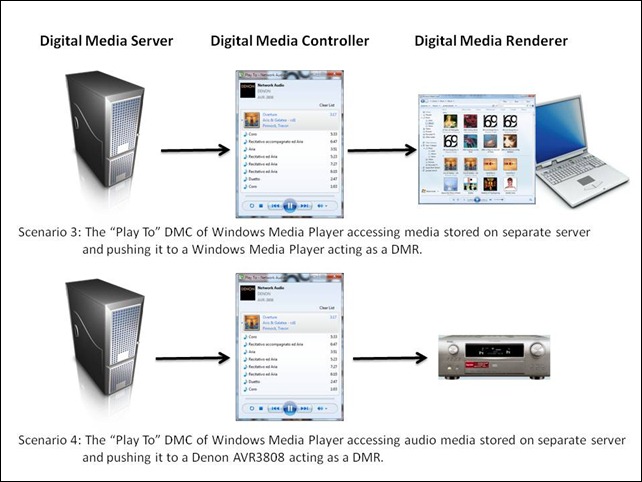
    The interesting scenarios are where there are three devices linked together: a Digital Media Server, a Digital Media Controller, and a Digital Media Renderer.

    WMP Scenarios 2
    Figure 2: Typical scenarios of a three device link (DMS-DMC-DMR).

    In my case, all flavours of scenario 3 will work. That is, I can stream from my Windows Home Server using the “Play To” feature of Windows Media Player running in either Windows 7 or Windows 8 Consumer Preview, and push the stream to PCs that are running Windows 7 or the Windows 8 Consumer Preview.

    But while scenario 4 works if “Play to” is running in Windows 7, it does not work if “Play to” is running in Windows 8 Consumer Preview.

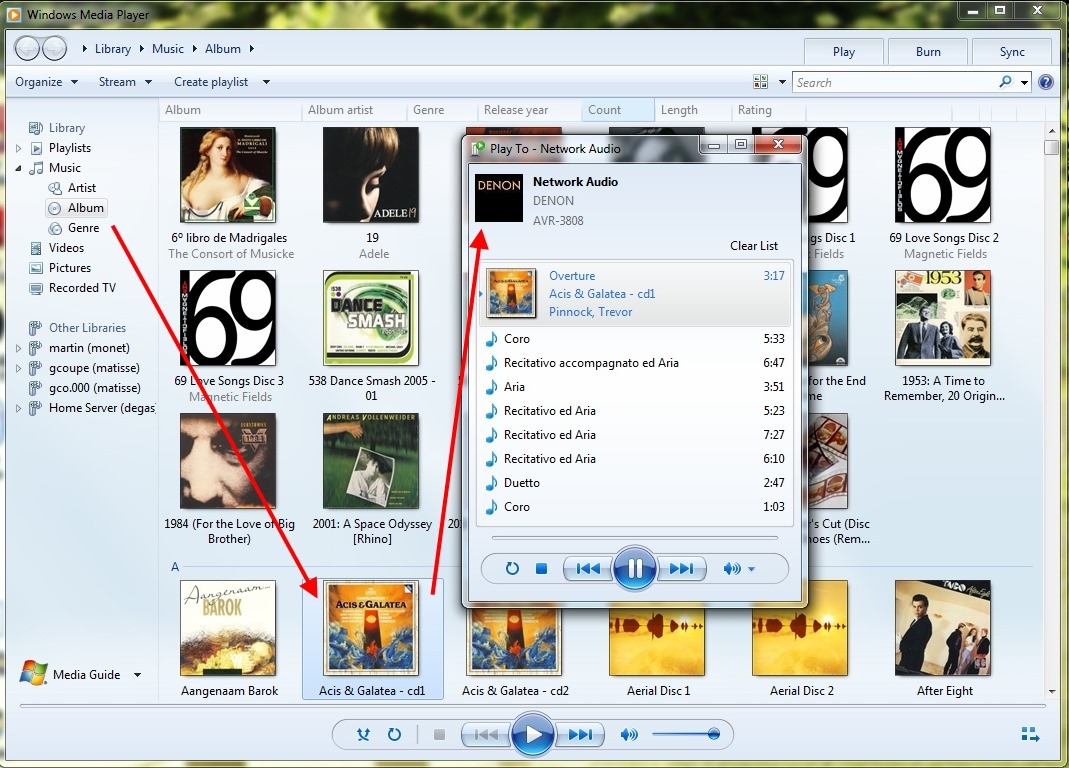
    Here’s a screenshot of the “Play to” of Windows Media Player running in Windows 7, and streaming a WMA Lossless file to my Denon:

    WMP 12 12

    The WMA Lossless file is held on the WHS 2011 system, and is being transcoded into a different format on the fly so that the Denon can play it. I’m not sure whether the transcoding is being done on the Windows 7 PC (where the Windows Media Player is running), or whether it is being done at source on the WHS 2011 system. Either way, the Denon is being fed with a stream in a format that it understands, so it plays it without problem.

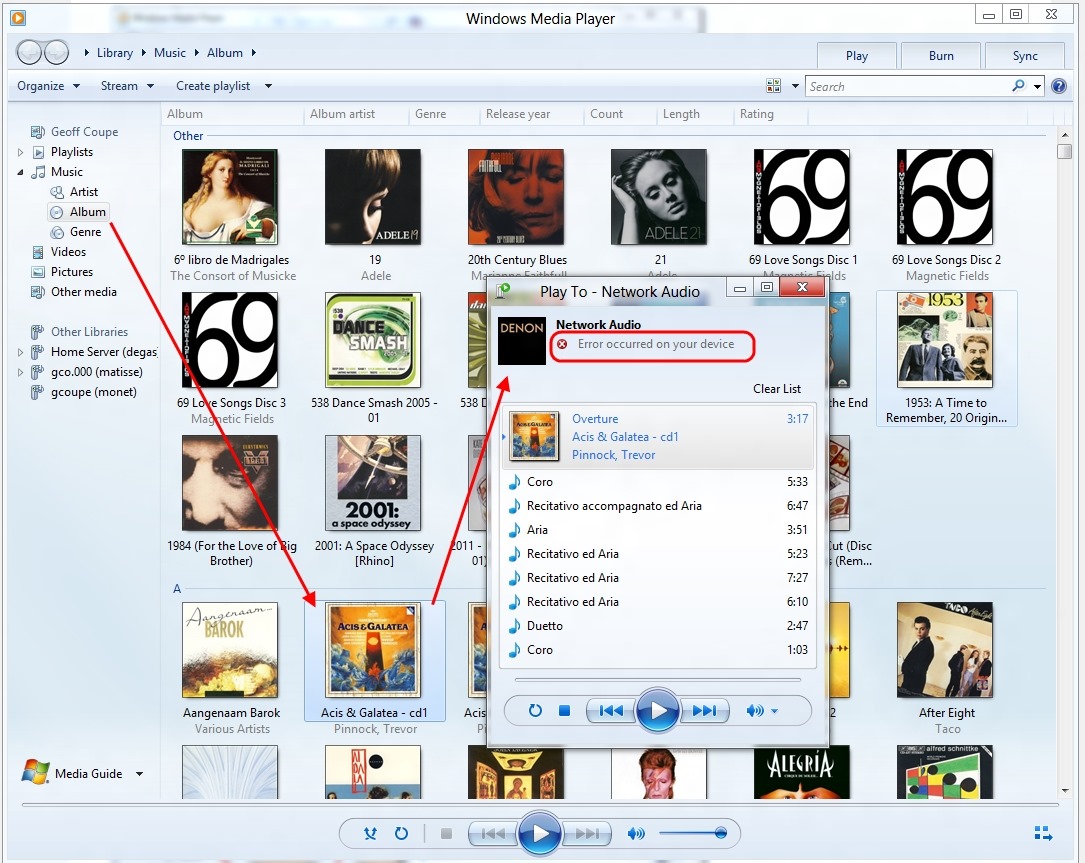
    Now look at the following screenshot. It’s the very same music file that has been chosen from the Music Library held on the WHS 2011 system, but this time the “Play to” and the Windows Media Player are running on Windows 8 Consumer Preview:

    WMP 12 11

    As you can see, the Denon is reporting an error – it can’t play the file. I’m pretty sure that this is because no transcoding is being done – the WMA Lossless file is being sent straight to the Denon.

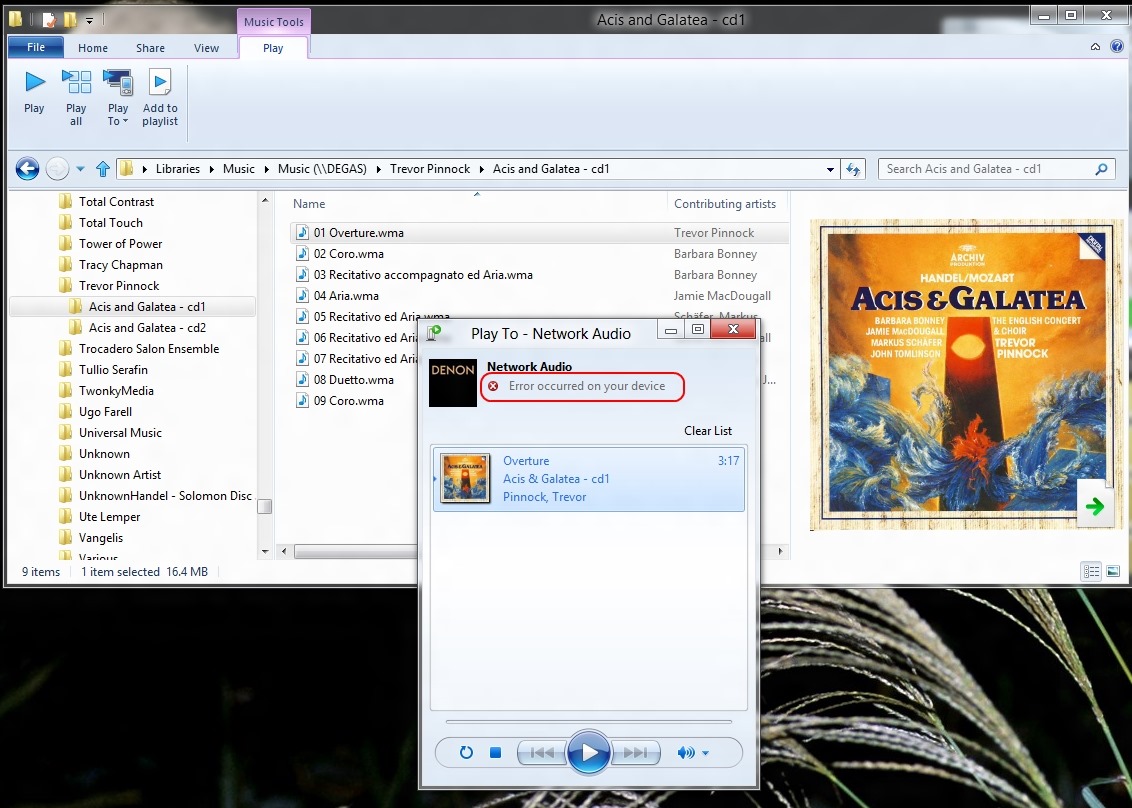
    In Windows 8, the Windows Explorer also has the “Play to” feature, and the same error occurs:

    WMP 12 13

    So, to sum up; something has been broken in the “Play to” feature in Windows 8 Consumer Preview. Hopefully it will get fixed before Windows 8 is released

  • People Don’t Like Change

    It’s been a month now since I, like probably over one million others, downloaded and installed Microsoft’s Windows 8 Consumer Preview. As I wrote at the time, people seemed to either love it or hate it.

    The haters seem to hold that opinion because the user interface of Windows 8 is so very different from all the previous versions of Windows from Windows 95 onwards.

    I think it’s worth remembering that when Windows 95 was introduced, its user interface was radically different from previous versions of Windows, and there was a similar outcry from people who hated the new interface. Over time, people accepted the change, and now, once again, it seems that many cannot conceive of Windows in any way other than what they are used to.

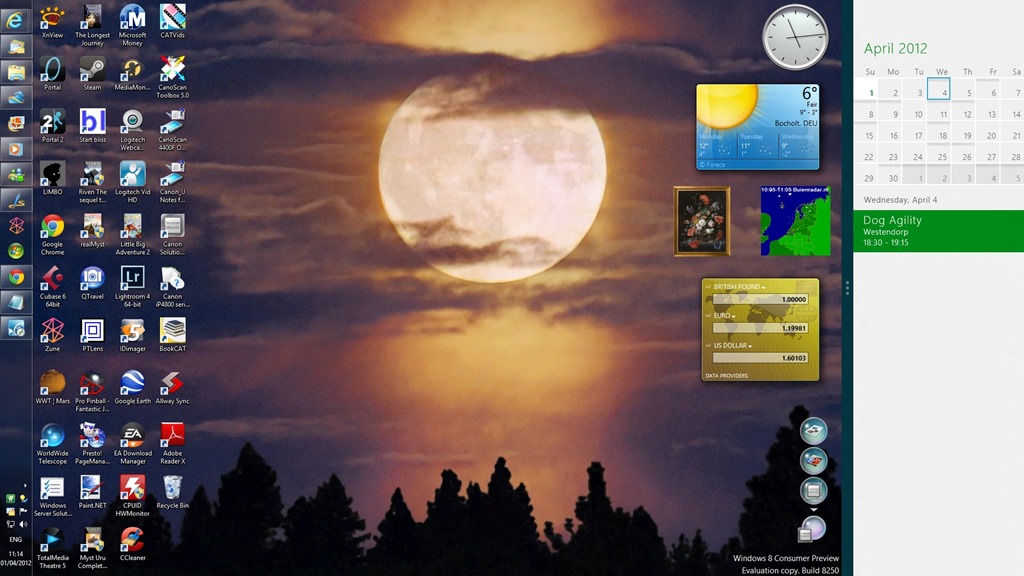
    As for me, after a month of using Windows 8, I am very relaxed about the new user interface. It doesn’t bother me, and I seem to be accomplishing my tasks equally well, albeit in a different way. It is still the fact that, at the moment, I rarely use any of the new Metro applications (except to play the occasional game), but that’s simply because their functionality is not yet on a par with their traditional Desktop equivalents. The only Metro App I have permanently displayed alongside my desktop (using the tile function of Windows 8) is the Calendar App:

    W8CP 06

    On the whole, I like what Microsoft has done to reimagine Windows. The past is another country, they do things differently there. I don’t want to live in the past, I want to look forward to the future.

  • Spambots and Sofas

    Jon Ronson always seems to turn up some interesting aspects of society. Sometimes however, it seems as though he’s turned over a stone and found something particularly unpleasant underneath.

    For example, I found it very difficult to watch the three specimens sitting on this sofa. The one in the middle, in particular, strikes me as someone I would find it very difficult to warm to under any circumstance. His name is Dan O’Hara, lecturer in literature at the University of Cologne. His rationale for doing what he did to Jon Ronson (when he finally reveals it at the end of the video) seemed to me to be thin, unconvincing, and insincere.

  • Lightroom 4 – A Mixed Blessing?

    Adobe has just released the latest version of their Swiss Army knife for digital photography: Lightroom 4.

    Since there’s a free trial available (which lasts for 30 days), I thought I’d download it and give it a go.

    Lightroom is a Digital Asset Management (DAM) tool for digital photographs. That is to say, it covers all aspects of dealing with digital photos, such as acquisition of the photos from the camera, selecting the ones to keep, editing for the final versions, organisation of photo collections, and publishing.

    At the moment, I use IDimager as my DAM tool, so I was interested to see how this latest version of Lightroom would compare. In some respects, the two tools are fairly similar, but there are also some substantial differences. (Note: IDimager is no longer available. Its successor is Photo Supreme, which I am now using)

    One area that I found to be similar is the acquisition process – getting your photos off a camera’s memory card and into your PC environment. Both products allow flexible renaming of your files, and applying metadata templates to the resulting files as part of the acquisition process. So far, so good.

    Once the files are in the tools’ workspaces then the main work of selecting the photos you want to keep and adding metadata to help organise the collection can begin in earnest. Again, both Lightroom and IDimager have similar features. For example, you can rapidly compare photos side-by-side in a virtual “light table” to aid in selection of those images that you want to keep.

    However, I quickly ran into a couple of issues with Lightroom’s handling of photo metadata that, for me, are quite serious.

    First, some background. Both Lightroom and IDimager use the concept of a Catalogue to hold a list of keywords that are used to organise your photo collection (or collections). While this list of keywords can be just a simple list, both products support, and encourage, the use of a keyword hierarchy for ease of use and flexibility.

    As I described a while back, the keyword hierarchy I use has been built up from a number of sources:

    I’ve ended up with a structure that has the following items at the top level of the hierarchy:

    • Activities
    • Events
    • Nature
    • Objects
    • People
    • Places
    • Science
    • Styles

    Each of these splits down into further categories as necessary as you go down the levels. For example, Activities splits into

    • Disciplines
    • Hobbies
    • Physical and mental activities
    • Processes and techniques

    So then a photo of a tennis match would have the structured keyword string of Activities/physical and mental activities/games/sports/ball game/tennisassigned to it.

    You’ll notice that I’m using the “/” character to separate the various levels contained in a keyword. The choice of the separation character is arbitrary, some applications use the period (“.”) or the pipe (“|”) character , since there is no industry standard at the moment. A standard for handling keyword hierarchies in image metadata has been proposed (by the Metadata Working Group), but as far as I am aware, there is no product on the market that implements it as yet.

    I chose the “/” character because Microsoft’s Windows Live Photo Galleryuses it as the separator to structure the keyword hierarchy (Microsoft calls keywords “Tags” in Windows Live Photo Gallery).

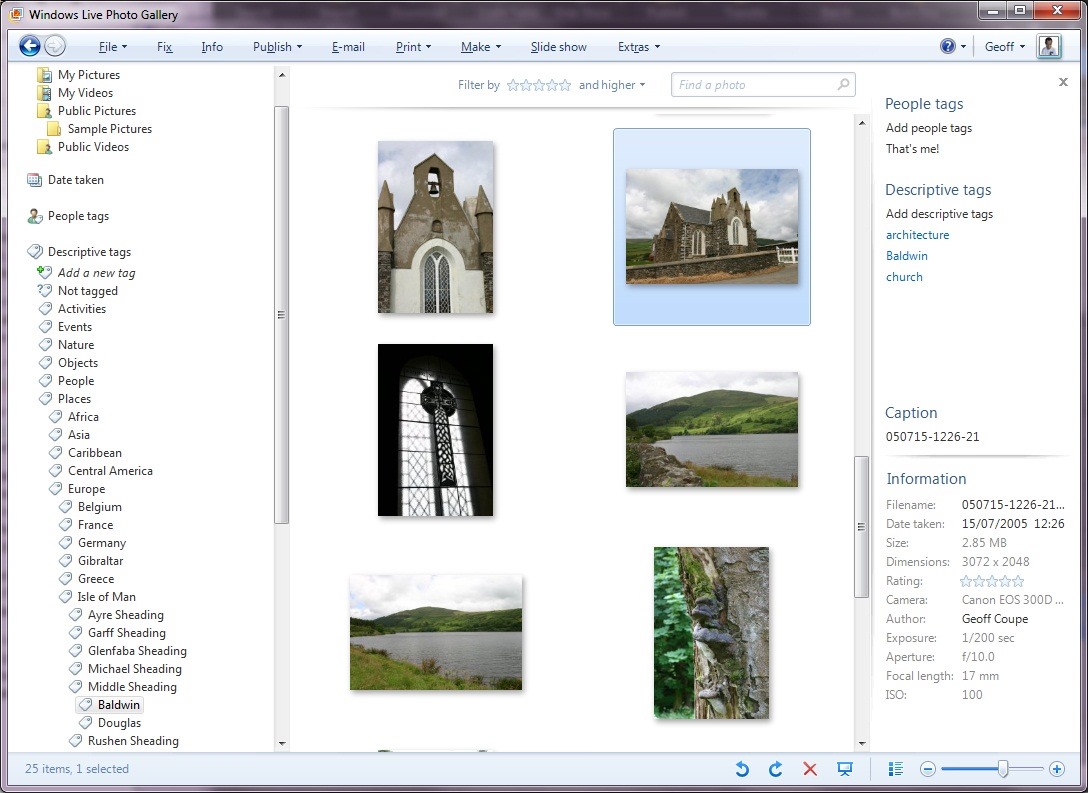
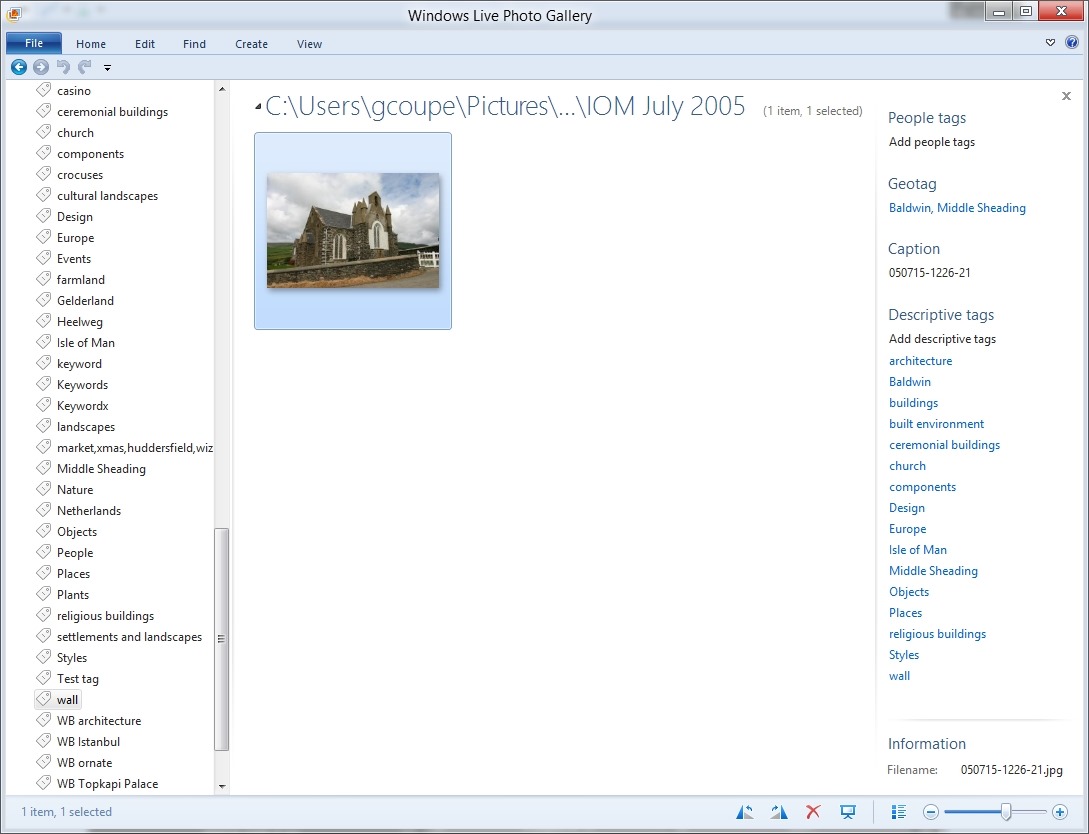
    For example, here’s a screenshot of Windows Live Photo Gallery with a thumbnail photo of a church in the Isle of Man shown being selected (the light blue frame around the image).

    Church2

    You can see, on the right of the screenshot, that the photo has three keywords (tags) associated with it: architecture, Baldwin, church. These are actually all structured keywords stored in the photo’s metadata as:

    • Styles/design/architecture
    • Places/Europe/Isle of Man/Middle Sheading/Baldwin
    • Objects/built environment/buildings/ceremonial buildings/religious buildings/church

    You can see part of the “Places” hierarchy being shown on the left of the screenshot, with the “Baldwin” tag being highlighted.

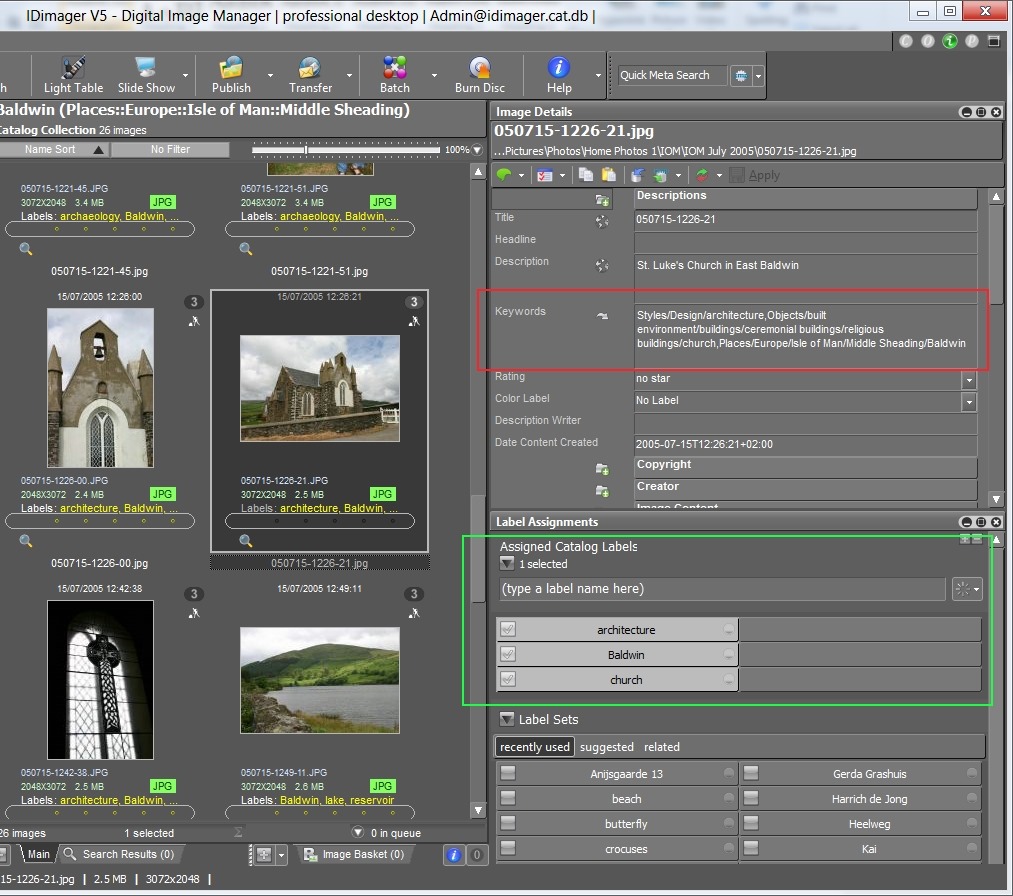
    Because Windows Live Photo Gallery is easy to use for other family members, I’ve adopted this method of implementing a keyword hierarchy, i.e. using the “/” separator, in my main DAM tool: IDimager. Here’s a screenshot of IDimager showing the same photo:

    Church1

    You can see on the left that IDimager uses the same keyword hierarchy. And on the right of the screenshot, you see the keyword strings that are being stored in the photo’s metadata.

    Now, the reason that both IDimager and Windows Live Photo Gallery have the same keyword hierarchy is that both tools are constructing it from the keywords stored in the photo metadata. And because they understand that the “/” is the separator character, they build up the same keyword structure on the fly as they read the photos in my collection. IDimager is the more flexible of the two applications, since you can define different separator characters if necessary. WLPG is fixed, and only understands the “/” character.

    So, what happens with Lightroom 4?

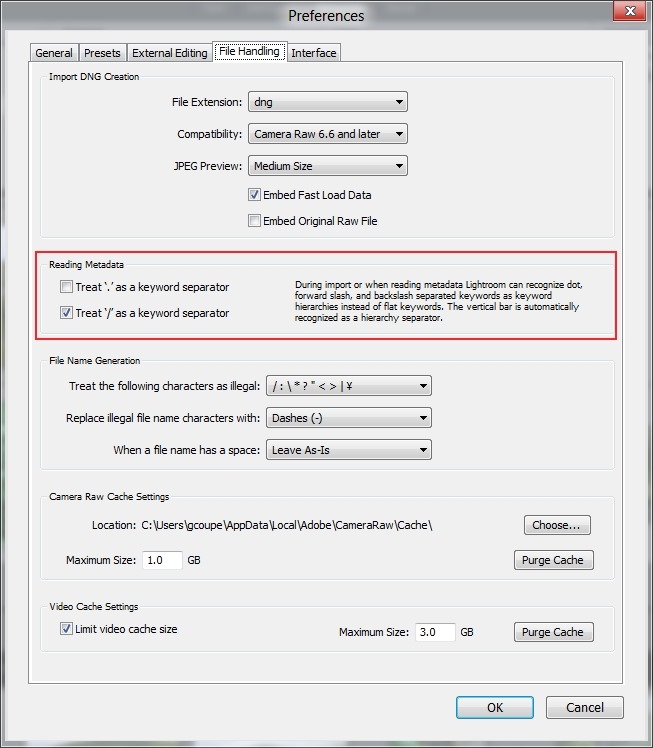
    Well, at first I thought everything was going to play nicely together. Just as with IDimager, Lightroom 4 has an option to choose the separator character that you want to use when reading the keywords in your photo metadata:

    LR4 002

    I’ve chosen “/” as the separator character – the same as for IDimager and WLPG.

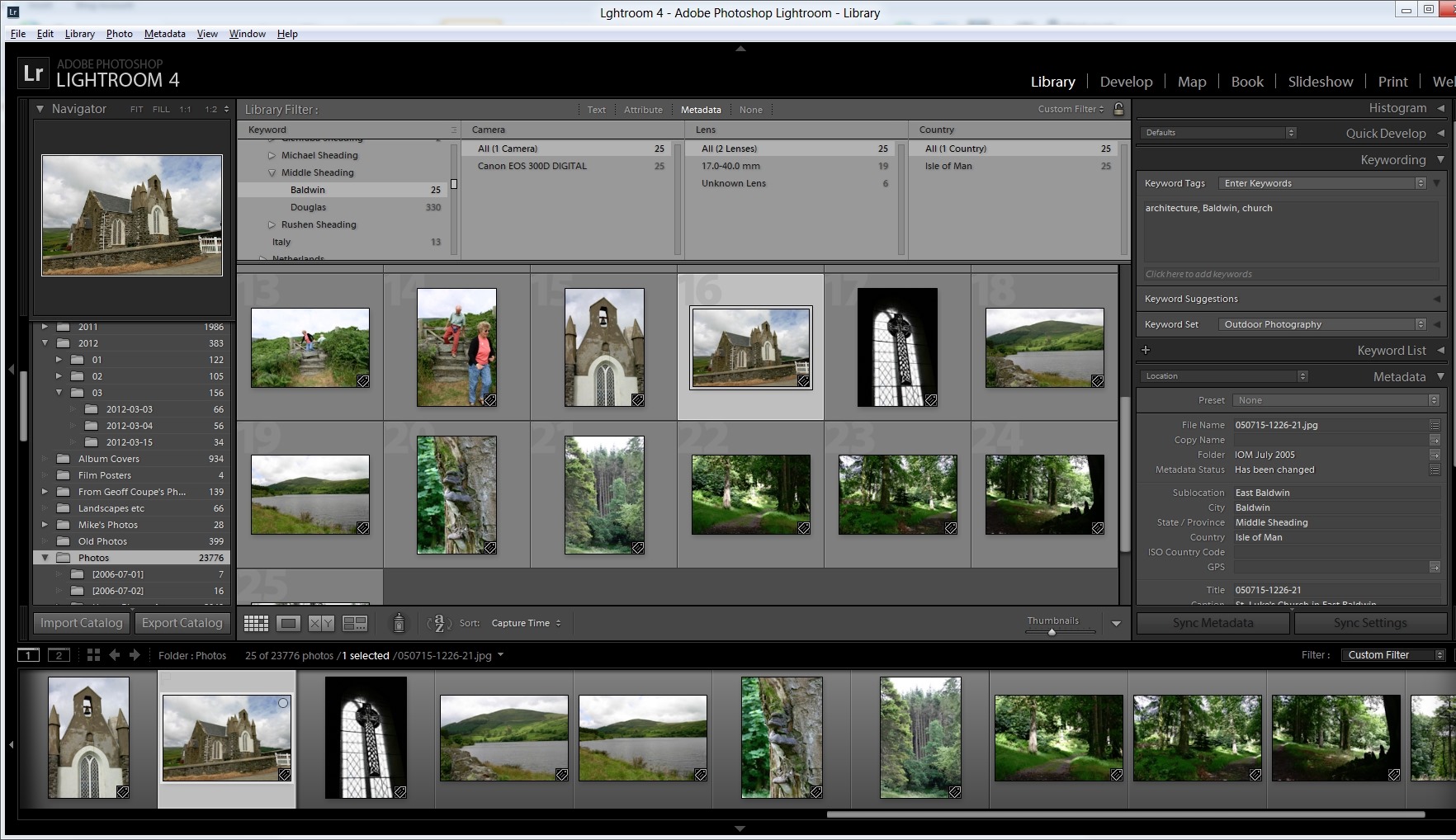
    Sure enough, when I imported my photo collection into Lightroom 4, the keyword hierarchy got reconstructed to match the ones in IDimager and WLPG (click on the screenshot to see it full-size in a new window):

    Church3

    But then things started to go wrong.

    First, I discovered that although this process of recognising the separator works when importing photos into the Lightroom 4 Catalogue, it doesn’t work when reading metadata from individual photos – even though Lightroom claims it does (see the text in the “Preferences” screenshot above).

    I added the keyword “Christmas” to a photo using IDimager. This is a structured keyword, so the keyword string that was written to the photo’s metadata was actually: Events/holidays/Christmas. Lightroom 4 correctly saw that the photo had had its metadata altered, but when I used Lightroom to read in the photo metadata, instead of adding the photo to the “Christmas” keyword in the existing hierarchy in its Catalogue, it created a brand-new single-level keyword string: Events/holidays/Christmas – it did not treat the “/” character as a level separator.

    Now, this, I think is a simple bug, and has been reported as such. However, much to my dismay, I discovered I was not out of the woods yet.

    Up to now, I use IDimager to do all my keyword work. When a keyword in the IDimager Catalogue is assigned to a photo, IDimager will write out the structured keyword string into the photo, and WLPG will then pick up the change and modify its own Catalogue of tags automatically.

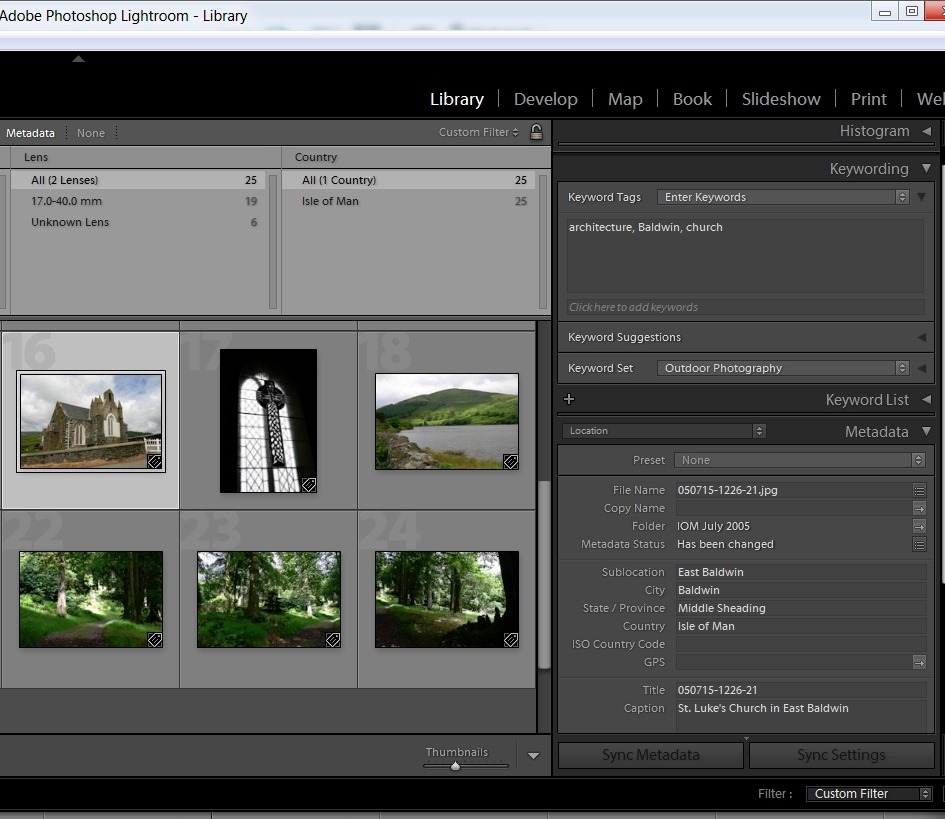
    As a test, let’s use that photo of the church in Baldwin in the Isle of Man. Here you can see the current keywords assigned to it: architecture, Baldwin, church, as seen in Lightroom 4.

    LR4 003

    Remember, these are all structured keywords with a hierarchy. Lightroom, like WLPG, is just showing the lowest level of each keyword. Using IDimager, I can look at both the actual photo metadata (showing the full keyword strings), highlighted in red, as well as the Catalogue keywords/labels, highlighted in green:

    Church4

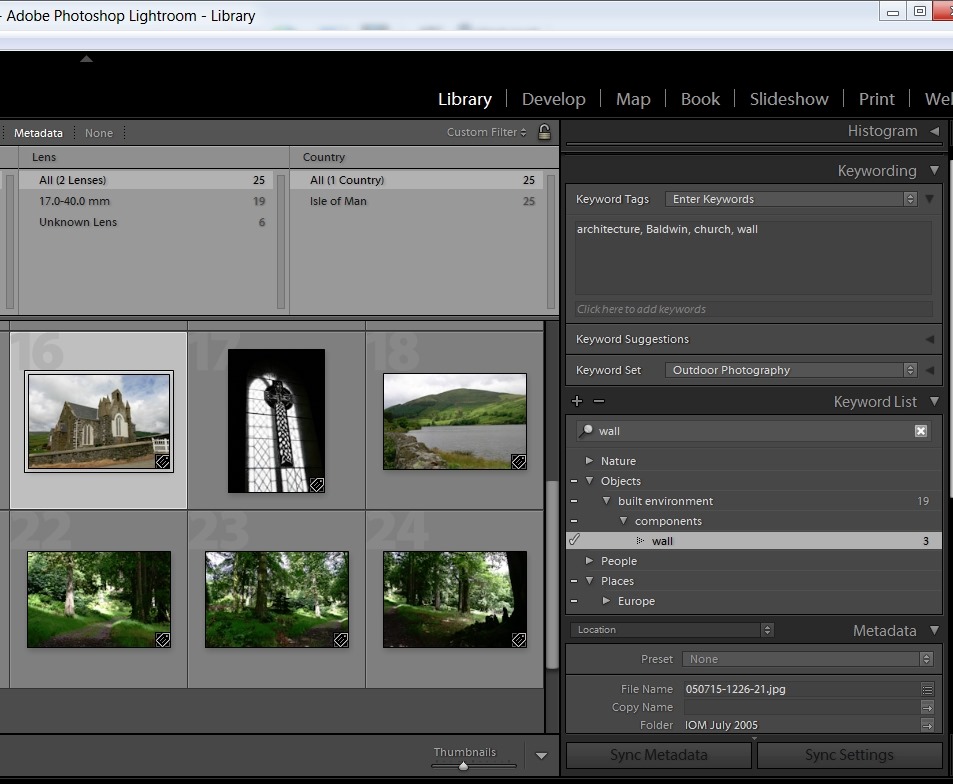
    Now, let’s use Lightroom 4 to add a keyword to the photo, and then get Lightroom 4 to write out the changed metadata into the photo. Here, I’ve added the keyword wall:

    LR4 004

    Looking at the photo in IDimager, what do I see:

    Church5

    Disaster! Lightroom has not written out a structured keyword string, but a series of individual keywords separated by commas. While IDimager has been able to sort the wheat from the chaff (the labels, highlighted in green, show that it knows that the structured keyword wall has been added), Windows Live Photo Gallery is not so clever.

    Church6

    It is now showing all the individual keywords assigned to the image, and worse, it has created new, false, levels in the keyword hierarchy shown on the left in the screenshot. For example, wall is now shown as a top-level keyword.

    So Lightroom 4 will read structured keyword strings using the “/” character as a separator from photo metadata, but, unlike IDimager, it will not write out structured keyword strings to photo metadata. Instead it writes single level keywords and additional, Adobe-proprietary, metadata to describe the hierarchy. This is, apparently, expected behaviour.

    Well, it may be expected, but it’s pretty much useless to me if I want to keep WLPG as the easy to use browser for others in the family. If I use Lightroom 4 to do any metadata work, it will destroy the keyword structure that I use as far as other programs are concerned.

    So where does this leave me, as far as the trial of Lightroom 4 is concerned?

    I have to say that the Lightroom tools for editing and developing photos (especially those in RAW format) are far in advance of anything that IDimager or WLPG possess. So while I could continue to use IDimager for metadata work, I could supplement that with the image adjustment tools of Lightroom 4. Frankly, the other modules of Lightroom (Map, Book, Print and Web) are of little use to me; my other tools give me all that I require in those areas. So, are the image adjustment tools of Lightroom alone worth an investment of 130 Euros to me? If I were heavily into manipulating my images using the RAW format, then, yes, very probably. But at the moment? To be honest, I’m not sure.

  • An Orrery For The 21st Century

    Ever since I was a small boy with an interest in astronomy, I’ve wanted an Orrery.

    Today, 55 years further on, I’m no closer to owning my very own Orrery than ever I was.

    Still, hope is on the horizon. Dr. David Brown has been working on the 21st century’s equivalent of an Orrery with his NUIverse designed for Microsoft Surface. I reckon it will be between 5 and 10 years before this trickles down to Windows 8 Tablets.

    I might just be able to make it before I die.

  • Please Send Money

    I received an email this morning from a distant relative. This is what it said:

    I’m sorry for this odd request because it might get to you too urgent but it’s because of the situation of things right now, I’m stuck in Madrid Spain with Family right now, we came down here on holiday we were robbed,the situation seems worse as bags,cash ,credit cards and cell phone were stolen at GUN POINT, It’s such a crazy experience for us, we need help flying back home, the authorities are not being 100% supportive but the good thing is that we still have our passport but don’t have enough money to get our flight ticket back home, please I need you to lend me some money, I will reimburse you right as soon as I’m back home. I promise

    Alarm bells started ringing immediately. It looked suspicious, but at first I wasn’t sure. I only had an email address for this person, so I couldn’t ring her up and ask if her email address had been hacked.

    It didn’t take long to confirm that indeed the message was a scam – typing in just the first phrase from the message into Bing produced over 500,000 hits.

    It’s clear that her Hotmail account has been hacked, and taken over by a scammer. She may be able to get it back, with Hotmail’s help, but any damage has already been done.

    This article, Hacked!, by James Fallows describes the situation very well, and in fact it’s almost the same scam email that was used. The only difference is that in the article, it’s a Gmail account that was hacked. One statistic that leapt out at me:

    At Google I asked Byrant Gehring, of Gmail’s consumer-operations team, how often attacks occur. “Probably in the low thousands,” he said. “Per month?,” I asked. “No, per day,” followed by the reassurance that most were short-lived “hijackings,” used to send spam and phishing messages, and caused little or no damage, unlike our full-out attack.

    As more of us start relying on the Cloud to handle our email and to store confidential data, it becomes even more important to use strong passwords that are changed often. As the saying goes: passwords are like underwear…

  • Just Testing…

    You can ignore this post. It’s just a test to check something out.

    I use Windows Live Writer to prepare blog posts. It’s a very good application; easy to use and functional. However, I’ve noticed that since I’ve been running the Windows 8 Consumer Preview, I often get an error message when I try and publish a post to my blog.

  • Petitioning Microsoft

    I’ve mentioned a number of times before on this blog how irritating it is to be saddled with a Zune/Xbox Live/Windows Phone account that has the wrong country shown for my country of residence, and being totally unable to correct it.

    The issue is now spelt out in detail over at the It Is Our Data web site, and there’s a petition set up asking Microsoft to rectify this shortcoming.

    I’ve signed, and will be sending letters to Microsoft and the relevant Data Protection authority. Will you?

    Update: As a result of sending letters, I finally managed to get Microsoft to correct the false data in my account, so it can be done…

  • Microsoft’s Marmite

    Marmite is a British food – a paste that is smeared on bread or toast. It has a very distinctive taste, which splits people into two camps: they either love it or hate it.This polarised reaction seems to be how people are reacting to Microsoft’s Windows 8 Consumer Preview: they either love it or hate it. This post is about my first impressions of W8CP.

    As I said I would, I’ve installed the Windows 8 Consumer Preview, and have been playing with it over the past couple of days. There are several ways to install it: in a virtual machine, on a separate drive partition for dual-boot with Windows 7, but I’ve gone for the highwire act – I’ve done an upgrade installation. My PC is no longer running Windows 7, but it is running only Windows 8.

    I haven’t completely lost my mind – I took a full backup of my running Windows 7 installation immediately prior to installing the Consumer Preview, so I can always rollback to Windows 7 if I lose my nerve.

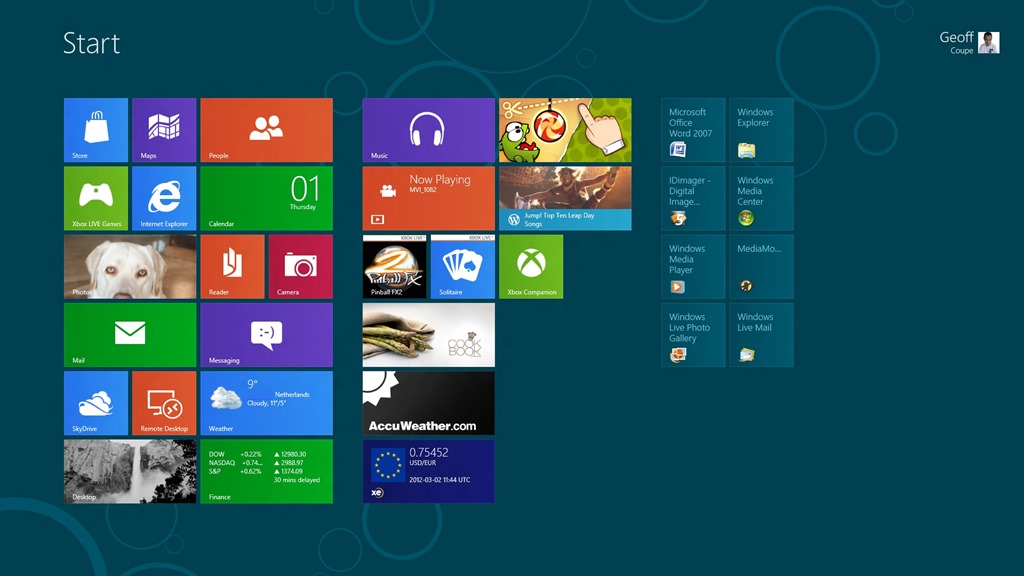
    So now, what I see when I sign on to Windows 8 is something like this:

    W8CP 01

    This Start screen has effectively replaced the Start button, that has been a part of Windows since Windows 95. On the traditional Desktop view in Windows 8, there is no Start button, instead, when you mouse down to the bottom left corner of the Desktop (where the Start button traditionally was), you get a small pictogram of the Start screen. Clicking the mouse brings you to the Start screen itself.

    It’s certainly a shock to the system, and I found it needed getting used to. Some people have already found ways of forcing the traditional Start button back into Windows 8, but I don’t want to go down that route. I’d rather give Windows 8 a chance, and see how I feel about the UI after a few weeks.

    I’ve already started adding icons for some of my most-used applications onto the Start screen, and am starting to use the Search function much more than I used to in Windows 7.

    One thing that I am definitely finding at the moment: I spend the majority of my time on the traditional Desktop, using traditional applications. The much-vaunted Metro Apps that have shipped with the Consumer Preview are dumbed down too far for me. To be fair, many of them are previews themselves, and Microsoft claim that they will be improved for final release. Still, I don’t think Microsoft has done itself any favours by shipping such limited Apps in the Preview. Let’s look at a few examples.

    The Mail App. Unless you have a Hotmail, Google, or Exchange account, you won’t be able to use the Mail App – it has no support for IMAP or POP mail servers. Guess what I have? Yup, my Internet Service Provider supports IMAP and POP mail services. So I won’t be using the Mail App. One other thing, it is just a very simple mail application. I use Windows Live Mail as my mail client, and this integrates my mail, my calendar, and my contacts list. In Windows 8, these are separate applications. I like the integrated approach. Windows 8 seems to be taking a step backwards. Although Microsoft have introduced a new mechanism for sharing information between apps in Windows 8, at the moment all three, Mail, Calendar and People apps, plaintively bleat that they can’t share… This may change on final release. I hope so.

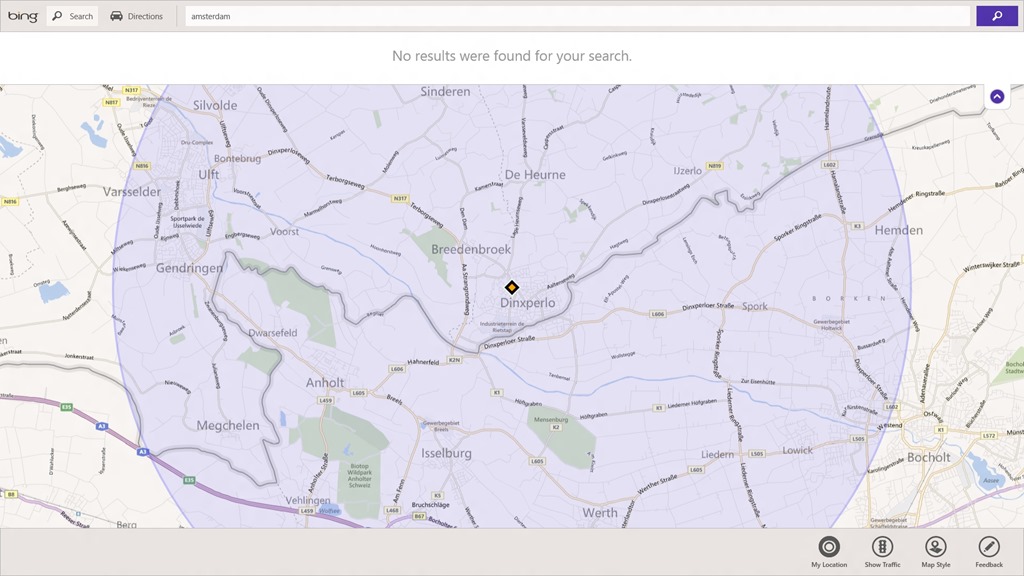
    The Maps App. The Search function in this app doesn’t work. Here, for example, it claims it can’t find Amsterdam:

    W8CP 02

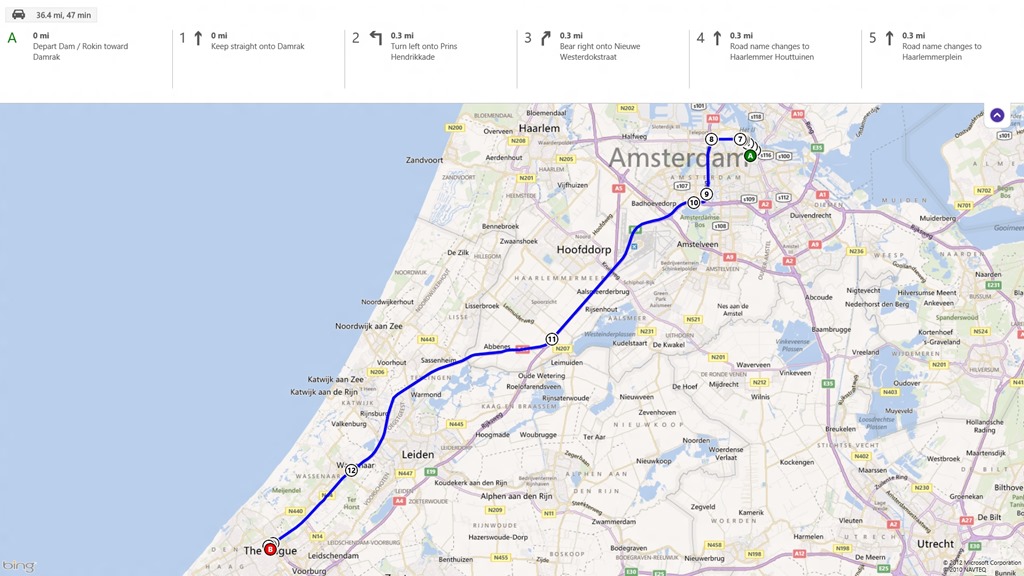
    Yet, strangely enough, it works with driving directions:

    W8CP 03

    Update 7 March 2012: The Map App was updated today, and that seems to have fixed the search problem. Excellent.

    The Photos App. Another very simple application, really only suitable for searching and browsing. It will display photos held both locally and online. Note that in the screenshot below, there is no Facebook panel shown, because I don’t use Facebook, so I removed the panel.

    W8CP 04

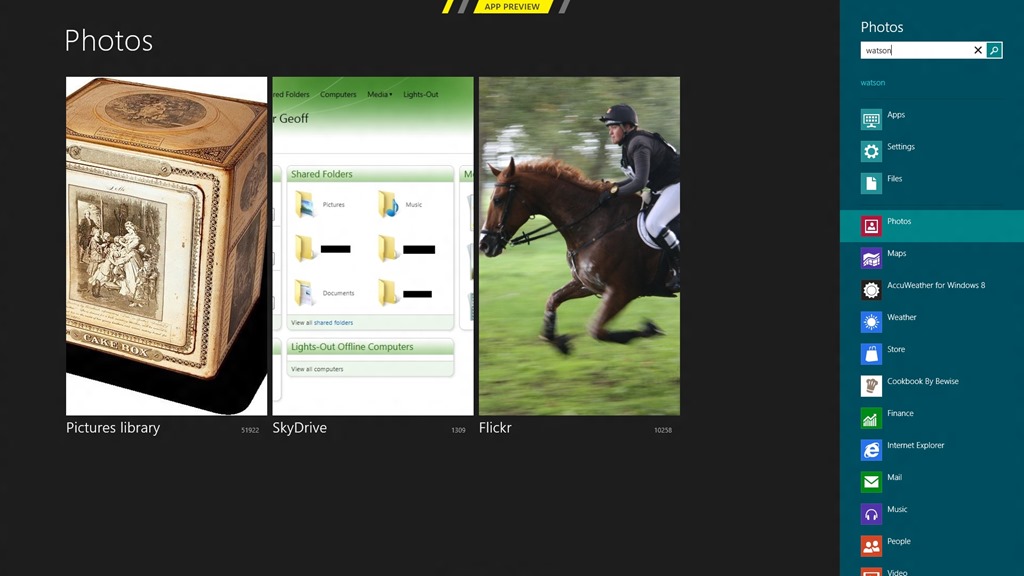
    At least the searches are aware of tags in the photos, so searching for the name of my dog turns up all the photos that have been tagged “Watson”:

    W8CP 05

    However, unlike Windows Live Photo Gallery, I don’t think you can do complex searches (a AND b, but NOT c), and there’s certainly no function for editing photos as WLPG has. Once again, though, this is a preview – the final release may be another story. The Photos app can Share with the Mail app, and use it to send photos via email; either as attachments or via Skydrive. However, unlike WLPG, there doesn’t seem to be any way of choosing the size of the photo files that you send. Update 13 March 2012: hmm, even the Search functiona has problems at the moment. I discovered today that it finds less photos with a given tag than actually exist. It seems to only find about half the number it should be finding.

    The Music App. You may have thought that Windows Media Player and the Zune application were limited – this one’s even worse. No Podcast support, no “Play to” support, no way to view and filter your collection other than by Album, Artist, Song, and Genre.

    The opportunity is here for this app to be a full DLNA implementation – a player, a renderer and a control device (think of a Windows 8 tablet running this app being used to control your home’s networked media – music, video, movies, photos – stored locally and in the Cloud). Unless this app improves, it will be a missed opportunity. The Consumer Preview comes with the old Windows Media Center application, that has been around since 2005. I would like to think that Microsoft are revamping it for Windows 8…

    And so it goes – I don’t think I’ve found a single app yet that I find I’m using in preference to an equivalent traditional Windows 7 application. Yes, it’s early days; but thus far, I find the experience disappointing.

    The other thing I’m noticing is that my system feels sluggish. Not too much (at least not too often), but it has definitely slowed. Once again, this is to be expected with a beta, so I’m pretty confident that come final release, things will have improved so that it is no longer an issue.

    The most positive thing I’m noticing at the moment is that underneath it all, Windows 8 is running all my Windows 7 applications without (so far) any issue. I’m very hopeful that I can continue to use the Consumer Preview on my main PC as my everyday operating system.

    The one big concern I have is that the issue of being unable to change my country of residence in the Windows Store could be a make or break issue for me.

  • Lipstick On A Pig

    Yes, this is a post about the Windows 8 Consumer Preview, but despite what you may be thinking, this is not a post about how awful the Metro UI is. I’ll deal with that later. No, this is a post about how awful “Microsoft Account” is.

    You may recall my post of last week, where I was worried about whether Windows 8 would do anything to change the inflexibility of Microsoft’s back-end infrastructure used for digital distribution of apps and digital media. Well, now I’ve got my answer:

    Absolutely nothing.

    Yes, there’s been a name change: the Windows Live ID service has been rebranded to Microsoft Account, but beyond that, the same problem remains: once you have registered a country of residence in your Zune or Xbox Live billing account, neither you nor Microsoft can change it, nor even delete your account.

    So the name change to Microsoft Account is the lipstick, and the pig of the billing account remains as porcine as ever.

    I thought I’d try one last time to contact Customer Support via the online Chat channel to see if I could get my Zune account deleted without having to also delete my Windows Live ID. Nope. No joy.

    As I wrote last week:

    Unfortunately (for me), a few years ago I made the mistake of downloading and playing with the Zune software. Along the way, I created a Zune account using my Windows Live ID, just to try out the experience, not realising that the country of residence would be hardwired to the US without any possibility of change or deletion. At the time, I just shrugged my shoulders and thought no more about it.

    And because of that mistake, if Windows 8 uses the same backend infrastructure as Zune, I will not be able to use my trusty Windows Live ID. If I did, I will not be able to purchase anything in Windows Store, because I do not have a credit card with a US address. Because of a badly-thought-out design in a Microsoft infrastructure, I’m expected to throw all the history of what’s associated with my old Windows Live ID away, and start again with a new one.

    Windows 8 does use the same backend infrastructure. I’m screwed.

    Update: It took writing letters to Microsoft, but I finally managed to get my old Zune/Xbox Live account deleted, and used my existing Windows Live ID to create a new account.

  • I Don’t Want to be Born Again

    Next week, Microsoft are promising to deliver the Consumer Preview of Windows 8. I will certainly download and install it, and I expect, for the most part, to like what I see. I’ve been following, with interest, the Building Windows 8 blog, in which the engineering team have been detailing the design and features of the new operating system. But there’s one aspect of Windows 8 that is worrying me, and I fear that, going on past performance, Microsoft will disappoint me yet again.

    I’m referring to the backend infrastructure that Microsoft will use to support the Windows Store.

    Windows Store is the upcoming digital distribution platform developed by Microsoft Corporation for software applications (“apps”) designed to run on Windows 8, and possibly also Windows Phone in the longer term.

    At present, apps designed for Windows Phone are delivered via the Marketplace, which is accessible via the web, via the phones directly, or via the Zune application running on a Windows PC. These all use Windows Live ID. The Windows Live ID service manages your online identity, and your access to other services (for example, the Marketplace). And all of these access channels to the Marketplace, and the Xbox Live online service, share a common backend infrastructure for digital distribution.

    And there’s an issue (read: problem) with this backend infrastructure: once you have registered a country of residence in it, you can neither change it nor even delete your account. In addition, if you register a credit card to pay for marketplace purchases, the card must have a country billing address that matches the one registered in the marketplace. In other words, this infrastructure refuses to recognise the simple fact that many people move around and relocate to different countries.

    I first became aware of this issue back in December 2010, shortly after the Windows Phone was introduced. As I wrote at the time, the issue is recognised by Microsoft, there have been many threads about it in both the Zune and the Windows Phone 7 forums.  Back then, Jessica Zahn, a Senior Program Manager for Zune, wrote in one of these threads:

    I can tell you we’re working through those questions now and figuring out how to allow people to move countries, etc – but it’s not easy, and those of you who have said this has been a problem for Xbox for a long time are correct – and we use the same infrastructure as Xbox.

    Fifteen months on and absolutely nothing has changed – the issue is still there, Microsoft still don’t appear to have figured out a way to deal with people who move between countries. Interestingly, for us EU citizens, it could be argued that this issue is infringing our rights to the free movement of goods and services within the EU.

    The only workaround that Microsoft currently offer is to say that if you move countries, you have to set up another Windows Live ID for yourself in the new country. And that brings a whole other set of issues, which I’ll address shortly.

    But first, what’s all this got to do with Windows 8? Well, the question is: what are Microsoft going to use as the backend infrastructure for Windows Store? If they are simply going to add Windows Store to the same infrastructure alongside Windows Phone, Zune and Xbox Live, then I think we have a problem, and that’s what worries me.

    Windows 8 is going to make more use of the Windows Live ID service than any previous version of Windows. Today, when a home user signs on to a Windows PC, they do it with an account name and password that is tied to that particular PC. In Windows 8, they will have to sign on with a Windows Live ID. This will then give them access to Windows Store. It will also give them a means of transparently sharing their personal data (for example, documents, contacts and calendars) between multiple PCs and other devices (for example Windows Phones and Windows 8 tablets).

    And here’s the rub. Ideally, I want to have one Windows Live ID to represent me and my online identity. All the information that’s important to me (documents, contacts, calendars, etc.) can then be brought under one umbrella – one Windows Live ID. But because of this issue with the backend infrastructure, I end up with multiple identities, and having to juggle information between them.

    I have a Windows Live ID that I set up more than 10 years ago – in the days when it was called Microsoft Passport. It’s tied to my primary email address, which I’ve had since the early 1990s. It is the key to all my contacts, my calendar, and my online identity on dozens of web sites. My online identity is also, for good or ill, how I am known and judged by others – it defines my reputation, my trustworthiness, my views. In short, it is the online me.

    Unfortunately (for me), a few years ago I made the mistake of downloading and playing with the Zune software. Along the way, I created a Zune account using my Windows Live ID, just to try out the experience, not realising that the country of residence would be hardwired to the US without any possibility of change or deletion. At the time, I just shrugged my shoulders and thought no more about it.

    And because of that mistake, if Windows 8 uses the same backend infrastructure as Zune, I will not be able to use my trusty Windows Live ID. If I did, I will not be able to purchase anything in Windows Store, because I do not have a credit card with a US address. Because of a badly-thought-out design in a Microsoft infrastructure, I’m expected to throw all the history of what’s associated with my old Windows Live ID away, and start again with a new one. I’ve never been fond of the concept of being born again, and this merely confirms me in my view.

    Update 25 February 2012: It looks as though Microsoft are revamping all their web sites that deal with the different service accounts, and bringing it all together under one umbrella: Microsoft Your Account.

    Admittedly, the site is still under construction (it says), but on my profile page, I can change everything EXCEPT country of residence. And there is still no option to delete the account entirely.

    So I think that Microsoft are still in contravention of European Directive 95/46/EC, Article 12(b), which states:

    “Member States shall guarantee every data subject (that’s me) the right to obtain from the controller (that’s Microsoft): as appropriate the rectification, erasure or blocking of data the processing of which does not comply with the provisions of this Directive, in particular because of the incomplete or inaccurate nature of the data”  (my emphasis)

    My Zune/Xbox Live account has inaccurate data: the country of residence is shown as the US, instead of the NL.

    If Microsoft cannot change this, then I want the entire Zune/Xbox account deleted, as per the EU directive, while keeping my Windows Live ID, which does contain accurate data..

    Update: It took writing letters to Microsoft, but I finally managed to get my old Zune/Xbox account deleted, and used my existing Windows Live ID to create a new account.

  • A False Sense of Security

    A while back, I was a frequent visitor to the Microsoft support forum for Windows Live Photo Gallery. There was a particularly bad bug in WLPG that I was bitten by, back in November 2010. Since that was fixed, I’ve been only an occasional visitor to the support forum. I go there mainly to see what sort of issues are being reported, and also to see what the quality of support from Microsoft is like.

    The last couple of visits have made me think that there’s yet another bad bug in WLPG that Microsoft have not yet realised is present.

    It started with this statement being posted by a user back in December 2011: Windows Live Photo Galley doesn’t write metadata to the file, only to the database.

    The response from the Windows Live Support person was misleading and wrong:

    Currently, Live Photo Gallery’s slideshow doesn’t support embedding captions or other metadata in the photo. If you feel that such a feature can improve the product, I suggest you submit this as request to our product team. You may post it in our feedback page at https://feedback.live.com/.

    Misleading, because the original statement had nothing to do with the Slideshow feature in WLPG, and wrong, because as I posted on the forum thread: with one exception, WLPG does write metadata into JPEG files. WLPG will save Descriptive Tags, Captions, Geotags, People Tags (if you’ve identified faces in the image) and Ratings as metadata into JPEG files, as well as holding this information in its local database. However, WLPG does not save Flags as metadata in the image files, but only in its local database.

    There was, alas, no further follow-up from Windows Live Support to the issue.

    Then I noticed another thread in the forum that concerned an issue with metadata: Lost metadata from Photo Gallery. This time, it concerned someone who had bought a new PC and transferred the photo files from his/her old PC, only to find that all the “Date taken” metadata of the photos was wrong.

    Once again, the Windows Live Support person jumped to the wrong conclusions, and gave irrelevant advice. There then followed much to-ing and fro-ing between the original poster and a succession of Windows Live Support people. Not one of them cottoned on to the salient fact that the cause of the issue was that the WLPG running on the old PC had not been writing out metadata into the photo files as it should have been doing. So when the photos got transferred to the new PC, all the metadata changes that the user had done got left behind in the local database of WLPG on the old PC.

    I pointed this out in the thread, and someone else chimed in saying that he was seeing it on one of his PCs – WLPG was not writing out metadata into the photo files as it should do. Together, we came up with a simple test for this issue. In WLPG, select a photo, right-click and select “Properties”. This brings up the Properties window of the file itself. Many of the fields in this window are directly editable, e.g. the “Date taken” field. If everything is working correctly, you should be able to edit these fields, and the changes are being written into the file’s metadata directly. If, however, WLPG is not working correctly, then these fields cannot be changed. It’s as though WLPG thinks the files are Read-only, and hence all metadata is being held only in the local database and not written out to the files themselves.

    We then asked for a response from Windows Live Support, and, once again, the response was misleading and irrelevant to the issue at hand. Sigh.

    So, to summarise, it looks as though, under some circumstances, WLPG is not writing out metadata into photo (JPEG) files, but merely recording the metadata in its local database. It’s difficult to say how widespread this is, because most people will not be aware that things aren’t working properly. Not until, for example, they transfer their photos across to a new PC and discover that all of the metadata is missing or wrong.

    WLPG users are being lulled into a false sense of security.

  • WHS 2011 and Metadata

    Last June, I wrote about the fact that Windows Home Server 2011 was overwriting the metadata contained in media files. In August, Microsoft finally acknowledged the issue.

    Yesterday, Microsoft issued the second Update Rollup for WHS 2011. It contains a fix for the metadata issue (issue 2 in the list of fixes).

    Now, WHS 2011 will no longer retrieve metadata from the internet and use it to overwrite your music files by default. With the update, it has become an option that can be turned on or off. The setting is found on the Media Settings page of the WHS 2011 Server Settings (the “Retrieve additional information from the Internet” checkbox).

    WHS2011 104

    You’ll see from the screenshot that I have the retrieve function turned off, that’s because the last thing I want is for Microsoft to overwrite all my carefully set up metadata in my Music library.

    In fact, installing this update has changed the default behaviour. Whereas before, metadata was always retrieved (it could not be turned off in the Server Settings) and used to overwrite files, the new default is for the retrieve function to be turned off. Microsoft have also implemented a new alert, which appears if the retrieve function is turned off:

    WHS2011 103

    I think the change to the default behaviour was the right thing for Microsoft to do. Suppose that they had not changed the default. Then I suspect those people who are blithely unaware of the metadata update task (and the likely damage it’s doing) would continue to be blithely unaware. And new users, having set up their brand new WHS 2011 installations, would also be unaware of the danger.

    At least this way, everyone who has, up until now, been unaware of this issue is now going to get this alert, which hopefully will prompt them to think about the metadata issue. They now have the choice to either set the “ignore the alert” switch, or revert to turning the update task back on.

    I just wish that Microsoft had bothered to update their WHS 2011 Help pages about this issue. They still say nothing about it (or even about the newly-implemented checkbox). This is not helpful for the “Home user”…

    Oh, and I think I should add that none of the many other issues with the Media Library in WHS 2011 listed in this post have been resolved. They are all still there, making the use of the Media Library via the Web totally useless as far as I’m concerned…

  • Swings and Roundabouts

    Almost two years ago, I wrote a blog post describing what I used to build my Home Theatre PC (HTPC). I’ve been pretty happy with the result. Over the course of that time, I’ve added a Solid State Drive (SSD) and reinstalled the Windows 7 operating system onto it. That had the result that the startup time from turning on the HTPC to seeing the Windows Media Center display on the TV was reduced to one minute. I’ve also upgraded the MyMovies and TotalMedia Theatre applications to the latest versions.

    The upgrade of TotalMedia Theatre from version 3 to version 5 has proved to be a problem. On my system, TMT5 does not perform satisfactorily at all. There is some sort of interaction between TMT5 and the software drivers of the ATi Radeon graphics card going on. With the latest version of the software drivers (Catalyst 12.1), I was getting bad video stuttering in the Blu-ray playback every 40 seconds or so. When I rolled back to an older version (Catalyst 11.4), then the stuttering went away, but then after about an hour or so, video playback of a Blu-ray movie would come to a juddering halt. I’ve tried all sorts of combinations of software settings in both the graphics software drivers and in TMT5, but nothing has helped.

    While I’m not the only person who is experiencing problems with TMT5, it’s clear that we are in the minority. I’ve got a support ticket open with Arcsoft’s Customer Support, and although there have been a couple of new software releases for TMT5, neither of them have helped me.

    I’ve been looking at alternatives to TMT5, in order to be able to play Blu-ray movies. While there are a few, they all come with their own set of issues. Either they don’t integrate into Windows Media Center (WMC) – they compete with it in terms of functions, or they don’t integrate with MyMovies.

    For example, I’ve been taking a look at the JRiver Media Center. This is a total solution, replacing Windows Media Center, TMT5 and MyMovies in their entirety. JRiver Media Center is capable of handling Blu-ray. I must admit, on my HTPC it appears to handle them flawlessly, a pleasant change to the current disaster of TMT5. But if I adopted JRiver Media Center, I would also be moving away from WMC and MyMovies, and I do like the user experience of that combination.

    JRiver Media Center has been around since 1998, and is currently on version 17 (!). It looks to be a very good product, well-supported, with an extremely enthusiastic user community of more than 26,000 members, some of whom are contributing plug-ins for the main application. However, I’m not sure that I want to move to it. It’s a personal thing, I know, but as I say, I feel very comfortable with WMC and MyMovies.

    An additional wrinkle is that Windows 8 is expected at the end of the year – and the Consumer Preview will be released on the 29th of this month. The WMC community, myself included, is wondering what will happen to WMC in Windows 8. Opinion was divided between those who think that we’ll see a totally new version and those who thought it would be dropped altogether. Microsoft has now promised that some form of WMC will be present in Windows 8, but it’s anybody’s guess what it will turn out to be. A related question is whether Microsoft will provide native support for Blue-ray in Windows 8 itself; either as a standard component in Windows 8, or as a downloadable plug-in available for purchase via the forthcoming Windows Store. If so, then I may be able to simply rely on Windows 8 and WMC. I’m hoping that there will be something in the Customer Preview to clarify my options. It seems to me that my options are:

    1. Roll back from TMT5 to TMT3 (to get Blu-ray playback working at least reasonably well), and hope that a future version of TMT5 will fix my current issues.
    2. Change over from WMC and MyMovies to JRiver Media Center (at a cost of $50).
    3. Hope that Windows 8 will provide a WMC that is capable of handling Blu-ray playback natively (however, I suspect that acquisition cost will be at least $100).

    I’ll continue to play with JRiver Media Center for the remainder of the trial period of 30 days, but I suspect that, in the end, I’ll go with option (1) to begin with, and maybe move to option (3) in a year or so’s time.

    Update: Having completed this post, I suddenly had a thought – what if I removed the ATi Radeon graphics card, and went back to using the integrated graphics on the Intel Core i3 530 processor? I originally had problems with the integrated graphics on the Intel, but Intel just released a new set of graphics driver software last month.

    So I’ve just pulled the ATi graphics card, and installed the new Intel graphics drivers. They seem to have improved the situation – I no longer lose the signal from the HTPC if I switch inputs on the TV. The other issues are still there (slow HDMI handshake and losing the Denon on-screen display if I use the xvYCC colourspace), but I think I can live with them.

    I’ve reinstalled TMT5, and now the Blu-ray playback is as smooth as butter; no stuttering. I’ll have to do extended tests to make sure that all is well, but it is looking good at the moment. So my option (1) has become: carry on with TMT5, using the Intel integrated graphics of the i3 processor. I don’t need to switch to JRiver Media Center, and I can explore Windows 8 at my leisure.

    The moral of the story is: HTPCs are still for enthusiasts who are able to roll up their sleeves and fiddle about – that’s what they have to do. Plug and Play? Forget it.