Reflections on life at “De Witte Wand”…

Category: Computers and Internet

  • Just Wait…

    I mentioned a few months back that I was being tempted by the Samsung Slate PC Series 7 that is now available in a few markets around the globe. Now that CES 2012 is in full swing, a whole slew of new Tablets is being shown there. While most of them are running Android, it’s clear that some of them are being shown in anticipation of Windows 8, which could be available by late December this year (the first public beta will be available next month).

    One such Tablet is the Lenovo IdeaPad Yoga 13 – and this looks even more interesting than the Samsung.

    Really, the best course of action for me is to sit tight and wait. It makes no sense to rush into a decision at the moment. And I have to say that my desire to get a new Tablet PC to replace my now-defunct HP TX2000 has abated considerably since I got my Nokia Lumia 800 Windows Phone. I’m able to use it to do many of the things that I was persuading myself that I would need a new Tablet PC for. Not all, but sufficient to relieve the pressure and turn the “need” into a “rather nice-to-have” sensation.

    I’ll revisit the situation at the end of the year.

  • Storage in Windows 8

    The team at Microsoft responsible for building Windows 8 (the next version of Windows) have been documenting the detail of its design in a series of blog posts over at, naturally enough, Building Windows 8.

    I’ve been following this blog with great interest, because it gives a very detailed insight into the design, and why particular design choices have been made. It has certainly kindled my interest into wanting to take a closer look at Windows 8 (starting with the beta, to be released next month).

    Yesterday, for example, Rajeev Nagar published a detailed post on the design of storage for Windows 8. Windows 8 will introduce a capability called Storage Spaces. Interestingly, Nagar begins his post by setting the context, and referring to the now-defunct Drive Extender technology that was part of Windows Home Server v1, but which was removed in Windows Home Server 2011:

    …some of us have used (or are still using), the Windows Home Server Drive Extender technology which was deprecated. Storage Spaces is not intended to be a feature-by-feature replacement for that specialized solution, but it does deliver on many of its core requirements. It is also a fundamental enhancement to the Windows storage platform, which starts with NTFS. Storage Spaces delivers on diverse requirements that can span deployments ranging from a single PC in the home, up to a very large-scale enterprise datacenter.

    Well, already, I’m interested. I thought that Drive Extender was a unique selling point for WHS v1, and bemoaned its removal in WHS 2011. I never wanted to take on the task of managing a RAID configuration in my home server. I have always agreed with Charlie Kindel that RAID is not a consumer technology.

    So now, with Windows 8, it appears as though we might get the second generation of Drive Extender, substantially improved. I should no longer have to even consider RAID as a means to implement a storage pool; in fact, in the blog post, Microsoft explicitly advise not to use RAID in conjunction with Storage Spaces:

    We don’t recommend it. Storage Spaces were designed to work with off-the-shelf commodity disks. This feature delivers easy-to-use resiliency to disk failures, and optimizes concurrent usage of all available disks within the pool. Using a RAID enclosure with Storage Spaces adds complexity and a performance penalty that does not provide any improvement in reliability.

    That’s good news, as far as I’m concerned.

    Looking down the road, then, what are the implications for Windows Home Server 2011? Well, it seems to me that Windows 8 will introduce a storage capability that exceeds what WHS v1 had, and that WHS 2011 will never have. So then the question is, what happens about the other shoe? That is, WHS (both versions) have an excellent backup facility for client PCs. The backups are efficient and allow rolling back a PC to previous points in time with ease.

    If Microsoft introduce this capability, even as an Add-on in the Windows 8 Store, then I have to ask: what is the point of WHS 2011? It would seem to me to be eclipsed by the potential capabilities of Windows 8.

    I seriously doubt that we will see a separate successor product to WHS 2011. Its capabilities (and more) can be fulfilled by Windows 8, with the possible addition of Store Add-ons for extensions to the base capabilities of Windows 8.

  • Grumpy Old Man

    Yes, I freely confess that I’ve become a Grumpy Old Man. The latest thing to trigger a stream of grumpiness from me is the experience I’ve just had with the many-tentacled Google…

    It all began innocently enough. I went to check what new postings there were in the Help forum for Picasa. When I arrived, it was to discover that the furniture had been rearranged, so to speak. The old forum had been replaced by a Google Product Forum. Well, that’s not so bad – the old forum capabilities were pretty limited (you could not post images or screenshots, for example), but one thing really irritated me: the display language had been changed to Dutch. Yes, I realise that I live in the Netherlands, and I do speak Dutch, but, call me old-fashioned, I just prefer my PC and web environment to use English whenever possible.

    So I then spent the next ten minutes trying to find out how to change the Dutch pages back into English. Finally, after much hunting around, and wandering through various haunted wings of the Google palace, it dawned on me that the change of the forum software was not all that Google were up to. It seems as though they want us all to move over to Google+, and change over our old Google accounts to Google+ accounts.

    Oh, mercy, not yet another bloody Facebook social networking and time-wasting gewgaw! I have thus far successfully resisted joining Facebook, and I really did not want to join Google+. However, I underestimated the sneakiness of Google (whatever happened to the “do no evil” mantra that Google were supposed to have? Seems to me that they are just like any other faceless Corporation). It turns out that I could elect to have the new forum (and other Google sites) displayed in English – but only if I signed up to Google+ and upgraded my account. Sigh, so that’s what I’ve done, I’ve drunk the Kool-aid.

    And then, to really light a fire under my grumpiness, I then received an email from Google+, that started off as follows:

    google plus 1

    Er, “Hey Geoff”? I’m sorry, but that’s Hello Mr. Coupe, to you, you insolent young whippersnappers. You already know my age – it’s in my old account – and I expect to be treated with a modicum of politeness as befits my age. And I very much doubt that “you’re glad I’m here”. I suspect the phrase has all the sincerity of “have a nice day” being uttered by some poor benighted wage slave in a fast food establishment. Also, if there’s a word that invokes in me the same pain that I feel when I hear fingernails being scraped down a blackboard, it’s that last word in the screenshot above: “cool!”.  People who use the word “cool!” (the exclamation mark is audibly present) as a term of approbation deserve to have a special Circle of Hell invented just for them.

    Oh well, I’ll just wallow in my grumpiness for a bit longer. I expect I’ll have to go and pat the dogs at some point to restore some semblance of normality.

  • Picasa versus WLPG Redux

    Yesterday, I wrote up a comparison between the current versions of Picasa and Windows Live Photo Gallery. Lying awake in the small hours last night, I thought of additional things that I should have covered in the comparison. So if you read the entry yesterday, I suggest you take another look at it. It’s now been considerably reworked and expanded.

  • Picasa versus Windows Live Photo Gallery

    Google’s Picasa and Microsoft’s Windows Live Photo Gallery are free tools for organising, editing and sharing (via the web) collections of photos on your PC. They have both been around for some years, and have each gone through a number of iterations, adding features each time.

    I first blogged about Picasa back in 2005, when I compared it (favourably) with Microsoft’s Digital Image Library, a product that was subsequently discontinued by Microsoft, and replaced by Windows Live Photo Gallery, which was released in 2007. As each new version of Picasa or WLPG has been released, I’ve taken a look at them and blogged about my findings. Up until a couple of days ago, the latest versions meant version 3.8 of Picasa and build 15.4.3538.513 of WLPG. These are fairly evenly matched in features, but they both suffer from issues such that I do not make much use of them.

    Picasa version 3.8 would not display my geotags correctly, as you can see from the examples I show in this blog post. And once Microsoft had corrected a horrendous geotagging bug in WLPG, I was still left with the fact that WLPG will merrily corrupt Makernotes in Exif metadata if you use it to edit metadata or tag people’s faces. That Makernotes corruption bug was acknowledged by Microsoft a year ago, but it is still there in the latest build of WLPG.

    Now, Google have just released version 3.9 of Picasa, so I took a look at it to see what has changed.

    Geotagging and Geocoding

    Picasa and WLPG handle geographic metadata in completely different ways, and it’s as well to be aware of the distinction.

    There are two main approaches to handling geographic data: Geotagging and Geocoding. In short, geotagging is the process of adding coordinate data (i.e. Latitude and Longitude) to an image file’s metadata, while geocoding is the process of using other forms of geographic data (e.g. a street address) to derive the coordinate data for that location.

    Picasa has gone down the geotagging route, hence the use of the map interface. When you place a pin on the map displayed in Picasa and associate it with a particular photo, Picasa will write the GPS coordinates of the location’s Latitude and Longitude into the image file’s Exif metadata.

    WLPG, so far, does not have a mapping interface for handling geographic data. That’s because WLPG does not do geotagging: you can’t use it to add coordinate data into an image file’s metadata. However, and somewhat confusingly, you’ll see that WLPG has provision for what it calls “geotags” to add geographic metadata into an image file. This metadata is not coordinate data, but textual data, e.g. a street address, and when you add “geotags” to an image, it will store the information as XMP metadata in the image file.

    If a file contains GPS coordinates in the Exif metadata when it’s brought in to WLPG, then reverse geocoding will be triggered automatically and WLPG will assign a location address to the file based on the GPS values. It does this by sending the GPS values to an online Bing service, which then returns the location as text strings.

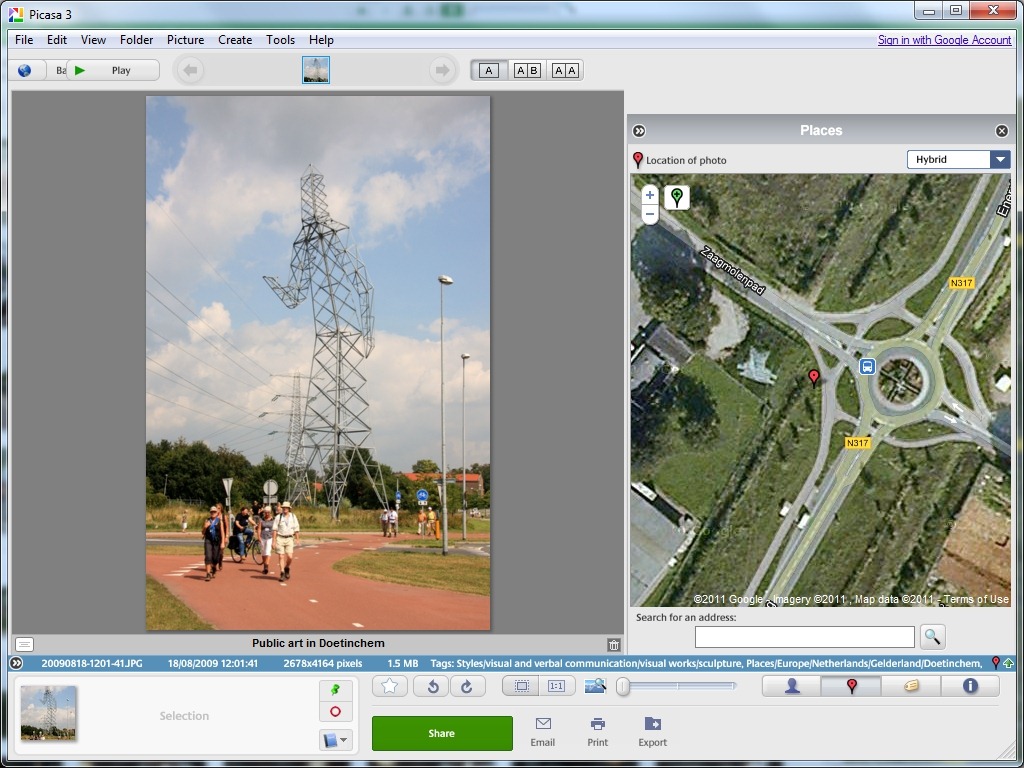
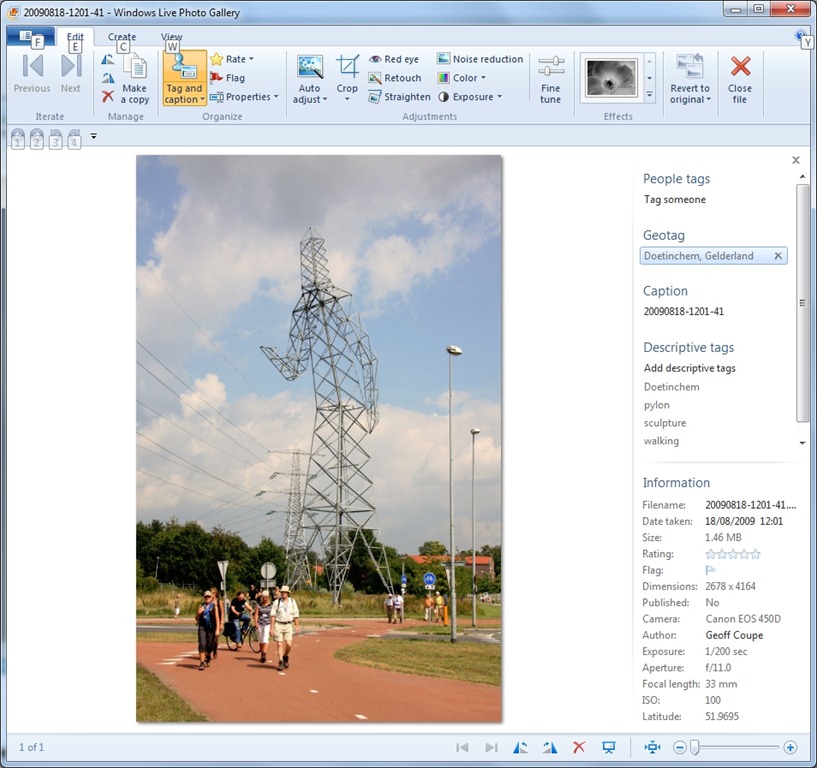
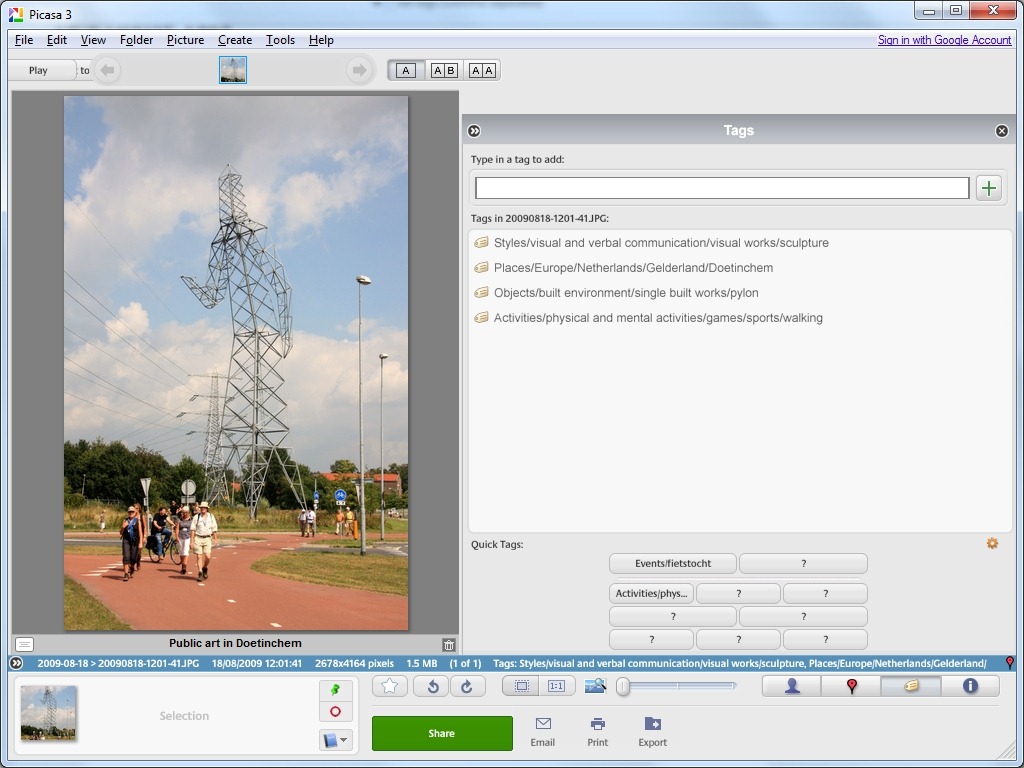
    Let me try and illustrate this. Here’s a screenshot of a photo being displayed in Picasa, and I’ve used Picasa to assign a set of GPS coordinates to the image file, by moving the red location pin to the correct location on the map:
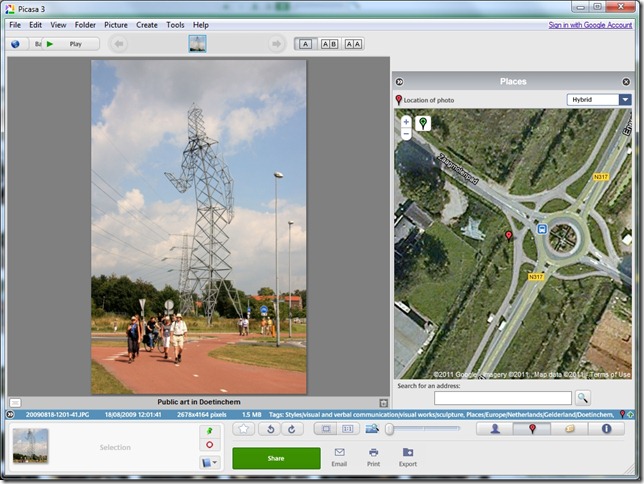
    Picasa Geotag 4

    When I save this location to the image file, Picasa uses the online Google Maps service to find out the GPS coordinates of the location and writes them into the image file as Exif metadata.

    Since the image file now contains GPS coordinates in its Exif metadata, when I look at the same file in WLPG, you can see from this screenshot that WLPG has performed reverse geocoding by using the GPS coordinates to derive the closest address for where the photo was taken, in this case, Energieweg, in Doetinchem, in The Netherlands:

    WLPG Geotag 2

    Under certain circumstances, WLPG can store this address information in the image file, using the IPTC Extension LocationCreated metadata fields. Since this is a cross-industry standard, other applications that support this standard should be able to work with the metadata. However, you cannot use WLPG to create GPS coordinates for an image. Perhaps in the next version?

    One point to be aware of is that although WLPG will automatically generate its “geotags” from GPS data that has been set by Picasa (or any other geotagging application), Picasa will not do geocoding; that is, it will not automatically generate GPS coordinates from the IPTC Extension LocationCreated metadata fields – it simply ignores them, and will not even display them in the information panel in Picasa. This means that if you use WLPG to set “geotags”, you need to go through the photos again with Picasa if you want to have proper geotag (i.e. coordinate) data in the photo metadata.

    I do wish that Microsoft hadn’t called this metadata “geotags”, because it is not, in the generally accepted sense of the term – it’s not coordinate data. It would have been better to name it “Location”, because that’s what it is, and it also refers back to the IPTC LocationCreated metadata standard.

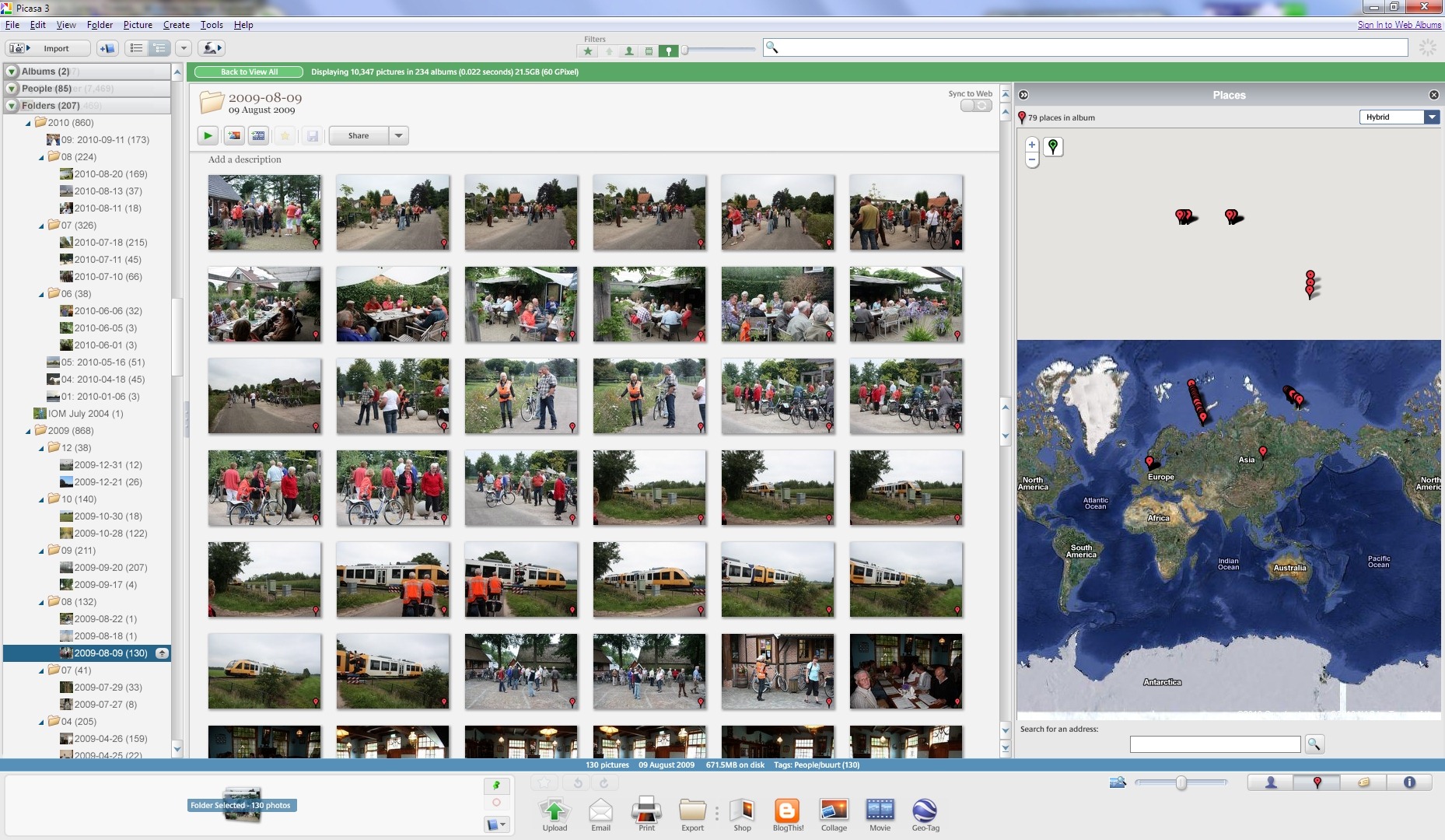
    On a more positive note, I’m very pleased to say that the geotag display problem of version 3.8 of Picasa has gone, and geotags are now displayed in their correct locations on the map. Here’s the screenshot I used to demonstrate the bug in my blog post of version 3.8 in September 2010 (click for the full-sized version):

    Picasa Geotag 2

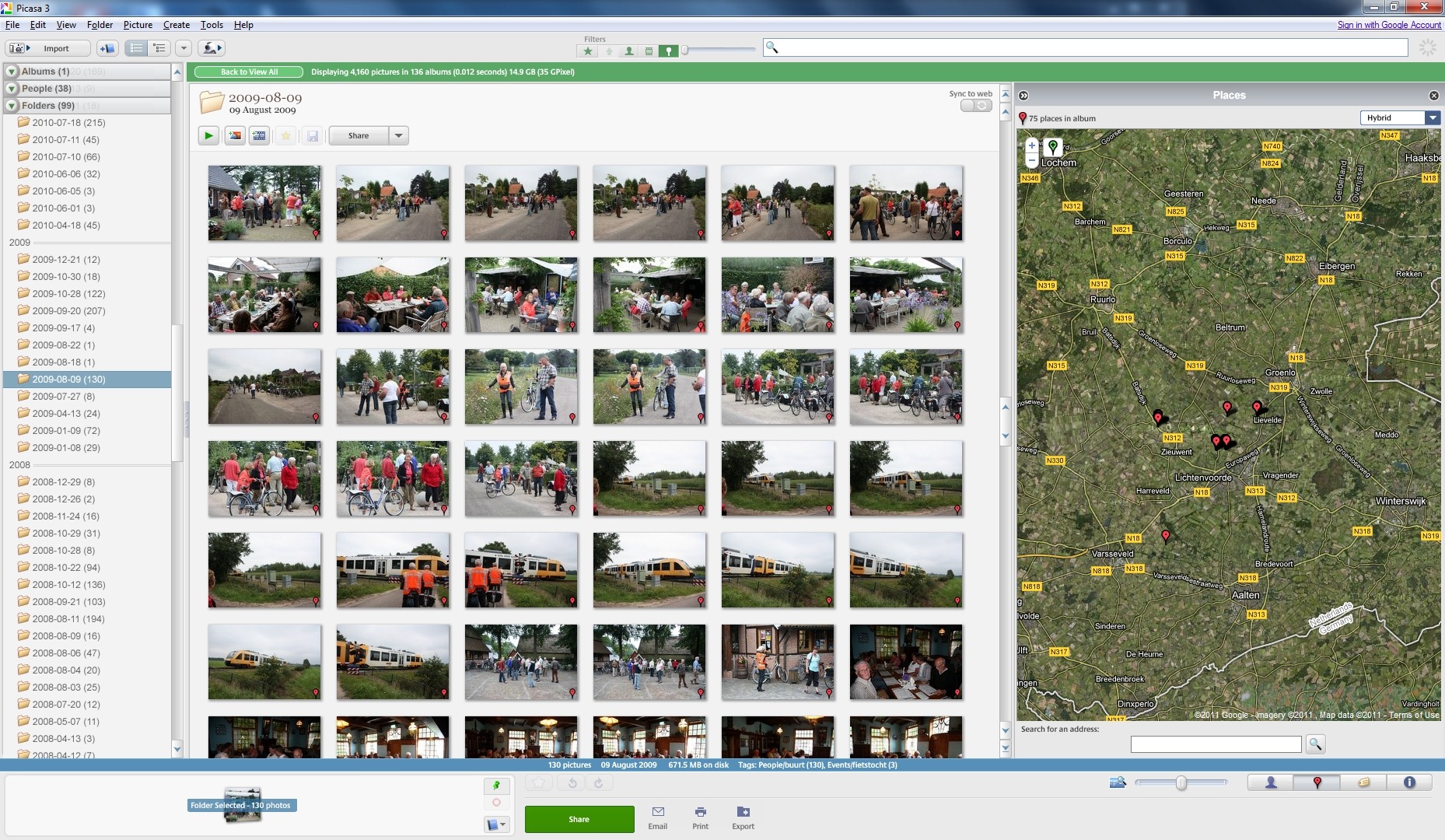
    And here’s the same folder of photos in version 3.9 displaying the correct locations of the geotags on the map:

    Picasa Geotag 3

    Captions

    As the old joke goes: the great thing about standards is that there are so many to choose from. I’ve noticed that Google and Microsoft have interpreted the IPTC Core standard slightly differently in at least one area, and that is in the captioning of photos.

    Take another look at the single photo being displayed in Picasa. Notice that it has a caption (showing underneath the photo) that reads: Public art in Doetinchem.

    Now take a look at the same photo being displayed in WLPG. I’ll show a new screenshot below, since in the first screenshot, the caption was being obscured by the “geotag” information:

    WLPG Geotag 1

    In the information panel to the right, you will see that the caption reads: 20090818-1201-41. In both cases, this is the same photo, so why are the captions different? The answer is that Picasa uses the “Description” metadata field from the IPTC Core standard to display the caption for a photo, while WLPG uses the “Title” metadata field from the IPTC Core standard to display the caption.

    Frankly, I think that Google have made the right choice and Microsoft the wrong choice. If I look at the IPTC definitions of the two fields, I read the following:

    Description A textual description, including captions, of the item’s content.
    Title A shorthand reference for the digital image. Title provides a short human readable name which can be a text and/or numeric reference

    I’ve followed these definitions for my own photos. I use the filename of the photo to set the Title field (it’s the date and time of when the photo was taken as a reference), and I use the Description field to hold a caption describing the content of the photo.

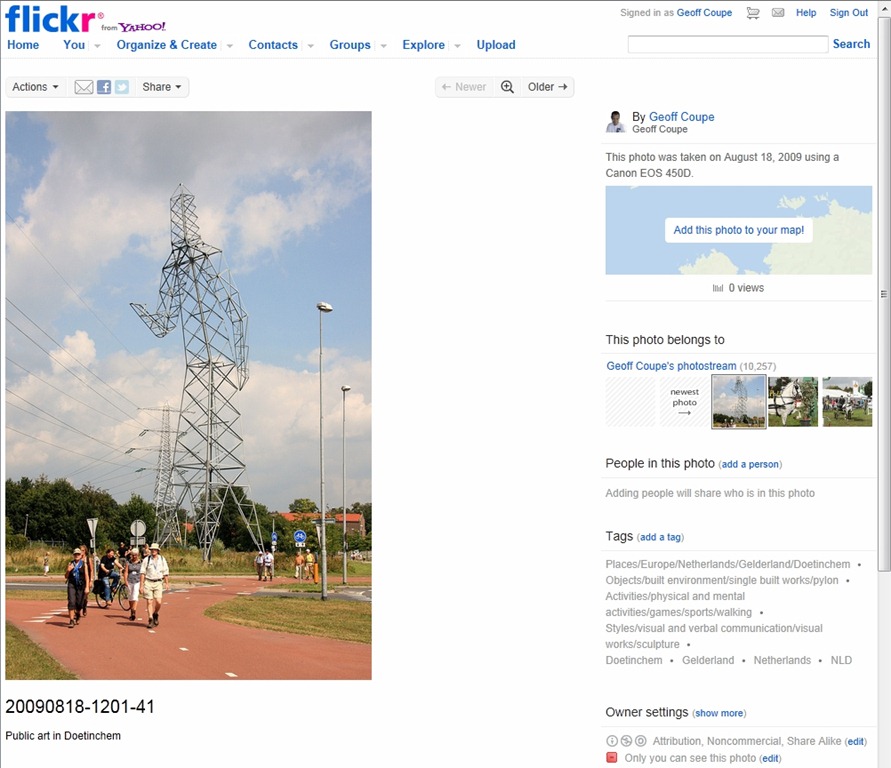
    Also, if I use Flickr to upload the same photo to my Photostream, you can clearly see from this screenshot that Flickr actually displays both the Title and the Description fields under the photo:
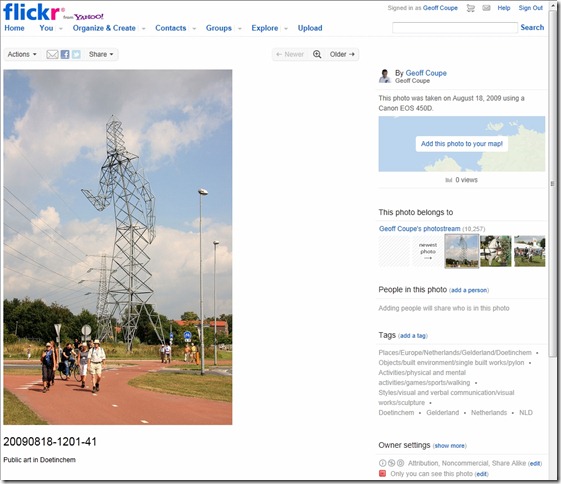
    Flickr 4

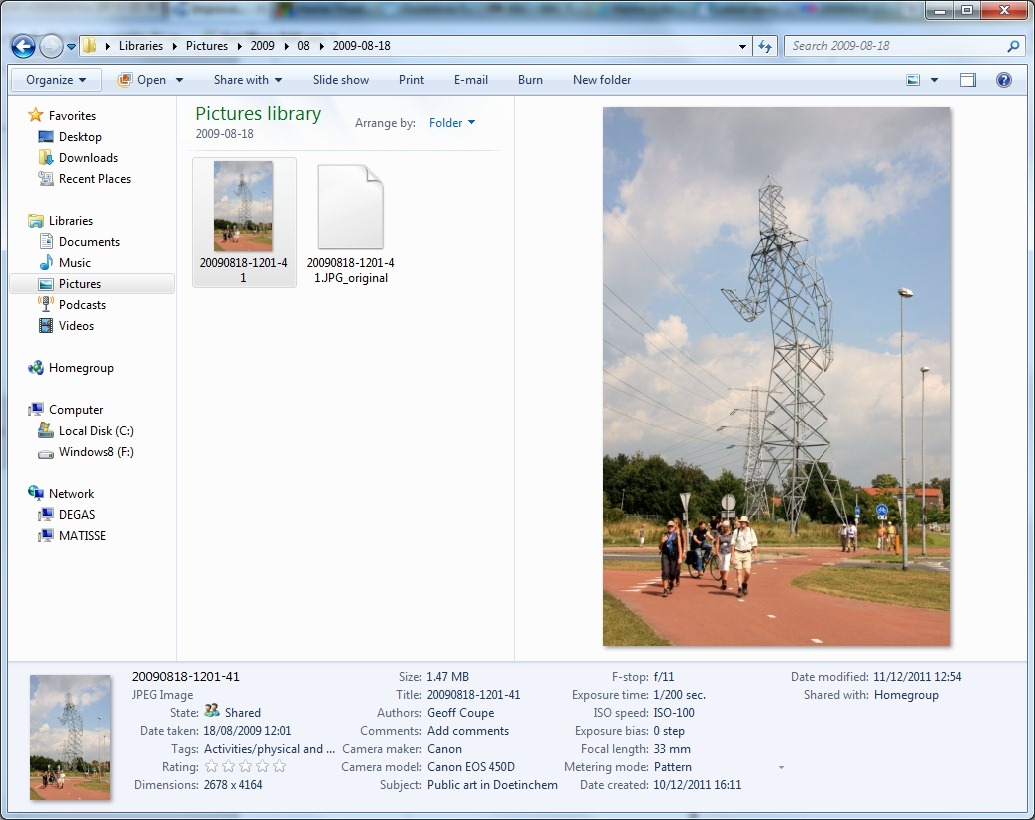
    Both Flickr and Google seem to me to have made the correct interpretation of the IPTC Core standard, while Microsoft’s WLPG team has got it wrong. However, I think that there’s little chance of them changing now. We’re probably stuck with it. Curiously enough, the WLPG team seem to have struck out on their own here, since they use different terms to those used in Windows itself. Here’s a screenshot of the photo being displayed in Windows Explorer:
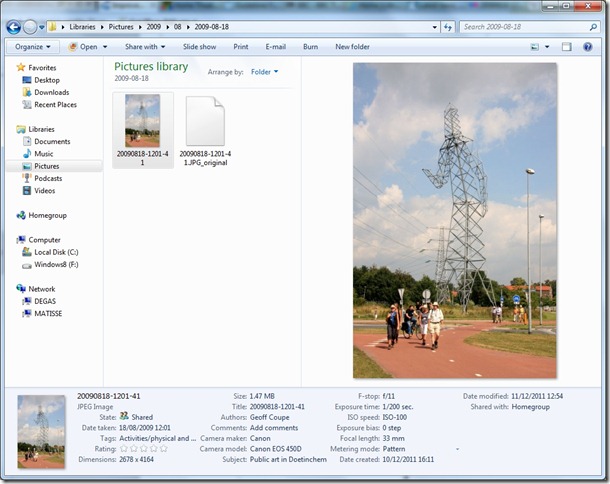
    Explorer 1

    Notice how Explorer does actually use “Title” according to the IPTC Core definition, and using “Subject” to align with the IPTC Core definition of “Description”. So Windows is better aligned with the IPTC standard for photo metadata than WLPG…

    Descriptive Tags

    Both Picasa and WLPG support the use of descriptive tags, and both use the “Keywords” metadata field from the IPTC Core standard to display the keywords, or descriptive tags for a photo. This means that the same photo should be displayed with the same set of descriptive tags in both Picasa and WLPG. And, subject to one slight quirk, that’s what they do.

    The quirk is caused by the fact that I use hierarchical tags with my photos. That’s to say that, for example, my tag cows is actually part of a hierarchy that starts Nature/Animals/livestock/cattle/dairy cattle/cows. That way, when I search for photos with the tag cows, it will just show me those with cows in them. But if I search for photos with the tag livestock, it will show me photos of cows, horses, pigs, sheep, and so on. I use a tag hierarchy because I find it more flexible than an enormously long list of single-level tags. See this blog post for more detail of how I tag my photos.

    The quirk shows itself by the fact that WLPG displays just the last term in a tag sequence; e.g. for a photo that is tagged with the tag Nature/Animals/livestock/cattle/dairy cattle/cows, WLPG will just display “cows”. For our photo taken in Doetinchem, WLPG displays this for the descriptive tags (see the screenshot above):

    Doetinchem
    pylon
    sculpture
    walking

    Picasa, on the other hand can’t deal with a tag hierarchy in a friendly fashion, and has to display the whole sequence:
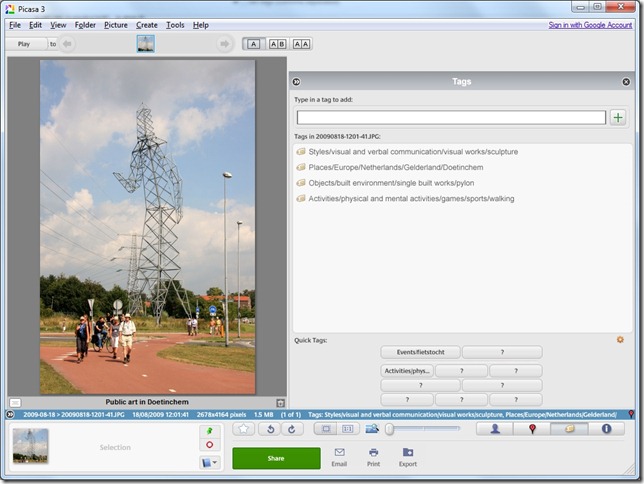
    Picasa Geotag 5

    As you can see, this gives rise to problems in handling long tag sequences: the Quick Tags buttons can only display the beginning of a tag sequence, rather than displaying the last term in the sequence.

    Mind you, WLPG is not perfect in this area, either. Both could do with improvements. For the moment, I’ll be carrying on doing tagging and other metadata work with my preferred tool: IDimager. (Note: IDimager is no longer available. Its successor is Photo Supreme, which I am now using)

    People Tags

    Both the current versions of Picasa and WLPG provide face recognition technology, so that you can easily tag people with their names. However, while WLPG used XMP to store the people tag metadata in the image files, version 3.8 of Picasa stored the tag information locally on the PC. This meant that it was very difficult to share tag information across multiple machines, since the tags did not travel with the file. I notice that in version 3.9 of Picasa, there is now an option to store the name tags in the image files themselves. Unfortunately, at the moment, there is no real information available from Google as to what this actually means. Are they using XMP? If so, is the schema documented? Microsoft have documented what they do for people tags, but so far I have not seen anything similar from Google.

    I’ll be prepared to bet that the two approaches for people tags are not compatible; that is, if I tag people in Picasa, those tags will not show up in WLPG, and vice versa. It’s been a year since the Metadata Working Group published their guidelines calling for standardisation in the area of people tagging. I doubt that we’ll see fast progress, or any progress at all, given the fact that Google and Microsoft have probably planted their flags in different places.

    Update 13 December 2011: Well, there’s a surprise: Picasa version 3.9 is using the XMP metadata fields proposed by the Metadata Working Group for people tags. See this thread on the Picasa Help Forums, where this is stated. I’ve just checked this, and I can confirm it. This is excellent news. It also means that Google has adopted the proposed industry standard ahead of Microsoft, who are still using their own XMP schema. That’s a bit ironic, considering that Microsoft are one of the founding members of the Metadata Working Group. It will be interesting to see whether Microsoft will adopt the same standard for people tags in a future version of WLPG. Then, like descriptive tags, people tags can also be shared by Picasa and WLPG. If Microsoft do adopt the standard, we’ll probably see at least one version of WLPG where both standards are used, in order to provide a transition period.

    And here’s a second surprise: it looks as though Picasa 3.9 can read WLPG people tags, so there is at least some degree of compatibility between WLPG and Picasa regarding people tags. I think I’ve lost my bet.

    I discovered this because Picasa started assigning names to some faces, without my having to do so. This could only mean that it was getting the names from somewhere, and that turned out to be from the Microsoft people tag metadata in some files – I had used the face tagging capability of WLPG on some files before I discovered that WLPG was corrupting Exif Makernotes.

    Unfortunately, Picasa doesn’t use this information to then write back the face tags into the file using the Metadata Working Group schema, but just holds the information in its local database. I’m going to have to find some way of wiping out all trace of the Microsoft people tags, and then apply them exclusively from within Picasa. Since for those files, the Exif Makernotes are already corrupted, I’ll try using WLPG to delete the face tags and see what Picasa does…

    Update 14 December 2011: Right, I’ve been playing around with the people tagging feature, and this is what I’ve come up with:

    • Picasa 3.9 will read WLPG people tags and create people tags in Picasa’s local database only (they are not written out as metadata to the image files).
    • Picasa 3.9 will read people tags created in earlier versions of Picasa that are held in the local database. It will not write pre-existing tags out as metadata to the image files.
    • Picasa 3.9 has an option to store people tags as metadata, in addition to holding them in the local database. This option is not retroactive; that is, once selected, Picasa will not write out pre-existing tags to the image files, but only write out metadata on newly-created people tags.
    • There seems to be no way to force Picasa 3.9 to write out pre-existing people tags as metadata to the image files.
    • The current version of WLPG will not read Picasa’s people tags, either from Picasa’s database, or from the people tag metadata in the image files.

    In the end, what I’ve had to do is:

    1. Ensure that all people tags were deleted from WLPG.
    2. Uninstall previous versions of Picasa, and delete the Picasa database.
    3. Search for all Picasa.ini files that Picasa strews through your picture folders, and delete them.
    4. Do a fresh install of Picasa 3.9, and ensure that the option to store people tags as metadata in the image files was enabled before starting to do any people tagging work.

    Clearly, this is a bit of a pain if you’ve already done extensive people tagging in either WLPG or Picasa, but I see no alternative at the moment. That is, if you want to prepare for the future and hold people tags as industry-standard metadata in your image files.

    Update 2, 14 December 2011: Sigh, it looks as though storing the people tags as XMP metadata into the image files with Picasa 3.9 is buggy. I’ve found that, even though the option is selected to write out the metadata, not all the image files have the people tags written out to them. Even though Picasa is showing people tags, the images themselves do not have the XMP metadata written to them. I’ve raised this as a potential bug in the Picasa Help forum.

    Update 3, 19 December 2011: I think the comments made by Ben below are worth including here in the main entry (for the benefit of people who read the entry, but not the comments). He has found a few more people tagging behaviours worth noting:

    1. WLPG does not read the Iptc4xmpExt:PersonInImage tag.
    2. Picasa does read the Iptc4xmpExt:PersonInImage tag, but this information is buried in the properties, labelled “Person Shown”. People tagged in this manner will not show up under the “People” pane or in the “People Manager”. Likewise, you cannot search for people that are tagged using this tag (as far as he knows).
    3. WLPG allows you to tag a person without specifying the area they are in. If you tag someone in WLPG without drawing a box to indicate where they are, they will not show up in Picasa. As already pointed out, people tagged in WLPG that DO indicate where they are in the photo will show up in Picasa as expected.

    Update 4, 20 December 2011: Another Picasa bug has crawled out of the woodwork. I’ve just discovered that of the 1,895 photos that Picasa has written name tag metadata into, seven of them have had their “Date Taken” and “Date Created” metadata overwritten by the date/timestamp of when the file was modified, i.e. had the name tag metadata written out to them.

    I think it’s time to stop using Picasa version 3.9. There are just too many bugs present in the current build (135.80,0).

    Synchronisation Between Online and Local Photos

    One area where I think Picasa is still ahead of WLPG is the ease of sharing photo albums online, and keeping them synchronised with the photo albums on your PC. With a single mouse click, any folder of images on your PC can be mirrored online and the two kept synchronised. And this is a two-way sync – changes made locally on your PC will be automatically reflected in your online web folders, and vice versa. Very nice.

    In the current version of WLPG, while you can publish images from your PC to a variety of online sites (e.g. SkyDrive, Flickr or Facebook), these can’t be automatically kept synchronised. This is a rather surprising omission, particularly since Microsoft have provided online synchronising technology for some years. However, the issue was that they had a couple of competing approaches. I suspect that there is a major technology revamp going on behind the scenes, and that the next versions of Windows Live Mesh and WLPG will provide at least the equivalent of what Picasa is already doing. We may have to wait for Windows 8 to see real results from Microsoft in this area.

    Conclusions

    Summing up, I think I would have to say that, at the moment, Picasa is clearly ahead of WLPG. This is for three reasons:

    • Picasa’s automatic synchronisation of local and online photo albums is a feature that WLPG simply does not yet have.
    • Picasa will not corrupt your Exif metadata. As far as I’m concerned, WLPG’s wanton corruption of the Exif Makernotes is a cardinal sin. I refuse to even countenance using WLPG for any metadata work until this is fixed.
    • Picasa version 3.9 has adopted the Metadata Working Group’s standard for face tagging.

    I’ve held off doing any serious face tagging work up until now; partly because WLPG will corrupt Exif Makernotes if I use it to apply face tags, partly because earlier versions of Picasa only stored face tags in its local database, and partly because IDimager (my main digital workflow tool) has its own standard for face tags. Now that Picasa has adopted the Metadata Working Group standard, I think can finally start tackling face tagging in earnest.

    Update 20 December 2011. As noted in the section on People Tags, since I reached the conclusion that I can finally start face tagging in earnest, I’ve discovered bugs in the current build (135.80,0) of Picasa 3.9. As a result, I’ve changed my mind – I’ll wait until Google gets rid of these bugs before I use Picasa for face-tagging work.

    Update 27 December 2011. Thomas, in the comments below, has pointed out another major failing of Picasa 3.9 – it will remove Makernotes from any file that it touches. Sigh. I had missed this, because I was just checking to see whether the Makernotes section was being corrupted (this is what WLPG will do). Because ExifTool was not reporting any errors, I thought everything was OK. I simply hadn’t realised that it was not reporting any Makernotes errors because Picasa had bloody well removed the whole damn Makernotes section

    Right, now I need to restore all the 1,895 image files that Picasa has touched (when writing out People tags) from a backup taken prior to unleashing Picasa on my photo collection. It’s at times like these that I really appreciate the backup capabilities of my Windows Home Server.

  • Gameplay

    After an earlier failed attempt a few years back to run the Steam environment on my PC, I tried again a couple of months ago.

    I was enticed into it by a free offer to experience Portal – a game of which I had heard much, and was intrigued by.

    Steam ran much better this time around, and I very much enjoyed Portal. So much so, that I purchased Portal 2, and found it even better. The atmosphere, the humour, and the characterisation of the two protagonists, Wheatley and GLAADOS, are terrific (in all senses of the term) in Portal 2.

    Buoyed with my success of running Steam and Portal (1 and 2), I looked around for similar games. I found LIMBO, and I bought it.

    I have to say that while I can appreciate the craft that has gone into it, I find it almost impossible to play for any length of time. That’s not just because it is difficult (and it is for me, requiring lightning responses that I no longer possess), but also because my character dies – a lot. In fact, my character dies practically every step the poor bugger takes, and it’s just too much for me.

    Life can be depressing enough – I really don’t want to spend my spare time wallowing in the futility of traipsing through a representation of theology’s Limbo, where the powers that be derive a sadistic pleasure from the manifold ways in which pain and death can be brought about. Religion has brought enough suffering to the human condition, I really don’t need a video game to underline the misery, thank you very much. I think I will leave LIMBO uncompleted.

  • The Pitfalls of Design

    I see that the Windows Live team has done another blog post on their efforts to redesign SkyDrive. While I appreciate their posts for documenting some of their approaches to design, I sometimes feel that their (often bland) statements can border on the disingenuous.

    Here, for example, is the very first bullet point from that post:

    In June we overhauled our website and used the latest browser standards to simplify our photos and documents experience, while also making it much faster.

    It sounds good, until I found out that what they meant by the verb “to simplify” is that they:

    • Removed the slideshow function. Now if you want to display the contents of a photo album on SkyDrive, you have to click through every damn photo manually.
    • Removed the display of Tag metadata. Previously, photos containing Tag metadata that were uploaded to SkyDrive would automatically have the Tags transferred and displayed in SkyDrive, now they don’t. Worse, you are invited by SkyDrive to “Add a Tag”, so that means that if you do, you now have two independent sets of Tags to maintain.
    • Removed the URLs to individual images; now you have to jump through hoops if you want to provide a link to an original photo or image in blog or forum entries.

    Let’s just look at these points in turn.

    Removal of the Slideshow Function

    According to Microsoft (in a comment from Omar Shahine on this blog post):

    In doing our research we found that users preferred controlling playback themselves, and the value of hitting play and sitting back to watch wasn’t all that important relative to other features.

    Sigh – this sounds to me like the pitfall of cherry-picking your data to fulfil your own agenda. Some of my online photo albums have over a thousand photos in them; there’s no way I’m going to sit there and click on the mouse a thousand times when I could have clicked once to start a slideshow. These albums will remain on Flickr, which sensibly has a slideshow function built in.

    Removal of the Display of Metadata

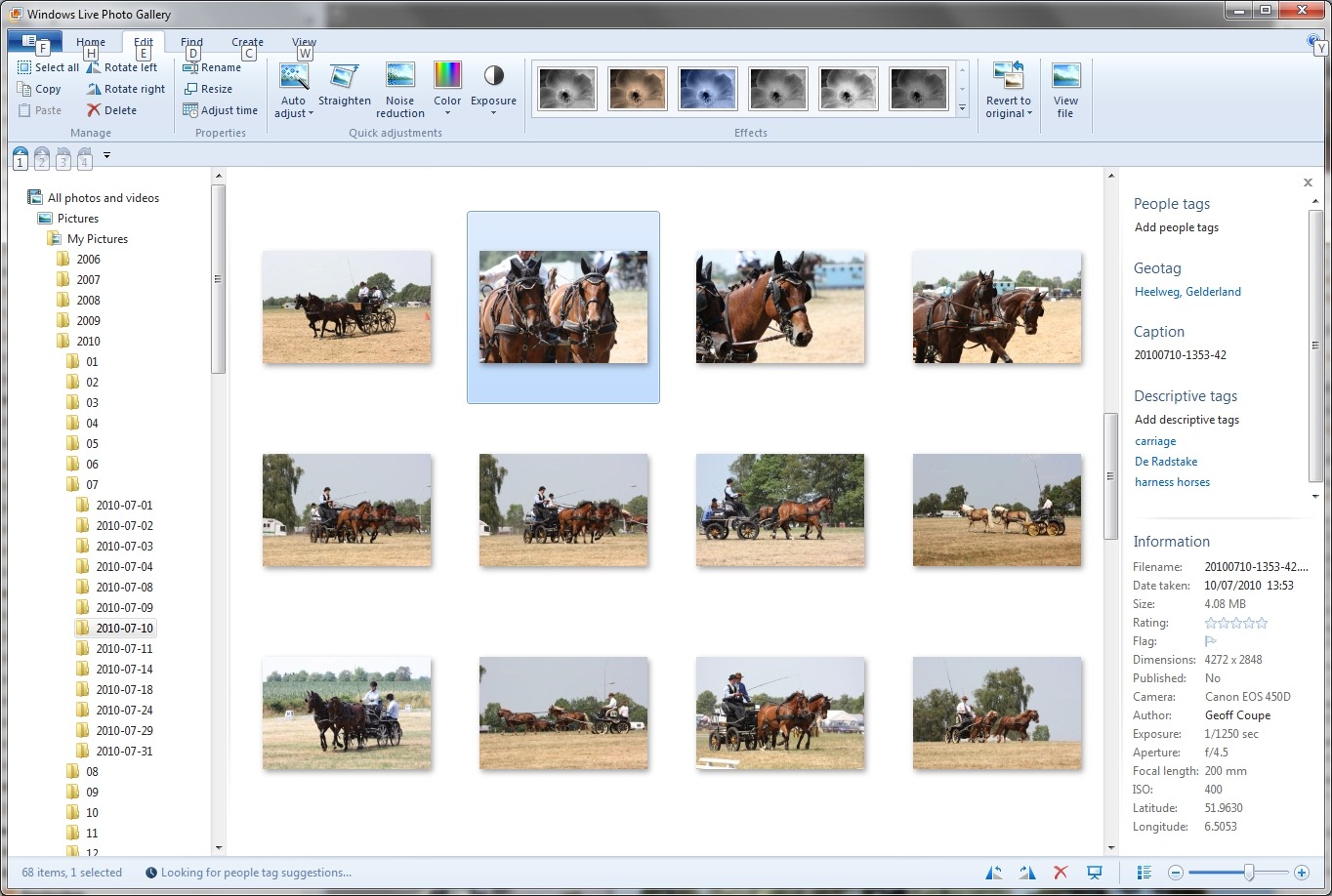
    Let me illustrate this. Here’s a screenshot of the thumbnails of some pictures being displayed in Microsoft’s Windows Live Photo Gallery, an application that is running on my PC. One thumbnail has been selected, and you can see the metadata embedded in the photo being displayed in the information panel on the right hand side of Windows Live Photo Gallery (click on the image to see the full-size screenshot).

    SkyDrive 1

    You can see that the metadata contains both descriptive tags (e.g. carriage and harness horses) as well as technical and copyright information (e.g. date taken, location, camera details, etc.).

    This picture was uploaded to a SkyDrive photo album here. When I look at the picture in SkyDrive, while I see some (but not all) of the technical information, none of the descriptive tags have been transferred. Indeed, I’m invited to add the tags again!

    SkyDrive 2 

    Naturally, all the metadata is transferred and displayed if I upload my photo into Flickr:

    SkyDrive 3

    Removal of URLs to Individual Images

    There was a time when a simple right-click on an image in SkyDrive allowed you to copy the URL for that image, which could then be pasted into a blog or forum entry in order to embed the image in the entry. Alas, this is no longer possible. If you want to do that now, you have to download the image back to your PC once more, then persuade the Download Manager of IE9 to tell you the URL of where it came from. This strikes me, and others, as completely ridiculous.

    As you will have guessed by now, Flickr continues to provide a simple URL for images that can be used in blog and forum entries (together with URLs for other sizes of the same images)…

    And the Rest…

    The rest of that blog post from Microsoft goes on at length about the different groups of users that Microsoft needs to design for, and the challenges that this entails. All true enough, but it seems to me that in the current design of SkyDrive, Microsoft has actually made photographers take a step back rather than a step forward. And that is in contrast to the design of Flickr, which has certainly given me the impression that functionality has kept pace with my needs.

    Perhaps this is just a temporary hiccup. The authors of the blog post, Omar Shahine and Mike Torres, promise that they are working on improvements, without actually sharing any specifics. And that brings me to one last thought. I’ve been following the series of blog posts on Building Windows 8 with great interest. Each of those posts goes into detail, and at length, on the design choices and why particular ones are made. It’s a fascinating insight into the kitchen of the Windows 8 team. It’s a great pity that the Windows Live team have not taken a leaf out of the Windows 8 team’s book and given us more insight into what they are planning and doing. Issuing bland posts stating that there are challenges, whilst simultaneously delivering less functionality than previous versions of the SkyDrive service does not fill me with confidence.

    Update 30 November 3 December 2011

    Since writing the original post, there have been some changes to the SkyDrive service. Most have been in the area of being able to work with multiple files at once. However, one nice thing: the Slideshow function has been reintroduced.

    The other two issues I raised in the original post (no Descriptive Tags and a simple method for obtaining the URL for an image) are still there. Perhaps they will be removed in a future upgrade… Update: As Ludwig points out in a comment below, there is in fact now a method of obtaining the URL of an image. Just browse to the image required, click on “View original” and then you will be able to copy the URL from the Address bar.

    So, two down, one to go…

  • Er, Was It Something I Said?

    Tablet PC Review is, as you might expect, a web site devoted to covering the field of Tablet PCs. It’s a useful place to go to for news and reviews of Tablets and Tablet PCs.

    As well as the news and reviews section of the site, there’s also a large and extensive set of user forums with over 20,000 registered members. Since there’s a user forum devoted to discussion of Samsung’s Tablets, and since I am interested in learning more about people’s experience with the Samsung Series 7 Slate PC, I thought that I would get registered on the forums and get involved in the discussions.

    So, a week ago, on the 18th October, I registered. I got the activation email from the forums to complete the registration process, and activated my membership account. I signed in, and browsed around.

    Imagine my astonishment when, on Thursday, I attempted to sign in and instead of seeing the list of forums, I found myself staring at this:

    Spam

    It says:

    You have been banned for the following reason:
    dumb spammer DID YOU THINK YOU WOULD GET AWAY???

    Date the ban will be lifted: Never

    Er, excuse me – I am not, and never have been, a Spammer. Indeed, I have not even posted one single message to your forums… Clearly there’s been some mistake. So I sent a polite message to forum support explaining that there’s been some sort of error, and my account has been flagged as spam.

    No response.

    Yesterday I sent another polite message to Forum support asking for the mistake to be corrected.

    No response.

    If I try to log on, I still get the Spam message, and I see that I am now no longer listed as a member. I suppose that I can still browse the forums of interest anonymously, but it is much more convenient to be registered, and to be able to raise questions. 

    I know I’m old-fashioned, but, even with the internet, I still do rather expect to receive the common courtesy of a reply, and I tend to get frustrated when I perceive that I’m simply talking to a brick wall.

    Update 27 October 2011: I sent a direct email about this to Jamison Cush, site editor of TabletPCReview. He immediately forwarded it on to his community manager who manages the forums. I received a swift reply from him, apologising for the mistake – there was apparently a significant Spam attack when I registered, and I had got caught up in it – and I have now been reinstated. The brick wall may have been a failure of the “Contact us” channels. Sometimes it’s useful when you can walk around the wall and communicate directly with real people.

  • Standing on the Shoulders of Giants

    One of the giants of computing died last week.

    No, I’m not talking about Steve Jobs; I’m talking about Dennis Ritchie, inventor of the C programming language and co-developer of the Unix operating system. His influence, via C and Unix, has left its imprint through practically all of computing and modern technology.

    Sobering to realise that he was only a few years older than me.

    Update 16th October 2011: There’s a very good summary of Dennis Ritchie’s work in today’s Observer, written by John Naughton. Definitely worth a read if you’re interested in understanding the magnitude of what Ritchie achieved. Good opening too:

    It’s funny how fickle fame can be. One week Steve Jobs dies and his death tops the news agendas in dozens of countries. Just over a week later, Dennis Ritchie dies and nobody – except for a few geeks – notices. And yet his work touched the lives of far more people than anything Steve Jobs ever did.

  • The End of an Era?

    Steve Jobs has died at the young age of 56. He had a massive influence on at least three industries: computing, film animation and music.

    I thought that Dan Gillmor’s eulogy on Jobs probably came closest to a rounded portrait: “a man of contradiction and genius”. Gillmor also links to the commencement speech Jobs gave at Stanford University a few years ago and that is certainly worth reading; in particular, his thoughts on life and death:

    No one wants to die. Even people who want to go to heaven don’t want to die to get there. And yet death is the destination we all share. No one has ever escaped it. And that is as it should be, because Death is very likely the single best invention of Life. It is Life’s change agent. It clears out the old to make way for the new. Right now the new is you, but someday not too long from now, you will gradually become the old and be cleared away. Sorry to be so dramatic, but it is quite true.

  • The iPad is Not a PC–Take 2

    Over a year ago, I blogged about Peter Bright’s article in Ars Technica on why Steve Ballmer and Microsoft didn’t understand how Apple’s iPad has been so successful.

    I wrote at the time that:

    It’s odd that Ballmer appears to be insisting that Tablet and Slates are just another PC form factor – they are not, and they need something other than simply loading them up with bog-standard Windows 7. A way forward may be to adopt the approach of the forthcoming Windows Phone user interface, which is designed from the ground up to be driven by the human finger. After all, the iPad owes more to its roots in the iPhone than it does to the traditional Mac. If Ballmer can’t see that as an analogy for the next generation of Tablets and Slates, then it seems likely that sales will continue to languish.

    Well, fast forward a year, and we have the Developer’s Preview of Windows 8, and we are beginning to see that Microsoft are indeed adopting the tenets of Metro – the interface used in Windows Phone.

    I had intended to download and install the Developer’s Preview of Windows 8 onto my HP TX2000 Tablet PC, but unfortunately it chose this moment to die. However, I went ahead and installed it on my main PC, as the secondary operating system that can be chosen at boot-up.

    I can see that Windows 8 is a gamble for Microsoft, and it’s one that I think that they might very well pull off. I think it’s because that they can have the same operating system running on a much broader range of devices (at different price points) than is possible currently, and all of these devices can be supported within the same ecosystem of backend (read: Cloud) services and applications.

    By way of illustration: a couple of friends visited us this last weekend. One of them works in a Dutch government Ministry, so she was fully equipped with a Smartphone and an iPad. This was my first chance to get my hands on an iPad and try it out. And, while I marvelled at the form factor, I soon found that it seemed to be very good at consuming content, but not particularly good at creating content – an impression that my friend concurred with.

    My old HP TX2000 – while it was larger and heavier than her iPad – ran a fully-fledged operating system (Windows 7) and was equipped with both a Touchscreen and pen interface, as well as a keyboard, so I could use it in ways that I simply could not accomplish with an iPad. Taking notes with my pen (using OneNote) or using the built-in handwriting recognition of Windows 7 (with its scary accuracy) is a task that is completely alien to the much more limited iPad. Then again, the iPad is designed from the bottom-up for fingers; Windows 7 needs a mouse or a pen. While it is possible to adjust Windows 7 to be more finger-friendly, this has its limits.

    This is where it starts to get interesting with Windows 8.

    Devices, with their operating systems and user interfaces are all about horses for courses. The iPad is a device designed for a much more limited purpose than a high-end notebook. And the newly-announced Kindle Fire is a device that aims at a purpose lower than both of them, but one which may well satisfy millions of people who simply want to read books or play games. The price points of the devices reflect their capabilities.

    I think that we about to see an opportunity for devices that can span a wider range, yet even though they have a higher price point, will be attractive to people.

    Samsung will introduce their Series 7 Slate PC (the XE700T1A) this month – well, hopefully this month, although I’m beginning to think that November might be nearer the mark.

    It has the specs – and the price – of a high-end notebook, yet can be used as a finger-driven Slate PC. In price, it’s comparable with the Apple MacBook Air models, yet the Series 7 Slate comes with a built-in Wacom digitiser in the display and a pen. I’ve long been a fan of Wacom digitisers – I had one back in the days of Windows XP; so did the HP TX2000 – the pressure sensitive pens combined with accurate sensing are a joy. If I were an artist, then the Series 7 Slate would replace my sketchpad. The Series 7 Slate also comes with the accelerometer, compass, and GPS (see Update below) sensors that are expected these days in tablets. As someone comments on this review here:

    The 11″ Air costs $999 for the base model, $1199 for the second tier model. This tablet costs $1099 for the base model, $1349 for the second tier model. That’s an extra 10-12%.

    Unlike an iPad, Android tablet, etc., this tablet can perform as a laptop in most scenarios — if you give it a keyboard, you can use it to run the full Excel, Photoshop, a full desktop browser, development tools, and anything else a laptop can do.

    If you want to be able to do some light reading and watch some video on your tablet sometimes, and you need to be able to run Photoshop sometimes, you have to buy a MacBook of some kind *and* an iPad. Buy one of these Samsungs, and you don’t have to choose. As an extra added bonus, you don’t have to sync anything between the two devices either. If that works for your, it’s a screaming deal.

    But again, for me, this just isn’t a good enough tablet without real tablet software. So hurry up, Win 8.

    Samsung have already said that the Series 7 Slate can be upgraded to Windows 8. 

    It’s possible that this is the first product that heralds the rebirth of Tablet PCs, and one that will be joined by lower-cost models running Windows 8. I’m sorely tempted.

    Update 3 November 2011: It appears as though the first units that are being delivered to the market are not equipped with a compass and GPS sensors. These were available on the units that were given to developers at the Microsoft Build conference in September, so these sensors must be part of the optional 3G mobile telecommunications capability. However, since the 3G card is apparently fitted inside the sealed case, it is not going to be something that an end-user can fit after purchase.

    There are also some concerns being raised about the build quality of these units. Some people are reporting the the screen glass is lifting away from the bezel along the bottom edge of the screen. Sounds as though Samsung’s glue is not good enough.

    All this is probably helpful in tempering my enthusiasm. It wouldn’t do any harm to wait a while…

  • Windows Phone 7.5

    Almost a year after the first release of Windows Phone 7, the first major upgrade (“Mango”) of the phone operating system is being rolled out. Although it is a major upgrade, the official version number is 7.5, rather than 8. I suspect that’s because Microsoft want to reserve that for a future major upgrade – presumably to be rolled out at, or around, the time that Windows 8 hits the market.

    WP7.5 apparently addresses most of the shortcomings of the original release. As usual, Peter Bright, over at Ars Technica, gives a very complete review of WP7.5.

    His final summing-up:

    With Mango, Microsoft has got the smartphone operating system right. It’s fast, it’s fun, it’s easy to use, it does everything you need, and it looks great. It takes the things that made the original release unique and makes them better, and it addresses nearly every criticism made of that version. As a piece of software, it’s a triumph, and it’s more than good enough to take on Android and iOS.

    As a complete package, though, questions remain. Much is being demanded of the hardware companies, and much is staked on Nokia’s ability to make hot handsets. If they don’t deliver phones that people want, Windows Phone will continue to struggle. But it won’t be because of the operating system.

    I find those last two sentences particularly telling. And in my view, it’s not just down to the hardware companies, it’s also down to Microsoft’s marketing, the phone application Marketplace, and to Microsoft’s infrastructure used in the Marketplace. That infrastructure has, I think, a pretty serious flaw, which I have pointed out before. And that is: it assumes that people stay in one country all their lives.

    Microsoft have chosen to use the infrastructure used by their Zune music player as the basis to support the application Marketplace for Windows Phone. The problem being that once you create an account in the Marketplace, and define your country of residence, you cannot change that country, nor even delete your account. I find this last point almost incredible. I can close my Windows Live ID account, but I can’t close my Zune account? Which bright spark thought that one up? 

    This shortcoming has been in the Zune Marketplace since at least 2007, and people have been complaining about it ever since. When Windows Phone was released in October 2010, and the Zune Marketplace, running as a PC application, was used to access, purchase, and deliver applications to Windows Phones, a whole new group of people were suddenly confronted with the shortcoming and started complaining. There are many threads about it on the support forums, such as this one, which is currently running at 17 pages of pure frustration.

    I had thought that with the introduction of WP7.5, together with a web-based Marketplace alongside the Zune Marketplace PC application, that perhaps the shortcoming would be addressed. Particularly since the Marketplace has been broadened to 35 countries from the original 16.

    But no, not a bit of it, you can still neither change your country nor delete your Zune account to start over again.

    Almost as frustrating are the assumptions that Microsoft make about the languages used in those countries. I see that because I am based in The Netherlands, I am given no choice about the language I use: it has to be Dutch. Even some native Dutch speakers prefer to use their computers and phones in English. Still, it could be worse, I could live in Switzerland, where there are four official languages, but the Swiss Marketplace only offers French or German…

    Microsoft are clearly firm believers in the Procrustean solution.

  • Bad Timing

    My HP TX2000 Tablet PC died this week, just as I wanted to put the Windows 8 Developer Preview on it. It won’t boot, or even display the BIOS screen. It turns out that this problem is fairly common, and apparently caused by the video chip.

    As is usual with these things, the three-year warranty that I had with the Tablet expired 6 months ago, so getting it repaired, even if it is possible, will not be cheap. It’s probably better to cut my losses by salvaging what I can from the Tablet (e.g. the hard disk) and dumping the rest.

    I haven’t got another machine lying around that I can install the Developer Preview on, so I’m just going to have to curb my curiosity. Perhaps I should just wait until Windows 8 Tablets start appearing in the market (end 2012?). However, I must admit that I am sorely tempted by Samsung’s Series 7 Slate PC that is supposedly going to be available next month. But then again, I think that the Financial Controller (a.k.a. Martin) will probably be reluctant to authorise the expenditure…

  • Home Server Status

    If you were (or are!) using the original version of Microsoft’s Windows Home Server, you will probably have noticed that the WHS icon in the System tray changed colour to provide notifications at-a-glance:

    • Green – your home network is healthy
    • Yellow – your home network is at risk
    • Red – your Home Server has found a critical problem
    • Blue – your PC is currently being backed-up to the Home Server
    • Grey – your Home Server is offline or unreachable

    If you’re now running Windows Home Server 2011, then the WHS icon (now the Launchpad icon) no longer shows this range of notifications. Basically, you now have a choice of one colour: green. Green now simply means that the Launchpad is running.

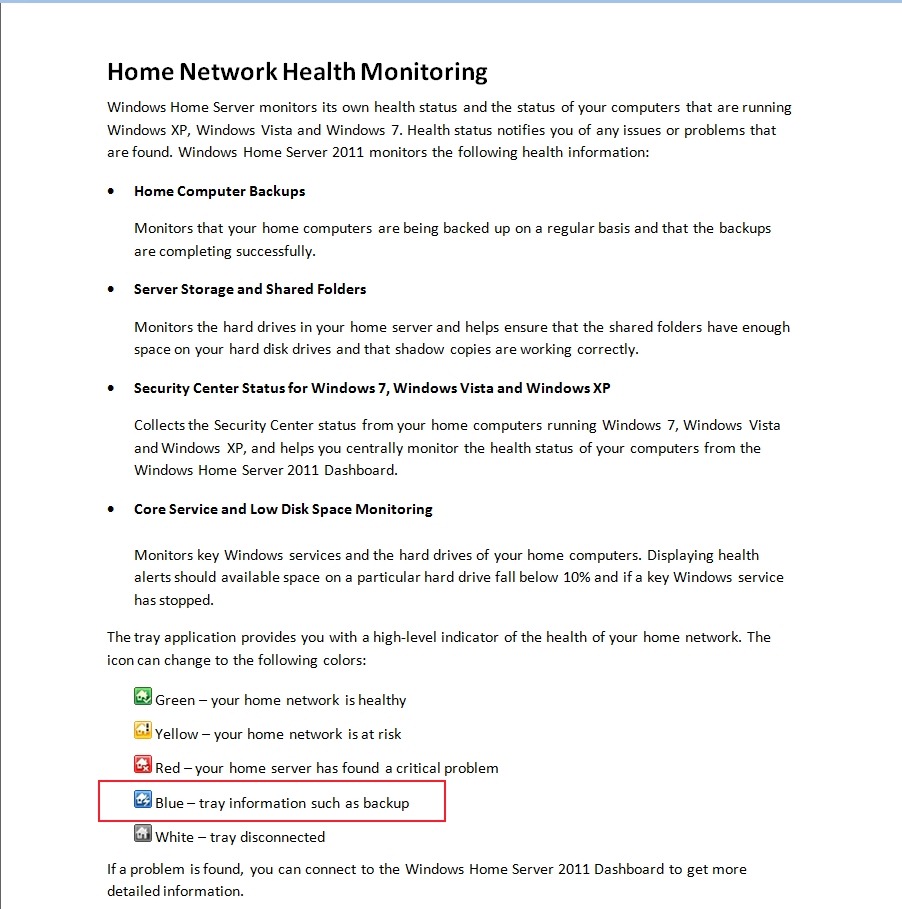
    However, the Getting Started Guide for WHS 2011 still shows the WHS v1 colour notifications as being present in WHS 2011:

    WHS2011 62

    Not surprisingly, some people, reading this document, thought that they had found a bug, and reported it as such over at the Microsoft Connect web site (note: if you aren’t registered at this site, you won’t be able to see the actual bug report).

    Microsoft did their “it’s not a bug, it’s a feature” trick and replied that:

    we decided in the 2011 release that backups should be seamless and not neccessarily [sic] notify the user of when they are in place

    and said that it would not be fixed. This is all very well, but it ignores the wishes of those folks who found that the additional notifications, particularly of backups, are extremely useful. It also points up Microsoft’s rather sloppy approach to the documentation of WHS 2011.

    Since Microsoft, in their infinite wisdom, have declined to fix what many see as a bug, I’m pleased to report that a third party has stepped forward instead.

    Jerry Wade has developed a utility (Home Server Status) for your Desktops and Laptops that indicates when a backup is in progress. Plus, it does a few other nifty things as well.

    Check it out here.

    I installed it and stopped using Microsoft’s Launchpad application, and have never looked back. I can thoroughly recommend it to ex-WHS v1 users who think that WHS 2011 has lost the plot with its bloated Launchpad application. And for those WHS 2011 users who are new to all of this, you could do worse than to check HSS out.

  • Practical Bliss

    As you may be aware, I’m not very happy with the Media Library in Windows Home Server 2011. As well as the shortcomings and design issues that I wrote about here, it also turned out that WHS 2011 has a tendency to corrupt music metadata and Album art stored in the Music Library.

    In one of the discussions about these issues that went on in various forums, I came across a reference to an application called Bliss. It’s an application that seeks out Album covers online and will download and install them into your music collection automatically.

    Since WHS 2011 had blithely overwritten all my carefully-prepared high-resolution Album art with its own low-resolution versions, I thought that I would give Bliss a whirl to see if it could repair the damage wreaked by WHS 2011.

    To cut to the bottom line, Bliss does what it says on the tin, and I can recommend it; but there are a few quirks to be aware of if you want to use it to maintain Album art on a WHS 2011 system.

    What follows is the detail of what I did and what I found…

    While Bliss can be installed and run on WHS 2011, it is not packaged as a true Add-in application for WHS 2011. Add-ins are designed to be downloaded onto your Desktop PC or your Laptop, and installed onto your WHS 2011 from there. Once installed, the Add-in appears in the WHS 2011 Dashboard, where the application can be accessed and controlled. Bliss, on the other hand, is packaged as a traditional application. Once installed and started, it runs in the background and is accessed and controlled via your web browser. This means that it can be installed on your Desktop, your laptop, or the home server. Once running, you can point Bliss at the location of your Music Library, and it will go to work.

    To install Bliss on WHS 2011, you need to open up a Remote Desktop Connection to your WHS 2011 system to gain access to the Administrator’s Desktop on the server. From there, you can double-click on the Bliss Setup program, and it will be installed on the server. Since it is installed in a server environment, it is best that it is running as a Windows service. That way, it will automatically start up when the server is booted – you won’t need to manually start it. Full instructions on how to install it as a Windows service are given on the Bliss web site here.

    Once Bliss is running (either as a Windows service, or by being started manually), then access to the functions of Bliss is done via a web browser. If Bliss is running on your Desktop, then accessing Bliss is done via the URL: http://localhost:3220. However, if it is running on your WHS 2011, then you’ll need to point your Desktop PC web browser to http://Servername:3220, where Servername is the name of your server.  And here comes the first quirk. When I tried that, the web browser failed to find the Bliss web page.

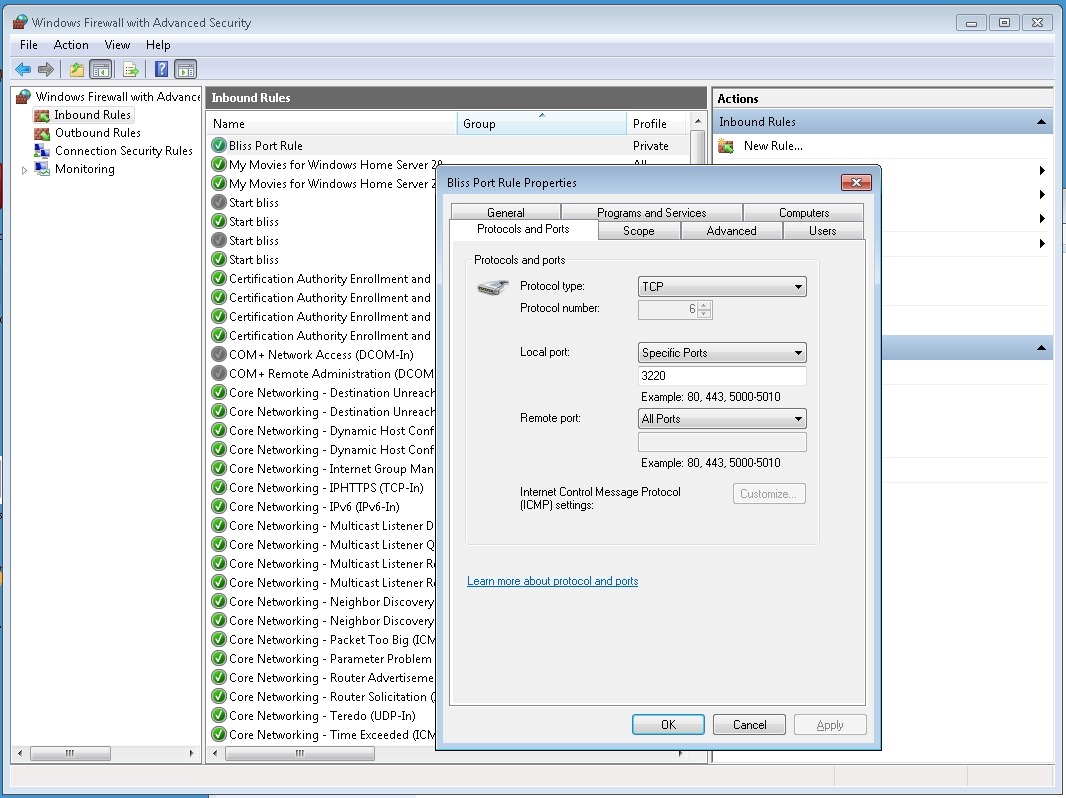
    The reason is that installing Bliss on WHS 2011 does not automatically add in a Firewall rule to allow access via the 3220 TCP port. I needed to once again open up a Remote Desktop Connection to my WHS 2011 system to gain access to the Administrator’s Desktop on the server. From there, I used the Windows Firewall Management applet to create a new TCP port rule to allow inbound access to port 3220:

    Bliss 12

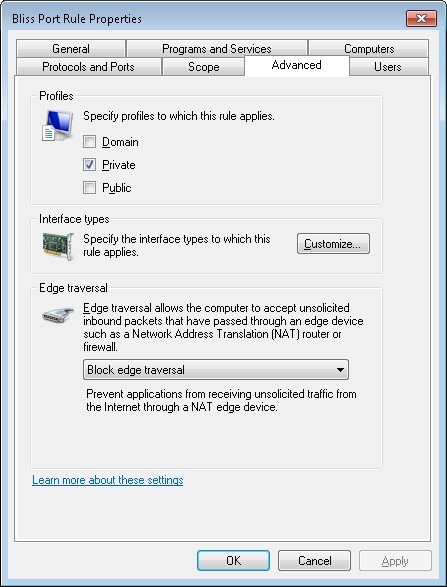
    I also made sure that this rule was only valid for my Home (private) network:

    Bliss 13

    Now, to me, all this remote accessing of the Administrator’s Desktop of the WHS 2011 system in order to install the program (preferably as a Windows service) and configure the firewall stretches beyond what I think the average Home User can reasonably be expected to cope with. It is OK for those of us who are comfortable rummaging about under the hood, but not, I think, for your average Home User who really wants to view WHS 2011 as a backup and storage appliance for his or her digital media. The design principle of WHS 2011 should be that such a user can access and control all the necessary functionality of the system via the WHS 2011 Dashboard. The system should be simple to install, run and maintain.

    For Bliss to fit this paradigm, it would be necessary for it to be available as a true WHS 2011 Add-in. Since it’s not available in this form, if you are going to install it on your WHS 2011 system, you have to know what you’re doing, and feel comfortable about rummaging in the innards of WHS 2011.

    Please don’t think that I’m casting aspersions on the developer because Bliss is not a WHS 2011 Add-in. Turning Bliss into a proper WHS 2011 Add-in can be a major development and rewrite project, and frankly, given the less than stellar impact WHS 2011 has had in the market, I doubt that the monetary returns would justify the work for many applications such as Bliss.

    Given all the above, then if you are just an ordinary Home User who wants to have a nifty Album art application for your music collection on your WHS 2011 system, then what should you do? My recommendation would be simply to install it on your Desktop PC or Laptop, and use it from there. You can point Bliss to your music library on your WHS 2011 system and everything’s hunky-dory.

    Well, almost.

    Remember that I said that WHS 2011 corrupts Album art? The reason is that, by default, WHS 2011 runs a scheduled task every 24 hours to replace what you think the Album art should be with what Microsoft thinks it should be.

    That’s bad enough, but even worse is that when this task replaces your high-resolution Album art file with its crappy low-resolution version, it sets the attributes of the file to “Hidden” and “System”. A file with these attributes cannot be updated by Bliss – any attempt to do so will generate an “Access denied” error.

    So, I’m afraid that even if you are just an ordinary Home User, you will still need to use a Remote Desktop Connection to your WHS 2011 system to do three things:

    1. Stop and delete that damned scheduled task (then reboot your server).
    2. Go to the root folder of your Music Library and search for all files named Folder.jpg in the root folder and subfolders.
    3. Delete all the Folder.jpg files in your search result.

    Then Bliss will be free to do its stuff and supply decent quality Album art where it can.

    You know, it’s somewhat ironic that Microsoft has shot itself in the foot here. Far from supplying an operating system that can form the basis of a backup and storage appliance, the shortcomings of WHS 2011 are often working against that goal. Applications such as Bliss are in danger of being subject to collateral damage through no fault of their own.

    I’m happy to continue to use Bliss, because, as I said, it does what it says on the tin. I just have to keep an eye on WHS 2011, because it often does not.

  • Using RAW Codecs in Windows

    If you are an enthusiast photographer using a digital camera, you may well have set your camera to take photos using its RAW format. It’s what every professional photographer does. The rest of us take the easy way out, and take photos using our cameras, smartphones, or similar image capture devices using the ubiquitous JPEG format.

    The advantage of the RAW format is that, like the old film negative, it contains the truest record of the data captured by the camera’s image sensor. That data can be processed to suit what the photographer wants as the final image. In traditional photography, this is equivalent to processing the negative into the final positive print.

    The JPEG format, on the other hand, can be thought of as the end result of the image processing that happens in the camera itself using a standard set of parameters. While the image can be further tweaked in computer applications, the flexibility of what can be done, as compared to that when using the RAW format, is severely limited.

    Microsoft’s Windows has, over the years, supported the JPEG format out of the box. That means that utilities such as the Windows Explorer will display thumbnails of your JPEG images and tools such as Microsoft’s Windows Live Photo Gallery will be able to process those images further.

    However, up until now, support of the RAW format has not been present in Windows itself. If you have images using a RAW format, Windows has probably given you a message telling you that it can’t display the image, and suggesting that you go to your camera manufacturer’s web site to download and install an image codec to plug into the Windows Imaging Component of Windows that will enable the display of your images.

    There are also third party software solutions that offer portmanteau RAW codecs for a wide range of cameras and RAW formats (each camera manufacturer defines their own RAW format in a unique way). These third party solutions have been around since the days of Windows XP.

    Now, Microsoft have trumpeted that, in order to make it easy for the consumer, they have developed their own portmanteau codec for a range of RAW formats. This can be downloaded and installed into Windows. It enables both Windows Explorer and Windows Live Photo Gallery to display RAW images directly.

    While I think it’s a good thing that Microsoft have done this, what left a nasty taste in my mouth, in both the announcement and the accompanying video, was there was no acknowledgement whatsoever of existing third party solutions. Even worse were the statements such as that made by Jason Cahill in the video that the Microsoft codec supports “all the cameras you may have had or may have now”. Er, no, it doesn’t.

    Axel Rietschin, the developer of the excellent FastPictureViewer Codec Pack has made an excellent comparison between his own offering and Microsoft’s codec. If you are interested in seeing the full picture, and wanting a superior codec pack, then you should read it.

  • Charlie Kindel – ex-Microsoftie

    After 21 years, Charlie Kindel has left Microsoft to set up a company of his own. As far as I can remember from my days of having contacts with Microsoft, I’ve never met the man, but I know that he’s been a driving force behind some of the best consumer-focused projects within Microsoft.

    The pity is that once he moved on to other projects within Microsoft, that focus on the consumer experience seems to have moved with him, and, in my opinion, the products he left behind have become moribund without his hand on the helm, or his support of the project in Microsoft’s executive circles.

    I’ll give you two examples. He played a major role in the development of Windows Media Center, and he led the development of the first version of Windows Home Server.
    Windows Media Center started out life in the days of the Windows XP operating system as Windows XP Media Center Edition, first available back in 2002. Later, Windows Media Center was included, as standard, in every copy of Windows for the home consumer since the days of Vista. So it’s there in Vista Home Premium and Windows 7 Home Premium. Yet I suspect that the majority of Windows users simply have no idea that it’s there or what it’s capable of. It’s left to a small band of enthusiasts who exploit WMC’s capabilities in their Home Entertainment or Home Theater systems. There have been no major new features added to WMC since 2008, and many enthusiasts fear that Microsoft will drop it altogether with the forthcoming introduction of Windows 8.

    It’s been a similar story with Windows Home Server. Kindel led the development of the Q project (that became the first version of Windows Home Server released in 2007) with an absolute focus on the home consumer. He even went so far as to issue a set of guiding principles for the design of the storage system for WHS that were predicated on the needs of the home consumer. After the release of that first version of WHS, Kindel moved on. The WHS team got reorganised, and this year released the second version: Windows Home Server 2011. In the process, they effectively tore up Kindel’s guiding principles, and the result has been a product that while it bears the word “Home” in its title, is far less focused on the home consumer than the first version.

    Kindel’s last project at Microsoft has been to lead the development of Windows Phone 7. I sincerely hope that with his departure that project will also not lose its way.

  • Server Backups in Windows Home Server 2011

    Now that I’ve been running my Windows Home Server 2011 system for a while, I’ve been able to observe some of the behaviours and quirks that require time to show themselves. Here are my notes on the server backup function.

    As you are probably aware, WHS 2011 can only take a backup of the server data that is 2TB or less in size, and can only handle backup drives that are limited to 2TB.

    [Update 31 March 2014: It appears as though there has been some improvement made to the Server Backup function in the Dashboard since I originally wrote this article. It remains the case that WHS 2011 continues to use the VHD format for backup, which has a maximum capacity of 2TB. However, it now appears (contrary to what Microsoft originally stated) as though the Server Backup function can now deal with multiple VHDs, providing the backup drive is big enough. So, if your backup drive is 4TB, that means you can have 2 VHDs of 2TB created on it. That, in turn, means that you can backup up to 4TB of data from your data storage drives (with a maximum of 2TB for any one drive). That’s a theoretical maximum, since Microsoft also recommend having some free space in the VHDs to handle incremental backups.]

    With this in mind, I have defined my server backup data set to consist only of what I think of as critical data: the server system itself, the client backup data, and a few other folders. This all adds up to around 610GB of data. I have two 1TB drives that I have designated as backup drives in the WHS 2011 system. I have a single-bay ICY Dock enclosure, and I rotate the two drives between the enclosure and an offsite storage location. I take backups twice daily, at 12:00 and 23:00 (this is the default setting for the server backup function of WHS 2011).

    The first time I used each drive in the system, a full copy of the server backup dataset was written to the drive. This meant that each drive then had around 320 GB free capacity. After the first backup, only changes to the data are recorded in subsequent backups. Each time a backup was made, some of the 320GB free capacity was used up to hold these changes.

    It is possible to define a retention policy for client computer backups (that is, how long the client computer backups will be kept before they are deleted and the space reclaimed for newer backups). See the following screenshot showing how the retention policy can be defined.

    WHS2011 70

    But the interesting thing is that there is no equivalent setup screen to define the retention policy for server backups. So the question naturally arises: what happens when the backup drives used for the server backups become full?

    Over on the WHS forums, some folks say that WHS 2011 will automatically clear out old backups once a backup drive fills up, but others have reported that it doesn’t always happen; thus, it’s a bit unclear.

    So I was curious to see what would happen as time went on, and my backup drives got full.

    The first thing that happened, about a week ago, was that I received an alert to say that one of my backup drives had less than 10% of free space:

    WHS2011 66

    You’ll notice that the only possibilities offered by this alert to resolve the issue are either to replace the drive with a larger one, or to cut down on the size of the server backup. Neither of these options were particularly attractive, and nothing is said about the possibility of deleting older backups. So I thought I would just carry on and see what would happen.

    I got to the situation today when drive #1 had less than 6GB free space left. I triggered a further backup manually to see what would happen. The backup was successful, and then I saw that the drive had 320 GB free. WHS 2011 had deleted all the backups from the drive and created a fresh complete backup. Drive #1 then had one backup on it.

    That means that drive #1 now holds one server backup, time stamped today (23rd July). Drive #2 currently holds 38 server backups dating back to 14 June (one full backup plus 37 incremental changes). Once drive #2 runs out of space I expect the same thing to happen; all the old backups will be deleted and a new server backup will be taken. At that point, my earliest server backup will be today’s backup (23rd July) on drive #1.

    I see one slight quirk in all of this. If I look at the server properties in the WHS 2011 Dashboard, and examine the Backup tab, I see this:

    WHS2011 67

    Notice how it is listing backups taken to drive #1 that are now no longer available. If I compare this with the list that is given by the Windows Server Backup screens in the underlying Windows Server 2008 Server Manager (which your average Home User would never see or be aware of), then I see this:

    WHS2011 68

    In other words, all the backups taken to drive #1 that were deleted in order to make room for today’s backup have also now been removed from this list. Up until this point, they would have been shown. I would argue that this list is a more accurate reflection of the actual situation than the list shown in the WHS 2011 Dashboard information.

    If I then ask WHS 2011 to show me what backups are available for restoring, then it doesgive me an accurate picture:

    WHS2011 69

    The dates shown in bold before the 23rd July are for the backups held on drive #2 – it shows that there are no backups available for the 20th and 21st July, for example. There were backups taken on this date, but they were taken to drive #1, and were subsequently deleted today when drive #1 ran out of space.

    Depending on where you look in the Dashboard, you will get slightly different answers… Personally, I would prefer the list of backups to reflect the actual state of available backups, rather than state that backups that are no longer available were successful at the time. I don’t want to be lulled into a false sense of security.

    Update 29 July 2011

    Sigh. Murphy’s Law has struck. I wrote earlier in this post:

    Once drive #2 runs out of space I expect the same thing to happen; all the old backups will be deleted and a new server backup will be taken.

    Well, yesterday, Backup drive #2 ran out of space. And what happened? I got an error, and the backup failed…

    Before the backup started, I had 3.1GB free space on the drive, so I was expecting WHS 2011 to realise that there wasn’t enough space for a backup, and to wipe the drive before starting with a complete new backup. After all, that’s what I think it did with drive #1.

    No such luck.

    Instead, it attempted to do a backup, and I got an alert saying that the scheduled backup did not finish successfully:

    WHS2011 71

    Notice that it’s given me an error code 2155348020, and, as I’ve written before:

    I love the way that this message simply tosses out the fact that we should view the event log for more information. I think that most Home Users presented with this message would simply think: WTF is the Event log? And they can’t view the Event log via the WHS 2011 Dashboard anyway – you have to be sufficiently IT-savvy to be able to open up a Remote Desktop Connection and then start up the Event Viewer on the server.

    Going to the Event Log, I see this message from the Backup application:

    The backup operation that started at ‘‎2011‎-‎07‎-‎28T10:01:02.660930800Z’ has failed with following error code ‘2155348020’ (Windows Backup failed to create the shadow copy on the storage location.). Please review the event details for a solution, and then rerun the backup operation once the issue is resolved.

    The event details are given by a link to a Microsoft online help page for Windows Server 2008 R2, and it’s clearly written for IT support staff. To a Home User, it might as well be written in Martian.

    Admittedly, it is fairly clear what the problem is – the backup drive does not have enough room to store the shadow copy – but the resolution doesn’t seem possible. As we’ve already established at the beginning of this saga, WHS 2011 has no way for a Home User to clear out old server backups, we seem to have to be reliant on WHS 2011 deleting the backups itself. And if it doesn’t do this, as appears to be the case here, we’re screwed.

    A couple of other oddities I noticed with this failed backup. Even though it was reported as unsuccessful in the Alert viewer and here:

    WHS2011 72

    … if I click on the “View details…” button shown above, I am told that while the backup was unsuccessful, it does seem to have successfully backed up all the drives and folders that it was supposed to:

    WHS2011 73

    Something else that is a bit odd. I said that, going in to this backup, the drive had 3.1GB free. Now it has 9.6GB free. I’m not sure what to make of that…

    I kicked off a manual backup of the server using drive #2, and this time it completed successfully. I’ve done a mixture of scheduled and manual backups since then, and they’ve all completed successfully. The amount of free space left on the backup drive varies between 0.7GB and 6GB. It’s currently at 1.7GB.

    WHS2011 77

    What it’s not doing, as was the case with drive #1, is to clear out all the old backups and start again.

    I think I’ll just leave drive #2 in the system for the moment and see what happens. I would prefer that the system behave in predictable ways. I am unsettled by the fact that it seems to behave according to its own rules. Rules that Microsoft have never bothered to define. Perhaps, like me, they don’t know what they are…

    Update 30 July 2011

    Oh well, hitting a brick wall again. Last night’s backup proceeded without a problem, and I ended up with only 1.2GB free space on the backup drive. So I thought that when today’s backup kicked off at noon, WHS 2011 would have the nous to realise that it would need to clear out all the backups from the drive and start again (as it had done with drive #1).

    Nope – I just got another error:

    WHS2011 78

    I then tried to see if doing a manual backup would clear out the backup drive…

    Nope, the same error.

    What now? I suppose I can try removing the drive from the server backup function and then re-attaching it as though it were a totally fresh drive… Right, so I select backup drive #2 and choose the “Remove the hard drive from Server Backup” task:

    WHS2011 79

    That then kicks off the Server Backup wizard…

    WHS2011 81

    Perhaps it’s just me, but this strikes me as a trifle confusing – I just want to remove the backup drive from the Server Backup, why do I have to trudge through this wizard again. Oh well, onwards…

    WHS2011 82

    Right, so I suppose I need to choose the “Change Server Backup settings” option. So let’s do that…

    WHS2011 83

    I assume that to remove backup drive #2, I will need to uncheck the first checkbox. As an aside, note how the offline backup drive (backup drive #1) is not given its user-friendly name (WHS Data Backup #1), but the internal gobbledegook that Windows Server 2008 R2 knows it by: \\?\Volume(b14d1287-95dd-11e0-a8fc-002354da5014). I’m sure this is perfectly obvious to your average Home User, of course.

    I uncheck the first checkbox and click “Next”, only to be presented with this:

    WHS2011 84

    Well, yes, I know that; and the purpose of telling me this is? So I click on “OK”, and am returned to the screen before. Since I’m trying to remove the damn drive, I click on “Next” only to get this error message again. I’m now just bouncing back and forth between these two screens.

    Sigh.

    Perhaps the way out of this mess is to:

    • Cancel out of this wizard
    • Remove backup drive #2 manually from its dock
    • Replace backup drive #1 into the dock (to get it online)
    • Select backup drive #1 and then select “Remove the hard drive from Server Backup” to go through the damn wizard again, but this time select the now-offline backup drive #2 at the appropriate point.

    You’ll note that even though WHS 2011 is telling me that it’s going to remove drive #1 from Server Backup, I have to do this in order to remove drive #2… Make sense? No, I thought not. OK, here we go…

    WHS2011 85

    Here we are back at the screen that caused the problem the last time around. Now, it’s backup drive #1 that’s online, and backup drive #2 (which is now offline and has its own gobbledegook name showing) that I need to deselect in order to remove it from the backup destination:

    WHS2011 86

    This time, I make it to the next screen, which has the existing name of backup drive #1 already filled in:

    WHS2011 87

    Clicking “Next” gets me to the schedule screen:

    WHS2011 88

    Then I get to choose what I want backed up (it’s already filled in with my last choices):

    WHS2011 89

    And at last I reach the confirmation screen, where I see that backup drive #2 is now removed.

    WHS2011 90

    Remember, that I started off from a screen that offered to remove backup drive #1 from Server backup; however, the design of WHS 2011 leads you into a dead-end if you assume that this is what it will remove. Did no-one spot this problem before product release?

    It seems a very roundabout way of removing a backup drive. I also have my suspicions that we are not out of the woods yet.

    Just because I’ve removed a backup drive from the backup schedule doesn’t necessarily mean that WHS 2011 has forgotten about it. Sure enough, if I start the server restore wizard, and look at available backups, it shows me backups that were taken on to drive #2:

    WHS2011 91

    So now, if I reformat backup drive #2 and add it back into the server backup schedule, will WHS 2011 continue to think that these backups are still available?

    I added backup drive #2 into the server dock. WHS 2011 does not show it as an available disk:

    WHS2011 92

    Let’s try and add it back into the Server Backup schedule… I start the Customize Server Backup wizard and reach the “select the backup destination” screen. At first, I didn’t see the backup drive, only after I checked the “Show all disks that can be used as backup disks” did it appear as the first item in this screenshot:

    WHS2011 93

    I checked it (to add it into the list of backup destinations) and clicked “Next”.

    FINALLY – I get a screen that acknowledges that WHS 2011 knows that this drive has been used for backups before:

    WHS2011 94

    I choose “No” and get a confirmation screen:

    WHS2011 95

    I chose “Yes” and got to give a name to the disk. I chose “WHS Data backup drive #2a”, since I’m curious to see whether WHS 2011 has now deleted all references to “WHS Data backup drive #2” from its list of available backups. Let’s check by starting the Server Restore wizard:

    WHS2011 97

    WHAT? Excuse me, I have backups taken on drive #1 available, don’t tell me you’ve deleted everything?

    I hurriedly put in backup drive #1, and start the Server Restore wizard again. This time, I get further, and elect to choose the backup I want to restore from. If I choose a backup that was taken onto backup drive #1 (the one that’s currently plugged into the system), I get confirmation that the backup is online and available (in this case, the backup of 24th July at 23:00):

    WHS2011 98

    But, what’s this? WHS 2011 is still claiming that backups are available from backup drive #2 (e.g. the backup of 29 July at 23:00):

    WHS2011 99

    True enough, it’s saying that it’s offline, because the drive isn’t plugged into the system, but it’s still claiming that it’s available. Oh no it isn’t, says I, because you’ve just formatted that drive. Oh yes it is, replies WHS 2011…

    Sometimes I feel as though I’m taking part in a Panto with WHS 2011…

    So, to summarise. Removing a drive from Server Backup is not straightforward – the task design is flawed and leads you to a dead end. You can get WHS 2011 to reformat a backup drive, but it won’t go the extra mile with you and remove the previous entries for the deleted backups from its internal database. So it will quite happily lie to you about what backups are available…

    Wonderful.

  • Microsoft Slash the Price of Windows Home Server 2011

    Just eight weeks after WHS 2011 became available to purchase, Microsoft have slashed the price. It’s now available to purchase for almost half of its original price. While I expected the price to fall, I didn’t think it would fall so far, so soon. I wonder whether Microsoft are trying to cut their losses on this?

    As someone has just said on a forum, WHS 2011 looks as though it’s becoming the Microsoft Bob for this era…

  • Windows Home Server Support

    Yes, I know I’ve complained about the poor quality of the support documentation for Windows Home Server before (here, here, and here), but I just keep finding more examples.

    The latest is the Solution Center page for Windows Home Server 2011 in the Microsoft Support web site.

    WHS2011 60 

    It says at the top: “Windows Home Server 2011” and “The solution center applies to current versions of Windows Home Server” (i.e. Windows Home Server 2011). According to the page, it was last reviewed by Microsoft, presumably for correctness, on June 22nd, 2011.

    Yet, if you click the link for the Windows Home Server product guide, what you will get is the Product Guide that was issued for version 1 of Windows Home Server in January 2009. So, not for Windows Home Server 2011, then.

    And under the Learning More section, the penultimate link should really read “Monitor the health…” not “Monitors the health…” Yes, it’s a little thing, but it seems to me to be indicative of a continuing lack of attention to quality of product.