Reflections on life at “De Witte Wand”…

Category: Computers and Internet

  • 32 or 64 Bits?

    Now that Windows 7 has been released, I shall shortly be in the position to replace the beta versions of Windows 7 on our home systems with the real thing. One of the fundamental questions that I need to address is: do I go with the 32 or 64 bit version of Windows 7?

    In an ideal world, of course, I would be leaping on to the magic carpet of technology that is ready and waiting to whisk me away to the land of 64-bit computing. And if you don’t understand the difference between 32 and 64 bit computing, here’s Microsoft’s take on the question.

    Needless to say, it’s an utterly Panglossian take on the topic:

    There’s no need to worry: Simply put, a computer running a 64-bit version of Windows 7 needs 64-bit drivers for all your hardware and devices.

    Ah, but , yes, what’s that “needs” word?

    What that says to me is that if all you have is a 32-bit driver for your hardware, then you’re fucked.

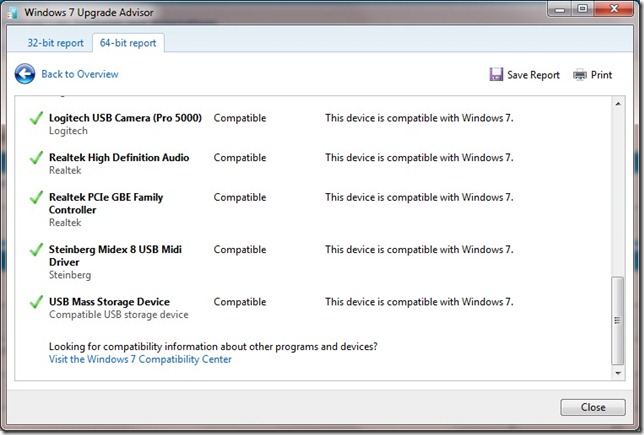
    And so it is, my droogs. I have a Steinberg Midex 8 ; it is my MIDI interface with my synthesiser modules. And is there a 64-bit driver? Why, no, of course not. Steinberg don’t even allow the possibility of an open source driver to be developed for their obsolete hardware, So, no sensawunda 64-bit glory-filled computing dreamland for me… Welcome to yesteryear – it’s where I clearly belong. Sigh. And, thank you Steinberg, for showing me what customer support does not mean. Bastards.

    Update: Mind you, Microsoft’s Windows 7 Upgrade Advisor program doesn’t help matters either. According to it, the Steinberg Midex 8 is compatible with the 64bit version of Windows 7. Er, no, it isn’t, you stupid program.

    Steinberg Midex 8

  • What’s Wrong With Adobe?

    I’ll be honest: I’ve never felt comfortable using Adobe software. Too many of their products strike me as being poorly designed and/or buggy. For example, I stopped using PhotoShop Elements after later versions got even worse than earlier versions, which were bad enough.

    But recently, I found myself trying another of Adobe’s ideas, the DNG format used for digital images. In principle, the format is a good idea – a universal format for digital negatives. The problem with the usual alternative format – the RAW format – is that it is not standardised between vendors. If you go and read Adobe’s web page on the DNG format, it all sounds wonderful. Alas, this is Adobe talking, so in practice, things are not quite what they seem.

    For example, in order to be able to see thumbnails of image files in DNG format on my Windows system, I need to download and install a codec to make this possible. OK, Adobe has one available. Wonderful. So I go to get it. Er, but what’s this? It is a Release Candidate? So in other words, it’s not even version 1.0 of a supported codec? And the date of this release candidate is what: 13 May 2008? That’s 16 months ago, you bunch of wankers. And, to add insult to injury, there’s only a 32-bit version of the codec available. If you’re running a 64-bit version of Windows, you’re pretty much screwed.

    Well, since I am still running in 32-bits, I downloaded and installed the codec. And, it runs like a dog. It is horrendously slow, and occasionally crashes. A typical Adobe experience for me, it would seem.

    I don’t think I’ll be adopting the DNG format in my digital image workflow anytime soon. Honestly, Adobe do seem to want to shoot themselves in the foot with this one.

  • Chaos Reigns

    Over at the We Got Served blog (a blog devoted to all things connected with Microsoft’s Windows Home Server operating system), Jim Clark pens a despairing plea about the sorry state of competing media formats. I have to say that I agree, it feels like a minefield out there.

    For example, I’ve just built myself a new desktop PC. For the motherboard, I chose the ASUS M4A78-EM, which has the capability to support Full HD and HDMI, along with 7.1 channel audio. Terrific, I thought. I also added a Blu-Ray capable DVD drive, the LG GGCH20L, so that I would be able to play Blu-ray discs on the system.

    Then the fun began (I use the word “fun” in an ironic sense, of course).

    First, Windows 7 does not currently have the capability to play Blu-ray discs natively; it is necessary to add a third-party application to do this. OK, the LG drive came with a version of PowerDVD, which is supposedly capable of playing Blu-ray discs. I duly install it, and, yes, I can now play Blu-ray discs on my new system.

    If only I had been satisfied at that, I would have carried on in my innocence.

    But no, I decided that the graphics capabilities built into the ASUS motherboard, while reasonable, would not suffice if I wanted to play some of the more modern games on the system; Spore, for example. Yes, Spore would run on the system, but in a rather disappointing low resolution – I wanted more from the system than that. The answer was to add in a dedicated graphics card, the Sapphire Radeon HD 4850. So I acquired and installed the card. Result? – Spore runs in high resolution and works perfectly. Additional result? – playing Blu-ray discs no longer works. PowerDVD falls over. OK, thought I, let’s try an alternative third party application: Arcsoft Total Theater 3. Result? – still can’t play Blu-ray discs; now the software complains that my display is not HDCP-compliant.

    Curse the hardware and software industries to Hell. Between their attempts to build in anti-piracy technologies and their desire to differentiate themselves from their competitors, they are making life for the average consumer worse, rather than better.

  • RIP, Pleo

    I’ve always had a soft spot for robotic simulacra of humans and animals. I went through a period of wondering whether to buy a Sony Aibo, until Sony announced that they were getting out of the robot dog business. The successor to Aibo, from a different manufacturer and from an earlier period in the earth’s evolutionary history was Pleo. Alas, I learned today that Pleo’s manufacturer has gone belly-up.

    Still, I’m sure that innovators and manufacturers around the world will keep striving to produce toys like Teddy that last the whole summer long. In the meantime, here’s a fascinating video of what happened when one Pleo’s owner took it on a visit to the local aquarium (skip forward to about 1 minute 46 seconds in…).

  • Fun With Technology – Part IV

    So, I blogged back in February about how I was having some problems with the “Play to” feature in the new Windows Media Player that will be part of Windows 7. Since getting the Release Candidate of Windows 7, I’ve been playing around with this feature, and I think I’m beginning to get to the bottom of why it will sometimes work and sometimes fail.

    First, a bit of background on the underlying technology specification, which hails from the industry consortium that goes by the pretentious moniker of the Digital Living Networking Alliance, or DLNA for short. As an aside, I note that their motto is “Connect and enjoy”. At this stage of the technology, it’s often felt more like “Connect and tear your hair out”, but I digress…

    Their specification defines how a variety of different types of digital devices can connect and share information. This I’ve summarised in the following table:

    Device Class What it does Examples
    Digital Media Server (DMS) Stores content and makes it available to networked digital media players (DMP) and digital media renderers (DMR). Some digital media servers can also help protect your content once stored. PCs and network attached storage (NAS) devices
    Digital Media Player (DMP)
    Finds content on digital media servers (DMS) and provides playback and rendering capabilities. TVs, stereos and home theaters, wireless monitors and game consoles
    Digital Media Renderer (DMR)
    These devices play content received from a digital media controller (DMC), which will find content from a digital media server (DMS). TVs, audio/video receivers, video displays and remote speakers for music.
    Digital Media Controller (DMC) These devices find content on digital media servers (DMS) and play it on digital media renderers (DMR). Internet tablets, Wi-Fi® enabled digital cameras and personal digital assistants (PDA).
    Digital Media Printer (DMPr) These devices provide printing services to the DLNA home network. Generally, digital media players (DMP) and digital media controllers (DMC) with print capability can print to DMPr. Networked photo printers and networked all-in-one printers.

    Table 1: Information drawn from the DLNA web site.

    Windows 7 implements a number of these classes as shown here:

    Device Class Windows Implementations
    Digital Media Server (DMS) When media streaming is enabled, Windows acts as a DMS.
    Digital Media Player (DMP)
    Windows Media Player and Windows Media Center act as a DMP when browsing shared media libraries
    Digital Media Renderer (DMR)
    Windows Media Player acts as a DMR when configured to allow remote control of the Player.
    Digital Media Controller (DMC) The “Play To” feature from Windows Media Player and Windows Explorer launches a DMC to control the media playback experience

    Table 2: Information drawn from the Engineering Windows 7 Blog.

    Note that in the above table, Microsoft had planned to have “Play to” added to Windows Explorer in Windows 7. This did not materialise.

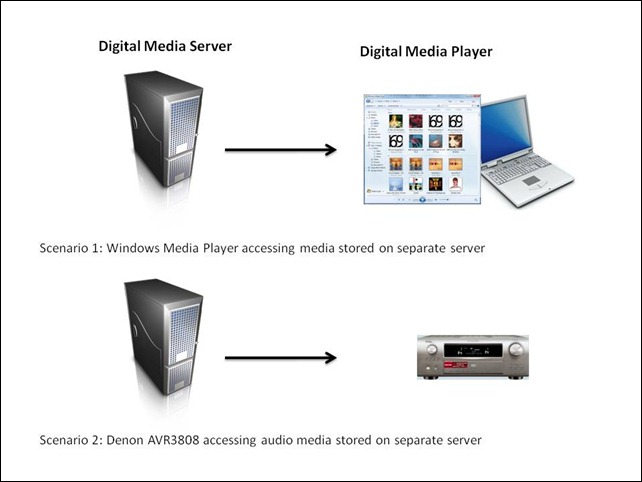
    At its simplest, just two devices can be involved: a Server and a Player. These can even be running on the same physical device, as in the case where your Windows Media Player on your Desktop PC is streaming music or video stored on the PC itself. The next step up is where the server and player are on separate physical devices. Two typical scenarios are shown in figure 1:

    WMP Scenarios
    Figure 1: Typical scenarios of simple case of DMP devices accessing DMS devices.

    I’ve used the Denon AVR3808 as an example, since this is what I have in my home network. My main DMS is an old headless (no monitor, keyboard or mouse) Dell PC running the Windows Home Server operating system. Actually, to be strictly accurate, the Dell is running two Digital Media Servers. The first is Microsoft’s Windows Media Connector version 2.0, which is built into WHS. The second is the Asset UPnP media server, which is a free piece of third party software installed onto WHS. The fact that I have two DMSes running will prove significant once I get into describing the next set of scenarios.

    In my particular case, all flavours of the two scenarios shown above will work, that is, both DMSes running on the Dell box will stream audio to other PCs in the home network, and to the Denon AVR3808. Under the covers, there’s actually some negotiation of streaming formats going on. This is because I have stored all my music files on the Dell server box in Windows Media Audio Lossless (WMAL) format. This presents no problems for the PCs, since the Windows Media Players installed on them can handle WMAL. But the Denon can only handle standard Windows Media Audio, not the Lossless variant. So when I use the Denon to browse my music library on the Dell and select a track to play, the DMS that I’m using sees that the Denon can’t handle WMAL and transcodes the stream into standard PCM (which the Denon can handle) on the fly. Both the Asset and the Windows Media Connect will do this. But this breaks down in the next set of scenarios.

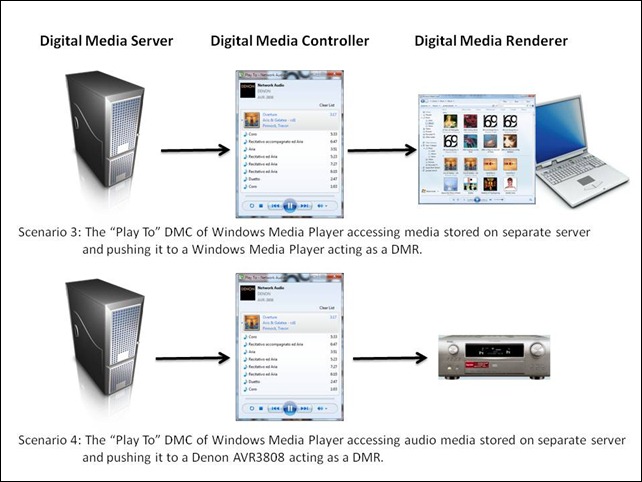
    So, the interesting scenarios are where there are three devices linked together: a Digital Media Server, a Digital Media Controller, and a Digital Media Renderer.

    WMP Scenarios 2
    Figure 2: Typical scenarios of a three device link (DMS-DMC-DMR).

    Once again, in my case, all flavours of scenario 3 will work. That is, I can stream from either DMS running on my Dell Windows Home Server using the “Play To” feature of Windows Media Player in Windows 7, and push the stream to either of my PCs that are currently running Windows 7.

    But scenario 4 has been giving me all sorts of problems. Sometimes it would seem to work, and other times it wouldn’t. I think I have finally got to the bottom of it.

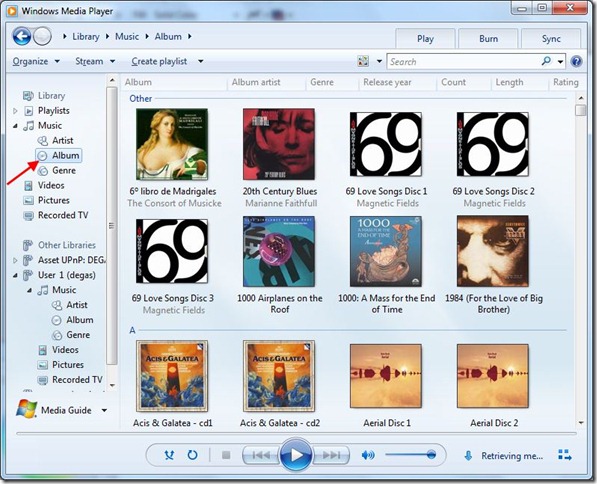
    The issue is that media libraries in Windows Media Player in Windows 7 can be built up in a number of ways. Take a look at this screenshot of the first few albums in my music library:

    WMP 12 3

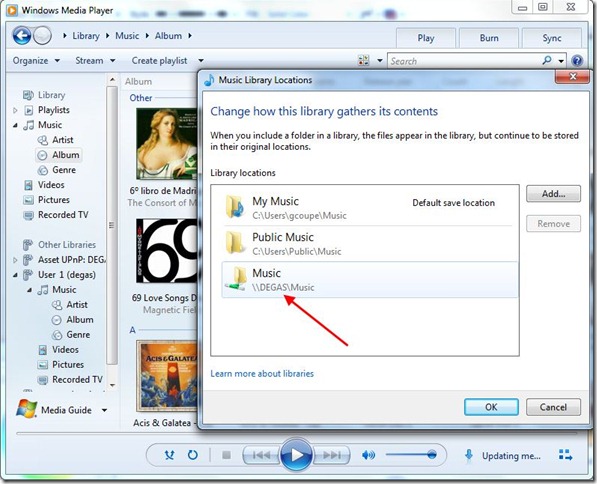
    I’ve highlighted the fact that you are looking at the content of my music library in “Album” view. That is shown as part of the “Library” tree (Library – Music – Album). This screenshot has been taken from my Tablet PC, which is running the Windows 7 Release Candidate. Now the interesting part is where these albums are physically stored. There is far more storage required than my Tablet PC can cope with, so in fact these album files are sitting on my Windows Home Server. This next screenshot shows that my music library is in fact being comprised of three storage locations: my own music folders on the Tablet PC, the “Public” music folders on the Tablet PC, and the music folders on Degas – which is my Windows Home Server:

    WMP 12 4

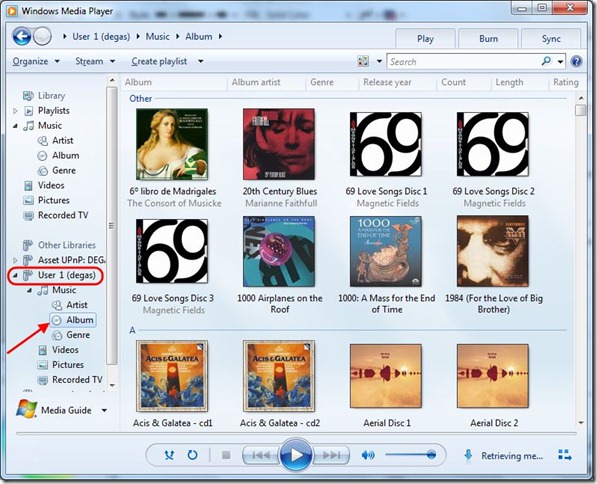
    But hang on a minute, Windows Media Player is showing two navigation trees on the left hand side of its window: the “Library” tree and another one called “Other Libraries”. The content of the “Other Libraries” tree is populated by other Digital Media Servers which Windows Media Player discovers on the network. Sure enough, it’s found the Windows Media Connect DMS running on the Dell Windows Home Server (Degas), and this next screenshot shows the same album files being seen in the Album view under the “Other Libraries” tree:

    WMP 12 6

    You’ll notice that just above “User 1 (degas)”, which is the Windows Media Connect DMS, is the Asset UPnP server entry, shown as “Asset UPnP: DEGAS”. So, under scenario 4, I can stream the same album in three different ways:

    1. Using “Play To” to pull from the Tablet PC’s Windows Media Player streaming server and push it out to the Denon.
    2. Using “Play To” to pull from the Windows Media Connect streaming server on the Dell and push it out to the Denon.
    3. Using “Play To” to pull from the Asset UPnP streaming server on the Dell and push it out to the Denon.

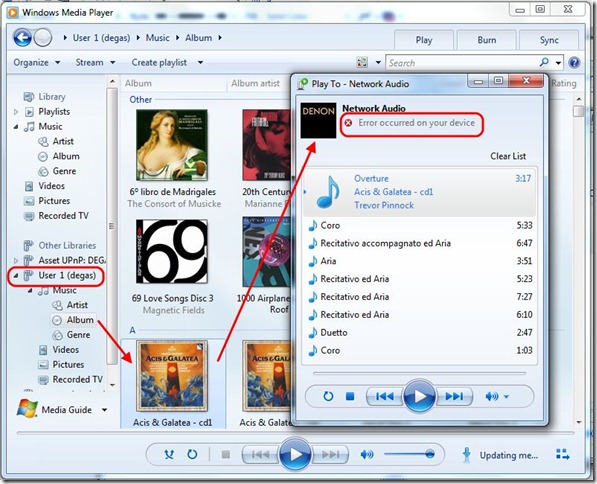
    What I’ve found is that method (1) and (3) will work, but that method (2) does not. These are illustrated in the following screenshots:

    WMP 12 7

    WMP 12 8

    WMP 12 9

    I should just point out that I’ve configured the Asset UPnP server to always stream in PCM format. If I didn’t do this, then while it would work in the simple case of scenario 2, in the case of scenario 4, it would fail just as the Windows Media Connect server does.

    The conclusion that I draw from all this is that in these “man-in-the-middle” scenarios, it looks as though end-to-end negotiation of the proper streaming format is not always being done correctly. I suspect that in scenario 4, method 2, the Windows Media Connect server is simply serving up WMAL format to the Denon, which causes it to fail. Now, I don’t know whether this is a shortcoming of the DLNA specification itself, or simply an outcome of how Microsoft have implemented it in the case where there are physically separate servers out on the network. Time will tell.

    At least I now know which scenarios work and which will fail. On to the next problem…

  • Windows 7 RC

    Well, it’s now a week since I downloaded the Release Candidate of Windows 7, so how is it shaping up for me? For the most part, I’m very impressed.

    I’ve installed it on both my Tablet PC and (gulp) my desktop PC – my main workhorse. Yes, I know that Microsoft issue dire warnings against using it on your main systems, but this is my way of living dangerously, since I have no interest in extreme sports. Anyway, I have a complete image backup of my previous Vista installation stored on my Windows Home Server, so if the worst comes to the worst, I can roll back my desktop to exactly as it was on the 4th May. New documents and mail being created in the Windows 7 installation are also being backed up onto Windows Home Server every night, so I can add these into a restored Vista installation if I ever need to go back to it. But at the moment, I don’t think I will need to go back to Vista ever again.

    What do I like so far about Windows 7? Well, I suppose the main thing is how snappy it is in comparison with Vista. There’s been a noticeable increase in speed on both my systems. Applications open and close faster, and are more responsive, while the performance of the GUI is definitely better. The second thing that I am liking a lot is the redesigned Taskbar. There are lots of subtle touches that improve the usability of the system. For example, while an operation is going on, such as Copy, Move, or Download, the progress bar window is also reflected in the degree of green shading on the application icon on the Taskbar, so even if the progress bar window is obscured, you can see at a glance how far the operation has got to. See this example of a file copy operation in the Windows Explorer icon:

    W7 5

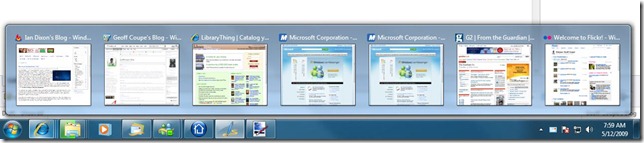
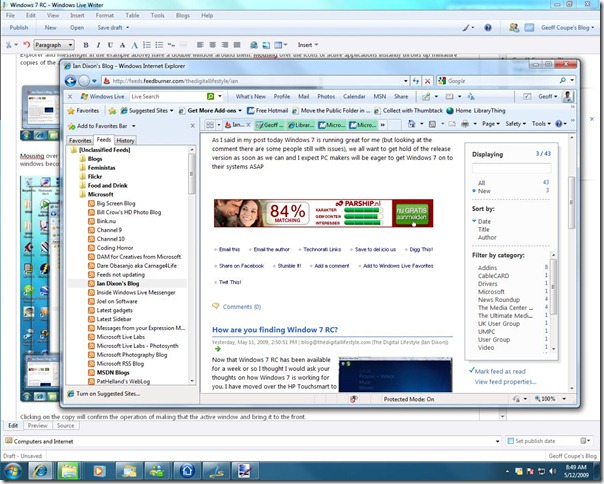
    The Taskbar indicates active applications by surrounding them with a highlighted window – applications with multiple active windows (e.g. Internet Explorer, Windows Explorer and Messenger in the example above) have a double window around them. Mousing over the icons of active applications instantly throws up miniature copies of the actual windows:

    W7 6

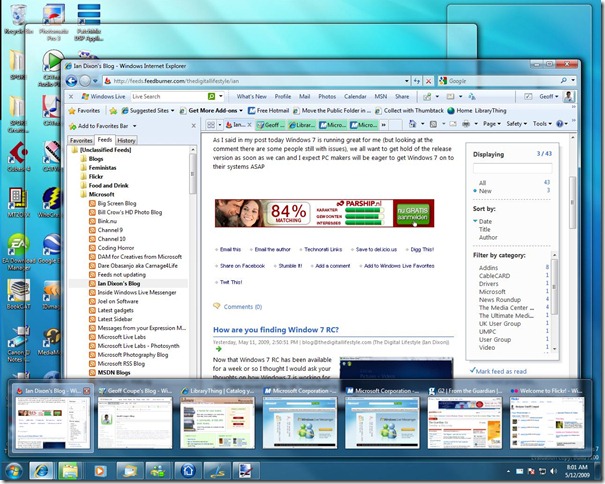
    Mousing over any of these miniature copies will instantly highlight that copy while simultaneously revealing that window on your desktop – all the other active windows become just outlines:

    W7 7

    Clicking on the copy will confirm the operation of making that the active window and bring it to the front:

    W7 8

    What issues have I come across? Well, none on the Tablet PC so far, but I have had some problems with the Desktop. It has two SATA disks installed, and I found that the D: drive seemed to vanish if I put the PC into sleep mode. Worse still, I got the dreaded BSOD occasionally. I had used the system BIOS to set the SATA drives into AHCI mode before doing a clean install of Windows 7. Even though Windows 7 has an AHCI driver, it seems as though this was the cause of the problems. After scouting around on the Windows 7 forums, I found advice that suggested that I should install software from Intel to replace the Microsoft AHCI driver. Since my desktop is a Dell system, I found an elderly copy of the Intel software (my Dell is equally elderly) on the Dell site and installed it. Touch wood, it seems to have done the trick. Interestingly, even though the Intel software was designed for Windows XP and earlier systems, Windows 7 was able to handle it perfectly in compatibility mode, and it installed without problem.

    The issue that I discovered back in February with the “Play to” feature in Window 7’s Media Player is still there, unfortunately. I don’t know whether the blame should be laid at the door of Microsoft or whether it’s a shortcoming in the DLNA specification. Either way, the result is that I can’t use the “Play to” feature to push music from my Windows Media servers to my Denon amplifier. Negotiation of setting up the correct streaming format for the player device (the Denon) isn’t being handled correctly when there are three devices in the playing chain (the server, the player and the controller). I have got a workaround though. I’ve installed the (free) Asset UPnP media server software onto my Windows Home Server. The Asset server can be set to automatically transcode the Windows Media Audio Lossless format (which the Denon can’t handle) into PCM (which the Denon is happy with). Then, when the Asset server is instructed to push an audio stream to the Denon by the “Play to” media controller of Windows 7, it will stream PCM by default. Result: music and bliss.

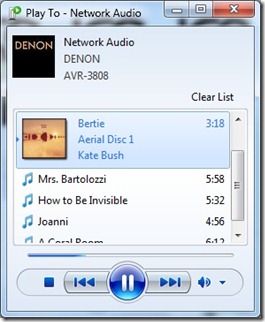
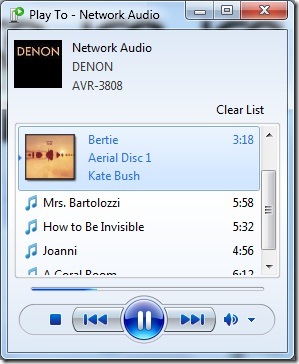
    I notice that the “Play to” media controller seems to have taken a step backwards from where it was in the Beta of Windows 7. Here’s screenshots of the “Play to” media controller window; on the left is a screenshot taken from the Beta, and on the right is a screenshot taken from the Release Candidate.

    WMP12 - Play To 1  W7 9

    Notice how the track indicator (the blue line) is operational in the Beta, but is not working in the Release Candidate? What is not obvious from the screenshots is that the track timing is also broken in the RC. In the Beta, the track timing display of the playing track counts down to zero as the track plays. In the RC, the track time remains unchanging. As usual in software development: fix a bug, introduce another one…

    However, overall, I’m pretty pleased with the Windows 7 RC. I think it will remain on both of my systems, only to be replaced by the final product when it comes out at the end of this year.

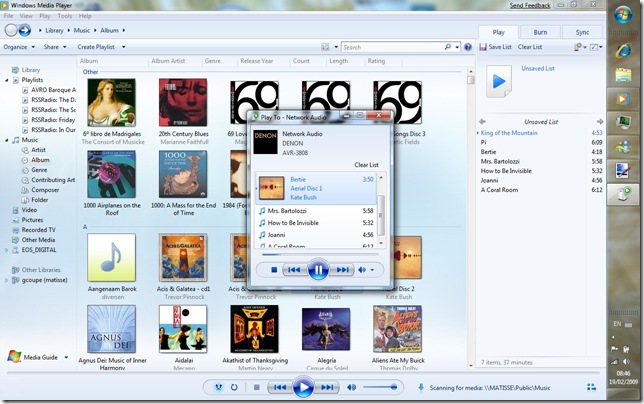
    Update: I have found that the track indicator and track timing work when the “Play to” control is being used against a library held as part of the main library hierarchy of Windows Media Player, but not when it it being used to control the content of a library held on a server and accessed via the “other libraries” hierarchy of Windows Media Player. Take a look at the following screenshots. The first shows albums in a library held on a separate server, but added into the main library of WMP running on my laptop:

    WMP 12 1

    The small window is the “Play to”media controller window – and it is showing a correctly working track indicator and track timing for the currently playing track. The track is being pulled from a remote server that is being accessed via “Library – Music – Album”.

    Now, this next shot is of exactly the same audio file, held on the same server, but this time it’s being accessed via the “Other libraries” section. And this time, the track indicator and track timing are not working…

    WMP 12 2

    The choice of using either the main Library tree or the “Other Libraries” tree in WMP also seems to have an influence on the “Play to” negotiation of formats. I found that when I navigate in the main Library tree and push audio files to my Denon they will play, but pushing the very same audio files to the Denon via navigation of the “Other Libraries” tree will fail. I surmise that in the first case, the negotiation and selection of the audio format to be pushed to the Denon works correctly, but not in the second case.

    Update: I’ve explored various “Play to” scenarios and documented the results in Fun with Technology – Part IV.

  • Windows 7 RC

    Today’s the day that the Release Candidate of Microsoft’s Windows 7 becomes available. Being a nerd, it’s downloading as I write this. But one thing already strikes me as being curious. Recently, on the Engineering Windows 7 blog, the Windows 7 team wrote that they wanted people to test the scenario of upgrading a Vista installation to a Windows 7 installation. Yet, the installation instructions make no mention of this scenario, the only option being recommended is a clean install (i.e. wiping out of the previous operating system and replacing it with a fresh installation of Windows 7).
     
    What gives?
  • For The Want Of A Nail…

    …a kingdom was lost. While I don’t think that Amazon staff realised what the implications were, the change that they made to their site’s DNA has had a very large impact on some of us. Bad Amazon, naughty Amazon…
  • Sixth Sense

    A quite interesting demonstration of a new interface being researched in MIT’s Media Lab. I say "quite interesting" because despite the rapturous reception of a totally uncritical audience, it’s clear that there’s a long way to go in development, and many of the applications demoed beg an awful lot of questions about how practical this would be.
     
    The gesture interface in Minority Report is actually a lot easier to do than this one. For example, does the projector have an autofocus capability that will track the surfaces being used (hands, wrists, newspapers, wall, books)? Some of the mode changes also stretch credulity more than a little – for example, I expect that drawing a wristwatch on the back of one’s wrist will use the same gesture as used elsewhere in other applications – so the whole issue of mode changes is being skipped over in these demos. Still, as I say, it remains a quite interesting piece of research. Just don’t expect real-world results to appear quickly.


  • Fun With Technology – Part III

    Sometimes, what you think is obvious does not always turn out to be the case.

    So it was when I decided to connect my Tablet PC (an HP Tx2000ed) to my audio amplifier (a Denon AVR-3808). I was driven to this step by the fact that trying to browse through the music libraries stored on my Media Servers while using the interface on the AVR-3808 was an exercise in frustration. The performance is absolutely abysmal.

    But then I thought, why don’t I use the GUI of Windows Media Player to browse my music libraries?  I can use my Tablet PC running Windows 7 to browse the libraries (the browsing performance is good), and if I play back the tracks on the Tablet PC, and connect via the digital S/PDIF interface to the AVR-3808, then I will send a high-quality digital audio stream direct to the 3808 amplifier, and have the best possible results.

    It seemed like a good idea, so I found a cable that had a 3.5mm jack on one end (to plug into the Tablet PC) and a Coax plug on the other (to plug into the 3808) and made the connection. The trouble was, nothing happed – no music emerged from the amplifier. I tried all the settings on the interfaces at both ends – the Tablet PC and the AVR-3808. Result: nada, zilch, nothing – no sound at all.

    Luckily, Google is my friend. I entered the search string “HP tx2000ed S/PDIF problem”, and the very first result told me what was wrong. I had assumed that the 3.5 mm jack socket on the front panel of the Tablet PC was for a coaxial connection of the digital signal. After all, the other two 3.5 mm sockets alongside it are also for copper-wired connections. Nope, wrong; it’s actually an optical connection, and doesn’t use copper but fibre-optics. There is, of course, absolutely nothing in the HP documentation to point this fact out. Thank you Google*.

    HP – pull your socks up and produce decent documentation.

    * Of course, entering the same search string into Microsoft’s Live Search produces no results at all. Sigh. Live Search still sucks.

  • Fun With Technology – Part II

    Last month, I wrote about some of the ways in which consumer technology doesn’t always work as promised. Today I’ll continue with the saga of the SNAFUs I’m encountering in my quest to have a media network in the house. I should start off by pointing out that today’s episode deals with cutting-edge features of products that are not in their final state, so it’s hardly surprising that not everything works as it should. Still, I post this as a counter-balance to some of the rah-rah blog posts that I’ve seen to illustrate that things aren’t always as wonderful as they seem.

    Today’s topic is the “Play to” feature that will be in the upcoming version of Windows Media Player that will ship with Windows 7. That means that when browsing my music library, instead of choosing a track (or an album) and having it play on my computer, I can send it to be played on the Denon AVR-3808 that sits at the heart of our home’s audio-visual system. What I see on the PC is something like this:

    WMP12

    Let’s take a closer look at the “Play to” window:

    WMP12 - Play To 1

    Here you can see that a track from a Kate Bush album is being played through the Denon AVR-3808. At the bottom of the window are the playback controls. The “Play”, “Pause”, “Stop” and “Track skip” buttons work correctly. In theory, I should also be able to set the volume level on the Denon via the volume control here, but this currently has no effect. This is probably because it’s an attribute in the new version 1.5 of the DLNA specification. The Denon is currently only certified to version 1.0, but a future firmware upgrade should be able to take care of this.

    Well, this was all very nice, thought I, I’ll be able to assemble Playlists on my Tablet PC and use them on my Denon. But there’s many a slip ‘twixt cup and lip… I found that many tracks simply would not play on the Denon. When I tried, the “Play to” window would report that an error had occurred on the Denon, like this:

    WMP12 - Play To 2 

    As you can see, it’s not a particularly informative error message, and looking through the error logs on the PC using Event Viewer didn’t reveal any more information that I could see.

    What was going on? Further experimentation revealed that some tracks worked while other tracks didn’t – and it was consistent. Those that worked, always worked; and those that didn’t, always failed. And just to be clear – all of the tracks worked when I called them up off the Media servers using the Denon directly. But when I sent them to the Denon via the “Play to” feature, some of the tracks would always fail.

    Finally, I found the correlation. The tracks that work were encoded using the default Windows Media Audio codec, encoding at a bit rate of 192 kbps. Tracks encoded using the Windows Media Audio Pro codec (also at a bit rate of 192 kbps) and those encoded using the Windows Media Audio Lossless codec (which uses higher bit rates) always fail with the “Play to” feature. This is a bit of a bugger, since these days I always use the WMA Lossless codec to rip my CDs to my Music Library.

    So, to summarise:

    Codec

    Streamed to Denon via “Play to” Feature

    Streamed to Denon Direct from Media Server

    WMA

    Works

    Works

    WMA Pro

    Fails

    Works

    WMA Lossless

    Fails

    Works


    As I said at the beginning, Windows 7 is still in Beta, and the Denon has not yet been certified to the new 1.5 version of the DNLA specification. So the problems could lie in either of them or both. But I do find it interesting that the Denon has no problem with all forms of WMA codecs when the files are streamed directly to it, which leads me to suspect that the issue may well lie with the current Beta of Windows 7. Whatever the cause, I hope that it gets resolved soon.

    Important Update, 13 March 2009: I’ve discovered that I am in error in believing that the Denon works directly with WMA Pro and WMA Lossless streams – it doesn’t. The reason why I thought that these were working when streamed directly to the Denon (as shown in the table above) is that the streams were actually being transcoded into PCM format on the fly by the Media Servers I was using. Clearly, the servers were negotiating with the Denon over a supportable format when talking directly with the Denon. When using WMP12’s “Play to” feature, there are three devices in the chain, and a proper negotiation is not taking place. So, the server sends WMA Pro or WMA Lossless to the Denon, which can’t dealt with the formats, and the process fails.

    Second Update, 14 May 2009: Using the Windows 7 Release Candidate, I’ve found that there is are scenarios where the format negotiation will fail, and ones where the negotiation will succeed. It’s all down to how you access your music files in Windows Media Player, and what the media server is. I’ll document all this and add it as a fresh entry into my blog… It’s now posted see Fun with Technology – Part IV.

  • Unified Messaging

    This is another post about computers and the Internet, so if they don’t make your heart beat a little faster, then best turn away now.
     
    I was interested to see a case study recently published by Microsoft that concerned my old employer, Shell. When I worked there, our communications infrastructure was a horrendous patchwork of multiple technologies and vendors covering the channels of telephony, video, and computing (email and web). The dream was to try and bring some order to this chaos, but at the time it would have been very difficult for two reasons: immature technology and organisational politics, to put it politely.
     
    Still, times change and things move on. I was pleased to see an old colleague of mine, Johan Krebbers (Shell’s Group IT Architect), put forward the vision to provide a single user interface for all Shell’s 150,000 users of real-time communications. It’s a big challenge to consolidate about 200 PBX systems, multiple audio and video conferencing systems into a single service. I wish him and his colleagues the best of luck. Mind you, if anyone can make this work, it will be Johan – the man’s a phenomenon.
  • Now You See It…

    … and now you don’t. This is a tale about technology, about the little things that don’t quite work and hence irritate me out of all proportion, rhyme or reason. Unless you’re a technology nerd, this probably won’t interest you, so go and read something else. But if you are a technology nerd, then pull up a chair. Are you sitting comfortably? Then I’ll begin…

    I’ve recently acquired a Denon AVR-3808 to sit at the heart of our home’s audio-visual system. As well as being able to handle the usual array of audio visual devices (DVD and Blu-ray players, Satellite receivers and TVs), it also comes equipped with an Ethernet port. So I’ve connected it into our home network. There, it is able to connect to the Internet to receive Internet Radio streams, and also connect to the audio media held on our PCs and Windows Home Server. It even comes with a nice little Microsoft  PlaysForSure sticker on the front. Trouble is, it doesn’t “play for sure”.

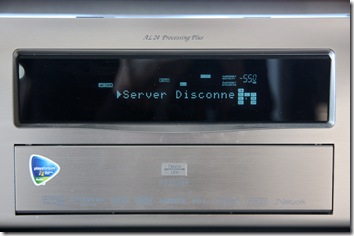
    It will quite happily play Internet Radio stations all day long, but if I try and play back music stored on any of the PCs or the Windows Home Server, then after a couple of hours, the connection will break, and the Denon will display a sad little “Server disconnected” message on its display.

    20090127-1445-13

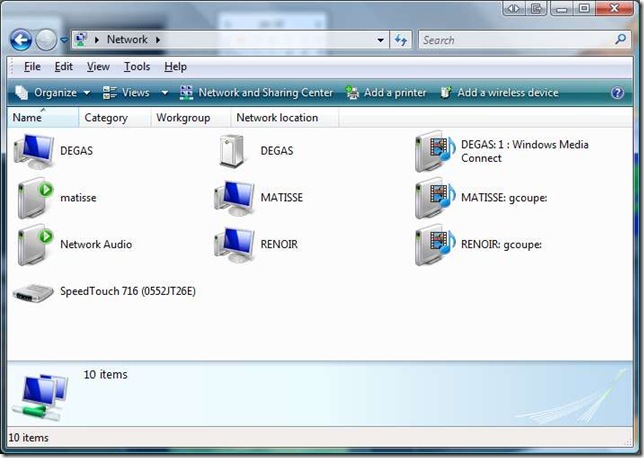
    At this point, to get rid of the problem, I have to switch off the Denon and then switch it back on again. When it powers on, it will re-connect to the network, and then all will be well again for another couple of hours listening to music stored on the home network. It’s most odd – it will remain connected all the time as long as I play Internet Radio streams, but as soon as I try to play music stored on any of the devices connected to the home network, after a couple of hours the Denon will fall off its perch, and disappear off the network. Take a look at this snapshot of the network:

    Denon Network Issue 1

    Here you see two of the PCs (Matisse and Renoir) and the Server (Degas). There are several icons for each of them representing the different functions:

    • A PC that may have part of the file system and its attached printers accessible over the network
    • A File Server and Backup device
    • A Media Server device that can stream audio or video data on to the network. You can see that both PCs and the Windows Home Server can all act as Media Servers.
    • A Media Player device that can connect to a Media Server to playback either audio or video data. The device labelled “Network Audio” is the Denon AVR-3808.

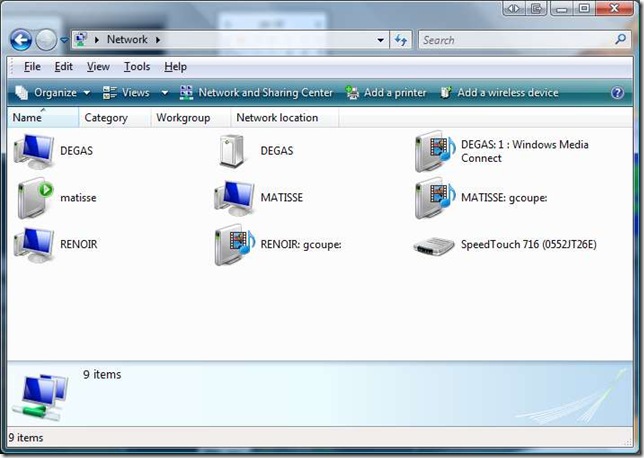
    In addition, you can see that Matisse can also act as a playback device for any of the Media Servers. The Speedtouch is my ADSL modem and Router – the device that joins the home network to the Internet. Now, the above snapshot represents the situation that I see most of the time. But if I start using the Denon as a Media Player device to play back music from any of the Media Servers, then after a couple of hours I get the “Server disconnected” message, and this is what I see on the network:

    Denon Network Issue 3

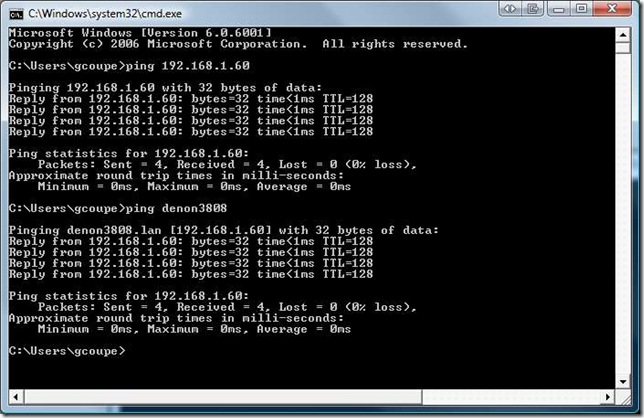
    … the Denon has disappeared from the network… As I say, it’s a case of “now you see it, now you don’t”. But curiously, even though it disappears from the network diagram, it’s still possible to ‘ping’ its IP address:

    Denon Network Issue 5

    So even though the low-level functions of the Denon’s networking capabilities are still there, something has happened to the higher levels. It appears to have had a lobotomy. Even more curiously, if I switch off the ADSL modem/router, so that there is no connection possible with the Internet, or have the ADSL modem/router on, but with its firewall set to block all incoming and outgoing traffic to the Internet, then the Denon will quite happily stream music from the Media Servers the whole day long.

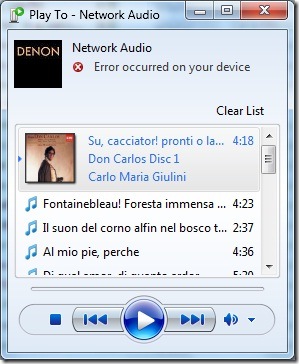
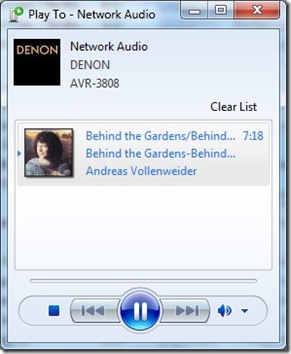
    So it looks as though there is something in the Denon that has a heartbeat with something out on the Internet that conflicts with local audio streaming and which might lie at the bottom of the issue. I noticed something else that is curious. For those of you that are playing around with the Beta of Windows 7, you may have noticed there’s a new feature in the version of Windows Media Player than comes with it. While all versions of Windows Media Player can “pull” media from Media Servers, this new version can “push” media to Media Player devices out on the network. So, when you’re in Windows Media Player, you can select tracks to play, but instead of playing them locally, a right-click shows a new option: “Play to…” and a list of the Media Player devices attached to your network. Here’s an example of what I see when I “push” a track out to the Denon:
    Denon Network Issue 6

    Notice that Windows 7 has correctly identified that the Network Audio device is in fact a Denon AVR-3808 – I didn’t have to set that up myself, it’s done automatically. But here’s the interesting thing. See that “Clear List” in the snapshot above? That’s actually a button, which when clicked will clear out the contents of the playlist in the panel below and stop streaming to the network device. And when I click that, sure enough, the Denon stops playing, but its built-in display shows something very odd:

    20090127-1532-31

    What’s that “Rhapsody”? If I try to navigate to that item using the Denon’s controls, it instantly vanishes from the list of choices, which are normally: “Favorites, Internet Radio, Media Server, Recently Played”. Now Rhapsody is an online subscription digital music service. It looks as though the Denon is treating the Windows 7 Media Server as though it’s a Rhapsody stream, and that can’t be right. I have no idea why the Denon falls off the network when it’s connected to the Internet and streaming audio from our Media Servers on the home network, but I’m pretty sure that the problem lies with the Denon. Its firmware is the latest current version (2.01). This problem doesn’t seem to be common, but there is at least one other person who is seeing the same phenomenon. Trouble is, if it’s just the two of us, then this isn’t going to be fixed anytime soon. We’ll just have to continue to switch our Denons off and on every couple of hours… Sigh.

    Update: I think a number of people are seeing this problem on their Denon equipment, but not everyone does, so it’s likely to remain problematic as far as resolution is concerned. Meanwhile, I do have a workaround, although it’s not very elegant. I’ve created a new Firewall profile on my ADSL modem/router. That allows all traffic from devices on my home network to reach the Internet and vice versa, apart from the Denon 3808. The Firewall profile has a rule that prevents any traffic between the 3808 and the Internet, although local traffic on the home network subnet is permitted. With this rule in place, I can stream music from the Media Servers on my home network to my heart’s content and all day long. No more cutting out after a couple of hours as the 3808 falls off the network. It’s not elegant, because if I wish to switch to listening to Internet Radio stations on the 3808, then I have to switch over the Firewall profile on the ADSL modem/router first. But at least I’ve proved, to my satisfaction at least, that the problem lies within the 3808.

    Update II: A couple of people have run packet traces on their Denon’s network traffic and found that, even when using a local media server, an AVR-4308 or AVR-3808 will communicate with internet address 207.188.0.25 on port 443. Doing a “whois” lookup shows that this IP address is registered to Real Networks. My bet is that this is a server address of the Rhapsody Music service. Quite why the Denon receivers should be communicating with these servers out on the internet when using local media servers on a home network is anybody’s guess, but it looks like a bug to me, and definitely seems to be causing the “server disconnected” message.

    I therefore modified my original Firewall rule, which stopped all communication between the Denon and anything out on the internet, to one that stops the Denon communicating with this specific internet address. This modified Firewall rule also stops the “server disconnected” problem from occurring, while allowing the Denon to continue to receive Internet Radio and to communicate with Denon’s servers for firmware updates. Now all we need is for Denon to acknowledge that this is a bug and fix it.

    Update III: Denon provided a firmware upgrade A2.04, WEB=W200908260504 on October 15, 2009 that may have been to address this bug. I haven’t bothered to remove the Firewall rule, which I would need to do in order to test this, so I can’t confirm it.

    Update IV: Since that firmware update was released (and I installed it on my Denon), I have replaced my old ADSL Modem/Router with a new one (it was on free loan from my ISP). Although that has the possiblity to create Firewall rules, I have not done so. Therefore, the “Denon rule” is not present in the new modem, and I have not seen a repeat of the “server disconnected” issue. Therefore I conclude that the October 15 update has fixed this issue. I should add that I’m not using the Rhapsody music service (Denon don’t offer this in Europe, and even if they did I wouldn’t use it), so I don’t know how this affects Denon users based in the US who do use the service…

    Update V 9 May 2014: Damnation, the “Server Disconnected” message is back! And now it’s worse than before – it also affects Internet Radio as well as streaming from our home media server. I think I need to recreate the firewall rule again. Trouble is, I have a new router (a Fritz!Box 7360) which doesn’t seem to have a straightforward way of doing this.

    Update V1 29 May 2014: Damnation again. It transpires that Rhapsody have changed their servers, and Denon have issued a new firmware to fix this. Trouble is, Denon have only issued the firmware for their new products. There has been no update for the 3808. Unless Denon issue the firmware for the 3808, or I can find out what the new version of the firewall rule needs to be, this problem will remain.

  • Windows 7 Beta

    You probably won’t be surprised to learn that I’ve downloaded the beta of Microsoft’s upcoming successor to Vista, currently known as Windows 7. Originally, Microsoft’s plan was to limit the download to the first 25 million people who visited the web page, but because of demand, they relented and extended the download programme. However, they will definitely be pulling the plug after February 12th, so if you haven’t got the beta, and still want to try it out, you’d better get moving.
     
    I’ve installed the Beta on my Tablet PC (an HP TX2000), since this is my secondary machine, and not my "production" machine. Windows 7 is a Beta, after all. Still, I’ve been pleasantly surprised at how solid this first Beta is. It feels far more "finished" than Vista ever did at the equivalent stage of its development cycle. The only problem I’m seeing on my Tablet PC is that the Touchscreen driver is not working. However, the Pen driver is, so I can still use all of the Tablet functions.
     
    Update: I’ve now got the Touchscreen functions working. I downloaded the driver from the HP web site and reinstalled it…
  • TED Sits on the Whoopee Cushion

    Over the past few years, I’ve often linked to the TED web site, because they often have interesting talks from interesting people. The TED people have just run into a spot of bother with their video hosting supplier, which means that they have had to change over to a new host service. And while they have tried to minimise the impact, the string and sealing wax that characterises the worldwide web in general has snapped beyond repair as far as I’m concerned. All of the video embedded links that I have made in past blog entries are now broken. You can’t get to the videos that I posted about.
     
    Sorry about that. Blame them, not me.
     
    As has been said before, the web is like sitting on a whoopee cushion.
  • Windows Live Wave 3

    I see that the latest versions of the standalone applications (including Windows Live Mail, Windows Live Photo Gallery and Windows Live Writer) have now been released. This download page is still currently describing the applications as “beta”, but the applications themselves seem to have dropped that moniker from their titles.

    I’m pleased to see that at least one bug in Windows Live Photo Gallery that I reported to Microsoft over a year ago has finally been corrected.

    I’m using Windows Live Writer to create this post, and one thing that I want to check is how it handles image metadata. While it’s very easy to use WLW to insert images into your blog, the previous version seemed to be stripping out image metadata, and therefore creating orphan works, which I think is a very bad idea. So, here’s a test image, which in the original has my copyright information and IPTC Coreinformation as metadata embedded in the file.

    20080915-1152-07(1)

    Once an image is published in my blog, it can be downloaded from there as well. Let’s see what has happened to the metadata…

    Yep, all the metadata has been stripped out – copyright, creator, keywords – everything. That’s not good, in my opinion.

  • Windows Live

    You may have noticed that my Windows Live Space (a.k.a. Geoff Coupe’s Blog) has changed its appearance today. Microsoft has just rolled out major changes to its Windows Live Services. I can’t say that I’m particularly happy about them. Management of comments on the blog has just got really difficult, and it was badly designed before.
     
    It looks as though Microsoft is trying to build a Facebook clone. I don’t want a Facebook clone, I just want a nice simple blog. Sigh.
  • Homemade Wireless Keyboard

    How not to make your own wireless keyboard. The scary thing is that it took twenty seconds for the penny to drop.
  • Do No Evil?

    Hmm, I wonder. I had expected more from Google, but perhaps I should not be surprised.
  • Live Search Sucks

    Why is Microsoft’s Live Search so bad at searching? It’s a question I often ask myself. Take today, for example, I wanted to check my blog for entries about the woodpeckers that visit our garden. You may have noticed that on my Live Spaces homepage, there’s a Live Search gadget that enables you to search my blog entries directly.
     
    Live Search 
     
    So I go ahead and type in "woodpecker" and click the "Search" button. Result? Zilch, nada, nothing, zero result. That’s odd, think I, because I know that I have a blog entry on the woodpeckers in the garden. So I go to Google’s blog search and do the same thing. Result? A hit on the correct page.
     
    As I say, why is Microsoft’s Live Search so bad? It’s embarrassing.
     
    Update: you may note that now the results are more or less correct. That’s because months have gone by and Live Search’s spider has finally got around to visiting the relevant web pages. Well, whoop-de-doo. It still doesn’t excuse the miserable performance of the service as a whole.
     
    Update II: I’ve now removed the gadget entirely since it recently stopped working at all, and always returned zero hits. The reason is that bloody Microsoft went and changed the search query syntax of its search engine, so any code out there that uses the old syntax is now well and truly screwed.
     
    Update III: …and has Microsoft removed the gadget from the Windows Live Gallery? Nope, of course not. It’s still there, and in a prominent position. People – don’t you care that you’re increasing the noise to signal ratio? Clearly not. There’s a lesson for us all here… humankind will be Easter Island writ large…