Reflections on life at “De Witte Wand”…

Category: Computers and Internet

  • Yet Another Rant About Microsoft…

    Yes, I know, I sound like a broken record; but my excuse is that Microsoft’s actions just bring it upon themselves on a regular basis. So, what is it this time?

    The spotlight of scorn is back on the OneDrive team, again. After generating lots of goodwill over the recent announcement that Office365 subscribers will get unlimited storage in OneDrive, the team promptly undid it by announcing a new UI for the Windows Phone app. The announcement has been greeted with a storm of protest, both on the OneDrive blog post, but also over at the feedback site for Windows Phone.

    The reason that there has been such derision is that the “new UI” makes the Windows Phone app look very much as though it is an Android app. It flies in the face of Microsoft’s own guidelines for UI design of Windows Phone apps, and introduces Android UI elements instead.

    Frankly, if I’d wanted an Android phone, I would have bought one. One of the key reasons why I went with a Windows Phone was the UI design. I like it a lot, and I am at ease with it. To have a key Microsoft team turn their back on it and introduce Android elements is a shock, to say the least. One might almost wonder if the team had actually read the “Review questions for prototype” section on the Design the best app you can page of the guidelines, in particular:

    • Are you coming from another mobile platform? Windows Phone users will expect fewer taps, clearer views, large typography, and the use of contrast and color.
    • Are you using both axes of scrolling (the X and Y axes) and orientation (Portrait and Landscape)? Depending on the purpose of your app, users may expect both.
    • Do you use Pivot and Hub controls effectively and correctly?

    Even simple things, such as a transparent Tile for the app have been forgotten about (or ignored) in this bastardised design. I hope that the howls of protest that have greeted this version result in a swift redesign to make it a proper Windows Phone app. Good design and adhering to UI guidelines are important, and help to build a brand. This horror does just the opposite.

  • Photo Supreme V3

    I’m an amateur photographer. I’m not a good photographer, but occasionally, more by luck than judgement, I take a photo that looks pretty good to me. Almost as important to me as the image is the information describing the photo; when it was taken, where, the subject – that sort of thing. In technical terms, this is the photo’s metadata.

    I’ve been trying to capture, and manage, this sort of information since  2005, and have tried a lot of software applications in the process. In 2007, I settled on IDimager as the most suitable tool for what I was looking for. It was what I used for tagging my photos.

    Two years ago, IDimager was suddenly withdrawn from the market by the company, and replaced by Photo Supreme. After my initial shock, I switched to Photo Supreme, and after an uncertain start, I found that it was, in large part, covering my requirements for a Digital Asset Management (DAM) tool.

    This week, version 3 of Photo Supreme is announced. It has over 150 additions and improvements over version 2.

    I was fortunate enough to be one of the beta testers for version 3. It is definitely a big step forward from version 2 (which in itself was a very good tool), so version 3 has become my DAM tool of choice going forward. I’m also a Lightroom 5 Standalone user, but the only reason I have that is for its image processing capabilities. The metadata handling of Photo Supreme strikes me as being head and shoulders above what Lightroom currently has to offer.

    It supports a wide range of photo metadata standards out of the box: Exif, IPTC Core, Extension and Plus. I can now automatically synchronize entries for the IPTC Extension fields for “Person In Image”, “Places”, and “Event” IPTC fields – something that I had to do manually in V2. It also now supports the Image Region metadata standard defined by the Metadata Working Group – the same standard used by Google’s Picasa for People Tags. That means that as well as being able to list the people appearing in a photo, I can now show their names on the photo itself.

    If you’re looking for a good tool to manage your photo metadata, take a look at Photo Supreme.

  • Whither Next? A Media Center Journey

    Four and a half years ago, I built my first HTPC for our Home Cinema setup. It was leading edge technology then, but with the rate of change being what it is, support for many of the software and hardware components very soon became either dying or dead.

    The HTPC is currently running Windows 8.1 + Windows Media Center (WMC), which in turn is supplemented with MyMovies to provide the best experience with a library of films and recorded TV series. For Bluray films, I’ve been using Arcsoft’s TotalMedia Theatre to play both the discs themselves and ISO files that I’ve made from my discs.  This setup works well, but the writing is on the wall indicating that it can’t continue this way forever. For one thing, it’s abundantly clear that Microsoft want to wash their hands of Windows Media Center, and for another, Arcsoft suddenly pulled TotalMedia Theatre from its web site last month and it is no longer available.

    I need to prepare a contingency plan, so I’ve been looking at alternatives. A couple of years ago, I took a (quick) look at JRiver Media Center. I said at the time:

    This is a total solution, replacing Windows Media Center, TMT5 and MyMovies in their entirety. JRiver Media Center is capable of handling Blu-ray. I must admit, on my HTPC it appears to handle them flawlessly, a pleasant change to the current disaster of TMT5. But if I adopted JRiver Media Center, I would also be moving away from WMC and MyMovies, and I do like the user experience of that combination.

    JRiver Media Center has been around since 1998, and is currently on version 17 (!). It looks to be a very good product, well-supported, with an extremely enthusiastic user community of more than 26,000 members, some of whom are contributing plug-ins for the main application. However, I’m not sure that I want to move to it. It’s a personal thing, I know, but as I say, I feel very comfortable with WMC and MyMovies.

    JMC is now at version 20, but I still have the impression that it has so many bells and whistles that it is overly-complex for what it is. I might take another look at it to see if it strikes me as being more attractive, but I can’t help feeling that it will just have yet more features, knobs and switches bolted on that I would never want to use. Addendum: It does, and I don’t. It’s not for me.

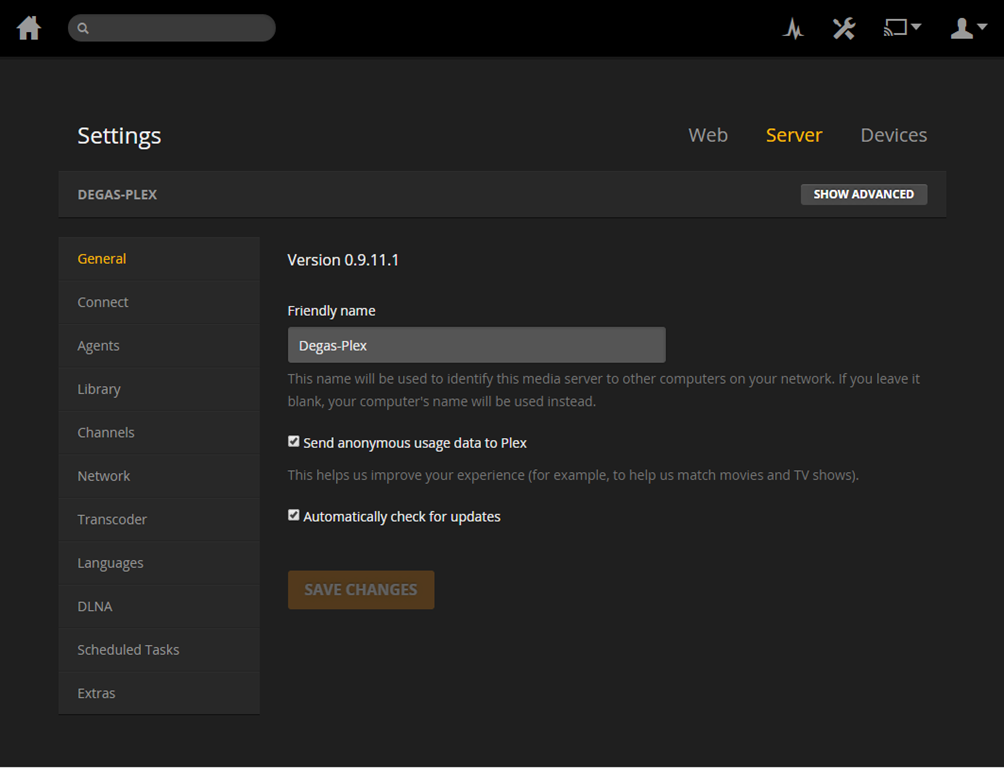
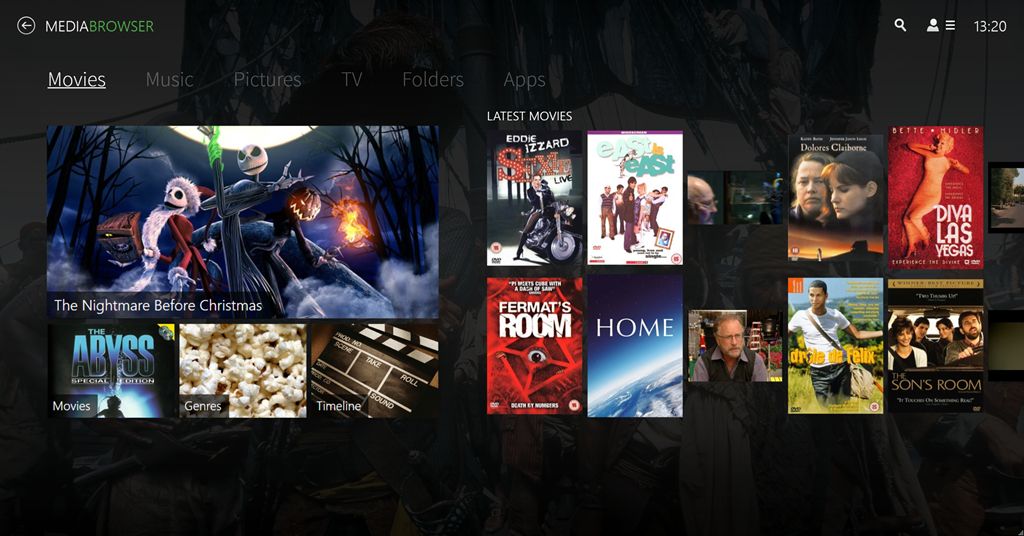
    I’ve been looking at a couple of other alternatives over the past few months:  MediaBrowser (now called Emby) and, more recently, Plex. They both have their strengths and weaknesses. A major strength of both of them (as far as I’m concerned) is that they both use a client/server architecture. That is, the core component of both is a media server to which a wide range of clients (TVs, HTPCs, PCs, tablets and smartphones) can connect and play the media. Since I hold all our media on a Windows Home Server 2011 system, that would be the logical place to install and run the media server. For both MediaBrowser and Plex, the media server can be administered on the WHS 2011 system via a web interface.

    MBS 01

    PMS 01

    The weaknesses differ between the two, but both MediaBrowser and Plex are fast evolving systems, so changes, bugs, and bug fixes are very much the order of the day. As far as I’m concerned, neither one offers me a complete replacement for our current WMC + MyMovies setup at the moment. Ideally, I would like a combination of the features of the two, because of their current shortcomings.

    For example, take the HTPC component of both: MediaBrowser Theater (MBT) and Plex Home Theater (PHT). MBT is still Alpha software; not even at Beta stage. While it is looking good, it clearly has a long way to go – it is very buggy and feature incomplete at the moment.

    MBT 01

    PHT, on the other hand, is much further down the development track. It looks good and seems fairly reliable on my HTPC.

    PHT 01

    Both MBT and PHT are so-called “10 foot interfaces” – they are designed for use on large screens, and to be driven by remote control. It would be really nice if PHT could use the remote I have for Windows Media Center, but for some reason best known to the designers, they have deliberately chosen not to stand upon the shoulders of giants, but to start from scratch with almost entirely a different set of commands.

    Both MediaBrowser and Plex have player clients for Windows 8.1 and Windows Phone 8.1. Here are the Windows 8.1 clients:

    MB W8.1 01

    Plex W8.1 01

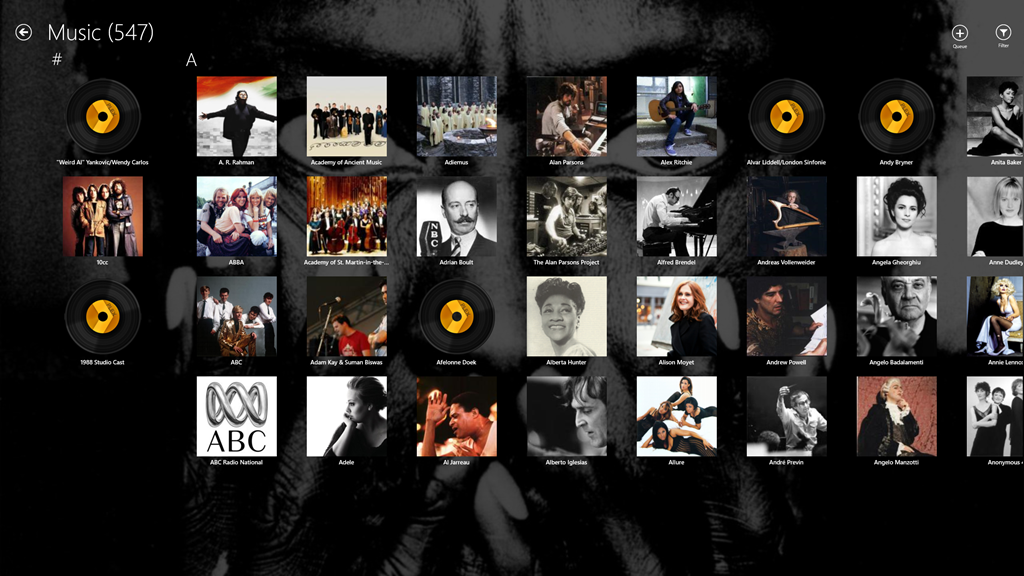
    One major shortcoming of the Plex clients (as far as I’m concerned), is that neither of them have no other way of browsing our Music library other than by an Artist view:

    Plex W8.1 02

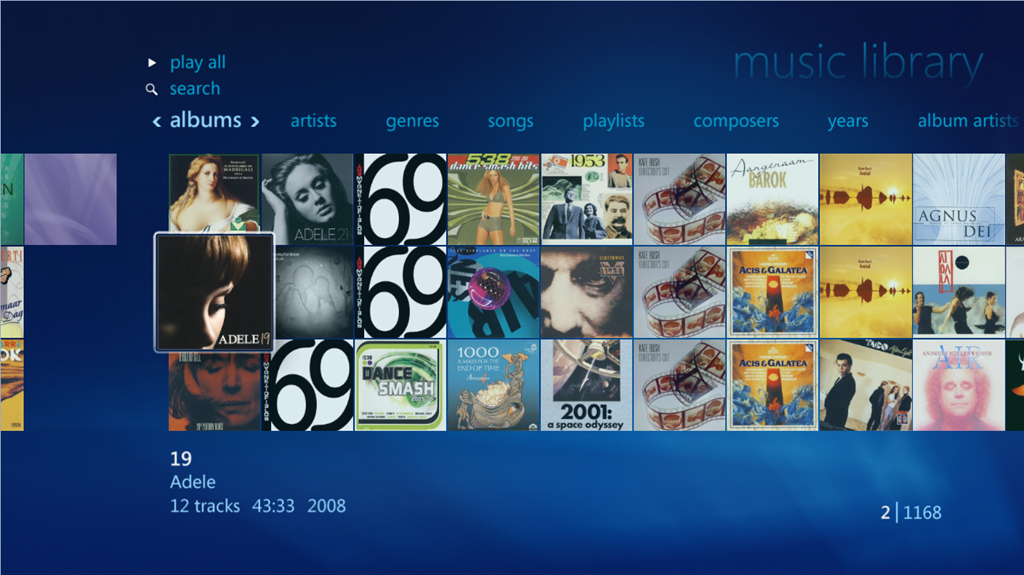
    At least the MediaBrowser Windows 8.1 client offers a choice of being able to browse by Artist, Album or Genre, while the Windows Phone client adds the choice of being able to browse by song as well. However, this is nothing compared to Windows Media Center, which, since 2004 (ten years ago!), has offered a choice of being able to browse by Album, Artist (both per track and per Album), Genre, Song, Playlist, Composer, and Year:

    WMC 01

    So as far as handling of a Music library is concerned then, both MediaBrowser and Plex have a very long way to go…

    [Addendum 30 October 2014: Plex have just released new versions of the client for Windows 8.1 and Windows Phone, and the good news is that at last it is now possible to browse the Music library by Album. Semantic Zoom is also supported when the Album list is sorted by name. However, Semantic Zoom doesn’t work (in Windows 8.1) or is missing altogether (in Windows Phone) when Albums are sorted by Artist. Apparently, this is caused by limitations in the current version of the Server. Hopefully it will get fixed, but at least we are now a little further forward than we were…]

    It’s a similar story when it comes to browsing Photo libraries. The MediaBrowser and Plex clients can only browse folders, while Windows Media Center can browse by Folder, Tags, Date taken, Ratings, Slide shows and Shared (browsing other media servers shared on the local network). The lack of support for browsing by Tags, I find particularly disappointing in the MediaBrowser and Plex clients. Still, support for these features may yet come. It’s clear, however, that both the MediaBrowser and the Plex developers view Movies and Video as where the action is. Music and Photo libraries are very much the poor relations.

    One area where MediaBrowser and Plex has surpassed Windows Media Center is that of being able to play content on other devices. WMC was designed as an all-in-one solution, whereas both MediaBrowser and Plex have been designed as an ecosystem of interconnected server and client devices. So it is possible to browse my movie library on my Windows Tablet, or my Windows Phone; pick a movie, and then start it playing on the HPTC, and continue controlling playback from the browser device.

    Plex can do this with its own player applications and selected Smart TVs. MediaBrowser has possibly a wider reach, because it should be able to work with any DLNA-certified device. However, the theory is not always borne out in practice; I have problems using my Denon AVR to play music sent to it by MediaBrowser.

    Another area where MediaBrowser and Plex go beyond Windows Media Center is that of being able to access and share media collections outside of the home network. This raises a lot of questions around security, and indeed, Plex seems to have some architectural issues that need to be addressed in this area, and I would not be surprised if MediaBrowser might have similar questions asked of it. However, as I have no desire to share our media collections outside of our home network, I do not use this capability and have closed off the servers from outside access. (Note: since this section was written, Plex has had a totally redesigned security architecture implemented, which seems to have addressed the security issues)

    In summary then, both MediaBrowser and Plex have promise, but I don’t feel that either of them have quite reached the stage where I will commit to one and drop my current Windows Media Center setup. Nonetheless, I’ll be continuing to monitor and try out both.  We are getting ever closer to the release of Windows 10, and Microsoft’s possible removal of Windows Media Center from that operating system. The clock is ticking.

    Addendum 6 August 2015: Well, Microsoft has just released Windows 10, and, as expected, Windows Media Center has been dropped from the operating system entirely. Since my last entry on this post, both Plex and Emby have improved. Plex, in particular, has considerably improved handling of Music collections. Still not as good as Windows Media Center, it has to be said, but not bad.

    I’m still running both Plex and Emby in parallel, trying to make up my mind between them. Plex is currently in the lead as far as I (and my requirements) am concerned, but I’m waiting to see what the forthcoming version of the Emby Home Theater client will offer before I make my decision.

  • Windows 10 Technical Preview

    Naturally, I couldn’t resist taking a look at Microsoft’s Technical Preview of Windows 10. I signed up to the Windows Insider Program and downloaded a copy of the Windows 10 Technical Preview.

    I’ve installed it on my Desktop PC (homebuild) in a Dual Boot configuration. Dual Boot seems the safest option at this stage; Windows 10 is nowhere near complete, and you can’t revert back to Windows 8.1 without doing a complete fresh reinstall of Windows. While I could have run Windows 10  in a Virtual Machine, I prefer to see what happens when running on actual hardware. With the Dual Boot configuration, I can choose to start up either the Windows 10 Technical Preview or the tried and trusted Windows 8.1 operating system. (Addendum: if you’d like to install the Technical Preview in a Virtual Machine, then Ludwig Keck has a “How-to” post over at his This ‘n That blog.)

    The main thing to bear in mind is that at this stage, it’s very early days; the focus of the Technical Preview is on Enterprise users (who are probably still running Windows 7 on their PCs) and therefore using the traditional Desktop interface with mouse and keyboard. Touch devices are not the focus of this first Technical Preview. I’m already reading in forums of people who have installed it on touch-enabled devices (e.g. the Microsoft Surface Pro range) and who are reporting that the touch experience is in fact degraded…

    For this and other reasons, there is no way that I would install the Technical Preview on my ThinkPad Tablet 2 at this stage. Knowing my luck I’d end up with a useless brick.

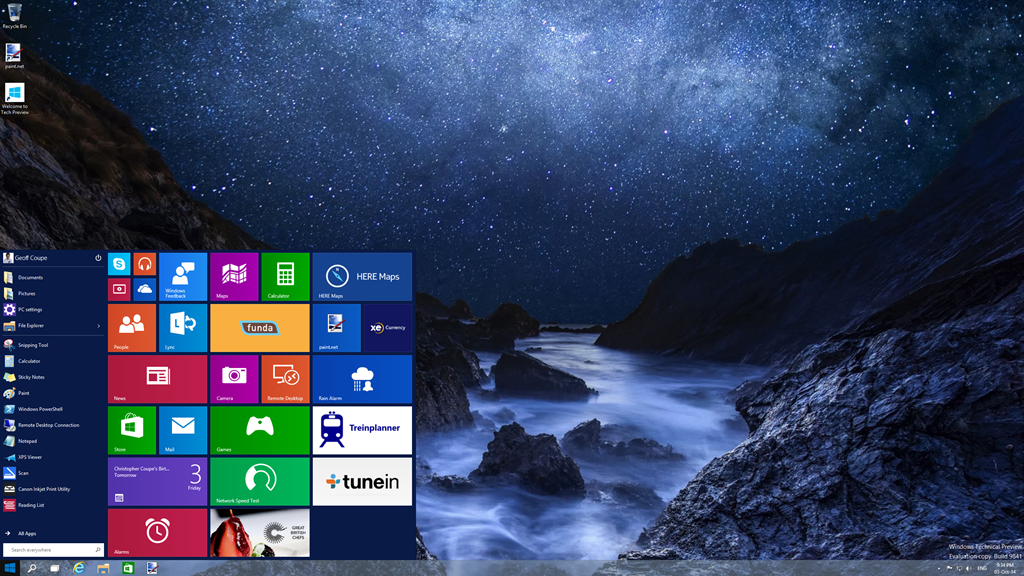
    I suppose the big news of this Technical Preview is that the Start Menu (familiar to Windows 7 users) is back. This being Windows 10, the Start Menu also has elements of the Windows 8.1 Start Screen tacked onto it in the form of App Tiles:

    W10 003

    It’s possible to customise this Start Menu (Start Panel?) in a variety of ways (resizing the panel, resizing and shuffling the Tiles) to arrive at your desired configuration. This could be a pure Windows 7-style of Start Menu, or a combination of Menu and Panel:

    W10 006

    I have to say that, frankly, for me, this all seems like a step back into the past. I’ve got very comfortable with the Start Screen on all my devices (PCs and Tablets), and going back to the damn Start Menu doesn’t thrill me at all. Clearly, there are many for whom the Start Menu is a good thing, but I’m not one of them. I just hope that Microsoft don’t remove the option of having a Start Screen even when Windows 10 is running in Desktop mode.

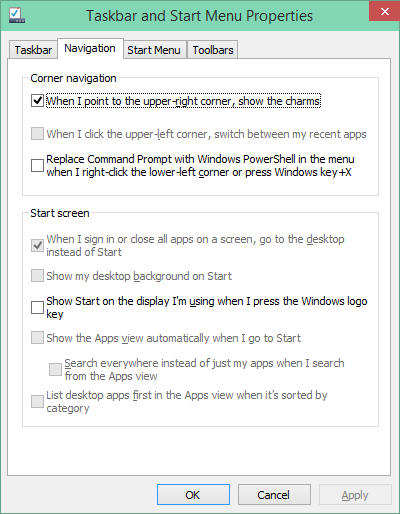
    What I also quickly noticed is that, in this Technical Preview, the Charms Bar has been removed from the Desktop as well. My muscle memory kept expecting to bring out the Charms bar, and I found it irritating that it was not there. This may be an issue with the Technical Preview build, because there’s a Control Panel setting that seems to imply that it should be possible to have the Charms Bar present, even in Desktop mode:

    W10 002

    However, in this build of the Technical Preview, that checkbox doesn’t work.

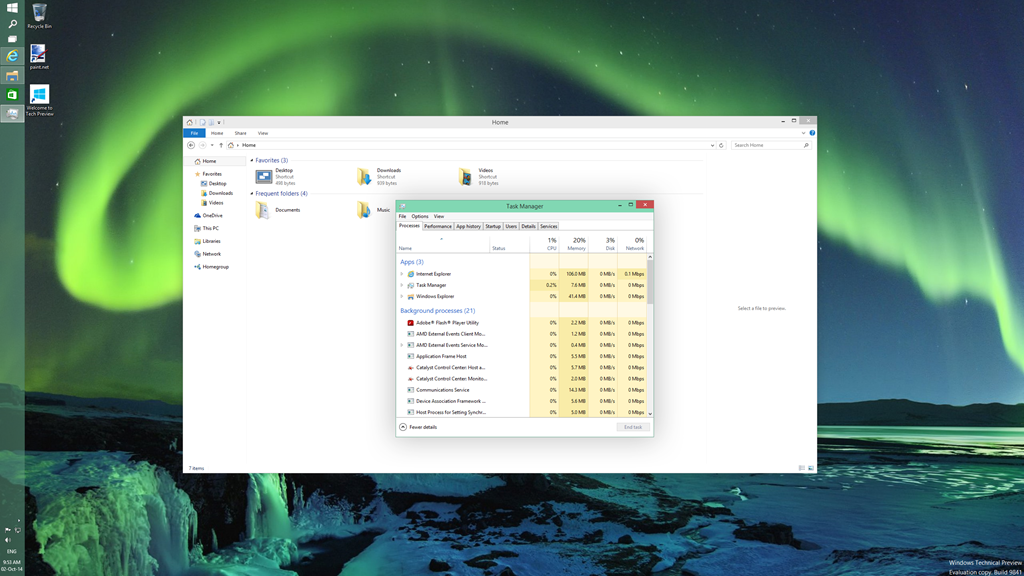
    One thing I do rather like is that Desktop Windows are now almost borderless, with just a faint shadow effect on underlying Windows:

    W10 001

    This seems to be a nod to the “flat” design language of the Modern UI. As I say, I rather like it, but I see from the forums that Desktop traditionalists hate it.

    If you fire up a Modern UI app, then it displays almost fullscreen (by default, the Taskbar and a Title Bar still show):

    W10 004

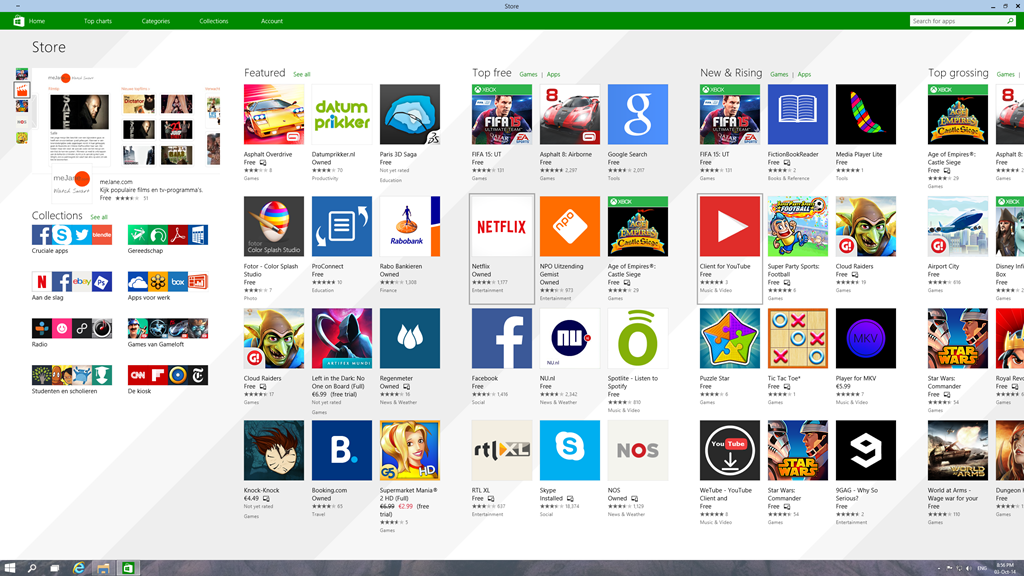
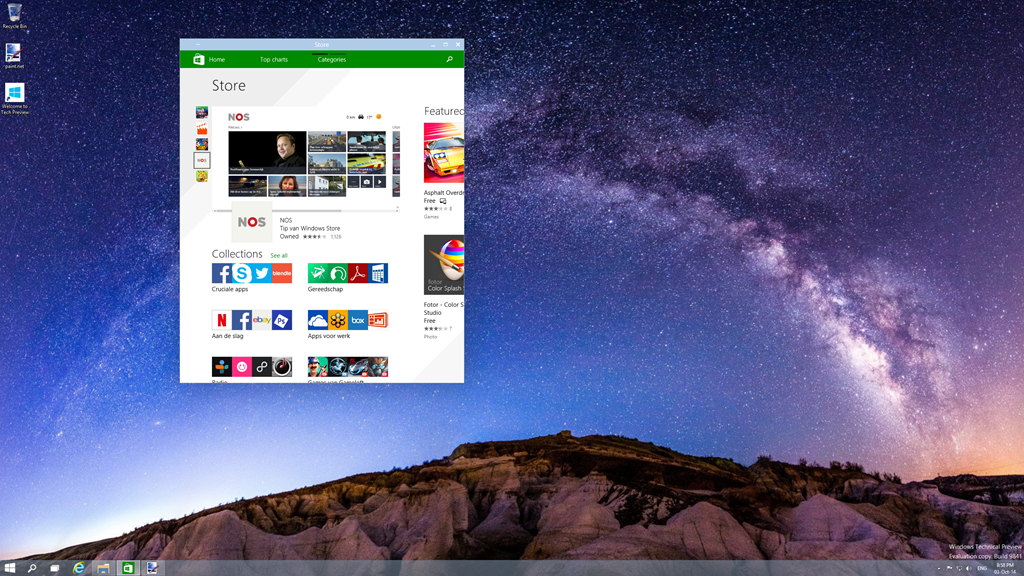
    The big news here is that it is possible to resize the Window of the app. The trouble is, that the content doesn’t resize. It may get reshuffled a bit (but not always, as the Store app shown here illustrates), but fonts and graphics remain at their original size:

    W10 005

    I don’t really think this works. The Mail app, for example, is really designed for a tablet-sized screen in fullscreen mode. Resizing it on a large desktop, and it looks overblown, even when in a smaller window. When in Desktop mode, I tend to stick to the traditional Windows Live Mail, which is a traditional Desktop application. That’s comfortable. When I’m using my tablet, I use the Mail app. That’s equally comfortable.

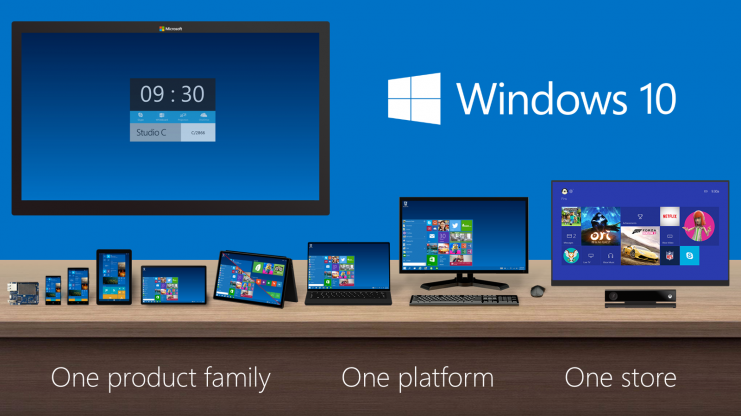
    Microsoft are making a play that Windows 10 will be one platform that supports a tailored experience for a range of device form factors:

    Windows_Product_Family_9-30-Event-741x416

    However, at this stage, it is clear that the experience is not tailored, it’s procrustean – at least as far as the current generation of Modern UI apps are concerned. This has to improve.

    I’ll be following the developments with interest, but this first Technical Preview is addressing an area that I personally have moved beyond.

  • A Comparison of ThinkPad Tablets

    In January 2013, I bought a Lenovo ThinkPad Tablet 2 for myself. Since I’m firmly in the Windows ecosystem camp, I didn’t want to get either an iPad or an Android tablet, and the TPT2 was the first Windows tablet that started to tick all the boxes I had in my list. Being a tablet with a second generation Intel Atom processor at its heart, it was no powerhouse, but it suited me very well.

    Fast forward to now, and there are tablets available with the next generation of Intel’s Atom, and new low-power versions of the Atom’s big brothers, the Core processor range, are also starting to appear in devices. For the past few months I’ve been comparing my trusty TPT2 to Lenovo’s new ThinkPad 10 tablet, and to Microsoft’s Surface Pro 3, wondering whether to make a move to a newer device. I finally came to the decision, after much vacillation, to sit this round out, hang on to my TPT2,  and wait for up to a year before purchasing a replacement device.

    However, yesterday a small box was delivered, courtesy of Lenovo, which contained a ThinkPad 10. I’ve been fairly active in a couple of online forums trying to help people with TPT2s, and Lenovo have sent me a TP10 on long-term loan so that I can move into helping with TP10 issues. Very nice of them, I must say, but I’m not going to let that sway my judgement.

    I thought that one way to get started would be to compare the TP10 with its predecessor, the TPT2. It should be an improvement over the earlier product, but is that true in every respect? Let’s take a look…

    First of all, here’s the comparison of the basic specifications of the particular models of the tablets I currently have:

    ThinkPad Tablet 2 ThinkPad 10
    Processor Intel Atom Z2760 (2 cores, 1.80GHz, 1MB cache) Intel Atom Z3795 (4 cores, burst 2.40GHz, 2MB cache)
    Display 1366 x 768 (16:9) 1920 x 1200 (16:10)
    Memory 2GB / 800MHz LPDDR2 4GB / 1067MHz LPDDR3
    Storage 64GB eMMC
    + MicroSD up to 32GB
    128 GB eMMC
    + MicroSD up to 64GB
    O.S. Windows 8.1 Pro* 32bit Windows 8.1 Pro 64bit
    Digitizer Pen Yes Yes
    WLAN 11a/b/g/n 11a/b/g/n
    WWAN GPRS / WCDMA / HSPA / HSPA+ No
    Bluetooth 4.0 4.0
    GNSS Yes Yes
    NFC Yes No

    *The TPT2 originally came with Windows 8 installed. I upgraded it to Windows 8.1 when that became available.

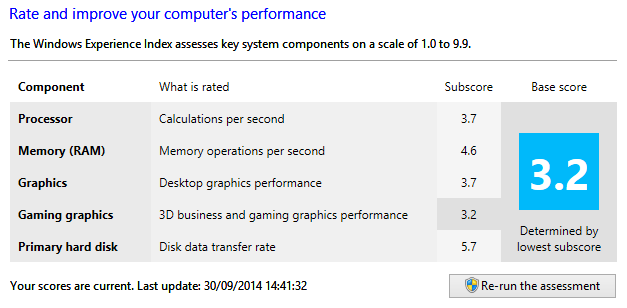
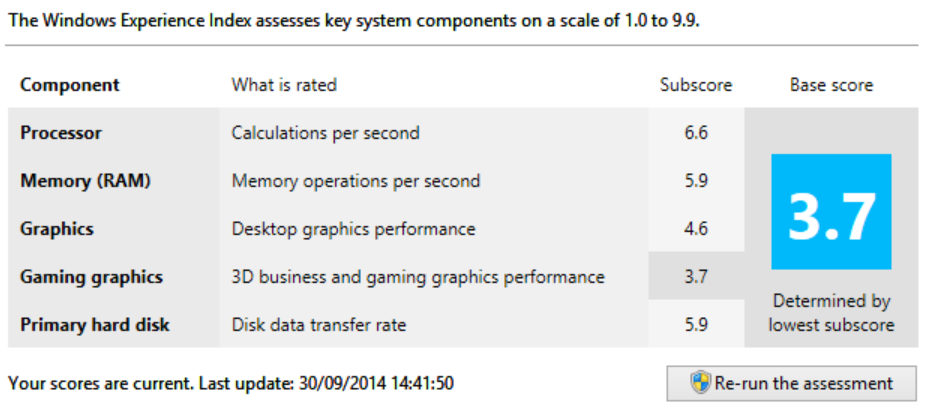
    You’ll notice that the TP10 that I have on loan does not have WWAN or NFC fitted. These are available as options for some models of the TP10 line. Other than that, it is clear from the table that most of the important elements have performance improvements over the TPT2 equivalents.  This is also borne out in benchmarks. Here, for example are the Windows Experience Index scores:

    TPT2:

    TPT Comparison 02

    TP10:

    TPT Comparison 01

    Whilst the gaming graphics and hard disk subscores are only slightly improved for the TP10 over the TPT2, the other measures show substantial improvement. That translates in practice into a snappier feel for the TP10 over my TPT2. Office programs start up much faster, for example.

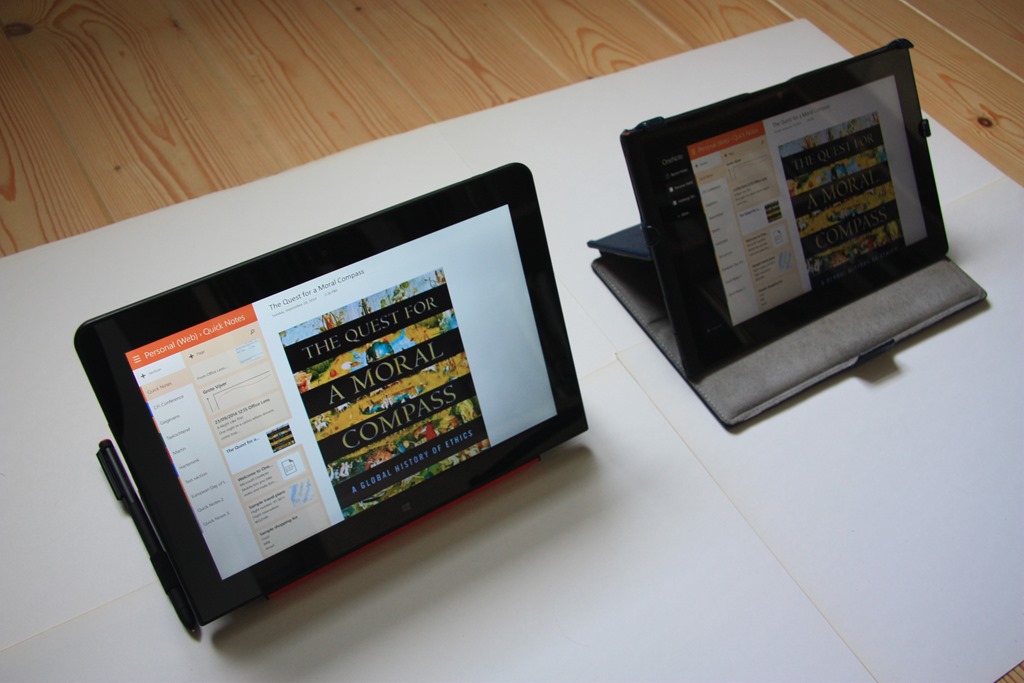
    Physically, the two tablets are close in size, the TP10 (on the left) being slightly taller and narrower than the TPT2:

    20140930-1247-21

    Also shown in this photo is the Lenovo Quickshot cover fitted to the TP10, with an Armour Dog cover from Lente Designs fitted to my TPT2 on the right. The Armour Dog cover wraps around the TPT2, and is very stable when used as a stand, but it does add thickness to the tablet when closed. The Quickshot cover is thinner, and only covers the screen (it can be completely folded back under the TP10 in use). It can also act as a stand, but it is less stable, and with less angles to choose from.

    20140930-1252-35

    You’ll notice that it also has a loop to hold the TP10’s pen. Since the TP10 is slightly thinner than the TPT2, it is not possible to store even a small stylus in the tablet itself, as was done for the TPT2, so Lenovo has delivered a normal sized pen.

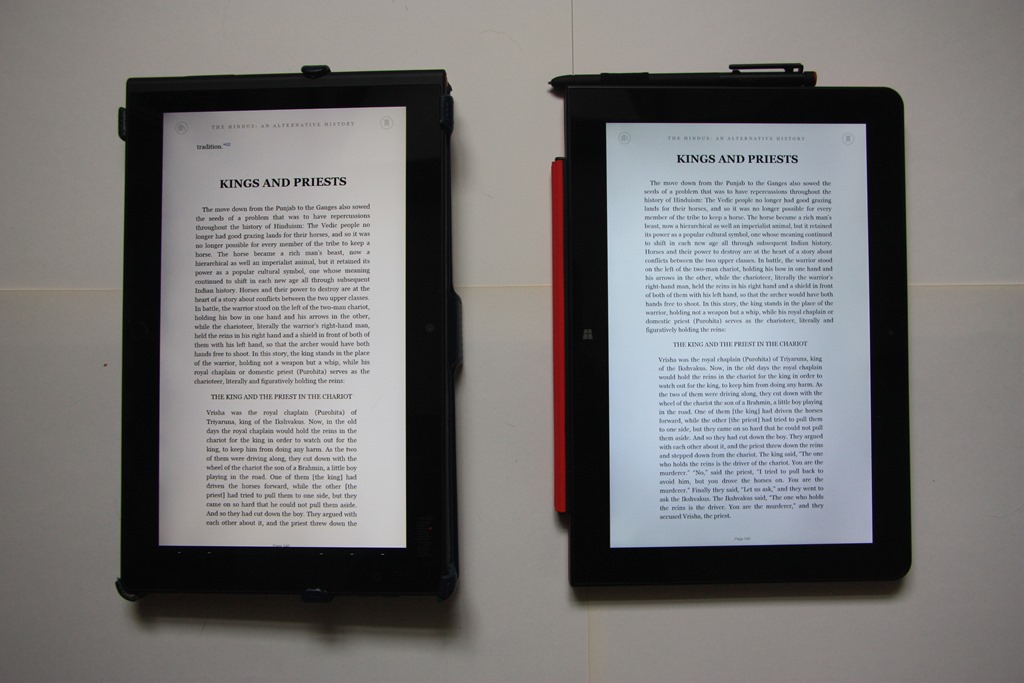
    The TP10 has a larger display and a higher resolution than the TPT2, and I like the 16:10 aspect ratio of the TP10 over the 16:9 ratio of the TPT2. When I’m reading books, for example, I prefer the TP10 experience (on the right) over the slightly longer and narrower page rendered on the TPT2:

    20140930-1314-11

    The difference in aspect ratio also means that I get five rows of Tiles on the Start screen with the TP10 versus four on the TPT2:

    TPT Comparison 04

    TPT Comparison 03

    The TP10 is certainly sleeker than the TPT2, but there are aspects about the case that I find less ergonomic than the TPT2. For example, the TP10’s buttons are flush with the case, rather than being slightly raised as with the TPT2. Finding and using buttons (e.g. the volume controls) on the TP10 is an exercise in frustration for me.

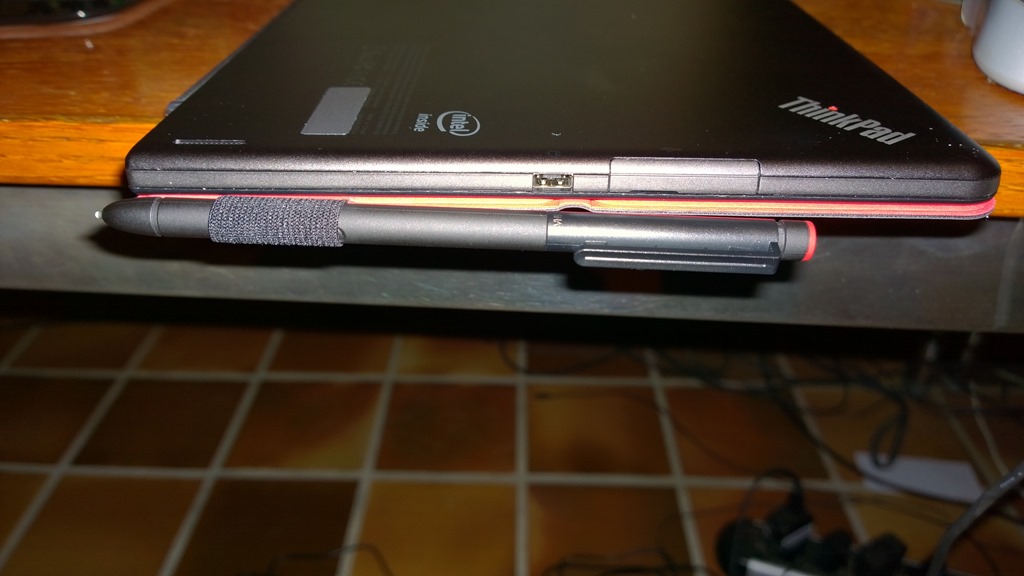
    On both the TP10 and the TPT2, the USB socket has a cover. It may be just me, but the cover on the TP10 seems much more fiddly to pop off and to put back in place than the one on the TPT2. Here’s a photo of the cover on the TP10, and next to it, the power charging socket:

    20140930-1939-53

    The power charging socket on the TP10 is proprietary to Lenovo; on the TPT2 it was a micro-USB. This means that you can’t use a micro-USB phone charger with the TP10 in an emergency. Some people might view that as a drawback. I’ve noticed one other concern about the design and position of this socket. Here’s a photo of the TP10 being charged while being used flat on a desk:

    20140930-1942-46

    Notice how I have folded the Quickshot cover back under the tablet, as I think most people would tend to do. For one thing, it now protects the smooth metal back of the tablet from getting scratched. However, if the pen is stowed in its loop, then it pushes up on the charging plug and raises the tablet slightly on that side. I just wonder what the long term effects and stresses will be as a result.

    The TP10 comes with a lot of software applications and apps pre-installed. This is stuff such as:

    • Lenovo Companion
    • Lenovo Support
    • Lenovo Tap to Share (QuickCast)
    • AccuWeather
    • Evernote
    • Norton Studio
    • Skype
    • Zinio
    • 1-Year Office 365 Personal subscription (Trial only on Win8.1 Pro)
    • Norton Internet Security 2014 with 30 days of virus protection
    • Nitro Pro 8
    • Lenovo Solution Center
    • ThinkVantage System Update
    • Lenovo Reach
    • Hightail –metro (cloud storage)
    • Maxthon Browser
    • Lenovo Photo Editor (by CyberLink)
    • Lenovo Video Editor (by CyberLink)

    Frankly, most of this I view as Bloatware. The first thing I did was remove all but a couple of packages from the TP10. I then left the TP10 to update itself with Windows and Lenovo driver updates. A few hours, and 60+ updates later, it was ready to use.

    I uninstalled Office 2013 Home & Student from my TPT2 and installed it on to the TP10. I needed to activate it via the telephone, rather than the painless internet route, but after punching in reams of numbers into my phone and into the TP10, Microsoft was happy and activated Office. After another round of software updates, this time for Office 2013, I think the TP10 is now finally ready to be put to work.

    I’ll report back over the coming months on how I’m getting on.

    Addendum: I do rather wish that manufacturers would strive for consistency with accessories across generations. For example:

    • The TPT2 has a mini-HDMI port; the TP10 has a micro-HDMI port. So I have to buy yet another HDMI cable for the TP10…
    • The Docking connectors are different, so I have to buy a new TP10 Dock, I can’t re-use the TPT2 Dock.
    • The TPT2 has a VGA Adaptor that fits into the Docking connector on the tablet. I use that to connect my TPT2 to a VGA projector in meetings. There is no equivalent adaptor available for the TP10. In fact, apparently the only way to connect a TP10 to a VGA projector is to use the Lenovo USB 3.0 to DVI/VGA Adaptor. Note that is a USB 3.0 connector. The TP10 only has USB 2.0 on the tablet; do I have to get the TP10 Dock to provide a USB 3.0 connection for the adaptor?…

    Sigh.

  • Photo Metadata – Software for Rights Test

    The standards organisation IPTC has just published the results of a test of commonly available software to find out how effective different tools are in writing, editing and reading rights data in an image.

    I’m pleased to see that Photo Supreme, the software I use for managing my photos, has come out well.

  • Still Trying To Nail It

    For the past three weeks, I’ve been trying to nail what my next Windows Tablet will be. And I still can’t decide between the Lenovo ThinkPad 10 (TP10) or the Microsoft Surface Pro 3 (the Core i3 model). I keep going back and forth trying to look at the pros and cons of both tablets in an effort to choose. To be honest, it’s a bit of a Luxury Problem, because my current tablet – a Lenovo ThinkPad Tablet 2 (TPT2) – is still serving me well after 18 months of use. Overall, I’ve been very pleased with the TPT2, but the siren call of new technology is singing to me, and I’m finding it difficult to resist. So I thought I’d use this post to compare all three tablets with each other, and see if that helps sharpen up the pros and cons as I see them.

    Dimensions

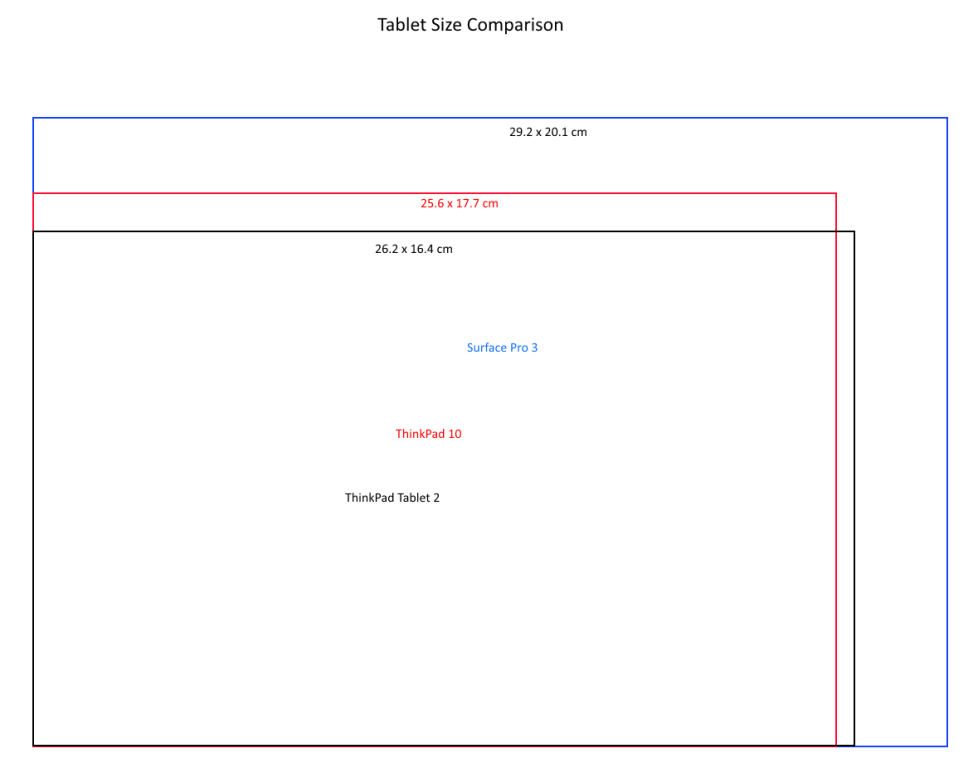
    Tablet Size Comparison The Surface Pro 3 (SP3) is the biggest and heaviest (at 800 gm.) tablet of the three. The TP10 is roughly the same size and weight (610 – 600 gm., depending on whether it has WWAN or not) as my TPT2 (610 gm.), but has a slightly different aspect ratio. Whilst I haven’t had an opportunity to compare all three side by side in real life (and won’t until September, here in the Netherlands); reading the forums where these are discussed, I worry a little that the SP3 may be just a little too big and unwieldy as a tablet. The TP10, particularly with that changed aspect ratio, may be, as Goldilocks found, “just right”.

    Screen Resolution and Aspect Ratio

    The changed physical aspect ratio of the TP10 reflects the fact that the display screen ratio has also been changed: from 16:9 of the TPT2 to 16:10 of the TP10. It’s not just the ratio that has been changed, but also the resolution. The TPT2 has a screen resolution of just 1366 x 768 pixels, whereas the TP10 has 1920 x 1200. Now, I say “just”for the TPT2, but quite honestly, for the size of the device, the resolution is perfectly adequate. Nonetheless, the higher resolution of the TP10 is clearly an improvement, and the 16:10 aspect ratio even more so, as far as I’m concerned. So how does this compare with the SP3? It has to be said that the SP3 has the upper hand. Not only does it have a resolution of 2160 x 1440, this also gives it the best aspect ratio of 3:2. For reading books and documents in portrait mode, this is pretty close to what I want. The 16:10 ratio of the TP10 is in second place (with my trusty TPT2 coming in at third place with 16:9). However, if one compares reading quality, as expressed by pixel density, then in fact the TP10 comes first: it has a pixel density of  224.17 pixels per inch, while the SP3 has 216.33 pixels per inch. Obviously, the TPT2 comes third with 155.16 ppi. In summary, for me, the SP3 display is the front runner, but the TP10 is close behind.

    Performance

    On paper, there is no contest; the Core i3-based SP3 wipes the floor with both of the Atom-based ThinkPad tablets. Looking at the CPU Passmark benchmarks, then we have:

    • SP3: 2,278
    • TP10: 1,970
    • TPT2: 679

    The SP3 is over three times as fast as my TPT2. However, for my usage (Word, Excel, OneNote, Mail, Windows Live Writer, web browsing, playing media, Metro Apps), the TPT2 has proved perfectly adequate. Yes, extra power would be welcome on occasion; but essential? Not for what I use my tablet for. I understand that, for many people, more power is what they need. That’s not the case for me – at least not with my current usage patterns and scenarios. In summary then, the TP10 would give me a boost in power over the TPT2. The SP3 would give me a further boost in power over the TP10, but whether I really need it is a moot point. More likely, this would be gilding the lily.

    Fan Or No Fan?

    The biggest stumbling block for me is the fact that because the SP3 has more performance than the TP10, it requires a cooling fan. The TP10, like the TPT2 before it, is fanless. Personally, having experienced a tablet that is fanless (my TPT2), I really do not want to replace it with a tablet that has a fan. That would seem to be a huge step backwards as far as I’m concerned. Now I know that Microsoft claim that the fan in the SP3 is silent; but reading the forums, it’s clear that it is not. It’s true that at the moment all the real world experience is coming from people who have SP3 models that are fitted with the more powerful Core i5 processor. The Core i3 models (which should run cooler) won’t be available until next month. Nevertheless, it’s a concern. An additional point is that the SP3 is one of the first examples of an Intel Core-based tablet that uses InstantGo (formerly known as Connected Standby). Reading the forums, it is apparent that the bugs have not been fully ironed out. There are examples of people finding that their SP3 has turned itself on in their shoulder bags, with subsequent overheating. As a result, some people are posting ways to turn off InstantGo, which seems to me a pretty drastic course of action. My TPT2 has InstantGo, and, after some initial teething issues, solved by software updates, it now performs faultlessly, and I would not want to lose it. A fanless tablet, even if it did turn itself on in your shoulder bag, would only run the risk of unwanted battery drain, not meltdown. In summary, therefore, the fanless TP10 easily wins this round over the SP3.

    Pen Support

    All three devices (the TPT2, TP10 and the SP3) support active pens for accuracy and pressure sensitivity. The ThinkPads use Wacom technology, whereas the SP3 now uses N-Trig technology (earlier Surface Pro models also used Wacom). There are many heated discussions over which technology is superior, particularly amongst artists. However, since my purpose for wanting to have a pen is for simple notetaking and scribbled drawings, I will be happy with either. Both are far superior to the capacitive pens sold as accessories for iPads. The TPT2 came with a very thin pen that can be stored in the tablet itself. However, I tend to use a normal-sized Wacom pen when writing long screeds. The pens supplied with the TP10 and SP3 are of normal dimensions, which unfortunately means that they are too big to be stored in the thinner tablets. In this category, therefore there is nothing to choose between the TP10 and the SP3, as far as I am concerned.

    Cameras

    I was very surprised to discover recently that the rear camera in the SP3 was a fixed-focus device, rather than auto-focus. A fixed-focus camera is very limited in what it can do. Photographing documents, and similar close-up work, will be difficult, if not impossible. When this was raised in forums, lots of people jumped in to say that they would never use their tablet for making photos anyway, but always rely on their smartphones. While this is true (and my Nokia Lumia 1020 will knock the socks off any tablet camera), it does rather seem to miss a fundamental point. Microsoft are presenting the SP3 as a premium device for professionals. If Microsoft want the SP3 to be bought in large numbers by organisations, then it has to be a serious platform for Line-of-Business applications. Many such applications, these days, will want to include photos captured by the platform. For example, when the contractors arrived at our house to install and commission the solar panels and electric inverter, the team leader had an iPad with a LoB application. It contained the work order details. Once the installation was commissioned, he used the iPad camera to photograph the serial number barcode of the inverter, and the serial number was used to activate the monitoring system in the cloud. He also photographed my paper copy of the work order, now complete with my signature, and the electronic copy was added into the business process application. The iPad has an auto-focus camera, and can be used in these sorts of applications. The SP3’s fixed focus camera can’t. Here’s an example (taken from a post on the Microsoft Surface forum) of the same document photographed by an iPad (auto-focus) and the SP3 (fixed-focus) cameras: iPad and SP3 Camera Comparison I’m sorry, but Microsoft should be ashamed of this. A common use of tablets in the field is with insurance adjusters. They will inspect a loss, taking a number of photographs along the way, notate the damage on them with a pen by circling the damage and email the pictures to the claims handler with their recommendations. The Adjusters need to take long shots and close ups (hat-tip to Bronsky for this example). The SP3 cannot be used in this scenario. My old TPT2, and the TP10, can. They both have auto-focus lenses capable of taking close-ups and wide-angle shots. Once again, Microsoft snatches defeat from the jaws of victory. As I said, most of the time I will use my Nokia 1020 for taking photos, but in practice, both my TPT2 and the TP10 cameras will far surpass the toy camera that Microsoft has put in the SP3. So, while I could live with the camera that the SP3 has, it certainly tarnishes the “premium” moniker that Microsoft would have us believe that the SP3 carries.

    Sensors

    Smartphones and tablets are equipped with a range of sensors these days, whilst laptops are not. The TPT2, TP10 and the SP3 all have a gyroscope, accelerometer, magnetometer and an ambient light sensor. In addition, however, the TPT2 has a GNSS sensor, which can provide GPS positioning data to the Windows 8.1 Location Service. At this point, it’s not clear whether the TP10 includes the same sensor. Lenovo’s documentation implies that all models of the TP10 have it, yet Lisa Gade found in her review of the TP10 that the model under test did not include GNSS capability. I’ve asked Lenovo if they can clarify the issue. One thing is clear, though, the SP3 does not have a GNSS sensor. And again, I find this strange, given that the SP3 is supposed to be a premium device for professionals. Microsoft state in the SP3 specifications that it has a “digital compass” for its Location Service. Do they take us for fools? A compass is not sufficient to provide accurate position data. In this category, therefore, the TPT2 is currently out in front, but if it is confirmed that the TP10 also has a GNSS sensor, then it will join the TPT2, and the SP3 will be in third place. [Addendum: Lenovo has confirmed to me that all models of the TP10 have a Broadcom 4752 GPS chip in them to provide GNSS data] Is a GNSS sensor essential for me? Honestly, no, but it is very nice to have. A number of the apps that I use require accurate position data (e.g. mapping, navigation and astronomy apps), and while I could provide this via a bluetooth GPS device to the SP3 (and the TP10, if necessary), it’s very convenient to have this built into the tablet directly.

    Networking

    All three devices support WiFi and Bluetooth 4.0 networks. The SP3 also supports the newest, fastest variant of WiFi: 802.11 ac in addition to the 802.11 a/b/g/n specifications. This puts the SP3 in front of the TPT2 and the TP10 in this respect. However, there are currently no models of the SP3 that are equipped with WWAN capability, whereas both the TPT2 and the TP10 have models equipped for mobile networking. Once again, just as for the camera quality, this could be an important differentiator for Business users. Is this a showstopper for me? No, it isn’t. Although my current TPT2 is equipped with WWAN, I very rarely use it, and on the occasions that I do, I could just as easily pair it with my Nokia 1020 to provide internet access to my tablet. The SP3 also does not have NFC, whilst some models of both the TPT2 and the TP10 do. This feature is more commonly found in Smartphones, but it could just take off in tablets as well. This is another “nice-to-have” feature as far as I’m concerned. Its absence is not a showstopper. Overall, therefore, given that I could live without WWAN capability, NFC, and do not need 802.11 ac speeds (or indeed have them in our home network), then there is nothing to choose between the SP3 or TP10 in this category.

    Summing Up

    I’ve tried to sum up using the table shown below. I haven’t assigned weightings to the categories, but if I did, then the dimensions/weight, display and noise categories would be the most important to me. You’ll notice that I have not got a battery life category. I’m assuming that both the SP3 and the TP10 would be sufficient for me.

    Category Front-runner
    Dimensions/Weight TP10
    Display SP3
    Performance TP10 (sufficient)
    Noise (fan) TP10 (fanless)
    Pen Support SP3 = TP10
    Cameras TP10
    Sensors SP3 = TP10
    Networking SP3 = TP10

    The one area where the SP3 clearly comes out on top is in the display category, because of its superior resolution and 3:2 aspect ratio. Whilst, on paper, the SP3 clearly wins in the performance category, the TP10 has sufficient performance for me, so I’ve put that first. The SP3’s superior performance also comes at a cost for me: that damn fan. In fact, I’m beginning to think that the whole case one way or another, balances around the question of the fan. If the Core i3 model of the SP3 can really minimise the use of the fan, and the problems with InstantGo resolved, then it becomes more attractive. Then the attention shifts to the dimensions and weight category. So it looks as though, at this point in the technology cycle, while the TP10 is a better fit with what I am looking for in a tablet, I must resist the temptation to pull the trigger until after some reports of the Core i3 model of the SP3 have been published, and I’ve had a chance to see, and heft, both the TP10 and SP3 in the flesh…

    Addendum

    I reached a decision (of sorts) on the 6th September 2014, and wrote a post on it. The bottom line:

    Now that a wider range of TP10 models are available here in the Netherlands, I could get a TP10 (faster, with a better display, and twice the RAM) to replace my existing TPT2 for €620. I definitely won’t be going for the SP3 (at €819) – too many compromises and issues for me. I could also equally continue using my TPT2 quite happily and wait to see what an SP4 has to offer. There’s no rush.

  • Trying to Nail It

    A few weeks ago I wrote a piece on the newly-announced Surface Pro 3 from Microsoft: For the Want of a Nail. In summary, while I thought that the device was impressive, it seemed to me to miss a few things that I would be looking for in my next tablet.

    First, the positives of the SP3 (from my perspective):

    • The form factor is both a tablet and a notebook.
    • Build quality is high.
    • Beautiful engineering – particularly on the adjustable kickstand.
    • Thinner and lighter than the 13 inch Macbook Air laptop.
    • The 12 inch display (2160×1440 pixels) has a more comfortable 3:2 aspect ratio with a high pixel density (216.33 pixels per inch), and is both pen and touch-enabled.
    • The pen feels and behaves like a proper pen, not a pointy stick.
    • There will be a range of models available, running from devices fitted with the Intel Core i3 processor, through ones with the Intel Core i5, up to the most powerful, fitted with the Intel Core i7.

    And the negatives:

    • It’s got a fan – I really want my tablet to be fanless.
    • All the currently announced models are WiFi only – no WWAN.
    • No models have GNSS included, so the Location services in Windows 8.1 won’t work without carrying around an external GPS device and using a software shim such as GPSDirect.
    • No models have NFC included
    • It appears as though the rear camera is fixed-focus, and not auto-focus.

    The Surface Pro 3 models are also premium-priced, but that’s no different to Apple’s pricing strategy. Actually, I think you can argue that Microsoft gives you more value for money than Apple, because no MacBook is currently touch-enabled or equipped with a pen.

    Reading, and watching, the reviews of the Surface Pro 3 that have been published in the Media, it is depressing to me how many reviewers seem unable to grasp that Microsoft are attempting to change the game here with a totally new form factor. These reviewers seem to be, to a man (or woman), technical journalists who use their Macbooks to type out their articles with their laptops balanced on their knees. The pinnacle of silliness in this respect are the animated images of this reviewer crossing her legs while typing. As Hal Berenson writes:

    Microsoft is going for a unique form factor with the Surface Pro 3, one that says we compromised the tablet a little and we compromise the notebook a little and have this one device that can be both at the same time.  Detachables are a device class that let you have a notebook or a tablet, but not at the same time.

    Still, as I wrote a few weeks ago, my primary usage case for this type of device would be as a tablet. I don’t own a laptop or a notebook. And in that case, I thought:

    If I were to look at the SP3 models for simply a replacement for my TPT2 as a companion tablet, then I would go for the Core i3 model of the SP3. However, for roughly the same price as what I paid for my TPT2 eighteen months ago, I would be losing GNSS, NFC, and WWAN with the SP3. I really don’t see the point.

    And I concluded then:

    Frankly, I think I’ll give the SP3 a miss. I don’t see that I could justify it. It’s more likely that I will be replacing my 18 month old ThinkPad Tablet 2 with a new ThinkPad Tablet 10.

    However, I’ve been thinking about this some more, while waiting for Lenovo to release models and pricing details of their new ThinkPad 10 tablet. Now that those details are beginning to trickle out, I’m really wondering whether the decision is quite as clear cut as I first thought.

    At the moment, as I wrote here, of the 17 different configurations that Lenovo list for their “TopSeller” ThinkPad 10 20C1 model, only three are currently being listed by Dutch retailers. Those are the:

    • 20C1001DMH – 64GB, 2GB RAM, Wi-Fi only
    • 20C10024MH – 128GB, 4GB RAM, Wi-Fi, WWAN (LTE), NFC
    • 20C10026MH – 64GB. 4GB RAM, Wi-Fi, WWAN (LTE), NFC

    All of those models are equipped with a touchscreen, digitiser and pen, Bluetooth, and GNSS. They run Windows 8.1 Pro (32 bits for the 2GB 20C1001DMH, and 64bits for the 4GB models).

    Indicative prices are:

    • 20C1001DMH – €685
    • 20C10024MH – €880
    • 20C10026MH – €806

    Now the interesting thing is if I look at the Core i3 model of the SP3. Like the Lenovo 20C10026MH model of the ThinkPad 10, this model of the SP3 has 64GB, 4GB RAM, touchscreen, pen, Bluetooth and Wi-Fi. It also runs the 64bits version of Windows 8.1 Pro. However, it has no WWAN, GNSS, or NFC.

    On the other hand, it has a bigger screen (12 inches diagonal, 2160×1440 pixels, versus the 10.1 inches and 1920×1200 pixels of the ThinkPad 10). Being a Core i3 machine, it is also faster than the Atom-based ThinkPad 10. And the price?

    • €819

    That’s right, less than €15 more expensive than the 20C10026MH model of the ThinkPad 10.  OK, so I’d need to provide WWAN capability via my smartphone, use my bluetooth GPS tracker with the SP3 to provide real-time GPS data, and forego NFC. But would that really be such a major hurdle? Even if I went with the cheapest ThinkPad 10, the WiFi-only 20C1001DMH, the Core i3 is only €134 more expensive, and I’d be getting more storage, more screen and more performance for my money.

    Ah, you say, but you’ve forgotten to include the cost of the Type Cover in the cost of your SP3 – that adds in a further €130. Well, I respond, it’s true that I will need a cover for the SP3; but I don’t need a Type Cover, just a plain cover will do. Even a swish leather case such as the Manvex will only set me back about €40.

    Really, the only sticking point for me now is the fact that the SP3 has a fan. I really have appreciated the fact that my trusty ThinkPad Tablet 2 is fanless. Do I really want to take a step back and go with a device that has a mechanical fan in it?

    Well, here in the Netherlands, there won’t be any models of the SP3 available anyway until the 31st August, so I have a while to watch and wait. There’s no rush. My ThinkPad Tablet 2 is serving me well.

  • Lenovo Marketing 101

    Lenovo’s new ThinkPad 10 tablet is supposedly available in a variety of hardware and software configurations. The Product Specifications Reference documents for Western Europe list a total of 17 different configurations for the ThinkPad 10 20C1 – TopSeller model.

    Basically these are arrived at by twiddling five main factors:

    • Memory size: 2GB or 4GB RAM
    • Storage: 64GB or 128GB
    • Connectivity: WiFi-only, or WiFi and WWAN
    • Touch-only, or Pen- and Touch-enabled
    • Windows 8.1 Pro or Windows 8.1 SST

    For that last factor, operating system, I would say that Windows 8.1 Pro is relevant for business users (it includes features designed for IT management in a corporate environment), while Windows 8.1 SST is aimed at the consumer (it’s cheaper, and it also includes a one-year subscription to Office 365 Personal).

    With that in mind, I began looking around at Dutch online retailers who are promising to make the ThinkPad 10 available when it is released this month. Without exception, they are all listing models running Windows 8.1 Pro.

    Now, it’s true that all Lenovo’s marketing for the ThinkPad 10 is aimed at business use, but if they are listing models with Windows 8.1 SST one would think that they have at least half an eye on the consumer market as well. These models would also be cheaper than those with Windows 8.1 Pro.

    So I decided I would ask one of the retailers whether they would be making these models available as well. Back came the answer that unless I was prepared to buy more than 20, then I could forget about it. I’m not sure whether that’s Lenovo or the retailer being reluctant to deal in small quantities, but the end result is the same: the very models that are attractive to the consumer aren’t easily available for purchase here in the Netherlands.

    A so-called TopSeller model that isn’t actually available? Someone, somewhere needs to take a long hard look at their marketing skills. I’m beginning to feel myself pushed back to considering the Microsoft Surface Pro 3 for my next tablet.

  • OneDrive – Still No Proper Support For Tags

    Update 23 January 2015: OneDrive now searches Tags – at last! So please treat what follows as a historical post illustrating the situation as it was up until January 2015…

    Update 8 October 2015: And now Tags added to photos via OneDrive online will get added to the photos’ metadata, and thus also be synced back down to the photos held in OneDrive on your PCs.

    Update 5 October 2024: And now Microsoft has removed the ability to search tags in photos stored in OneDrive. They have rendered OneDrive useless for managing photos.

    Microsoft has recently added some new features to OneDrive, listed in the OneDrive Blog: Updating OneDrive: Five New Features You Asked For.

    Unfortunately, the five do not include one that I (and others) have been requesting for the past three years: proper support for tags in photo metadata.

    Interestingly, one thing has changed, there is now a “Tags” heading displayed along with the “People tags” heading in the information pane for a photo. This returns a feature that was removed in June 2011. However, this does not yet seem to be fully working. Let me try and illustrate this.

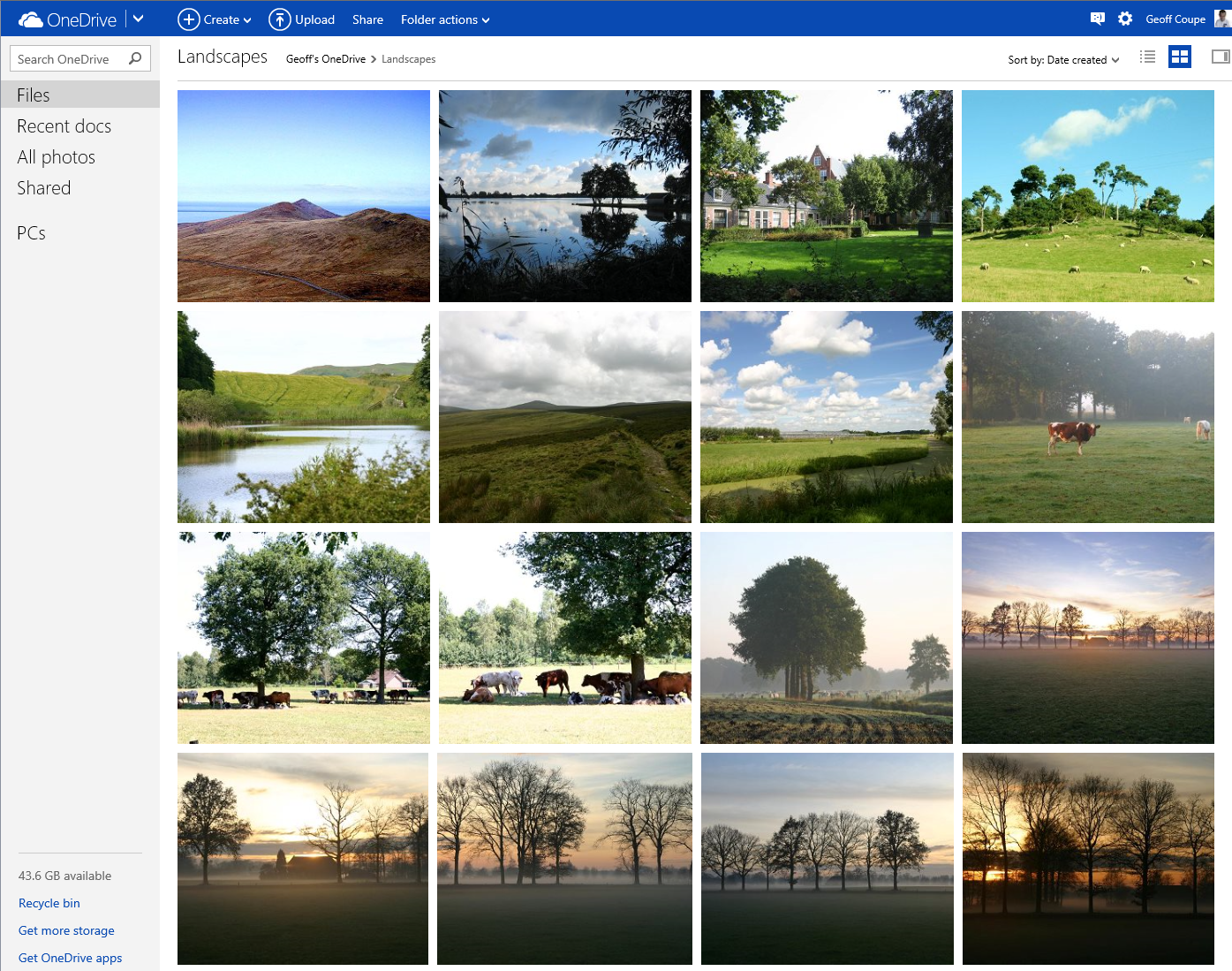
    First, here’s the new view of a folder of photos on OneDrive; it has larger thumbnails than the previous version:

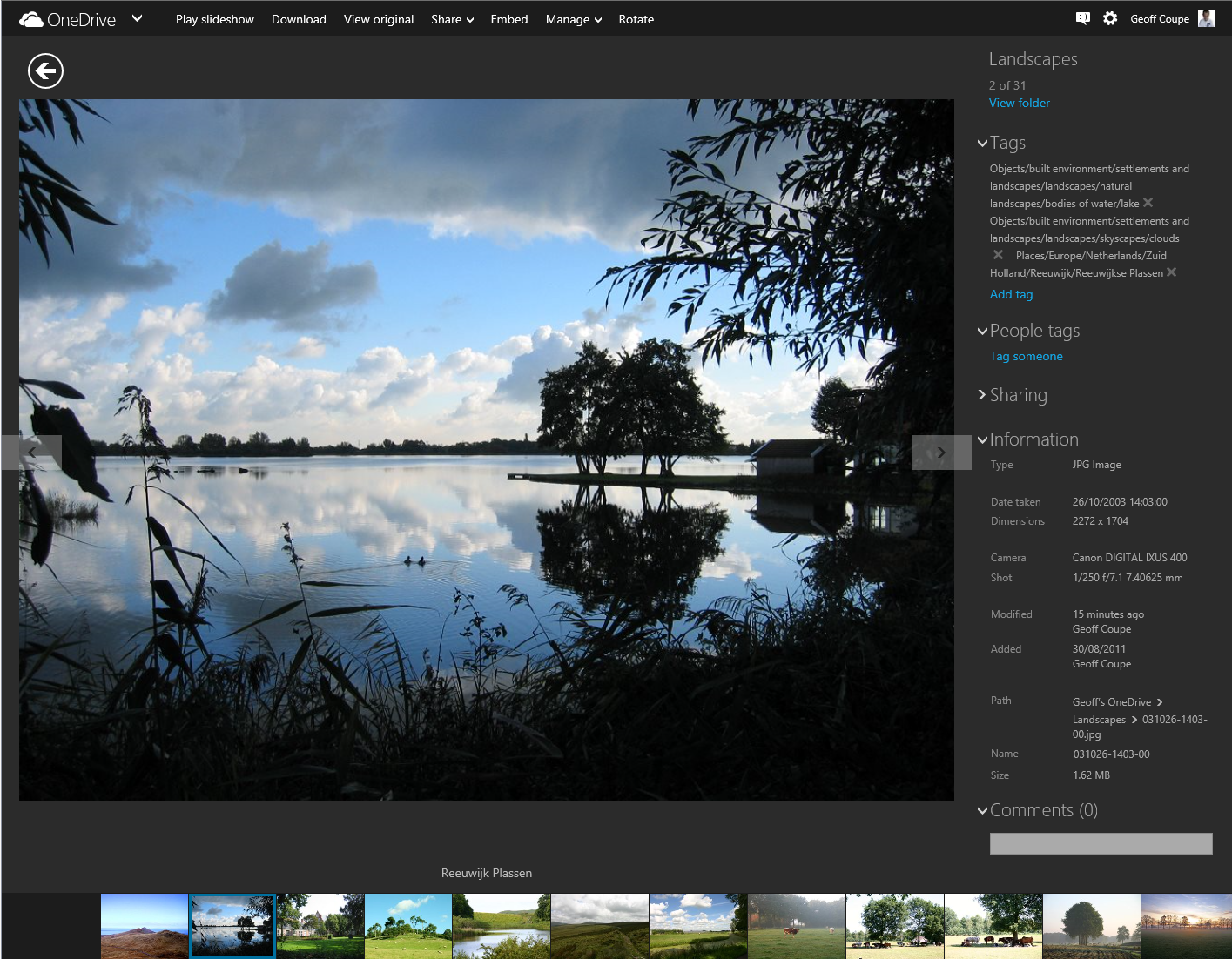
    Onedrive 01

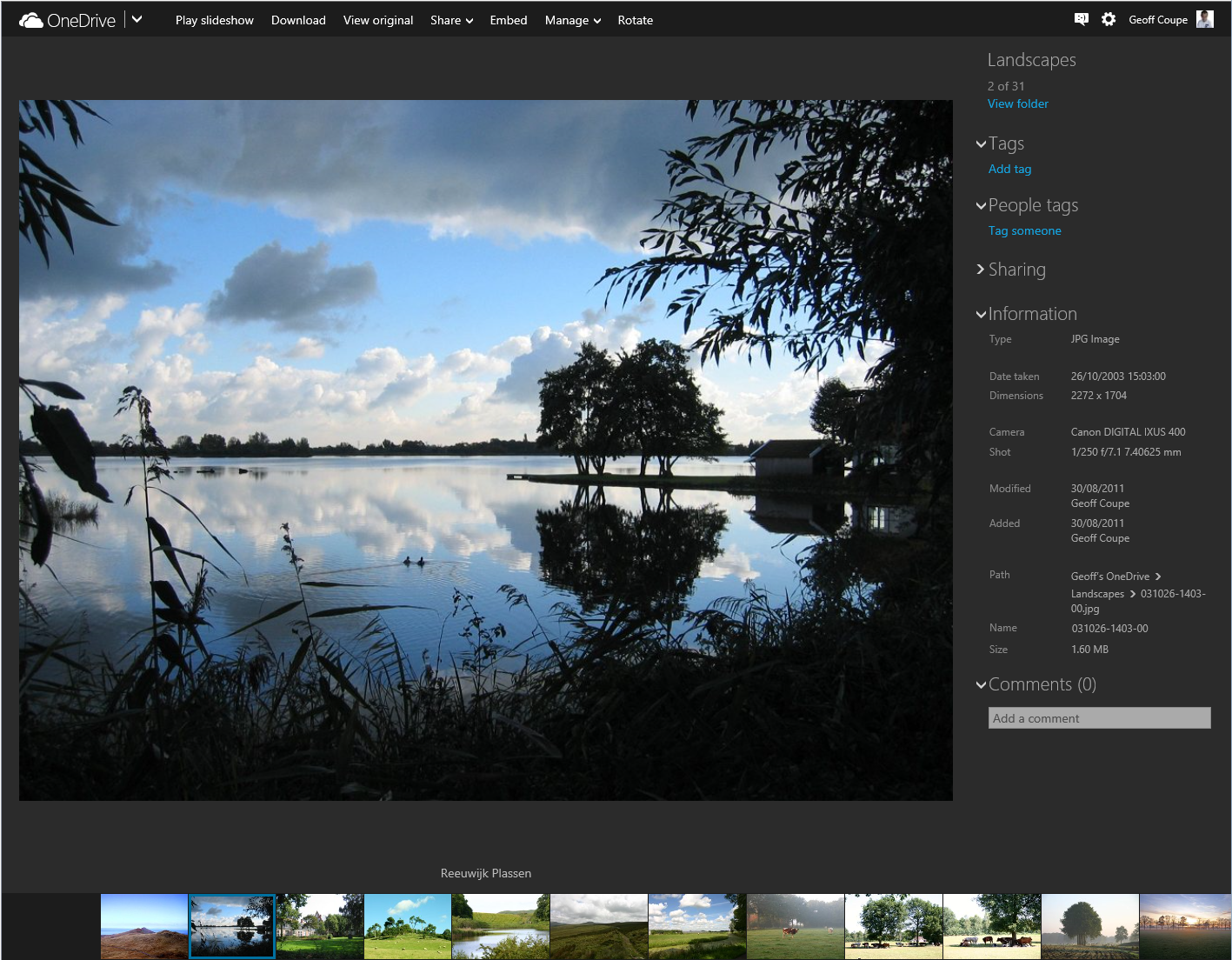
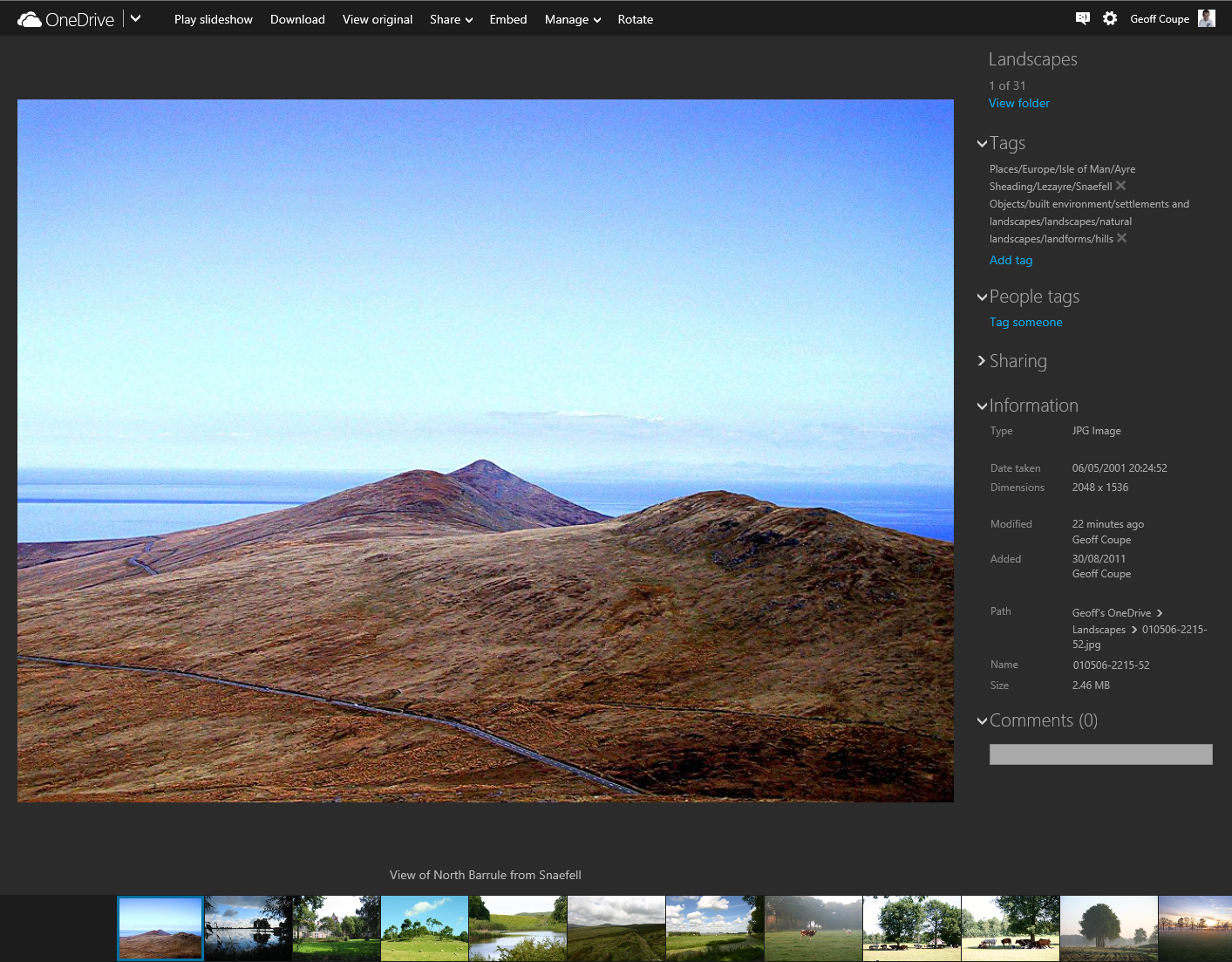
    Now let’s look at an individual photo using OneDrive, and show the metadata stored in the photo displayed in the information panel on the right:

    Onedrive 02

    Notice how OneDrive claims there are no descriptive tags in this photo, by the fact that under the “Tags” heading, there is only the link to add a tag.

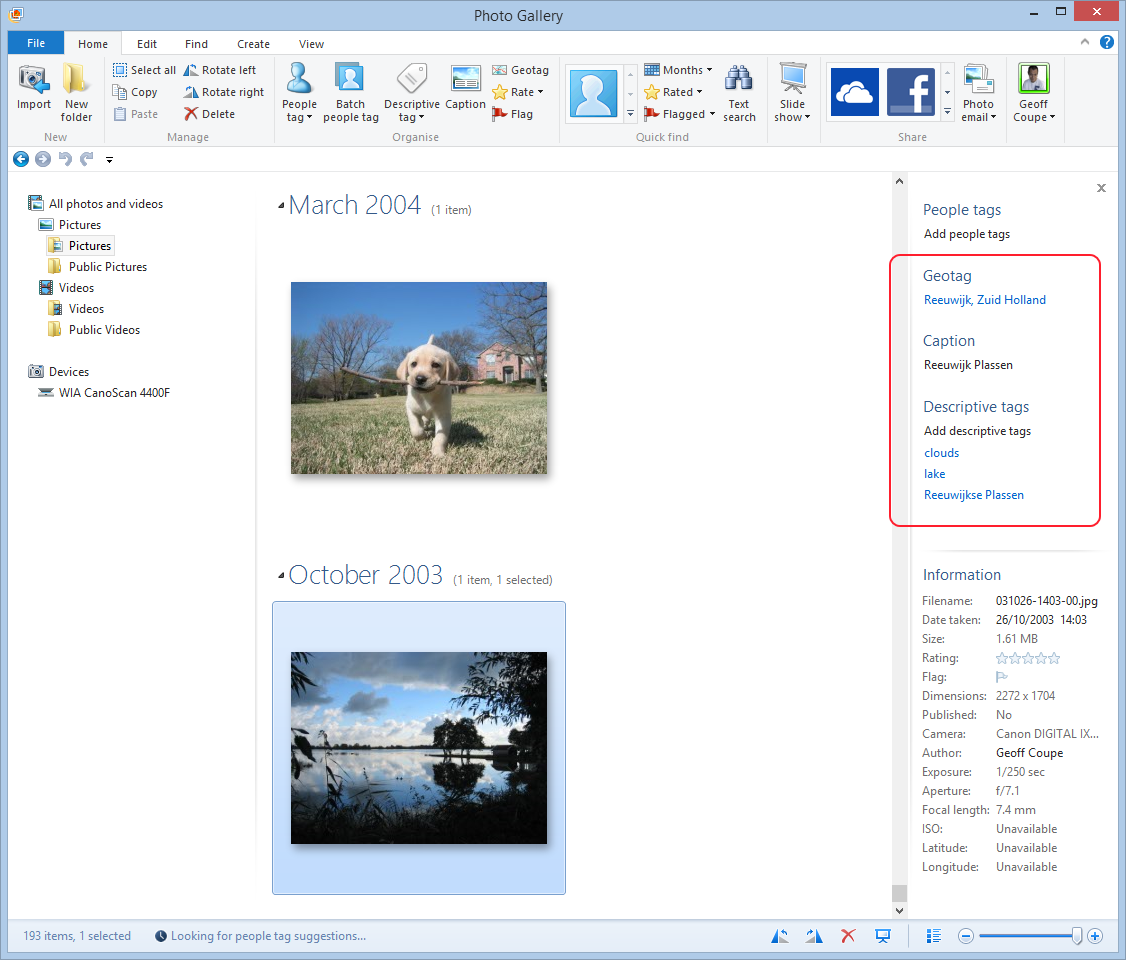
    However, this photo (like all the photos I have on OneDrive) has been tagged. I can show this by downloading a copy of this photo to my PC (by clicking on the “Download” link shown at the top of the OneDrive window), and then using Microsoft’s Photo Gallery to display the metadata in its information panel:

    Onedrive 03

    You can see that there are both Descriptive tags (clouds, lake, Reeuwijkse Plassen) and Location metadata (Reeuwijk, Zuid Holland – what Microsoft wrongly calls geotags; they are in fact more properly called geocodes) in this photo, and they were not being displayed in OneDrive.

    And then I discovered something really interesting. When I went back to displaying this photo in OneDrive, suddenly the Descriptive tags were showing up:

    Onedrive 05

    I can only conclude that the act of downloading the file has triggered a process in OneDrive to start displaying the tags in this file. All the other photos in the folder did not have any tags being displayed. As a further test, I downloaded another photo in the folder, and then went back to look at the photo in OneDrive. Lo and behold, that photo now had its descriptive tags displayed:

    Onedrive 06

    This is clearly a step forward, but it’s still a broken experience. We should not have to download every file in order to get the descriptive tags to display.

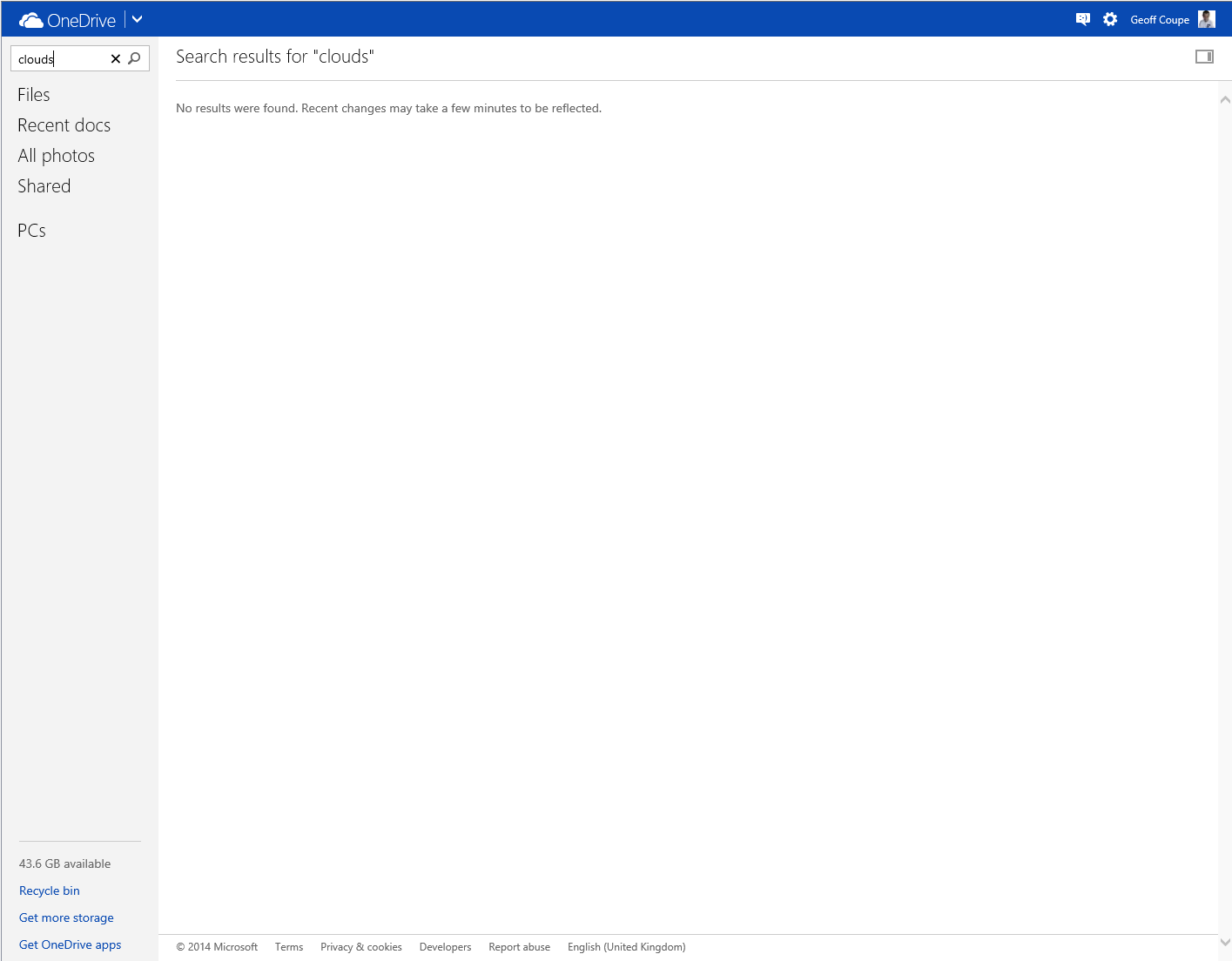
    And descriptive tags are still not being searched in OneDrive. That first sample photo has a descriptive tag “clouds” in it (to be strictly correct, it has a hierarchical tag Objects/built environment/settlements and landscapes/skyscapes/clouds), but doing a search for it in OneDrive produces no results:

    Onedrive 04

    According to Microsoft’s Omar Shahine: “this work just ranks lower on the priority list than some other things we are doing right now”.

    I just hope that the work remains on the list of things to do, and that this broken experience doesn’t last for too long.

    Addendum: A word of warning. Do not use the “Add tag” feature in OneDrive, if you want your photo metadata to remain consistent. Any tags added to photos using OneDrive do not get added to the metadata of the photos. You end up with a tag list displayed by OneDrive that does not reflect the tag list contained in the photo metadata.

    As of October 2015, this has now seems to have been fixed. Tags added in OneDrive will now get synced back to your photo metadata.

  • Microsoft’s Keyboard for Giants

    Microsoft have been in the hardware business since 1982. The majority of their hardware designs are for mice and keyboards, and I’ve owned a few over the years. The last set that I bought was the Arc Keyboard and Arc Mouse for our HTPC. I liked the minimalist design and small dimensions of the Arc Keyboard, and the Arc Mouse is neat, but I need to put the mouse down onto a flat surface to use it.

    Now, Microsoft has announced a new All-in-One Media keyboard. It combines a keyboard and an integrated multi-touch trackpad in one, with dedicated keys for Windows 8.1 and media controls. Sounds like an ideal device as an upgrade for our HTPC. I’m already often using the Arc Keyboard with my ThinkPad Tablet 2 when I want to type long documents.

    I’m just a bit surprised that the A-i-O Media Keyboard is not backlit. I would have thought that this would be a natural design feature for a keyboard intended to be used with HPTCs in a darkened room.

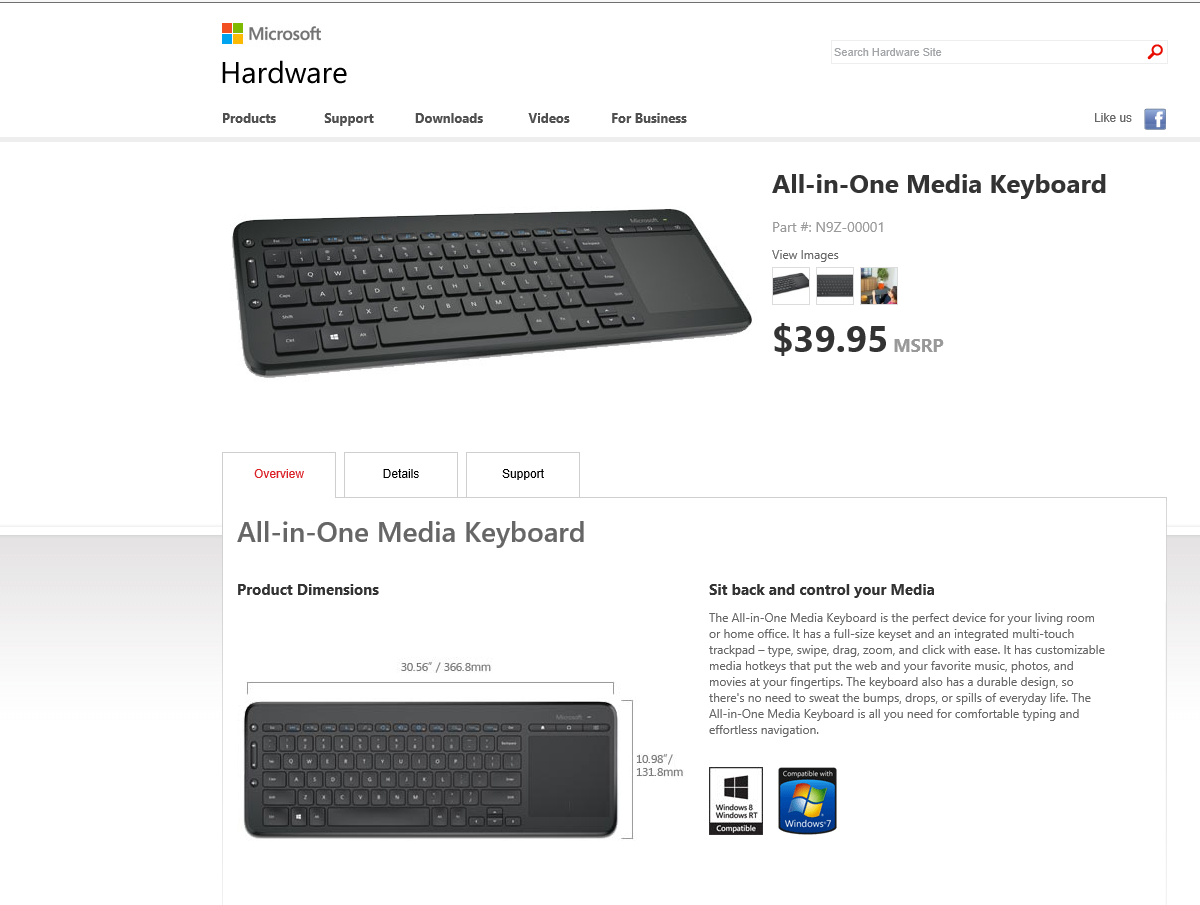
    I also notice that Microsoft have apparently built this keyboard for giants. According to the current product page, the keyboard is huge: 30.56 inches wide by 10.98 inches deep. This must be an error; the metric measurements are a much more reasonable 36.68 cms. by 13.18 cms.

    Keyboard 01

    Addendum 6 June 2014: The keyboard is now available here in the Netherlands. I purchase one a couple of weeks back for use with our HTPC. The all-in-one design is much more convenient than having to juggle a keyboard and mouse. Thumbs-up.

  • Music and Windows Phone

    Back in the days of Windows Phone 7, Microsoft’s Zune application was used to copy or synchronise media (music, photos, videos and podcasts) between your PC’s media libraries and your Windows Phone. When I had a Nokia Lumia 800 (which used Windows Phone 7.8), it was wonderfully easy to transfer music and podcasts from my libraries to my phone and to manage them on my phone with it.

    Then I upgraded to a Nokia Lumia 1020, which uses Windows Phone 8, and found that I’d need to change the media management software, because Zune doesn’t work with Windows Phone 8. Microsoft has released a new generation of media management software for use with Windows Phone 8.

    Microsoft make two versions of this media management software for Windows, a desktop application and a Modern UI App.

    I have tried both of them, and I’m here to tell you that they are both absolutely abysmal. Microsoft should really be embarrassed at how bad they are.

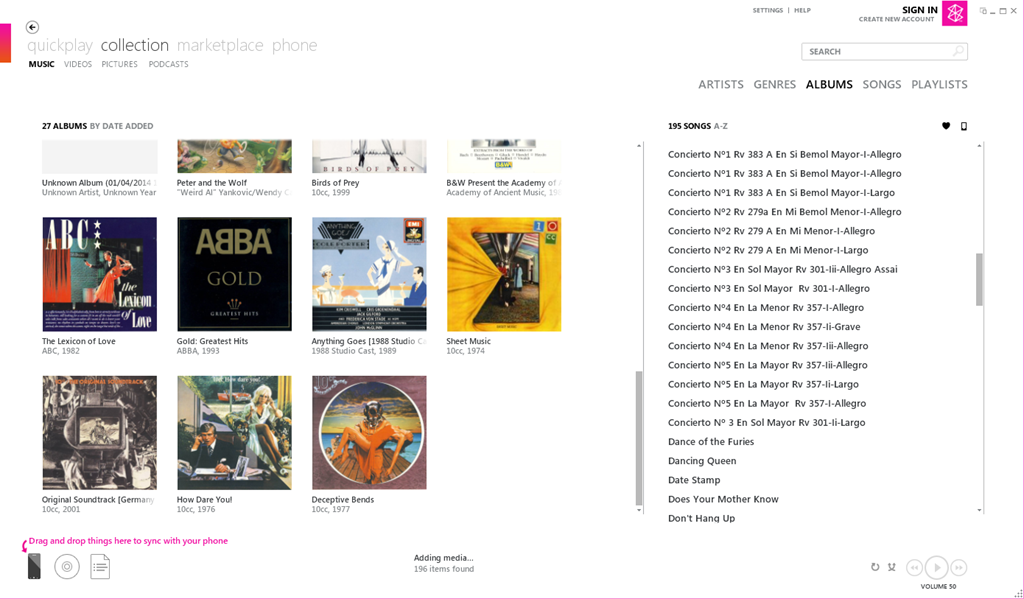
    Here’s a screenshot of Zune displaying some of my music albums. To copy an album across to the phone, I simply drag and drop the albums onto the icon of the phone:

    Zune 04

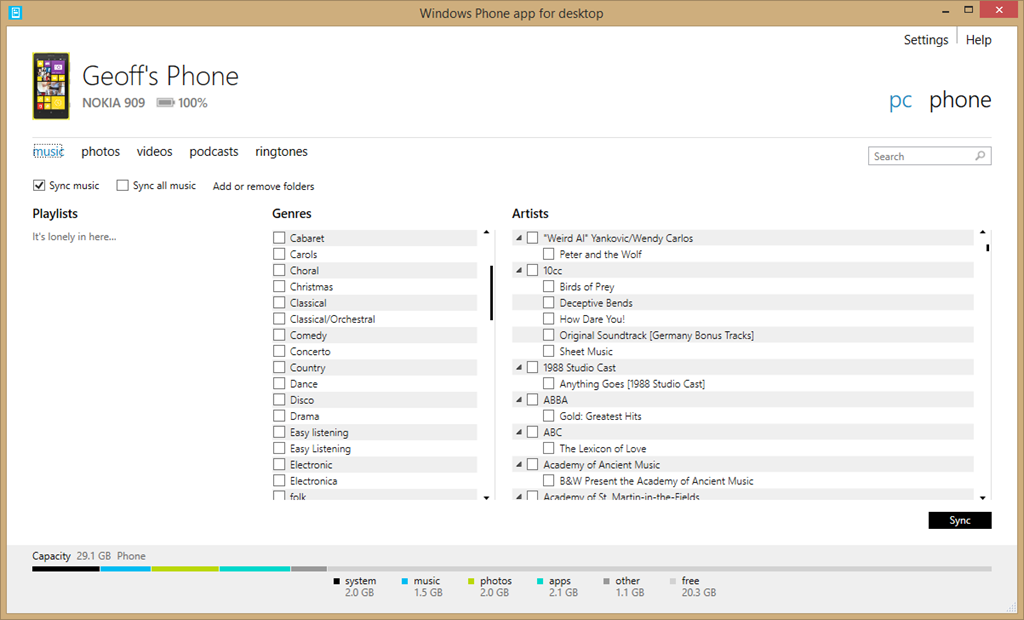
    Here’s the equivalent screen of the new desktop application:

    Zune 06

    For a start, there’s no way of displaying albums; only a list of genres and artists. Secondly, there’s no display of Album Art, which I find gives me useful visual cues. Thirdly, if I select a genre, then the list displayed under Artists does not change to display only those items (songs) that are tagged with the relevant genre, so I have no way of knowing the specifics of what I am about to sync. Also, I have no way of knowing how much space will be required on my phone.

    If you think this is bad, here’s the equivalent opening screenshot of the Modern UI App when adding music to your phone:

    Zune 07

    The problem is that Microsoft has focused on its subscription-based cloud service for music – Xbox Music – and forgotten about those of us who have our own music collections or have no interest in paying a monthly subscription fee. If you are a subscriber to the Xbox Music service, then you can download music from the service directly to your Windows Phone 8 device. But if you are not a subscriber, Microsoft will point you in the direction of one of their media management software applications to transfer music to your phone, and using them is a horribly painful process.

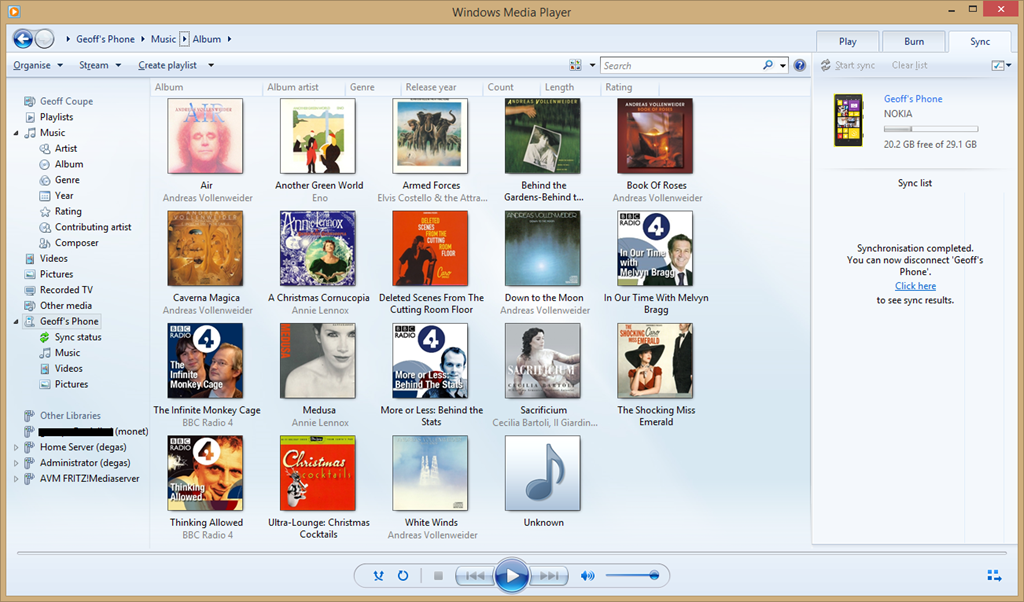
    Fortunately, I have discovered that there is another alternative; and that is Microsoft’s good old Windows Media Player. It knows about Windows Phone 8 devices, and can sync to them with ease. I can display my music collection by Album, Artist, Genre, Rating, even by Composer (none of the other Microsoft applications can do this), and sync my selection to my phone with ease.

    Zune 08

    You can also use it to browse the content of your Windows Phone and manage your media on the phone if you so wish. Here’s the Album view:

    Zune 09

    And here’s the photos on my phone:

    Zune 11

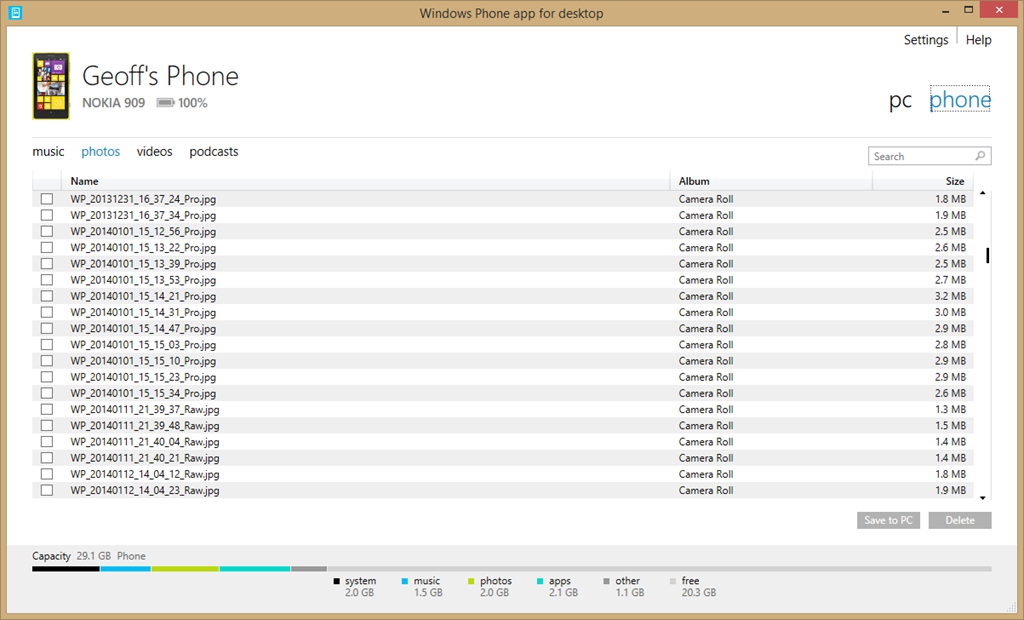
    By way of contrast, here’s what you see when you use Microsoft’s brand spanking new desktop application for Windows Phone to browse your photos:

    Zune 12

    Yup, it can’t even display thumbnails of your photos… As I say, Microsoft should be thoroughly ashamed of this rubbish.

    I’ll be sticking to Windows Media Player for managing the music media on my phone from now on.

    There’s a sting in the tail I’m afraid for those of you who are using a Windows device running Windows RT, such as the Surface 2. Windows Media Player isn’t available for Windows RT. I’m afraid you are stuck with Microsoft’s abysmal Windows Phone App.

  • Essential? – I Think Not

    I received an email today from Nokia which had the strapline:

    Essential Apps for your Lumia: Facebook, WhatsApp and Instagram

    Perhaps it’s just me, what with my hardening arteries, old age and all that, but “Essential”? – I think not. In fact, I refuse to touch any of them with a bargepole.

    I’ve long thought that Facebook is the spawn of the devil, and its recent acquisition of WhatsApp for the absurd sum of $19 billion merely confirms it. WhatsApp is a proprietary, cross-platform instant messaging subscription service for smartphones. It also has the nasty habit of harvesting all telephone numbers that are in a subscribers contact list, whether their owners are subscribers or not. Dutch newspapers are carrying the story today that the Dutch Data Protection Authority (the CBP) are saying that WhatsApp is breaking Dutch Law. The newspapers are a bit late, the CBP published its report on WhatsApp over a year ago, and it concluded:

    People who want to use the app must grant WhatsApp access to their entire electronic address book, including the mobile phone numbers of contacts that are not using the app (except in the latest app version on an iPhone with iOS 6). Because WhatsApp does not obtain unambiguous consent from non-users to process their personal data and does not have any other legal ground for processing that data, WhatsApp is acting in breach of the provisions of Article 8 of the Wbp [the Dutch Data Protection Act].

    I think I’ll stick to the good old-fashioned (non-proprietary) SMS for my Smartphone messaging needs, thank you very much.

    As Jeff Atwood puts it:

    Nothing terrifies me more than an app with no moral conscience in the desperate pursuit of revenue that has full access to everything on my phone: contacts, address book, pictures, email, auth tokens, you name it. I’m not excited by the prospect of installing an app on my phone these days. It’s more like a vague sense of impending dread, with my finger shakily hovering over the uninstall button the whole time. All I can think is what shitty thing is this “free” app going to do to me so they can satisfy their investors?

  • Intel’s Obstacles

    I’ve been using Microsoft’s Windows Home Server since 2007. In the years that it’s been installed, it’s been doing sterling work, acting as our server for digital media around the house, and also being responsible for taking nightly backups of our other computers. Unfortunately, the motherboard in our homebuilt server developed a fault, so that was all the excuse I needed to replace the old motherboard with a modern Intel Haswell-based design. I chose an ASUS H87I-Plus board, since it had six SATA ports and also came with an Intel controller for the Ethernet LAN interface to the network. The previous board had a RealTek LAN controller, and while it worked, I kept reading that the Intel design was better. So I decided to switch.

    That decision caused a few hours of cursing.

    Replacing the old motherboard with the new one was straightforward, and being a mini-ITX form factor, it is smaller than the old board, gives more room in the case and should be more energy-efficient. After booting it up into the BIOS to check that the hardware was all working as expected, I began to install Windows Home Server 2011. At first, everything went as expected, but then the installation process halted with an error – there was no driver installed for the Ethernet LAN controller.

    No problem, thought I, I have all the necessary software on the CD that ASUS supply with the motherboard. I quickly located the folder for the LAN drivers, and started the setup procedure. First of all, the ASUS setup software refused to run because it discovered that it was on a machine running WHS 2011 instead of Windows 7 or Windows 8. So I dug down a bit and located the Intel setup software and started that running directly. After accepting the license agreement and a few screens marking the progress, everything came to a grinding halt when the setup stated that it wasn’t going to install the necessary drivers on this machine.

    Fighting a rising sense of panic, I went to Intel’s download site, and downloaded the necessary drivers straight from there. Trying to install these produced the same result – no network drivers were installed.

    A search on the internet produced the reason why.

    Intel have decided that consumers should not be running a “server” operating system on a chipset that Intel deem to be for the consumer market. Intel have the i217-V (desktop) and i217-LM (server) versions of their gigabit Ethernet chip. They are in fact the same chip. The only difference is that the –V variant has support for Windows 7 and Windows 8 (desktop operating systems) while the -LM variant has support for Windows Server 2008 and Windows Server 2012, i.e. server operating systems. Unfortunately, Microsoft built WHS 2011 (which is intended for the consumer market) on top of Windows Server 2008. So when the driver installation software detected  that it was running on a “server” operating system, and the motherboard had the consumer variant of the Ethernet chip, then it simply refused to install the driver.

    Fortunately, the same search produced a solution. Ivo Beerens has a post on his blog describing this situation, and giving a solution – a few simple edits to an Intel configuration file. I was able to follow his instructions and have successfully installed the driver. WHS 2011 has now been able to connect to the network and complete its installation. It’s now downloading and installing a further 120 updates to itself. Hopefully, I will have been able to complete the rebuild of the server by the end of the weekend…

    Thanks to Ivo, and no thanks at all to Intel.

  • Be Careful What You Click For

    Scott Hanselman has a terrific post about how most people’s computers seem to end up getting infested with Adware, Malware and Spyware. It’s all true. Whenever I’m asked by a friend, relative or neighbour to take a look at their PC “because it’s not running very well”, I usually find it filled to the gunwales with crap that the owner seems to have no knowledge of how it got there.

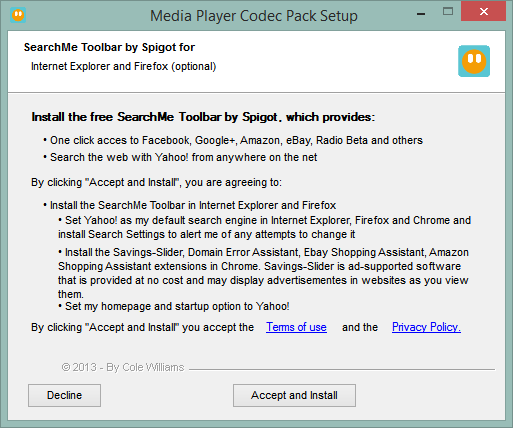
    Even I have to be constantly on my guard that I’m not inadvertently letting something else in along for the ride when downloading and installing software. The latest example is the set of codecs that I use to handle media. I’ve been using the Media Player Codec Pack. The previous version (4.2.9) attempted to persuade me to install some crapware along with the codec pack. Fortunately, the Accept/Decline choice was straightforward.

    MPCP 01

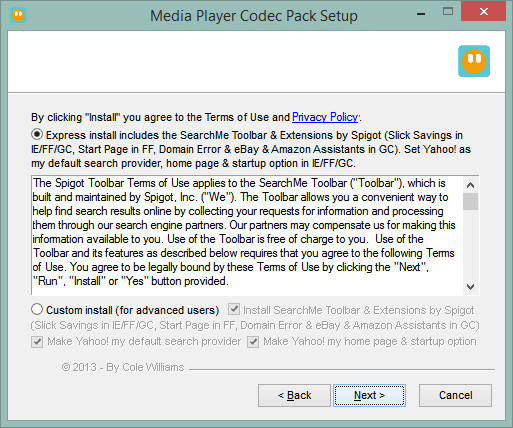
    The latest version (4.3.0) has changed tactics. This time it attempts to sneak in by expecting the user to choose the “express installation” route, as most people invariably do

    MPCP 02

    I’m not sure that I would define an “advanced user” as someone who doesn’t want crapware installed on their computer. I would have thought that this would also apply to non-technical users as well. This may well be is the last time I use this particular codec pack. I don’t like this sort of tactic.

  • My Head Hurts

    The saga of trying to get Microsoft’s Customer Support to fix an issue with Martin’s Microsoft Account rolls on. It’s been over three weeks now, and it still hasn’t got sorted. It’s not helped by the fact that the “Advocacy Specialist”  assigned to the case apparently doesn’t bother to read his emails or respond to voicemails. He’s now claiming that the issue has been fixed, when it hasn’t, and so far I’m unable to reach him to disabuse him of his notion.

    I’m thinking that the next step will be a formal letter of complaint plea for help to Rob Warwick in the Xbox EMEA Senior Advocacy Team. At least he managed to get a similar issue with my Microsoft Account sorted.

  • Head, Meet Brick Wall…

    Customer Support, the phrase that all too often seems to take on oxymoronic overtones.

    Once again, I’m currently battling Microsoft’s Customer Support services in an attempt to fix an issue on Martin’s Windows Phone.

    I’ve recently invested in a Nokia Lumia 1020 (of which more in another post), and passed on my old Nokia Lumia 800 phone to Martin. It’s been reset, and is now installed with the Dutch Language and has its region set to the Netherlands. I added Martin’s Microsoft Account details to it, and all seemed well. The phone started displaying his emails, his contacts and his calendar correctly. But there was a snake in the grass.

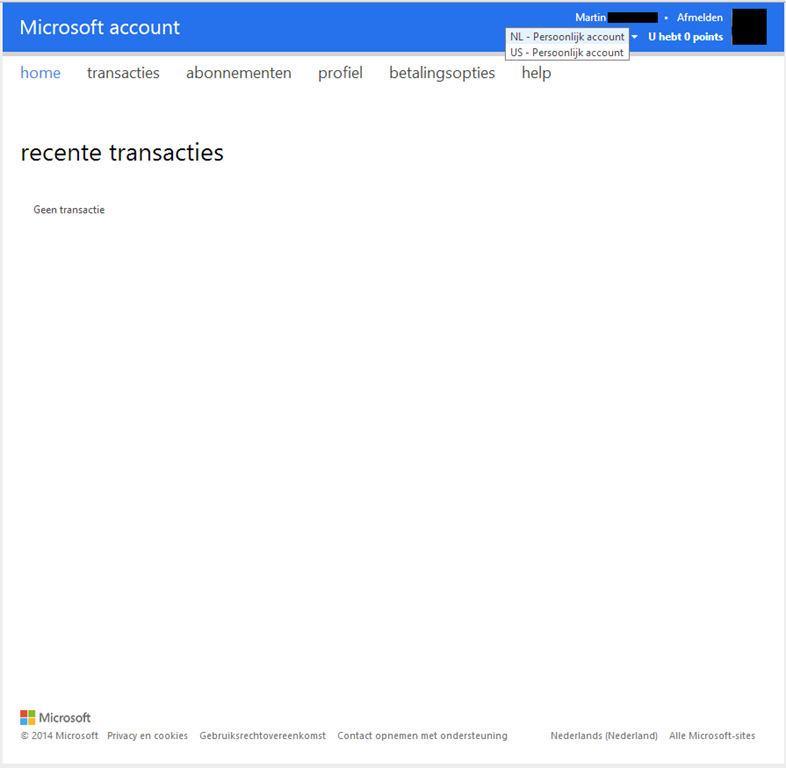
    We attempted to install a couple of Apps from the Marketplace onto the phone, and discovered that the phone was displaying the contents of the US Marketplace, not the Dutch one. Any attempt to purchase an App was met with the message that a payment method needed to be set up, which I found a bit odd, since that has already been done for Martin’s Microsoft Account. Further investigation revealed that his Microsoft Account has got two billing accounts associated with it: a Dutch account (which has the payment options set up) and a “ghost” US account, which has no payment accounts associated with it.
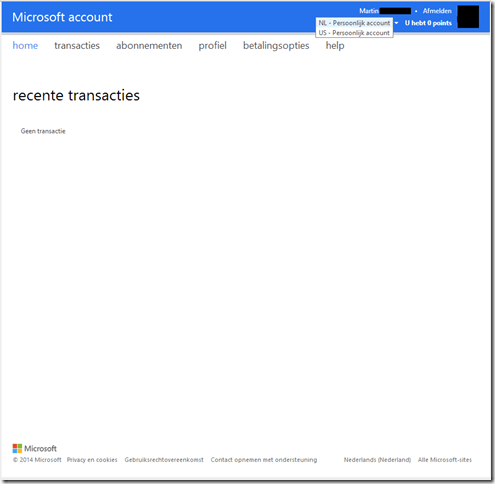
    Xbox Account 01

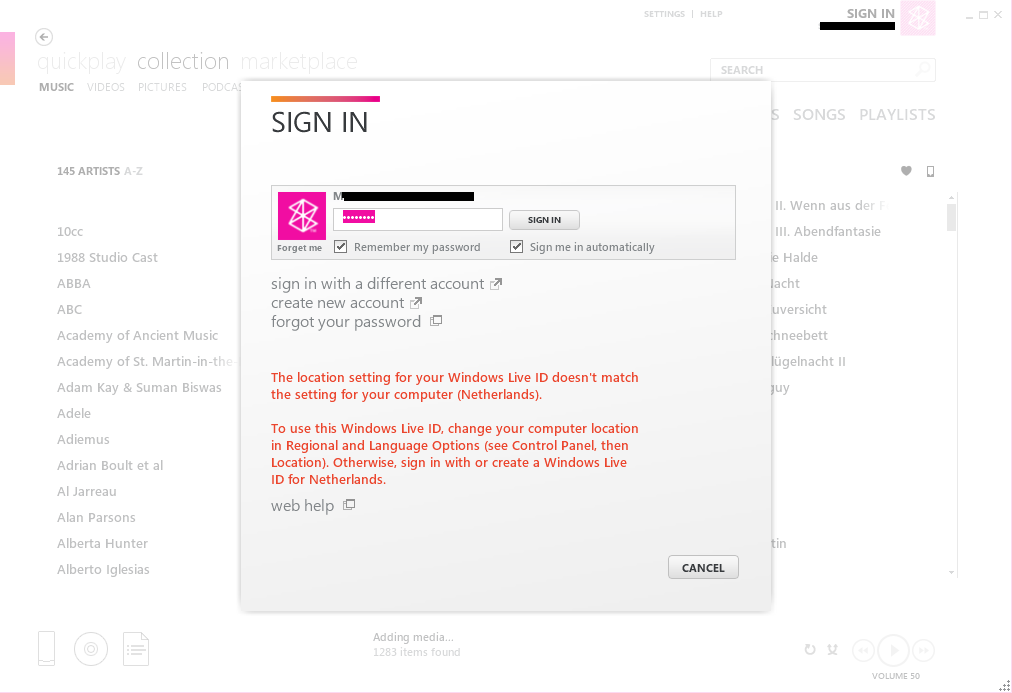
    This ghost account probably got created years ago when Martin first created his Windows Live ID (which subsequently became known as the Microsoft Account). It’s lain unnoticed until now, when Martin’s Windows Phone has decided that it will use it instead of the Dutch account. The phone uses Microsoft’s Zune software on the PC to synchronise content between the PC and the phone, and this also showed that it was attempting to use the US account instead of the Dutch one.
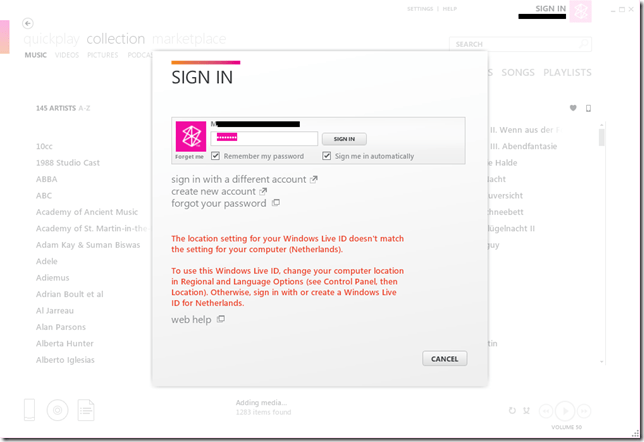
    Zune 01

    It was with a sinking heart that I saw all this, because I had exactly the same issue with my Windows Live ID – a US billing account was created some years ago, even though I live in the Netherlands. That took eighteen months of battling Microsoft to get it resolved. Things have moved on, so perhaps it would not take so much effort this time around?

    I posted a request to have the issue resolved on the Windows Phone Customer Support site. The first response from a Support representative understood the issue and believed the resolution to be “relatively  simple and painless”.

    Cue hollow laughter.

    I could see the logic behind his suggestion (changing the region of the Xbox Live account), but when we tried it, we found that it wouldn’t work for our situation. The reason was that Martin’s Xbox Live account is already set to the Netherlands region. So, back to Customer Support. He suggested several alternative support routes, with as a final resort, a live chat with Windows Phone Support. Needless to say, we rapidly ended up trying the final resort.

    I started a live chat via the Netherlands page of Windows Phone support and ended up chatting with a support rep in the US (or at least somewhere where they don’t understand Dutch). She directed me to call Microsoft Support here in the Netherlands, who were worse than useless – the Dutch support rep insisted I would have to take up the issue with Nokia Support. Fortunately, the US rep was waiting until I had called the Netherlands number, and since I had got nowhere, I asked for the issue to be escalated. She agreed, and said I would receive an email from Microsoft within 3 working days.

    It arrived yesterday – head, meet brick wall. It said:

    The senior team could not find any reason for this behaviour other than the account region. So we kindly ask you to refer to the Account support to clean and fix any relation of your account with other countries.

    Account support link:

    https://support.microsoft.com/oas/default.aspx?gprid=15834&st=1&wfxredirect=1&sd=gn

    Global Customer Service phone numbers
    http://support.microsoft.com/gp/customer-service-phone-numbers/en-gb

    The Account Support link merely asks me a couple of questions, and then unceremoniously dumps me in the Office forum of Microsoft Answers, where I know this issue cannot be resolved.

    The Global Customer Service numbers just gives me the Netherlands support number, and as I learned, they cannot help us. The support person I spoke to insisted that I should take the issue up with Nokia, even though this is clearly a Microsoft Account and billing issue.

    I know that the problem is caused by the account region – it’s the fact that there is a US billing account associated with Martin’s account alongside his NL account. We need to get that US account deleted, or merged with the NL account. I cannot use the Xbox Live migration technique, because Martin’s Xbox Live account is already in the Netherlands.

    This resolution can only be done by someone in Microsoft.

    I have replied to that email with these points, but somehow I get the feeling that I’m shouting in deaf ears.

    Customer Support? Gone missing in action in this case.

    Update 9 January 2014: I decided to go into battle with Microsoft’s Customer Support again today, since I had heard nothing back from my last contact. Today, I got bounced around four completely different departments in a combination of Live Chats and telephone calls. I journeyed through Windows Phone Support, Microsoft Account Support, Office Billing Support and Xbox Live Support.

    The telephone call was with Office 365 Billing Support, and the person I spoke with expressed surprise that I had been referred to them. Me too, since we don’t use Office 365. I had said as much to the person in Microsoft Account Support, but she assured me that it was the correct department.

    No, it wasn’t.

    The last person I was in contact with in Xbox Live Support has escalated the issue once again, this time to yet another team – the Advocacy Team, so cross fingers, it might have a better outcome than the last attempt to get this resolved.

    Update 10 January 2014: Another day, another failed attempt at getting a resolution. We had an email reply from the Advocacy Team yesterday, but it failed to resolve anything. None of the suggested steps were either relevant or helped to attack the issue. The whole point is that nothing that either Martin or I can do with his account settings will delete the false US account. That can only be done by someone in Microsoft.

    So, back once more to Customer Support Live Chat. Today’s representative, Vincent, promised to pass the message back to the Advocacy Team that we had not got the issue resolved. He also suggested that I reply to the Team’s email with a complaint. He claimed to be certain that someone would read it. However, I doubt it. It’s never worked before, and I note that at the bottom of the email it says:

    This email is sent from an unattended address.  Please contact Xbox Support directly if you have any questions or concerns.

    I hold out but faint hope that anything will get done…

    Update 13th January 2014: This evening I had an email from a member of the Customer Advocacy and Exceptions team at Microsoft, who is looking into the issue. Cross fingers, we may be getting somewhere…

    Update 17th January 2014: This evening I was called by the team member. He said that the ghost account should get removed sometime during the next few days. It’s looking good…

    Update 24th January 2014: I suppose I should have learned by now that these things never go smoothly. Here we are, a week later, and still no sign that the issue has been resolved. Emails and telephone calls to the team member supposed to be responsible for the issue go unanswered…

    Update 29th January 2014: This is beginning to get truly annoying. I noticed on Monday that the US billing account had been removed. However, the Windows Phone and Zune were still locking onto it. I even tried resetting Martin’s phone to its factory settings, but that made no difference whatsoever. I sent an email stating this to Robert L., the “Advocacy Specialist” assigned to the case. Today, two days later, I get an email from him saying:

    It appears our Team was able to remove the US account from your partner’s account. You may need to restore the phone to factory settings before the issue is completely disappeared, but they have reported that your account should be fixed.

    Let me know if your issues persist.

    Well, yes, they do and I had told him this, so it would appear that Robert L. does not read his emails. I tried calling him (again). Once again he was not available, and his voice mailbox is full, so I can’t leave him a message. Just as well I suppose, or I would have given him an earful.

    Update 30th January 2014: I thought I would try restoring Martin’s phone back to the Factory Settings one last time to see if the issue has been fixed. Nope. It is still there. Interestingly, for the first minute or two, I saw the Dutch Marketplace on Martin’s phone, but then it was once again replaced with the US version. See this photo of my phone (the Nokia 1020 on the left) and Martin’s phone (the Nokia 800 on the right). They are both displaying the entry screen for the Marketplace. My phone is showing the Dutch Marketplace (called the Store), while Martin’s phone is showing the US Marketplace (with the extra US-only entry of Podcasts). Ironically, it’s showing the US Marketplace in Dutch…
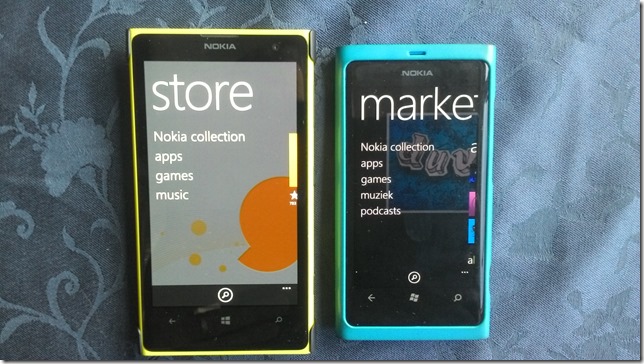
    WIN_20140130_164053

    There is something in Microsoft’s services infrastructure that the Windows Phone (and the Zune software) is locking onto which is saying that Martin’s account is in the US when it is not… Robert L’s voice mailbox is still full, and he never seems to answer his phone or emails, so there seems little hope that he will resolve the issue. Next step: a plea for help to Rob Warwick, head of the Xbox EMEA Senior Advocacy Team, I suppose.

    Update 7th February 2014: We’re no further forward. The problem is still there, Robert L. doesn’t respond to emails, never seems to be in the office, and still has a full voice mailbox. I’m posting the plea for help tomorrow. It’s my last resort.

    Update 12th February 2014: Perhaps it’s coincidence, but I received an email from Robert L. yesterday evening. He wrote:

    It appears that a service or software Martin is using is or was set to a US Region, which is automatically generating a US Billing account for his Microsoft Account (MSA). I was informed that this can happen from the Zune software, Surface, Windows 8 marketplace, and Xbox Marketplace.

    E.g. Using a US region Surface, and accessing Windows 8 Marketplace will generate a US Region account on the MSA.

    Per our support page: http://support.microsoft.com/kb/2692008

    “2. If the Microsoft account used for signing in was previously used for Xbox LIVE, Zune, or a premium service, the account locale will default to the locale of the service.”

    In regards to the issue with, particularly, your region of the Windows Phone marketplace, if we are not able to determine the root source of the auto-generation, and then change its Region, it may be in Martin’s best interest to create an MSA intended just for accessing the Windows Phone marketplace that is separate from the MSA in question. He can then set up the account in question as his secondary account.

    As far as we are aware, Martin has never previously used Xbox Live, Zune, or a premium service, yet his Microsoft Account is clearly set to the US locale. I suspect it is simply because his Windows Live ID was set up years ago when only the US locale existed as far as Microsoft was concerned, and so the associated service account has a US locale.

    Be that as it may, the suggestion that Martin now create a new Microsoft Account solely for his Windows Phone is also not acceptable for the following reasons:

    1. Martin would end up with multiple online identities (the MSAs), and multiple service accounts – one of which would still be holding incorrect data.
    2. It also seems to us that Microsoft would also be contravening EU law on Data Protection, by not correcting false data that they hold on Martin.

    If Microsoft cannot change the locale of the service account, then surely they can follow the procedure that was done for my MSA, which I had already outlined in an email to Robert L. on the 20th January: Microsoft simply creates a new temporary email address that would be attached to Martin’s old service account, thus freeing up his existing MSA to create a new service account (with the correct data). The old service account, and the temporary email address, would then be deleted by Microsoft.

    I’ve replied with these points to Robert L.’s email, we’ll see whether I get any response.

    Update 18th February 2014: No response from Robert L. to my last email; just like all the other null responses. However, yesterday I noticed that Martin’s Phone was now accessing the Dutch Marketplace. So, at long last, a result! Strangely enough, the Marketplace entry page is still showing the US-only “Podcasts” menu item, but Martin is now able to browse, and purchase, Apps from the Dutch Marketplace, so we consider the issue resolved. I sent him an email to this effect.

    Update 20th February 2014: Today I received an email from Bella D., who apparently works in the Xbox Global Escalations Executive Team – yet another department. She wrote:

    I am taking over some of Robert’s case [load] and I will be working with you with the problem that you have been experiencing.

    I read your last email and Robert’s notes. It seems like the issue has been resolved on your end. Would you please confirm if that is still the case?

    That would seem to imply that all my former emails had indeed been received, but never responded to. An acknowledgement would have been at least something. I replied to Bella:

    I think we can say that the issue has been resolved. There is just the oddity that the Marketplace App on Martin’s phone is also displaying the US-only Podcast list alongside the Dutch Apps list. However, the main thing is that he can now browse the Dutch Marketplace and purchase Apps from it – which is what we’ve been asking for. So long as that continues to be the case, then the issue has been resolved.

    Hopefully, we can now close this saga. It’s taken six weeks, but that’s a blink of the eye compared to the eighteen months it took the last time we went through this…

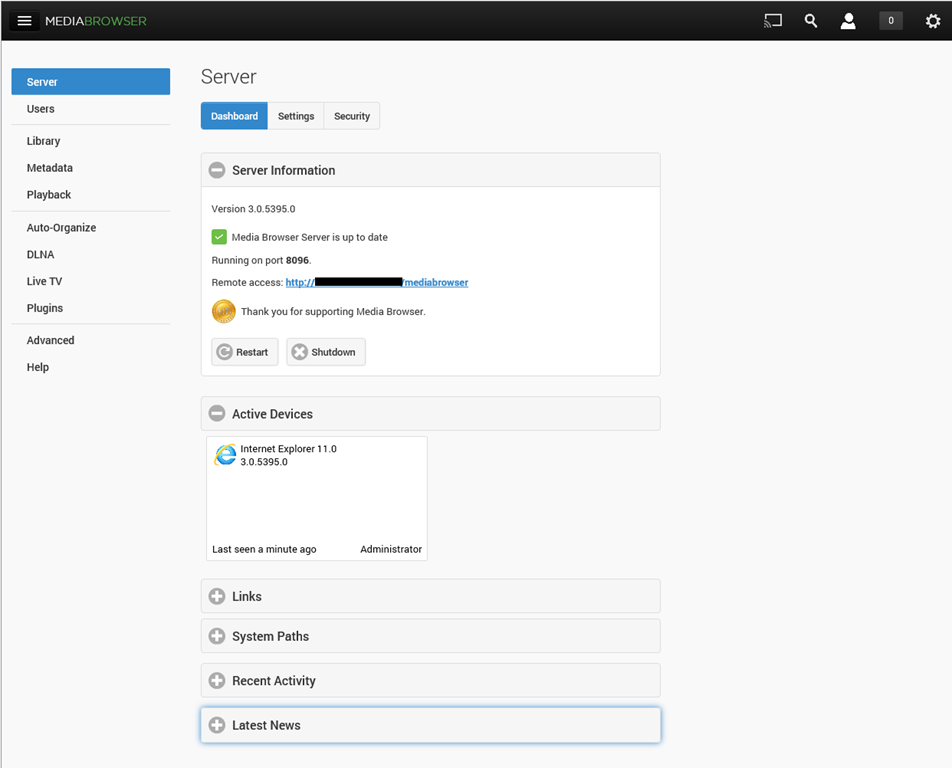
  • Lenovo Mobile Access – Deactivated

    I have a Lenovo ThinkPad Tablet 2, which I bought with the 3G capability, and it came with a Lenovo SIM card linked to Lenovo’s Mobile Access Service.

    For the majority of the time, the Tablet is connected to the Internet via WiFi, but occasionally, I use the Lenovo Mobile Access service and buy internet access when travelling outside of WiFi hotspots.

    As a trip is coming up, I tried to connect via LMA a few days ago to check that everything was working. However, the connection failed – see the screenshot with the “internal error during processing” message.

    TPT2 Network 04

    I put in a support request via email, and was astonished to receive a reply today telling me that since I had not used the service during the last six months, my SIM card had been deactivated and I would need to buy a new one.

    I don’t recall seeing anything about this time limit in the documentation I received with my tablet, and there is nothing about it on the LMA web site that I can see. Indeed, the web site says, and I quote:

    There are no contracts and no long-term commitments.

    They seem to have overlooked the salient fact that there is a long-term commitment – you need to use the service at least once every six months to avoid having your SIM card deactivated.

    Needless to say, I am not impressed. I will NOT be buying a new SIM card, since it costs more than purchasing a pre-paid SIM card from, for example, Vodafone NL – and their SIM cards do not deactivate themselves after six months.

    I won’t be using the LMA service again.

  • Manx Wallpapers

    The background of the Desktop screen on my Windows PCs is generally set to display landscape themes. There’s a whole range of them, and other themes, available to download and use.

    Today, I noticed from a Microsoft blog, that there is now a landscape theme devoted to pictures from my birthplace, the Isle of Man. Taken by Mark Wallace, there are some suitably moody shots of Peel Castle, the ruins of St. Trinian’s church, the Calf of Man and more.

    They’ve been installed and serve as a reminder of my original home.

  • Xbox Music App – Metadata Madness

    I’m doing the old one-step-forwards-two-steps-back shuffle with Microsoft again. This time it’s the latest version of the Xbox Music App that is raising my frustration levels.

    Windows 8.1 has arrived with a new version of the Xbox Music App (version 2.2.177.0). While it has improved in certain respects from earlier versions of the App, in one respect it seems to have got a whole lot worse: it does not handle Album Art well at all.

    By default, when you add your collection of music albums and tracks to the App, it will query Microsoft’s online metadata service and fill in metadata such as the album name, artists and the cover art of the album (the Album Art) for display within the App. The first thing I had to do when installing the App was to change this default and prevent it from downloading any metadata and writing it into my music collection. I have learned, from bitter experience, that Microsoft’s music metadata is, to put it bluntly, utter crap for the music I listen to. I have spent many hours correcting the errors that Microsoft has injected into my music metadata from earlier incarnations of their music applications. Windows Media Player, Windows Media Center, Zune, Windows Home Server, they’ve all stomped all over my carefully prepared music metadata in their jackboots without so much as a by-your-leave. So when you tell a Microsoft music application that it must not, under any circumstances, use the online service to supply metadata when importing audio tracks and folders into its library, then what it should do is to look at the tracks and folders themselves to see if there is any metadata that it can use.

    As I say, I have spent many hours using Media Monkey to provide accurate metadata and high-resolution Album Art (at least 500×500 pixels) in every audio track (over 14,000) and Album folder in my collection and Windows Media Player, Windows Media Center and Zune will all read this metadata and use it properly.

    The Xbox Music App on my Desktop PC does not. It fails to read the metadata quite spectacularly. Let me illustrate this.

    Here’s a snapshot of part of my music collection being displayed in Windows Media Player:

    Xbox Music issue 11

    WMP has picked up the album art metadata and displays it (there are two albums shown with the default “music note” icon – but that is also correct, the tracks in these two folders do not have any album art metadata).

    And here’s the same part of the same music collection being displayed by the Xbox Music App running on the same Windows 8.1 PC:

    Xbox Music issue 10

    Er, hello? Is this supposed to be a good user experience?

    Interestingly, if I use the same version of the Xbox Music App running on my Windows 8.1 tablet, then that manages to do a slightly better job:

    Xbox Music issue 12

    There are fewer albums shown, because the App is running on a device with a lower-resolution screen. But the point is, here, the Xbox Music App does appear to be reading my Album Art metadata, whereas on the Desktop PC, the same App fails miserably.

    I’ve found where the Xbox Music App caches the Album Art images that it uses for display. It’s in the folder:

    C:\Users\Username\AppData\Local\Packages\Microsoft.ZuneMusic_8wekyb3d8bbwe\
    LocalState\ImageCache\20.

    On my Desktop PC, that folder is filled almost entirely with files of the form <some long string>_badrequest:

    Xbox Music issue 13

    Whereas on the tablet, that same folder is filled almost entirely with files having the same form and names, but without the “_badrequest” suffix. These are, in fact Album Art images:

    Xbox Music issue 14

    So the question is, why is the Xbox Music App running on the tablet able to succeed, while the same App running on the Desktop PC can not? Both Apps are working against the same music collection, which is held on a Windows Home Server 2011.

    The only thing that occurs to me is that there is possibly a race condition in the software that causes the App to fail on the much faster Desktop PC. Whatever the cause, I would like to think that Microsoft will fix it. We shall see.

    Update 17 December 2013: well, another new version has arrived from Microsoft (version 2.2.339.0) and been installed on my computers. Alas, it’s made no difference to this issue – the bug is still there; great swathes of non-existent Album Art.

    Update 23 January 2014: another day, another update of the Xbox Music App, this time to version 2.2.444.0. Still doesn’t fix the metadata bug though…

    Update 11 February 2014: another day, another update of the Xbox Music App, this time to version 2.2.550.0. Still no fix for the metadata bug though…

    Update 11 March 2014: This issue of disappearing Album art doesn’t seem to have started until I upgraded to Windows 8.1 on the Desktop PC.

    So I decided to implement a scorched earth policy: I did a fresh install of Windows 7 Home Premium, applied the 250+ updates that were required; installed Windows 8 Pro plus the 100+ updates that it required, and finally upgraded to Windows 8.1 Pro via the Store (and applied its updates…).

    Now, finally, Xbox Music is showing my album covers correctly for my music collection held on the WHS 2011.

    I’m still in the process of reinstalling all my applications and Apps – this will take a day or two to complete – but at the moment, Xbox Music appears to be working as it should.

    So, whatever the problem was, it does appear as though it was caused by something not being right in the previous installation of Windows 8.1, and now we’ll never know what it was…
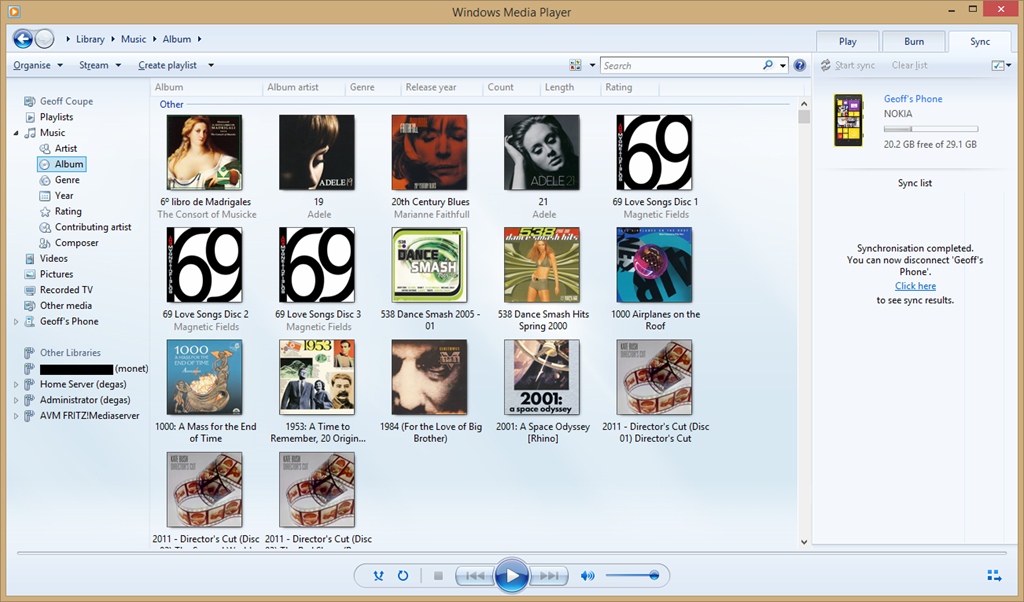
    Update 17 April 2014: It’s very likely that this problem was caused by an obscure interaction between the Xbox Music App and another desktop application that integrates with the Windows Shell to add additional menu options in the Windows Explorer. In my old installation of Windows 8.1, I had the dBpoweramp Music Converter installed. Someone else had the same Xbox Music issue of no Album Art being displayed, and tracked it down to the Shell integration feature.