Reflections on life at “De Witte Wand”…

Category: Computers and Internet

  • The Xbox Music App – Still Disaster-Prone

    Well, I thought at first that the new release of the Xbox Music App for Windows 8 was promising. That is, until my recent bad experience, and now something else has crept out of the woodwork.

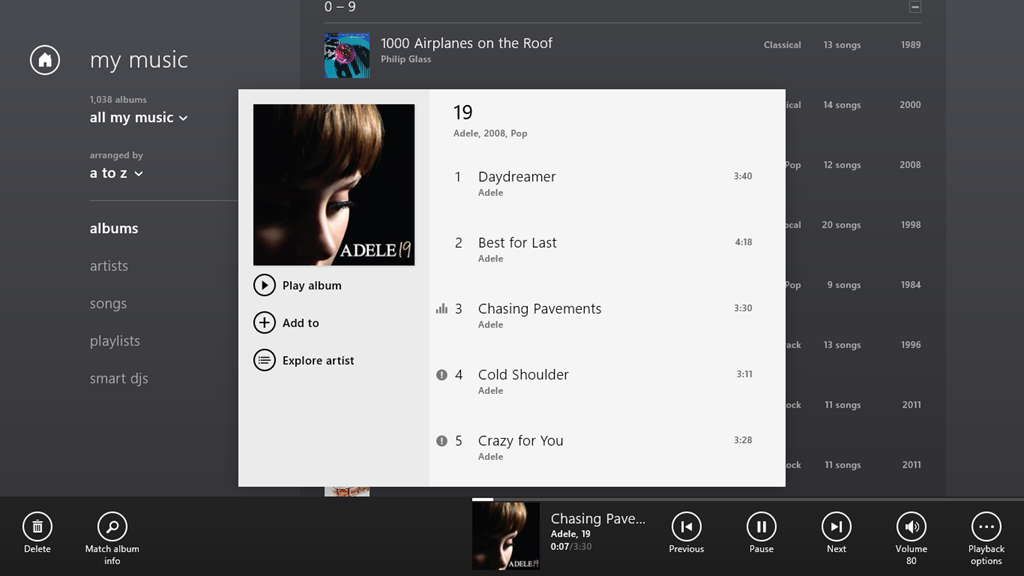
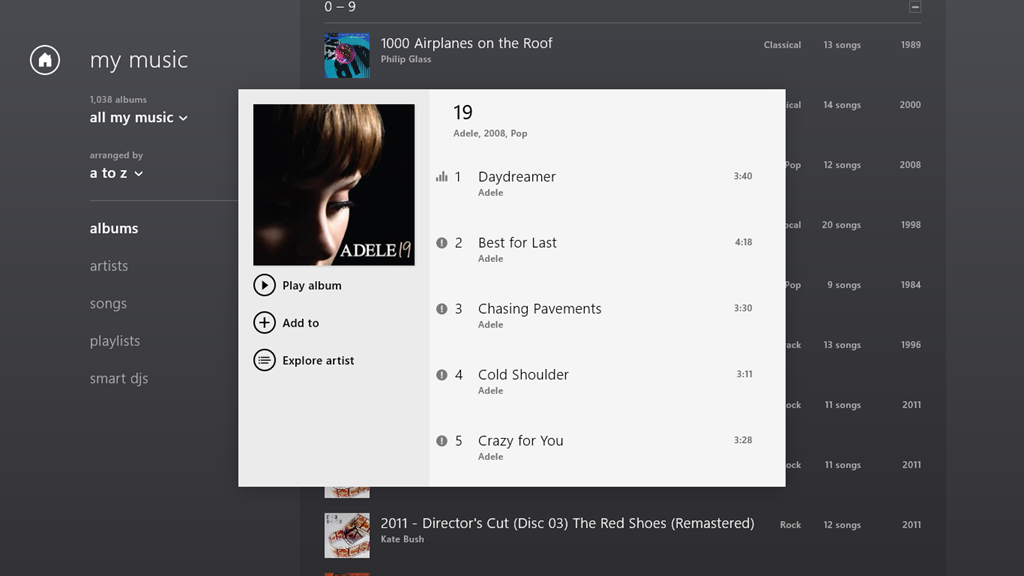
    The App is working as expected on my Desktop PC, but on my Lenovo ThinkPad Tablet 2, when I start playing an album, the first track will play, but all the rest start showing an error symbol (an exclamation mark) by them:

    xbox issue 04

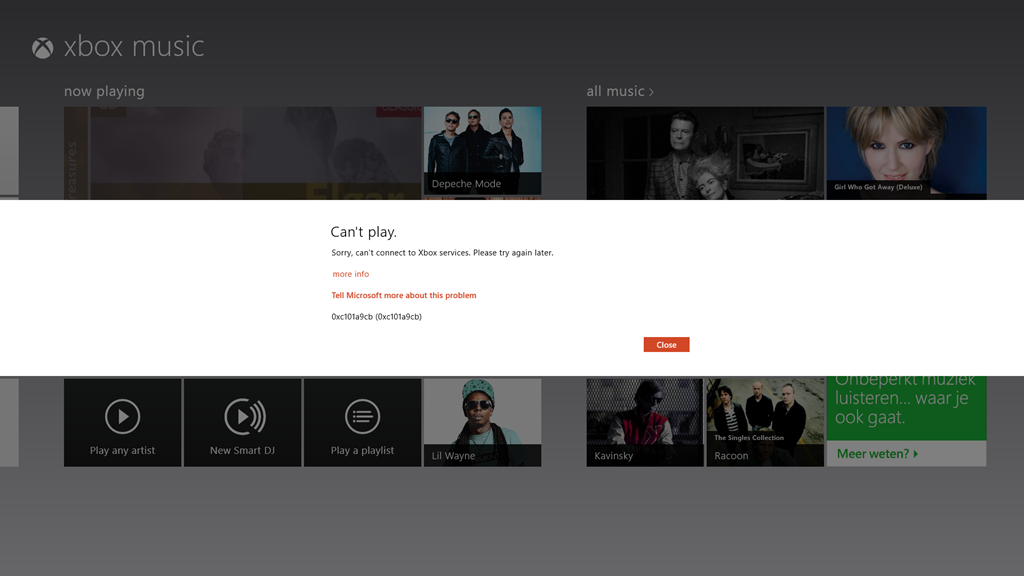
    If I click on the symbol, then I get this:

    xbox issue 05

    It says:

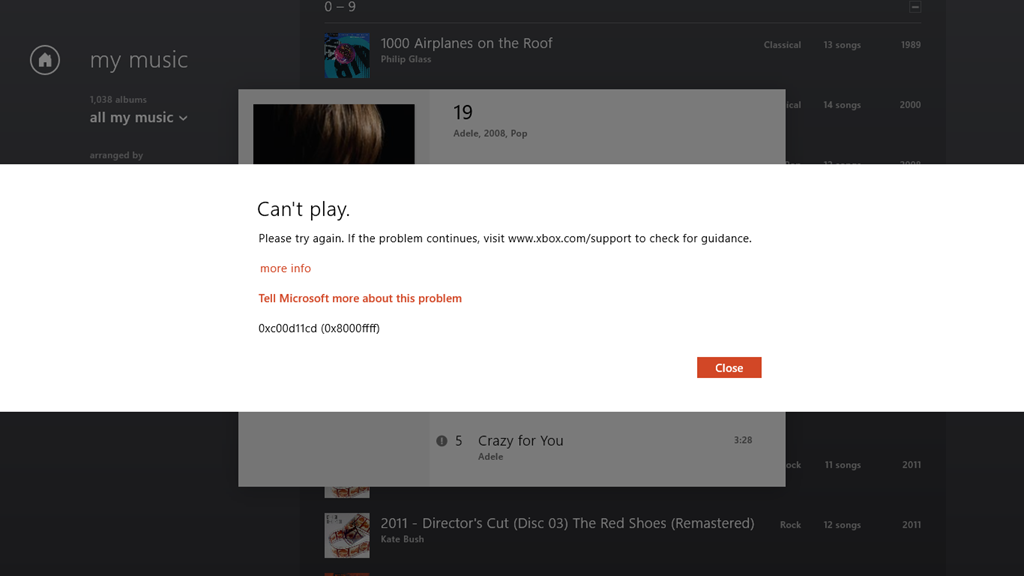
    Can’t play.

    Please try again. If the problem continues, visit www.xbox.com/support to check for guidance.

    more info

    Tell Microsoft more about this problem

    0xc00d11cd (0x8000ffff)

    Once again, of course, the links provided in the error message don’t provide any guidance whatsoever.

    If I let the playback continue, it will stop at the end of the currently playing track, because all the rest of the tracks are showing errors. However, I can manually advance to the next track, and it will start playing (with all the following tracks continuing to show errors):

    xbox issue 06

    Interestingly, I’m not the only one with this issue. And what I seem to have in common with the others is that we are using tablets built with the Intel Clover Trail chipset. This issue may well have been there for some time; it’s only with the latest release of the Xbox Music App (1.2.150.0) last week that I’ve really been using the App – it was so absymal before. It appears that it’s still dreadful.

    All my music (which is DRM-free) is stored on my Windows Home Server 2011 system. As I say, the Xbox Music App works fine on my Desktop PC, which, like my Tablet, is also running Windows 8 Pro. Other music applications, both traditional Desktop Apps (e.g. Windows Media Player, Zune and Media Monkey), and Modern UI Apps (e.g. Media Monkey for Windows 8) work fine on both the Desktop PC and my Tablet.

    But the Xbox Music App on the Tablet continues to be absolutely abysmal.

  • Windows 8 “Play to” Restrictions – And Overcoming Them

    I’ve written about Microsoft Windows and its “Play to” feature before. Back in the days of Windows 7, it caused a number of headaches, but the problems got resolved over time. Then with the introduction of Windows 8, it seemed that we all took a step back, and a new issue appeared.

    In Windows 8, it is not enough to have a piece of equipment (e.g. an amplifier or a TV) that is DLNA-certified for “Play to”, oh no; it also has to be Microsoft-certified before you can use it with a Modern UI (Metro) App in Windows 8. That means that although I can use the desktop Windows Media Player to “Play to” my trusty Denon AVR-3808 receiver (as I could under Windows 7), the new Xbox Music App in Windows 8 doesn’t even recognise the Denon as a “Play to” device.

    In a post on the Building Windows 8 blog, Microsoft states:

    Metro style apps work only with Windows certified Play To receivers [my emphasis]. These devices are validated to support modern media formats, are DLNA standards-compliant, and have great performance (including the updated Xbox 360 available later this year). The desktop experience first introduced in Windows 7 has been added to the Explorer Ribbon and will continue to support all DLNA DMR devices.

    Windows 8 bleats that my Denon is not Microsoft-certified, so it can’t be used by any Modern UI App. Gabe Frost, a Microsoft employee, gives these reasons for introducing this Microsoft certification:

    Since Windows 7, we have been certifying Play To devices (DMRs) for Windows. This certification program doesn’t invent any new standards or use any Microsoft proprietary technologies. Here is what our certification program does:

    1. DLNA guidelines have a bunch of optional requirements. An example is for a device to support volume control. These things that are optional in the guidelines have an impact on the user interface both within new Store apps and in Windows UI (such as providing a user the ability to control device volume using the app volume slider, or seek into a video, or update the state of transport control buttons (play/pause/etc.) in the app UI when a user uses the TV remote control). We think this stuff is important, so Windows certification makes mandatory a specific few requirements that are optional in DLNA.

    2. DLNA guidelines have mandatory requirements that they themselves don’t test. I won’t get into the details here, but the absence of a test for mandatory guidelines means that some devices implement things wrong, or don’t implement them at all, which causes weird behaviors that are hard to work around. No doubt, this isn’t on purpose (the device manufacturers always fix the issues when we bring them to their attention). Because the user experience can break because of this, we think it’s important and Windows certification actually tests the few specific requirements that are also mandatory in DLNA.

    3. Expanding on #1, DLNA makes optional certain media formats that are very popular today and expected by users. The primary example is MP4 video (M4V) and audio (M4A), or more specifically  H.264 (AVC) and AAC respectively. Windows 8 has a strong focus on HTML5 for sites and apps, which depends on MP4. If DMRs don’t support MP4, we wouldn’t be able to deliver on the promise of streaming HTML5-based audio and video from apps and sites to your TV or speakers. You might think transcoding to MPEG-2 is the answer, but Surface and other Windows RT tablets don’t have MPEG-2 encoder hardware in them (and even if we did decide to do this in software, the experience would be terrible and drain your battery).

    4.  Playback latency. To be competitive and to deliver a great user experience, we think a TV should start playing a video within 6 seconds and audio within 3 seconds when connected via wired Ethernet. I’d be surprised if anyone thought this was controversial.

    That’s it. UPnP/DLNA is our foundation technology. Remember though, DLNA means lots of things. A TV that only implements a media player (DMP) and a TV that implements a media renderer (DMR) both have the same DLNA logo, but only one of them is even capable of working with Play To (the DMR).

    While new apps from the Store won’t work with un-certified devices for reliability, performance, and other reasons, all your devices continue to work the same way they did in Windows 7. From File Explorer or Windows Media Player, these certified and un-certified devices will be shown in the context menu. We also added a button to the Ribbon to make it more friendly on touch screens. Try it on Surface or other Windows RT devices for example.

    However, despite all these fine words attempting to justify this new hurdle that Microsoft has placed in our way, it all boils down to:

    …new apps from the Store won’t work with un-certified devices…

    And if your device has not been put through the certification process, then, tough. My Denon receiver is positively ancient – five years old – and now discontinued, so absolutely no chance of getting it certified.

    However, help is at hand. Barb Bowman has been doing some detective work in the innards of the Windows Registry. She has discovered where the keys are stored that specify whether a DLNA device is Microsoft-certified. Better than that, she describes how to define your own key to “certify” your DLNA device so that it can work with Modern UI Apps.

    As she points out, there are precious few vendors (only five) currently certifying their devices, and Denon isn’t one of them.

    However, I followed her directions, and have now successfully created a key that enables my Denon receiver to work as a Microsoft-certified device with Modern UI Apps.

    My thanks to Barb and her detective work. No thanks to Microsoft for what I feel was an unnecessary hurdle.

    Update 16 July 2013: Barb has a new post up on her blog. Microsoft’s Gabe Frost has revealed that there is a simpler way of getting non-certified devices to work with Apps. Barb gives the details in her post.

    Update 21 October 2013: Well, now that the final release of Windows 8.1 is available, the Play to experience seems to be broken again. I applied the registry fix given by Barb Bowman (and which came originally from Microsoft’s Gabe Frost), and that no longer seems to work for me. One step forward, two steps back yet again. Thank you Microsoft.

    Update 24 October 2013: I posted the Windows 8.1 issue in a Microsoft forum, and got some useful feedback from Gabe Frost. The issue is not resolved, but at least we now know what’s going on. See https://gcoupe.wordpress.com/2013/10/23/play-to-and-windows-8-1/

    Update 8 April 2014: As of today, Microsoft has released an Update to Windows 8.1 that makes it unnecessary to perform any registry edits to enable a DLNA Digital Media Renderer (DMR) to work with Modern Apps on the Start Screen. Devices will no longer appear as “uncertified” when Play is selected within an individual app (but if not certified will appear as such in the PC and Devices menu).

  • Bad Experience: Xbox Music App

    As I wrote here, Microsoft has recently updated the Xbox Music App for Windows 8. The update improved the navigation of the music library to the extent where I thought I could start using the App (it was absymal on first release).

    So I’ve been using the Music App to play music stored in my Library, and I’ve got good news and bad news.

    The good news is that navigation is much improved (although more improvement would be welcome). You can also use the Music App to purchase additional Albums. For example, as an experiment, I used the App to purchase a Cecilia Bartoli album: Sacrificium. I was pleased to see that on completion of the purchase, the Music App automatically downloaded the album tracks to a folder that it created in my Music Library, held on my Windows Home Server 2011 system. So the tracks were located in \\DEGAS\Music\Xbox Music\Purchases\Cecilia Bartoli\Sacrificium (DEGAS is the name of my WHS 2011 server). Even better, the tracks were DRM-free MP3 files recorded at 320 kbps, and contained metadata (track title, album title, artist, album art, etc.).

    So far, so good. Buoyed up by that, I bought another album, this time Andreas Vollenweider’s Book of Roses. Same thing, on completion of the purchase, the Music App automatically created a folder in my Music Library (\\DEGAS\Music\Xbox Music\Purchases\Andreas Vollenweider\Book Of Roses) and downloaded the MP3 tracks to it.

    Flushed with success, I bought a second Andreas Vollenweider album: Air – and that’s when things went horribly wrong.

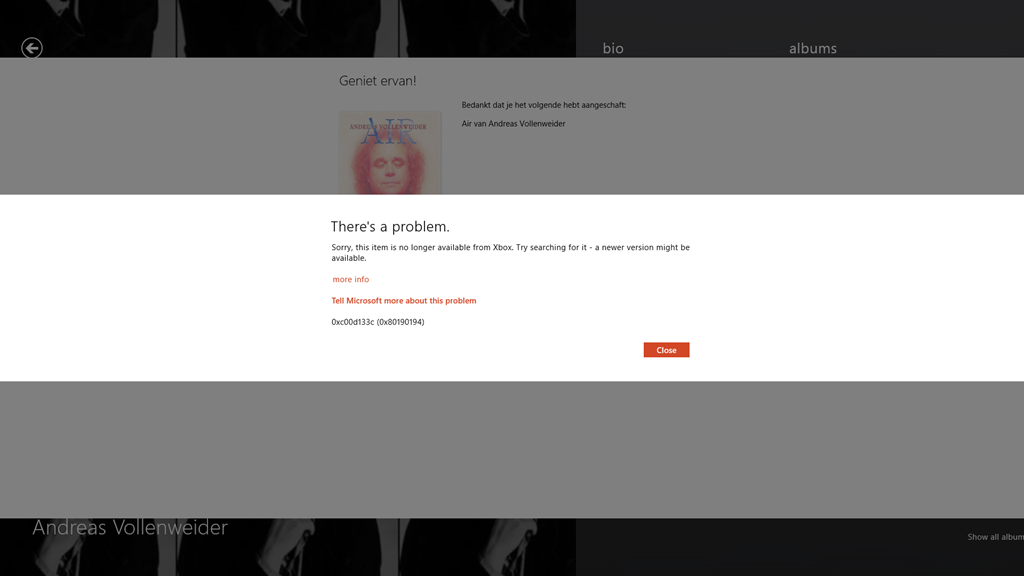
    The Music App allowed me to buy the album, but as soon as the purchase was completed, up popped this unwelcome message over the purchase confirmed screen:

    Xbox Music issue 01

    It says:

    There’s a problem.

    Sorry, this item is no longer available from Xbox. Try searching for it – a newer version might be available.

    more info

    Tell Microsoft more about this problem

    0xc00d133c (0×80190194)

    Lovely, so Microsoft has taken my money, but failed to deliver the goods. Trying to follow the links to get more information failed miserably to resolve it. I took a gamble that this might have been a one-off glitch, and tried again. Same result, so I have now paid twice for an album that Microsoft will happily sell to me, but without ever providing the goods:

    Xbox Music issue 02

    Sigh. Fortunately, these purchases were made using PayPal, so I’ve opened two dispute cases, and these have now been escalated to claims. So with luck, I’ll get my money back.

    As a result of this experience, I’m somewhat leery of trying to purchase music via the Music App. I think I’ll stick to purchasing CDs.

    Update: 2nd April 2013

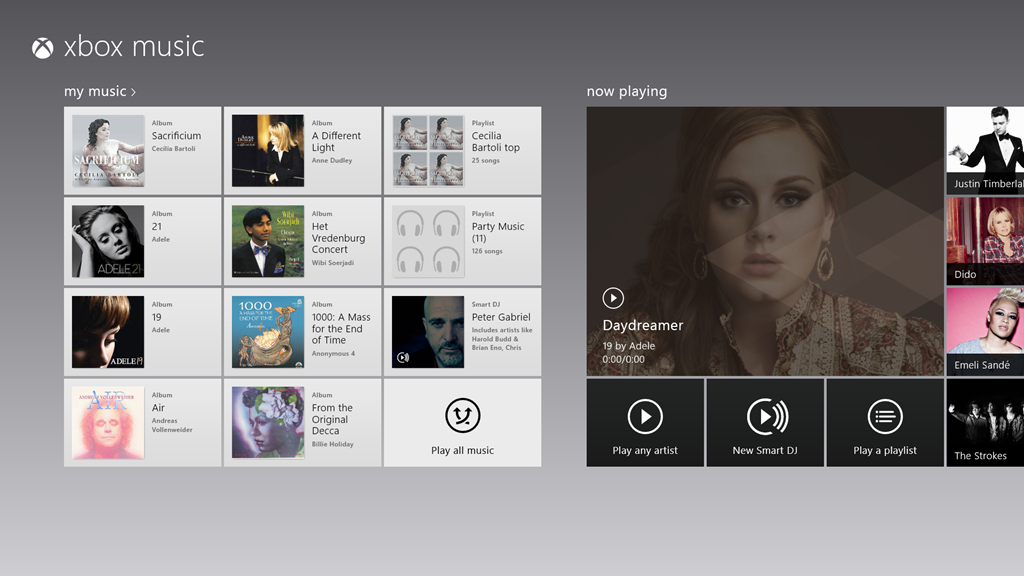
    It’s now three days later since I tried, unsuccessfully, to purchase Air. Today, I noticed that the Xbox Music App’s Home page was still listing the album as being in my collection:

    Xbox Music issue 03

    So I clicked it. The album details page then showed up, with the “streaming” symbol showing by the individual tracks. The last time I was at this point, trying to play a track resulted in an error message, but I thought, what the hell… and clicked the first track.

    To my surprise, it started playing, and then to my even greater surprise, the “download track” symbol started appearing by the tracks. I clicked on one, and got a message that all 13 tracks were being downloaded. So it would appear that Microsoft has fixed the purchasing issue. Now I’ve just got to persuade PayPal to authorise just one of the two payments…

    Update 10th April 2013

    Sigh. Today I received a couple of messages from PayPal that said:

    Dear Geoff Coupe,
    We’ve completed our investigation for the following claim:
    Case ID:  PP-002-273-252-851
    Transaction Date:  29 Mar 2013
    Transaction Amount:  -7,99 EUR
    Seller’s Email:  MicrosoftBilling_donotreply.eu@microsoft.com
    Seller’s Name:  Microsoft Luxembourg S.a.r.l
    These items are not covered by PayPal Seller Protection. Only physical
    items that have been sent and can be traced online can be covered.
    We advise you to contact the seller directly and to solve the problem. You
    can find the contact details of the seller on the page ‘Transaction
    details’.
    Sincerely,
    PayPal team

    So. not our problem, please look elsewhere. I love that “only physical items can be covered” spiel. As we advance further into the 21st century, bits are becoming ever more financially important than atoms. It’s a pity that more services aren’t aware of this fact, or are they just in denial?

    Update 11th April 2013

    Sigh. I really don’t learn, do I? I thought I’d have another go at buying an album. This time, it was the Simon Rattle version of Elgar’s “The Dream of Gerontius” coupled with the “Enigma Variations”.

    And this time, I thought that I’d check that I could first stream a couple of the tracks – just to make sure that the album was in fact available before I purchased it. And, yes, the tracks were available, and streaming. So I went and shelled out 8.99 Euros for the album.

    Bang – Microsoft took my money. And Bang! – Microsoft refused to give me my album.

    Xbox Music issue 04

    I’m sorry, but this is getting beyond a joke.

    Update 13th April 2013

    Well, I’m still getting the “can’t connect” error, but I seemed to have found a way to force the Xbox Music service to give me the album that I have bought. I located it online once more, and this time, I clicked the “Add to” button, and discovered that I could add it to my music library. Once I did that, the “Buy Album” button disappeared, and then the album showed up in my Library, with the “streaming” symbol beside it. More importantly, I then discovered that I could manually download the album to my server. So now I’ve got the album downloaded. It all seems quite a palaver…

  • Small Steps

    Microsoft released new versions of some of their Windows 8 Apps today. The ones that I’ve seen so far are the Mail, Calendar, People and Messaging Apps, together with a new version of the Xbox Music App.

    I’ve updated my post on the Xbox Music App here. In summary, whilst navigation has taken a step forward, there are many issues with this App that have not been addressed.

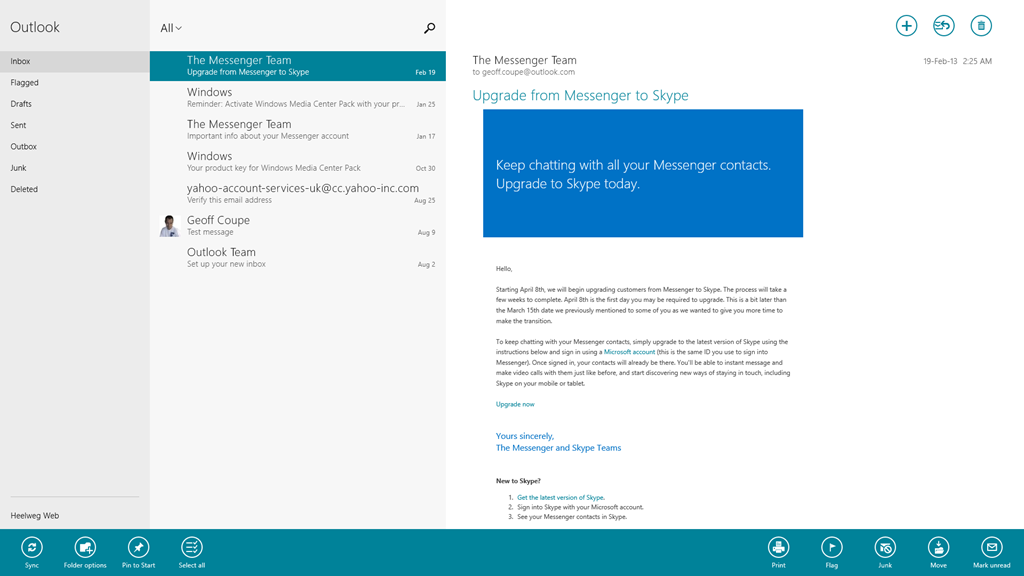
    The Mail App has got some improvements. I like the fact that I can at last create my own Folders and view them in the Mail App, and also that I can search both locally and in my online IMAP folders automatically. I see that the Mail App still cannot handle POP accounts. Yes, it’s legacy, but it is still in widespread use by many service providers who don’t yet support IMAP.

    Mail App 01

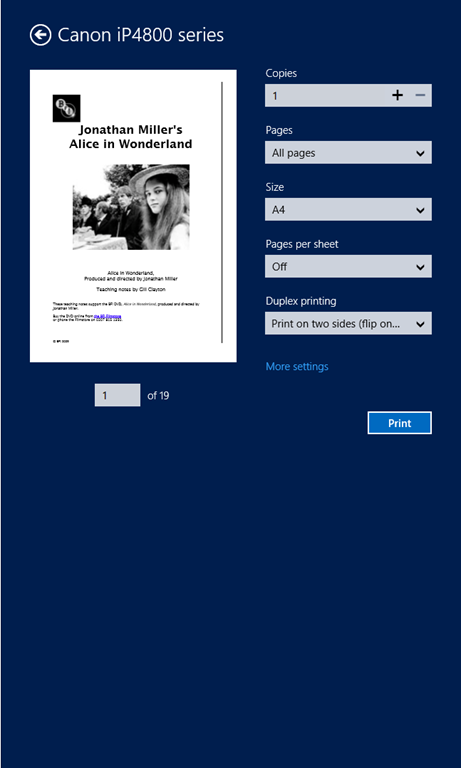
    In addition, the Mail App still hasn’t got a clue when it comes to printing out a message. It is still not possible to print just a range of pages – you can only print out every page in a message. It’s the same with the Modern UI version of Internet Explorer 10; it’s all or nothing. Clearly the Mail and IE 10 teams don’t understand how to use the new print subsystem of Windows 8 properly. They really should talk to their colleagues in the Microsoft Reader App team. Here’s an example of the print controls using the Reader App.

    W8 Print 03

    Note that you’ve got a “Pages” setting, where you can select to print “All pages”, “Current page” or a “Custom” selection of pages from the document.

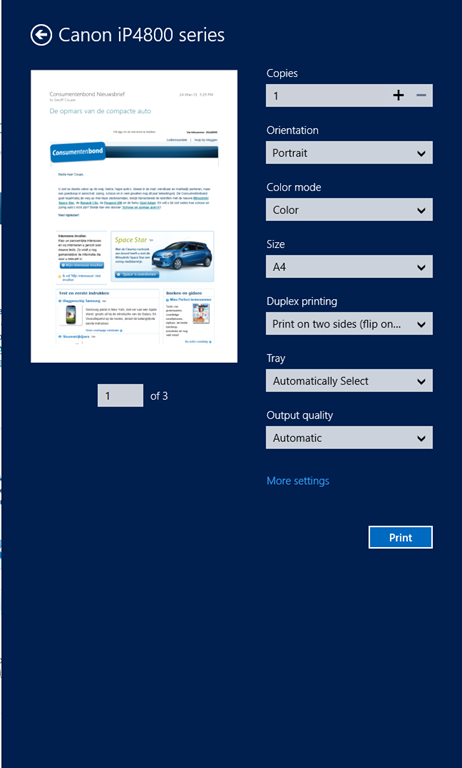
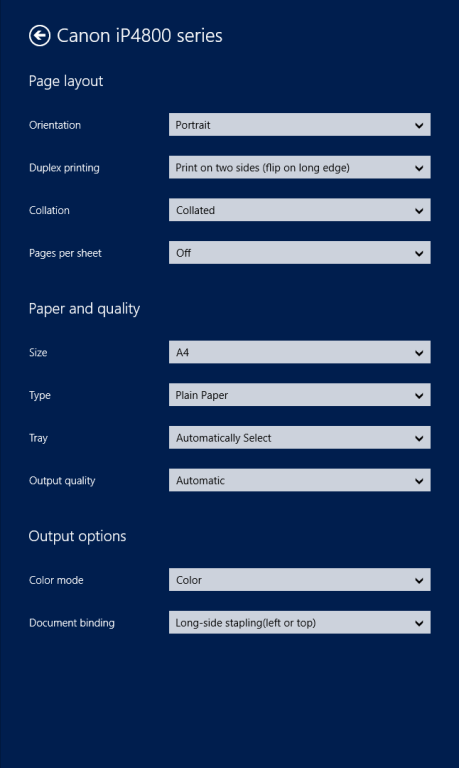
    Now here’s what you see (using the same printer device) when you want to print out a mail message from the Mail App (you’ll also see the same settings when you print out a web site in the IE10 App):

    W8 Print 01

    Whoops, no “Pages” option to print out a range of pages. And it’s not lurking under the “More settings” link, either:

    W8 Print 02

    I find it ironic that the Windows 8 Engineering Team posted an entry last year on the Building Windows 8 blog entitled: Simplifying Printing In Windows 8. It seems to me that when Microsoft’s own teams come up with inconsistent and poor user experiences for the task of printing out documents, then something is wrong somewhere. And talking of simplifying printing, I notice that the Mail App now sports a “Print” icon on the pop-up task bar at the bottom of the App. I suspect that many people are finding it confusing to print by going to the Charms bar, and choosing the “Devices” Charm…

    The new version of the Calendar App offers a few extra views, but personally, I don’t find it a great leap forward.

    Calendar App 01

    Clearly, Microsoft expect all their customers to have Smartphones or Tablets – there’s no way to print out anything from the Calendar App. Some of us do still occasionally like to have bits of paper handy…

    The People App remains very plain for me; most entries have simply the generic person icon. That’s because, by choice, I am not a Facebook or Twitter user. I communicate mostly by email.

    People App 01

    For the same reason, I’ve never had occasion to use the Messaging App, so I have no opinion on whether it’s any better in the new version.

    To sum up, despite these new versions of the Mail, Calendar and People Apps, I don’t see myself using them as my primary communication applications. I still find that job is better done using Windows Live Mail, which combines all these functions into one application that I prefer to use. Having said that, I do find myself occasionally using the Mail App on my ThinkPad Tablet to check email when I’m not at my Desktop PC. So it may grow on me, but I think further improvements will be needed first.

  • Microsoft Does It Again…

    I see that I’ve used the phrase “open mouth, change feet” a number of times in the life of this blog to describe the continuing ability of Microsoft to snatch defeat from the jaws of victory. Today I came across yet another example.

    I had noticed some reports that people weren’t able to get their navigation software to interface with the GPS sensor built in to some Windows 8 tablets.

    Now the thing is that until very recently, PCs did not have GPS hardware built into them. Instead, external devices such as GPS Data Loggers were used to provide GPS data, and interfaced to Windows software applications via Windows COM (communications) ports. In the old days, these were physical RS232 ports. These days, they are “virtual” ports set up over a Bluetooth or USB connection.

    In the development of Windows 8, support for a variety of sensors, including GPS, was built into the operating system, and exposed by a new set of APIs. The point being that this means that there is a new set of interfaces for developers to use, and they are different from the traditional COM port interfaces.

    So, as you might expect, traditional Windows navigation software, which has been written expecting to find GPS data coming in via traditional COM port interfaces, won’t see the new generation of GPS receivers being built directly into PC hardware running Windows 8.

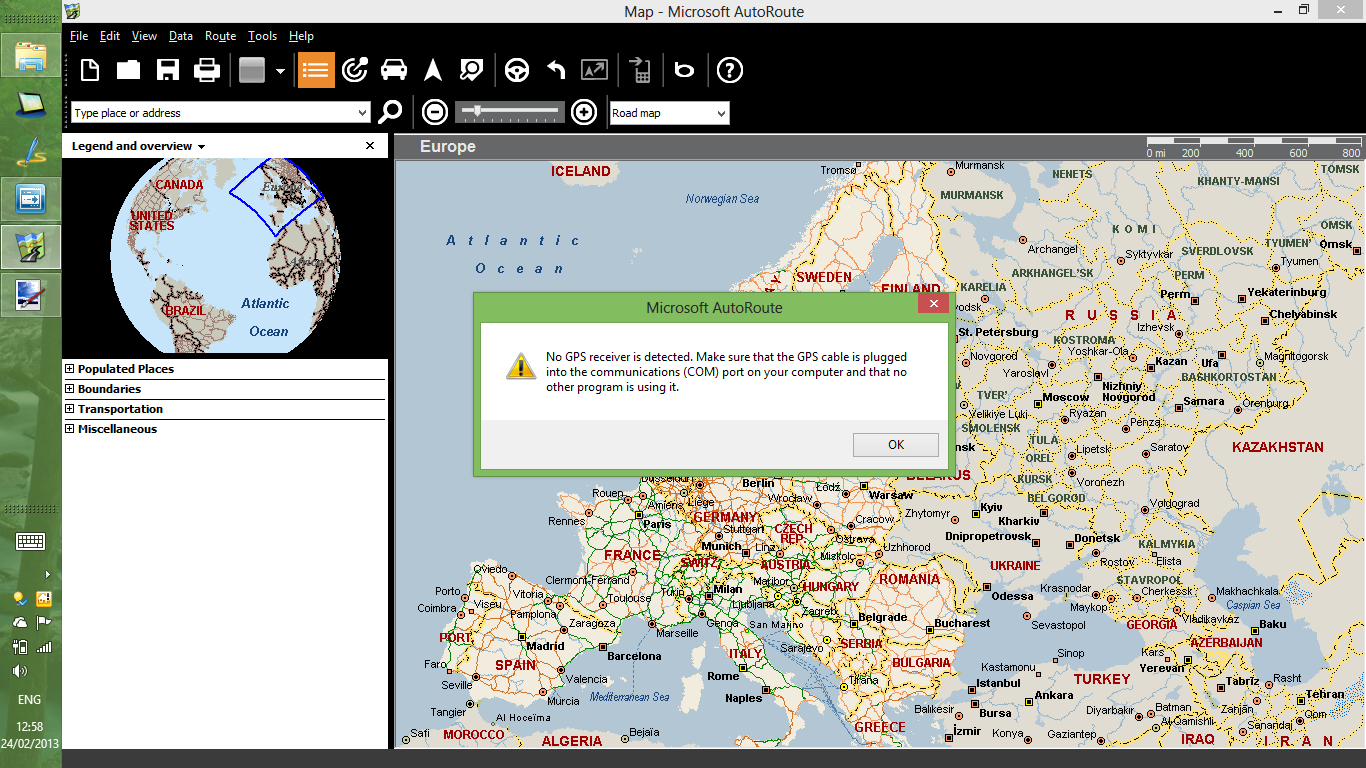
    And so it is. Here for example is the very latest version of Microsoft’s AutoRoute 2013. I downloaded a trial version and installed it on my Lenovo ThinkPad Tablet 2, which has a Broadcom GNSS Gelocation Sensor in it. As you can see, AutoRoute 2013 expects to find GPS data arriving via a COM port, and complains that it can’t find the GPS receiver:

    Autoroute 01

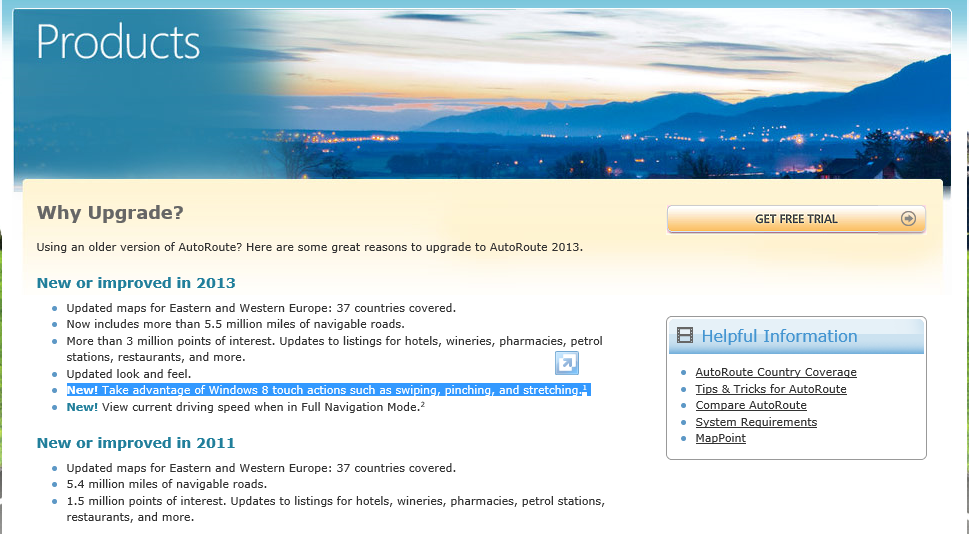
    What I find truly ironic about this is that Microsoft trumpets the fact that AutoRoute 2013 now has support for the Touch features of Windows 8:

    Autoroute 03

    However, the AutoRoute team has completely forgotten to use the new interfaces for GPS sensors that may be present in Windows 8 devices. Open mouth, change feet.

    A further irony is given by the fact that when this issue was raised in a Microsoft forum, Janet Schneider, a Microsoft employee, blithely writes that

    You can use the Location API and a Location Provider Driver to get NMEA strings, instead of using a virtual COM port.

    Janet, please tell that to your fellow developers in Microsoft, not us, the poor users of this stuff. The left hand of Microsoft clearly has no clue what the right hand is doing.

    Now what would be really useful is for someone in Microsoft to code a software shim that would connect a virtual COM port to a Location Provider Driver. That would enable us to carry on using our legacy Windows navigation software on Windows 8 tablets with GPS receivers. It would even allow the AutoRoute 2013 software to work as advertised.

    Addendum: Well, Microsoft hasn’t bothered to write a software shim, or updated their Streets & Trips or AutoRoute software at this time of writing (December 2013), but at least two third parties have developed shims:

    Addendum 25 February 2014: If you’re looking for a map application that has maps held on your Tablet, and which will work directly with the GNSS sensor in the ThinkPad Tablet 2, then the good news is that Nokia has released its HERE Maps App for all Windows 8.1 devices. Even better, it’s free.

    Addendum 8 July 2014: Microsoft has announced that AutoRoute, Streets and Trips, and Mappoint will no longer be developed, and will be dropped. I can’t say that I’m surprised, but on the other hand there are many Line of Business applications that have been built on top of MapPoint services, so those will have to be migrated over to Bing, HERE or Google Maps…

    Addendum 25 August 2015: And Microsoft drops the ball once more… I’m now seeing reports that Microsoft has changed something in Windows 10 that affects the traditional virtual COM ports. The effect is that Bluetooth GPS loggers no longer connect properly. This means that I can no longer use my Qstarz GPS logger with my Surface 3 to feed GPS data into the Microsoft Maps app. Honestly, I despair at Microsoft sometimes; they are their own worst enemy…

    Addendum 30 August 2015: For those of us who are definitely having problems getting the SPP slave port to work, there could be some good news on the horizon…
    I’ve just upgraded my Yoga 3 Pro to the latest Insider Preview build (10532), and the SPP problem seems to have been fixed. I’m able to connect my Qstarz GPS logger and get data. This result has been confirmed by another person who had the same problem with the 10240 build of Windows 10.  I hope that this fix will be present in the October update to Windows 10 that will be available to everyone…

    Addendum 1 October 2015: Microsoft has issued an update (KB3093266) to Windows 10 that fixes the virtual COM ports issue. Excellent.

  • Disingenuous, Contemptible, or Both?

    I’ve commented a couple of times before on the new licensing models that Microsoft has introduced with Office 2013.

    The nub of the situation is that whilst with earlier versions of Office (e.g. Office 2003, Office 2007 and Office 2010) it was possible to transfer your licence from one computer to another; with Office 2013, if you buy a licence for Office 2013 and install it on a computer, that’s it. You can’t transfer it to another computer. So if, for example, after a couple of years, you upgrade your computer to a newer model, you can’t move your Office 2013 licence across. You have to purchase a completely new licence, which is in turn locked to your new computer.

    I see that Jevon Fark, in Microsoft’s Office Team, has attempted to clarify the licensing situation. However, he singularly fails to make the proper comparison between the earlier so-called Full Package Product versions of Office 2003, 2007 and 2010 (i.e. Office products that were supplied with actual DVDs) and the current situation with Office 2013, where it is no longer possible to purchase the software. Instead, all you get is a product key, and if you download the software to a computer and activate it using the key – that’s it – it is locked to that particular computer.

    So, is Fark’s blog post disingenuous, contemptible, or both?

    In my opinion, it’s both.

    I will neither purchase Office 2013 licences, nor subscribe (at five times the cost of my current Office licences). Instead I will continue to use my (transferable) Office 2010 licences for the foreseeable future. And if in the future I require to replace my Office 2010 product, then I will seriously consider alternatives before I look again at what Microsoft has to offer.

    Update 6 March 2013: Well, it appears as though Microsoft has had second thoughts. Mr. Fark has now posted that it is possible to transfer licences between computers. Good to see that common sense can prevail after all. Thank you to all those who protested that Microsoft were doing the wrong thing with the original licence conditions.

  • Windows 8 Media Apps and Media Services

    I’ve written before about the issues I’ve had with the “Play to” function in Windows 8. Paul Thurrott wrote an article yesterday: The Sad Tale of Play To and Windows 8, with much the same conclusions. It is worth reading the comment by John Galt after the Thurrott article. He lists a number of shortcomings in the media “features” that Microsoft have implemented in Windows 8, any one of which has me tearing my hair out.

    For example, the Music App

    1. has a tendency to play advertisements even when you’re playing your own music.
    2. has no support for open audio codecs such as FLAC, and no apparent way to add such support
    3. constantly forgets the contents of my music library, and has to rebuild the index from scratch practically every time I fire it up.
    4. has no support for accessing media stored on NAS devices
    5. has no support for Microsoft’s own eHome remote control standard (used by Windows Media Center since 2001)
    6. has no support for acting as a “Play to” target, i.e. as a Digital Media Renderer.

    Issues 4, 5, and 6 are also common to the other Microsoft-supplied Media Apps, i.e. the Video App and the Photos App.

    One wonders how Microsoft can be so dismal in delivering products that should delight, and not disappoint in so many ways.

    Addendum: here’s a secondary rant about the Music App, triggered by a comment below.

    Navigation in the Music App is really badly thought out.

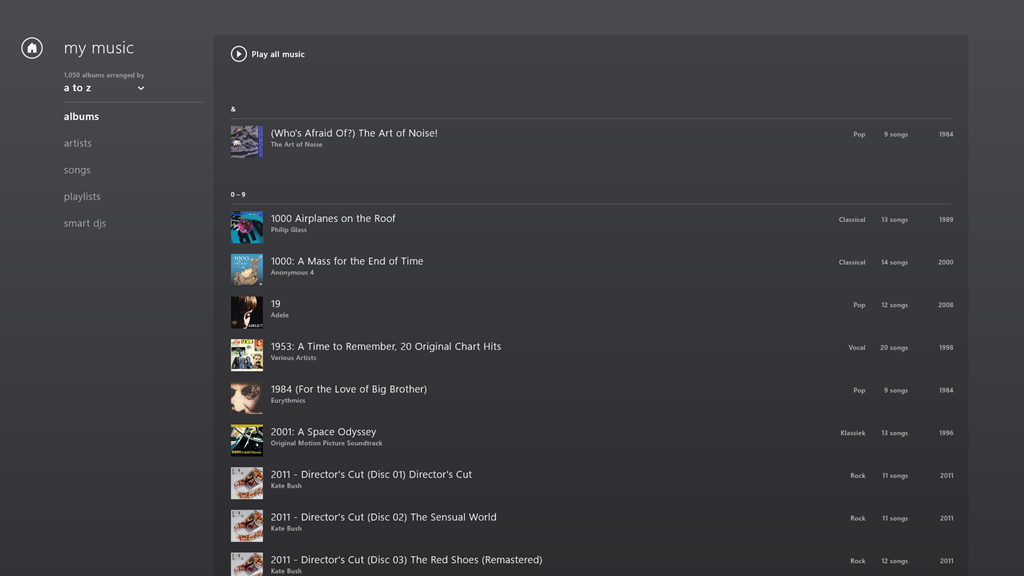
    Take the Album view, for example. Choose it, and you’ll see a list of your albums.

    W8 Music 10

    The question is, how do you rapidly navigate through the list? The answer is: you can’t. You have to manually scroll up and down, using either your mouse or your finger. Since I have over 1,000 albums in my library, this gets very tiresome, very quickly.

    The answer that Windows Media Center came up with in 2001 is that pressing a character on your keyboard will cause the display to jump to that position in the list. So pressing “m” for example, will immediately skip the display to the start of the list of albums beginning with “m”.

    But the keyboard is dead in the Music App’s list displays… You can only scroll up or down.

    What I find really irritating is that the developers of this App have also learned nothing from Apps built for Windows Phone. Here, there is support in the operating system itself for viewing lists at two levels of zoom. You can see a view at the level of the alphabet (a,b,c, etc.), and by touching a letter, you instantly zoom into the detailed list at that level.

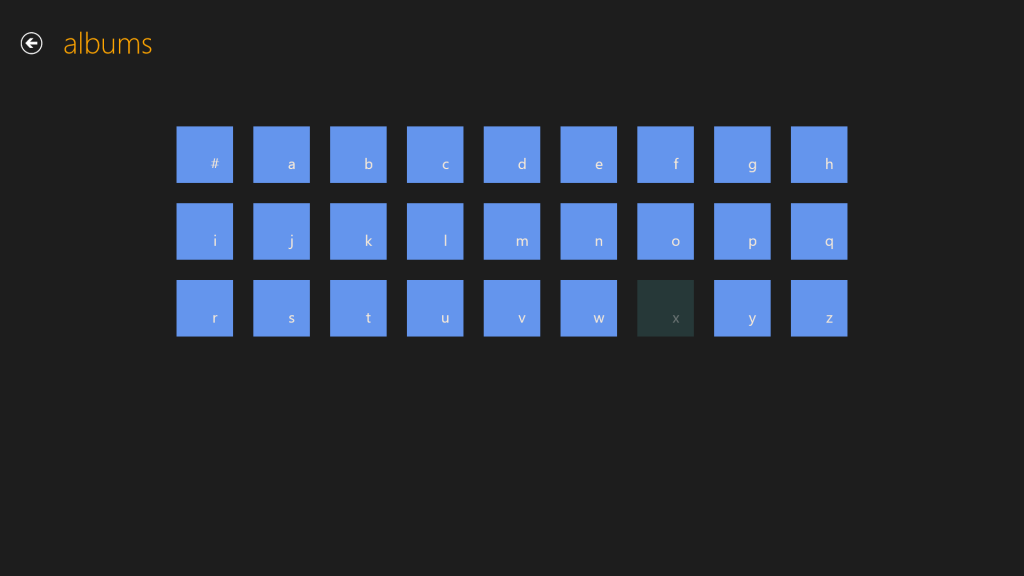
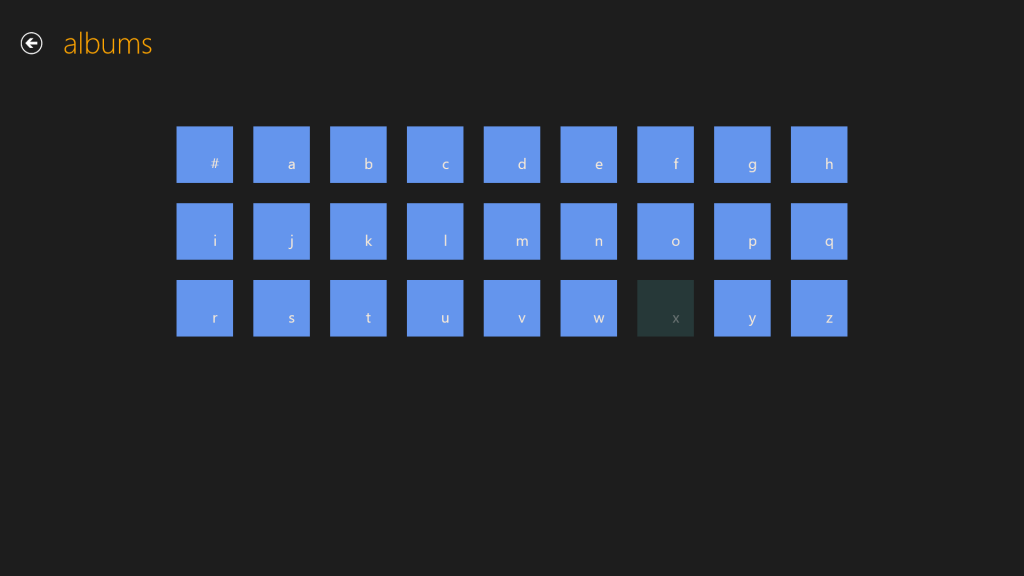
    This can be done for Windows 8 applications as well. Here for example, is the Media Center Remote app built by Brad Mauk, and available for both Windows Phone and Windows 8. These are screenshots taken from the Windows 8 App. On entering the Albums view, you are presented with the zoomed-out view of your library:

    W8 Music 08

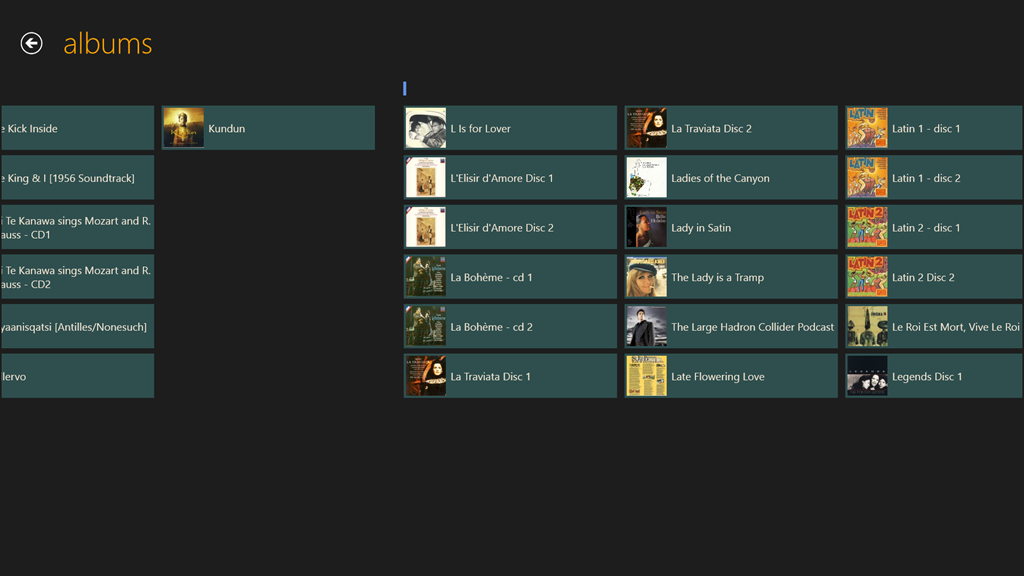
    Notice that “x” is dimmed – this immediately tells me that I have no albums with titles beginning with “X” in my library. Now, it is true that in this App, in this view, the keyboard is also not active. So I can’t type a character on my keyboard and jump to that part of my library. However, and crucially, I can use either my mouse or Touch to choose one of the characters on this screen to jump into my library. Let’s click (or Touch) “l”:

    W8 Music 09

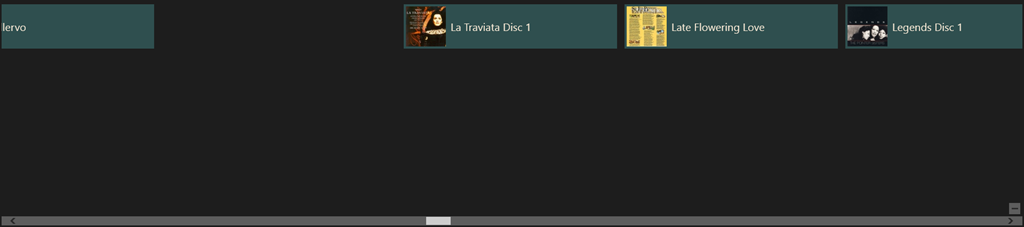
    Instantly, I’m there. If I want to return to the high-level view, I can either click the “-“ icon that appears with the horizontal scrollbar when I mouse down:

    W8 Music 11

    …or, if I’m using Touch, I simply use the “pinch” gesture on the screen to return to the alphabetic list of the high-level view:

    W8 Music 08

    Navigation within my library is easy with this App, and I happily use it to control my Windows Media Center.

    The developers of Microsoft’s Music App should take note. What they have produced thus far is abysmal.

    Update 26th March 2013

    Today, the Music App has received an update. I’m very pleased to see that Microsoft has at last incorporated a “zoom” function to make navigation in a large library more practical. It’s implemented slightly differently from the “Windows Phone” approach taken by the Media Center Remote App described above.

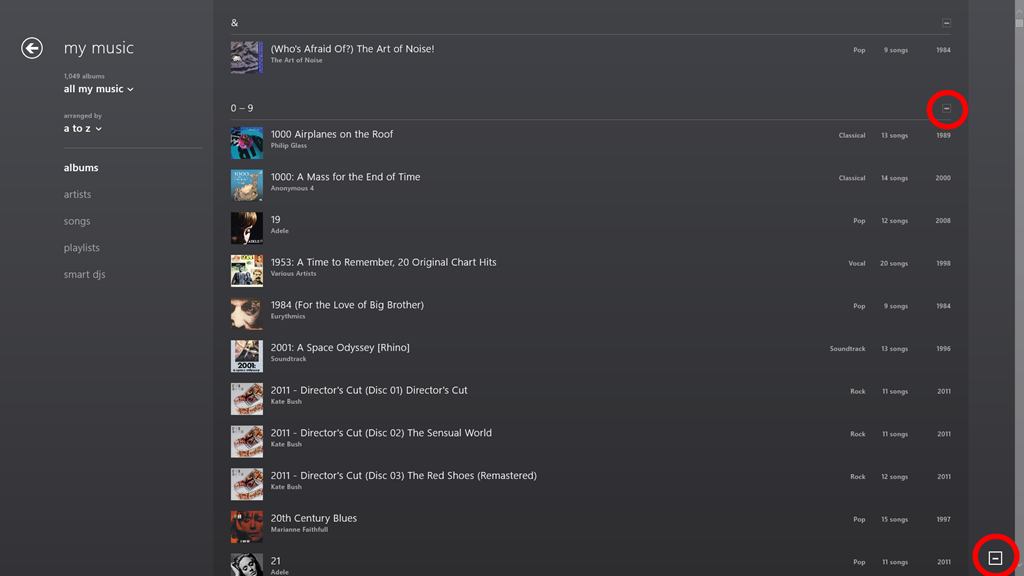
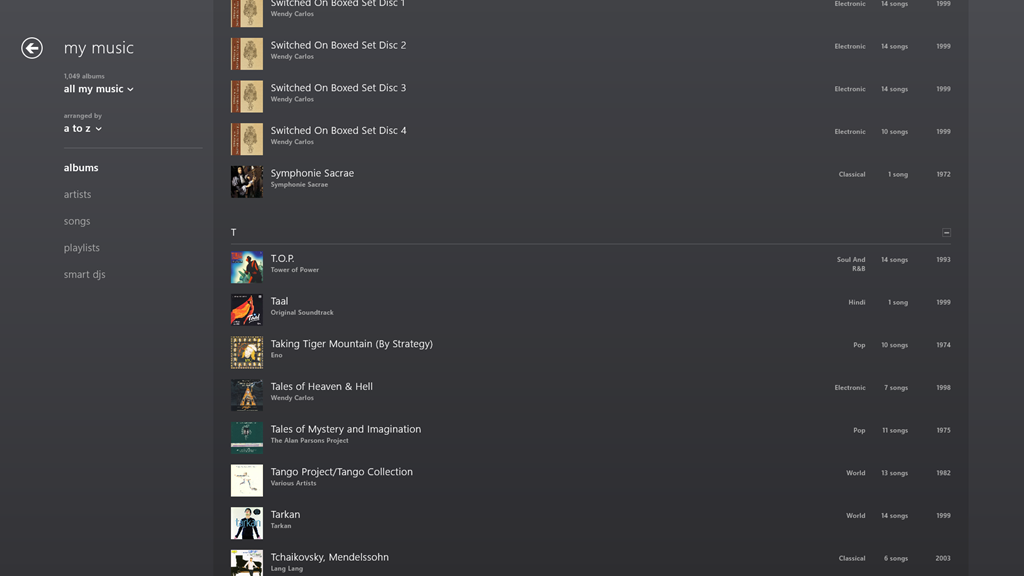
    In the new version of Music App, the contents of the various views (Albums, Artists, Songs, Playlists etc.) are separated alphabet headings, when listed in alphabetical order. Here you can see the start of the list of my albums:

    Music App 02

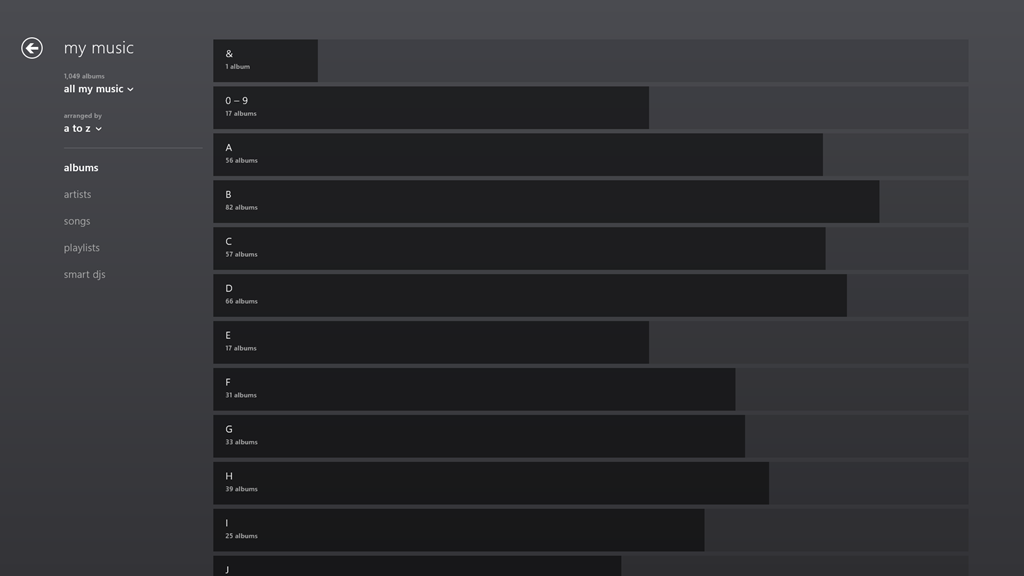
    Note the icons that I’ve circled in red. When clicked (or touched), the view zooms out to the alphabetic sections only:

    Music App 03

    One rather nice touch is that the length of the bars represents the number of albums in that section as a proportion of the highest section total. If there are no albums in a particular section, then – unlike the Windows Phone convention, where the section is dimmed – here it is dropped altogether. For example, there is no entry for “X”, since I have no albums that begin with “X”:

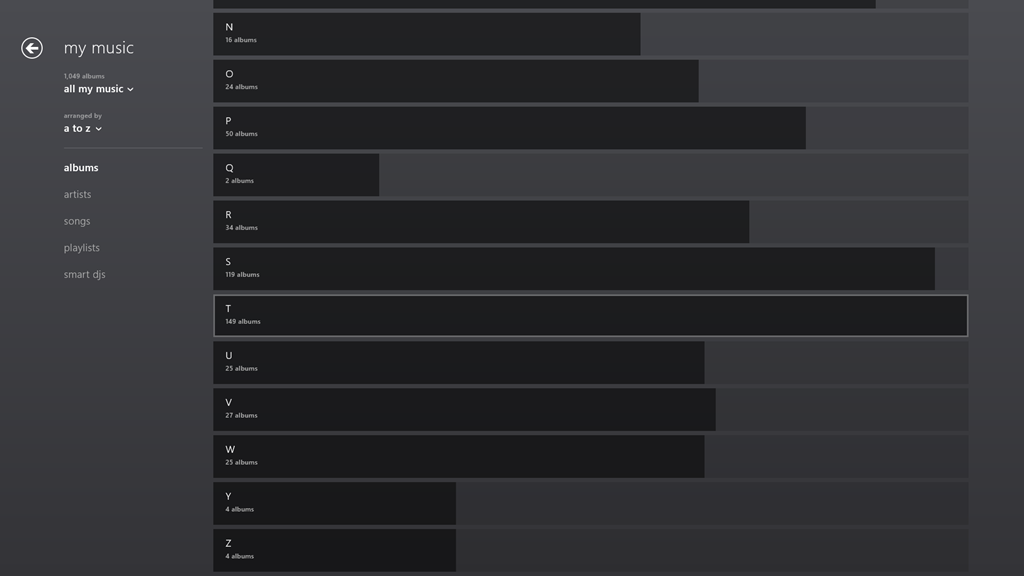
    Music App 04

    Clicking, or touching, anywhere along the dark/light grey bar of a section will zoom back into the library to the point represented by the section heading. In the screenshot above, I have moved my mouse over the “T” section, which is why it has become highlighted (the touch interface does not use this highlighting prompt). Left-clicking (or touching) jumps me back into the list of individual albums, starting with those beginning with “T”:

    Music App 05

    You’ll notice that the “T” section contains the highest total number of albums. That’s because the Music App – unlike Windows Media Center – has not the intelligence to ignore words like “The” or “A” in an album title. It’s a small point, but it’s evidence that teams in Microsoft often don’t appear to build on what went before, but start with a blank sheet of paper. One step forward, two steps back…

    In summary, while it’s nice to see that this new version of the Music App has addressed the navigation issue, it still has a long way to go. Of the six issues that I give at the top of this post, only issue 3 seems to have been resolved, the other five issues have yet to be addressed – if indeed they ever will be.

    Update 30 March 2013

    I’ve been using the Music App to play music stored in my Library, and I’ve got good news and bad news.

    See here for more information.

  • It’s an Incredible Deal – Part II

    Back in September last year, I wrote about the pricing of Microsoft Office 2013. Unlike Paul Thurott , I failed to see how it was “An Incredible Deal”. For my use, the change to a subscription model would increase my cost of ownership over a 6 year period by almost 5 times.

    Subsequent to that, Microsoft announced an offer to buy a copy of Office Home and Student 2010, and get a copy of Office Home and Student 2013 when it became available, for free. Well, I thought, that sounded pretty good. A little further investigation rather took the icing off the cake. The 2010 version of Home and Student’s licensed for use on 3 PCs, while the 2013 version is only licensed for use on one. Nevertheless, I thought that the offer remained sufficiently attractive to warrant investing in a copy of Home and Student 2010. I could install Office 2013 on my tablet, and carry on with 2010 on our other two PCs.

    So I   purchased a copy of Office Home and Student 2010 and registered for the offer. And yesterday, I received an email from Microsoft telling me that the new Office was available and that I could redeem my offer.

    I clicked on the link in the email and arrived at the Microsoft web page setup for the offer. Clicking on the “Redeem now” button, brought up a page where, amongst other things , I was asked to enter the Product key of my existing version of Office and select the country/region where I would be using the version of Office 2013. Note that I have an English language version of Office 2010, and I would be using Office 2013 here in the Netherlands.

    I filled in all the fields, clicked the “Submit” button and promptly got an error 012913 -very helpful, not. Noticing that the web page was set to English (US) , I changed it to English (International), and tried again. Nope, same error.

    With a sinking heart l changed the web page to Nederlands and repeated the process yet again. This time I got further – I was asked whether I wanted the subscription version of Office 2013 or the single license version. However, note that I am now looking at a page written in Dutch. The clear implication is that if I download the single license version I will end up with the Dutch version of Office.

    Now, this might not be a problem providing I can change the display language and the proofing tools to UK English. This blog post from Julian Parish in the Office team seems to suggest that the language packs are available, but that, as a consumer, I have to buy them. That’s not really what I wanted to hear. It is particularly galling when you realise that the display and help languages of Windows 8 can be changed or added to for free.

    One other little thing. Microsoft has also changed the licensing terms of the downloadable software. Unlike earlier versions, it can no longer be uninstalled from one PC and transferred to another. Now, once installed on a PC, that’s it – it can never be transferred. And if your PC breaks, and you get a new motherboard, for example, then tough, Office will stop working, and you will need to buy a new license.

    I can’t say that I’m delighted with these changes, but I fear it’s the shape of things to come from Microsoft. Next up, I fear that Windows 9 will switch to a subscription model as well.

    Update: Well, I decided that I’d see what would happen if I went one step further on the Dutch web site, and selected the downloadable Office Home and Student version. Thankfully, the next page gave me the opportunity to confirm that my country was the Netherlands, but also gave me the option of choosing English. I rather think that should have been made clearer earlier in the process…

    So now I’m in the process of downloading and installing what I hope will be an English language version of Office. Oh gawd, now I’ve got a perky little welcome video playing.

    Update 2: I see that Paul Thurrott is still convinced that the subscription model is “an incredible deal”. He writes:

    Office 365 Home Premium, at just $99.99 a year, with five easily distributed and changed PC/device installs of Office 2013 Professional, is obviously the way to go for most people.

    I’m clearly not most people. It’s way too expensive and a very bad way to go for me. However, I do agree that the fact that Microsoft has apparently removed the right to transfer licenses between machines is a slap in the face from the customer’s point of view.

    Update 3: Peter Bright, writing in Ars Technica, calls a spade a spade:

    If you buy a perpetual retail license for Office 2013, it will be locked to the computer you first install it on, forever. Buy a new PC and you won’t be allowed to install your existing copy of Office on it, even if you wipe the disk of the old PC. You’ll have to splurge for a new one.

    This is a change in policy from Office 2010. Office 2010 permitted a single transition from one PC to a new one. It’s not, however, an entirely new policy: OEM pre-installed versions of Office (and Windows) are similarly tied to their (OEM) hardware and can’t migrate. Adam Turner at The Age first pressed Microsoft for clarification over what its “single PC” constraint actually meant, and noted the newly aligned OEM and retail licenses.

    It’s difficult to see the wisdom in this change. It’s not a big change, but it’s not a nice one, either.

    Update 6th March 2013: Following protest, it appears as though Microsoft has changed its mind. Excellent news.

  • Thoughts on the Lenovo ThinkPad 2 – Part IV

    Welcome back to the next episode in what seems to be turning out to be a series of posts on my experience of using my first Windows 8 tablet – a Lenovo ThinkPad 2.

    The last post took a look at some of the software applications that Lenovo has provided for their tablet, and I’ll continue that look in this post. I ended that post somewhat abruptly when I discovered how awful Lenovo’s tutorial on Windows 8 was. Not only was it shockingly poor, but it is also built for the Desktop version of Internet Explorer. One might expect that a Windows 8 tutorial would take advantage of the Modern UI of Windows 8. Clearly Lenovo don’t think so.

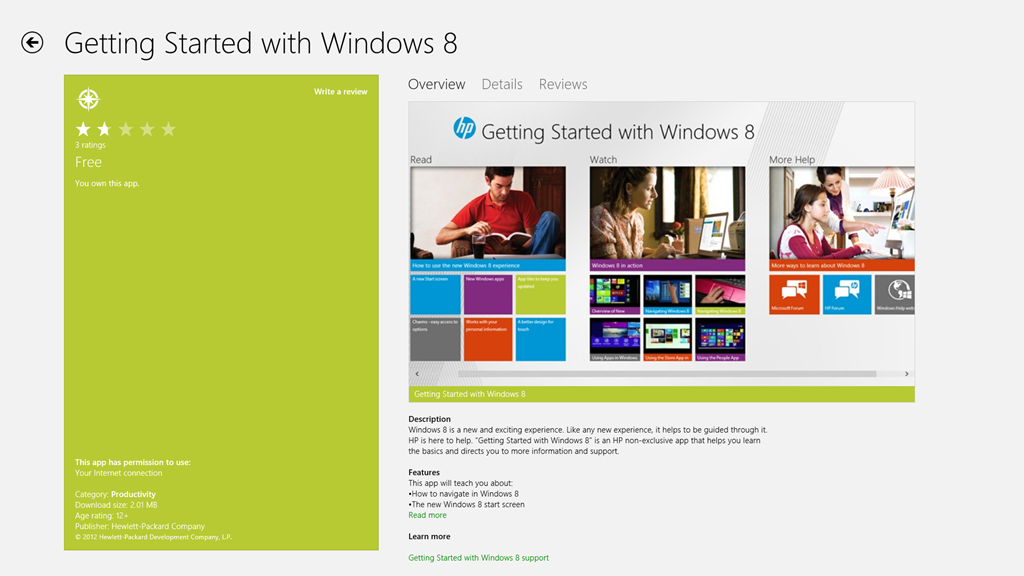
    To see how it should be done, I think it’s instructive to take a look at HP’s tutorial for Windows 8. It is fully a Modern UI App – no forcing the hapless user to open the Desktop web browser here. This tutorial, while it was originally designed by HP for use on their Windows 8 systems, is now freely available in the Windows Store for download and installation onto any Windows 8 system:

    TPT2 28

    If you’re new to Windows 8, it’s worth taking a look at this tutorial.

    OK, now onwards with the contents of Lenovo’s Companion App:

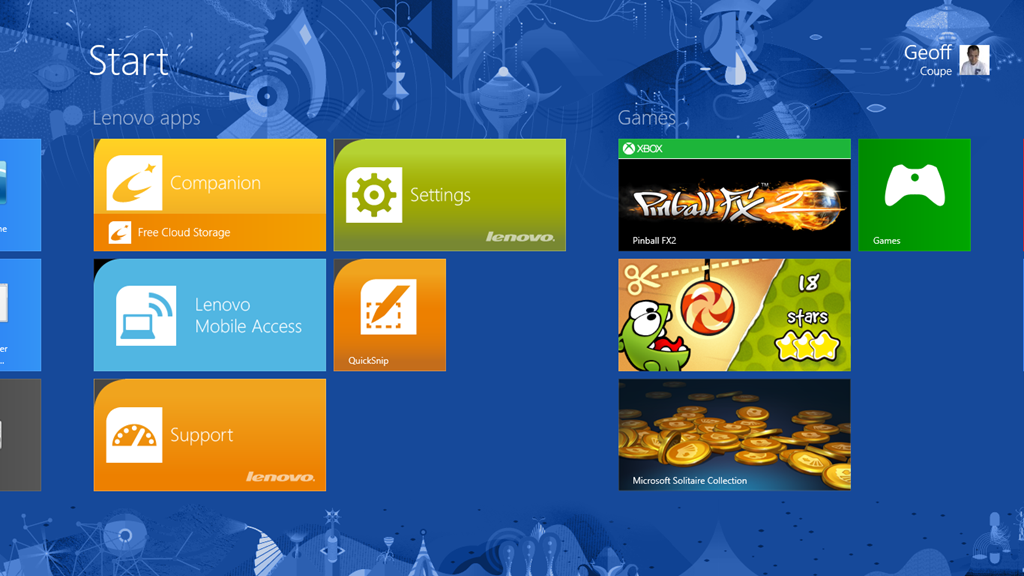
    TPT2 29

    Ah, QuickLaunch turns out to be yet another Start Button replacement tool. I really don’t understand the attraction of these. I want to learn how to ride my bike, not go through life with training wheels clamped to it.

    Next up is the trial version of Norton Internet Security that Lenovo installed on my ThinkPad. One of the first things I did was to uninstall it, and to revert to Microsoft’s Windows Defender, which is built into Windows 8. It’s sufficient protection, in my opinion.

    Then we have a couple of adverts for two of Lenovo’s own utilities: Settings and QuickSnip. I’ll deal with them later.

    Lenovo Blogs opens a scrolling view of links to Lenovo’s corporate blogs. Clicking on a link will open the blog post inside the Companion App, rather than switching to the web browser, which is a nice touch. E.g. the “8 Cool Things About The ThinkPad Tablet 2” post shown here:

    TPT2 31

    Needless to say, the blogs are primarily a marketing tool, and present a rosy picture. I couldn’t help but comment on the above blog post to correct some of the rosiness.

    The links to the Lenovo channels on YouTube and Twitter are further examples of marketing. Once again, these channels are displayed within the Companion App itself, rather than shelling out to a separate instance of the web browser. I suspect the same thing is supposed to happen for the Accessories tile, but all I got was a blank page and a plaintive message that there was “No matched content for this system”. There is in fact an online Lenovo shop in the Netherlands, so I suspect that once again the developers of the Companion App assume that we all live in the US of A.

    And as I said in my last post, I have no interest in signing up for Lenovo’s Cloud Storage – I am already a satisfied SkyDrive user.

    To summarise, the Companion App strikes me as primarily a Marketing tool from Lenovo. I think it can be uninstalled without any second thoughts. Right, that about wraps it up for the Companion App, now let’s take a look at the Settings App.

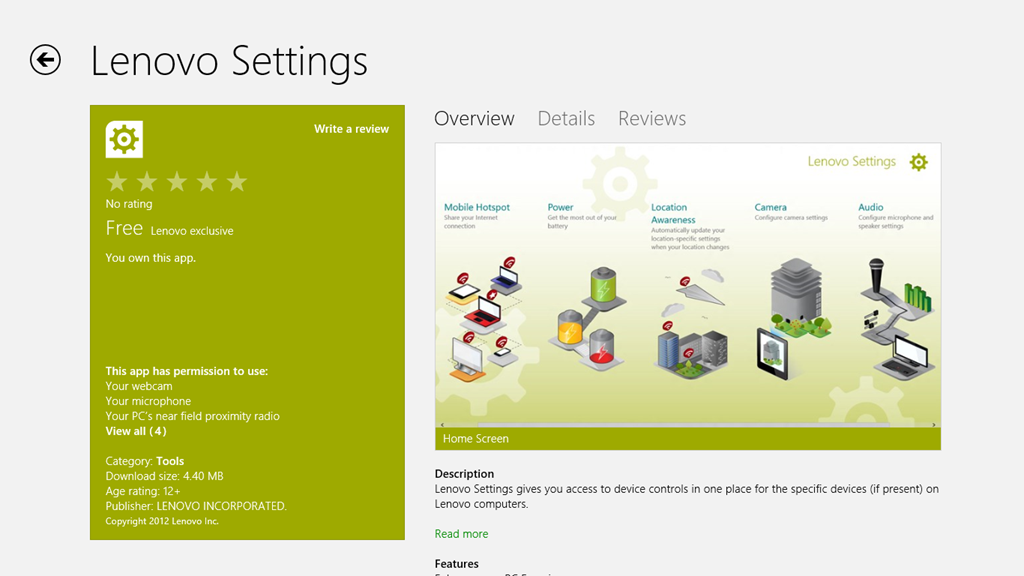
    The Settings App is a bit strange on my system. I’m not sure whether it’s working as it is supposed to. If I look at the Settings App in the Windows Store, I see this:

    TPT2 32

    It shows a screenshot of the Settings App that contains five major sections:

    • Mobile Hotspots (for internet sharing)
    • Power
    • Location Awareness
    • Camera
    • Audio

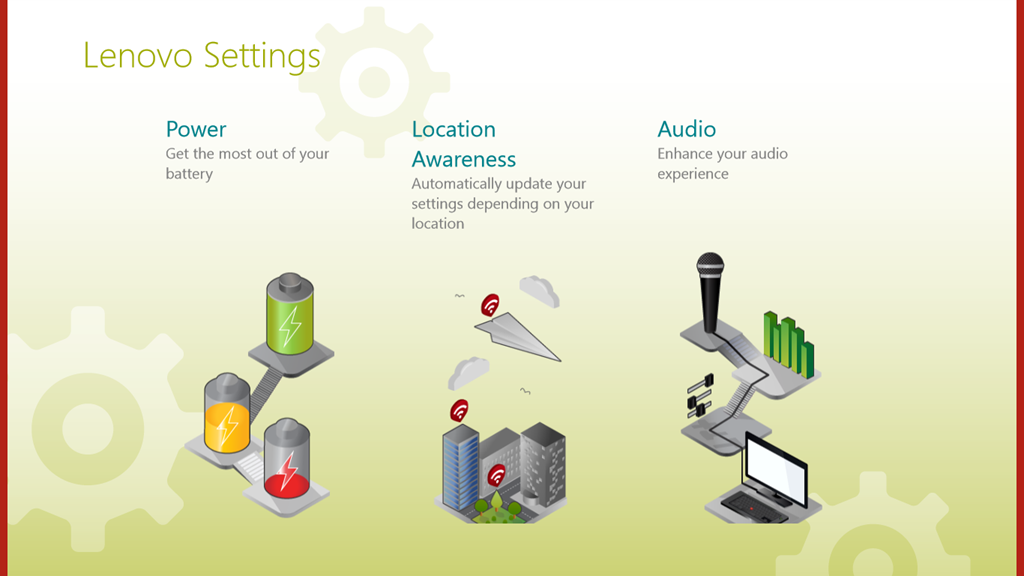
    Yet, when I open up the Settings App on my ThinkPad, this is what I see:

    TPT2 33

    That is, just three:

    • Power
    • Location Awareness
    • Audio

    Yet, I have two cameras in the ThinkPad. Why aren’t the settings for these shown here? ‘Tis a puzzlement.

    (Update 26 February 2013: Lenovo has just released a new version of the Settings App, and there is now an entry for the Camera Settings. They’ve also said that they are working on the Mobile Settings entry for the ThinkPad Tablet 2, so this should arrive at some point)

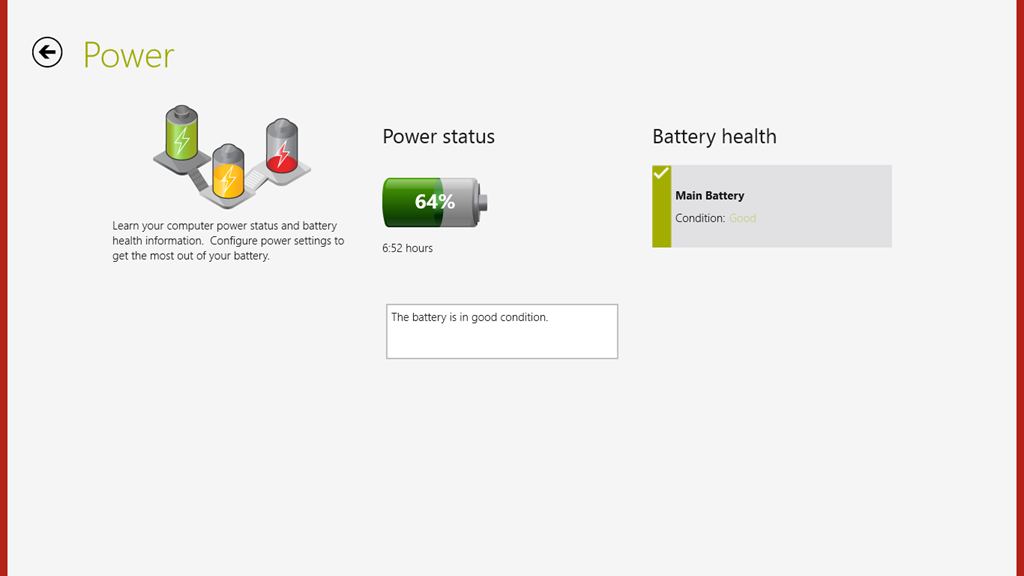
    I suppose this App is OK, as far as it goes, but I think I would have liked to have seen the Power setting (in particular, the battery charge remaining) broken out into a separate tile that could be pinned to the Start Screen, or displayed in the Settings App tile itself. That would have been useful. Having to start up the Settings App, and then select the Power section – not so much.

    TPT2 41

    There’s not much more to say about this App – it’s pretty ho-hum as it stands.

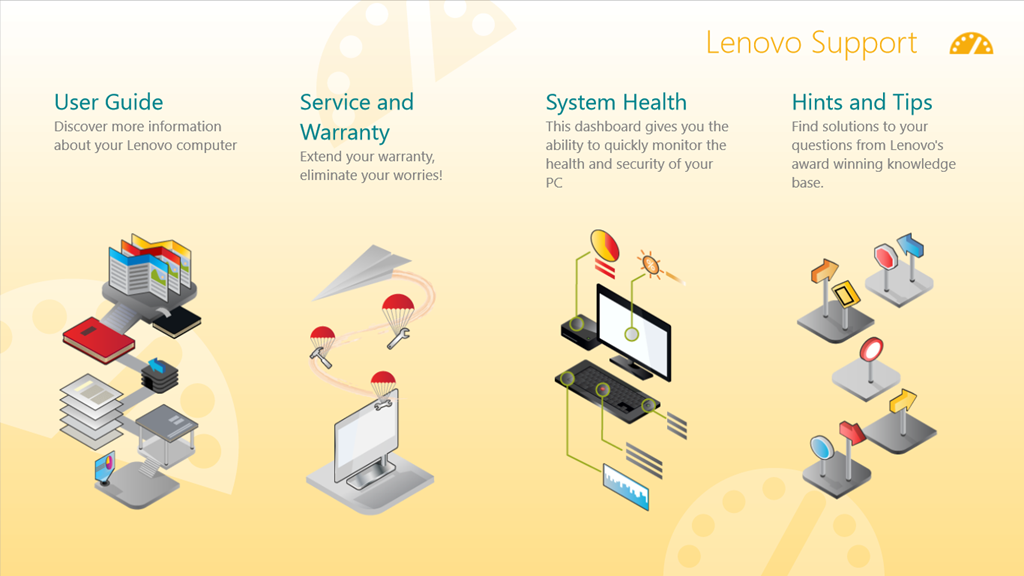
    The Support App opens with a horizontally scrollable window showing six sections:

    • User Guide
    • Services and Warranty
    • System Health
    • Hints and Tips
    • Knowledge Base
    • Discussion Forum

    TPT2 36

    TPT2 37

    The User Guide section launches the PDF file of the user guide in the Microsoft Reader App. While it may be thought to be a little more clumsy to launch the Reader, rather than display the user guide directly within the Support App, this does have one advantage. The Reader App is able to use the Devices in the Charms bar to print out pages from the user guide. The Support App (just like all the other Lenovo Apps) does not support Devices. What is more, the Reader App, unlike Microsoft’s Modern UI Internet Explorer and Mail Apps, can print out a subset of pages from the guide.

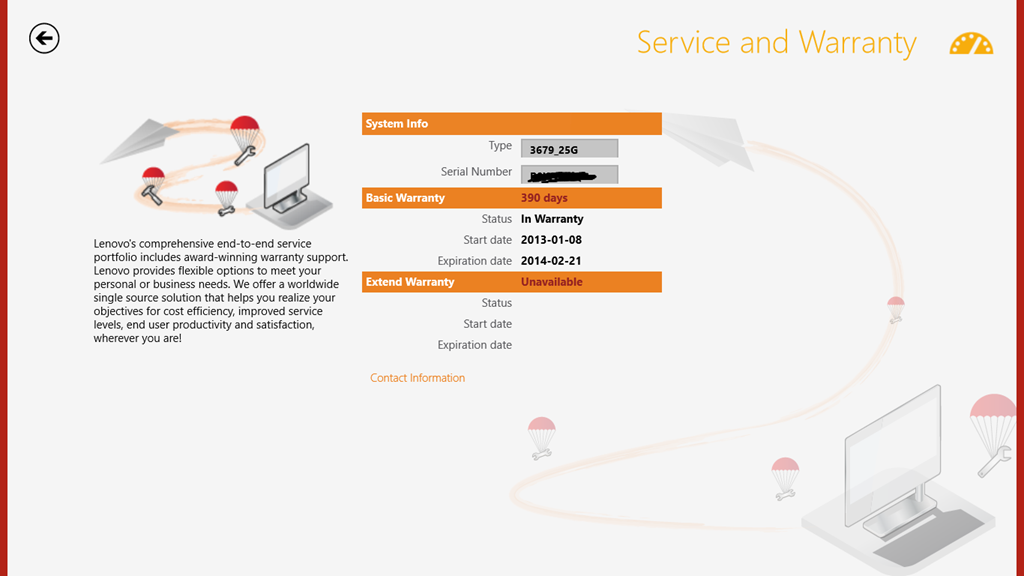
    I do like the fact that the Service and Warranty section displays the exact state of the warranty on my ThinkPad. It tells me how many days I have left before something will inevitably break – just after the warranty runs out, or am I being overly cynical here?

    TPT2 38

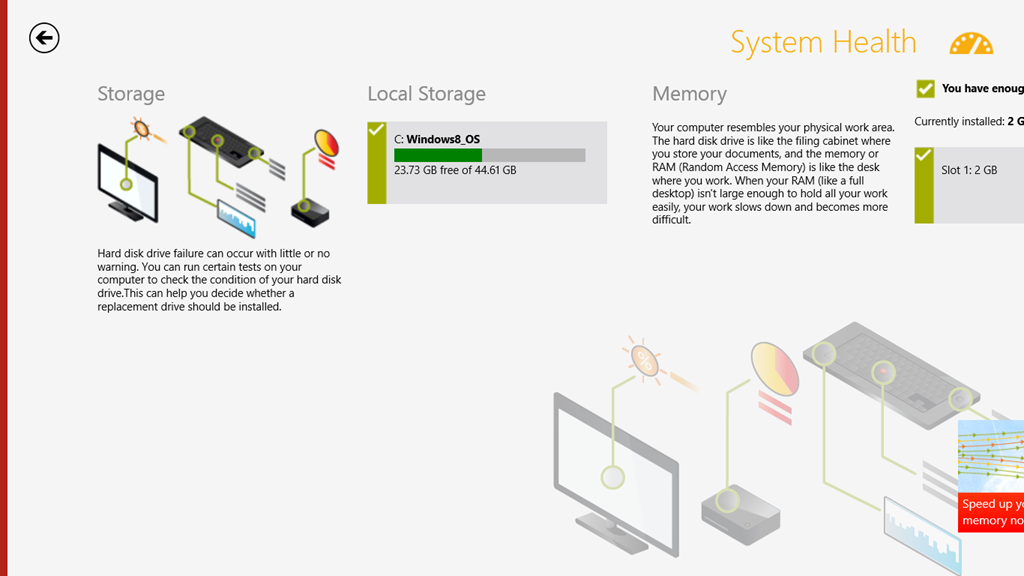
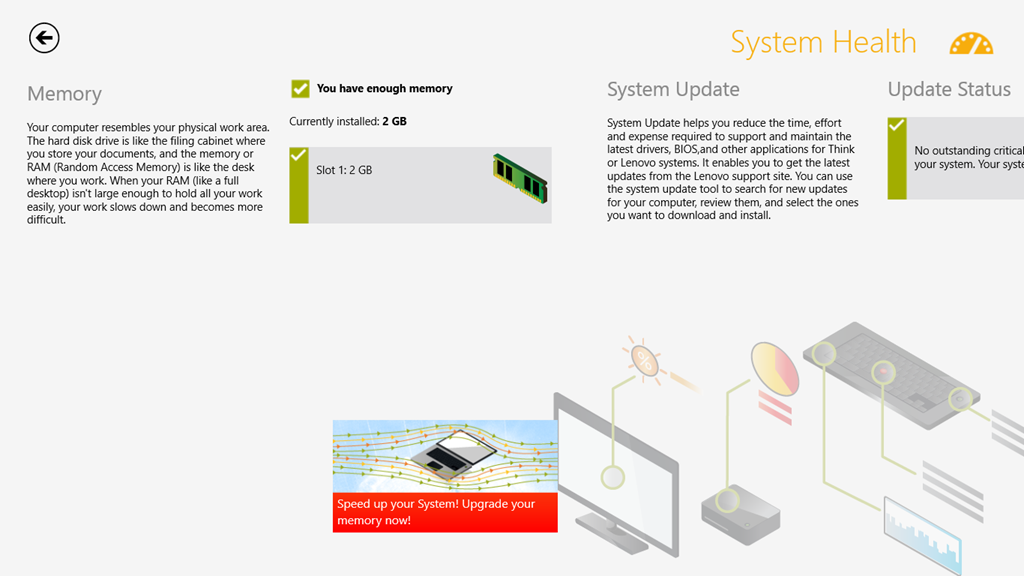
    The System Health section is a little useful. It does indicate the amount of free storage and the amount of installed memory. However, while it tantalisingly states that “You can run certain tests on your computer to check the condition of your hard disk drive”, it doesn’t actually tell you what these tests actually are and where to find them.

    TPT2 39

    I’m also slightly disappointed that under the memory section, there is a clickable link that takes you to the online Lenovo shop where you can buy additional memory. Er, the ThinkPad 2 uses the Intel Clover Trail Atom chip – this only supports a maximum of 2GB memory, and more cannot be fitted. That link should never appear if this App is running on the ThinkPad 2.

    TPT2 40

    Attention to detail is important, I think. It makes the difference between an acceptable user experience, and a great user experience. It also turns your users into active supporters of your products.

    The rest of the sections (“Hints and Tips”, “Knowledge Base”, “Discussion Forum”) show information scraped from the various Lenovo resources and forums on the web. Like the Companion App, these are shown directly within the Support App itself, rather than shelling out to the web browser. For a quick overview, this is probably OK, but frankly, if I want to read the Lenovo ThinkPad forums, it is far easier to read them directly in a web browser. I can also interact, by replying to threads or making new ones. I cannot do this from within the Support App.

    In summary, I find the App OK. It is good-looking, but without much depth. However, it can stay on my system.

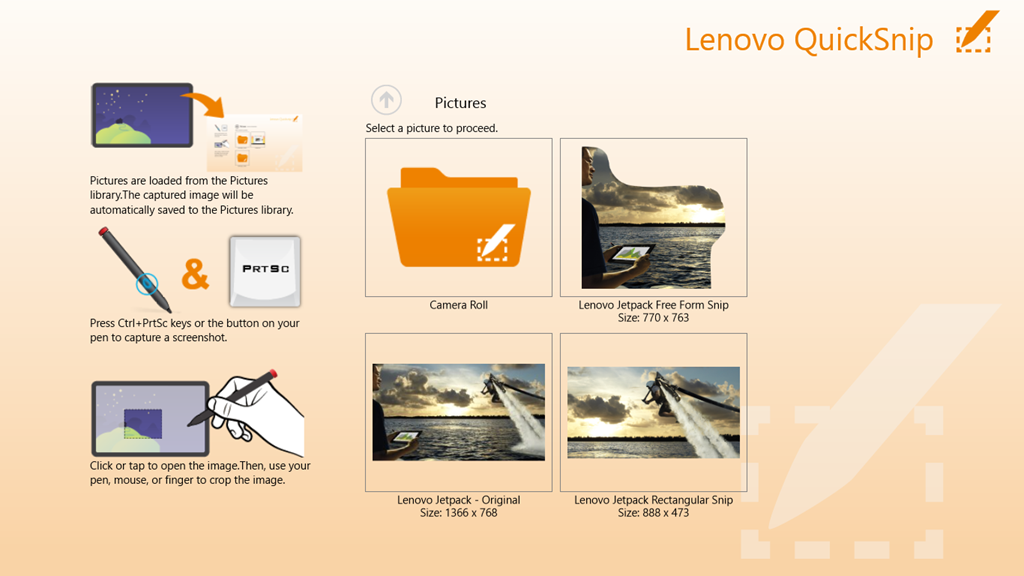
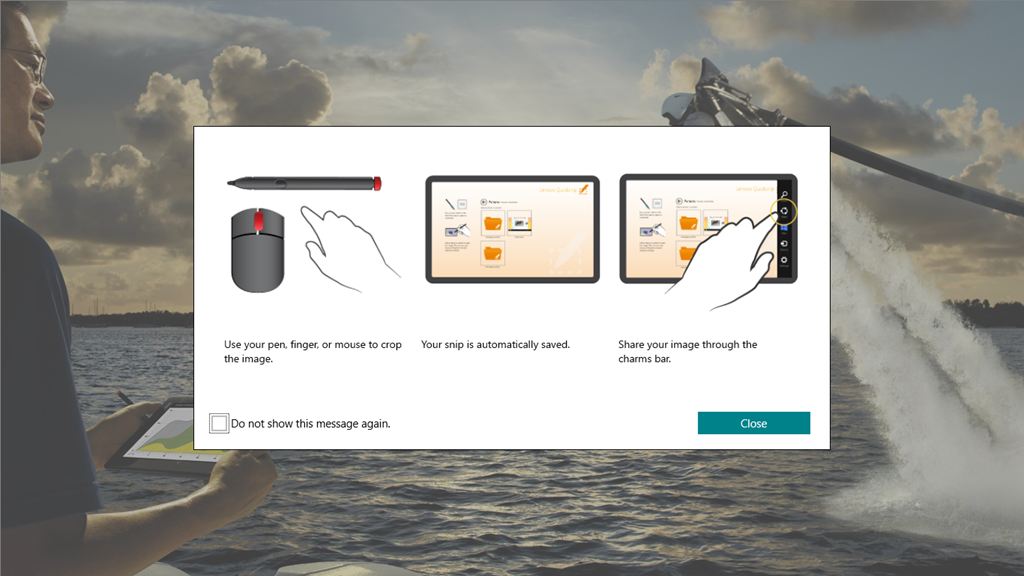
    The QuickSnip App is a simple image cropping tool, which uses the Share function in the Charms bar to pass on cropped images:

    TPT2 34

    TPT2 35

    This App from Lenovo is like the majority of the current crop of Modern UI Apps provided by Microsoft: almost entirely useless.

    I’ve just uninstalled it from my system.

    Overall, I cannot say that the Lenovo Apps have provided a great experience. I still think that the ThinkPad 2 hardware is basically a solid product, and I’m still very happy with my purchase. But I don’t think I’m head over heels in love with it. Perhaps I’m just too rational – I doubt whether I could ever be an Apple fanboi either.

  • Thoughts on the Lenovo Thinkpad 2 -Part III

    Following on from the last post, here’s some further thoughts on the software experience of the ThinkPad tablet.

    One criticism that I’ve often read of PC OEMs is that they stuff their machines with bloat-ware. While I don’t think that Lenovo is quite as bad as some, it still comes with some software of questionable utility.

    TPT2 18

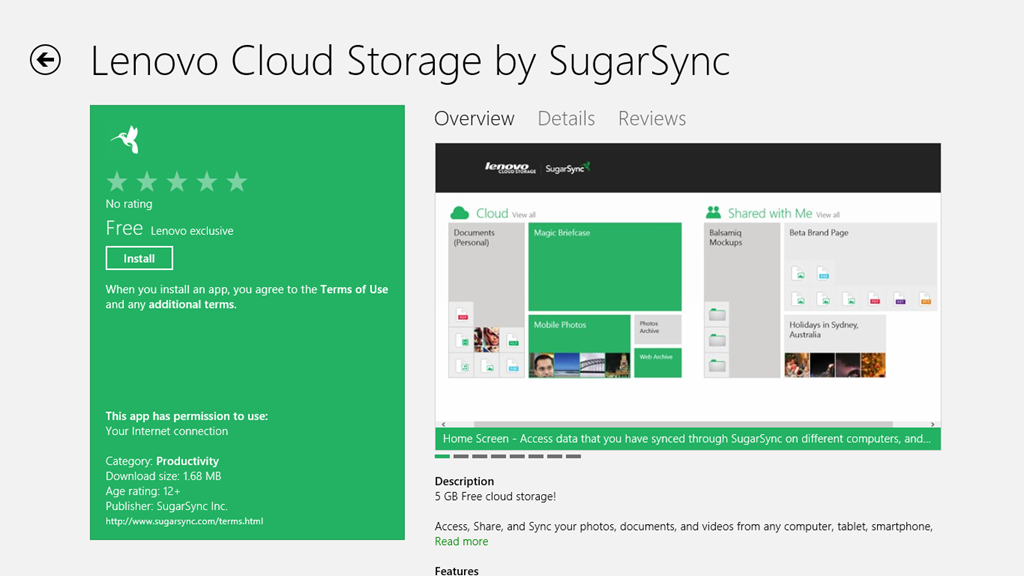
    Here we see five utilities, I’ve already removed a couple; the inevitable anti-virus trial, and an application to access Lenovo’s cloud storage

    TPT2 17

    Since I already use Skydrive (with luckily 25 GB free storage), I don’t need the hassle of managing more cloud storage.

    Let’s take a look at the remaining five applications. First up, the Companion App.

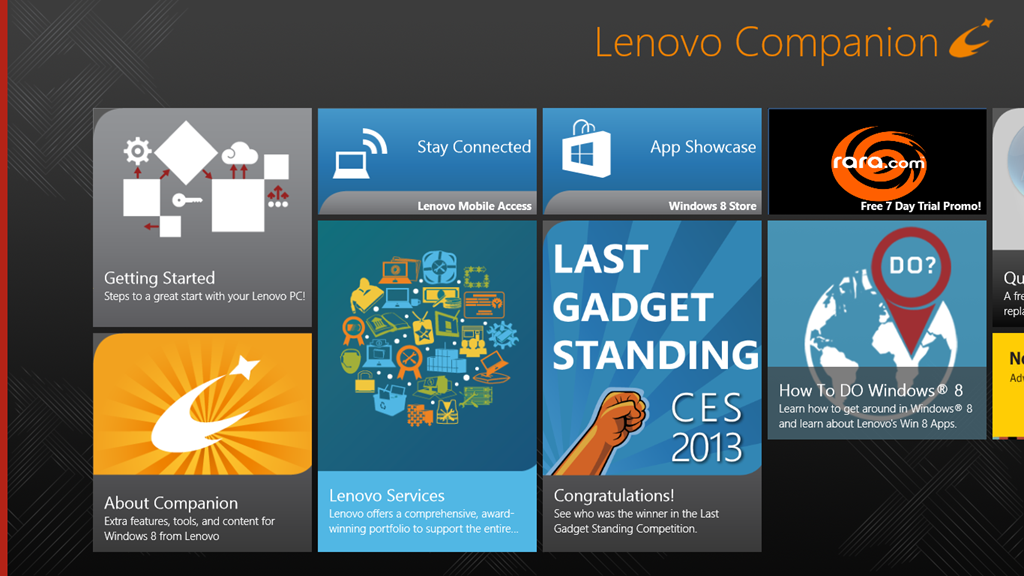
    TPT2 19

    Oh dear, this doesn’t look good. Basically lots of (questionable) style, and little (apparent) substance. OK, let’s take a look at the “Getting Started” section.

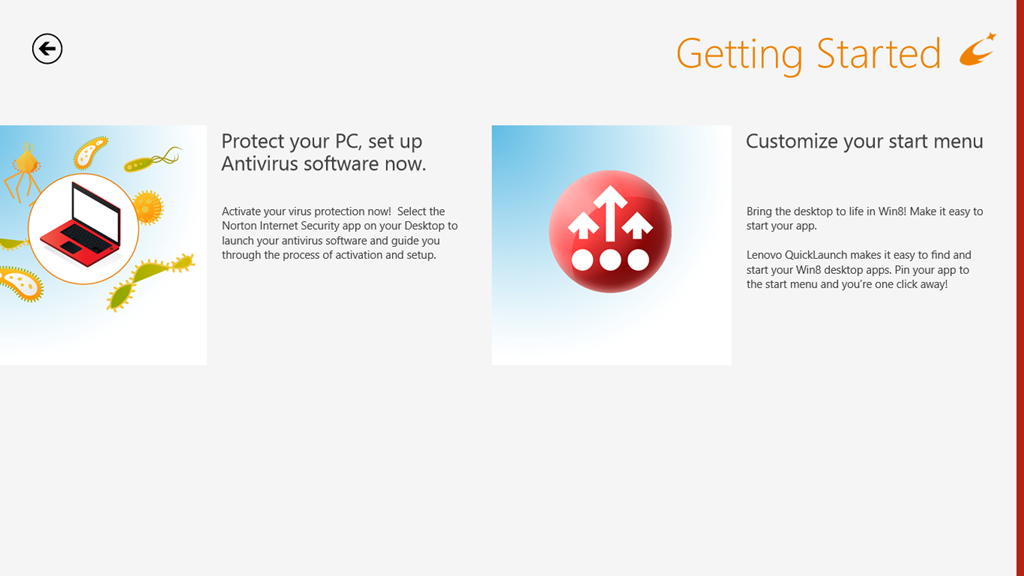
    TPT2 20

    Oh gawd, another invitation to install Norton Internet Security. Look, people, Windows 8 comes with a perfectly good anti-virus and anti-malware software out of the box. A Pox on your suggested alternatives. I’ve been there, I’ve done that. I’ve paid the money, had the bloated software experience, and frankly – no more…

    OK. What’s this “Customize your start menu” stuff?  Well, frankly, I haven’t a clue, because there’s nothing on that screen that is a link to take me to anything resembling a “Lenovo Quicklaunch”.  It’s dead. Fail number two.

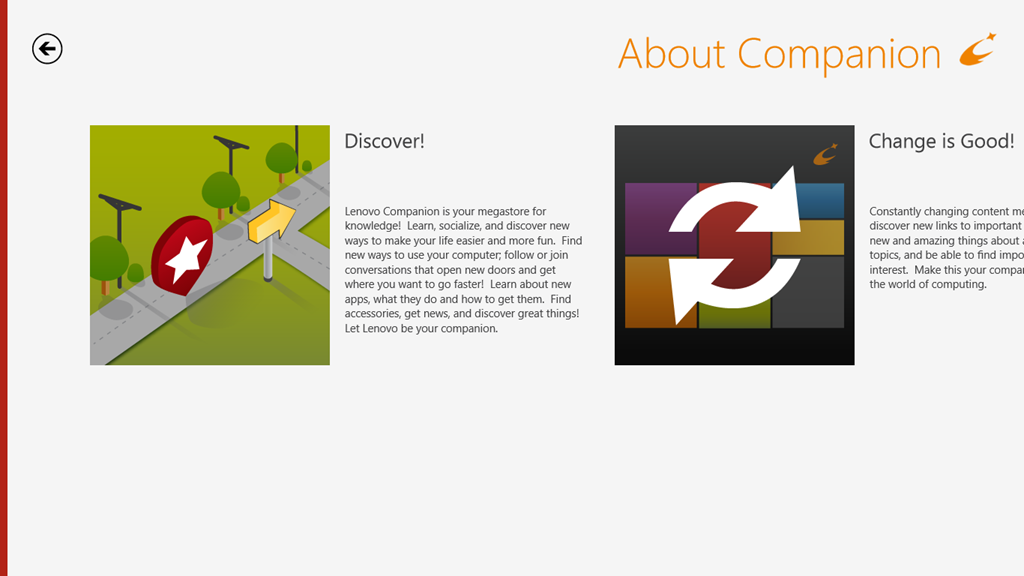
    So then I made the mistake of clicking on the “About Companion”  tile.

    Welcome to the land of Exclamation Points!!!

    TPT21

    Discover! Change is Good! Your Companion!

    Er, basically – fuck off.

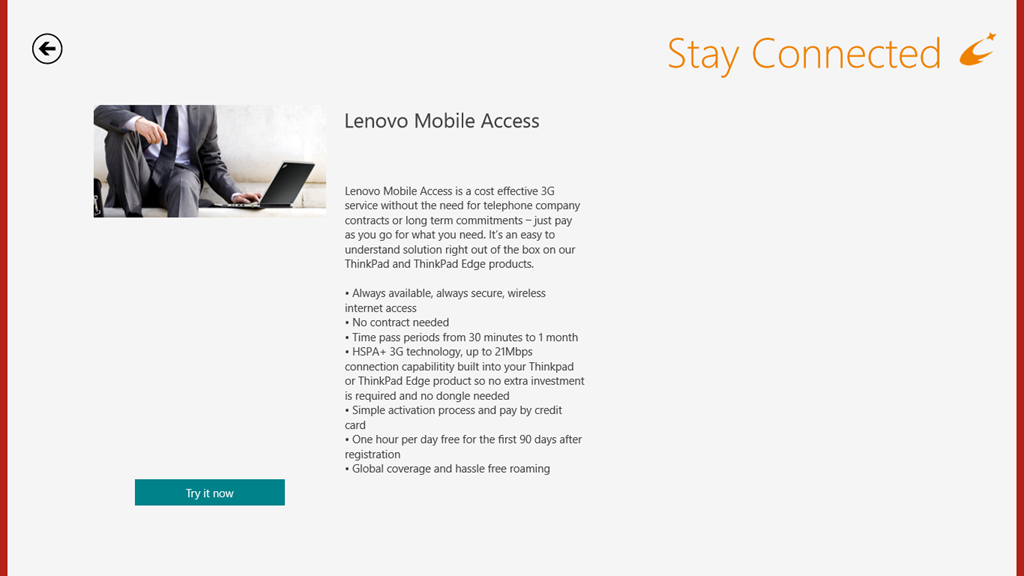
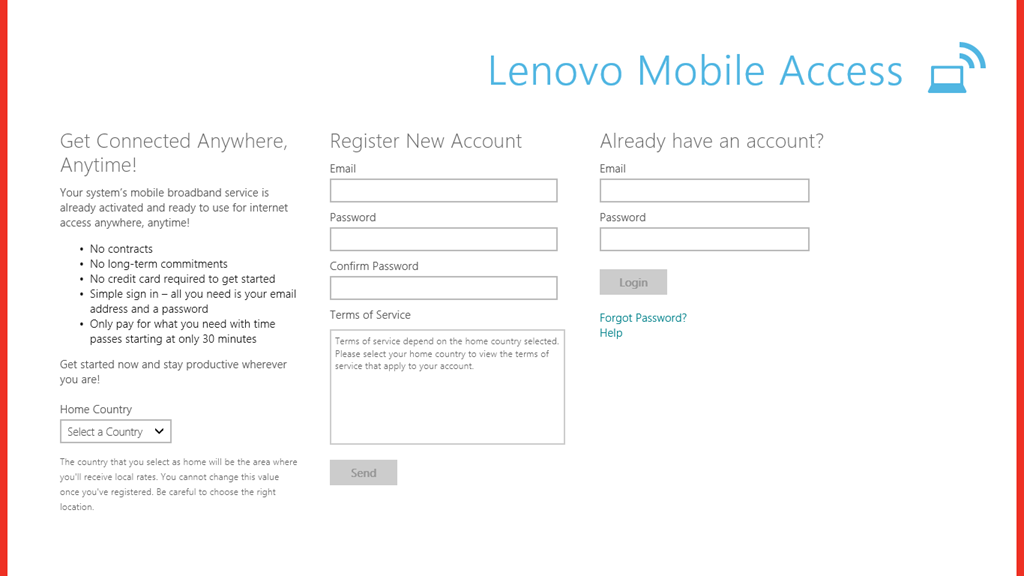
    OK – onwards to the next point in our journey: the “Stay Connected” tile. This is, as expected an advert for the Lenovo Mobile Access service.

    TPT2 21

    Well, this is all very well; but unfortunately, it doesn’t work for me, as I’ve documented here. I still haven’t had my connectivity issues resolved by Macheen’s Support service, so I’m continuing to use Vodafone’s service, thank you very much.

    Update 25 February 2013: I’ve now heard back from Lenovo/Macheen Support, and they have indeed fixed my problems with Lenovo Mobile Access, so I can now choose to use their pay-as-you-go mobile access service. Excellent.

    Update 30 December 2013: Ah, not so excellent. Lenovo/Macheen have deactivated my SIM card because I hadn’t used it for six months, and expect me to buy a new one to continue using their service. Sorry, guys, you’ve just lost a customer, and I’m certainly not recommending you to all my friends.

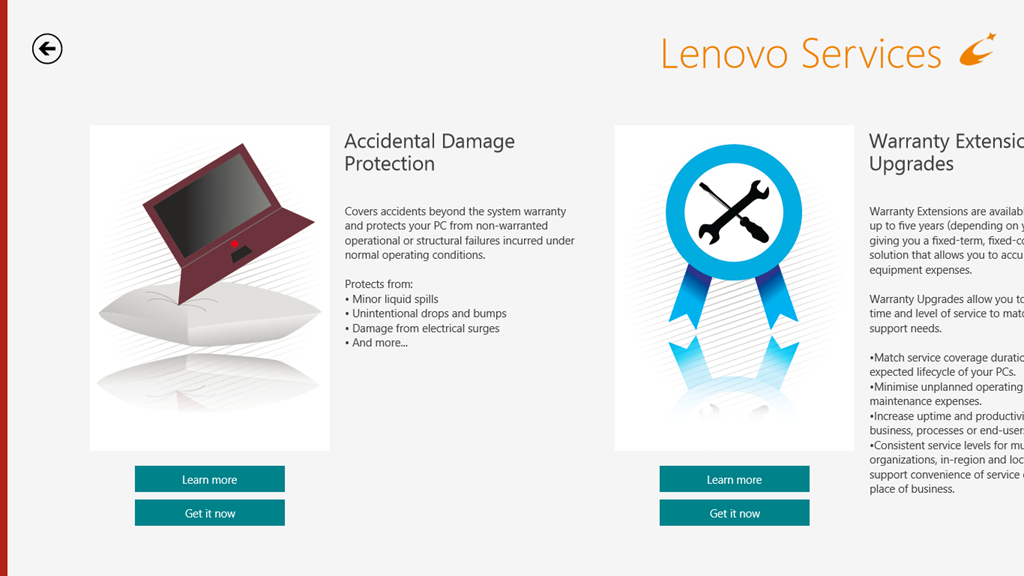
    Onwards to the Lenovo Services, with its very busy graphic. This turns out to be an invitation to shell out money to enjoy extra warranty protection or premium support services.

    TPT2 22

    While I have no objection in principle to this, I do wish that the developers of these web pages would realise that not everyone lives in the US of A and direct us to the local country services.

    On to the “App Showcase”tile. Personally, I’m underwhelmed, but maybe that’s just me.

    TPT2 23

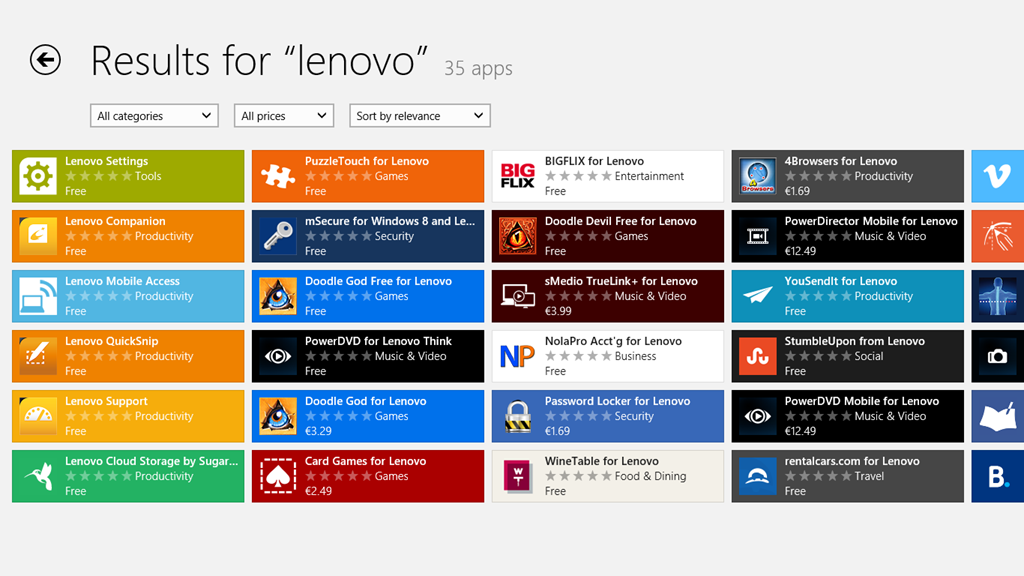
    After all, I could just search for “Lenovo” in the Windows Store and see many more possibilities to choose from. Or not, as the case may be:

    TPT2 24

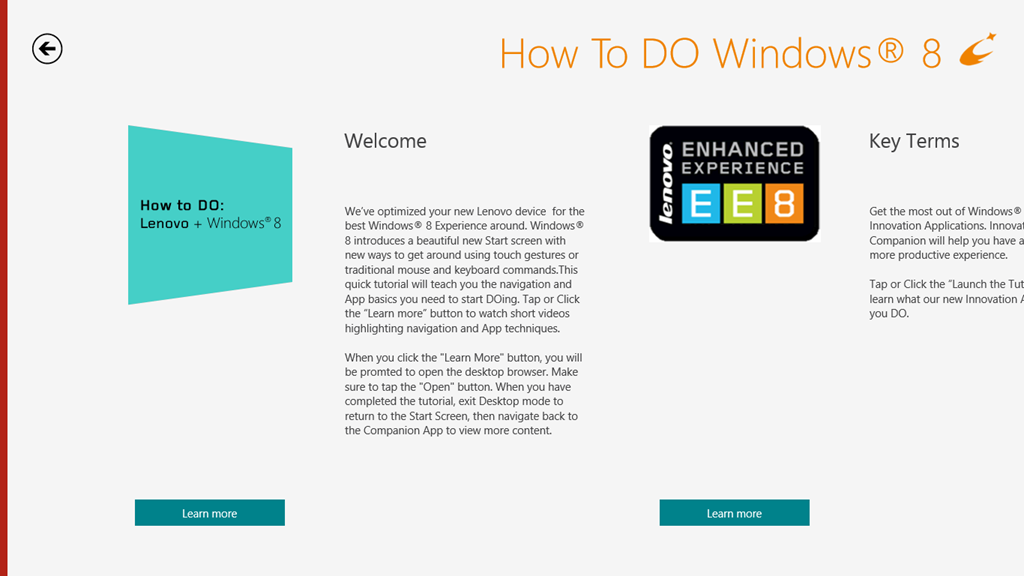
    I’ll skip over the “Last Gadget Standing” tile, which is a transient advert for an event in the past, and the “rara.com” tile, which is an invite to download yet another music service and move swiftly on to the “How to DO Windows® 8” tile. Really, the title alone is enough to make me want to lose the will to live. Still, let’s steel ourselves and press on.

    TPT2 25

    There are some ominous signs in the welcome message that this is not going to be a smooth experience. For example: “When you click the ‘Learn more’ button, you will be prompted to open the Desktop browser”. Oh dearie me; this does not bode well.

    And sure enough:

    TPT2 26

    Oh, dear god – is this really the best you could do?

    I’m sorry. I really need to pause and take a deep breath at this point. I’ll carry on with exploring the Lenovo experience later on, when I’ve had a chance to recover.

    I should just say that I do rather like the Lenovo ThinkPad 2 tablet. It’s just that the software that’s been tossed onto it rather sours the overall experience.

  • Thoughts On The Lenovo ThinkPad 2

    I received my Lenovo ThinkPad 2 tablet last Friday. Since then, I’ve been playing around with it to get a feel for the good points and bad points of both the tablet itself, and how the experience of using Windows 8 on a proper tablet might be.

    First the hardware.

    As I wrote last week, I chose the Lenovo tablet from a shortlist of four. Well, five if you include the outside candidate: the Microsoft Surface Pro tablet. There were a number of reasons as to why I picked out the Lenovo tablet.

    • The build quality looked  promising.
    • The dimensions were compact, so that the tablet was not unwieldy. It could be comfortably held in one hand.
    • The pen could be stored in a silo in the tablet itself’. The three other tablets on my shortlist came with loose pens.
    • The particular model of the ThinkPad range that I chose (the 3679-25G) came with a full set of sensors and capabilities: GPS , WiFi, Bluetooth, WWAN and NFC.
    • It was a pure “slate” tablet.

    A couple of the other models on my shortlist were hybrid convertibles. That is, they looked like notebooks, but the “screen” could be completely detached, and then they acted as a slate tablet. Such hybrids have their advantages – for example, some carry an extra battery in the keyboard section for extra life between charges. But in the end I decided that the form factor was not what I was looking for. I already had a wireless keyboard (a Microsoft Arc) that I could use directly with the tablet when required.

    So how is the hardware shaping up? Well, so far, I think it’s shaping up pretty well. The build quality does seem to be very good and the form factor is just right for me. There are trade-offs though. Because of the small form factor, the pen is smaller than I would like. It is a bit fiddly to use for long passages. In fact, while this whole post has been created using a pen, from this point on I’ve changed to using a full-size pen (an ancient Wacom pen that I’ve had for at least 10 years). The supplied pen will still be fine for quick notes, and for on the road use; but for extended writing, the full-size pen is much more comfortable.

    One thing, like all the tablets currently available, it has a smooth glossy screen. This is all very well, but it does mean that the feel of the pen writing on the glass is very slippery – like writing on glass, in fact. I might look out for a screen protector that turns the experience into something that approximates closer into writing on paper.

    The display is bright and clear enough for me and with a wide viewing angle. I admit that I haven’t tried to use it outside in the garden in bright sunlight, but that’s partly because we have overcast skies, 20 cms. snow, and -8 degrees Celsius at the moment. There is only so much that I’m prepared to suffer in my testing. The sound quality is also good enough for me. It’s a tablet, for heaven’s sake, not a piece of Hi-Fi equipment.

    Battery life is perfectly acceptable. I’m getting a day’s use out of it, and that seems to be improving as the battery beds in.

    The cameras front and back seem OK. I have not done any extensive testing on them. I’ve had a couple of Skype sessions with the front camera, and everything seemed perfectly satisfactory to both parties.

    Looking at the Lenovo forum devoted to the ThinkPad slates, there are two hardware issues that are being reported. These are:

    I have not tried a range of USB devices, so I cannot confirm this issue. However, even if my tablet suffers from this issue, I would not consider this a showstopper because of my patterns of usage. But I can well understand that for some people it would be – for example, those who need true portability on the road with no power point in sight and who need to plug in external hard drives into their tablet.

    I have not seen any evidence of unacceptable lack of sensitivity in the WiFi of my tablet. It seems perfectly normal to me.

    Update: it’s possible that this poor sensitivity is being caused by an assembly issue. A recent posting in that thread suggests that the cable connector of the WiFi antenna is not seating correctly on the WiFi board in the models showing poor sensitivity.

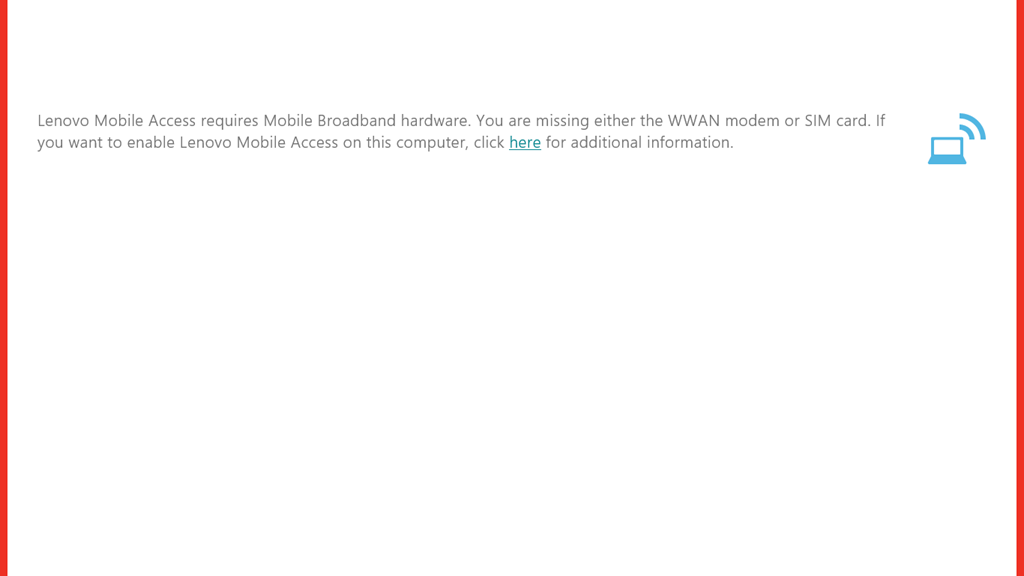
    I do have an issue with my WWAN connectivity at the moment. This model has a WWAN modem, and came with a Lenovo SIM card installed. When I start up the Lenovo Mobile Access App, I see the start screen, then briefly a screen with fields for my user details, but immediately this is overlaid with an error screen that claims that I am missing either the WWAN modem or my SIM card.
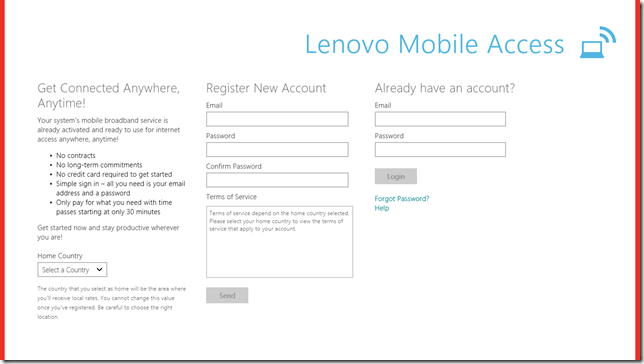
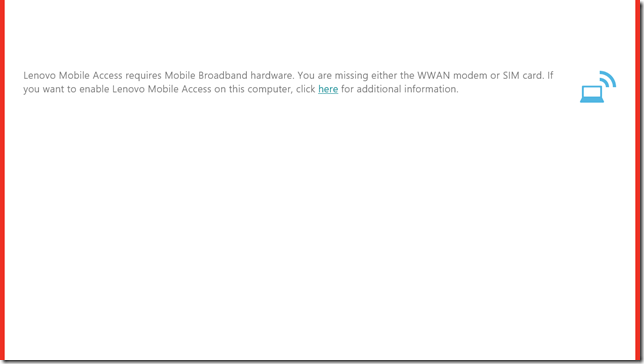
    TPT2 5

    TPT2 4

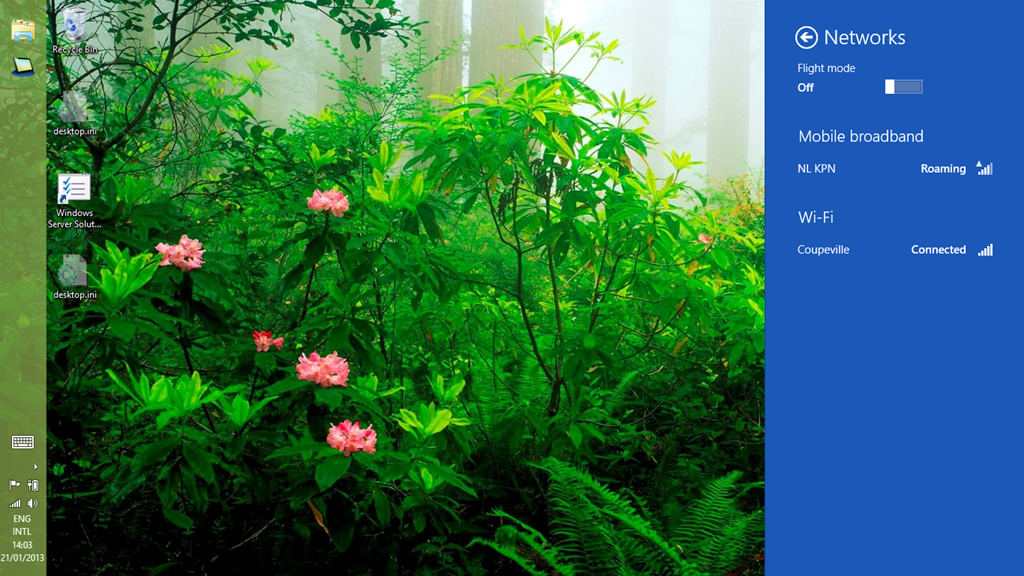
    However, both the WWAN and SIM card are present. In the Windows 8 Network settings there is a Mobile Broadband network shown, with NL KPN showing as the network service provider.
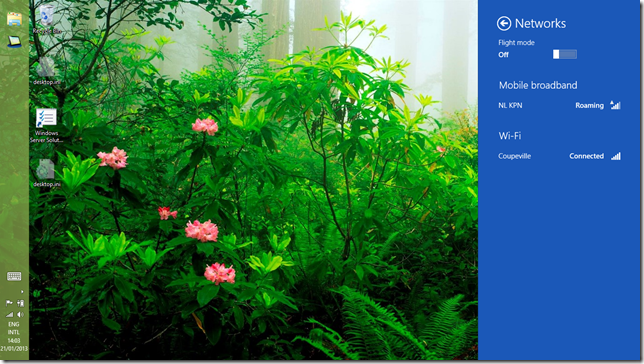
    TPT2 3

    Unfortunately, the fields for the APN, username and password are all blank. I can hear network activity is present, by the interference on the speakers of my desktop PC nearby, so I assume that the WWAN and SIM card are working. The device manager is also claiming that the WWAN modem is working properly.
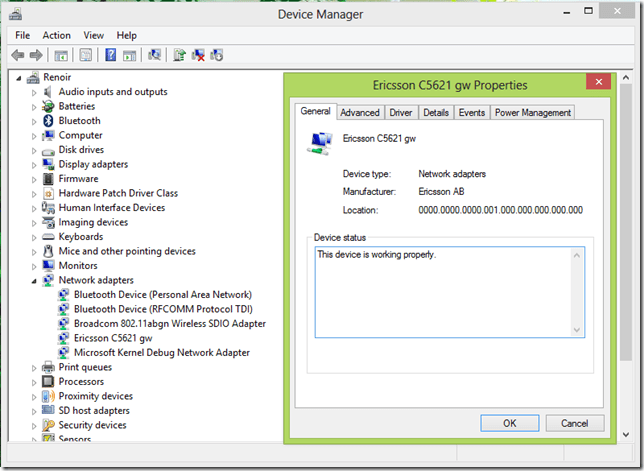
    TPT2 2

    I rang the helpdesk and unlike many of my experiences, the person I spoke to was very helpful. I sent through the logs of the application via email at his request and a support ticket has been opened.

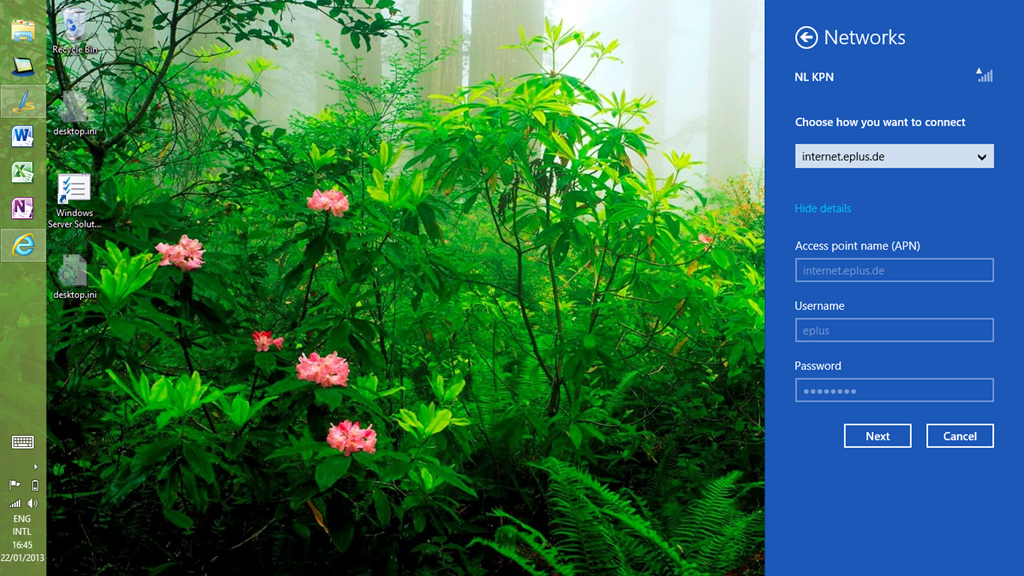
    Today, I noticed a change. The APN and other fields now had values in them.
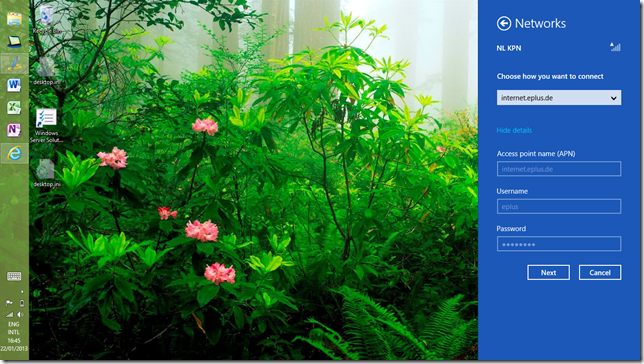
    TPT2 6

    I assume that they have been put there by a Macheen engineer (the company that provides the mobile access services for Lenovo). However, I still can’t connect. This is probably because the engineer has put in the details for an APN in Germany, while I, and KPN, reside in The Netherlands. I’ve sent another email to the support service, so we’ll see what will happen.

    Update: I had an email reply back from Support, which contained another set of APN details. I tried this, and definitely got connected to their mobile access service, but alas, the Lenovo Mobile Services App is still complaining that either the WWAN modem or the SIM card is missing. It’s lying, and I’ve told Support this. We’ll see what they come up with next…

    Update 2: While I’m waiting for Lenovo/Macheen Support to get back to me, I thought I’d try a Vodafone pre-paid SIM card in my tablet. Vodafone NL are offering these pre-paid SIM cards for Tablets for free at the moment, so it didn’t cost me anything to try it.

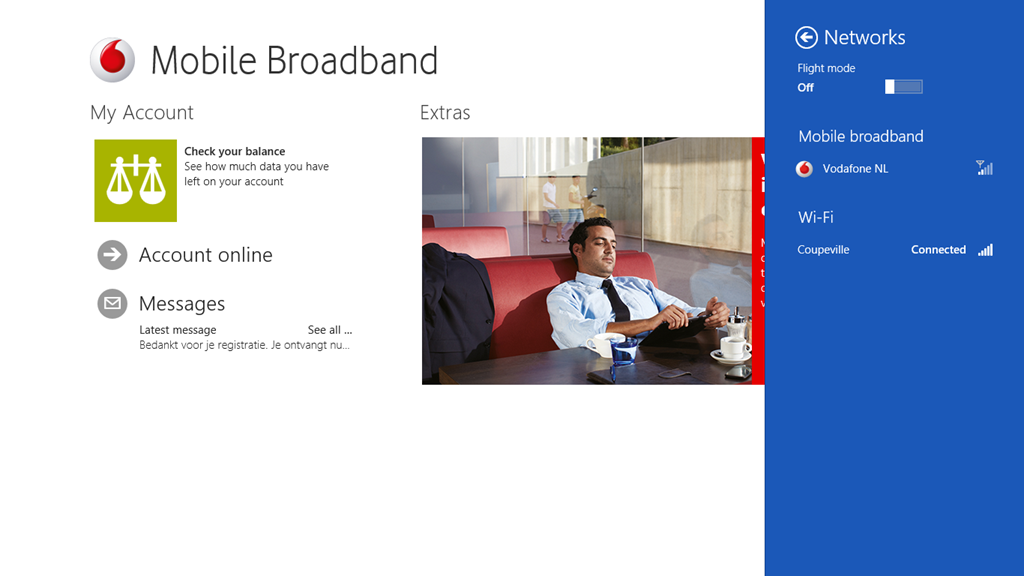
    The experience was pretty straightforward. I plugged in the SIM, looked at the Network settings, and it showed a “Locked” indication. Touching that brought up the field to enter the SIM code, which I did, and then it showed a Vodafone NL service connection. Interestingly, it also showed a link to download the Vodafone Windows 8 Mobile Access application. Touching that took me to the application’s entry in the Windows Store, so I installed it.

    Now I have a working Broadband connection which I can use while I’m travelling. The Vodafone app is pretty good and straightforward to use. Here’s a screenshot showing the app, with the network settings screen overlaid on the right.
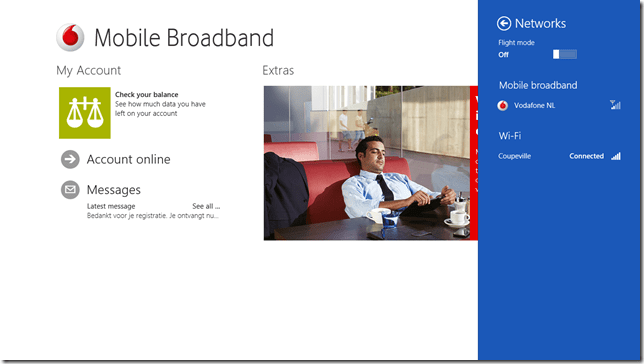
    TPT2 10

    I may just stick with the Vodafone service.

    That is all I can think of now. I’ll put my thoughts on the software into another post.

    Update 3: Here are the other posts concerning my impressions of the ThinkPad’s software experience.

    Thoughts on the Lenovo Thinkpad 2 -Part II

    Thoughts on the Lenovo Thinkpad 2 -Part III

    Thoughts on the Lenovo ThinkPad 2 – Part IV

    Update 4: well, I’ve had my tablet for ten days now, and I thought I’d add a few comments on how the tablet has been behaving during that time.

    When I first started it up, there were thirty-four Windows 8 updates that needed to be applied, and these all went without a hitch. Similarly for some Modern UI App updates. On the second day, I installed Office 2010 on the tablet, and that then installed twenty-seven Office 2010 updates. A day later, I had a further ten Windows 8 updates installed automatically. Since that initial flurry of activity, there has been the usual daily update of the Windows Defender signature file. All this has gone faultlessly.

    During the ten days of operation, I have had just two occasions where the pen and touch input stopped working, and I needed to restart the tablet. I see that on the Lenovo forum, there are complaints that the tablet does not wake up after going to sleep. However, for me, there has only been one time when I couldn’t bring the tablet out of sleep, and I needed to physically reset the machine by pushing a bent paperclip into the reset hole. Other than that, the machine has behaved faultlessly. I am very pleased with it.

    Update 5: 25 February 2013. I’ve just had an email back from Lenovo/Macheen support saying that they’ve fixed my problems with using Lenovo Mobile Access. And indeed they have – it’s now working satisfactorily. Now I just have to decide whether I continue with the Lenovo or the Vodafone service. Ah, decisions, decisions.

    Update 6: 11 May 2013. Some people have been reporting issues with the speakers in the ThinkPad Tablet; one of the speakers, usually the one on the right hand side, will start distorting the sound, and playing back at a lower volume. It’s now started happening on my tablet. It’s a hardware issue, so to fix it means returning the tablet for repair under warranty.

    Update 7: 26 May 2013. I raised an Electronic Service Call with Lenovo on the 14th. Two days later (Thursday), the tablet was picked up by courier for delivery to a repair centre in Frankfurt. A week later, the tablet was repaired under warranty and returned to me on the Friday. That was a turnaround of four working days (we had a holiday weekend), and within Lenovo’s target of six working days for repairs. I’m pleased with this.

  • Test Post

    This is a test post made on my new Lenovo ThinkPad 2 using the handwriting recognition of Windows 8. I must admit that it’s pretty scarily good at recognising my scrawl.

  • I’m Sorry, I Haven’t a Clue

    You know, I think it is preferable for someone to acknowledge that they don’t know the answer, rather than to either studiously ignore the question, or make something up on the spot.

    This has been brought to mind during my hunt for a suitable Windows 8 Tablet.

    You may recall that I haven’t been too impressed with the current state of the Windows 8 Tablet market. Well, it’s now six weeks further on, so I’ve been gathering more data points in my search for a suitable tablet to invest in.

    My shortlist of tablets came down in the end to

    The Lenovo and the Dell are pure tablets, while the Asus and HP are hybrid convertibles – they can be used as notebooks, but their keyboards completely detach when required. All four supposedly had active digitizers with proper pen support, which was one of my requirements.
    I also had an outside candidate, the Microsoft Surface Pro. Outside, because although it uses the more powerful Intel Core i5 CPU, in place of the Intel Atom Z2760 CPU used in the above tablets, this in turn means that it has a shorter battery life, and requires a cooling fan. There’s also a question mark over whether it will be available in the Dutch market.
    In the end, I dropped both the HP and the Asus from consideration. The HP, while it supposedly had an active digitizer, the pen was optional, and at the moment is completely unobtainable. In fact, it’s like the mythical unicorn – some people claim to have seen it, but in practice, it’s missing in action. The Asus looks good, and seems to have a decent build quality, but what finally knocked it out of consideration for me is the fact that Asus support is lagging badly. Unlike the other vendors, Asus still do not yet have updated software drivers available for their product, or the Intel Atom chipset. That’s not a good sign in my book.

    It was then down to a choice between the Lenovo or the Dell. I liked the fact that the Dell had a replaceable battery, but on the other hand, the prices for the accessories were always higher than for the Lenovo range. So my choice came down to the Lenovo Thinkpad 2.

    The problem was, that there was not just the one model in the Thinkpad 2 range, there was a veritable army of them, and it was far from clear as to what precisely the differences might be, or what what be available in the Dutch market.

    Lenovo publish documents that detail the models that are available in Western Europe. The first time I looked, last December, there were only a few to choose from. Then, in January, more became available. There seemed to be two series of products: the 3679 series and the 3682 series. From the published information (as of January 2013), that detailed the models as follows:

    Type-model Storage

    Tablet
    Pen

    WWAN NFC O.S.
    3679-23G 64GB No None None Win8 32
    3679-24G 64GB Pen Yes None Win8 Pro32
    3679-25G 64GB Pen Yes NFC Win8 Pro32
    3679-2PG 32GB No None None Win8 32
    3679-4HG 64GB No Yes None Win8 32
    Type-model Storage

    Tablet
    Pen

    WWAN NFC O.S.
    3682-28G 64GB Pen None None Win8 Pro32
    3682-29G 64GB Pen None NFC Win8 Pro32
    3682-25G 32GB No None None Win8 32
    3682-42G 64GB No Yes None Win8 Pro32
    3682-4FG 64GB Pen Yes NFC Win8 Pro32

    However, when I looked at the sites of the Dutch retailers, I was seeing a completely different series of numbers:

    N3S23MH – 64GB, Win 8 (not clear whether it has the pen or NFC)
    N3S25MH – 64GB, Win 8 Pro (not clear whether it has the pen or NFC)
    N3S4HMH – 64GB, Win 8 (not clear whether it has the pen or NFC)
    N3S2PMH – 32GB, Win 8 (not clear whether it has the pen or NFC)

    Looking at all the sets of numbers, and the prices, then I was fairly sure that the mapping would be:

    3679-23G – N3S23MH
    3679-24G – ?
    3679-25G  – N3S25MH
    3679-2PG – N3S2PMH
    3679-4HG – N3S4HMH

    However, I had no clue as to what the difference was between the 3679 and the 3682 series.

    I documented all this in the Lenovo Thinkpad forum, and hoped that someone from Lenovo would pop along to clear up the confusion.

    No such luck.

    And there it stood until a few days ago when I saw that one of the Dutch retailers (only the one so far) had the N3S25MH model arriving in stock. So, I emailed the retailer to ask whether this model shipped with the digitizer and the pen.

    No response.

    Yesterday, the model was showing as in stock, so I asked again. I also took a chance and ordered it.

    Of course, as soon as my order was accepted, I had a reply from the retailer that (1) this model did not come with a pen, but that (2) I could order a pen part number FRU39T0803. Naturally, this pen was NOT the Thinkpad 2 pen, but something else entirely. 

    Clearly, either this salesperson did not have a clue, or my assumption that the N3S25MH model was the 3679-25G model was completely wrong. I might add that a few weeks back, I was reliably informed by another Dutch reseller that the N3S23MH model came with a digitizer and pen (it doesn’t).

    Well, the Thinkpad 2 arrived today, and I’m relieved to report that the N3S25MH is exactly the same as the 3679-25G model – it even says this on the box. So it came with the pen, with WWAN and NFC.

    It also came with a large sticky label plastered on the back saying NON-ENCRYPTION. I suspect that this is the difference between the 3679 series and the 3682 series. The latter has the TPM hardware fitted and enabled, while the former does not.

    It is a bit frustrating that we have to figure all this out by ourselves. Lenovo don’t make it clear, and their resellers, judging from my experience of the Dutch resellers, don’t have a clue.

  • Pwned!

    I couldn’t help but chuckle over this quote from Vint Cerf during his presentation at CES yesterday. He was speaking at the Consumer Electronics Show’s “Silvers Summit” on technology geared toward the older population:

    “Some people think silver surfers don’t know how to use technology. I have news for you: some of us invented this stuff,” the 69-year-old Cerf noted.

    Thank you Vint. It needed saying.

  • A Small Demonstration

    I admit that I am getting fed up with two things.

    • The constant drip-drip of people complaining about Windows 8, and how it is a disaster of epic proportions.
    • Microsoft’s seeming inability to market Windows 8 as something that really is a step change for the better.

    So it gives me some pleasure to be able to claim that someone, somewhere in Microsoft knows how to do proper marketing. Enter the (small) demonstrator.

    I really like the punchline at the end. It punctures prejudices on a number of levels.

  • Stop The World, I Want To Get Off

    There is much to admire about the march of technology, but it has its dark side as well – a rate of obsolescence that takes my breath away.

    A case in point.

    I thought that I would upgrade our Home Theatre PC, which has been running Windows 7 and Windows Media Center quite happily for a couple of years, to Windows 8 Pro and the castrated Windows Media Center that comes with it.  This was done just to see:

    1. whether the latest and greatest software actually gave any improvement over what I had, and partly,
    2. to position myself to take advantage of the possibility that new Windows 8 applications might prove worthy replacements for the venerable Windows Media Center.

    Well, I tried. I have given the new setup a month or two, but today I went back to my trusted Windows 7 + Windows Media Center combination.

    What transpired was the fact that Microsoft really, really want to kill Windows Media Center stone dead, and Intel really, really, are just not interested in supporting older hardware with Windows 8 drivers.

    I battled with the fact that Microsoft had taken functionality out of Windows Media Center for Windows 8 Pro, and wrote scripts to boot directly into Windows Media Center when the HTPC was turned on. That sort of worked, not always, mind. I had the feeling that it was a string and sealing wax sort of solution. But I could more or less live with it.

    However, today I finally discovered something that had been lurking in the undergrowth all along. Our HTPC uses a motherboard that has the Intel 1156 socket and the H57 chipset. I was concerned that the software drivers for Windows 8 were not of the best, and today I discovered why. Intel don’t make Windows 8 drivers for the CPUs and chipsets for the products that use the 1156 socket. They date from 2010.

    Er, hello, this is not yet three years old, and it is obsolete?

    A plague on both your houses.

    I’ve restored the system images of our Windows 7 + WMC software onto our HTPC (thank heavens at least for Windows Home Server 2011). We’ll struggle on somehow without the dubious benefits of Microsoft’s and Intel’s efforts to sell us newer technology.

    Fuck ‘em.

  • Keep Taking The Tablets

    OK, I admit it – I am frustrated by what seems to me to be the utter failure of a straightforward piece of design and marketing. What is it with the hardware manufacturers at the moment?

    I’m in the market to acquire a tablet PC. Note, I said a tablet PC, not an iPad or an Android tablet, both of which, given my starting point in the Windows world, I consider to be pointless pieces of frippery.

    I want something that recognises my handwriting, and that doesn’t get confused when I rest my palm on its screen as I write, as I do. Something that I can install and run some of my more idiosyncratic Windows applications without bleating that it does not compute. And although ultimately I might want something that can act as either a tablet or a full-blown desktop PC (what I term Origami computing), at this stage, I would be comfortable with something that acts simply as a tablet – something that I can relax on the sofa with, and dash out the odd blog post or email, but yet can rise to the occasion of dealing with my handwriting or to do something more than simply ponce about. It doesn’t have to have enormous reserves of computing power, just something that runs a good slew of my current applications without too much fuss.

    And, since I’m firmly in the Windows world, that rules out all of the Apple, Android, and Linux ecosystems.

    And in the Windows world, I am currently disappointed by the choices on offer. It may well simply be down to a timing issue – the hardware (Intel) and software (Microsoft) just not coming together at the right time.

    In an ideal world, at the launch of Microsoft’s Windows 8, there would have been a plethora of Windows 8 tablets to choose from. Instead, we’ve essentially had just two: Microsoft’s Surface RT and Samsung’s ATIV Smart PC.

    The problem with the Surface RT, for me, is threefold:

    • it’s incapable of running traditional Windows applications,
    • it’s not available in most countries – in particular, not here in the Netherlands, and
    • it’s not capable of decent handwriting recognition – it uses a capacitive pen, not an active digitiser, so I can’t rest my palm on the writing surface when I write, as I have done for the last 55 years.

    So, the Surface RT is out of the running.

    Enter Intel’s latest generation of the Atom chip – the Z2760. This actually has a lot going for it. It’s apparently a better performer than the older Atom processors, with less thirst for electrical power. It will also run traditional Windows applications.

    The trouble is that it’s in short supply at the moment. Samsung seems to have been first in line, delivering the Samsung ATIV Smart PC. I was very tempted, by this hardware, but the first wave of supplies seem to have been snapped up, and, more worryingly, reports are emerging of a hardware problem of the tablet not making a good connection with the keyboard dock.

    Behind Samsung, both HP and Lenovo are reportedly introducing models based on the Intel Z2760 during December: The HP Envy X2 and the Lenovo Thinkpad 2.

    Both models have much to commend them, but currently I’m more inclined to the Lenovo, simply because I can purchase it as a pure tablet, and it reportedly comes with GPS capability, which neither the Samsung, HP nor the Microsoft Surface tablets possess.

    Yesterday, Microsoft announced the pricing of the second model in their Surface range, the Surface Pro. I must confess that I really don’t understand what Microsoft are playing at here. It’s based on the Intel Core i5 processor. Yes, it’s a more powerful processor than the Intel Atom Z2760, but it’s also more power-hungry, and it requires a fan to keep it cool. Battery life with the Surface Pro is likely to be half that of the Surface RT and equivalent Atom Z2760 devices, and I really want a tablet that is a sealed unit, not a hand-warmer. It does come with an active digitiser and pen (probably Microsoft’s own, rather than the Samsung’s S-Pen, a Wacom design, or the HP’s Atmel pen Latest buzz is that it is using Wacom technology, which is good).

    Still, at this stage, I’m not ready to switch over to Origami computing, and commit to one device that can act as a tablet and a full desktop PC. I’m also not convinced that this first generation Surface Pro is the device to do that with. I think that I should wait a year or two for the Intel Haswell or Broadwell processors to become available. That is the time when I think Origami Computing comes of age.

  • Microsoft’s Marmite – Part 2

    Back in March, I wrote a post called “Microsoft’s Marmite”, which likened the reactions of people to Marmite to their reactions to Windows 8 – they either love it or hate it.

    Now that Windows 8 has been released, I continue to be amazed at the amount of vitriol being poured upon it. I really can’t see what all the fuss is about. Yes, there are some radical changes in the user interface, but I certainly don’t find them a problem at all.

    In that light, I was somewhat amused to read Jakob Nielsen’s condemnation of the design of Windows 8. After all, he’s the design guru who jointly set up the Nielsen Norman Group along with Don Norman, another design guru, who has written:

    Windows 8 is brilliant, and its principles have been extended to phones, tablets, laptops, and desktop machines (and larger — for example, Surface), whether operated by gesture, mouse and keyboard, or stylus, but with appropriately changed interaction styles for the different sizes of devices and different input devices.

    (note: the Surface device that Norman refers to is Microsoft’s table top device, now renamed as Microsoft PixelSense – he wrote this piece before Microsoft announced their Surface tablets)

    As well as being amused, I confess to also being more than a little irritated by Nielsen’s review, because it seemed to me that he was often deliberately misrepresenting what Windows 8 is, and how it behaves in practice.

    For example, he writes:

    “Windows” no longer supports multiple windows on the screen. Win8 does have an option to temporarily show a second area in a small part of the screen, but none of our test users were able to make this work. Also, the main UI restricts users to a single window, so the product ought to be renamed “Microsoft Window.”

    Er, sorry, the Windows desktop is just as it always has been, supporting multiple overlapping windows. The Modern UI view, designed for tablets and similar devices, does indeed show only two Modern UI apps simultaneously, but the traditional desktop hasn’t gone away, it’s still there. I find it hilarious that Nielsen states that “none of our test users were able to make this [the Modern UI view] work”, when he has just proudly stated

    we invited 12 experienced PC users to test Windows 8 on both regular computers and Microsoft’s new Surface RT tablets

    “Experienced”? They don’t seem particularly savvy to me. I cottoned on to this facility very early on, and use it to share my Desktop with Modern UI Apps.

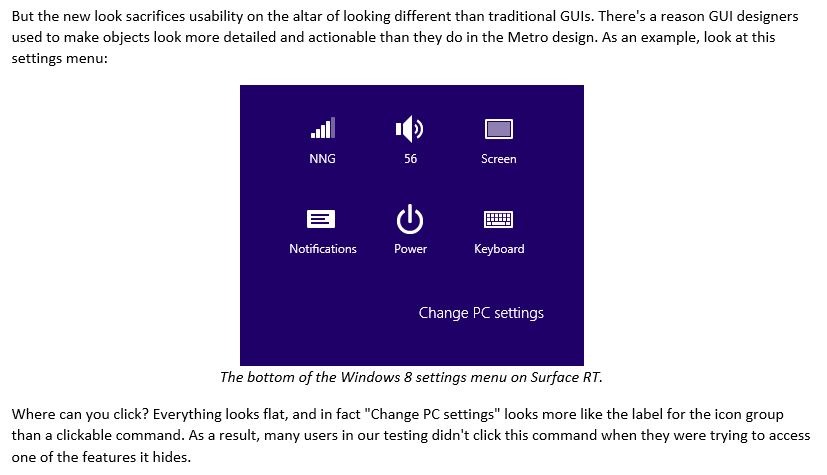
    The other example that I’ll give where it seems to me that Nielsen is not playing fair is the section where he claims that Windows 8’s “Flat style Reduces Discoverability”. He uses the example of the Settings Charm to illustrate this:

    W8 001

    I find it odd that none of his “experienced PC users” noticed that as they moused over the icons and text in this panel, they would be highlighted to indicate that they were buttons, e.g.:

    W8 002   or   W8 003

    Frankly, I think Mr. Nielsen has not done a very good job in reviewing Windows 8 here. Scott Barnes also thinks that, and goes into far more detail. His critique of the Nielsen review is worth reading.

  • A Sudden Departure

    Well, I certainly didn’t see that coming… Steven Sinofsky, the head of the Windows division, has left Microsoft, and the question that everyone is asking is: “did he fall, or was he pushed?” There’s clearly an inside story here, and it may come out one day. What it definitely is not, despite the many blog and forum commentators saying it, is that he was fired “because Windows 8 and Microsoft Surface are disasters”.

    Much more likely is that he either left or was pushed because, under his leadership, the Windows division remained a fiefdom that refused to play nicely with the other product divisions in Microsoft. I’ve mentioned before how, during my time in Shell when I had frequent contacts with Microsoft, I was struck by the silo-like nature of the product divisions, and how the NIH syndrome ran rampant within the company. The famous cartoon of Microsoft’s organisational chart was not far from the truth. It may well be that the Windows division was the last holdout of that attitude, and now with Sinofsky’s departure, that attitude may go the way of the dinosaurs. I see that Julie Larson-Green, who now takes over the Windows division, is reported to favour cooperation over competition.

    As an aside, I must say I am disappointed and disgusted at the high levels of sexist and misogynistic comments in the blogosphere that have greeted the news of her appointment. Clearly, we are not very far advanced in geekdom.

    With the benefit of hindsight, of course, perhaps the signs that something was in the wind were there at the launch of Windows 8. Sinofsky’s presentation struck me as being strained, and not up to his usual standard. Of course, he might just have been having an off day.

    Whatever the reasons behind Sinofsky’s departure, his division delivered Windows 8, which, contrary to the many who either hate it, or damn it with faint praise, is an astonishing engineering achievement. Things are going to get interesting.

    Update: Hal Berenson has some interesting insights into the choice of Julie Larson-Green, together with some background on Microsoft’s management culture and practices. The key quote for me:

    There were choices besides Julie within the Windows organization that Steve Ballmer could have elevated.  …  Without knowing anything about how these other executives are currently viewed it might be hard to say why he chose Julie over them, but it is very important to note that Ballmer did have choices.  Julie didn’t get the position by default, Steve obviously believes in her ability to lead Windows forward.

  • Scratching the Surface

    It’s now a little over two weeks since Microsoft’s Windows 8 operating system and the Surface tablet running Windows RT were released and I’ve been following the many reactions to the products that have been published in blogs, articles, and forums around the web.

    I’ll write about Windows 8 in another post; here I want to consider some of the reactions to the Surface with Windows RT (I’m just going to refer to it as the “Surface RT” from now on…). I should say at the outset that I don’t own one, and for reasons that I hope will become clear, I doubt whether I would want to.

    It seems as though most reviewers give high marks to the hardware design, fit and finish of the Surface RT. There are some niggles, e.g. the magnetic power connector doesn’t always make proper contact for charging, and as time goes on, other issues may start arising, which will require some corrective action by Microsoft in the design. For example, reports are emerging that may point to a weakness in the keyboard/cover design – however, it appears that only two people have experienced this issue so far. In general, the Surface RT and its keyboard/cover get high marks.

    The hardware, of course, is only half the story. It’s the combination of the hardware and the Windows RT operating system that form the experience that the user has with the device. And it’s there that my doubts start to creep in. My starting point is that I have no interest in getting an Apple iPad – it’s too limited a device for me. Microsoft’s marketing positions the Surface RT as a device that can do more (“See more, share more, and do more with Surface”). For some people, that is undoubtedly true, but that is not the case for everyone. For example, Peter Bright, whose reviews of Microsoft products I trust, has discovered, I think to his dismay, that the Surface RT falls far short of what he is looking for in a tablet device. Mind you, he sets the bar pretty high, and it’s clear that an iPad also wouldn’t meet it. The deal breaker, for him, was that he relies on Outlook. While the Surface comes with some stripped-down components of Microsoft’s Office suite, it does not include Outlook. He summarised his opinion of the Surface thus:

    Surface is meant to be something more than a plain iPad-like tablet. For me, it failed to be enough more, leaving it in limbo; it’s not good enough to take on laptops, and it’s not good enough to take on iPad. It falls short of both goals.

    It seems to me that the Achilles heel of the Surface RT is the Windows RT operating system. It may look like Windows 8, but under the covers, it runs on completely different hardware. Simply put, that means that it can’t run the millions of Windows applications that are available. At this point, it can only run the 10,000+ applications that have been written for the Modern UI environment of Windows 8.

    Here’s a few practical examples of why I won’t be buying a Surface RT:

    • It doesn’t have GPS built-in. Now, I can add GPS capability to any Windows Notebook or a Tablet that has Bluetooth using my Qstarz GPS logger. However, even though the Surface has Bluetooth, I won’t be able to add the software driver for the GPS logger to the Surface, so no GPS for me.
    • It doesn’t have an active stylus (unlike the Surface Pro), only a capacitive stylus. I write, as I always have done, by resting my wrist, or lower arm, on the writing surface. With an active stylus, the tablet is able to distinguish between the tip of the stylus, and my wrist that is resting on the tablet’s screen. I don’t think the Surface RT can do this very effectively, so I would have to write in what to me is an unnatural fashion (or wear a glove!). Handwriting recognition is built-into Windows RT as it is in Windows 8, but I suspect that it won’t be as fast on the RT platform as it is on the Surface Pro.
    • There may be 10,000+ applications available for the Surface RT, but the quality of the majority is abysmal. I am still finding that I am working in the Desktop mode of Windows 8, with desktop applications, for most of the time. This blog post itself is being written using Microsoft’s own Windows Live Writer, which doesn’t run on Surface RT.

    When Microsoft releases the second model in their Surface range, the Surface Pro, the situation may change. The Surface Pro will run all my Windows applications, and it uses Intel hardware. However, as I’ve written before, it uses an older generation of Intel hardware, which means that the Surface Pro requires a cooling fan. I suspect I’ll end up waiting for the new generation of Intel processors to start appearing – then fanless tablets will be available.

    Update: Here’s another review of the Surface RT, this one being very positive. I can fully understand why, the Surface RT delivers on the requirements of this particular user. Unfortunately, it seems to me that my requirements exceed the current capabilities of the Surface RT.