Reflections on life at “De Witte Wand”…

  • Losers

    Nicholas Whyte, who lives and works in Brussels, gives his reaction to the terrorist attacks in Brussels yesterday. Go and read it – it’s worth it. A sample:

    As with any awful event, there’s a temptation to grasp for easy explanations. I will give in to that temptation. It seems to my jaundiced eye that, dreadful as they were, yesterday’s attacks were botched. Maelbeek is actually the wrong metro station to attack – both Schuman, the stop before, and Arts-Loi, the stop after, would surely be much more attractive targets, being much busier intersections on the network (and also both recently renovated as prestige architectural projects). Only two of three planned explosions in the airport happened, the third attacker apparently losing his nerve and running away. To adopt a Trump-ism, these guys were losers.

    This happened because they are losing. Less than a week ago, a major figure in the terror movement was arrested in Brussels; perhaps yesterday was revenge for his arrest, perhaps it was rushed into because they were afraid he would start talking (or knew that he already had). On the ground, their allies and sponsors are losing territory and resources in Syria and Iraq. I wrote a week ago about violence as story-telling, in the Irish context. This is an attempt to write a story about the weakness of our interconnected world, attacking places where people travel and meet, where many nationalities and cultures join together and build together.

    It is a narrative that must not and will not win.

    Amen to that.

    Leave a comment

  • Nice Idea – Bad Execution

    Microsoft announced the first version of their Microsoft Band – a combination of fitness device and smartwatch – back in October 2014. As a first iteration, it had a number of issues; for one thing, it was uncomfortable to wear.

    Fast forward to October 2015, and Microsoft announced the second generation: the Microsoft Band 2. The design appeared to be much improved, so much so that I decided I would treat myself to one for Christmas. I bought it from Amazon UK, since Microsoft do not sell it in the Netherlands.

    Since then I’ve been wearing it for 22 hours each day (it monitors my sleep patterns as well as monitoring my activities during my waking hours). I like it a lot. As well as tracking my workouts in the gym, it monitors my walking and biking activities, and will alert me to incoming emails, as well as acting as my wristwatch/stopwatch/timer. All the activity results are also uploaded into the Microsoft Health web site, where I can track progress (or otherwise) over time.

    So the idea is brilliant, but, 3 months on, I became aware today of a fatal flaw in the design. I noticed that the rubber strap is developing a split about 1.5cms away from the display. There’s an internal metal lug extending from the display into the rubber band, and the split is developing where the end of the lug is.

    20160320-1454-13

    Researching online reveals that this is a common issue. Many people are experiencing the same thing. And Microsoft often seems to refuse replacement of the Band under warranty. They don’t accept it is a design issue.

    I’ve sent an email into Amazon UK asking if they will replace what in my view is a clearly defective product, but I don’t hold out much hope. Black gaffer tape, here I come…

    Once again Microsoft overpromises and under-delivers…

    Addendum 21 March 2016: Well, I’m pleasantly surprised. Amazon responded to my email in less than 24 hours, and confirmed that if I return the Band, they will give me a refund.

    I had said in my email that I have the Medium size band, and the Band is at its tightest position for a comfortable fit on my wrist. It seems to me that this might be the design flaw – perhaps the Small size band would not put the same stress on the rubber strap. The Amazon representative (Andrew) picked up on this, and arranged for a refund, rather than a replacement, and suggested that I order a Small size Band. So I’ve ordered this in the expectation that the refund will come through as promised.

    Addendum 2, 31 March 2016: Well, Amazon has delivered on their promise. I’ve just had an email informing me that a full refund has been credited to my card account. I had rather expected the “trying to get blood out of a stone” treatment that is so prevalent these days, but contacts with Amazon customer service (in my case) have been speedy, polite, and delivered results. My flabber has been gasted.

    3 responses to “Nice Idea – Bad Execution”

    1. Gennaro Avatar

      I’m not the greatest fan of Amazon, but more often than not their customer service is excellent! A few weeks ago I didn’t receive an order from amazon.it. According to tracking the parcel had been delivered and signed by the porter of our building (with full name), but the porter told me he had never sen it. The same courier knows the porter and was carrying another parcel for someobdy else in the building, so we assume he delivered one parcel and signed for both. The situation can look a bit dodgy but Amazon gave me a full refund without any problem at all. On another occasion, many years ago I had ordered some books to be delivered in Italy by amazon.co.uk. After more than a month the books had not arrived, so I notified Amazon and they sent them again straight away. A couple days after that, the original “lost” parcel arrived. I told Amazon, they replied they had already sent the replacement and suggested I give the extra books to a local library.

    2. […] in March, I blogged about my experience with the Microsoft Band 2, summarising it as a “nice idea, but bad execution”. After three […]

    3. […] Ten months ago, I treated myself to a Microsoft Band 2 for Christmas. A combination of fitness band and smartwatch, I really like the functions that it offers. However, a brilliant idea has been let down horribly by poor hardware quality. I’m currently on my third example – the first two developed splits in the straps. […]

    Leave a comment

  • “It’s Easier To Use…”

    …oh, really?

    Yes folks, once again I’m referring to the good people at Microsoft, in particular the team behind OneDrive. They’ve just announced “A simpler sharing experience at OneDrive.com”. According to them:

    The new experience is, in a word, simple. We show the two most popular options for sharing right up front with big blue buttons that are easy to see and easy to hit. We use terms that are understandable to a wider range of users. We optimized for the common cases and present the rarely used options in less distracting ways. Basically, it’s not as messy.

    What they didn’t say is that they have removed one option: the ability to shorten a link from two lines of gobbledygook down to a simple string of 7 or 8 characters. This was perfect for those people who needed to include links in printed documents.

    Now they have to rely on people being able to type, without errors, something like https: //onedrive.live.com/redir?resid=6AA39937A982345B!10782&authkey=!AMBcijD6MBaGeF0&v=3&ithint=photo%2cjpg. Many email clients will also break these long links by splitting them over two lines so that they won’t work when clicked on.

    Needless to say, there’s been a storm of protest about this removal. So much so that Microsoft has (I suspect rather shamefacedly) now added an update to the post:

    We’re working on a new approach to shortening the sharing links that will better enhance our users’ experience. Unfortunately, we had to remove the current experience in preparation for the new one. We always keep the best interest of our users in mind so we appreciate your patience as we work this out. We expect to have it ready soon.

    What is even more astounding is that Microsoft apparently tested this new experience on “28,000 real-world users”. One might wonder why on earth none of the 28,000 users picked up on this removal of a very convenient feature (or perhaps Microsoft didn’t bother to ask them about it). One might also wonder why Microsoft didn’t get the new approach to short links ready before rolling out the complete new experience to the world, but I suppose we should never underestimate Microsoft’s unerring ability to snatch defeat from the jaws of victory.

    One response to ““It’s Easier To Use…””

    1. Matthew Healy Avatar

      It’s easy to make short URLs in Google Drive.

    Leave a comment

  • The Pursuit of Excellence or Excess?

    A couple of weeks ago, I wrote about my adventures in the world of Hi-Fi. With the discovery of Roon, I’ve rekindled my quest to listen to music, rather than have it as background noise. It’s also had the side effect of making me take a look at my current Hi-Fi equipment and wondering whether I should upgrade or tweak it.

    Ever since I started my journey into the lands of Hi-Fi, back in 1968, I’ve been aware that there were esoteric areas, complete with warring tribes, contained within. Now, revisiting the subject some fifty years later, it seems that Hi-Fi has got more complex, rather than completely mapped out.

    There are many more companies involved in the field now. When I started there were a few well-known names, now there are seemingly thousands that I’ve never heard of. The choice is overwhelming. I’m finding it very difficult to sort the wheat from the chaff. Some decisions are easily made; for example, I don’t see myself plonking down £44,000 for an amplifier (the Dan D’Agostino Momentum Integrated Amplifier). Even if I had that sort of money lying around, I would be thinking twice or three times about it. And then there are the products which, to my mind, seem more associated with snake oil than science.

    Connecting cables is the big area here. Some of the claims made for expensive cables seem, shall we say, somewhat over the top? But then, if you are going to pay $22,000 for a cable to connect one piece of equipment to another (the Skogrand Beethoven cable), you have to believe that it makes a difference. This reviewer (and his cat) clearly did, but me? I doubt it very much. I’d be asking for the guaranteed blind testing of all such claims, and even then I’d probably suck my teeth and say “thanks, but no thanks”.

    As someone once said: ‘Although it is fully understood scientifically, the phenomenon of “gullibility” has been experienced by many audiophiles’.

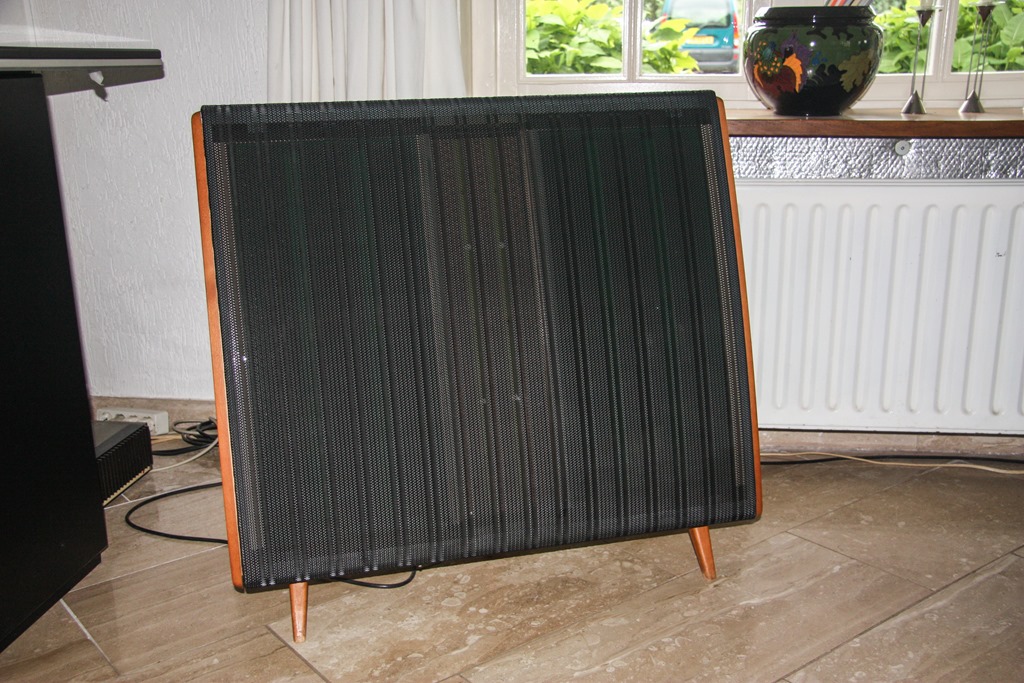
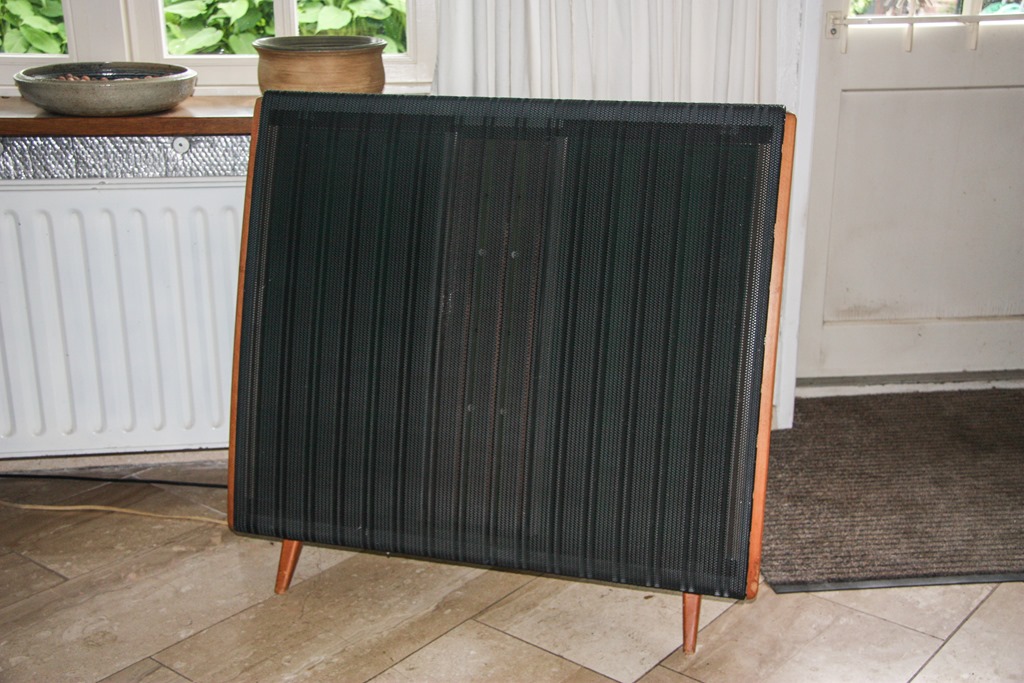
    With all this in mind, I looked at my current Quad 44 preamp + Quad 405 amp + Quad ESL 57 speakers, and wondered: upgrade or tweak?

    My first port of call was Quad themselves. I see that they have introduced a new preamp/amp combo for the digital age: the Quad Artera. The product web page rather jarringly still gushes that it’s “coming soon for 2015” [since corrected, after I sent them an email to point it out]. That aside, it certainly looks good, and has very good specs. I took a look at the manual and noticed something missing: unlike the Quad 44 preamp, the Artera Play has no switched mains outlets. Those of us who use mains-powered loudspeakers (e.g. the Quad ESLs) like the convenience of being able to switch on the preamp, and everything else in the system gets powered up. Likewise for switching off. That convenience is gone with the Artera – it seems a step backwards to me, and something that seems to have been overlooked in the design. I wonder why?

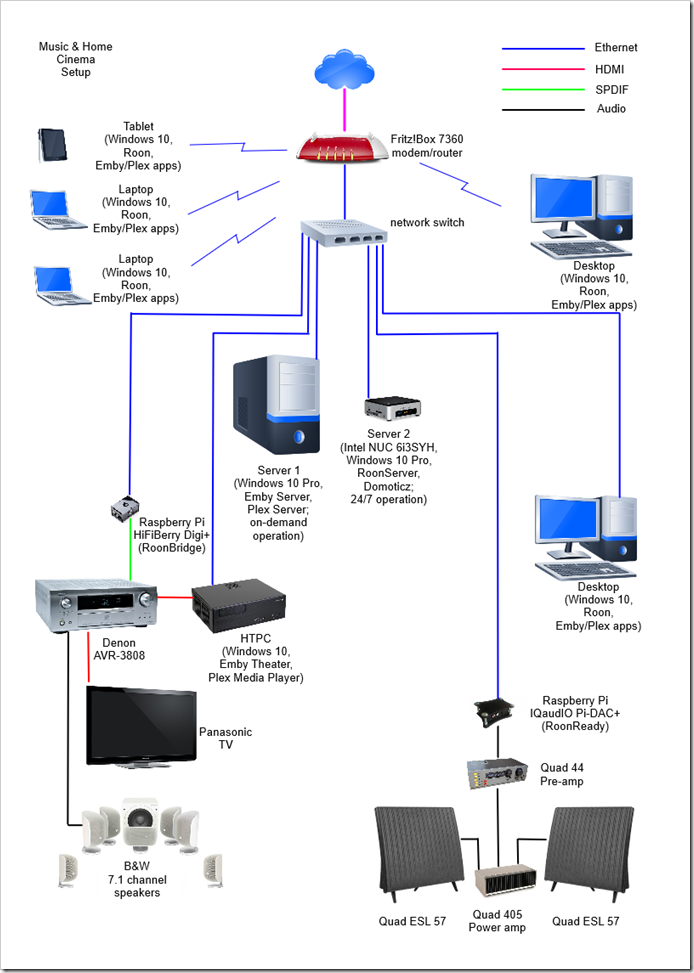
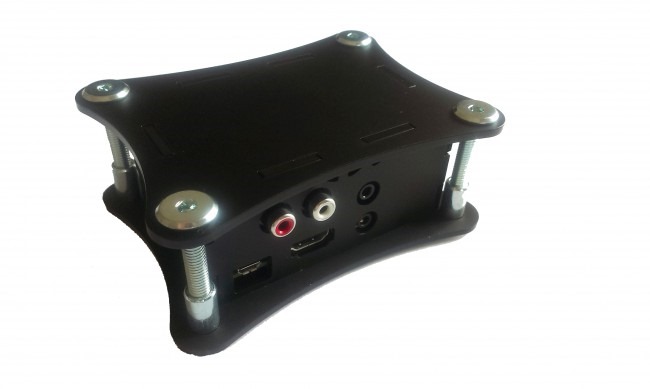
    I think at this stage, I’m leaning towards a tweak of my existing setup. Although I’ve now got the Quad system hooked into our HTPC so that I can play music from our music server through it, I think that I can improve the sound quality further. This coming week I hope to get a Pi-DAC+ from IQaudIO, and then I can re-use my spare Raspberry Pi 2 to build a Roon endpoint. I’ve run an ethernet cable into the cabinet housing the Quad system, and then I can connect the RPi2 + Pi-DAC+ (housed in a neat little box) up to the Quad 44. An upgrade that hasn’t cost an arm and a leg.

    Addendum 1st March 2016: I emailed Quad to ask about the missing mains outlets, and got back the following from the Service Manager:

    The Artera uses true standby function is this is why we did not place a mains outlet socket on either unit.  The mains outlet sockets on the 44 pre-amp were for other Quad units and not really designed for ESL’s switching on and off.

    They may not have been really designed for that purpose, but I’d be prepared to bet that the majority of ESL owners used them that way…

    7 responses to “The Pursuit of Excellence or Excess?”

    1. Ludwig Avatar

      OMG, you would use a speaker with the amp built right in instead of using a pair of hyper-rare-earth superconducting cables with gold inlays?!! How could you!!! Think of what your cat is missing! 😉

      1. Geoff Coupe Avatar

        Well, I know, and I haven’t even cooked my cables to break them in, either. I should have used Audiodharma’s Cable Cooker. This seems to be an actual product. I swear that some of this stuff gets like religion; you believe it or you don’t.

        1. Ludwig Avatar

          The amazing thing is that enough people believe to keep these shyster products going. [Shaking my head in disbelief]

    2. Matt Healy Avatar
      Matt Healy

      Back in the 1980s the esteemed magazine Audio (which, sadly, ceased publication about 15 years ago) made lots of enemies in the audiophile community by running blind A/B/X tests. A group of experts (who included musicians, engineers, and others) sat next to a curtain. On the other side of the curtain would be an assemblage of high-end audio gear, and a special A/B switch that enabled one component to be swapped out with another with the signal levels exactly matched. The listeners had just one task: determine whether “X” was device A or device B more accurately than chance alone. In this way, they demonstrated human ears could not reliably tell the difference between midrange consumer electronics and the best obtainable when it came to just about every component in the audio chain other than speakers. Certainly where it comes to cables this is true. I have even seen it claimed that special DIGITAL cables (such as USB or HDMI) somehow improve the sound or video, which is utterly preposterous: a cable carrying a digital signal just works or fails completely. Unlike analog, there’s no in-between with digital signals.

      I suspect its ruthless honesty in debunking snake oil was a major reason why the magazine went out of business: much of the advertising in many such publications comes from purveyors of snake oil.

      Anyway, I think it’s still sensible advice to put most of your audio Euros/Dollars/Yen/Pounds/Whatever into the speakers.

      1. Geoff Coupe Avatar

        Yes – hooray for blind testing, boo for the fact that honesty doesn’t seem to pay these days. And you’re right – the speakers are the link in the chain where it makes sense to get the best that you can afford. They’re also where small differences can be perceived most easily. I’d really like to invest in a pair of Quad’s latest ESL, but (i) they are hugely expensive and (ii) they are huge, and there’s no way they would fit in our living room with Martin’s blessing.

        1. Matt Healy Avatar
          Matt Healy

          Dunno the maker, but some friends have a terrific speaker system that might be an excellent compromise if you like ESL speakers. They have two panels each about 0.5 meter by 2 meters (they look like canvas on stretchers before a painter has got started) and a sub-woofer in a corner to handle the low end (thus getting around the need for huge dimensions when the panels must handle all the sound). The sub also means they don’t need a monster amp to overcome the low efficiency of electrostatic panels, since the sub is very efficient in the frequencies it covers.

          If you want to go really really really high end, you can get one of these…
          https://en.wikipedia.org/wiki/Rotary_woofer

          1. Geoff Coupe Avatar

            I’m afraid Martin would have put his foot down when you wrote “2 meters”…

    Leave a comment

  • Google Pulls the Plug on Picasa

    I see that Google has announced that it’s pulling the plug on its Picasa product; both the online service and the Windows application.

    Frankly, I could care less about the online service, but I’m sorry to see that Google will no longer be supporting or developing the Picasa application for Windows. For a while, it was pretty good, supporting photo metadata standards more than many products on the market. Yes, there were issues with it, and bugfixes seemed to take forever to come through (if at all), but for many folks it was good enough.

    I suppose we now know why those fixes were slow in coming, it seems obvious in hindsight that Google has had Picasa on the back burner for a while now. I note that the last major release was version 3.9, back in December 2011.

    The nearest free equivalent to Picasa that I’ve seen is Microsoft’s Windows Photo Gallery, but I suspect that Picasa users jumping ship to that product will merely be jumping out of the frying pan into the fire. The last major update to Photo Gallery was in 2012, and since then there has been deathly silence. I think that Microsoft has probably got Photo Gallery on the life-support machine, and their hands are hovering very close to the “off” switch.

    As for me, I shall carry on quite happily using Idimager’s Photo Supreme to do my metadata management, and Adobe Lightroom for digital development and retouching.

    10 responses to “Google Pulls the Plug on Picasa”

    1. Ludwig Avatar

      Wonder what they plan for NIK. Microsoft allowed Live Writer to go free, maybe Photo Gallery will see that as its future.

      1. Geoff Coupe Avatar

        Maybe, but only if there’s a group of volunteers willing to take on the task of maintaining the open source. WLW had such a group, including folks who are Microsoft employees. I don’t know what the situation is for WPG.

        1. Ludwig Avatar

          Microsoft Research is quite interested in photography. They updated Image Composite Editor. They seem to be using OneDrive to assist in the development of image recognition technology. See their tagging scheme. Having the users assist in teaching their system is clever. They let the algorithm assign tags, if they miss the user removes the tag – wonderful, automatic feedback. They need to keep the users happy. Throwing us a Photo Gallery update would be a nice bone. OK, I said they are clever, but are they that smart?

          1. Geoff Coupe Avatar

            I don’t think MR would pick up WPG unless they could demonstrate a commitment to including a stream of new experimental research in it. And even then, frankly, having to support and maintain the rest of WPG would probably be seen (rightly) by Microsoft Management as “not their core business”…

            1. Ludwig Avatar

              Alas, you are probably quite right. I was just hoping out loud …

        2. José Avatar

          Opening the WPG source like Windows Live Writer would be great but Microsoft has the Windows 10 Photo App also. Windows 10 Photo App has been touted as a universal app for curating photos, but with Windows Phone small market share, I am not convinced unless an iOS and Android version is also released. Also, comprared to WPG Windows 10 Photo App is also missing a lot of features.

    2. José Avatar

      Geoff: I value your reviews and insights into photo management apps. I am giving digikam a try (just in case WPG kicks the bucket), do you have any thoughts on this app? I am going to try again Photo Supreme, have not done so in a while.

      1. Geoff Coupe Avatar

        José, I haven’t tried Digikam, I just took a quick look at their site and the documentation. It strikes me as a typical Open Software product, built by a group of enthusiasts, building something that meets their needs. It looks powerful, but not necessarily easy to use. I note that metadata management is done by means of a plug-in. I’ll be sticking with Photo Supreme, which continues to meet my needs very well.

    3. Harald Avatar
      Harald

      Hi Geoff, do you use Lightroom’s facetagging features? Would you know if Lightroom supports Picasa’s facetag schema/standard?

      Regards,
      Harald Wikerøy

      1. Geoff Coupe Avatar

        Harald, I’ve played with it, but haven’t used it much as yet. LR6 supports the Metadata Working Group’s image region standard (which Picasa and Photo Supreme also use). See https://forums.adobe.com/thread/1823782

    Leave a comment

  • RIP, Windows Home Server…

    Once Upon A Time…

    A long time ago, way back in 1999, a man by the name of Charlie Kindel had an idea: Microsoft was developing Windows for home PCs, why shouldn’t it develop Windows for a home server as well? His managers initially told him to focus on his real job, but his idea surfaced at CES in 2000 as a technology prototype called “Bedrock” focused on home automation and family applications. His idea went through more iterations until in February 2004, work began on a project called “Quattro” and that resulted in a product group to be formed in 2005 to produce what was to become Windows Home Server.

    The first version of WHS was released to manufacturing in July 2007. I, along with thousands of others, had been testing the software at home prior to release. There were some issues that I found, but by the time of release, the majority had been resolved. Technically, it was pretty solid, but of course, Microsoft Management had got involved, and one of the potentially unique selling points had been removed. Despite being aimed at home users, remote access to your computers from outside the home wouldn’t work if you had home versions of Windows installed on your computers.

    Apart from that castration by Management, WHS still had some very clever and innovative technology under the hood:

    I bought an OEM license for WHS in November 2007, and have been running WHS ever since; first the original version of WHS, and then WHS 2011, which was released in April 2011.

    Windows Home Server 2011

    WHS 2011 was not a straightforward improvement over the original WHS. Indeed, it dropped the major feature of the WHS Drive Extender, much to the dismay of WHS customers. There had also been organisational changes at Microsoft; the original product team had been part of the Windows product group, now it found itself lumped in with the big boys of the Business Server Group.

    I had the distinct impression, watching the development of WHS 2011 and testing the betas over the months leading up to April 2011, that things were not going well with WHS 2011. As I wrote at the time: Microsoft had the chance to build upon the base of WHSv1 as a server and media appliance that could be used by the average consumer, and they threw that chance away.

    So WHS 2011 turned out to be something of a damp squib, with some features that had obvious design shortcomings or that never worked properly – hello, Media Library, I’m looking at you… Even the new server backup feature of WHS 2011 had a design shortcoming that took my breath away.

    Despite these shortcomings of WHS 2011, the positives still managed (just) to outweigh the negatives for me, so I migrated from WHS V1 to WHS 2011. I had built a dedicated server to hold all our media collections (CDs, DVDs, Blurays), and the backups from all the other PCs in the house. With the installation of WHS 2011, the server itself was being backed up using off-site storage.

    The End Is Nigh

    However, it was clear that Microsoft no longer loved Windows Home Server, and it was no surprise when Microsoft announced in July 2012 that there would be no next version of WHS. That meant, according to Microsoft’s Product Support Lifecycle rules, that WHS 2011 would continue to receive mainstream support until April 2016. Well, hello, that’s just two short months away. Thus, I needed to prepare a contingency plan.

    Making The Move

    I could have replaced the server hardware with an off-the-shelf NAS, but it seemed to me that would be an unecessary waste of good hardware. Instead, I could just change the software environment and keep the hardware intact. Not feeling inclined to go to the dark side (i.e. Linux), or for shelling out for a copy of Microsoft’s Windows Server Essentials (at ten times the price of WHS), I decided the best approach would be to use Windows 10 Pro in headless mode (i.e. without an attached monitor, mouse or keyboard). The WeGotServed site publishes a useful guide on how to do this, called, not unexpectedly, Building A Windows 10 Home Server. Whilst I think I could have got by without purchasing this guide, it does cover the entire process from a to z, hardware and software. I found it useful as a refresher of my knowledge, and for someone who is new to the idea of building their own server, it would be invaluable.

    The problem is that Windows 10 is not Windows Home Server. In particular, the feature of automatically backing-up client PCs to the server is substantially different in Windows 10, and it is not an improvement.

    Instead of WHS’s automatic backup of client PCs to single-instance storage, we have, not one, but two backup technologies to choose from in Windows 10 – and neither of them are ideal. Windows 10 offers:

    • File History backup
    • Backup and Restore (Windows 7)

    File History Backup

    While there’s a lot to like about the Windows 10 File History feature, it only focuses on the user’s personal data. It will only backup data held in the user’s Libraries, Desktop, Contacts and Favourites. It will completely ignore applications that have their own databases, e.g. Adobe’s Lightroom. For some years, Microsoft has been telling developers to store application data in locations contained in the C:\ProgramData folder, and now the File History feature will totally ignore such files. Also, user data that is not document-based is supposed to be held in locations contained in the C:\Users\Username\AppData folder. That is also ignored by the File History feature. It turns out that Microsoft’s own Windows 10 Mail App stores mail messages in the AppData folder, so File History will not backup your mail messages. Microsoft seems to be assuming that we store all our mail in the Cloud, e.g. in their Outlook.com service. Not everyone does.

    Also, unlike the elegant and simple-to-use client PC Backup function of Windows Home Server (which covers all files and also provides a bare-metal restore), File History does not use single-instance storage. So if a new version of a file changes even by one bit, the entire file is backed up as an entirely new copy onto your backup disc. It’s very inefficient and wasteful of storage.

    Backup and Restore (Windows 7)

    As the title suggests, this technology is a legacy from earlier versions of Windows. It also works in a completely different manner from File History (or the Backup/Restore feature in WHS). It is a System Image backup utility, that is, the entire contents of the PC are backed up in one go – a snapshot of how your entire PC looked like at the point in time when you made the backup.

    Whilst it’s useful to be able to make a snapshot in time of your PC, the WHS client PC can do this and more: it also allows you to restore individual files, and from different time points in their lives.

    The fact that Microsoft has clearly marked this Backup and Restore technology as deprecated makes me wary. I would not be suprised to see it removed entirely from future versions of Windows 10.

    Backup/Restore – What To Do?

    Given that neither of the backup offerings in Windows 10 can match the simple and elegant solution of WHS, if I’m going to have to use Windows 10, what can be done? I suppose one route would be to purchase a separate backup and restore application. I’ll keep an eye out for that, but in the meantime, my approach will be to use the File History route to backup my personal data (documents, pictures and so forth), and manually including a specific list of application databases (e.g. Adobe Lightroom, Photo Supreme, etc.) to be covered by File History. For my email folders, I will make sure that all my email is automatically forwarded to an Outlook.com account as backup.

    It’s not simple or elegant, but a kludge. Thank you Microsoft; one step forward, two steps back, as usual.

    Pulling the Trigger

    I could have stuck it out and carried on with WHS 2011 until at least April 2016. However, I’ve invested in a piece of server software that, it turns out, does not run well on WHS, but requires Windows 10. It is RoonServer. As a result, I have migrated from running WHS 2011 on our server to running Windows 10.

    The migration was pretty straightforward, and all the media libraries and server software are now running quite happily under Windows 10. I miss the ease of WHS and its backup capabilities, but Microsoft has stuck the dagger in its back in the interests of getting us all to move to the Cloud. It’s a great pity – despite all the song and dance about Cloud services, I am still firmly of the opinion that there is a place for a server in the home. Online streaming where I am in the rural Netherlands is neither fast enough, stable enough, nor cheap enough to be considered a viable alternative.

    Addendum, 27 February 2016: I see that Microsoft’s SBS group has just published a survey to ask the user community for feedback on the features of Windows Server Essentials to help them prioritise their planning for the next version. I left a comment:

    Looking through the questions in the survey, it is very clear that you are targeting a particular group of business users. For those of us who grew up with Windows Home Server, and who mourn its passing, there is nothing to see here. Our feedback is clearly of no importance to your plans.

    The comment is currently stuck in moderation. We’ll see whether it emerges and gets published. And, of course, it never did get published… Perhaps the truth hurts too much, or more likely, they couldn’t give a damn.

    22 responses to “RIP, Windows Home Server…”

    1. Poppapete Avatar
      Poppapete

      As usual a concise but accurate history of the rise and fall of Microsoft Home Server. I moved to 2012R2E but that is not an option for most home users mainly due to its price and the fact that is is designed for use with AD (although “skipdomainjoin” will overcome this problem). Without 2012R2E I would go the path of a W10 server option as per Walsh & Clark solution. 12.99 GBP is cheap for the book and it is often available at considerable discount to that. I would add the free version of Veeam Endpoint Backup to the mix which gives bare metal and file recovery that is nearly as good as the MS Server version and with a far better GUI.

    2. simonbrads Avatar
      simonbrads

      This sucks so bad. I have two WHS2011 servers, one performing client backups. I guess I should start figuring out what I’m going to do about replacing them. 😦

    3. Simon Bradley Avatar
      Simon Bradley

      Geoff, it’s probably worth pointing out that “end of mainstream support” only means that you won’t be able to get support from Microsoft via phone, email, etc. (which is something I’ve never done, anyway!).

      I tried to find out when WHS2011 extended support ends (i.e., till when the OS will receive security updates, etc.), but it isn’t listed on their lifecycle info page:

      https://support.microsoft.com/en-au/lifecycle?p1=15820

      However, since WHS2011 is based on Server 2008 R2, I *think* that means it will receive updates until the same date, which is 14/01/2020:

      https://support.microsoft.com/en-au/lifecycle?p1=14132

      If so, I might have a few years yet until I have to worry about rebuilding my servers. 🙂

      1. Geoff Coupe Avatar

        Simon, it’s true that WHS 2011 will only receive security updates after April – there certainly won’t be any further bug fixes. I hope that you’re right that these security fixes will continue to come through until 2020, but Microsoft seems to think that WHS is neither fish nor fowl, so that date which is for a Business Server product may not hold true for WHS, which may be considered as a consumer product.

    4. Matthew Healy Avatar

      I suggest Retrospect backup software, which offers great single instance backup and extremely flexible scheduling/searching/restoring abilities.

      1. Geoff Coupe Avatar

        Matt, thanks, but Retrospect is a tad pricy for me. I think I’ll be trying the Veeam Endpoint Backup software (free). Yup, sometimes I’m a cheapskate.

    5. davidbrosterv Avatar

      Hi Geoff, I’m sharing your analysis and currently am using PLEX on FreeNAS, but I’m also considering running a virtual version of WHS11 as is, just to do the nice client backups. Did you consider this as an option ? I’m rapidly approaching the crossroads I guess …..

      1. Geoff Coupe Avatar

        Hi David. Hmm, that’s certainly a thought – running WHS in a VM. But I’ve never really got into using VMs, and I want to keep everything as simple as possible. I’m already worried about what would happen if I fell under a bus tomorrow – my nearest and dearest wouldn’t have a clue how to keep all the systems in the house running, let alone use them. I really need to spend some time writing the manual for the house technology…

    6. The Failing Buddhist Avatar

      The problem I’m facing is that a friend’s WHS crashed. He has all of his backups on an external drive, but he’s unsure how to access them since he isn’t going to rebuild his WHS. Any idea how I can get into those backups and pull his pictures and such out without having access to WHS?

      1. Geoff Coupe Avatar

        If these are backups from WHS 2011, then they should be standard Windows VHD backups. He should be able to mount them within other versions of Windows (7 and up). See http://www.online-tech-tips.com/computer-tips/create-mount-vhd-windows/

        1. The Failing Buddhist Avatar

          You’re awesome! That bit of info is entirely appreciated.

          1. Geoff Coupe Avatar

            Well, I hope it helps. But to be clear, the VHD backup technology is only used in the backups of the WHS 2011 server itself.

            If your friend means “how do I recover the client PC backups stored on the WHS 2011 server?”, then that’s an entirely different kettle of fish. There, unfortunately, the only thing that can access those client PC backups is WHS 2011 or Windows Server Essentials 2012. Microsoft used a very technically clever backup technology that unfortunately is only present in these operating systems…

            1. The Failing Buddhist Avatar

              Gotcha. All good information. He’s been fairly unclear, but as a worst-case scenario I can rebuild his server and access the backups if I have to. I hope not…o for for what he needs having been on the server.

    7. Jeff fieldsend Avatar
      Jeff fieldsend

      Geoff – I started using WHS2011 by learning the art of building a headless server to house it, and then connecting three clients at home for the family. It was a great journey and I learnt many of the pitfalls by reading your log and accessing we got served. I followed the iterations of Windows through 8 and then 10 and decided to migrate to 10, aware that whs2011 was likely to fail under the 10 framework. To be fair I had issues with whs2011 and had to do regular tinkering with scheduled backup drop outs. Anyway I investigated storage spaces and did as you, migrated to a Windows 10 home server and I now have client folders on the server for each client and (as we got served suggest) main folders for music, photos etc. I have triple redundancy – the files are spread over 6 2tb disks and a backup 4tb acts as a scheduled server backup.

      The server backup is OK running as a file history backup, and the storage pool is set at 25tb. So far no issues. Clients acces their material through mapped shortcuts.

      The Clients use Windows 7 image backup to an internal client d: drive each on a scheduled basis.

      1. Geoff Coupe Avatar

        Jeff, thanks for your comment. I ended up using Veeam Endpoint Backup for my client backups. For the server backup, I just take a copy of the data to discs held offsite.

    8. Kevin Matney Avatar
      Kevin Matney

      I’m still on WHS 2011, and have been delaying the inevitable. I’ve been looking at Urbackup as a replacement backup solution. It is free, and seems to work in a similar manner to WHS. Anyone tried it?

      1. Geoff Coupe Avatar

        Hi Kevin – I’d not heard of Urbackup, but it does look interesting, I agree. Hope someone who has used it can respond to your question.

    9. Robert Avatar
      Robert

      Still running WHS2011 happily, along with Stablebit Drivepool and Scanner. Rest of my home is Windows 10. I remain happy with this setup and see no reason to replace it. At least, not until 2020 when security updates cease.

    10. Joh Chapman Avatar
      Joh Chapman

      Since the demise of the support forums, I like others have just let WHS2011 do its own thing.

      I know that I can use W10 as a replacement (I have a spare copy ready) but I also use Stablebit DP and Scanner to support my Media and back ups of 3 other PC’s.
      Its good backups that are holding me back from moving to W10

      My media and PC backups are duplicated in DP, HD memory is cheap and I have a 18TB pool with 7 TB free after adding a new 8TB drive. I will probably retire an older 4TB at the end of summer.

      Is there an inexpensive back up program that can replace WHS 2011?

      If I didn’t have duplication running, back up needs are about 7TB with 4 PC’s including the media server.

      1. Geoff Coupe Avatar

        Jon, I’m still using the free Veeam Endpoint Backup tool. It seems to have been renamed now by Veeam, and is now called Veeam agent for Microsoft Windows. It doesn’t do single instance storage, but it’s good enough for me.

    11. Greg (@gwmbox) Avatar

      Still using WHS 2011 without issue. However I’d be interested in the Windows 10 set-up but the link to the guide is a 404.

      1. Geoff Coupe Avatar

        The link was broken because there’s a new edition been published. I’ve changed the link accordingly

    Leave a comment

  • Media in the Home – The Journey Continues, and Roon is Discovered

    Music

    My journey to get the best experience of listening to music began many years ago, when I was still a teenager. That was when I first dipped my toes into the waters of HiFi. Using the wages from the first couple of years of summer jobs, I invested in a Quad 33 pre-amp and a Quad 303 power amp, coupled with a pair of modest KEF speakers, Goldring Lenco turntable and Shure pickup. The resulting sound was a revelation when compared with my parent’s radiogram that squatted in the lounge of our family home.

    Over the course of the years I’ve been through several upgrades all of the components, and moved from vinyl to CD (yes, yes, I know many audiophiles will be frowning). There have been some constants over the years as well: I’ve stuck with Quad equipment. In 1976 I invested in a pair of Quad Electrostatic Loudspeakers, and in 1981 upgraded the amplifiers to a Quad 44 pre-amp and Quad 405 power amp. Today they are still going strong and continue to give me much listening pleasure.

    Movies

    The journey with Home Cinema only began in 2008, when I assembled our first flatscreen TV, a Bluray player, a Denon AVR, and eight B&W loudspeakers for our first Home Cinema system. This worked pretty well, but there were niggles. A couple of years later, these niggles grew in importance to the point where I decided to replace the Bluray player with an HTPC. So I built my first HTPC, and coupled it to my Windows Home Server, which by this time was holding the contents of our CD, DVD and Bluray discs.

    The next couple of years proved that HTPCs are still for enthusiasts who are able to roll up their sleeves and fiddle about, still I was happy doing that. Fast forward to October 2014, and it was clear that major changes would be necessary in the media application software of the HTPC. Microsoft would be dropping support for Windows Media Center (WMC) and I would have to find an alternative. I found two candidates: Plex and Emby. Neither of them were as good as WMC at the time, but I placed them on the waiting list.

    As promised, when Microsoft released Windows 10 at the end of July 2015, they had removed WMC from the operating system, so I needed a replacement. I was still not convinced that either Plex or Emby had Home Theater applications that were better than WMC had been, but needs must, and I ended up installing both on my HTPC, with the corresponding Plex and Emby server applications installed on the Windows Home Server 2011 system.

    From my perspective, and requirements, the weak points of both Plex and Emby are that they focus primarily on movies and TV; music and photos are way down the list of priorities as far as the developers are concerned. Another drawback is that both Plex and Emby are in the throes of redeveloping their Home Theater applications, and the new versions are little better than early alphas. We may be six months to a year away from solid releases of the new versions. What is even more disappointing is that the Plex Media Player (the new HT application) is even more limited in its handling of music collections than the Plex Home Theater application that it is supposed to be replacing.

    The current state of play is that I have both Plex and Emby servers running. I tend to use the old (now obsolete) Plex Home Theater application on the HTPC primarily for showing movies and TV episodes. I use both Plex and Emby Windows 10 apps on our other PCs and tablets, with a slight preference for the Emby app. I’m still looking at both to improve before being able to make a choice for one or the other.

    Music + Movies?

    There was a time when the HiFi system was integrated into the rest of the media environment. That was when I had Windows 7 or Windows 8.1 running on our PCs or tablets. Both operating systems supported “Play to”, which meant that I could use a music player application on a PC or tablet to stream music from the server to the Denon, and thence to the Quad pre-amp.

    Microsoft has effectively ruined “Play to” in Windows 10 to the point where it is not usable. I’ve given up any hope that Microsoft will get its act together and sort this out; the Windows 10 music player Groove continues to be without a “Play to” function and is practically useless in other ways. In addition, with every release of Windows 10 Microsoft seems content to give us a new collection of bugs, whilst crowing how much its customers love Windows 10.

    It’s difficult to switch between the Denon and the Quad when using either Plex or Emby; neither of them seem designed to handle multiple outputs, so I was rather resigned to going back to my physical CDs when I wanted to play music via the Quads.

    Then, a couple of weeks ago, I chanced upon a post in a Plex forum that alerted me to a music application called Roon.

    Roon – A Revelation

    So, what is Roon? It is an application available for both Windows and Mac OSX (with Linux coming soon) that:

    • cross references your own digital music library (plus the content of the Tidal streaming service if you subscribe to it) with hyperlinked metadata and editorial content in an intuitive interface; and
    • sends digital music in a variety of formats over a variety of connections to equipment that can play it.

    It certainly ain’t cheap (a yearly subscription costs $119 per year, while Lifetime membership costs $499). However, people choose to use Roon because it is the best “front end” for a music collection. The only thing like it is Sooloos, which is where Roon came from. Roon helps you organise and discover music.

    Audiophiles like Roon because it supports high resolution digital files and the sound quality it provides is second only to a very small number of other programs.

    Roon Labs is the company behind Roon, and although it is new, the people involved have been doing this stuff for a while (e.g. Sooloos). Roon Labs is working on the Roon software, and licenses software to hardware manufacturers for inclusion in output devices. So the Roon ecosystem over time will look something like:

    • Control Apps
    • Core (the central library management system and database)
    • Output devices

    In terms of software, Roon Labs are leaning towards:

    • Roon (all-in-one)
    • Roon Remote (Control App + Outputs (if applicable))
    • Roon Server (Core + Outputs)
    • Roon Bridge (Outputs)

    Plus you can get output devices from hardware manufacturers:

    • Roon Ready Audio Devices (Networked output devices, implementing RAAT – the network protocol used by Roon)
    • Roon Certified USB Device (USB devices that are known to work well and without quirks with Roon)

    And you can get server devices from hardware manufacturers (these devices run Roon Core and may or may not include Outputs):

    • Roon Core Certified Devices (Roon takes these devices into consideration when planning for the future, and assures they have a very long life with Roon)
    • Roon Core Capable Devices (Devices that work fine with Roon for now, but will not be taken into consideration when planning for future updates. For example, ARM, Intel Atom and J1900 based devices).

    Roon Labs haven’t committed to all the names yet, and that Roon Core Certified vs Roon Core Capable thing isn’t nailed down yet.

    Being an (ex-)Software Architect, I was impressed by the software design, and decided I’d give it a trial.

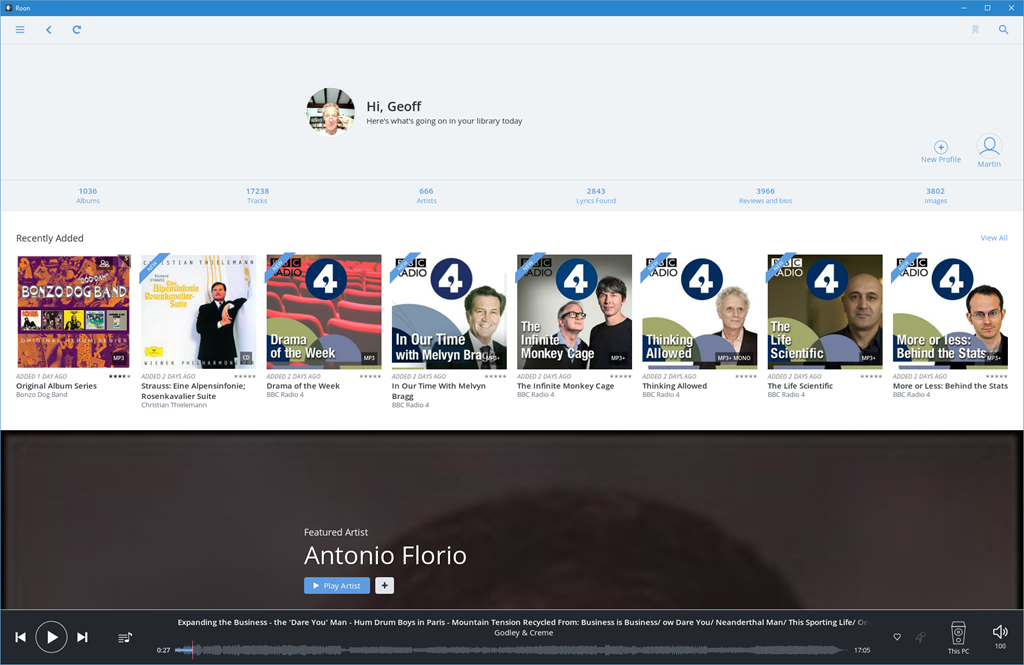
    Roon’s user interface is very elegant, and blows those of Plex, Emby and Groove clean out of the water. The entry screen gives an overview of your collection (note that it can be personalised for different users).

    Roon 20

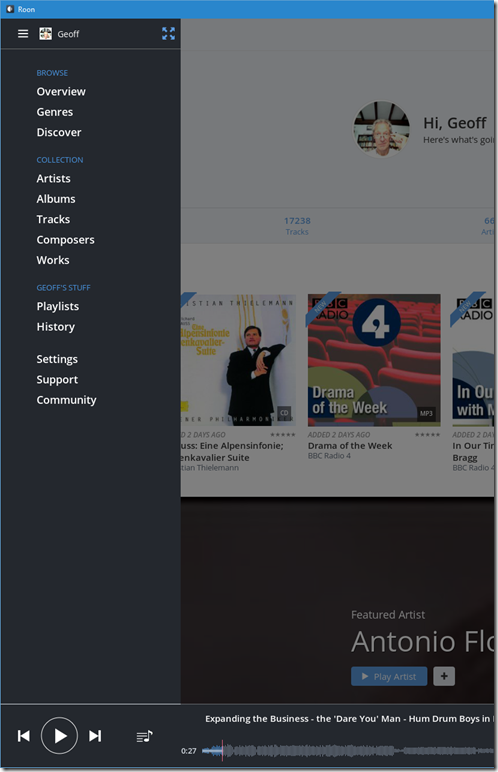
    The top level menu immediately shows that in addition to Albums, Artists, and Tracks, Roon also knows about Composers and Works – these are elements that Plex, Emby and Groove haven’t got a clue about.

    Roon 21

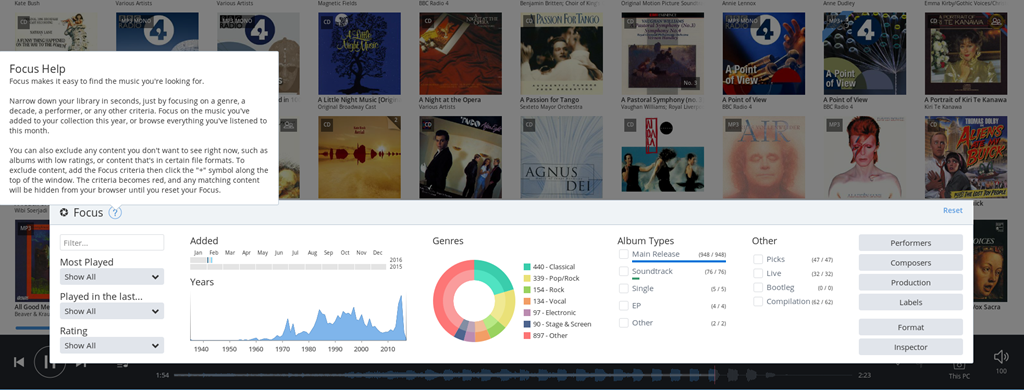
    What I particularly like is that it can be clean and simple to use, but it is also easy to slice and dice your music collection (using the Focus feature) to find that hidden gem.

    Roon 22

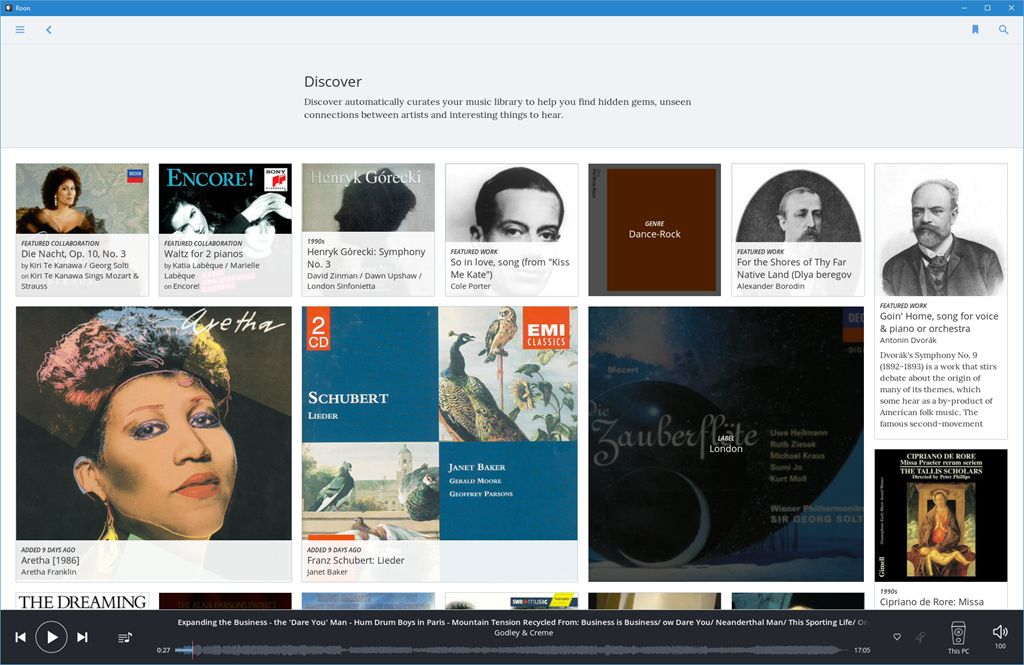
    Or you can choose for serendipity, and follow links from the Discover screen, which changes over time:

    roon 23

    Hans Beekhuyzen, a Dutch audiophile, has made a good introduction (in English) to the Roon user interface on his YouTube channel:

    I decided I would trial a client/server configuration of Roon – have the Core component of Roon (RoonServer) installed on the Windows Home Server 2011 system, and install Roon software on all our tablets and PCs – including the HTPC. That way I could use any device to play back the content of our music library.

    I also added an Audioquest Dragonfly DAC to the HTPC to connect it to the Quad pre-amp. Roon can support multiple outputs, so with the Roon software on the HTPC, I could easily choose to play music either through the Quad or through the Denon.

    I ran into a couple of problems:

    1. The RoonServer software didn’t really like running on WHS 2011, and Roon Labs don’t support WHS 2011.
    2. Streaming music (FLAC 44.1 kHz, 16 bit stereo format) from RoonServer to Roon running on tablets or laptops (i.e. devices connected via WiFi) was occasionally problematic. The streaming would break or stop altogether. This does not happen with the same music streamed via Plex or Emby.

    I solved problem 1 by deciding to migrate our server system off WHS 2011 to Windows 10 (which Roon Labs do support). The writing has been on the wall for a while that I would eventually have to do this migration. Microsoft stops mainstream support of WHS 2011 in April 2016. This issue with RoonServer was the straw that broke the camel’s back for me, and provided the impetus to migrate.

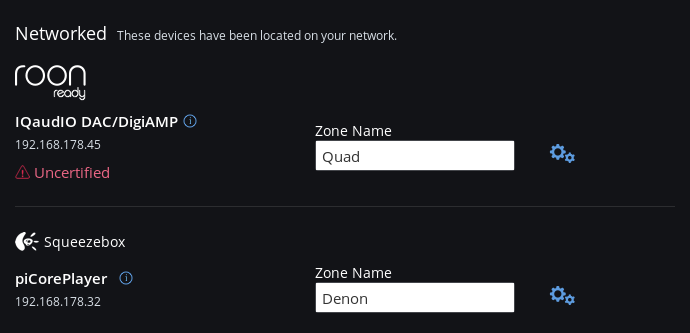
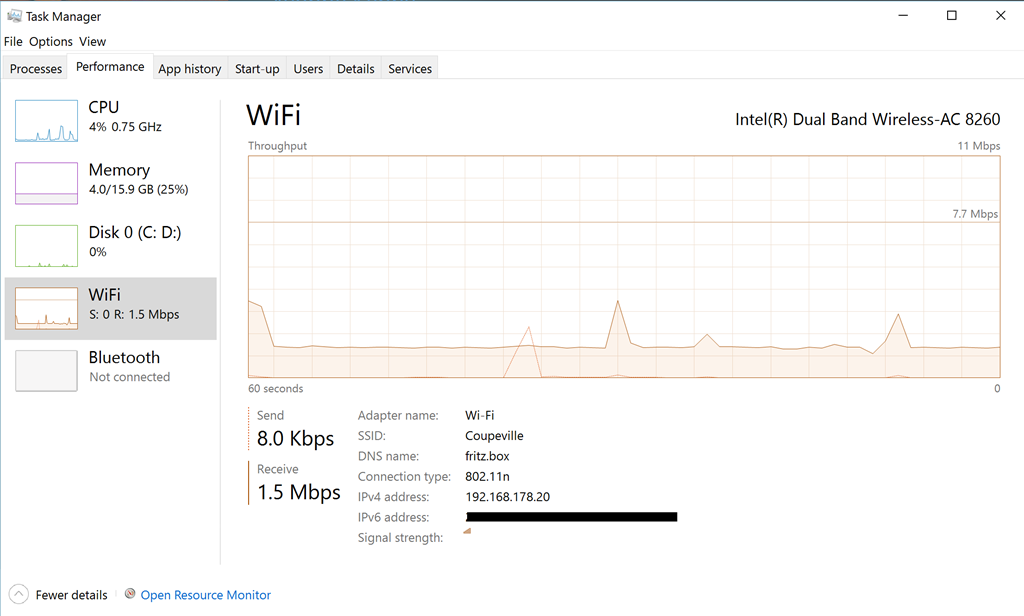
    I’ve provided Roon logs to Roon Labs for the second problem, and they are investigating. I suspect that it is caused by the fact that I have two access points for our WiFi network here – the main access point at the router in the meter cupboard at the front of the house, and a repeater in the attic. In some parts of the house, a tablet will dynamically switch between taking the Wifi from the router or the repeater and vice versa. The network traffic of Roon seems to be a fairly constant 1,5 Mbps:

    Roon 08

    whereas that of Plex or Emby is much more “bursty”:

    Roon 10

    I am confident that this issue can be dealt with, and if the worst comes to the worst, I will still be able to use the tablets to browse the library and to control playback to the HTPC and the Quad. This feature comes in the upcoming version 1.2 of Roon. I can then continue with using Plex and Emby for music on our WiFi connected devices. Not perfect, but workable.

    Final Thoughts

    The journey is not at an end, but I think, at least as far as my music is concerned, I’ve reached a basecamp where I can pause awhile. It’s nice to be able to hear my music as it was intended to be heard on my Quad HiFi system once more, and that now includes high resolution music purchased online.

    Yes, I’ve crossed the Rubicon and invested in a lifetime subscription to Roon. I just hope that both I and the company can survive long enough to give me a decent return on my investment…

    With regards to our Home Theater experience, either Plex or Emby do it pretty well. I’ll wait to see how their Home Theater clients develop before deciding which one to go for. In the meantime, the now obsolete Plex Home Theater serves its purpose.

    Addendum: 18 May 2021

    I thought I’d add a note here to update the state of play as of the time of writing this addendum.

    I’ve dropped the use of Emby, but still use Plex for playing movies and video. I don’t use it for anything else (e.g. for Music, Photos, or Live TV).

    I’m still with Roon, which is now up to version 1.8, with much more functionality than when I started. And unlike some software applications, the additional functionality is genuinely useful.

    4 responses to “Media in the Home – The Journey Continues, and Roon is Discovered”

    1. […] ← Media in the Home – The Journey Continues, and Roon is Discovered […]

    2. […] A couple of weeks ago, I wrote about my adventures in the world of Hi-Fi. With the discovery of Roon, I’ve rekindled my quest to listen to music, rather than have it as background noise. It’s also had the side effect of making me take a look at my current Hi-Fi equipment and wondering whether I should upgrade or tweak it. […]

    3. […] Six weeks ago, I was at the point where I had come to the conclusion that Microsoft has lost the plot when it comes to integrating Hi-Fi systems into the Windows ecosystem. I was still trying to decide between Plex and Emby as the basis for an all-in-one media handling system, and I had just come across the Roon music system. […]

    4. […] over 1,700 integration modules available for Home Assistant, including a module for Roon (but that’s another story…). Suffice it to say that Home Assistant is able to integrate a wide range of devices and […]

    Leave a comment

  • The Lenovo Yoga 900s – a Review

    Introduction

    Lenovo has a range of consumer-oriented computers named IdeaPad. The range has a number of different series within it, each designed for a different purpose or user group. The Yoga series is a line of tablets and laptops. The name “Yoga” was chosen because the laptops have hinges that allow the screen to be fully folded back (up to 360°) to convert a laptop into a tablet. A Yoga laptop can also be placed in “tent” or “stand” mode for showing presentations or movies.

    Back in October 2015, I reviewed Lenovo’s Yoga 900 Ultrabook. In January 2016, Lenovo announced a variant of the 900: the Yoga 900s. Slightly smaller and even thinner and lighter than the Yoga 900, this is intended as the ultimate Ultrabook.

    A few days ago, courtesy of Lenovo, UPS delivered a Yoga 900s to me for review. This blog post is the result and focuses on the Yoga 900s hardware and its performance. When I reviewed the Yoga 900, I made a separate post looking at the software environment of the Yoga 900, i.e. the setting up of Windows 10, and a look at the software bundled with the Yoga 900 by Lenovo. The software side of the Yoga 900s is essentially the same as for the Yoga 900, so refer to that post for my findings on the software experience.

    Here’s a table that shows a quick comparison between the Yoga 900 and the new Yoga 900s:

      Yoga 900 Yoga 900s
    OS Windows 10 64 / 10 Pro 64* Windows 10 64 / 10 Pro 64**
    Screen 13.3”QHD+ 3200×1800 IPS, 300nits
    10 point Touch
    12.5” 1920×1080 FHD** or 2560x1440QHD
    10 point Touch
    CPU Intel Core i7-6500U* /
    Intel Core i5-6200U
    Intel Core m7- 6Y75
    Graphics Intel HD Graphics 520 Intel HD Graphics 515
    Memory Up to 16GB DDR3L 8GB DDR3L
    Storage 256GB/512GB SSD 256GB/512GB SSD**
    Active Pen support No Yes**
    Audio JBL stereo speakers with Waves Audio and DOLBY Home Theatre certification JBL stereo speakers with Waves Audio and DOLBY Home Theatre certification
    Webcam 720p, 30 fps 720p, 30 fps
    Connectivity 802.11 a/c Wireless
    Bluetooth V4.0
    802.11 a/c Wireless
    Bluetooth V4.0
    Battery Life 66 Watt Hour – 9.2 hours 54 Watt Hour – 10.5 hours
    Ports 2xUSB 3.0, 1xDC-in with USB 2.0 function, 4in1 card reader (SD, MMC, SDXC, SDHC), USB-C, Audio Combo Jack 1xUSB 3.0, 1xDC-in with USB 2.0 function, USB-C, Audio Combo Jack
    Weight 1.29 kg. (2.84 lbs) 999 gm. (2.2 lbs)
    Dimensions

    324 x 225 x 14.9 mm (12.75” x 8.85” x 0.58”)

    304 x 212 x 12.8mm
    (12”x 8.35” x 0.5”)

    Table 1
    *There is an i7-6500U, 16GB and 256GB SSD fitted on the Yoga 900 I have, and it is running Windows 10 Pro.
    **The Yoga 900s I have for review has a 1920×1080 FHD display, with 512GB SSD and Windows 10 Pro installed. The unit I received did not ship with an active pen included in the box.

    The Yogas are examples of what Intel calls the Ultrabook class of laptop. That is, they are ultrathin, using solid-state drives, low-power Intel Core processors, and (because of their thinness) do not have optical disc drives or full-size Ethernet ports.

    Unboxing

    The box is a minimalist design: white (on top) and orange (underneath), with four icons on the side representing the four Yoga configurations (Laptop, Stand, Tent, and Tablet).

    20160206-1235-50

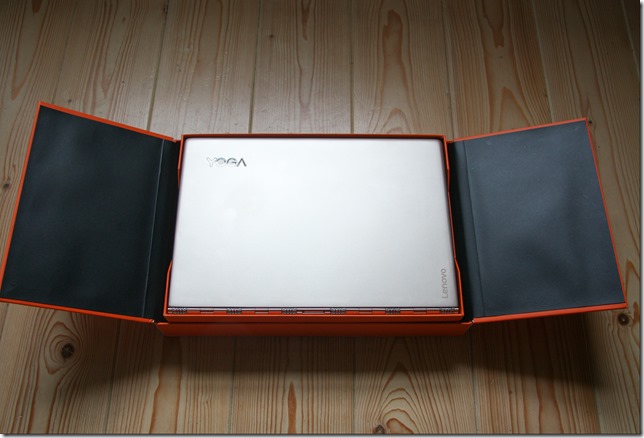
    Like the boxes of the earlier Yogas, it contains a slick piece of paper engineering – after taking off the lid, you fold back the two flaps covering the top, and as you do so, the Yoga 900s rises out of the box to greet you. It’s a nice touch.

    20160206-1236-58

    20160206-1237-43

    Underneath the Yoga 900s are compartments that hold the power adaptor, the special USB power cable, and a sleeve containing the quickstart user guide. Since my review machine is pre-production, the guide was missing. 

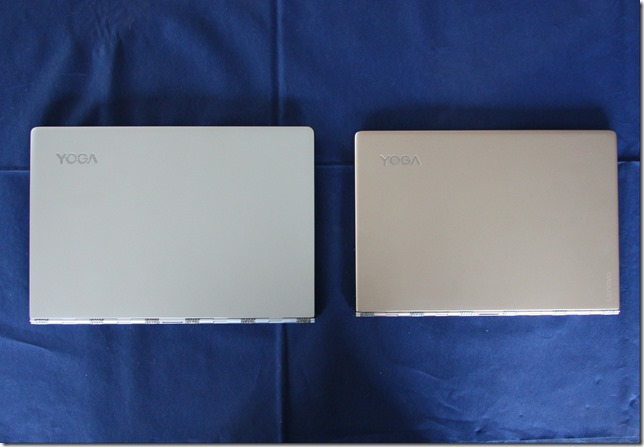
    A side-by-side comparison with the Yoga 900 shows that the 900s is clearly slightly smaller. The Yoga 900s came in the Champagne Gold colour, while the Yoga 900 that I have is finished in sliver.
    20160204-1506-43

    Yoga 900 Externals

    The hinge on the Yoga 900s is the distinctive “watchband” design, which I personally find appealing and which works smoothly and very well.

    The Yoga 900 introduced a a USB-C port, supporting USB 3.0, native DisplayPort 1.2 video and VGA/HDMI output and which replaced the Micro-HDMI port of the Yoga 3 Pro. The Yoga 900s continues this direction. 

    Because the 900s is smaller than the 900, some features have had to be rearranged or dropped altogether. The recessed button that activates OneKey Recovery (see the post on the Yoga 900’s software) has moved from the right hand side of the Yoga 900 to the left on the Yoga 900s. Probably more serious for some, one button and two ports have now disappeared from the Yoga 900s. Just as the Yoga 900 dropped the physical volume controls present on the Yoga 3 Pro, the Yoga 900s goes one step further and has also dropped the display rotation lock button that was present on both earlier machines. The Yoga 900s also has one less USB 3.0 port than the earlier machines, and the card reader port has been removed altogether. Customers who used the card reader port in the past (e.g. photographers transferring images from their camera memory cards to the computer) will now have to use an external card reader attached via USB.

    Here’s a comparison of the righthand side of the Yoga 900s (on top) and the Yoga 900:
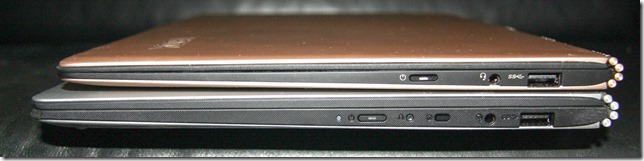
    20160204-1515-09 

    The Yoga 900s shows (from left to right) the power button, the headphone jack and a USB 3.0 port that can also be used to charge external devices.

    The lefthand side comparison:
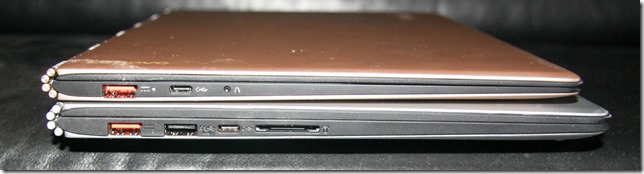
    20160204-1515-56

    In the photo above, the Yoga 900s shows (from left to right) the orange-coloured charging port, the USB C port, and the recessed OneKey Recovery button. The charging port can also act as a standard USB 2.0 port. Lenovo provide a special USB cable for charging their Yoga machines. It has a connector that is physically different from a standard USB male cable (it has a small “nub” on one side). Here’s a photo of the special USB charging cable connector (above) compared with a standard USB 2.0 connector (below):

    20150929-1203-31

    The smaller size of the Yoga 900s compared to the Yoga 900 also means some rearrangement of the keyboard layout. Thankfully, it still has the sixth row of keys that was introduced on the Yoga 900. However, the keyboard is only 26 cm wide, compared with 28.4 cm on the Yoga 900. That means the rightmost column of keys has gone, resulting in one key missing altogether (the right-click menu key), with some keys moved around, or with different function combinations assigned to them.

    Here’s the keyboard of the Yoga 900:
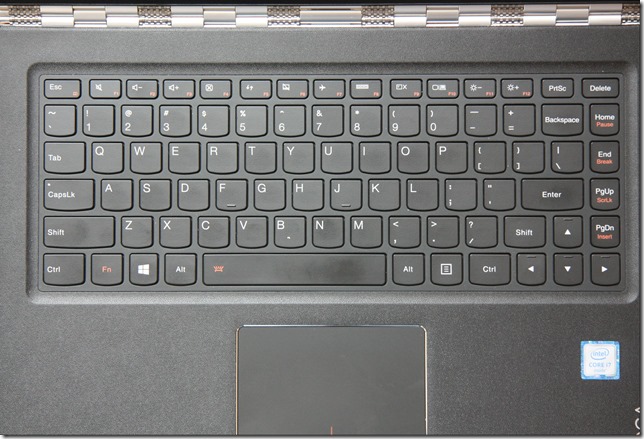
    20160206-1242-25

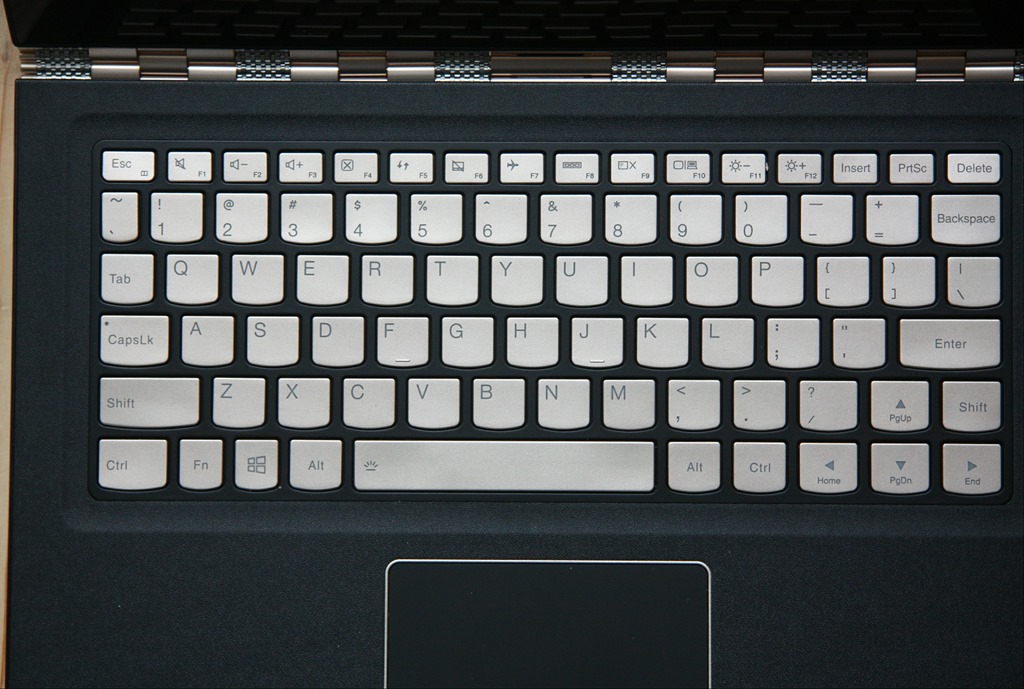
    Note the right-click menu key between the Alt and Ctrl keys to the right of the Spacebar. And now here’s the keyboard of the Yoga 900s:

    20160206-1242-19

    The Right-click menu key has gone. I can’t say that I like the fact that the right Shift key and the up-arrow keys have effectively been switched around in this arrangement. I suspect that for some people that will take some getting used to.

    The keyboard backlight has the same two illumination levels as in the Yoga 900, as opposed to the single level of the Yoga 3 Pro. The champagne gold colour of the keys is a good contrast with the black surround. Apart from the rearrangement, the keyboard feels pleasant to use, and is comparable with that of the Yoga 900. 

    The trackpad appears to be the same in both machines, with an area of 60mm x 90mm. It’s a Synaptics trackpad, that unfortunately has not been certified by Microsoft as a Windows Precision Touchpad, perhaps because it is slightly smaller than Microsoft’s recommended optimal size of 65mm x 105mm. This also means that the trackpad settings are not integrated into Windows 10 Settings. More on the trackpad and keyboard in the Yoga’s Modes: Laptop section.

    While the Yoga 900 had a QHD high-resolution (3200 x 1800) display as standard, the Yoga 900s will offer a QHD (2560×1440) display as an option. My review unit came with a standard FHD (1920 x 1080) display with 10-point touch and support for an active pen (no pen was supplied, however). To be honest, at this physical size (12.5 inches diagonally), my old eyes are perfectly satisfied with FHD resolution. The pursuit of ever-higher resolution in laptops is somewhat lost on me. It causes more drain on battery life, and can introduce scaling issues with older Windows software. What I do regret is that Lenovo has stuck with a display ratio of 16:9. See my further thoughts on this in the Yoga’s Modes section.

    Lenovo has kept the aesthetic of the Yoga 900 by having a single piece of glass in the lid of the Yoga 900s. Both have a (very difficult to see) Windows button (with no haptic feedback) positioned below the display for use primarily when in Tablet mode. As I did in my review of the Yoga 900, I would argue that, with the advent of Windows 10, the Windows button has become redundant, since the Windows Taskbar with its Start button is always present – even in Tablet mode.

    At the top of the screen is the Yoga 900s’s webcam; capable of 720p @ 30 fps (the same as for the Yoga 900), along with the dual-array microphone. The speaker grilles, with JBL speakers behind them, are positioned underneath on the Yogas.

    Yoga 900 Internals

    After hearing feedback from customers that the performance of the Core M processor in the Yoga 3 Pro was slower than anticipated, Lenovo introduced the latest (6th) generation of Intel Core processors, codenamed “Skylake”, in the Yoga 900. Two versions are available in the Yoga 900 range; a Core i5 and a Core i7 model.

    So it’s a bit of a surprise to see that the Yoga 900s has once more gone back to the Core M processor. However, it is also of the Skylake generation, so it should be an improvement over the earlier Core M processor in the Yoga 3 Pro. Being a Skylake generation Core M device, the Yoga 900s is not equipped with cooling fans, unlike the Yoga 900 models. So it is completely silent in operation. Skylake also introduces a new generation of the graphics processor architecture, and the Yoga 900s has an Intel HD Graphics 515 engine (the Yoga 900 has the Intel Graphics HD 520). The Benchmarks section will tell the story.

    The Yoga 900s has 8 GB system memory installed as standard, whilst the Yoga 900 can have up to 16GB. Storage for both Yogas is the same; either 256 GB or 512 GB SSDs can be specified. However, while the Yoga 900 had a SATA interface to the SSD, the Yoga 900s is equipped with the more efficient NVM Express interface.

    The wireless connectivity technologies and interfaces are the same in both Yogas; they support 802.11 A/C Wi-Fi and Bluetooth version 4.0.

    The battery capacity in the Yoga 900s has been trimmed back to 54 Watt hours from the 66 Watt hours in the Yoga 900. However, this is more capacity than the rather disappointing 44 Watt hours of the Yoga 3 Pro. 

    And here’s my hobbyhorse again – like almost all laptops on the market today, there is no built-in GNSS to feed GPS coordinate data to the Windows Location service. I just feel that mobile devices should have a GNSS chip fitted as standard. Downloadable maps for map and navigation apps are supported directly by Windows 10, but I still can’t use the Yoga 900s (or indeed any of the Yogas) off the grid without an additional Bluetooth GPS logger to track its position.

    However, that omission apart, the Yoga 900s is a very attractive looking Ultrabook, with a good display (with pen and touch support) and connectivity options.

    Benchmarks

    PassMark Benchmarks

    PassMark Software provide benchmarking software and hardware. I downloaded their Performance Test 8.0 software and used it to run benchmarks on both Yogas (note: the Yoga 900 here is not the same 8GB pre-production machine as I reviewed back in October; it is a production machine fitted with 16GB memory). I’ve also included the results from the Yoga 3 Pro, as this was an Ultrabook that used the previous generation of the Intel Core M CPU. The results are shown in Table 2 below. I also downloaded HWMonitor from CPUID, to record the maximum temperature of the CPU reached when running the benchmarks.

      Yoga 900s Yoga 900 Yoga 3 Pro
    PassMark 1623.6 1821 1575
    CPU Mark 2860 4493 3628
    2D Graphics Mark 373.2 393.4 338.8
    3D Graphics Mark 435.6 426.6 392.9
    Memory Mark 1528 1992 1598
    Disk Mark 8139 3511 3208
    Max CPU Temperature 62°C 67°C 71°C

    Notice the substantial improvement in the Disk Mark – that is doubtless because of the inclusion of the NVM Express interface – and, despite the lack of a fan, the maximum temperature reached by the CPU is not high.

    Windows System Assessment Tool

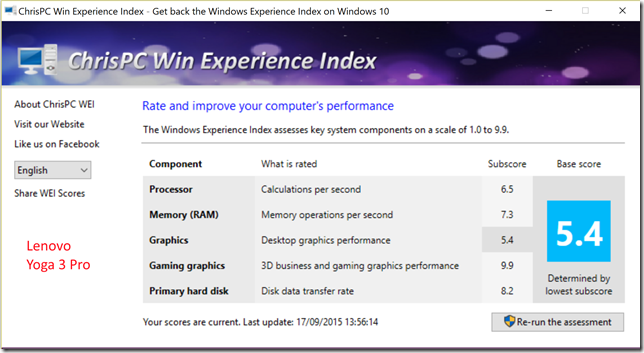
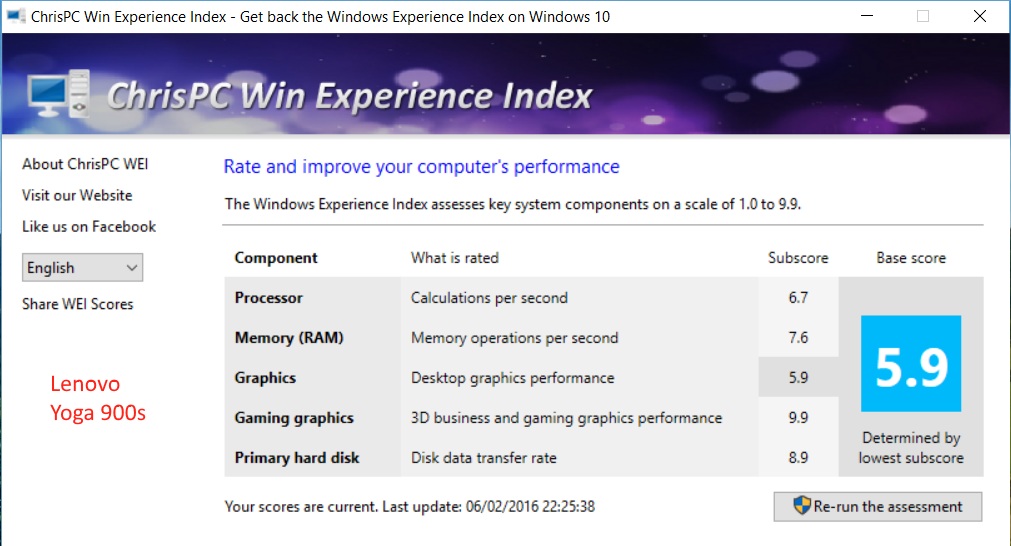
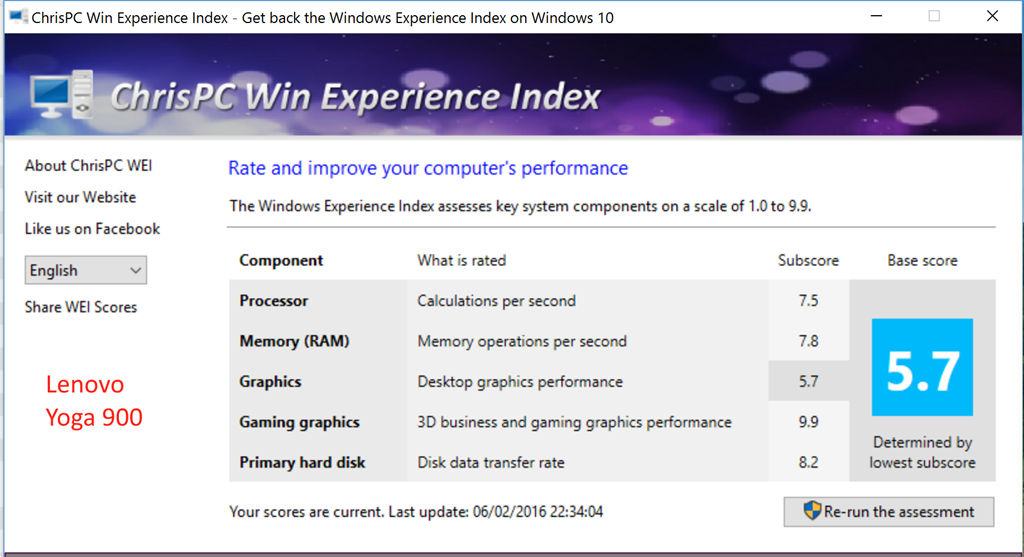
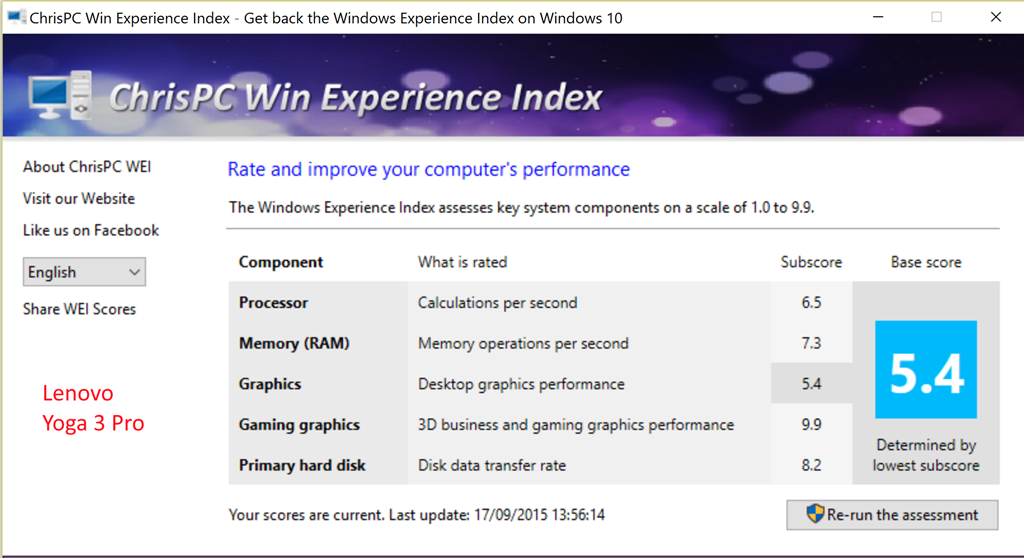
    The Windows System Assessment Tool was first introduced by Microsoft in Windows Vista as a means to compare the performance of the hardware of Windows PCs. For Windows Vista and Windows 7, Microsoft provided an applet (the Windows Experience Index applet) to display the results. Although Microsoft no longer provides this applet in Windows 8.1 and Windows 10, the assessment telemetry is still in place and can be used by third-party tools to display the Windows Experience Index. I used the WEI tool from ChrisPC to display the results for all the Yogas: the Yoga 900s, Yoga 900, and the Yoga 3 Pro.
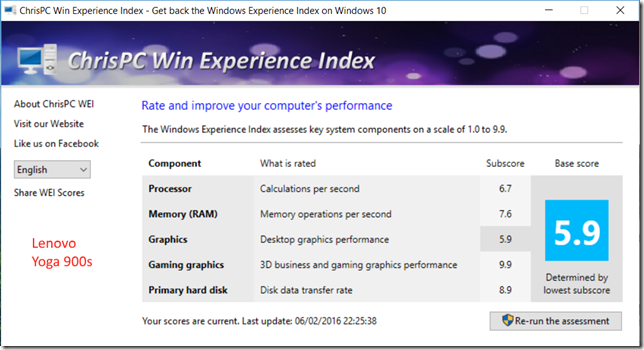
    Y900s 04

    Y900 28

    Y3P 01

    These benchmarks also demonstrate that, while clearly not matching the performance of the full Core i7 CPU of the Yoga 900, the Core M CPU in the Yoga 900s has improved performance over the previous generation used in the Yoga 3 Pro.

    The Yoga 900s is a decent performer overall, no doubt helped by the fact that it has the best disk performance of the three machines.

    Battery Life Test

    Lenovo claims that the Yoga 900s battery can last for 10.5 hours between charges when playing HD video at 200nits. I did a simple test of battery life under the following conditions:

    • Display always on at 50% brightness
    • Speakers at 100% volume with Dolby Audio on and set to music playback
    • Continuous music playback via Groove Music
    • Music streamed from a media server via WiFi

    Under these conditions, after 9 hours continuous play, the battery still had 25% charge left. This is good, and far better than the Yoga 900, which ran out of puff completely after only 6.5 hours under the same conditions.

    Performance summary

    As a result of this testing, it seems clear that the Yoga 900s will perform very well in activities involving both productivity (office work) and media consumption (watching movies/videos and listening to music). Battery life is much improved over that of the Yoga 900.

    Yoga’s Modes

    This section is basically a repeat of the story I laid out in the review of the Yoga 900 from last October. The points remain, for the most part, the same for the Yoga 900s.

    A prime selling point of the Yoga is the fact that it can be folded into a variety of modes. At the time of introduction of the original Yoga back in September 2012, this was a unique innovation. Since then, the concept has been copied by other manufacturers such as Dell, HP, Toshiba and ASUS, which proves that imitation is indeed the sincerest form of flattery. It also clearly demonstrates that the concept is perceived to have market value. Lenovo followed up with the introduction of the “watchband” hinge in September 2014, and now with the Yoga 900 we can see both innovations in a mature form.

    These are the four modes of the Yoga:

    Laptop

    The traditional laptop mode is probably the starting point for most people, and the mode in which I suspect most people will be using it for the majority of the time.

    The Yoga 900s keyboard is good, but compared to the Yoga 900, I think it would be placed second by some people. It does have an extended keyboard (a dedicated top row of function keys), and a quality feel. However, the keyboard is smaller than that on the Yoga 900, which has led to some compromises. These might take some getting used to, particularly if you have been using a Yoga 900 already.

    The trackpad is a Synaptics device that has not been certified as a Windows Precision Touchpad by Microsoft. The result is that it is not integrated in Windows 10 Settings, and Synaptics mimics the required Windows 10 touchpad gestures in their own driver. I also note that there have been complaints about the software driver in the community support forums of Lenovo. The latest version of the driver seems to have addressed the issues. Nonetheless, I feel that Lenovo should get their trackpads properly certified and fully integrated into Windows 10.

    The FHD display is good. Subjectively, it feels somewhat less bright than the QHD display on my Yoga 900, but it is bright enough for me. It’s a 16:9 ratio display, ideal for watching movies. For office work (e.g. word processing in Word, Excel), I personally prefer at least a 16:10 ratio. Even better would be the 3:2 ratio of Microsoft’s Surface range, or indeed of the Lenovo ThinkPad X1 Tablet. The 16:9 ratio is also not ideal in the Tablet mode (see later). The Yoga 900s has a large bezel area surrounding the display, particularly along the bottom. It should be possible to fit a 16:10 ratio screen that is the same width as the current display into the Yoga’s lid. If the (now redundant) Windows Button were to be dropped in the next Yoga generation, this would be very easy to do. The overall dimensions of the Yoga would then remain the same, but having a 16:10 ratio display would serve the Laptop and Tablet modes far better than the current 16:9 ratio display, in my opinion.

    Tent

    This mode is ideal for media (movies and videos) presentations, particularly in space restricted situations, e.g. on a shelf or an aircraft table. For viewing movies, of course, the 16:9 ratio of the display is now ideal. Couple the Yoga with a wireless presenter, and you can use this mode for PowerPoint presentations as well. In this mode the keyboard and trackpad are automatically disabled.

    Stand

    As an alternative to the Tent mode, the Stand mode can be used for media and PowerPoint presentations. It requires more space than the Tent mode, but the screen can be set to a greater range of angles for the best viewing experience. The keyboard and trackpad are automatically disabled in this mode also.

    Tablet

    The last mode is where the lid is completely folded back over the (disabled) keyboard, and to convert the Yoga 900s into a tablet. You can select to have Windows 10 automatically switch into Tablet mode, or to give you the option to switch manually. In this mode, the 10-point touchscreen and support for an active pen come into their own. I found that the size of the Yoga 900 (and the Yoga 3 Pro before it) made for a slightly unwieldy tablet. The smaller size and weight of the Yoga 900s works better for me.  The overall size is very close to that of an A4 pad of paper, just 7mm longer. So the size (and light weight) of the Yoga 900s is good, but unfortunately I find the 16:9 display ratio not ideal in tablet mode.

    The Yoga 900s has pen support, which the Yoga 900 did not have. Lenovo now use the new Wacom AES technology, which uses pens powered by battery or capacitor. I’ve ordered a Lenovo Pro Pen, which uses the AES technology. It will take a couple of weeks to arrive (I think Lenovo must be handcrafting it from the finest plastic somewhere in China), so I’ll add a note to this review about the pen performance at some point in the future.

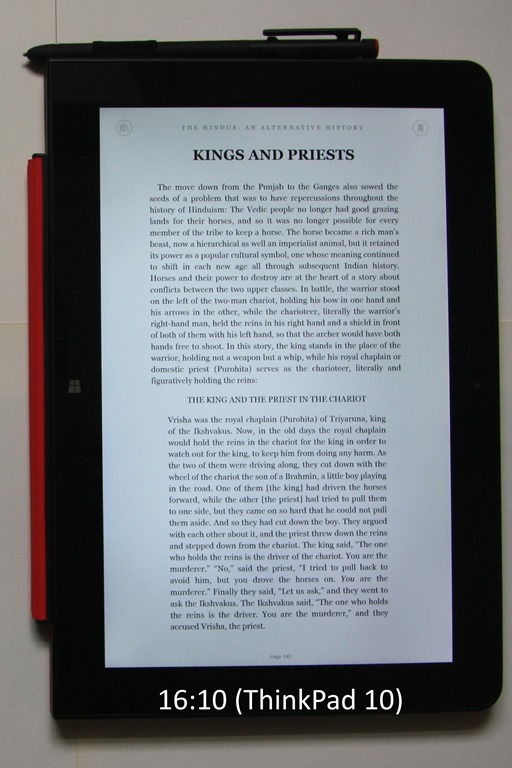
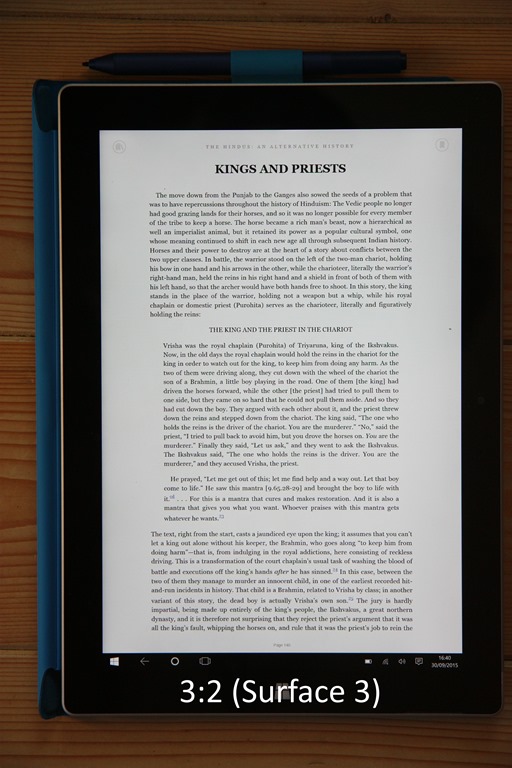
    Talking of A4 pads of paper brings up one last point. One of the frequent uses of a tablet is for reading books or magazines. And once again, the 16:9 ratio of the Yoga 900s or the Yoga 900 provides (in my view) a diminished reading experience over devices with 16:10 ratios (e.g. the ThinkPad 10) or 3:2 ratios (e.g. the Surface 3 or ThinkPad X1 Tablet). Pages are rendered longer and narrower in 16:9, and the reading experience suffers as a result.

    20150930-1640-01  20140930-1314-11b20150930-1639-03

    I would certainly make use of the tablet mode of the Yoga 900s, particularly now that it has pen support. It will be interesting to see over the next few weeks (after the pen finally arrives!) which 2-in-1 device I reach for the most often: the Yoga 900s or my Surface 3. I’ll be reporting back on this later.

    Overall Conclusions

    In my review of the Yoga 900, I stated that the Yoga 900 was a clear advance over its predecessor, the Yoga 3 Pro. The Yoga 900s could be thought of as a refinement of the Yoga 900, a refinement that will appeal to a slightly different audience. If you want power and performance, and arguably a more ergonomic keyboard, then the Yoga 900 is your choice. If you want a smaller, lighter Ultrabook, with power for everyday productivity, and support for an active pen, then the Yoga 900s is an excellent choice. Small, but (almost) perfectly formed. The plus points of the Yoga 900s are:

    • Sufficient performance suitable for a wide range of consumer and business users
    • Good keyboard
    • Good battery life between charges (better than the Yoga 900)
    • Good display
    • Active pen support
    • Build quality and style
    • Light weight (makes Tablet mode a joy not a chore)
    • Flexibility in use

    There are some minus points (in my view):

    • The trackpad is not certified as a Windows Precision Touchpad
    • Unusual keyboard layout
    • No physical volume controls or display rotation lock button
    • Only one USB 3.0 port (the Yoga 900 has two) 
    • Few Lenovo apps deliver real value-add (see this post for details).

    And perhaps Lenovo could give consideration to the following for the next generation of the Yoga:

    • Move from a 16:9 screen ratio to at least 16:10, if not 3:2. Lenovo has done this for the ThinkPad X1 Tablet – why not for IdeaPad Yogas?
    • Include a GNSS chip to deliver GPS coordinates in real-time to the Windows Location service.
    • Put back the volume control rocker switch to support the ergonomics of Tablet mode.

    It is a fine example of the Ultrabook class of computer. It also offers additional flexibility with the configurations that it can be folded into. I like it.

    21 responses to “The Lenovo Yoga 900s – a Review”

    1. Arjan Avatar
      Arjan

      Hallo. Vanuit Singapore schrijf ik u aan. Ik heb zelf wat onderzoek gedaan en vond een nadeel van de Yoga 900 dat er geen dual array microfoon in de laptop zit. Nu lees ik boven: “At the top of the screen is the Yoga 900s’s webcam; capable of 720p @ 30 fps (the same as for the Yoga 900), along with the dual-array microphone.” Is dit zeker?

      1. Geoff Coupe Avatar

        Well, both models have two microphones in an array – is that a dual array, or two mikes in a single array? You tell me…

        1. Arjan Avatar
          Arjan

          According to Lenovo: “Microphone Integrated single digital-array microphone”, but I hope they are wrong or that I misinterpreted it… Who can help us?

          1. Geoff Coupe Avatar

            It’s a single array, but it has two microphones. You can see the two holes in the top edge of the display glass on both Yogas…

            Lenovo’s PSREF documentation also talks of a “dual array microphone” (http://psref.lenovo.com/Product/Lenovo_Yoga_900_13_inch )

    2. paul Avatar
      paul

      Thanks for the review.
      You say the CPU in the 900s is an improvement over the pro 3, yet the CPU mark score for the pro 3 is more than 33% higher than that of the 900s. Is that correct?

      1. Geoff Coupe Avatar

        Paul, yes, it’s interesting, isn’t it? Those were the figures that I obtained from the Pro 3 when I did the review of the Yoga 900 last year. I no longer have the Pro 3, so I can’t rerun the Passmark suite to check. It may be caused by the way Lenovo have set up the system. Intel has made the Core M and chipset such that it can be set to run under different profiles, in order to select for different parameters such as speed, battery life, heat production. The Pro 3 was NOT fanless, so Lenovo could afford to have it run faster and produce more heat. It may well be that in the Yoga 900s, which IS fanless, Lenovo has elected to have it run slightly slower in order to keep the heat down. That slowness is then compensated for by the much better disc performance in the Yoga 900s.

        The comment about “the improvement” was in the context of the fact that the Pro 3 uses the previous generation of Core M.

    3. Johannes Avatar
      Johannes

      Hi Geoff,
      Great review, thanks for that. Is it possible to charge the Yoga 900S via USB-C?
      Best,
      Johannes

      1. Geoff Coupe Avatar

        Hi Johannes, no, as far as I’m aware, it is not possible to charge the 900s via the USB-C port. Only via the Lenovo proprietary USB 2.0 port. The charger delivers more power via that port to charge the battery quicker as well.

        1. Johannes Avatar
          Johannes

          Thanks for your quick reply!

    4. Michael Avatar
      Michael

      Wow, really good review. Just felt the need to say thank you for sharing it with us 🙂

      1. Geoff Coupe Avatar

        Thank you. I just wish that Lenovo would get the damn thing out into the market… It’s a nice machine.

        1. Joel Avatar
          Joel

          No joke. I check the site just about daily, and it still says Coming Soon. It looks like it is technically available on the Singapore Lenovo site.

    5. Cprat Avatar
      Cprat

      How does the 900s stack up to the ms-surface pro 4 running i5 in it? do you think I will be able to day-trade efficiently on it running interactive brokers software with 2 browsers? Thank you

      1. Geoff Coupe Avatar

        Not having a Surface Pro 4 with an i5 in it, I really couldn’t say. However, on paper, a Core M processor is going to be slower than a Core i5. Would it be fast enough for you and your scenario? Without being able to try it out, it’s impossible to judge…

    6. Ron McCord Avatar

      where do you put the active pen is their a slot for it so you dont lose it?

      1. Geoff Coupe Avatar

        There’s no slot (the Yoga 900s is too slimline for that), but the pen is supplied with a clip that plugs into a USB slot, so that acts as the pen holder. The clip can also hold the pen in two orientations: parallel with the keyboard, or vertically upright.

    7. David Avatar
      David

      Can you say something about temperature with a normal use?

      1. Geoff Coupe Avatar

        It’s normal – that’s to say I’ve never once thought “this laptop is becoming uncomfortably warm”. In fact, before you asked the question, I’d never thought even about it, which tells me that the thermal design of the Yoga 900s is good.

    8. […] Back in October 2015, I reviewed Lenovo’s Yoga 900 Ultrabook. In January 2016, Lenovo announced a variant of the 900: the Yoga 900s. Slightly smaller and even thinner and lighter than the Yoga 900, this was intended as the ultimate Ultrabook. I reviewed it in February 2016. […]

    9. Frank. Thomas Avatar
      Frank. Thomas

      I have a YOGA 900 with i7 cpu. What pen will work on it for drawing sketches.

      1. Geoff Coupe Avatar

        You can’t use any active pens, because the Y900 doesn’t have the necessary digitiser hardware in the screen. Only passive (capacitive) pens will work, because they act like a finger. I don’t use such pens, so I have no recommendations. Sorry.

    Leave a comment

  • Bumps in the Road to the Internet of Things

    Regualr readers of this blog may recall that I dipped my toe into the waters of Home Automation at the beginning of last year, and I have been running a Domoticz system since last March.

    I’ve been pretty pleased with it up until now, and the system has been expanded to control more appliances and to record their power consumption.

    This week, however, I hit a bump in the road. I noticed that since January 1st, we have apparently not been using any gas:

    Domoticz 48

    This clearly isn’t right, and in fact the gas meter itself is showing that gas is being used. However, the “smart meter” data connection to Domoticz is claiming that no gas is being used. It turns out that this is a software bug in the firmware of these smart meters, either in the gas meter itself, or in the electricity meter that reports consumption readings for both gas and electricity to Domoticz.

    The problem manifests itself if you have the combination of an Iskra-type 382 DSMR 2.2+ electricity meter with a Flonidan or a Landis & Gyr gasmeter. These meters were installed in the Netherlands during 2011-2013. And yes, we’ve got this type of electricity meter and a Landis & Gyr gasmeter. Bingo!

    Presumably, this “smart meter” is also reporting this same false reading back to the energy company. I suspect that they are all running around like chickens with their heads cut off wondering what to do about this.

    Worst case scenario is that all the meters will have to be exchanged if the firmware can’t be fixed. At the very least they will have to send out humans to come and read every meter so that customers can be accurately charged. I hope that the meter readers come equipped with a box to upgrade the meter’s firmware so that it’s a one time visit…

    Addendum 25 January 2016: Luckily, this issue has now been addressed, and a firmware fix is being rolled out to all the 400,000 gas meters affected by this problem. In addition, the fix is one that can be delivered over the network, so no humans are needed to visit every meter. It will take a couple of weeks before the fix is installed on every meter, but ours started working again as of yesterday…

    One response to “Bumps in the Road to the Internet of Things”

    1. Ludwig Avatar

      Software glitches and bugs can be so amusing and dreadful at the same time. At least your gas company might send you a bill for zero due. Some years back we encountered a problem with a gas meter. Instead of billing us for the monthly reading difference we were billed for the entire numerical reading, enough gas to incinerate our city several times over. At least the amount was so outrageous that they readily understood there was a mistake.

    Leave a comment

  • Season’s Greetings

    20090109-0859-10

    Our Christmas card this year features the row of seven oak trees in front of the woods where we walk the dogs. The photo was taken in January 2009. So far, this winter has been unseasonably warm. We are definitely not going to have a White Christmas…

    Leave a comment

  • Windows Live Writer – Now Open Source!

    Ever since 2005, I’ve been using Microsoft’s Windows Live Writer to create these blog entries. It has been my mainstay. An easy-to-use application that has allowed me to create and edit my blog on WordPress with ease. But ten years in computing terms is a long time, and ever since 2012 there has been a question mark hanging in the air – would Microsoft continue supporting Windows Live Writer, or would it be dropped, like so many other good and useful software applications have been (Picture It!, Microsoft Digital Image Pro, and Microsoft Money) I’m looking at you).

    For a while now, Scott Hanselman and others within Microsoft have been trying to get a version of Windows Live Writer released as Open Source, and today’s the day.

    An open source fork of Windows Live Writer is now available as Open Live Writer. Congratulations to Scott and the OLW team for reaching this milestone.

    This blog entry has been created and published to my blog using it. I intend to support this effort by switching to Open Live Writer from now on. It is clear that Microsoft will be pulling the plug on Windows Live Writer at some point in the not too distant future.

    The King is dead – Long live the King!

    2 responses to “Windows Live Writer – Now Open Source!”

    1. coffeemike Avatar

      HAH! I saw that this morning and thought of you, but hadn’t stopped to email you about it yet. Glad you saw the news. Hopefully they’re able to modernize the key bits that need it and keep it alive. I do miss the tool.

      Also, if you haven’t seen, WordPress have released the Windows version of their new desktop app (http://desktop.wordpress.com). It’s a new interface, same as on WordPress.com, based on their new JavaScript framework. Might also be worth a look, though I wouldn’t suggest jumping off OLW just yet.

    2. Ludwig Avatar

      Wonderful news! As all who know me are aware, I have been a booster of this tool for a long time, even have a blog about it. This is still the best blogging tool bar none.

      I had just downloaded and installed the WordPress app. I have good reasons for being leery of anything called an app, and this one reinforced my apprehensions. I was scrolling down in the reader in this app found your post and tried to leave a comment. It worked fine but did not post, I got an error message that my comment could not be posted. Well back to the Firefox browser.

      I wish the new team all the best. Maybe soon I will have things to share at LiveWriterBasics.wordpress.com

    Leave a comment

  • Curse You, Microsoft!

    Another day, another rant at Microsoft…

    Christmas is coming, so the Christmas Card production line has started here at the Witte Wand. We’ve got about 100 cards to send out to friends and family each year, and I use mailing labels to save a bit of time, rather than addressing each envelope by hand. My everyday printer is an Canon inkjet printer, but because I want waterproof labels, I prefer to print them on my trusty (20 year-old) HP Laserjet 5/5MP printer.

    So I duly fired up the printer, opened the Word document containing the mailing labels and attempted to print them. Nothing happened, apart from Windows 10 giving me a singularly unhelpful error message: “Printer in an error state”. The printer was fine, a selftest worked as expected, but Windows was insisting that there was an error. After some further detective work I discover that the cause of the problem is not the printer, nor the printer driver, but the Windows 10 software driver for the LPT (parallel) port.

    It turns out that the November update to Windows 10, to bring it up to the latest version of Windows 10 (version 1511), has a brand new version of the driver for the LPT port – and it doesn’t bloody well work.

    Apparently, one of the first things that Satya Nadella did on becoming the new CEO of Microsoft, was to let go a large portion of testers in favour of the programmers doing their own testing. While I’m sure that this saved Microsoft a chunk of money, did no-one bother to point out to Nadella that programmers do not always make good testers? Testing is a skill in its own right, and often programmers will miss bugs in their own code because they are too close to it.

    It seems to me that the end result is that Windows 10 was released in July both buggy and incomplete, and now with the November update, we, the customers, have a brand new batch of bugs to deal with.

    I am not a happy bunny at the moment.

    Addendum 2 March 2016: Well, three months after Microsoft broke the LPT driver, it appears that they have finally fixed it. No apologies, and no acknowledgement from Microsoft that there ever was a problem until this one sentence announcement buried away in the Microsoft Answers forum. Bad show, Microsoft, bad show.

    11 responses to “Curse You, Microsoft!”

    1. TomT Avatar
      TomT

      Posts like this give me pause. I’m running Windows 7 Pro and am considering installing the free upgrade to Windows 10. Do you see much real benefit to Windows 10? I have a few legacy devices (scanner, etc.) that work well enough under 7 and I wonder if it’s really worth the risk of upgrading.

      Not to mention that before upgrading I’d need to replace my C drive as I currently have a 120 GB SSD that is running out of space! Seemed like a good idea at the time…

      I think that part of the appeal of upgrading is simply trying something new as well as running the “latest and greatest” but I wonder if there are any real world benefits beyond that. I trust you to give me a fair assessment; your blog has proven to me that you really pay close attention to such matters!

      1. Geoff Coupe Avatar

        You’re quite right that part of the appeal to me of upgrading is simply trying something new as well as running the “latest and greatest”. Guilty as charged.

        There are improvements in 10 over 7 under the covers, mainly in the security architecture. There is also much that is completely new, such as the Universal Windows Apps architecture and the tight integration with Cloud services. Whether these all add up to a clinching argument to upgrade is ultimately down to you.

        I think a key aspect of 10 is the change from point releases of the OS every couple of years to the concept of the OS as a service. There is also the fact that if you run Windows 10 Home, you can’t defer updates – they are automatically applied. At least if you upgrade to Windows 10 Pro you can defer upgrades. That way you can wait to see whether the rest of the community reports issues before applying upgrades. But even that won’t catch everything, as my post illustrates.

        This shift from extensive internal testing by dedicated testing teams to pushing it out and let the Windows Insiders catch issues is not necessarily a good one, I feel. Clearly, some pretty fundamental bugs are slipping through the net, or stuff is being released to end-users before it’s really ready for primetime. An example of this is the driver for the latest generation of Intel’s integrated graphics engine in Skylake. The forums have been full of complaints about the new Surface 4 Pro, Surface Book, and other laptops using Skylake as a result. Nadella may have saved some money in testing, but it will cost him in reputation.

        So, do you upgrade or not? You could always try it. You will have 30 days to check that all your legacy stuff still works, and rollback to 7 if it doesn’t. The problem is that because 10 is now a service, there’s now no guarantee that it will continue to work in future, and that’s an issue that I think Microsoft needs to address.

        1. TomT Avatar
          TomT

          Knowing myself as I do, I suspect the appeal of “the new” will be too strong to resist. And I suppose moving to Windows 10 will ensure a longer period of support from Microsoft.

          Honestly I should be more concerned about support for legacy software than for hardware. I really don’t terribly mind buying a new scanner if I must, but I’d be upset if I were forced to move away from certain programs I use frequently. For example I tend to use Nikon’s own image capture and editing software, Nikon ViewNX and Capture NX 2. I should probably consult the appropriate forums to see if other users have had any issues running these programs under Windows 10.

          (This is to say nothing of the fact that Nikon itself no longer supports NX2 and instead are apparently moving users towards a new program called NX-D which I have not had an opportunity to test. In the meantime I’d like to make sure I can continue using NX2.)

          In any case, as I mentioned earlier my immediate concern is simply hard drive space. My 120 GB SSD boot drive is almost full. I am no longer so smitten with the idea of having an SSD for a boot drive, so I think I will replace it with a plain old HDD. I have been told (reliably, I hope) that I should be able to image the SSD (including my Windows 7 installation) and restore the image to a new HDD without any problem. First, though I need to buy the new HDD, as well as a new backup drive with enough room for the image!

          As an aside, I don’t often comment but I love reading your blog. (Though it took me a while today to realize that your on-screen snow drifts down over the text; I thought I was having some sort of cerebral event!)

          1. Geoff Coupe Avatar

            Yes, legacy can be either hardware or software, and in their pursuit of the new, Microsoft does have a worrying tendency to break either or both… Good luck with the upgrades. I use a combination of SDD and HDD on my (home-built) desktop system. I have an SDD for the boot drive, and the majority of programs, but user data is held on a 1TB HDD (which is becoming worryingly full).

            The snow is courtesy of WordPress – they switch it on every December for the month. I have no say in the matter. I quite like it, and change my header picture to reflect the situation, but I often wonder what would happen if I lived in the Southern Hemisphere?

    2. coffeemike Avatar

      I can see it now; the year you finally break and just mass-email everybody instead of sending physical cards. 🙂

      That is an odd portion of the system to be affecting – one would have thought that by now parallel ports were pretty well known, not changing much, and as such code and drivers are fairly robust. One is clearly mistaken, it seems.

      I’ve also just received word that our corporate rollout begins mid-next year, and that it’s not coming with full internal testing of all of our desktop apps with the new Windows version. While I support that approach – we have a LOT of apps to test – it would appear that the “just enough” testing philosophy is catching.

      In any event, have a lovely holiday!

      1. Geoff Coupe Avatar

        Hmm, I was just in the process of writing a long reply to TomT, when WordPress decided it was going to refresh the page to display your comment, so my reply has disappeared into the ether. Curse you, WordPress!

      2. Geoff Coupe Avatar

        The conspiracy theorist in me wonders whether Microsoft would like to drop support for legacy stuff such as the parallel port completely…

    3. Matt Healy Avatar
      Matt Healy

      I’m still refusing the increasingly insistent offers of a Windows 10 upgrade precisely because of issues like this with my legacy hardware. In my experience it’s better to switch to a new OS only when getting new hardware; even though MS claims my hardware is supported by Windows 10.

      I wish there were a way to say No and STOP asking to the upgrade offer dialog box.

      1. Ian Avatar
        Ian

        I think there is, if you google “GWX control panel” that may help (not tried it myself, yet, but friends recommend)

    4. […] in other ways. In addition, with every release of Windows 10 Microsoft seems content to give us a new collection of bugs, whilst crowing how much its customers love Windows […]

    5. […] It’s not the first time that Microsoft, as a result of changes to its testing procedures, has released buggy software, which, under Windows 10 design, will be installed on unsuspecting customers’ PCs automatically. But this has to be the final straw. Changes have to be made, and heads will probably roll. […]

    Leave a comment

  • A Narrow Escape

    Yesterday, my Surface 3 was sitting on my desk, plugged in for charging and quietly minding its own business. Our dog Watson decided to walk past and got his leg caught in the cable. He carried on walking and pulled the Surface 3 off the desk and on to the tiled floor. I saw it happen, but was unable to catch it in time. All I could do was to utter a very loud expletive.

    The Surface 3 landed on the point of one corner. I picked it up in dread, fearing that, at the very least, the screen would have cracked. To my surprise, the screen was intact, and the machine still working. The only evidence of the fall is the slight dent on the corner.

    20151123-1830-26

    It’s tougher than I thought.

    2 responses to “A Narrow Escape”

    1. Matthew Healy Avatar

      I hope that soon wireless chargers will have become universal and then such accidents less likely. Some Apple devices used to have a magnetic connector that would detach when someone tripped on the cable.

      1. Geoff Coupe Avatar

        Yes, I think the Surface Pro line uses magnetic connectors, but the Surface 3 just has a standard micro-USB for charging. At least my Lumia 1020 has a Qi cover for wireless charging, so that’s one less thing that Watson can destroy…

    Leave a comment

  • Paris–13/11/2015

    Here we go again, more deluded fools with guns and explosives murdering innocents, followed by a statement from IS that is “written in the standard, sententious style of Isis and other militant pronouncements and is framed by a worldview that has become wearily familiar over recent years”.

    The late Iain M. Banks summed it up well in his novel Against A Dark Background:

    Sorrow be damned and all your plans. Fuck the faithful, fuck the committed, the dedicated, the true believers; fuck all the sure and certain people prepared to maim and kill whoever got in their way; fuck every cause that ended in murder and a child screaming.

    Amen.

    One response to “Paris–13/11/2015”

    1. […] The last time I used this quote from Iain M. Banks was for the events in Paris in 2015. […]

    Leave a comment

  • The Saga of Broadband Internet

    Almost a year ago, I blogged about the poor state of internet in the Dutch countryside, and about our area in particular. Even though the Netherlands as a whole is high up in the league table of countries enjoying fast broadband internet, 196,000 households and 132,000 businesses in the Netherlands do not have fast broadband internet (defined by the EU as being 30 Megabits per second or faster). Far from it, many households and businesses around here are lucky if they get 3 Mbps.

    A year ago, it looked as though things might improve – the Province of Gelderland, in cooperation with ten Local Authorities (including ours), announced an initiative to lay fibre optic cables in countryside areas.

    Alas, it looks as though the project has run into difficulties – some thrown up by the EU, and some thrown up by KPN – the largest telecom provider here in the Netherlands.

    The plan was for the initiative to set up a company to lay the cables, and then lease them out to network operators for running of the network and provision of internet services to customers. The EU took a dim view of this idea, claiming it was not the role of government to get involved in the free market.

    Then KPN announced that it would be investing less in the laying of fibre-to-the-home (FTTH), and focusing more on upgrading the old ADSL-based copper cable network by investing in VDSL technologies, and also investing in 4G mobile networks.

    Broadband internet has been discussed a number of times in the Dutch parliament this year, and the Minister of Economic Affairs (Minister Henk Kamp) has made it clear that he does not see a country-wide rollout of fibre-optic cables as the answer, but is more interested in having a smorgasbord of technologies (strangely enough, eerily similar to those proposed by the KPN).

    Unfortunately, I think that all this will lead to a further gulf in the digital divide between those who can enjoy fast internet at an affordable price, and those who must remain in the slow lane, or pay through the nose for fast internet. The difference between living in the town or the countryside, in other words.

    Let’s take my situation as a typical example of someone living in the countryside. The original plan from the Province and the Local Authority was to provide me with FTTH for a one-time cost of €500 and a small additional monthly charge on top of my internet subscription to cover the total cost of laying the cable.  The cost of laying FTTH in the countryside is high, because new cables have to be laid to each home, farm, or business. According to Stratix, this would be in the region of €6,000 per connection (with some outliers in the Netherlands reaching several hundreds of thousands of euros). By contrast, in a town, the cost is around €600 per connection.

    However, if the FTTH plan does not go ahead in some fashion, what are the alternatives?

    KPN has said that they intend to upgrade 100,000 households currently on ADSL to VDSL technologies. This entails laying fibre from the telephone central exchanges to the wiring cabinets placed in a neighbourhood. The new fibre would replace the current copper cables that connect the cabinets to the exchanges. However, the connections between the wiring cabinets and the individual homes or premises would still be the original copper cables. KPN claims that this upgrade would deliver internet speeds of up to 100 Mbps. What they don’t say is that these speeds are only achievable over short distances. If you live (like I do) more than 2 kilometres from a wiring cabinet, then you won’t see much improvement over ADSL speeds. So, while I currently enjoy 4 Mbps over ADSL, I might get 8 Mbps over a VDSL connection. The only way that this could be improved would be for KPN to invest in many more wiring cabinets placed closer to houses out in the countryside. There’s also the point that these VDSL technologies consume more energy than ADSL (and more than fibre). Their ecological footprint is not good. Not for nothing does Stratix label these technologies as “last gasp”.

    KPN has also just announced that it will offer fast internet via 4G to the 100,000 households that it views as being “deep in the countryside”. It claims that this is “the solution for places with less than 6 Mbps internet speed via ADSL”. Well, that’s certainly me, but then KPN qualifies it by saying:

    In order to protect the quality of our 4G network, this [solution] is only available for addresses where:

    • Internet speed is less than 6 Mbps via ADSL and there is no planned upgrade in speed in the coming 6 months
    • The addresses are outside of town or village centres
    • There is sufficient capacity in the 4G network

    Our house certainly qualifies for the first two conditions, but it seems that there is a question mark against the capacity of KPN’s 4G network – when I entered our address into KPN’s availability check, it claimed that “Alas, this [solution] is not available for your address”.

    [Update: and now, a few days later, the availability check claims that the solution is available for our address.]

    Even if it were to be though it is available, I am far from convinced that it is the solution for me. One big difference between the subscriptions for ADSL/fibre and 4G is that ADSL/fibre subscriptions are based on charging for speed, whilst 4G subscriptions are based on data volume. So currently, I pay €50 per month for our internet and telephone access, with no data caps and unlimited telephone calls within the Netherlands, whereas with KPN’s 4G solution I would be paying €50 per month for internet only (no telephone), with a data cap of 50 GB per month. I would need to pay an additional €38 per month for our telephone. And 50 GB per month is nothing – last month we used 105 GB – and that is without any downloading/streaming of films from sites such as Netflix. Admittedly, I download preview builds of Windows 10 and other software under test, but I would argue that I am not too different in my usage pattern than someone working from home making use of Cloud services and video-conferencing. Equally for families using Netflix or similar services – 50 GB per month is not very much at all.

    The KPN 4G service does not support interactive TV services either, so unlike fast internet via fibre or VDSL/ADSL, you can’t have a so-called “triple-play” subscription (a combined internet+telephone+TV service). Most of us out here in the wilds get our TV service via satellite dish, so we’d have to continue with our subscriptions to the satellite services company (CanalDigitaal).

    I summarise the costs of the various scenarios in the table below. For the “Fibre” scenario, I’ve assumed that fibre-optic cable has been laid to our house, that I’ve paid the one-off charge of €500, and that the cable company would make a monthly supplemental charge of €22.50 to recoup the cost of laying the cable over a 20 year period. The triple-play subscription is what I would pay to my current internet service provider for a download speed of 20 Mbps.

    Monthly charge Current KPN 4G Fibre
    Internet €50
    Telephone €38
    TV €17.95 €17.95
    Internet+Telephone €50
    Internet+Telephone+TV €55
    Fibre connection charge €22.50 (est.)
    Total: €67.95 €105.95 €77.50

    To sum up then, the 4G alternative to FTTH is not attractive to me, either on practical or economic grounds. Sorry, Minister Kamp and KPN, you will have to do better than this.

    9 responses to “The Saga of Broadband Internet”

    1. David Broster Avatar

      Hi Geoff, a similar situation here in South Spain in the country. We are only about 10km from Sevilla, but ADSL speeds seldom top 1.5Mb/s and our urbanizacion is ~3km from our local exchange. We need to be able to have unpixelated Skype calls to our children and grandchildren otherwise to them we look even older than we are ! Worse still since we cannot get SKY or FreeSat on the satellite anymore (modern re-focused beams) then we are reliant on IPTV to see some mother country TV. So for a while it was either a) use the internet, b) Skype, c) VoIP, d) TV. It was awfully complicated and made technology look really bad. However, with a 4G mast only 2km away my Android phone is convinced it can download at 40Mb/s (and does). So after a lot of searching and hassle I now have an uncapped, unlimited 24/7 4G connection using a ZTE modem. We typically get 30-40Mb/s down and 15-25Mb/s down. €50 / month on an annual contract. I’m not sure what happens when lots of locals start using 4G and saturate the mast, but for the moment we are in the 21st Century it seems. (p.s.) just spent an unhappy day adding hotfixed and updates to WHS2011 so it can handle UEFI bios and my new lab NUC running windows 10 pro.

      1. Geoff Coupe Avatar

        Hi David, good to hear that you are able to get a 4G plan that is uncapped. Such things don’t exist here in the Netherlands (at least as yet). I’m afraid that your speeds will indeed drop once other people start sharing the mast in earnest – such is the nature of the technology.

        I hope that your WHS2011 is now chugging along – so’s mine, and it had the updates applied a while back to accommodate all our W10 machines. Next year, of course, Microsoft will signal end of mainstream support for WHS2011, but I’m hoping to get a few more years out of it yet.

    2. Mark Avatar
      Mark

      Hopefully they will get you guys back on track. You are far better than the US though. Here, we are at 73.4% penetration of “broadband” which is defined as “faster than dialup” – nice and ambiguous so they numbers can be high.

      Digging around, in one report ( http://www.ntia.doc.gov/files/ntia/publications/exploring_the_digital_nation_-_americas_emerging_online_experience.pdf )uses “faster than dialup” while another defines it as 384k. yes, that is “k”!

      Rural areas are particularly hard hit, with the latest info ( https://www.fcc.gov/reports/2015-broadband-progress-report ) saying “20 percent lack access even to service at 4 Mbps/1 Mbps” and in practice, the cost of service at decent speeds is beyond what a large percentage of the population can afford even if they could get it.

      1. Geoff Coupe Avatar

        “faster than dialup”? – yup, that would certainly cover a multitude of sins! It’s true that the situation here in the Netherlands overall is very good. It just rankles a bit when I look to my neighbours in the little town not 3 kilometres distant who have 500 Mbps courtesy of KPN’s cable laying company – the same company that won’t invest anywhere beyond the town’s boundaries.

    3. Matt Healy Avatar
      Matt Healy

      Maybe you can work with one of those neighbors 3km from you to connect this way:
      http://ronja.twibright.com/

      We have the opposite problem with Internet from our suburban condominium. In the living room connecting directly to the router by Ethernet we consistently get well over 20 Mbps download according to http://speedof.me/ but here at the opposite end of our apartment http://speedof.me/ just now says 4.88 Mbps download speed due to interference from our neighbors’ WiFi devices: this computer can see SEVEN different WiFi routers right now.

      Sometimes I download large files onto a tablet device next to the router, than carry to this room and copy by USB cable onto this computer.

      I’ve considered running Ethernet inside walls but that seems like a lot of trouble.

      1. Geoff Coupe Avatar

        Hah! We have thought about wireless links using RF, but not using light… Something to be filed in the “interesting” folder, perhaps. Re your interference from your neighbours’ WiFi – have you tried moving to another channel?

        1. Matt Healy Avatar
          Matt Healy

          We’ve tried various things, but all the channels seem to be filled with RF noise. Fortunately, in every room except this one it’s fine so we just put up with slower speed in here.

    4. […] It’s been 15 months since I blogged about the poor state of broadband internet in our area. In that time, steps both forwards and back have occurred, so I thought it would be useful to summarise the current state of play in our household. […]

    5. […] a false start in 2015, the campaign to get a fibre-optic network in our region of the Netherlands got properly underway […]

    Leave a comment

  • Where Do You Get Your Ideas From?

    Ursula K. Le Guin is one of my favourite writers. The question: “where do you get your ideas from?” is the starting point for a wonderful essay and meditation on this question.

    Please follow the link and read it – I don’t think you’ll be disappointed. Even if you don’t want to spend the time reading it, follow the link anyway, and you’ll be rewarded with the most stunning photograph of the 86 year-old author: simultaneously wise and mischievous – the sort of human being it would surely be a privilege to know and to count on as a friend.

    (hat tip, once again, to Nicholas Whyte for drawing this essay to my attention)

    Leave a comment

  • And Microsoft Does It Yet Again…

    Oh dear, regular as clockwork, Microsoft opens its mouth to change feet, and creates another PR fiasco for itself.

    A year ago, Microsoft announced that it would deliver unlimited cloud storage to Office 365 subscribers:

    Today, storage limits just became a thing of the past with Office 365. Moving forward, all Office 365 customers will get unlimited OneDrive storage at no additional cost. We’ve started rolling this out today to Office 365 Home, Personal, and University customers.

    I signed up for this, and a few months ago, my 1 TB storage on OneDrive was increased, by Microsoft, to 10 TB, at no additional charge. If I were to put all of my music, photos, home videos and documents on OneDrive, then I would currently be using about 0.7 TB. That’s still comfortably under the old 1 TB limit, but the margin shrinks every year (I’m a packrat).

    It all seemed too good to be true. It was.

    Yesterday, Microsoft announced that there are going to be changes:

      • We’re no longer planning to offer unlimited storage to Office 365 Home, Personal, or University subscribers. Starting now, those subscriptions will include 1 TB of OneDrive storage.
      • 100 GB and 200 GB paid plans are going away as an option for new users and will be replaced with a 50 GB plan for $1.99 per month in early 2016.
      • Free OneDrive storage will decrease from 15 GB to 5 GB for all users, current and new. The 15 GB camera roll storage bonus will also be discontinued. These changes will start rolling out in early 2016.

    The reason for these changes is that, according to Microsoft, “a small number of users backed up numerous PCs and stored entire movie collections and DVR recordings. In some instances, this exceeded 75 TB per user or 14,000 times the average”.

    It does seem a little disingenuous of Microsoft to offer “unlimited” storage at no additional cost, and then be surprised when some people take them at their word. It would seem that we are all being punished for the actions of a few. And I use the word “punished”advisedly. By Microsoft’s own admission, the average user has 5.35 GB stored in their OneDrive (75TB / 14,000). Microsoft has now reduced the free OneDrive storage from 15GB down to just 5 GB (and abolished the 15 GB camera roll bonus). So the average OneDrive user will start paying.

    Lowering the free storage from 30 GB down to just 5 GB for millions of customers does seem to be a slap in the face, even if Microsoft has attempted to offer a sweetener in the form of a free one-year (only) subscription to Office 365 Personal (with its 1 TB of OneDrive storage). I suspect many of those customers will simply walk and switch to alternative Cloud services such as DropBox or Google Drive, because at a single stroke Microsoft has just made their competitors’ services cheaper than OneDrive.

    Sometimes I wonder what goes on in the minds of Microsoft management…

    2 responses to “And Microsoft Does It Yet Again…”

    1. coffeemike Avatar

      The only thing I can think of is that it’s a (perhaps misguided) attempt to position Office 365 in a stronger light. OneDrive was generous for free, and also included web versions of the Office tools to manage your own files – I think it didn’t have full parity with the online O365 versions, but very close. By constraining the free services, it positions the $10/month O365 Personal as a more necessary or viable service offering, in a way. For a company that moves more and more to service offerings (not software licenses) on any device, O365 subscriptions are a key revenue stream.

      That said, I think you’re right, they’ve botched the PR on this. I have visions of marketing and sales staff running pell-mell across Redmond while Yakety Sax plays in the background, Benny Hill-style…

      1. Geoff Coupe Avatar

        Ah – Yakety Sax and Benny Hill – spot on, Mike! Agree that O365 subscriptions are key for Microsoft, but to lower the free limit to just 5GB is cutting off one’s nose to spite one’s face. Bad move.

    Leave a comment

  • “Home”- By Warsan Shire

    no one leaves home unless
    home is the mouth of a shark
    you only run for the border
    when you see the whole city running as well

    your neighbors running faster than you
    breath bloody in their throats
    the boy you went to school with
    who kissed you dizzy behind the old tin factory
    is holding a gun bigger than his body
    you only leave home
    when home won’t let you stay.

    no one leaves home unless home chases you
    fire under feet
    hot blood in your belly
    it’s not something you ever thought of doing
    until the blade burnt threats into
    your neck
    and even then you carried the anthem under
    your breath
    only tearing up your passport in an airport toilets
    sobbing as each mouthful of paper
    made it clear that you wouldn’t be going back.

    you have to understand,
    that no one puts their children in a boat
    unless the water is safer than the land
    no one burns their palms
    under trains
    beneath carriages
    no one spends days and nights in the stomach of a truck
    feeding on newspaper unless the miles travelled
    means something more than journey.
    no one crawls under fences
    no one wants to be beaten
    pitied

    no one chooses refugee camps
    or strip searches where your
    body is left aching
    or prison,
    because prison is safer
    than a city of fire
    and one prison guard
    in the night
    is better than a truckload
    of men who look like your father
    no one could take it
    no one could stomach it
    no one skin would be tough enough

    the
    go home blacks
    refugees
    dirty immigrants
    asylum seekers
    sucking our country dry
    niggers with their hands out
    they smell strange
    savage
    messed up their country and now they want
    to mess ours up
    how do the words
    the dirty looks
    roll off your backs
    maybe because the blow is softer
    than a limb torn off

    or the words are more tender
    than fourteen men between
    your legs
    or the insults are easier
    to swallow
    than rubble
    than bone
    than your child body
    in pieces.
    i want to go home,
    but home is the mouth of a shark
    home is the barrel of the gun
    and no one would leave home
    unless home chased you to the shore
    unless home told you
    to quicken your legs
    leave your clothes behind
    crawl through the desert
    wade through the oceans
    drown
    save
    be hunger
    beg
    forget pride
    your survival is more important

    no one leaves home until home is a sweaty voice in your ear
    saying-
    leave,
    run away from me now
    i dont know what i’ve become
    but i know that anywhere
    is safer than here

    (hat tip to Nicholas Whyte for bringing my attention to this poem by Warsan Shire)

    Leave a comment

  • The Lenovo Yoga 900 – Software

    My last post looked at the hardware and performance of the new Lenovo Yoga 900. This post takes a look at the experience of the initial setup of Windows 10, and the software bundled with the Yoga 900 by Lenovo.

    Windows 10

    The Yoga 900 comes with Windows 10 installed and ready to be set up when the Yoga 900 is first turned on. “Setting up” involves choosing the language(s) you want Windows 10 to use, creating a user account, and connecting to a WiFi network. I’m based in the Netherlands, and Microsoft’s Cortana is not (yet) available for the Dutch market. Since I wanted to try out Cortana, I set up Windows 10 to use British English, and set the region to the UK:

    clip_image002

    There is, of course, the legal stuff to accept…

    clip_image004

    The next step is to connect to a Wi-Fi network. While this step can be skipped, and network connections set up later, it’s best to do it now for two reasons. First, critical software updates to Windows 10 that were issued after the operating system was installed during the manufacture of the Yoga 900 can be immediately installed, and second, if you want to create a Microsoft account during set up, it’s easier to be connected to the internet for this step.

    clip_image006

    Once connected, Windows 10 will offer to use the Express settings for the fastest setup, but you can elect to customise any of the defaults if you so wish.

    clip_image008

    At this point, if you have set up the network connection, Windows 10 will download and install any critical updates for you.

    clip_image010

    Then comes an important question: “who owns the Yoga 900?”. The choice is between you or the company/organisation you work for. Your answer determines whether the Yoga 900 gets automatically joined to the company’s IT network to use the systems there, or, if it is a machine for your personal use, it will be set up for you. Your answer determines which apps, settings and permissions will be used during the rest of the set up process.

    clip_image011

    Assuming that it is your Yoga 900, then the next step is to create your account on the machine. If you already have a Microsoft account, used on other PCs and/or Windows Phones, then enter your details here. If you don’t yet have a Microsoft account, you can use this step to create one. You can also elect not to have a Microsoft account associated with this machine at all, but use a “local” account that is unique to this Yoga 900. You do this by choosing the “skip this step” option.

    clip_image012

    The last step in the process is to choose your PIN, which is a faster way to log in than typing in a long, strong, password (you do have a long, strong, password, don’t you?).

    clip_image014

    And now you’re all set; Windows 10 will set up your default apps and bring you to the desktop:

    clip_image016

    The Start menu will probably look something like this, with a set of default apps:

    clip_image018

    These will be a mixture of apps provided by Microsoft and those provided by Lenovo for the Yoga 900. Which brings me to:

    Lenovo Software

    It’s no secret that I’m not a fan of the OEM practice of bundling a long list of software applications in with their machines. Lenovo is well-known for doing this. For the most part, I find such applications to be of limited, if not questionable, value. The first thing I usually do on setting up such a machine is to remove all such non-essential software. To be fair to Lenovo, they are trying to clean up their act, and the Yoga 900 comes with the shortest list of bundled applications that I’ve seen so far from them. Looking in the Windows 10 list of installed programs, I found the following:


    Application Type

    Application Name

    Lenovo Applications

    Lenovo Accelerator Application

    Lenovo Battery Gauge

    Lenovo Companion 3.0
    Lenovo Experience Improvement
    Lenovo FusionEngine

    Lenovo ID

    Lenovo Photo Master

    Lenovo Product Demo

    Lenovo QuickOptimizer

    Lenovo REACHit and SHAREit

    Lenovo Settings 3.0

    Lenovo Solution Center
    LenovoUtility
    OneKey Recovery

    User Guide

    Security & Productivity

    McAfee LiveSafe (trial)

    Microsoft Office 2016 (trial)

    Having a separate application for the User Guide seems somewhat pointless, as the User Guide is now integrated into the Lenovo Companion.

    Looking at the list of Lenovo applications, there’s a couple that I haven’t the faintest idea of what they do, and one that I can guess at. The unknowns are:

    • Lenovo FusionEngine
    • Lenovo Utility

    It would be nice to have a clear statement from Lenovo as to what these applications are intended to achieve.

    Lenovo Experience Improvement

    My guess is that the Lenovo Experience Improvement application is collecting and reporting to Lenovo non-personally identifiable statistical data, for example:

    • both the configuration and region when the system is first activated,
    • ongoing information on how often key components are used.

    Not everyone is happy with this sort of data-gathering, and those that aren’t can simply uninstall this application. However, it doesn’t overly bother me, and many manufacturers are doing it these days – even my printer is phoning home and reporting statistics. This kind of information helps manufacturers better understand how their products are being used and perform in the field, and this helps influence design decisions for future product generations.

    Lenovo Battery Gauge

    This is actually a useful extension to the standard battery control of Windows 10. It replaces the standard Windows 10 battery notification in the taskbar with a (somewhat clumsy) Lenovo design.

    clip_image020

    It’s useful, because it gives access to a “conservation” mode of charging, where the battery is only charged to 55-60%. This maximises the life of the battery. This mode is not available in standard Windows 10. However, the design of the Lenovo control could be improved. If the icon is touched or clicked, the full Lenovo Settings app is started, and the power section shown:

    clip_image022

    This uses a lot of screen real estate to display relatively little information. It’s also not obvious that not all the power controls are being shown here. You need to scroll down to see additional options, but there is no indication that the page is scrollable until you try to interact with it. I’ll have more to say about the Lenovo Settings app in a moment. But first, here’s how the same information is presented on the Yoga 3 Pro:

    clip_image024

    This is a much more compact method of displaying options to the user, and personally, I much prefer this approach to that of the Lenovo Settings app.

    Lenovo Settings

    In an ideal world, the controls for hardware specific features would be integrated into the Windows 10 Settings screens directly; everything would be accessible via the Windows 10 settings, which would be extended as required by specific hardware or features. In the days of Windows 7, this was done by extending the Control Panel applets with extra tabbed input panels.

    Now, in Windows 10 as it is at the moment, we have a bit of a dog’s dinner, where some settings are only accessible via the Lenovo Settings app, some are exposed as extra tabs in traditional Control Panel applets (for example, the Synaptics Touchpad settings), and some are directly accessible via Windows 10 Settings.

    The Lenovo Settings app has its own manner and style of user interface. It would be much more preferable if it followed the same style guide as Windows 10 Settings. That would help it to blend in with the “house style” of Windows 10, and not stick out like a sore thumb.

    In some cases, there are clickable links on the Lenovo Settings pages that invoke traditional Control Panel applets. Here, for example is the input settings page, with links under the “More” heading to invoke the mouse properties window or the Pen and Touch window.

    clip_image026

    Clicking on the “mouse properties” link should bring up the Synaptics tab of the traditional mouse Control Panel applet:

    clip_image028

    Well, it is invoked, but unfortunately the window is not brought to the foreground, and if the Yoga 900 is in tablet mode there is no indication on the Taskbar that the window even exists. This is not a good user experience.

    Another problem area in the Lenovo Settings app is that the settings do not always reflect reality. It is very easy, for example, to get into the situation where the Settings app claims that the keyboard backlight is “on”, when in fact it is “off” – and vice versa. Setting features via the keyboard seems to be independent of setting them via the Settings app, when good user interface design would seem to demand that all controls should be in lockstep and display the current actual settings at all times.

    Lenovo Companion

    • The Lenovo Companion app brings together the following areas:
    • Support (warranty, technical support, and community support)
    • System health (battery, storage, memory, and hardware diagnostics)
    • System update (automatic download and installation of Lenovo-specific updates)
    • Technical news, Lenovo-specific articles and news on apps made by or offered by Lenovo.

    I have found that I really only use the Companion app to check for system updates. For community support (i.e. accessing the Lenovo Forums and Knowledge Base articles), I will go directly to the Forums via a Web browser – it’s far faster and easier to use than accessing them via the Companion app.

    Lenovo Photo Master

    This appears to be an app developed for Lenovo by CyberLink. It allows you to browse your photo collection held on the Yoga 900, and to import photos to that collection from online services such as Flickr, OneDrive and Facebook.

    It is one of the many alternatives to the built-in Photos app of Windows 10. Given that the Photos app is still very limited in functionality (but supposedly still being developed and extended by Microsoft), many people seek out an alternative.

    Unfortunately, Photo Master is itself fairly limited. It does not support descriptive tags, held in photo metadata. So you can’t search for photos by using tags[1], or manage the tags in your photos. It does support tagging of people’s faces in photos – it can identify a face (but not who the person is), and you can then add a name to the face. It stores this information in the photos as metadata. However, it uses Microsoft’s proprietary People tag schema to do this. This schema was introduced by Microsoft back in Windows 7. Since then, an open standard for face tagging has been developed by the Metadata Working Group, and implemented in photo products such as Google’s Picasa, Adobe’s Lightroom and IDimager’s Photo Supreme. It’s a little unfortunate that Lenovo has not chosen to use this open standard, but has gone with a Microsoft proprietary approach (that itself seems to have been dropped by Microsoft since 2012).

    Lenovo QuickOptimizer and Lenovo Accelerator Application

    This was a separate application in the Yoga 3 Pro (OneKey Optimizer), but now it appears to have been split into these two components which are in turn integrated into the Lenovo Companion app. There is also an Optimizer icon placed on the Taskbar which can invoke two pop-up controls; one to launch the “full optimizer” (which invokes the Companion app opened to the “Optimize your IdeaPad” section) and an “App acceleration” control allowing you to choose which applications you wish to accelerate.

    clip_image030 clip_image032

    I have to say that I’m somewhat uneasy about using the app acceleration control in particular, especially after reading this review of the original Optimizer app, with its rather damning conclusion. I’ll be giving these applications a miss.

    Lenovo Solution Center

    This is another utility that previously led an independent existence, but which now can be invoked via the Companion app in the “Hardware Scan” section. Unfortunately, it’s an application designed for the traditional desktop environment, and is not aware of desktop scaling. The result being that it displays in a small window lost on the Yoga 900’s desktop (which here I have set to 200% scaling, rather than the recommended 250%. If it were to be at the recommended setting, then the LSC window would be even smaller):

    clip_image034

    LSC needs to be brought up to date for today’s world of high resolution desktops.

    Lenovo REACHit and SHAREit

    I’m not the target customer for these two apps. I live almost entirely inside the Microsoft ecosystem. I don’t own any Apple or Android products, and I use OneDrive, not DropBox or any other cloud storage service. Via OneDrive, I can easily share information with friends and family even though they may live equally exclusively in Apple or Android ecosystems. So REACHit and SHAREit seem to offer me no added value. As a result, I don’t use them.

    OneKey Recovery

    This is a system image backup and recovery utility. It can be invoked from within Windows, or directly from the BIOS via a physical button (recessed) on the right hand side of the Yoga 900. It can be used to take backups of a running system and restore them, or restore the Yoga 900 to its original factory state, using a recovery image stored on a hidden disk partition.

    Windows 10 (and Windows 8.1 before it) also has the ability to restore the Yoga 900 to its original factory state, so OneKey Recovery is no longer the essential utility that it once was. However, in the event of a complete failure of Windows, it can be a lifesaver, offering a restore to Windows 10 in its factory state at the push of a single button.

    Software summary

    With a few exceptions (e.g. the Battery Gauge), I remain somewhat unconvinced about the value-add of Lenovo’s software. For the most part, however, you can choose whether to use them or not, and uninstall them if you so wish.


    [1] Windows 10 does know about photo metadata, and you can use File Explorer to search on photo tags.

    22 responses to “The Lenovo Yoga 900 – Software”

    1. […] post focuses on the Yoga 900 hardware and its performance. I have a separate post looking at the software environment of the Yoga 900, i.e. the setting up of Windows 10, and a look […]

    2. […] As we wrap-up on performance, you should know that reviewers are still complaining about he amount of software preinstalled on this machine out of the box, but except for the Office and Antivirus Trails, most of the bloatware is made of Lenovo programs that some might actually find useful (better explained in this article). […]

    3. BD Avatar
      BD

      I have had a Yoga 900 for approx. 30 days. 12/17/15
      I upgraded to Windows 10 Pro.
      Since the upgrade it does not work with office 365 2016 office.
      Lenovo says it is not compatible with Windows 10 Pro!
      This is a real problem for business applications and networking.
      I returned the Lenovo and exchanged for a Surface Pro 4 with Windows 10 pro already installed.

      1. Geoff Coupe Avatar

        Well, I don’t know who in Lenovo told you that the Yoga 900 isn’t compatible with Windows 10 Pro, but that’s absolute nonsense. The Yoga 900 that I reviewed is running both Windows 10 Pro and Office 365.

    4. Stefano Avatar
      Stefano

      I had a problem installing new software…I tried to restore it and it shutted down completely…! No way to turn it on again…and Novo button not working !
      When I purchased it directly from Lenovo I also bought an on-site warranty package but ther is no assistance number !!
      Not even possible to return it to Digital River as they do not answer to the email ….
      Really a horrible customer care…!!

      1. Geoff Coupe Avatar

        Stefano, I don’t know what country you are in, but you should be able to contact Lenovo for support of your Yoga 900. Here’s the support page for the Yoga 900 in the US:
        http://support.lenovo.com/us/en/products/laptops-and-netbooks/yoga-series/yoga-900-13isk?linkTrack=Homepage:Body_Browse%20Products%7CSub-Series%20Selected&beta=null

        You should be able to change this page to that of your country (top right of the web page).

        1. Stefano Avatar
          Stefano

          Thanks Geoff for your info. I live in Italy and if you buy on Lenovo’s web page , shipping and invoicing id from Digital River which is located in Shannon , Ireland.

          No one takes responsability. I called Lenovo’s assistance at 1.5 € a minute and what they suggested is…to contact iDigital River which , of course, has no phone number on the invoice and have no support line and has no procedures to send back defective products…!!

          Consider I also paid 84 € to have additional on-site assistance and the only thing I received is an invoice but no guidelines on how to handle in case of need…!!

          It is really a shame the lack of customer attention of this Company and its subsidiaries…

          Thanks !

    5. Andy_Lenovo Avatar

      Hello Stefano,
      at the bottom of the Lenovo.com/it/it homepage please click on the “+” next to Assitenza Clienti and then select Contattaci. This will bring you to a page offereing different support options, in this instance please choose “Informazioni sugli acquisti” immediately underneath Per Assistenza Online; this brings you to a page with questions, just click on the relevant question to proceed further… All that said I believe the following link is likely the one you are looking for;
      https://checkout.lenovo.com/store?Action=DisplayContactFormPage&Env=BASE&Locale=it_IT&SiteID=lenovoeu&ThemeID=38225200#contactcs

      1. Stefano Avatar
        Stefano

        Thanks apepper ! I think that as I bought an extra on-site assistance…..at least they should have sent an assistance detail as Dell and other manufactirer do….!!
        In any case thanks for your assistance ! Appreciated. !

    6. Stefano Avatar
      Stefano

      One more question…I am trying to install Samaung Printer drivers and scan programmm but Windows 10 tell me I need tu unloch author …!

      I looked on the web on how to do that but didn’t really find concrete answers…

      Can someone tell me how to do it ? Thanks

    7. […] and focuses on the Yoga 900s hardware and its performance. When I reviewed the Yoga 900, I made a separate post looking at the software environment of the Yoga 900, i.e. the setting up of Windows 10, and a look […]

    8. Omar Avatar
      Omar

      Hi Geoff,
      – I’m having a problem with high dpi (it wasn’t working fine at first)
      http://answers.microsoft.com/en-us/windows/forum/windows_10-hardware/signature-edition-lenovo-yoga900-hidpi-scalling/30813eda-6492-43c5-94ac-cc150a090c66?tm=1464772043316&auth=1
      – So I tried to do a factory reset but I couldn’t get the factory reset to work:
      https://forums.lenovo.com/t5/Lenovo-Yoga-Series-Notebooks/Yoga-900-13ISK2-Restore-factory-image/m-p/3341015#M41731
      Can you please help me in any of these?

      1. Geoff Coupe Avatar

        Hi Omar, I’ve been responding to you over in the Lenovo forum, but it’s probably worth reiterating things here for the benefit of others.

        The factory reset issue is probably caused by the fact that you have a “Signature Edition” of the Yoga 900. That’s the branding that Microsoft use when they ship a product that has no “Bloatware” included. I wouldn’t be at all surprised if Microsoft has removed the disk partition that stores the factory image of Windows that is used by the Novo OneKey recovery system of Lenovo. Since Windows 8, a factory reset of Windows is built in to Windows itself, so the Novo system is no longer needed.

        As for the DPI issue, I’m not sure what is going on. It’s possible that having done a Windows Reset, you are missing a specific Lenovo driver that is not in the standard Windows image. This may be fetched and installed if you let Windows Update run. Alternatively, use the driver update facility that is contained in the Lenovo Companion app. If all else fails, you can download specific Lenovo drivers from the support site.

        1. Omar Avatar
          Omar

          Hi Coupe, Thanks for your reply.
          As I learnt on lenovo forums, the signature edition is actually lenovo’s signature edition not Microsoft’s.
          About the hidpi problem, I already tried all the drivers and all the windows updates, the one thing that worked is doing a special workaround for each program by changing a registry value and adding a manifest file for each program (not very neat, not liking it but it’s the only thing that worked so far).
          What I wanted to ask you about is, have you ever faced any hidpi scalling problems? like incredibly tiny icons and text in some programs? What programs did you try out so far ?

          1. Omar Avatar
            Omar

            The only program I’m using right now is eclipse (the most famous java IDE), would be very curious to know if it works correctly on other yoga 900 laptops, this is the download link(150mbs) if you ever wanted to try this:
            http://www.eclipse.org/downloads/download.php?file=/technology/epp/downloads/release/luna/SR2/eclipse-java-luna-SR2-win32-x86_64.zip

          2. Geoff Coupe Avatar

            Hi Omar. I occasionally hit scaling problems with certain software. For example, the Windows Home Server 2011 Dashboard had this issue. And now I am using the Lights Out software on my server (which runs Windows 10 Pro). If I RDP into the server, the LO software shows up scaled very small.

            It’s all down to the particular software application. If the developer hasn’t written it for the new environment of Windows scaling, then these sort of artifacts and issues are only to be expected. I live with it, but then I can imagine that if you have to work day in and day out with this scaling issue it can get old very fast.

          3. Margaret Avatar
            Margaret

            Could you please elaborate on how to use a manifest file to overcome the tiny icons issues? I still have some programs that don’t resolve by setting compatibility to disable DPI scaling. Thanks

            1. omar Avatar
              omar

              Hi Margaret, Sorry for a very late reply, I used this method:
              http://winaero.com/blog/how-to-fix-apps-that-look-small-on-high-dpi-and-high-resolution-displays/
              Let me know if it works for you, or if you find a better solution
              Cheers,
              Omar

              1. Margaret Avatar
                Margaret

                Omar: I ended back up on this thread and realized I’d never responded! That worked for all apps except CorelDraw Essentials X6. I really appreciated the help you provided… it’s never too late to say “thank you”. Best regards, Margaret

                1. omar Avatar
                  omar

                  Hello Margaret, you’re most welcome.
                  The new windows 10 creators update fixes many of the hiDPI issues as well, Microsoft has a page on it now with step by step instructions.
                  I hope you can benefit from it and any future readers of the blog as well.

    9. Greg Avatar
      Greg

      I’m having trouble accessing my Lenovo Yoga 900 after my last Window 10 update. On the window start up page I enter the same old pin number before the update and now I’m unable to gain access. I’m told it is an incorrect number. Any suggestion? I’m able to access another computer or the computer owner page, as another user on the computer but not my accounts from my account. Looking for suggestions…

      1. Geoff Coupe Avatar

        Are you sure that your PC is asking for your PIN? I’ve noticed that on PCs that have had the Anniversary Update installed, the login reverts to asking for your Password, even though you have had it set up to ask for the PIN. If that’s the case, click on the “Sign-in options” under the password field, and re-choose the PIN option.

    Leave a comment

  • The Lenovo Yoga 900 – A Review

    Introduction

    Beginning in January 2008, Lenovo has introduced a range of consumer-oriented computers named IdeaPad. The range has a number of different series within it, each designed for a different purpose or user group. The Yoga series is a line of tablets and laptops. The name “Yoga” was chosen because the laptops have hinges that allow the screen to be fully folded back (up to 360°) to convert a laptop into a tablet. A Yoga laptop can also be placed in “tent” or “stand” mode for showing presentations or movies.

    The latest generation is the Yoga 900, introduced in October 2015. It is clearly the successor to the Yoga 3 Pro, which was introduced in October 2014. The Yoga 900 has almost exactly the same dimensions and design as the Yoga 3 Pro, including the unique Lenovo “watchband” hinge. For that reason, I’ve used the Yoga 3 Pro as the basis for comparison with the new Yoga 900 in this review. Compared to the Yoga 3 Pro, Lenovo has also made changes in the Yoga 900 design, both internally and externally, which I will point out in this review.

    I’ve been able to do this review because Lenovo has provided me with an example of the Yoga 900 in mid-September, ahead of the official launch on October 19, 2015. I’ve spent the past couple of weeks using it, and comparing it with a Yoga 3 Pro that I’ve had since January 2015.

    This post focuses on the Yoga 900 hardware and its performance. I have a separate post looking at the software environment of the Yoga 900, i.e. the setting up of Windows 10, and a look at the software bundled with the Yoga 900 by Lenovo. 

    Here’s a table that shows a quick comparison between the Yoga 3 Pro and the new Yoga 900:

    Yoga 3 Pro

    Yoga 900

    OS

    Windows 8.1 64/8.1 Pro 64

    Windows 10 64 / 10 Pro 64*

    Screen

    13.3” QHD+ 3200×1800 IPS, 300nits

    13.3”QHD+ 3200×1800 IPS, 300nits

    CPU

    Intel Core M 5Y70/5Y71

    Intel Core i7-6500U* /
    Intel Core i5-6200U

    Graphics

    Intel HD Graphics 5300

    Intel HD Graphics 520

    Memory

    8 GB DDR3L

    Up to 16GB DDR3L*

    Storage

    256GB/512GB SSD

    256GB* / 512GB SSD

    Audio

    JBL stereo speakers with Waves Audio certification

    JBL stereo speakers with Waves Audio and DOLBY Home Theatre certification

    Webcam

    720p, 30 fps

    720p, 30 fps

    Connectivity

    802.11 a/c Wireless
    Bluetooth V4.0

    802.11 a/c Wireless
    Bluetooth V4.0

    Battery Life

    44.8 Watt Hour – 7.2 hours

    66 Watt Hour – 9.2 hours

    Ports

    2xUSB 3.0 1xDC-in with USB 2.0 function, 4in1 card reader (SD, MMC, SDXC, SDHC), Micro-HDMI, Audio Combo Jack

    2xUSB 3.0 1xDC-in with USB 2.0 function, 4in1 card reader (SD, MMC, SDXC, SDHC), USB-C, Audio Combo Jack

    Weight

    1.19 kg. (2.62 lbs)

    1.29 kg. (2.84 lbs)

    Dimensions

    330 x 228 x 12.8mm
    (13” x 9” x 0.5”)

    324 x 225 x 14.9 mm

    (12.75” x 8.85” x 0.58”)

    Table 1
    *There is an i7-6500U, 8GB and 256GB SSD fitted on the Yoga 900 I have, and it is running Windows 10 Pro.

    Both the Yoga 900 and the Yoga 3 Pro are examples of what Intel calls the Ultrabook class of laptop. That is, they are ultrathin, using solid-state drives, low-power Intel Core processors, and (because of their thinness) do not have optical disc drives or full-size Ethernet ports. They are the Windows equivalent of Apple’s Macbook Air series.

    Unboxing

    On September 17, UPS delivered a rather plain box: white (on top) and orange (underneath), with four icons on the side representing the four Yoga configurations (Laptop, Stand, Tent, and Tablet).

    clip_image002

    clip_image004

    Like the box of the Yoga 3 Pro, it contains a slick piece of paper engineering – after taking off the lid, you fold back the two flaps covering the top, and as you do so, the Yoga 900 rises out of the box to greet you. This is a nice touch to the packaging.

    clip_image002[4]

    clip_image004[4]

    Underneath the Yoga 900 are compartments that hold the power adaptor, the special USB power cable, and a sleeve containing the quickstart user guide. In my example, the guide was missing, it may have still been in preparation. However, I didn’t really need it, since I’ve been here before, so I could get straight on with plugging in the adaptor and cable and setting up Windows 10 on the machine (see my separate post).

    clip_image006

    Before doing that, I thought it would be useful to compare the Yoga 900 side-by-side with the Yoga 3 Pro, so here are some photos of the two machines together. The Yoga 900 came in the Champagne Gold colour, while the Yoga 3 Pro is Clementine Orange.

    clip_image008

    Yoga 900 Externals

    As you can see from Table 1, the dimensions of the two machines are very nearly the same. The Yoga 900 (on the right in the photo below) is slightly narrower and thicker than the Yoga 3 Pro, but at a casual glance you wouldn’t see it.

    clip_image010

    As introduced with the Yoga 3 Pro, the hinge on the Yoga 900 is the distinctive “watchband” design, which I personally find appealing and which works smoothly and very well. Lenovo states that there have been improvements to the design in this generation.

    clip_image012

    Continuing on our tour of the externals, we come across the first marked difference on the left hand side of the machines. The Micro-HDMI port of the Yoga 3 Pro has been replaced with a USB-C port in the Yoga 900, which (according to the Yoga 900 User Guide) supports USB 3.0, native DisplayPort 1.2 video and VGA/HDMI output. Not (yet) having suitable USB-C cables or adaptors, I couldn’t test this out for myself. Nonetheless, I think that Lenovo is right to be forward-looking with adopting USB-C.

    clip_image014

    The other ports on this side of the machine remain the same. In the photo above, the first port can act as a standard USB 2.0 port, but it is also the charging port for the Yoga 900/Yoga 3 Pro. Lenovo provide a special USB cable for this purpose, which has a connector that is physically different from a standard USB male cable (it has a small “nub” on one side). The second port is a standard USB 3.0 port, while on the other side of the USB-C/Micro-HDMI port is the card reader port. Here’s a photo of the special USB charging cable connector (above) compared with a standard USB 2.0 connector (below):

    clip_image016

    Looking at the right-hand side of the machines, one thing immediately leaps out because of its absence. Unlike the Yoga 3 Pro, the Yoga 900 has no rocker switch for volume control.

    clip_image018

    Everything else is there – but no physical volume control switch. I’m a little surprised by this. It means that the only physical switches for volume control on the Yoga 900 are on the keyboard. For an ordinary laptop, that would be perfectly sufficient. However, this is a Yoga – when placed into one of the other modes (Tent, Stand or Tablet), the keyboard is disabled. Every other tablet (and smartphone) device that I’ve ever used has had a rocker switch on the side of the device used as a volume control; the Yoga 3 Pro has it, so why has Lenovo dropped it for the Yoga 900? On the face of it, this seems a strange design decision on the part of Lenovo.

    Other than that, the Yoga 900 has exactly the same controls and ports as the Yoga 3 Pro on this side of the machine. From the left in the photo above: the power button, a recessed button that activates OneKey Recovery (of which more later, in the post on the Yoga 900’s software); the display rotation lock button, the headphone jack socket, and a USB 3.0 port. This last port can also be used to charge devices such as Smartphones via a USB cable.

    Lifting the lids of the two devices reveals the next major difference; this time a welcome improvement. The Yoga 900 has a sixth row of keys – a line of dedicated function keys on the top row. It seems that Lenovo received negative feedback over the 5-row keyboard of the Yoga 3 Pro, so the traditional 6-row keyboard has been restored in the Yoga 900. An excellent decision that will please many keyboard jockeys.

    clip_image020

    The keyboard backlight now has two illumination levels in the Yoga 900, as opposed to the single level of the Yoga 3 Pro. However, there has also been a change to the design of the keys that I feel is a step backwards. As I think you can see in the photo above, the edges of the keys in the Yoga 3 Pro are translucent, whilst those in the Yoga 900 are solid black. This reduces the effectiveness of the backlight in the Yoga 900. For the sake of chic all-black design, backlight functionality has taken a hit. It’s a minor point, but I find the Yoga 3 Pro keys are better in this respect.

    The trackpad appears to be the same in both machines, with an area of 60mm x 90mm. It’s a Synaptics trackpad, that unfortunately has not been certified by Microsoft as a Windows Precision Touchpad, perhaps because it is slightly smaller than Microsoft’s recommended optimal size of 65mm x 105mm. This also means that the trackpad settings are not integrated into Windows 10 Settings. More on the trackpad and keyboard in the Yoga’s Modes: Laptop section.

    Turning our attention to the screen, both Yoga models have the same high-resolution (3200 x 1800) touchscreen displays, but Lenovo has improved the aesthetics by having a single piece of glass in the lid of the Yoga 900; the Yoga 3 Pro has a strip of black plastic running along the bottom edge. These high resolution screens are almost de rigeur in quality laptops and Ultrabooks these days, so it’s no surprise to see one in the Yoga 900. The display has a ratio of 16:9, which makes it ideal for some uses; less so for others. See my further thoughts on this in the Yoga’s Modes section.

    Both Yogas have a Windows button positioned below the display, for use primarily when in Tablet mode. Neither Yoga has haptic feedback for this capacitive button (unlike Lenovo’s ThinkPad tablets). This could simply be because it is physically impossible for Lenovo to fit a haptic mechanism in such a thin lid, but I do somewhat miss this feature.

    In comparison to the Yoga 3 Pro, the Windows button of the Yoga 900 is also more difficult to see in some lights. Of course, it could also be argued that, with the advent of Windows 10, the Windows button has become redundant, since, unlike in Windows 8.1, the Windows Taskbar with its Start button is always present – even in Tablet mode. It would not surprise me to see this button dropped altogether in the next generation of Yoga devices.

    At the top of the screen is the Yoga 900’s webcam; capable of 720p @ 30 fps (the same as for the Yoga 3 Pro), along with the dual-array microphone.

    The speaker grilles are positioned underneath on the Yogas. Those on the Yoga 900 are slightly larger than on the Yoga 3 Pro, although the specifications of the JBL speakers are the same.

    Yoga 900 Internals

    Lenovo heard feedback from customers that the performance of the Core M processor in the Yoga 3 Pro was slower than anticipated. Lenovo’s response is to include the latest (6th) generation of Intel Core processors, codenamed “Skylake”, in the Yoga 900. Two versions will be available in the Yoga 900 range; a Core i5 and a Core i7 model. These processors are a step up in speed and power compared to the Intel Core M processors used in the Yoga 3 Pro. See the Benchmarks section for comparative results.

    Skylake also introduces a new generation of the graphics processor architecture, and the Yoga 900 has an Intel HD Graphics 520 engine[1], which, as can be seen from the benchmarks, improves 3D graphics performance significantly over the Intel HD Graphics 5300 in the Yoga 3 Pro.

    The Yoga 900 can have up to 16 GB system memory installed – improving on the maximum of 8 GB of the Yoga 3 Pro. Storage for both Yogas is the same; either 256 GB or 512 GB SSDs can be specified. It’s a similar story for wireless connectivity; both will support 802.11 A/C Wi-Fi and Bluetooth version 4.0.

    The battery is another area where Lenovo has improved on the Yoga 3 Pro as a result of customer feedback. Like many others, I found the battery life between charges on the Yoga 3 Pro to be disappointing. Lenovo has increased the battery capacity of the Yoga 900 to 66 Watt hours. That is a third more capacity than that of the Yoga 3 Pro. The Yoga 900 is very slightly thicker and heavier than the Yoga 3 Pro (14.9 mm vs 12.8 mm and 1.29 kg vs 1.19 kg), but it achieves its increase of a third in battery capacity at a cost of only 15% extra thickness and 8% in weight. it’s a sacrifice I’m happy to make for the increased running time on battery.

    Both Yogas are equipped with cooling fans. See the benchmarks section for comments on effectiveness and noise.

    There’s one omission that I personally find a little disappointing: there is no built-in GNSS to feed GPS coordinate data to the Windows Location service. It’s a hobbyhorse of mine – I feel that mobile devices should have a GNSS chip fitted as standard. Downloadable maps in map and navigation apps are standard these days, but I still can’t use the Yoga 900 (or indeed the Yoga 3 Pro) off the grid without an additional Bluetooth GPS logger to track its position.

    However, that omission apart, the Yoga 900 is a very attractive looking Ultrabook, with an excellent display and connectivity options.

    Benchmarks

    Having attractive looks is one thing, but how does the Yoga 900 measure up in performance? I ran some standard benchmarks on both the Yoga 900 and the Yoga 3 Pro in order to have a comparison between them. I did a quick subjective performance test using a Digital Audio Workstation application that I run on my desktop PC. Finally, I ran a simple battery life test.

    PassMark Benchmarks

    PassMark Software provide benchmarking software and hardware. I downloaded their Performance Test 8.0 software and used it to run benchmarks on both Yogas. The results are shown in Table 2 below. I also downloaded HWMonitor from CPUID, to record the maximum temperature of the CPU reached when running the benchmarks.


    Yoga 900

    Yoga 3 Pro

    PassMark

    2214

    1575

    CPU Mark

    4439

    3628

    2D Graphics Mark

    410.5

    338.8

    3D Graphics Mark

    953

    392.9

    Memory Mark

    1771

    1598

    Disk Mark

    3201

    3208

    Max CPU Temperature

    71°C

    71°C

    Table 2

    In the results table above, it is clear that the CPU and graphics performance of the Yoga 900 over the Yoga 3 Pro is much improved, particularly for 3D graphics. Only the disk performance remains unchanged between the two machines.

    As a general principle, I don’t like fans in portable devices, and have expressly purchased tablets for myself that do not have them. Nonetheless, for Ultrabooks with the performance of the Yoga 900, it is probably inevitable that such a device will have a fan. During the running of the benchmarks, the fan on both machines could be heard. Subjectively, the loudness of both fans sounded the same to me. I did not find it intrusive – a hissing sound – and I think it would be at an acceptable level for most people.

    What is interesting from the table above is that the maximum temperature reached by the CPU in both machines during the running of the benchmarks is the same. The i7-6500U processor in the Yoga 900 will certainly be giving out more heat than the M 5Y70 in the Yoga 3 Pro. Given that the fans were equally loud, this would seem to support Lenovo’s claim that they have improved the cooling system in the Yoga 900.

    Windows System Assessment Tool

    The Windows System Assessment Tool was first introduced by Microsoft in Windows Vista as a means to compare the performance of the hardware of Windows PCs. For Windows Vista and Windows 7, Microsoft provided an applet (the Windows Experience Index applet) to display the results. Although Microsoft no longer provides this applet in Windows 8.1 and Windows 10, the assessment telemetry is still in place and can be used by third-party tools to display the Windows Experience Index. I used the WEI tool from ChrisPC to display the results for both the Yoga 900 and the Yoga 3 Pro.

    clip_image022

    clip_image024

    For the most part, the results from this set of benchmarks confirm the findings of the PassMark benchmarks. CPU, graphics, and memory performance is improved in the Yoga 900, whilst disk performance remains the same. For some reason the WSAT tool claims that 3D graphics performance is the same for both machines; I suspect that the PassMark tests are more rigorous, and give a truer picture.

    Digital Audio Workstation Test

    As a result of the improvements to the CPU, GPU and larger system memory, the Yoga 900 can tackle more demanding tasks than the Yoga 3 Pro. By way of a quick subjective experiment, I installed Cubase LE AI Elements 8 on the Yoga 900, and used it with a Cubase project that uses 10 virtual instruments in the HALion Sonic SE workstation, also running on the Yoga 900. This performed well.

    clip_image026

    Battery Life Test

    Lenovo claims that the Yoga 900 battery can last for 9 hours between charges when playing HD video at 200nits. I did a simple test of battery life under the following conditions:

    • Display always on at 50% brightness
    • Speakers at 100% volume with Dolby Audio on and set to music playback
    • Continuous music playback via Groove Music
    • Music streamed from a media server via WiFi

    Under these conditions, the battery lasted for 6.5 hours. Not the 9 hours claimed for by Lenovo, but certainly more than can be achieved by the Yoga 3 Pro under the same conditions.

    Performance summary

    As a result of this testing, it seems clear that the Yoga 900 will perform very well in activities involving both productivity (office work) and media consumption (watching movies/videos and listening to music). It can also be used for media creation work (digital audio). Battery life is improved over that of the Yoga 3 Pro.

    Yoga’s Modes

    A prime selling point of the Yoga is the fact that it can be folded into a variety of modes. At the time of introduction of the original Yoga back in September 2012, this was a unique innovation. Since then, the concept has been copied by other manufacturers such as Dell, HP, Toshiba and ASUS, which proves that imitation is indeed the sincerest form of flattery. It also clearly demonstrates that the concept is perceived to have market value. Lenovo followed up with the introduction of the “watchband” hinge in September 2014, and now with the Yoga 900 we can see both innovations in a mature form.

    These are the four modes of the Yoga:

    Laptop

    The traditional laptop mode is probably the starting point for most people, and the mode in which I suspect most people will be using it for the majority of the time.

    The Yoga 900 keyboard delivers in this mode. The extended keyboard, and its quality feel (something for which Lenovo has a reputation for), will please those who pound keyboards all day long.

    I am less positive about the trackpad. As mentioned earlier, this is a Synaptics device that has not been certified as a Windows Precision Touchpad by Microsoft. The result is that it is not integrated in Windows 10 Settings, and Synaptics mimics the required Windows 10 touchpad gestures in their own driver. I also note that there are many complaints about the software driver in the community support forums of Lenovo. I feel that Lenovo should get this trackpad properly certified and fully integrated into Windows 10.

    The display is excellent, high resolution, good colours, and, at 300nits, bright enough for me. It’s a 16:9 ratio display, so it’s ideal for watching movies. For office work (e.g. word processing in Word, Excel), I personally prefer at least a 16:10 ratio. Even better would be the 3:2 ratio of Microsoft’s Surface Pro 3 and Surface 3. The 16:9 ratio is also not ideal in the Tablet mode (see later). The Yoga 900 has a large bezel area surrounding the display. It should be possible to fit a 16:10 ratio screen that is the same width as the current display into the Yoga’s lid. If the (now redundant) Windows Button were to be dropped in the next Yoga generation, this would be very easy to do. The overall dimensions of the Yoga would then remain the same, but having a 16:10 ratio display would serve the Laptop and Tablet modes far better than the current 16:9 ratio display, in my opinion.

    Tent

    This mode is ideal for media (movies and videos) presentations, particularly in space restricted situations, e.g. on a shelf or an aircraft table. For viewing movies, of course, the 16:9 ratio of the display is now ideal. Couple the Yoga with a wireless presenter, and you can use this mode for PowerPoint presentations as well. In this mode the keyboard and trackpad are automatically disabled.

    Stand

    As an alternative to the Tent mode, the Stand mode can be used for media and PowerPoint presentations. It requires more space than the Tent mode, but the screen can be set to a greater range of angles for the best viewing experience. The keyboard and trackpad are automatically disabled in this mode also.

    Tablet

    The last mode is where the lid is completely folded back over the (disabled) keyboard, and to convert the Yoga 900 into a tablet. You can select to have Windows 10 automatically switch into Tablet mode, or to give you the option to switch manually. In this mode, the 10-point touchscreen comes into its own. However, I find that the size of the Yoga 900 (and the Yoga 3 Pro before it) makes for a slightly unwieldy tablet. While the overall size ratio is very close to that of an A4 pad of paper, it’s bigger, and it’s just too big for me. The 10.1 inch Lenovo ThinkPad 10 is much more my ideal size of tablet. The ThinkPad 10 also has an active digitiser and pen, which again I find important to have in a tablet. Artists also want pens with their tablets, and while many artists might prefer the larger size of the Yoga 900, without proper pen support, they will be crossing it off their list of devices to consider.

    Talking of A4 pads of paper brings up one last point. One of the frequent uses of a tablet is for reading books or magazines. And once again, the 16:9 ratio of the Yoga 900 provides (in my view) a diminished reading experience over devices with 16:10 ratios (e.g. the ThinkPad 10) or 3:2 ratios (e.g. the Surface 3). Pages are rendered longer and narrower in 16:9, and the reading experience suffers as a result.
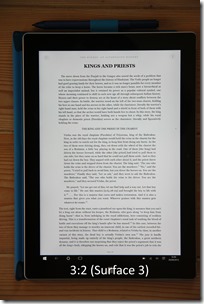
    clip_image002[6] clip_image004[6] clip_image006[4]

    I would certainly make use of the tablet mode of the Yoga 900, but for me, and my usage patterns, it would not be the most frequently used mode. Still, having the option is something that a traditional laptop could not offer me.

    Overall Conclusions

    In my opinion, the Yoga 900 is a clear advance over its predecessor, the Yoga 3 Pro. Lenovo has listened to customer feedback and successfully addressed the major weak points of the Yoga 3 Pro, while maintaining its style and design quality. The plus points are:

    • Higher performance suitable for a wide range of consumer and business users
    • Improved keyboard
    • Improved battery life between charges
    • Excellent display
    • Build quality and style
    • Flexibility in use

    There are some minus points (in my view):

    • The trackpad is not certified as a Windows Precision Touchpad
    • The physical volume control switch has been dropped.
    • Few Lenovo apps deliver real value-add (see this post for details).

    And perhaps Lenovo could give consideration to the following for the next generation of the Yoga:

    • Move from a 16:9 screen ratio to at least 16:10, if not 3:2.
    • Include an active pen option in the Yoga 900 range.
    • Include a GNSS chip to deliver GPS coordinates in real-time to the Windows Location service.
    • Put back the volume control rocker switch.

    It is a fine example of the Ultrabook class of computer. It also offers additional flexibility with the configurations that it can be folded into. I like it.


    [1] Yes, the Yoga 3 Pro has Intel HD Graphics 5300, but despite being a higher number, it has a lower performance. Intel has changed their numbering scheme “in order to reduce confusion”. It seems to me to have done precisely the opposite.

    12 responses to “The Lenovo Yoga 900 – A Review”

    1. […] ← The Lenovo Yoga 900 – A Review […]

    2. Matt Healy Avatar
      Matt Healy

      Sounds like an excellent device if one wishes to use a single device in multiple modes. My own preference is to have multiple single-purpose devices. For intensive work, I use a rather heavy “desktop replacement” style laptop with docking station. For light work, I use a “thin and light” style laptop (sacrificing some performance for portability). For e-books, web browsing on the sofa, videos, etc., I use a tablet. For meeting notes, I use a Bluetooth keyboard with the tablet. For maximum portability, I use my smartphone.

      I just find that each dedicated single-purpose device works better for that purpose than the compromises needed with a multi-mode device. Also, single-purpose devices tend to cost less than multi-mode devices with comparable specifications.

      1. Geoff Coupe Avatar

        “single-purpose devices tend to cost less than multi-mode devices with comparable specifications” – almost certainly true, but then you need more of them 🙂 Swings and roundabouts…

    3. Ruth dela Cruz (@ruthilicious) Avatar

      Woot! Love this very detailed review! #lenovoin

    4. riogrande12Rio Avatar

      Does the 900 support charging over the USB type C connector?

      1. Geoff Coupe Avatar

        If you mean charging of the Yoga 900 itself, then not as far as I’m aware. Charging is done only via the special USB 2.0 port, I believe. The USB 3.0 port between these two ports can be used to charge external devices such as smartphones.

    5. […] the packaging remains the same, as you can see in this post and is one of the most ingenious I’ve seen from any OEMs: the laptop is covered by two paper […]

    6. Dany Marmur Avatar

      Thanks for this. I agree 100% about the screen ratio. Bummer i did not read you post before ordering. The fact i did order is that i absolutely need/want 16GB of ram. I was glad reading about you bench test and your analysis of the fan. Having tinnitus i’m very sensitive to fan noise.

      Mind – the USB-C to drive an external display. I sifted though all questions on the US site – lots of questions about how/what’s needed but no answer. Tried to buy a “USB-C to DP” here in northern Europe. The only one i can find is an obscure one for the Mac. I have not been able to find any cable or some such from a 3rd party or Lenovo. This scares me a bit.

      As an indie developer with the need for a capable machine at /low weight/ and /low noise/ i’d be ready to offer battery life for the faster memory option (would it be available) but i think this machine will serve me ok for at least 3+ years.

      Re the rocker switch, as you call it, it is a setback that could ruin your family life. The wrong sound at the wrong time at the wrong volume. I’ll say no more.

      Lenovo is going to replace this unit as it refuses to lit up the screen after having gone to sleep. An i’ll mention my worries about driving the everyday-work screen.

      Also – i find the machine a bit too “plastic”. Of course, a device like this needs to be able to give some physically or it would break immediately. But i’m worried every time i pick it up and especially when i switch from closed to tablet (all 360 degrees). It feels like i’m about to break it. Also – and i would not have accepted this unit for this reason – the left palmrest does not lie flush against the table surface so every time i rest my left hand i feel the “bump” of the plastic foot. Utterly annoyng. If you have some comments on the physical build properties after further use, i would appreciate it.
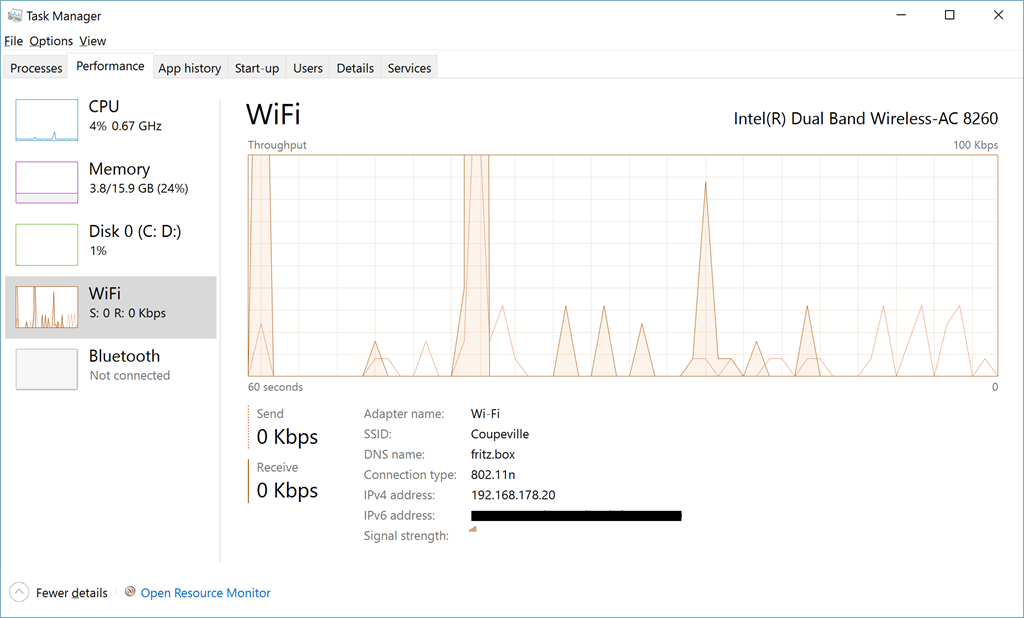
      No mention on the “paper sceen” feature. Having had a Vaio for 6½ years, maybe this feature is legio today. But i find it rather nice. On that note – what is the reason for being able to turn off the screen backlight? It’s completely impossible to see anything (?) haven’t tested it in bright sunlight though.
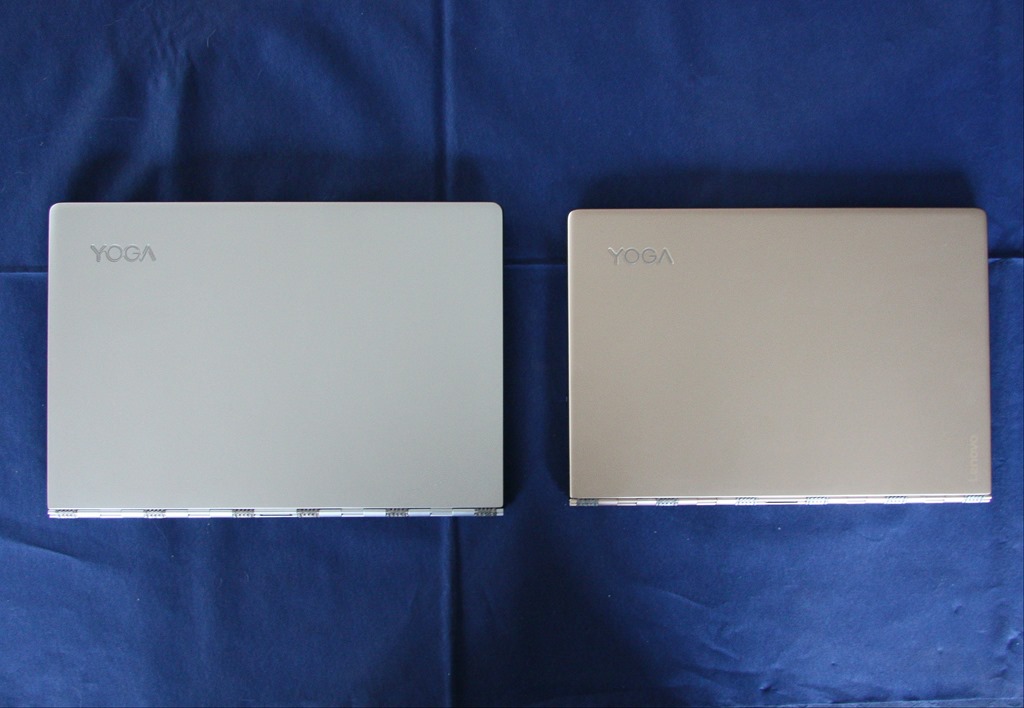
      Thanks,

      /Dany

    7. […] in October 2015, I reviewed Lenovo’s Yoga 900 Ultrabook. In January 2016, Lenovo announced a variant of the 900: the Yoga 900s. Slightly smaller and even […]

    8. Zeev Harel Avatar
      Zeev Harel

      Geoff, how do i activate the USB type C (Lenovo 900, running Win. 10 Pro)?

      1. Geoff Coupe Avatar

        To be honest, Zeev, I’ve not used the USB-C port, since I have no suitable cables. It should work out of the box, but cables can apparently vary – not all of them seem to deliver what they promise. See here: https://forums.lenovo.com/t5/Lenovo-Yoga-Series-Notebooks/Yoga-900-Video-out-on-USB-Type-C-port-not-supporting-DVI-or-HDMI/m-p/2273693#M38581
        Search in that forum for recommended cables…

    9. […] in October 2015, I reviewed Lenovo’s Yoga 900 Ultrabook. In January 2016, Lenovo announced a variant of the 900: the Yoga 900s. Slightly smaller and even […]

    Leave a comment