
A week ago, I blogged about my first impressions of using the Media Library in Windows Home Server 2011. My experience wasn’t entirely positive, as I found a couple of wrinkles when I was accessing the server via the Remote Web Access facility.
Since then, I’ve played around with it some more, and I have to say that my earlier misgivings have not been assuaged with further use. Indeed, accessing the Media Library via Remote Web Access is not a particularly satisfying experience for me at the moment. This is, as almost to be expected, somewhat in contrast to the experience of Microsoft people such as Sean Daniel.
Let’s take a closer look at what seem to be its shortcomings…
When I use Remote Web Access to look at my server, after I sign in with my userid and password, I’m presented with the home screen of my WHS 2011 server. As you can see, the attached computers and shared folders are seen at once, but the view of the Media Library is still being built.
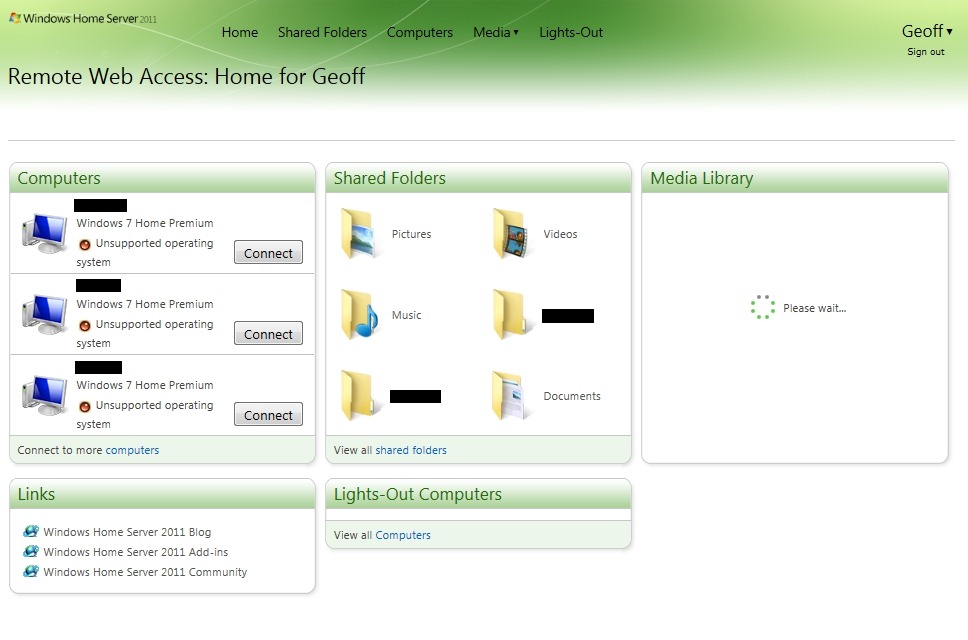
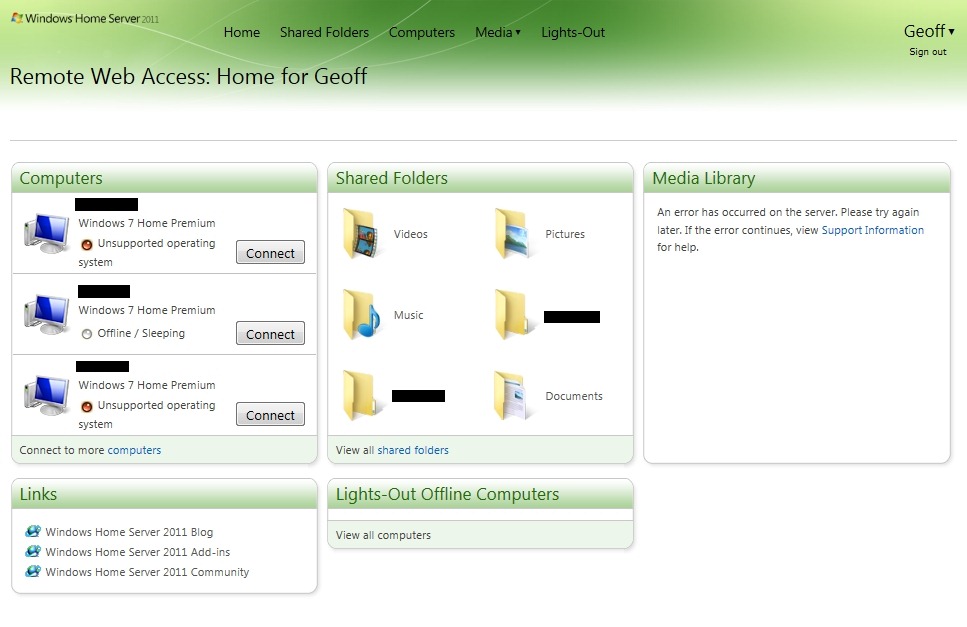
Now, I don’t mind waiting (a short while) for the view of the Media Library to be built, but what I do object to are messages such as this (An error has occurred on the server. Please try again later. If the error continues, view Support Information for help):
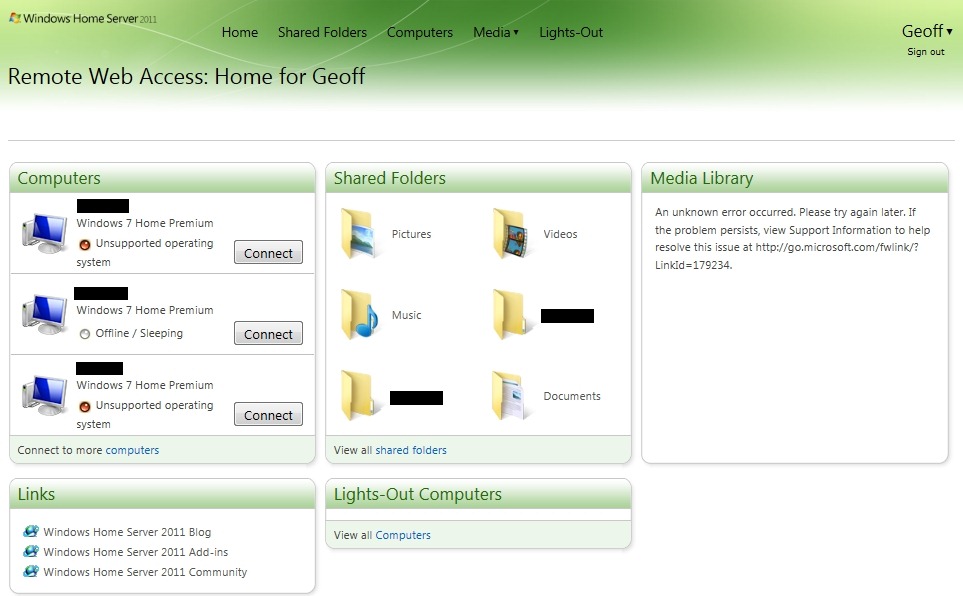
…or this (An unknown error occurred. Please try again later. If the problem persists, view Support Information to help resolve this issue at http://go.microsoft.com/fwlink/?LinkId=179234):
…or this (I have 45,125 pictures, not 2,000, and 12,513 songs, not 1,000 as is claimed here):
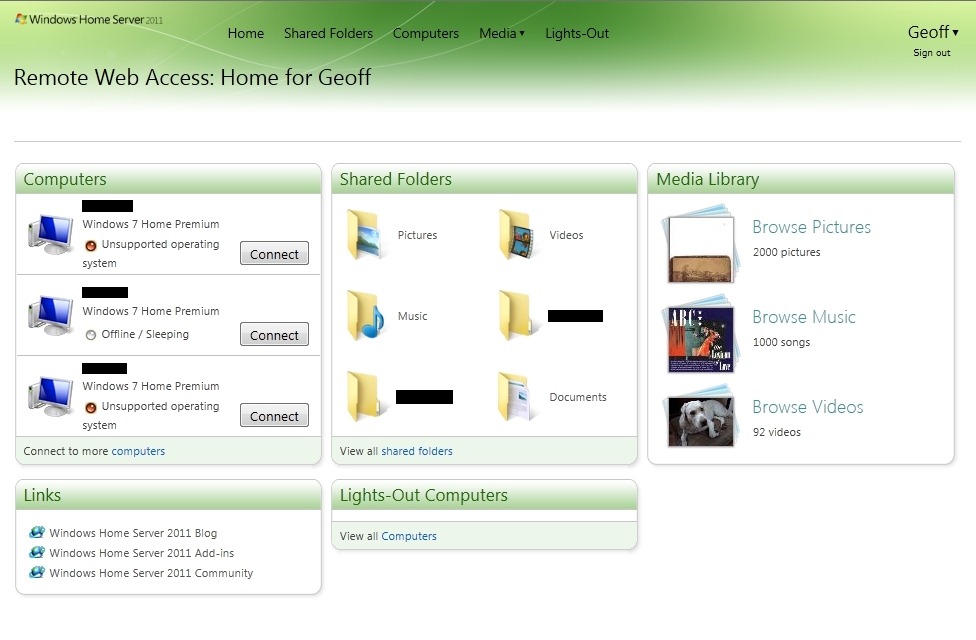
Such errors occur frequently, not rarely, and almost always when I first log on remotely. This all adds up to a bad experience, not a good one.
But it doesn’t stop there.
I had thought of using the media library facility via Remote Web Access to enable friends and relatives to browse through my photos. So, when I click on the “Browse Pictures” link, it seems that for 50% of the time, I get an error message, instead of a view of the Photo Folders:

Trying again usually will get me what I expected in the first place, a view of my photo folders:
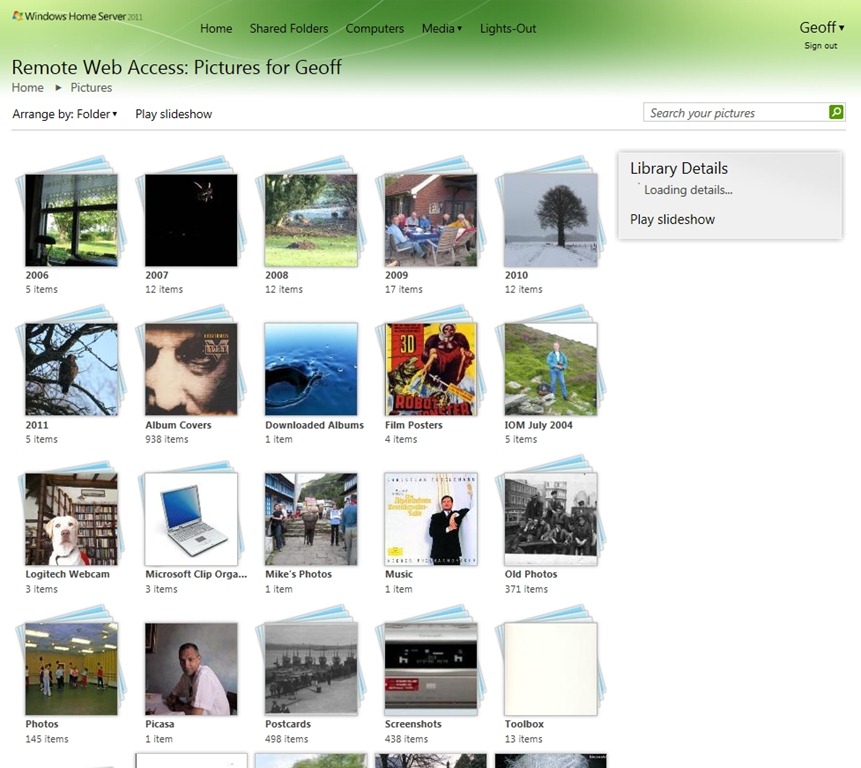
Note, though, the “Loading details” message; the first time around after changes have been made to your photos, this can take some time to enumerate. After moving a few folders containing no more than a few dozen photos, I waited for 20 minutes for the index to be rebuilt and the details displayed…
While my friends and relatives could browse through the photo folders, this is a pretty clumsy way of trying to find photos of interest. I have tagged all my photos using the IPTC Core Metadata standard. So I naturally assumed that using the “Search your pictures” box shown above I could enter photo tags and display the relevant photos.
Wrong.
That search box only seems to understand filename searches – and that’s simply not good enough. This limitation is all the more surprising because tags are displayed along with photos, see here for an example:
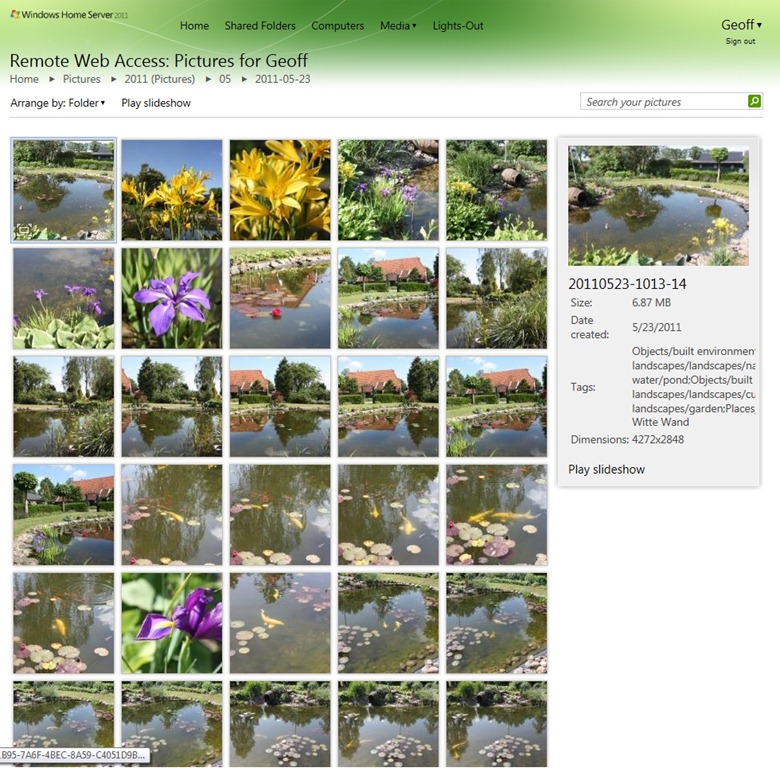
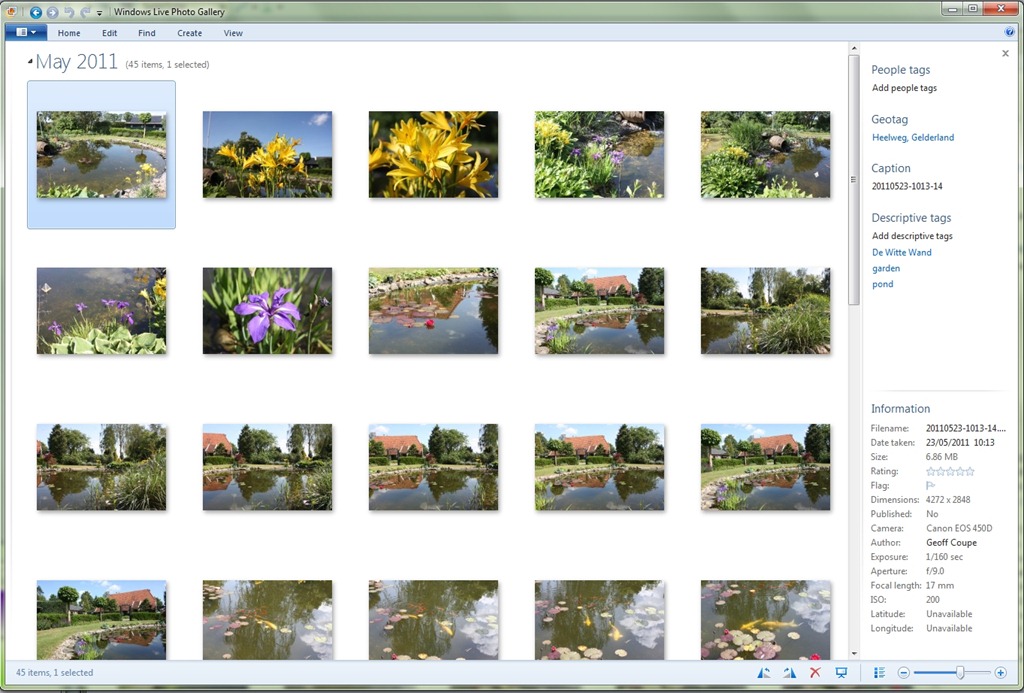
By the way, notice how the “Date created” field in the above screenshot is using the US format (mm/dd/yyyy), despite the fact that the format setting on my server has been set to the European format (dd/mm/yyyy). Furthermore, is this field the date the file was created, or the date the picture was taken? “Date created” is NOT necessarily the same as “Date taken” for digital pictures. Windows Live Photo Gallery 2011 recognises this, and displays the “Date taken” field (see screenshot below). The Media Library in WHS 2011 is either displaying a different field or using the wrong metadata name. More inconsistency in the user experience, it would seem.
Update 6/6/2011: I’ve just discovered that the Slideshow function in Remote Web Access is not working for me either. I get a blank screen:
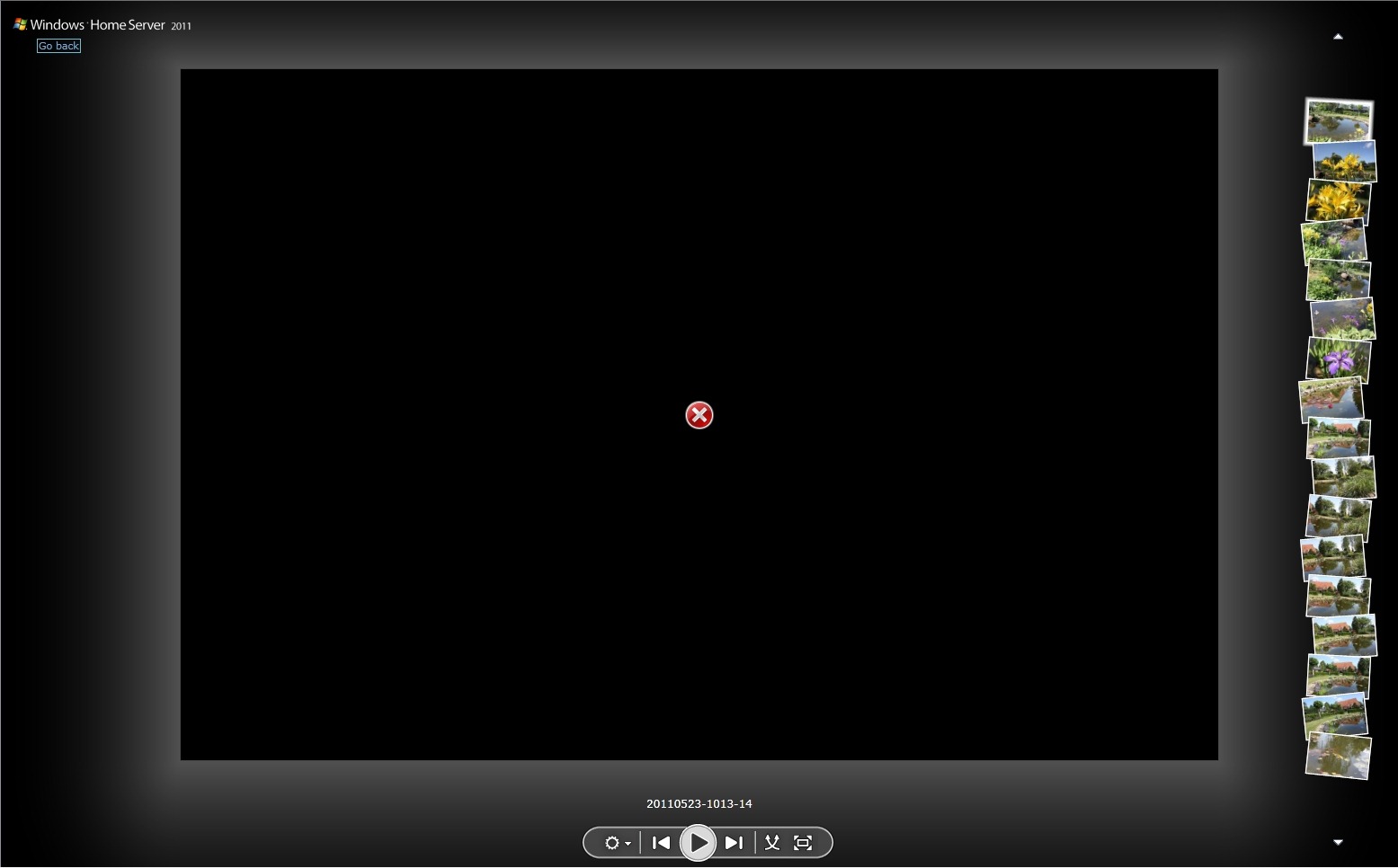
Oddly enough, it just seems to be this particular folder. Other picture folders that I’ve checked seem OK, but not this one. I don’t think it’s related to the number of items, or the size of the photos, either individually or collectively. Other folders that have comparable numbers or sizes are working in the Slideshow view, but admittedly, I haven’t been through every single folder in the Library to check this.
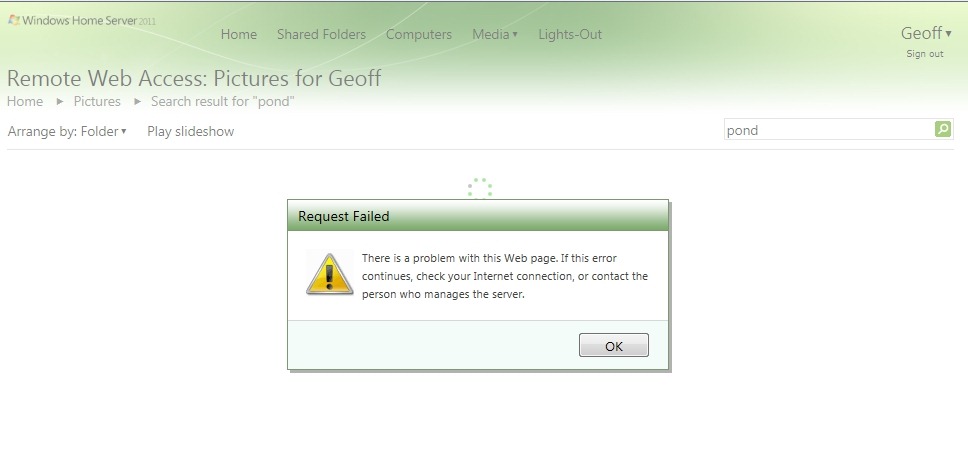
Oh, and the search function seems to fall over more often than not anyway:
And, even more bizarrely, while you can’t search for photo tags within the Media Library, if you switch to using Shared Folders via Remote Web Access, you can:
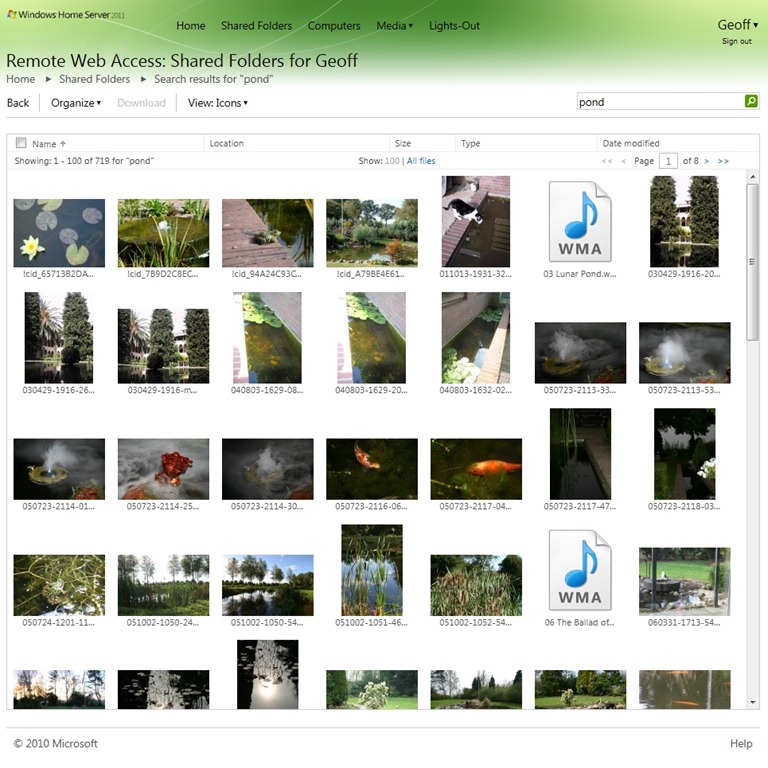
This however, has its own limitations. You’ll notice that I searched for the tag “pond”. I did this while viewing the shared folders containing my photos. However, the search has returned results from all of my shared folders… Sigh.
Oh, and remember that I said that the Media Library would display the tags contained in photos, even if you couldn’t search on them? Well, the Shared Folders won’t display any tags in photos (there’s no equivalent of the “File properties” view in Remote Web Access), but you can search on tags… Honestly, is this experience designed, or did it just grow, like Topsy?
So, to summarise; I’m seeing both errors and design shortcomings:
Errors:
- Every time I first log on to my WHS 2011 domain, I will get some sort of error from the Media Library. I need to refresh the browser, and then I will see the Media Library folders. I’m using IE9.
- Clicking on the “Browse Pictures” link in the Media Library results in an error about 50% of the time.
- Searching on the pictures in the Media Library frequently results in a “Request Failed” error.
- The Slideshow function of the Pictures Library is not working.
Design shortcomings:
- The Search function in the Media Library only seems to search on the filename – it does not search picture tag metadata. And yet, selecting a photo will display the tag metadata.
- The Search function in the Shared Folders does search tag metadata, yet selecting a photo in the Shared Folders view does not display tag metadata (i.e. you can’t display the properties of a file).
- The Search function in the Shared Folders view searches across all the folders – it does not seem possible to restrict the search to a subset of folders – e.g. search only within the Picture folders.
With these issues and shortcomings, I’m reluctant to open up access to my photo library for friends and relatives – I fear that the experience will turn them off more than encourage them to use it.
Update: I just wanted to mention the fact that in addition to these issues, it also appears as though WHS 2011 will rummage through the Album Art and metadata of your music files – and overwrite them as it sees fit. A disaster if you’ve spent hours/days/weeks getting your Album Art and metadata the way you want it to be.


 Geoff Coupe's Blog
Leave a reply to Sharing Photos | Geoff Coupe's Blog Cancel reply