Reflections on life at “De Witte Wand”…

Category: Computers and Internet

  • Surface – The Next Generation

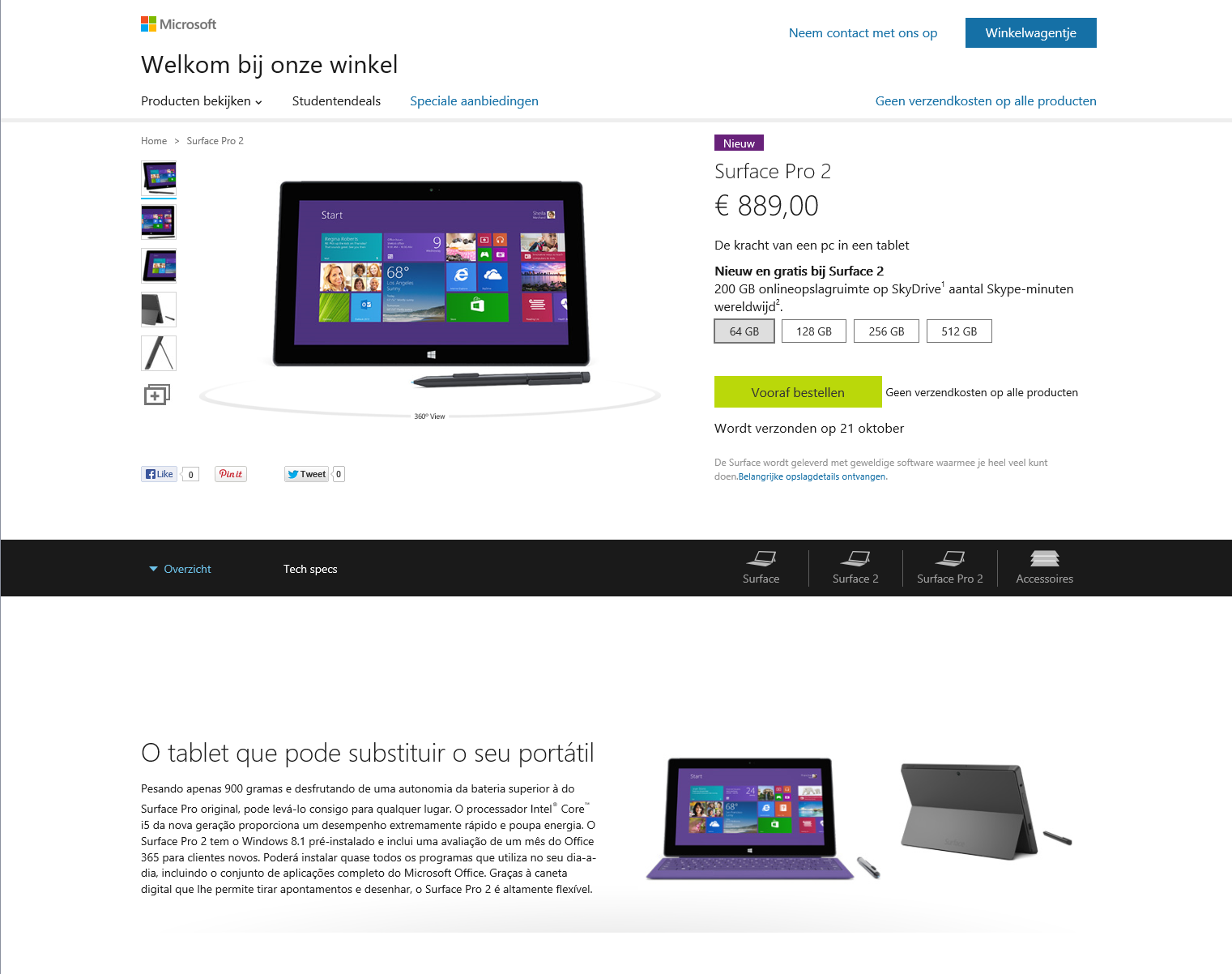
    Yesterday, Microsoft announced the next generation of its Surface line of computers: the Surface 2 and the Surface Pro 2.

    The Surface 2 is a substantially upgraded version of the original Surface RT, while the Surface Pro 2 is an upgrade to the Surface Pro, but not to such a degree.

    I have to say that I am somewhat underwhelmed by the new machines, despite the fact that they are indeed improvements over the originals.

    Taking the Surface 2 first, the showstopper issue that I have with this machine is the simple fact that it does not run traditional Windows applications. It can only run the new Windows 8 Apps, and as far as I’m concerned, they are still a sorry bunch, with minimal functionality. That was what drove me to choose an Intel Atom-based tablet (the Lenovo ThinkPad Tablet 2) last January. It’s a decision that I don’t regret, and I am still very satisfied with my choice.

    I’ve said before that, if I don’t build my next desktop PC myself, I want to have a multi-functional device. It will be a tablet, running Windows 8 or its successors. It will have multitouch and a pressure-sensitive stylus. I will be able to carry it around and take notes/photos/videos on the move, and I’ll be able to plug it into a docking unit to support multiple monitors, a keyboard, and a mouse for my next generation Desktop. This is what I call Origami Computing.

    The issue with the original Surface Pro was that it was running 3rd generation Intel processors, which meant that it had to be fan-cooled. Personally, I much prefer using a tablet that is fanless – that’s one of the reasons I like the ThinkPad so much. The new Surface Pro 2 still has fans, but it is using the new 4th generation of Intel processors (the Haswell line). That means that it has both increased processing power and lower thermal output, so the device should hopefully be both cooler and quieter.

    Microsoft has also announced a docking unit for the Surface Pro line, so it becomes possible to consider it as a candidate for my first Origami device.

    Nevertheless, I don’t think that the Surface Pro 2 is quite there yet for me. I am disappointed by the following:

    Connected Standby is a new power-saving mode possible in both the new Atom and Haswell chips from Intel. It’s a sleep mode whereby the device can still respond to incoming events such as email, alarms or Skype calls, and wake itself up. My ThinkPad Tablet 2 has this, and I find it to be an invaluable feature. As far as I’m concerned it is a “must-have” for a modern tablet. As to why it is not present in the Surface Pro 2, it may be because it is not a fanless tablet; it may require devices to have passive cooling, although I would be surprised if this really is the case. After all, laptops have fans, and they can happily go into traditional sleep modes without problems. Connected Standby uses no more power than that, as far as I am aware.

    Like the Surface Pro, the Surface Pro 2 does not have GPS. I find this surprising. Many tablets and convertibles (e.g. the ThinkPad Tablet 2) have this; why would a top-of-the-line tablet not have it? Perhaps Microsoft thinks that it is necessary to have 3G/4G/LTE mobile connectivity (the Surface Pro line does not have this) before GPS is provided. If so, they are wrong. It is true that Microsoft’s own Maps App for Windows 8 requires internet connectivity to get map data while on the move, but not all navigation applications require this. Indeed, Microsoft’s own AutoRoute and Streets and Trips applications are designed to run on Windows laptops without internet connectivity. All they need is GPS data to be supplied. But there again, Microsoft have shot themselves in the foot here, because these applications don’t use the new Windows 8 GPS data interfaces.

    As for NFC, I would have thought that a flagship product, which Microsoft clearly consider the Surface Pro 2 to be, would have had it built in. True, it’s new, but it is making inroads into the smartphone market. I would have thought that Microsoft would have had it in their flagship tablet so as not to be behind the curve. (Update: it appears that it wasn’t included because it won’t work through the all-metal case of the Surface Pro 2. This may also apply to GPS as well)

    One area where Microsoft are not being backwards in coming forwards is in their pricing of Surface. They are clearly following Apple’s line of setting premium pricing. If I were to specify a configuration suitable for Origami Computing, I’d be looking at a price of around €1,620 for a system with a Windows Experience index in the region of 6-7). This would replace a PC of roughly equivalent specs and performance (Windows Experience Index of 7.3) that I built for about €600. Somehow, I don’t think I’ll rush to do this.

    So, all in all, I am rather disappointed. I’ll wait a year or two…

  • Sharing Photos

    Long-time readers of the blog know that one of the topics I return to every now and then is that of photography.

    A couple of days ago, one of my posts had the following comment and question from michaelfanous:

    I recently started trying to organize my photo albums, which are stored across several external devices. (Trying to organize over 50,000 photos). I am not a professional photographer by any means. However, I am the “family/event” historian so to speak, so I love documenting and taking pictures of everything. I wanted to know your thoughts are current software out there? Lightroom 5, Photo Gallery (Windows), ACDSee, Picasa 3.9.

    My main concern is that all these files will eventually be stored in 1 central location, and the family can access them at their own over the network. However, I want to make sure that all the tagging is accessible across platforms. i.e. No matter which hardware device, or which software, when a user looks at the picture, they can see the tags.

    I remember in the earlier years (which is what caused me to stop for a bit) I would tag something in Windows Photo Gallery or in Picasa, but the tags wouldn’t transfer over appropriately. I am not so much concerned with actually editing the individual pictures (I am sure that will come later once I am organized)

    The other requirement is that the metadata is stored in the actual file, and not in some random database. The last thing I need is for that external database to get corrupted and lose out all the information.

    Suggestions?

    That sounds like a good opportunity to try and sum up what I might propose given the current state of things.

    First, a recap of my groundrule for managing photo collections (which echoes what Michael has stated as a requirement):

    I insist that any software used in the digital workflow (transfer from camera to computer, image selection, digital processing, cataloguing, publishing and asset management) will respect any Exif, IPTC and XMP metadata that may be stored in the image file itself.

    I am not interested in asset management software that stores image metadata away in a proprietary format in the software itself. That way lies painting oneself into a corner down the road… However, I will accept asset management software that copies metadata from image files into its own database for performance reasons, so long as the database and the image files metadata content are kept in sync transparently (i.e. it takes little or no effort on my part).

    The challenge is that different software treats image metadata in different ways, and interoperability can seem more of a goal than actuality. Not all image management applications will work together, and often, only a subset of all possible image metadata can be successfully exchanged between applications. Add to that the fact that many of the new photo editor applications for smartphones and tablets ignore image metadata altogether, or, even worse, strip it out. The same goes for many online social networks.

    Over the last seven years, I’ve used a number of image management applications to organise and tag my photos. These include versions of:

    I’ve also used tools that are no longer available. These include:

    • Microsoft’s Expression Media and Digital Image Suite
    • IDimager 5
    • Picajet
    • PixVue

    My primary image management tool at the moment is Photo Supreme. That’s because (for me) it has the best support for handling metadata and for image management of all the tools that I’ve used. I use GeoSetter in conjunction with Photo Supreme for handling geotagging.

    [Addendum: Version 2 of Photo Supreme now supports geotagging directly, and does it very well, so I no longer need to use GeoSetter in conjunction with Photo Supreme]

    Adobe’s Lightroom would rate high with me if I used Raw format in my images, because it has better digital darkroom features for processing Raw images than those of Photo Supreme. However, as I don’t often use Raw format, I prefer Photo Supreme’s metadata handling, which I consider to be much superior to Lightroom’s. Photo Supreme’s features for image acquisition and selection/culling are also, for my purposes, as good as anything that Lightroom has to offer.

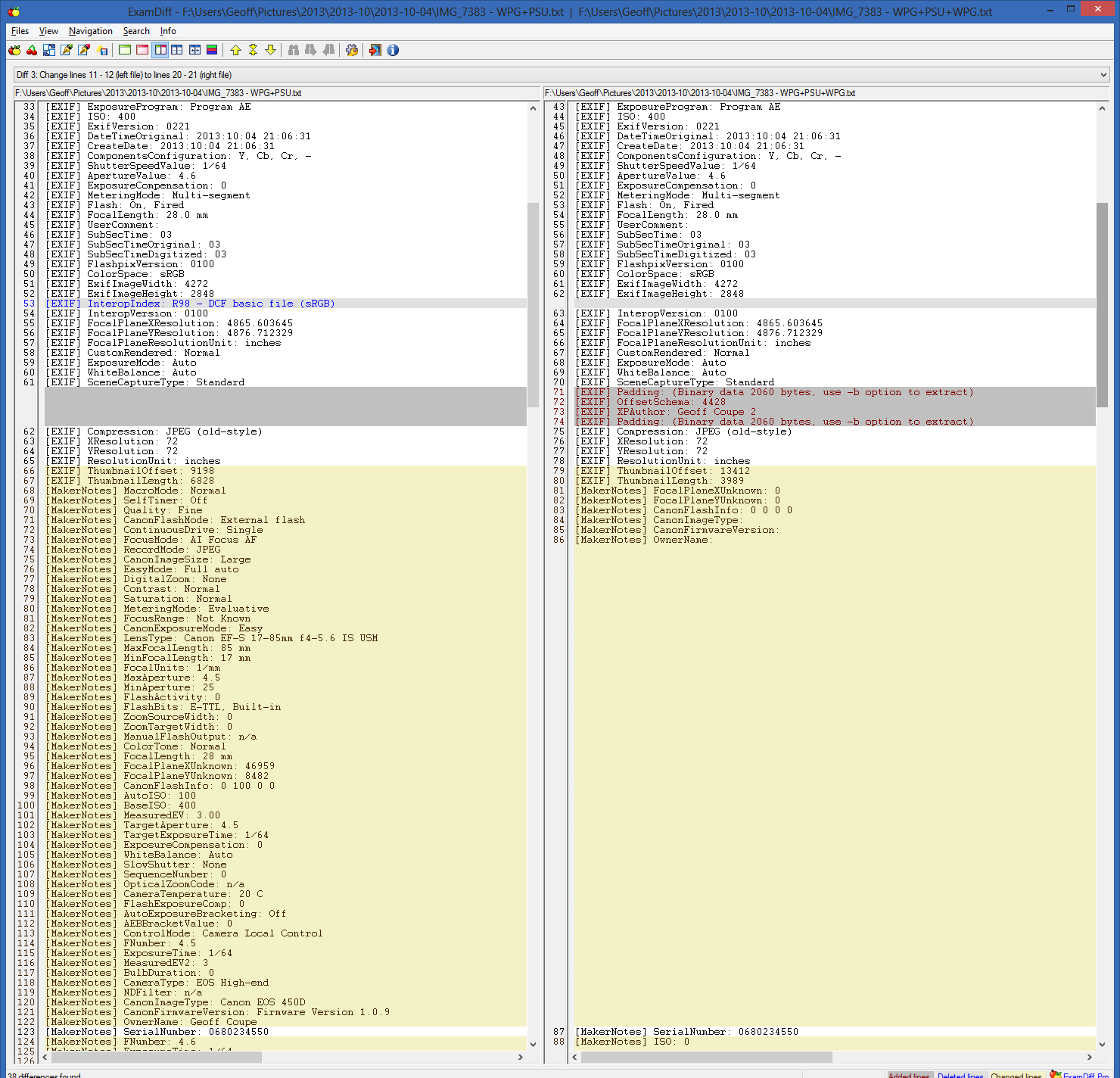
    Since I use the ecosystem of Windows, I also have Windows Photo Gallery installed on our PCs. It’s an easy to use tool for browsing our photo collection, but I don’t use it as my primary tool for editing metadata or images. First, because while the metadata tools are usable, they are basic. However, more importantly for me, Windows Photo Gallery has a nasty habit of corrupting the Makernotes that our Canon cameras insert in the Exif section of images. This is a long standing issue that Microsoft has acknowledged and known about for some years, but clearly something that they won’t devote resources to for fixing. Microsoft seems to be using the same code in the Photos App of Windows 8, because it too will corrupt Canon Makernotes in any image that it edits. Now, I acknowledge that the majority of people either don’t know about the issue or wouldn’t bother themselves about it if they did. However, I would suggest that to a serious photographer, preservation of the original file is of paramount importance. This bug of Microsoft means that even adding a single piece of metadata to an image file will corrupt your Makernotes. That’s why I only ever use Windows Photo Gallery in a read-only mode. Anything else and it’s goodbye to your precious image data.

    And don’t think that Picasa is any better in this respect. Picasa will strip out Makernotes from your image files entirely.

    The bottom line: if you’re serious about photography, avoid using either Windows Photo Gallery or Picasa to do metadata work on your images. You can certainly use them to edit the images of copies of your original files, just don’t ever let them get near to your originals.

    The other tools in my first list above also offer metadata handling features, but they are pretty basic, and only cover the bare minimum of the Exif and IPTC metadata standards.

    One area where Photo Supreme (and Lightroom for that matter) is lagging is that of being able to handle automatic face recognition used to add metadata relating to people. Both Picasa and Windows Photo Gallery now offer this. Unfortunately, they do not use the same standard for storing people tags, so they do not interoperate. Photo Gallery uses a standard defined by Microsoft itself, whilst Picasa (in the latest version) uses a standard defined by a cross-industry consortium – the Metadata Working Group. Ironically, both Microsoft and Adobe are founder members of this consortium, yet Windows Photo Gallery and Lightroom do not yet use the consortium’s metadata standard for people tags.

    The Microsoft and MWG standards allow for metadata to be applied to specific regions in the image, that is, individual faces can be marked up with the names of the people depicted in the image. There is a third competing standard used for people tags, and that is contained in the IPTC Extension standard, which contains an element used to define persons shown in an image. However, this metadata element refers to the image as a whole, so for a group photograph, for example, you can list the names of all the people shown in the photo, but not explicitly identify who is who in the image. I am aware of just one application that implements this IPTC standard for people tags: Daminion, but there may be others. Correction: I completely forgot that since Photo Supreme implements all the IPTC standards fully (Core, Extension and Plus), then it too also implements the IPTC people tag. Photo Supreme also has its own proprietary standard for manually tagging regions in images for face tags, but I don’t use it. Photo Supreme now supports the MWG Region metadata, which means that it can identify face regions that have been tagged in Picasa. It also recognises the Microsoft People Tag, but any face regions that are defined in Photo Supreme will be written out using the MWG standard, rather than the proprietary Microsoft standard.

    So, to sum up at this stage: it’s possible to use a small number of different tools that will interoperate using a minimum subset of metadata standards – a basic set of Exif and IPTC Core metadata standards. That will give you a starter set of metadata elements. See this blog post for the list of IPTC elements that I use. The Exif elements are the technical data provided by the cameras I use (e.g. camera model, shutter speed, ISO, lens, date taken) plus optional GPS latitude/longitude/altitude data.

    Anything beyond this, e.g. People Tags, and you are likely to run into interoperability issues.

    Even with this subset, there can be bumps in the road. For example, Picasa uses the “Description” metadata field from the IPTC Core standard to display the caption for a photo, while Windows Photo Gallery uses the “Title” metadata field from the IPTC Core standard to display the caption. Even more bizarre, Windows itself (in Windows Explorer)uses “Title” according to the IPTC Core definition, and uses “Subject” to align with the IPTC Core definition of “Description”. So Windows is better aligned with the IPTC standard for photo metadata than Windows Photo Gallery…

    And the icing on the cake is that both Windows Photo Gallery and Picasa will damage your files if you use either of them to edit images. Bottom line: if you use either of these tools use them in read-only mode, or use copies of your original files.

    Right, you’ve now got your tools to hand, and you’ve used them to add your metadata to your images. You’ve also used your tools to tweak the original images and produced copies that have all your improvements applied: cropping, colour balance and so on. Now you want to share them with other people. What are your options?

    Assuming that at least some of the people you want to share with are physically located outside of your home, then you are looking at either using one of the online Social Networks or exposing your photo collection held on your home network to (selected) people via the internet.

    Let’s look at the Social Networks route first. As I’ve already said, Social Networks are not the best at preserving the metadata that you’ve spent blood, sweat and tears adding to your photos. There are also quirks involved. I use both Flickr and Microsoft’s SkyDrive, so I’ll use those to illustrate some of the oddities.

    Flickr has the advantage that when you upload your photos from your local storage, the metadata in your photos gets read by Flickr. So you can search your (and other people’s) collection of photos using keywords held in metadata. Even better, if you download the original size of a photo held on Flickr, then the metadata contained within it is preserved. However, if you select to download a different-sized copy of the original photo, then Flickr will strip out the metadata. It used to be the case that even different-sized copies of the original would have the metadata of the original preserved within them. But somewhere along the line, Flickr changed the rules of their playground and made their service the poorer as a result.

    Microsoft’s SkyDrive also has its faults. It does preserve metadata in downloaded copies of the originals held on its service. However, the metadata is neither exposed in the user interface, nor searchable with one exception – that of Microsoft’s proprietary People Tags. Frankly, this is abysmal. It makes sharing of photo collections with other people needlessly difficult.

    There are many other Social Networks available, e.g. FaceBook, Google+, but I don’t use them, so I can’t document the inevitable issues that they will have. I leave that as an exercise for the reader.

    There is also the route of exposing your photo collection held on your home network to (selected) people via the internet. I use Microsoft’s Windows Home Server 2011 on our home network to store all our media for sharing to a variety of networked devices, and to back up our attached PCs. It is very good at that. It is also possible to use WHS 2011 to allow selected people to access its media collection via the internet. At least, that’s the theory. In practice, the software is riddled with problems. I cannot use it, and Microsoft has no intention of fixing it.

    I see that Michael has a Synology device that he will use as a centralised nework attached storage device. It also has the feature of being able to give access to selected people over the internet. It runs a media application called Photo Station. I have no working knowledge of Synology devices or Photo Station, but I’ll just add a couple of comments. First, I noticed from the Synology documentation that Photo Station claims to:

    • Search photos with keywords, time slots, or tags
    • Supports people tags from Windows Live Photo Gallery
    • Supports IPTC tags of photos

    Nice to see IPTC tags explicitly mentioned, but I hope that these are at least the XMP-based IPTC Core set of tags, and not the legacy IPTC-IIM tags. If it is only the latter, then interoperability issues will arise sooner or later.

    As I’ve already written, the People tags in Windows (Live) Photo Gallery are Microsoft-proprietary. Also, if you make a conscious decision to use them, be aware that you can kiss goodbye to your Makernotes if you use Canon cameras (and possibly other makes of cameras as well).

    Secondly, Microsoft has also set a snake in the grass for Networked Attached Storage devices. The Windows indexing service is designed to collate results from network-attached Windows devices. It won’t collate results from NAS devices that don’t run a Windows operating system.

    The new generation of Microsoft Apps for Windows 8 (e.g. Xbox Music, Photos, Videos) cannot access media stored on non-Windows NAS devices, even if the media locations are stored in your Windows Libraries on the accessing PC.

    This is just something to be aware of going forward. The current generation of Desktop Applications (both Microsoft and third party) are generally OK. However, the new generation of Windows 8 Metro Apps, especially those from Microsoft itself, may present problems. Check them out before buying.

    I’ve already said that I have been unimpressed by the first wave of photo editors designed for Metro. The situation is not improving. In the process of writing this blog entry, I thought I’d check the Windows Store to see if there were Metro Apps available for editing photo metadata. I tried two that I found:

    Now, admittedly I have over 50,000 photos in my photo library collection. However, neither of them could open the collection without crashing. I sent an email to Photo TagEd’s support. Their response:

    Sorry, we didn’t test for thousands photos by our environment.

    And we can’t recommend to this App to your problem.

    We have no plans to continue support for this App, because technical difficulties by Windows 8 App SDK.

    Once again, We’re sorry. You can find out other apps for your Tablet PC in Windows Store.

    From IV Type Team.

    Sigh.

    Addendum: Prompted by a discussion in the comments on this post, I’ve put up a new post that documents the corruption of Makernotes by Windows Photo Gallery:

    Photo Metadata Tools – The Saga Continues

  • Maybe It’s Just Me…

    …but I really don’t want to play Grand Theft Auto V, despite it getting rave reviews.

    Set mostly within the glitzily superficial city of Los Santos, a warped mirror of Los Angeles, GTA V is a sprawling tale of criminal maniacs self-destructing on a blood-splattered career trajectory to hell. Michael is the middle-aged thug, obsessed with movies, who pulled a witness protection deal with the feds after a failed heist many years ago. When his old partner Trevor, a sociopath who bakes meth out in the desert, turns up in town, the two join forces with a young black kid, Franklin, who’s set on leaving his gang-infested neighbourhood behind. The aim is a few final high-paying jobs, but there’s a festering resentment between Trev and Michael that goes back a long way, a fizzing fuse that trails all the way through the carnage.

    This three-character format emancipates the narrative, jettisoning the awkward requirement for one protagonist to be everywhere, witnessing everything in this vast world. Switching between the characters can be done at any time while off mission, and all three have their own little pet projects to get involved with, adding variety and a few amusing surprises: switching to Trevor usually involves some bodily function or weird violent episode, while Michael has his dysfunctional family to manage. And overlaying all this is a huge plot about warring government agencies and corrupt billionaires.

    Judging by the news, human behaviour in the real world is depressing enough without wanting to immerse myself in more of the same…

    Women are, once again, relegated to supporting roles as unfaithful wives, hookers and weirdos. The one successful female character in the story is suspected of just wanting to screw her boss. Of course, GTA is essentially an interactive gangster movie, and the genre has a long history of investigating straight male machismo at the expense of all other perspectives, but it would have been wonderful to see Rockstar challenging that convention. It’s fine to parody the idiotic misogyny of violent men, but how about doing it by providing their opposite? It seems Rockstar North’s all-male writing team is too in thrall to Tarantino and Brett Easton Ellis to really consider this.

    So GTA V fails the Bechdel Test then? What a surprise.

  • The Xbox Music App Is Lying To Me

    Last month, I mentioned that I was having difficulty with the Xbox Music App installed on one of my systems. It does not see my music collection, and claims that there’s no music on the PC. A couple of days ago, there was an update of the Xbox Music App from Microsoft, so I wondered if that might have fixed the problem.

    The answer is no; the problem is still there.

    I currently have three instances of the Xbox Music App: one (version 1.4.18.0) is running on Windows 8, and two (version 2.1.15.0 – the latest update) are running on Windows 8.1 Previews. Two out of the three are working as expected, but one of the 2.1.15.0 versions is not: it absolutely refuses to see the contents of my Music Library.

    I’ve uninstalled/reinstalled the App several times, and wiped out the folders containing the App data, all to no effect. Here’s what the App told me after the last installation:

    xbox music issue 02

    “We didn’t find any music on this PC”.

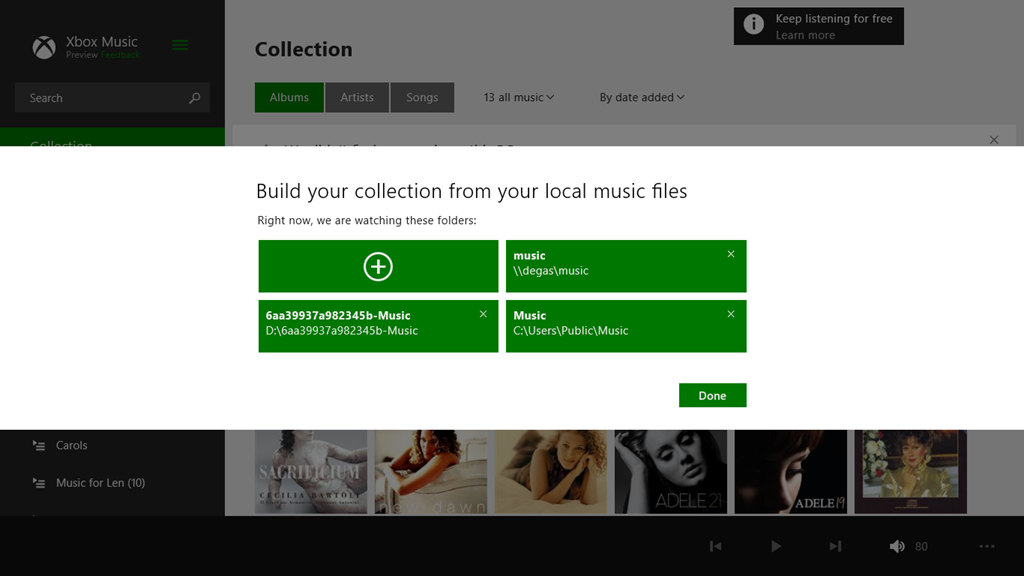
    It is displaying a few albums that I have stored in the Cloud, but that’s all. Tapping that message displays the folders that the App is supposed to be watching for music content:

    xbox music issue 03

    These are the folders included in the Music Library. I tried adding the main music folder for my music collection again, by tapping the “+” symbol, and navigating to the root folder of the music collection (\\degas\music):

    xbox music issue 04

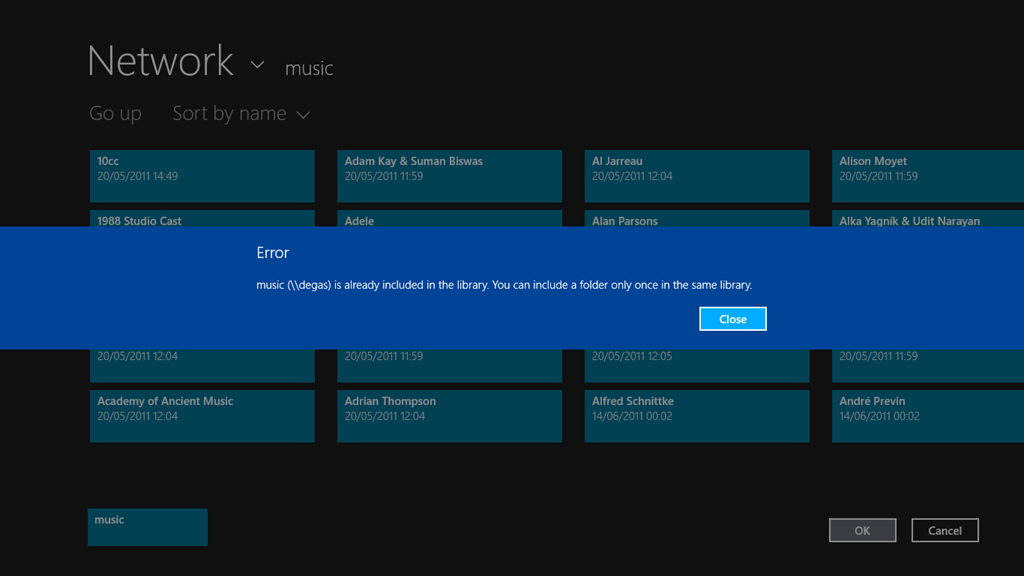
    However, when I tried to include the folder, I was told (not unexpectedly) that the folder had already been included in the library:

    xbox music issue 05

    So, Windows 8.1 knows where my music collection is, and so, apparently, does the Xbox Music App. However, the App refuses to do anything with it.

    Is this the same for all the locations currently defined for the Music Library? Let’s find out.

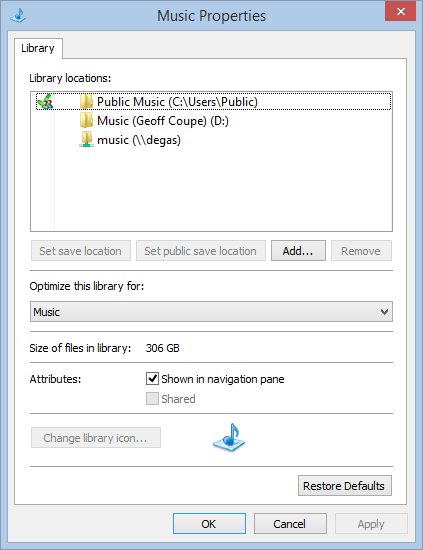
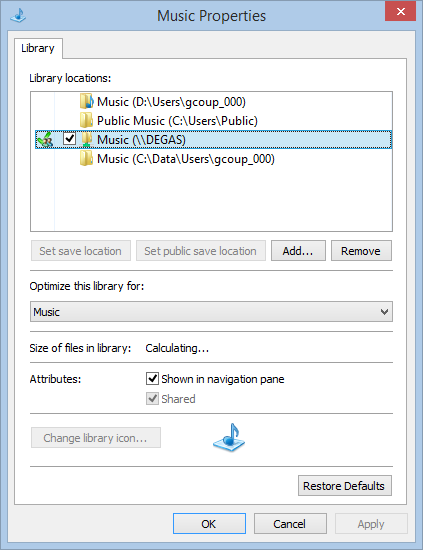
    Here’s the three locations currently defined for the Music Library on the system with the errant Xbox Music App:

    xbox music issue 06

    Note that one is a network location (\\degas\music – my main music collection), while the other two are local to the Windows 8.1 system; a location on the C: drive (C:\Users\Public\Music) and a location on the D: drive (called “Music (Geoff Coupe)”, but shown in the Xbox Music App with the user-friendly name of D:\6aa39937a982345b-Music… sigh). That location on the D: drive was set up by Windows 8.1 as the default location for saving music files.

    If I paste in a couple of test albums from my music collection to these local folders, then I find that the Xbox Music App will only react to the contents of the folder on the C: drive. It will ignore the contents of the supposedly “default” music folder on the D: drive.

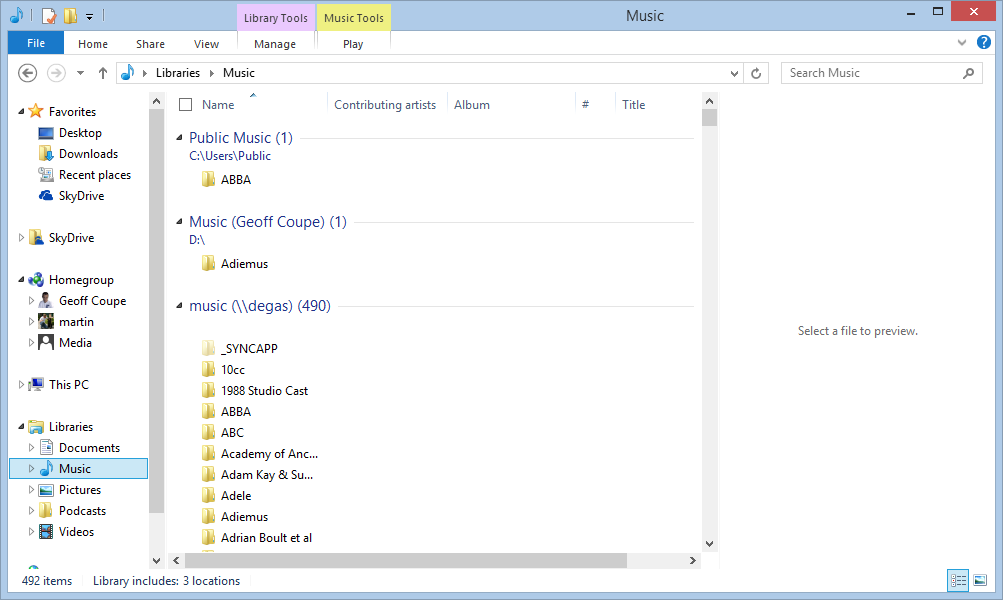
    Here’s a screenshot of the Music Library contents:

    xbox music issue 07

    As a test, I’ve copied an ABBA album to the Public Music library on the C: drive, while my default Music Library on the D: drive has an Adiemus album in it. The result in the Xbox Music App is that the ABBA album shows up, but the Adiemus album, along with the rest of my music, does not:

    xbox music issue 08

    Once again, let me stress that, on this Windows 8.1 system, Libraries are not broken for other third party apps, whether Desktop or Modern UI Apps. However, Microsoft’s own Apps (Xbox Music, Photos and Videos) are a disaster.

    I still fear that what we are seeing here is not a bug, but the natural consequences of Microsoft moving away from using Libraries. As they will no doubt proclaim in a month’s time: “it’s not a bug, it’s a feature!”. If so, this is one feature that I can definitely do without.

    Update 17th October 2013: I’ve just installed the final release of Windows 8.1 on my tablet, and the Music Library is now being accessed correctly by the Xbox Music App, so it looks as though the issue is now resolved. However, when one issue is resolved, another pops up.

  • SkyDrive – Still No Proper Support For Tags

    Yesterday, Microsoft added some functions to SkyDrive – its online storage service. The additions are described in this blog post by Omar Shahine, a Group Program Manager at  SkyDrive.

    Now, some of the additions are worthwhile, but I am still missing something that Microsoft removed back in June 2011: the display and searching of Descriptive Tags (aka Keywords) in photos. Up until that time, you could show the Descriptive Tags that were contained in the metadata of photos uploaded to SkyDrive. Then, Microsoft did a major revamp of the user interface of SkyDrive, and started using HTML5 to drive the interface. In that revamp, something odd happened. Photos that I knew contained Descriptive Tags were suddenly shown as having no Tags, and I was being invited to re-enter Tags into the photos on SkyDrive.

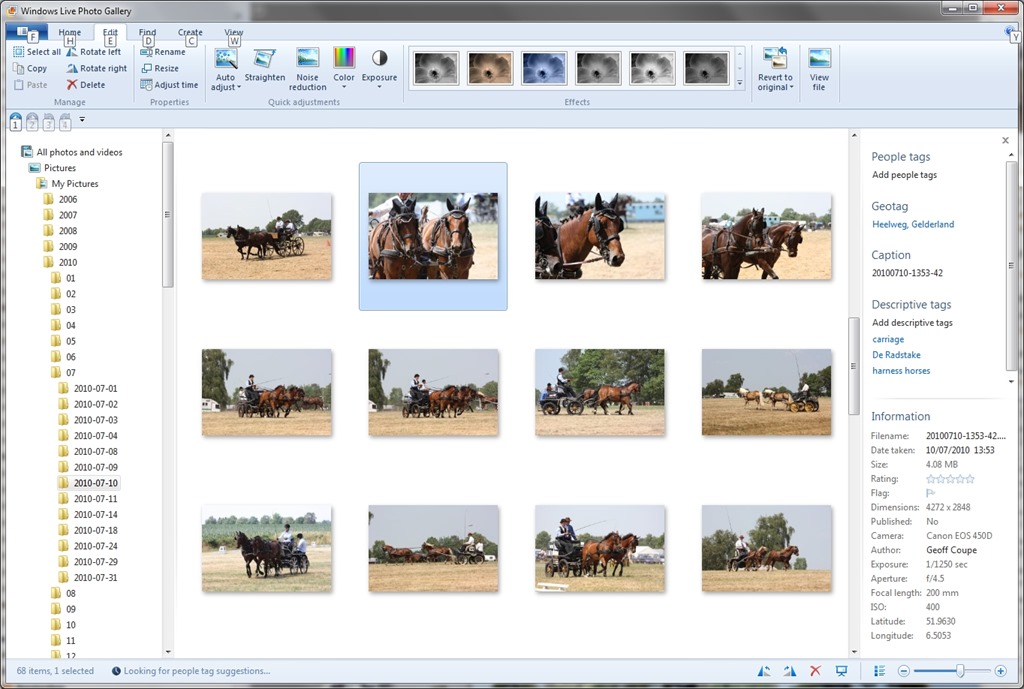
    Here’s an example of what I started seeing at the time; this is a screenshot of photos on my PC being displayed in Microsoft’s Windows Live Photo Gallery (now renamed to Photo Gallery), an application running on my PC. One thumbnail has been selected, and you can see the metadata embedded in the photo being displayed in the information panel on the right hand side of Windows Live Photo Gallery (click on the image to see the full-size screenshot):

    SkyDrive 1

    You can see that the metadata contains both descriptive tags (e.g. carriage and harness horses) as well as technical and copyright information (e.g. date taken, location, camera details, etc.).

    This picture was uploaded to a SkyDrive photo album here. When I looked at the picture in SkyDrive, while I saw some (but not all) of the technical information, none of the descriptive tags had been transferred. Indeed, I was invited to add the tags again!

    SkyDrive 2

    I blogged about this backwards step in November 2011, and had responses from Omar Shahine, and others, to my post. It turned out that the “Tags” label in SkyDrive no longer referred to Descriptive Tags, but People Tags.

    I notice that since then, Microsoft has renamed the “Tags” label to “People Tags” – here’s the photo being displayed in SkyDrive today:

    SkyDrive Tags 05

    However, there is still no sign of any Descriptive Tags being displayed by SkyDrive, even though my photos are all tagged. Yesterday, Omar Shahine and Mona Akmal of the SkyDrive team held an “Ask Me Anything” session on Reddit. Someone asked about support of tagging on SkyDrive, to which Shahine replied:

    Something we’ve talked a lot about on the team, but have nothing to share about this now.

    So it’s something that has probably been talked about for the past two years, and we are still apparently no further forward? I have to say that I’m not impressed. If the team are serious about making SkyDrive relevant to photographers, then proper support of tags should be high on their to-do list.

    And by “proper support”, I mean that SkyDrive should not just display Descriptive Tags as well as People Tags, but support searching of both types. Currently, they do neither.

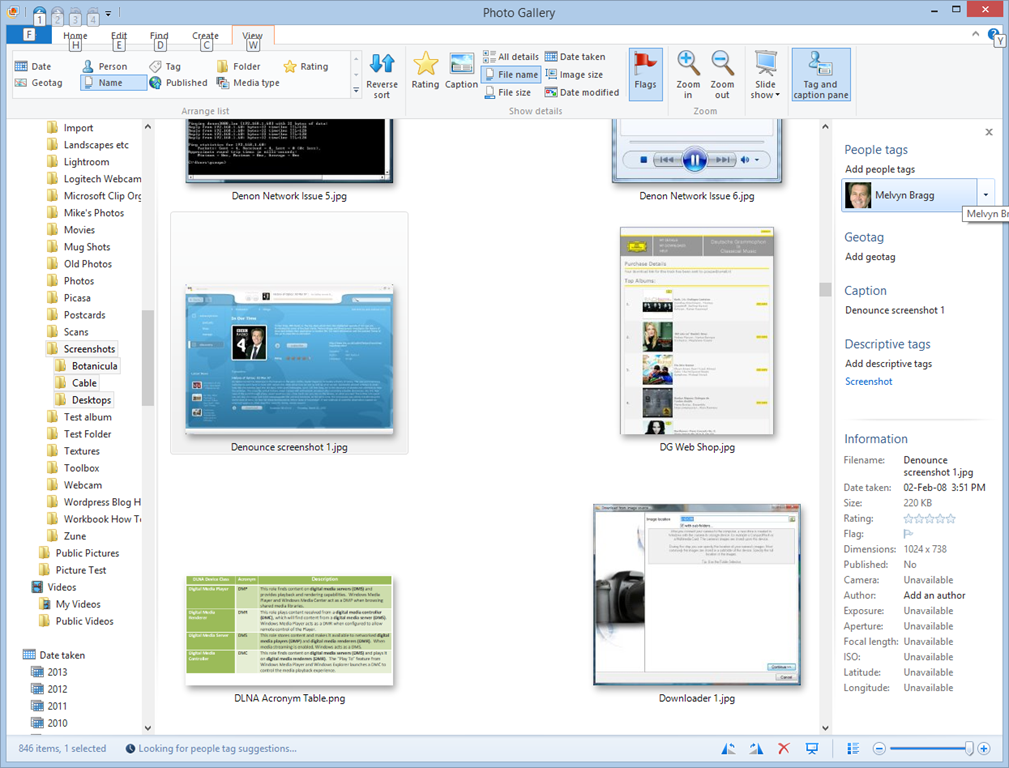
    I have a test image with a “People Tag” defined. Here it is being displayed in Windows Photo Gallery:

    SkyDrive Tags 06

    You can see that I have identified the face in the screenshot as being that of British broadcaster Melvyn Bragg, and that the image has a Descriptive Tag of “Screenshot”.

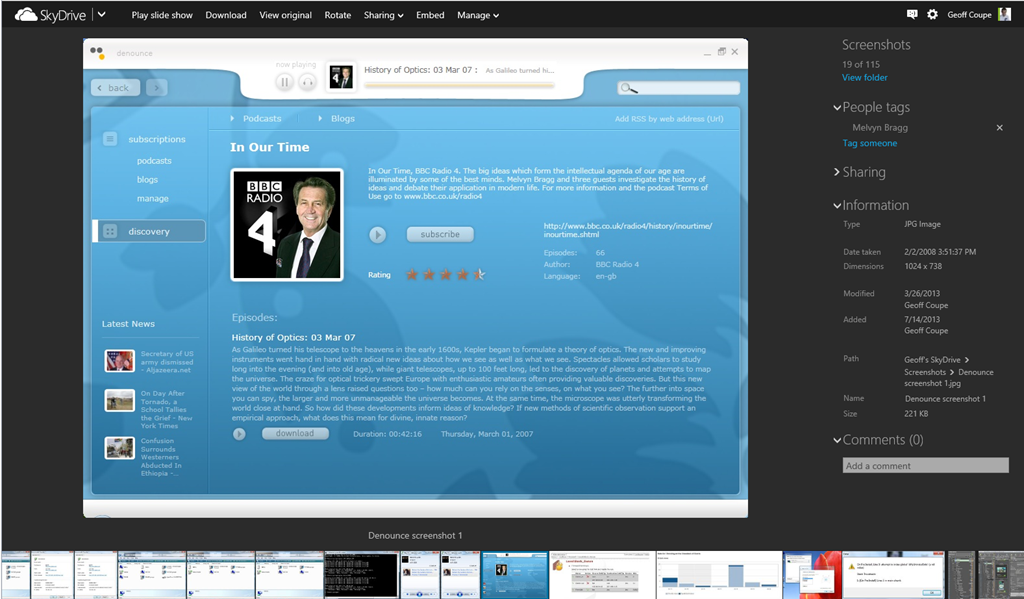
    Now here’s the same image being displayed in SkyDrive:

    SkyDrive Tags 02

    It has lost all evidence of having a Descriptive Tag contained within the image, but at least it is displaying the fact that it has a People Tag, with the content “Melvyn Bragg”. Unfortunately, People Tags, just like Descriptive Tags, are not searchable on SkyDrive. If I search within my SkyDrive files for “Melvyn”, I get the message that nothing is found:

    SkyDrive Tags 03

    Both People Tags and Descriptive Tags are searchable on my PC – Windows supports searching within photo metadata, so here, the image is found:

    SkyDrive Tags 04

    But this won’t help someone trying to find something that has been tagged within my public SkyDrive folders, or friends and family looking for something within my shared folders.

    So, to summarise:

    • Microsoft removed the display of Descriptive Tags in photo metadata from SkyDrive in June 2011.
    • They replaced it with the display of People Tags in photo metadata.
    • Neither Descriptive Tags nor People Tags are searchable in SkyDrive
    • Two years on, and nothing has changed.

    Serious photographers need to look elsewhere.

    Update 19th February 2014: Well, today Microsoft has changed the name of SkyDrive to OneDrive, but nothing else has changed. Tag support is still woeful, and searching of tags is still not supported.

    Update 10th May 2014: Microsoft has introduced some new features into OneDrive, but unfortunately, the support for Tags is still very much broken.

    Update 23rd January 2015: OneDrive has finally introduced support for searching on Tags!

  • I’m Clearly Missing Something…

    I don’t understand what all the fuss is about over news aggregator services, such as the (now-defunct) Google Reader.

    For years now, I’ve simply used the “Feeds” feature in my Internet Explorer to aggregate my own personalised collection of web sites that I’m interested in. I simply don’t see the need to register with an external news aggregator service (such as Feedly) to get the same information as I can get directly in my web browser. I’m getting a little fed up with having to hand details of my interests to Google and Feedly so they can monetise me.

    There must be some other reason why people do this that I’m simply not seeing. Isn’t there? If it’s simply that they can access a news aggregator service that is synchronised across a number of devices, then that’s not sufficient reason for me personally to sign up to such a service.

    I’ll just carry on with the feeds in my Internet Explorer. I will supplement that with a standalone feed reader on my Tablet. Veen Feed Reader looks to be the best of the bunch in the Windows Store for my purposes.

  • There’s the Demo, Then There’s the Reality…

    A new input device for your computer is available. I don’t think we’ve quite got to Minority Report fluidity yet…

    http://bcove.me/bydxiwxr

    (hat tip to Ars Technica)

  • Microsoft’s SkyDrive – Room for Improvement

    OneDrive (previously SkyDrive, Windows Live SkyDrive and Windows Live Folders) is the online storage service offered by Microsoft. It’s been around since 2007, and has been through a number of iterations. It really started to come into its own with the introduction of Windows 8, where it started to assume a much more prominent role. Now with the imminent introduction of Windows 8.1, it is becoming more tightly integrated with the Windows operating system than ever, and the distinction between local and online (cloud) storage is becoming even more blurred.

    I’ve changed all references to SkyDrive to OneDrive in this post since it was first written, to reflect the change of name given to the service by Microsoft. Some screenshots and external references still refer to the old SkyDrive name…

    There’s a good post (Inside SkyDrive) over at the Windows blog that describes some of this integration. However, it seems to me that there is still room for further improvement.

    For example, the author of the post (Mona Akmal, Group Program Manager, SkyDrive apps) writes:

    Many people use search to quickly access their files. So we’ve made search work just as you’d expect – SkyDrive files show up in search results just like your local files.

    Er, no, that’s not true. The way that the search function works is to index the information held in the small placeholder files held locally on your PC. These placeholder files represent the real files held up on the OneDrive service itself. At the moment, it seems that very little metadata is held in the placeholder files; only things such as the filename, and image thumbnails. So if I search for Descriptive Tags (aka Keywords) that are held in photo metadata, I get no results.

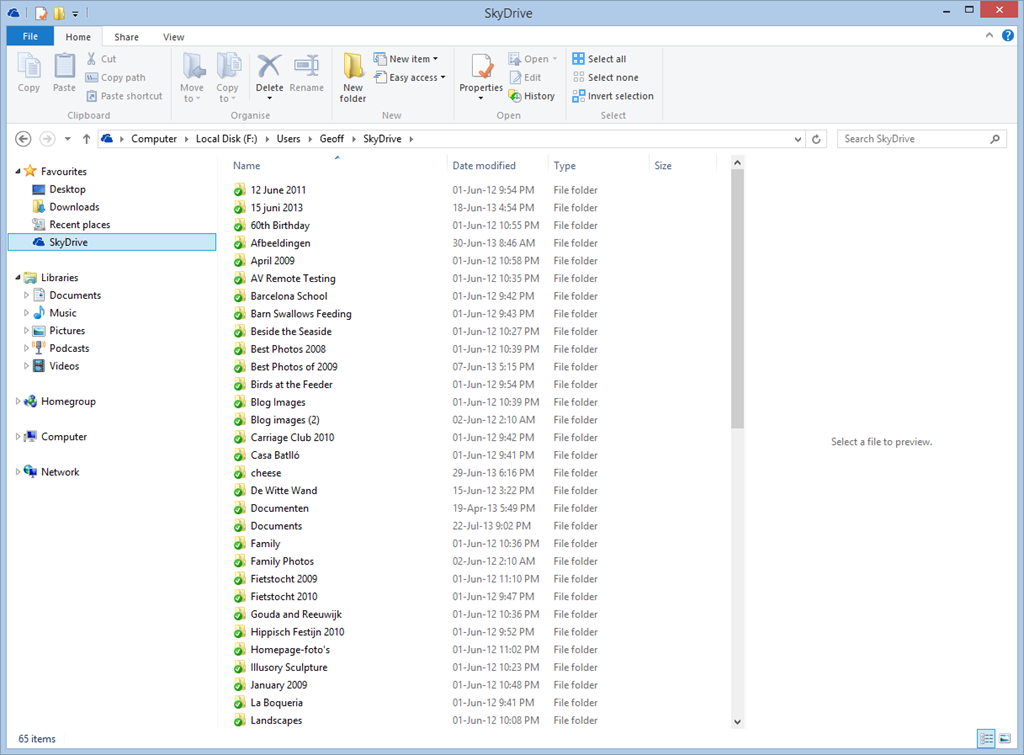
    Let me illustrate this. In Windows 8, it is possible to have a local copy of your SkyDrive folders and files. Here’s a screenshot showing some of the OneDrive folders that are held locally on my Desktop PC:

    SkyDrive 01

    These folders and the files within them are full local copies of the contents of my OneDrive storage. They are also included in the scope of the Windows Search engine running on the PC, and because they contain all the metadata, they are also searchable. So, for example, If I search for pictures of our dog, Kai, I get 16 hits of OneDrive photos that contain the Descriptive Tag: Kai:

    SkyDrive 02

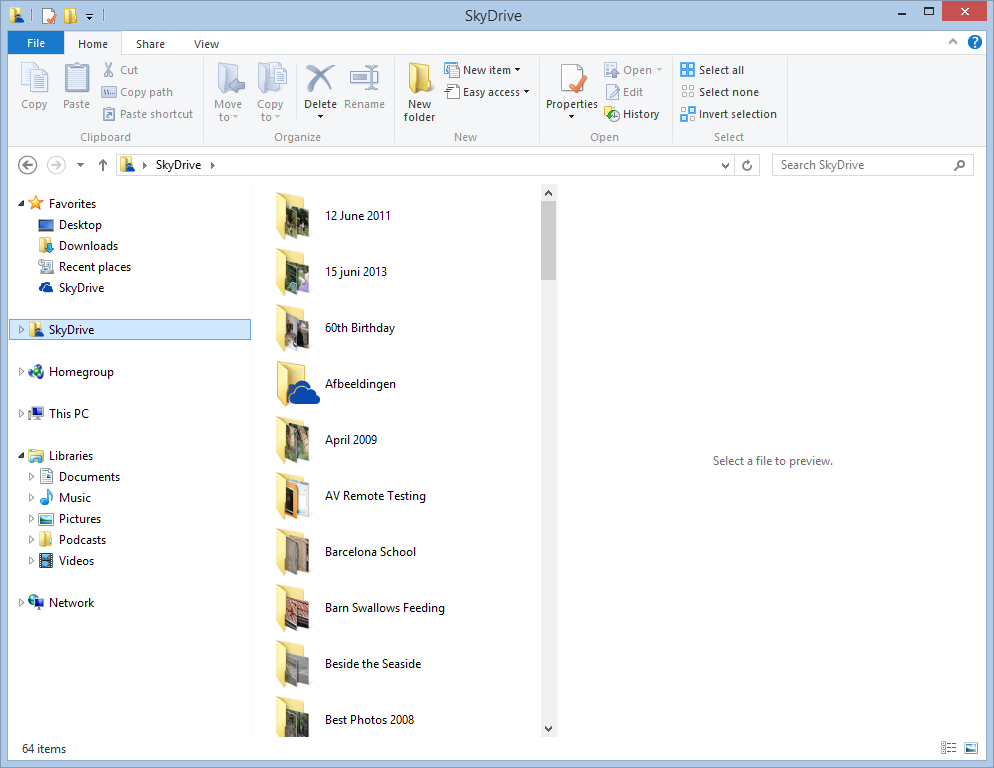
    My ThinkPad Tablet, on the other hand, is running the Windows 8.1 Preview. In Windows 8.1, the contents of my OneDrive storage is represented by placeholder files:

    SkyDrive 03

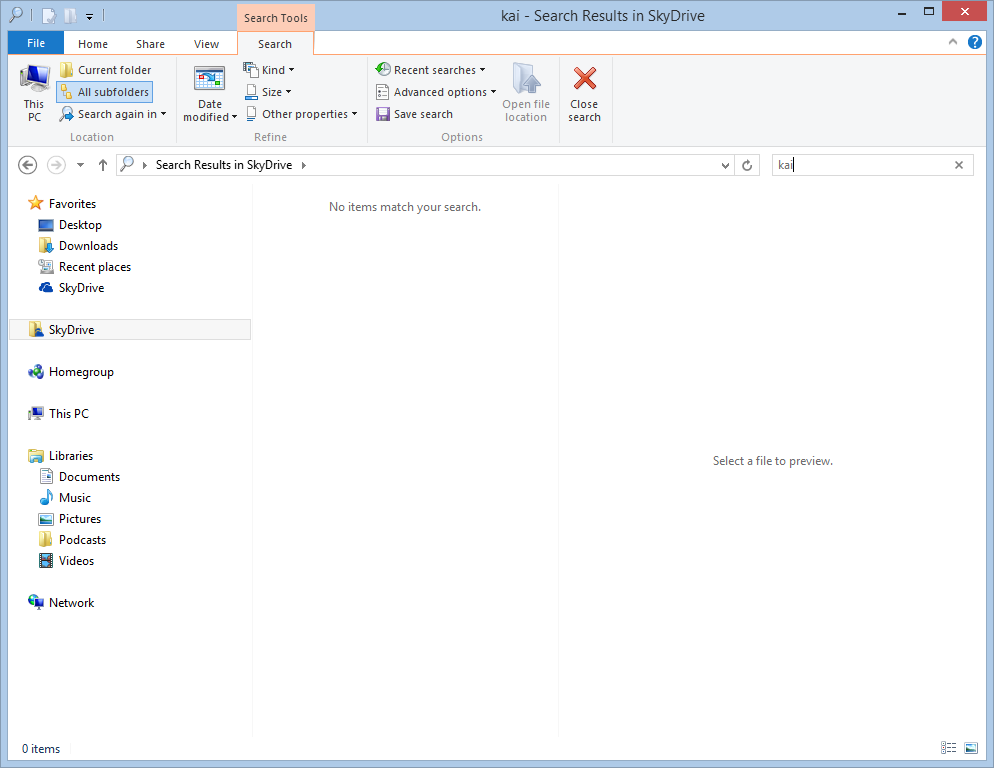
    To all intents and purposes, they look like the original Folders and Files held in my OneDrive , but they are not; merely placeholders. A full local copy of a file is not present on the Tablet, unless I have edited the file. So now, if I search for photos of Kai, I get a sad little “No items match your search” message:

    Skydrive 04

    That’s because the placeholder files do not contain any photo metadata. This seems to me like a real limitation, particularly since there is no way of searching Descriptive Tags in photos in OneDrive itself – even though the files themselves have the metadata.

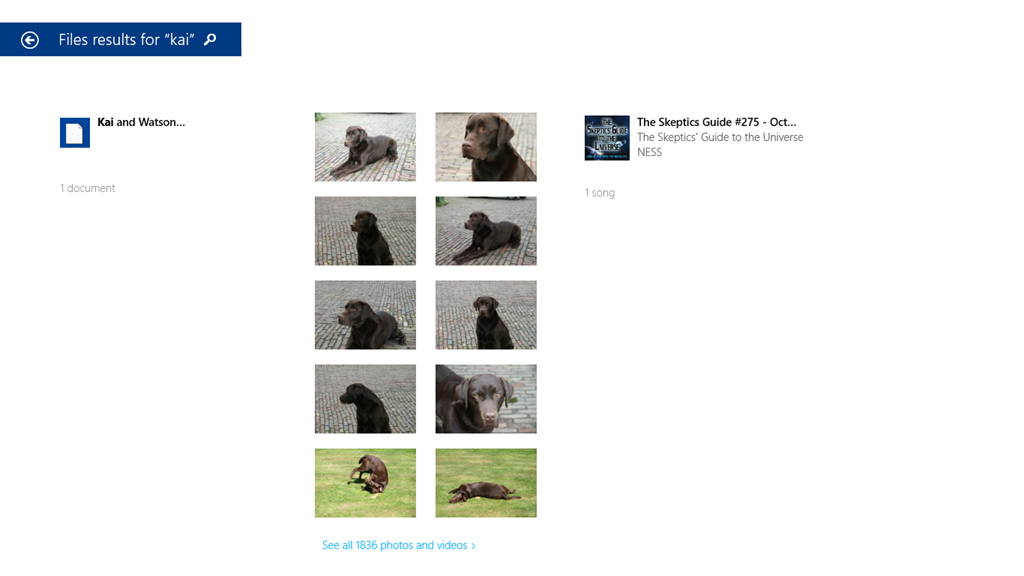
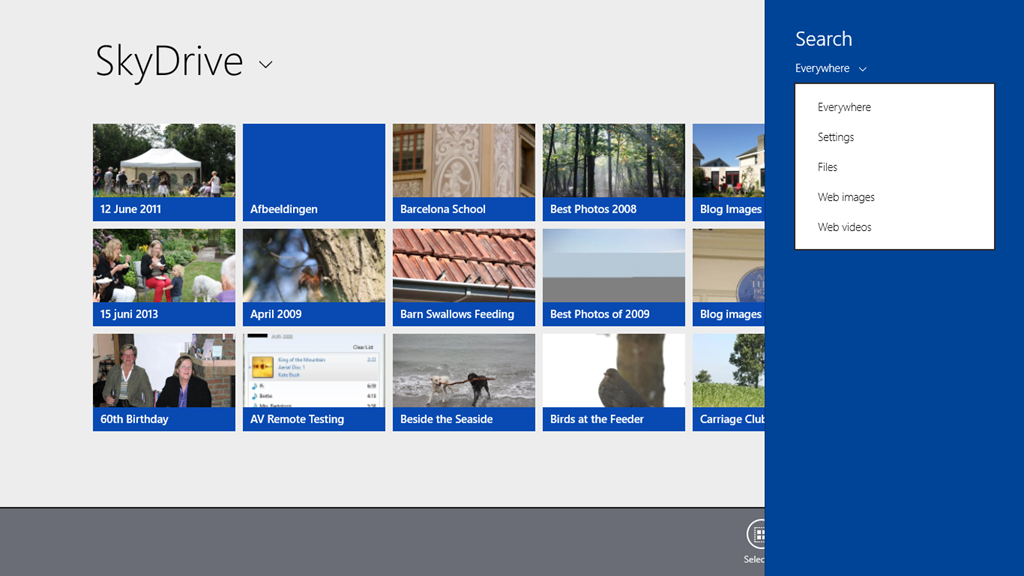
    Here, for example, is the OneDrive App in Windows 8.1. Note how the Search Charm is not able to search OneDrive , but only the web or local files:

    SkyDrive 05

    Searching for “Kai” produces only the results from my local libraries, not from OneDrive :

    SkyDrive 06

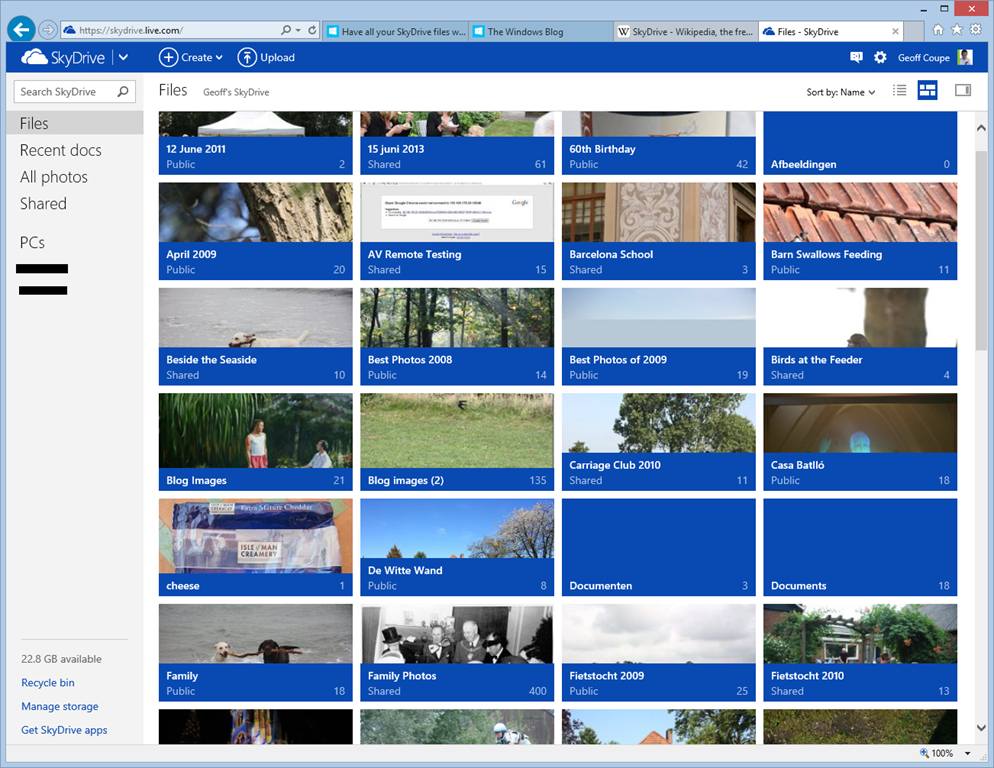
    If I use Internet Explorer to browse OneDrive directly, then I still can’t search on Descriptive Tags. Here’s the initial view of my OneDrive :

    SkyDrive 07

    If I use the “Search OneDrive” function at the top left, and search for “Kai”, then nothing is found:

    SkyDrive 08

    So the SkyDrive service is not indexing metadata such as the Descriptive Tags. This, by the way, is a long standing issue with the SkyDrive service. I’ve raised it on a number of occasions with the OneDrive team, and nothing has changed.

    In addition, the Windows 8.1 integration of OneDrive is also not indexing metadata, so perhaps the Microsoft statement should be rewritten as:

    Many people use search to quickly access their files. So we’ve made search work just not as you’d expect – SkyDrive files won’t always show up in search results unlike your local files.

    Sigh.

    Update 4 October 2013: If you read the comments below this post, you’ll see that members of the OneDrive team have replied. The good news is that they are working to address the shortcomings of the current search experience – photo metadata is now being included in the placeholder files. That’s good to hear.

    Update 7 May 2014: I’ve just done a test of uploading some files, containing IPTC Core keywords (tags) in their metadata, to OneDrive. You still can’t search for the tags using the browser accessing the online service – they don’t show up in the search results.

    However, it does appear as though the tags are now being included in the metadata contained in the placeholder files. So a search of the OneDrive folders on your local PC will find the tags. So, one step forward.

    Update 10 May 2014: The support for tags in the OneDrive service itself is still pretty much broken. Microsoft seem to have forgotten their one-time goal that “the truth is in the file“.

  • Watch Anytime, Anywhere…

    I notice that some DVDs are now advertised as including a digital copy of the film, intended for playback on PCs, Smartphones and Tablets. I seem to recall that at one time, the digital copy was physically present on the DVD. These days, it seems as though you have to download it via the web. You go to a web site, type in the redemption code included with the DVD, and the digital copy gets downloaded to your PC.

    Well, that’s the theory, anyway. I’ve just bought a DVD of ParaNorman from Amazon UK. It boasts that this pack includes DVD + Digital Copy™ + Ultraviolet™ so that you can “Watch Anytime, Anywhere”.

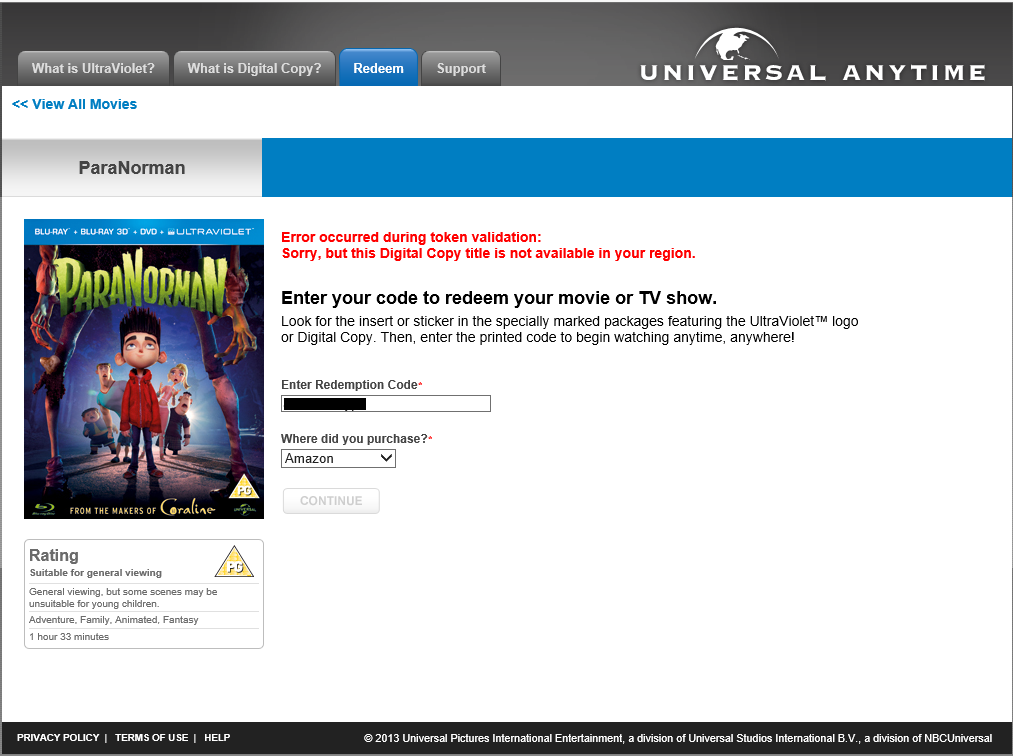
    I thought that I’d download the Digital Copy for my tablet, but when I entered my redemption code on the web site, I was greeted with:

    Ultraviolet

    “Error occurred during token validation: Sorry, but this Digital Copy title is not available in your region”.

    So much for “Watch Anytime, Anywhere”, then… It’s probably against EU law, but I doubt that Universal gives a damn about that. They’ll just carry on making it difficult for their paying customers.

    Update: I tried raising the issue with technical support. They basically gave me the brushoff:

    Hello,

    We are sorry to tell you that the Digital Copy feature for this title is only available inside UK as the webpage is Geo-filtered. We regret the inconvenience caused.

    Thank you.

    Universal Digital Copy Support

    Support Case Info:
    Product: Universal Digital Copy
    Issue: Technical Issues
    Status: Resolved
    Template: DC00045

    I suggested to them that they might consider spelling out this limitation in their terms and conditions on the packaging…

  • Xbox Music App and Libraries

    Here’s another episode in my look at Microsoft’s Windows 8.1 Preview. This time I’m looking at the Xbox Music App. I’ve found an inconsistency with how the App handles Libraries.

    I now have two systems on which I am running the Windows 8.1 Preview. The first is my main Desktop PC, where I have set up 8.1 in a dual boot with Windows 8. A few days ago Microsoft released drivers that enabled the 8.1 Preview to be set up on systems using the Clover Trail Atom chipset, such as my Lenovo ThinkPad Tablet 2. So that became the second of my systems. It’s probably of relevance to note that the 8.1 system on the Desktop was a clean install from a DVD, whilst on the tablet, it was an upgrade of the existing Windows 8 system to the 8.1 Preview, using the Installer in the Windows Store.

    Both systems are set up to access music files held on my Windows Home Server 2011 system. The problem is, the Xbox Music Apps on the two systems do not see the same content, when by rights, they should.

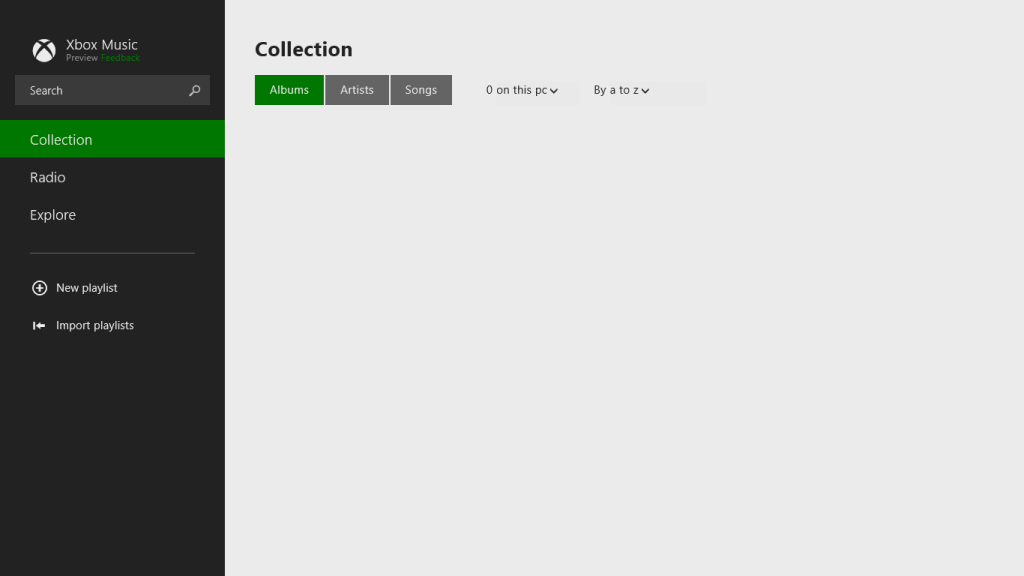
    Here’s a screenshot of the content of the music library as seen by the Xbox Music App on the Desktop PC:

    Xbox Music issue 05

    You will notice that it shows that I have 1,059 Albums in my music collection. Now here’s what I see in the Xbox Music App running on the tablet. Remember, it’s looking at the same music Library on the server:

    Xbox Music issue 07

    No albums at all…

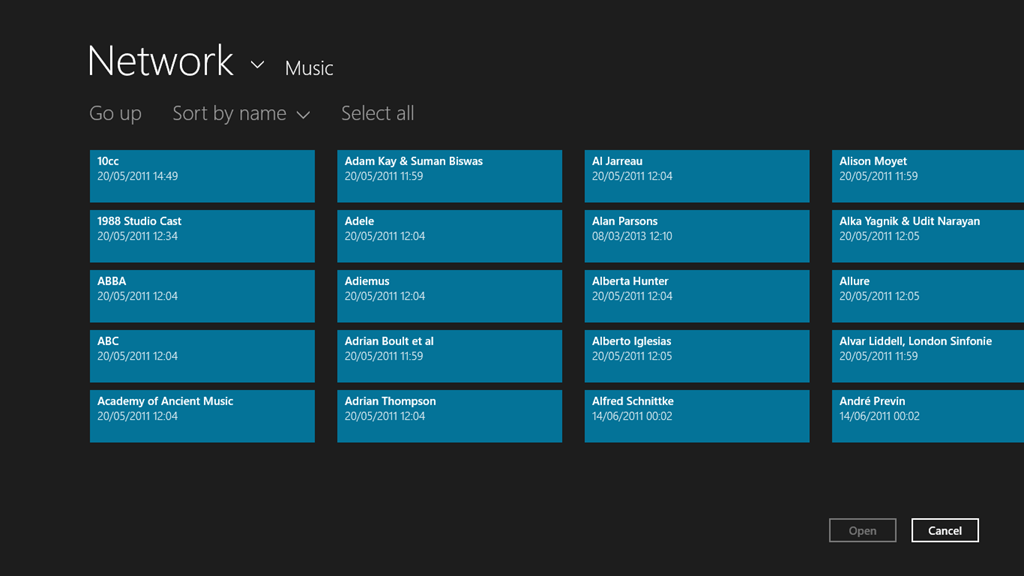
    Note that if I use the “open a file” function of the Xbox Music App, it will see the files and folders on the Windows Home Server:

    Xbox Music issue 09

    It just won’t add these files and folders into the music collection, despite them being linked to by an entry in the Music Library on the tablet.

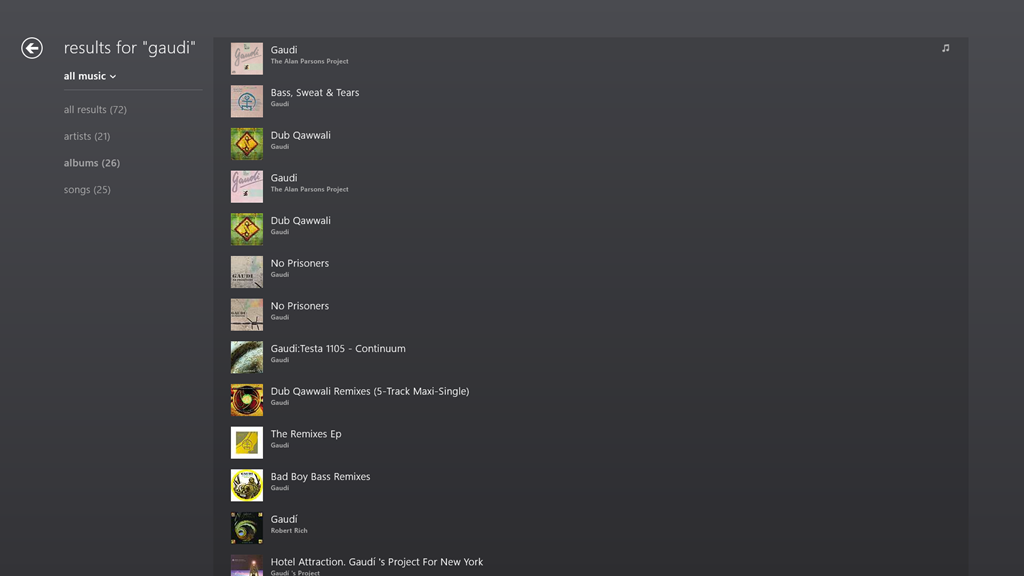
    If I search for an album that I know is in my music collection, then the Music App will only return results from the online music store. Here, for example is the result of a search for the album “Gaudi” by the Alan Parsons Project:

    Xbox Music issue 14

    Notice that here, the album is shown third in the list. This list is entirely made up of results from the online music store.

    If I do the same search using the Search function of Windows 8.1 itself, then I see this:

    Xbox Music issue 13

    Here, you can see that Windows Search has found the tracks from the Gaudi album by searching through my music collection held of the Windows Home Server.

    If I switch to the other Xbox Music App running on the Windows 8.1 on the Desktop PC, then searching within the App for Gaudi gives me this:

    Xbox Music issue 16

    The Gaudi album is now at the top of the list, and is the album contained in my music collection (signified by the musical notes icon on the right of the entry).

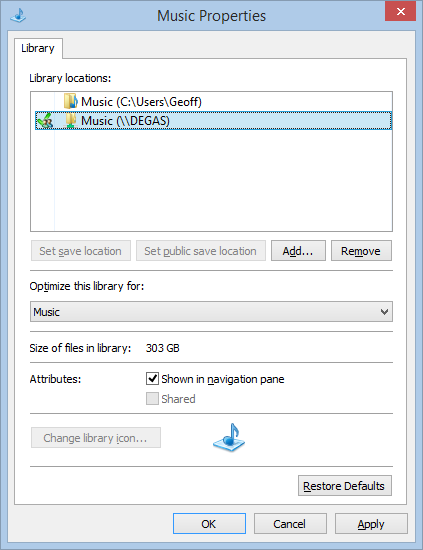
    Here’s the entries of the Music Library on the Desktop PC:

    Xbox Music issue 06

    And here’s the content of the Music Library on the tablet:

    Xbox Music issue 08

    In both cases, there are entries in the respective music libraries pointing to the music files held in the entry point of Degas, the WHS2011 server.

    The links defined for the Libraries on the tablet are the same as when it was running Windows 8. Then, the Windows 8 Music App happily accessed the music library on Degas. Now that the system has been upgraded to Windows 8.1 Preview, the 8.1 version of the Music App turns a blind eye. However, on the Desktop PC, the 8.1 version of the Music App sees the music library.

    So why does one Music App see everything, and the other see nothing at all?

    I have no idea; neither does Microsoft Support.

    Addendum: Despite a couple of updates to the Xbox Music App, this issue is still present.

  • Windows 8.1 Photo App

    I’ve been looking a bit more at the Photo App that is currently available as part of the Windows 8.1 Preview. As I mentioned in my last post, Barb Bowman has already mentioned two major strikes against it:

    The Photos App has changed:

    1. No longer includes the ability to show images from Facebook, Flickr, SkyDrive

    2. No longer allows images from other computers or the network –  am guessing that because there is now support for SkyDrive on RT and MS is heavily emphasizing that as the preferred storage location (when you upgrade, one of the questions asked before you even get to the desktop is if you want to use SkyDrive as your default storage area – and that seems to be the default – and MS feels the network, NAS, Homegroup, and other computers are deprecated.

    I’ll add another couple.

    • The editing functions will likely corrupt any Makernotes in the Exif that your camera may put there.
    • If the Exif section in your original image was created by your camera in Little-endian file order, then when the Photo App saves an edited image, it will reverse this to be a Big-endian file order.

    The Exif corruption is a long-standing issue. It’s been present for years in the Windows Photo Gallery application of Microsoft. They have acknowledged it as a bug, but they still haven’t bothered to do anything about it.

    The Little-endian to Big-endian switch is also a carry-over from the behaviour of Windows Photo Gallery. It’s also highly ironic. The guidance from the Metadata Working Group states that applications that change the contents of an image file should preserve the existing byte order. It’s ironic because Microsoft is one of the founder members of the Metadata Working Group. They can’t even be bothered to follow their own guidance.

    The Photo App as it stands is worse than useless.

  • Windows 8.1 Preview – Part II

    I’ve now installed the Windows 8.1 Preview on my Desktop PC; I went with the safe and boring option 2.

    With the caveat that this is not the final version of Windows 8.1, I’ve noticed some good things and bad things about the Preview.

    The good things are the tidying up and the further evolution of the Modern UI. So, for example, more of the traditional Desktop’s Control Panel functions are now exposed via the Modern UI, and they are grouped more logically. The sops thrown by Microsoft to the “Bring back the Start Button and the Desktop” crowd may satisfy them, but are of no interest to me – I never missed the Start Button in the first place.

    What does bother me are two things:

    1. The Mail development team still hasn’t got a clue on how to use the Windows 8 printing system.
    2. There are worrying signs that Microsoft may be deprecating the Libraries feature.

    With regard to (1), that’s been there since the very start of Windows 8. You can’t just print the current page, or a selection of pages from the Mail App. Something that’s easily done with the traditional Windows Print dialog, but which is totally impossible with this App. It is also the same with the IE10 App in Windows 8 (but that has been fixed for IE11 in Windows 8.1). They drop the “Pages” setting from the Modern UI Print screen. This is with a newer build (17.3.9431.0) of Mail from the one in Windows 8 (build 17.0.1119.516). Could someone please, please tell the development team how to use the printing system, for heaven’s sake?

    But the more worrying thing for me is that, starting with Windows 8.1, Microsoft seems to be deprecating the Libraries feature, which was first introduced in Windows 7.

    Libraries are the way to aggregate collections of data (e.g. documents, photos, music and videos) from disparate data sources (e.g. on the local PC, out in the network, or even in the cloud). I use them to give seamless access to photos and music that reside both locally and on our Windows Home Server, which serves media to our PCs and to other connected devices that support the DLNA standards.

    In Windows 8.1, the emphasis has been put on SkyDrive as the primary storage location. Take a look at the traditional Desktop Windows Explorer in Windows 8.1. Here’s what you see when you first open it up:

    Win81 12

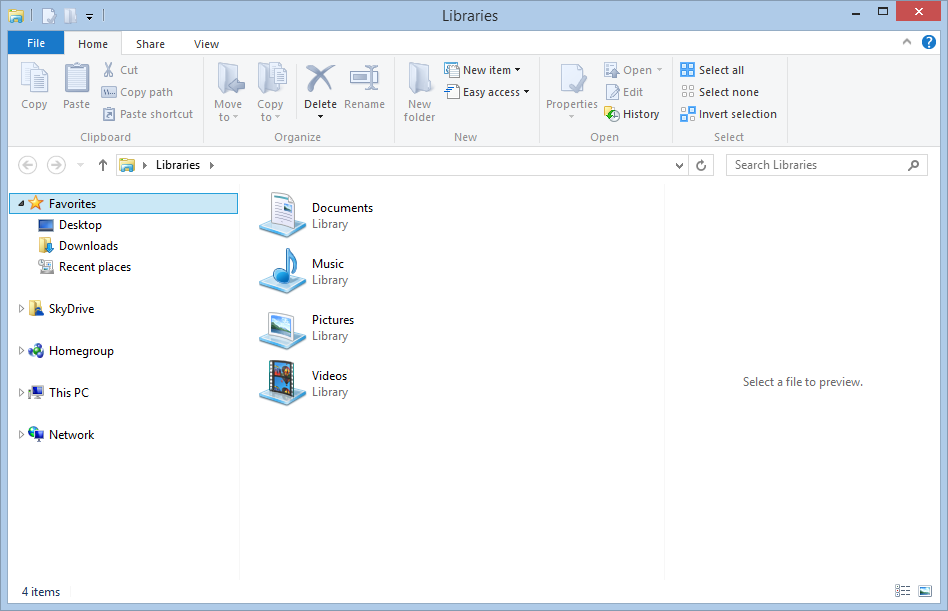
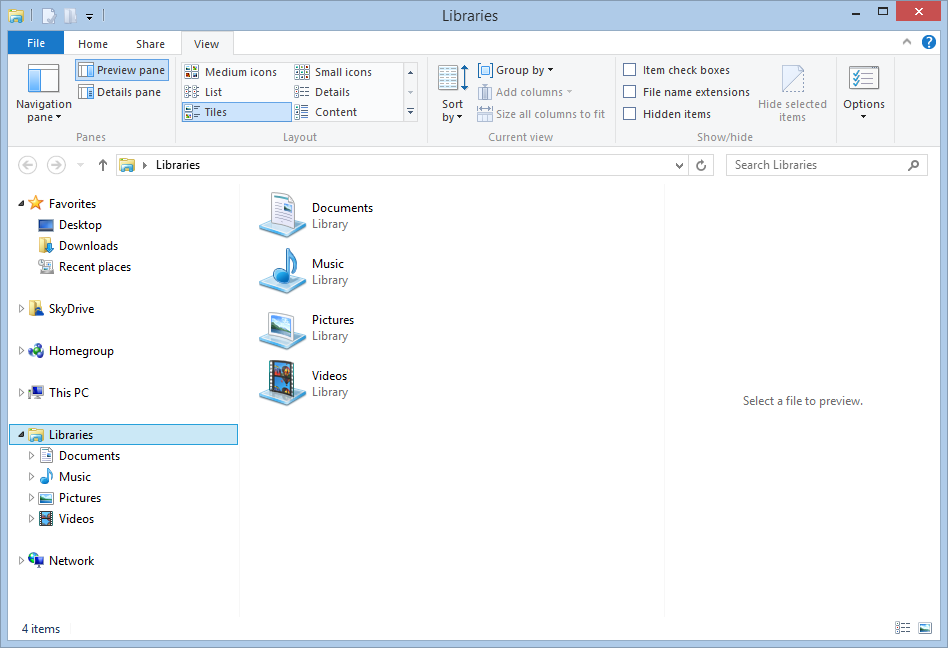
    Look at the Navigation Pane on the left. Note the prominence of SkyDrive, and the fact that what was called “Computer” in Windows 7 and 8 is now called “This PC”. Notice anything else? Yup – there’s no entries for the Libraries in the Navigation Pane. There is an option in the Explorer to turn them on, but it is off by default. Here’s what I wanted to see:

    Win81 13

    The Libraries feature is still there and working in Windows 8.1 – it’s just that not all Microsoft’s Modern UI Apps bother with it.

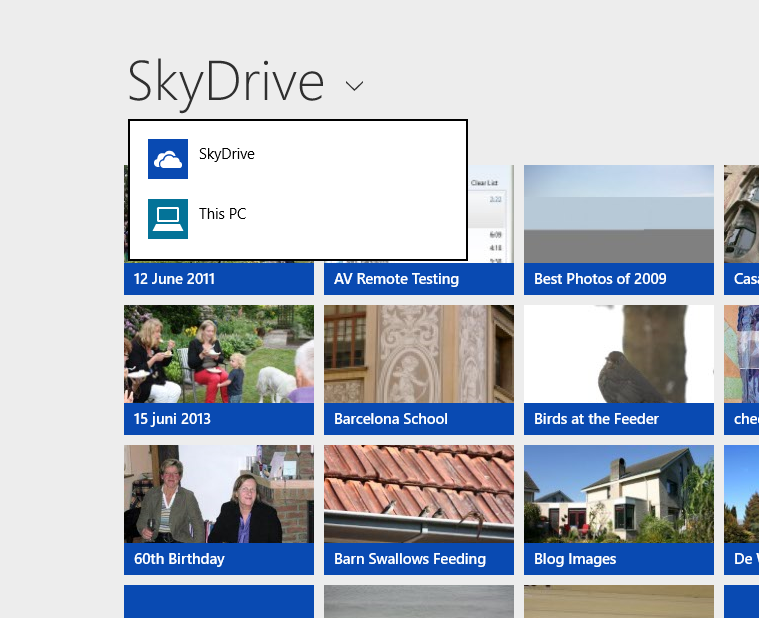
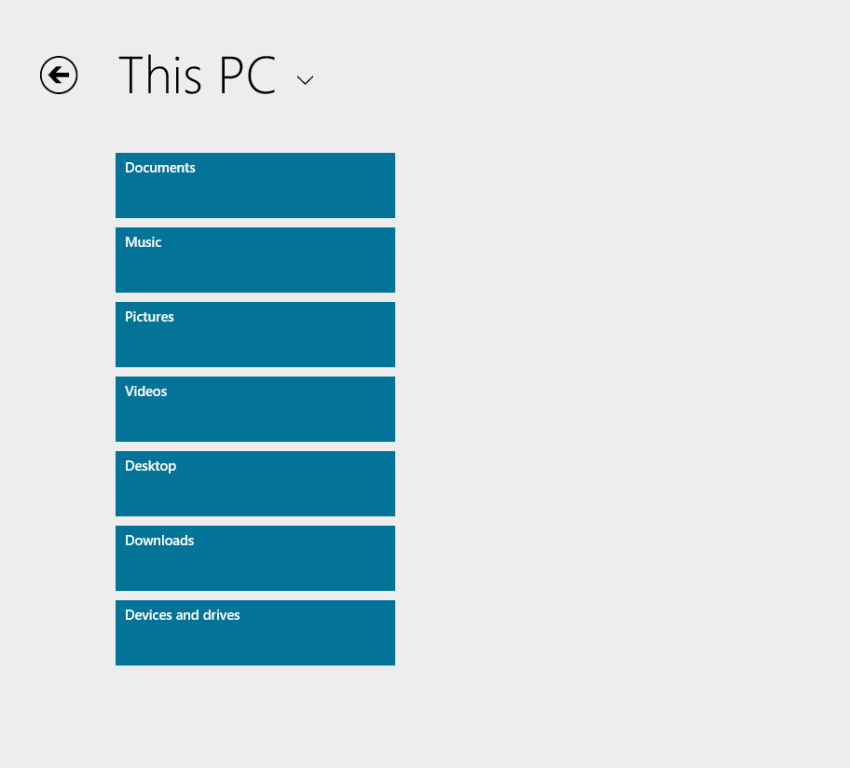
    For example, the SkyDrive App is clearly the first iteration of what is likely to become the Modern UI equivalent of the Windows Explorer, and its top-level entry points for accessing storage are “SkyDrive” and “This PC”; there are no “Libraries”or “Network” entries here:

    Win81 02a

    Choose “This PC”, and you are presented only with the local storage locations; again, no Libraries or Network entries.

    Win81 03a

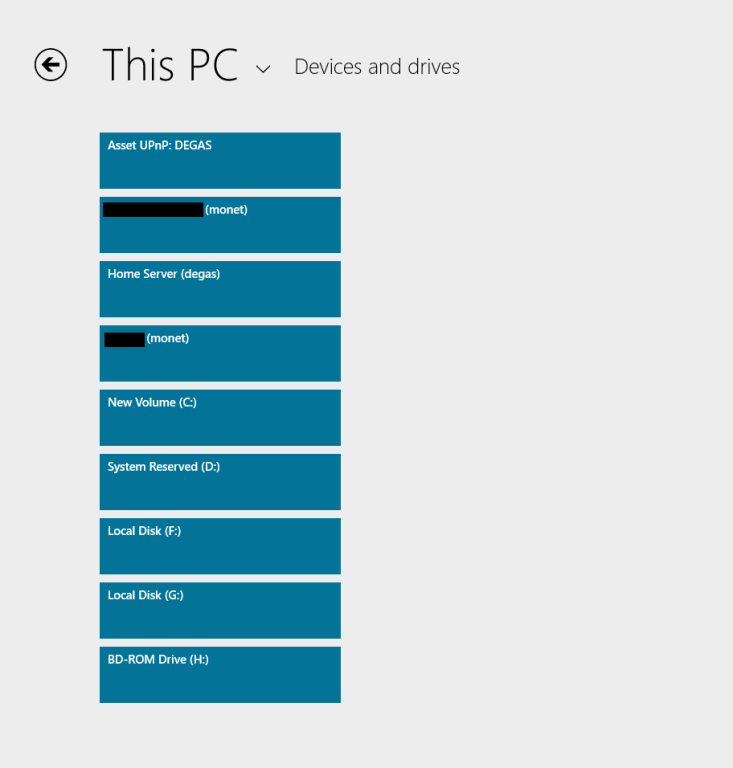
    There is that “Devices and drives” item at the bottom of the list; click (or touch) that, and you see a list of the local drives on the PC, and the media servers present on the local network:

    Win81 10a

    So, “Libraries” are not exposed at all via this Modern UI Explorer… And we are still not out of the woods, because if I click on the “Home Server (degas)” item, this is what I see:

    Win81 11a

    Sigh. And yes, I’ve tried later, and there’s still no result. The Modern UI Explorer only works with SkyDrive and local storage on your PC – it ignores Libraries and Network Attached Storage – including Microsoft’s own Windows Home Server.

    It’s the same with the Photos App, except that it seems to be even more limited. It will only ever display photos held on the local PC in the C:\Users\Username\Pictures folder.

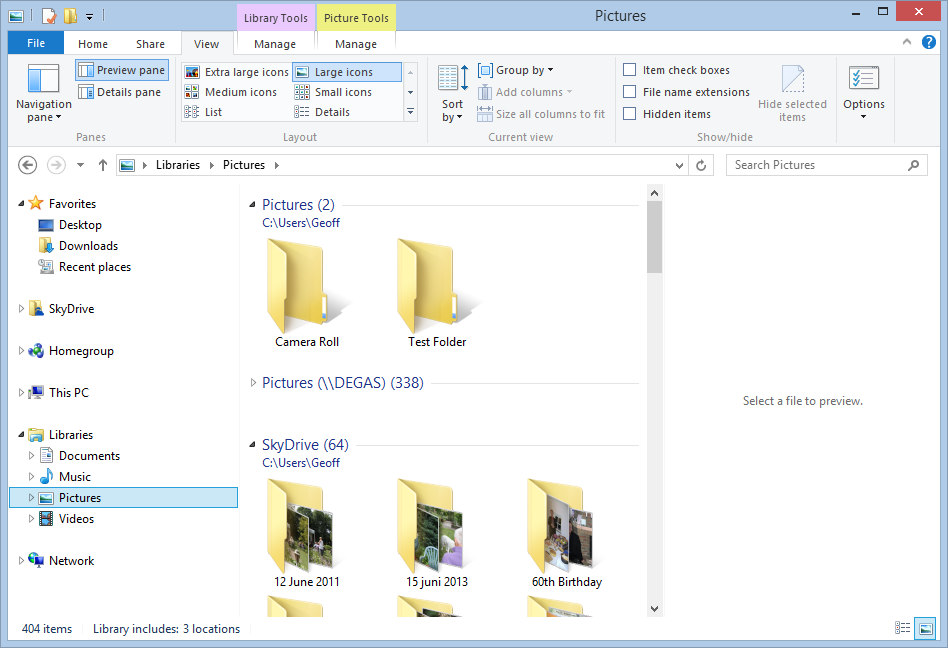
    Whereas the current Windows 8 version of the Photos App will display photos held in Picture Libraries, SkyDrive, Flickr and Facebook, the 8.1 version of Photos App will only display photos and folders held in the C:\Users\Username\Pictures folder. Here, for example, is what I have in my Pictures Library in Windows 8.1:

    Win81 14 

    I have three locations defined for the Pictures Library:

    • C:\Users\Geoff\Pictures (with two folders: Camera Roll and Test Folder)
    • \\Degas\Pictures (with several hundred top-level folders and 50,000+ photos)
    • C:\Users\Geoff\SkyDrive (with 64 folders)

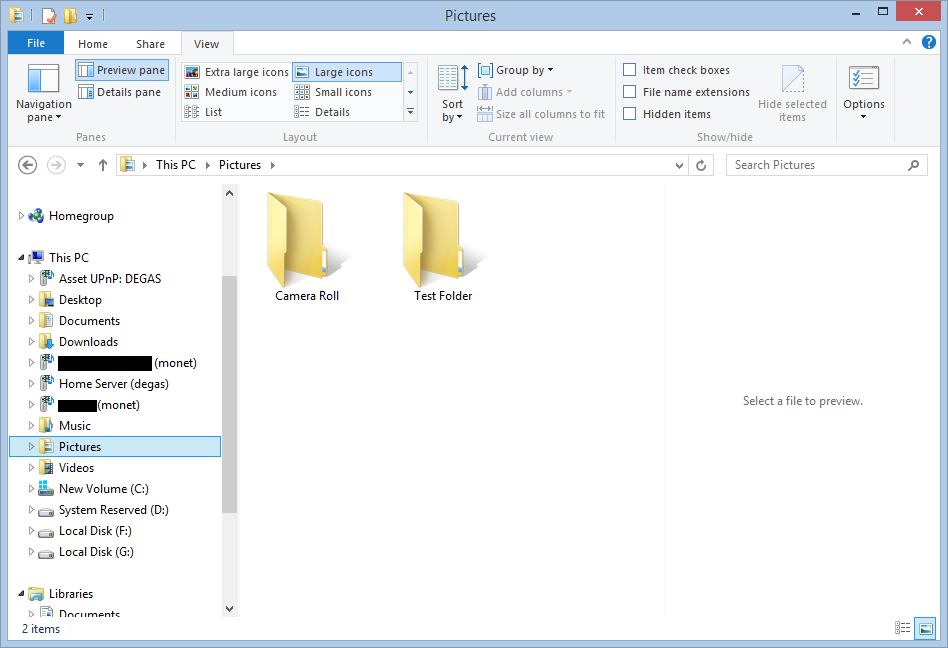
    If I open up the 8.1 Photos App, all I see are the two lonely folders in C:\Users\Geoff\Pictures:

    Win81 19

    So the Photos App is simply looking in the “This PC” hierarchy, and just picking up the local Pictures folder:

    Win81 18

    This is useless. What is bizarre is that the live Tile for the Photos App is showing random photos from the Pictures Library, whilst the Photos App itself cannot:

    Win81 20

    The limitations of the Photos App have been raised by Barb Bowman on the Windows 8.1 Preview forum. Quote:

    The Photos App has changed:

    1. No longer includes the ability to show images from Facebook, Flickr, SkyDrive

    2. No longer allows images from other computers or the network –  am guessing that because there is now support for SkyDrive on RT and MS is heavily emphasizing that as the preferred storage location (when you upgrade, one of the questions asked before you even get to the desktop is if you want to use SkyDrive as your default storage area – and that seems to be the default – and MS feels the network, NAS, Homegroup, and other computers are deprecated.

    This got a response from Carmen Zlateff, a Principal Lead Program Manager on the Photos App team, who said in respect of point 1:

    Thanks for the feedback, everybody.  In Windows 8, we wanted to provide a way for folks to view their photos on other services knowing there would be few (if any) apps in the store at launch that would do so.  Now there are many apps in the store that offer ways to view photos on other services and soon there will even be a Facebook app from Facebook.  We’re confident Facebook will offer great ways to view and engage socially with photos on Facebook.  We welcome Flickr to do the same.  In addition, the People app still offers the ability to socially engage with your friends and even your own photos.

    Needless to say, this reply was treated with the contempt it deserves. Whether it will result in any change on Microsoft’s part, we shall see. I’m not holding my breath. And I fear that Microsoft is going down the path that there is only Cloud storage (i.e. SkyDrive) or local storage (i.e. This PC).

    To summarise:

    • I hold all my media on a Windows Home Server, and expect to be able to access it from devices (including DLNA devices) on my home network.
    • I have too much data for an affordable use of SkyDrive, and besides, internet access is like a piece of wet string in my location.
    • This is a massive jump backwards.
  • Windows 8.1 Preview

    Microsoft has released a pre-release version of its next Windows operating system: Windows 8.1. Being a pre-release, it is of course not finished, and comes with all sorts of health warnings. Despite this, I, like thousands of others, am keen to take a look at it.

    When the Customer Preview of Windows 8 came out in February 2012, I installed it as my main operating system on my desktop PC, overwriting the running Windows 7 OS. Microsoft gave similar health warnings back then about using the Customer Preview as the main operating system. Nevertheless, I felt confident enough to go ahead and do just that.

    Fast forward 18 months or so, and I need to make a similar decision, by choosing between one of several options to installing the Windows 8.1 Preview:

    1. Installed as my main operating system on my Desktop PC.
    2. Installed alongside Windows 8 in dual boot mode on my Desktop PC.
    3. Installed in a Virtual Machine on my Desktop PC.
    4. Installed on my Lenovo ThinkPad Tablet 2.

    Option 4 was in fact my first thought, but then when I went to Microsoft’s Download page, I noticed:

    Important: Windows 8.1 Preview isn’t currently supported on some tablets and PCs with newer 32-bit Atom processors.

    Sure enough, that includes the Lenovo ThinkPad Tablet 2. Oh well, that rules option 4 out. As an aside, it is clear that many people don’t bother to read before downloading and installing the 8.1 Preview – I’ve seen many posts from people complaining that the Preview is not working on their Atom-based machines…

    Option 3 is doable, but I’m a simple soul, all this new-fangled stuff of Virtual Machines has never really appealed to me. Which leaves the safe, but boring, option 2 or the high wire act of option 1.

    I know that if I choose option 1, then if anything goes wrong, I can restore my PC using the backups held on my Windows Home Server. However, I also know that when Windows 8.1 is finally released, I will have to do a complete fresh install of the operating system and all my applications and data.

    I’ll think it over for a day or two, monitor the forums for any issues that are emerging and then make my decision.

    Update 30 June 2013: Well, I tried option 3, but I found it a bit limiting. Too many hardware devices couldn’t be added, and the virtual PC could not see my home network, and therefore couldn’t access my home server.

    I didn’t feel comfortable about the risks of option 1, and thus I’ve gone with option 2. I’ll report my findings in a day or two, but one thing stands out: the 8.1 version of the Photos App is an absolute fecking disaster.

  • The Swapper

    That’s the title of a new game for Windows. It’s a series of puzzles woven around the story of an astronaut who comes into possession of a cloning device.

    It has beautiful visuals, literally hand-crafted from clay and everyday objects, and an intriguing storyline. The idea of cloning, and transference of consciousness between clones, has a long and deep philosophical history. Derek Parfit’s Reasons and Persons, with Daniel Dennett’s and Douglas Hofstadter’s The Mind’s I are excellent places to continue the exploration of self and consciousness.

    Forget first person shooter games, this is the sort of thing that I can engage with. Highly recommended.

  • Photo Editor Apps

    My needs are fairly simple when it comes to a tool to edit digital photos. I don’t need all the bells and whistles of an Adobe Photoshop, just something that I can use to crop, resize, or adjust the contrast or colour balance of an image. Very occasionally, I need to to be able to make a cut-out mask of part of an image and paste it into another. For example, in this blog’s header image (which changes with the seasons), you can see our two dogs sitting in front of the house. They are always there, whatever the season, and that’s because their image has been pasted in to each of the seasons’ images.

    The features of Microsoft’s Windows Photo Gallery are the sort of thing that I have in mind (although it doesn’t handle masks), but I found out a long time ago that it corrupts image metadata. In particular, it destroys Canon’s Makernotes, which are stored in the Exif metadata of images made using my Canon cameras. Despite reporting this to Microsoft over two years ago, and Microsoft acknowledging that there is a bug, this still hasn’t been fixed. In fact, the same bug is present in Microsoft’s Photos App, built for Windows 8.

    For this reason, I only use Windows Photo Gallery to stitch together panoramas – it is very good at that – and don’t use any other of its editing tools. I also don’t use it to modify image metadata, because whenever Photo Gallery writes back metadata into the image file, it will corrupt the Makernotes. For editing and metadata work, I use Photo Supreme. It is excellent for metadata, and the image editor is good enough for my simple tasks. When I need to use masking, then I fire up the ancient, and long since withdrawn, Microsoft Digital Image Pro 10. As an aside, I often wonder why on earth Microsoft dropped this product. It certainly outshines any of their current digital imaging products…

    Anyway, I was curious to see whether there was an easy to use photo editor available for the Windows 8 environment. At the moment, there are over 700 Apps listed in the Windows Store under the Photo category.

    Photo Apps 02

    Admittedly, some of those listed are Desktop Apps, designed to run in the Windows 7 Desktop environment, but the vast majority are built as Modern UI Apps for Windows 8.

    Last month, there was a post on Microsoft’s Windows Experience Blog that listed, and recommended, four Modern UI photo editor Apps. These were:

    I took a quick look at three of the suggestions (Fotor, Fhotoroom and Perfect365), and they all seem to strip out all metadata from a saved image, Exif and XMP. This is not useful, and completely contrary to the guidance from the Metadata Working Group, of which Microsoft is one of the founding members. As far as I’m concerned, that rules out any of these applications for me.

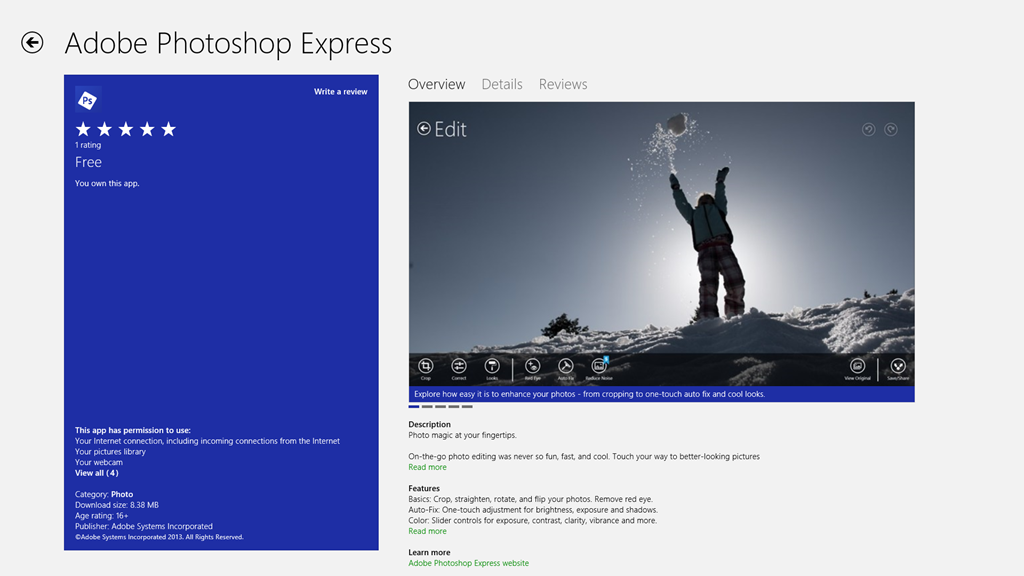
    Today, I saw that Adobe has made their Photoshop Express available as a Modern UI App for Windows 8, so I’ve taken a quick look.

    Photo Apps 01

    Well, on the positive side, it preserves metadata, and doesn’t corrupt it, so that’s a step forward from Microsoft’s efforts. However, it is still very limited in what it can do, and it has at least one irritating quirk all of its own. In this list of capabilities, unless otherwise stated, you can take it that Windows Photo Gallery (WPG) and Photo Supreme (PSU) can match the features listed.

    • It can crop and resize the image, with or without ratio guides.
    • It can rotate the image in fixed 90 degree increments (PSU can also handle free rotation, with or without cropping).
    • It can flip the image (WPG cannot).
    • It cannot resize the image resolution (WPG and PSU both can).
    • It can adjust (both manually and auto-fix) contrast, exposure and white balance, and apply preset filters.
    • It can remove Red Eye (PSU cannot).
    • It can heal images (WPG cannot).
    • It cannot handle masks and image layers (neither can WPG or PSU).
    • It cannot handle RAW images (PSU can, while WPG can only display them)

    Interestingly, it looks as though the App is extensible. You can add paid-for filters. So it’s possible that some of the limitations may be overcome in the future.

    And what of the irritation?

    Well, I don’t know whether the App is saving images at full quality, or whether it is applying compression. As a test, I took an original JPEG image that was 6.82 MB in size, and used the App to save a copy (no changes were made). The resulting copy was 4.08 MB in size. I suspect that some compression has been applied, but I have no way of telling how much, or more importantly, be able to save with no compression. That I do not like in an application.

    I also get slightly irritated by the fact that I can only save to one online Cloud storage service: Adobe’s own Revel. Fine, but I want to use my existing (and free) SkyDrive storage, rather than have yet another service to deal with.

    So in summary, all I can say is that Adobe’s Photoshop Express has promise, but it is not yet at a stage where I will drop my other digital image editor tools in its favour. Ask me again in a year.

    Addendum: I asked on an Adobe forum whether I could stop Photoshop Express from compressing my images. The answer is no, and that’s apparently by design.

    Also, I raised the issue of metadata being stripped out by Fotor with their support people. I had a response in which their programmer confirmed that Fotor does not save all of the Exif metadata in edited images. Unfortunately, he also seemed to be completely unaware that there are other types of image metadata besides Exif – and these are equally important to photographers.

    This link http://www.photometadata.org/META-101-metadata-types has an easy to understand introduction to image metadata.

    As it stands, Fotor is not a suitable tool for any photographer who cares about preservation of image metadata. The same seems to be true for many of the photo Apps currently available.

  • "Windows 8 sucks because Windows 8 apps suck"

    Not my words, but the words of Michael Cherry, an analyst with Directions on Microsoft, quoted in Computerworld. To be honest, I think he has a point. I’ve long bemoaned the fact that, far from using the opportunity to showcase the capabilities of Windows 8, the quality of most of the Apps supplied by Microsoft is abysmal.

    I still find myself using traditional Desktop applications for the majority of the time, and that’s simply because their Modern UI equivalents just don’t cut the mustard. They are still toys by comparison.

    I’ve found that Microsoft’s Mail, Calendar and People Apps are still far inferior to Windows Live Mail. The Xbox Music App is still lagging traditional music library applications, and the less said about the Photos and Video Apps the better.

    Microsoft is certainly not doing itself any favours with the current state of its Apps.

  • The End is Nigh

    Six years ago, along with 10,000 other people, I started testing the beta of the first version of Windows Home Server. When it was formally released in November 2007, I bought the software and built my first home server. I repeated this cycle for the next version of Windows Home Server: trying the beta, and then buying the product. Despite my many rants about the shortcomings of Windows Home Server 2011 and Microsoft’s lackluster support, overall I’ve been very satisfied with the product. It does its job of taking automatic backups of itself and our other computers in the house, and is the central storage for our collection of music, film, video and recorded TV programmes.

    However, it was clear that Microsoft no longer loved Windows Home Server, and it was no surprise when Microsoft announced in July 2012 that there would be no next version of WHS. That means, according to Microsoft’s Product Support Lifecycle rules, that WHS 2011 will continue to receive mainstream support until April 2016.

    That notwithstanding, Microsoft has also just told its band of enthusiasts in the WHS community of users that as from April 2014, WHS will be fully retired as an award expertise and technical interest. They do seem in an awful hurry to dispose of all trace of Windows Home Server.

    It’s a great pity – despite all the song and dance about the move to Cloud services, I am still firmly of the opinion that there is a place for a server in the home. Online streaming where I am in the rural Netherlands is neither fast enough, stable enough, nor cheap enough to be considered a viable alternative.

  • The Xbox Music App – Still Disaster-Prone

    Well, I thought at first that the new release of the Xbox Music App for Windows 8 was promising. That is, until my recent bad experience, and now something else has crept out of the woodwork.

    The App is working as expected on my Desktop PC, but on my Lenovo ThinkPad Tablet 2, when I start playing an album, the first track will play, but all the rest start showing an error symbol (an exclamation mark) by them:

    xbox issue 04

    If I click on the symbol, then I get this:

    xbox issue 05

    It says:

    Can’t play.

    Please try again. If the problem continues, visit www.xbox.com/support to check for guidance.

    more info

    Tell Microsoft more about this problem

    0xc00d11cd (0x8000ffff)

    Once again, of course, the links provided in the error message don’t provide any guidance whatsoever.

    If I let the playback continue, it will stop at the end of the currently playing track, because all the rest of the tracks are showing errors. However, I can manually advance to the next track, and it will start playing (with all the following tracks continuing to show errors):

    xbox issue 06

    Interestingly, I’m not the only one with this issue. And what I seem to have in common with the others is that we are using tablets built with the Intel Clover Trail chipset. This issue may well have been there for some time; it’s only with the latest release of the Xbox Music App (1.2.150.0) last week that I’ve really been using the App – it was so absymal before. It appears that it’s still dreadful.

    All my music (which is DRM-free) is stored on my Windows Home Server 2011 system. As I say, the Xbox Music App works fine on my Desktop PC, which, like my Tablet, is also running Windows 8 Pro. Other music applications, both traditional Desktop Apps (e.g. Windows Media Player, Zune and Media Monkey), and Modern UI Apps (e.g. Media Monkey for Windows 8) work fine on both the Desktop PC and my Tablet.

    But the Xbox Music App on the Tablet continues to be absolutely abysmal.
  • Windows 8 “Play to” Restrictions – And Overcoming Them

    I’ve written about Microsoft Windows and its “Play to” feature before. Back in the days of Windows 7, it caused a number of headaches, but the problems got resolved over time. Then with the introduction of Windows 8, it seemed that we all took a step back, and a new issue appeared.

    In Windows 8, it is not enough to have a piece of equipment (e.g. an amplifier or a TV) that is DLNA-certified for “Play to”, oh no; it also has to be Microsoft-certified before you can use it with a Modern UI (Metro) App in Windows 8. That means that although I can use the desktop Windows Media Player to “Play to” my trusty Denon AVR-3808 receiver (as I could under Windows 7), the new Xbox Music App in Windows 8 doesn’t even recognise the Denon as a “Play to” device.

    In a post on the Building Windows 8 blog, Microsoft states:

    Metro style apps work only with Windows certified Play To receivers [my emphasis]. These devices are validated to support modern media formats, are DLNA standards-compliant, and have great performance (including the updated Xbox 360 available later this year). The desktop experience first introduced in Windows 7 has been added to the Explorer Ribbon and will continue to support all DLNA DMR devices.

    Windows 8 bleats that my Denon is not Microsoft-certified, so it can’t be used by any Modern UI App. Gabe Frost, a Microsoft employee, gives these reasons for introducing this Microsoft certification:

    Since Windows 7, we have been certifying Play To devices (DMRs) for Windows. This certification program doesn’t invent any new standards or use any Microsoft proprietary technologies. Here is what our certification program does:

    1. DLNA guidelines have a bunch of optional requirements. An example is for a device to support volume control. These things that are optional in the guidelines have an impact on the user interface both within new Store apps and in Windows UI (such as providing a user the ability to control device volume using the app volume slider, or seek into a video, or update the state of transport control buttons (play/pause/etc.) in the app UI when a user uses the TV remote control). We think this stuff is important, so Windows certification makes mandatory a specific few requirements that are optional in DLNA.

    2. DLNA guidelines have mandatory requirements that they themselves don’t test. I won’t get into the details here, but the absence of a test for mandatory guidelines means that some devices implement things wrong, or don’t implement them at all, which causes weird behaviors that are hard to work around. No doubt, this isn’t on purpose (the device manufacturers always fix the issues when we bring them to their attention). Because the user experience can break because of this, we think it’s important and Windows certification actually tests the few specific requirements that are also mandatory in DLNA.

    3. Expanding on #1, DLNA makes optional certain media formats that are very popular today and expected by users. The primary example is MP4 video (M4V) and audio (M4A), or more specifically  H.264 (AVC) and AAC respectively. Windows 8 has a strong focus on HTML5 for sites and apps, which depends on MP4. If DMRs don’t support MP4, we wouldn’t be able to deliver on the promise of streaming HTML5-based audio and video from apps and sites to your TV or speakers. You might think transcoding to MPEG-2 is the answer, but Surface and other Windows RT tablets don’t have MPEG-2 encoder hardware in them (and even if we did decide to do this in software, the experience would be terrible and drain your battery).
    4.  Playback latency. To be competitive and to deliver a great user experience, we think a TV should start playing a video within 6 seconds and audio within 3 seconds when connected via wired Ethernet. I’d be surprised if anyone thought this was controversial.

    That’s it. UPnP/DLNA is our foundation technology. Remember though, DLNA means lots of things. A TV that only implements a media player (DMP) and a TV that implements a media renderer (DMR) both have the same DLNA logo, but only one of them is even capable of working with Play To (the DMR).

    While new apps from the Store won’t work with un-certified devices for reliability, performance, and other reasons, all your devices continue to work the same way they did in Windows 7. From File Explorer or Windows Media Player, these certified and un-certified devices will be shown in the context menu. We also added a button to the Ribbon to make it more friendly on touch screens. Try it on Surface or other Windows RT devices for example.

    However, despite all these fine words attempting to justify this new hurdle that Microsoft has placed in our way, it all boils down to:

    …new apps from the Store won’t work with un-certified devices…

    And if your device has not been put through the certification process, then, tough. My Denon receiver is positively ancient – five years old – and now discontinued, so absolutely no chance of getting it certified.

    However, help is at hand. Barb Bowman has been doing some detective work in the innards of the Windows Registry. She has discovered where the keys are stored that specify whether a DLNA device is Microsoft-certified. Better than that, she describes how to define your own key to “certify” your DLNA device so that it can work with Modern UI Apps.

    As she points out, there are precious few vendors (only five) currently certifying their devices, and Denon isn’t one of them.

    However, I followed her directions, and have now successfully created a key that enables my Denon receiver to work as a Microsoft-certified device with Modern UI Apps.

    My thanks to Barb and her detective work. No thanks to Microsoft for what I feel was an unnecessary hurdle.

    Update 16 July 2013: Barb has a new post up on her blog. Microsoft’s Gabe Frost has revealed that there is a simpler way of getting non-certified devices to work with Apps. Barb gives the details in her post.

    Update 21 October 2013: Well, now that the final release of Windows 8.1 is available, the Play to experience seems to be broken again. I applied the registry fix given by Barb Bowman (and which came originally from Microsoft’s Gabe Frost), and that no longer seems to work for me. One step forward, two steps back yet again. Thank you Microsoft.

    Update 24 October 2013: I posted the Windows 8.1 issue in a Microsoft forum, and got some useful feedback from Gabe Frost. The issue is not resolved, but at least we now know what’s going on. See https://gcoupe.wordpress.com/2013/10/23/play-to-and-windows-8-1/

    Update 8 April 2014: As of today, Microsoft has released an Update to Windows 8.1 that makes it unnecessary to perform any registry edits to enable a DLNA Digital Media Renderer (DMR) to work with Modern Apps on the Start Screen. Devices will no longer appear as “uncertified” when Play is selected within an individual app (but if not certified will appear as such in the PC and Devices menu).

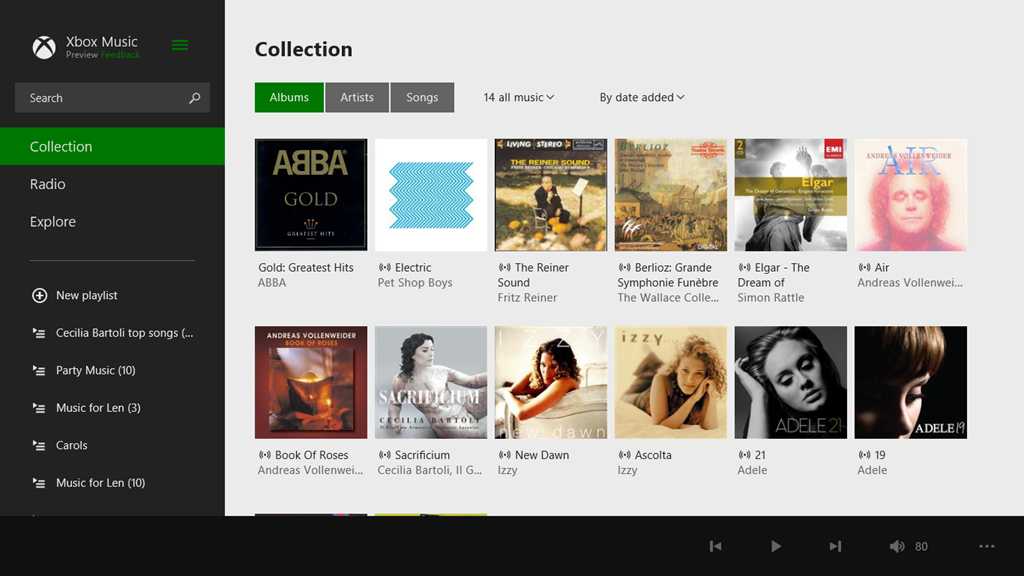
  • Bad Experience: Xbox Music App

    As I wrote here, Microsoft has recently updated the Xbox Music App for Windows 8. The update improved the navigation of the music library to the extent where I thought I could start using the App (it was absymal on first release).

    So I’ve been using the Music App to play music stored in my Library, and I’ve got good news and bad news.

    The good news is that navigation is much improved (although more improvement would be welcome). You can also use the Music App to purchase additional Albums. For example, as an experiment, I used the App to purchase a Cecilia Bartoli album: Sacrificium. I was pleased to see that on completion of the purchase, the Music App automatically downloaded the album tracks to a folder that it created in my Music Library, held on my Windows Home Server 2011 system. So the tracks were located in \\DEGAS\Music\Xbox Music\Purchases\Cecilia Bartoli\Sacrificium (DEGAS is the name of my WHS 2011 server). Even better, the tracks were DRM-free MP3 files recorded at 320 kbps, and contained metadata (track title, album title, artist, album art, etc.).

    So far, so good. Buoyed up by that, I bought another album, this time Andreas Vollenweider’s Book of Roses. Same thing, on completion of the purchase, the Music App automatically created a folder in my Music Library (\\DEGAS\Music\Xbox Music\Purchases\Andreas Vollenweider\Book Of Roses) and downloaded the MP3 tracks to it.

    Flushed with success, I bought a second Andreas Vollenweider album: Air – and that’s when things went horribly wrong.

    The Music App allowed me to buy the album, but as soon as the purchase was completed, up popped this unwelcome message over the purchase confirmed screen:

    Xbox Music issue 01

    It says:

    There’s a problem.

    Sorry, this item is no longer available from Xbox. Try searching for it – a newer version might be available.

    more info

    Tell Microsoft more about this problem

    0xc00d133c (0×80190194)

    Lovely, so Microsoft has taken my money, but failed to deliver the goods. Trying to follow the links to get more information failed miserably to resolve it. I took a gamble that this might have been a one-off glitch, and tried again. Same result, so I have now paid twice for an album that Microsoft will happily sell to me, but without ever providing the goods:

    Xbox Music issue 02

    Sigh. Fortunately, these purchases were made using PayPal, so I’ve opened two dispute cases, and these have now been escalated to claims. So with luck, I’ll get my money back.

    As a result of this experience, I’m somewhat leery of trying to purchase music via the Music App. I think I’ll stick to purchasing CDs.

    Update: 2nd April 2013

    It’s now three days later since I tried, unsuccessfully, to purchase Air. Today, I noticed that the Xbox Music App’s Home page was still listing the album as being in my collection:

    Xbox Music issue 03

    So I clicked it. The album details page then showed up, with the “streaming” symbol showing by the individual tracks. The last time I was at this point, trying to play a track resulted in an error message, but I thought, what the hell… and clicked the first track.

    To my surprise, it started playing, and then to my even greater surprise, the “download track” symbol started appearing by the tracks. I clicked on one, and got a message that all 13 tracks were being downloaded. So it would appear that Microsoft has fixed the purchasing issue. Now I’ve just got to persuade PayPal to authorise just one of the two payments…

    Update 10th April 2013

    Sigh. Today I received a couple of messages from PayPal that said:

    Dear Geoff Coupe,
    We’ve completed our investigation for the following claim:
    Case ID:  PP-002-273-252-851
    Transaction Date:  29 Mar 2013
    Transaction Amount:  -7,99 EUR
    Seller’s Email:  MicrosoftBilling_donotreply.eu@microsoft.com
    Seller’s Name:  Microsoft Luxembourg S.a.r.l
    These items are not covered by PayPal Seller Protection. Only physical
    items that have been sent and can be traced online can be covered.
    We advise you to contact the seller directly and to solve the problem. You
    can find the contact details of the seller on the page ‘Transaction
    details’.
    Sincerely,
    PayPal team

    So. not our problem, please look elsewhere. I love that “only physical items can be covered” spiel. As we advance further into the 21st century, bits are becoming ever more financially important than atoms. It’s a pity that more services aren’t aware of this fact, or are they just in denial?

    Update 11th April 2013

    Sigh. I really don’t learn, do I? I thought I’d have another go at buying an album. This time, it was the Simon Rattle version of Elgar’s “The Dream of Gerontius” coupled with the “Enigma Variations”.

    And this time, I thought that I’d check that I could first stream a couple of the tracks – just to make sure that the album was in fact available before I purchased it. And, yes, the tracks were available, and streaming. So I went and shelled out 8.99 Euros for the album.

    Bang – Microsoft took my money. And Bang! – Microsoft refused to give me my album.

    Xbox Music issue 04

    I’m sorry, but this is getting beyond a joke.

    Update 13th April 2013

    Well, I’m still getting the “can’t connect” error, but I seemed to have found a way to force the Xbox Music service to give me the album that I have bought. I located it online once more, and this time, I clicked the “Add to” button, and discovered that I could add it to my music library. Once I did that, the “Buy Album” button disappeared, and then the album showed up in my Library, with the “streaming” symbol beside it. More importantly, I then discovered that I could manually download the album to my server. So now I’ve got the album downloaded. It all seems quite a palaver…