Reflections on life at “De Witte Wand”…

Category: Photography

  • Left Hand – Meet Right Hand…

    Once again, Microsoft demonstrates that its left hand seemingly hasn’t got a clue what its right hand is doing.

    The OneDrive team has been making “improvements” to the OneDrive service. A couple of weeks ago they blogged about these.

    A couple of days ago, Martin tried to send some photos of the garden to a friend. He uses Windows Live Mail (WLM) as his email program. This has a very nice feature that allows the easy creation of a photo album in an email, and it uses OneDrive. What happens is that WLM will create a folder in your OneDrive to hold the full-size photos, upload those into OneDrive for you, and use thumbnails in the email message. So the email is small and efficient, and the recipient can view the photos in the OneDrive folder.

    As I say, it’s a nice feature, and very easy to use.

    Except that this time, the email got stuck in WLM’s outbox; it would never complete the publishing process. We tried it a couple of times, and the result was always the same.

    It turns out that this problem is hitting a lot of people who are using the Photo Album feature in WLM. It’s been caused by a change made by the OneDrive team in the OneDrive service.

    Clearly, no-one in the OneDrive team uses Windows Live Mail. It’s probably too old-school for them. I have a strong suspicion that Microsoft would love to drop WLM and the rest of the Windows Essentials software suite. It hasn’t had an update for several years now.

    The big question now is what will Microsoft do? Will the OneDrive team fix the issue, and restore the photo album feature to WLM users? Or, as I fear will be the case, will this just be ignored in an attempt to shift users away from WLM and onto the Mail app that will be delivered in Windows 10? Conspiracy theorists will probably surmise that this breaking of WLM is a deliberate move on the part of Microsoft. I suspect it was probably unintentional, but it does now provide a useful lever to Microsoft to drive users away from future use of WLM. So I don’t think we will see a fix…

    Addendum: 8 July 2015. Well, I may be wrong. It looks as though the issue has been fixed. No official word from Microsoft, one way or another, but photo albums do now seem to be getting through…

    Addendum: 13 October 2016. It turns out we only had a temporary reprieve. What appears to be happening is that Microsoft is making changes to its Outlook infrastructure in the cloud, and these break the photo feature in WLM. There’s no chance that Microsoft will reverse these changes, and equally no chance that they will adjust WLM to fix the issue. Sigh.

  • OneDrive Now Searches Tags!

    I’ve been complaining for nearly four years now that Microsoft’s OneDrive does not support searching of photo metadata. In July 2013, I was told by a Microsoft project manager:

    “this work just ranks lower on the priority list than some other things we are doing right now”

    In May 2014, Microsoft trumpeted that they had made improvements to the OneDrive service, but proper support for Tags (in photo metadata) still wasn’t there. So searching for a Tag (for example: “Clouds”) in all the photos I have stored in OneDrive returned zero results:

    Onedrive 04

    And that’s where things stood right up to the last time I tried the experiment, which was earlier this month.

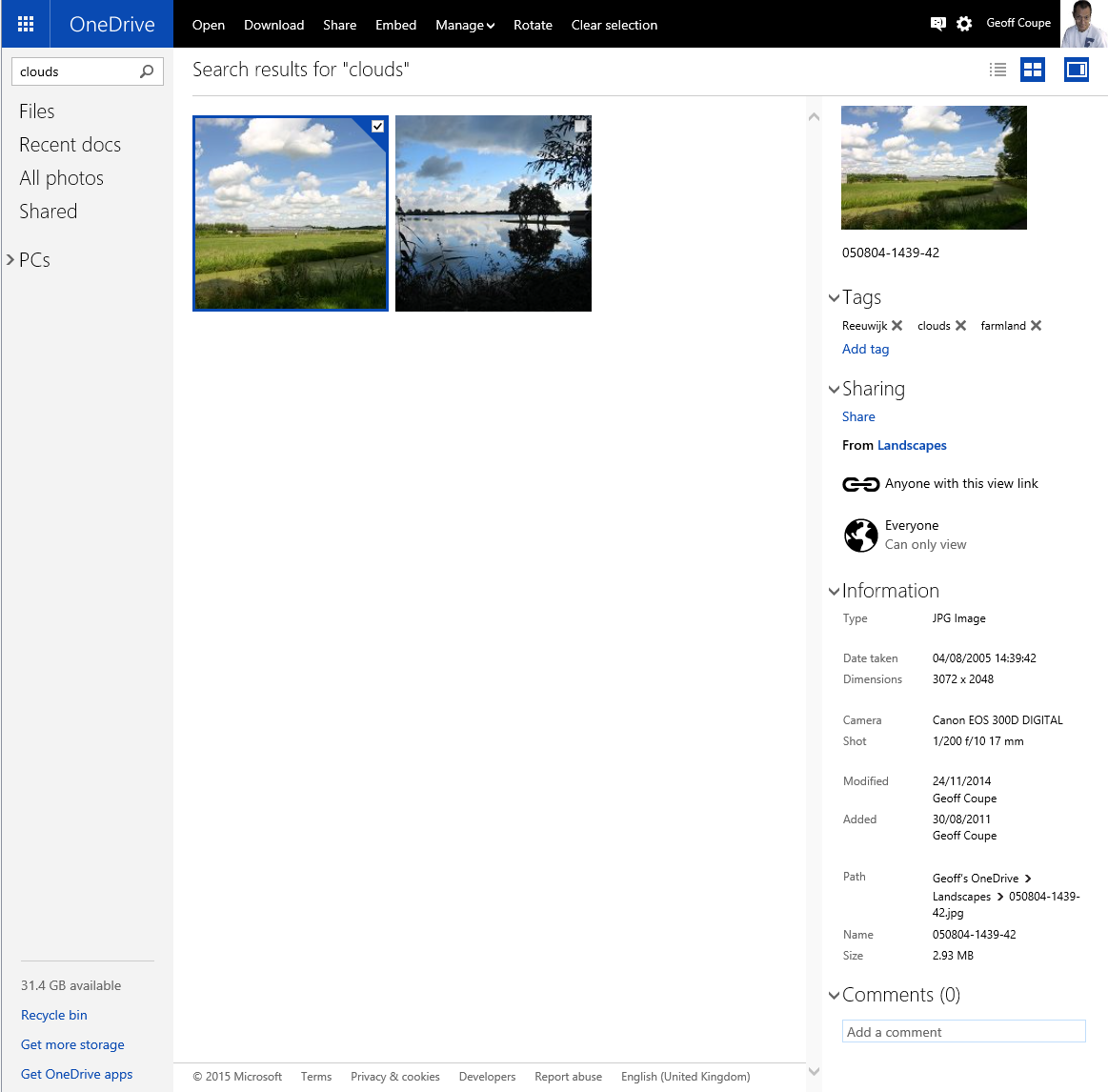
    Today, I thought that I would try once again, and this time, to my surprise and delight, there was a result:

    OneDrive 10

    As you can see from the information pane on the right, the selected photo does indeed have the descriptive tag “clouds” included in the photo metadata.

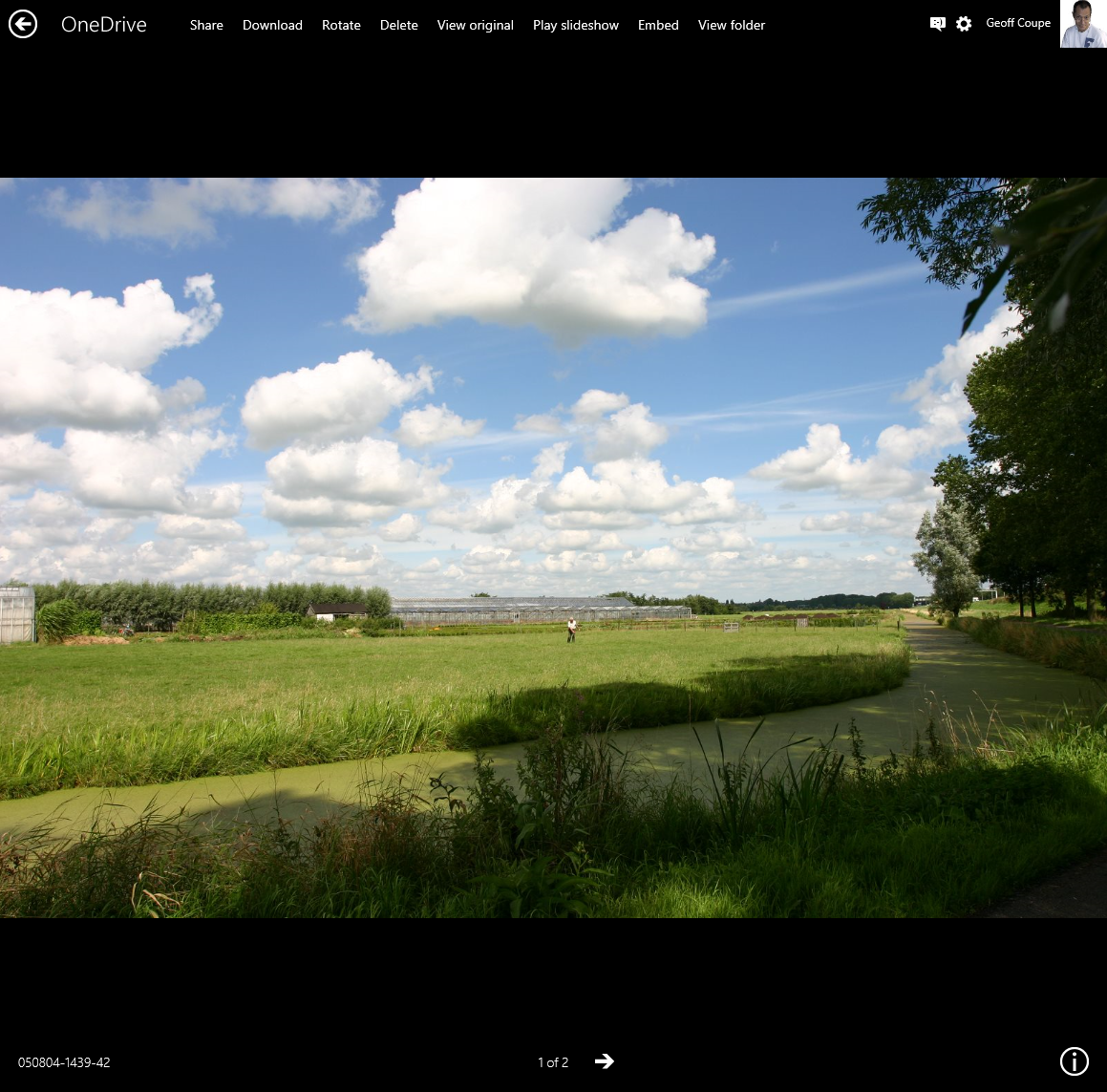
    There have been some other changes to the OneDrive service as well. If I look at a photo in OneDrive, instead of being able to open up an information pane to display all the photo metadata, there is now an information icon shown in the bottom right of the window:

    OneDrive 12

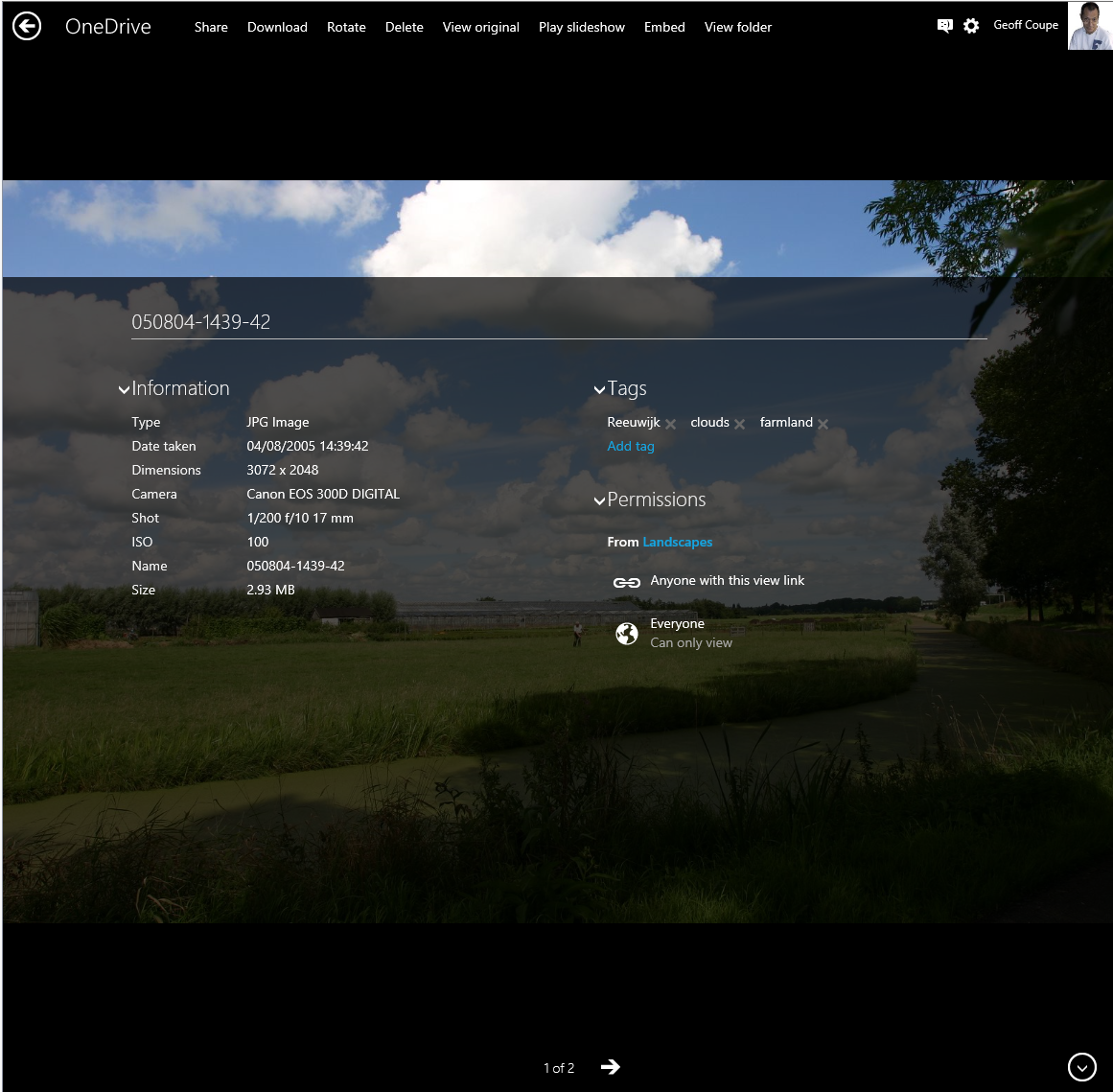
    Clicking/Touching that icon now displays the photo metadata in an overlay instead of in an adjacent pane:

    OneDrive 11

    I’m really pleased that this support for Tags, and being able to search on them is finally included in OneDrive. In one way, it really had to be, because Microsoft has gone back to the drawing board and will be removing the ability to search OneDrive files in the Windows Explorer in Windows 10, at least in the initial release of Windows 10.

    What Microsoft giveth with one hand, it taketh away with the other…

    Addendum 5th October 2024: And now Microsoft has silently removed this feature – OneDrive will no longer search tags in photos. Damn them.

  • Photo Supreme V3

    I’m an amateur photographer. I’m not a good photographer, but occasionally, more by luck than judgement, I take a photo that looks pretty good to me. Almost as important to me as the image is the information describing the photo; when it was taken, where, the subject – that sort of thing. In technical terms, this is the photo’s metadata.

    I’ve been trying to capture, and manage, this sort of information since  2005, and have tried a lot of software applications in the process. In 2007, I settled on IDimager as the most suitable tool for what I was looking for. It was what I used for tagging my photos.

    Two years ago, IDimager was suddenly withdrawn from the market by the company, and replaced by Photo Supreme. After my initial shock, I switched to Photo Supreme, and after an uncertain start, I found that it was, in large part, covering my requirements for a Digital Asset Management (DAM) tool.

    This week, version 3 of Photo Supreme is announced. It has over 150 additions and improvements over version 2.

    I was fortunate enough to be one of the beta testers for version 3. It is definitely a big step forward from version 2 (which in itself was a very good tool), so version 3 has become my DAM tool of choice going forward. I’m also a Lightroom 5 Standalone user, but the only reason I have that is for its image processing capabilities. The metadata handling of Photo Supreme strikes me as being head and shoulders above what Lightroom currently has to offer.

    It supports a wide range of photo metadata standards out of the box: Exif, IPTC Core, Extension and Plus. I can now automatically synchronize entries for the IPTC Extension fields for “Person In Image”, “Places”, and “Event” IPTC fields – something that I had to do manually in V2. It also now supports the Image Region metadata standard defined by the Metadata Working Group – the same standard used by Google’s Picasa for People Tags. That means that as well as being able to list the people appearing in a photo, I can now show their names on the photo itself.

    If you’re looking for a good tool to manage your photo metadata, take a look at Photo Supreme.

  • Photo Metadata – Software for Rights Test

    The standards organisation IPTC has just published the results of a test of commonly available software to find out how effective different tools are in writing, editing and reading rights data in an image.

    I’m pleased to see that Photo Supreme, the software I use for managing my photos, has come out well.

  • Horse Driving Trials

    The local horse and carriage club held its annual horse driving trials (samengestelde menwenstrijd in Dutch) last weekend. On the Sunday, the Marathon was held, and I went along to take photographs at one of the sets of obstacles near our house. The full set of my photos is up on Flickr, but here’s a taster:

    20140713-1135-13

    20140713-1304-12(001)

    20140713-1513-27

    20140713-1353-39(001)

    20140713-1205-30

  • Taking The Kids For A Spin

    I’m not sure whether it’s the same duck, but a mallard attempts to nest in the shrubs by our pond every year. It’s mostly unsuccessful – last year the nest was abandoned, and earlier this year, something (a marauding crow?) took the eggs. However, this year, the mallard had a second attempt and has hatched six ducklings. The first we were aware of this was a couple of days ago, when she took them out for a spin on the pond.  Until then, we hadn’t realised that she had returned to the nest and had been brooding a second batch of eggs. She and the ducklings now seem to spend most of the time in the nest hidden in the shrub. Just as well, otherwise our dog Watson would be disturbing them.

    20140703-1106-35

    20140703-1106-09(001)

    20140703-1106-12

    20140703-1106-53

  • Noctilucent Clouds

    When I took the dogs out last night at 11pm, I noticed that there were noctilucent clouds showing up above the Northern horizon. I dashed back and grabbed the camera for a couple of shots before they faded from view:

    20140703-2340-24

    20140703-2341-12

    20140703-2340-57 Stitch

    These are time exposures of ten seconds, so the sky appears brighter than in fact it was (you can also see some stars). This is the first time that I’ve ever been aware that I was looking at this particular meteorological phenomenon. 

  • More Visitors

    Following on from the shots of a Coal Tit taken the other day, here’s a couple of a Tree Sparrow…

    20140610-1146-53(001) 

    20140610-1146-47(001)

  • Bird Feeder

    Seated, as I frequently am, in front of the computer; I also have a view through the window to the garden, and to the bird feeders strategically positioned in direct view. That’s so I can catch views of the locals…

    20140529-1138-45

    20140531-0708-34

  • OneDrive – Still No Proper Support For Tags

    Update 23 January 2015: OneDrive now searches Tags – at last! So please treat what follows as a historical post illustrating the situation as it was up until January 2015…

    Update 8 October 2015: And now Tags added to photos via OneDrive online will get added to the photos’ metadata, and thus also be synced back down to the photos held in OneDrive on your PCs.

    Update 5 October 2024: And now Microsoft has removed the ability to search tags in photos stored in OneDrive. They have rendered OneDrive useless for managing photos.

    Microsoft has recently added some new features to OneDrive, listed in the OneDrive Blog: Updating OneDrive: Five New Features You Asked For.

    Unfortunately, the five do not include one that I (and others) have been requesting for the past three years: proper support for tags in photo metadata.

    Interestingly, one thing has changed, there is now a “Tags” heading displayed along with the “People tags” heading in the information pane for a photo. This returns a feature that was removed in June 2011. However, this does not yet seem to be fully working. Let me try and illustrate this.

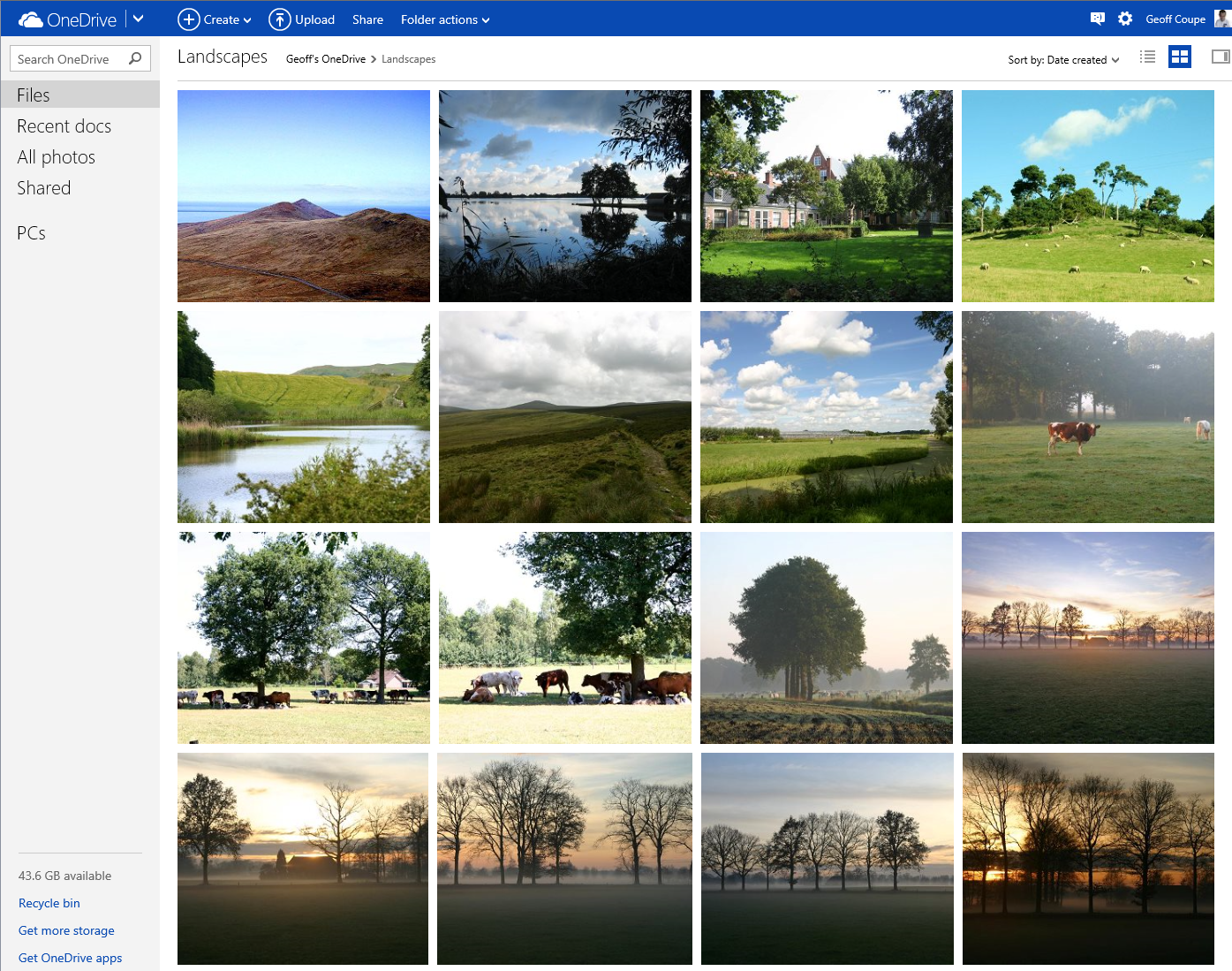
    First, here’s the new view of a folder of photos on OneDrive; it has larger thumbnails than the previous version:

    Onedrive 01

    Now let’s look at an individual photo using OneDrive, and show the metadata stored in the photo displayed in the information panel on the right:

    Onedrive 02

    Notice how OneDrive claims there are no descriptive tags in this photo, by the fact that under the “Tags” heading, there is only the link to add a tag.

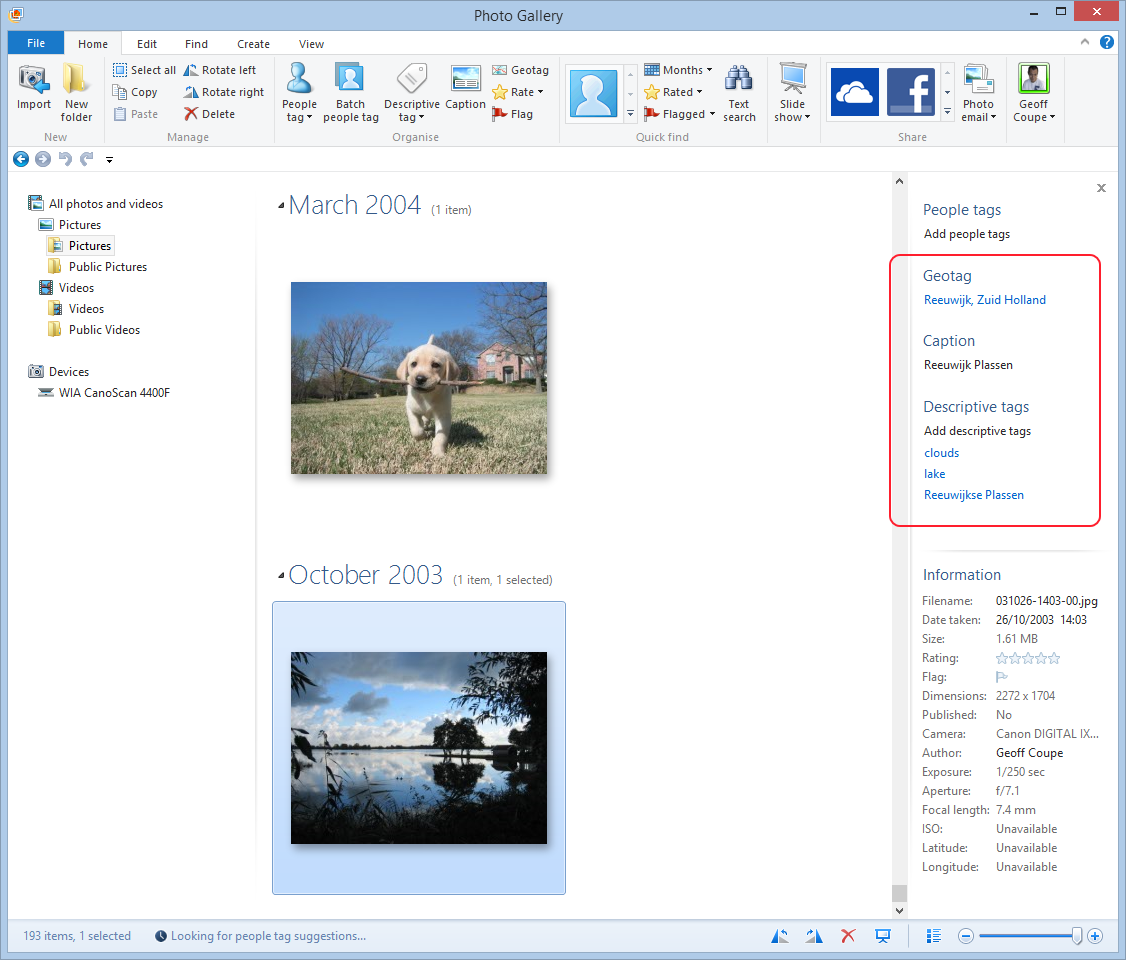
    However, this photo (like all the photos I have on OneDrive) has been tagged. I can show this by downloading a copy of this photo to my PC (by clicking on the “Download” link shown at the top of the OneDrive window), and then using Microsoft’s Photo Gallery to display the metadata in its information panel:

    Onedrive 03

    You can see that there are both Descriptive tags (clouds, lake, Reeuwijkse Plassen) and Location metadata (Reeuwijk, Zuid Holland – what Microsoft wrongly calls geotags; they are in fact more properly called geocodes) in this photo, and they were not being displayed in OneDrive.

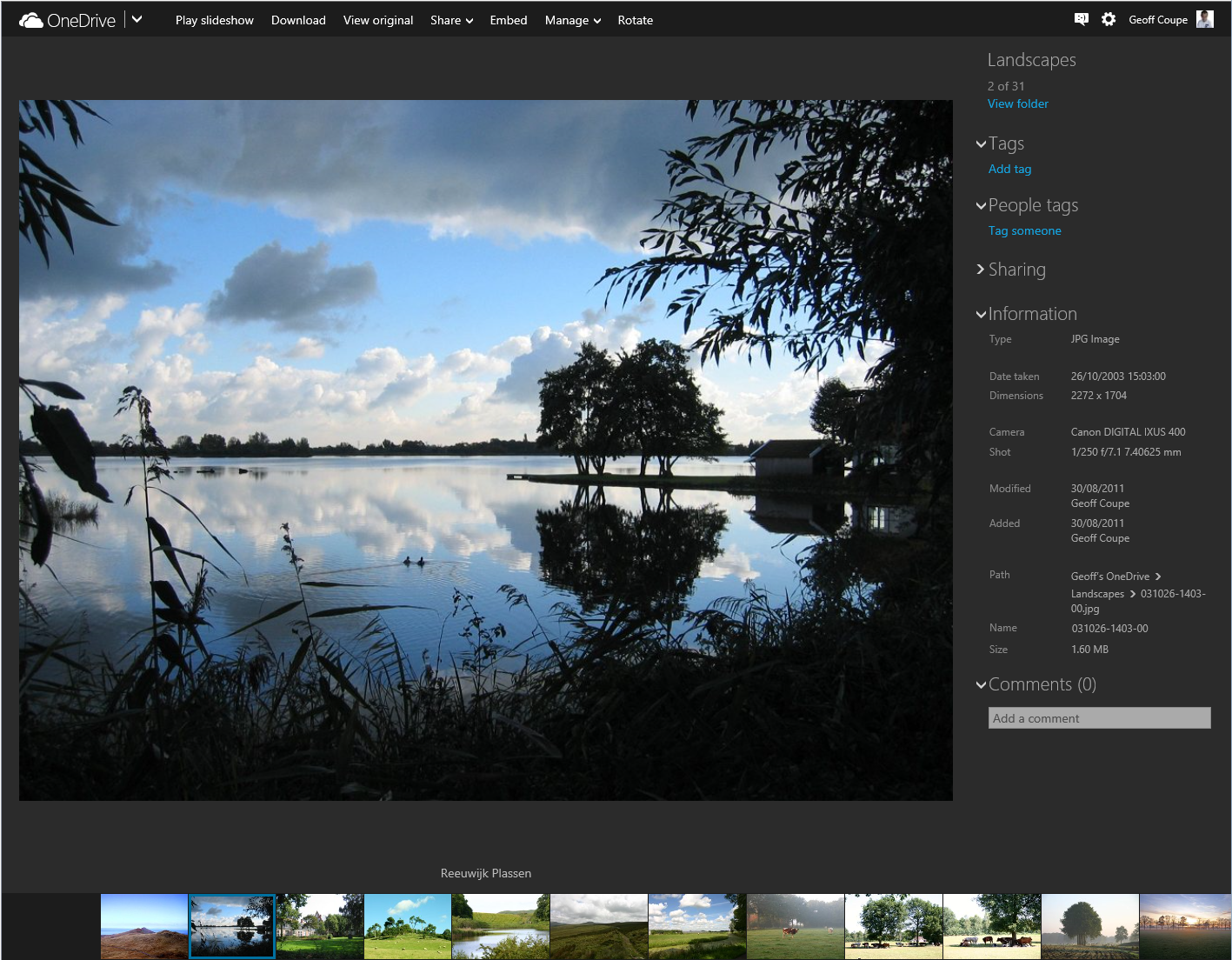
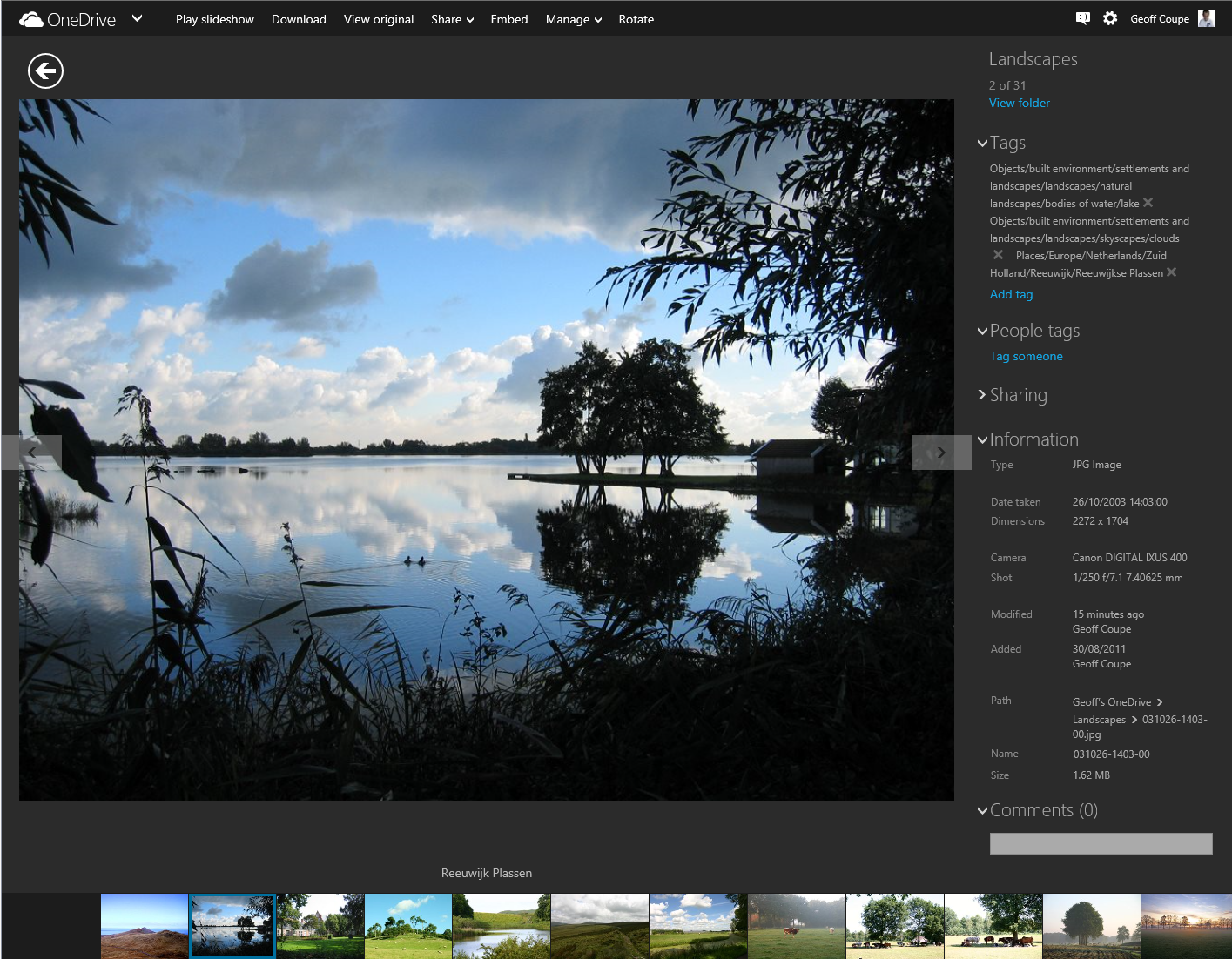
    And then I discovered something really interesting. When I went back to displaying this photo in OneDrive, suddenly the Descriptive tags were showing up:

    Onedrive 05

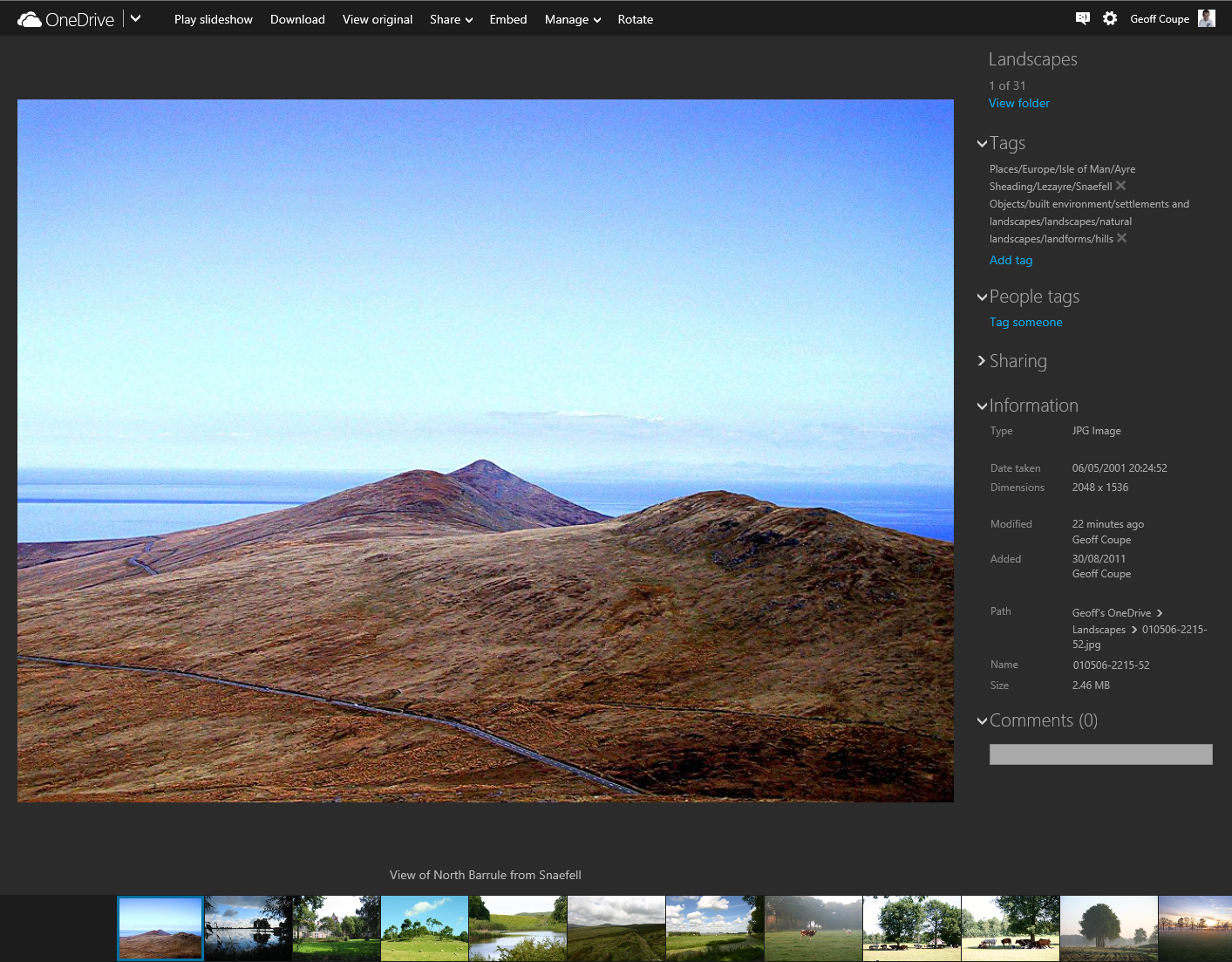
    I can only conclude that the act of downloading the file has triggered a process in OneDrive to start displaying the tags in this file. All the other photos in the folder did not have any tags being displayed. As a further test, I downloaded another photo in the folder, and then went back to look at the photo in OneDrive. Lo and behold, that photo now had its descriptive tags displayed:

    Onedrive 06

    This is clearly a step forward, but it’s still a broken experience. We should not have to download every file in order to get the descriptive tags to display.

    And descriptive tags are still not being searched in OneDrive. That first sample photo has a descriptive tag “clouds” in it (to be strictly correct, it has a hierarchical tag Objects/built environment/settlements and landscapes/skyscapes/clouds), but doing a search for it in OneDrive produces no results:

    Onedrive 04

    According to Microsoft’s Omar Shahine: “this work just ranks lower on the priority list than some other things we are doing right now”.

    I just hope that the work remains on the list of things to do, and that this broken experience doesn’t last for too long.

    Addendum: A word of warning. Do not use the “Add tag” feature in OneDrive, if you want your photo metadata to remain consistent. Any tags added to photos using OneDrive do not get added to the metadata of the photos. You end up with a tag list displayed by OneDrive that does not reflect the tag list contained in the photo metadata.

    As of October 2015, this has now seems to have been fixed. Tags added in OneDrive will now get synced back to your photo metadata.

  • A Camera With A Phone Attached

    I dabble in photography, but I’d hesitate to call myself a photographer. Nevertheless, I invested in a Canon EOS 300D back in 2005, and replaced it with a Canon EOS 450D in 2008. Along with the cameras came investment in four lenses to cover a range of situations. I’ve been very satisfied with the equipment, despite having to spend 145 euros on a repair to the electronics in one of the lenses that failed during a shoot.

    However, having to lug the camera bag with a selection of lenses around means that I have to make a deliberate decision whether to take the camera with me if I’m going somewhere. That’s the advantage of point-and-shoot cameras; they are portable enough to slip into a pocket and be available at all times. Of course, the quality is not comparable with a DSLR. Martin has a Canon IXUS 300 HS, and I sometimes find that I borrow that rather than have the hassle of lugging around the Canon EOS and lenses.

    Meanwhile, smartphones have been in a race to improve the quality of the photos they made. I entered the race two years ago when I bought a Nokia Lumia 800. The quality and resolution of the Lumia was not quite up to that of the IXUS, but at least I had it with me at all times. Then, last July, Nokia introduced the Lumia 1020, which has a staggering 41 Megapixel image sensor.  To be fair, Nokia had also introduced the Nokia PureView 808 smartphone 18 months previously, which had a similar specification. However that smartphone runs the Symbian operating system, and represents an ecosystem that I have no interest in. The imaging technology that had been introduced in the PureView 808 was further tweaked for the Lumia 1020 to produce image quality that far outstrips any other smartphone. So the Lumia 1020 was the flagship phone at the time of introduction, and it commanded a flagship price – too rich for me. But six months is a long time in the smartphone market, the prices started to fall to the point where I became tempted. In the dying days of 2013, I purchased my own Lumia 1020.

    The Nokia Lumia 1020, like the Lumia 800 before it, is a Windows Phone, so I was able to move all my information and applications across without issue. The prime differentiator for me is the camera. It’s clearly not at DSLR quality, but it’s good enough for me for most occasions. If you want a comparison, then this article: Smartphones versus DSLRs versus film: A look at how far we’ve come, is highly recommended. A few choice quotes:

    When I first saw the images from the Nokia Lumia 1020, I did a double take. Clear and crisp, lots of detail and super strong colors that you’ll either love or wince at. I loved them. And did I mention the detail? After years of seeing bigger cameras perform better, I couldn’t believe that a tiny plastic and glass Zeiss lens could resolve so much from the center to the edge of the image. It was close to the Nikon D800. I was stunned. I’ll list the shortcomings of the Nokia below, but first, some more stand-out results.

    How many years are smartphones behind the best $2,000 DSLRs? Comparing detail resolved, I’ll say the iPhone 5S currently sits 8-9 years behind the DLSRs in bright light, while the Nokia trails by less than 6 years — probably nearer to 3. This is even when you allow the DSLRs the luxury of a $1,700 lens, and shooting in raw. In bright light, the Nokia came close to competing with the detail from the best DLSR yet made.

    The Nokia 1020 has redefined what I thought possible from a phone. I used to think of smartphones as a separate branch of ‘wannabe’ cameras, doomed to forever play catch-up with real cameras. I used to think like Takafumi Hongo, a Canon spokesperson who told the Wall Street Journal “Taking photos with smartphones and editing them with apps is like cooking with cheap ingredients and a lot of artificial flavoring. Using interchangeable [lens] cameras is like slow food cooked with natural, genuine ingredients.” He has a point. With a smartphone you’ll miss a lot of the joy of learning to cook traditionally. But in photography, the important ingredients come from you. Smartphones are now good enough not to need artificial flavoring from apps.

    I look forward to wielding my new camera that happens to have a phone attached to it. It will always be in my pocket, ready to hand.

  • Manx Wallpapers

    The background of the Desktop screen on my Windows PCs is generally set to display landscape themes. There’s a whole range of them, and other themes, available to download and use.

    Today, I noticed from a Microsoft blog, that there is now a landscape theme devoted to pictures from my birthplace, the Isle of Man. Taken by Mark Wallace, there are some suitably moody shots of Peel Castle, the ruins of St. Trinian’s church, the Calf of Man and more.

    They’ve been installed and serve as a reminder of my original home.

  • Photo Metadata Tools – The Saga Continues

    A couple of weeks ago, I blogged about the tools I use to manage my collection of photos and the metadata contained in them.

    In it, I noted that interoperability issues between metadata editing tools was a problem. Never was a truer word spoken (or written).

    One of the complaints I have had for a long while about Microsoft’s Windows Photo Gallery (WPG) is that, in my experience, it corrupts the Makernotes metadata in images produced by my Canon cameras. That led to an interesting discussion in the comments of that blog post with Mike Lee. He said that he wasn’t seeing the metadata corruption when he used WPG. We established that we were both using the same version of WPG (build 16.4.3508.205), so then we had a mystery: why was I seeing metadata corruption, and he wasn’t? A further surprise was when he said that a sample file that I had uploaded to SkyDrive to share with him contained metadata errors, whereas I was positive that it was error-free.

    So I set out to investigate. I took a photo using my Canon EOS 450D camera, and copied it onto my Desktop PC. This original file has the name IMG_7383.jpg:

    IMG_7383

    Using Mike’s MetadataMirror tool (which uses Phil Harvey’s most excellent ExifTool under the covers), I obtained a listing of all the metadata present in this original file. As expected, the only metadata present in the file (other than the Windows metadata) is the Exif data inserted by the camera itself. This is in three groups: standard Exif, Canon Makernotes and Canon Composite tags. Here’s a link to the file (IMG_7383.txt) containing the metadata listing:

    http://sdrv.ms/1aVOMkn

    The next step was to use Photo Supreme (PSU) on a copy of the image (IMG_7383 – PSU.jpg) to stamp in my usual boilerplate of metadata: e.g. my name and copyright information. The  file (IMG_7383 – PSU.txt) listing the metadata resulting from using PSU on this image file is here:

    http://sdrv.ms/1a16hx6

    PSU has preserved the original metadata, while adding some new items. This new metadata is both XMP-based and IPTC-IIM (for backwards compatibility). PSU also writes XMP equivalents for many of the original Exif items. So for example, if you look in the file, you will see items such as:

    [EXIF] Make: Canon
    [EXIF] Model: Canon EOS 450D
    [EXIF] Orientation: Horizontal (normal)
    [EXIF] XResolution: 72
    [EXIF] YResolution: 72
    [EXIF] ResolutionUnit: inches
    [EXIF] ModifyDate: 2013:10:04 21:06:31
    [EXIF] YCbCrPositioning: Co-sited

    PSU creates XMP equivalents:

    [XMP] Make: Canon
    [XMP] Model: Canon EOS 450D
    [XMP] Orientation: Horizontal (normal)
    [XMP] XResolution: 72
    [XMP] YResolution: 72
    [XMP] ResolutionUnit: inches
    [XMP] DateTime: 2013:10:04 21:06:31.300+02:00
    [XMP] YCbCrPositioning: Co-sited

    PSU also adds in the boilerplate that I use in XMP, e.g.:

    [XMP] Title: IMG_7383 – PSU
    [XMP] Rights: 2013 Geoff Coupe, Creative Commons
    [XMP] Creator: Geoff Coupe
    [XMP] CreatorWorkURL: https://gcoupe.wordpress.com
    [XMP] UsageTerms: Creative Commons Attribution Non-commercial Share-alike

    It also includes a notification that it has been used to edit the file, together with a timestamp. This is all as it should be, according to metadata standards.

    [XMP] CreatorTool: IDimagerSU (1.9.5.170)
    [XMP] MetadataDate: 2013:10:05 10:03:31.353+02:00

    In summary, there is absolutely nothing untoward about the resulting image file, as far as I can see. The structure of the Exif metadata is preserved, and XMP-based metadata has been added correctly.

    The next step was to take a copy of this file and add one item of metadata using WPG. This file is IMG_7383 – PSU+WPG.jpg and the corresponding file listing the metadata is IMG_7383 – PSU+WPG.txt:

    http://sdrv.ms/16pxkoF

    Immediately, you can see there’s a problem – errors are being reported:

    [ExifTool] Warning: [minor] Possibly incorrect maker notes offsets (fix by 4476?)
    [ExifTool] Warning: Invalid CanonCameraSettings data
    [ExifTool] Warning: Invalid CanonShotInfo data
    [ExifTool] Warning: Invalid CanonFileInfo data
    [ExifTool] Warning: [minor] Suspicious MakerNotes offset for DustRemovalData
    [ExifTool] Warning: Invalid CustomFunctions2 data
    [ExifTool] Warning: Invalid ProcessingInfo data
    [ExifTool] Warning: Invalid MeasuredColor data
    [ExifTool] Warning: Invalid SensorInfo data

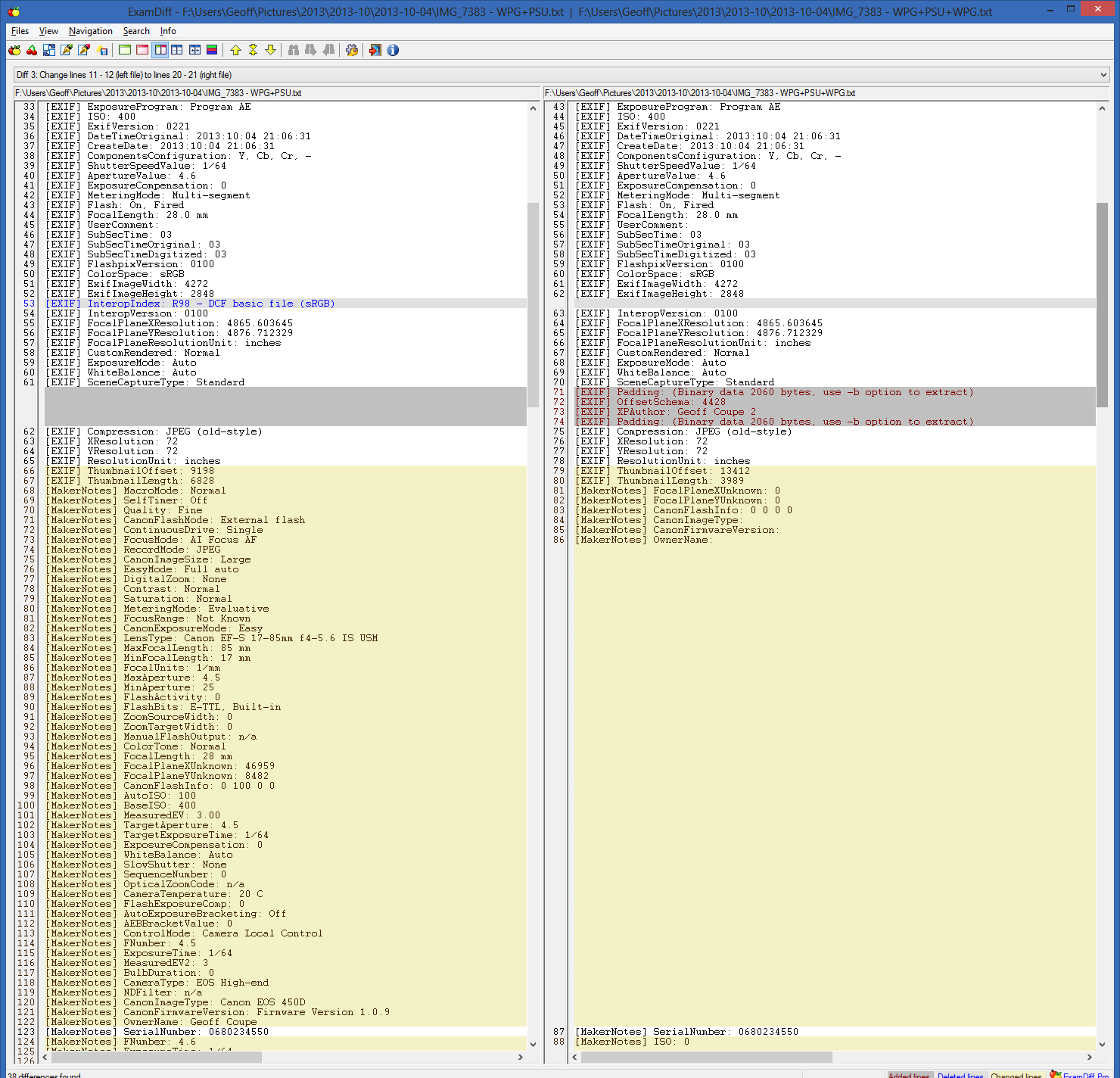
    And indeed, whole chunks of the Canon Makernotes are missing from the image file (left is the metadata in IMG-7383 – PSU.jpg and right is that in IMG_7383 – PSU+WPG.jpg):

    Metadata test 05

    There are also two other possibly significant things about this image file, captured in the metadata. The first is that when WPG writes back to the image file, it reverses the byte order of the Exif data structure. Originally, the Exif is in Little-endian order as shown in this line from both the original IMG_7383.txt and the IMG_7383 – PSU.txt files:

    [File] ExifByteOrder: Little-endian (Intel, II)

    However, once WPG has changed the file, the byte order is now Big-endian:

    [File] ExifByteOrder: Big-endian (Motorola, MM)

    Now, this may, or may not, be a problem, but it is definitely contrary to the advice given by the Metadata Working Group, which states that byte order should be preserved by tools that operate on image files.

    Secondly, WPG introduces an offset in the Exif data structure when adding the changed metadata:

    EXIF] Padding: (Binary data 2060 bytes, use -b option to extract)
    [EXIF] OffsetSchema: 4476
    [EXIF] XPAuthor: Geoff Coupe 2
    [EXIF] Padding: (Binary data 2060 bytes, use -b option to extract)

    So, at this point in the saga, I believe that I’ve established that for any given image that contains Canon Makernotes data, using PSU followed by WPG to edit metadata will result in the corruption of the Makernotes data. This is repeatable for all such image files that I’ve tested.

    What happens if I use WPG followed by PSU to edit metadata? Let’s find out. 

    I used WPG to add myself as author to a copy of the original image: IMG_7383 WPG.jpg. The metadata listing (IMG_7383 WPG.txt) is here:

    http://sdrv.ms/1e16G6W

    You’ll notice immediately that ExifTool gives a warning about the Makernotes structure:

    [ExifTool] Warning: [minor] Adjusted MakerNotes base by 4176

    Also, the byte order has been changed, and padding introduced:

    [File] ExifByteOrder: Big-endian (Motorola, MM)

    [EXIF] Padding: (Binary data 2060 bytes, use -b option to extract)
    [EXIF] OffsetSchema: 4176
    [EXIF] XPAuthor: Geoff Coupe
    [EXIF] Padding: (Binary data 2060 bytes, use -b option to extract)

    However, there is no Makernotes corruption.

    Now let us use PSU to edit the metadata in this file (I changed the Title to read IMG_7383 – WPG+PSU). The resulting image file is IMG_7383 – WPG+PSU.jpg and the corresponding listing of the metadata is IMG_7383 – WPG+PSU.txt, and can be found here:

    http://sdrv.ms/GEzvu1

    The interesting thing here is that the byte order has been switched back to Little-endian, and the padding removed:

    Metadata test 06

    Other than that, the metadata looks fine; no Makernotes are missing, and ExifTool reports no errors.

    So far, so good, but now if I go back and use WPG once more, I get Makernotes corruption again. The image file is IMG_7383 – WPG+PSU+WPG.jpg and the metadata listing is IMG_7383 – WPG+PSU+WPG.txt:

    http://sdrv.ms/192O5V7

    The byte order has been switched again, padding introduced, and ExifTool reports:

    [ExifTool] Warning: [minor] Possibly incorrect maker notes offsets (fix by 4428?)
    [ExifTool] Warning: Invalid CanonCameraSettings data
    [ExifTool] Warning: Invalid CanonShotInfo data
    [ExifTool] Warning: Invalid CanonFileInfo data
    [ExifTool] Warning: [minor] Suspicious MakerNotes offset for DustRemovalData
    [ExifTool] Warning: Invalid CustomFunctions2 data
    [ExifTool] Warning: Invalid ProcessingInfo data
    [ExifTool] Warning: Invalid MeasuredColor data
    [ExifTool] Warning: Invalid SensorInfo data

    And once again, chunks of Makernotes have gone:

    Metadata test 07

    So it seems that using PSU first, followed by WPG, will trigger a corruption of Canon Makernotes; however, using WPG followed by PSU does not.

    But there is one more twist to this saga.

    Remember that Mike had said that a sample file that I had uploaded to SkyDrive to share with him contained metadata errors, whereas I was positive that it was error-free?

    I know that the image files IMG_7383 – PSU.jpg and IMG_7383 – WPG+PSU.jpg do not contain errors. I have the metadata listings to prove it. And yet, if you download these files from SkyDrive, you will find that the Makernotes have also been corrupted. By comparison, if you download the same files from this set on Flickr, you’ll find that they are error-free.

    What’s going on here? I can only surmise that SkyDrive is doing some metadata processing on the images stored on the service, and that a similar, or the same, code library has the processing fault that triggers the Makernotes corruption on images that have already been processed by PSU.

    The SkyDrive folder containing these test images and their metadata files is here.

    The Flickr set containing the same test images is here.

    I like both PSU and WPG, but using them together can be dangerous.

    Addendum 7 October 2013

    I’ve been doing some further investigation and established the following

    • WPG definitely doesn’t like something about the metadata structures that PSU creates
    • None of my other metadata tools complain about PSU
    • ExifTool shows nothing amiss with the metadata that PSU creates.

    I can have an image file that has had metadata edited by a whole series of tools, but if at any point I have used PSU followed at some point further down the chain by WPG, then WPG will corrupt my Makernotes metadata.

    For example, I created two examples of chained metadata operations on files. The first was the sequence: Geosetter, XnViewMP, Lightroom 5, and WPG. At each stage I added a keyword identifying which tool I was using. The final result is given in the metadata listing: IMG_7383 – G+X+LR+WPG.txt, and there’s no corruption; here’s the start of the listing (but note the final offset, and the reversed byte order):

    [ExifTool] ExifToolVersion: 9.35
    [ExifTool] Warning: [minor] Adjusted MakerNotes base by 4236
    [File] FileName: IMG_7383 – G+X+LR+WPG.JPG
    [File] Directory: F:/Users/Geoff/Pictures/2013/2013-10/2013-10-07
    [File] FileSize: 3.9 MB
    [File] FileModifyDate: 2013:10:07 18:10:04+02:00
    [File] FileAccessDate: 2013:10:07 18:10:03+02:00
    [File] FileCreateDate: 2013:10:07 18:09:27+02:00
    [File] FilePermissions: rw-rw-rw-
    [File] FileType: JPEG
    [File] MIMEType: image/jpeg
    [File] ExifByteOrder: Big-endian (Motorola, MM)
    [File] CurrentIPTCDigest: f042c8560b6fafea9c47a1c0249baec1
    [File] ImageWidth: 4272

    The second was the sequence: PSU, Geosetter, XnViewMP, Lightroom 5, and WPG. Again, at each stage I added a keyword identifying which tool I was using. At each step, the metadata was as expected. Then in the last step, WPG is used to add another keyword, and bang – corruption occurs . The final result is given in the metadata listing: IMG_7383 – PSU+G+X+LR+WPG.txt. Here, WPG will corrupt the Makernotes metadata; here’s the start of the listing:

    [ExifTool] ExifToolVersion: 9.35
    [ExifTool] Warning: [minor] Possibly incorrect maker notes offsets (fix by 4526?)
    [ExifTool] Warning: Invalid CanonCameraSettings data
    [ExifTool] Warning: Invalid CanonShotInfo data
    [ExifTool] Warning: Invalid CanonFileInfo data
    [ExifTool] Warning: [minor] Suspicious MakerNotes offset for DustRemovalData
    [ExifTool] Warning: Invalid CustomFunctions2 data
    [ExifTool] Warning: Invalid ProcessingInfo data
    [ExifTool] Warning: Invalid MeasuredColor data
    [ExifTool] Warning: Invalid SensorInfo data
    [File] FileName: IMG_7383 – PSU+G+X+LR+WPG.JPG
    [File] Directory: F:/Users/Geoff/Pictures/2013/2013-10/2013-10-07
    [File] FileSize: 3.9 MB
    [File] FileModifyDate: 2013:10:07 18:25:07+02:00
    [File] FileAccessDate: 2013:10:07 18:25:07+02:00
    [File] FileCreateDate: 2013:10:07 18:24:37+02:00
    [File] FilePermissions: rw-rw-rw-
    [File] FileType: JPEG
    [File] MIMEType: image/jpeg
    [File] ExifByteOrder: Big-endian (Motorola, MM)

    WPG is sniffing out something that PSU puts in a file, and throws a fit… I’ve asked the developer of PSU for help, but he can’t guess what WPG chokes on. Right now, without input from Microsoft, it’s all guesswork and that could take forever.

    Microsoft were informed about this a couple of years ago, but since acknowledging that there was an issue, there’s been complete silence. 

  • Sharing Photos

    Long-time readers of the blog know that one of the topics I return to every now and then is that of photography.

    A couple of days ago, one of my posts had the following comment and question from michaelfanous:

    I recently started trying to organize my photo albums, which are stored across several external devices. (Trying to organize over 50,000 photos). I am not a professional photographer by any means. However, I am the “family/event” historian so to speak, so I love documenting and taking pictures of everything. I wanted to know your thoughts are current software out there? Lightroom 5, Photo Gallery (Windows), ACDSee, Picasa 3.9.

    My main concern is that all these files will eventually be stored in 1 central location, and the family can access them at their own over the network. However, I want to make sure that all the tagging is accessible across platforms. i.e. No matter which hardware device, or which software, when a user looks at the picture, they can see the tags.

    I remember in the earlier years (which is what caused me to stop for a bit) I would tag something in Windows Photo Gallery or in Picasa, but the tags wouldn’t transfer over appropriately. I am not so much concerned with actually editing the individual pictures (I am sure that will come later once I am organized)

    The other requirement is that the metadata is stored in the actual file, and not in some random database. The last thing I need is for that external database to get corrupted and lose out all the information.

    Suggestions?

    That sounds like a good opportunity to try and sum up what I might propose given the current state of things.

    First, a recap of my groundrule for managing photo collections (which echoes what Michael has stated as a requirement):

    I insist that any software used in the digital workflow (transfer from camera to computer, image selection, digital processing, cataloguing, publishing and asset management) will respect any Exif, IPTC and XMP metadata that may be stored in the image file itself.

    I am not interested in asset management software that stores image metadata away in a proprietary format in the software itself. That way lies painting oneself into a corner down the road… However, I will accept asset management software that copies metadata from image files into its own database for performance reasons, so long as the database and the image files metadata content are kept in sync transparently (i.e. it takes little or no effort on my part).

    The challenge is that different software treats image metadata in different ways, and interoperability can seem more of a goal than actuality. Not all image management applications will work together, and often, only a subset of all possible image metadata can be successfully exchanged between applications. Add to that the fact that many of the new photo editor applications for smartphones and tablets ignore image metadata altogether, or, even worse, strip it out. The same goes for many online social networks.

    Over the last seven years, I’ve used a number of image management applications to organise and tag my photos. These include versions of:

    I’ve also used tools that are no longer available. These include:

    • Microsoft’s Expression Media and Digital Image Suite
    • IDimager 5
    • Picajet
    • PixVue

    My primary image management tool at the moment is Photo Supreme. That’s because (for me) it has the best support for handling metadata and for image management of all the tools that I’ve used. I use GeoSetter in conjunction with Photo Supreme for handling geotagging.

    [Addendum: Version 2 of Photo Supreme now supports geotagging directly, and does it very well, so I no longer need to use GeoSetter in conjunction with Photo Supreme]

    Adobe’s Lightroom would rate high with me if I used Raw format in my images, because it has better digital darkroom features for processing Raw images than those of Photo Supreme. However, as I don’t often use Raw format, I prefer Photo Supreme’s metadata handling, which I consider to be much superior to Lightroom’s. Photo Supreme’s features for image acquisition and selection/culling are also, for my purposes, as good as anything that Lightroom has to offer.

    Since I use the ecosystem of Windows, I also have Windows Photo Gallery installed on our PCs. It’s an easy to use tool for browsing our photo collection, but I don’t use it as my primary tool for editing metadata or images. First, because while the metadata tools are usable, they are basic. However, more importantly for me, Windows Photo Gallery has a nasty habit of corrupting the Makernotes that our Canon cameras insert in the Exif section of images. This is a long standing issue that Microsoft has acknowledged and known about for some years, but clearly something that they won’t devote resources to for fixing. Microsoft seems to be using the same code in the Photos App of Windows 8, because it too will corrupt Canon Makernotes in any image that it edits. Now, I acknowledge that the majority of people either don’t know about the issue or wouldn’t bother themselves about it if they did. However, I would suggest that to a serious photographer, preservation of the original file is of paramount importance. This bug of Microsoft means that even adding a single piece of metadata to an image file will corrupt your Makernotes. That’s why I only ever use Windows Photo Gallery in a read-only mode. Anything else and it’s goodbye to your precious image data.

    And don’t think that Picasa is any better in this respect. Picasa will strip out Makernotes from your image files entirely.

    The bottom line: if you’re serious about photography, avoid using either Windows Photo Gallery or Picasa to do metadata work on your images. You can certainly use them to edit the images of copies of your original files, just don’t ever let them get near to your originals.

    The other tools in my first list above also offer metadata handling features, but they are pretty basic, and only cover the bare minimum of the Exif and IPTC metadata standards.

    One area where Photo Supreme (and Lightroom for that matter) is lagging is that of being able to handle automatic face recognition used to add metadata relating to people. Both Picasa and Windows Photo Gallery now offer this. Unfortunately, they do not use the same standard for storing people tags, so they do not interoperate. Photo Gallery uses a standard defined by Microsoft itself, whilst Picasa (in the latest version) uses a standard defined by a cross-industry consortium – the Metadata Working Group. Ironically, both Microsoft and Adobe are founder members of this consortium, yet Windows Photo Gallery and Lightroom do not yet use the consortium’s metadata standard for people tags.

    The Microsoft and MWG standards allow for metadata to be applied to specific regions in the image, that is, individual faces can be marked up with the names of the people depicted in the image. There is a third competing standard used for people tags, and that is contained in the IPTC Extension standard, which contains an element used to define persons shown in an image. However, this metadata element refers to the image as a whole, so for a group photograph, for example, you can list the names of all the people shown in the photo, but not explicitly identify who is who in the image. I am aware of just one application that implements this IPTC standard for people tags: Daminion, but there may be others. Correction: I completely forgot that since Photo Supreme implements all the IPTC standards fully (Core, Extension and Plus), then it too also implements the IPTC people tag. Photo Supreme also has its own proprietary standard for manually tagging regions in images for face tags, but I don’t use it. Photo Supreme now supports the MWG Region metadata, which means that it can identify face regions that have been tagged in Picasa. It also recognises the Microsoft People Tag, but any face regions that are defined in Photo Supreme will be written out using the MWG standard, rather than the proprietary Microsoft standard.

    So, to sum up at this stage: it’s possible to use a small number of different tools that will interoperate using a minimum subset of metadata standards – a basic set of Exif and IPTC Core metadata standards. That will give you a starter set of metadata elements. See this blog post for the list of IPTC elements that I use. The Exif elements are the technical data provided by the cameras I use (e.g. camera model, shutter speed, ISO, lens, date taken) plus optional GPS latitude/longitude/altitude data.

    Anything beyond this, e.g. People Tags, and you are likely to run into interoperability issues.

    Even with this subset, there can be bumps in the road. For example, Picasa uses the “Description” metadata field from the IPTC Core standard to display the caption for a photo, while Windows Photo Gallery uses the “Title” metadata field from the IPTC Core standard to display the caption. Even more bizarre, Windows itself (in Windows Explorer)uses “Title” according to the IPTC Core definition, and uses “Subject” to align with the IPTC Core definition of “Description”. So Windows is better aligned with the IPTC standard for photo metadata than Windows Photo Gallery…

    And the icing on the cake is that both Windows Photo Gallery and Picasa will damage your files if you use either of them to edit images. Bottom line: if you use either of these tools use them in read-only mode, or use copies of your original files.

    Right, you’ve now got your tools to hand, and you’ve used them to add your metadata to your images. You’ve also used your tools to tweak the original images and produced copies that have all your improvements applied: cropping, colour balance and so on. Now you want to share them with other people. What are your options?

    Assuming that at least some of the people you want to share with are physically located outside of your home, then you are looking at either using one of the online Social Networks or exposing your photo collection held on your home network to (selected) people via the internet.

    Let’s look at the Social Networks route first. As I’ve already said, Social Networks are not the best at preserving the metadata that you’ve spent blood, sweat and tears adding to your photos. There are also quirks involved. I use both Flickr and Microsoft’s SkyDrive, so I’ll use those to illustrate some of the oddities.

    Flickr has the advantage that when you upload your photos from your local storage, the metadata in your photos gets read by Flickr. So you can search your (and other people’s) collection of photos using keywords held in metadata. Even better, if you download the original size of a photo held on Flickr, then the metadata contained within it is preserved. However, if you select to download a different-sized copy of the original photo, then Flickr will strip out the metadata. It used to be the case that even different-sized copies of the original would have the metadata of the original preserved within them. But somewhere along the line, Flickr changed the rules of their playground and made their service the poorer as a result.

    Microsoft’s SkyDrive also has its faults. It does preserve metadata in downloaded copies of the originals held on its service. However, the metadata is neither exposed in the user interface, nor searchable with one exception – that of Microsoft’s proprietary People Tags. Frankly, this is abysmal. It makes sharing of photo collections with other people needlessly difficult.

    There are many other Social Networks available, e.g. FaceBook, Google+, but I don’t use them, so I can’t document the inevitable issues that they will have. I leave that as an exercise for the reader.

    There is also the route of exposing your photo collection held on your home network to (selected) people via the internet. I use Microsoft’s Windows Home Server 2011 on our home network to store all our media for sharing to a variety of networked devices, and to back up our attached PCs. It is very good at that. It is also possible to use WHS 2011 to allow selected people to access its media collection via the internet. At least, that’s the theory. In practice, the software is riddled with problems. I cannot use it, and Microsoft has no intention of fixing it.

    I see that Michael has a Synology device that he will use as a centralised nework attached storage device. It also has the feature of being able to give access to selected people over the internet. It runs a media application called Photo Station. I have no working knowledge of Synology devices or Photo Station, but I’ll just add a couple of comments. First, I noticed from the Synology documentation that Photo Station claims to:

    • Search photos with keywords, time slots, or tags
    • Supports people tags from Windows Live Photo Gallery
    • Supports IPTC tags of photos

    Nice to see IPTC tags explicitly mentioned, but I hope that these are at least the XMP-based IPTC Core set of tags, and not the legacy IPTC-IIM tags. If it is only the latter, then interoperability issues will arise sooner or later.

    As I’ve already written, the People tags in Windows (Live) Photo Gallery are Microsoft-proprietary. Also, if you make a conscious decision to use them, be aware that you can kiss goodbye to your Makernotes if you use Canon cameras (and possibly other makes of cameras as well).

    Secondly, Microsoft has also set a snake in the grass for Networked Attached Storage devices. The Windows indexing service is designed to collate results from network-attached Windows devices. It won’t collate results from NAS devices that don’t run a Windows operating system.

    The new generation of Microsoft Apps for Windows 8 (e.g. Xbox Music, Photos, Videos) cannot access media stored on non-Windows NAS devices, even if the media locations are stored in your Windows Libraries on the accessing PC.

    This is just something to be aware of going forward. The current generation of Desktop Applications (both Microsoft and third party) are generally OK. However, the new generation of Windows 8 Metro Apps, especially those from Microsoft itself, may present problems. Check them out before buying.

    I’ve already said that I have been unimpressed by the first wave of photo editors designed for Metro. The situation is not improving. In the process of writing this blog entry, I thought I’d check the Windows Store to see if there were Metro Apps available for editing photo metadata. I tried two that I found:

    Now, admittedly I have over 50,000 photos in my photo library collection. However, neither of them could open the collection without crashing. I sent an email to Photo TagEd’s support. Their response:

    Sorry, we didn’t test for thousands photos by our environment.

    And we can’t recommend to this App to your problem.

    We have no plans to continue support for this App, because technical difficulties by Windows 8 App SDK.

    Once again, We’re sorry. You can find out other apps for your Tablet PC in Windows Store.

    From IV Type Team.

    Sigh.

    Addendum: Prompted by a discussion in the comments on this post, I’ve put up a new post that documents the corruption of Makernotes by Windows Photo Gallery:

    Photo Metadata Tools – The Saga Continues

  • SkyDrive – Still No Proper Support For Tags

    Yesterday, Microsoft added some functions to SkyDrive – its online storage service. The additions are described in this blog post by Omar Shahine, a Group Program Manager at  SkyDrive.

    Now, some of the additions are worthwhile, but I am still missing something that Microsoft removed back in June 2011: the display and searching of Descriptive Tags (aka Keywords) in photos. Up until that time, you could show the Descriptive Tags that were contained in the metadata of photos uploaded to SkyDrive. Then, Microsoft did a major revamp of the user interface of SkyDrive, and started using HTML5 to drive the interface. In that revamp, something odd happened. Photos that I knew contained Descriptive Tags were suddenly shown as having no Tags, and I was being invited to re-enter Tags into the photos on SkyDrive.

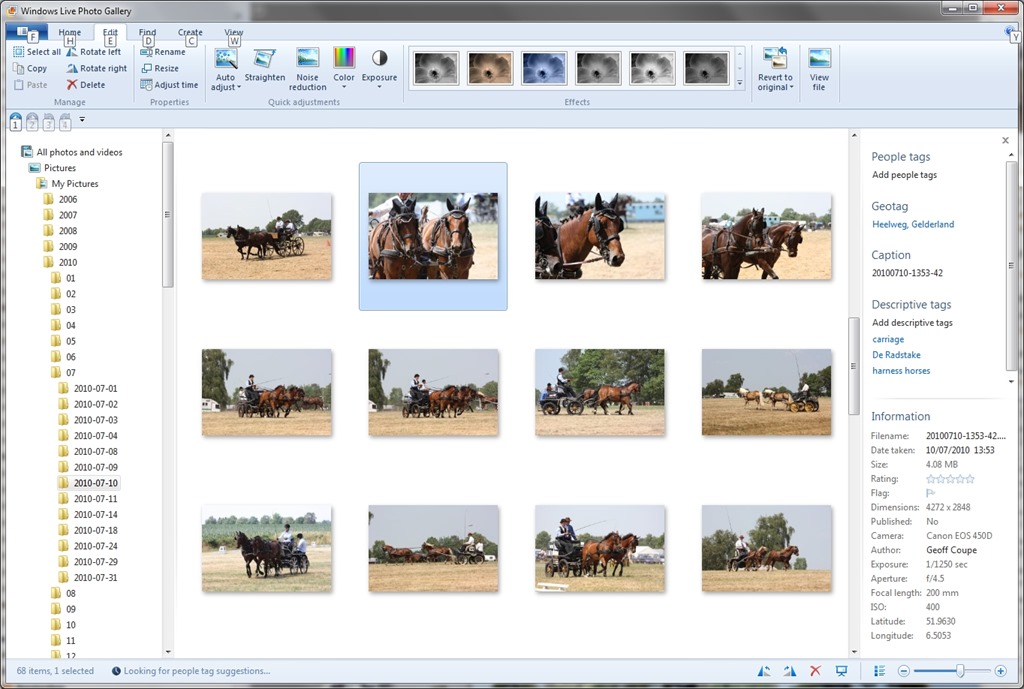
    Here’s an example of what I started seeing at the time; this is a screenshot of photos on my PC being displayed in Microsoft’s Windows Live Photo Gallery (now renamed to Photo Gallery), an application running on my PC. One thumbnail has been selected, and you can see the metadata embedded in the photo being displayed in the information panel on the right hand side of Windows Live Photo Gallery (click on the image to see the full-size screenshot):

    SkyDrive 1

    You can see that the metadata contains both descriptive tags (e.g. carriage and harness horses) as well as technical and copyright information (e.g. date taken, location, camera details, etc.).

    This picture was uploaded to a SkyDrive photo album here. When I looked at the picture in SkyDrive, while I saw some (but not all) of the technical information, none of the descriptive tags had been transferred. Indeed, I was invited to add the tags again!

    SkyDrive 2

    I blogged about this backwards step in November 2011, and had responses from Omar Shahine, and others, to my post. It turned out that the “Tags” label in SkyDrive no longer referred to Descriptive Tags, but People Tags.

    I notice that since then, Microsoft has renamed the “Tags” label to “People Tags” – here’s the photo being displayed in SkyDrive today:

    SkyDrive Tags 05

    However, there is still no sign of any Descriptive Tags being displayed by SkyDrive, even though my photos are all tagged. Yesterday, Omar Shahine and Mona Akmal of the SkyDrive team held an “Ask Me Anything” session on Reddit. Someone asked about support of tagging on SkyDrive, to which Shahine replied:

    Something we’ve talked a lot about on the team, but have nothing to share about this now.

    So it’s something that has probably been talked about for the past two years, and we are still apparently no further forward? I have to say that I’m not impressed. If the team are serious about making SkyDrive relevant to photographers, then proper support of tags should be high on their to-do list.

    And by “proper support”, I mean that SkyDrive should not just display Descriptive Tags as well as People Tags, but support searching of both types. Currently, they do neither.

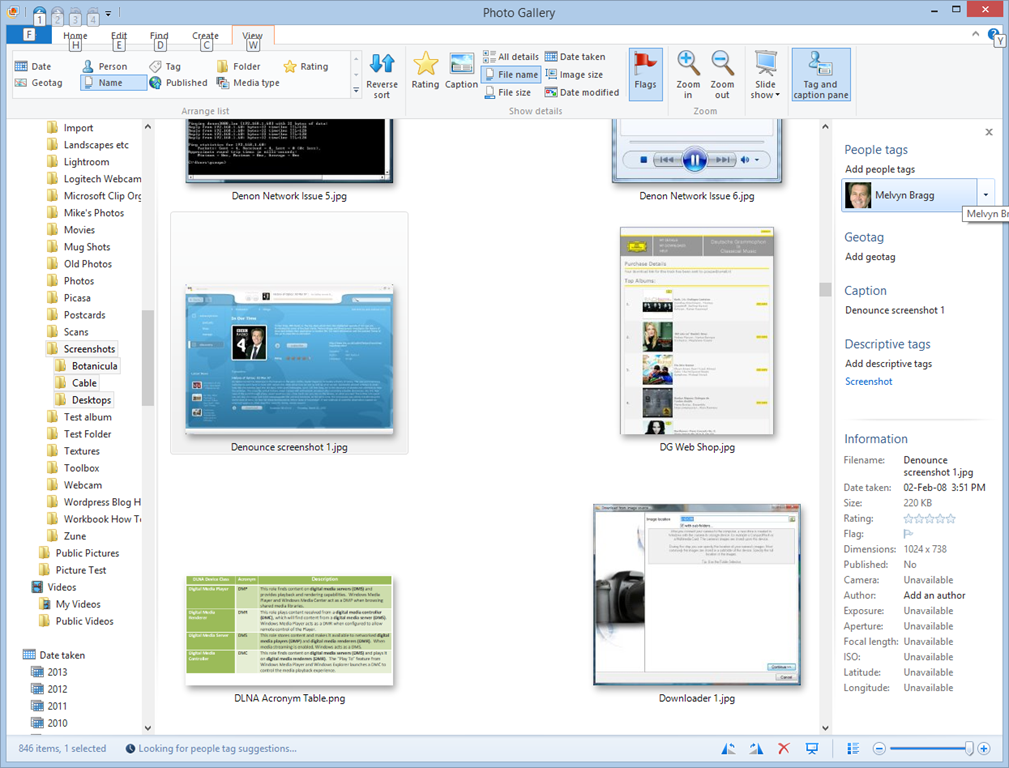
    I have a test image with a “People Tag” defined. Here it is being displayed in Windows Photo Gallery:

    SkyDrive Tags 06

    You can see that I have identified the face in the screenshot as being that of British broadcaster Melvyn Bragg, and that the image has a Descriptive Tag of “Screenshot”.

    Now here’s the same image being displayed in SkyDrive:

    SkyDrive Tags 02

    It has lost all evidence of having a Descriptive Tag contained within the image, but at least it is displaying the fact that it has a People Tag, with the content “Melvyn Bragg”. Unfortunately, People Tags, just like Descriptive Tags, are not searchable on SkyDrive. If I search within my SkyDrive files for “Melvyn”, I get the message that nothing is found:

    SkyDrive Tags 03

    Both People Tags and Descriptive Tags are searchable on my PC – Windows supports searching within photo metadata, so here, the image is found:

    SkyDrive Tags 04

    But this won’t help someone trying to find something that has been tagged within my public SkyDrive folders, or friends and family looking for something within my shared folders.

    So, to summarise:

    • Microsoft removed the display of Descriptive Tags in photo metadata from SkyDrive in June 2011.
    • They replaced it with the display of People Tags in photo metadata.
    • Neither Descriptive Tags nor People Tags are searchable in SkyDrive
    • Two years on, and nothing has changed.

    Serious photographers need to look elsewhere.

    Update 19th February 2014: Well, today Microsoft has changed the name of SkyDrive to OneDrive, but nothing else has changed. Tag support is still woeful, and searching of tags is still not supported.

    Update 10th May 2014: Microsoft has introduced some new features into OneDrive, but unfortunately, the support for Tags is still very much broken.

    Update 23rd January 2015: OneDrive has finally introduced support for searching on Tags!

  • Microsoft’s SkyDrive – Room for Improvement

    OneDrive (previously SkyDrive, Windows Live SkyDrive and Windows Live Folders) is the online storage service offered by Microsoft. It’s been around since 2007, and has been through a number of iterations. It really started to come into its own with the introduction of Windows 8, where it started to assume a much more prominent role. Now with the imminent introduction of Windows 8.1, it is becoming more tightly integrated with the Windows operating system than ever, and the distinction between local and online (cloud) storage is becoming even more blurred.

    I’ve changed all references to SkyDrive to OneDrive in this post since it was first written, to reflect the change of name given to the service by Microsoft. Some screenshots and external references still refer to the old SkyDrive name…

    There’s a good post (Inside SkyDrive) over at the Windows blog that describes some of this integration. However, it seems to me that there is still room for further improvement.

    For example, the author of the post (Mona Akmal, Group Program Manager, SkyDrive apps) writes:

    Many people use search to quickly access their files. So we’ve made search work just as you’d expect – SkyDrive files show up in search results just like your local files.

    Er, no, that’s not true. The way that the search function works is to index the information held in the small placeholder files held locally on your PC. These placeholder files represent the real files held up on the OneDrive service itself. At the moment, it seems that very little metadata is held in the placeholder files; only things such as the filename, and image thumbnails. So if I search for Descriptive Tags (aka Keywords) that are held in photo metadata, I get no results.

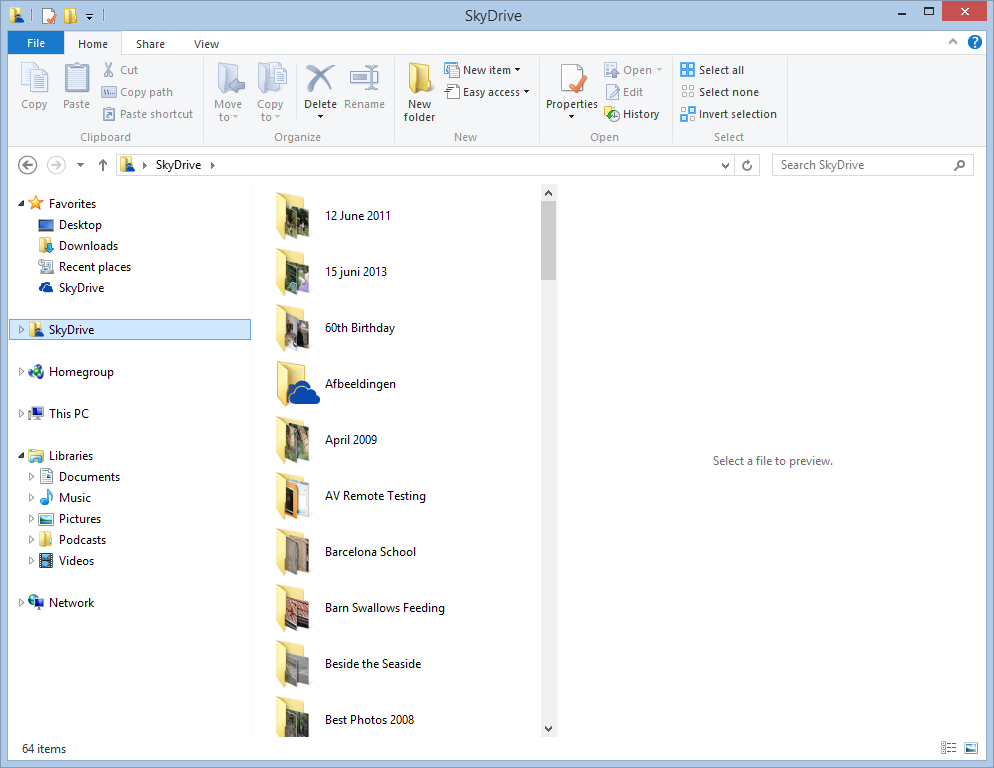
    Let me illustrate this. In Windows 8, it is possible to have a local copy of your SkyDrive folders and files. Here’s a screenshot showing some of the OneDrive folders that are held locally on my Desktop PC:

    SkyDrive 01

    These folders and the files within them are full local copies of the contents of my OneDrive storage. They are also included in the scope of the Windows Search engine running on the PC, and because they contain all the metadata, they are also searchable. So, for example, If I search for pictures of our dog, Kai, I get 16 hits of OneDrive photos that contain the Descriptive Tag: Kai:

    SkyDrive 02

    My ThinkPad Tablet, on the other hand, is running the Windows 8.1 Preview. In Windows 8.1, the contents of my OneDrive storage is represented by placeholder files:

    SkyDrive 03

    To all intents and purposes, they look like the original Folders and Files held in my OneDrive , but they are not; merely placeholders. A full local copy of a file is not present on the Tablet, unless I have edited the file. So now, if I search for photos of Kai, I get a sad little “No items match your search” message:

    Skydrive 04

    That’s because the placeholder files do not contain any photo metadata. This seems to me like a real limitation, particularly since there is no way of searching Descriptive Tags in photos in OneDrive itself – even though the files themselves have the metadata.

    Here, for example, is the OneDrive App in Windows 8.1. Note how the Search Charm is not able to search OneDrive , but only the web or local files:

    SkyDrive 05

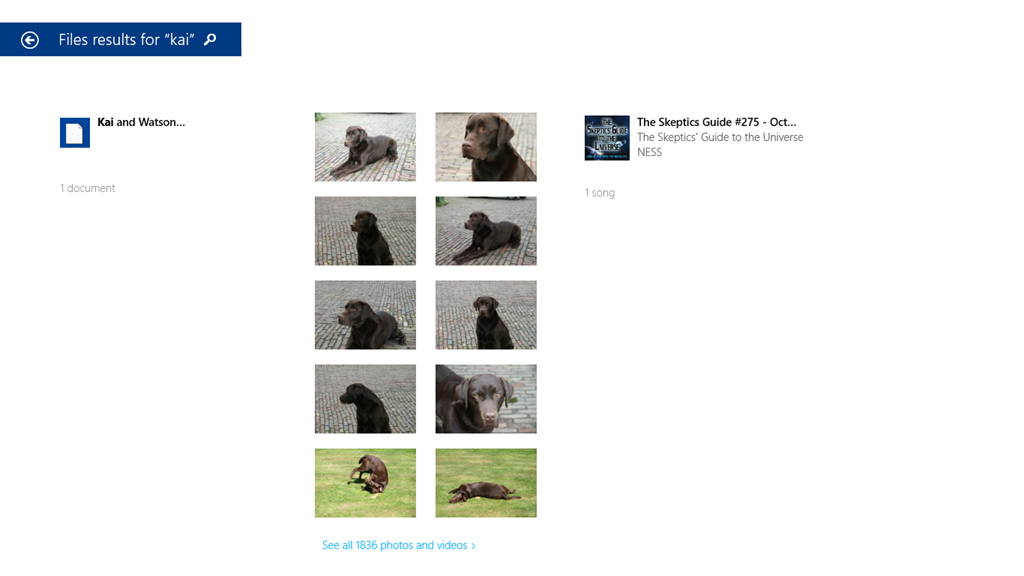
    Searching for “Kai” produces only the results from my local libraries, not from OneDrive :

    SkyDrive 06

    If I use Internet Explorer to browse OneDrive directly, then I still can’t search on Descriptive Tags. Here’s the initial view of my OneDrive :

    SkyDrive 07

    If I use the “Search OneDrive” function at the top left, and search for “Kai”, then nothing is found:

    SkyDrive 08

    So the SkyDrive service is not indexing metadata such as the Descriptive Tags. This, by the way, is a long standing issue with the SkyDrive service. I’ve raised it on a number of occasions with the OneDrive team, and nothing has changed.

    In addition, the Windows 8.1 integration of OneDrive is also not indexing metadata, so perhaps the Microsoft statement should be rewritten as:

    Many people use search to quickly access their files. So we’ve made search work just not as you’d expect – SkyDrive files won’t always show up in search results unlike your local files.

    Sigh.

    Update 4 October 2013: If you read the comments below this post, you’ll see that members of the OneDrive team have replied. The good news is that they are working to address the shortcomings of the current search experience – photo metadata is now being included in the placeholder files. That’s good to hear.

    Update 7 May 2014: I’ve just done a test of uploading some files, containing IPTC Core keywords (tags) in their metadata, to OneDrive. You still can’t search for the tags using the browser accessing the online service – they don’t show up in the search results.

    However, it does appear as though the tags are now being included in the metadata contained in the placeholder files. So a search of the OneDrive folders on your local PC will find the tags. So, one step forward.

    Update 10 May 2014: The support for tags in the OneDrive service itself is still pretty much broken. Microsoft seem to have forgotten their one-time goal that “the truth is in the file“.

  • Photo Metadata

    The BBC’s News web site has a video report on photo metadata. It’s a fairly good introduction to the topic, and worth five minutes of your time.

    The reporter, Ian Hardy, makes the point that your grandfather’s photos often had some explanatory text written on the back of them – and that’s the metadata. In today’s digital world, the vast majority of images are being created with technical metadata (camera type, shutter speed, etc.) but often without any information on who is in the picture. The situation is not being helped by the new generation of social media web sites or mobile Apps for smartphones, Tablets or iPads that do not support management of metadata, or even worse, strip it out.

    I’m a firm believer in the value of metadata. Unfortunately, at the moment, it’s a minefield, with competing and conflicting standards and poor, faulty, or non-existent support in applications and online services. Things can only get better, but there’s no guarantee that they will.

  • Photo Editor Apps

    My needs are fairly simple when it comes to a tool to edit digital photos. I don’t need all the bells and whistles of an Adobe Photoshop, just something that I can use to crop, resize, or adjust the contrast or colour balance of an image. Very occasionally, I need to to be able to make a cut-out mask of part of an image and paste it into another. For example, in this blog’s header image (which changes with the seasons), you can see our two dogs sitting in front of the house. They are always there, whatever the season, and that’s because their image has been pasted in to each of the seasons’ images.

    The features of Microsoft’s Windows Photo Gallery are the sort of thing that I have in mind (although it doesn’t handle masks), but I found out a long time ago that it corrupts image metadata. In particular, it destroys Canon’s Makernotes, which are stored in the Exif metadata of images made using my Canon cameras. Despite reporting this to Microsoft over two years ago, and Microsoft acknowledging that there is a bug, this still hasn’t been fixed. In fact, the same bug is present in Microsoft’s Photos App, built for Windows 8.

    For this reason, I only use Windows Photo Gallery to stitch together panoramas – it is very good at that – and don’t use any other of its editing tools. I also don’t use it to modify image metadata, because whenever Photo Gallery writes back metadata into the image file, it will corrupt the Makernotes. For editing and metadata work, I use Photo Supreme. It is excellent for metadata, and the image editor is good enough for my simple tasks. When I need to use masking, then I fire up the ancient, and long since withdrawn, Microsoft Digital Image Pro 10. As an aside, I often wonder why on earth Microsoft dropped this product. It certainly outshines any of their current digital imaging products…

    Anyway, I was curious to see whether there was an easy to use photo editor available for the Windows 8 environment. At the moment, there are over 700 Apps listed in the Windows Store under the Photo category.

    Photo Apps 02

    Admittedly, some of those listed are Desktop Apps, designed to run in the Windows 7 Desktop environment, but the vast majority are built as Modern UI Apps for Windows 8.

    Last month, there was a post on Microsoft’s Windows Experience Blog that listed, and recommended, four Modern UI photo editor Apps. These were:

    I took a quick look at three of the suggestions (Fotor, Fhotoroom and Perfect365), and they all seem to strip out all metadata from a saved image, Exif and XMP. This is not useful, and completely contrary to the guidance from the Metadata Working Group, of which Microsoft is one of the founding members. As far as I’m concerned, that rules out any of these applications for me.

    Today, I saw that Adobe has made their Photoshop Express available as a Modern UI App for Windows 8, so I’ve taken a quick look.

    Photo Apps 01

    Well, on the positive side, it preserves metadata, and doesn’t corrupt it, so that’s a step forward from Microsoft’s efforts. However, it is still very limited in what it can do, and it has at least one irritating quirk all of its own. In this list of capabilities, unless otherwise stated, you can take it that Windows Photo Gallery (WPG) and Photo Supreme (PSU) can match the features listed.

    • It can crop and resize the image, with or without ratio guides.
    • It can rotate the image in fixed 90 degree increments (PSU can also handle free rotation, with or without cropping).
    • It can flip the image (WPG cannot).
    • It cannot resize the image resolution (WPG and PSU both can).
    • It can adjust (both manually and auto-fix) contrast, exposure and white balance, and apply preset filters.
    • It can remove Red Eye (PSU cannot).
    • It can heal images (WPG cannot).
    • It cannot handle masks and image layers (neither can WPG or PSU).
    • It cannot handle RAW images (PSU can, while WPG can only display them)

    Interestingly, it looks as though the App is extensible. You can add paid-for filters. So it’s possible that some of the limitations may be overcome in the future.

    And what of the irritation?

    Well, I don’t know whether the App is saving images at full quality, or whether it is applying compression. As a test, I took an original JPEG image that was 6.82 MB in size, and used the App to save a copy (no changes were made). The resulting copy was 4.08 MB in size. I suspect that some compression has been applied, but I have no way of telling how much, or more importantly, be able to save with no compression. That I do not like in an application.

    I also get slightly irritated by the fact that I can only save to one online Cloud storage service: Adobe’s own Revel. Fine, but I want to use my existing (and free) SkyDrive storage, rather than have yet another service to deal with.

    So in summary, all I can say is that Adobe’s Photoshop Express has promise, but it is not yet at a stage where I will drop my other digital image editor tools in its favour. Ask me again in a year.

    Addendum: I asked on an Adobe forum whether I could stop Photoshop Express from compressing my images. The answer is no, and that’s apparently by design.

    Also, I raised the issue of metadata being stripped out by Fotor with their support people. I had a response in which their programmer confirmed that Fotor does not save all of the Exif metadata in edited images. Unfortunately, he also seemed to be completely unaware that there are other types of image metadata besides Exif – and these are equally important to photographers.

    This link http://www.photometadata.org/META-101-metadata-types has an easy to understand introduction to image metadata.

    As it stands, Fotor is not a suitable tool for any photographer who cares about preservation of image metadata. The same seems to be true for many of the photo Apps currently available.

  • RIP – IDimager

    One of my hobbies is photography, and my main tool for managing my digital photos is IDimager. I’ve been using it since January 2007. It’s now up to version 5, and I’ve been very happy with it. I occasionally visit the IDimager support forums, just to see if there are any announcements, or tips and tricks being posted. Yesterday I read a message from the developer that said:

    IDimager V5 is discontinued as of today. Photo Supreme is a different product when compared to IDimager V5. They don’t offer an identical feature set so I recommend all IDimager V5 users to first try Supreme to see if it fits their need before they decide to make the switch.

    My immediate reaction was WTF? Whilst I had been aware of the Photo Supreme product, last time I looked, a few months ago, it was for the Mac, and there was no whisper of a Windows version being made available. Fast forward a couple of months, and now it has killed off IDimager. Needless to say, I’m not very happy about this, and neither are a lot of other IDimager customers. IDimager is a serious Digital Asset Management (DAM) tool, and Photo Supreme, at first glance, has far less functionality; so for many people, Photo Supreme is nowhere near an acceptable replacement. A typical reaction:

    Well that’s a real shame because you have killed off one of the best DAM systems a working professional could ask for and replaced it with a toy. I wish you luck with Photo Supreme, but regrettably it’s not a professional standard product IMO.

    Because I tend to work mostly with JPG images, I’ll probably be able to carry on using IDimager for some time to come. However, for professional photographers who work with RAW format images, then IDimager will soon not be able to handle images produced by new camera models. These people have been thrown into a pit. I can only echo what someone else posted:

    I have always had a lot of respect for Hert [the chief developer] and his responsiveness to bugs and feature requests. It made IDI stand out in a market dominated by big software giants who bought, crippled then abandoned software. Sadly yesterday’s announcement felt all too familiar and not what I have come to expect.

    Since I have never used all of IDimager’s power (similar to most people only ever using a fraction of the capabilities of Microsoft Word), I’m taking a look at Photo Supreme to see it is a possible replacement for my usage patterns. But I’m doing so with a rather sour taste in my mouth at the moment.

    Addendum 18th September 2014: I thought it was worthwhile adding that since writing this post, I switched (a while ago now) across to Photo Supreme, and have not regretted doing so. PSU has continued to evolve (version 3 is about to be released), and it has matured into a very good DAM.

    Photo Supreme V3 is worth looking at.

  • Microsoft’s Photo Gallery – Yet Another Missed Opportunity?

    As I wrote in my last post, Microsoft has recently released a new version of Windows Live Photo Gallery, now simply known as “Photo Gallery”. That last post documented an issue that Photo Gallery has over its handling of geotags. In this post I want to look at what I would consider to be missed opportunities by Microsoft to set the lead in the field of software aimed at organising digital photos.

    Microsoft is a founding member of the Metadata Working Group, a consortium of leading companies in the digital media industry, focused on the following goals:

    • Preservation and seamless interoperability of digital image metadata
    • Interoperability and availability to all applications, devices, and services

    Almost two years ago, in November 2010, the group published version 2 of its Guidelines for Handling Image Metadata. As I wrote at the time, it’s “a major new version of the Guidelines”. The document states:

    This expanded specification builds on existing metadata standards to describe several emerging consumer properties that:

    • Use regions to record faces, focus points, barcodes, or other data in an image
    • Provide hierarchical keywords to richly describe and classify images
    • Flexibly identify an image as part of a greater media collection

    While software applications are supporting features such as people tags and hierarchical keywords, they use differing implementations, so that interoperability between applications is difficult, if not often impossible.

    Version 2 of the Guidelines was an attempt to define a common specification in these areas, to drive interoperability forward.

    What I find disappointing is that, nearly two years later, the new version of Photo Gallery has not implemented any of these proposed specifications, and continues with the old Microsoft-proprietary ways of doing things, despite the fact that Microsoft is a founding member of the Metadata Working Group.
    Still, the same charge can also be levelled at Adobe, another founding member. Their latest version of Lightroom, Lightroom 4, also continues with the Adobe-proprietary ways of doing things. The result? You can forget about any real interoperability between Photo Gallery and Lightroom when it comes to People Tags and Hierarchical Keywords.

    One last, rather ironic, point. Despite the fact that Google is not a member of the Metadata Working Group, I’m heartened to see that Google has actually implemented the version 2 Guidelines proposed standard for People Tags in version 3.9 of Picasa. So it can be done. C’mon Microsoft and Adobe, get with the programme, give us tools that actually talk to each other…