Reflections on life at “De Witte Wand”…

Category: Photography

  • Photoshop Elements 9

    I see that Adobe has recently released Photoshop Elements 9. I last used Photoshop Elements when it was at version 4, and stopped using it because the Organizer part of the package had too many limitations for me. I did like the features of the Photoshop Editor, but I hated the Organizer with a passion.

    Still, time passes and now we’ve arrived at version 9, so I thought I’d just take it out for a test drive and downloaded the trial version.

    Since the Organizer was the weak point the last time around as far as I was concerned, I fired that up first to take a look at it. I imported a subset of photos taken this year and started kicking the tyres.

    The first thing I noticed was that the Organizer had successfully imported the IPTC Keyword metadata from the files and used this to create Keyword Tags. However, it did not, unlike Windows Live Photo Gallery, recognise that these were hierarchical tags and create the Keyword Tag hierarchy automatically. Take a look at this screenshot (click on the image to open a larger version in a new window):

    PE9 1

    You can see the imported Tags under the “Imported Keyword Tags” category, but notice how the Organizer has simply imported them all as a flat list – it has not grouped them into a hierarchy. Also notice how a Tag with multiple levels is too long to be displayed properly.

    Now, it is possible for the Organizer to have a Keyword Tag hierarchy, you can see the start of one in the screenshot above, with the first levels being “People”, “Places”, “Events”, “Other” and the “Imported Keyword Tags”. So, having imported all my tags as a flat list, I would have to manually, and laboriously, re-create my tag hierarchy in Organizer to match the hierarchy described in my files’ metadata. This would not be a quick job…

    The next question would be, having got a tag hierarchy created in Organizer, what happens when I write out Tags into files as metadata? Does it store them in a hierarchical manner?

    To test that, I created a simple hierarchy under People (People/Family/Test level 1/Test level 2/Family member 1) and assigned that tag to a test image in the Organizer:

    PE9 4

    Here is a screenshot of what the Organizer tells me about the IPTC metadata of this image before I applied the tag:

    PE9 3

    You can see that there are two hierarchical Keywords already present in the file’s metadata. Here’s what the file’s metadata becomes after I tell Organizer to write out the Tags to the file:
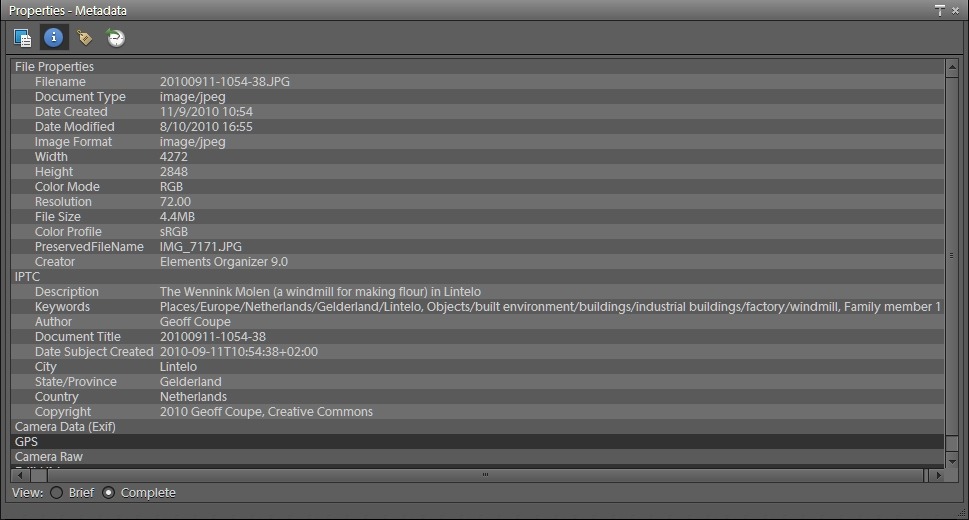
    PE9 5

    Not good. Although the Tag “Family member 1” is in a hierarchy in the Organizer, it’s just been written out as a flat, single level, tag to the IPTC metadata.

    From this I conclude that the Organizer does not support hierarchical tags in file metadata. That was the case back with version 4. It’s disappointing that it’s still this way.

    One other thing I looked at with the Organizer is how well it plays in a multi-tool workflow. Like many digital photographers, I have a number of different applications that I use for different purposes. It’s extremely important that these will all play together, and do it as transparently as possible, with little or no effort on my part.

    So, for example, what happens if the metadata of a file gets changed by another tool outside of Photoshop Elements 9?

    I tested this by first importing some image files into the Organizer. I then added a tag to a selection of the files using another tool (IDimager). Both Picasa and Windows Live Photo Gallery will pick this change up and update their Tag list to reflect the new one and the files that contain it. Not the Organizer, though. It just sat there and insisted that the tags associated with the files in question were as originally imported, and nothing had changed.

    I thought I’d try and reimport the files to see if Organizer would then realise that a new tag had been added. Not a bit of it – it simply insisted that it already knew about these files and did not realise that the metadata had changed:
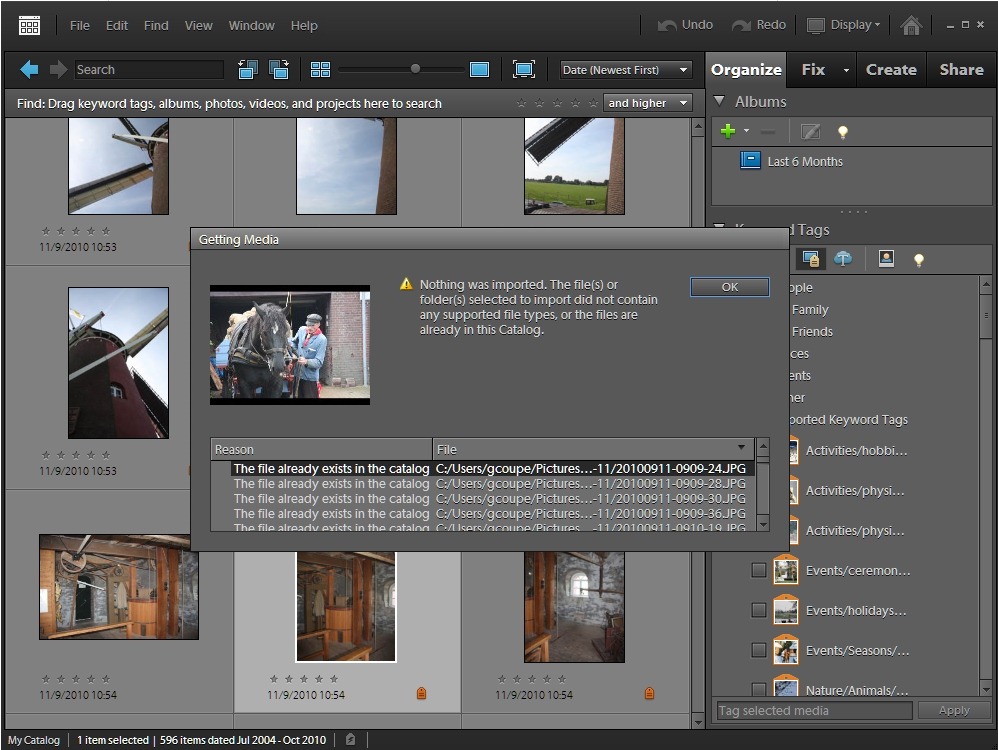
    PE9 2

    As far as I’m concerned, this is a showstopper. The Organizer in Photoshop Elements 9 just doesn’t play at all well in a multi-tool digital workflow. It was the same back in the days of version 4. Plus ça change

    And just in case you think I’m being unnecessarily hard on the Organizer here, which is intended for ordinary mortals rather than professional photographers, just consider this… If you have a family and you have a number of computers in your household, then you had better make sure that just one computer is devoted to cataloguing your photo collection. These limitations of the Organizer mean that you can’t have Photoshop Elements installed on multiple computers, and expect the metadata and Keyword Tag hierarchies automatically synchronised between the family PCs. That is one of the plus points about Picasa and Windows Live Photo Gallery. I do all the heavy lifting of cataloguing and Keyword maintenance on my main computer using IDimager, and all the other computers in the household running Picasa or WLPG pick up the changes automatically. That will not be the case with Photoshop Elements. It may export the Tags as metadata, but it doesn’t export the tag hierarchy.

    Oh, one other disappointing thing about the Organizer: geotagging. It uses Yahoo Maps in the geotag interface. The satellite coverage of Yahoo maps in comparison to Google or Bing Maps is but a pale shadow. For the majority of my photographs, I get a plaintive “imagery not available” message if I try to place a geotag accurately.

    After all this, I haven’t had a chance to look at the editor in Photoshop Elements 9. I’m sure it will be powerful, but frankly, my dears, I don’t give a damn… On the odd occasion when I need more capability than my usual tools give, I can always fire up the editor from Photoshop Elements 4. I see no reason to upgrade to version 9.
  • One Step Forward, Two Steps Back…

    This is a bit of a rant. This is a bit of a rant about Microsoft software. This is a bit of a rant about Windows Live Essentials 2011.

    Windows Live Essentials (WLE) is a suite of utilities from Microsoft that began life back in 2006. WLE 2011 is the fourth major iteration of the suite, and was released in its final version on 30th September 2010. It now contains a number of utilities:

    Of these eight utilities, I really only made extensive use of four of them (Mail, Messenger, Photo Gallery and Writer). With the release of WLE 2011, and the acquisition of a camera that can shoot HD video in addition to photos, I had expected to start making use of Movie Maker.

    Instead, I’ve found that the 2011 versions of both Movie Maker and Photo Gallery have surprising limitations that represent a step backwards from earlier versions. Worse still, Windows Live Photo Gallery 2011 has a showstopper of an issue that means that I cannot use it until it is resolved in a satisfactory manner by Microsoft.

    Windows Live Movie Maker

    Windows Live Movie Maker (WLMM) is a complete re-write of an earlier effort by Microsoft: Windows Movie Maker (WMM). Unfortunately, in the rewrite, Microsoft’s desire to make easy-to-use software has resulted in the dumbing-down of the software to the point where functionality has been removed.

    Windows Movie Maker had both a “storyboard” view and a “timeline” view for editing and assembling videos. Windows Live Movie Maker 2011, on the other hand, has dropped the timeline view and only offers a storyboard view for editing. That’s a great pity, because having the timeline view makes some operations very easy to do, and they can only be done with difficulty, if at all, in the storyboard view. For example, in WMM’s timeline view, you could edit the audio of a video clip. You simply can’t do this in WLMM’s storyboard.

    Limitation number two is that, as far as Microsoft is concerned, we all live in either North America or a few other places. That’s because when you produce your finished video, WLMM will produce it in the NSTC standard. Much of the world (over 120 countries and territories) uses the PAL standard, but Microsoft does not support this in WLMM by default. You can cook up your own custom settings, but this is not always straightforward. Take a look at this discussion on the WLMM Help Forum to get an idea of some of the issues involved.

    One would think that since Microsoft is apparently trying to make easy-to-use software that they would offer a simple “NTSC or PAL” switch in WLMM, just as practically every other video editing software does, but no; for some reason they have concluded not to do it, leaving us to hunt for information as to how to set it up for ourselves. Two steps back…

    Windows Live Photo Gallery

    Windows Live Photo Gallery (WLPG) has had more functionality added to it in each of the major releases. WLPG 2011, for example, now has automatic face recognition, geotagging, and a “photo fuse” feature added to it over the features that were in WLPG 2010.

    However, there is at least one limitation that I’ve found in comparison with WLPG 2010, so it’s not just a simple move forward. WLPG 2010 had a slideshow function – select your photos, click on the Slideshow button, and you got an instant slideshow of your selected photos. WLPG 2011 seems to offer the same functionality, but when you click on its Slideshow button, what is actually happening is that it passes the job over to Windows Live Movie Maker 2011 to do the work of producing and running the slideshow. And here’s the limitation: the quality of the slideshow produced by WLMM 2011 is noticeably poorer than that which was produced by WLPG 2010.

    When I raised this issue in the WLPG Help Forum, the first response back from Microsoft was to deny that anything had changed between WLPG 2010 and WLPG 2011. They then conceded that things had in fact been changed and that “photo quality in slide shows in Windows Live Photo Gallery Beta is indeed a bit degraded when compared to the original file source”. The reason given was that “since videos have been incorporated to the feature, high definition photos in the slide show are forced to level with the resolution capacity of a video format”.

    While Microsoft may think that slideshow quality has been “a bit degraded”, I see it as noticeably degraded – to the point where I consider it unacceptable in quality, and a step backwards from what was available in WLPG 2010.

    And then we come to the showstopper in WLPG 2011: geotagging.

    Unlike every other application I’ve seen (IDimager, Picasa, PhotoShop Elements, Lightroom, Microsoft Pro Photo Tools, Geosetter) that offers geotagging either directly or via a plug-in, WLPG 2011 does not offer a map-based interface to position geotags. Instead, it uses a text-driven database to assign geotags. The problem with this, as I’ve pointed out here and here, is that this is very prone to errors of interpretation.  If Microsoft had left it at simply a textual description of a geotag, I could have lived with it. But no, they go a step further: they also write out GPS coordinates into the Exif metadata of the image. In effect, WLPG 2011 is guessing the GPS coordinates based on text contained in the contents of the IPTC metadata fields that deal with information about location. Microsoft are really doing geocoding, rather than geotagging. The problem is that very often, these guesses turn out to be wildly wrong. Even that I could live with, if WLPG 2011 had given me an option to stop it writing out these GPS coordinates into my images; but it doesn’t, and that is an unforgivable showstopper in my book. WLPG 2011 has entered false GPS data into thousands of my images.

    It’s really odd, the automatic face recognition feature of WLPG 2011 asks the user to confirm its guesses as to who the person in a photo is each and every time. Yet the geotagging feature is making guesses about GPS coordinates and writing these out to image metadata without even notifying the user that it is doing this.

    I, and others, have raised the issue in the WLPG Help Forum here and here. The worrying thing is that so far, while the issue has been acknowledged by Microsoft, the manner of their replies are, to my eyes at least, rather along the lines of “it’s not a bug, but a feature…” Sorry, Microsoft, it’s not a feature, it’s a disaster. One that could have easily been avoided if they had given us the option to turn off the writing of GPS coordinates into image metadata. And if they had given us a map-based interface, like any decent geotagging application, then users could have checked WLPG’s guesses, confirmed those that were correct, and rejected the false ones.

    WLPG 2011, despite the fact that it uses the term “geotag” in the application, is actually doing geocoding, rather than geotagging if you follow the strict definition of the terms. There’s probably a reason that everyone else does geotagging in their applications, and that is probably because it isn’t so prone to horrible errors as Microsoft’s geocoding approach has turned out to be.

    This issue makes WLPG 2011 not so much two steps back in comparison to WLPG 2010, but more of a step off the cliff…

    Update 2 December 2010

    There’s an update to WLPG 2011 that addresses the geotagging issue. See here for more information.

  • Windows Live Essentials 2011

    So the final version of Windows Live Essentials was released today. I see from this blog post by Chris Jones that apparently 95% of the bugs that were present in the beta version have been addressed by this final release.

    I suppose it was inevitable that I would find myself continuing to be bitten by one of the remaining 5% of bugs.

    Windows Live Photo Gallery still continues to write false GPS coordinates into my images.

    This is unacceptable behaviour as far as I’m concerned. I can’t afford to have it running on my computers and introducing garbage into my image metadata.

  • Geotagging and Metadata in Picasa 3.8

    Last month I wrote about the geotagging disaster that the current beta of Windows Live Photo Gallery is causing. At the moment, I daren’t have it running on my PC because it wantonly writes garbage GPS coordinates into my photos.

    While I’m waiting to see what Microsoft will do in the next beta of WLPG, I thought that I’d take a look at its closest rival, Google’s Picasa, to see how that’s shaping up.

    While I found on past experience that there’s lots to like about Picasa, I’d ruled it out up until now because it did not support XMP-based metadata. That meant as I use metadata following the IPTC Core standard, which itself uses XMP, then Picasa just didn’t cut it.

    However, things change, and the current version of Picasa, version 3.8 released last month, is being trumpeted by Google as now supporting XMP.

    So I downloaded and installed this new version of Picasa. And while it certainly seems to display XMP-based metadata (see below), it doesn’t seem to support writing out all of this metadata into image files. I also came across a major bug in how Picasa handles Geotags.

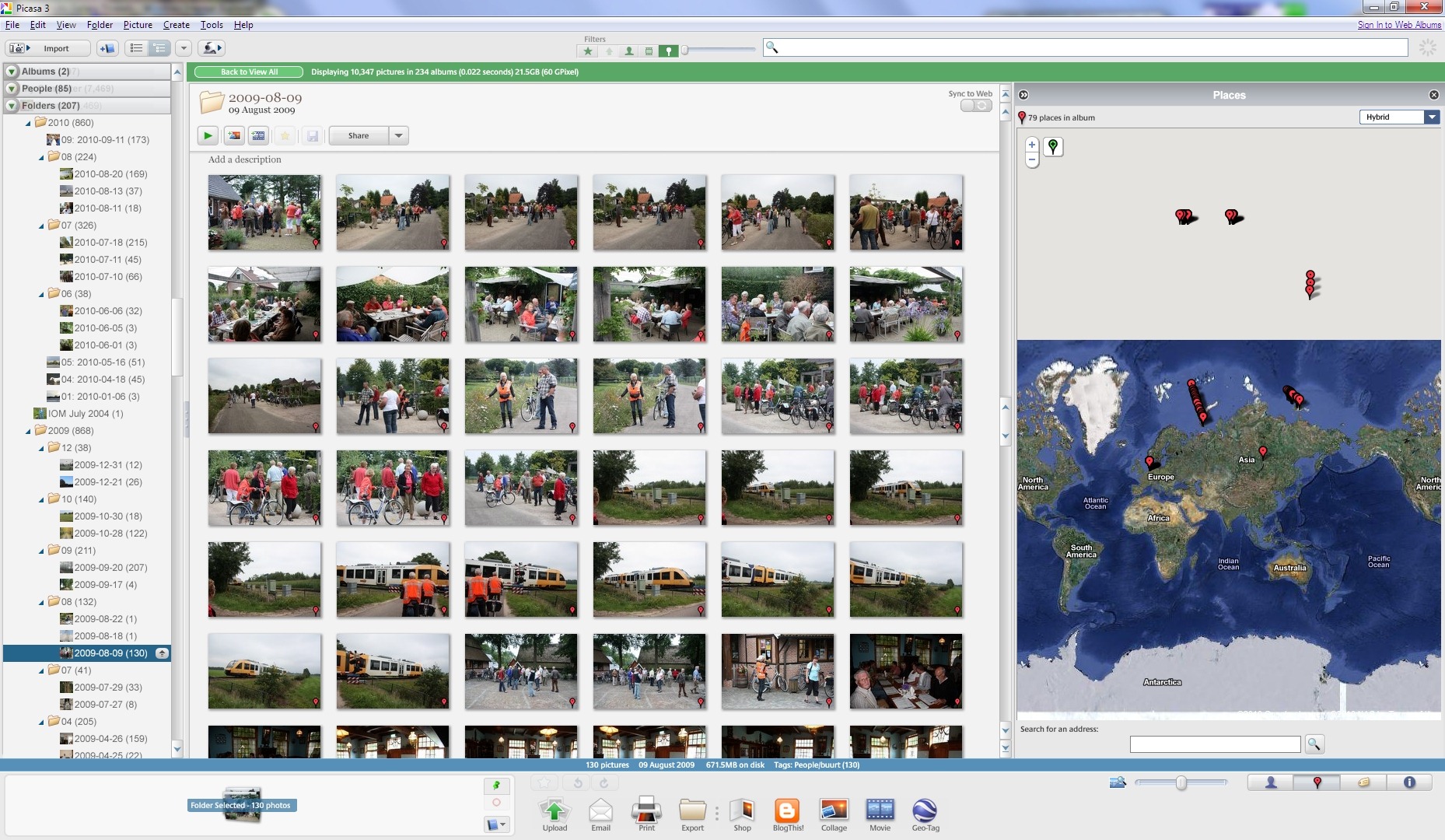
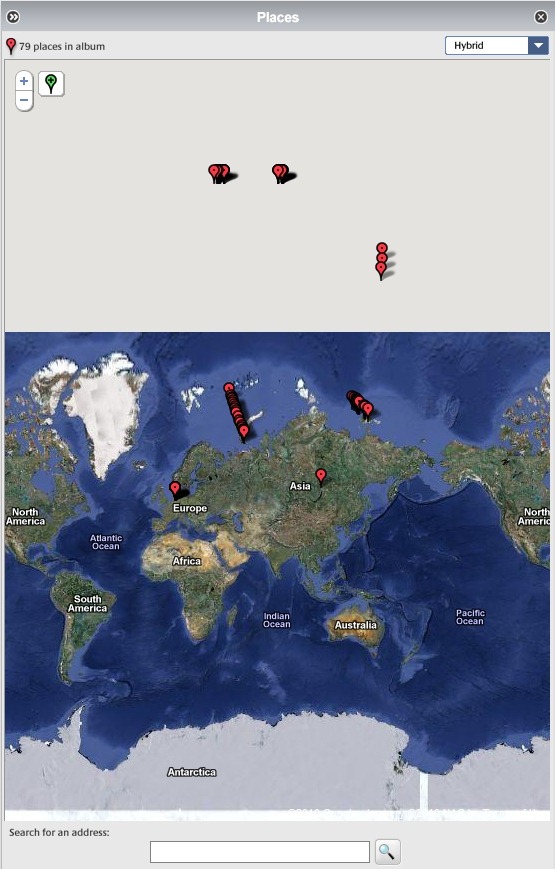
    It won’t display the correct GPS coordinates of many of my files on its map. Here’s an example, the contents of a folder containing images shot in the local area here in The Netherlands (click on the image to see it full-size in a new window).

    Picasa Geotag 2

    Here’s a close-up of the map. As you can see, Picasa claims that many of the images have GPS coordinates corresponding to places outside of The Netherlands, in fact many of the images are literally out of this world, according to Picasa.

    Picasa Geotag 1

    These files have all had GPS coordinates added to them using IDimager. (Note: IDimager is no longer available. Its successor is Photo Supreme, which I am now using) All these files will display correctly in IDimager itself, and also in the map interfaces of Microsoft’s Pro Photo tools and Geosetter. Here are the files being displayed correctly in the map interface of Geosetter:

    Geosetter 1

    Clearly, this is a bug in the current version (3.8) of Picasa. Fortunately, Google have acknowledged that there is a problem, and it should get fixed at some point in the future.

    As to the XMP metadata support, it looks as though the following IPTC Core elements are at least read by Picasa for JPEG files:

    Description
    Description Writer
    Headline
    Keywords
    Title/ObjectName
    Job ID
    Instructions
    City
    Location
    State
    Country
    Creator
    Creator’s Job Title
    Provider
    Source
    Copyright Notice

    In this version of Picasa, there doesn’t seem to be a way of writing data into all of these fields, but only a subset, so Picasa isn’t yet suitable for maintaining IPTC Core metadata. Picasa also doesn’t read and display these metadata fields at all from RAW files (at least for my Canon CR2 format). It only appears to display the Exif metadata from these RAW files. So, once again Picasa is getting closer, but it’s not good enough for what I’m looking for.

  • Geotagging in Windows Live Photo Gallery–Part 2

    Last month, I wrote about my findings on the experience in using the Beta of Windows Live Photo Gallery to geotag my photos. I wasn’t too impressed with the experience.

    This week, a second beta of WLPG was released by Microsoft so I’ve been revisiting the experience of geotagging.

    And today, it’s been borne in upon me just what a disaster geotagging in WLPG has proved to be.

    You see, I made an assumption. That was that WLPG would not alter any metadata in a photo without my explicit permission and knowledge. Wrong

    I was naive enough to think that WLPG would only write out GPS coordinates to the Exif metadata in a photo when I explicitly added a Geotag using WLPG. Wrong

    I realised that WLPG was reading in IPTC Core Location metadata from my photos and using that to create a geotag in WLPG’s internal database. I also realised that it was copying the metadata into the “Location Created” section of the newly specified IPTC Extension metadata. Since these are a set of text fields that reflect what already existed in the original IPTC Core Location fields, that didn’t bother me unduly.

    What I hadn’t also appreciated is that WLPG not only constructs a geotag in its internal database and creates Location Created metadata in the IPTC Extension section, but that it then proceeds to write out a set of GPS coordinates into the photo’s Exif metadata of where it thinks that the photo was taken.

    This is an unmitigated disaster!

    As I said last month, WLPG makes false assumptions about what the GPS coordinates are. If it doesn’t recognise the contents of the Sublocation field, it uses a GPS position derived from the contents of the City field. If it doesn’t recognise the contents of the City field, it uses a GPS position derived from the contents of the State field, and if it doesn’t recognise the contents of the State field, it uses a GPS position derived from the Country field.

    I have a collection of over 40,000 photos. The majority of these have IPTC Core Location metadata that I have catalogued over time. Only a very small percentage of these had GPS coordinates that I had carefully added myself.

    Now, WLPG has gone through my collection reading the Location metadata and has written out GPS coordinates to all of the photos containing Location metadata. And, of course, in a lot of cases, it doesn’t recognise the terms I’ve used for a particular location field, so it’s plucked a GPS value out that bears no relation to where the photo was taken.

    Worse still, I now have lost the needles of those photos which have accurate GPS positions in a haystack of huge proportions, which consists of photos with false GPS positions.

    Aargghh!

    Update 23 August 2010

    1. I’ve now looked at a backup of my photo collection taken on the 1st June 2010 (i.e. before the WLPG beta was installed). No photos had false GPS values inserted in the Exif at that time. Therefore I conclude that WLPG is the culprit.
    2. Contrary to what I first thought, not all photos with IPTC Location metadata get GPS values inserted into them by WLPG – there may be a pattern, but it’s not obvious to me why some files are hit, but not others.
    3. However, even though all files are not affected, I have still found over 7,000 photos with GPS values, and of these, only 2,359 of these photos have genuine GPS values that I have explicitly inserted. The rest have GPS values inserted by WLPG itself and which are also inaccurate (false).
    4. Some false values come from WLPG ignoring a sublocation, and inserting a central GPS value for the City.
    5. Some false values come from WLPG misinterpreting a sublocation and inserting a completely wrong GPS value for another location altogether; e.g. Sublocation: Voortman Bos, City: Heelweg gets interpreted as Voortmanweg in Deventer, 37 kilometres away…
    6. Some false values make no sense whatever; e.g. some photos I have of St. Pancras station in London have a GPS value assigned to them of Cuxham, a very small village in Oxfordshire…

    All together now: Aaaarrrggghhh!!!

    Update 8 September 2010

    I posted about this issue on the WLPG Help Forum. Now, Analy Otero, who works in the WLPG team, has posted a response  to confirm that WLPG does indeed write out what it thinks are correct GPS coordinates to image files based on the content of the IPTC Location fields. As she says:

    “The behavior you’re experiencing is the design of the feature and we’re working to improve both reliability of the process (to ensure all photos get proper geotags) and to improve the accuracy of the places.”

    Unfortunately, I don’t believe that Microsoft can ever sufficiently improve both the reliability of the process and improve the accuracy of the places to the extent where I can trust that accurate GPS information will be included in my images. My experience thus far has been an eye-opener of just how bad it currently is. I see that in the current release notes, Microsoft themselves say:

    “Landmarks (such as the Eiffel Tower) are not supported in the current implementation of geotagging”.

    The problem is that the textual IPTC sub-location field, in particular, will always be down to what the user decides, e.g. “the stern of HMS Ark Royal in dry dock”. I’d like to see Microsoft be able to give an accurate GPS for that. Of course, they can’t, and so the chances that rubbish GPS coordinates will be introduced by WLPG into an image remain very high.

    A further twist is that, apparently, once WLPG has introduced a GPS value (false or accurate) into a file, it can’t ever be subsequently changed by WLPG. Elsewhere in the release notes it states:

    If a photo or video contains no GPS data, coordinates will be added when the item is geotagged. However, updating or deleting a geotag string won’t modify the GPS coordinates. Any additional updates to the geotag field don’t change the original coordinates written to the file. (my emphasis)

    It seems to me that the way to cut this Gordian knot is for Microsoft to give us a proper mapping interface in WLPG itself (such as Picasa, IDimager, or Geosetter do) so that we can check locations prior to allowing GPS coordinates being written, and to use the map to modify or delete GPS coordinates. That is, writing of GPS coordinates is under the explicit control of the user, instead of something that WLPG does by itself in the background as a write-only operation.

    The current implementation of WLPG writing out what it thinks the GPS coordinates should be is dreadful and appalling. I simply cannot afford to have WLPG installed on my PCs as it is. It has already introduced garbage information into thousands of my images.

    Update 30 September 2010: Well, the final version of WLPG 2011 is now released, and as far as I can see it is still screwing up my GPS metadata.

    I’ve just found some photos taken this month in the Netherlands which now have GPS info for Wimereux in France inserted into them by the final release of WLPG.

    I am definitely not impressed.

    Update 2 December 2010

    There’s an update to WLPG 2011 that addresses the geotagging issue. See here for more information.

  • Slide Show Quality in Windows Live Photo Gallery

    Microsoft’s Windows Live Photo Gallery (WLPG) can display selected photos as a slide show. In the new beta of the next version of Windows Live Photo Gallery, the slide show capability is still present, but Microsoft have changed the way in which it is done. Instead of having this capability within WLPG itself, it uses the new version of Windows Live Movie Maker to make and display the slide show.

    The problem is, the quality of the slide shows produced by Windows Live Movie Maker is terrible. Photos displayed as slides are blurry and noticeably degraded in quality.  I would be ashamed to show slides to family and friends using it.

    I raised this in the Windows Live help forum for Photo Gallery. The first response back from Microsoft was to deny that anything had changed between WLPG version 3 and the beta of version 4. However, once I sent them proof, then they admitted that things had changed and:

    “it appears that photo quality in slide shows in Windows Live Photo Gallery Beta is indeed a bit degraded when compared to the original file source”.

    I love that “a bit degraded”. No, Microsoft, it is noticeably degraded to the extent that it is unacceptable. The quality of the slide shows produced by Windows Live Movie Maker is simply not good enough. So now I will have to find an alternative to WLPG in order to show slides to friends and family.

  • The Courtyard of the British Museum

    Here’s a Photosynth of the courtyard in the British Museum that I did last year.

    On this blog, hosted on WordPress.com, I can at least embed a link to the Photosynth, even if I don’t get a thumbnail (as I can on the same entry in my blog on Blogger). On my old blog on Microsoft’s Windows Live Spaces, I was unable to embed Photosynth pictures or links, because Spaces strips out the embed code. This while Photosynth is yet another Microsoft product.

    Yet another case of Microsoft’s left hand not knowing (or caring) what the right hand is doing…

     http://photosynth.net/embed.aspx?cid=7303a8f0-f8af-435c-8685-afc774c898c6&delayLoad=true&slideShowPlaying=false

    (tip: when viewing the Photosynth, switch to Grid View to select another set of photos shot from a different point in the Courtyard)

    Addendum: And of course Microsoft has now scrapped the Photosynth product and technology, so none of these links work anymore. It’s dead, Jim.

  • On the Internet…

    …nobody knows you’re a dog. That’s the caption of an iconic New Yorker cartoon by Peter Steiner.

    The Dutch newspaper, De Volkskrant, has a page in its weekly magazine devoted to photographs sent in by readers on a theme that is given in the previous week’s issue. Last week, the theme was “the view from your webcam”.

    I thought I’d do an update on Steiner’s joke. So here is “On the Internet, nobody knows you’re a dog – unless you use a webcam”

    GeoffCoupeHeelweg

    It didn’t get published… Oh well, there’s always another day…

  • Photos of the Year

    Here are my photos from 2009 that I am most pleased with. They’re no great shakes from a professional point of view, but I am happy with them…

  • Pretentious? – Moi?

    Olympus UK have launched their new PEN camera with a series of video adverts. You can see them here – click on the video tab to choose between them (once you’ve pressed play to activate it).
     
    I have to say that I’m in the camp that finds the Kevin Spacey adverts pretentious twaddle; more evidence that Marketing people should be first up against the wall, come the revolution. However, the ‘Stop Motion’ advert is a little gem. It also tells you absolutely nothing about the camera, but as a work of art, it shines.
  • All You Wanted To Know About Digital Photography

    There’s a new web site that just been launched, which is devoted to the topic of Digital Photography. It looks very comprehensive, and covers topics such as best practice in Digital Photography and Workflows.
    The site has been set up by the American Society of Media Photographers with funding from the US Library of Congress. The project team includes Peter Krogh, who has written a well-respected book on Digital Asset Management and Digital Workflows.
    If you’re interested in Digital Photography, this definitely looks like a site worth checking out.
  • De Witte Wand

    I made a new photosynth of the front of the farmhouse and garden yesterday. You can see it here.

    Addendum: And of course Microsoft has now scrapped the Photosynth product and technology, so none of these links work anymore. It’s dead, Jim.

  • All You Wanted To Know About Photo Metadata

    I’ve mentioned photo metadata lots of times in the life of this blog. Now I’ve just come across a really excellent web site that tells you everything you ever wanted to know about photo metadata. It’s at http://www.photometadata.org/
    Worth checking out.
  • Photos of the Year

    Here are the photos that I am most pleased with of all those that I took in 2008. I know that they’re not very good from a professional’s point of view, but I like them…

  • Windows Live Wave 3

    I see that the latest versions of the standalone applications (including Windows Live Mail, Windows Live Photo Gallery and Windows Live Writer) have now been released. This download page is still currently describing the applications as “beta”, but the applications themselves seem to have dropped that moniker from their titles.

    I’m pleased to see that at least one bug in Windows Live Photo Gallery that I reported to Microsoft over a year ago has finally been corrected.

    I’m using Windows Live Writer to create this post, and one thing that I want to check is how it handles image metadata. While it’s very easy to use WLW to insert images into your blog, the previous version seemed to be stripping out image metadata, and therefore creating orphan works, which I think is a very bad idea. So, here’s a test image, which in the original has my copyright information and IPTC Coreinformation as metadata embedded in the file.

    20080915-1152-07(1)

    Once an image is published in my blog, it can be downloaded from there as well. Let’s see what has happened to the metadata…

    Yep, all the metadata has been stripped out – copyright, creator, keywords – everything. That’s not good, in my opinion.

  • Postcards Home

    One of the careers that my father had was as a ship’s engineer. He began with the Isle of Man Steam Packet Company on the ships that crisscrossed the Irish Sea. The Island at that time (the 1920s) was a popular holiday destination, which meant that during the summer months, far more ships would be sailing than in the winter. At the end of the season, the junior engineers would work on the overhaul of the laid-up vessels. When the overhaul on a ship was completed, the men were paid off, and as my father wrote:

    We walked round the town until the next vessel had her overhaul. This happened every year, and meant that over 100 men could be out of work for between 12 and 16 weeks. This did not appeal to me – I had seen too much of it, and I applied for a seagoing job with the Ellerman Line. I received a letter offering me a post as 4th Engineer on the City of Wellington from the Ellerman Line and this is what I really wanted because I would then begin to get my 18 months sailing time in before I could sit for my 2nd Class Marine Engineer’s Certificate.

    I left Douglas on the 11th November 1925 and joined the City of Wellington on her maiden voyage round the world. Our first port of call was St. Johns, Nova Scotia, where during the war a munitions ship had blown up and destroyed the town.

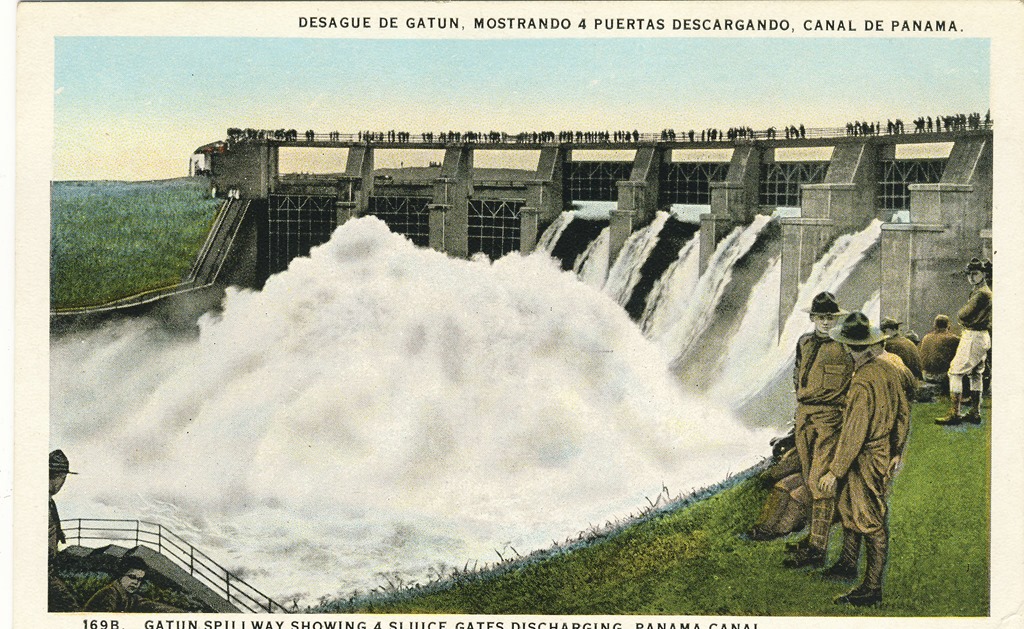
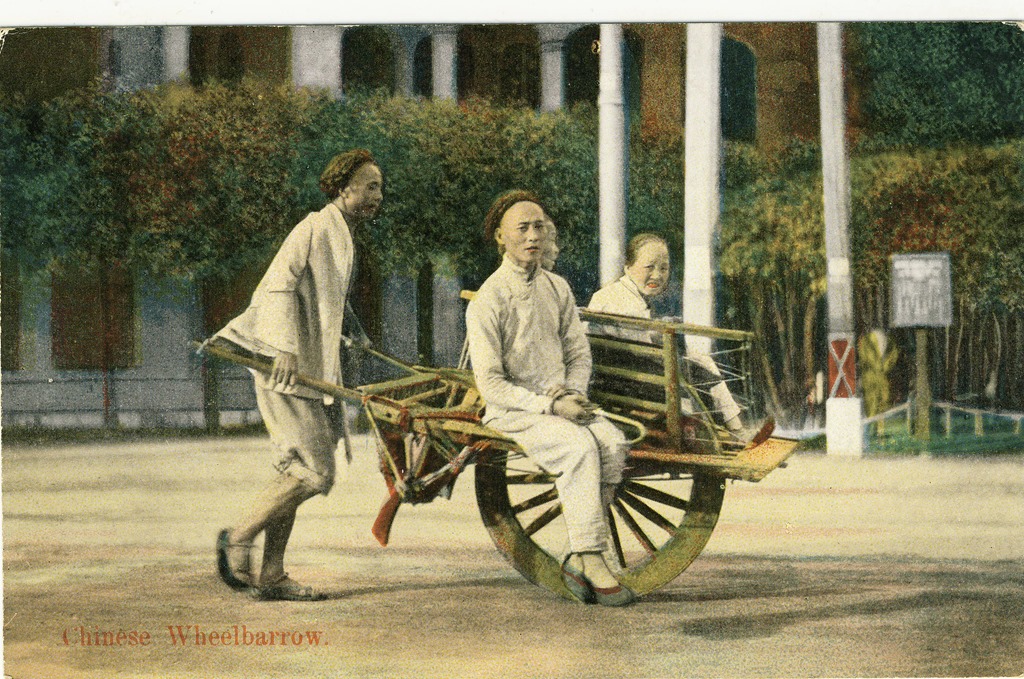
    From there, the ship (and dad) visited Boston, New York, Newport, Panama, Honolulu, Yokohama, Kobe, Shanghai, Hong Kong, Suez, Gibraltar and Rotterdam. Dad bought postcards when he had the chance. Some he would send home – usually to his younger brother, Doug – but others he kept for himself, to remind him of where he had been on this, and subsequent voyages. After his voyaging days were over, he put them in an album where they’ve been ever since. They are a wonderful record of places and peoples that in many cases have changed beyond recognition or even vanished completely.

    Scan10016 Scan10021

    Scan10120

    Scan10035

    Dad wrote of Yokohama:

    The massive destruction of the town by the earthquake in 1923 was there to be seen, and I will always remember the forts at the entrance to the harbour and the large blocks of concrete tossed higgledy-piggledy about.

    Scan10030

    Scan10032

    Scan10029

    Scan10050

    Scan10077

    Scan10063

    Scan10135

    I love the fact that the publisher of this postcard has pasted in, not very convincingly, some ships in the foreground…

    Scan10151

    Scan10166

    Scan10167

    This is just a small selection of about 250 postcards. I think I’ll post a few more illustrating the places he visited in other voyages another time.

  • Windows Live Photo Gallery Revisited

    Last month I mentioned that I was trying out the latest release of Windows Live Photo Gallery, and that I’d run into a couple of bugs. Subsequent to that, I’ve been in communication with the WLPG team trying to sort out the bug whereby WLPG doesn’t seem to be tracking changes to IPTC/XMP keyword metadata.

    I had documented what I’d seen and sent it off to Michael Palermeti, a Program Manager on the WLPG team for investigation. He reported back that the developers could not find anything untoward with the test files and data that I’d provided. They were unable to reproduce the failure to track metadata changes. This struck me as being very odd, since I was clearly seeing the behaviour on two systems at home (my desktop and laptop PCs). So I went back to do more testing. And I think I’ve found out what’s going on.

    It is, as I suspected, associated with the fact that I’m using hierarchical keywords. A hierarchical keyword means that, for example, my keyword trees is actually the leaf node of a hierarchy:

    Objects/built environment/settlements and landscapes/landscapes/natural landscapes/vegetation/trees

    What’s going on is that when I assign a keyword to an image, I also explicitly assign the parent keywords to the image. So when trees is added as a keyword to an image, I’m also explicitly adding the additional strings:

    Objects/built environment/settlements and landscapes/landscapes/natural landscapes/vegetation
    Objects/built environment/settlements and landscapes/landscapes/natural landscapes
    Objects/built environment/settlements and landscapes/landscapes
    Objects/built environment/settlements and landscapes
    Objects/built environment/

    And there’s the problem: WLPG doesn’t seem to register these six instances of hierarchical keywords (trees, vegetation, natural landscapes, landscapes, settlements and landscapes, built environment) properly when they are assigned at the same time as a group. Worse, WLPG will not respond to subsequent deletions or additions to any keywords on the image. It’s almost as though a repetition of a part of a keyword hierarchy has the effect of locking the file as far as WLPG is concerned.

    When I change the method of assigning keywords to simply assigning only the full string once, then for the most part, WLPG appears to be happy. It will correctly register the keyword as a tag, and also track subsequent changes to the keywords.

    However, there is one crucial set of circumstances where WLPG still does not work correctly. That is where I assign keywords that share part of the same hierarchy to an image.

    Let’s take an example. I have a number of images with the keyword natural landscapes assigned (I.e. I have the hierarchical string: Objects/built environment/settlements and landscapes/landscapes/natural landscapes assigned to the images). Subsequently, I want to refine the metadata of some of these images by also assigning the keyword trees to them. So I go ahead and assign trees – in other words I’m adding an additional keyword string:

    Objects/built environment/settlements and landscapes/landscapes/natural landscapes/vegetation/trees to the selected images.

    The problem is that WLPG does not register this change – it continues to display only the natural landscapes tag associated with these images. Because the trees keyword is actually part of the same hierarchy as natural landscapes, WLPG fails to work properly and add this additional keyword string as an additional tag.

    What I actually have to do is explicitly delete the natural landscapes keyword from these images before I add the trees keyword to the images. This also has the effect of never being able (in WLPG) of having both the natural landscapes and trees tags associated with the same image because they are part of the same hierarchy. This strikes me as being somewhat of a limitation… In fact, I would say that it’s a bug, since now I cannot have certain combination of keywords associated with my files and have them tagged correctly in WLPG. Take house, castle, and dining room. They all share parent keywords in common in my hierarchy, so within WLPG I cannot tag images in such a way that will distinguish between a dining room in a castle and a dining room in a house. I suspect that this all goes back to the design decision that appears to have been made for WLPG that selecting multiple tags is an OR function and not an AND function. In my opinion, that was a very bad decision, but that’s another story

    Anyway, to sum up, I’ve now found out that WLPG cannot cope with multiple instances of hierarchical keywords that share the same parents. I hope that it can be fixed in future versions.