Reflections on life at “De Witte Wand”…

Category: Photography

  • Windows Photo Gallery, Geotags and Other Issues

    Microsoft has recently released a new version of Windows Live Photo Gallery. In keeping with Microsoft’s plan to kill off the “Live” branding, it is now simply known as “Photo Gallery”, and the suite of software utilities is now known as Windows Essentials, rather than the old name of Windows Live Essentials.

    Since this is a step change in the software (it’s now at version 16.4.3503.728, while the last version of Windows Live Photo Gallery was 15.4.3538.513), I thought I’d take another look at it.

    Apart from the name change, not much seems to have been done with the product. Yes, Microsoft has added in the possibility to publish videos to the Vimeo service and Photo Gallery now includes an Auto-Collage feature by default (this was a downloadable plug-in for the previous version), but that’s about it.

    However, while playing around with it, I discovered there was an issue with the way in which Photo Gallery was handling geotags.

    Some of you may recall that, when it was first released in 2010, Windows Live Photo Gallery had a major problem with geotags.  It was writing out GPS coordinate data into photos that was often completely wrong. Microsoft got this fixed in December 2010.

    And there the matter rested, or so I thought.

    However, I have discovered another issue related to geotags in Photo Gallery. For a long time now, Microsoft has said that it holds to the principle that “the truth is in the file”. That means that metadata you apply to your photos is part of the photo, and available to any application that knows how to read it. But I’ve found that this does not apply to geotags in all cases. Photo Gallery looks to see if the image contains metadata, and if so, the following operations occur:

    • If the photo contains Keywords in its metadata, these are added to PG’s list of Descriptive Tags, which it holds in its database and displayed alongside the photo in PG’s information pane. 
    • If the photo contains technical data in Exif (e.g. date taken, shutter and ISO speeds, etc.), these will be copied to PG’s database and displayed in PG’s information pane.
    • If the photo contains GPS coordinates in its metadata when it’s examined by PG, reverse geocoding will be triggered and the location is displayed as text addresses in the information pane.

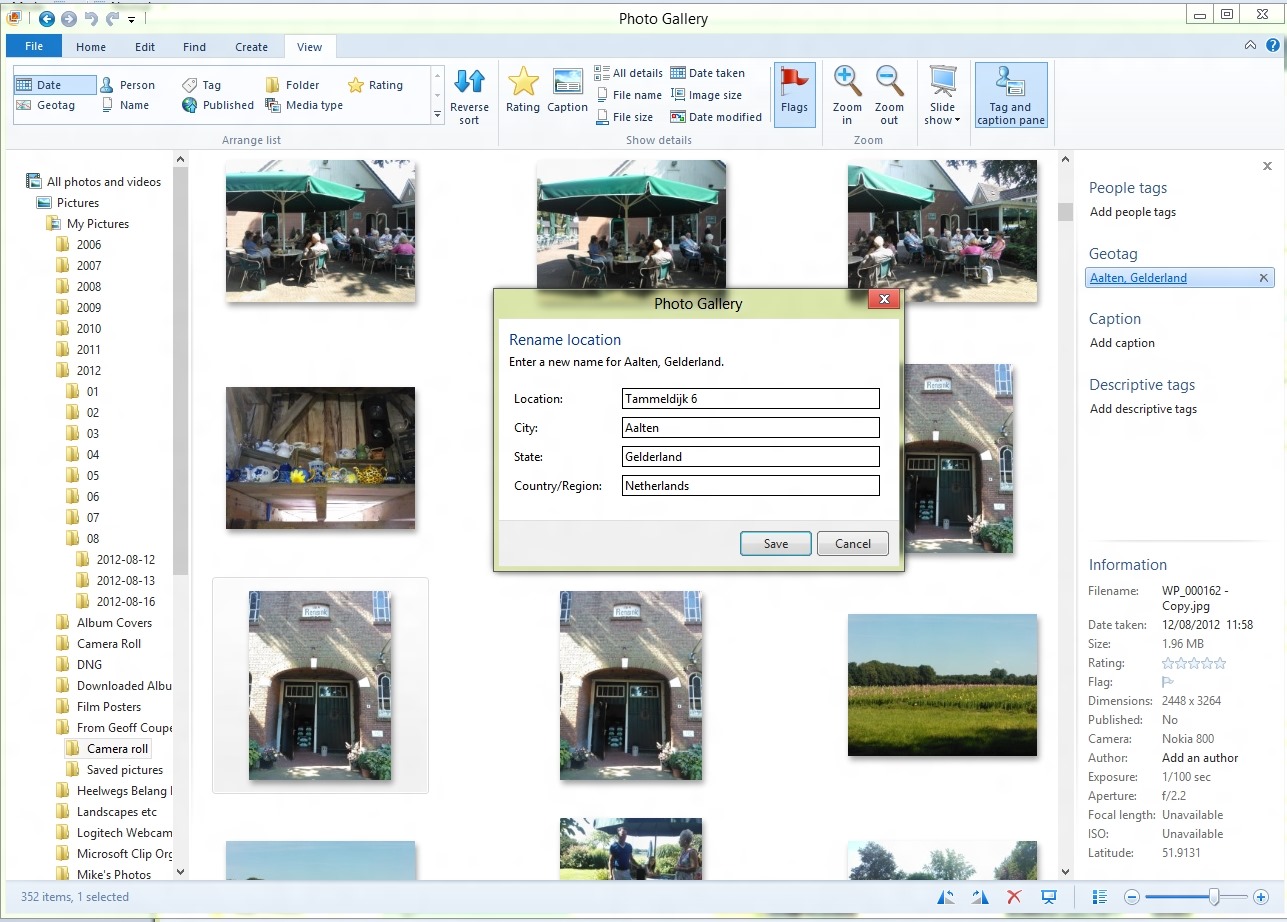
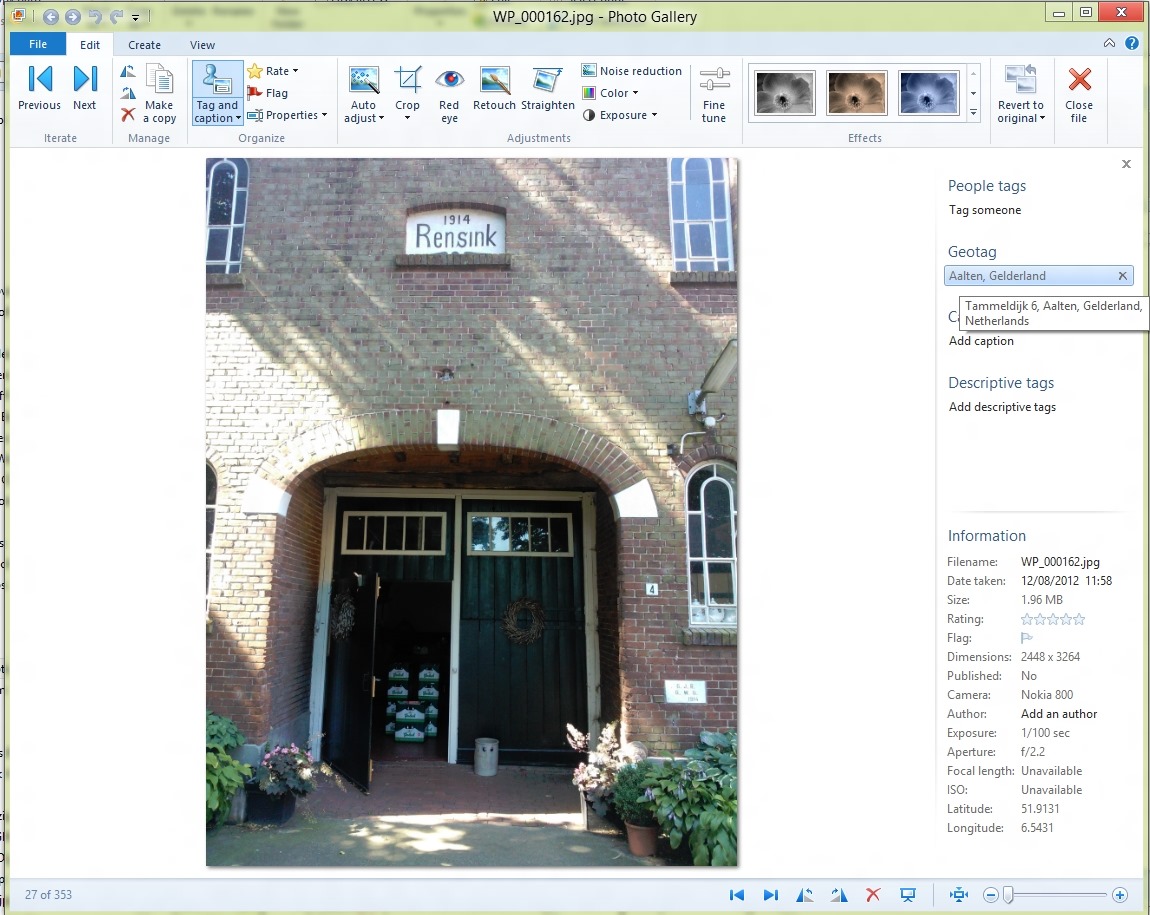
    The screenshot below shows a photo taken with my Nokia Lumia 800 Windows Phone being displayed in Photo Gallery (click for the full-sized image).

    WPG test 10

    In the information pane on the right, you can see some of the metadata present in the image being shown, including the GPS Latitude and Longitude (at the bottom right). Photo Gallery has used this GPS data to do reverse geocoding via a Bing service to resolve the coordinates to an address. That is being shown under the Geotag heading in the information pane. By default, only the City and Province/State data is shown (i.e. Aalten, Gelderland in this case). The full address is shown in a tooltip if the mouse cursor is placed over the Geotag – in this case, Bing has said that the GPS data is for the location: Tammeldijk 6, Aalten, Gelderland, Netherlands.

    As an aside, Bing has actually got the address wrong. It should be Tammeldijk 4, not 6. Google Maps will show the correct address, if fed these GPS coordinates…

    So, Photo Gallery has just generated some location data based on the GPS coordinates. Now the question is, how is it going to stay with the principle of “the truth is in the file”? It needs to write this generated data out into the image metadata in some fashion. How will it do this, and what standard will it use? I need to make a short digression here into the murky waters of industry standards…

    One very common industry standard for location (and other) metadata used in photos is that defined by the International Press and Telecommunications Council. Back in the early 1990s, the IPTC defined a standard for image metadata: IPTC-IIM. This became widely adopted and supported in many software tools and applications. However, it had design limitations, and the IPTC introduced a new version in 2005, based on the XMP standard, known as IPTC Core. Many software tools and applications handle both standards, and keep the metadata content synchronised between the legacy IIM and the new Core standards. Along with the Core standard, the IPTC also published a set of extensions, known, unsurprisingly, as Extension. The IPTC Core and Extension are published together as the IPTC Photo Metadata Standards.

    Both IPTC-IIM and IPTC Core contain fields for defining locations. Essentially, both define a hierarchy of (sub)location, city, state/province, country and country code. I, like many other photographers, use these fields for assigning locations to my photographs.

    However, somewhere along the line, photographers realised that the term “location” was ambiguous. Did it refer to where the photograph was taken, or did it refer to the location depicted in the photograph? These were not necessarily the same place. The standards did not specify a resolution to this conundrum. That is why, in the IPTC Extension standard, there are two sets of location fields: the location where the photograph was created, and the location depicted in the image.

    Clearly, the GPS coordinates reflect the location where the photograph was created, and Microsoft elected to use the IPTC Extension LocationCreated fields to store the results of the reverse geocoding lookup. The correct decision, in my opinion.

    Back in 2010 when I found that false GPS coordinates were being written out to my photos, what was happening was that Windows Live Photo Gallery was doing the following:

    • If a file contained IPTC-IIM or Core location metadata when it was brought into WLPG, then WLPG used the IPTC Location data to set the location strings in the geotag field of the info pane, and wrote them out into the image metadata as IPTC LocationCreated fields.
    • If the file did not contain GPS coordinates, WLPG would attempt to use the Location metadata with a Bing lookup to get the closest match for the GPS coordinates. In many cases, “the closest match” was miles away, or even in another country…
    • WLPG would then write out its idea of the “correct” GPS coordinates into the Exif metadata of the image.

    I, and other photographers, who had been using IPTC-IIM/Core location metadata, suddenly found our photo collections filled with false GPS coordinates. We complained, and Microsoft responded and changed the way in which WLPG worked. Microsoft told me the changes were:

    • GPS coordinates on a file are read-only inside of WLPG.  WLPG will never add, change or delete the GPS coordinates.
    • If a file contains GPS coordinates when it’s brought in to WLPG, reverse geocoding will be triggered and location strings are displayed in the info pane, users can rename or remove the strings but GPS coordinates won’t be touched. Users may Rename a location but it will then leave a mismatch between the coordinates and the string since the coordinates are read-only.
    • If a file does not contain GPS coordinates, users will be able to geotag by adding a string (that gets validated against Bing as it does today) but no GPS coordinates are added to the file.  The user can remove the string or rename it.
    • If the file contains a geo name only, there will be no GPS coordinates calculated for it.

    What I now see that I missed at the time is that WLPG, and now PG, no longer write out the result of a reverse geocode lookup into the IPTC Extension LocationCreated fields when the lookup is triggered by the presence of GPS coordinates in the image.

    The only time that LocationCreated metadata gets written out into the image is when the user makes an explicit change to the geotag information in PG. And it has to be a real change. I can open up the “rename location” panel, and click “Save”, but unless I’ve actually made a change in the data, nothing gets written out as metadata – the geotag information resides solely in Photo Gallery’s local database. In other words, the truth is no longer in the file.

    This screenshot shows the “rename location” panel. Clicking “save” does not make Photo Gallery write out the metadata, because I’ve left the contents unchanged.

    WPG test 2

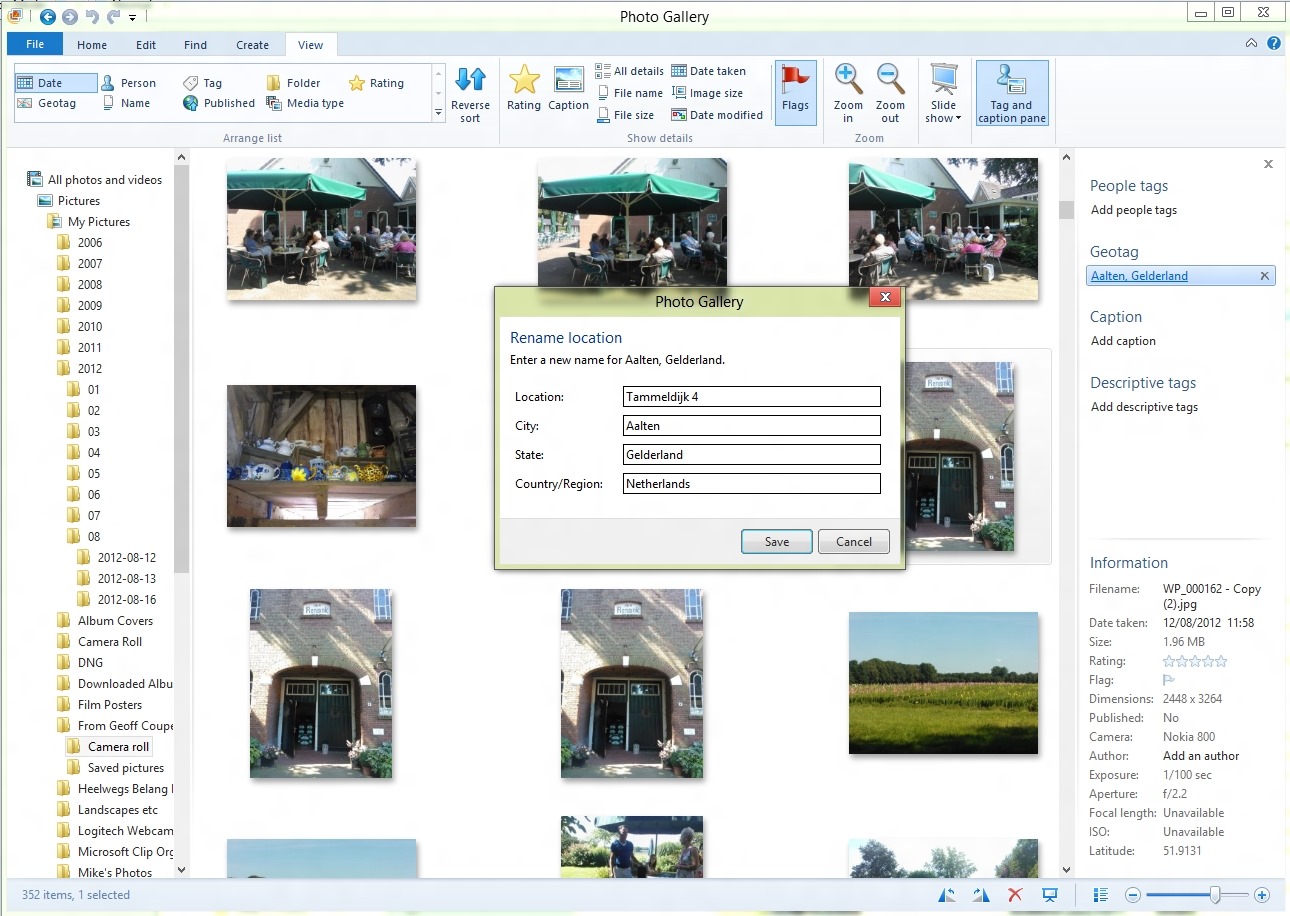
    In this screenshot, I’ve changed “Tammeldijk 6” to “Tammeldijk 4”, and now when I clicked “Save”, the LocationCreated metadata was written out.

    WPG test 3

    This strikes me as a bit counter-intuitive. I would think that clicking “Save” in both cases should force a write of metadata. After all, if Microsoft is going to say that writing out of metadata should be under the explicit control of the user (which I tend to agree with), then even if I don’t change the result of the reverse lookup, I should be able to confirm my acceptance of it by the act of clicking “Save”. If I don’t want PG to write out the metadata, then I would click “Cancel” instead.

    So we currently have here a design where “the truth is in the file” is not fully in place, and where user confirmation is inconsistent.

    That’s poor design, and a poor user experience, in my book.

    I have to say that in one way, I’m rather thankful that the design is still broken. That’s because one of the other bugs in Photo Gallery is still present: it corrupts Canon Makernotes data when it writes out metadata to images. Just imagine: Photo Gallery would be finding location data or GPS coordinates in my photos and writing out LocationCreated metadata to those images. And in doing so, it would be merrily corrupting the Makernotes metadata in every single one of those images. Shudder.

  • Thoughts on the Windows 8 Release Preview

    I must admit, since Windows 8 is going to be released in October 2012, I was expecting Microsoft’s Metro Apps in the Windows 8 Release Preview to be more fully functional than they are. To my mind, they are still little better than toy demos. Yes, I know that they are still labelled “Previews”, but there’s precious little time left before October, and an enormous amount of functional ground left to cover.

    For example, the Mail App still doesn’t have IMAP or POP support. This is a staggering omission, since these protocols are the foundation on which internet email clients have been based for years. Then there’s all the extra stuff in the Windows Live Mail client that is missing from the Metro App, such as message rules or the ability to define extra storage folders. Since my email is hosted on an IMAP mail server by my internet service provider, I haven’t been able to use the Metro Mail App in earnest. There may well be other shortcomings that I haven’t discovered yet.

    The Music App only has four views of your music library: songs, albums, artists and playlists, as shown in this screenshot:

    W8RP 04

    Since you can’t define your own additional views, I miss the sorting by genre or composer that I have in Windows Media Player or Windows Media Center. And where is “Play to” or Podcast support? Missing in action, it would seem.

    The Photos App is still only a viewer, not an organizer/editor/metadata tagger in the manner of Windows Live Photo Gallery or Picasa.

    And then there are the bugs.

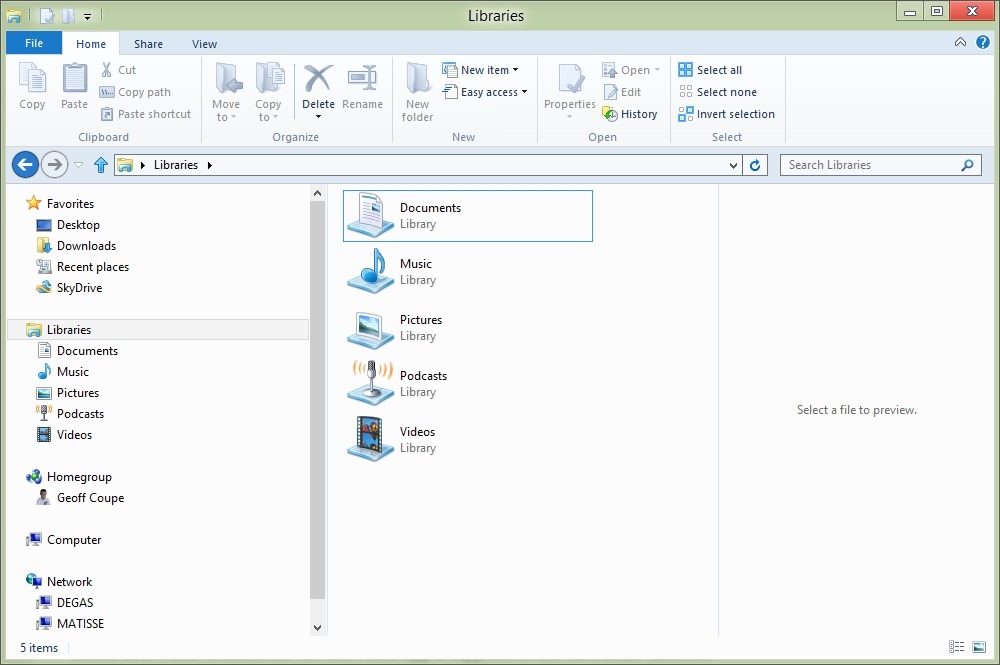
    For example, amazingly, it turns out that the Photos App cannot deal with photos that are stored on a Windows Home Server. The Photos App is supposed to use the Picture Libraries that you define in Windows 8. In both Windows 7 and Windows 8, you have a standard set of libraries defined for your media. See this screenshot:

    W8RP 01

    The Documents, Music, Pictures and Videos libraries are defined by default in installations of Windows 7 or Windows 8. If you install the Zune client (which is currently needed to support Windows Phones), then you get a Library defined for Podcasts as well.

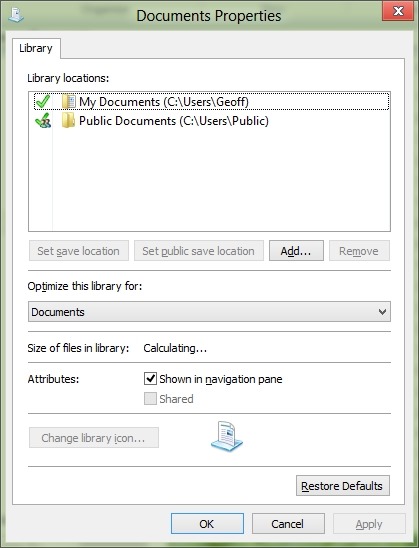
    By default, each of these libraries point to the corresponding folder in your Windows account on your PC, plus a pointer to the corresponding folder in the Public account on your PC. Here’s the pointers for the Documents library as an example:

    W8RP 02

    You can add additional pointers to folder hierarchies held locally on your PC, or network locations. If you have a Windows Home Server, then it will automatically add pointers to the corresponding Shared Folders on the server. Here’s a screenshot of the pointers to my music folders in the Music Library as an example:

    W8RP 03

    However, it turns out that the Photos App can only handle local folders, not network locations, such as the Shared Folder for pictures held on a Windows Home Server.

    This is even more curious when you realise that the Music App can handle music held in the Shared Folder for music on a Windows Home Server… That screenshot above of the Music App is showing music stored on my Windows Home Server.

    Now, the team responsible for the Photos App have admitted this is an issue. In this thread on the Microsoft Answers forum, Analy Otero, a member of the Photos App’s team states:

    The Photos team is aware of the concerns and issues that surround network locations, removable storage and Windows Home Servers. Unfortunately there are technical limitations to supporting them completely and correctly and as you have noted those locations are not supported in the Release Preview version either. 

    Rest assured that we are want to see these scenarios work and we aspire to support them just as all of you do so that you can use the Photos app as one place to see all of your photos regardless of where they are.

    If you have your photos in other PCs (Vista, Win7 or Win8 machines) you have the option to install the recently released SkyDrive client on them to be able to fetch files from them from anywhere. This includes being able to browse all your photos (and videos) from the Photos app as well. Definitely check it out if you have a chance.

    Thanks for the feedback, we’re definitely are listening and understand that support for WHS and other network locations is important for you.

    Notice that she mentions that the SkyDrive client can be used as a workaround to allow the Photos App to access files and folders held on other PCs in your network. It’s not clear whether the client is officially supported on the WHS operating system. This post on the SkyDrive forum does say that it will run on Windows Server 2008 R2, and that is the operating system that underlies WHS 2011. However, whether this also means that Microsoft will support the use of the client on WHS 2011 is another matter.  Update: Analy Otero has confirmed that Microsoft does not support the use of the SkyDrive client on WHS 2011, and it won’t install at all on WHS v1.

    I downloaded the SkyDrive client onto my Windows 8 system (which is 64bit), and then copied it across to my WHS 2011 (this is a 64bit operating system). I then did a Remote Desktop connection into my (headless) WHS, and successfully installed the client.

    Sure enough, the client then started synchronizing with my SkyDrive photos, but interestingly, something else also started happening… When I next opened the Metro Photo App, an additional pane had appeared on the opening screen – it was for “Degas” – the name of my WHS 2011 system.

    W8RP 05

    This view of the pictures folder on my Windows Home Server is not the default Pictures Shared Folder. Instead, it appears to be mapped to the Pictures folder of the Public user on WHS 2011. Now, while this is logical when the SkyDrive client is installed on a Vista, Windows 7, or Windows 8 PC, it makes no sense at all for a Windows Home Server. For one thing, no user account folders, including the Public user account folders, are ever exposed over the network in a standard Windows Home Server setup. A standard WHS 2011 system uses Shared Folders that are not tied to the Public user account.

    WHS2011 57a

    Also, I discovered that the Public Folders are only exposed so long as you are logged on to the Administrator’s Desktop (so that the SkyDrive Client runs). So if you want to use this workaround, you’re going to have to Remote Desktop in to your WHS, and populate the Pictures folder of the Public user account and keep logged on via Remote Desktop; photos in the standard Shared Folder for Pictures simply aren’t accessible by the Photos App. In my opinion, it’s a kludge. An unsupported kludge. Sigh.

    Update: I’ve gathered together in one place all the bugs, quirks and WTFs that I’ve found thus far with Windows 8. Check it out if you want to see the full list.

  • Lightroom 4 – A Mixed Blessing?

    Adobe has just released the latest version of their Swiss Army knife for digital photography: Lightroom 4.

    Since there’s a free trial available (which lasts for 30 days), I thought I’d download it and give it a go.

    Lightroom is a Digital Asset Management (DAM) tool for digital photographs. That is to say, it covers all aspects of dealing with digital photos, such as acquisition of the photos from the camera, selecting the ones to keep, editing for the final versions, organisation of photo collections, and publishing.

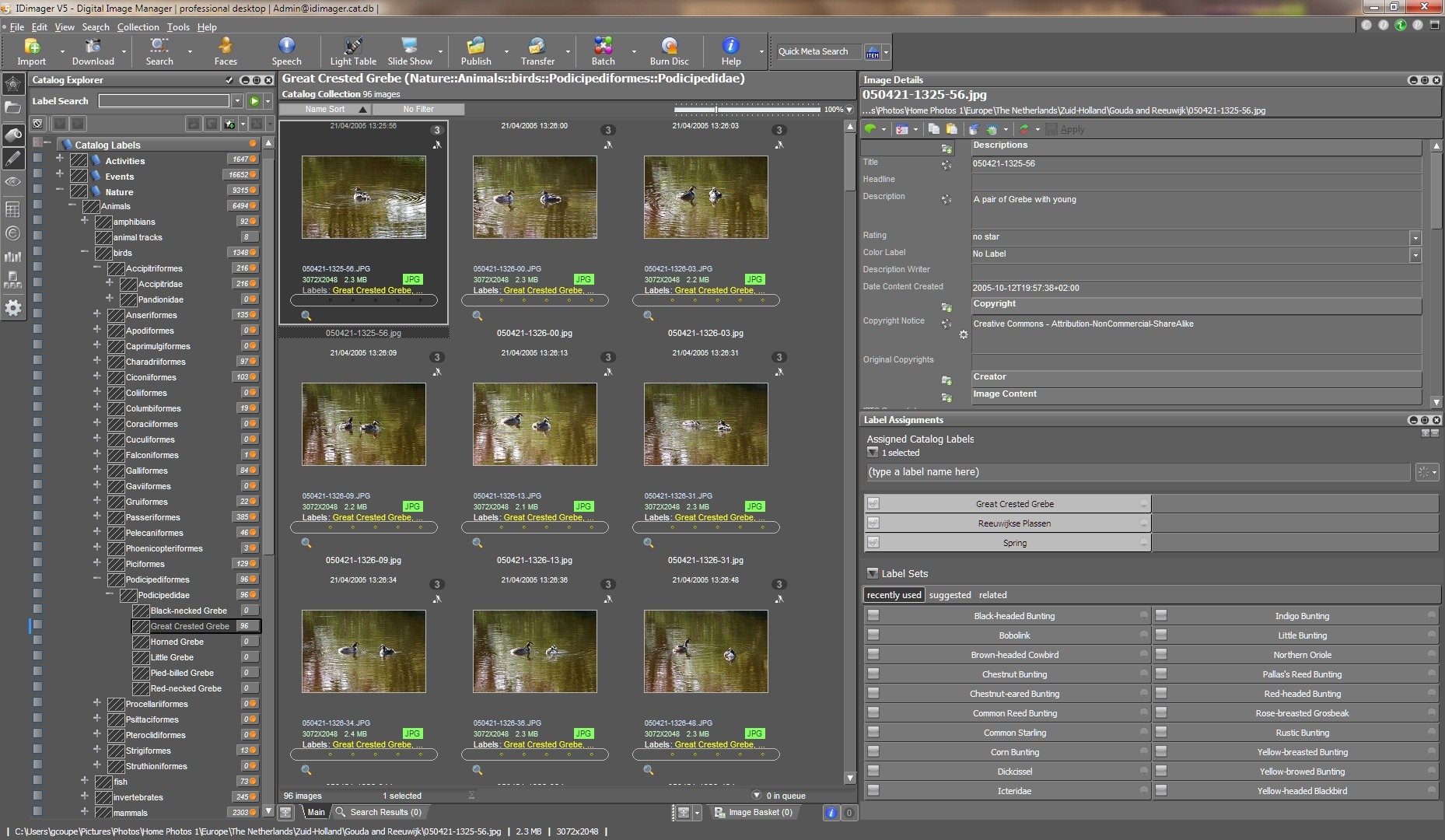
    At the moment, I use IDimager as my DAM tool, so I was interested to see how this latest version of Lightroom would compare. In some respects, the two tools are fairly similar, but there are also some substantial differences. (Note: IDimager is no longer available. Its successor is Photo Supreme, which I am now using)

    One area that I found to be similar is the acquisition process – getting your photos off a camera’s memory card and into your PC environment. Both products allow flexible renaming of your files, and applying metadata templates to the resulting files as part of the acquisition process. So far, so good.

    Once the files are in the tools’ workspaces then the main work of selecting the photos you want to keep and adding metadata to help organise the collection can begin in earnest. Again, both Lightroom and IDimager have similar features. For example, you can rapidly compare photos side-by-side in a virtual “light table” to aid in selection of those images that you want to keep.

    However, I quickly ran into a couple of issues with Lightroom’s handling of photo metadata that, for me, are quite serious.

    First, some background. Both Lightroom and IDimager use the concept of a Catalogue to hold a list of keywords that are used to organise your photo collection (or collections). While this list of keywords can be just a simple list, both products support, and encourage, the use of a keyword hierarchy for ease of use and flexibility.

    As I described a while back, the keyword hierarchy I use has been built up from a number of sources:

    I’ve ended up with a structure that has the following items at the top level of the hierarchy:

    • Activities
    • Events
    • Nature
    • Objects
    • People
    • Places
    • Science
    • Styles

    Each of these splits down into further categories as necessary as you go down the levels. For example, Activities splits into

    • Disciplines
    • Hobbies
    • Physical and mental activities
    • Processes and techniques

    So then a photo of a tennis match would have the structured keyword string of Activities/physical and mental activities/games/sports/ball game/tennisassigned to it.

    You’ll notice that I’m using the “/” character to separate the various levels contained in a keyword. The choice of the separation character is arbitrary, some applications use the period (“.”) or the pipe (“|”) character , since there is no industry standard at the moment. A standard for handling keyword hierarchies in image metadata has been proposed (by the Metadata Working Group), but as far as I am aware, there is no product on the market that implements it as yet.

    I chose the “/” character because Microsoft’s Windows Live Photo Galleryuses it as the separator to structure the keyword hierarchy (Microsoft calls keywords “Tags” in Windows Live Photo Gallery).

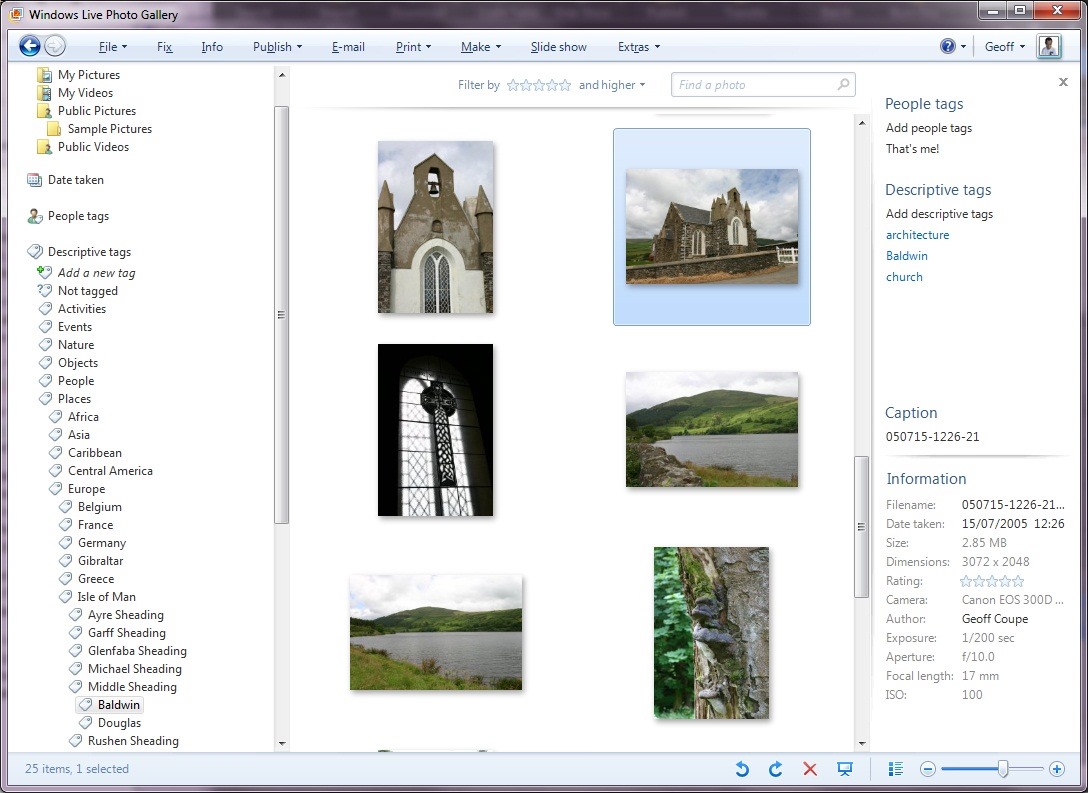
    For example, here’s a screenshot of Windows Live Photo Gallery with a thumbnail photo of a church in the Isle of Man shown being selected (the light blue frame around the image).

    Church2

    You can see, on the right of the screenshot, that the photo has three keywords (tags) associated with it: architecture, Baldwin, church. These are actually all structured keywords stored in the photo’s metadata as:

    • Styles/design/architecture
    • Places/Europe/Isle of Man/Middle Sheading/Baldwin
    • Objects/built environment/buildings/ceremonial buildings/religious buildings/church

    You can see part of the “Places” hierarchy being shown on the left of the screenshot, with the “Baldwin” tag being highlighted.

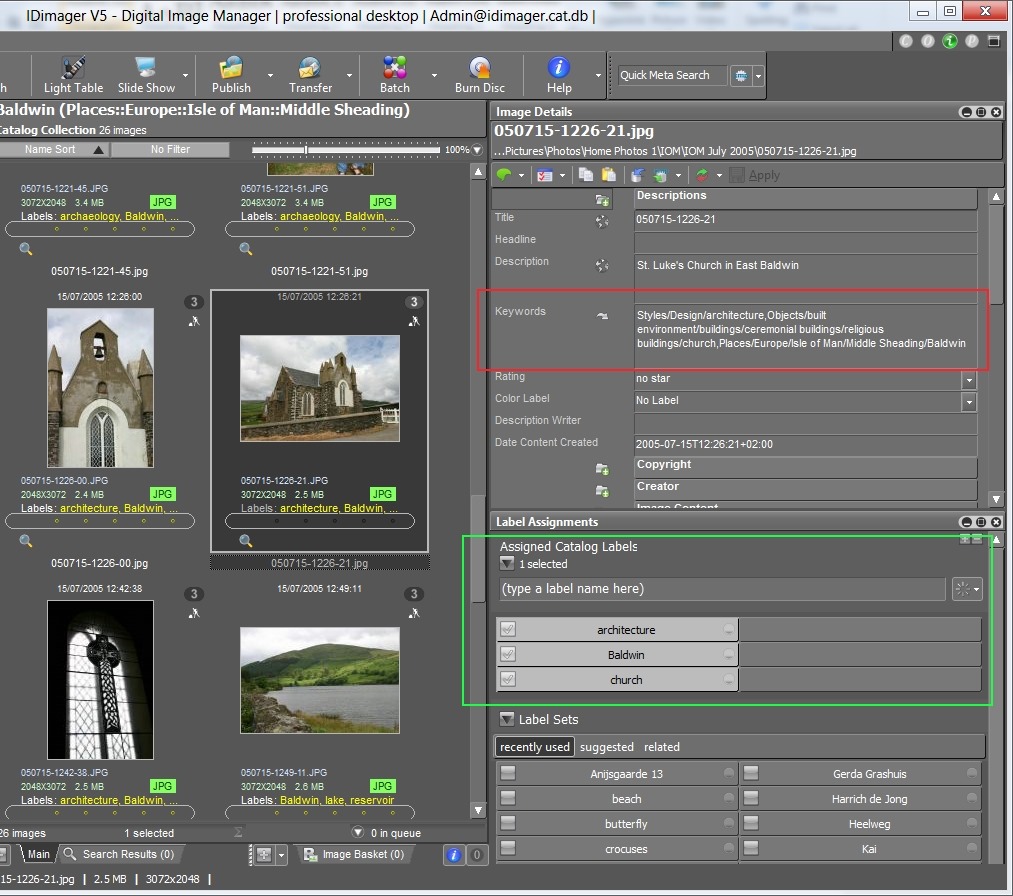
    Because Windows Live Photo Gallery is easy to use for other family members, I’ve adopted this method of implementing a keyword hierarchy, i.e. using the “/” separator, in my main DAM tool: IDimager. Here’s a screenshot of IDimager showing the same photo:

    Church1

    You can see on the left that IDimager uses the same keyword hierarchy. And on the right of the screenshot, you see the keyword strings that are being stored in the photo’s metadata.

    Now, the reason that both IDimager and Windows Live Photo Gallery have the same keyword hierarchy is that both tools are constructing it from the keywords stored in the photo metadata. And because they understand that the “/” is the separator character, they build up the same keyword structure on the fly as they read the photos in my collection. IDimager is the more flexible of the two applications, since you can define different separator characters if necessary. WLPG is fixed, and only understands the “/” character.

    So, what happens with Lightroom 4?

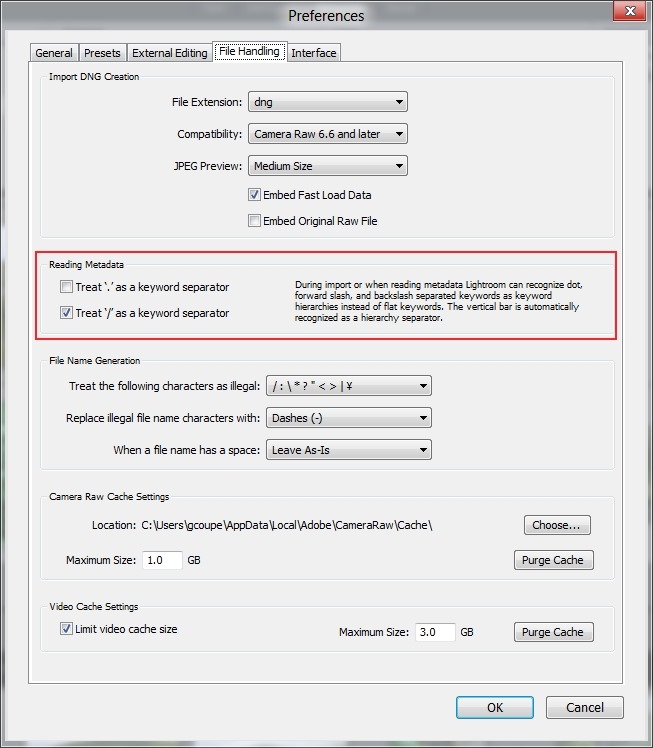
    Well, at first I thought everything was going to play nicely together. Just as with IDimager, Lightroom 4 has an option to choose the separator character that you want to use when reading the keywords in your photo metadata:

    LR4 002

    I’ve chosen “/” as the separator character – the same as for IDimager and WLPG.

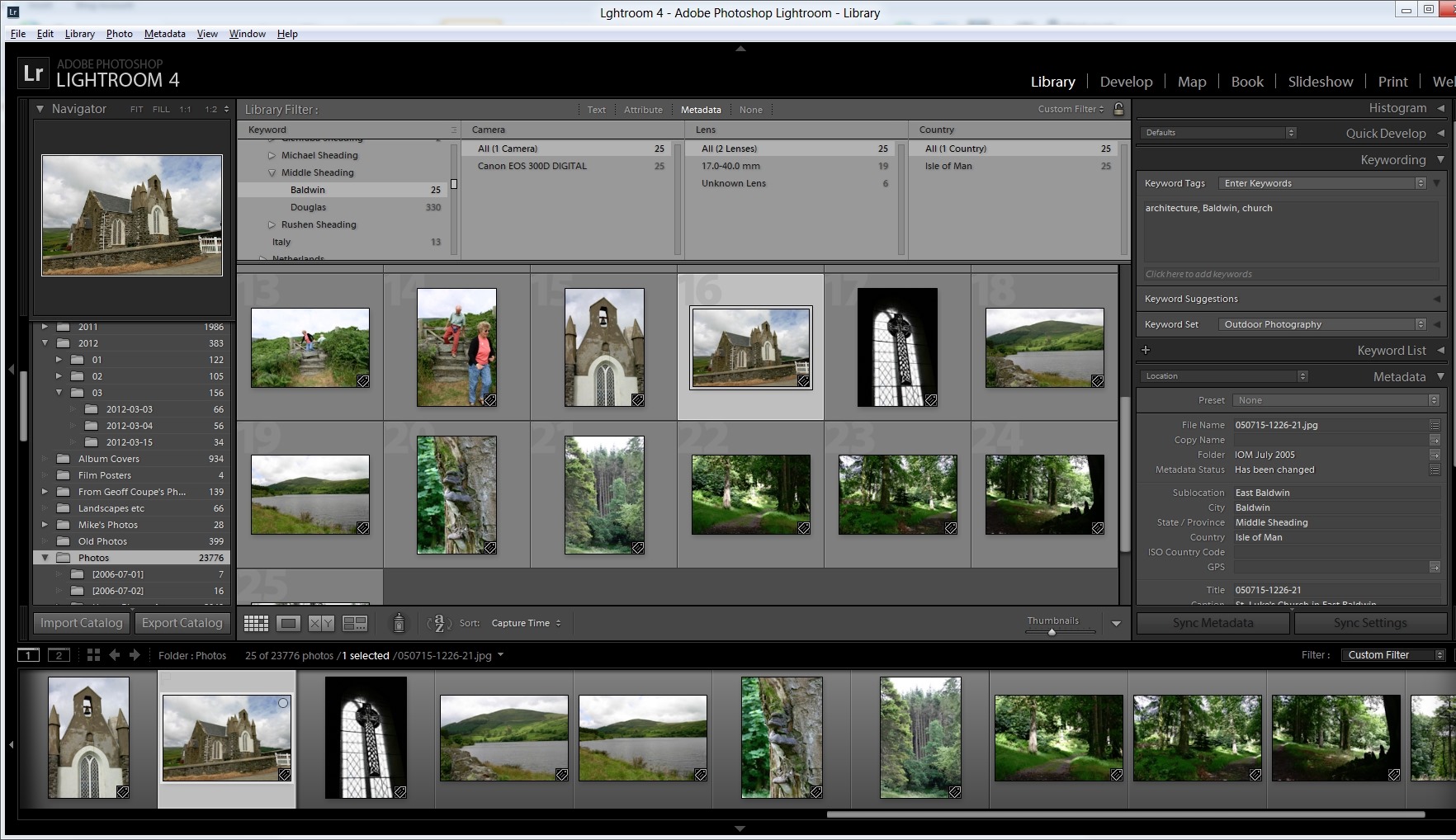
    Sure enough, when I imported my photo collection into Lightroom 4, the keyword hierarchy got reconstructed to match the ones in IDimager and WLPG (click on the screenshot to see it full-size in a new window):

    Church3

    But then things started to go wrong.

    First, I discovered that although this process of recognising the separator works when importing photos into the Lightroom 4 Catalogue, it doesn’t work when reading metadata from individual photos – even though Lightroom claims it does (see the text in the “Preferences” screenshot above).

    I added the keyword “Christmas” to a photo using IDimager. This is a structured keyword, so the keyword string that was written to the photo’s metadata was actually: Events/holidays/Christmas. Lightroom 4 correctly saw that the photo had had its metadata altered, but when I used Lightroom to read in the photo metadata, instead of adding the photo to the “Christmas” keyword in the existing hierarchy in its Catalogue, it created a brand-new single-level keyword string: Events/holidays/Christmas – it did not treat the “/” character as a level separator.

    Now, this, I think is a simple bug, and has been reported as such. However, much to my dismay, I discovered I was not out of the woods yet.

    Up to now, I use IDimager to do all my keyword work. When a keyword in the IDimager Catalogue is assigned to a photo, IDimager will write out the structured keyword string into the photo, and WLPG will then pick up the change and modify its own Catalogue of tags automatically.

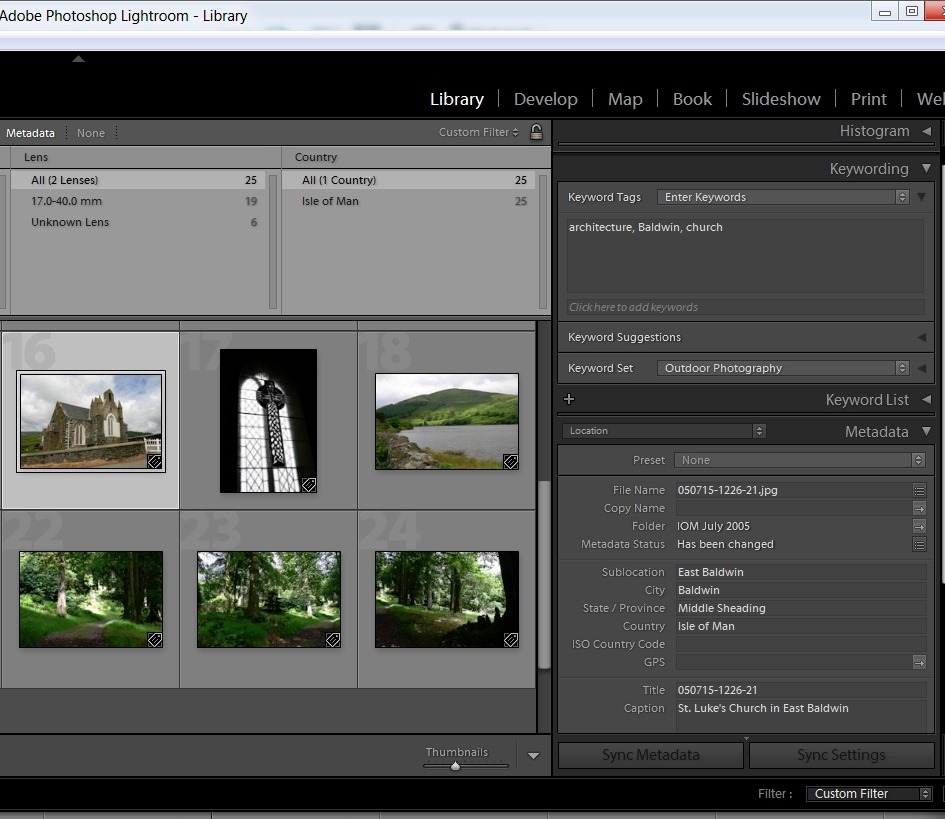
    As a test, let’s use that photo of the church in Baldwin in the Isle of Man. Here you can see the current keywords assigned to it: architecture, Baldwin, church, as seen in Lightroom 4.

    LR4 003

    Remember, these are all structured keywords with a hierarchy. Lightroom, like WLPG, is just showing the lowest level of each keyword. Using IDimager, I can look at both the actual photo metadata (showing the full keyword strings), highlighted in red, as well as the Catalogue keywords/labels, highlighted in green:

    Church4

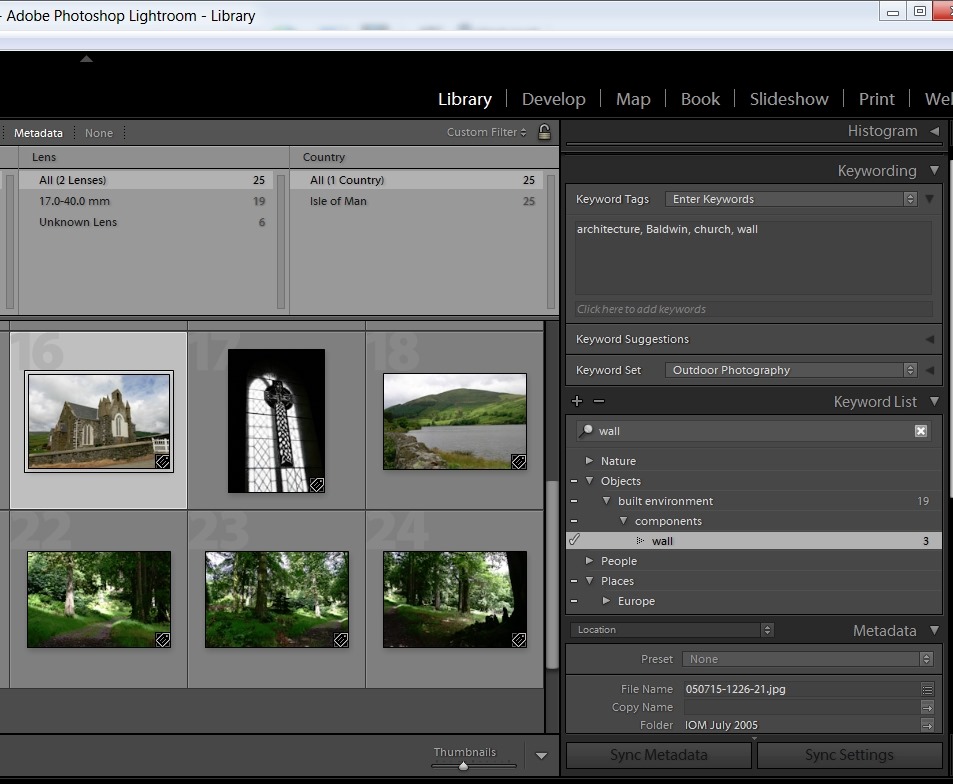
    Now, let’s use Lightroom 4 to add a keyword to the photo, and then get Lightroom 4 to write out the changed metadata into the photo. Here, I’ve added the keyword wall:

    LR4 004

    Looking at the photo in IDimager, what do I see:

    Church5

    Disaster! Lightroom has not written out a structured keyword string, but a series of individual keywords separated by commas. While IDimager has been able to sort the wheat from the chaff (the labels, highlighted in green, show that it knows that the structured keyword wall has been added), Windows Live Photo Gallery is not so clever.

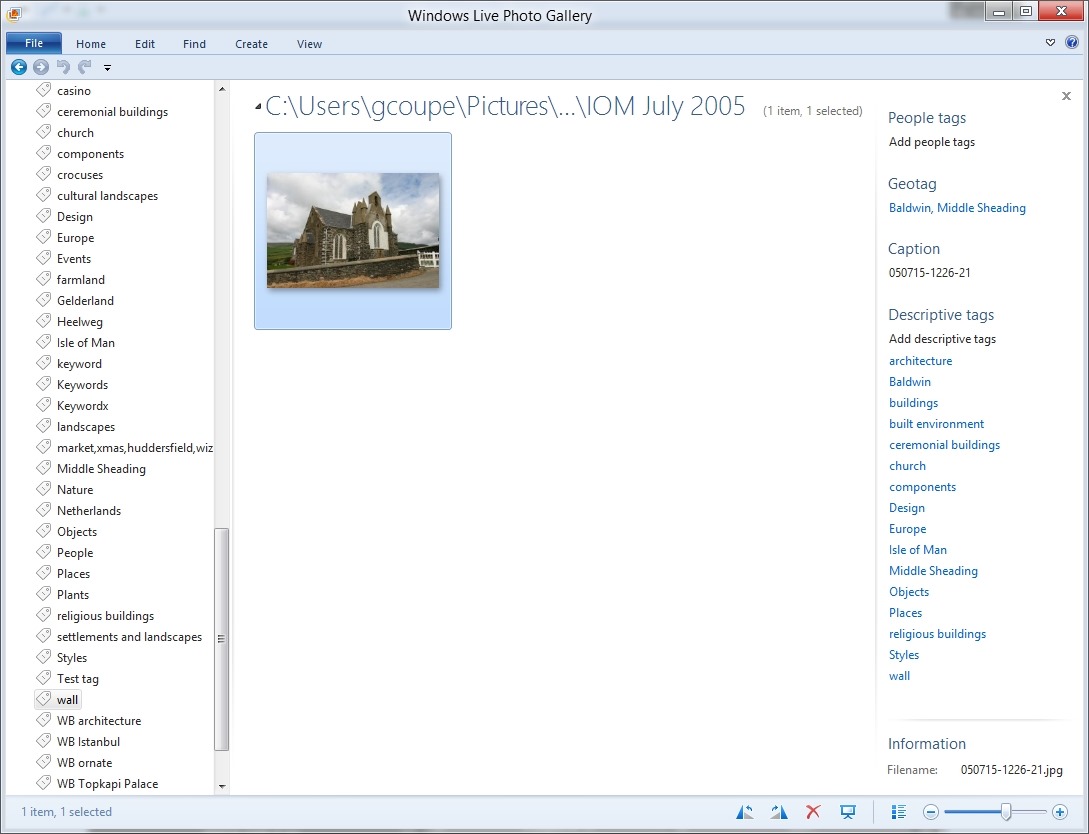
    Church6

    It is now showing all the individual keywords assigned to the image, and worse, it has created new, false, levels in the keyword hierarchy shown on the left in the screenshot. For example, wall is now shown as a top-level keyword.

    So Lightroom 4 will read structured keyword strings using the “/” character as a separator from photo metadata, but, unlike IDimager, it will not write out structured keyword strings to photo metadata. Instead it writes single level keywords and additional, Adobe-proprietary, metadata to describe the hierarchy. This is, apparently, expected behaviour.

    Well, it may be expected, but it’s pretty much useless to me if I want to keep WLPG as the easy to use browser for others in the family. If I use Lightroom 4 to do any metadata work, it will destroy the keyword structure that I use as far as other programs are concerned.

    So where does this leave me, as far as the trial of Lightroom 4 is concerned?

    I have to say that the Lightroom tools for editing and developing photos (especially those in RAW format) are far in advance of anything that IDimager or WLPG possess. So while I could continue to use IDimager for metadata work, I could supplement that with the image adjustment tools of Lightroom 4. Frankly, the other modules of Lightroom (Map, Book, Print and Web) are of little use to me; my other tools give me all that I require in those areas. So, are the image adjustment tools of Lightroom alone worth an investment of 130 Euros to me? If I were heavily into manipulating my images using the RAW format, then, yes, very probably. But at the moment? To be honest, I’m not sure.

  • A False Sense of Security

    A while back, I was a frequent visitor to the Microsoft support forum for Windows Live Photo Gallery. There was a particularly bad bug in WLPG that I was bitten by, back in November 2010. Since that was fixed, I’ve been only an occasional visitor to the support forum. I go there mainly to see what sort of issues are being reported, and also to see what the quality of support from Microsoft is like.

    The last couple of visits have made me think that there’s yet another bad bug in WLPG that Microsoft have not yet realised is present.

    It started with this statement being posted by a user back in December 2011: Windows Live Photo Galley doesn’t write metadata to the file, only to the database.

    The response from the Windows Live Support person was misleading and wrong:

    Currently, Live Photo Gallery’s slideshow doesn’t support embedding captions or other metadata in the photo. If you feel that such a feature can improve the product, I suggest you submit this as request to our product team. You may post it in our feedback page at https://feedback.live.com/.

    Misleading, because the original statement had nothing to do with the Slideshow feature in WLPG, and wrong, because as I posted on the forum thread: with one exception, WLPG does write metadata into JPEG files. WLPG will save Descriptive Tags, Captions, Geotags, People Tags (if you’ve identified faces in the image) and Ratings as metadata into JPEG files, as well as holding this information in its local database. However, WLPG does not save Flags as metadata in the image files, but only in its local database.

    There was, alas, no further follow-up from Windows Live Support to the issue.

    Then I noticed another thread in the forum that concerned an issue with metadata: Lost metadata from Photo Gallery. This time, it concerned someone who had bought a new PC and transferred the photo files from his/her old PC, only to find that all the “Date taken” metadata of the photos was wrong.

    Once again, the Windows Live Support person jumped to the wrong conclusions, and gave irrelevant advice. There then followed much to-ing and fro-ing between the original poster and a succession of Windows Live Support people. Not one of them cottoned on to the salient fact that the cause of the issue was that the WLPG running on the old PC had not been writing out metadata into the photo files as it should have been doing. So when the photos got transferred to the new PC, all the metadata changes that the user had done got left behind in the local database of WLPG on the old PC.

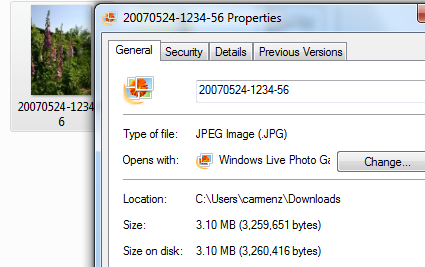
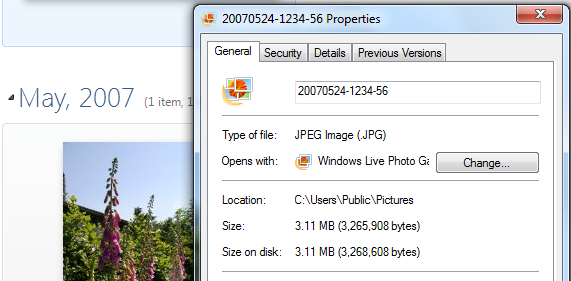
    I pointed this out in the thread, and someone else chimed in saying that he was seeing it on one of his PCs – WLPG was not writing out metadata into the photo files as it should do. Together, we came up with a simple test for this issue. In WLPG, select a photo, right-click and select “Properties”. This brings up the Properties window of the file itself. Many of the fields in this window are directly editable, e.g. the “Date taken” field. If everything is working correctly, you should be able to edit these fields, and the changes are being written into the file’s metadata directly. If, however, WLPG is not working correctly, then these fields cannot be changed. It’s as though WLPG thinks the files are Read-only, and hence all metadata is being held only in the local database and not written out to the files themselves.

    We then asked for a response from Windows Live Support, and, once again, the response was misleading and irrelevant to the issue at hand. Sigh.

    So, to summarise, it looks as though, under some circumstances, WLPG is not writing out metadata into photo (JPEG) files, but merely recording the metadata in its local database. It’s difficult to say how widespread this is, because most people will not be aware that things aren’t working properly. Not until, for example, they transfer their photos across to a new PC and discover that all of the metadata is missing or wrong.

    WLPG users are being lulled into a false sense of security.

  • Japanese Archery

    I often drop by Jeffrey Friedl’s blog. He’s a computer scientist living in Japan, but in addition to this, he’s a keen, and talented, photographer, and his blog usually has stunning images of Japan and Japanese society.

    He recently attended a Japanese Archery contest for the first time, and has written a number of blog posts about the experience. Do go and take a look; I suggest you start with this one, followed by this and this. There are others in the series as well.

  • Picasa versus WLPG Redux

    Yesterday, I wrote up a comparison between the current versions of Picasa and Windows Live Photo Gallery. Lying awake in the small hours last night, I thought of additional things that I should have covered in the comparison. So if you read the entry yesterday, I suggest you take another look at it. It’s now been considerably reworked and expanded.

  • Picasa versus Windows Live Photo Gallery

    Google’s Picasa and Microsoft’s Windows Live Photo Gallery are free tools for organising, editing and sharing (via the web) collections of photos on your PC. They have both been around for some years, and have each gone through a number of iterations, adding features each time.

    I first blogged about Picasa back in 2005, when I compared it (favourably) with Microsoft’s Digital Image Library, a product that was subsequently discontinued by Microsoft, and replaced by Windows Live Photo Gallery, which was released in 2007. As each new version of Picasa or WLPG has been released, I’ve taken a look at them and blogged about my findings. Up until a couple of days ago, the latest versions meant version 3.8 of Picasa and build 15.4.3538.513 of WLPG. These are fairly evenly matched in features, but they both suffer from issues such that I do not make much use of them.

    Picasa version 3.8 would not display my geotags correctly, as you can see from the examples I show in this blog post. And once Microsoft had corrected a horrendous geotagging bug in WLPG, I was still left with the fact that WLPG will merrily corrupt Makernotes in Exif metadata if you use it to edit metadata or tag people’s faces. That Makernotes corruption bug was acknowledged by Microsoft a year ago, but it is still there in the latest build of WLPG.

    Now, Google have just released version 3.9 of Picasa, so I took a look at it to see what has changed.

    Geotagging and Geocoding

    Picasa and WLPG handle geographic metadata in completely different ways, and it’s as well to be aware of the distinction.

    There are two main approaches to handling geographic data: Geotagging and Geocoding. In short, geotagging is the process of adding coordinate data (i.e. Latitude and Longitude) to an image file’s metadata, while geocoding is the process of using other forms of geographic data (e.g. a street address) to derive the coordinate data for that location.

    Picasa has gone down the geotagging route, hence the use of the map interface. When you place a pin on the map displayed in Picasa and associate it with a particular photo, Picasa will write the GPS coordinates of the location’s Latitude and Longitude into the image file’s Exif metadata.

    WLPG, so far, does not have a mapping interface for handling geographic data. That’s because WLPG does not do geotagging: you can’t use it to add coordinate data into an image file’s metadata. However, and somewhat confusingly, you’ll see that WLPG has provision for what it calls “geotags” to add geographic metadata into an image file. This metadata is not coordinate data, but textual data, e.g. a street address, and when you add “geotags” to an image, it will store the information as XMP metadata in the image file.

    If a file contains GPS coordinates in the Exif metadata when it’s brought in to WLPG, then reverse geocoding will be triggered automatically and WLPG will assign a location address to the file based on the GPS values. It does this by sending the GPS values to an online Bing service, which then returns the location as text strings.

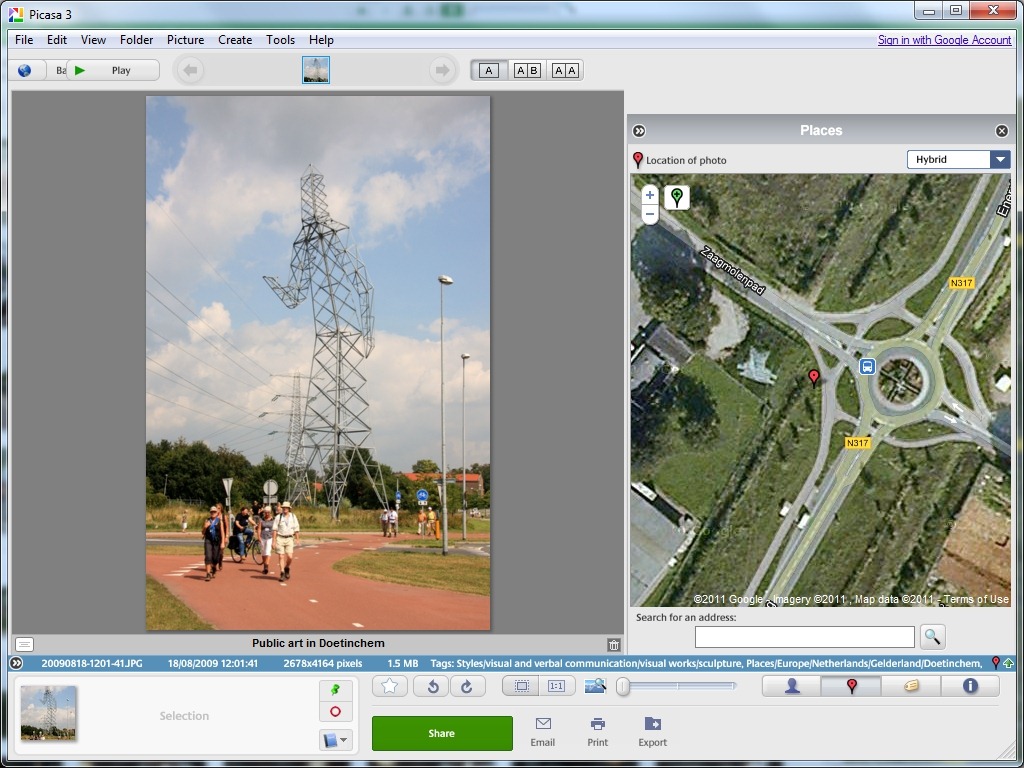
    Let me try and illustrate this. Here’s a screenshot of a photo being displayed in Picasa, and I’ve used Picasa to assign a set of GPS coordinates to the image file, by moving the red location pin to the correct location on the map:
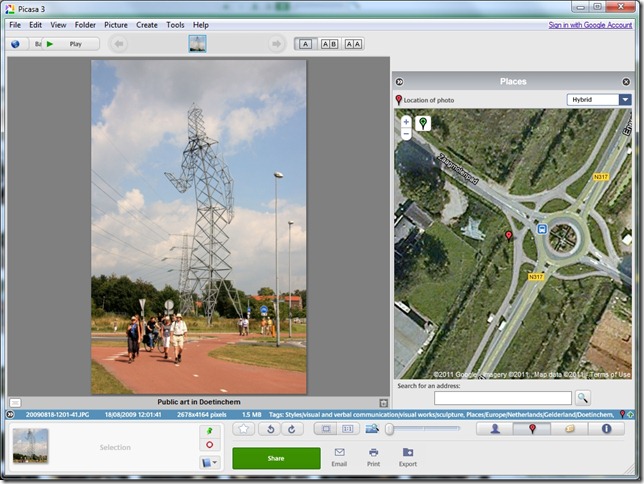
    Picasa Geotag 4

    When I save this location to the image file, Picasa uses the online Google Maps service to find out the GPS coordinates of the location and writes them into the image file as Exif metadata.

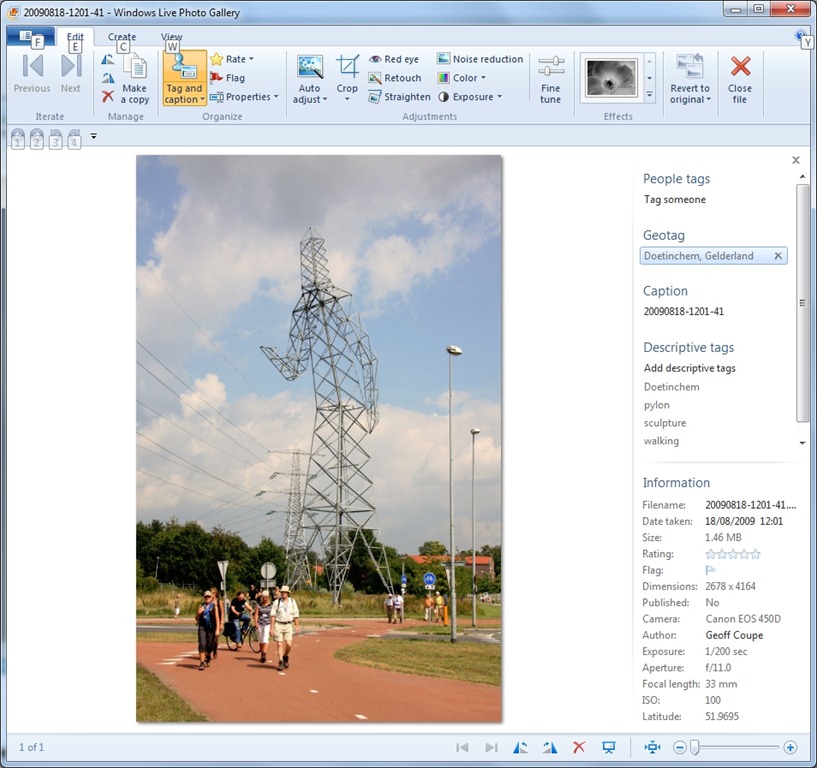
    Since the image file now contains GPS coordinates in its Exif metadata, when I look at the same file in WLPG, you can see from this screenshot that WLPG has performed reverse geocoding by using the GPS coordinates to derive the closest address for where the photo was taken, in this case, Energieweg, in Doetinchem, in The Netherlands:

    WLPG Geotag 2

    Under certain circumstances, WLPG can store this address information in the image file, using the IPTC Extension LocationCreated metadata fields. Since this is a cross-industry standard, other applications that support this standard should be able to work with the metadata. However, you cannot use WLPG to create GPS coordinates for an image. Perhaps in the next version?

    One point to be aware of is that although WLPG will automatically generate its “geotags” from GPS data that has been set by Picasa (or any other geotagging application), Picasa will not do geocoding; that is, it will not automatically generate GPS coordinates from the IPTC Extension LocationCreated metadata fields – it simply ignores them, and will not even display them in the information panel in Picasa. This means that if you use WLPG to set “geotags”, you need to go through the photos again with Picasa if you want to have proper geotag (i.e. coordinate) data in the photo metadata.

    I do wish that Microsoft hadn’t called this metadata “geotags”, because it is not, in the generally accepted sense of the term – it’s not coordinate data. It would have been better to name it “Location”, because that’s what it is, and it also refers back to the IPTC LocationCreated metadata standard.

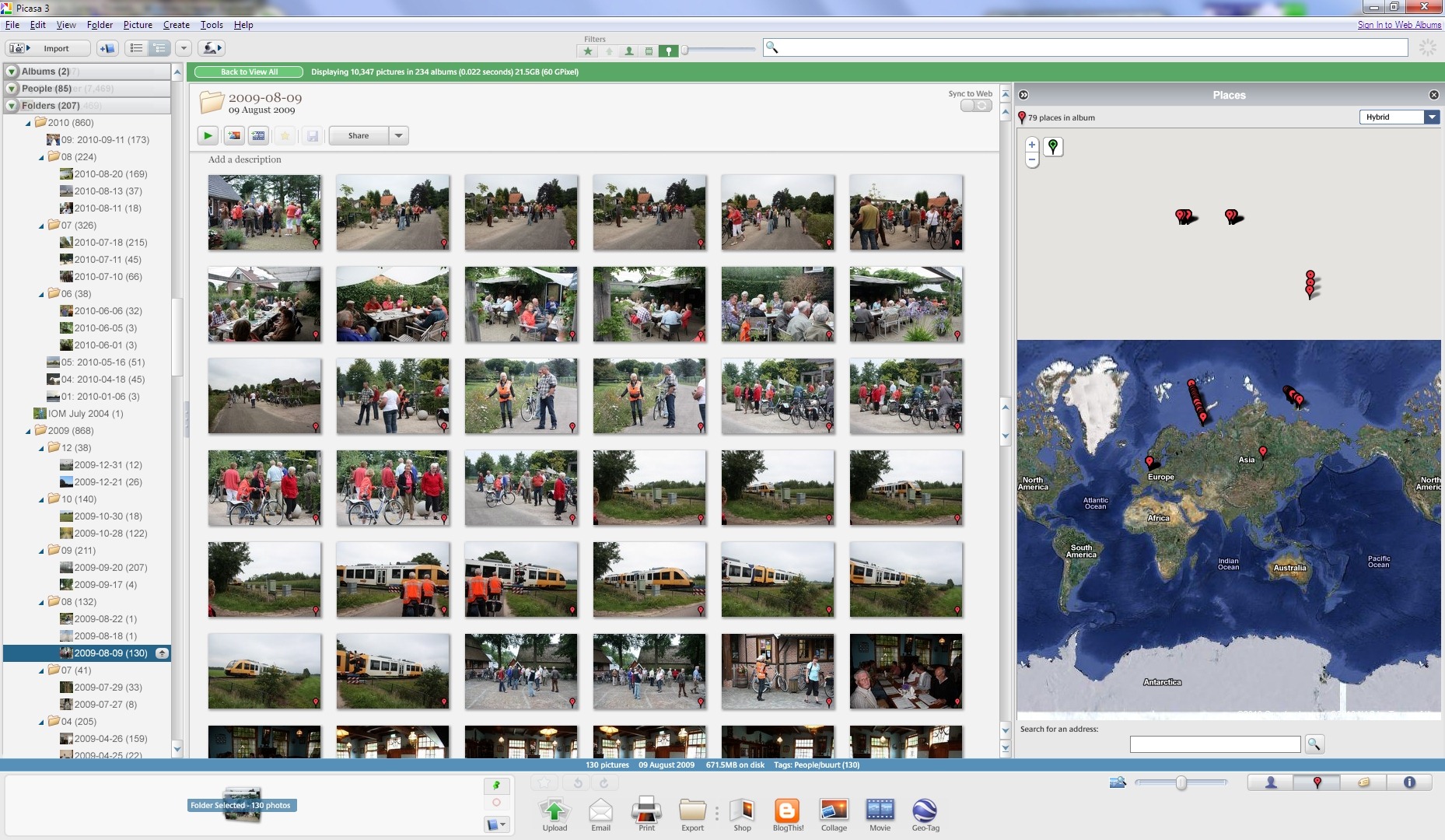
    On a more positive note, I’m very pleased to say that the geotag display problem of version 3.8 of Picasa has gone, and geotags are now displayed in their correct locations on the map. Here’s the screenshot I used to demonstrate the bug in my blog post of version 3.8 in September 2010 (click for the full-sized version):

    Picasa Geotag 2

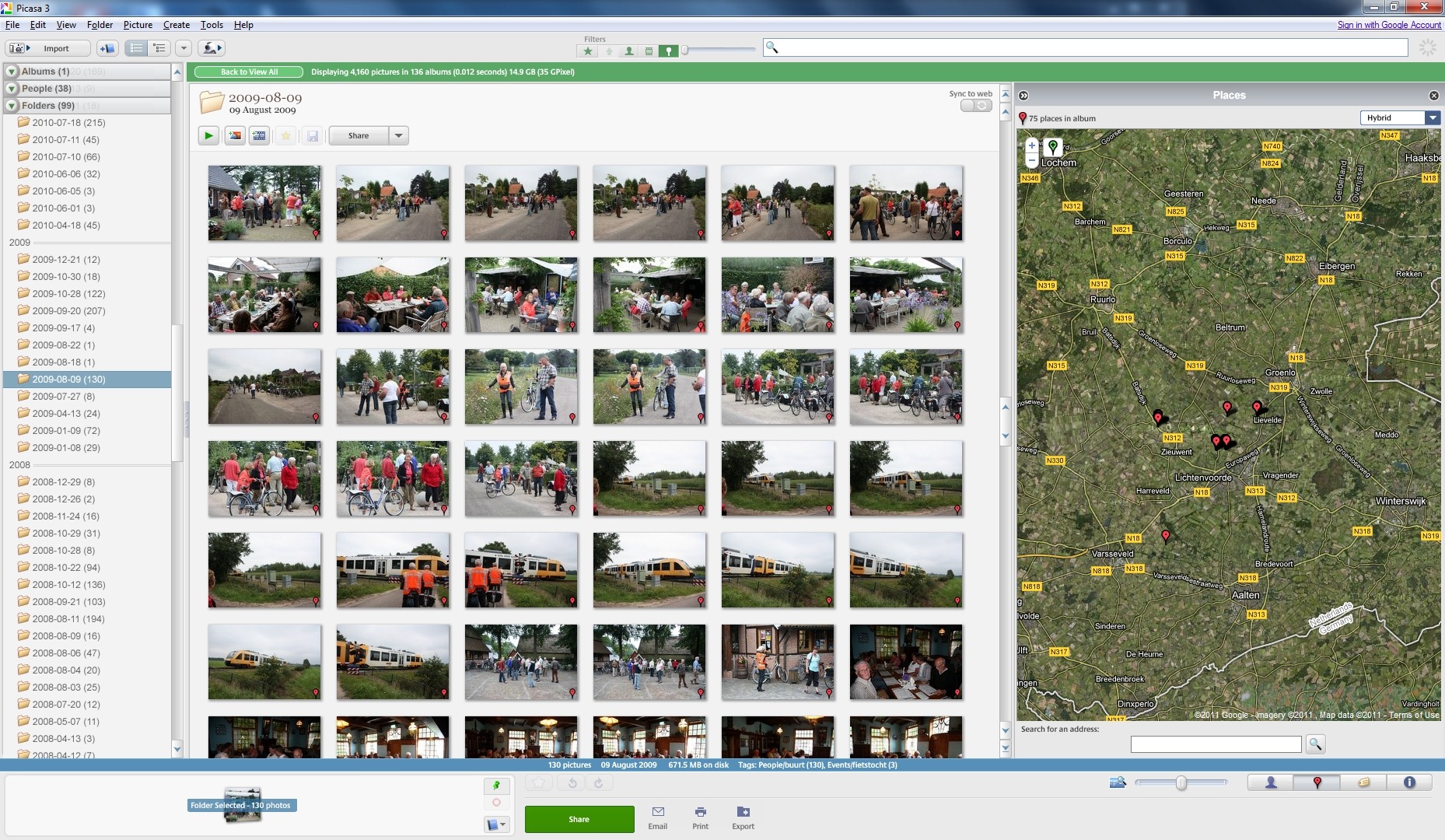
    And here’s the same folder of photos in version 3.9 displaying the correct locations of the geotags on the map:

    Picasa Geotag 3

    Captions

    As the old joke goes: the great thing about standards is that there are so many to choose from. I’ve noticed that Google and Microsoft have interpreted the IPTC Core standard slightly differently in at least one area, and that is in the captioning of photos.

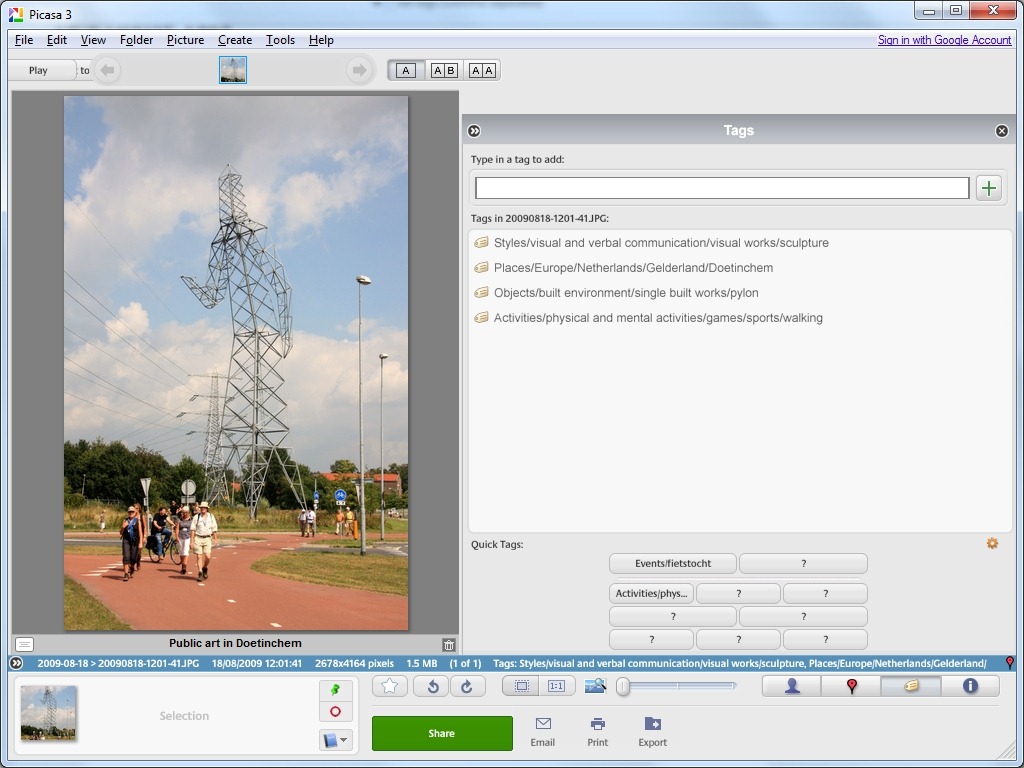
    Take another look at the single photo being displayed in Picasa. Notice that it has a caption (showing underneath the photo) that reads: Public art in Doetinchem.

    Now take a look at the same photo being displayed in WLPG. I’ll show a new screenshot below, since in the first screenshot, the caption was being obscured by the “geotag” information:

    WLPG Geotag 1

    In the information panel to the right, you will see that the caption reads: 20090818-1201-41. In both cases, this is the same photo, so why are the captions different? The answer is that Picasa uses the “Description” metadata field from the IPTC Core standard to display the caption for a photo, while WLPG uses the “Title” metadata field from the IPTC Core standard to display the caption.

    Frankly, I think that Google have made the right choice and Microsoft the wrong choice. If I look at the IPTC definitions of the two fields, I read the following:

    Description A textual description, including captions, of the item’s content.
    Title A shorthand reference for the digital image. Title provides a short human readable name which can be a text and/or numeric reference

    I’ve followed these definitions for my own photos. I use the filename of the photo to set the Title field (it’s the date and time of when the photo was taken as a reference), and I use the Description field to hold a caption describing the content of the photo.

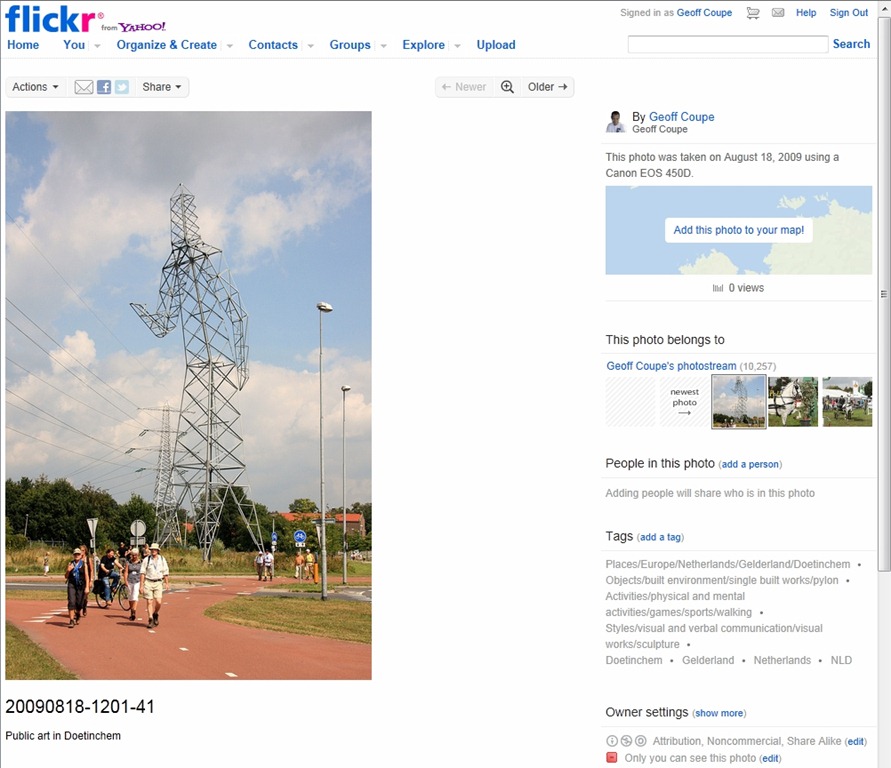
    Also, if I use Flickr to upload the same photo to my Photostream, you can clearly see from this screenshot that Flickr actually displays both the Title and the Description fields under the photo:
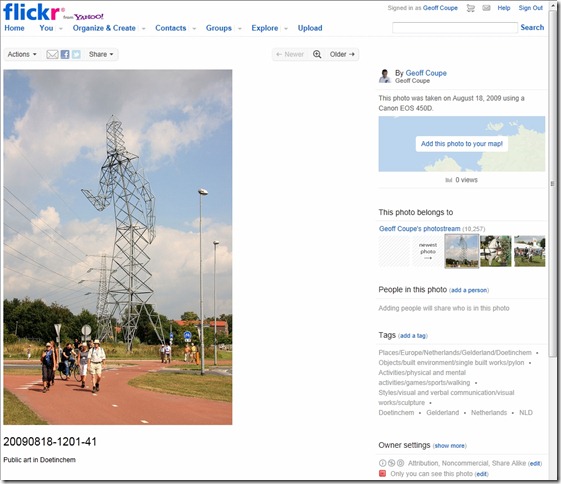
    Flickr 4

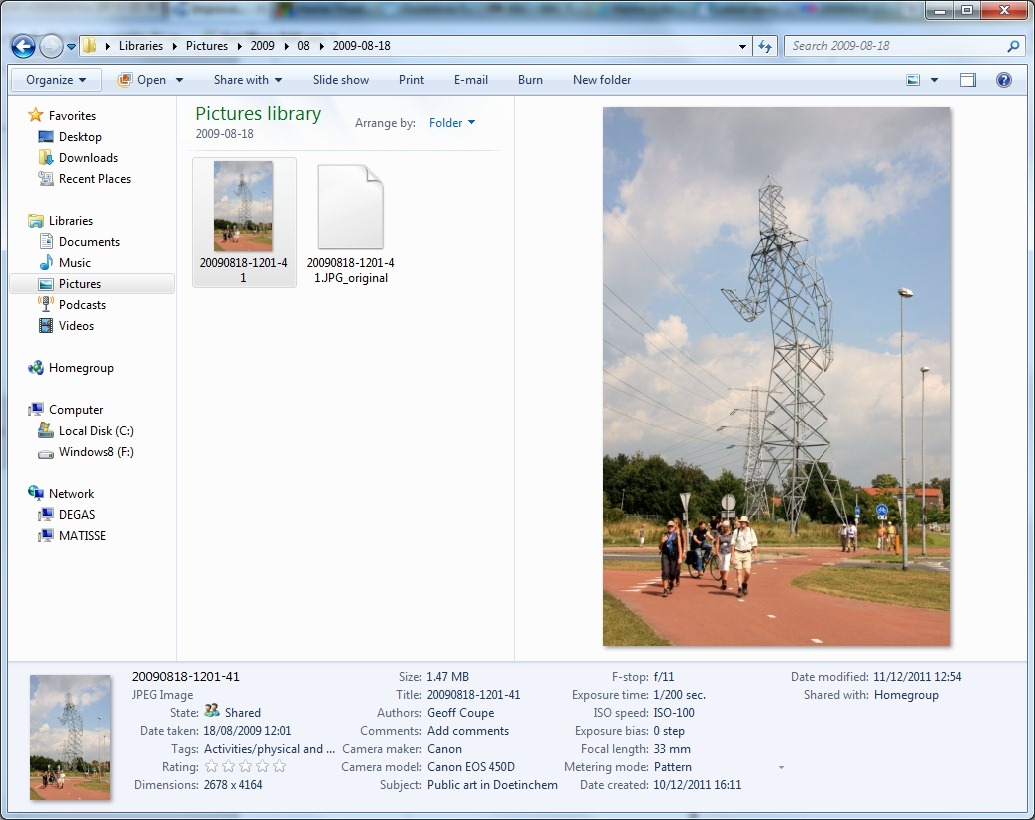
    Both Flickr and Google seem to me to have made the correct interpretation of the IPTC Core standard, while Microsoft’s WLPG team has got it wrong. However, I think that there’s little chance of them changing now. We’re probably stuck with it. Curiously enough, the WLPG team seem to have struck out on their own here, since they use different terms to those used in Windows itself. Here’s a screenshot of the photo being displayed in Windows Explorer:
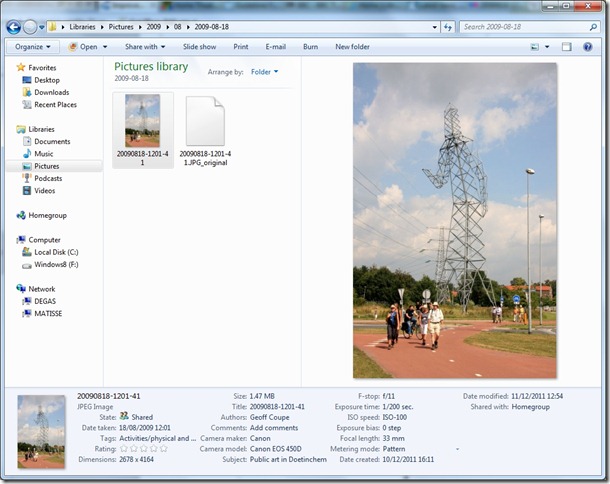
    Explorer 1

    Notice how Explorer does actually use “Title” according to the IPTC Core definition, and using “Subject” to align with the IPTC Core definition of “Description”. So Windows is better aligned with the IPTC standard for photo metadata than WLPG…

    Descriptive Tags

    Both Picasa and WLPG support the use of descriptive tags, and both use the “Keywords” metadata field from the IPTC Core standard to display the keywords, or descriptive tags for a photo. This means that the same photo should be displayed with the same set of descriptive tags in both Picasa and WLPG. And, subject to one slight quirk, that’s what they do.

    The quirk is caused by the fact that I use hierarchical tags with my photos. That’s to say that, for example, my tag cows is actually part of a hierarchy that starts Nature/Animals/livestock/cattle/dairy cattle/cows. That way, when I search for photos with the tag cows, it will just show me those with cows in them. But if I search for photos with the tag livestock, it will show me photos of cows, horses, pigs, sheep, and so on. I use a tag hierarchy because I find it more flexible than an enormously long list of single-level tags. See this blog post for more detail of how I tag my photos.

    The quirk shows itself by the fact that WLPG displays just the last term in a tag sequence; e.g. for a photo that is tagged with the tag Nature/Animals/livestock/cattle/dairy cattle/cows, WLPG will just display “cows”. For our photo taken in Doetinchem, WLPG displays this for the descriptive tags (see the screenshot above):

    Doetinchem
    pylon
    sculpture
    walking

    Picasa, on the other hand can’t deal with a tag hierarchy in a friendly fashion, and has to display the whole sequence:
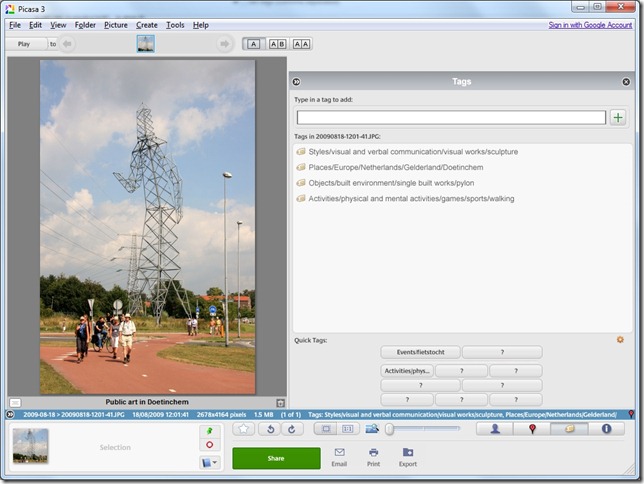
    Picasa Geotag 5

    As you can see, this gives rise to problems in handling long tag sequences: the Quick Tags buttons can only display the beginning of a tag sequence, rather than displaying the last term in the sequence.

    Mind you, WLPG is not perfect in this area, either. Both could do with improvements. For the moment, I’ll be carrying on doing tagging and other metadata work with my preferred tool: IDimager. (Note: IDimager is no longer available. Its successor is Photo Supreme, which I am now using)

    People Tags

    Both the current versions of Picasa and WLPG provide face recognition technology, so that you can easily tag people with their names. However, while WLPG used XMP to store the people tag metadata in the image files, version 3.8 of Picasa stored the tag information locally on the PC. This meant that it was very difficult to share tag information across multiple machines, since the tags did not travel with the file. I notice that in version 3.9 of Picasa, there is now an option to store the name tags in the image files themselves. Unfortunately, at the moment, there is no real information available from Google as to what this actually means. Are they using XMP? If so, is the schema documented? Microsoft have documented what they do for people tags, but so far I have not seen anything similar from Google.

    I’ll be prepared to bet that the two approaches for people tags are not compatible; that is, if I tag people in Picasa, those tags will not show up in WLPG, and vice versa. It’s been a year since the Metadata Working Group published their guidelines calling for standardisation in the area of people tagging. I doubt that we’ll see fast progress, or any progress at all, given the fact that Google and Microsoft have probably planted their flags in different places.

    Update 13 December 2011: Well, there’s a surprise: Picasa version 3.9 is using the XMP metadata fields proposed by the Metadata Working Group for people tags. See this thread on the Picasa Help Forums, where this is stated. I’ve just checked this, and I can confirm it. This is excellent news. It also means that Google has adopted the proposed industry standard ahead of Microsoft, who are still using their own XMP schema. That’s a bit ironic, considering that Microsoft are one of the founding members of the Metadata Working Group. It will be interesting to see whether Microsoft will adopt the same standard for people tags in a future version of WLPG. Then, like descriptive tags, people tags can also be shared by Picasa and WLPG. If Microsoft do adopt the standard, we’ll probably see at least one version of WLPG where both standards are used, in order to provide a transition period.

    And here’s a second surprise: it looks as though Picasa 3.9 can read WLPG people tags, so there is at least some degree of compatibility between WLPG and Picasa regarding people tags. I think I’ve lost my bet.

    I discovered this because Picasa started assigning names to some faces, without my having to do so. This could only mean that it was getting the names from somewhere, and that turned out to be from the Microsoft people tag metadata in some files – I had used the face tagging capability of WLPG on some files before I discovered that WLPG was corrupting Exif Makernotes.

    Unfortunately, Picasa doesn’t use this information to then write back the face tags into the file using the Metadata Working Group schema, but just holds the information in its local database. I’m going to have to find some way of wiping out all trace of the Microsoft people tags, and then apply them exclusively from within Picasa. Since for those files, the Exif Makernotes are already corrupted, I’ll try using WLPG to delete the face tags and see what Picasa does…

    Update 14 December 2011: Right, I’ve been playing around with the people tagging feature, and this is what I’ve come up with:

    • Picasa 3.9 will read WLPG people tags and create people tags in Picasa’s local database only (they are not written out as metadata to the image files).
    • Picasa 3.9 will read people tags created in earlier versions of Picasa that are held in the local database. It will not write pre-existing tags out as metadata to the image files.
    • Picasa 3.9 has an option to store people tags as metadata, in addition to holding them in the local database. This option is not retroactive; that is, once selected, Picasa will not write out pre-existing tags to the image files, but only write out metadata on newly-created people tags.
    • There seems to be no way to force Picasa 3.9 to write out pre-existing people tags as metadata to the image files.
    • The current version of WLPG will not read Picasa’s people tags, either from Picasa’s database, or from the people tag metadata in the image files.

    In the end, what I’ve had to do is:

    1. Ensure that all people tags were deleted from WLPG.
    2. Uninstall previous versions of Picasa, and delete the Picasa database.
    3. Search for all Picasa.ini files that Picasa strews through your picture folders, and delete them.
    4. Do a fresh install of Picasa 3.9, and ensure that the option to store people tags as metadata in the image files was enabled before starting to do any people tagging work.

    Clearly, this is a bit of a pain if you’ve already done extensive people tagging in either WLPG or Picasa, but I see no alternative at the moment. That is, if you want to prepare for the future and hold people tags as industry-standard metadata in your image files.

    Update 2, 14 December 2011: Sigh, it looks as though storing the people tags as XMP metadata into the image files with Picasa 3.9 is buggy. I’ve found that, even though the option is selected to write out the metadata, not all the image files have the people tags written out to them. Even though Picasa is showing people tags, the images themselves do not have the XMP metadata written to them. I’ve raised this as a potential bug in the Picasa Help forum.

    Update 3, 19 December 2011: I think the comments made by Ben below are worth including here in the main entry (for the benefit of people who read the entry, but not the comments). He has found a few more people tagging behaviours worth noting:

    1. WLPG does not read the Iptc4xmpExt:PersonInImage tag.
    2. Picasa does read the Iptc4xmpExt:PersonInImage tag, but this information is buried in the properties, labelled “Person Shown”. People tagged in this manner will not show up under the “People” pane or in the “People Manager”. Likewise, you cannot search for people that are tagged using this tag (as far as he knows).
    3. WLPG allows you to tag a person without specifying the area they are in. If you tag someone in WLPG without drawing a box to indicate where they are, they will not show up in Picasa. As already pointed out, people tagged in WLPG that DO indicate where they are in the photo will show up in Picasa as expected.

    Update 4, 20 December 2011: Another Picasa bug has crawled out of the woodwork. I’ve just discovered that of the 1,895 photos that Picasa has written name tag metadata into, seven of them have had their “Date Taken” and “Date Created” metadata overwritten by the date/timestamp of when the file was modified, i.e. had the name tag metadata written out to them.

    I think it’s time to stop using Picasa version 3.9. There are just too many bugs present in the current build (135.80,0).

    Synchronisation Between Online and Local Photos

    One area where I think Picasa is still ahead of WLPG is the ease of sharing photo albums online, and keeping them synchronised with the photo albums on your PC. With a single mouse click, any folder of images on your PC can be mirrored online and the two kept synchronised. And this is a two-way sync – changes made locally on your PC will be automatically reflected in your online web folders, and vice versa. Very nice.

    In the current version of WLPG, while you can publish images from your PC to a variety of online sites (e.g. SkyDrive, Flickr or Facebook), these can’t be automatically kept synchronised. This is a rather surprising omission, particularly since Microsoft have provided online synchronising technology for some years. However, the issue was that they had a couple of competing approaches. I suspect that there is a major technology revamp going on behind the scenes, and that the next versions of Windows Live Mesh and WLPG will provide at least the equivalent of what Picasa is already doing. We may have to wait for Windows 8 to see real results from Microsoft in this area.

    Conclusions

    Summing up, I think I would have to say that, at the moment, Picasa is clearly ahead of WLPG. This is for three reasons:

    • Picasa’s automatic synchronisation of local and online photo albums is a feature that WLPG simply does not yet have.
    • Picasa will not corrupt your Exif metadata. As far as I’m concerned, WLPG’s wanton corruption of the Exif Makernotes is a cardinal sin. I refuse to even countenance using WLPG for any metadata work until this is fixed.
    • Picasa version 3.9 has adopted the Metadata Working Group’s standard for face tagging.

    I’ve held off doing any serious face tagging work up until now; partly because WLPG will corrupt Exif Makernotes if I use it to apply face tags, partly because earlier versions of Picasa only stored face tags in its local database, and partly because IDimager (my main digital workflow tool) has its own standard for face tags. Now that Picasa has adopted the Metadata Working Group standard, I think can finally start tackling face tagging in earnest.

    Update 20 December 2011. As noted in the section on People Tags, since I reached the conclusion that I can finally start face tagging in earnest, I’ve discovered bugs in the current build (135.80,0) of Picasa 3.9. As a result, I’ve changed my mind – I’ll wait until Google gets rid of these bugs before I use Picasa for face-tagging work.

    Update 27 December 2011. Thomas, in the comments below, has pointed out another major failing of Picasa 3.9 – it will remove Makernotes from any file that it touches. Sigh. I had missed this, because I was just checking to see whether the Makernotes section was being corrupted (this is what WLPG will do). Because ExifTool was not reporting any errors, I thought everything was OK. I simply hadn’t realised that it was not reporting any Makernotes errors because Picasa had bloody well removed the whole damn Makernotes section

    Right, now I need to restore all the 1,895 image files that Picasa has touched (when writing out People tags) from a backup taken prior to unleashing Picasa on my photo collection. It’s at times like these that I really appreciate the backup capabilities of my Windows Home Server.

  • The Pitfalls of Design

    I see that the Windows Live team has done another blog post on their efforts to redesign SkyDrive. While I appreciate their posts for documenting some of their approaches to design, I sometimes feel that their (often bland) statements can border on the disingenuous.

    Here, for example, is the very first bullet point from that post:

    In June we overhauled our website and used the latest browser standards to simplify our photos and documents experience, while also making it much faster.
    It sounds good, until I found out that what they meant by the verb “to simplify” is that they:

    • Removed the slideshow function. Now if you want to display the contents of a photo album on SkyDrive, you have to click through every damn photo manually.
    • Removed the display of Tag metadata. Previously, photos containing Tag metadata that were uploaded to SkyDrive would automatically have the Tags transferred and displayed in SkyDrive, now they don’t. Worse, you are invited by SkyDrive to “Add a Tag”, so that means that if you do, you now have two independent sets of Tags to maintain.
    • Removed the URLs to individual images; now you have to jump through hoops if you want to provide a link to an original photo or image in blog or forum entries.

    Let’s just look at these points in turn.

    Removal of the Slideshow Function

    According to Microsoft (in a comment from Omar Shahine on this blog post):

    In doing our research we found that users preferred controlling playback themselves, and the value of hitting play and sitting back to watch wasn’t all that important relative to other features.

    Sigh – this sounds to me like the pitfall of cherry-picking your data to fulfil your own agenda. Some of my online photo albums have over a thousand photos in them; there’s no way I’m going to sit there and click on the mouse a thousand times when I could have clicked once to start a slideshow. These albums will remain on Flickr, which sensibly has a slideshow function built in.

    Removal of the Display of Metadata

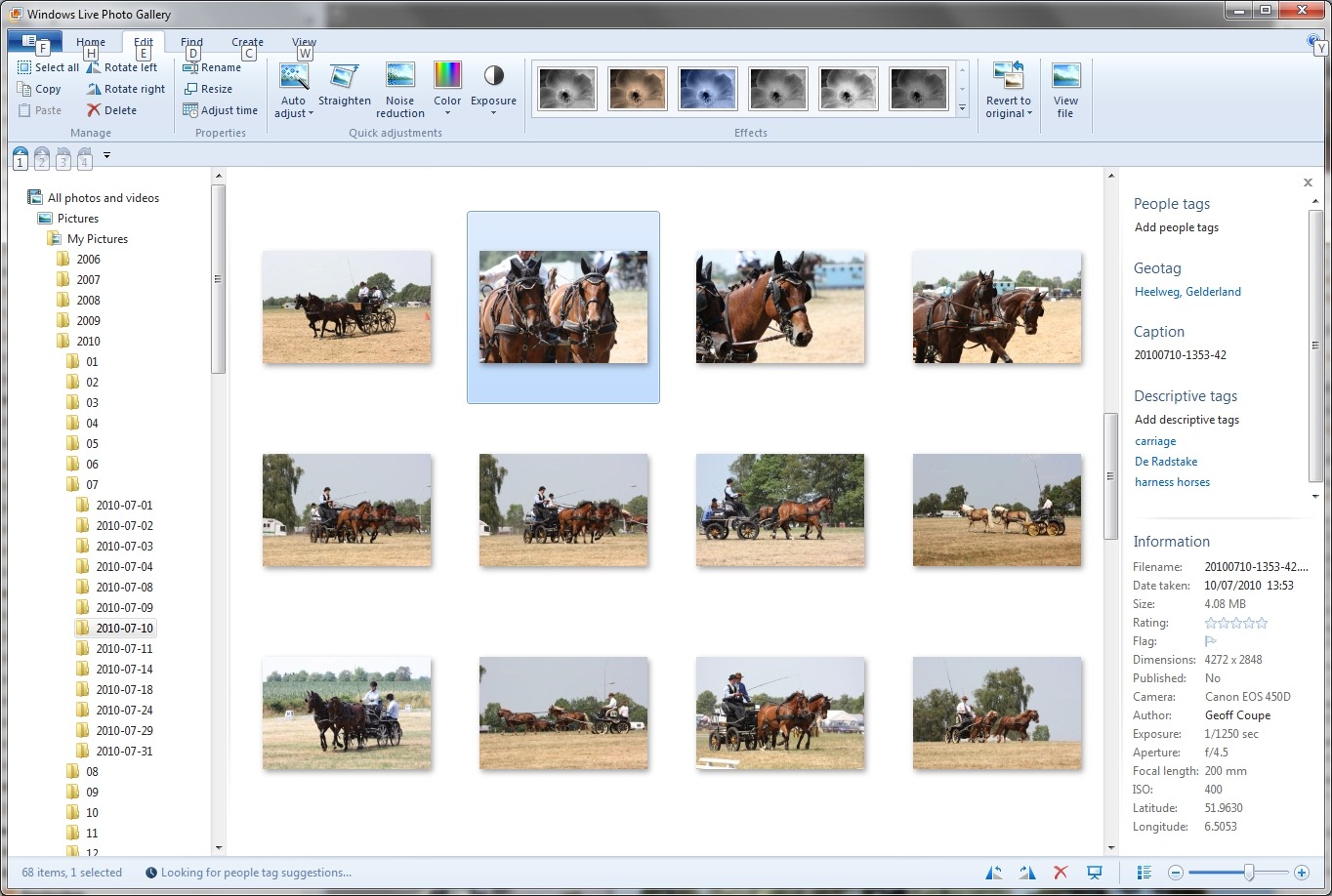
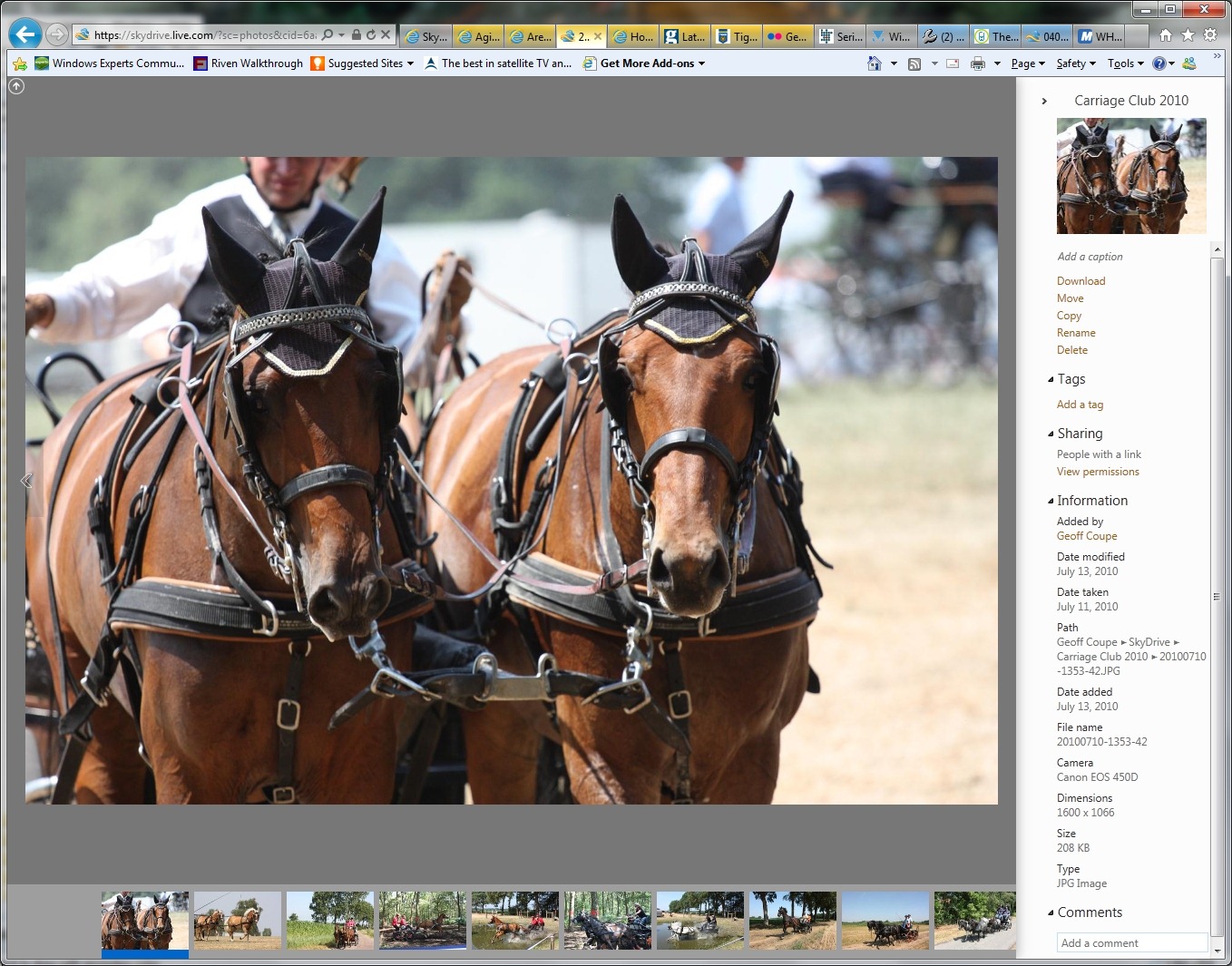
    Let me illustrate this. Here’s a screenshot of the thumbnails of some pictures being displayed in Microsoft’s Windows Live Photo Gallery, an application that is running on my PC. One thumbnail has been selected, and you can see the metadata embedded in the photo being displayed in the information panel on the right hand side of Windows Live Photo Gallery (click on the image to see the full-size screenshot).

    SkyDrive 1

    You can see that the metadata contains both descriptive tags (e.g. carriage and harness horses) as well as technical and copyright information (e.g. date taken, location, camera details, etc.).

    This picture was uploaded to a SkyDrive photo album here. When I look at the picture in SkyDrive, while I see some (but not all) of the technical information, none of the descriptive tags have been transferred. Indeed, I’m invited to add the tags again!

    SkyDrive 2 

    Naturally, all the metadata is transferred and displayed if I upload my photo into Flickr:

    SkyDrive 3

    Removal of URLs to Individual Images

    There was a time when a simple right-click on an image in SkyDrive allowed you to copy the URL for that image, which could then be pasted into a blog or forum entry in order to embed the image in the entry. Alas, this is no longer possible. If you want to do that now, you have to download the image back to your PC once more, then persuade the Download Manager of IE9 to tell you the URL of where it came from. This strikes me, and others, as completely ridiculous.

    As you will have guessed by now, Flickr continues to provide a simple URL for images that can be used in blog and forum entries (together with URLs for other sizes of the same images)…

    And the Rest…

    The rest of that blog post from Microsoft goes on at length about the different groups of users that Microsoft needs to design for, and the challenges that this entails. All true enough, but it seems to me that in the current design of SkyDrive, Microsoft has actually made photographers take a step back rather than a step forward. And that is in contrast to the design of Flickr, which has certainly given me the impression that functionality has kept pace with my needs.

    Perhaps this is just a temporary hiccup. The authors of the blog post, Omar Shahine and Mike Torres, promise that they are working on improvements, without actually sharing any specifics. And that brings me to one last thought. I’ve been following the series of blog posts on Building Windows 8 with great interest. Each of those posts goes into detail, and at length, on the design choices and why particular ones are made. It’s a fascinating insight into the kitchen of the Windows 8 team. It’s a great pity that the Windows Live team have not taken a leaf out of the Windows 8 team’s book and given us more insight into what they are planning and doing. Issuing bland posts stating that there are challenges, whilst simultaneously delivering less functionality than previous versions of the SkyDrive service does not fill me with confidence.

    Update 30 November 3 December 2011

    Since writing the original post, there have been some changes to the SkyDrive service. Most have been in the area of being able to work with multiple files at once. However, one nice thing: the Slideshow function has been reintroduced.

    The other two issues I raised in the original post (no Descriptive Tags and a simple method for obtaining the URL for an image) are still there. Perhaps they will be removed in a future upgrade… Update: As Ludwig points out in a comment below, there is in fact now a method of obtaining the URL of an image. Just browse to the image required, click on “View original” and then you will be able to copy the URL from the Address bar.
    So, two down, one to go…

  • Using RAW Codecs in Windows

    If you are an enthusiast photographer using a digital camera, you may well have set your camera to take photos using its RAW format. It’s what every professional photographer does. The rest of us take the easy way out, and take photos using our cameras, smartphones, or similar image capture devices using the ubiquitous JPEG format.

    The advantage of the RAW format is that, like the old film negative, it contains the truest record of the data captured by the camera’s image sensor. That data can be processed to suit what the photographer wants as the final image. In traditional photography, this is equivalent to processing the negative into the final positive print.

    The JPEG format, on the other hand, can be thought of as the end result of the image processing that happens in the camera itself using a standard set of parameters. While the image can be further tweaked in computer applications, the flexibility of what can be done, as compared to that when using the RAW format, is severely limited.

    Microsoft’s Windows has, over the years, supported the JPEG format out of the box. That means that utilities such as the Windows Explorer will display thumbnails of your JPEG images and tools such as Microsoft’s Windows Live Photo Gallery will be able to process those images further.

    However, up until now, support of the RAW format has not been present in Windows itself. If you have images using a RAW format, Windows has probably given you a message telling you that it can’t display the image, and suggesting that you go to your camera manufacturer’s web site to download and install an image codec to plug into the Windows Imaging Component of Windows that will enable the display of your images.

    There are also third party software solutions that offer portmanteau RAW codecs for a wide range of cameras and RAW formats (each camera manufacturer defines their own RAW format in a unique way). These third party solutions have been around since the days of Windows XP.

    Now, Microsoft have trumpeted that, in order to make it easy for the consumer, they have developed their own portmanteau codec for a range of RAW formats. This can be downloaded and installed into Windows. It enables both Windows Explorer and Windows Live Photo Gallery to display RAW images directly.

    While I think it’s a good thing that Microsoft have done this, what left a nasty taste in my mouth, in both the announcement and the accompanying video, was there was no acknowledgement whatsoever of existing third party solutions. Even worse were the statements such as that made by Jason Cahill in the video that the Microsoft codec supports “all the cameras you may have had or may have now”. Er, no, it doesn’t.

    Axel Rietschin, the developer of the excellent FastPictureViewer Codec Pack has made an excellent comparison between his own offering and Microsoft’s codec. If you are interested in seeing the full picture, and wanting a superior codec pack, then you should read it.

  • Slideshow Quality in Windows Live Photo Gallery 2011

    Almost a year ago, in July 2010, I blogged about something that I had noticed in the beta of Windows Live Photo Gallery 2011: the quality of the slideshows it displayed was noticeably poorer than in the previous version.

    It turned out that WLPG 2011 uses Windows Live Movie Maker to display slideshows, and this was what was causing the poorer quality. This was unchanged in the final release of WLPG 2011. Because of this poor quality, when I wanted to display a slideshow on my PC, I used the slideshow function in Windows Explorer. It doesn’t have any fancy transitions, but it displayed the images at a far higher quality than WLPG/WLMM 2011.

    And there the matter has stood, until now. Yesterday, I received an email from someone with the nickname tuxplorer, describing a simple change in the Windows Registry that will stop WLPG 2011 from using WLMM to display slideshows, and use its own built-in slideshow capability (that has been left in there from the previous version!).

    All you have to do is use Regedit to go in the registry to HKCU\Software\Microsoft\Windows Live\Photo Gallery and change the value of the “AutoMoviePlayerSlideshow” value to 0.

    That stops WLPG 2011 from using Windows Live Movie Maker, and makes it use its own slideshow capability. That slideshow engine has a number of transition effects, but if you choose the “Classic” theme, then you will get the same high-quality slideshows as in Windows Explorer.

    Hat-tip to tuxplorer!

  • Then and Now – II

    Here’s another example of the changes that have occurred over time on the Isle of Man. This time it’s views of Douglas Bay. The first photo was taken in about 1860 (I think). It’s a bit difficult to see, but at that time the promenade on the seafront, with its frontage of boarding houses, did not exist.

    IOM0070

    This second (hand coloured) photo must have been taken after 1892, but before 1913, because by this time the promenade and boarding houses are visible (built in 1878), and the Victoria pier is in place (opened in 1892), while the Villa Marina (in the estate in the middle of the seafront, just to the right of the first row of boarding houses) looks to be the original private house. By 1913, the house had been demolished and the Villa Marina concert hall had been completed and opened to the public.

    IOM0115

    And here’s a photo that I took from a similar standpoint on Douglas Head in 2005.

    050713-1209-02

    Moving a little way along Douglas Head, and back in time to the early 1900s, this coloured postcard shows the funicular railway that used to run from near the base of the cliff up to the top.

    Scan10110

    Nothing remains of the railway now, as it was dismantled in 1954. By the way, you can see from the number of passenger steamers docked at the Victoria Pier just how popular the Island was as a tourist destination at that time, as these postcards illustrate:

    Oilette0004

    Oilette0005

    IOM0072

  • Then and Now

    Since I was looking through old photos of the Isle of Man for my last post, I thought that I might try and see if any of the locations corresponded with photos that I’ve taken.

    So here are a few examples of places showing the passage of time…

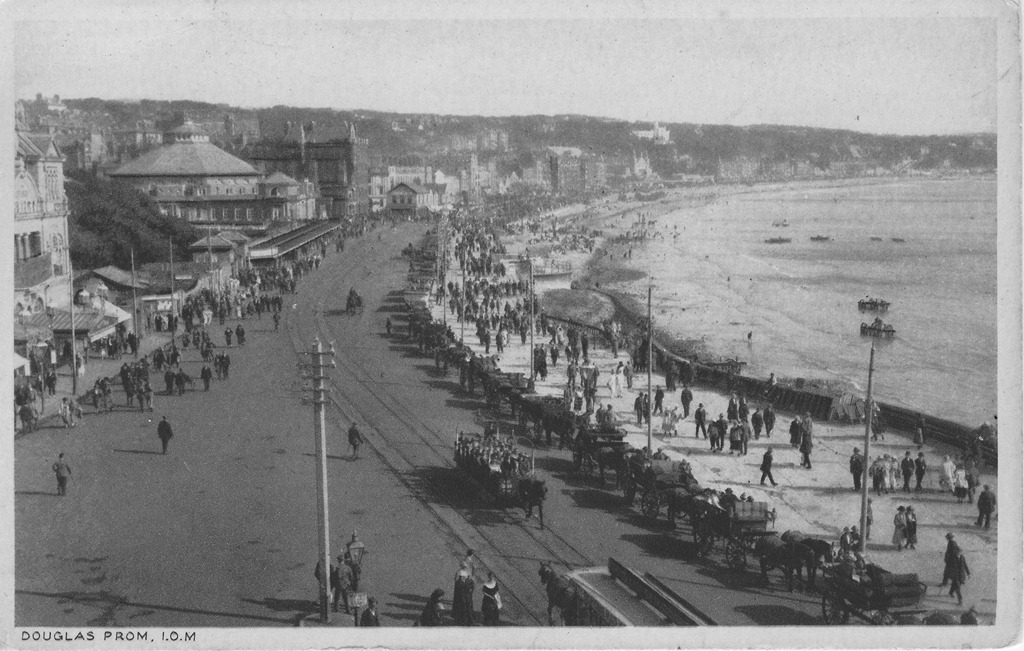
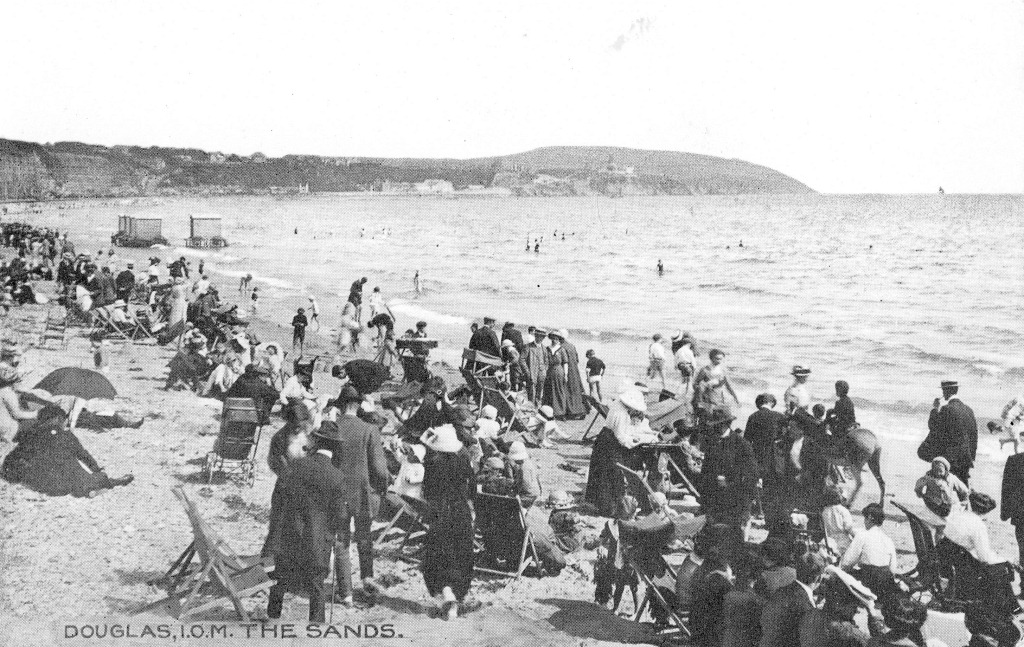
    For example, the Isle of Man was once a very popular holiday destination, but since the era of cheap air travel to guaranteed sunnier climes, the numbers of holidaymakers travelling to the island has plummeted. Here’s Douglas beach, then and now (2005):

    IOM0165

    050713-1143-00

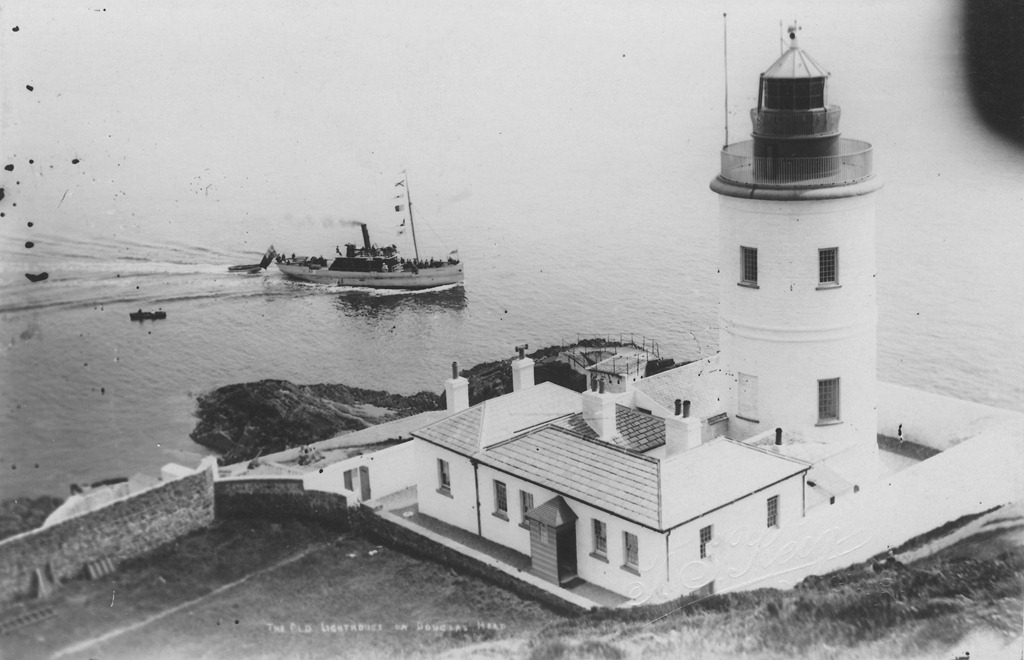
    The lighthouse on Douglas Head:

    IOM0073

    050713-1218-28

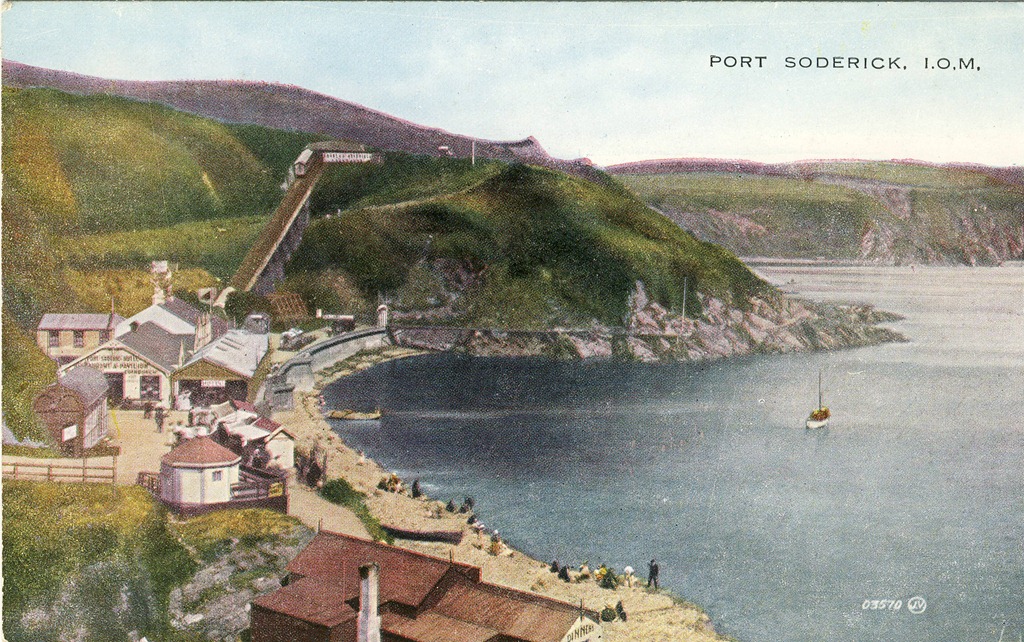
    That little boat steaming past the lighthouse in the picture above is almost certainly the ferry on its way to Port Soderick. Then, it was a little cove filled with cafes, shops, and other attractions. Now it is just a cove.

    Scan10111

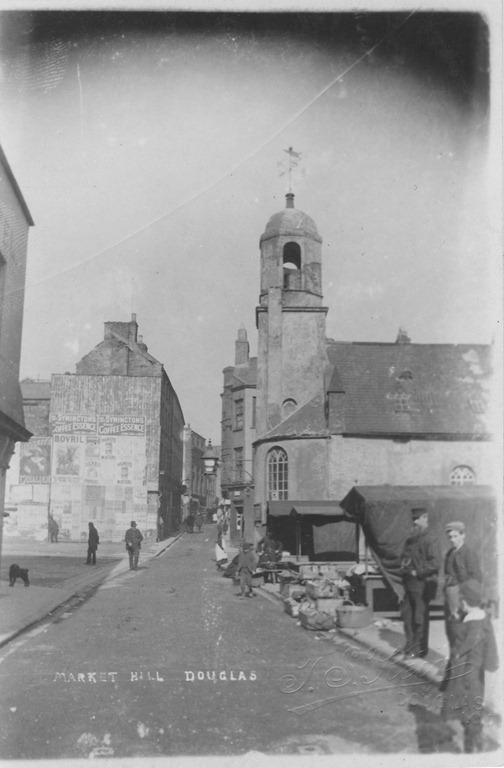
    Douglas harbour has seen great changes. I couldn’t find a series of photos taken from the same viewpoint, but here are some that illustrate something of what has gone on in the last 150 years. The first shows Market Hill, the street leading up from the quay. The old St. Matthew’s church is the focus of the picture, with the old open-air market just shown on the right.

    IOM0058

    Here’s a second view of the church and the open-air market:

    IOM0101

    Note the new commercial building behind the market and to the left of the church. The church itself was demolished in 1898 to make way for the building of a cast-iron market hall. A new church (the new St. Matthew’s) was built a short distance away on the quay itself. As well as the cast iron market hall, a brick-built market hall was also constructed at some point. Here’s a shot from 1912. On the left of the picture, you can seen the brick-built market hall (behind the standing man). All the buildings in the main part of the picture have been demolished.

    IOM0033

    And here is the brick-built market hall today, with the boarded-up cast-iron hall on the right. Note the commercial building behind, which is the same as the one (minus a chimney stack or two) from the earlier (second) photo in the series.

    050713-1255-11

    And, pulling back, you can see the “new” St. Matthew’s church in shot. The harbour is filled with pleasure yachts. In my youth, it was filled with working fishing boats. All gone.

    050713-1154-14

    However, even as late as 1988, there was still something of the fishing fleet remaining:

    img060201-11

  • Windows Live Photo Gallery 2011 – Status Report 2

    Just over a week ago, I gave a status report on the issues that I was having with Windows Live Photo Gallery 2011. In summary, there are three major issues that I’m concerned with at the moment:

    1. Unwanted, and often inaccurate, GPS coordinates being inserted by WLPG 2011 into the Exif of images that have IPTC location metadata present, but no GPS coordinates currently set.
    2. Corruption of Makernotes in the Exif section of JPEG image files by WLPG.
    3. Unwanted compression of the file, even if only metadata is being changed by WLPG 2011.

    Microsoft acknowledged issue (1), and have now produced a fix. If you go to the Download page of the Windows Live Essentials software, and re-download, you’ll get the updated version. The build number of the WLPG 2011 that was released on the 30th September was 15.4.3502.922. The updated version is now 15.4.3508.1109.

    In summary, Microsoft have told me the changes are:

    • GPS coordinates on a file are read-only inside of WLPG.  WLPG will never add, change or delete the GPS coordinates.
    • If a file contains GPS coordinates when it’s brought in to WLPG, reverse geocoding will be triggered and location strings are displayed in the info pane, users can rename or remove the strings but GPS coordinates won’t be touched. Users may Rename a location but it will then leave a mismatch between the coordinates and the string since the coordinates are read-only.
    • If a file does not contain GPS coordinates, users will be able to geotag by adding a string (that gets validated against Bing as it does today) but no GPS coordinates are added to the file.  The user can remove the string or rename it.
    • If the file contains a geo name only, there will be no GPS coordinates calculated for it.

    I’ve done a few quick tests, and I think I can point to a couple of additional behaviours:

    • If a file contains IPTC Location metadata when it’s brought into WLPG, then WLPG will behave in a similar fashion to the second point above. That is, WLPG will use the IPTC Location data to set the location strings in the geotag field of the info pane. If the geotag is deleted or changed in WLPG, then there will be a mismatch between the IPTC Location metadata and the geotag because the IPTC Location metadata will be left untouched.
    • Changing a geotag in WLPG, while it leaves the IPTC Location metadata untouched, will also cause WLPG to write out the contents of the geotag as IPTC Extension LocationCreated metadata. In other words, the file will now contain different location metadata in two places: the original location recorded in the IPTC Location metadata elements, and the new location now recorded in the IPTC Extension LocationCreated metadata elements.

    So as far as I can see, I can use this latest version of WLPG 2011 safely, provided that I do all my geotagging and geocoding work outside of WLPG 2011. That way, WLPG 2011 is only ever reading GPS and IPTC Location information, and it will never write out GPS or geocodes into my files.

    Microsoft acknowledge that there’s room for improvement here in future versions of WLPG and will be revisiting this feature. For example, I think that if they were to provide a mapping interface within WLPG itself, then users could check or modify the GPS coordinates and use WLPG to write them out into the files.

    So long as WLPG 2011 never writes out any metadata to my files, then I won’t get hit by issue 2 (Makernotes corruption) or issue 3 (file compression).

    What’s the current status of those issues?

    Well, Microsoft also acknowledge issue (2), but currently treat this as a lower priority. I see that today the issue has been escalated, so perhaps they’ve begun to work on it. Until it’s resolved, I personally don’t want to use WLPG 2011 to do any tagging (e.g. people or descriptive tags), because then metadata gets written out to the files, and that will trigger the Makernotes corruption.

    As I noted in my last status report, issue (3) is interesting, because not everybody is being affected by this. As I reported last time, it does seem to be caused by some kind of interaction between WLPG 2011, the Windows Imaging Component library in Windows itself and third-party Codecs that some of us need to install to handle non-JEPG image formats.

    I’ve been doing some more investigation, and I think I have a workaround for my particular case.

    I’m using the FastPictureViewer Codec Pack, because the codecs handle a wide range of image formats, which Windows and WLPG cannot do by themselves. One of the codecs is designed to handle auto-rotate of JPEG images. It looks as though that if this is installed into the WLPG/WIC/Codec pipeline, then I get the unwanted file compression. So my workaround is to de-install this particular codec in the FastPictureViewer Codec Pack. Hopefully, this issue will get resolved in a more robust fashion in the future.

    So, of the three major issues that I started with, the first has been satisfactorily resolved (with room for future improvement), the second is being worked on, and the third has been identified and perhaps Microsoft and the third-party Codec developers will come to some sort of resolution in the future.

    This all means that while I won’t be using WLPG 2011 to do any tagging work, It can safely be used as an easy-to-use photo browser by family members. And it can also be used by family members to edit photos, since the original files get preserved. It’s a major step forwards from the geotag disaster that hit me back in August. My thanks to the WLPG team for their work in addressing the issue.

    Addendum, 12 July 2011: Last week, a new version of WLPG 2011 was released; build number 15.4.3538.0513. However, even though Microsoft acknowledged the MakerNotes corruption bug back in December 2010, this new build of WLPG still has the bug. Sigh.

  • Windows Live Photo Gallery 2011 – A Status Report

    In view of the issues I’ve been having with WLPG 2011, I thought that it would be worthwhile to report that Microsoft are listening to those of us who are reporting tales of woe caused by using WLPG 2011. I’ve had a number of emails from the lead Project Manager of the WLPG team on the subject.

    It seems to me that there are three major issues being reported at the moment:

    1. Unwanted, and often inaccurate, GPS coordinates being inserted by WLPG 2011 into the Exif of images that have IPTC location metadata present, but no GPS coordinates currently set.
    2. Corruption of Makernotes in the Exif section of JPEG image files by WLPG.
    3. Unwanted compression of the file, even if only metadata is being changed by WLPG 2011.

    Microsoft have acknowledged issue (1), and are working on a fix. I’ve been told that they hope to roll out an update soon for WLPG 2011 that may resolve the issue going forward.

    Microsoft also acknowledge issue (2), but currently treat this as a lower priority. I think that’s understandable, because unlike the case for RAW files, Makernotes are not vital for JPEG files.

    Issue (3) is interesting, because not everybody, it seems, is being affected by this. Some people are reporting that no compression occurs, whereas others of us are plainly seeing it. Indeed, I had an email from Microsoft stating that this reported compression was of utmost concern to them, but expressing confusion that they also weren’t seeing compression in their tests.

    After thinking about this, it seems to me that one possible hypothesis to account for the difference is that those of us who are seeing file compression are using third-party codecs.

    Most professional photographers (and many keen amateurs) are probably taking their digital photos in a RAW format. Windows and WLPG will not display such images out of the box; they require a codec to be installed to do this. Codecs are available from either the camera manufacturers or other third parties.

    Now, it just so happens that I have a number of photos held in RAW or DNG formats in my collection, so I need to have a codec installed to view these in Windows and WLPG. I’m using the FastPictureViewer codec to do this, because it handles a wide range of image formats, which Windows and WLPG cannot do by themselves.

    I noticed a thread in the PC Talk forum on the Digital Photography Review site where the original poster reported that he was also seeing this compression of files with WLPG 2011. Interestingly, there’s a number of contributions to the thread by Axel Rietschin, the developer of the FastPictureViewer codec. He claims that the Windows Imaging Components (WIC) library and Microsoft’s own JPEG codec use private and undocumented interfaces that are not available to any third party codec:

    The underlying problem is that lossless transcoding, where a file is reconstructed to make room for new metadata, is not possible with the normal Windows Imaging Components codec interfaces: there is nothing that would allow anyone to retrieve the packed data, only pixels. Microsoft implemented this feature in their own JPEG codec using an undocumented interface called IMILCJpegDecoderFrame that WIC uses internally, but no 3rd-party JPEG codec (or 3rd-party codec for any other lossy formats) is able to provide this functionality.

    And in a later message on the same thread:

    Just to clarify: Microsoft worked around the limitation of the(ir own) API by implementing a private interface in their JPEG codec that presumably let them read/write the pixel data without decompressing it, and as a result both Windows and WLPG are able to perform lossless metadata updates and rotations on JPEG files when using the stock codec.

    The problem starts only when replacing the default codec with a 3rd-party one which cannot possibly implement the internal (and undocumented) interface they use privately.

    I think that this is what must be happening. Because I need to have a third party codec installed to handle my RAW and DNG images, this is also being used by WIC for JPEG images, and hence I’m seeing the file compression. Those people who only use JPEG formatted images have no cause to install an additional codec, so they are not seeing the compression.

    This compression will only occur when WLPG 2011 touches an image file to write back information into it.

    To date, I’ve been pretty lucky – I use IDimager to do my cataloguing and metadata work, and this does not use WIC. So all the image data is left untouched in the file, even though the metadata may have been edited. This is as it should be. (Note: IDimager is no longer available. Its successor is Photo Supreme, which I am now using)

    Previous versions of WLPG I’ve been using were (mostly) just reading these files to capture the metadata for their internal databases. I say “mostly”, because I’ve seen some earlier files that have had Microsoft-specific metadata written into them, and some of them have been compressed. Those that weren’t would have been written before the time that I got a digital camera capable of using RAW format – so the built-in Microsoft codec with its undocumented private interfaces would have been used. Those that are compressed will be examples done after I had installed the third-party codec to handle RAW formats on my PC. There aren’t many of them, because it was rare that I used WLPG directly to edit metadata.

    However, with the advent of WLPG 2011, and its current habit of writing GPS and IPTC Extension metadata into files (issue 1 above), then I’ve had a deluge of files that have been compressed, because when WLPG writes out the metadata, the file gets compressed.

    In one sense, of the three issues, only issue (1) can be laid squarely at the door of WLPG 2011. Issue (2) is probably down to the implementation of WIC itself, and is independent of any application such as WLPG calling it.

    However, issue (3) is somewhat more messy. It would seem to be caused by the architecture of WIC, and the fact that there are private interfaces being used by Microsoft that are not available to third party codec developers. It also has the result of making WLPG 2011 lie to the user whenever third-party codecs are installed. If the user sets WLPG to have no compression, then WLPG assumes that WIC will follow suit, but it doesn’t, and file compression will still result.

    This leads me to a concern about the possible solution Microsoft are working on for issue (1). Originally, I had suggested that a simple solution would be to offer the user a way of turning off the writing of GPS coordinates into the Exif of a file. But now I realise that that is not sufficient. If WLPG 2011 goes ahead and constructs a geotag because it finds IPTC Location metadata in a file, then it will also use WIC to write out new IPTC Extension “LocationCreated” metadata into the file as part of its geotagging/geocoding function. And if a third-party codec is installed, the file will be compressed.

    So really, the only immediate solution is to be able to turn off geotagging/geocoding entirely, otherwise metadata gets written, and the file gets compressed.

    It’s the same with the face recognition features of WLPG 2011. I can’t use them, otherwise when the metadata gets written, WIC will compress the file. As far as I can see, the bottom line is that whenever WLPG writes out metadata into the file, it uses WIC, and if there’s a third party codec installed, the file will be compressed.

    The only real solution, it seems to me, is for Microsoft to document the currently private interfaces of WIC, so that they can be used by third-party codec developers. In the meantime, it looks as though my only option is to install the Windows XP version of Windows Live Essentials. That way I’ll get a version of WLPG which will only ever read my image files and never be used to write to them.

    Update 24 November 2010

    I’ve just been using my laptop as a test system to see if I can reproduce the conditions under which issue (3) (the file compression) will occur. I think I can convincingly show that it is, as I suspected, the combination of WIC and the third-party codec.

    First, on the laptop, I uninstalled the third-party codec (FastPictureViewer) that I had on there, and also, for the sake of completeness, Picasa 3.8.

    The system was then Windows 7 Home Premium, with WLPG 2011 (build 15.4.3502.922), together with the built-in codecs of windows.

    I then copied a folder of photos taken in May 2007 across from my Windows Home Server into the My Pictures folder of the laptop. These are the photos that are showing in the screenshots of the “24 Hours Later” section of this post. I also chose these photos to test, because one of them I had included in a batch sent to Microsoft to test. When Microsoft checked the size before and after the images had been geotagged, they found little or no difference in size:

    Microsoft test1

    Microsoft test2

    Yet when I had done the same thing on my PC, I got a reduction in size of about 50%.

    So I repeated the test on the laptop (which remember now has no third-party codecs installed).

    I first used Geosetter to examine the metadata and size of the files. The files had IPTC Location metadata and the particular file illustrated above (20070524-1234-56) was 3.10MB in size.

    Then I opened WLPG 2011, and let it discover the new folder of files. I waited a few minutes, and then went back to Geosetter to examine the files, and the above file in particular.

    As expected, all the files now had GPS metadata added to them (this is issue (1) in action), but the interesting thing was that, just as Microsoft had found, the file sizes were very little different than they had been. This seems to suggest that, with the built-in codecs, no compression will occur.

    Now I deleted the test folder, waited for this to be registered in WLPG and then installed the FastPictureViewer codecs. I then got a fresh copy of the folder from my Windows Home Server and repeated the test. This time, once WLPG 2011 had added the GPS coordinates, I found that the files had been shrunk by about 50%.

    So it definitely seems to be a combination of the third party codec and WIC that triggers the file size reduction. One further interesting thing: since all the pictures are JPEGs before and after, then really only the built-in Windows JPEG codec should be used. There is a FastPictureViewer codec that handles JPEG rotation, but I wasn’t doing this, just adding metadata. So why is there a file size reduction?

    Update 2 December 2010

    There’s an update to WLPG 2011 that addresses the geotagging issue. See here for more information.

  • What Lies Beneath

    As you may be aware, I’m not very happy with the current version of Windows Live Photo Gallery at the moment. I believe strongly that it has problems that desperately need to be fixed.

    There are other, less pressing, issues with WLPG 2011 as well. These include the fact that slideshow quality is degraded in comparison to earlier versions. Another is the fact that people are finding that their workflow performance has taken a nose-dive since upgrading to WLPG 2011.

    However, apart from all that, there are other things that niggle. These days most people are unaware of how much of their identity is available online. That almost certainly includes me, even though I think I’m being careful. Thus, here’s another example from WLPG 2011. It has automatic face recognition in it. People are probably happily tagging (identifying) their friends in photos using WLPG 2011, which in turn is squirreling away metadata containing this information into the photos. If these photos are subsequently uploaded to online sites where they can be viewed by anyone, then this metadata is often equally available to all.

    And what is this metadata? Well, it is at minimum, the names of the people in the photos. But if those people are also known to you as email contacts, or have a Windows Live identity, then this information is also included as metadata in the uploaded photos. True, the metadata will not spell out their email addresses for all to see – they are at least encrypted. However, after reading this comment, (from a Microsoft employee) I do wonder about the Windows Live ID:

    PersonLiveCID is the unique ID generated for everyone with a Windows Live ID, it might be possible to use this and I’ll be playing with some of the Azure Services sometime to see if you can resolve this to a contact. That could create some very interesting possibilities.

    That would be “interesting” in the Chinese sense, I think.

  • Metadata Myths or Misconceptions

    David Riecks, over at the Controlled Vocabulary web site has put together a list of the top twelve myths of embedded photo metadata. Well worth checking out if you’re a keen photographer interested in learning more about just what else lurks inside your digital photos besides the images themselves…

  • A Taxonomy of European Birds

    Looking through my photo collection, I see that I have taken over 1,300 photos that have a bird or birds as the subject. Up until now, I’ve catalogued these in a rather haphazard fashion, that’s to say that as I’ve photographed a new bird (for example a Green Woodpecker), I’ve added its common name to the list of keywords in my catalogue. As the list has grown, I’ve also tried to group the bird species a bit e.g. put the birds of prey together, or waterbirds together. So I’ve ended up with a rather messy taxonomy of birds.

    Then, a few days ago, I noticed that someone had posted a message in the Controlled Vocabulary group to say that he’d put together a list of keywords for Adobe’s Lightroom that followed the taxonomy of the list of Western Paleartic Birds produced by the Association of European Records and Rarities Committees, the AERC. As an aside, I note that whoever is responsible for the AERC web site needs to fix the missing or broken links that pepper it.

    Anyway, Rudi Theunis made his keywords list available to the members of the Controlled Vocabulary group, and I grabbed a copy to see if I could use it with IDimager, the program that I use to catalogue my photos. (Note: IDimager is no longer available. Its successor is Photo Supreme, which I am now using) It turns out that IDimager can easily import Lightroom keyword lists with one click, so I’ve now got a complete taxonomy of European Birds set up, with both common names and the scientific names as synonyms. See the following screenshot showing a partial view of the taxonomy (click on the image to see the full size screenshot in a new window).

    ID Birds Catalog

    I spent a few hours re-cataloguing my bird photos, and now they are all nicely fitted into the new taxonomy, thanks to Mr. Theunis.

  • More Problems With Windows Live Photo Gallery 2011

    Yes, I know that I’ve said before that Windows Live Photo Gallery 2011 is a disaster, but more problems caused by using it just keep crawling out of the woodwork.

    The first problem I stumbled across was that if you are a photographer who uses IPTC metadata to record information about where your photos were taken, then WLPG 2011 will write false GPS data into your photos without telling you that it is doing so.

    I, and others, have reported this issue to Microsoft, and I understand that they are looking into ways of correcting it. Meanwhile, I’ve become aware of another issue with WLPG 2011. It also screws up the Exif section of the metadata in images.

    While trying to scrub my images clean of the false GPS data inserted by WLPG 2011, I noticed ExifTool was reporting that many of my images had problems with their Exif metadata. Often it was a simple warning that the Makernotes in the Exif section have been damaged. This is a warning from ExifTool that another utility has written to the Exif section and damaged the structure in some way.

    In many cases, however, ExifTool is reporting that more serious damage has occurred and some of the data written into the original Exif section by the camera that took the image has been corrupted.

    Here’s a screenshot that shows an example of an image exhibiting both types of issue (warnings and corruption). The screenshot is of Geosetter, and the highlighted image shows errors being reported by ExifTool (Geosetter uses ExifTool under the covers to do all the heavy lifting). Click on the image to open it full sized in a new window.

    Exif errors 1

    You’ll notice that the thumbnail, and some of the others, have a dark blue marker pin in the top left corner. That indicates that the image contains GPS information. But the interesting thing is that, for that particular image, I did not supply GPS data; WLPG 2011 has inserted it by itself.

    Now here’s a screenshot of one of the other thumbnails that Geosetter is indicating have GPS information. For these thumbnails, I explicitly inserted GPS information myself, in other words, WLPG 2011 has not had cause to write anything out to the files. Notice that for this thumbnail, ExifTool is not reporting any errors or warnings. That’s the case for all the images where I have explicitly added GPS information.

    Exif errors 2

    By the way, even though these two shots were taken at the same place, the GPS inserted (without my knowledge) by WLPG 2011 is wrong, and is located 500 metres distant.

    I’m now going back through my images, and as far as I can see, all those which are being reported by ExifTool as having problems with their Exif metadata are ones that have had GPS information inserted by WLPG 2011.

    The really irritating thing about this discovery is that WLPG has a track record of not dealing correctly with Exif metadata. Previous versions of WLPG have been reported as corrupting the Makernotes (data written by the camera manufacturer) in Exif.

    It would appear that nothing has been done with WLPG 2011 to address this issue. So not only does it insert gratuitous, and false, GPS data into your images, it will also screw up their Exif metadata.

    I repeat, this is a disaster.

    24 Hours Later

    So, I’ve been looking into this a bit more, but the more I look, the more I think: OMFG. The damage that has been done appears to be quite extensive, and will take some time to repair.

    Today, for example, I decided to examine just one folder of photos and compare the contents with the contents of the same folder as it was in a backup taken on the 1st June 2010 – a date chosen because it was before any of the betas of WLPG 2011 had been released to the public. On that date, I would have had the previous version of WLPG installed and running. The first beta of WLPG 2011 wasn’t available to the public until the 24th June.

    I looked for a folder that had photos containing entries in the IPTC Extension “Location Created” metadata fields. These fields are used by WLPG 2011 to store textual information for a location (e.g. the street address, city, state and country) in the image files. I don’t use these fields; I use the older IPTC Core “Location” fields for this purpose. So if I find an image file that contains IPTC Extension “Location Created” metadata, then I know it has been touched by WLPG 2011.

    I chose a folder containing 24 photos that had been taken back in 2007, and which had IPTC Extension metadata present. I then got the same folder from the 1st June backup to compare the two side by side.

    Here’s a screenshot of the folder, as it was on the 1st June, being displayed in Geosetter, with the metadata of the selected photo being shown (click on the screenshot to see it full-size in a new window):

    Exif errors 7

    Now here’s a screenshot of the same folder as it currently exists in my computer. The same image file has been selected to show its image metadata:

    Exif errors 6

    I’ve expanded some of the more interesting metadata sections. As you can see, the metadata has changed substantially. Let me list the ways:

    1. ExifTool is now listing a warning about a possibly incorrect Maker notes offset, together with three warnings about invalid camera data in the Exif section.
    2. While the original (backup) file had 98 elements of camera maker data in Exif, the current file has now only 11 left.
    3. The current file now has GPS metadata present in the Exif. This has been inserted by WLPG 2011, not by me. You will note from the other thumbnails in the second screenshot, that all the other files are also showing that they now have GPS data in them. None of the original files had GPS data. By the way, the GPS data is also incorrect by 300 metres.
    4. The original file had its Exif byte order in little-endian fashion; in the current file it is big-endian. According to the guidelines of the Metadata Working Group (of which Microsoft is a founding member), the “endianness” should be preserved, not reversed.
    5. The original file had a filesize of 3.1 MB; the current file has shrunk to a mere 1,553 KB.
    6. The current file now contains a JFIF block, which is not present in the original file. It also has changed YCbCr values, possibly as a result of this.
    7. The current file now contains an IPTC Extension metadata section, which lists textual information for the “Location Created”. This section is not present in the original file.
    8. The original file is showing that it was last modified on the 27th November 2009. The current file is showing that it was last modified on the 30th September 2010, which also happens to be the date of the final release of WLPG 2011. This is not a coincidence.

    There may be other, more subtle, differences between the original and current versions of the files, but I’m already disheartened enough by the above list, particularly by the Exif corruption and by the fact that my JPEGs have been compressed in size without my knowledge or permission.

    I suppose I can cut my losses by doing a full restore of the photo folders from the backup taken on the 1st June, but this will still not take account of new files that have been created since that time, or of older files that I have been working on.

    What a mess. Thanks, WLPG 2011.

    48 Hours Later

    Oh gawd, it just keeps getting worse… I had hoped that WLPG 2011 was only corrupting Exif metadata when it actually changed the metadata, for example when it added (false) GPS coordinates to the Exif section.

    After further examination of files today, I have discovered that WLPG 2011 will merrily corrupt Exif metadata even when it doesn’t need to change any of the Exif content.

    You see, one of the new features of WLPG 2011 is automatic face recognition. When it discovers what it thinks is a face in a photograph, it will ask the user to confirm the person’s name. Once it gets confirmation, it will then write XMP metadata into the image file. This XMP metadata is structured according to Microsoft’s People Tag. However, when WLPG 2011 writes this XMP metadata out to the file it will also (a) corrupt the Exif metadata section and (b ) compress the JPEG image.

    I’m afraid that I’ve been confirming face tags suggested by WLPG 2011. And now, every single one of those images that contain face tags has also had its Exif corrupted.

    What a f*cking mess. Thanks, WLPG 2011.

    Update 23 November 2010

    I thought that it would be worthwhile to report that Microsoft are listening to those of us who are reporting tales of woe caused by using WLPG 2011. Please see here for a status report on where I think we are…

    Update 2 December 2010

    There’s an update to WLPG 2011 that addresses the geotagging issue. See here for more information.

  • A Bit Of (Photographic) Fun

    I am constantly amazed at the relentless march of consumer technology. in 1996, I was using a pocket camera (an early Canon Ixus) that was using the APS film format. Something of a step down in film quality as compared to 35mm, but a great little camera. For 35mm work, I had my trusty Olympus AZ-300.

    I made the move to digital in about 2000, again a Canon, this time an early Powershot. I switched back to the digital IXUS range in about 2004 with the Digital IXUS 400. That’s been our point-and-shoot camera until a few weeks ago when it was finally replaced by an IXUS 300 HS.

    In just six years, the IXUS range has evolved to a point where I can now shoot HD videos as well as take photos, and the camera has a range of digital effects built-in that I find somewhat overwhelming. For example, whereas a few years back, if I had wanted to take a tilt-shift shot of our house, I would have had to invest in an expensive lens built for the purpose for my Canon SLR camera. Now, I just have to select the “miniature model” effect from the IXUS 300 HS’s menu and I turn this:

    20100915-1254-22

    into this:

    20100915-1253-41