
The woman who has fired my imagination for more than forty-five years has received the US National Book Foundation’s Medal for Distinguished Contribution to American Letters. In her acceptance speech she reaffirmed her power. A wonderful author and great human.
-
Ursula Le Guin
One response to “Ursula Le Guin”
-
[…] Ursula Le Guin has died. One of the greats who you would wish to go on forever. That task has now passed to her work. So that settles it, she […]
-
-
“Technology standardization is commercial diplomacy”
Paul Ford has a very good article in the New Yorker on the cut and thrust involved in the making of standards, in particular, the making of Web Standards. My post’s title is a direct quote from Stephen Walli, who is mentioned in the article as “a veteran of many such [standardisation] efforts”.
The article brings back memories (both fond and frustrating) of the time when I was embroiled in the standardization processes swirling round the OSF and X/Open groups. I got to count Stephen as one of my friends and travelling companions from that time. As Stephen wrote:
Technology standardization is commercial diplomacy and the purpose of individual players (as with all diplomats) is to expand one’s area of economic influence while defending sovereign territory.
Ah, yes, I remember it well…
2 responses to ““Technology standardization is commercial diplomacy””
-
World Standards Day is celebrated on 15 October, except in the countries where it is celebrated on 23 October or 12 October or…
-
🙂
-
Leave a comment
-
-
Celebrating Hetty
One of the pleasant things about living in the Dutch countryside is that we get to participate in traditions that are non-existent or being eclipsed in cities. One such tradition is Noaberschap (neighbourliness). Martin and I are the Noaste Noabers (closest neighbours) of Herman and José. This means that we are responsible for organising the rest of Herman and José’s neighbourhood (Buurt) in times of celebration or need.
Herman is a dairy farmer, and last month one of his cows, Hetty 176, reached a milestone. In her 14 years of life, she has produced 132,000 litres of milk and 10,000 Kg of fat and protein. That, coupled with the fact that the farm has been in existence for 101 years, meant that it was clearly time for a celebration. So last Friday evening, the Buurt gathered in a neighbour’s barn, and we decorated an arch with greenery and paper flowers (red, white, and blue, the colours of the Dutch flag). Late in the evening we took the arch round to Herman and José’s and erected it in front of the entrance to their barn.

Yesterday, the Buurt, together with Herman and José’s family, friends and farming colleagues, met in the barn to celebrate Hetty’s achievement. There were representatives from CRV (a Dutch cattle herd improvement company) to present a ribbon to Hetty and a certificate to Herman. Martin and I, on behalf of the Buurt, put a laurel wreath on Hetty, and presented gifts from the Buurt to Herman and José. More speeches followed, including an emotional one from José, who reminded us that farmers do not have an easy life, and that good farmers care about their animals above and beyond the call of duty. José is very proud of Herman, and rightly so.





The afternoon was rounded off by a meal at a nearby restaurant hosted by Herman and José. A very good day.
Leave a comment
-
Build 9879 Of Windows 10 Has Removed “Smart Files”
Microsoft has just released a new interim build of their forthcoming Windows 10 operating system: build 9879, and blogged about the changes here.
I notice that Gabe Aul (leader of the Data & Fundamentals Team in the Operating Systems Group) trumpets that the build has “cool new features”. Er, no, Gabe, what you have done is to remove a cool new feature that was introduced in Windows 8.1, and thereby damaged the user experience.
In Windows 8.1, Microsoft introduced the concept of “smart files”. These are small placeholder files, which represent the actual files stored in the OneDrive cloud, and which appear in the OneDrive Folder hierarchy listed in the File Explorer. Here, for example, is the contents of a OneDrive folder (“Beside the Seaside”) being viewed in the Windows 8.1 File Explorer:

In Windows 8.1, the only indication you have that you’re looking at a smart file, rather than a full-size file is that “Available online-only” message at the bottom of the File Explorer window.
Other than that, to all intents and purposes, smart files look like the actual files, but they are usually a fraction of the size. They just hold the thumbnail and the metadata of the files they stand in for. In the example above, the selected image (in OneDrive) is 5.1 MB, but the smart file shown in File Explorer is just 44 KB in size:
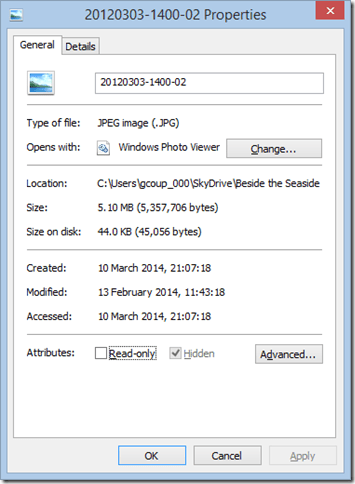
Because the smart files hold metadata, it means that you can use File Explorer to search your OneDrive folders. This is also better than the online OneDrive Search, which can only search on filenames.
When a smart file is opened for editing, the actual file is automatically synced down onto the PC and opened instead. After use, the user can choose whether to keep the full-size file (which is then automatically kept in sync with the file in OneDrive), or go back to using a smart file to save space. This choice can also be made at Folder level, so that the contents of a Folder can be either “offline” (i.e. full-size files are in the PC’s folder and kept in sync with OneDrive) or “online-only (i.e. smart files are used in the Folder to save space on the PC or tablet).
When this feature was introduced, Mona Akmal (a group program manager for SkyDrive – what OneDrive was then called) blogged that:
In the Windows 8.1 preview we saw consumers using SkyDrive in two distinct ways. The first group of people are very conscious of what they have saved to disk and most of their files are online-only. We found that the majority of people using smart files take up 80% less disk space than they would without smart files. The second group of people are on the other end of the spectrum: they explicitly chose to have all their files available offline, and so have their entire SkyDrive stored locally. This showed us that users understand smart files and are tailoring the feature to their needs.
Fast forward a year, and now Gabe Aul is telling us:
People had to learn the difference between what files were “available online” (placeholders) versus what was “available offline” and physically on your PC. We heard a lot of feedback around this behavior. For example, people would expect that any files they see in File Explorer would be available offline by default. Then they would hop onto a flight (or go someplace without connectivity) and try to access a file they thought was on their PC and it wasn’t available because it was just a placeholder. It didn’t feel like sync was as reliable as it needed to be. For Windows 10, having OneDrive provide fast and reliable sync of your files is important. Starting with this build, OneDrive will use selective sync. This means you choose what you want synced to your PC and it will be. What you see is really there and you don’t need to worry about downloading it. You can choose to have all of your OneDrive files synced to your PC, or just the ones you select.
In other words some people clearly don’t understand smart files. So smart files have been removed for everyone. Gabe, this is not a “cool new feature”, this is removing a cool new feature.
What we have now is a very basic experience. Either a OneDrive folder or file is synced to the PC, or it’s not. That, in turn means that the Search experience is now completely broken.
For example, here’s what I see when I search for photos of our dog Kai in OneDrive using the File Explorer of Windows 8.1:
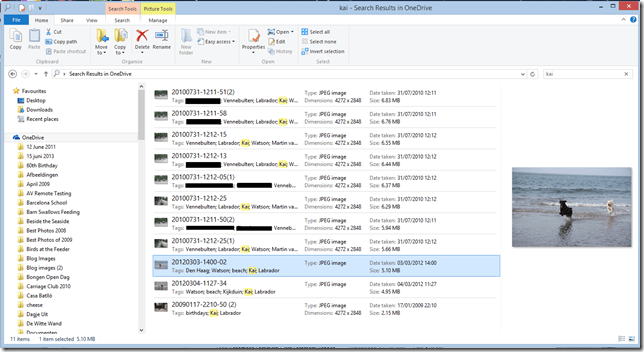
Search has found 11 images with the tag “Kai” from within three separate OneDrive folders, and as it happens, all of these are smart files, since I don’t have the contents of these folders held offline on my PC.
In the new build of Windows 10, however, the same search only returns two results:

Why? Because I only have one folder (“Beside the Seaside”) synced to my PC, all the other folders (e.g. “Walking the Dogs”) claim that they are empty:
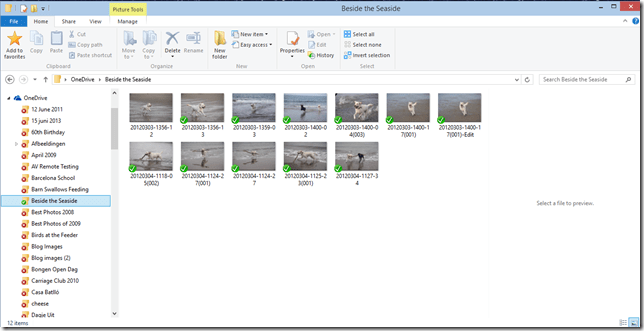
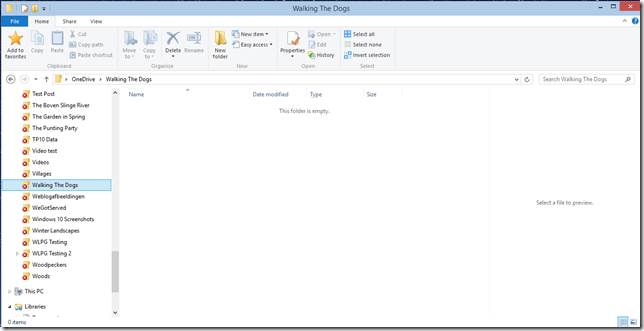
Of course, it’s only empty on my PC – in the OneDrive Cloud, it has photos of Kai. However, I also can’t search for photos of Kai in OneDrive – the online search doesn’t search tags, only filenames.
In summary, the removal of smart files is a huge step backwards. All Microsoft had to do was to use an overlay icon on files to distinguish between a smart file and the full-size original, and everybody would have been happy.
But no, Microsoft has removed a cool feature and broken the search experience completely. This does not bode well for Windows 10 as far as I’m concerned.
Addendum 15 November 2014: This removal of smart files has caused something of a disturbance in the Force. So much so, that Microsoft has moved to respond with a comment from a OneDrive team group program manager, Jason Moore:
Wanted to jump in here and address some of the questions and feedback we are getting about the changes we rolled out yesterday. As we look at the next version of OneDrive, we are working very hard to make sure it provides the best experience possible for our customers, and a big part of that is getting the sync model right.
We hear the feedback on placeholders, and we agree that there many great things about the model – for example, being able to see all your files in the cloud even if they are not all sync’ed to your PC. However, we were not happy with how we built placeholders, and we got clear feedback that some customers were confused (for example, with files not being available when offline), and that some applications didn’t work well with placeholders and that sync reliability was not where we needed it to be.
So, we stepped back to take a fresh look at OneDrive in Windows. The changes we made are significant. We didn’t just “turn off” placeholders – we’re making fundamental improvements to how Sync works, focusing on reliability in all scenarios, bringing together OneDrive and OneDrive for Business in one sync engine, and making sure we have a model that can scale to unlimited storage. In Windows 10, that means we’ll use selective sync instead of placeholders. But we’re adding additional capabilities, so the experience you get in Windows 10 build 9879 is just the beginning. For instance, you’ll be able to search all of your files on OneDrive – even those that aren’t sync’ed to your PC – and access those files directly from the search results. And we’ll solve for the scenario of having a large photo collection in the cloud but limited disk space on your PC.
Longer term, we’ll continue to improve the experience of OneDrive in Windows File Explorer, including bringing back key features of placeholders.
So keep the feedback coming. We’re working every day to improve OneDrive, and customer feedback is a hugely important part of that.”
It would thus appear that Microsoft has not in fact thrown the placeholder baby out with the bathwater, but is trying to improve it. That’s a good thing. However, it’s a pity that they couldn’t have been a bit more open about this upfront. Telling us that they were introducing cool new features, whilst in fact apparently removing one is yet another example of Microsoft opening its mouth, only to exchange feet.
Addendum 19 November 2014: Mary Branscombe has an excellent follow-up article on this whole debacle. Well worth reading.
Addendum 8 January 2015: Microsoft’s Chris Jones has posted an update on the OneDrive blog that (I think) tries to illuminate the OneDrive roadmap going forward. If I’m understanding what he’s writing, then Smart File functionality won’t be back in Windows 10 at release (Boo!), but should be returned at a later date (Hooray!), once the new technical solutions have been completed.
Addendum 23 January 2015: Microsoft has (finally) introduced full support for searching of tags into the OneDrive cloud service, so at least you can search your files online in a proper manner, even if you now can’t do it in the File Explorer in Windows 10. What Microsoft giveth with one hand, it taketh away with the other.
18 responses to “Build 9879 Of Windows 10 Has Removed “Smart Files””
-
Well said, sir. Well said.
-
Gosh, I hadn’t even noticed this but yes, of course. I just noticed immediately that I could not interact with my Word files in the Cloud. I cannot attach them to emails nor just click on one to open it in Word. Now I have to open Word first and then save it on my physical drive and then email it. This is so clunky and so Windows XP. I am practically forced to download all of my files to my PC.
I am actually thinking of removing Windows 10 (I’ve upgraded since Windows 286) and staying with 8.1. Stupid, Stupid and stupid. And no warning and no way to change this until January, if at all. This needs to be fixed now.
-
I feel your pain. This implementation of OneDrive capability in build 9879 is a huge step backwards for me. I agree with your entire post. I would not complain if there was an option that allowed me to turn on smart files, but the lack of optionality in Windows is really starting to bug me.
-
Not using windows 10, but why the hell would they do that? I didn’t know they were called “Smart Files” but they’re fantastic.
-

https://windows.uservoice.com/forums/265757-windows-feature-suggestions/suggestions/6708195-add-an-advanced-option-to-restore-showing-all-oned if you want to give feedback on Microsoft’s User Voice site
-
Mary, thanks. I’ve voted.
I notice that you also have a comment in that thread of a Tweet to you from Omar Shahine of the OneDrive team: “it was a tough change to make. It is certainly the future but there were significant issues with the model that required change”.
Hmm. This is the gentleman who informed me that implementing support for tags in OneDrive (necessary for a proper Search experience) “just ranks lower on the priority list than some other things we are doing right now”.
The “some other things” would now appear to be to wreck Search completely in both OneDrive and Windows as far as OneDrive files are concerned. I am not impressed.
-
Not really. They did not really have to do any work, just found an old version from 2013, dumped everything that was added in windows 8.1. No resources was required to test the “new” features either. That’s our job. Never mind that the “feature” did not work for anyone doing the upgrade. The dev said it used to work on his machine back in 2010.
-
-
-
[…] files” function has been removed…which I agree is a bad idea. Read more about that issue here. I can get around that because I sync all my files anyway. The bigger issue for me is that OneDrive […]
-
[…] Smart files is one of the most awesomest feature in Windows 8. It basically lets you ‘see’ all your files in OneDrive but takes up a ridiculously minute fraction of storage. When you want to work on a file, either through an stop or double clicking, out would auto-magically pull down the whole file. See more here https://gcoupe.wordpress.com/2014/11/13/build-9879-of-windows-10-has-removed-smart-files/ […]
-

Mother of blazes — the level of whining from users who’ve willingly signed on to use a technical preview is becoming unbearable. Listen up: If you don’t want your cheese moved, stick to what you know. Things will change constantly, and sometimes a step back is required before forward movement is possible.
-
Yes, we know it’s a technical preview, and yes, Microsoft has asked for feedback, so we’re giving it to them – clearly more forcefully than you would like. And yes, sometimes a step back is required before a forward movement is possible. The thing is, Microsoft weren’t upfront about that step backwards, when they could have been; instead they claimed that the missing cheese was a cool new feature. Hence the uproar…
-
-
Thanks for explaining that. I’ve never heard of smart files but the way you describge them is a desaster made in hell. When I see an icon representing am Item I expect it to be there what ever what. Indeed on an airplane, in a train with heaven knows what connectivity. The way Dropbox works. It is there, so I can open it. I’m very glad that MS finally realizes that smart files are not very smart indeed
-
Personally, I think that Smart Files is an idea ahead of its time. Granted, Microsoft’s current implementation leaves much to be desired, but it’s the way of the future. Dropbox’s all or nothing (and the current Windows 10 approach) is too limited for me.
-
-
[…] In one way, it really had to be, because Microsoft have gone back to the drawing board and will be removing the ability to search OneDrive files in the Windows Explorer in Windows 10, at least in the initial release of Windows […]
-
[…] my music collection to OneDrive, and a couple of weeks for my photos. An added complication is that the Smart files feature of Windows 8.1 is being removed by Microsoft in Windows 10, while they work out how to re-engineer it. This means that the user experience of using OneDrive […]
-
[…] that I just didn’t like it. There seemed to be too many features of Windows 8.1 that had been removed or […]
-
[…] in November 2014, Microsoft pulled the feature, claiming that some users found it difficult to use. Two steps […]
Leave a comment
-
-
What Did The Diva Say To The UN Secretary-General?
I know, it sounds almost like an old joke, but I thought something quite interesting happened a few days ago.
Scene: The UN International Centre in Vienna
Dramatis personæ: The Secretary-General of the United Nations: Ban Ki-Moon, and the Diva: Conchita Wurst.
Watch it and wonder. I really think the UN gets what human equality and respect for diversity means – unlike the Catholic Church.
2 responses to “What Did The Diva Say To The UN Secretary-General?”
-
…no matter how many times he assured his audiences that such stunts were a result of subterfuge and legerdemain, he found there were always believers. They came up to him in the street and asked him for stock tips; when he insisted that he was just a magician, they nodded — but winked and whispered that they knew he was truly psychic…Although Randi had known he was gay since he was a teenager, he kept that to himself. “I had to conceal it, you know,” he told me. “They wouldn’t have had a known homosexual working in the radio station. This was a day when you had to keep it completely hidden.”…Randi now sees himself, like Einstein and Richard Dawkins, in the tradition of scientific skeptics. “Science gives you a standard to work against,” he said. “Science, after all, is simply a logical, rational and careful examination of the facts that nature presents to us.”
-
Thanks, Matt. That’s a good article you refer to. I hadn’t realised that the US authorities were pursuing Randi’s partner, trying to deport him.
-
Leave a comment
-
-
The Rise of the Machines
Yesterday, I blogged about the Microsoft Band – the new wearable device from Microsoft that is aimed at people who do sports. Reading the press, I get the impression that relatively few commentators have understood what’s really going on here. Most of them are focusing on the device itself, and missing the real story. The device is a first generation attempt. It is limited, clunky, and will only used by early adopters. Better devices will inevitably follow, but that’s almost not the point.
The real point, and the real innovation, is Microsoft Health – the service in the Cloud where all the data collected by the Band can, and usually will, be held. Microsoft themselves talk about Microsoft Health being “the beginning of a journey”. It’s clear that the plan is that the data collected will be mined to provide value, and not just to you, but to Microsoft and its partners. I notice that Microsoft already has a connection not just between the Microsoft Health service and multiple (non-Microsoft) devices, but between Microsoft Health and Microsoft’s HealthVault:
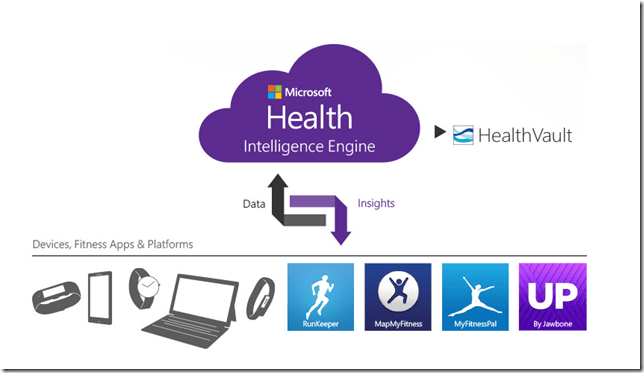
And just what is HealthVault? Well, it’s where you can store your health information and make it available to others: such as your health providers, and no doubt in the future, your insurers.
This is the inevitable rise of big data in the Healthcare industry. I think where Microsoft, and others, certainly Google, but maybe even Nintendo, are going is to aim for the point where their intelligent agents (Cortana, in Microsoft’s case) take on the role of your personal physician. It may seem farfetched today, but it is an inevitable endpoint of the changes that are happening all around us. There’s a McKinsey report that says that Big Data is the next frontier for innovation and competition, which may well be the case, but I can’t help feel that McKinsey hasn’t seen the writing on the wall when they state that:
There will be a shortage of talent necessary for organizations to take advantage of big data. By 2018, the United States alone could face a shortage of 140,000 to 190,000 people with deep analytical skills as well as 1.5 million managers and analysts with the know-how to use the analysis of big data to make effective decisions.
Um, sorry, but coming rapidly up on the inside are intelligent bots that have those deep analytical skills. Already, we have the fact that arguably the best oncologist in the world is not a human but an intelligent bot: Watson. We are rapidly approaching the position where for many jobs – not just assembly line workers, but white-collar workers and even the professional classes such as lawyers, doctors, and analysts – humans need not apply:
Last week, I attended a presentation in Silvolde, a small town nearby, which was given by Peter van der Wel – a Futurologist and Economist. He covered much the same ground as in the video above. While van der Wel was a self-confessed optimist about the technological changes that are heading our way, I’m not so sure. I agree that they will happen, but the resulting upheavals in society as we move from the pre-robot age to a post-robot one will not be easily managed. Today, most of us work to earn money in order to live. When it becomes difficult to find a job – any job – what will the impact be on society? I have no answer, but I think we “live in interesting times”, as the old Chinese curse would have it.
2 responses to “The Rise of the Machines”
-
First this happened to agriculture: rich countries produce far more food than ever before, but need far fewer people to do it. Then it happened to manufacturing. Nobody knows what will happen next, but I think that depends at least as much on social factors as it does on the technology.
-
[…] the first version of the Microsoft Band was introduced in 2014, I thought that the most interesting thing was the backend services of Microsoft Health. The combination of Big Data and AI could have been […]
Leave a comment
-
-
Microsoft’s Band-Aid
There have been rumours about it for a while now, but yesterday Microsoft announced the Microsoft Band, a wearable device that both tracks your health and provides notifications of emails, appointments and social media activity.
The wristband records the number of steps the wearer takes, the intensity of sleep, exercise performance and calories burned. It also tracks heart rate, location via GPS, skin temperature, perspiration and UV exposure. All that data is passed into Microsoft Health, a cloud-based service that builds up a picture of your physical activity and health indicators.
It’s clearly aimed at people who do sports, but I wonder whether Microsoft might not widen the target group to add others in the future, such as the elderly. Being on the wrong side of 65 myself, I would definitely be interested in a device that can monitor my health, and alert me when trends look to be going pear-shaped. A panic button might be a useful addition as well. And think of the add-on accessories – a Bluetooth blood pressure monitor for example.
As usual for Microsoft, the Microsoft Band is only currently available in the US, with no word as to when it might be expected elsewhere. I’ll probably be dead before it is available here.
One response to “Microsoft’s Band-Aid”
-
[…] ← Microsoft’s Band-Aid […]
Leave a comment
-
-
Yet Another Rant About Microsoft…
Yes, I know, I sound like a broken record; but my excuse is that Microsoft’s actions just bring it upon themselves on a regular basis. So, what is it this time?
The spotlight of scorn is back on the OneDrive team, again. After generating lots of goodwill over the recent announcement that Office365 subscribers will get unlimited storage in OneDrive, the team promptly undid it by announcing a new UI for the Windows Phone app. The announcement has been greeted with a storm of protest, both on the OneDrive blog post, but also over at the feedback site for Windows Phone.
The reason that there has been such derision is that the “new UI” makes the Windows Phone app look very much as though it is an Android app. It flies in the face of Microsoft’s own guidelines for UI design of Windows Phone apps, and introduces Android UI elements instead.
Frankly, if I’d wanted an Android phone, I would have bought one. One of the key reasons why I went with a Windows Phone was the UI design. I like it a lot, and I am at ease with it. To have a key Microsoft team turn their back on it and introduce Android elements is a shock, to say the least. One might almost wonder if the team had actually read the “Review questions for prototype” section on the Design the best app you can page of the guidelines, in particular:
- Are you coming from another mobile platform? Windows Phone users will expect fewer taps, clearer views, large typography, and the use of contrast and color.
- Are you using both axes of scrolling (the X and Y axes) and orientation (Portrait and Landscape)? Depending on the purpose of your app, users may expect both.
- Do you use Pivot and Hub controls effectively and correctly?
Even simple things, such as a transparent Tile for the app have been forgotten about (or ignored) in this bastardised design. I hope that the howls of protest that have greeted this version result in a swift redesign to make it a proper Windows Phone app. Good design and adhering to UI guidelines are important, and help to build a brand. This horror does just the opposite.
Leave a comment
-
Photo Supreme V3
I’m an amateur photographer. I’m not a good photographer, but occasionally, more by luck than judgement, I take a photo that looks pretty good to me. Almost as important to me as the image is the information describing the photo; when it was taken, where, the subject – that sort of thing. In technical terms, this is the photo’s metadata.
I’ve been trying to capture, and manage, this sort of information since 2005, and have tried a lot of software applications in the process. In 2007, I settled on IDimager as the most suitable tool for what I was looking for. It was what I used for tagging my photos.
Two years ago, IDimager was suddenly withdrawn from the market by the company, and replaced by Photo Supreme. After my initial shock, I switched to Photo Supreme, and after an uncertain start, I found that it was, in large part, covering my requirements for a Digital Asset Management (DAM) tool.
This week, version 3 of Photo Supreme is announced. It has over 150 additions and improvements over version 2.
I was fortunate enough to be one of the beta testers for version 3. It is definitely a big step forward from version 2 (which in itself was a very good tool), so version 3 has become my DAM tool of choice going forward. I’m also a Lightroom 5 Standalone user, but the only reason I have that is for its image processing capabilities. The metadata handling of Photo Supreme strikes me as being head and shoulders above what Lightroom currently has to offer.
It supports a wide range of photo metadata standards out of the box: Exif, IPTC Core, Extension and Plus. I can now automatically synchronize entries for the IPTC Extension fields for “Person In Image”, “Places”, and “Event” IPTC fields – something that I had to do manually in V2. It also now supports the Image Region metadata standard defined by the Metadata Working Group – the same standard used by Google’s Picasa for People Tags. That means that as well as being able to list the people appearing in a photo, I can now show their names on the photo itself.
If you’re looking for a good tool to manage your photo metadata, take a look at Photo Supreme.
19 responses to “Photo Supreme V3”
-
Hi Geoff, Do have any comments on PhotoSupremeV3 and AdobePhotoShopElementsV12 which at a glance, comparable.
David
-
David, the last version of Photoshop Elements that I looked at was version 9. I was not impressed. Perhaps things have improved substantially, but I doubt it. And even if the metadata handling of PE 12 now matches that of Lightroom (which I doubt – PE is seen by Adobe as the consumer product, whereas LR is for professionals), then it would still lag what Photo Supreme can do.
-
-
Wait, I can’t just put them on Facebook or in iPhoto and let it automatically tag my friends? 😉
-
Well, you could do that… Then you’ll be the product that Facebook or Apple are monetizing 🙂
-
-
Thanks Geoff, I’ve just your article on Elements v9. I’ve never heard of hierarchical metadata prior to reading that. I’ll have to at what I’m missing. Might download the trial of SupremeV3 and see what happens with my library of pictures. Actually my next project was to digitise some 3,000 colour slides taken in the 70’s and 80’s but I haven’t found a cheap enough, good enough scanner so far so I might have to go to an external service provider. I do however have a question. Do you keep a common library with your partner ? I try to so we both have access to the pictures we’ve both taken. This is really tough with Elements as it locks the library and its slow getting the pictures from my HomeServer. I see that PhotoSupreme has a server edition (quite expensive though) and wonder which version you are using, etc etc. David
-
Well, we do have a common library (held on our WHS 2011 system) which is then accessed by all the clients on our home network. That’s our PCs and tablets, and also potentially smart TVs, if we ever get one.
However, I’m the one in the family who does the metadata work, and I do that on my main desktop PC, with the files imported from our cameras via Photo Supreme. Once the photos have been worked on, then the results are synced across to the photo collection held on the WHS. That means that I don’t need a multi-user version of Photo Supreme. I suppose I could work with Photo Supreme running against the collection on the WHS directly, but I prefer this two-stage approach.
-
Hi (again), thanks for that. So only one of you takes the pictures from the camera’s adds the metadata you want. I’m interested in two aspects. How you store the photo’s (organisation) and your means of browsing (gallery style) and what client you use for that. Your system sounds perfect for me and my wife. I’d just like a few more details ….. in between Dr.Who commitments etc etc. David
-
OK. Photos end up in a hierarchical folder structure that is organised by date, and every photo is renamed with the date/timestamp of when it was taken. This is all done automatically at the import stage by Photo Supreme. This post gives the gory details (in the answer to question 1):
It refers to using IDimager, but now I’m using Photo Supreme in the same way.
At the time I wrote this post, I was storing hierarchical keywords using “/” as the delimiter. Windows Live Photo Gallery also uses this convention, so it would track metadata changes and the hierarchy automatically. WLPG is an easy to use browser for the family to use.
I’ve now moved to adopting the Lightroom method of defining and storing hierarchical information in photo metadata. Photo Supreme understands this, but WLPG does not. This means that although WLPG will automatically track all the keywords and any changes, it no longer holds them in a multi-level hierarchy, but simply as a flat list of keywords.
-
-
-
-
I’m working to organize our digital photos and came across your blog. I’ve read a lot, but have some questions and would like to e-mail you directly, if possible. Thanks for considering this. Sincerely, Greg
-
Greg, why not kick off by asking me one of your questions here. We can always move to direct email later. Thanks.
-
-
Geoff, thank you for the review and info.
I was seriously into DAM and was using iView and then MS’s follow-on products. I was running a photog business (mostly weddings.) About 4 years ago I retired and stopped shooting. Now I am shooting again.
I tried installing MS’s software on Win7. It would not install.
So I am in the hunt for new DAM/cataloging software. I don’t care if it has edit capabilities…BUT it
must catalog. I also want it to write the tags and grade/quality (0-5) into EXIF/IPTC.Does Photo Supreme V3 do this, especially writing into EXIF/IPCT.
Thanks.
Bob-
Bob, Photo Supreme V3 is superb at cataloguing and managing photos. It’s really the best I’ve found, and I’ve tried a lot of them over the years. It has image editing capabilities, but these are not its prime focus. I use the tools in Lightroom if I want to have advanced image editing. The cataloguing and management tools of Photo Supreme V3 are (IMHO) light years ahead of Lightroom. PS3 supports Exif and all the IPTC standards: IIM for backwards capability, Core, Extension and Plus. It also supports the Image Region standard of the Metadata Working Group, which is used for tagging faces in an image (this standard is also used by Google’s Picasa). Hope this helps. Take a look at the trial version of PS3; I think you’ll find it is probably what you’re looking for.
Oh, and I forgot to mention, the User forum is very good, with lots of community support, and Hert, one of the developers, is also very active and responsive in it. He also runs a separate bug-tracking forum, where both bugs and suggestions for new features are handled.
-
-
Geoff, Thanks for the quick reply.
My main question I need to be assured about is:
>>I also want it to write the tags and grade/quality (0-5) into EXIF/IPTC.
I am quite sure (as most do) it will read them and adhere to the format standard. But I want my time cataloging to saved in the EXIF/IPTC: not in a unique catalog, or a side car or any place except for the EXIF/IPTC. It can save stuff in a unique catalog also.My reasoning: I bought into LightRoom cataloging.But I really wasn’t satisfied. Then I bought iView and discovered that the LightRoom catalog wasn’t compatible for import. So I had to re-catalog a small collection when I began using iView, I was very satisfied until it was rebranded as MSMedia Expression. . Then MS ME was “endof-lifed.” All of the time spent cataloging 20,000+ pictures were gone.
If either (especially MS ME) had saved the evaluation INSIDE THE PHOTOGRAPH, I would not face the challenge I now face. Just point to the import of pictures and BAZINGA… new catalog.
So this time I am being very analytical about which product I select.
Thank for your time and patience with me. I AM going to get this one right.
Kodachromatically,
Bob-
Bob, ah, OK, I see what you’re driving at. Rest assured that PS3 will save metadata in the image file itself if you require this. One of the reasons why I first looked at IDimager (the precursor to PS) was that it respected all photo metadata, both for reading and writing. PS3 is the same. You won’t be painting yourself into a corner.
-
YES!!!!
Great answer! I’m off to try PS3.
Thank you!
-
-
-
Hi Geoff just a quick question for ya, I am an illustrator / designer. I have a huge library of photos I take for project ref.Dont even know exact count probably 20,000 or so, I am going to look at PS3 as possible way to organize this but I am wondering if yo have any advice for someone who doesn’t need meta data etc just a visual file system that makes sense? I currently just use adobe bridge and iPhoto…
-
Hallo D. That’s a bit of a “how long is a piece of string” type question you’ve got there. What is “a visual file system that makes sense”? The answer is probably “the one that makes sense to you” – which means that the answer is very personal, I suspect.
The way I do it is, when I return from a photo shoot, to ingest all the photos from my camera(s) into PS3.
During the ingestion process, PS3 automatically renames all the photos from the camera’s IMGnnnn format to my preferred date/timestamp format of yyyymmdd-hhmmss-nn, and also places the photos into a folder structure that is ordered by date to three levels: year, month and day. If a particular folder does not already exist, PS3 will create it on the fly. At the same time, the first pass of assigning copyright metadata to every image is done by PS3. This is to add the Contact Info, Copyright Notice, Usage Rights, and Title fields to the images. I know that you say that you don’t need metadata, but surely you are at least assigning copyright metadata to your images, even if it is only Creative Commons?
So my particular visual file system is organised by the date when the photo was taken (or the image was created). Other people might organise their file system by subject (e.g. People, Places, Objects, Activities, Styles), but that’s what I use metadata for.
-
Hi Geoff thanks for responding and so quickly… You are correct my question was a bit vague. In some ways I am a bit of a caveman when it comes to technology…I have been searching in my off time for quite awhile now how to improve my photo and reference library.
Your review of PS3 has helped quite a bit already. I found a little app called iPhoto library
manager which after a full day has helped with the first part at least, getting rid of duplicate files etc. Down from 70,000 to 40,000 now I will install PS3 and see where it goes 🙂Thanks man
D
-
-
-
[…] Photo Supreme V3 is worth looking at. […]
Leave a comment
-
-
Whither Next? A Media Center Journey
Four and a half years ago, I built my first HTPC for our Home Cinema setup. It was leading edge technology then, but with the rate of change being what it is, support for many of the software and hardware components very soon became either dying or dead.
The HTPC is currently running Windows 8.1 + Windows Media Center (WMC), which in turn is supplemented with MyMovies to provide the best experience with a library of films and recorded TV series. For Bluray films, I’ve been using Arcsoft’s TotalMedia Theatre to play both the discs themselves and ISO files that I’ve made from my discs. This setup works well, but the writing is on the wall indicating that it can’t continue this way forever. For one thing, it’s abundantly clear that Microsoft want to wash their hands of Windows Media Center, and for another, Arcsoft suddenly pulled TotalMedia Theatre from its web site last month and it is no longer available.
I need to prepare a contingency plan, so I’ve been looking at alternatives. A couple of years ago, I took a (quick) look at JRiver Media Center. I said at the time:
This is a total solution, replacing Windows Media Center, TMT5 and MyMovies in their entirety. JRiver Media Center is capable of handling Blu-ray. I must admit, on my HTPC it appears to handle them flawlessly, a pleasant change to the current disaster of TMT5. But if I adopted JRiver Media Center, I would also be moving away from WMC and MyMovies, and I do like the user experience of that combination.
JRiver Media Center has been around since 1998, and is currently on version 17 (!). It looks to be a very good product, well-supported, with an extremely enthusiastic user community of more than 26,000 members, some of whom are contributing plug-ins for the main application. However, I’m not sure that I want to move to it. It’s a personal thing, I know, but as I say, I feel very comfortable with WMC and MyMovies.
JMC is now at version 20, but I still have the impression that it has so many bells and whistles that it is overly-complex for what it is. I might take another look at it to see if it strikes me as being more attractive, but I can’t help feeling that it will just have yet more features, knobs and switches bolted on that I would never want to use. Addendum: It does, and I don’t. It’s not for me.
I’ve been looking at a couple of other alternatives over the past few months: MediaBrowser (now called Emby) and, more recently, Plex. They both have their strengths and weaknesses. A major strength of both of them (as far as I’m concerned) is that they both use a client/server architecture. That is, the core component of both is a media server to which a wide range of clients (TVs, HTPCs, PCs, tablets and smartphones) can connect and play the media. Since I hold all our media on a Windows Home Server 2011 system, that would be the logical place to install and run the media server. For both MediaBrowser and Plex, the media server can be administered on the WHS 2011 system via a web interface.
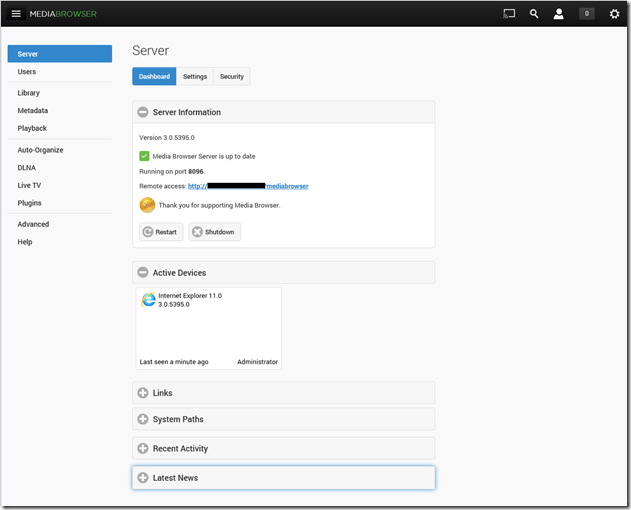
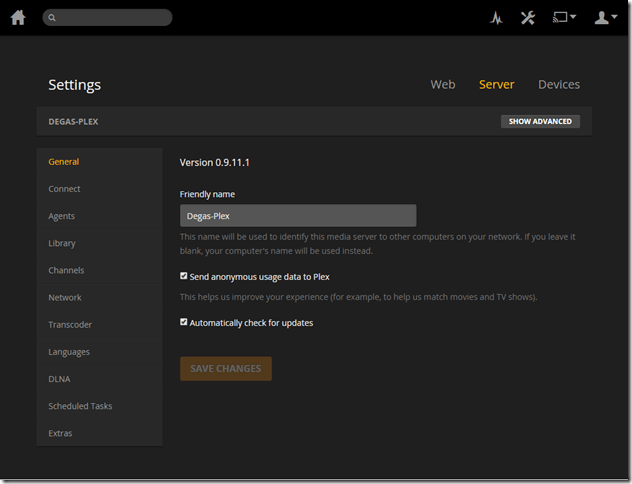
The weaknesses differ between the two, but both MediaBrowser and Plex are fast evolving systems, so changes, bugs, and bug fixes are very much the order of the day. As far as I’m concerned, neither one offers me a complete replacement for our current WMC + MyMovies setup at the moment. Ideally, I would like a combination of the features of the two, because of their current shortcomings.
For example, take the HTPC component of both: MediaBrowser Theater (MBT) and Plex Home Theater (PHT). MBT is still Alpha software; not even at Beta stage. While it is looking good, it clearly has a long way to go – it is very buggy and feature incomplete at the moment.
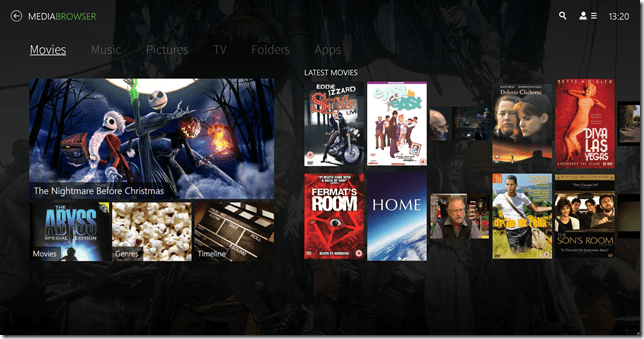
PHT, on the other hand, is much further down the development track. It looks good and seems fairly reliable on my HTPC.
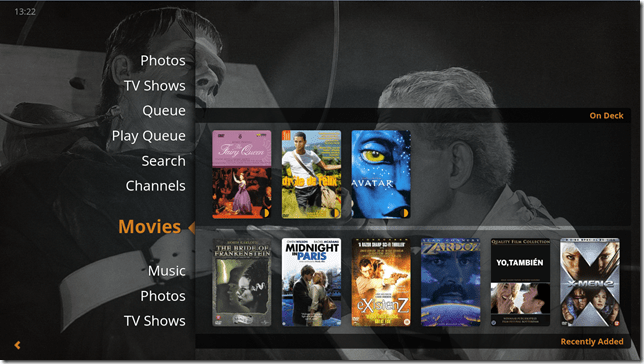
Both MBT and PHT are so-called “10 foot interfaces” – they are designed for use on large screens, and to be driven by remote control. It would be really nice if PHT could use the remote I have for Windows Media Center, but for some reason best known to the designers, they have deliberately chosen not to stand upon the shoulders of giants, but to start from scratch with almost entirely a different set of commands.
Both MediaBrowser and Plex have player clients for Windows 8.1 and Windows Phone 8.1. Here are the Windows 8.1 clients:
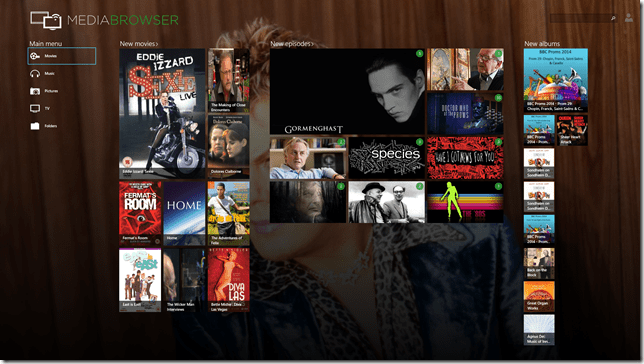
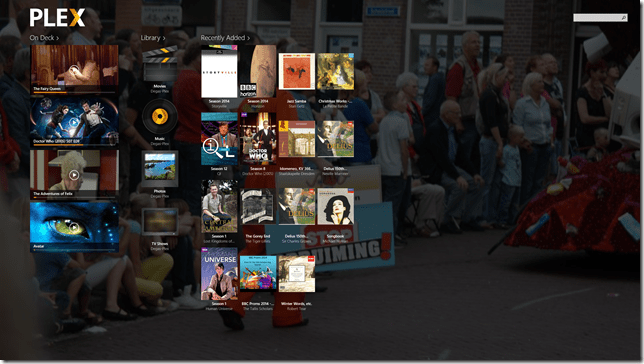
One major shortcoming of the Plex clients (as far as I’m concerned), is that neither of them have no other way of browsing our Music library other than by an Artist view:
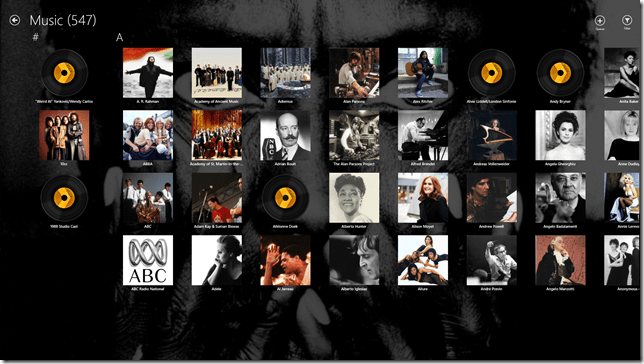
At least the MediaBrowser Windows 8.1 client offers a choice of being able to browse by Artist, Album or Genre, while the Windows Phone client adds the choice of being able to browse by song as well. However, this is nothing compared to Windows Media Center, which, since 2004 (ten years ago!), has offered a choice of being able to browse by Album, Artist (both per track and per Album), Genre, Song, Playlist, Composer, and Year:
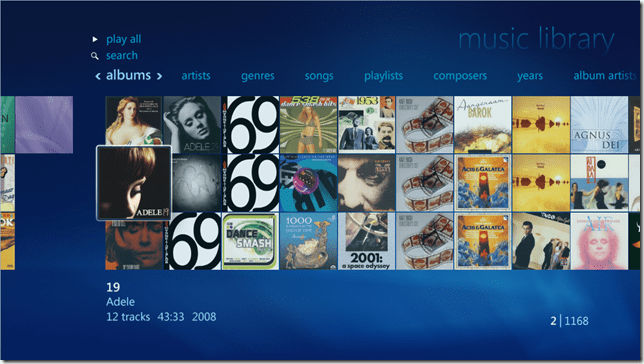
So as far as handling of a Music library is concerned then, both MediaBrowser and Plex have a very long way to go…
[Addendum 30 October 2014: Plex have just released new versions of the client for Windows 8.1 and Windows Phone, and the good news is that at last it is now possible to browse the Music library by Album. Semantic Zoom is also supported when the Album list is sorted by name. However, Semantic Zoom doesn’t work (in Windows 8.1) or is missing altogether (in Windows Phone) when Albums are sorted by Artist. Apparently, this is caused by limitations in the current version of the Server. Hopefully it will get fixed, but at least we are now a little further forward than we were…]
It’s a similar story when it comes to browsing Photo libraries. The MediaBrowser and Plex clients can only browse folders, while Windows Media Center can browse by Folder, Tags, Date taken, Ratings, Slide shows and Shared (browsing other media servers shared on the local network). The lack of support for browsing by Tags, I find particularly disappointing in the MediaBrowser and Plex clients. Still, support for these features may yet come. It’s clear, however, that both the MediaBrowser and the Plex developers view Movies and Video as where the action is. Music and Photo libraries are very much the poor relations.
One area where MediaBrowser and Plex has surpassed Windows Media Center is that of being able to play content on other devices. WMC was designed as an all-in-one solution, whereas both MediaBrowser and Plex have been designed as an ecosystem of interconnected server and client devices. So it is possible to browse my movie library on my Windows Tablet, or my Windows Phone; pick a movie, and then start it playing on the HPTC, and continue controlling playback from the browser device.
Plex can do this with its own player applications and selected Smart TVs. MediaBrowser has possibly a wider reach, because it should be able to work with any DLNA-certified device. However, the theory is not always borne out in practice; I have problems using my Denon AVR to play music sent to it by MediaBrowser.
Another area where MediaBrowser and Plex go beyond Windows Media Center is that of being able to access and share media collections outside of the home network. This raises a lot of questions around security, and indeed, Plex seems to have some architectural issues that need to be addressed in this area, and I would not be surprised if MediaBrowser might have similar questions asked of it. However, as I have no desire to share our media collections outside of our home network, I do not use this capability and have closed off the servers from outside access. (Note: since this section was written, Plex has had a totally redesigned security architecture implemented, which seems to have addressed the security issues)
In summary then, both MediaBrowser and Plex have promise, but I don’t feel that either of them have quite reached the stage where I will commit to one and drop my current Windows Media Center setup. Nonetheless, I’ll be continuing to monitor and try out both. We are getting ever closer to the release of Windows 10, and Microsoft’s
possibleremoval of Windows Media Center from that operating system. The clock is ticking.Addendum 6 August 2015: Well, Microsoft has just released Windows 10, and, as expected, Windows Media Center has been dropped from the operating system entirely. Since my last entry on this post, both Plex and Emby have improved. Plex, in particular, has considerably improved handling of Music collections. Still not as good as Windows Media Center, it has to be said, but not bad.
I’m still running both Plex and Emby in parallel, trying to make up my mind between them. Plex is currently in the lead as far as I (and my requirements) am concerned, but I’m waiting to see what the forthcoming version of the Emby Home Theater client will offer before I make my decision.
16 responses to “Whither Next? A Media Center Journey”
-
I ran into most of the problems you did in exploring all the options out there.
I went the other way though. I stuck with JRiver and i’ve never looked back.
One of the things that won me over. Was the community they have established on there forum.
It’s one of the best around.-
Good for you, Castius. Glad it’s worked out for you. I agree that having a strong community of users is an enormous help to any product. JMC is just not the product for me.
-
-
Geoff,
Thanks for the “survey”! It’s always interesting to see what’s out there.
Here is a list of your main points in comparing MediaBrowser and Plex. I’ve added how I think JMC (JRiver Media Center) compares:
o Server/Client: check. I have JMC Server installed on a Server Essentials 2012 Machine. I use Remote desktop for configuration issues .
o MyMovies integration: Check. JMC imports MyMovies metadata files. I don’t use this since JMC has built in metadata retrieval.
o well developed 10 foot interface: check
o MCE remote support: Check. My Logitech harmony emulates one.
o Win8.1 Client Player: Check. That’s what I use.
o Configurable Views for Audio browsing: Check. That’s a major selling point for JMC but also something that makes it so complex. You can basically set up anything you like, in any kind of tree structure.
o Windows Phone Client: NoCheck. Android and iPhone only as far as I understand.
o Configurable views for Photo Browsing. Check. See audio.
o DLNA Support: Check. The DLNA support of JMC is good. DLNA is complex with suppliers not following standards and adding their own stuff to the protocols. But (believe it or not) some users are actually analyzing the components around and JRiver actively changes SW to support new devices.
o Share outside home network: Check. JRiver provides security keys and forwards connections.And then, to some features you didn’t discuss:
o Music playback: JMC is probably the best player for offline content wrt. quality.
o Video Playback: MC video handling is painless for the user. Forget codecs problems, Directshow priorities etc. There is a built in system which auto handles video.
o Photo Support. MC reads several EXIF/IPTC tags (Places, Date, Lat/Lon,Caption, etc). It reads Picasa people tags and generates people lists which can be used for displaying on the 10 foot display. Changes to a file is detected and the people list is updated, even after import (Btw. I’ve recently diffed the outputs of exiftool before and after Picasa and I cannot see any issues 🙂If I feel that there is some support for Photo tags missing it is my opinion that NO OTHER APPLICATION can do what MC does with photos.
-
Hi Raldo,
Thanks for the comments (and for driving lots of JMC users along to the blog!). You make some good points, but also I think I’m not making myself clear in what I’m looking for. For example, I don’t think I would classify the JMC design as “true” client/server architecture. It’s an all-in-one design that happens to expose itself as a media server as well.
I’d prefer not to have to use Remote Desktop for communicating with my headless server – a web interface (or integration with the WHS dashboard) seems to me a better, longer term, way to go. It will only be a matter of time before I will have to withdraw my WHS 2011 system from service (Microsoft will not be supporting it), and then I might well step over to a NAS. The Plex media server is available for NAS systems in addition to Windows, Mac and Linux. I can’t justify the cost of a Windows Server Essentials licence to the Financial Controller…
I’m not wed to the MyMovies metadata, it’s just that I like the functionality that MyMovies gives. An alternate client that allows browsing/management of movies and recorded TV shows that matches the functionality of MyMovies is fine by me.
The JMC Home Theater view looks promising, but I need to spend some more time with it. Similarly, I need to make sure that my simple (non-programmable and cheap) MCE Remote will work with the minimum of fuss.
What do you mean by “Windows 8.1 Client Player”? Do you mean the JMC runs on Windows 8.1? I’m looking for a Modern UI player (touch/keyboard/mouse driven) that integrates with my media server in a way that there is a recognisable “house style” with the Home Theater interface, and which I can use to browse media and then hand off to other player clients (e.g. the Home Theater) for playback, while choosing to retain control. Similarly for the Windows Phone client. With Plex and Media browser, I can use the phone to choose my media and then hand over playing to their respective Home Theaters (or smart TVs), and continue to use the phone as a control point. Similarly for the Modern UI clients running on my tablet.
“Configurable views for Audio Browsing” – yes I think I know what you mean, but then this is a tree structure displayed in a traditional Windows Desktop, is it not? That’s not what I’m looking for. I want clean and simple. That’s why I like the old WMC interface, they actually got a lot of things right in that 10 foot interface ten years ago. Similarly for Photo browsing (although it’s more limited than I would like).
I’ll take another look at what the Home Theater view of JMC can do with photos. Someone else wrote the following use case in a private forum:
“With 50k photos you just can’t browse folders, you’ll go insane before finding the right photos. Browsing by keywords represented by virtual folders is good, but browsing by ONE keyword/tag/metadata just doesn’t cut it.
What is needed is support of multiple level of keywords, at the very least two levels.
As far as I’m concerned a dynamic two-level virtual folder structure based on keywords would be far better than one. Let’s say you open the virtual folder for the keyword “Birthday”, then you would be presented with virtual folders for all the keywords that coexist with “Birthday” for any image thus filtering the result further for every step.”
That’s the sort of functionality I am looking for in both a 10ft interface client and a Modern UI client.
As an aside, if you’re not seeing any diffs before and after using Picasa, then you’re probably not using Canon cameras. I’m still seeing that Picasa 3.9 will remove Canon Makernotes from my photos.
Thanks again for your comments. Cheers.
-
-
My media used to reside on a WHS box back then and I actually considered the NAS route when the WHS OS crashed for the second time.
There were two reasons I did not choose a NAS: First, raid cards on NAS boxes typically force the disk to have a proprietary file system. So a failed NAS raid card might make your disks useless if the card is out of production. Second, JMC did not run on Linux. But that has recently changed.
I did get a free Essentials license through my job. Server Essentials (SE) has proven to be a lot easier to use than I feared and I’m less a sysadmin now than when using WHS. WHS had one major disadvantage: It was really hard to recover from system disk failures. I had two of those and I spent a long time recovering my data. SE is significantly more robust in this respect. I even tested system restore from a backup disk before going all the SE way.
You’re asking: ” then this is a tree structure displayed in a traditional Windows Desktop, is it not?” You can set up your audio, video and photos views anyway you want in JMC’s 10 foot display mode (Theater View). That’s actually what a lot of the “bells and whistles” of MC is about.
Let me give you an example: Due to your blogpost a long time ago (https://gcoupe.wordpress.com/2007/11/09/managing-photo-libraries-part-5/) I adopted the principle of storing metadata in the file. There were some JMC discussions on this topic at that time: (http://yabb.jriver.com/interact/index.php?topic=53434.0) .
Now, JMC supports reading/writing iptc/Exif Keywords, People. And reading iptc/exif Date, Lat/lon, caption, places, etc. It even detects changes in Picasa facetags and imports these. So I have the following views on my theater view display:
o New Media. Two monitored dropbox folders. Implemented by using viewscheme filters on folders
o Events/Year
o People/Events/Year
o Places/Events
o Year/Events
o Year/Month/eventsThese views mix home videos and photos. For photos, all the above tags are stored in the files. For videos I plan to start using .xml sidecar files since few video formats support metadata. Captions are displayed at the picture within the schemes.
The “Events” tag is handled as follows: Since the iptc/exif “Events” tag is not universally supported, I chose to implement events using the universally adopted keywords tag. Picasa and WLPG display keywords. WLPG can even display nested keywords in a nice manner. So I use nested keywords to store events. A particular event keyword may look as follows: “!Events\Geocaching on Maccu Piccu” or “!Events\Maynard James Keenan’s birthday”. A “smart tag” called Events then extracts events from keywords (using regular expressions). The events tag can then be used in view schemes.
I don’t expect anyone but me or Marko (from the JMC forums) to be even remotely interested in spending time setting up their media center in such a convoluted way.
But I do think that JMC would benefit from implementing a “Smart Workflow” feature which would hide such “bells and whistles”
-
Raldo, thanks again for your comments. Interesting stuff, but the thing that jumps out at me is this bit:
“I don’t expect anyone but me or Marko (from the JMC forums) to be even remotely interested in spending time setting up their media center in such a convoluted way.”
That’s where the potential Achilles Heel is. It’s all very well having the capability in JMC to do this stuff, but if it’s too complex for the average joe to do it, then very few of us will do it. The one saving grace is that a sufficiently functional and popular platform gets a thriving third-party add-on market, which offers pre-built skins/widgets/whatever to open the functionality to be used by us average joes. That’s what I see in the competitor products, and I suspect that the same is true for JMC, but I’ll be learning more about that over the next few months…
-
I agree that for new users, JMC appears “Over Engineered”. But then again, I don’t think any other application can deliver that kind of flexibility with tags. Other apps have hardcoded the tradeoff between flexibility and usability and then one soon hits a brick wall.
Though, It seems as if the ball has started to roll for JMC wrt. automatic configuration and a more smooth initial experience.
-
-
One additional point of clarification: I take it you were using WHS v1? That did have the issue of not being able to make server backups. I’m using WHS 2011, which does have that capability. It’s limited (automated backups cannot be greater than 2TB, because it doesn’t support VXHD format, only legacy VHD), and Microsoft removed Drive Extender, but other than that I’ve been pretty satisfied with it, despite my occasional rant at some of Microsoft’s design decisions in it. At one point it was possible to pick up a license for $40, which is incredible value for what it gives. Alas, it seems as though Microsoft has now withdrawn WHS 2011 from the market.
-
Raldo, I was intrigued by your new Views within the theatre home display for photos. So I tried to find out how I could do something similar. First of all, a search for “View scheme” within the JMC “User manual” (I really don’t like Wikis as a User Manual, but that’s another discussion) takes me to a View Scheme page that starts off by declaring “This content has been deprecated as of MC14 and may no longer be valid. Please refer to Interact for additional details”.
I find this so irritating. It seems every time I try and find out more about the bells and whistles in JMC I run into a dead end of deprecated content or follow a tortuous trail of links in an attempt to achieve clarity, and rarely achieve any understanding of what I’m supposed to be doing.
Life is too short!
-
I agree. But try to post a question in the JRiver forums on what you’re trying to achieve. You’ll get answers really fast. I’m at work right now but I’ll take a look at your post later this evening.
I’ll encourage you to “test” your views in using “Standard View” first. Just go ahead and play around there: right click the toplevel image view and then “create new” or something. Then you can edit the view by right clicking. Note that “Import” in MC really means “Indexing”. When the views look good, you can import them in Theater View.
-
The JMC wiki is, as you pointed out, not very well maintained. I think that JRiver’s intention (hope) was that the community would maintain the Wiki.
Some areas in the Wiki are good but I tend to use the forum when I’m stuck.
-
-
-
Btw: You’re saying: “What is needed is support of multiple level of keywords, at the very least two levels”. Check. Any level of nested keywords is supported.
-
[…] Wither Next? A Media Center Journey […]
-
[…] and MKV media container formats. Both of these are important to me for the future of my music and home cinema systems. However, what Microsoft gives with one hand, it taketh away with the other. The “Play to” […]
-
[…] and fiddle about, still I was happy doing that. Fast forward to October 2014, and it was clear that major changes would be necessary in the media application software of the HTPC. Microsoft would be dropping support for Windows […]
-
[…] the next few years the setup evolved further, but in 2014 it became clear that I would need to change the player software used in the HTPC. I looked at two alternatives, Plex and Emby. I used both, but over time came to […]
Leave a comment
-
-
Particle Fever
I watched Particle Fever last night. It’s a documentary about the Large Hadron Collider and the search for the Higgs Boson.
It’s staggeringly good.
Equally staggering is the scale of the physics experiment that the LHC embodies. It’s probably the largest experiment ever constructed by humans; built with a budget of 7.5 billion euros by over 10,000 scientists and engineers from more than 100 countries. The documentary easily delivers a sense of awe at the scale of the endeavour, but, more importantly by following six physicists over six years, also gives an insight into the purpose of the project and the passion of the people for the physics behind it.
Physicists fall into two camps: the theorists and the experimentalists, and both were represented in the documentary. Whilst all the featured physicists were interesting and engaging, I was particularly struck by two of them: experimentalist Monica Dunford (who came across as being exactly like Dr. Ellie Arroway, the character played by Jodie Foster, in the film Contact) and the theorist Nima Arkani-Hamed. His explanations, together with those of David Kaplan, another physicist and producer of the film, managed to make the physics clear to me, and pointed out the struggle of theories going on – supersymmetry versus multiverse – that the LHC experiments aim to resolve through discovering and understanding the Higgs Boson.
What I find fascinating is the way in which supersymmetry almost implies support for the strong Anthropic principle (the suspicion that someone/something is twiddling the knobs of the universe to fine-tune physical laws and constants so that the universe as we know it can actually exist). The Multiverse theory, on the other hand, removes the need for all this knob-twiddling, since it posits that our universe, with its particular knob settings, is just one possibility out of a myriad of alternative universes that might exist.
It was hoped that, if the Higgs Boson were to be discovered by the LHC experiments, then this would go some way to favouring one of the above opposing theories. Unfortunately, like some cosmic joke, the data that the LHC has given us about the nature of the Higgs Boson is almost exactly sitting on the fence, with neither theory being able to be declared the outright winner. This is like ascending a mountain, only to discover when you’re at the peak, that it is merely a foothill of some larger chain. If you have passion, as these physicists clearly demonstrate, this will simply act as the spur to drive you on further.
At a time when both religion and politics are increasingly demonstrating their most baleful influences on humanity, it warmed the cockles of my misanthropic old heart to see a scientific endeavour on the scale of the LHC uniting thousands in a common search for knowledge.
Leave a comment
-
Windows 10 Technical Preview
Naturally, I couldn’t resist taking a look at Microsoft’s Technical Preview of Windows 10. I signed up to the Windows Insider Program and downloaded a copy of the Windows 10 Technical Preview.
I’ve installed it on my Desktop PC (homebuild) in a Dual Boot configuration. Dual Boot seems the safest option at this stage; Windows 10 is nowhere near complete, and you can’t revert back to Windows 8.1 without doing a complete fresh reinstall of Windows. While I could have run Windows 10 in a Virtual Machine, I prefer to see what happens when running on actual hardware. With the Dual Boot configuration, I can choose to start up either the Windows 10 Technical Preview or the tried and trusted Windows 8.1 operating system. (Addendum: if you’d like to install the Technical Preview in a Virtual Machine, then Ludwig Keck has a “How-to” post over at his This ‘n That blog.)
The main thing to bear in mind is that at this stage, it’s very early days; the focus of the Technical Preview is on Enterprise users (who are probably still running Windows 7 on their PCs) and therefore using the traditional Desktop interface with mouse and keyboard. Touch devices are not the focus of this first Technical Preview. I’m already reading in forums of people who have installed it on touch-enabled devices (e.g. the Microsoft Surface Pro range) and who are reporting that the touch experience is in fact degraded…
For this and other reasons, there is no way that I would install the Technical Preview on my ThinkPad Tablet 2 at this stage. Knowing my luck I’d end up with a useless brick.
I suppose the big news of this Technical Preview is that the Start Menu (familiar to Windows 7 users) is back. This being Windows 10, the Start Menu also has elements of the Windows 8.1 Start Screen tacked onto it in the form of App Tiles:
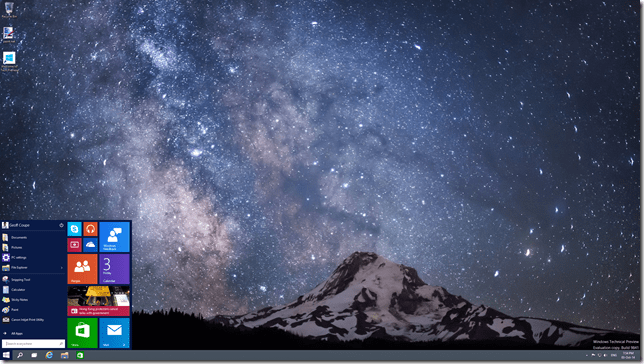
It’s possible to customise this Start Menu (Start Panel?) in a variety of ways (resizing the panel, resizing and shuffling the Tiles) to arrive at your desired configuration. This could be a pure Windows 7-style of Start Menu, or a combination of Menu and Panel:
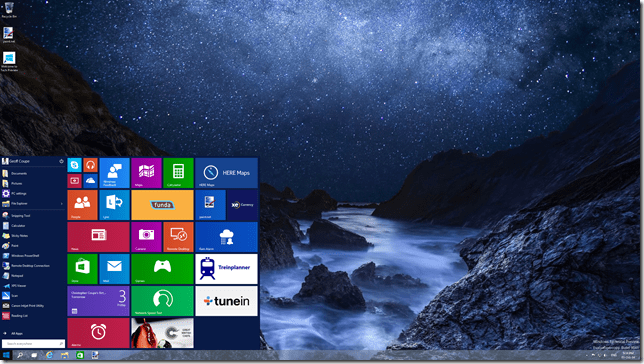
I have to say that, frankly, for me, this all seems like a step back into the past. I’ve got very comfortable with the Start Screen on all my devices (PCs and Tablets), and going back to the damn Start Menu doesn’t thrill me at all. Clearly, there are many for whom the Start Menu is a good thing, but I’m not one of them. I just hope that Microsoft don’t remove the option of having a Start Screen even when Windows 10 is running in Desktop mode.
What I also quickly noticed is that, in this Technical Preview, the Charms Bar has been removed from the Desktop as well. My muscle memory kept expecting to bring out the Charms bar, and I found it irritating that it was not there. This may be an issue with the Technical Preview build, because there’s a Control Panel setting that seems to imply that it should be possible to have the Charms Bar present, even in Desktop mode:
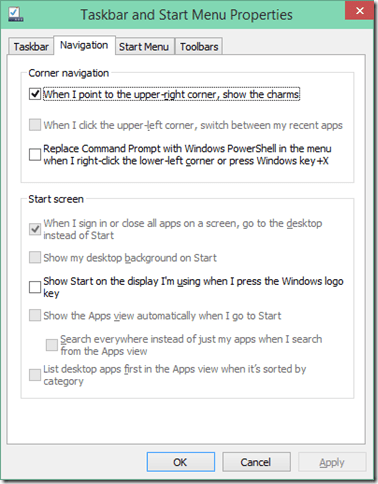
However, in this build of the Technical Preview, that checkbox doesn’t work.
One thing I do rather like is that Desktop Windows are now almost borderless, with just a faint shadow effect on underlying Windows:
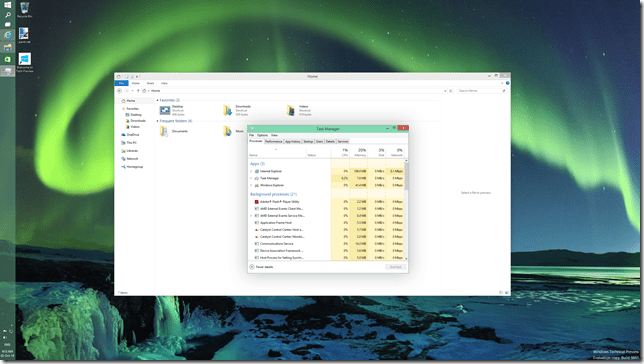
This seems to be a nod to the “flat” design language of the Modern UI. As I say, I rather like it, but I see from the forums that Desktop traditionalists hate it.
If you fire up a Modern UI app, then it displays almost fullscreen (by default, the Taskbar and a Title Bar still show):
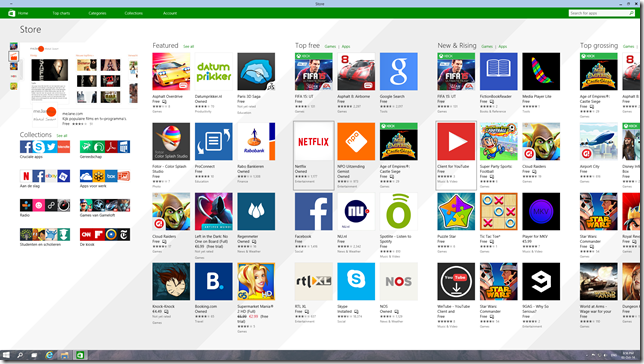
The big news here is that it is possible to resize the Window of the app. The trouble is, that the content doesn’t resize. It may get reshuffled a bit (but not always, as the Store app shown here illustrates), but fonts and graphics remain at their original size:

I don’t really think this works. The Mail app, for example, is really designed for a tablet-sized screen in fullscreen mode. Resizing it on a large desktop, and it looks overblown, even when in a smaller window. When in Desktop mode, I tend to stick to the traditional Windows Live Mail, which is a traditional Desktop application. That’s comfortable. When I’m using my tablet, I use the Mail app. That’s equally comfortable.
Microsoft are making a play that Windows 10 will be one platform that supports a tailored experience for a range of device form factors:
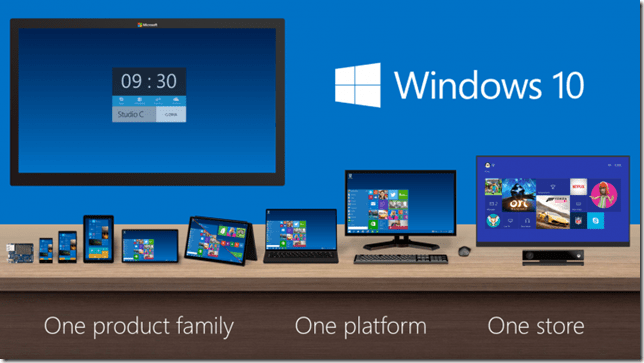
However, at this stage, it is clear that the experience is not tailored, it’s procrustean – at least as far as the current generation of Modern UI apps are concerned. This has to improve.
I’ll be following the developments with interest, but this first Technical Preview is addressing an area that I personally have moved beyond.
9 responses to “Windows 10 Technical Preview”
-
Thanks Geoff for a very nice overview. I will link to your post in a comment on my posts as your views should be viewed by my readers too.
-
Thanks, Ludwig. This is the first post in what is likely to be a small series appearing over the course of the next few months as Microsoft push out successive builds of the Previews…
-
Mine too is a small series. My next posts take Windows 10 up from a photo-enthusiasts point of view.
-
-
-
You are correct that many Enterprise users are still running Windows Seven; my wife’s company and my company both migrated from Windows XP to Windows Seven during 2013. In both cases, I believe it was the imminent end of support for XP in 2014 that prompted the migration.
-
Large enterprises are like supertankers – they turn very slowly…
-
-
As for the Procrustean issue with Modern Apps, I think there is a severe mismatch with programs that are accustomed to having all of a tablet screen — as opposed to Desktop programs that have always been required to handle resize events. Maybe the best approach would be to have a configuration option where the user could specify the preferred window size for all Modern Apps. Then when an app is launched, the OS would give that App a simulated tablet screen of that size.
-
Either that, or have it possible for Apps to work in the same way as the Modern UE IE11 – support font/graphic resizing on the fly…
-
Getting resizing to work right with Modern Apps may depend more on authors of individual Apps than on the OS itself. Windows Desktop program have always needed to handle WM_RESIZE events, but under Windows 8 the only on-the-fly layout change a Modern App will see is when the user switches between Portrait and Landscape orientation. I dunno anything about the Modern API equivalent of WM_RESIZE because my world is still the Desktop. But I expect a typical Modern App is not currently prepared to handle changes in window size while it is running, and I don’t see how the OS can do that for the App.
-
Yes, I agree it’s mainly down to the design of the App. That’s what I meant by my comment that this generation of Modern UI apps don’t fit with the new Universal paradigm of Windows 10…
-
-
-
Leave a comment
-
-
A Comparison of ThinkPad Tablets
In January 2013, I bought a Lenovo ThinkPad Tablet 2 for myself. Since I’m firmly in the Windows ecosystem camp, I didn’t want to get either an iPad or an Android tablet, and the TPT2 was the first Windows tablet that started to tick all the boxes I had in my list. Being a tablet with a second generation Intel Atom processor at its heart, it was no powerhouse, but it suited me very well.
Fast forward to now, and there are tablets available with the next generation of Intel’s Atom, and new low-power versions of the Atom’s big brothers, the Core processor range, are also starting to appear in devices. For the past few months I’ve been comparing my trusty TPT2 to Lenovo’s new ThinkPad 10 tablet, and to Microsoft’s Surface Pro 3, wondering whether to make a move to a newer device. I finally came to the decision, after much vacillation, to sit this round out, hang on to my TPT2, and wait for up to a year before purchasing a replacement device.
However, yesterday a small box was delivered, courtesy of Lenovo, which contained a ThinkPad 10. I’ve been fairly active in a couple of online forums trying to help people with TPT2s, and Lenovo have sent me a TP10 on long-term loan so that I can move into helping with TP10 issues. Very nice of them, I must say, but I’m not going to let that sway my judgement.
I thought that one way to get started would be to compare the TP10 with its predecessor, the TPT2. It should be an improvement over the earlier product, but is that true in every respect? Let’s take a look…
First of all, here’s the comparison of the basic specifications of the particular models of the tablets I currently have:
ThinkPad Tablet 2 ThinkPad 10 Processor Intel Atom Z2760 (2 cores, 1.80GHz, 1MB cache) Intel Atom Z3795 (4 cores, burst 2.40GHz, 2MB cache) Display 1366 x 768 (16:9) 1920 x 1200 (16:10) Memory 2GB / 800MHz LPDDR2 4GB / 1067MHz LPDDR3 Storage 64GB eMMC
+ MicroSD up to 32GB128 GB eMMC
+ MicroSD up to 64GBO.S. Windows 8.1 Pro* 32bit Windows 8.1 Pro 64bit Digitizer Pen Yes Yes WLAN 11a/b/g/n 11a/b/g/n WWAN GPRS / WCDMA / HSPA / HSPA+ No Bluetooth 4.0 4.0 GNSS Yes Yes NFC Yes No *The TPT2 originally came with Windows 8 installed. I upgraded it to Windows 8.1 when that became available.
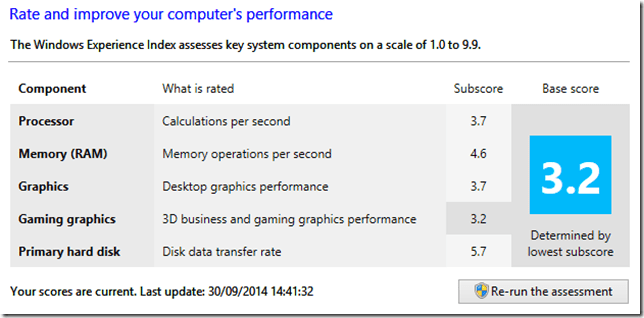
You’ll notice that the TP10 that I have on loan does not have WWAN or NFC fitted. These are available as options for some models of the TP10 line. Other than that, it is clear from the table that most of the important elements have performance improvements over the TPT2 equivalents. This is also borne out in benchmarks. Here, for example are the Windows Experience Index scores:
TPT2:
TP10:
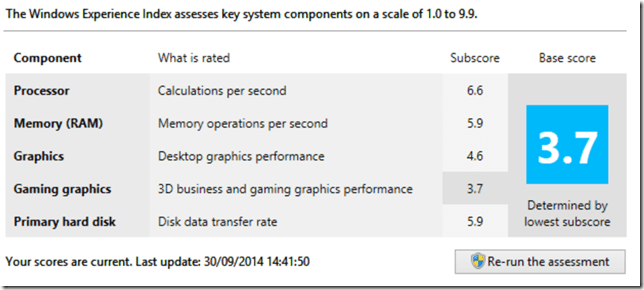
Whilst the gaming graphics and hard disk subscores are only slightly improved for the TP10 over the TPT2, the other measures show substantial improvement. That translates in practice into a snappier feel for the TP10 over my TPT2. Office programs start up much faster, for example.
Physically, the two tablets are close in size, the TP10 (on the left) being slightly taller and narrower than the TPT2:
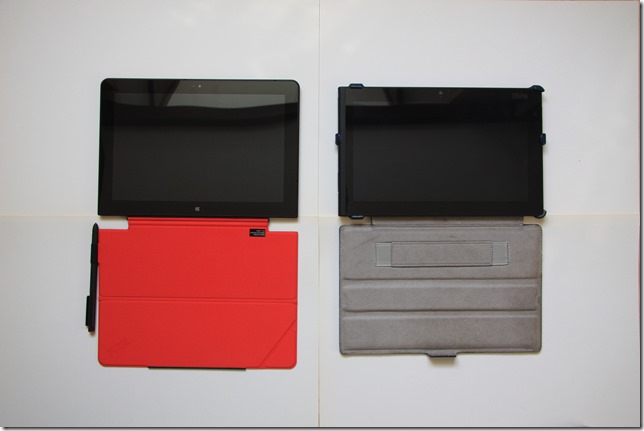
Also shown in this photo is the Lenovo Quickshot cover fitted to the TP10, with an Armour Dog cover from Lente Designs fitted to my TPT2 on the right. The Armour Dog cover wraps around the TPT2, and is very stable when used as a stand, but it does add thickness to the tablet when closed. The Quickshot cover is thinner, and only covers the screen (it can be completely folded back under the TP10 in use). It can also act as a stand, but it is less stable, and with less angles to choose from.
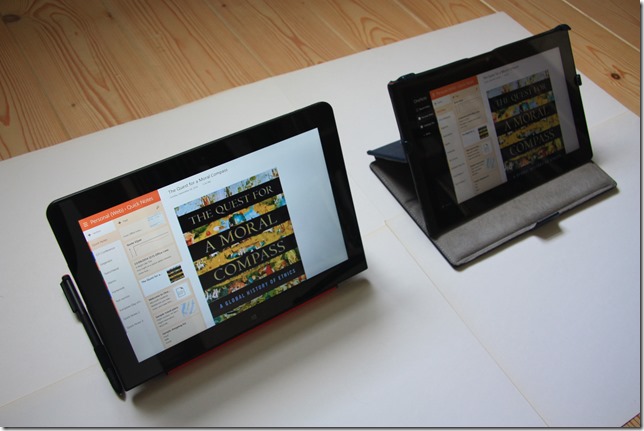
You’ll notice that it also has a loop to hold the TP10’s pen. Since the TP10 is slightly thinner than the TPT2, it is not possible to store even a small stylus in the tablet itself, as was done for the TPT2, so Lenovo has delivered a normal sized pen.
The TP10 has a larger display and a higher resolution than the TPT2, and I like the 16:10 aspect ratio of the TP10 over the 16:9 ratio of the TPT2. When I’m reading books, for example, I prefer the TP10 experience (on the right) over the slightly longer and narrower page rendered on the TPT2:

The difference in aspect ratio also means that I get five rows of Tiles on the Start screen with the TP10 versus four on the TPT2:
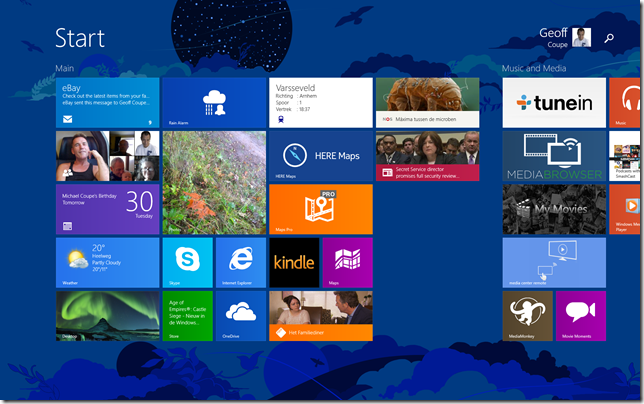
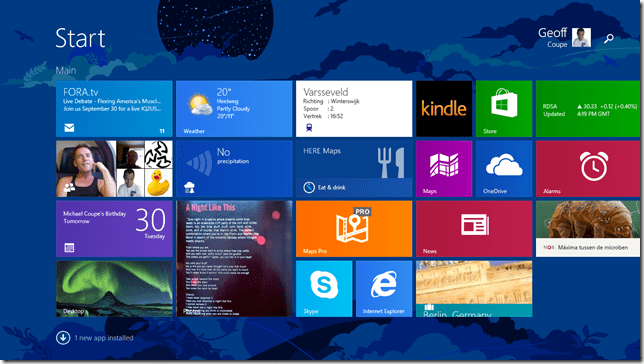
The TP10 is certainly sleeker than the TPT2, but there are aspects about the case that I find less ergonomic than the TPT2. For example, the TP10’s buttons are flush with the case, rather than being slightly raised as with the TPT2. Finding and using buttons (e.g. the volume controls) on the TP10 is an exercise in frustration for me.
On both the TP10 and the TPT2, the USB socket has a cover. It may be just me, but the cover on the TP10 seems much more fiddly to pop off and to put back in place than the one on the TPT2. Here’s a photo of the cover on the TP10, and next to it, the power charging socket:
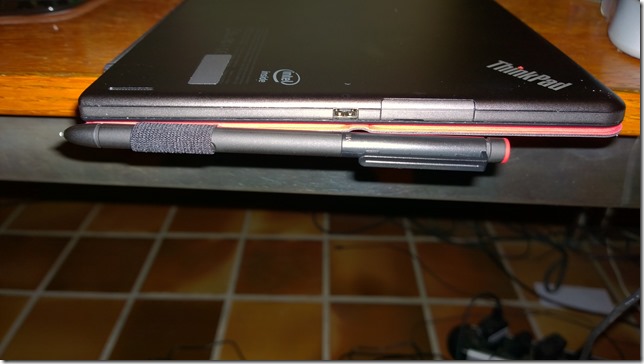
The power charging socket on the TP10 is proprietary to Lenovo; on the TPT2 it was a micro-USB. This means that you can’t use a micro-USB phone charger with the TP10 in an emergency. Some people might view that as a drawback. I’ve noticed one other concern about the design and position of this socket. Here’s a photo of the TP10 being charged while being used flat on a desk:
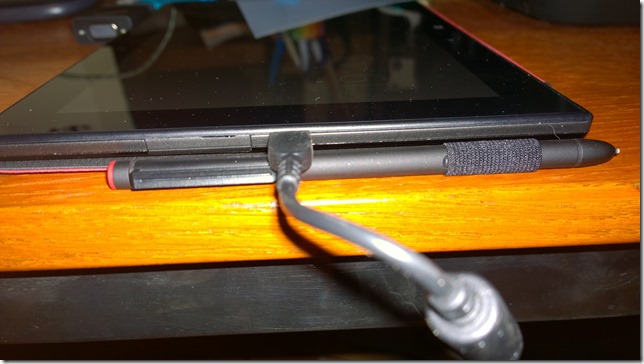
Notice how I have folded the Quickshot cover back under the tablet, as I think most people would tend to do. For one thing, it now protects the smooth metal back of the tablet from getting scratched. However, if the pen is stowed in its loop, then it pushes up on the charging plug and raises the tablet slightly on that side. I just wonder what the long term effects and stresses will be as a result.
The TP10 comes with a lot of software applications and apps pre-installed. This is stuff such as:
- Lenovo Companion
- Lenovo Support
- Lenovo Tap to Share (QuickCast)
- AccuWeather
- Evernote
- Norton Studio
- Skype
- Zinio
- 1-Year Office 365 Personal subscription (Trial only on Win8.1 Pro)
- Norton Internet Security 2014 with 30 days of virus protection
- Nitro Pro 8
- Lenovo Solution Center
- ThinkVantage System Update
- Lenovo Reach
- Hightail –metro (cloud storage)
- Maxthon Browser
- Lenovo Photo Editor (by CyberLink)
- Lenovo Video Editor (by CyberLink)
Frankly, most of this I view as Bloatware. The first thing I did was remove all but a couple of packages from the TP10. I then left the TP10 to update itself with Windows and Lenovo driver updates. A few hours, and 60+ updates later, it was ready to use.
I uninstalled Office 2013 Home & Student from my TPT2 and installed it on to the TP10. I needed to activate it via the telephone, rather than the painless internet route, but after punching in reams of numbers into my phone and into the TP10, Microsoft was happy and activated Office. After another round of software updates, this time for Office 2013, I think the TP10 is now finally ready to be put to work.
I’ll report back over the coming months on how I’m getting on.
Addendum: I do rather wish that manufacturers would strive for consistency with accessories across generations. For example:
- The TPT2 has a mini-HDMI port; the TP10 has a micro-HDMI port. So I have to buy yet another HDMI cable for the TP10…
- The Docking connectors are different, so I have to buy a new TP10 Dock, I can’t re-use the TPT2 Dock.
- The TPT2 has a VGA Adaptor that fits into the Docking connector on the tablet. I use that to connect my TPT2 to a VGA projector in meetings. There is no equivalent adaptor available for the TP10. In fact, apparently the only way to connect a TP10 to a VGA projector is to use the Lenovo USB 3.0 to DVI/VGA Adaptor. Note that is a USB 3.0 connector. The TP10 only has USB 2.0 on the tablet; do I have to get the TP10 Dock to provide a USB 3.0 connection for the adaptor?…
Sigh.
7 responses to “A Comparison of ThinkPad Tablets”
-
I notice you mention HSPA+ WWAN; what sort of typical real-world speeds do you get with HSPA+ WWAN? Here in the US I sometimes get a around 3 megabit/second download and around 1 megabit/second upload with Sprint LTE and fairly commonly get around 1 megabit/second download speeds (as measured with several speed testing websites). Better than 3G, but of course slower and more variable than my home and office Internet connections.
-
Ah, well, the hardware is capable of HSPA+, but round here, the mobile operators don’t break into more than a slow walk. Just looked at my network connection, and if I get 48 Kbps, I’m lucky…
-
-
For the money is it worth buying the TPT 2 for 309.00 US or spend the extra for the TPT 10 for 589.00
-
That’s really down to you, and what you want to use the tablets for. Personally, the faster speed, and the higher display resolution with the 16:10 screen ratio make the TP10 the better tablet for my requirements. If you’re in the US, then I would keep an eye on Lenovo’s eBay and Outlet online stores. They sometimes have very good deals for the TP10.
-
Thank you, I am a student in College and just need to find a great tablet for the money. Instead of carrying around my laptop all the time. I am open to some suggestions. I have spent days searching for reviews on this matter for a widow OS based tablet that could run MS office, and be worth investing in.
-
-
-
[…] me remind you that last September, I received a ThinkPad 10 tablet on long-term loan from Lenovo. I blogged about my first impressions of it in a post that compared it to my ThinkPad Tablet 2, which I had purchased myself back in January […]
-
[…] date, I’ve had an HP TX2000 convertible, a Lenovo ThinkPad Tablet 2, and currently I have a Lenovo ThinkPad 10 and a Lenovo Yoga 3 Pro convertible. I’ve long ruled […]
Leave a comment
-
Listen
A wonderful episode on Doctor Who last night: Listen. Right up there with Blink in terms of plot dovetailing and hide-behind-the-sofa factor. Clara is developing into a nicely-rounded character, and the restaurant scenes between her and Danny Pink were very good in their toe-curling embarrassments, and reminiscent of Moffat’s earlier work in Coupling.
I thought it was interesting that the central idea in Blink was that you must not look away from a Weeping Angel, but that in Listen, you must never look at a Listener; polar opposites, but both equally capable of racheting up the fear factor. And the reveals of the boy in the barn and the barn itself at the end – well, I gasped at the audacity of it.
I liked the way that the central idea of there being listeners hiding under every bed was never entirely resolved one way or the other. Is it all in our imaginations or not?
Classic Doctor Who.
2 responses to “Listen”
-
a lot of empty holes in the episode. So we are to assume he fell asleep at the beginning and wrote “listen” on the chalkboard, then woke back up in the same spot? and that a kid was hiding under the bedcovers and after all of that quietly walked away when their back was turned.. as you say, lots of unanswered questions!
-
We don’t know that the Doctor didn’t write on the chalkboard himself (or even that he wasn’t aware of writing it himself – we are led to believe that is the case, but it ain’t necessarily so). That there was someone/something on the bed is undeniable, but it could have been a kid – we see the dressing gown on the door swinging to show that someone/something left the room, quietly or not.
The thing is that it’s a Schrödinger’s Cat episode – both possibilities are equally likely, and perhaps even both at the same time. It may be all in the Doctor’s imagination or not, and it may be that Listeners are real, or not. The episode resolutely refuses to resolve itself for us. The cat stays inside the box.
Moffat being Moffat, he may resolve it later in the story arc of this or even next season, but my feeling is that he will leave the cat in the box.
Over in the Guardian, there’s a raging debate going on as to whether the boy in the barn was the young Doctor or the Master. Personally, I think it’s much more satisfactory from a story point of view to have it be the Doctor. Then we have the pleasing symmetry and chicken-and-egg situation over who originates the “fear is a superpower” speech…
-
Leave a comment
-
-
Pride
There’s a new film coming out (if you’ll pardon the pun): Pride. It tells the true story of a group of lesbians and gay men from London who went deep into the Welsh valleys to support the miners during the dark days of the miners’ strike in the mid-1980s.
It looks as though it’s wonderful, and will take me back to remembering those times. There’s a good interview with actor Bill Nighy and writer Stephen Beresford here.
Addendum: Mark Simpson has a terrific post about the film and his recollections of being involved with the LGSM group. Shake that bucket!
4 responses to “Pride”
-
I grew up in Wisconsin so didn’t learn much about coal mining growing up. But my wife’s family came from Appalachia so I have heard a lot about the industrial history of coal mining from her father, who was born not far from when the events described in this article happened:
http://en.wikipedia.org/wiki/Battle_of_Blair_Mountain-
Matt, thanks for that reference – a piece of history that I didn’t know about.
-
Very few Americans know about it either — I learned it from my father-in-law. My own father, a retired HISTORY PROFESSOR, had not known this story until I told him (he had of course been aware generally that labor relations in the Appalachian coal mines in the 20th century were not exactly sweetness and light).
-
-
-
PS: I highly recommend the film Matewan, about this history. One of the best lines is delivered by James Earl Jones in the role of a black miner. Referring to a certain racial epithet he allows as how he is accustomed to white folks using that word, “but DON’T call me a SCAB!”
Leave a comment
-
-
A Romp With Robin
Just finished watching the Doctor Who episode: Robot of Sherwood. My, that was fun! Mark Gatiss writing at the top of his form, with lots of jokes and a serious question of what it means to be a hero. Peter Capaldi, Jenna Coleman. Tom Riley, et al, delivered in spades. A terrific episode, despite the hasty re-editing to remove a beheading.
Loved it, from beginning to end. Capaldi is going to be one of the great Doctors, mark my words.
One response to “A Romp With Robin”
-
agghhhh. here in the states I have to wait a couple more hours.. cannot wait!
Leave a comment
-
-
Nailed?
Regular readers of this blog will know that I’ve been looking at the specifications of the Lenovo ThinkPad 10 (the TP10) and the Microsoft Surface Pro 3 (the SP3) tablets, and trying to decide which of them is the best fit with my needs and usage. It’s been a bit of a saga, beginning back in May, with the announcement of the SP3 by Microsoft. I thought that the specifications of the SP3, whilst impressive in some respects, had some surprising omissions. I concluded that I would probably give the SP3 a miss.
I revisited the topic in June, once TP10 models were becoming available, and pricing details were known. At that point, despite the SP3’s negatives, the SP3 model that I was most interested in (with the Intel Core i3 processor) was only slightly more expensive (€15) than the closest equivalent TP10 available at that time, with its smaller display and less powerful processor. However, my decision was still not clear-cut, so I returned once more to the topic in July when I compared both the TP10 and the SP3 to my current tablet, the Lenovo Thinkpad Tablet 2 (the TPT2).
I’ve had the TPT2 since January 2013, and it has served me very well. Things were becoming clearer by July 2014, as a result of both the TP10 and the SP3 getting in the hands of customers, and them posting their experiences and issues in community forums. In recent weeks, the TP10 has started appearing in Lenovo’s online web stores around the world. Interestingly, the models offered include versions with Windows 8.1 with Bing, a lower-priced alternative to those offered with Windows 8.1 Pro (which have, up until now, been the only versions available here in the Netherlands). I don’t need the additional features of Windows 8.1 Pro in my tablet, so that gives me an immediate saving of €130.
That means that a TP10 with 4GB RAM, 64GB storage and no WWAN (i.e. the closest equivalent to the Core i3 version of the SP3) is €620 versus the SP3’s €819. I have to say that while the SP3 is an impressive engineering feat by Microsoft, the design has just too many compromises for me:
- The rear camera is a low-resolution, fixed-focus device, which can’t be used for scanning documents, and which does not support the Panorama feature in Microsoft’s Camera App (despite Microsoft’s SP3 User Guide falsely claiming that it can). Addendum: The Panorama feature is now working, thanks to a software update released in September 2014. However, no software update will be able to compensate for the fixed-focus camera…
- There are too many complaints that the WiFi capability does not work properly. Microsoft has admitted that there is an issue, and is working on a fix, but that is not yet available, with no estimate on when it will arrive.
- In addition to the WiFi connectivity issue, there is also evidence that WiFi performance is poor under certain circumstances.
- There is no GPS chip in the SP3. Personally, I think that every tablet should have one by default. Location via WiFi triangulation is not sufficient outside of built-up areas.
- The SP3 is very difficult to repair (that IFIXIT teardown is hilarious, and well worth reading). If something goes wrong, the SP3 really needs to be thrown away and replaced. That doesn’t help my hankering to improve my green credentials.
- And the big one: the SP3 is not fanless. It uses the Haswell generation of Intel’s Core processors, and their thermal output requires fan-assisted cooling for the most part.
On that last point, it is true that Intel has now managed to produce a version of the Haswell chip that can be used in fanless tablet designs, but it’s clear that the SP3 was designed around the mainstream Haswell chips, and that means a fan is a necessity. All eyes are now turning to Intel’s next generation of chips, code-named Broadwell, and now becoming available under the moniker of Core M. These really do promise to deliver a full x86 platform as well as the performance beyond that of a smartphone or an Intel Atom-powered tablet (e.g. the TP10) in fanless designs. The first Core M-based fanless tablets/convertibles have already been announced by Lenovo (a new Helix model) and HP. They are both larger than the 10.1” form factor of the TP10 (possibly because the Core M chips are physically larger than the current Intel Atom chips?), so it’s quite possible that smaller tablets will continue with Atom-based designs. However, it seems almost a certainty that Microsoft must be at least thinking about a fanless SP4 having the same form factor and size as the current SP3, and such a design would be based around Core M.
To sum up. Now that a wider range of TP10 models are available here in the Netherlands, I could get a TP10 (faster, with a better display, and twice the RAM) to replace my existing TPT2 for €620. I definitely won’t be going for the SP3 (at €819) – too many compromises and issues for me. I could also equally continue using my TPT2 quite happily and wait to see what an SP4 has to offer. There’s no rush.
Addendum: I have a TP10 on loan!
4 responses to “Nailed?”
-

Thanks for narrating the whole journey; I’ve enjoyed and benefitted from it.
It’s interesting, as I’m looking as to what will replace my current MacBook Air. The form factor of the SP3 is attractive, but I need to look harder at the other OEMs, especially as new lineups have been announced.
Horsepower remains one of my key concerns, as through the magic of desktop virtualization, my work desktop is now a virtual machine on my MacBook. (I’ll let that sink in for a moment.) That makes RAM in particular a key concern – 4 GB isn’t enough breathing room. I’m very comfortable with Win 8.1, so I’m keen to try a tablet/convertible form with a good digitizer pen.
All of that to say: Please keep writing about your experiences. Still learning from you. 🙂
-
Hi Mike, good to hear from you, glad you find my ramblings of some interest! It always seems as though the tech that we want is just around the corner and six months down the road… I think that the Core M generation will be a success, but I’m already seeing grumblings from some artists that the chips won’t have the power that they need in their drawing/painting applications…
-
-
[…] reached a decision (of sorts) on the 6th September 2014, and wrote a post on it. The bottom […]
-
[…] and to Microsoft’s Surface Pro 3, wondering whether to make a move to a newer device. I finally came to the decision, after much vacillation, to sit this round out, hang on to my TPT2, and wait for up to a year […]
Leave a comment
-
Praise Indeed
David Mitchell’s new book The Bone Clocks is published today. I was knocked out by his Cloud Atlas and by The Thousand Autumns of Jacob de Zoet, so I’m looking forward to reading the new book with great anticipation. I went down to the local village bookshop last week and ordered my copy.
Today’s Guardian has a review of the book by another writer whom I admire without reservation and trust absolutely – Ursula le Guin. She likes it, so I’m sure I will too.
Leave a comment
-
Photo Metadata – Software for Rights Test
The standards organisation IPTC has just published the results of a test of commonly available software to find out how effective different tools are in writing, editing and reading rights data in an image.
I’m pleased to see that Photo Supreme, the software I use for managing my photos, has come out well.
4 responses to “Photo Metadata – Software for Rights Test”
-
I’m surprised to see GeoSetter only got a yellow. And Photoshop Elements that’s an absolute pain to use (I guess they weren’t counting that part) got a green+.
-
Yes, I thought that Geosetter handled all the Rights fields, at least in Core (it doesn’t handle the Plus and Extension standards)… Hmm. And I agree about PE being a pain to use. But the IPTC is only considering whether the tools handle their fields…
-
I *think* that Geosetter is missing the “Usage terms” field, which is why it only gets a yellow light…
-
I do most of my work with Photo Mechanic and that got high marks too. For my purposes, anyway, GeoSetter is more than sufficient.
-
-
Leave a comment
-
-
Step Away, Professor Dawkins, Step Away…
One of the reasons why I refuse to use Twitter is because it is impossible to have nuanced conversation and argument in a straitjacket of 140 characters. However, as the saying goes, fools rush in, where angels fear to tread…
And so it is with Richard Dawkins, who in response to someone who tweeted:
I honestly don’t know what I would do if I were pregnant with a kid with Down Syndrome. Real ethical dilemma.
Abort it and try again. It would be immoral to bring it into the world if you have the choice.
Oh god; *facepalm*. Talk about a hostage to fortune. Ophelia references a discussion between Michael Bérubé (whose son, Jamie, has Down Syndrome) and the moral philosopher Peter Singer. It’s worth reading. Dawkins, it should be noted is a scientist, not an ethicist or moral philosopher.
Professor Dawkins has a history of opening his mouth to change feet when he uses Twitter. Personally, I think he should stop using it. It’s an embarrassment to all concerned.
Leave a comment








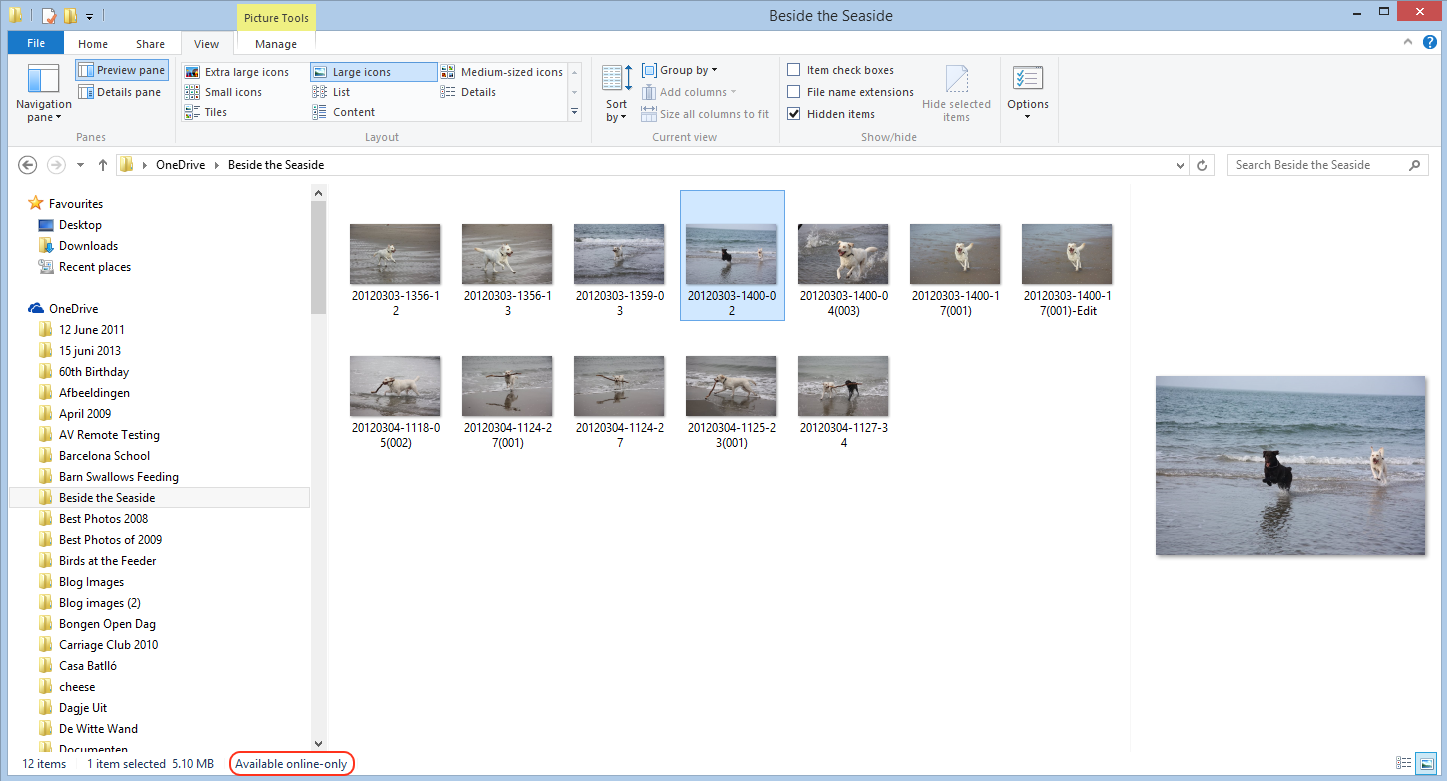
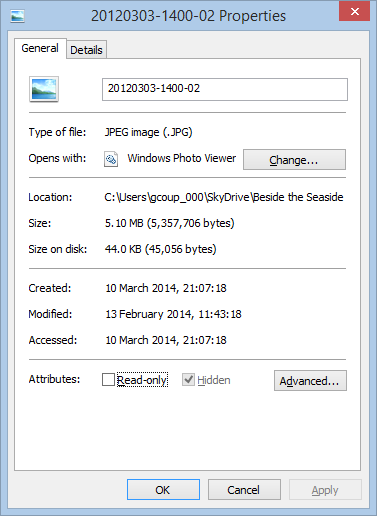
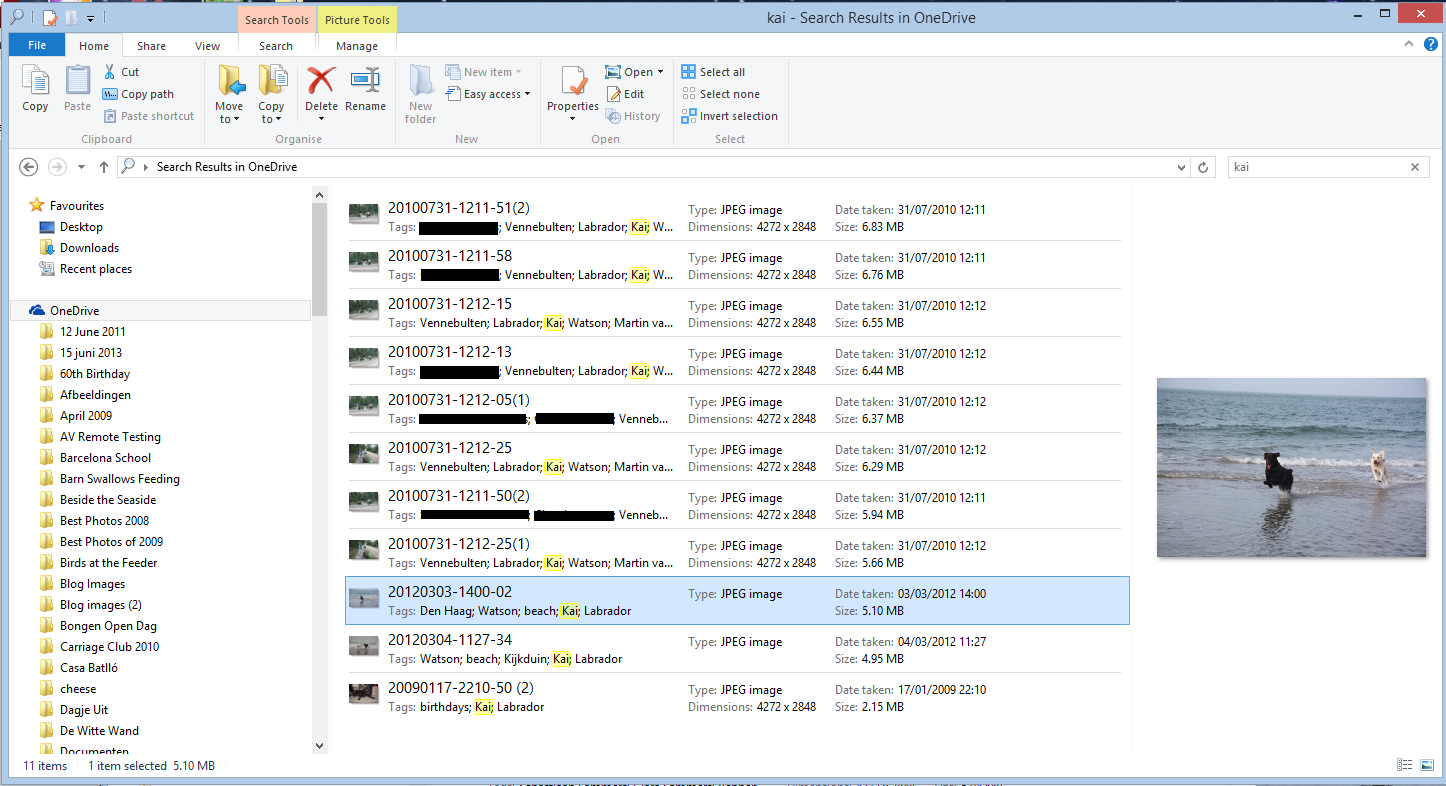
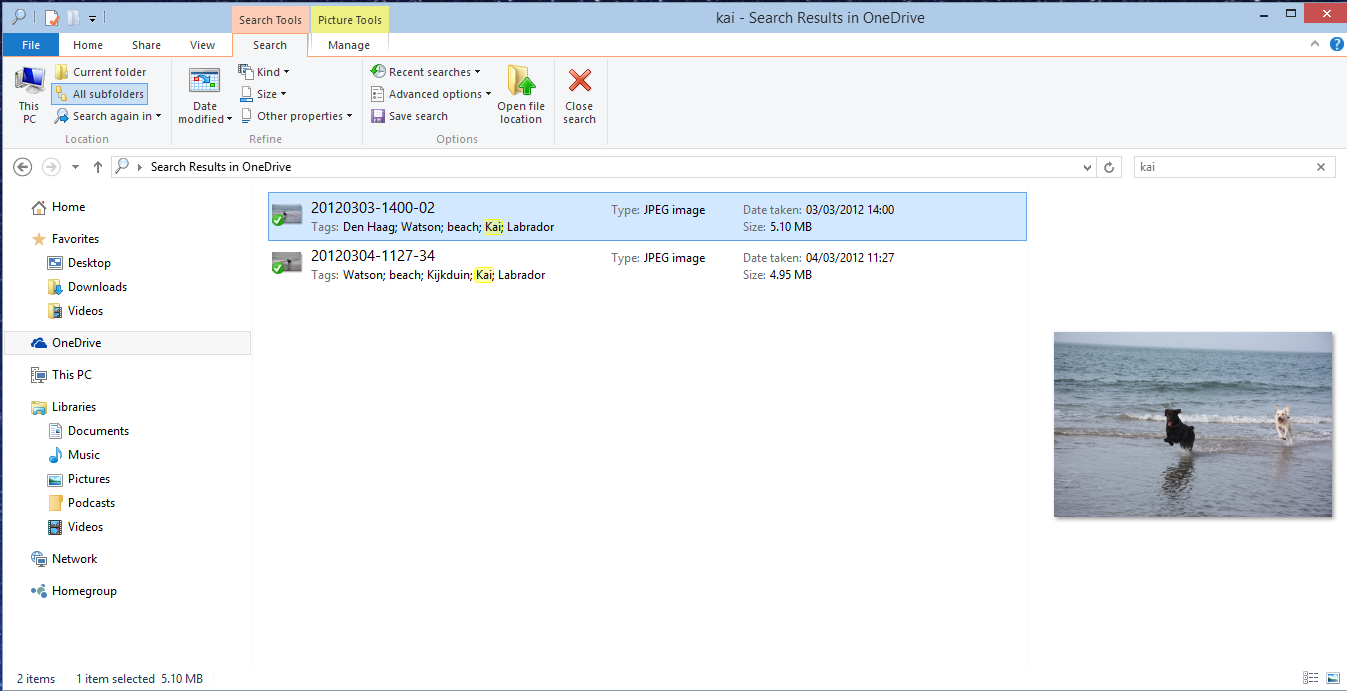


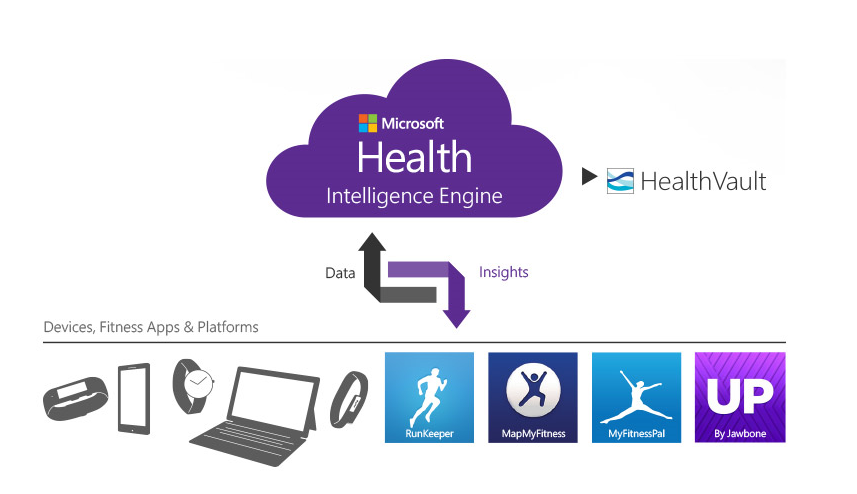


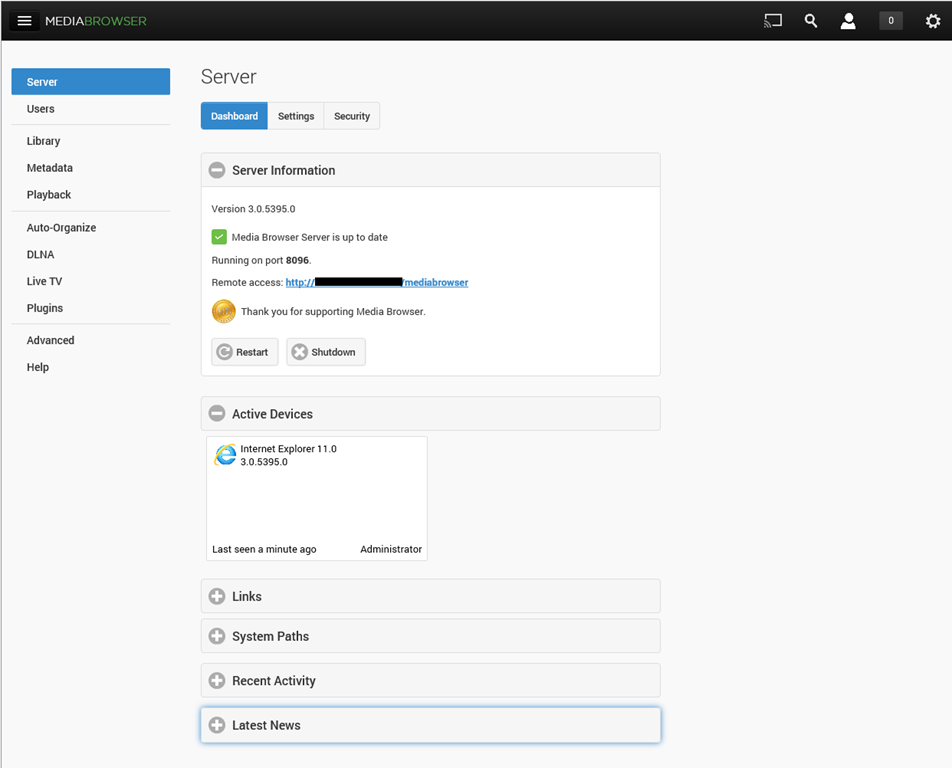
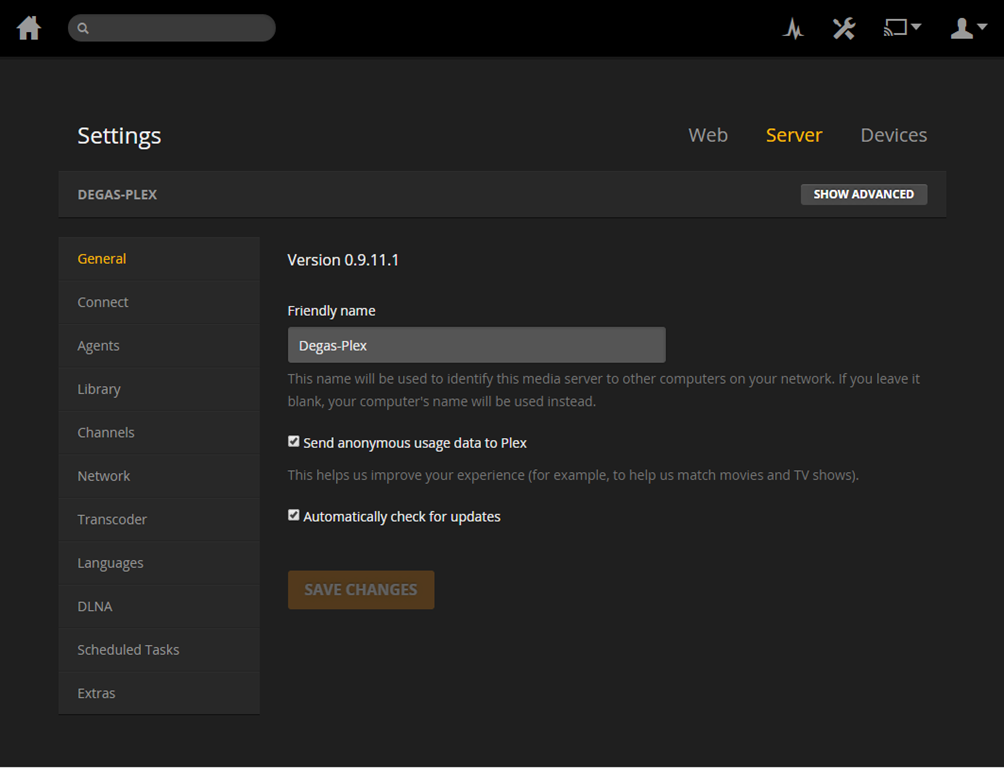
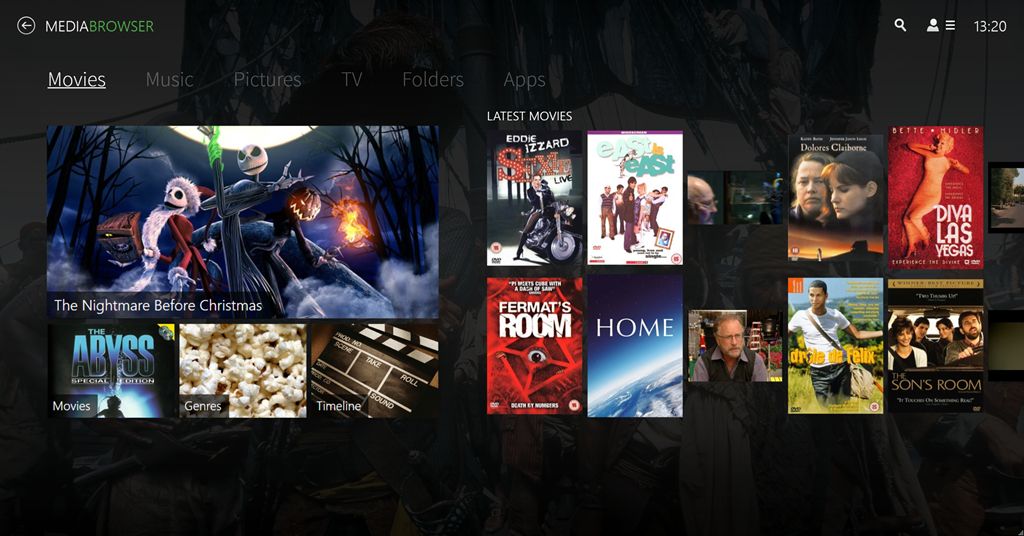


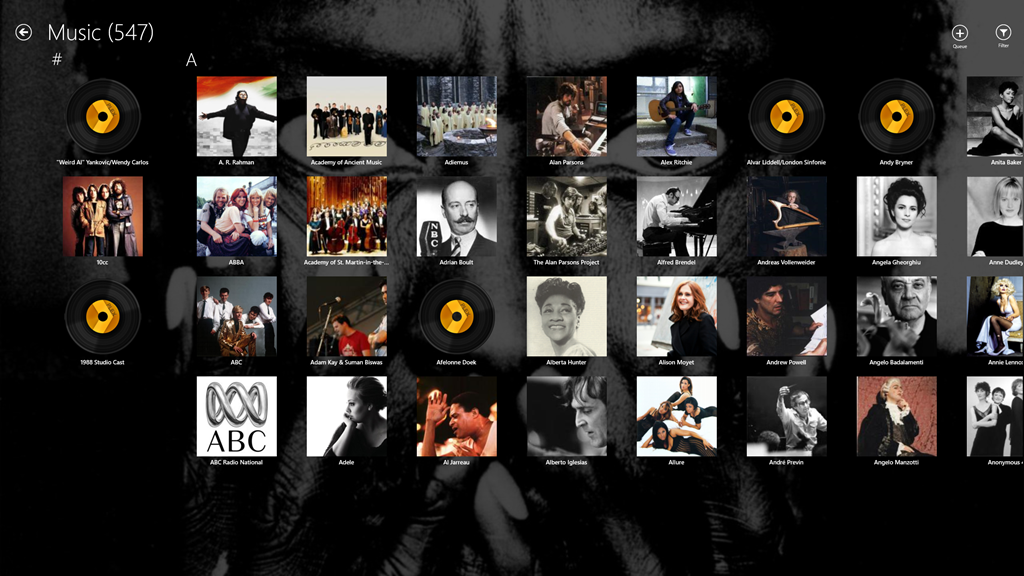
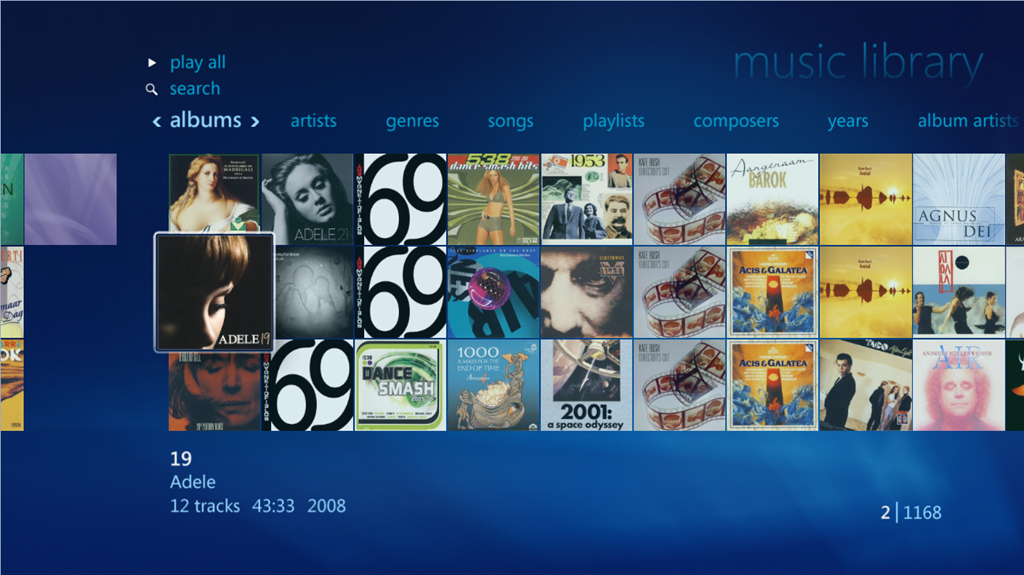


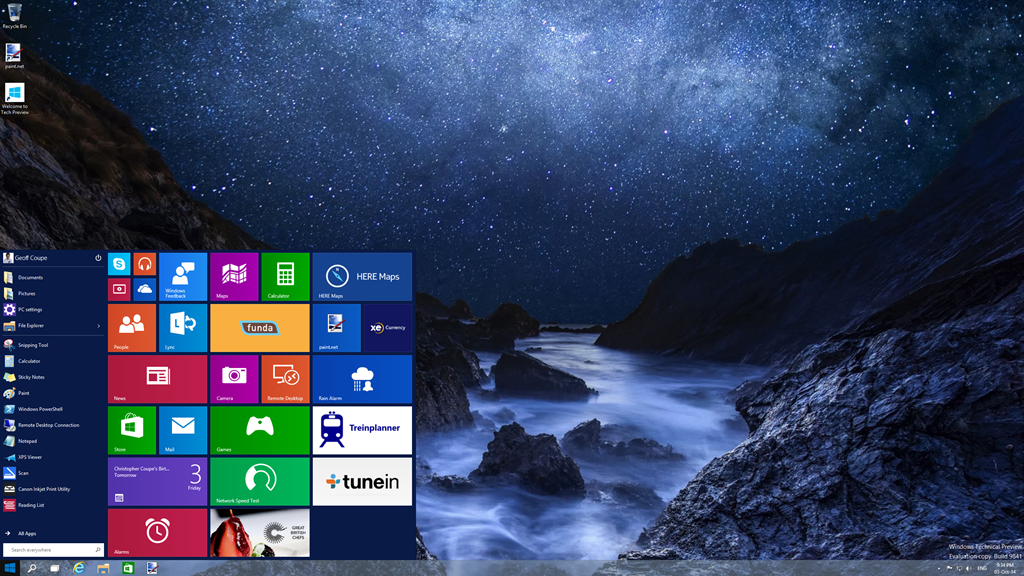
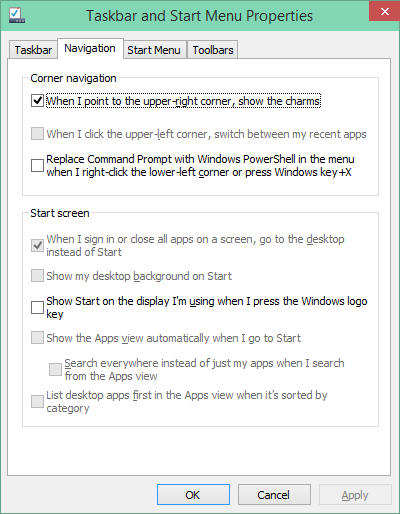
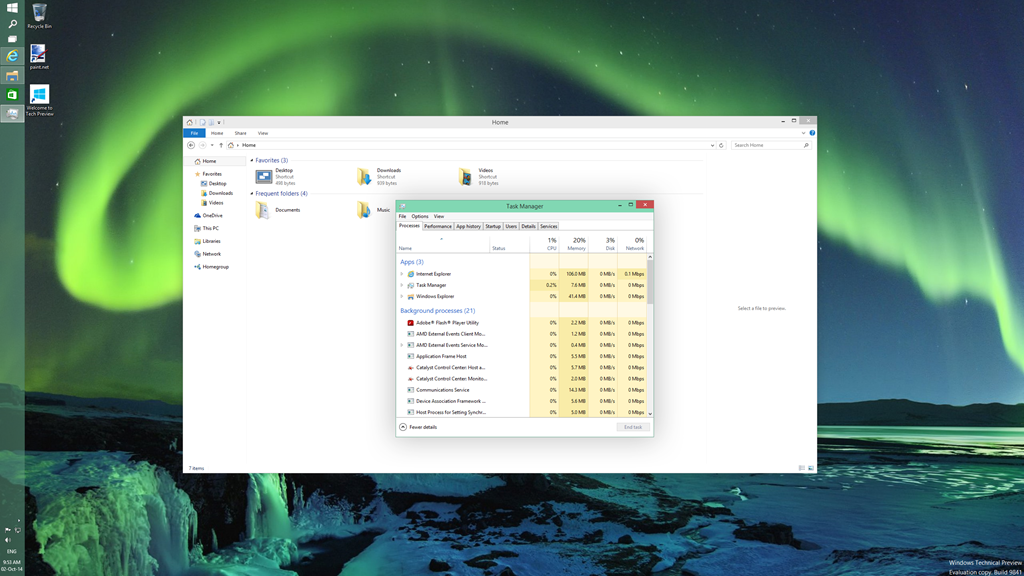
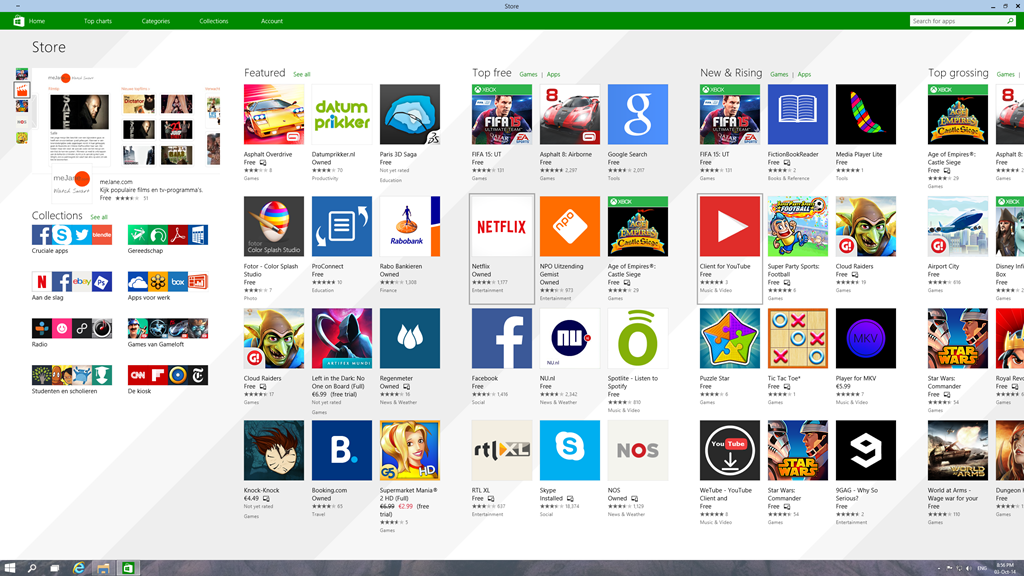
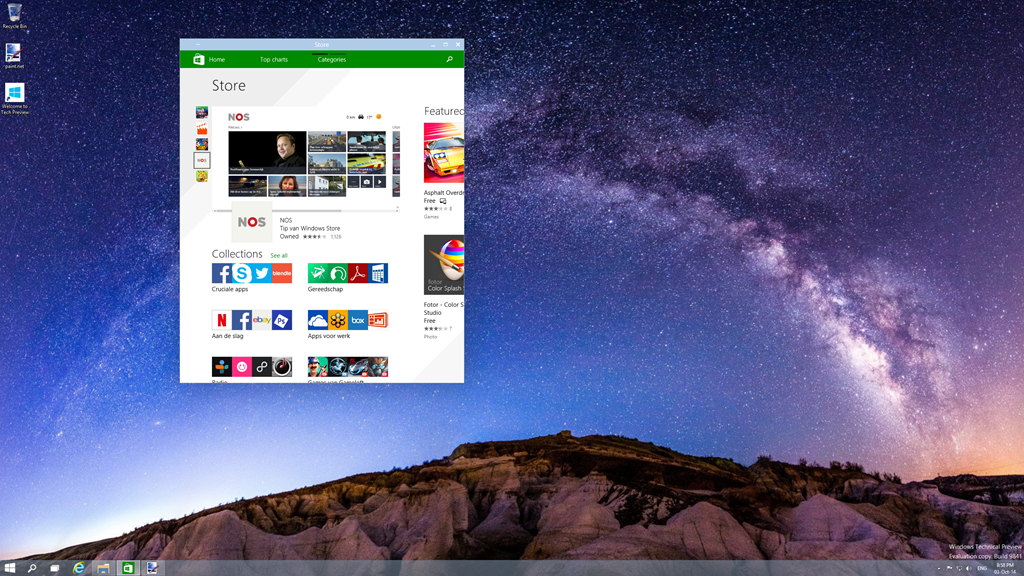
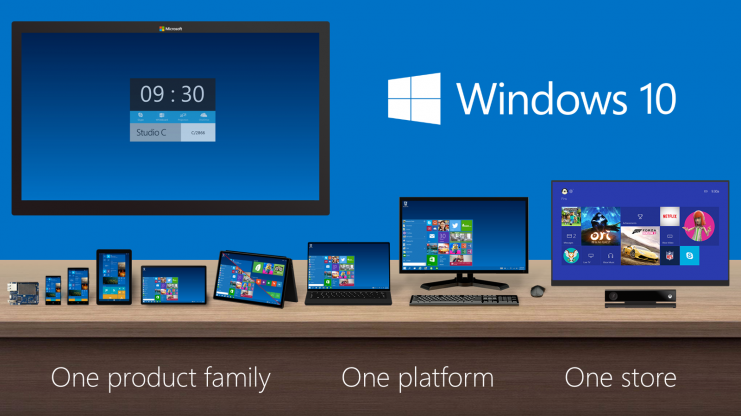

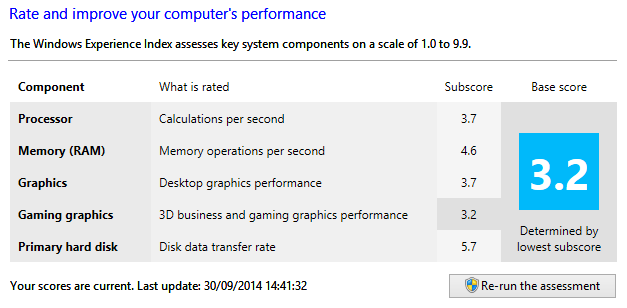
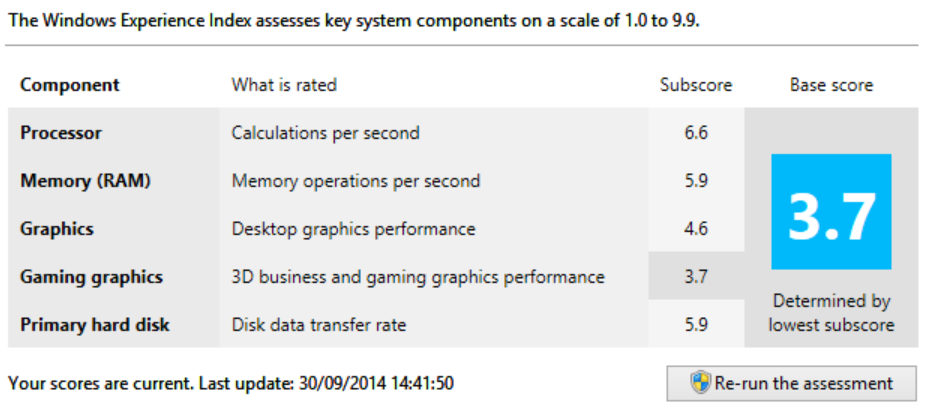

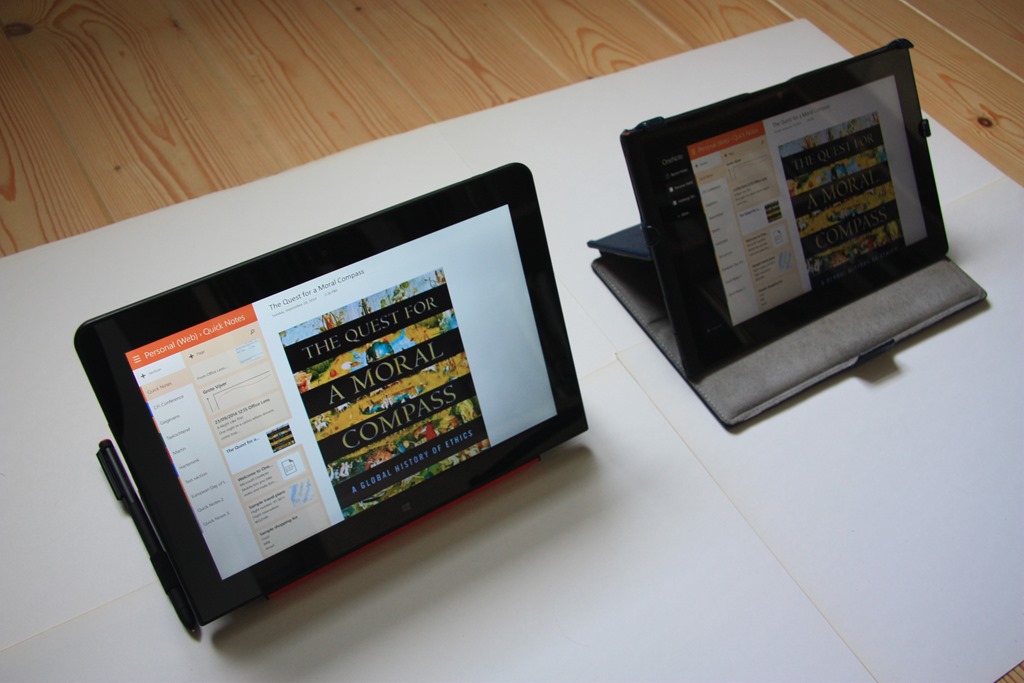
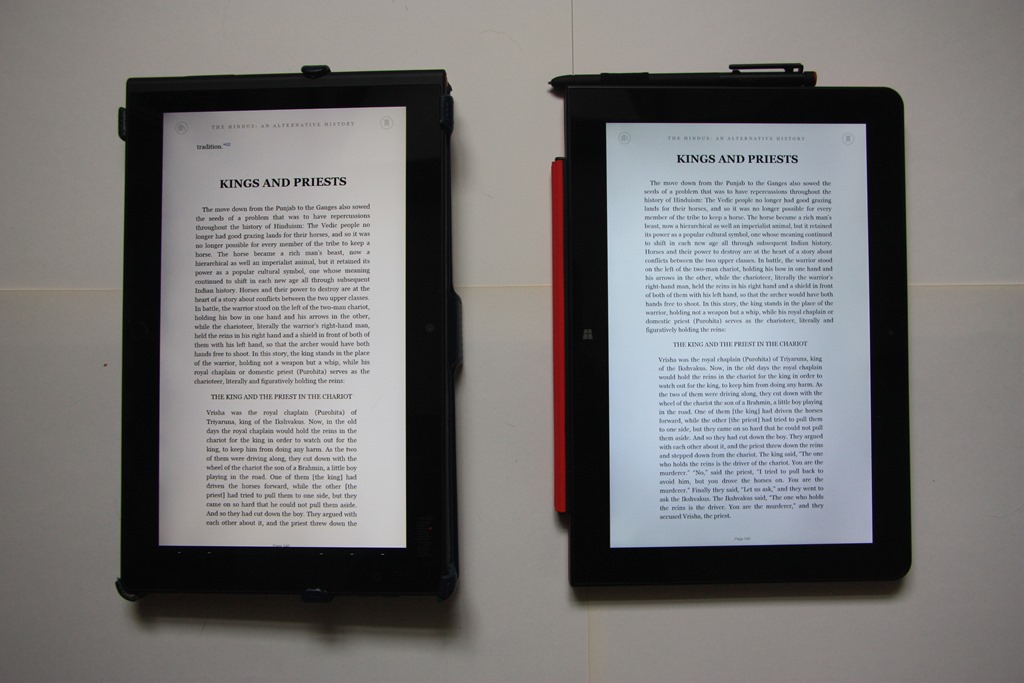


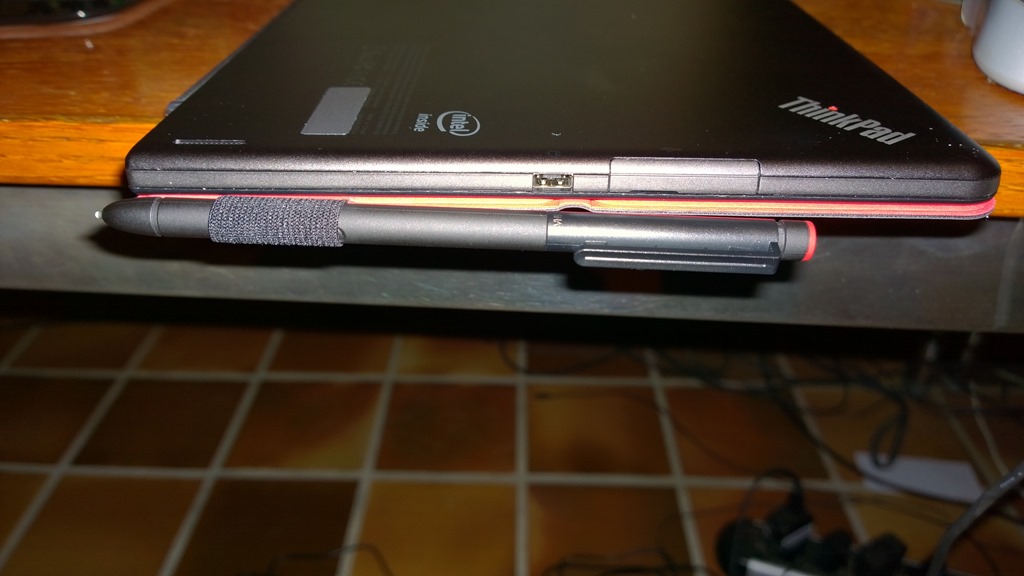


 Geoff Coupe's Blog
Leave a comment