Reflections on life at “De Witte Wand”…

  • Nothing Can Go Wrong…

    …go wrong…go wrong…

    I was reminded of the old joke about the fully automated system when I looked at Microsoft’s web page for the pre-ordering of Surface Pro 2. Half is in Dutch, the other half is in Portuguese.

    Microsoft Store 01

    It doesn’t exactly inspire confidence…

    Leave a comment

  • Surface – The Next Generation

    Yesterday, Microsoft announced the next generation of its Surface line of computers: the Surface 2 and the Surface Pro 2.

    The Surface 2 is a substantially upgraded version of the original Surface RT, while the Surface Pro 2 is an upgrade to the Surface Pro, but not to such a degree.

    I have to say that I am somewhat underwhelmed by the new machines, despite the fact that they are indeed improvements over the originals.

    Taking the Surface 2 first, the showstopper issue that I have with this machine is the simple fact that it does not run traditional Windows applications. It can only run the new Windows 8 Apps, and as far as I’m concerned, they are still a sorry bunch, with minimal functionality. That was what drove me to choose an Intel Atom-based tablet (the Lenovo ThinkPad Tablet 2) last January. It’s a decision that I don’t regret, and I am still very satisfied with my choice.

    I’ve said before that, if I don’t build my next desktop PC myself, I want to have a multi-functional device. It will be a tablet, running Windows 8 or its successors. It will have multitouch and a pressure-sensitive stylus. I will be able to carry it around and take notes/photos/videos on the move, and I’ll be able to plug it into a docking unit to support multiple monitors, a keyboard, and a mouse for my next generation Desktop. This is what I call Origami Computing.

    The issue with the original Surface Pro was that it was running 3rd generation Intel processors, which meant that it had to be fan-cooled. Personally, I much prefer using a tablet that is fanless – that’s one of the reasons I like the ThinkPad so much. The new Surface Pro 2 still has fans, but it is using the new 4th generation of Intel processors (the Haswell line). That means that it has both increased processing power and lower thermal output, so the device should hopefully be both cooler and quieter.

    Microsoft has also announced a docking unit for the Surface Pro line, so it becomes possible to consider it as a candidate for my first Origami device.

    Nevertheless, I don’t think that the Surface Pro 2 is quite there yet for me. I am disappointed by the following:

    Connected Standby is a new power-saving mode possible in both the new Atom and Haswell chips from Intel. It’s a sleep mode whereby the device can still respond to incoming events such as email, alarms or Skype calls, and wake itself up. My ThinkPad Tablet 2 has this, and I find it to be an invaluable feature. As far as I’m concerned it is a “must-have” for a modern tablet. As to why it is not present in the Surface Pro 2, it may be because it is not a fanless tablet; it may require devices to have passive cooling, although I would be surprised if this really is the case. After all, laptops have fans, and they can happily go into traditional sleep modes without problems. Connected Standby uses no more power than that, as far as I am aware.

    Like the Surface Pro, the Surface Pro 2 does not have GPS. I find this surprising. Many tablets and convertibles (e.g. the ThinkPad Tablet 2) have this; why would a top-of-the-line tablet not have it? Perhaps Microsoft thinks that it is necessary to have 3G/4G/LTE mobile connectivity (the Surface Pro line does not have this) before GPS is provided. If so, they are wrong. It is true that Microsoft’s own Maps App for Windows 8 requires internet connectivity to get map data while on the move, but not all navigation applications require this. Indeed, Microsoft’s own AutoRoute and Streets and Trips applications are designed to run on Windows laptops without internet connectivity. All they need is GPS data to be supplied. But there again, Microsoft have shot themselves in the foot here, because these applications don’t use the new Windows 8 GPS data interfaces.

    As for NFC, I would have thought that a flagship product, which Microsoft clearly consider the Surface Pro 2 to be, would have had it built in. True, it’s new, but it is making inroads into the smartphone market. I would have thought that Microsoft would have had it in their flagship tablet so as not to be behind the curve. (Update: it appears that it wasn’t included because it won’t work through the all-metal case of the Surface Pro 2. This may also apply to GPS as well)

    One area where Microsoft are not being backwards in coming forwards is in their pricing of Surface. They are clearly following Apple’s line of setting premium pricing. If I were to specify a configuration suitable for Origami Computing, I’d be looking at a price of around €1,620 for a system with a Windows Experience index in the region of 6-7). This would replace a PC of roughly equivalent specs and performance (Windows Experience Index of 7.3) that I built for about €600. Somehow, I don’t think I’ll rush to do this.

    So, all in all, I am rather disappointed. I’ll wait a year or two…

    One response to “Surface – The Next Generation”

    1. […] is waaarom je die Pro versie nodig hebt? Een device dat kan alles doen van Tablet tot desktop: Origami Computing. Niet alleen een tablet remoting naar een tweede […]

    Leave a comment

  • Autumn Sunset

    Just a couple of pictures of a rather stunning sunset that we had here last week…

    20130918-1934-18

    20130918-1934-58 Stitch

    2 responses to “Autumn Sunset”

    1. Matt Healy Avatar
      Matt Healy

      Glorious indeed!
      About a week ago — and on my birthday (now I’m 53) — I saw this rainbow shortly before sunset. It was still cloudy overhead, but the sky had cleared to the West allowing sunlight to reach raindrops to my East.

      https://docs.google.com/file/d/0B6c5iF3j1EXhX1RaZW42VXBYbW8/edit?usp=sharing

      1. Geoff Coupe Avatar

        One of these days, I’m going to get a photograph of a rainbow for myself…

    Leave a comment

  • Sharing Photos

    Long-time readers of the blog know that one of the topics I return to every now and then is that of photography.

    A couple of days ago, one of my posts had the following comment and question from michaelfanous:

    I recently started trying to organize my photo albums, which are stored across several external devices. (Trying to organize over 50,000 photos). I am not a professional photographer by any means. However, I am the “family/event” historian so to speak, so I love documenting and taking pictures of everything. I wanted to know your thoughts are current software out there? Lightroom 5, Photo Gallery (Windows), ACDSee, Picasa 3.9.

    My main concern is that all these files will eventually be stored in 1 central location, and the family can access them at their own over the network. However, I want to make sure that all the tagging is accessible across platforms. i.e. No matter which hardware device, or which software, when a user looks at the picture, they can see the tags.

    I remember in the earlier years (which is what caused me to stop for a bit) I would tag something in Windows Photo Gallery or in Picasa, but the tags wouldn’t transfer over appropriately. I am not so much concerned with actually editing the individual pictures (I am sure that will come later once I am organized)

    The other requirement is that the metadata is stored in the actual file, and not in some random database. The last thing I need is for that external database to get corrupted and lose out all the information.

    Suggestions?

    That sounds like a good opportunity to try and sum up what I might propose given the current state of things.

    First, a recap of my groundrule for managing photo collections (which echoes what Michael has stated as a requirement):

    I insist that any software used in the digital workflow (transfer from camera to computer, image selection, digital processing, cataloguing, publishing and asset management) will respect any Exif, IPTC and XMP metadata that may be stored in the image file itself.

    I am not interested in asset management software that stores image metadata away in a proprietary format in the software itself. That way lies painting oneself into a corner down the road… However, I will accept asset management software that copies metadata from image files into its own database for performance reasons, so long as the database and the image files metadata content are kept in sync transparently (i.e. it takes little or no effort on my part).

    The challenge is that different software treats image metadata in different ways, and interoperability can seem more of a goal than actuality. Not all image management applications will work together, and often, only a subset of all possible image metadata can be successfully exchanged between applications. Add to that the fact that many of the new photo editor applications for smartphones and tablets ignore image metadata altogether, or, even worse, strip it out. The same goes for many online social networks.

    Over the last seven years, I’ve used a number of image management applications to organise and tag my photos. These include versions of:

    I’ve also used tools that are no longer available. These include:

    • Microsoft’s Expression Media and Digital Image Suite
    • IDimager 5
    • Picajet
    • PixVue

    My primary image management tool at the moment is Photo Supreme. That’s because (for me) it has the best support for handling metadata and for image management of all the tools that I’ve used. I use GeoSetter in conjunction with Photo Supreme for handling geotagging.

    [Addendum: Version 2 of Photo Supreme now supports geotagging directly, and does it very well, so I no longer need to use GeoSetter in conjunction with Photo Supreme]

    Adobe’s Lightroom would rate high with me if I used Raw format in my images, because it has better digital darkroom features for processing Raw images than those of Photo Supreme. However, as I don’t often use Raw format, I prefer Photo Supreme’s metadata handling, which I consider to be much superior to Lightroom’s. Photo Supreme’s features for image acquisition and selection/culling are also, for my purposes, as good as anything that Lightroom has to offer.

    Since I use the ecosystem of Windows, I also have Windows Photo Gallery installed on our PCs. It’s an easy to use tool for browsing our photo collection, but I don’t use it as my primary tool for editing metadata or images. First, because while the metadata tools are usable, they are basic. However, more importantly for me, Windows Photo Gallery has a nasty habit of corrupting the Makernotes that our Canon cameras insert in the Exif section of images. This is a long standing issue that Microsoft has acknowledged and known about for some years, but clearly something that they won’t devote resources to for fixing. Microsoft seems to be using the same code in the Photos App of Windows 8, because it too will corrupt Canon Makernotes in any image that it edits. Now, I acknowledge that the majority of people either don’t know about the issue or wouldn’t bother themselves about it if they did. However, I would suggest that to a serious photographer, preservation of the original file is of paramount importance. This bug of Microsoft means that even adding a single piece of metadata to an image file will corrupt your Makernotes. That’s why I only ever use Windows Photo Gallery in a read-only mode. Anything else and it’s goodbye to your precious image data.

    And don’t think that Picasa is any better in this respect. Picasa will strip out Makernotes from your image files entirely.

    The bottom line: if you’re serious about photography, avoid using either Windows Photo Gallery or Picasa to do metadata work on your images. You can certainly use them to edit the images of copies of your original files, just don’t ever let them get near to your originals.

    The other tools in my first list above also offer metadata handling features, but they are pretty basic, and only cover the bare minimum of the Exif and IPTC metadata standards.

    One area where Photo Supreme (and Lightroom for that matter) is lagging is that of being able to handle automatic face recognition used to add metadata relating to people. Both Picasa and Windows Photo Gallery now offer this. Unfortunately, they do not use the same standard for storing people tags, so they do not interoperate. Photo Gallery uses a standard defined by Microsoft itself, whilst Picasa (in the latest version) uses a standard defined by a cross-industry consortium – the Metadata Working Group. Ironically, both Microsoft and Adobe are founder members of this consortium, yet Windows Photo Gallery and Lightroom do not yet use the consortium’s metadata standard for people tags.

    The Microsoft and MWG standards allow for metadata to be applied to specific regions in the image, that is, individual faces can be marked up with the names of the people depicted in the image. There is a third competing standard used for people tags, and that is contained in the IPTC Extension standard, which contains an element used to define persons shown in an image. However, this metadata element refers to the image as a whole, so for a group photograph, for example, you can list the names of all the people shown in the photo, but not explicitly identify who is who in the image. I am aware of just one application that implements this IPTC standard for people tags: Daminion, but there may be others. Correction: I completely forgot that since Photo Supreme implements all the IPTC standards fully (Core, Extension and Plus), then it too also implements the IPTC people tag. Photo Supreme also has its own proprietary standard for manually tagging regions in images for face tags, but I don’t use it. Photo Supreme now supports the MWG Region metadata, which means that it can identify face regions that have been tagged in Picasa. It also recognises the Microsoft People Tag, but any face regions that are defined in Photo Supreme will be written out using the MWG standard, rather than the proprietary Microsoft standard.

    So, to sum up at this stage: it’s possible to use a small number of different tools that will interoperate using a minimum subset of metadata standards – a basic set of Exif and IPTC Core metadata standards. That will give you a starter set of metadata elements. See this blog post for the list of IPTC elements that I use. The Exif elements are the technical data provided by the cameras I use (e.g. camera model, shutter speed, ISO, lens, date taken) plus optional GPS latitude/longitude/altitude data.

    Anything beyond this, e.g. People Tags, and you are likely to run into interoperability issues.

    Even with this subset, there can be bumps in the road. For example, Picasa uses the “Description” metadata field from the IPTC Core standard to display the caption for a photo, while Windows Photo Gallery uses the “Title” metadata field from the IPTC Core standard to display the caption. Even more bizarre, Windows itself (in Windows Explorer)uses “Title” according to the IPTC Core definition, and uses “Subject” to align with the IPTC Core definition of “Description”. So Windows is better aligned with the IPTC standard for photo metadata than Windows Photo Gallery…

    And the icing on the cake is that both Windows Photo Gallery and Picasa will damage your files if you use either of them to edit images. Bottom line: if you use either of these tools use them in read-only mode, or use copies of your original files.

    Right, you’ve now got your tools to hand, and you’ve used them to add your metadata to your images. You’ve also used your tools to tweak the original images and produced copies that have all your improvements applied: cropping, colour balance and so on. Now you want to share them with other people. What are your options?

    Assuming that at least some of the people you want to share with are physically located outside of your home, then you are looking at either using one of the online Social Networks or exposing your photo collection held on your home network to (selected) people via the internet.

    Let’s look at the Social Networks route first. As I’ve already said, Social Networks are not the best at preserving the metadata that you’ve spent blood, sweat and tears adding to your photos. There are also quirks involved. I use both Flickr and Microsoft’s SkyDrive, so I’ll use those to illustrate some of the oddities.

    Flickr has the advantage that when you upload your photos from your local storage, the metadata in your photos gets read by Flickr. So you can search your (and other people’s) collection of photos using keywords held in metadata. Even better, if you download the original size of a photo held on Flickr, then the metadata contained within it is preserved. However, if you select to download a different-sized copy of the original photo, then Flickr will strip out the metadata. It used to be the case that even different-sized copies of the original would have the metadata of the original preserved within them. But somewhere along the line, Flickr changed the rules of their playground and made their service the poorer as a result.

    Microsoft’s SkyDrive also has its faults. It does preserve metadata in downloaded copies of the originals held on its service. However, the metadata is neither exposed in the user interface, nor searchable with one exception – that of Microsoft’s proprietary People Tags. Frankly, this is abysmal. It makes sharing of photo collections with other people needlessly difficult.

    There are many other Social Networks available, e.g. FaceBook, Google+, but I don’t use them, so I can’t document the inevitable issues that they will have. I leave that as an exercise for the reader.

    There is also the route of exposing your photo collection held on your home network to (selected) people via the internet. I use Microsoft’s Windows Home Server 2011 on our home network to store all our media for sharing to a variety of networked devices, and to back up our attached PCs. It is very good at that. It is also possible to use WHS 2011 to allow selected people to access its media collection via the internet. At least, that’s the theory. In practice, the software is riddled with problems. I cannot use it, and Microsoft has no intention of fixing it.

    I see that Michael has a Synology device that he will use as a centralised nework attached storage device. It also has the feature of being able to give access to selected people over the internet. It runs a media application called Photo Station. I have no working knowledge of Synology devices or Photo Station, but I’ll just add a couple of comments. First, I noticed from the Synology documentation that Photo Station claims to:

    • Search photos with keywords, time slots, or tags
    • Supports people tags from Windows Live Photo Gallery
    • Supports IPTC tags of photos

    Nice to see IPTC tags explicitly mentioned, but I hope that these are at least the XMP-based IPTC Core set of tags, and not the legacy IPTC-IIM tags. If it is only the latter, then interoperability issues will arise sooner or later.

    As I’ve already written, the People tags in Windows (Live) Photo Gallery are Microsoft-proprietary. Also, if you make a conscious decision to use them, be aware that you can kiss goodbye to your Makernotes if you use Canon cameras (and possibly other makes of cameras as well).

    Secondly, Microsoft has also set a snake in the grass for Networked Attached Storage devices. The Windows indexing service is designed to collate results from network-attached Windows devices. It won’t collate results from NAS devices that don’t run a Windows operating system.

    The new generation of Microsoft Apps for Windows 8 (e.g. Xbox Music, Photos, Videos) cannot access media stored on non-Windows NAS devices, even if the media locations are stored in your Windows Libraries on the accessing PC.

    This is just something to be aware of going forward. The current generation of Desktop Applications (both Microsoft and third party) are generally OK. However, the new generation of Windows 8 Metro Apps, especially those from Microsoft itself, may present problems. Check them out before buying.

    I’ve already said that I have been unimpressed by the first wave of photo editors designed for Metro. The situation is not improving. In the process of writing this blog entry, I thought I’d check the Windows Store to see if there were Metro Apps available for editing photo metadata. I tried two that I found:

    Now, admittedly I have over 50,000 photos in my photo library collection. However, neither of them could open the collection without crashing. I sent an email to Photo TagEd’s support. Their response:

    Sorry, we didn’t test for thousands photos by our environment.

    And we can’t recommend to this App to your problem.

    We have no plans to continue support for this App, because technical difficulties by Windows 8 App SDK.

    Once again, We’re sorry. You can find out other apps for your Tablet PC in Windows Store.

    From IV Type Team.

    Sigh.

    Addendum: Prompted by a discussion in the comments on this post, I’ve put up a new post that documents the corruption of Makernotes by Windows Photo Gallery:

    Photo Metadata Tools – The Saga Continues

    29 responses to “Sharing Photos”

    1. Mark Avatar
      Mark

      Awesome entry! And what a mess. Not a surprise though. All of the vendors seem to be focusing exclusively on the casual user. Gone are the days when apps trumpeted the number of advanced features they provide

    2. osm Avatar
      osm

      Thank you. Extremely helpful post.

    3. Ludwig Avatar

      Can it be true that there are just a handful of people like us who what useful products and services? Is it really true that everyone these days just whats smartphone apps that have no more than two options?

    4. Michael Lee Avatar
      Michael Lee

      Geoff –

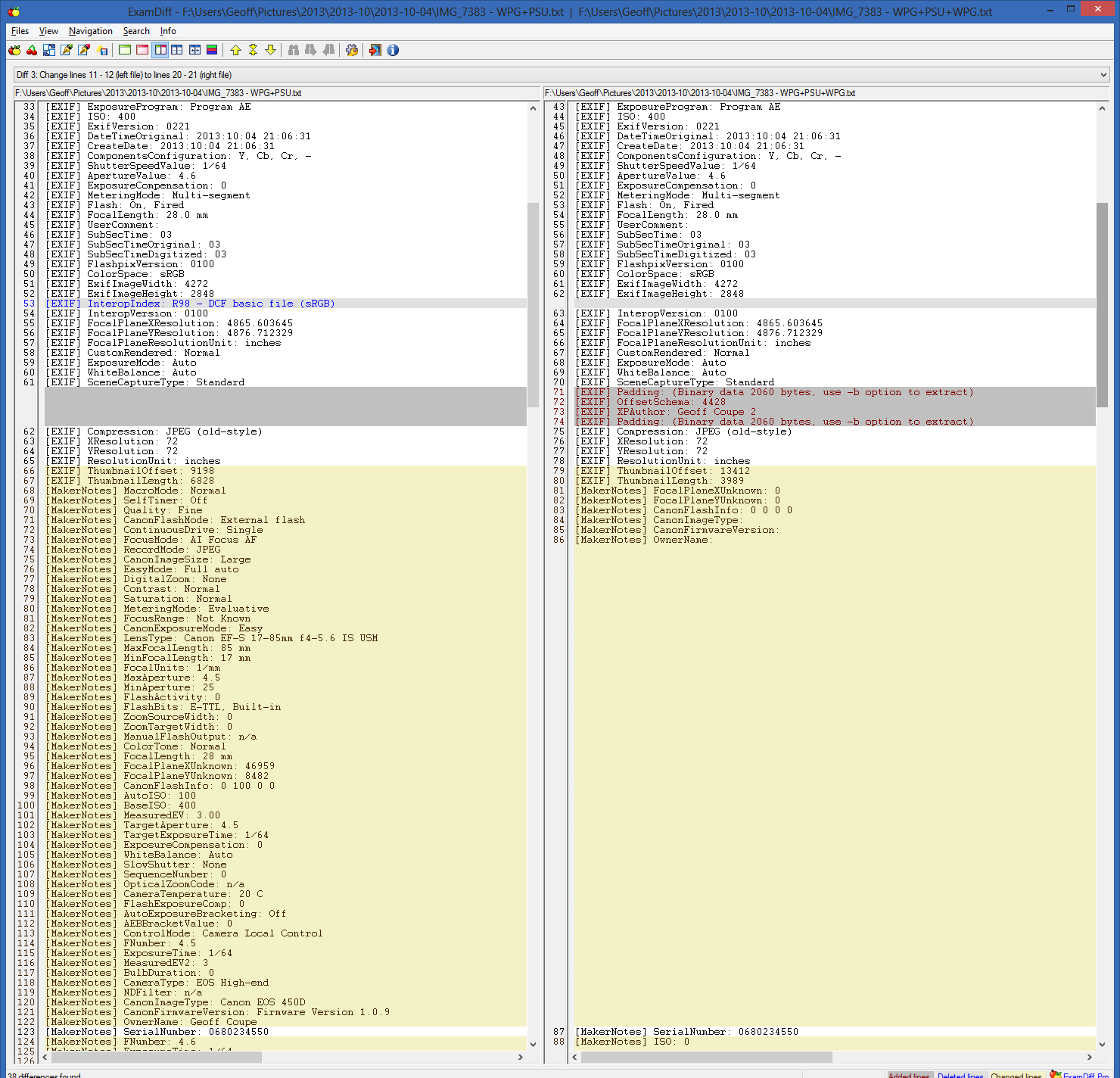
      Today I downloaded and installed the latest version of Photo Gallery. I made copies of several Canon geotagged photos and renamed their location (just enough for it to “stick”) in Photo Gallery. Comparing the originals to the renamed versions (using the tool ExamDiff) the only changes observed were the four added XMP LocationCreated tags. No Canon Makernote metadata (or indeed any other metadata) was changed, corrupted, added or deleted. This is very good performance, in that most software modify metadata they actually shouldn’t.

      This all leads me to believe that your previously observed behavior of metadata corruption has been corrected. I was never before a user of Photo Gallery, but I do find its reverse geocoding capability quite competent, and generally accurate. I do wish though, as I know you do too, that it would save locations by the simple press of the Save button, without having to make a change to the location.

      Mike
      (former Canon rep, Michigan, and supporter of the Embedded Metadata Manifesto)
      GPStamper.co.nr

      1. Geoff Coupe Avatar

        Mike,

        What version of Photo Gallery have you got installed?

        I am using build 16.4.3508.205, which as far as I am aware is the latest.

        And I have just retested the Makernotes corruption, and it’s still there on my images. I am using a Canon 450D camera, and adding a Descriptive tag to an image that has been produced by the camera is still resulting in Makernotes corruption…

        Here’s a screenshot of part of the Exif contents (using Geosetter to display the metadata) before applying the descriptive tag using Photo Gallery:

        http://sdrv.ms/1hqcu9W

        And here’s the metadata content after using Photo Gallery to add a descriptive Tag:

        http://sdrv.ms/15MHph1

        Thanks.

        1. Michael Lee Avatar
          Michael Lee

          Geoff,

          That is the build I installed. To me this is all very interesting, and I’m inclined to solve this mystery.

          I tested several geotagged photos from my Canon 1000D (very similar to, and released just after your 450D) and my findings were as previously reported, no Makernote metadata corruption whatsoever. I add a location in Photo Gallery and that is all that is added, four XMP tags.

          Right now, without any other information, I might be inclined to suspect that the actually geotagging (done prior to the reverse geocoding performed by Photo Gallery) is at fault, contributing to the errors reported after the images are reverse geocoded. Were your 450D photos geotagged using GeoSetter? My photos were geotagged with a GPS tracklog (and using ExifTool, via my own proprietary interface).

          I will geotag a 1000D photo with GeoSetter and report back on that result. Also, I will download an original 450D photo and perform several tests. I am confident that I can find the source (i.e culprit) of the metadata corruption.

          Mike

          1. Geoff Coupe Avatar

            Thanks Mike for your continued investigation.

            Can you try adding just a Descriptive tag, or a Person tag, to a test image and see what happens.

            In my case, the Makernotes corruption will occur whenever Photo Gallery acts as a “changer” application, and writes metadata changes into my images. These images may or may not have geotags already in them. If they do have geotags, then some of these will have been added by Geosetter (for manual geotagging), and others by an application that came with my GPS Logger (a Qstarz product) (for autotagging a GPS tracklog). Older photos may have had geotags added using IDimager (a DAM that is no longer available).

            However, geotags or not, the basic point is that whenever Photo Gallery touches a file on my system, I get Canon Makernotes corruption. I should add that if the original images came from my Nokia phone (Lumia 800), then Photo Gallery does not cause problems. It just seems to dislike Canon Makernotes – I’ve seen this consistently on a 450D, a 300D and an Ixus 300 HS.

    5. Michael Lee Avatar
      Michael Lee

      Geoff –

      I am keeping this thread open at the moment in order to more quickly exchange information. I have been adding locations (in Photo Gallery) to images from several Canon cameras I own. Some images are geotagged, and some are not. For those that are not geotagged, I just enter a location in Photo Gallery. All of my results are identical – only the XMP tags are added, and no metadata has been corrupted. I am confident in my results and findings so far, that is why I am not happy that your Canon files seem prone, for whatever reason, to corruption. If you were to be able to post a download link to an original photo from YOUR 450D it would go a long to help me determine if it is a camera, system or software issue, because right now we can’t rule out any of these.

      Mike

      1. Geoff Coupe Avatar

        Mike, thanks. Here’s a link to a photo taken with my 450D:

        http://sdrv.ms/1f5UDIH

        I used Photo Gallery on a copy of this file, and got the corruption. I’m interested to see what happens when you add a tag to this photo on your system. You can download it and take it from there…

        1. Michael Lee Avatar
          Michael Lee

          Geoff –

          Before I did anything else I examined all the metadata in the file. It already contains a number of errors, and I suspect they could be related to it being imported and modified in IDimager. Quite a number of XMP tags were added, along with several IPTC tags. I believe I read on your blog that you used IDimager for a while to manage your photos. If you were using IDimager to insert location information, which seems likely, as many of those tags are related to location, then I believe the Makernotes were corrupted at that time, and in that software.

          As I see it, the damage has already been done. Fortunately, and you’ll forgive me for saying this, there could have been worse damage done than Makernote loss.

          UPDATE: Looking at the photo create date I now see that it was taken very recently, and it is still marked as modified with IDimager! You may want to weigh the pros and cons of using this software.

          Mike

          1. Geoff Coupe Avatar

            Mike – that image had IPTC and XMP metadata added to it using Photo Supreme, which is an IDimager product, that’s why it shows the IDimager moniker.
            And I’m sorry, but this is quite consistent, Exiftool gives no warning on my files until Photo Gallery is used as a changer when adding Descriptive or People tags.

            What I will now do is take a test image with the camera, and not use any tool on it except Photo Gallery. If I still get the Makernotes corruption, then it’s definitely down to Photo Gallery. Watch this space…

          2. Geoff Coupe Avatar

            Mike – OK, I think you’ve helped me get a step further. What seems to be happening is that using Photo Gallery and Photo Supreme on a file will trigger the corruption – it’s the combination of the two.

            If I use Photo Gallery on a file copied straight from the camera, then Exif gives a warning: the Makernotes have been adjusted by base 4152.

            If I then use Photo Supreme on it, then I get the Makernotes corruption. If I do it the other way round, and use Photo Supreme on the file, followed by Photo Gallery, I also get the Makernotes corruption.

            Using Photo Supreme by itself, or in combination with my other tools (e.g. Geosetter) and Exiftool shows no errors whatsoever. It’s only when I use Photo Gallery on a file that has previously been touched by Photo Supreme that I get the corruption.

            You wrote that the file I supplied “contains a number of errors”. What, precisely, are they? I don’t get any warnings from Exiftool on this file. It has, as you surmise, had metadata added to it by Photo Supreme, but that’s all.

            I want to document all of this in a new post, and also report it to Hert, the chief developer of Photo Supreme. I’d like to see if we can get rid of this interaction between Photo Supreme and Photo Gallery.

            Thanks for picking away at the problem for me.

      2. Geoff Coupe Avatar

        Mike – are you ONLY altering the geotag/geocode info? If so, then I think that that will not trigger the Makernotes corruption.

        I’ve just used the same image that I uploaded for you, and used Photo Gallery to change the geocode info (the elements that are held in the IPTC Extension Location Created fields). And indeed, the Makernotes were not corrupted. However, if you add a descriptive tag or a person tag to the image, then I think you will find that Makernotes ARE corrupted.

    6. Michael Lee Avatar
      Michael Lee

      Geoff – here is the metadata dump for the image file as received by you:
      https://app.box.com/s/w96iv2pjkjjdhfw3r6fr
      You will notice some familiar warnings, as shown in your own image info reports.

      I used ExifTool v.9.35 (very recent) for the dump. Files that already have metadata offsets or corruption are much more likely to suffer additional deterioration when further processed in software which modifies or writes metadata, however, after I changed the (sub)location in Photo Gallery, there was no further metadata corruption observed:
      https://app.box.com/s/q16ojjaykdgced0zdis6

      I quickly compared these two metadata dumps using ExamDiff:
      https://app.box.com/s/d5ox37q8rgra914ow3un

      The only changes observed were those which were expected, due to the changes I made in the location information.

      After this test it is even more apparent to me that Photo Gallery is neither introducing metadata corruption, no contributing to any further corruption. This too is rather exceptionally good performance, if i do say so.

      1. Geoff Coupe Avatar

        Mike, so what you are saying is that those errors were in the file after being processed by Photo Supreme? Odd, they don’t show up in Geosetter (which uses Exiftool under the covers) until after I’ve used Photo Gallery on the file…

      2. Michael Lee Avatar
        Michael Lee

        For clarity: “After this test it is even more apparent to me that Photo Gallery is neither introducing metadata corruption nor contributing to any further corruption.”

        1. Michael Lee Avatar
          Michael Lee

          (This was not intended to be a blunt response to your comment about Geosetter not displaying errors until after Photo Gallery use. Our mails crossed.)

    7. Michael Lee Avatar
      Michael Lee

      Geoff – Yes, exactly, those errors are definitely there, and introduced by Photo Supreme. I use ExifTool in my software and I’m very familiar with its workings. I can’t explain why you don’t see the errors. You can download my free MetadataMirror tool and see them if you wish:

      phototools.co.nr

      1. Geoff Coupe Avatar

        Er, not so fast Mike – Actually, those errors have been introduced by SkyDrive! I have just downloaded that file, and I agree that it contains errors. However, the original file that I uploaded did NOT have those errors…

        I need to get the original file to you in some way that bypasses SkyDrive…

    8. Michael Lee Avatar
      Michael Lee

      Aha! the plot thickens…

      1. Geoff Coupe Avatar

        Indeed – can I email you the original? (I have your email address)

    9. Michael Lee Avatar
      Michael Lee

      https://app.box.com/s/d5ox37q8rgra914ow3un

      Before and after Photo Gallery, no metadata corruption, only sublocation change. Very weird about introducing a few select errors, which were so similar to those in your error report, while using SkyDrive…

      1. Geoff Coupe Avatar

        Yes – I think if you just use Photo Gallery to change the geocode, no corruption happens. I see that on my files as well. It’s when you use Photo Gallery to change IPTC Keywords or Microsoft’s XMP for People Tags on a file that’s already got metadata in it from Photo Supreme that the corruption happens.

        As for the SkyDrive issue – I wonder if Microsoft are reusing a code library here that originated in the Photo Gallery development…

        1. Michael Lee Avatar
          Michael Lee

          Geoff – OK, I think we got this sorted out and agree. I too have noticed and confirm that no metadata issues exist when geocoding, but when entering either people tags OR descriptive tags there are issues, albeit not critical ones (in my opinion).

          Overall I’m very impressed by the geocoding feature. As I had said, today was the first time I ever used Photo Gallery (which surprises even me). The simplicity to add that data so easily and (now confirmed) safely to files makes it a winner for me. Barring an occasional incorrect sublocation, it could be among the best geocoding tools out there, and free too.

          Thank you for the exchange of information and ideas. Keep on blogging!

    10. […] couple of weeks ago, I blogged about the tools I use to manage my collection of photos and the metadata contained in […]

    11. Eric Reiter Avatar
      Eric Reiter

      Geoff,
      I came accross your blog by searching for a photo software solution for my problem. A lot of what you wrote really resonated with me and I was hoping that I could trouble you for a few minutes of your time to opine on my photo problem.

      I’m befuddled that I cannot find a product with all the features that I want. I’ve been searching for a long time and really can’t find anything. I was hoping you may have a suggestion that will at least get me most of the way there.

      In summary, here’s my problem.
      I’ve just had a service digitize about 5,000 family photos 35mm slides that were sitting in boxes, and probably haven’t been looked at in decades. Now since so much time has passed, I can’t possibly identify many of the people because I may have been too young to remember.

      So, I was hoping to be able to use some kind of collaborative online tool that I could invite my family members into to help tag the photos. The closest I got to a solution was to use google+, but it seems that it’s a real challenge to tag people that don’t have google+ accounts (such as people who passed away a long time ago, but I’m still interested in tagging them). And when I did a small test project, I found that people had been tagged with names of people with the same name, but weren’t actually my relatives. They were just random people who had google+ counts. The other problem I ran into with old photos, is that I need either some kind of adjudication system so if there is a disagreement about who someone is, that I can have the final say. In my test project, person A could be tagged as A, but then someone else could come in and change the tag to B, without any notification to the owner of the album.

      Of course, this project also would benefit from facial recognition. Ideally, I’m just using one tool, but I’ve accepted that I might have to use one tool for certain elements and then imort/export to get the collaborative features.
      This is an important project for me and I’m willing to purchase commercial software if they offer better solution than the freebies that are out there.

      Anyway, I’d really appreciate your thoughts if you don’t mind. You blog entries were very insightful to me and that’s why I was inspired to reach out to you.

      Eric

      1. Geoff Coupe Avatar

        Eric, I’m afraid I don’t have a magic answer for your requirements. A crowd-sourced online collaborative tagging tool would be nice, but I don’t know of anything that has the adjudication checks built-in if you are looking at a cloud-based solution. Using cloud locations such as SkyDrive, Flickr or Google+ don’t seem to allow the fine-grain tracking that you are looking for. Sorry that I can’t help.

    12. Patrik Avatar

      Great article! Very interesting!

      I do however have a follow up question. What i’ve got stuck on is sharing locally.
      I’ve got 60,000 photos and I want my family to be able to browse and watch the photos from their laptops, smartphones and the TV. It’s quite worthless having all those photos if no one ever watches them cause they’re only browseable in a good way on the stationary computer i use for photoediting/tagging.

      To be a platform independent solution dlna/upnp seems the way to go, or maybe html5.
      There are many options of dlna/upnp media server software but the problem is finding what you’re after. With 60k photos you just can’t browse folders, you’ll go insane before finding the right photos.
      Some media servers (windows media server, Twonky, Synology/Photo Station) supports browsing by keywords represented by virtual folders. That is good, but browsing by ONE keyword/tag/metadata just doesn’t cut it.

      So what i’m wondering is if you have any clue what software i could check out that supports multiple level of keywords, at least two levels.

      As far as i’m concerned a dynamic two-level virtual folder structure based on keywords would be far better than one keywords.
      Let’s say you open the virtual folder for the keyword “Birthday”, then you would be presented with virtual folders for all the keywords that coexist with “Birthday” for any image thus filtering the result further for every step.

      The only software i’ve come across that is able to accomplish this by very dynamic configuration options is MeediOS which only exists as a beta-version and has an uncertain future.

      …or maybe there’s another approach than dlna/upnp?

      I heard Daminion might be what I’m looking for but I haven’t had time to investigate it yet.

      As i see it this is an upcoming problem for many of us. Anyone else recognizes this as an issue?

      Patrik

      1. Geoff Coupe Avatar

        Patrik, you raise a good issue – accessing a large collection of images from multiple devices using dynamic multi-level searches. I think you’re right that DLNA is a good choice for support of multiple devices, but I don’t know of any client applications that can handle multi-level dynamic searches, or of DLNA servers that expose a full set of image metadata.

        Daminion is a client/server solution, but the clients are PC desktop-based only as far as I’m aware; i.e. no support for non-PC devices (or Mac for that matter). Photo Supreme is available in both single-use and multi-user client/server versions, and while it is available for both PCs and Macs, there are no other device clients available.

        It’s a gap in the market. Perhaps the Plex or MediaBrowser teams will come up with something at some point, but it seems to be pretty far down their list of priorities from what I see.

    Leave a comment

  • Gee’s Swizz

    There was a time, round about 2008, when I was a regular reader of Henry Gee’s blog. He’s a senior editor of Nature, and I found his blog writing amusing enough. After a while though, I found I became somewhat disenchanted with his views, and stopped reading him.

    He popped up again this week with an opinion piece in The Guardian where he set out his case that Science is a religion that must not be questioned. I found it mostly to be a load of old bollocks, and it served as a reminder as to why I stopped reading him. The one point where I found myself half-nodding in agreement was his charge that:

    TV programmes on science pursue a line that’s often cringe-makingly reverential. Switch on any episode of Horizon, and the mood lighting, doom-laden music and Shakespearean voiceover convince you that you are entering the Houses of the Holy – somewhere where debate and dissent are not so much not permitted as inconceivable.

    But even here, my argument would not be because the programmes are reverential, but because they are bad. I’ve said in the past that Horizon has been simultaneously both dumbed-down and jazzed up by the programme makers to an almost unwatchable extent. With rare exceptions, the programmes are not made by the scientists themselves, but by non-scientists who seem to prefer (questionable) style over substance.

    For a proper rebuttal of Gee’s piece, I refer you to Jerry Coyne, who takes it apart in a most satisfying manner.

    Leave a comment

  • Maybe It’s Just Me…

    …but I really don’t want to play Grand Theft Auto V, despite it getting rave reviews.

    Set mostly within the glitzily superficial city of Los Santos, a warped mirror of Los Angeles, GTA V is a sprawling tale of criminal maniacs self-destructing on a blood-splattered career trajectory to hell. Michael is the middle-aged thug, obsessed with movies, who pulled a witness protection deal with the feds after a failed heist many years ago. When his old partner Trevor, a sociopath who bakes meth out in the desert, turns up in town, the two join forces with a young black kid, Franklin, who’s set on leaving his gang-infested neighbourhood behind. The aim is a few final high-paying jobs, but there’s a festering resentment between Trev and Michael that goes back a long way, a fizzing fuse that trails all the way through the carnage.

    This three-character format emancipates the narrative, jettisoning the awkward requirement for one protagonist to be everywhere, witnessing everything in this vast world. Switching between the characters can be done at any time while off mission, and all three have their own little pet projects to get involved with, adding variety and a few amusing surprises: switching to Trevor usually involves some bodily function or weird violent episode, while Michael has his dysfunctional family to manage. And overlaying all this is a huge plot about warring government agencies and corrupt billionaires.

    Judging by the news, human behaviour in the real world is depressing enough without wanting to immerse myself in more of the same…

    Women are, once again, relegated to supporting roles as unfaithful wives, hookers and weirdos. The one successful female character in the story is suspected of just wanting to screw her boss. Of course, GTA is essentially an interactive gangster movie, and the genre has a long history of investigating straight male machismo at the expense of all other perspectives, but it would have been wonderful to see Rockstar challenging that convention. It’s fine to parody the idiotic misogyny of violent men, but how about doing it by providing their opposite? It seems Rockstar North’s all-male writing team is too in thrall to Tarantino and Brett Easton Ellis to really consider this.

    So GTA V fails the Bechdel Test then? What a surprise.

    Leave a comment

  • “100,000 dead, seven million displaced and a nation turned to rubble”

    Kenan Malik sums up the real consequences of the terrible conflict in Syria. It makes for depressing reading. The posturing of Putin in particular is pure politics. However, as Malik says, none of the players come out of this well. Meanwhile, the slaughter and the flood of refugees continue.

    Leave a comment

  • Strong Convictions

    While I often shake my head at some of the religious bollocks that emanates from the US, I would do well to remember that here in the Netherlands we have many examples of our own.

    The latest is of a Dutch school having to pulp 3,000 diaries printed for the pupils because some parents are convinced that they contain a sign of Satan. And what’s the sign, you ask? It’s the Peace sign. You know, the one designed by Gerald Holtom in 1958.

    School board chairman Johan van Puten is reported to have said:

    ‘The conviction of the parents that the symbol was unacceptable was so strong that I knew a rigorous approach was the only solution’

    Someone should point out to him that strong convictions do not necessarily equate to them being correct. And in this instance, it’s clearly the parents who need education as much as, if not more than, their children.

    One response to “Strong Convictions”

    1. Matt Healy Avatar
      Matt Healy

      I make my living as a research scientist. One of the hardest lessons to learn in science is that nature does not care what I think, so the intensity of my belief in some hypothesis does not indicate its probability of being true.

    Leave a comment

  • Mellow Fruitfulness

    At the moment, we’re seeing Keats’s poem To Autumn come to life all around us. We’re harvesting our fruit trees and shrubs. This year we have a bumper crop of plums, pears, elderberries and blackberries, backed up by a reasonable result from our walnut, hazelnut, and sweet chestnut trees.

    We have also discovered that we have Cornelian Cherry shrubs laden with berries, and so we’ll be making a new jam variety this year, to go alongside the pear jam (with hints of lemon and cinnamon), the blackberry and elderberry jams, and the plum jam and chutney. Trouble is, we’re rapidly running out of jam jars…

    20130904-1455-3120130911-1304-31

    20130911-1302-08

    2 responses to “Mellow Fruitfulness”

    1. Chris Connor Avatar
      Chris Connor

      What do you do with those nice walnuts?

      1. Geoff Coupe Avatar

        Use them in cakes, of course!

    Leave a comment

  • Under The Skin – Again

    As I wrote back in 2009, Michel Faber’s first novel Under The Skin will probably get under your skin, and provoke a severe reaction. I see that the novel has now been made into a film. While it sounds as though liberties have been taken with the plot, I hope that Isserly’s odyssey remains as strange and as haunting as in the original story.

    Leave a comment

  • TW3 and RIP

    It’s been something of a week for drawing breath, what with the announcements of the deaths of first Seamus Heaney, and now David Frost. Both were 74, and both, in very different ways, contributed to the cultural lives of many.

    Much as it pains me to say it; if I’m honest, then Frost’s influence on my life has been much greater than that of Heaney’s. I was transfixed, at an impressionable age, like a deer caught in the headlights of an oncoming car, by That Was The Week That Was on BBC TV.

    Devised by Ned Sherrin, fronted by Frost, but with sterling support from many others, TW3 was a satirical landmark in British Television. We shall not see its like again.

    It only ran in 1962 and 1963, when I was just 13 and 14. It was a late-night show, live, and ran each week for as long as it took to get through the material, often into the small hours. Looking back, I am slightly surprised that my parents allowed me to watch it at all.

    As is quoted on TW3’s Wikipedia page:

    TW3…did its research, thought its arguments through and seemed unafraid of anything or anyone… Every hypocrisy was highlighted and each contradiction was held up for sardonic inspection. No target was deemed out of bounds: royalty was reviewed by republicans; rival religions were subjected to no-nonsense ‘consumer reports’; pompous priests were symbolically defrocked; corrupt businessmen, closet bigots and chronic plagiarists were exposed; and topical ideologies were treated to swingeing critiques.”

    So thank you, David Frost (not forgetting Ned Sherrin, Timothy Birdsall, Bernard Levin, Lance Percival, Kenneth Cope, Roy Kinnear, Willie Rushton, Al Mancini, Robert Lang, Frankie Howerd, David Kernan, Millicent Martin, John Albery, John Antrobus, John Betjeman, John Bird, Graham Chapman, John Cleese, Peter Cook, Roald Dahl, Richard Ingrams, Lyndon Irving, Gerald Kaufman, Frank Muir, David Nobbs, Denis Norden, Bill Oddie, Dennis Potter, Eric Sykes, Kenneth Tynan, and Keith Waterhouse). You helped form me into the person I am today.

    Leave a comment

  • The Perseids

    I spent a hour or two outside in the garden looking for evidence of the Perseid meteor shower. I really should have been out on Monday – when the shower was at its peak – but, as usual, cloud cover won the night.

    I saw a few (less than ten), but I couldn’t help feeling that the Perseids are a bit overrated. They were both fast and faint; not very spectacular. By coincidence, I was out walking the dogs just after 10pm, when it was getting dark, and I saw an absolutely spectacular slow-moving meteor (not a Perseid) that went from the zenith almost down to the northern horizon, leaving a trail for half of its flight.

    During the observation of the Perseids, I attempted to make one of those time lapse films that are very popular these days. The Guardian has an example of one of these films, but they rather spoiled it by saying that the objects streaking across the sky are Perseids. Nope – they’re either aircraft or satellites.

    I was struck last night by just how many satellites are visible to the naked eye – flitting about in all directions. Several of them also displayed flaring – as the sun catches their antennae or solar panels – the so-called Iridium Flares. That almost made up for the disappointment in the Perseids.

    Leave a comment

  • Remembrance Day

    I travelled to Scotland last week for a funeral. It was not an unexpected trip, but one that came too soon, nonetheless.

    David, my niece’s husband, was diagnosed with a brain tumour a year ago, and he died peacefully, with Fiona by his side, on August 1st. He was just 50 years old.

    David was neither rich nor powerful, in the usual measures of these terms. He was a gardener and a family man. Yet he was loved and respected by many. His funeral was attended by over a hundred people paying their respects.

    The funeral service was held at the graveside in Kirkcudbright cemetery. It was a Humanist burial, led by a Humanist Celebrant. She delivered a moving summary of David’s life, and I, like many others present I’m sure, smiled through my tears.

    David and Fiona had chosen a Tom Leonard poem “Remembrance Day” to be read out. It was the perfect choice. It begins:

    I know what it is
    to be powerless

    I know what it is
    to be made to lie low

    while the unknown enemy
    invades you

    There’s a recording of Leonard reading his poem here.

    The cemetery is on a hillside, overlooking the small town of Kirkcudbright. It’s a wonderful spot.

    20130807-1442-11 Stitch

    David’s bodily remains lie here, but his memories live on in us.

    20130807-1434-07

    3 responses to “Remembrance Day”

    1. Matt Healy Avatar
      Matt Healy

      You have my deepest sympathies. My sister died age 45 following a 2007 car accident, so I can tell you the sadness will never go away, but it will probably become somehow less acute with the passage of time.

    2. […] been a good year, with happy memories; however, there have been a couple of bumps along the way. We lost a member of the family at far too young an age, and in June, Martin suffered a slight stroke. I’m happy to report that […]

    Leave a comment

  • Canal Parade 2013: Flyboarding and More

    I didn’t make the trip to Amsterdam this year for the annual Canal Parade, but by all accounts, it was a great success. The Armed Forces had a boat in the Parade, and the Minister of Defense was on board with five of her Generals. The Minister for Emancipation (from the Ministry of Education, Culture and Science) also had her own boat and she was also taking part. The Parade was opened by two Flyboarding cowboys – something I’ve not seen before…

    I have to say that the trick of flying through the air into the water and back out again looks pretty spectacular…

    One response to “Canal Parade 2013: Flyboarding and More”

    1. Mark Avatar
      Mark

      The flyboarding is moving forward in technology. The last time I saw that it was a big rig, now it really does look like a skateboard sized pad. wow!

      Looks like a lot of people were there! Good to see it

    Leave a comment

  • The Xbox Music App Is Lying To Me

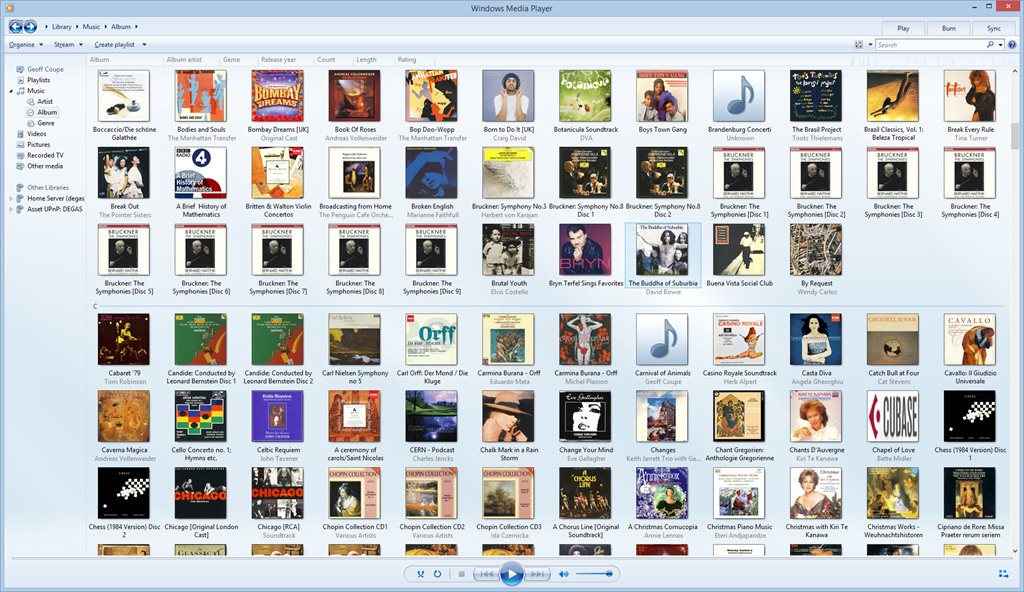
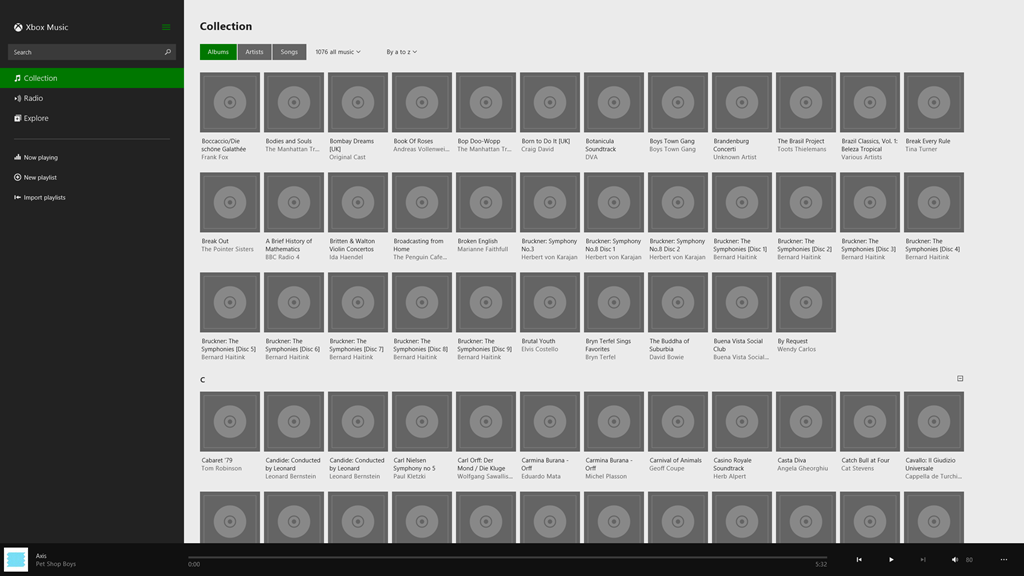
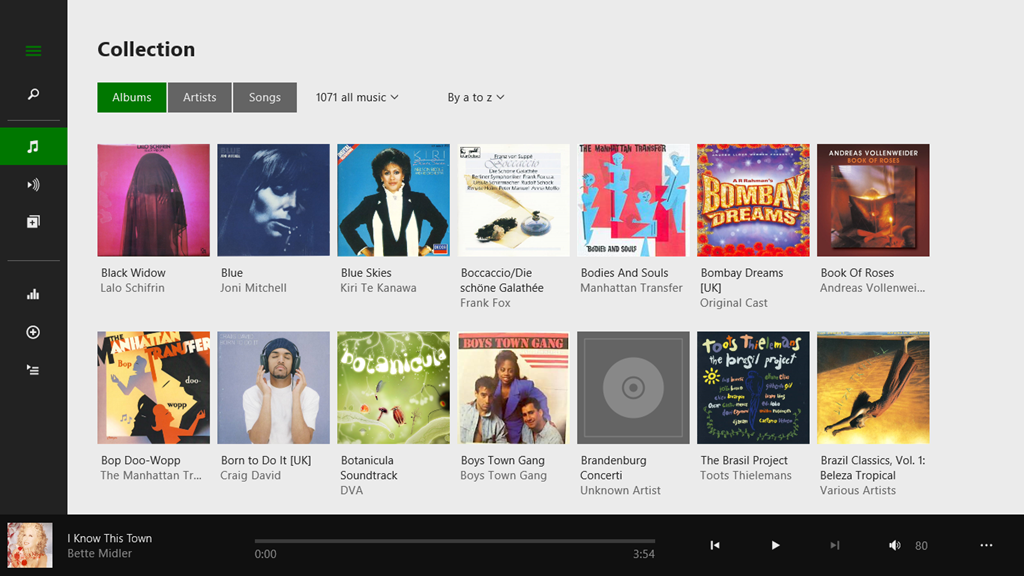
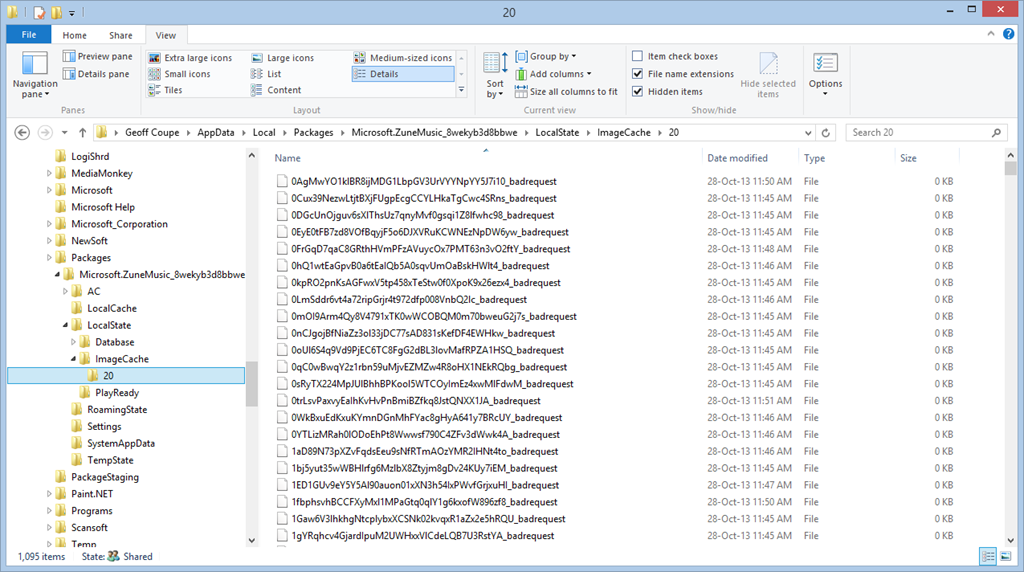
    Last month, I mentioned that I was having difficulty with the Xbox Music App installed on one of my systems. It does not see my music collection, and claims that there’s no music on the PC. A couple of days ago, there was an update of the Xbox Music App from Microsoft, so I wondered if that might have fixed the problem.

    The answer is no; the problem is still there.

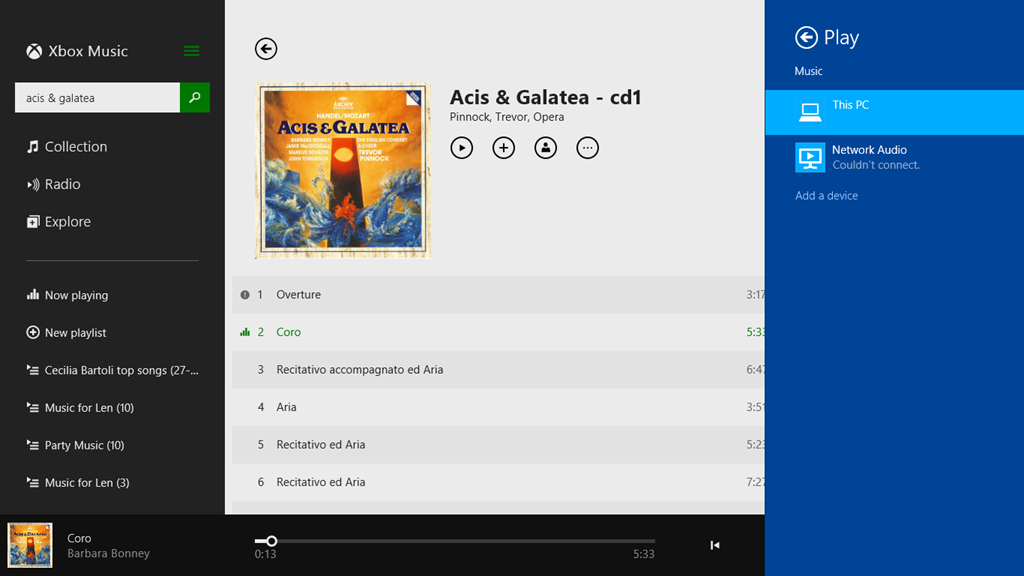
    I currently have three instances of the Xbox Music App: one (version 1.4.18.0) is running on Windows 8, and two (version 2.1.15.0 – the latest update) are running on Windows 8.1 Previews. Two out of the three are working as expected, but one of the 2.1.15.0 versions is not: it absolutely refuses to see the contents of my Music Library.

    I’ve uninstalled/reinstalled the App several times, and wiped out the folders containing the App data, all to no effect. Here’s what the App told me after the last installation:

    xbox music issue 02

    “We didn’t find any music on this PC”.

    It is displaying a few albums that I have stored in the Cloud, but that’s all. Tapping that message displays the folders that the App is supposed to be watching for music content:

    xbox music issue 03

    These are the folders included in the Music Library. I tried adding the main music folder for my music collection again, by tapping the “+” symbol, and navigating to the root folder of the music collection (\\degas\music):

    xbox music issue 04

    However, when I tried to include the folder, I was told (not unexpectedly) that the folder had already been included in the library:

    xbox music issue 05

    So, Windows 8.1 knows where my music collection is, and so, apparently, does the Xbox Music App. However, the App refuses to do anything with it.

    Is this the same for all the locations currently defined for the Music Library? Let’s find out.

    Here’s the three locations currently defined for the Music Library on the system with the errant Xbox Music App:

    xbox music issue 06

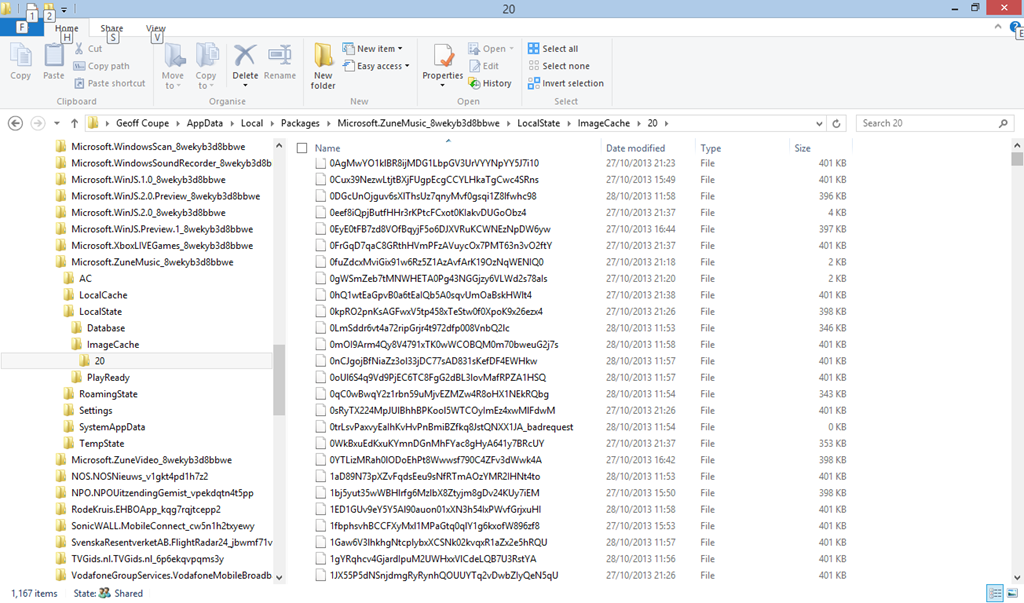
    Note that one is a network location (\\degas\music – my main music collection), while the other two are local to the Windows 8.1 system; a location on the C: drive (C:\Users\Public\Music) and a location on the D: drive (called “Music (Geoff Coupe)”, but shown in the Xbox Music App with the user-friendly name of D:\6aa39937a982345b-Music… sigh). That location on the D: drive was set up by Windows 8.1 as the default location for saving music files.

    If I paste in a couple of test albums from my music collection to these local folders, then I find that the Xbox Music App will only react to the contents of the folder on the C: drive. It will ignore the contents of the supposedly “default” music folder on the D: drive.

    Here’s a screenshot of the Music Library contents:

    xbox music issue 07

    As a test, I’ve copied an ABBA album to the Public Music library on the C: drive, while my default Music Library on the D: drive has an Adiemus album in it. The result in the Xbox Music App is that the ABBA album shows up, but the Adiemus album, along with the rest of my music, does not:

    xbox music issue 08

    Once again, let me stress that, on this Windows 8.1 system, Libraries are not broken for other third party apps, whether Desktop or Modern UI Apps. However, Microsoft’s own Apps (Xbox Music, Photos and Videos) are a disaster.

    I still fear that what we are seeing here is not a bug, but the natural consequences of Microsoft moving away from using Libraries. As they will no doubt proclaim in a month’s time: “it’s not a bug, it’s a feature!”. If so, this is one feature that I can definitely do without.

    Update 17th October 2013: I’ve just installed the final release of Windows 8.1 on my tablet, and the Music Library is now being accessed correctly by the Xbox Music App, so it looks as though the issue is now resolved. However, when one issue is resolved, another pops up.

    One response to “The Xbox Music App Is Lying To Me”

    1. […] Addendum: Despite a couple of updates to the Xbox Music App, this issue is still present. […]

    Leave a comment

  • SkyDrive – Still No Proper Support For Tags

    Yesterday, Microsoft added some functions to SkyDrive – its online storage service. The additions are described in this blog post by Omar Shahine, a Group Program Manager at  SkyDrive.

    Now, some of the additions are worthwhile, but I am still missing something that Microsoft removed back in June 2011: the display and searching of Descriptive Tags (aka Keywords) in photos. Up until that time, you could show the Descriptive Tags that were contained in the metadata of photos uploaded to SkyDrive. Then, Microsoft did a major revamp of the user interface of SkyDrive, and started using HTML5 to drive the interface. In that revamp, something odd happened. Photos that I knew contained Descriptive Tags were suddenly shown as having no Tags, and I was being invited to re-enter Tags into the photos on SkyDrive.

    Here’s an example of what I started seeing at the time; this is a screenshot of photos on my PC being displayed in Microsoft’s Windows Live Photo Gallery (now renamed to Photo Gallery), an application running on my PC. One thumbnail has been selected, and you can see the metadata embedded in the photo being displayed in the information panel on the right hand side of Windows Live Photo Gallery (click on the image to see the full-size screenshot):

    SkyDrive 1

    You can see that the metadata contains both descriptive tags (e.g. carriage and harness horses) as well as technical and copyright information (e.g. date taken, location, camera details, etc.).

    This picture was uploaded to a SkyDrive photo album here. When I looked at the picture in SkyDrive, while I saw some (but not all) of the technical information, none of the descriptive tags had been transferred. Indeed, I was invited to add the tags again!

    SkyDrive 2

    I blogged about this backwards step in November 2011, and had responses from Omar Shahine, and others, to my post. It turned out that the “Tags” label in SkyDrive no longer referred to Descriptive Tags, but People Tags.

    I notice that since then, Microsoft has renamed the “Tags” label to “People Tags” – here’s the photo being displayed in SkyDrive today:

    SkyDrive Tags 05

    However, there is still no sign of any Descriptive Tags being displayed by SkyDrive, even though my photos are all tagged. Yesterday, Omar Shahine and Mona Akmal of the SkyDrive team held an “Ask Me Anything” session on Reddit. Someone asked about support of tagging on SkyDrive, to which Shahine replied:

    Something we’ve talked a lot about on the team, but have nothing to share about this now.

    So it’s something that has probably been talked about for the past two years, and we are still apparently no further forward? I have to say that I’m not impressed. If the team are serious about making SkyDrive relevant to photographers, then proper support of tags should be high on their to-do list.

    And by “proper support”, I mean that SkyDrive should not just display Descriptive Tags as well as People Tags, but support searching of both types. Currently, they do neither.

    I have a test image with a “People Tag” defined. Here it is being displayed in Windows Photo Gallery:

    SkyDrive Tags 06

    You can see that I have identified the face in the screenshot as being that of British broadcaster Melvyn Bragg, and that the image has a Descriptive Tag of “Screenshot”.

    Now here’s the same image being displayed in SkyDrive:

    SkyDrive Tags 02

    It has lost all evidence of having a Descriptive Tag contained within the image, but at least it is displaying the fact that it has a People Tag, with the content “Melvyn Bragg”. Unfortunately, People Tags, just like Descriptive Tags, are not searchable on SkyDrive. If I search within my SkyDrive files for “Melvyn”, I get the message that nothing is found:

    SkyDrive Tags 03

    Both People Tags and Descriptive Tags are searchable on my PC – Windows supports searching within photo metadata, so here, the image is found:

    SkyDrive Tags 04

    But this won’t help someone trying to find something that has been tagged within my public SkyDrive folders, or friends and family looking for something within my shared folders.

    So, to summarise:

    • Microsoft removed the display of Descriptive Tags in photo metadata from SkyDrive in June 2011.
    • They replaced it with the display of People Tags in photo metadata.
    • Neither Descriptive Tags nor People Tags are searchable in SkyDrive
    • Two years on, and nothing has changed.

    Serious photographers need to look elsewhere.

    Update 19th February 2014: Well, today Microsoft has changed the name of SkyDrive to OneDrive, but nothing else has changed. Tag support is still woeful, and searching of tags is still not supported.

    Update 10th May 2014: Microsoft has introduced some new features into OneDrive, but unfortunately, the support for Tags is still very much broken.

    Update 23rd January 2015: OneDrive has finally introduced support for searching on Tags!

    13 responses to “SkyDrive – Still No Proper Support For Tags”

    1. osm Avatar
      osm

      Hello,
      This is little off topic. I see from one of your screenshots that you organise photos into folders according to date taken. I do the same. A feature that is missing from Windows Photo Gallery and (I think) Windows 8 photos app is the ability to create albums. By albums, I mean a sort of virtual folder that contain (reference) photos that physically exist in different folders, thus albums can contain photos that span multiple events. iPhoto, Picasa, Adobe Photoshop Elements all contain such album features.

      From your blog, I gather that you use Windows photo gallery. Do you not bother with creating albums, or do you use different software for this? If you have a blog post that gives a general overview of how you perosnally approach photo organisation, I’d be very glad if you could point me to it as I have found reading some of your posts on Windows photo software very useful.

      1. Geoff Coupe Avatar

        Hello osm. Actually, I don’t really bother to create albums at all. That’s because the tags in my photos are what allow me to create any sort of virtual album dynamically according to the tag criteria I assemble when I want to select photos from the collection.

        My primary tool for managing my photos is Photo Supreme (the follow-up program to IDimager, which is no longer available). The way I organise my photos is given in these posts. Hope this helps. Oh, and Photo Supreme (unlike Windows Photo Gallery) does have support for albums. I just haven’t bothered with that feature.

    2. […] It does preserve metadata in downloaded copies of the originals held on its service. However, the metadata is neither exposed in the user interface, nor searchable with one exception – that of Microsoft’s proprietary People Tags. Frankly, this is abysmal. It […]

    3. cory fitzpatrick Avatar
      cory fitzpatrick

      Thank you for this summary. I believe I have come across this same issue which is frustrating since I have spent that last several weeks organizing the 10,000 or so photos that I have. Since I have four computers all running Windows 8.1, I decided to embrace skydrive and photo gallery to help me with my growing photo collection. I have added several descriptive tags to a lot of my photos and I can organize them well on the computer that I used to add the tags. I have all of my photos on the Skydrive. My hope was that if I wanted to view the photos on another computer, My MS Surface Pro, I could fire up the Photo gallery and sort by my descriptive tags. I find that the tags do not show up. I’m curious if you have found out any more information regarding this subject or if you or anyone else knows where the descriptive tag information is kept since it doesn’t show up on the skydrive.

      1. Geoff Coupe Avatar

        Cory, I think that what you are experiencing is the fact that the SkyDrive placeholder files on your Surface Pro do NOT always contain photo metadata. It seems to be time-related, i.e. there’s a process running in the background in the SkyDrive service that discovers image metadata and adds it to the placeholder files. Give it time.

        Files that are available offline on your Surface Pro should be exact copies of what is in the SkyDrive cloud, image metadata and all. These should be immediately searchable in WPG and Windows Explorer.

        1. cory fitzpatrick Avatar
          cory fitzpatrick

          Hmmm… thanks you very much for your reply. So what I have done is add the descriptive tags on a computer that keeps the files for offline use. I do not have the files set up for offline use on the Surface Pro. I do notice that several of the picture folders on the Skydrive on the computer I used to make the tags continue to show that they are syncing. I’m seeing the little circular arrows on a couple of the folders so I assume that’s what it is. Are you saying that the descriptive tags will be synced and available to see on the Surface in time?

          1. Geoff Coupe Avatar

            OK, let me try and describe what is going on. Suppose you have a Desktop PC (DPC) and a Surface Pro (SP). Both of them use SkyDrive, so you have a SkyDrive icon in the Navigation pane of Windows Explorer on both, with the SkyDrive folders that you have created showing beneath the icon.

            You place image files into one of the SkyDrive folders on DPC. You will then see the folder icon show the syncing icon (the circular arrows). Now what’s happening is that the images are being synced to the folder in the SkyDrive cloud. At the same time, once in the cloud, image files are being synced to SP. However, here, what are being created are placeholder files, not exact copies of the original files. These placeholder files contain the image thumbnails, but initially not much else – usually not the metadata such as descriptive tags. You’ll see that the files on the DPC are shown in Windows Explorer as “Available offline” – because that’s where they originated. On the SP, the same files will be shown as “Online only” to indicate that they are placeholder files, not full copies of the originals. If you edit an image (or use WPG to add a tag) on the SP, then the full file will automatically be fetched down to the SP, and you’ll see it change to “Available offline” in Windows Explorer. Now you have full copies of that file on both devices, and a change to one (including metadata changes) will be synced immediately to both the cloud and the other device.

            The syncing of image metadata to placeholder files is a separate process that runs in the SkyDrive cloud. As I understand it, the process will first deal with images that arrive in SkyDrive in the Camera Roll folder. After that, it will walk through your other folders (rather like a web spider does with web sites). In my experience, it seems to be very slow at doing this, so I’m afraid that it does seem to take an inordinate amount of time before the metadata finally shows up in the placeholder files. I think some feedback to Microsoft is called for… The only guaranteed way to get all the metadata available quickly on the SP would be to mark the Skydrive folders to be available offline, then all the files will be made exact copies of the files on the DPC. This of course rather defeats the object of having placeholder files to save space on the SP, but that’s where we seem to be at the moment…

            1. cory fitzpatrick Avatar
              cory fitzpatrick

              Wow! Thanks for the info! I’ll wait and see what happens. I did read that other article and it does say that the metadata should be there like you say. I love the idea of the SkyDrive and plan to use it a lot, but I think Microsoft needs to work on some of these issues to make it better. I also find that sometimes when I save a file to the SkyDrive, it takes quite a while for it to show up on my other computers. I wish that could be faster.

      2. Geoff Coupe Avatar

        BTW, this post is primarily about searching in the SkyDrive service online. See also this post: https://gcoupe.wordpress.com/2013/07/23/microsofts-skydrive-room-for-improvement/
        It gives more background on your scenario – using PCs and other devices in conjunction with images stored online in the SkyDrive cloud.

    4. cory fitzpatrick Avatar
      cory fitzpatrick

      Have you happened to see of any more news regarding this subject? So far, none of the tags that I have added to my photos come through on the Skydrive and for a week it just shows the little blue arrows on most of me files.

      1. Geoff Coupe Avatar

        Cory,
        I’m surprised that you are still seeing sync indicators (the blue arrows) on your files and folders. They should certainly have gone after a week. However, it is also true that tags seem to come through very slowly. I’m seeing tags appear in some of my placeholder files, but many are still empty of tag metadata. For example, in one folder of 60 photo placeholder files, just one is showing tags, while they should all be doing so.

        BTW, if you switch to the “details” view in a folder of photos, you should have a “tags” column (if not, you can add it in). That’s then an easy way to see which of your photo placeholders contain tags.

    5. […] Unfortunately, the five do not include one that I (and others) have been requesting for the past three years: proper support for tags in photo metadata. […]

    6. […] Because the smart files hold metadata, it means that you can use File Explorer to search your OneDrive folders. This is also better than the online OneDrive Search, which can only search on filenames. […]

    Leave a comment

  • I’m Clearly Missing Something…

    I don’t understand what all the fuss is about over news aggregator services, such as the (now-defunct) Google Reader.

    For years now, I’ve simply used the “Feeds” feature in my Internet Explorer to aggregate my own personalised collection of web sites that I’m interested in. I simply don’t see the need to register with an external news aggregator service (such as Feedly) to get the same information as I can get directly in my web browser. I’m getting a little fed up with having to hand details of my interests to Google and Feedly so they can monetise me.

    There must be some other reason why people do this that I’m simply not seeing. Isn’t there? If it’s simply that they can access a news aggregator service that is synchronised across a number of devices, then that’s not sufficient reason for me personally to sign up to such a service.

    I’ll just carry on with the feeds in my Internet Explorer. I will supplement that with a standalone feed reader on my Tablet. Veen Feed Reader looks to be the best of the bunch in the Windows Store for my purposes.

    6 responses to “I’m Clearly Missing Something…”

    1. Arunas Avatar
      Arunas

      Synchronising across different devices is the main feature why I used Google Reader and now use Feedly. I read my feeds on a Windows 8 tablet, iPhone, and occasionally on a desktop PC. This would never work without sync.

      1. Geoff Coupe Avatar

        Agreed, but sync can be done in other ways. Via my Microsoft account or SkyDrive for example. I note that now my IE links are synchronised across my devices. It’s a pity that Microsoft didn’t think to extend that to my feeds.

    2. jlbeeken Avatar

      I think what you might be missing is that Internet Explorer is not exactly a popular browser.

      Firefox has a simple RSS add-on called Sage but hey, the Google Reader interface was also easy to use.

      You, I receive by email. Might as well, Everyone else talking to me goes there.

      1. Geoff Coupe Avatar

        I could care less about popularity, it works for me, always has done. And the touch-based version of IE11 is giving me no reason to think of changing…

        Here in the EU, when you first fire up a new PC with Windows, you get asked which browser you want to install. The EU forced Microsoft to include this (funny that they didn’t do the same to Apple…). I still go for IE, every time.

        1. jlbeeken Avatar

          Sorry. I thought you were asking about other people.

          1. Geoff Coupe Avatar

            Gotcha. Although I’m surprised that not all browsers apparently support RSS feeds natively. BTW – I liked your post on scanning old photos. I forwarded it on to a friend who is about to embark on scanning her archive and suggested that it was best practice.

    Leave a comment

  • There’s the Demo, Then There’s the Reality…

    A new input device for your computer is available. I don’t think we’ve quite got to Minority Report fluidity yet…

    http://bcove.me/bydxiwxr

    (hat tip to Ars Technica)

    Leave a comment

  • Microsoft’s SkyDrive – Room for Improvement

    OneDrive (previously SkyDrive, Windows Live SkyDrive and Windows Live Folders) is the online storage service offered by Microsoft. It’s been around since 2007, and has been through a number of iterations. It really started to come into its own with the introduction of Windows 8, where it started to assume a much more prominent role. Now with the imminent introduction of Windows 8.1, it is becoming more tightly integrated with the Windows operating system than ever, and the distinction between local and online (cloud) storage is becoming even more blurred.

    I’ve changed all references to SkyDrive to OneDrive in this post since it was first written, to reflect the change of name given to the service by Microsoft. Some screenshots and external references still refer to the old SkyDrive name…

    There’s a good post (Inside SkyDrive) over at the Windows blog that describes some of this integration. However, it seems to me that there is still room for further improvement.

    For example, the author of the post (Mona Akmal, Group Program Manager, SkyDrive apps) writes:

    Many people use search to quickly access their files. So we’ve made search work just as you’d expect – SkyDrive files show up in search results just like your local files.

    Er, no, that’s not true. The way that the search function works is to index the information held in the small placeholder files held locally on your PC. These placeholder files represent the real files held up on the OneDrive service itself. At the moment, it seems that very little metadata is held in the placeholder files; only things such as the filename, and image thumbnails. So if I search for Descriptive Tags (aka Keywords) that are held in photo metadata, I get no results.

    Let me illustrate this. In Windows 8, it is possible to have a local copy of your SkyDrive folders and files. Here’s a screenshot showing some of the OneDrive folders that are held locally on my Desktop PC:

    SkyDrive 01

    These folders and the files within them are full local copies of the contents of my OneDrive storage. They are also included in the scope of the Windows Search engine running on the PC, and because they contain all the metadata, they are also searchable. So, for example, If I search for pictures of our dog, Kai, I get 16 hits of OneDrive photos that contain the Descriptive Tag: Kai:

    SkyDrive 02

    My ThinkPad Tablet, on the other hand, is running the Windows 8.1 Preview. In Windows 8.1, the contents of my OneDrive storage is represented by placeholder files:

    SkyDrive 03

    To all intents and purposes, they look like the original Folders and Files held in my OneDrive , but they are not; merely placeholders. A full local copy of a file is not present on the Tablet, unless I have edited the file. So now, if I search for photos of Kai, I get a sad little “No items match your search” message:

    Skydrive 04

    That’s because the placeholder files do not contain any photo metadata. This seems to me like a real limitation, particularly since there is no way of searching Descriptive Tags in photos in OneDrive itself – even though the files themselves have the metadata.

    Here, for example, is the OneDrive App in Windows 8.1. Note how the Search Charm is not able to search OneDrive , but only the web or local files:

    SkyDrive 05

    Searching for “Kai” produces only the results from my local libraries, not from OneDrive :

    SkyDrive 06

    If I use Internet Explorer to browse OneDrive directly, then I still can’t search on Descriptive Tags. Here’s the initial view of my OneDrive :

    SkyDrive 07

    If I use the “Search OneDrive” function at the top left, and search for “Kai”, then nothing is found:

    SkyDrive 08

    So the SkyDrive service is not indexing metadata such as the Descriptive Tags. This, by the way, is a long standing issue with the SkyDrive service. I’ve raised it on a number of occasions with the OneDrive team, and nothing has changed.

    In addition, the Windows 8.1 integration of OneDrive is also not indexing metadata, so perhaps the Microsoft statement should be rewritten as:

    Many people use search to quickly access their files. So we’ve made search work just not as you’d expect – SkyDrive files won’t always show up in search results unlike your local files.

    Sigh.

    Update 4 October 2013: If you read the comments below this post, you’ll see that members of the OneDrive team have replied. The good news is that they are working to address the shortcomings of the current search experience – photo metadata is now being included in the placeholder files. That’s good to hear.

    Update 7 May 2014: I’ve just done a test of uploading some files, containing IPTC Core keywords (tags) in their metadata, to OneDrive. You still can’t search for the tags using the browser accessing the online service – they don’t show up in the search results.

    However, it does appear as though the tags are now being included in the metadata contained in the placeholder files. So a search of the OneDrive folders on your local PC will find the tags. So, one step forward.

    Update 10 May 2014: The support for tags in the OneDrive service itself is still pretty much broken. Microsoft seem to have forgotten their one-time goal that “the truth is in the file“.

    19 responses to “Microsoft’s SkyDrive – Room for Improvement”

    1. Ludwig Avatar

      Yes, sigh is right. SkyDrive in Windows 8.1 is far from being able to serve as a primary storage location. The Windows 7 way of having a local backup works quite well, especially when there is no Internet access.

    2. Stephen Kazmierczak (@zikifer) Avatar

      It has the same problem with MP3 files. Some of the MP3 metadata is downloaded, such as Title, Artist, and Album, but many things are missing (most notably Track # and Album Art, with Track # being the killer). The workaround is to make the files available offline, which basically causes all items in the selected folder to revert back to the old method of storing the entire file locally.

      1. Geoff Coupe Avatar

        Stephen, thanks for pointing this out. I’m beginning to think that Microsoft has had a potentially good idea, but that they certainly haven’t thought it through.

    3. Alexander Bell Avatar

      Since it is not storing a copy ot the picture locally it also makes for a very poor location for storing pictures that you may want to view as a slideshow – since every file must be downloaded to view. This new placeholder method may be a nice for tablets but is really poor for desktop PCs, especially those where the pictures files used to reside and are not only l “in the cloud.” This feature of Wwin 8.1. Like other ‘features’ in Win 8.1 should be made clear at set-up, but is not. Could be made clear – now you get a Windows system file copy dialog (in the background) – that is a head scratcher for files that previously had been saved locally. 10-15 years in and Flash still gives a 3+5 second notice “Press escape to exit full screen” yet MS does not give users notice that their whole system basically locks up for 10-30 seconds while a picture downloads from the net….Did they test these concepts in house before the beta? Or are all MS employees working on SurfacePro tablets?

      1. Geoff Coupe Avatar

        I expect that all MS employees in the SkyDrive team have fast broadband connections. I, and I suspect a large proportion of MS customers, have a broadband connection that cannot be described as “fast”.

        1. Alexander Bell Avatar

          And if they are testing them across a LAN rather that a true ISP would really change the performance. MS has a history of innovation that falls flat. – – MESH/cloud drive was around before Dropbox – but Dropbox developed a system that ‘just works’ and works well. Better than the gDrive, Amazon and others. In fact the Win 8 version of SkyDrive is better than gDrive or Amazon, but the present update is a real step back. :O(

          I have an HP convertible tablet that came with XP and uses a stylus. When I upgraded to Win 8 – I lost the handwriting recognition and older pop-up keyboard that was much better than the current – system on screen keyboard.

          I might even toss out the new autocolor start screen tiles… nice idea, but needs to have user input. Some icons are very hard to see now and some text is invisible because white is the text color and combined with a light background…. why not give users the options to choose a back grouind and text color? That would be better.

    4. Amnon I. Govrin (@AmnonGovrin) Avatar

      Hello. My name is Amnon and I am a Program Manager in SkyDrive. I worked on the smart file (placeholder) feature in Windows 8.1.
      Thanks for the feedback and comments. I’d like to provide some clarifications around the smart file feature of SkyDrive related to in your post and other comments made above.

      First, smart files are a user choice. You can mark any file, folder or your entire SkyDrive as available offline, which will fully download files without the need to edit them first. We added this feature to enable scenarios like browsing and accessing a 100GB SkyDrive account from a low-capacity tablet. Instead of choosing which folders you see and which you do not, which is the case with SkyDrive on Windows 8 and earlier, you will see everything you have even if your SkyDrive content is much bigger than your machine, and it’s up to you to decide what you want fully accessible on the computer or not, which is useful when your computer is offline. Smart files also make it much faster to seeing all your files when you log on to a new computer. If you have enough storage and want everything to sync down, you can do so.

      Regarding search experience, you are correct that not all metadata is extracted, however keywords are one of those properties that we now extract on the back-end and sync down as part of smart files. We are aware that not all photos in SkyDrive have this property extracted at this point in time and we’re working to remedy this. New photos will have their keywords searchable almost immediately, and eventually old ones will too alongside a lot of other metadata and even text in Office documents.

      Alexander, regarding photos – when you view a photo it is not fully downloaded, but instead a full-screen representation of it is downloaded if you’re using the Photos app, SkyDrive app or Windows Photo Viewer, which means much smaller network bandwidth than the full file would consume. If that is still too slow for your particular situation, I would suggest that you mark that folder to be available offline from either Explorer or the SkyDrive app, which will download the full photos or any other file type for that matter.

      I hope this helps you and your readers to understand smart files better and empower you to use it to your advantage.

      1. Geoff Coupe Avatar

        Amnon, thanks for your reply. I’m very pleased to read that keyword metadata is being included in the search experience. It will bring a much-needed improvement.

    5. Omar Shahine Avatar

      Geoff-

      First of all, thanks for taking the time to write such a detailed post around your thoughts and impressions of the work in 8.1. We see the smart files feature as a real innovation in scaling large “SkyDrives” to small devices. It’s not the best thing for a desktop PC with a 1TB hard drive. On my desktop PC I select the setting to “sync all files offline” which we’ve made easy to configure for folks that know what that is and want that.

      But for people that want things in SkyDrive to have that data available across a number of devices, we feel smart files delivers on the promise of “all your files available” on all your devices without having to make hard (and sometimes impossible choices) about which subset of files should exist on a device. I have > 8GB in my camera roll for example and do not want all those photos “syncing” to my work PC or my phone.

      Regarding your comment:

      “I’m beginning to think that Microsoft has had a potentially good idea, but that they certainly haven’t thought it through.”

      It could be that we have a potentially good idea, we have thought it through, and you are just seeing a glimmer of the potential for this capability….

      Thanks again. I’ll make sure to share the post with the team.

      1. Geoff Coupe Avatar

        Omar, thanks for taking the time to comment on my post. I am very pleased to read in Amnon’s reply that keywords are now extracted and included in the search index. That will address one of the big shortcomings in the service as I currently see it. I hope that they will also be included in the search service on SkyDrive itself to mirror the search experience there.

        1. Geoff Coupe Avatar

          Except that, six months later, there is still no sign of keywords being extracted and included in the search index. Tiresome.

      2. Geoff Coupe Avatar

        Omar, I’ve read your post of the 6th May 2014 on the OneDrive blog, where you tout some improvements to the OneDrive experience. All well and good, but I still don’t see that searching of tags in photo metadata is being supported in the OneDrive service itself. Something that apparently “has been talked about in the team” (according to you in your AMA on Reddit) for getting on for three years, with no visible results. It’s disappointing.

        1. Omar Shahine Avatar

          Sorry we dissapointed you. This work just ranks lower on the priority list than some other things we are doing right now.

          1. Geoff Coupe Avatar

            Omar, thanks for the reply. I just hope that the work remains on the list of things to do, and that this broken experience doesn’t last for too long. And by “broken”, see here:

            OneDrive – Still No Proper Support For Tags

    6. coryfitz1@gmail.com Avatar
      coryfitz1@gmail.com

      I still don’t see that Skydrive is keeping “descriptive tags” on photos.

      1. Geoff Coupe Avatar

        I don’t think that they are exposed on the SkyDrive web site, or included in searches, but some of them do seem to be making their way into the local placeholder files on a PC’s SkyDrive folder (Windows 8.1 version).

        So it’s still a fairly fractured experience at the moment. Still room for improvement.

        1. Geoff Coupe Avatar

          Descriptive tags now seem to be included in the metadata of placeholder files. I can do a local search (i.e. on my PC) for IPTC keywords in photos that are held in the OneDrive folders on my PC. Even when the folders contain only placeholder files, the searches are returned with the correct and full results.

    7. […] According to Microsoft’s Omar Shahine: “this work just ranks lower on the priority list than some other things we are doing right now”. […]

    8. […] I’ve been complaining for nearly four years now that Microsoft’s OneDrive does not support searching of photo metadata. In July 2013, I was told by a Microsoft project manager: […]

    Leave a comment

  • A Sense of Wonder

    The moon has stirred the imagination of humans for millennia. It still does. Here’s a view of the rising moon captured by Mark Gee. Worth watching.

    Full Moon Silhouettes from Mark Gee on Vimeo.

    (hat tip to Jerry Coyne)

    Leave a comment